Entra Private Access (EPA) Automated Provisioning
The Migrate2GSA Toolkit not only helps migration projects, it also includes a set of common GSA provisioning tools to streamline your GSA configuration provisioning process.
For Entra Private Access provisioning, simply input all your Enterprise Apps and segment configuration on a CSV file with the appropriate format and use the Start-EntraPrivateAccessProvisioning function for automatically provisioning Microsoft Entra Private Access applications from CSV configuration data.
Sample provisioning file:
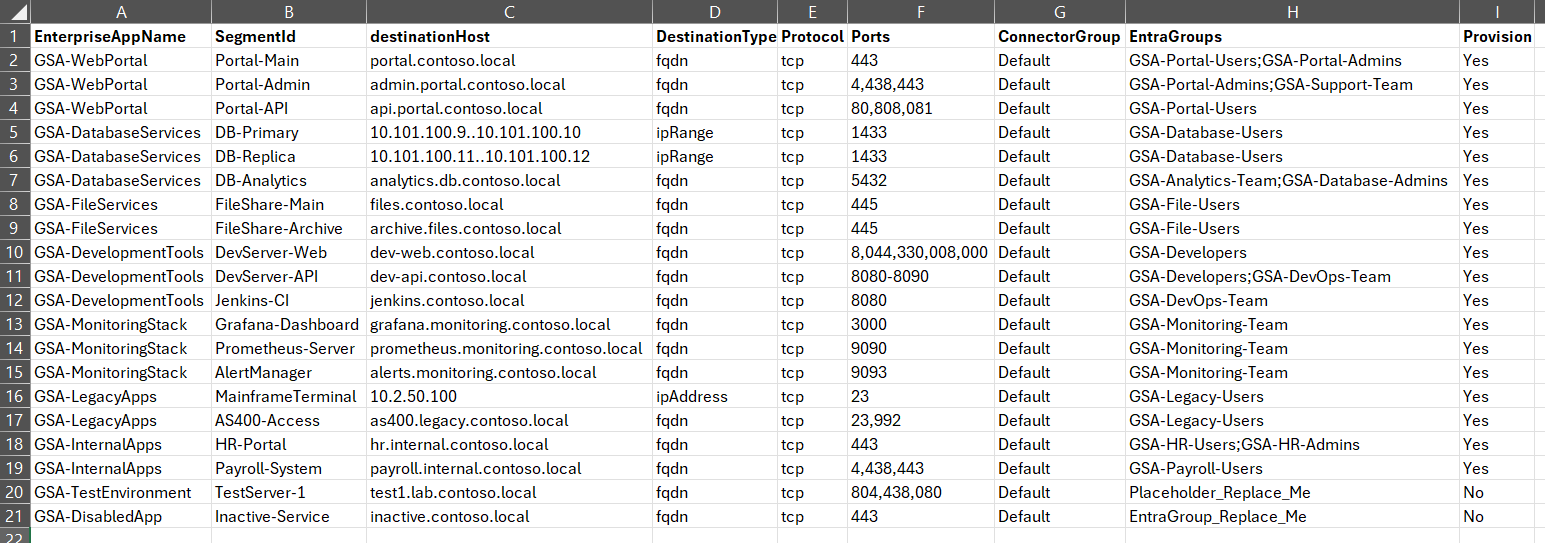
Overview
The EPA provisioning function automates the creation of Private Access applications and their network segments in Microsoft Entra. It reads CSV configuration files containing application details and provisions them with comprehensive logging, error handling, and retry capabilities.
Prerequisites
PowerShell Requirements
- PowerShell 7.0 or later (required)
- Download from: PowerShell Releases
Required PowerShell Modules
The script will validate the module Microsoft.Graph.Authentication is installed
Install the required module with:
Install-Module -Name Microsoft.Graph.Authentication -Force -AllowClobber
Entra Authentication
You must authenticate with sufficient permissions before running the function:
Connect-MgGraph -Scopes 'NetworkAccessPolicy.ReadWrite.All', 'Application.ReadWrite.All', 'NetworkAccess.ReadWrite.All'
Note: The script validates the required scopes are granted during execution.
CSV Configuration Format
The script expects a CSV file with the following required columns:
| Column | Description | Example |
|---|---|---|
SegmentId | Segment identifier, can be a number or a string, only for reporting/logging. | DomainController1 |
EnterpriseAppName | Name of the Private Access application | GSA-WebApp-Production |
destinationHost | Target host/IP address/range | webapp.internal.com, 10.1.2.3, or 192.168.1.0/24 |
DestinationType | Type of destination (fqdn, ipAddress, ipRangeCidr, ipRange) | fqdn |
Protocol | Network protocol (tcp or udp) | tcp |
Ports | Port specification (single, range, or comma-separated) | 443, 8080-8090, 80,443,8080 |
ConnectorGroup | Name of the Application Proxy connector group | Production-Connectors |
Provision | Whether to provision this entry (Yes or No) | Yes |
EntraGroups | Entra ID groups to assign to the application. Supports multiple groups using semicolon (;) as separator. Groups are aggregated across all segments and deduplicated. | WebApp-Users or WebApp-Users;WebApp-Admins;Support-Team |
DestinationType Values
The DestinationType field supports the following values:
| Value | Description | destinationHost Example |
|---|---|---|
fqdn | Fully qualified domain name | webapp.internal.com |
ipAddress | Single IPv4 address | 10.1.2.100 |
ipRangeCidr | IP range in CIDR notation | 192.168.1.0/24 |
ipRange | IP range from start to end | 192.168.1.1..192.168.1.50 |
EntraGroups Format and Behavior
The EntraGroups column supports multiple Entra ID groups per application:
Single Group
EnterpriseAppName,SegmentId,...,EntraGroups,Provision
GSA-WebPortal,Portal-Main,...,GSA-Portal-Users,Yes
Multiple Groups (Semicolon-Separated)
EnterpriseAppName,SegmentId,...,EntraGroups,Provision
GSA-WebPortal,Portal-Main,...,GSA-Portal-Users;GSA-Portal-Admins;GSA-Support-Team,Yes
Group Aggregation Across Segments
Groups are aggregated across all segments of an Enterprise Application:
EnterpriseAppName,SegmentId,...,EntraGroups,Provision
GSA-WebPortal,Portal-Main,...,GSA-Portal-Users;GSA-Portal-Admins,Yes
GSA-WebPortal,Portal-Admin,...,GSA-Portal-Admins;GSA-Support-Team,Yes
GSA-WebPortal,Portal-API,...,GSA-Portal-Users,Yes
Result: The application GSA-WebPortal will have three unique groups assigned:
GSA-Portal-AdminsGSA-Portal-UsersGSA-Support-Team
Placeholder Handling
Any value containing _Replace_Me is treated as a placeholder and ignored:
Placeholder_Replace_MeEntraGroup_Replace_MeTODO_Replace_Me
Empty or whitespace-only values are also skipped.
Sample CSV Content
Check sample provided, Sample-EntraPrivateAccessConfig.rename_to_csv.
Usage Examples
Basic Usage
Start-EntraPrivateAccessProvisioning -ProvisioningConfigPath ".\config.csv"
Preview Changes (WhatIf Mode)
Start-EntraPrivateAccessProvisioning -ProvisioningConfigPath ".\config.csv" -WhatIf
Filter by Application Name Prefix
Start-EntraPrivateAccessProvisioning -ProvisioningConfigPath ".\config.csv" -AppNamePrefix "GSA-Production"
Filter by Connector Group
Start-EntraPrivateAccessProvisioning -ProvisioningConfigPath ".\config.csv" -ConnectorGroupFilter "Production-Connectors"
Automated Execution (Skip Confirmations)
Start-EntraPrivateAccessProvisioning -ProvisioningConfigPath ".\config.csv" -Force
Custom Log File Location
Start-EntraPrivateAccessProvisioning -ProvisioningConfigPath ".\config.csv" -LogPath "C:\Logs\EPA-Provisioning.log"
Function Parameters
| Parameter | Required | Description | Default |
|---|---|---|---|
ProvisioningConfigPath | ✅ | Path to the CSV configuration file | - |
AppNamePrefix | ❌ | Filter applications by name prefix | Empty (no filter) |
ConnectorGroupFilter | ❌ | Filter by connector group name | Empty (no filter) |
LogPath | ❌ | Path for the log file | $PWD\Start-EntraPrivateAccessConfig.log |
SkipExistingApps | ❌ | Skip creating segments on existing applications (workaround for duplicate segment bug) | $true |
WhatIf | ❌ | Enable dry-run mode (preview only) | $false |
Force | ❌ | Skip confirmation prompts | $false |
How It Works
1. Pre-Flight Validation
- Validates required PowerShell modules are installed
- Validates Microsoft Graph authentication and required scopes
- Validates Global Secure Access tenant onboarding status
- Imports and validates CSV configuration
2. Dependency Resolution
- Resolves connector group names to IDs
- Resolves Entra group names to IDs (aggregated across all segments per application)
- Validates all referenced groups exist (script stops if missing groups detected)
- Validates application dependencies (connector groups and Entra groups)
3. Application Provisioning
- Groups segments by application name
- Creates Private Access applications (or skips/reuses existing ones based on SkipExistingApps parameter)
- Assigns aggregated Entra groups to applications (failures logged but don't fail provisioning)
- Creates network segments for each application with duplicate detection
4. Results and Logging
- Comprehensive logging to console and file
- Progress tracking with ETA calculations
- Exports results CSV for retry scenarios
- Detailed execution summary
Output Files
Log File
- Default Location:
.\Start-EntraPrivateAccessProvisioning.log - Content: Detailed execution log with timestamps and component tracking
- Levels: INFO, WARN, ERROR, SUCCESS, DEBUG, SUMMARY
Results CSV
- Location: Same directory as input CSV with timestamp prefix
- Naming:
YYYYMMDD_HHMMSS_[original-filename]_provisioned.csv - Purpose: Track provisioning status and enable retry scenarios
- Status Values:
Provisioned: Successfully created new application and segmentsProvisioned (Warning: 1 group failed assignment): Application provisioned but one group assignment failedProvisioned (Warning: Multiple groups failed assignment, check the log): Application provisioned but multiple group assignments failedProvisioned (Warning: All groups failed assignment, check the log): Application provisioned but all group assignments failedAddedToExisting: Added segments to existing applicationAlreadyExists: Segment already exists on the applicationSkipped: Application already exists (SkipExistingApps enabled): Application exists and SkipExistingApps parameter is trueFiltered: [reason]: Skipped due to filters or settingsSkipped: [reason]: Skipped due to dependency issuesError: [details]: Failed with specific error
Reusing Output CSV for Additional Runs
The generated results CSV can be used as input for subsequent script executions. This is particularly useful for:
- Fixing Configuration Issues: After resolving dependency problems or correcting CSV values
- Retry Failed Operations: Re-attempting segments that failed due to transient issues
- Incremental Provisioning: Adding new segments to your existing configuration
CSV Reuse Mechanism
-
Successfully Provisioned Segments: The script automatically sets
Provision = Nofor segments that were successfully created. This prevents duplicate provisioning on subsequent runs. -
Failed/Skipped Segments: These retain
Provision = Yes, allowing them to be retried without affecting successful segments. -
Configuration Updates: You can modify any values (connector groups, Entra groups, etc.) in the output CSV before reusing it.
Example Workflow
# Initial run - some segments fail due to missing connector group
Start-EntraPrivateAccessProvisioning -ProvisioningConfigPath ".\initial-config.csv"

# Output generated: 20250804_143022_initial-config_provisioned.csv
# - 5 segments: Provision = No (successfully created)
# - 3 segments: Provision = Yes (failed due to missing connector group)

# Fix connector group names in the output CSV, then rerun
Start-EntraPrivateAccessProvisioning -ProvisioningConfigPath ".\20250804_143022_initial-config_provisioned.csv"

# Only the 3 failed segments will be processed (Provision = Yes)
# The 5 successful segments will be skipped (Provision = No)
Best Practices for Reuse
- Always Review: Check the
ProvisioningResultcolumn to understand what happened - Fix Root Causes: Address dependency issues before rerunning
- Backup Original: Keep a copy of your original CSV for reference
- Validate Changes: Use
-WhatIfto preview what will be processed
Error Handling and Retry
Common Issues and Solutions
Missing Connector Groups
❌ Skipping application 'MyApp': Unresolved connector groups found
   - 'NonExistent-Connectors' (not found in tenant)
Solution: Verify connector group names in your CSV match those in your Entra tenant.
Placeholder Values
❌ Skipping application 'MyApp': Unresolved connector groups found
   - 'Placeholder_Replace_Me' (placeholder - replace with actual connector group name)
Solution: Replace placeholder values with actual connector group and Entra group names.
Authentication Issues
❌ Microsoft Graph connection required or insufficient scopes
Solution: Authenticate with required scopes:
Connect-MgGraph -Scopes 'NetworkAccessPolicy.ReadWrite.All', 'Application.ReadWrite.All', 'NetworkAccess.ReadWrite.All'
Retry Failed Operations
- Check the generated results CSV file
- Fix any configuration issues
- Set failed entries'
Provisioncolumn back toYes - Re-run the function with the updated CSV
Best Practices
Before Running
- Test with WhatIf: Always run with
-WhatIffirst to preview changes - Verify Dependencies: Ensure all connector groups and Entra groups exist
- Backup Configuration: Keep a backup of your original CSV file
- Check Permissions: Verify you have the required Entra permissions
During Execution
- Monitor Logs: Watch the console output for warnings and errors
- Don't Interrupt: Allow the function to complete to avoid partial configurations
- Review Progress: Use the progress bar to estimate completion time
After Execution
- Review Summary: Check the execution summary for any failures
- Validate Results: Test a few applications to ensure they work correctly
- Save Logs: Keep log files for troubleshooting and audit purposes
- Update Documentation: Document any customizations or lessons learned
Troubleshooting
Function Won't Start
- Verify PowerShell 7+ is installed and being used
- Check that required modules are installed
- Ensure you're authenticated to Entra
Applications Not Created
- Verify connector groups exist in your tenant
- Check that CSV column names match exactly
- Review logs for specific error messages
Segments Not Added
- Check port formatting in CSV (no spaces, correct delimiters)
- Verify destination hosts are reachable from connectors
- Review protocol specifications (tcp/udp)
Group Assignments Failed
- Ensure Entra groups exist and are accessible
- Verify group names match exactly (case-sensitive)
- Check that groups are security groups, not distribution lists
- Review the log file for specific group assignment errors
- Note: Applications are still provisioned successfully even if group assignments fail
- Failed group assignments are reported in the ProvisioningResult column
Author: Andres Canello
Version: 2.0
Last Updated: October 2025