ai-agents-for-beginners
Configuración del Curso
Introducción
Esta lección cubrirá cómo ejecutar los ejemplos de código de este curso.
Únete a Otros Estudiantes y Obtén Ayuda
Antes de comenzar a clonar tu repositorio, únete al canal de Discord AI Agents For Beginners para obtener ayuda con la configuración, resolver cualquier duda sobre el curso o conectar con otros estudiantes.
Clona o Haz Fork de este Repositorio
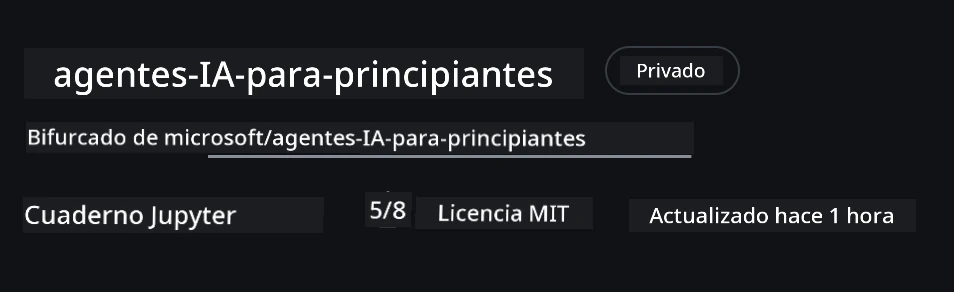
Para comenzar, por favor clona o haz fork del Repositorio de GitHub. Esto creará tu propia versión del material del curso para que puedas ejecutar, probar y ajustar el código.
Esto se puede hacer haciendo clic en el enlace para hacer un fork del repo
Ahora deberías tener tu propia versión bifurcada de este curso en el siguiente enlace:
Clonación superficial (recomendado para taller / Codespaces)
El repositorio completo puede ser grande (~3 GB) cuando descargas todo el historial y todos los archivos. Si solo vas a asistir al taller o solo necesitas algunas carpetas de lecciones, una clonación superficial (o clonación dispersa) descarga mucho menos.
Clonación rápida superficial — historial mínimo, todos los archivos
Reemplaza <your-username> en los comandos de abajo con la URL de tu fork (o la URL upstream si lo prefieres).
Para clonar solo el historial del último commit (descarga pequeña):
git clone --depth 1 https://github.com/<your-username>/ai-agents-for-beginners.git
Para clonar una rama específica:
git clone --depth 1 --branch <branch-name> https://github.com/<your-username>/ai-agents-for-beginners.git
Clonación parcial (dispersa) — blobs mínimos + solo carpetas seleccionadas
Esto usa clonación parcial y sparse-checkout (requiere Git 2.25+ y un Git moderno recomendado con soporte para clonación parcial):
git clone --depth 1 --filter=blob:none --sparse https://github.com/<your-username>/ai-agents-for-beginners.git
Navega dentro de la carpeta del repositorio:
cd ai-agents-for-beginners
Luego especifica qué carpetas quieres (el ejemplo abajo muestra dos carpetas):
git sparse-checkout set 00-course-setup 01-intro-to-ai-agents
Después de clonar y verificar los archivos, si solo necesitas los archivos y quieres liberar espacio (sin historial git), por favor elimina los metadatos del repositorio (💀 irreversible — perderás toda funcionalidad de Git):
# zsh/bash
rm -rf .git
# PowerShell
Remove-Item -Recurse -Force .git
Uso de GitHub Codespaces (recomendado para evitar grandes descargas locales)
-
Crea un nuevo Codespace para este repositorio vía la interfaz de GitHub.
- En la terminal del codespace recién creado, ejecuta uno de los comandos de clonación superficial/dispersa arriba para traer solo las carpetas de las lecciones que necesites al espacio de trabajo de Codespace.
- Opcional: después de clonar dentro de Codespaces, elimina .git para recuperar espacio extra (ver comandos de eliminación arriba).
- Nota: Si prefieres abrir el repositorio directamente en Codespaces (sin una clonación adicional), ten en cuenta que Codespaces construirá el entorno devcontainer y puede que aún provisione más de lo que necesitas.
Consejos
- Siempre reemplaza la URL de clonación con la de tu fork si quieres editar o hacer commits.
- Si luego necesitas más historial o archivos, puedes obtenerlos o ajustar sparse-checkout para incluir carpetas adicionales.
Ejecutando el Código
Este curso ofrece una serie de Jupyter Notebooks que puedes ejecutar para obtener experiencia práctica construyendo Agentes de IA.
Los ejemplos de código usan Microsoft Agent Framework (MAF) con el FoundryChatClient, que se conecta a Microsoft Foundry Agent Service V2 (la API de respuestas) a través de Microsoft Foundry.
Todos los notebooks de Python están etiquetados como *-python-agent-framework.ipynb.
Requisitos
- Python 3.12+
-
NOTA: Si no tienes Python3.12 instalado, asegúrate de instalarlo. Luego crea tu entorno virtual usando python3.12 para asegurar que se instalan las versiones correctas desde el archivo requirements.txt.
Ejemplo
Crea el directorio para el entorno virtual de Python:
python -m venv venvLuego activa el entorno virtual para:
# zsh/bash
source venv/bin/activate
# Command Prompt for Windows venv\Scripts\activate
-
-
.NET 10+: Para los ejemplos que usan .NET, asegúrate de instalar .NET 10 SDK o posterior. Luego, verifica la versión instalada de .NET SDK:
dotnet --list-sdks - Azure CLI — Requerido para autenticación. Instálalo desde aka.ms/installazurecli.
- Suscripción de Azure — Para acceso a Microsoft Foundry y Microsoft Foundry Agent Service.
- Proyecto Microsoft Foundry — Un proyecto con un modelo desplegado (por ejemplo,
gpt-5-mini). Ver Paso 1 abajo.
Hemos incluido un archivo requirements.txt en la raíz de este repositorio que contiene todos los paquetes de Python necesarios para ejecutar los ejemplos de código.
Puedes instalarlos ejecutando el siguiente comando en tu terminal en la raíz del repositorio:
pip install -r requirements.txt
Recomendamos crear un entorno virtual de Python para evitar conflictos y problemas.
Configura VSCode
Asegúrate de que estás usando la versión correcta de Python en VSCode.
Configura Microsoft Foundry y Microsoft Foundry Agent Service
Paso 1: Crea un Proyecto en Microsoft Foundry
Necesitas un hub y un proyecto en Microsoft Foundry con un modelo desplegado para ejecutar los notebooks.
- Ve a ai.azure.com e inicia sesión con tu cuenta de Azure.
- Crea un hub (o usa uno existente). Ver: Resumen de recursos de Hub.
- Dentro del hub, crea un proyecto.
- Despliega un modelo (por ejemplo,
gpt-5-mini) desde Modelos + Endpoints → Desplegar modelo.
Paso 2: Obtén el Endpoint de tu Proyecto y el Nombre de la Despliegue del Modelo
Desde tu proyecto en el portal de Microsoft Foundry:
- Endpoint del Proyecto — Ve a la página de Resumen y copia la URL del endpoint.
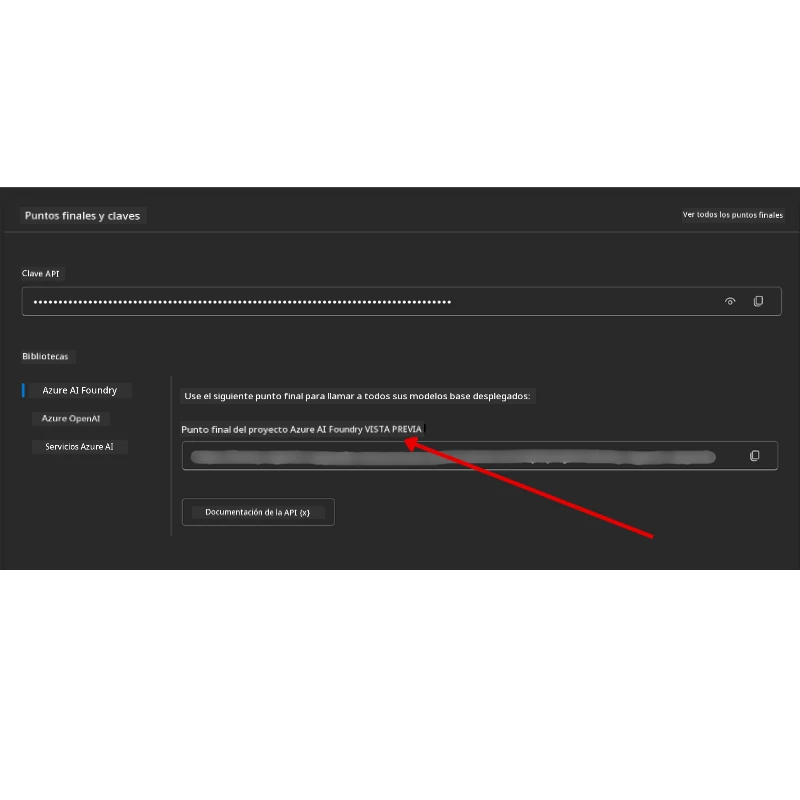
- Nombre del Despliegue del Modelo — Ve a Modelos + Endpoints, selecciona tu modelo desplegado y anota el Nombre del despliegue (por ejemplo,
gpt-5-mini).
Paso 3: Inicia sesión en Azure con az login
La mayoría de los notebooks se autentican a través de tu inicio de sesión en Azure CLI — usando AzureCliCredential o DefaultAzureCredential (ambos utilizan tu sesión az login) desde el paquete azure-identity — por lo que no requieren claves API. Algunas lecciones e integraciones opcionales usan claves de API; revisa los prerrequisitos de cada lección para variables de entorno adicionales. Esto requiere que hayas iniciado sesión mediante Azure CLI.
-
Instala Azure CLI si aún no lo has hecho: aka.ms/installazurecli
-
Inicia sesión ejecutando:
az loginO si estás en un entorno remoto/Codespace sin navegador:
az login --use-device-code -
Selecciona tu suscripción si te lo solicita — elige la que contiene tu proyecto Foundry.
-
Verifica que has iniciado sesión:
az account show
¿Por qué
az login? Los notebooks se autentican usandoAzureCliCredential(oDefaultAzureCredential, que también utiliza tu inicio de sesión en Azure CLI) desde el paqueteazure-identity. Esto significa que tu sesión de Azure CLI proporciona las credenciales — no hay claves API ni secretos en tu archivo.env. Esto es una mejor práctica de seguridad.
Paso 4: Crea tu archivo .env
Copia el archivo de ejemplo:
# zsh/bash
cp .env.example .env
# PowerShell
Copy-Item .env.example .env
Abre .env y llena estos dos valores:
AZURE_AI_PROJECT_ENDPOINT=https://<your-project>.services.ai.azure.com/api/projects/<your-project-id>
AZURE_AI_MODEL_DEPLOYMENT_NAME=gpt-5-mini
| Variable | Dónde encontrarla |
|---|---|
AZURE_AI_PROJECT_ENDPOINT |
Portal Foundry → tu proyecto → página de Resumen |
AZURE_AI_MODEL_DEPLOYMENT_NAME |
Portal Foundry → Modelos + Endpoints → nombre del modelo desplegado |
¡Eso es todo para la mayoría de las lecciones! Los notebooks se autenticarán automáticamente mediante tu sesión az login.
Paso 5: Instala las Dependencias de Python
pip install -r requirements.txt
Recomendamos ejecutar esto dentro del entorno virtual que creaste antes.
Configuración Opcional: Azure AI Search (Lecciones 5 y 16)
Los notebooks de la Lección 5 (Agentic RAG) y Lección 16 funcionan directamente con una base de conocimiento en memoria — no se requieren recursos adicionales de Azure. Si quieres respaldarlos con un índice real de Azure AI Search, ten en cuenta que el notebook de la Lección 16 actualmente usa autenticación basada en clave: cambia de búsqueda en memoria a Azure AI Search solo cuando ambos AZURE_SEARCH_SERVICE_ENDPOINT y AZURE_SEARCH_API_KEY están configurados, de lo contrario permanece en búsqueda en memoria — por lo tanto para usarlo con un índice real debes establecer también la clave de administrador. La autenticación sin clave con Microsoft Entra ID (RBAC) es el método recomendado para tu propio código de producción, consistente con el flujo az login usado en todo el curso.
Los pasos de RBAC a continuación aplican para los ejemplos de la guía de configuración y tu propio código. No habilitan la autenticación sin clave en el notebook de la Lección 16; la Lección 16 todavía requiere ambos, endpoint y clave de administrador, para usar Azure AI Search.
-
Habilita el acceso basado en roles en tu servicio de búsqueda:
az search service update --name <service-name> --resource-group <resource-group> --auth-options aadOrApiKey -
Asígnate los roles requeridos (crear/cargar índices y consultar):
az role assignment create --assignee <your-user-or-principal-id> --role "Search Service Contributor" --scope $(az search service show -g <resource-group> -n <service-name> --query id -o tsv) az role assignment create --assignee <your-user-or-principal-id> --role "Search Index Data Contributor" --scope $(az search service show -g <resource-group> -n <service-name> --query id -o tsv) -
Agrega el endpoint a tu archivo
.env:
| Variable | Dónde encontrarla |
|---|---|
AZURE_SEARCH_SERVICE_ENDPOINT |
Portal Azure → tu recurso de Azure AI Search → Resumen → URL |
AZURE_SEARCH_API_KEY |
Requerido (junto con el endpoint) para habilitar Azure AI Search en el notebook de la Lección 16, que usa autenticación basada en clave. Portal Azure → Configuración → Claves → clave primaria de administrador |
¿Por qué sin clave? Las claves de administrador otorgan acceso total de escritura a tu servicio de búsqueda y pueden filtrarse vía archivos
.env. Con RBAC, en cambio, se usa tu identidadaz login— el mismo patrón sin clave Entra ID que usan los notebooks del curso (víaAzureCliCredential/DefaultAzureCredential). Ver Conectar a Azure AI Search usando roles.
Consulta la guía de configuración de Azure AI Search para ejemplos completos de creación de índices en Python y .NET.
Configuración Adicional para Lecciones que Llaman Azure OpenAI Directamente (Lecciones 6 y 8)
Algunos notebooks de las lecciones 6 y 8 llaman a Azure OpenAI directamente (usando la API de respuestas) en lugar de pasar por un proyecto Microsoft Foundry. Estos ejemplos usaban antes Modelos de GitHub, que está en desuso y no soporta la API de respuestas. Añade estas variables a tu archivo .env:
| Variable | Dónde encontrarla |
|---|---|
AZURE_OPENAI_ENDPOINT |
Portal Azure → tu recurso Azure OpenAI → Claves y Endpoint → Endpoint (p. ej. https://<tu-recurso>.openai.azure.com) |
AZURE_OPENAI_DEPLOYMENT |
Nombre de tu modelo desplegado (p. ej. gpt-5-mini) que soporta la API de respuestas |
AZURE_OPENAI_API_KEY |
Opcional — solo si usas autenticación basada en clave en lugar de az login / Entra ID |
La API de respuestas usa el endpoint estable
/openai/v1/, por lo que no se requiereapi-version. Inicia sesión conaz loginpara usar autenticación sin clave Entra ID.
Proveedor Alternativo: MiniMax (Compatible con OpenAI)
MiniMax ofrece modelos de contexto amplio (hasta 204K tokens) a través de una API compatible con OpenAI. Ya que el OpenAIChatClient del Microsoft Agent Framework funciona con cualquier endpoint compatible con OpenAI, puedes usar MiniMax como un reemplazo directo para las lecciones que usan OpenAIChatClient.
Añade estas variables a tu archivo .env:
| Variable | Dónde encontrarla |
|---|---|
MINIMAX_API_KEY |
Plataforma MiniMax → Claves API |
MINIMAX_BASE_URL |
Usa https://api.minimax.io/v1 (valor por defecto) |
MINIMAX_MODEL_ID |
Nombre del modelo a usar (p. ej., MiniMax-M3) |
Modelos de ejemplo: MiniMax-M3 (recomendado), MiniMax-M2.7, MiniMax-M2.7-highspeed (respuestas más rápidas). Los nombres y disponibilidad de modelos pueden cambiar con el tiempo, y el acceso a cada modelo puede depender de tu cuenta.
Los ejemplos de código que usan OpenAIChatClient (por ejemplo, el flujo de reserva de hotel en la Lección 14) detectarán y usarán automáticamente tu configuración de MiniMax cuando MINIMAX_API_KEY esté configurado.
Proveedor Alternativo: Novita AI (Compatible con OpenAI)
Novita AI proporciona una API compatible con OpenAI para LLMs de código abierto y de vanguardia (DeepSeek, Llama, Qwen y más). Dado que el OpenAIChatClient del Microsoft Agent Framework funciona con cualquier endpoint compatible con OpenAI, puedes usar Novita AI como una alternativa directa a Azure OpenAI o OpenAI.
Añade estas variables a tu archivo .env:
| Variable | Dónde encontrarla |
|---|---|
NOVITA_API_KEY |
Panel de Novita AI → Claves API |
NOVITA_BASE_URL |
Usa https://api.novita.ai/openai/v1 (valor predeterminado) |
NOVITA_MODEL_ID |
Nombre del modelo a usar (ej., moonshotai/kimi-k3) |
Modelos de ejemplo: moonshotai/kimi-k3, zai-org/glm-5.2, deepseek/deepseek-v4-flash-0731. Novita AI también aloja muchas otras familias de modelos de código abierto (Llama, Qwen, GLM y más) — consulta la biblioteca de modelos de Novita AI para ver la lista actual de modelos disponibles y sus IDs.
Las muestras actuales no consumen automáticamente las variables NOVITA_*. Para usar Novita AI, pasa estos valores explícitamente al construir OpenAIChatClient en la muestra que estés ejecutando.
Proveedor Alternativo: Foundry Local (Ejecuta Modelos en el Dispositivo)
Foundry Local es un runtime liviano que descarga, gestiona y sirve modelos de lenguaje completamente en tu propia máquina a través de una API compatible con OpenAI — no se requiere nube.
Dado que el OpenAIChatClient del Microsoft Agent Framework funciona con cualquier endpoint compatible con OpenAI, Foundry Local es una alternativa local directa a Azure OpenAI.
1. Instala Foundry Local
# Windows
winget install Microsoft.FoundryLocal

# macOS
brew install foundrylocal
2. Descarga y ejecuta un modelo (esto también inicia el servicio local):
foundry model list          # ver modelos disponibles
foundry model run phi-4-mini
3. Instala el SDK de Python usado para descubrir el endpoint local:
pip install foundry-local-sdk
4. Apunta el Microsoft Agent Framework a tu modelo local:
from foundry_local import FoundryLocalManager
from agent_framework.openai import OpenAIChatClient

# Descarga (si es necesario) y sirve el modelo localmente, luego descubre el endpoint/puerto.
manager = FoundryLocalManager("phi-4-mini")

chat_client = OpenAIChatClient(
    base_url=manager.endpoint,      # p.ej. http://localhost:<puerto>/v1
    api_key=manager.api_key,        # siempre "no requerido" para Foundry Local
    model_id=manager.get_model_info("phi-4-mini").id,
)

agent = chat_client.as_agent(
    name="LocalAgent",
    instructions="You are a helpful assistant running fully on-device.",
)
Nota: Foundry Local expone un endpoint compatible con OpenAI para Chat Completions. Úsalo para desarrollo local y escenarios sin conexión. Para el conjunto completo de características de la API de Respuestas (conversaciones con estado, etc.), usa Azure OpenAI o un proyecto de Microsoft Foundry.
Configuración Adicional para la Lección 8 (Flujo de Trabajo de Bing Grounding)
El notebook de flujo de trabajo condicional en la lección 8 usa Bing grounding vía Microsoft Foundry. Si planeas ejecutar esa muestra, añade esta variable a tu archivo .env:
| Variable | Dónde encontrarla |
|---|---|
BING_CONNECTION_ID |
Portal de Microsoft Foundry → tu proyecto → Gestión → Recursos conectados → tu conexión Bing → copia el ID de la conexión |
Solución de Problemas
Errores de Verificación de Certificado SSL en macOS
Si estás en macOS y encuentras un error parecido a:
ssl.SSLCertVerificationError: [SSL: CERTIFICATE_VERIFY_FAILED] certificate verify failed: self-signed certificate in certificate chain
Este es un problema conocido con Python en macOS donde los certificados SSL del sistema no se confían automáticamente. Prueba las siguientes soluciones en orden:
Opción 1: Ejecuta el script Install Certificates de Python (recomendado)
# Reemplace 3.XX con su versión instalada de Python (por ejemplo, 3.12 o 3.13):
/Applications/Python\ 3.XX/Install\ Certificates.command
Opción 2: Usa connection_verify=False en tu notebook (solo para notebooks de GitHub Models)
En el notebook de la Lección 6 (06-building-trustworthy-agents/code_samples/06-system-message-framework.ipynb), ya hay incluida una solución comentada. Descomenta connection_verify=False cuando encuentres errores de certificado:
client = ChatCompletionsClient(
    endpoint=endpoint,
    credential=AzureKeyCredential(token),
    connection_verify=False,  # Desactivar la verificación SSL si encuentra errores de certificado
)
⚠️ Advertencia: Deshabilitar la verificación SSL (
connection_verify=False) reduce la seguridad al omitir la validación del certificado. Úsalo solo como solución temporal en entornos de desarrollo. Nunca lo uses en producción.
Opción 3: Instala y usa truststore
pip install truststore
Luego añade lo siguiente al inicio de tu notebook o script antes de hacer cualquier llamada a la red:
import truststore
truststore.inject_into_ssl()
¿Atascado en Algún Lugar?
Si tienes algún problema al ejecutar esta configuración, únete a nuestro Discord de la Comunidad Azure AI o crea un issue.
Próxima Lección
Ya estás listo para ejecutar el código de este curso. ¡Feliz aprendizaje sobre el mundo de los Agentes de IA!
Introducción a los Agentes de IA y Casos de Uso
Descargo de responsabilidad: Este documento ha sido traducido utilizando el servicio de traducción automática Co-op Translator. Aunque nos esforzamos por la precisión, tenga en cuenta que las traducciones automatizadas pueden contener errores o inexactitudes. El documento original en su idioma nativo debe considerarse la fuente autorizada. Para información crítica, se recomienda una traducción profesional humana. No somos responsables de cualquier malentendido o interpretación errónea que surja del uso de esta traducción.