ai-agents-for-beginners
पाठ्यक्रम सेटअप
परिचय
यो पाठले यो पाठ्यक्रमका कोड नमूनाहरू कसरी चलाउने भन्ने कुरा समेट्नेछ।
अन्य सिक्नेहरूलाई सामेल हुनुहोस् र मद्दत पाउनुहोस्
तपाईंको रिपो क्लोन गर्ने अघि, सेटअप सम्बन्धी कुनै पनि मद्दत, पाठ्यक्रमका प्रश्नहरू, वा अन्य सिक्नेहरूसँग जडान हुन AI Agents For Beginners Discord च्यानल मा सामेल हुनुहोस्।
यो रिपो क्लोन वा फोर्क गर्नुहोस्
सुरु गर्नको लागि, कृपया GitHub रिपोजिटरी क्लोन वा फोर्क गर्नुहोस्। यसले तपाईंलाई पाठ्यक्रम सामग्रीको आफ्नै संस्करण दिन्छ ताकि तपाईं कोड चलाउन, परीक्षण गर्न, र परिमार्जन गर्न सक्नुहुनेछ!
यो रिपो फोर्क गर्न लिंकमा क्लिक गरेर गर्न सकिन्छ
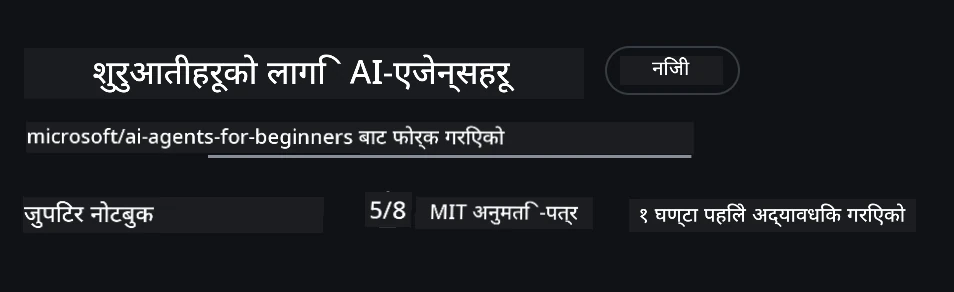
अब तपाईंले तपाईंको आफ्नै फोर्क गरिएका संस्करण यस लिंकमा पाउनुपर्छ:
शालो क्लोन (वर्कशप / कोडस्पेसहरूका लागि सिफारिस गरिएको)
पूर्ण रिपोजिटरी डाउनलोड गर्दा पुरा इतिहास र सबै फाइलहरू सहित ठूलो हुन सक्दछ (~3 GB)। यदि तपाईं केवल वर्कशपमा सहभागी हुँदै हुनुहुन्छ वा केही पाठशालाका फोल्डरहरू मात्र आवश्यक छ भने, शालो क्लोन (वा स्पर्स क्लोन) धेरै कम डाउनलोड गर्दछ।
छिटो शालो क्लोन — न्यूनतम इतिहास, सबै फाइलहरू
तलका आदेशहरूमा <your-username> लाई तपाईंको फोर्क URL (वा यदि चाहनुहुन्छ भने उपस्ट्रीम URL) सँग बदल्नुहोस्।
केवल पछिल्लो कमिट इतिहास क्लोन गर्न (सानो डाउनलोड):
git clone --depth 1 https://github.com/<your-username>/ai-agents-for-beginners.git
कुनै विशेष शाखा क्लोन गर्न:
git clone --depth 1 --branch <branch-name> https://github.com/<your-username>/ai-agents-for-beginners.git
आंशिक (स्पर्स) क्लोन — न्यूनतम ब्लब्स + केवल चयनित फोल्डरहरू
यसले आंशिक क्लोन र स्पर्स-चेकआउट प्रयोग गर्दछ (Git 2.25+ आवश्यक छ र आधुनिक Git जसले आंशिक क्लोन समर्थन गर्दछ सिफारिस गरिन्छ):
git clone --depth 1 --filter=blob:none --sparse https://github.com/<your-username>/ai-agents-for-beginners.git
रिपो फोल्डरमा प्रवेश गर्नुहोस्:
cd ai-agents-for-beginners
त्यसपछि तपाईले चाहनुभएको फोल्डरहरू निर्दिष्ट गर्नुहोस् (मुनिको उदाहरणले दुई फोल्डर देखाउँछ):
git sparse-checkout set 00-course-setup 01-intro-to-ai-agents
क्लोन गरेपछि र फाइलहरू प्रमाणीकरण गरेपछि, यदि तपाईंलाई केवल फाइलहरू चाहिन्छ र ठाउँ खाली गर्न चाहनुहुन्छ (git इतिहास बिना), कृपया रिपोजिटरी मेटाडाटा मेटाउनुहोस् (💀अपरिवर्तनीय — तपाईंले सबै Git कार्यक्षमता गुमाउनु हुनेछ):
# zsh/bash
rm -rf .git
# पावरशेल
Remove-Item -Recurse -Force .git
GitHub Codespaces प्रयोग गर्दै (स्थानीय ठूला डाउनलोडहरूबाट बच्न सिफारिस गरिएको)
-
यस रिपोको लागि GitHub UI मार्फत नयाँ Codespace सिर्जना गर्नुहोस्।
- नयाँ सिर्जना गरिएको Codespace को टर्मिनलमा माथिका शालो/स्पर्स क्लोन आदेशहरूमध्ये एउटा चलाउनुहोस् ताकि तपाईंलाई आवश्यक पाठशाला फोल्डरहरू मात्र Codespace कार्यक्षेत्रमा ल्याउन सकियोस्।
- विकल्प: Codespaces भित्र क्लोन गरेर पछि, अतिरिक्त ठाउँ फिर्ता गर्न .git हटाउन सकिन्छ (माथिका हटाउने आदेशहरू हेर्नुहोस्)।
- नोट: यदि तपाईं रिपो सिधै Codespaces मा खोल्न चाहनुहुन्छ (अतिरिक्त क्लोन बिना), थाहा पाउनुहोस् Codespaces ले devcontainer वातावरण निर्माण गर्नेछ र अझै पनि तपाईंलाई आवश्यक भन्दा बढी चीजहरू स्थापना गर्न सक्छ।
सुझावहरू
- यदि तपाईं सम्पादन/कमिट गर्न चाहनुहुन्छ भने सधैं क्लोन URL लाई तपाईंको फोर्कसँग बदल्नुहोस्।
- यदि पछि तपाईंलाई थप इतिहास वा फाइलहरू चाहिन्छ भने, तपाईं तिनीहरूलाई फेच गर्न सक्नुहुन्छ वा स्पर्स-चेकआउट समायोजन गर्न सक्नुहुन्छ थप फोल्डरहरू समावेश गर्न।
कोड चलाउँदै
यस पाठ्यक्रमले तपाईंलाई AI एजेन्टहरू निर्माण गर्ने व्यावहारिक अनुभव प्राप्त गर्न Jupyter नोटबुकहरूको श्रृंखला प्रदान गर्दछ।
कोड नमूनाहरूले Microsoft Agent Framework (MAF) FoundryChatClient सँग प्रयोग गर्छ, जुन Microsoft Foundry Agent Service V2 (Response API) मार्फत Microsoft Foundry सँग जडान हुन्छ।
सबै Python नोटबुकहरू *-python-agent-framework.ipynb ले चिन्हित छन्।
आवश्यकताहरू
- Python 3.12+
-
सूचना: यदि तपाईंसँग Python3.12 छैन भने, कृपया यसलाई स्थापना गर्नुहोस्। त्यसपछि तपाईंको venv python3.12 प्रयोग गरेर बनाउनुहोस् ताकि requirements.txt फाइलबाट सही संस्करणहरू स्थापना हुन सकून्।
उदाहरण
Python venv निर्देशिका सिर्जना गर्नुहोस्:
python -m venv venvत्यसपछि venv वातावरण सक्रिय गर्नुहोस्:
# zsh/bash
source venv/bin/activate
# Command Prompt for Windows venv\Scripts\activate
-
-
.NET 10+: .NET प्रयोग गर्ने नमूना कोडहरूका लागि, कृपया .NET 10 SDK वा पछि संस्करण स्थापना गर्नुहोस्। त्यसपछि तपाईंले स्थापना गरेको .NET SDK संस्करण जाँच्नुहोस्:
dotnet --list-sdks - Azure CLI — प्रमाणीकरणको लागि आवश्यक। aka.ms/installazurecli बाट स्थापना गर्नुहोस्।
- Azure सदस्यता — Microsoft Foundry र Microsoft Foundry Agent Service पहुँचको लागि।
- Microsoft Foundry परियोजना — एउटा परियोजना जुन मोडेल (जस्तै
gpt-5-mini) तैनाथ गरिसकेको छ। तल चरण 1 हेर्नुहोस्।
हामीले यस रिपोजिटरीको मूलमा requirements.txt फाइल समावेश गरेका छौं जसले कोड नमूनाहरू चलाउन आवश्यक सबै Python प्याकेजहरू समेट्छ।
तपाईं यसलाई रिपोजिटरीको मूलबाट टर्मिनलमा तलको आदेश चलाएर स्थापना गर्न सक्नुहुन्छ:
pip install -r requirements.txt
हामीले कुनै टकराव वा समस्या आउनबाट बच्न Python वर्चुअल वातावरण सिर्जना गर्न सिफारिस गर्दछौं।
VSCode सेटअप गर्नुहोस्
VSCode मा सही Python संस्करण प्रयोग गर्दै हुनुहुन्छ भनि सुनिश्चित गर्नुहोस्।
Microsoft Foundry र Microsoft Foundry Agent Service सेटअप गर्नुहोस्
चरण 1: Microsoft Foundry परियोजना सिर्जना गर्नुहोस्
तपाईंलाई नोटबुकहरू चलाउनको लागि Microsoft Foundry hub र परियोजना चाहिन्छ जसमा तैनाथ गरिएको मोडेल हुन्छ।
- ai.azure.comमा जानुहोस् र तपाईंको Azure खातामा लगइन गर्नुहोस्।
- एक hub सिर्जना गर्नुहोस् (वा पहिलेको प्रयोग गर्नुहोस्)। हेर्नुहोस्: Hub resources overview।
- hub भित्र एउटा परियोजना बनाउनुहोस्।
- Models + Endpoints बाट मोडेल तैनाथ गर्नुहोस् (जस्तै
gpt-5-mini)।
चरण 2: आफ्नो परियोजनाको अन्त्यबिन्दु र मोडेल तैनाथ नाम प्राप्त गर्नुहोस्
Microsoft Foundry पोर्टलमा तपाईंको परियोजनाबाट:
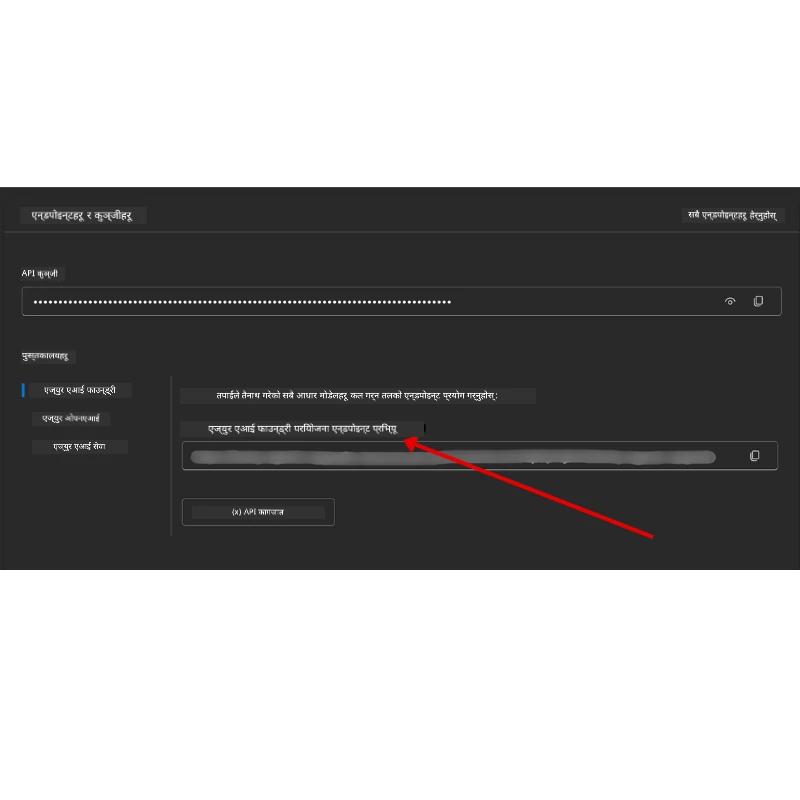
- परियोजना अन्त्यबिन्दु — Overview पृष्ठमा जानुहोस् र अन्त्यबिन्दुको URL प्रतिलिपि गर्नुहोस्।
- मोडेल तैनाथ नाम — Models + Endpoints मा जानुहोस्, आफ्नो मोडेल चयन गर्नुहोस् र Deployment name नोट गर्नुहोस् (जस्तै
gpt-5-mini)।
चरण 3: az login गरी Azure मा लगइन गर्नुहोस्
अधिकांश नोटबुकहरूले तपाईंको Azure CLI साइन-इन मार्फत प्रमाणीकरण गर्छन् — AzureCliCredential वा DefaultAzureCredential प्रयोग गरेर (दुवै तपाईंको az login सत्र उठाउँछन्) azure-identity प्याकेजबाट — त्यसैले त्यहाँ API कुञ्जीहरू आवश्यक पर्दैन। केही पाठशालाहरू र वैकल्पिक एकीकरणहरूले API कुञ्जीहरू आवश्यक पार्न सक्छन्; प्रत्येक पाठशालाको अग्रापेक्षितहरू जाँच्नुहोस्। यो गर्नको लागि तपाईं Azure CLI मार्फत लगइन गर्नुपर्छ।
-
Azure CLI स्थापना गर्नुहोस् यदि अझै छैन भने: aka.ms/installazurecli
-
लगइन गर्नुहोस्:
az loginवा यदि तपाईं रिमोट/कोडस्पेस वातावरणमा हुनुहुन्छ र ब्राउजर छैन भने:
az login --use-device-code -
तपाईंको सदस्यता चयन गर्नुहोस् यदि सोधियो भने — तपाईंको Foundry परियोजना भएको सदस्यता चयन गर्नुहोस्।
-
प्रमाणीकरण सुनिश्चित गर्नुहोस्:
az account show
किन
az login? नोटबुकहरूलेAzureCliCredential(वाDefaultAzureCredential, जुन Azure CLI साइन-इन पनि उठाउँछ) प्रयोग गरी प्रमाणीकरण गर्छन्, जसले API कुञ्जीहरू र गोप्य जानकारी आवश्यक पर्दैन। यो सुरक्षा सबैभन्दा राम्रो अभ्यास हो।
चरण 4: आफ्नो .env फाइल सिर्जना गर्नुहोस्
उदाहरण फाइल प्रतिलिपि गर्नुहोस्:
# zsh/bash
cp .env.example .env
# पावरशेल
Copy-Item .env.example .env
.env खोल्नुहोस् र यी दुई मानहरू भर्नुहोस्:
AZURE_AI_PROJECT_ENDPOINT=https://<your-project>.services.ai.azure.com/api/projects/<your-project-id>
AZURE_AI_MODEL_DEPLOYMENT_NAME=gpt-5-mini
| भेरिएबल | कहाँ भेट्ने |
|---|---|
AZURE_AI_PROJECT_ENDPOINT |
Foundry पोर्टल → तपाईंको परियोजना → Overview पृष्ठ |
AZURE_AI_MODEL_DEPLOYMENT_NAME |
Foundry पोर्टल → Models + Endpoints → तपाईंले तैनाथ गरेको मोडेलको नाम |
अधिकांश पाठशालाहरूका लागि यति नै पर्याप्त छ! नोटबुकहरूले तपाईंको az login सत्रमार्फत स्वतः प्रमाणीकरण गर्छन्।
चरण 5: Python निर्भरता स्थापना गर्नुहोस्
pip install -r requirements.txt
यसलाई तपाईंले पहिले सिर्जना गरेको virtual environment भित्र चलाउन सिफारिस गरिन्छ।
वैकल्पिक सेटअप: Azure AI Search (पाठशाला 5 र 16)
पाठशाला 5 (Agentic RAG) र पाठशाला 16 नोटबुकहरूले डिफल्टमा in-memory knowledge base प्रयोग गर्छन् — कुनै अतिरिक्त Azure स्रोतहरूको आवश्यकता छैन। यदि तपाईंले वास्तविक Azure AI Search इन्डेक्समा समर्थन गर्न चाहनुहुन्छ भने, ध्यान दिनुहोस् पाठशाला 16 ले हाल key-based authentication प्रयोग गर्छ: यो तब मात्र Azure AI Search मा जान्छ जब दुवै AZURE_SEARCH_SERVICE_ENDPOINT र AZURE_SEARCH_API_KEY सेट हुन्छन्, नभए in-memory मा रहन्छ — त्यसैले वास्तविक इन्डेक्स चलाउन तपाईंले admin key पनि सेट गर्नुपर्छ। Microsoft Entra ID (RBAC) द्वारा keyless प्रमाणीकरण तपाईंको आफ्नै उत्पादन कोडको लागि सिफारिस गरिएको उपाय हो, र az login मा आधारित छ, जुन यो पाठ्यक्रमको सबै भागहरूमा प्रयोग भएको छ।
तलका RBAC चरणहरू सेटअप-गाइड नमूनाहरू र तपाईंको कोडमा लागु हुन्छन्। यीले पाठशाला 16 मा keyless प्रमाणीकरण सक्षम गर्दैनन्; पाठशाला 16 अझै समाप्त बिन्दु र admin key दुवैले चाहिन्छ।
-
तपाईंको सर्च सेवामा role-based access सक्षम गर्नुहोस्:
az search service update --name <service-name> --resource-group <resource-group> --auth-options aadOrApiKey -
आफैंलाई आवश्यक भूमिका दिनुहोस् (इन्डेक्सहरू सिर्जना/लोड गर्ने र क्वेरी गर्ने):
az role assignment create --assignee <your-user-or-principal-id> --role "Search Service Contributor" --scope $(az search service show -g <resource-group> -n <service-name> --query id -o tsv) az role assignment create --assignee <your-user-or-principal-id> --role "Search Index Data Contributor" --scope $(az search service show -g <resource-group> -n <service-name> --query id -o tsv) -
अन्त्यबिन्दु तपाईंको
.envफाइलमा थप्नुहोस्:
| भेरिएबल | कहाँ भेट्ने |
|---|---|
AZURE_SEARCH_SERVICE_ENDPOINT |
Azure पोर्टल → तपाईंको Azure AI Search स्रोत → Overview → URL |
AZURE_SEARCH_API_KEY |
आवश्यकता (एन्डपोइन्टसँगै) पाठशाला 16 नोटबुकमा Azure AI Search सक्षम गर्न, जसले key-based auth प्रयोग गर्छ। Azure पोर्टल → Settings → Keys → प्रमुख admin key |
किन keyless? Admin keys तपाईंको सर्च सेवामा पूर्ण लेखन पहुँच दिन्छन् र
.envफाइलहरूबाट चुहावट हुन सक्छ। RBAC मा तपाईंकैaz loginपहिचान प्रयोग हुन्छ — त्यो नै course नोटबुकहरूले प्रयोग गर्ने keyless Entra ID नमूना हो (AzureCliCredential/DefaultAzureCredential)। हेर्नुहोस् Connect to Azure AI Search using roles।
पूर्ण इन्डेक्स सिर्जनाका नमूनाहरूका लागि Azure AI Search सेटअप गाइड हेर्नुहोस् जुन Python र .NET मा छन्।
थप सेटअप ती पाठशालाहरूको लागि जसले Azure OpenAI सिधै कल गर्छन् (पाठशाला 6 र 8)
केही नोटबुकहरू पाठशाला 6 र 8 मा Azure OpenAI लाई सिधै (Response API प्रयोग गरेर) कल गर्छन्, जसले Microsoft Foundry परियोजना बाट होइन। यी नमूनाहरू पहिला GitHub Models प्रयोग गर्थे, जुन अब अव्यावहारिक छ र Response API समर्थन गर्दैन। तपाईंले यी भेरिएबलहरू .env फाइलमा थप्नुहोस्:
| भेरिएबल | कहाँ भेट्ने |
|---|---|
AZURE_OPENAI_ENDPOINT |
Azure पोर्टल → तपाईंको Azure OpenAI स्रोत → Keys and Endpoint → अन्त्यबिन्दु (जस्तै https://<your-resource>.openai.azure.com) |
AZURE_OPENAI_DEPLOYMENT |
तपाईंले तैनाथ गरेको मोडेलको नाम (जस्तै gpt-5-mini) जुन Response API समर्थन गर्छ |
AZURE_OPENAI_API_KEY |
वैकल्पिक — केवल यदि तपाईं key-based प्रमाणीकरण प्रयोग गर्नुहुन्छ भने, az login/Entra ID को सट्टा |
Response API स्थिर
/openai/v1/अन्त्यबिन्दु प्रयोग गर्छ, त्यसैलेapi-versionआवश्यक पर्दैन। keyless Entra ID प्रमाणीकरणका लागिaz loginमार्फत लगइन गर्नुहोस्।
वैकल्पिक प्रदायक: MiniMax (OpenAI-Compatible)
MiniMax ले ठूलो सन्दर्भ मोडेलहरू (२०४K टोकनसम्म) OpenAI-Compatibile API मार्फत प्रदान गर्छ। Microsoft Agent Framework को OpenAIChatClient जुन कुनै पनि OpenAI-Compatibile अन्त्यबिन्दुसँग काम गर्छ, त्यसैले तपाईं MiniMax लाई ती पाठशालाहरूमा एउटा विकल्पको रूपमा प्रयोग गर्न सक्नुहुन्छ जसले OpenAIChatClient प्रयोग गर्छ।
यी भेरिएबलहरू तपाईंको .env फाइलमा थप्नुहोस्:
| भेरिएबल | कहाँ भेट्ने |
|---|---|
MINIMAX_API_KEY |
MiniMax Platform → API Keys |
MINIMAX_BASE_URL |
प्रयोग गर्नुहोस् https://api.minimax.io/v1 (पूर्वनिर्धारित मान) |
MINIMAX_MODEL_ID |
प्रयोग गर्न मोडेलको नाम (जस्तै, MiniMax-M3) |
उदाहरण मोडेलहरू: MiniMax-M3 (सिफारिस गरिएको), MiniMax-M2.7, MiniMax-M2.7-highspeed (छिटो प्रतिक्रिया)। मोडेलका नामहरू र उपलब्धता समयसँग फरक हुन सक्छ, र खाता अनुसार मोडेल पहुँच निर्भर हुन्छ।
OpenAIChatClient प्रयोग गर्ने कोड नमूनाहरू (जस्तै, पाठशाला 14 होटेल बुकिङ कार्यप्रवाह) तपाईंको MiniMax कन्फिगरेसन स्वतः पत्ता लगाएर MINIMAX_API_KEY सेट भएकै बेला प्रयोग गर्नेछ।
वैकल्पिक प्रदायक: नोविता AI (OpenAI-अनुकूल)
नोविता AI खुला स्रोत र अग्रणी LLM हरूका लागि OpenAI-अनुकूल API प्रदान गर्छ (DeepSeek, Llama, Qwen, र थप)। Microsoft Agent Framework को OpenAIChatClient कुनै पनि OpenAI-अनुकूल इन्डप्वाइन्टसँग काम गर्ने भएकाले, तपाईँले नोविता AI लाई Azure OpenAI वा OpenAI को विकल्पको रूपमा प्रयोग गर्न सक्नुहुन्छ।
यी भेरिएबलहरू तपाइँको .env फाइलमा थप्नुहोस्:
| भेरिएबल | कहाँ पाउने |
|---|---|
NOVITA_API_KEY |
नोविता AI ड्यासबोर्ड → API कुञ्जीहरू |
NOVITA_BASE_URL |
प्रयोग गर्नुहोस् https://api.novita.ai/openai/v1 (पूर्वनिर्धारित मान) |
NOVITA_MODEL_ID |
प्रयोग गर्नुपर्ने मोडल नाम (जस्तै, moonshotai/kimi-k3) |
उदाहरण मोडलहरू: moonshotai/kimi-k3, zai-org/glm-5.2, deepseek/deepseek-v4-flash-0731। नोविता AI ले अझ धेरै खुला स्रोत मोडल परिवारहरू (Llama, Qwen, GLM, र थप) पनि होस्ट गर्छ — उपलब्ध मोडलहरू र तिनीहरूको मोडल ID हरूको वर्तमान सूचीका लागि नोविता AI मोडल पुस्तकालय जाँच गर्नुहोस्।
हालको नमुनाले NOVITA_* भेरिएबलहरू स्वचालित रूपमा प्रयोग गर्दैन। नोविता AI प्रयोग गर्न, तपाइँले चलाइरहेको नमुनामा OpenAIChatClient बनाउँदा यी मानहरू स्पष्ट रूपमा पास गर्नुहोस्।
वैकल्पिक प्रदायक: Foundry Local (डिभाइसमा मोडलहरू चलाउनुहोस्)
Foundry Local एक हल्का रनटाइम हो जसले तपाइँको आफ्नै मेशिनमा पूरी तरह ओपनAI-अनुकूल API मार्फत भाषा मोडलहरू डाउनलोड, व्यवस्थापन, र सेवा दिन्छ — कुनै क्लाउड आवश्यक छैन।
Microsoft Agent Framework को OpenAIChatClient कुनै पनि OpenAI-अनुकूल इन्डप्वाइन्टसँग काम गर्ने भएकाले, Foundry Local Azure OpenAI को स्थानीय विकल्प हो।
1. Foundry Local इन्स्टल गर्नुहोस्
# विन्डोज
winget install Microsoft.FoundryLocal

# म्याकओएस
brew install foundrylocal
2. मोडल डाउनलोड गरी चलाउनुहोस् (यो स्थानीय सेवा पनि सुरु गर्छ):
foundry model list          # उपलब्ध मोडेलहरू हेर्नुहोस्
foundry model run phi-4-mini
3. स्थानीय इन्डप्वाइन्ट पत्ता लगाउन प्रयोग गरिने Python SDK इन्स्टल गर्नुहोस्:
pip install foundry-local-sdk
4. Microsoft Agent Framework लाई तपाइँको स्थानीय मोडलतर्फ निर्देश गर्नुहोस्:
from foundry_local import FoundryLocalManager
from agent_framework.openai import OpenAIChatClient

# मोडेललाई आवश्यक परे डाउनलोड गर्छ र स्थानीय रुपमा सेवा प्रदान गर्छ, त्यसपछि अन्त बिन्दु/पोर्ट पत्ता लगाउँछ।
manager = FoundryLocalManager("phi-4-mini")

chat_client = OpenAIChatClient(
    base_url=manager.endpoint,      # जस्तै http://localhost:<port>/v1
    api_key=manager.api_key,        # Foundry Local को लागि सधैं "आवश्यक छैन" हुन्छ।
    model_id=manager.get_model_info("phi-4-mini").id,
)

agent = chat_client.as_agent(
    name="LocalAgent",
    instructions="You are a helpful assistant running fully on-device.",
)
टिप्पणी: Foundry Local ले OpenAI-अनुकूल Chat Completions इन्डप्वाइन्ट प्रदान गर्छ। यसलाई स्थानीय विकास र अफलाइन अवस्थामा प्रयोग गर्नुहोस्। पूर्ण Responses API फीचर सेट (राज्ययुक्त संवादहरू आदि) को लागि Azure OpenAI वा Microsoft Foundry परियोजना प्रयोग गर्नुहोस्।
पाठ ८ का लागि अतिरिक्त सेटअप (Bing Grounding Workflow)
पाठ ८ को सशर्त कार्यप्रवाह नोटबुकले Microsoft Foundry प्रयोग गरेर Bing ग्राउन्डिङ गर्दछ। यदि तपाइँ त्यो नमुना चलाउने योजना बनाउनु भएको छ भने, यो भेरिएबल तपाइँको .env फाइलमा थप्नुहोस्:
| भेरिएबल | कहाँ पाउने |
|---|---|
BING_CONNECTION_ID |
Microsoft Foundry पोर्टल → तपाइँको परियोजना → Management → Connected resources → तपाइँको Bing कनेक्सन → कनेक्सन ID प्रतिलिपि गर्नुहोस् |
समस्याहरू समाधान गर्ने तरिका
macOS मा SSL प्रमाणपत्र प्रमाणीकरण त्रुटिहरू
यदि तपाइँ macOS मा यस प्रकारको त्रुटि पाउनुभयो भने:
ssl.SSLCertVerificationError: [SSL: CERTIFICATE_VERIFY_FAILED] certificate verify failed: self-signed certificate in certificate chain
यो macOS मा Python सँग एक ज्ञात समस्या हो जहाँ सिस्टम SSL प्रमाणपत्रहरू स्वचालित रूपमा विश्वासयोग्य हुँदैनन्। तलका समाधानहरू क्रमशः प्रयास गर्नुहोस्:
विकल्प १: Python को Install Certificates स्क्रिप्ट चलाउनुहोस् (सिफारिस गरिन्छ)
# तपाईंले स्थापना गरेको Python संस्करणसँग 3.XX लाई प्रतिस्थापन गर्नुहोस् (जस्तै, 3.12 वा 3.13):
/Applications/Python\ 3.XX/Install\ Certificates.command
विकल्प २: तपाइँको नोटबुकमा connection_verify=False प्रयोग गर्नुहोस् (केवल GitHub Models नोटबुकहरूका लागि)
Lesson 6 को नोटबुक (06-building-trustworthy-agents/code_samples/06-system-message-framework.ipynb) मा, एउटा कमेन्ट गरिएको समाधान पहिले नै समावेश गरिएको छ। प्रमाणपत्र त्रुटिहरू आउँदा connection_verify=False को कमेन्ट हटाउनुहोस्:
client = ChatCompletionsClient(
    endpoint=endpoint,
    credential=AzureKeyCredential(token),
    connection_verify=False,  # प्रमाणपत्र त्रुटिहरू आएमा SSL प्रमाणीकरण अक्षम गर्नुहोस्
)
⚠️ चेतावनी: SSL प्रमाणीकरणलाई अक्षम गर्नु (
connection_verify=False) सुरक्षा कम गर्दछ किनकि यो प्रमाणपत्र प्रमाणीकरण लागु हुँदैन। यो केवल विकास वातावरणमा अस्थायी समाधानको रूपमा मात्र प्रयोग गर्नुहोस्। उत्पादनमा कहिल्यै यो प्रयोग नगर्नुहोस्।
विकल्प ३: truststore इन्स्टल गरी प्रयोग गर्नुहोस्
pip install truststore
त्यसपछि तपाइँको नोटबुक वा स्क्रिप्टको सुरुमा कुनै नेटवर्क कलहरू गर्नु अघि तलको कोड थप्नुहोस्:
import truststore
truststore.inject_into_ssl()
कतै अड्किनुभयो?
यदि यो सेटअप चलाउनमा कुनै समस्या छ भने, हाम्रो Azure AI कम्युनिटी डिस्कॉर्ड मा जानुहोस् वा इश्यू सिर्जना गर्नुहोस्।
अर्को पाठ
अब तपाइँ यो कोर्सको कोड चलाउन तयार हुनुहुन्छ। एआई एजेन्टहरूको संसारको अझ बढी सिकाइमा शुभकामना!
AI एजेन्टहरू र एजेन्ट प्रयोगका केसहरूको परिचय
अस्वीकरण: यो दस्तावेज़ AI अनुवाद सेवा Co-op Translator प्रयोग गरेर अनुवाद गरिएको हो। हामी सही हुन प्रयास गर्छौं, तर कृपया जानकार हुनुस् कि स्वचालित अनुवादमा त्रुटिहरू वा अशुद्धताहरू हुन सक्छन्। मूल दस्तावेज़ यसको मूल भाषामा आधिकारिक स्रोत मानिनुपर्छ। महत्वपूर्ण जानकारीका लागि व्यावसायिक मानव अनुवाद सिफारिस गरिन्छ। यस अनुवादको प्रयोगबाट उत्पन्न कुनै पनि गलत बुझाइ वा त्रुटिको लागि हामी जिम्मेवार छैनौं।