ai-agents-for-beginners
How to Setup Course
Introduction
Dis lesson go tok how to run the code samples wey dey dis course.
Join Other Learners and Get Help
Before you start to clone your repo, make you join the AI Agents For Beginners Discord channel to fit get any help for the setup, ask any questions about the course, or connect with other learners.
Clone or Fork dis Repo
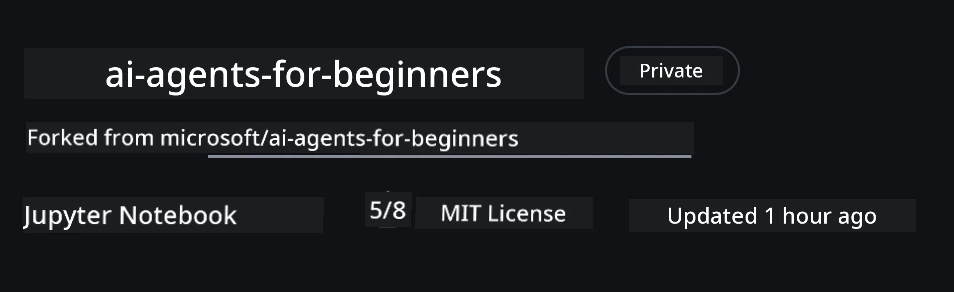
To start, abeg clone or fork the GitHub Repository. Dis one go make you get your own version of the course material so you fit run am, test am, and run changes for the code!
You fit do am by clicking the link wey be fork the repo
Now you go get your own forked version of dis course for dis link:
Shallow Clone (we recommend for workshop / Codespaces)
The full repository fit heavy (~3 GB) if you download full history and all files. If na only workshop you dey do or you need just few lesson folders, shallow clone (or sparse clone) dey download less.
Quick shallow clone — minimal history, all files
Change <your-username> for the commands below with your fork URL (or the upstream URL if na so you like).
To clone only the latest commit history (small download):
git clone --depth 1 https://github.com/<your-username>/ai-agents-for-beginners.git
To clone specific branch:
git clone --depth 1 --branch <branch-name> https://github.com/<your-username>/ai-agents-for-beginners.git
Partial (sparse) clone — minimal blobs + only selected folders
Dis one dey use partial clone and sparse-checkout (you go need Git 2.25+ and we recommend modern Git wey get partial clone support):
git clone --depth 1 --filter=blob:none --sparse https://github.com/<your-username>/ai-agents-for-beginners.git
Enter the repo folder:
cd ai-agents-for-beginners
Then you fit choose which folders you want (example below dey show two folders):
git sparse-checkout set 00-course-setup 01-intro-to-ai-agents
After you don clone and check the files, if na only files you (need) and you want free space (no git history), abeg delete repository metadata (💀 no fit reverse — you go lose all Git functionality):
# zsh/bash
rm -rf .git
# PowerShell
Remove-Item -Recurse -Force .git
Using GitHub Codespaces (we recommend to avoid local big downloads)
-
Make new Codespace for dis repo through the GitHub UI.
- For terminal for the new codespace, run any of the shallow/sparse clone commands wey dey above to carry only the lesson folders wey you need go inside Codespace workspace.
- Optional: after you clone for Codespaces, remove .git to get extra space (check removal commands above).
- Note: If you want open the repo directly for Codespaces (without extra clone), just sabi say Codespaces go setup the devcontainer environment and fit still prepare more than you need.
Tips
- Always change the clone URL with your fork if you want edit/commit.
- If later you need more history or files, you fit fetch them or change sparse-checkout to add more folders.
How to Run the Code
Dis course get correct Jupyter Notebooks wey you fit run to get hands-on experience to build AI Agents.
The code samples dey use Microsoft Agent Framework (MAF) with FoundryChatClient, wey connect to Microsoft Foundry Agent Service V2 (the Responses API) through Microsoft Foundry.
All Python notebooks get di label *-python-agent-framework.ipynb.
Requirements
- Python 3.12+
-
NOTE: If you never get Python3.12 installed, make sure you install am. Then create your venv using python3.12 to sure say the correct versions dey installed from the requirements.txt file.
Example
Create Python venv directory:
python -m venv venvThen activate venv environment for:
# zsh/bash
source venv/bin/activate
# Command Prompt for Windows venv\Scripts\activate
-
-
.NET 10+: For sample codes wey dey use .NET, make sure say you install .NET 10 SDK or later. Then, check your installed .NET SDK version:
dotnet --list-sdks - Azure CLI — Na to get am for authentication. Install from aka.ms/installazurecli.
- Azure Subscription — To fit get access to Microsoft Foundry and Microsoft Foundry Agent Service.
- Microsoft Foundry Project — Project wey get deployed model (for example,
gpt-5-mini). See Step 1 below.
We include requirements.txt file for root of dis repository wey get all di Python packages you need to run the code samples.
You fit install am by running this command for your terminal for the root of the repository:
pip install -r requirements.txt
We recommend say you create Python virtual environment to avoid wahala and conflicts.
Setup VSCode
Make sure you dey use the correct version of Python for VSCode.
Set Up Microsoft Foundry and Microsoft Foundry Agent Service
Step 1: Create Microsoft Foundry Project
You go need Microsoft Foundry hub and project with deployed model to run the notebooks.
- Go ai.azure.com and sign in with your Azure account.
- Create hub (or use old one). See: Hub resources overview.
- Inside hub, create project.
- Deploy model (e.g.,
gpt-5-mini) from Models + Endpoints → Deploy model.
Step 2: Get Your Project Endpoint and Model Deployment Name
From your project for Microsoft Foundry portal:
- Project Endpoint — Go Overview page and copy the endpoint URL.
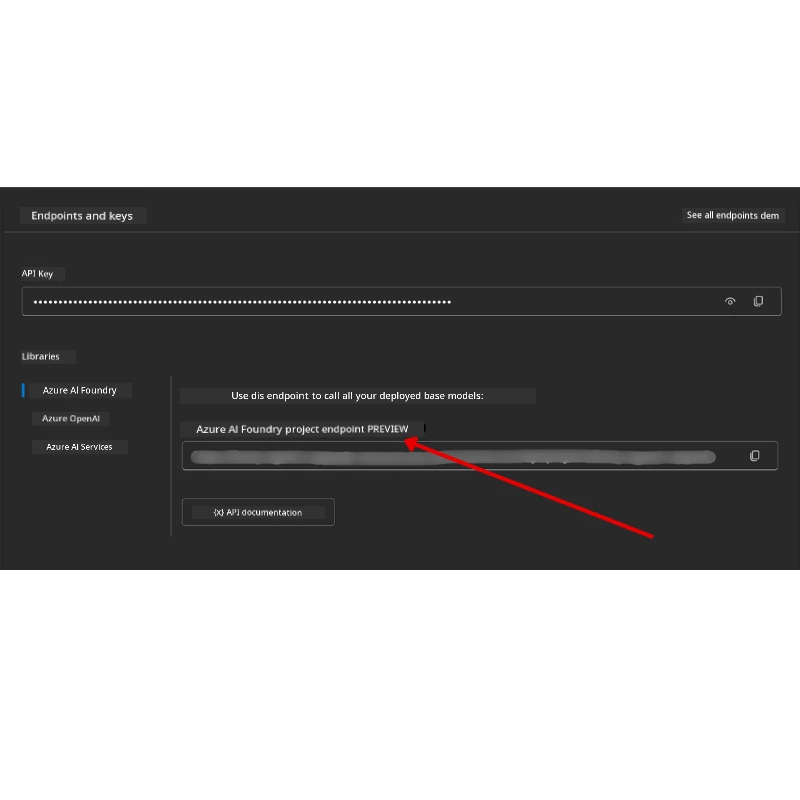
- Model Deployment Name — Go Models + Endpoints, select your deployed model, and note Deployment name (e.g.,
gpt-5-mini).
Step 3: Sign in to Azure with az login
Most notebooks authenticate via your Azure CLI sign-in — using AzureCliCredential or DefaultAzureCredential (both go collect your az login session) from azure-identity package — so dem no need API keys. Some lessons and optional integrations need API keys; check each lesson prerequisites for other environment variables. You gats be signed in through Azure CLI.
-
Install Azure CLI if you never install am yet: aka.ms/installazurecli
-
Sign in by running:
az loginOr if you dey remote/Codespace environment wey no get browser:
az login --use-device-code -
Choose your subscription if dem ask — select the one wey get your Foundry project.
-
Check if you don sign in:
az account show
Why
az login? The notebooks useAzureCliCredential(orDefaultAzureCredential, wey still dey carry your Azure CLI sign-in) from theazure-identitypackage. This means say your Azure CLI session provide credentials — no API keys or secrets for.envfile. Na security best practice.
Step 4: Create Your .env File
Copy the example file:
# zsh/bash
cp .env.example .env
# PowerShell
Copy-Item .env.example .env
Open .env and fill these two values:
AZURE_AI_PROJECT_ENDPOINT=https://<your-project>.services.ai.azure.com/api/projects/<your-project-id>
AZURE_AI_MODEL_DEPLOYMENT_NAME=gpt-5-mini
| Variable | Where you go find am |
|---|---|
AZURE_AI_PROJECT_ENDPOINT |
Foundry portal → your project → Overview page |
AZURE_AI_MODEL_DEPLOYMENT_NAME |
Foundry portal → Models + Endpoints → your deployed model name |
Na im be that for most lessons! The notebooks go authenticate automatic through your az login session.
Step 5: Install Python Dependencies
pip install -r requirements.txt
We recommend you run dis inside the virtual environment you create earlier.
Optional Setup: Azure AI Search (Lessons 5 and 16)
Lesson 5 (Agentic RAG) and Lesson 16 notebooks fit run straight away with in-memory knowledge base — no extra Azure resources needed. If you wanna support them with real Azure AI Search index, note say Lesson 16 notebook dey use key-based authentication now: e go switch from in-memory search go Azure AI Search only if both AZURE_SEARCH_SERVICE_ENDPOINT and AZURE_SEARCH_API_KEY dey, else e go stay for in-memory search — so if you want run am with real index, you gats still set the admin key. Keyless authentication with Microsoft Entra ID (RBAC) na the way dem recommend for your own production code, plus az login flow wey the course dey use everywhere.
The RBAC steps wey dey below na for the setup-guide samples and your own code. Dem no dey activate keyless authentication for Lesson 16 notebook; Lesson 16 still need both the endpoint and admin key to fit use Azure AI Search.
-
Enable role-based access on your search service:
az search service update --name <service-name> --resource-group <resource-group> --auth-options aadOrApiKey -
Assign yourself the required roles (make you fit create/load indexes and query):
az role assignment create --assignee <your-user-or-principal-id> --role "Search Service Contributor" --scope $(az search service show -g <resource-group> -n <service-name> --query id -o tsv) az role assignment create --assignee <your-user-or-principal-id> --role "Search Index Data Contributor" --scope $(az search service show -g <resource-group> -n <service-name> --query id -o tsv) -
Add the endpoint to your
.envfile:
| Variable | Where you go find am |
|---|---|
AZURE_SEARCH_SERVICE_ENDPOINT |
Azure portal → your Azure AI Search resource → Overview → URL |
AZURE_SEARCH_API_KEY |
Na to get am (with the endpoint) to enable Azure AI Search for Lesson 16 notebook, wey use key-based auth. Azure portal → Settings → Keys → primary admin key |
Why no use key? Admin keys dey give full write access to your search service and dem fit leak if you put am for
.envfiles. With RBAC, youraz loginidentity go dey used — na the same keyless Entra ID pattern wey the course notebooks dey use (viaAzureCliCredential/DefaultAzureCredential). See Connect to Azure AI Search using roles.
Check Azure AI Search setup guide for full index-creation samples for Python and .NET.
Additional Setup for Lessons wey Dey Call Azure OpenAI Directly (Lessons 6 and 8)
Some notebooks for lessons 6 and 8 dey call Azure OpenAI direct (use Responses API) instead of going through Microsoft Foundry project. These samples before na GitHub Models wey dem don stop to use and no support Responses API. Add these variables to your .env file:
| Variable | Where you go find am |
|---|---|
AZURE_OPENAI_ENDPOINT |
Azure portal → your Azure OpenAI resource → Keys and Endpoint → Endpoint (e.g. https://<your-resource>.openai.azure.com) |
AZURE_OPENAI_DEPLOYMENT |
Your deployed model name (e.g. gpt-5-mini) wey support Responses API |
AZURE_OPENAI_API_KEY |
Optional — only if you use key-based auth instead of az login / Entra ID |
Responses API dey use stable
/openai/v1/endpoint, so noapi-versionrequired. Sign in withaz loginto use keyless Entra ID authentication.
Alternative Provider: MiniMax (OpenAI-Compatible)
MiniMax dey provide large-context models (up to 204K tokens) through OpenAI-compatible API. Since Microsoft Agent Framework’s OpenAIChatClient fit work with any OpenAI-compatible endpoint, you fit use MiniMax as alternative for lessons wey use OpenAIChatClient.
Add these variables to your .env file:
| Variable | Where you go find am |
|---|---|
MINIMAX_API_KEY |
MiniMax Platform → API Keys |
MINIMAX_BASE_URL |
Use https://api.minimax.io/v1 (default value) |
MINIMAX_MODEL_ID |
Model name to use (e.g., MiniMax-M3) |
Example models: MiniMax-M3 (we recommend), MiniMax-M2.7, MiniMax-M2.7-highspeed (faster responses). Model names and availability fit change over time, and access to one model fit depend on your account.
The code samples wey use OpenAIChatClient (example, Lesson 14 hotel booking workflow) go automatically detect and use your MiniMax setup when MINIMAX_API_KEY dey set.
Alternative Provider: Novita AI (OpenAI-Compatible)
Novita AI dey provide OpenAI-compatible API for open-source and frontier LLMs (DeepSeek, Llama, Qwen, and more). Since Microsoft Agent Framework’s OpenAIChatClient fit work wit any OpenAI-compatible endpoint, you fit use Novita AI as alternative wey fit replace Azure OpenAI or OpenAI.
Add dis tin dem to your .env file:
| Variable | Where to find am |
|---|---|
NOVITA_API_KEY |
Novita AI Dashboard → API Keys |
NOVITA_BASE_URL |
Use https://api.novita.ai/openai/v1 (dis na di default value) |
NOVITA_MODEL_ID |
Model name wey you wan use (e.g., moonshotai/kimi-k3) |
Example models: moonshotai/kimi-k3, zai-org/glm-5.2, deepseek/deepseek-v4-flash-0731. Novita AI still get plenti other open-source model families (Llama, Qwen, GLM, and more) — check d Novita AI model library for di current list of available models and their model IDs.
Di current samples no dey use NOVITA_* variables automatically. If you wan use Novita AI, you gats pass dis values explicitly when you dey construct OpenAIChatClient inside di sample wey you dey run.
Alternative Provider: Foundry Local (Run Models On-Device)
Foundry Local na lightweight runtime wey dey download, manage, and serve language models complete for your own machine through OpenAI-compatible API — no cloud needed.
Because Microsoft Agent Framework’s OpenAIChatClient dey work wit any OpenAI-compatible endpoint, Foundry Local be like drop-in local alternative to Azure OpenAI.
1. Install Foundry Local
# Windows
winget install Microsoft.FoundryLocal

# macOS
brew install foundrylocal
2. Download and run model (dis one also go start di local service):
foundry model list          # see di models wey dey available
foundry model run phi-4-mini
3. Install di Python SDK wey you go take discover di local endpoint:
pip install foundry-local-sdk
4. Point Microsoft Agent Framework to your local model:
from foundry_local import FoundryLocalManager
from agent_framework.openai import OpenAIChatClient

# Dɔnlɔd (if dem need am) den serve the model for local komputa, den find the endpoint/port.
manager = FoundryLocalManager("phi-4-mini")

chat_client = OpenAIChatClient(
    base_url=manager.endpoint,      # e.g. http://localhost:<port>/v1
    api_key=manager.api_key,        # always "not-required" for Foundry Local
    model_id=manager.get_model_info("phi-4-mini").id,
)

agent = chat_client.as_agent(
    name="LocalAgent",
    instructions="You are a helpful assistant running fully on-device.",
)
Note: Foundry Local dey expose OpenAI-compatible Chat Completions endpoint. Use am for local development and offline situations. For full Responses API featureset (wey get stateful conversations, etc.), use Azure OpenAI or Microsoft Foundry project.
Additional Setup for Lesson 8 (Bing Grounding Workflow)
Di conditional workflow notebook for lesson 8 dey use Bing grounding via Microsoft Foundry. If you plan run dat sample, add dis variable to your .env file:
| Variable | Where to find am |
|---|---|
BING_CONNECTION_ID |
Microsoft Foundry portal → your project → Management → Connected resources → your Bing connection → copy the connection ID |
Troubleshooting
SSL Certificate Verification Errors for macOS
If you dey macOS and you see error like:
ssl.SSLCertVerificationError: [SSL: CERTIFICATE_VERIFY_FAILED] certificate verify failed: self-signed certificate in certificate chain
Dis na reported issue wit Python for macOS wey system SSL certificates no dey trusted automatically. Try di following solutions one by one:
Option 1: Run Python’s Install Certificates script (correct one)
# Change 3.XX to di Python version wey you don install (e.g., 3.12 or 3.13):
/Applications/Python\ 3.XX/Install\ Certificates.command
Option 2: Use connection_verify=False inside your notebook (for GitHub Models notebooks only)
Inside the Lesson 6 notebook (06-building-trustworthy-agents/code_samples/06-system-message-framework.ipynb), dem don put one commented workaround already. Remove comment for connection_verify=False when you see certificate errors:
client = ChatCompletionsClient(
    endpoint=endpoint,
    credential=AzureKeyCredential(token),
    connection_verify=False,  # Turn off SSL check if you see certificate wahala
)
⚠️ Warning: If you disable SSL verification (
connection_verify=False), e go lowa security because e skip certificate check. Use dis one only as temporary workaround for development environment. No use am for production.
Option 3: Install and use truststore
pip install truststore
After dat, add this one for top of your notebook or script before you start call any network:
import truststore
truststore.inject_into_ssl()
You Stuck Somewhere?
If you get any wahala running dis setup, join our Azure AI Community Discord or create issue.
Next Lesson
You don ready now to run di code for dis course. Enjoy learning more about di world of AI Agents!
Introduction to AI Agents and Agent Use Cases
Disclaimer: Dis document don translate wit AI translation service Co-op Translator. Even tho we dey try make am correct, abeg make you know say automated translation fit get errors or mistakes. Di original document for dia own language na im be di correct source. For important info, make person wey sabi human translation do am. We no go responsible for any misunderstanding or wrong understanding wey fit happen because of dis translation.