Copilot Code: build a simple web app
Copilot Code: build a simple web app
Build a multi-day Bootcamp Lab Tracker through four Copilot Code prompts: create the app, apply a dark theme, add emojis, and introduce accessible day tabs.
Content last updated:
Copilot Code: build a simple web app
Use four sequential prompts in Copilot Code to build a Bootcamp Lab Tracker from the published agenda, then add a dark theme, emojis, and accessible day tabs without writing code manually.
Lab Details
| Level | Persona | Duration | Purpose |
|---|---|---|---|
| 100 | Maker | 30 minutes | Build an interactive app through four prompts, check each stage, and refine its design and accessible navigation. |
Table of Contents
- Why This Matters
- Introduction
- Core Concepts Overview
- Documentation and Additional Training Links
- Prerequisites
- Summary of Targets
- Use Case Covered
- Instructions
- Use Case: Build and Refine Your Tracker
- Summary of Learnings
- Conclusions and Recommendations
- Architecture Bootcamp Latest
Why This Matters
Makers do not need to start with a blank code editor to try an app idea. A clear description of the outcome can become a working prototype that you can open, use, and improve.
Think of the prompt as a brief you would give to a developer:
- Without a clear specification: the app may look convincing but count the wrong items, lose track of its controls, or be difficult to use with a keyboard.
- With a clear specification: the schedule, interactions, visual rules, and acceptance checks make the intended result explicit.
Common challenges solved by this lab:
- “I have an app idea, but I do not know where to start.”
- “The generated page looks good, but how do I know it works?”
- “I want to change the design without breaking what already works.”
In 30 minutes, you will build and refine a small app step by step, checking the result after each prompt.
Introduction
During the bootcamp, you need a simple way to track the labs you have completed across every day. Instead of maintaining a checklist by hand, you will ask Copilot Code to read the published agenda and create an interactive tracker from a supplied specification.
You will use four prompts in the same conversation: build a neutral-grey tracker, apply a dark theme, add emojis and shorter bar labels, then organize each day into an accessible tab. Wait for each update and check the result before moving to the next prompt.
The finished tracker combines a timeline and lab cards for each day, per-day counts on the tabs, and an overall progress indicator. Switching tabs must preserve the labs you have ticked. Each day’s Lunch appears in the schedule but must never count as a lab.
Copilot Code uses the published agenda to build the app and provides a preview link you can open in your browser. Progress is kept in memory only and intentionally resets on reload.
Why Start with a Small Prototype?
The goal is to learn how to describe, check, and refine an app, not to set up a development toolchain. A small tracker gives you a manageable result to inspect during the 30-minute lab, leaving time to experiment with prompts and check each change.
The prompts specify what the app should do without requiring a single HTML file or a particular framework. Whether Copilot Code uses plain HTML, CSS, and JavaScript or a framework such as React, check the same schedule, interactions, and accessibility requirements in the browser preview.
- Consider React when a growing interface would benefit from reusable components and structured state management. A typical React project adds dependencies and build tooling.
- Consider a full-stack app when you need accounts, shared data, saved progress across devices, or integrations that require server-side credentials.
This tracker is a deliberately scoped prototype, not a production-ready service. The skills you practice here, including clear requirements, iterative prompting, and checking behavior, also apply to larger apps.
Core Concepts Overview
| Concept | Why it matters |
|---|---|
| Plain-language specification | Describes the required content, behavior, and constraints before the app is generated. |
| In-memory progress | Keeps completion during the current session, including tab switches, but resets it on reload. |
| Synchronized state | Keeps timeline buttons, checkboxes, per-day counts, the overall completion count, and the progress bar consistent. |
| Acceptance checks | Turns “it looks right” into observable checks, including reverse actions and reload behavior. |
| Accessible interaction | Makes keyboard operation, visible focus, meaningful labels, and accessible day tabs part of the requirements. |
| Iterative refinement | Builds the app through four focused prompts, checking each stage while preserving existing behavior. |
Documentation and Additional Training Links
These optional resources explain the web technologies and browser checks used in this exercise. No manual coding or DevTools use is required to complete the lab.
- Get started with web development using Visual Studio Code
- Overview of Microsoft Edge DevTools
- Accessibility-testing features in Microsoft Edge DevTools
Prerequisites
For an instructor-led bootcamp, use the provided environment and designated working folder. If completing the lab independently, arrange the following before starting:
- Access to Copilot Code in your provided environment.
- Copilot Code must be able to fetch the published bootcamp agenda while generating the app.
- A designated working folder if your environment uses local projects.
- A browser that can open the app’s preview link.
Summary of Targets
By the end of this lab, you will be able to:
- Generate an app with Prompt 1, open its browser preview, then refine the same app with Prompts 2-4.
- Verify that every day’s scheduled labs and Lunch match the published agenda.
- Check that timeline buttons, checkboxes, per-day counts, and overall progress indicators stay synchronized.
- Confirm that totals come from the parsed labs, Lunch is excluded from progress, and reloading resets completion.
- Apply a dark theme, add topic-specific emojis, and shorten lab-bar labels without changing the schedule.
- Check that day tabs support keyboard navigation and preserve completion when switching days.
- Check visible focus and emoji-only timeline row labels at a browser width of 480px or less.
Use Case Covered
| Step | Use Case | Value added | Effort |
|---|---|---|---|
| 1 | Build and refine your tracker | Build the basic tracker, then add a dark theme, emojis, and accessible day tabs through four prompts. | 30 min |
Complete all four prompts in order. If generation or troubleshooting takes longer, ask your facilitator for help rather than submitting the remaining prompts together.
Instructions
Use Case: Build and Refine Your Tracker
Build the Bootcamp Lab Tracker from the published agenda, then refine the same app through four sequential prompts in one conversation.
| Use case | Value added | Estimated effort |
|---|---|---|
| Build and refine your tracker | Create the app and add a dark theme, emojis, and accessible day tabs, checking each stage. | 30 minutes |
Summary of tasks
Start a conversation, submit Prompt 1, and check the basic tracker. Continue with Prompts 2, 3, and 4 to add the dark theme, emojis and shorter bar labels, and accessible day tabs. Wait for each update and check the result before submitting the next prompt.
Scenario: You are attending the bootcamp and want one place to see every day’s labs and mark them complete without counting Lunch or other agenda items toward your progress.
Objective
Create a multi-day tracker with a browser preview, refine its design and day navigation, and verify that the schedule and completion controls remain correct throughout.
Step-by-Step Instructions
Get Ready
Go to Microsoft Copilot, sign in with your workshop account, and select Code. Alternatively, open the Microsoft Copilot app and select Code.
Open the designated working folder if you are using a local project.
Prompt 1: Build the Basic Tracker
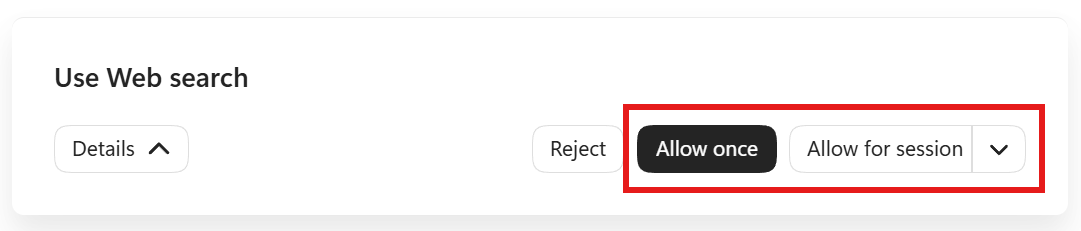
Start a new conversation, paste Prompt 1 below unchanged, and submit it. Allow file creation if prompted. Do not submit Prompts 2-4 yet.
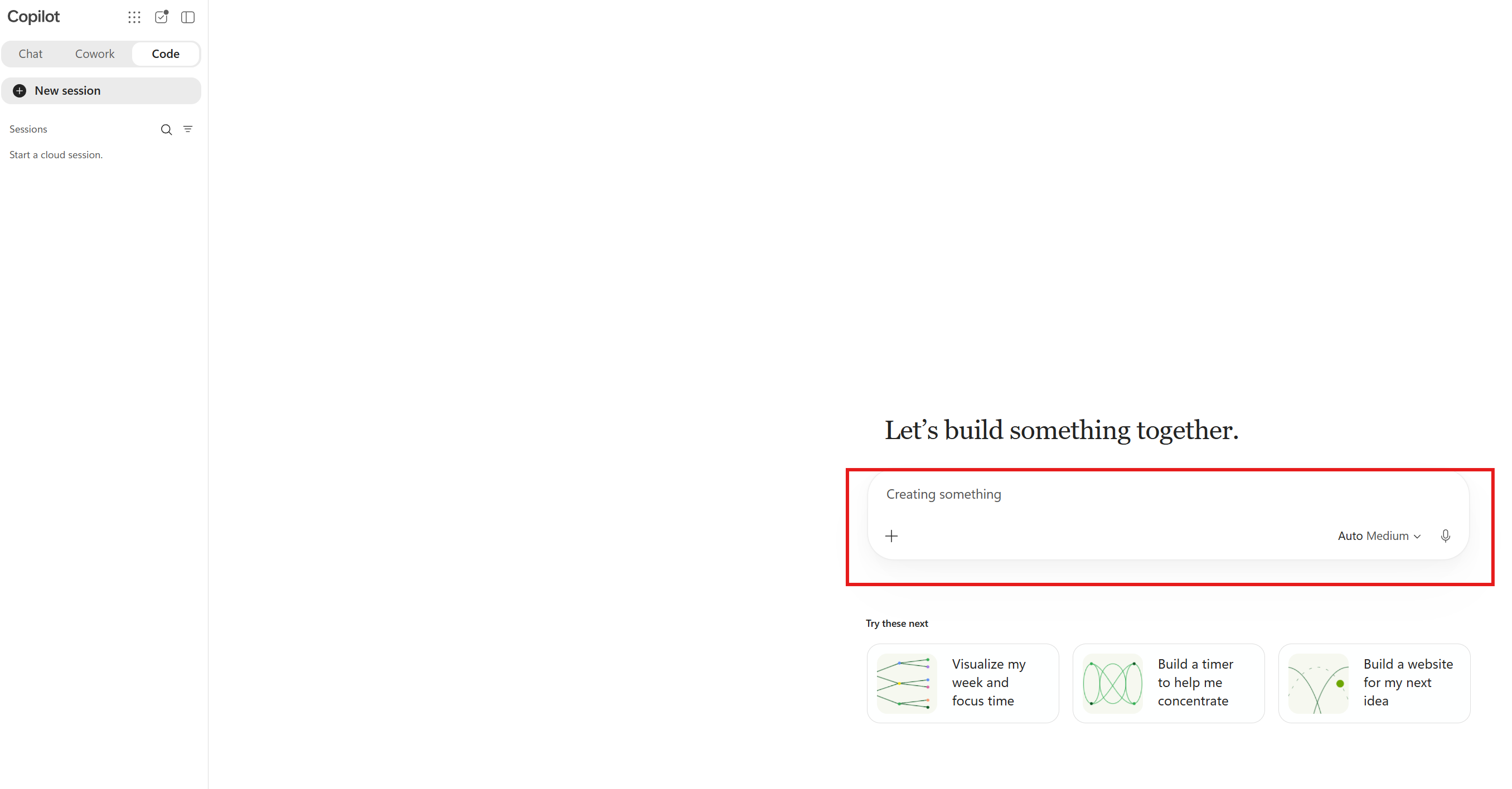
Use Prompt 1 below exactly as written, including the agenda URL and the final instructions.
Build an app called "My Bootcamp Lab Tracker". Progress is kept in memory only: it starts with every lab unchecked and resets on reload.

Fetch the agenda at https://microsoft.github.io/mcs-labs/events/bootcamp-latest/ and use every day's "Lab N:" items and "Lunch break" as the app's data (day, number, title, start, end). Skip everything else, including optional labs. If the page can't be fetched, stop and tell me.

Layout (max 720px, centered):

- **Sticky header:** "COPILOT BOOTCAMP" eyebrow, title, "N of TOTAL labs complete" (aria-live) and a progress bar.

- **Timeline:** a Gantt chart for each day with hourly gridlines. Each row is labelled "LAB N" or "LUNCH". Lab bars are toggle buttons (aria-pressed) showing the title, truncated with "…". Hovering or focusing a bar shows a tooltip with its details. Lunch bars aren't clickable.

- **Cards:** grouped by day. Each lab card is a label around a checkbox, showing "LAB N", the title and the time. Done cards get a strike-through and a "DONE" badge.

Keep the bars, checkboxes, counter and progress bar in sync. Use neutral greys and square corners, with visible focus outlines. When done, give me a preview link I can open in my browser.
If Copilot Code asks for approval to continue with this task, approve the request. If an Allow once option is available, select it.
Open Your Tracker
Open the preview link Copilot Code provides in your browser. If no link is provided or it does not open, ask Copilot Code for a working preview link before continuing.
Check the Basic Tracker
- Compare the tracker with the published bootcamp agenda. Confirm every day’s scheduled lab numbers, titles, times, and Lunch appear in time order.
- Confirm that modules, welcome/re-cap, coffee breaks, Q&A, social, and all optional labs are excluded.
- Count the included labs and confirm the overall counter starts at 0 of TOTAL, using that count rather than a fixed number.
- Click a lab’s timeline bar. Its checkbox, styling, overall completion count, and progress bar should update together.
- Toggle a card’s checkbox. Its timeline bar should update too.
- Uncheck a completed lab to reverse its completion.
- Complete every included lab and confirm the counter shows TOTAL of TOTAL.
- Confirm each day’s Lunch cannot be toggled and never counts toward progress.
- Reload the page and confirm all labs reset to unchecked.
- Use Tab and Space to operate the controls, checking for visible keyboard focus.
- Confirm the app uses neutral greys and square corners. Dark colors, emojis, and day tabs are added by the next three prompts, so they are not expected yet.
If something does not work, flag it to your facilitator.
Once the basic tracker works, continue in the same conversation. Prompts 2-4 update the existing app; do not start a new app.
Prompt 2: Apply the Dark Theme
In the same conversation, paste and submit Prompt 2 unchanged.
Update with a dark theme, keeping everything else the same.
- Background #0d0d0d, surfaces #161616/#1e1e1e, borders #2a2a2a, text #d4d4d4, headings #e8e8e8.
- To do = purple #a78bfa (outlined bars, purple left border on cards).
- Done = solid green #4ade80 bars, green-tinted cards.
- Lunch = amber #fbbf24, with a dashed border and diagonal stripes.
Keep focus outlines visible and respect prefers-reduced-motion.
Wait for the update, then open the updated preview or refresh the existing preview if its link is unchanged. Check that incomplete labs are purple, completed labs are green, and Lunch is amber with dashed borders and stripes. Toggle a lab in both directions and confirm its bar, card, counter, and progress bar still agree.
Prompt 3: Add Emojis and Shorter Bar Labels
Paste and submit Prompt 3 in the same conversation.
Update by giving each lab a distinct emoji that suits its topic; lunch is 🥪. Show it before "LAB N" in the timeline row labels, on the cards and in the tooltips. Lunch bars read "🥪 Lunch", and lunch cards show 🥪 instead of a checkbox. Hide emojis from screen readers. At ≤480px, the timeline row labels show the emoji only.

Lab bars should say "Lab N" instead of the title, which gets cut off. The full title stays in the tooltip, the aria-label and the card.
Wait for the update and open the updated preview. Confirm each lab’s emoji is consistent across its timeline row, card, and tooltip. Lab bars should now show Lab N, with the full title still available in the tooltip, accessible name, and card. At a browser width of 480px or less, timeline row labels should show only the emoji. Lunch must remain non-interactive.
Prompt 4: Add Accessible Day Tabs
Paste and submit Prompt 4 in the same conversation.
Update so each day is its own tab ("Day N" plus an x/y count), using the accessible ARIA tabs pattern with arrow-key navigation. Each tab shows that day's timeline and cards. Keep the header's overall progress, and keep ticks when switching tabs.

Make the tabs stand out: full-width, equal-size buttons with bold text. Unselected tabs are #1e1e1e with a #2a2a2a border and light text, and get lighter on hover. The selected tab is near-white #e8e8e8 with dark #0d0d0d text and a purple bottom border. A day's count turns green when all its labs are done.
Wait for the update and open the updated preview. Confirm the day tabs have equal-sized buttons, the selected tab is clearly highlighted, and each selected day shows only its own timeline and cards.
Check the Finished Tracker
- Repeat the schedule and completion checks in Check the Basic Tracker. The agenda data and overall total must not have changed.
- Complete a lab on one day, switch to another day, and switch back. The original tick must still be present, and the header must include completions from all days.
- Check each tab’s x/y count against that day’s completed and total labs. Complete all labs on a day and confirm its count turns green; uncheck one and confirm that complete-day styling reverses.
- Use Tab to reach the day tabs and the selected day’s controls. Use the arrow keys to navigate between tabs, activating with Enter or Space if needed. Confirm focus remains visible.
- Verify that the lab bars, checkboxes, per-day counts, overall counter, and progress bar remain synchronized, and that Lunch never counts.
- Hover over or focus a lab bar and confirm its full title remains available. Check with a screen reader that decorative emojis are not announced and the lab still has a meaningful name.
- At 480px or less, confirm timeline row labels show only emojis and the day tabs remain usable.
- Reload the page. Completion should reset because there is no storage; this differs from switching tabs, which must keep ticks.
- Confirm square corners and the dark theme remain after all updates.
Congratulations!
You have built and refined the tracker through four prompts, checking each change while preserving the original schedule and completion behavior.
Test Your Understanding
Key takeaways
- One action, several updates: completing a lab must update both controls, its day’s count, and the overall progress indicators.
- The agenda is the source of truth: lab counts come from the scheduled labs across every day, not a fixed number in the prompt.
- A break is not a lab: Lunch belongs on the schedule but not in the completion count.
- Navigation is not a reload: switching tabs keeps ticks; reloading resets in-memory completion.
Lessons learned and troubleshooting tips
- If the preview link does not open, ask Copilot Code for a working preview link. If the issue persists, tell your facilitator.
- If a check fails, tell your facilitator which action you took, what you expected, and what happened.
- Do not add storage to fix the reload reset: that reset is an explicit requirement.
- If Copilot Code cannot reach the agenda or find any labs, stop and tell your facilitator. Do not invent a schedule.
Reflection questions
- Why does Prompt 2 explicitly say to keep everything else the same?
- Why does Prompt 3 keep the full title in the tooltip, accessible name, and card after shortening the bar label?
- Why must completion survive a tab switch but reset after reloading the page?
- Why should you check the result after each prompt rather than submit all four together?
Challenge: Apply this to your own use case
Describe one further refinement you would request for your tracker. What existing behavior would you explicitly ask Copilot Code to preserve?
Summary of Learnings
Prompt 1 builds the basic app. Prompts 2-4 add the dark theme, emojis and shorter labels, and accessible day tabs.
- Specify the outcome: content, interactions, and constraints belong in the prompt.
- Verify observable behavior: exercise both completion and reversal, not just the initial screen.
- Include accessibility: check focus, keyboard-operated tabs, meaningful names, and narrow-screen labels.
- Change one thing at a time: keep refinement requests focused and recheck what already worked.
- Separate navigation from reload: changing day tabs must keep ticks, while reloading resets in-memory completion.
Conclusions and Recommendations
- Keep the initial specification available as the reference for expected behavior.
- Open and use the app’s browser preview before treating the task as complete.
- Check excluded items, reverse actions, and reload behavior as well as the happy path.
- State what must remain unchanged in a refinement prompt.
- Report unexpected results to your facilitator instead of accepting a convincing-looking screen.
Architecture Bootcamp Latest
This lab is part of Architecture Bootcamp Latest.