Managed Apps
Managed Apps
Build an app from the live bootcamp lab schedule in Copilot Studio Apps, then save and restore completion using a CSV file in your own OneDrive.
Content last updated:
Managed Apps
Build a managed app from the live published bootcamp lab schedule in Copilot Studio Apps. Use a screenshot as a visual reference, then connect a CSV file in your own OneDrive and verify that saved progress is restored.
Lab Details
| Level | Persona | Duration | Purpose |
|---|---|---|---|
| 200 | Maker | 30 minutes | Create an app from the live lab schedule, connect a persistent backend, and verify saved progress and error handling in the preview. |
The 30-minute duration is a target to validate during rehearsal, not a confirmed completion time.
Table of Contents
- Why This Matters
- Introduction
- Core Concepts Overview
- Documentation and Additional Training Links
- Prerequisites
- Summary of Targets
- Use Case Covered
- Instructions
- Use Case: Build an App with a Persistent Backend
- Summary of Learnings
- Conclusions and Recommendations
- Architecture Bootcamp Latest
Why This Matters
Start simple, then choose the platform for the job. In this bootcamp, Copilot Code is the approachable entry point for simple apps and quick prototypes. Microsoft Copilot Studio (MCS) is the platform to explore when you need more advanced agents, connections to business data and tools, and managed deployment and governance. This is a progression in solution needs, not a hard limit on either tool.
This lab connects those ideas by creating an app from the live published lab schedule in Copilot Studio Apps. The backend is the main learning focus: connecting the app to persistent data and verifying real reads and writes. The screenshot provides a familiar visual starting point; reproducing the UI is not the final goal. This exercise does not build an advanced agent.
A convincing preview is not the same as a working managed app. A screenshot can communicate a design quickly, but it cannot specify where data is saved, who can access it, or what happens after a reload.
This lab separates those questions. First, build the interface using an image and a written behavior specification, with data read from the live published schedule. Then create or reuse your OneDrive CSV file, verify saved completion, and check that connection, load, and save errors are surfaced rather than hidden. Keep the app in preview; do not publish during this exercise.
You will practice checking behavior rather than accepting a generated screen or an approval message as proof of success.
Introduction
In Lab 3, you create a simple app in Copilot Code whose completion progress resets on reload. Here, you will create a new app in Copilot Studio Apps using the live published bootcamp lab schedule as its data source and a screenshot as a visual reference.
This is not an HTML import or a Code-to-Studio migration. The screenshot communicates the intended appearance; the app’s initial schedule data comes from reading the live agenda URL, not copying the screenshot’s lab names, times, or totals. The prompt specifies the required behavior. A reference screenshot is included, so completing the earlier lab is not a prerequisite.
Use three prompts in the same conversation. Prompt 1 builds the app with in-memory completion. Prompt 2 sets up the connection and CSV file without changing app code. Prompt 3 wires the app to read and save that file, then checks persistence through the app itself. No prepared file or database is needed.
OneDrive and CSV are implementation choices for this exercise, not the core concepts. The lesson is connecting an app to a persistent backend and verifying that data is saved and restored reliably.
Connection health is the go/no-go test. Before changing app code, confirm that the connection works and the file exists. If the connection is in an error state, stop before taking other actions and report it. A failed read must never cause an existing file to be overwritten. SharePoint, Dataverse, and browser storage are not alternatives for this exercise.
Core Concepts Overview
| Concept | Why it matters |
|---|---|
| Image-based specification | Communicates layout and appearance without importing the earlier app’s code. |
| Live schedule input | Reads the current published agenda when building the app rather than hardcoding schedule data from the image. |
| In-memory progress | Establishes a baseline that intentionally resets on reload. |
| Persistent backend | Saves data outside the browser so the app can restore it after reload. |
| Connection validation | Checks connector health and data access before changing code or initializing storage. |
| Serialized saves and explicit errors | Saves one change at a time, restores the screen after a failed save, and offers a retry after a failed load. |
Documentation and Additional Training Links
- Microsoft Copilot Studio documentation - general product reference.
- OneDrive for Business connector reference - connector actions and connection requirements.
- Manage connections in Power Apps - creating and deleting connections.
- Live published bootcamp agenda - source of truth for the app’s schedule data.
Use your facilitator’s environment-specific guidance for feature access and connector availability.
Prerequisites
For an instructor-led bootcamp, use the provided account and designated environment. If working independently, confirm the following before starting:
- Access to Copilot Studio Apps, including image upload and app preview in your environment.
- Permission for the app-building experience to read the published bootcamp agenda.
- Either the provided app screenshot or a screenshot of your current Lab 3 app, saved locally for upload.
- Your own OneDrive for Business and permission to read, create, and update files in it.
- Access to the OneDrive for Business connector in your training environment, with permission to create a connection using your account if needed.
Use your own account and OneDrive, not another learner’s connection or file. No pre-existing CSV file, SharePoint list, prepared database, or VS Code setup is required. Publishing is outside this exercise.
Summary of Targets
By the end of a successful rehearsal, you will be able to:
- Create an app whose schedule data comes from the live published agenda, using an image only as a visual reference.
- Confirm that its labs and Lunch match the current published agenda rather than the screenshot’s historical counts.
- Set up a healthy connection and a CSV file containing one row per scheduled lab before changing app code.
- Verify that completing and unchecking a lab update the CSV and persist after a reload.
- Verify reads and saves through the app itself, not just direct connector calls.
- Check disabled controls during loading, serialized saves, save-failure rollback, and load-error retry.
- Keep the app in preview until you are explicitly instructed to publish.
Use Case Covered
| Step | Use Case | Value added | Target effort |
|---|---|---|---|
| 1 | Build an app with a persistent backend | Use the live lab schedule to create an app, then connect and verify OneDrive CSV storage in the preview. | 30 min |
Submit Prompts 1, 2, and 3 in order in the same conversation, checking each stage before continuing. Test the connection, CSV contents, persistence, and error handling in preview. Do not publish until instructed.
Instructions
Use Case: Build an App with a Persistent Backend
Scenario: You want an app based on the live bootcamp lab schedule that saves completion to a CSV file in your own OneDrive. Use the provided image or your Lab 3 app screenshot as a design reference, not as the source of schedule data.
Objective
Create an app from the live published agenda, connect its reads and writes to your OneDrive CSV file, and verify saved completion and error handling without publishing.
Step-by-Step Instructions
Save and Upload the Reference Image
- Choose your starting image: save the provided screenshot below, or take a screenshot of your current Lab 3: Copilot Code app. Either option works; you do not need to have completed Lab 3 to use the provided screenshot.
- Open Copilot Studio Apps in your provided training environment and start a new app.
- Attach the screenshot to the app-building conversation before submitting the first prompt.
Open or save the reference screenshot
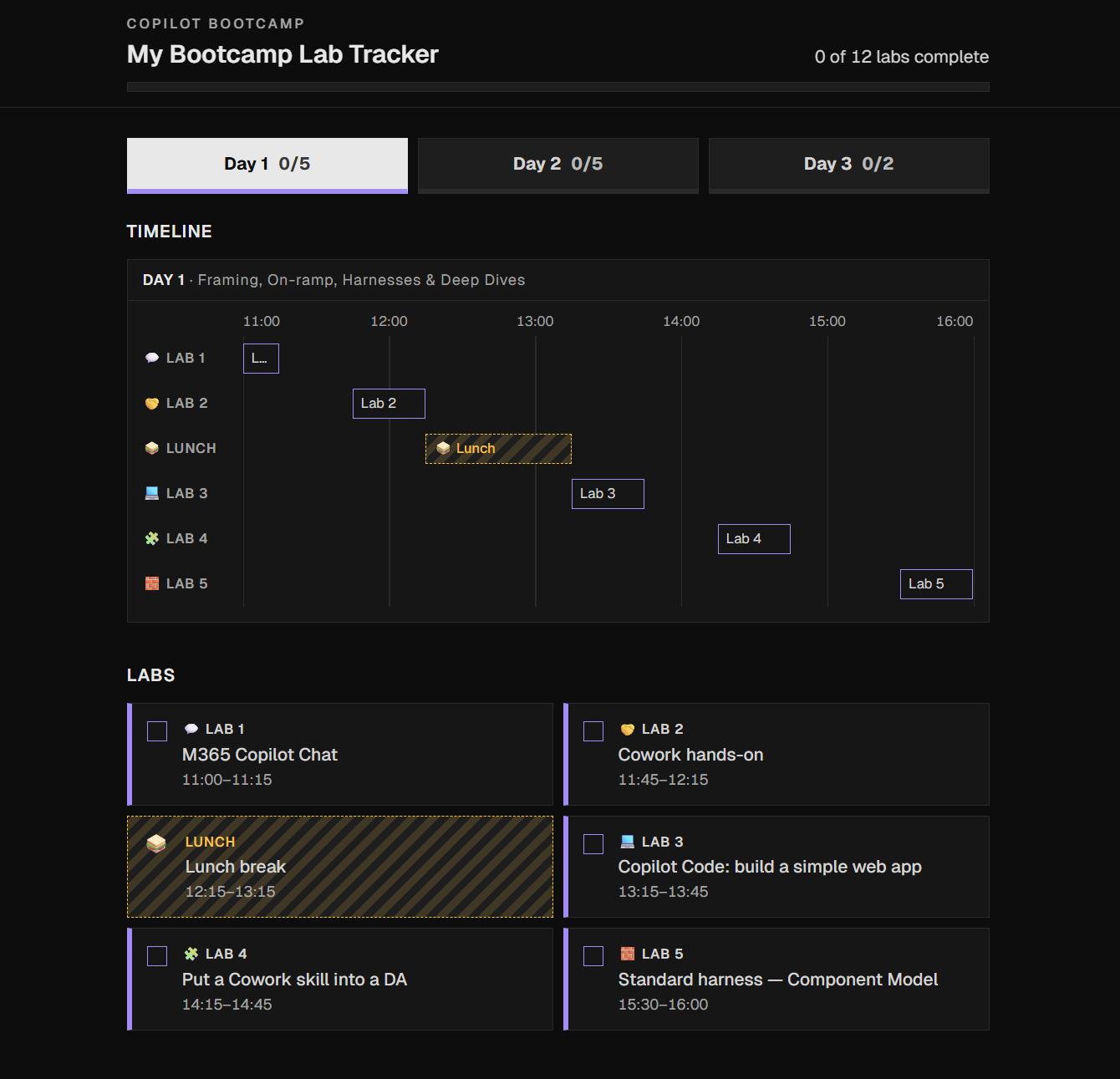
The image is a design reference, not the schedule source. Its app title, lab numbers, times, and totals may differ from the app you create. Use the app name in the prompt and read the schedule from the live agenda; do not hardcode the screenshot’s data.
Prompt 1: Build the App from the Live Schedule
With the screenshot attached, submit this prompt exactly as written:
Build a managed app called "My Bootcamp Lab App" using the
attached screenshot as a visual reference.

Reproduce its dark theme, square corners, day tabs, timeline,
lab cards, completion checkboxes, and overall progress indicator.

Fetch the current live published lab schedule from:
https://microsoft.github.io/mcs-labs/events/bootcamp-latest/

Include every day's scheduled "Lab N:" items and Lunch break.
Exclude other agenda items and optional labs. If you cannot read
the agenda, stop and tell me rather than inventing the schedule.

Keep timeline buttons, card checkboxes, per-day counts, and overall
progress synchronized. Lunch must never count toward completion.
Support keyboard interaction and visible focus.

For this first step, keep completion in memory. Do not add a
connector or data store yet. Show me the working preview.
Watch the App Take Shape
While the app is being built, follow any visible progress updates, reasoning summaries, and tool activity. Look for how it interprets the screenshot, reads the agenda, and builds the interface. Expand activity details if available, and notice any questions or approval requests. These updates can help you spot misunderstandings early, but they do not replace checking the finished app.
Wait for the preview. If the agenda cannot be read, stop and tell your facilitator; do not ask for an invented schedule.
Check the In-Memory Preview
- Compare every day’s lab numbers, titles, and times with the live published agenda, not the screenshot. Include Lunch, but exclude other agenda items and optional labs.
- Confirm that all labs start unchecked and the overall total counts labs only.
- Toggle a timeline lab button and then a card checkbox. Both controls, the day’s count, and overall progress must stay synchronized.
- Switch days and switch back. Completion should remain during the session.
- Confirm Lunch cannot be completed and never increases the completed count.
- Use the keyboard to reach and operate the tabs and completion controls. Check that focus is visible.
- Reload the preview. Completion must reset at this stage because no persistent store has been added.
Once the in-memory checks pass, continue in the same app-building conversation to add saved progress. If the preview copies outdated counts from the image or loses synchronization, correct that behavior before requesting storage.
Connection gate: If the OneDrive for Business connection is in an error state, stop and report it before taking any other action. Do not treat a failed file read as proof that the file is missing.
Prompt 2: Set Up Storage
In the same app-building conversation, submit:
Set up storage for saving lab completion. Don't change the app's
code yet.

Use a CSV file in my own OneDrive, accessed through the OneDrive
for Business connector. Do not use SharePoint, Dataverse, browser
localStorage or sessionStorage.

You are authorized to create the OneDrive for Business connection
with my account if I don't have a working one. If the connection
is in an error state, stop and tell me before doing anything else.

File:
- Path: /Apps/My Bootcamp Lab App/lab-completion.csv
- Create it if it doesn't exist: one row per scheduled lab, using
  lab-N IDs from the live agenda's lab numbers, all incomplete.
  Lunch is never in the file.
- Columns: labId, completed (true/false), updatedAt (ISO time).
- If it already exists, don't change it.

Connect the app to OneDrive for Business so it can read and write
this file.

Then report: the connection state, whether the file was created or
already existed, and its current rows.
The CSV rows must match the labs read from the live agenda, not a fixed count or the reference image. Each labId uses the scheduled lab number, such as lab-1. Lunch and optional labs must not have rows.
Confirm the Connection and File
- Confirm the OneDrive for Business connection belongs to your account and works. If no connection exists, allow creation with your account. If an existing connection is in an error state, pause the app build, report it, and follow Troubleshoot a Broken Connection before continuing.
For the Create connection prompt shown below, select Approve and sign in with your training account if requested. An existing working connection may be reused without another sign-in.
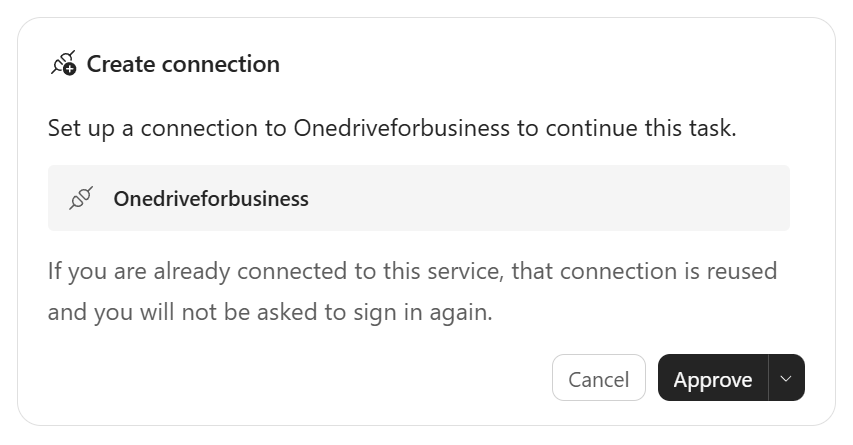
- Confirm this file exists in your own OneDrive before the app code is changed:
/Apps/My Bootcamp Lab App/lab-completion.csv
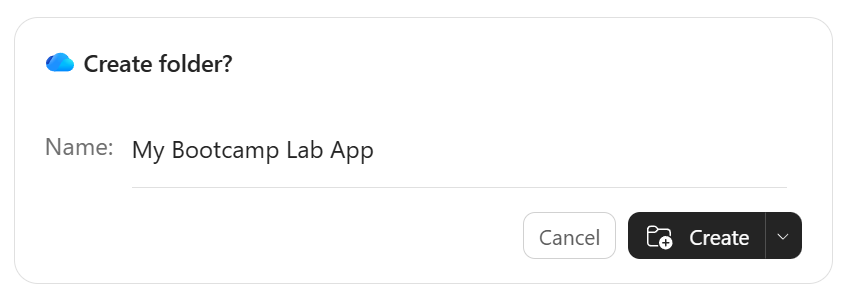
If the folder is missing and a Create folder? prompt appears, confirm the name is My Bootcamp Lab App and the destination is /Apps in your own OneDrive, then select Create.
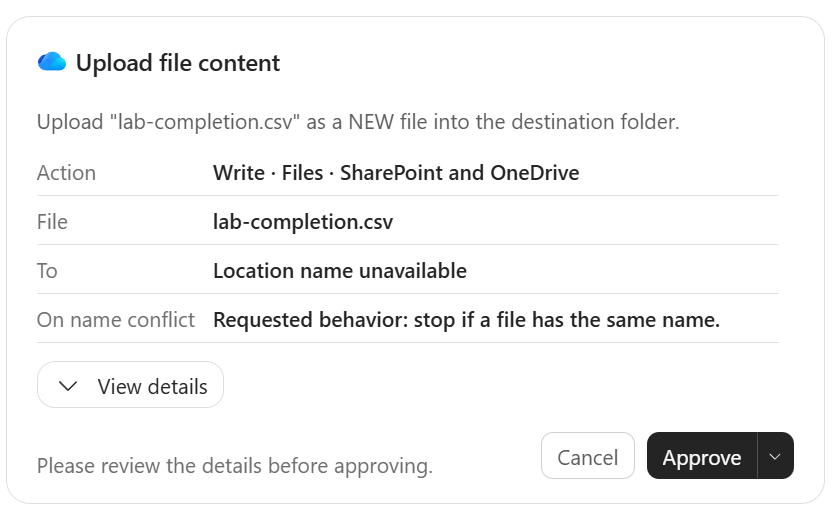
For a confirmed missing CSV, review the Upload file content request for lab-completion.csv. Expand View details, confirm the destination is your own app folder, and check that a name conflict will stop, not overwrite an existing file. If the destination shows Location name unavailable, confirm the actual destination before selecting Approve; stop if you cannot verify it. Do not approve a new-file upload when the CSV already exists.
- For a newly created file, verify the columns are
labId,completed, andupdatedAt, with one row per scheduled lab,falsecompletion values, and ISO timestamps. If a file already exists, preserve its saved values. - Review the setup report: the connection state, whether the file was created or already existed, and its current rows. Confirm the app has the connection available and that its code has not been changed yet.
If access or creation fails, stop and record the error. Do not switch to SharePoint, Dataverse, localStorage, or sessionStorage to make the preview appear successful.
At this stage, storage is ready but the app still uses its in-memory behavior. Completion is not expected to survive a reload until Prompt 3 has wired the app to the file.
Troubleshoot a Broken Connection
If the OneDrive for Business connection remains in an error state, delete and reconnect it on the Power Apps side before continuing:
- Open Power Apps, select the same environment used by your app, and open Connections (under Data if shown).
- Find your broken OneDrive for Business connection. Open its … menu and select Delete. Delete only the connection for this exercise; if other apps or flows use it, check with your facilitator first.
- Select New connection, choose OneDrive for Business, and reconnect with your own training account.
Keep your CSV file intact. Return to Copilot Studio Apps and rerun Prompt 2 to connect the app to the working connection and confirm the existing file and rows. Continue with Prompt 3 only after those checks pass. If reconnection fails, stop and report the error rather than repeatedly deleting connections.
Prompt 3: Wire the App to the File
Once the connection and file checks pass, submit this in the same conversation:
Now make lab completion save to and restore from that OneDrive CSV.

Reading the file:
- Request the file content as raw bytes, not with content-type
  inference (for "Get file content", set inferContentType to false).
  A .csv returned as text/csv can be rejected by the app's data
  layer before your code sees it.
- The content may still come back as text, base64 or raw bytes;
  handle all three and treat anything else as an error.

App behavior:
- On open, read the file and restore completion. Keep checkboxes
  and timeline buttons disabled until the load finishes.
- If the file is missing for the current user, create it;
  never overwrite an existing file on a failed read.
- On each change, rewrite the whole file. Run saves one at a time
  so the file never goes backwards. Show "Saving…" while saving.
- If a save fails, undo the change on screen and show a message.
- If loading fails, show an error with a Try again button, and log
  which step failed (metadata, read, create or save).
- Keep the existing interface and behavior unchanged: timeline,
  checkboxes, day counts and overall progress stay in sync, and
  Lunch never counts toward completion.

Before you report done, confirm the read and save work through
the app itself, not only by calling the connector directly. If you
can't verify this yourself, say so and list it as a remaining check.

When done, tell me how to test it in the preview (tick, reload,
check the CSV). Don't publish until I say so.
Ask Copilot to confirm that the app’s Get file content call sets inferContentType to false and handles text, base64, and raw-byte responses. A failed read or unsupported response must be an error, not a reason to initialize or overwrite the file.
Verify CSV Persistence in Preview
Use one open preview for these checks.
- Open the preview. Confirm that checkboxes and timeline buttons stay disabled until the CSV has loaded, then reflect its saved values.
- Complete one lab. Check that its timeline button, checkbox, day count, and overall count agree. Watch for Saving… and wait for the save to finish.
- Inspect the CSV in your OneDrive. Confirm the correct
labIdhascompletedset totrueandupdatedAtcontains an ISO timestamp. - Reload the preview. Confirm the tick and both counts are restored from the file.
- Uncheck the same lab and wait for saving to finish. Confirm its CSV value changes to
false, then reload again. It must remain unchecked with the correct counts. - Change multiple labs in quick succession and wait for all saves to finish. Confirm the CSV and screen agree with the final choices rather than an earlier state.
- Close and reopen the preview with the same account. Confirm the saved state is loaded again.
- Confirm the CSV still has exactly one row per scheduled lab and no Lunch or optional-lab rows.
Persistence evidence: Test through the app and check the actual CSV as well as the screen. A successful direct connector call or a tick surviving a reload by itself is not proof that the app reads and saves correctly. If Copilot cannot verify the app’s read and save path, treat that as a remaining check and perform it in preview.
Check Load and Save Errors
Use facilitator-approved test conditions; do not delete or corrupt an existing CSV to force an error.
- Load failure: Check that the app shows an error and a Try again button, leaves completion controls disabled, and does not overwrite the file. Inspect the logged failure step:
metadata,read,create, orsave. After the connection or access problem is resolved, retry and confirm the saved values load. - Unsupported file response: Confirm an unexpected content format is reported as an error, not treated as an empty file.
- Save failure: Check that the attempted change is undone on screen, all counts and controls return to the prior saved state, and a message appears. Resolve the failure before retrying and verify the CSV.
- Missing file: Only a confirmed missing-file result may trigger creation for the current user. Do not treat permission or connection failures as a missing file.
Finish in Preview
Stop after the preview checks and report any failed connection, load, or save test to your facilitator. Do not publish until explicitly instructed.
Congratulations!
Once these checks pass, you have demonstrated an app based on the live published schedule with completion saved to your OneDrive CSV and restored in preview. If a check fails, record the blocker rather than claiming successful persistence.
Test Your Understanding
Key takeaways: The image describes appearance, the prompt defines functionality, and the agenda supplies current data. A working connection, an existing CSV, a successful save, and a restored screen are separate checkpoints.
Storage is not app wiring: Prompt 2 prepares the connection and file; Prompt 3 changes the app’s read and save behavior. Both must work before persistence is complete.
Troubleshooting: Surface permission and connection errors. Do not hide them behind an in-memory or browser-storage fallback.
Challenge: Why is a failed read different from a missing file? What evidence shows that completion was restored from your own OneDrive CSV rather than browser storage?
Summary of Learnings
- Choose the platform by need: Copilot Code offers an approachable start for simple prototypes; Copilot Studio supports the broader path toward advanced agents and managed solutions.
- Use the live schedule for data: read the current published agenda; use the screenshot only for design.
- Make the backend the outcome: connect the app to persistent data and verify real reads and writes rather than stopping at a convincing UI.
- Establish a baseline: verify the in-memory app before introducing a backend.
- Check access first: verify the connection and file before changing app code.
- Separate setup from integration: prepare storage with Prompt 2, then wire and test the app with Prompt 3.
- Handle failures explicitly: serialize saves, undo failed changes, offer load retry, and never overwrite a file because a read failed.
- Verify the whole round trip: write, inspect, reload, undo, and reload again.
- Keep preview separate from publishing: do not publish until explicitly instructed.
Conclusions and Recommendations
Keep the reference image and behavior requirements together. Use your own OneDrive connection and CSV file, derive its rows from the live schedule, and preserve the working interface when adding storage. Check the file after ticking, reloading, and unchecking, surface failures explicitly, and leave publishing for a separate instruction.
Architecture Bootcamp Latest
This lab is part of Architecture Bootcamp Latest.