Orchestration with Copilot Studio
Orchestration with Copilot Studio
Apply Module 9 concepts hands-on: explore how Copilot Studio's generative orchestration engine routes requests, see the impact of Instructions and Descriptions on the planner, use the New Orchestrator's Agentic Reasoning Loop in a new-type agent, and package behavior into a reusable Skill that chains custom MCP servers, knowledge, and weather.
Orchestration with Copilot Studio
Apply Module 9 concepts hands-on: explore how Copilot Studio’s generative orchestration engine routes requests, see the impact of Instructions and Descriptions on the planner, and use the New Orchestrator’s Agentic Reasoning Loop in a new-type agent.
Lab Details
| Level | Persona | Duration | Purpose |
|---|---|---|---|
| 300 | Maker | 60 minutes | After completing this lab, participants will understand how Copilot Studio’s generative orchestration engine selects tools and child/connected agents, see firsthand how Instructions and Descriptions shape that selection, use the New Orchestrator (Agentic Reasoning Loop) in a new-type agent, and package behavior into a reusable Skill that chains custom MCP servers, knowledge, and weather. |
Table of Contents
- Why This Matters
- Introduction
- Core Concepts Overview
- Documentation and Additional Training Links
- Prerequisites
- Summary of Targets
- Use Cases Covered
- Instructions by Use Case
Why This Matters
Makers and Architects — The generative orchestration engine in Copilot Studio decides which tool, knowledge source, child agent, or connected agent should handle each turn. The quality of those decisions depends almost entirely on the descriptions and instructions you provide and on whether you use the New Orchestrator (the Agentic Reasoning Loop in new-type agents). Getting orchestration right is the difference between a copilot that “feels smart” and one that hallucinates or routes to the wrong place.
Common challenges solved by this lab:
- “My agent picked the wrong tool”
- “I don’t know how Instructions vs Descriptions affect routing”
- “What does the New Orchestrator (Agentic Reasoning Loop) actually change?”
Pairs with: Module 9 — Orchestration and Dynamic Chaining Concepts (the 45-minute session immediately preceding this lab).
Introduction
Welcome to the Copilot Studio Orchestration lab. This is the hands-on companion to Module 9 — Orchestration and Dynamic Chaining Concepts.
You’ll start by ensuring a sample connected agent is configured and working in your environment, then walk through changing Instructions and Descriptions to see how the planner’s choices shift, and finally build a new-type agent whose New Orchestrator (Agentic Reasoning Loop) completes multi-step tasks end to end.
What You Will Learn
- How Instructions and Descriptions shape standard generative orchestration, and the priority order the planner uses
- How to use the activity tracker and Get rationale to debug and tune planner decisions
- What the New Orchestrator’s Agentic Reasoning Loop changes about orchestration
- When to choose standard orchestration vs. the New Orchestrator (Agentic Reasoning Loop)
Core Concepts Overview
| Concept | Why it matters |
|---|---|
| Generative Orchestration | The engine that decides which tool, knowledge source, child agent, or connected agent handles each turn |
| Instructions | Top-level guidance for the parent agent — shapes overall behavior and how the planner approaches each request |
| Descriptions | Per-tool / per-agent metadata the planner reads when deciding what to route to |
| New Orchestrator (Agentic Reasoning Loop) | The default orchestrator in new-type agents — plans, acts, observes, and iterates within a single turn until the task is complete (previewed on classic agents as Enhanced Task Completion) |
| Skill | A reusable, named component the orchestrator loads on demand — bundles when to use it, the tools it relies on, and a numbered procedure with guardrails, keeping base instructions short and behavior consistent |
Documentation and Additional Training Links
Prerequisites
- Access to Microsoft Copilot Studio
- A Power Platform environment where you can edit Dataverse table views and toggle environment settings (System Administrator or System Customizer)
- Sample data loaded into the Account and Contact Dataverse tables (the (sample) records used throughout Use Cases #1 and #2)
- The pre-loaded Account Data Lookup Agent available in your environment (Use Case #1 verifies and publishes it)
- For Use Case #3 only: an environment where new-type agents (the New Orchestrator), Dataverse Intelligence (Work IQ), and Dataverse MCP servers can be used
- The Order Management MCP and Warehouse MCP custom MCP servers imported into your environment — see Custom MCP servers below. Use Case #4 cannot be completed without them.
Custom MCP servers
Use Case #4 attaches two custom MCP servers to the agent: Order Management MCP and Warehouse MCP. Neither is part of the platform — both are custom connectors that have to already exist in your environment, and nothing inside this lab creates them. If they are missing you will not find out here; you will find out in Use Case #4, when the tools you are told to add are not in the picker.
They ship with this lab as an unmanaged Dataverse solution under assets/mcp-servers.
| Solution package | Solution name in the environment | MCP servers it installs |
|---|---|---|
EnhancedTaskCompletion_1_0_0_2.zip |
Enhanced Task Completion | Warehouse MCP — check_stock, get_restock_date, get_fulfillment_status, find_alternativesOrder Management MCP — search_orders, get_order, get_shipment, request_return, get_return_status |
Both servers run inline inside the connector as a C# script, over mock data for a fictional retailer. Nothing in them reaches a real system. The two connectors ship together in one solution.
[!NOTE] The Microsoft Dataverse MCP Server, also attached in Use Case #4, is first-party and needs no import — it appears in the Model Context Protocol tool list on its own. Only these two custom servers have to be provisioned.
Check whether they are already loaded
Most delivery tenants ship this solution pre-provisioned. Check before importing — a duplicate import is not harmful, but it wastes lab time.
-
Go to make.powerapps.com and confirm the environment picker in the top right names the same environment you are building the workflow in. A mismatch here is the usual cause of “the tool is not in the list”.
-
Select Solutions in the left navigation and look for Enhanced Task Completion (unique name
EnhancedTaskCompletion, version 1.0.0.2). Sort by Created to bring recent imports to the top. -
Present? You are done — skip the import below. Missing? Import it.
[!TIP] Faster smoke test if you only want to know whether the agent will find them: in Copilot Studio open any agent, select Tools → + Add tool, filter to Model Context Protocol (MCP), and look for Order Management MCP and Warehouse MCP. The Solutions list is still the authoritative check, because it also shows you the version.
[!NOTE] First visit to make.powerapps.com on a fresh lab account? A Choose your country/region dialog opens over the page and hides the Solutions list behind it. Pick a region and select Get started to clear it.
How to import them
-
Download
EnhancedTaskCompletion_1_0_0_2.zip. Use the raw file — GitHub’s file preview will not give you a usable archive, and a.zipyour browser has helpfully unpacked will not import. -
In make.powerapps.com, confirm the environment picker, then select Solutions → Import solution.
-
Select Browse, choose the
.zip, then Next, then Import. The import runs in the background and reports success or failure in a banner when it finishes. -
Select Custom connectors in the left navigation. For each MCP connector, select Create connection — no credentials are needed, just select Create.
[!IMPORTANT] This is an unmanaged solution published by CAT. Import it into a development or training environment — not production.
[!TIP] If the servers still do not appear in Copilot Studio’s tool picker after a successful import, select Publish all customizations on the Solutions page and search again.
The solution comes from the Enhanced Task Completion sample. It also carries two demo agents alongside the connectors; this lab does not use them.
Summary of Targets
In this lab, you’ll explore how Copilot Studio’s generative orchestration engine makes decisions and how to influence those decisions. By the end of the lab, you will:
- Have a working sample connected agent (the Account Data Lookup Agent) verified in your environment
- Understand the impact of Instructions and Descriptions on the planner
- Have built a new-type agent and observed how the New Orchestrator (Agentic Reasoning Loop) completes multi-step tasks
- Have packaged behavior into a reusable Skill and seen the orchestrator load it and chain custom MCP servers, a second knowledge source, and weather across a single turn
Use Cases Covered
| Step | Use Case | Value added | Effort |
|---|---|---|---|
| 1 | Get the Sample Connected Agent Working | Confirm the prebuilt connected agent and its data are ready before working with it | 10 min |
| 2 | See the Impact of Instructions and Descriptions on the Planner | Build intuition for how planner decisions track with Instructions and Descriptions | 20 min |
| 3 | New Orchestrator – Agentic Reasoning Loop | See how a new-type agent’s New Orchestrator completes multi-step tasks end to end | 30 min |
| 4 | Leveraging Skills | Package behavior into a reusable Skill and watch the orchestrator load it and chain custom MCP servers, knowledge, and weather | 30 min |
Instructions by Use Case
Use Case #1: Get the Sample Connected Agent Working
Verify that the Account and Contact Information agent (the sample connected agent we’ll build on throughout this lab) is fully configured to work in your environment.
[!NOTE] If you’ve already completed this verification in another lab (such as the Multi-Agent lab), you can skip this Use Case and continue to Use Case #2.
| Use case | Value added | Estimated effort |
|---|---|---|
| Get the Sample Connected Agent Working | Confirm the prebuilt connected agent and its data are ready before working with it | 10 minutes |
Summary of tasks
In this section, you’ll confirm that Dataverse Search is enabled, the Account and Contact tables are indexed, and the Account Data Lookup Agent is published and discoverable.
Scenario: Before exploring how Instructions and Descriptions shape orchestration, you need to make sure the agent and its underlying data are properly configured.
Objective
Confirm the environment is ready and the sample connected agent is published.
Step-by-step instructions
Make sure that Dataverse Search is set to on
-
In the upper right corner of Copilot Studio, select the Gear icon
-
Select Go to Power Platform admin center
-
In the Power Platform admin center (https://admin.powerplatform.microsoft.com), select the Manage tab, then select Environments
-
Select your environment from the list to open its details page
-
Select Settings on the top navigation bar of that page (the Settings command across the top of the environment — not the gear/global settings). Go to it through the admin center rather than pasting a direct URL.
-
Expand the Product group and select Features
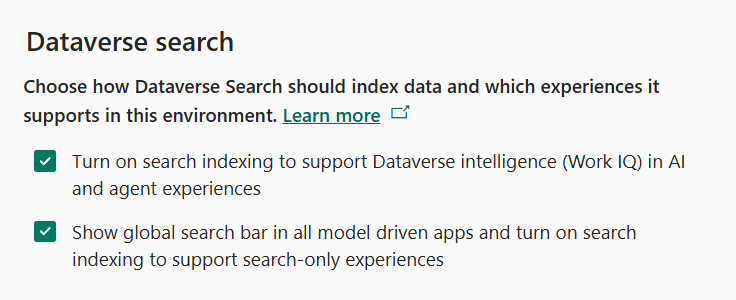
- In the Dataverse search section, verify that both check boxes are enabled:
- Turn on search indexing to support Dataverse intelligence (Work IQ) in AI and agent experiences
- Show global search bar in all model driven apps and turn on search indexing to support search-only experiences
- Select Save if you made any changes
Ensure that indexes are in place for our connected agent
[!NOTE] This is not required for a connected agent to work, but to make sure that the one we have pre-loaded for you will return results we must index a few tables in your environment.
-
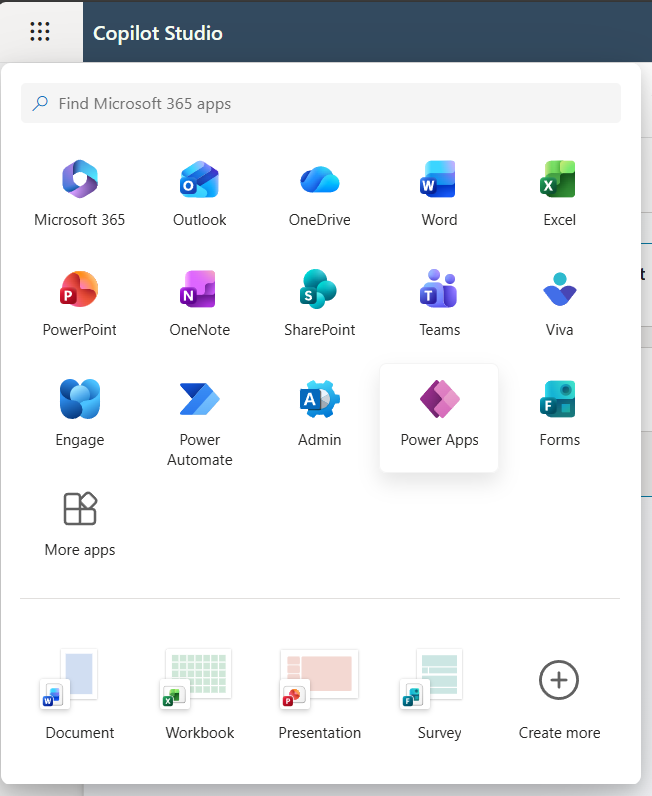
Go to the Power Apps maker portal https://make.powerapps.com
-
In the left menu, select Tables
-
Select the Account table from the list
-
Select Views from the Data experiences section
-
Select Quick Find Active Accounts from the list of Views
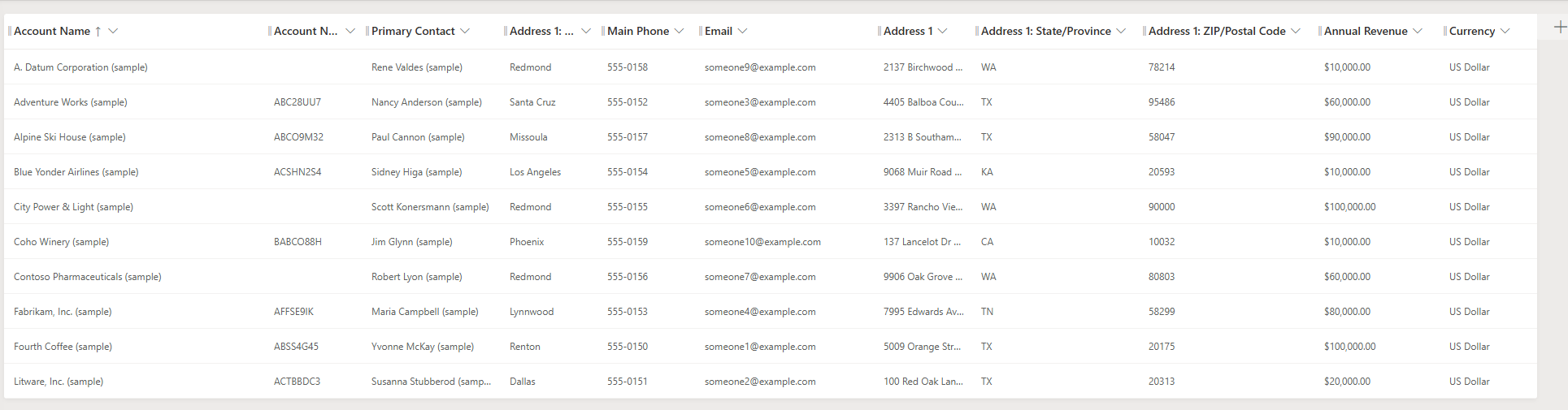
- Select View Column to verify the following list of columns are in the view. You may have to scroll to see all of the included columns:
- Address 1: State/Province
- Address 1: ZIP/Postal Code
- Address 1: City
- Annual Revenue
- Currency
-
To add any that are missing select + View column and then select the column from the list.
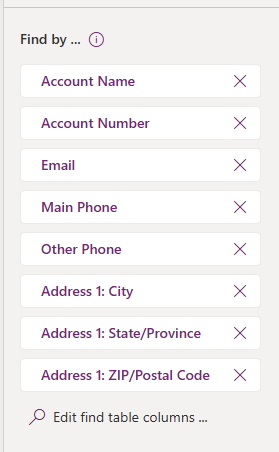
- Add the ability to search on certain fields by making sure the following items are in the Find by on the bottom right. Select the Edit find table columns option to check:
- Address 1: State/Province
- Address 1: ZIP/Postal Code
- Address 1: City
-
Select Edit find table columns to add any missing columns.
-
Select Save and publish to update the index
[!IMPORTANT] DO NOT navigate away until the save and publish is completed!
-
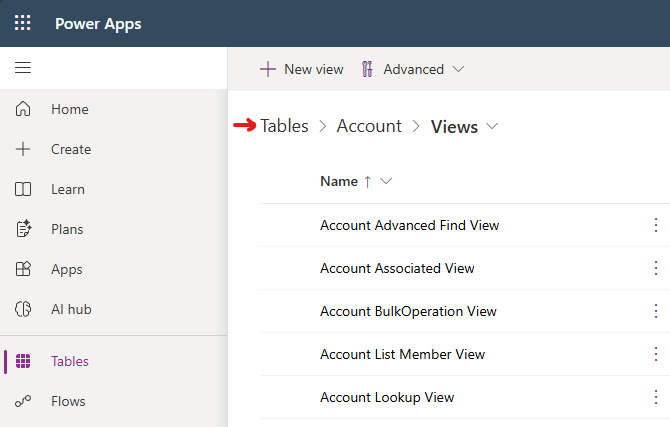
Select Back in the upper left corner to go back to the Views list
-
Select on Tables in the Views screen to go back to the list of Tables
-
Select Contact table from the list
-
Select Views from the Data experiences section
-
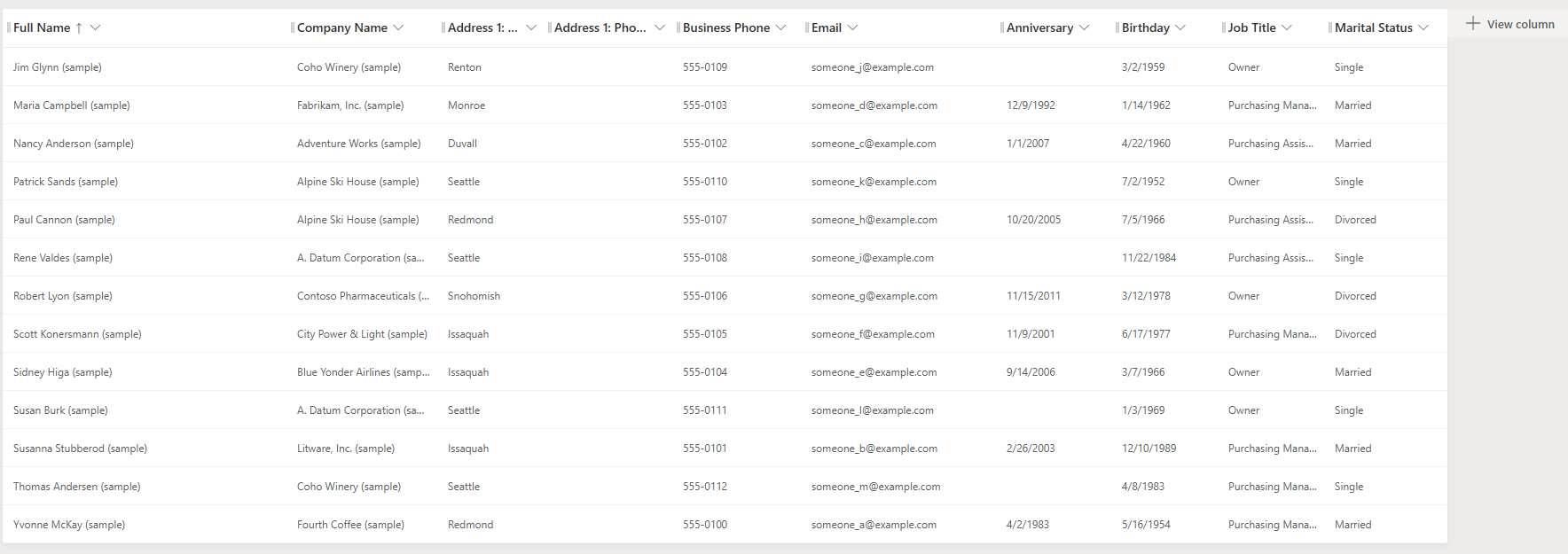
Select Quick Find Active Contacts option from the list of Views
- Select View Column to verify the following columns are in the view:
- Anniversary
- Birthday
- Job Title
- Marital Status
-
Select + View column to add any that are missing.
-
Select Save and publish to update the index
[!IMPORTANT] DO NOT navigate away until the save and publish is completed!
Test and Publish the Account Data Lookup Agent
-
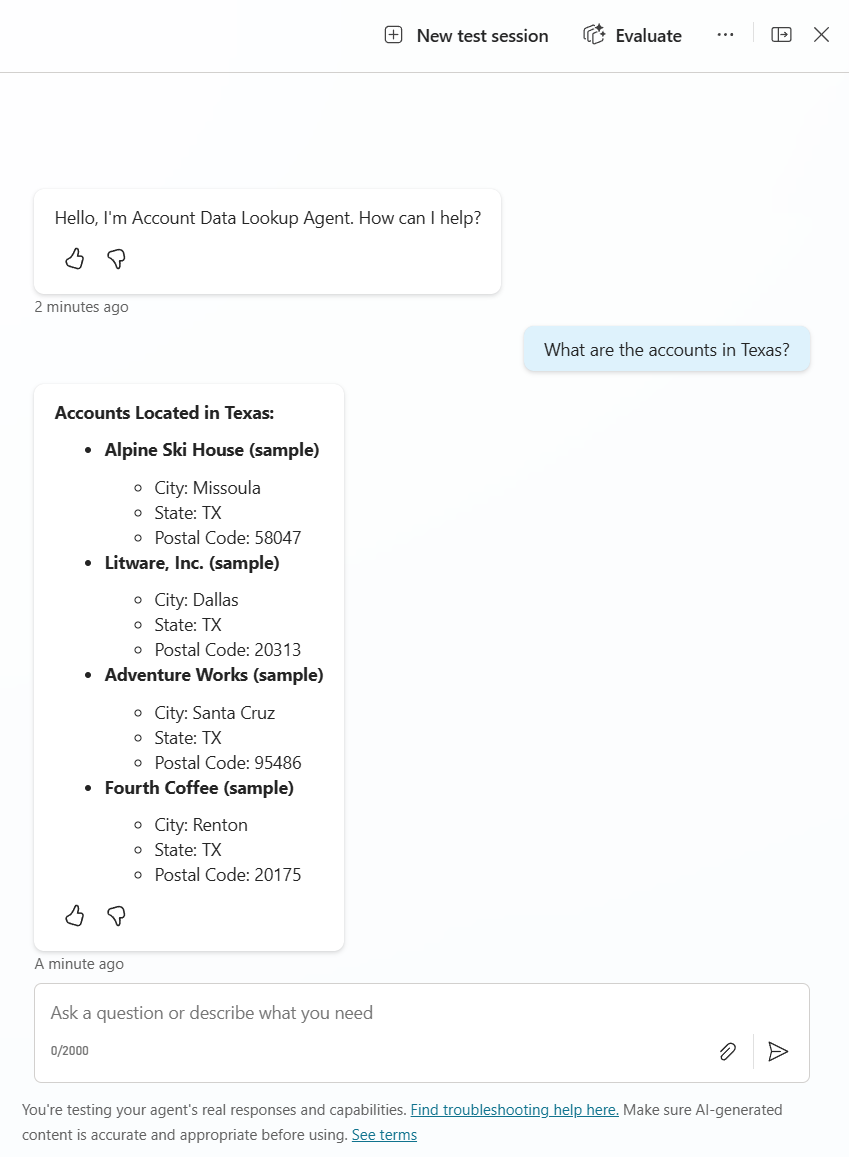
In the Copilot Studio tab in your browser, go to the Account Data Lookup Agent
-
Open the Test chat by selecting Test in the upper right-hand corner
-
Enter
What are the accounts in Texas? -
Verify that you get a response showing that the agent is working and the data is indexed
-
Select Settings in the upper right menu
-
On the Generative AI settings page, scroll to the Connected agents section and make sure Let other agents connect to and use this one is set to On.
[!NOTE] Use the Connected agents section on the Generative AI page — not the separate Connected Agents item in the Settings left navigation. That left-nav item opens an input/output management page (“Manage input and output for the agent”) and does not contain this toggle.
-
Close the Settings menu by selecting the X in the upper right-hand corner
-
Select Publish. In the Publish this agent dialog, make sure Force newest version is checked, then select Publish to confirm.
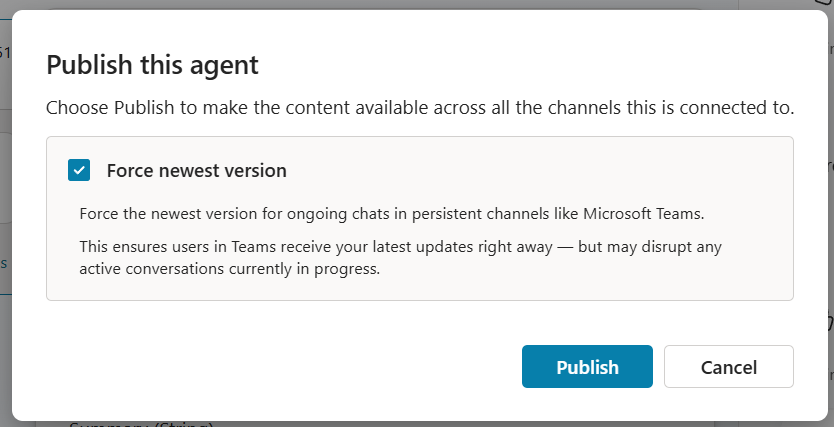
[!IMPORTANT] You can’t connect to an agent unless it is published. Forcing the newest version ensures any agent that connects to it picks up your latest changes.
Congratulations! You’ve completed Use Case #1!
Test your understanding
Key takeaways:
- Dataverse Search must be enabled – Connected agents that look up Dataverse data depend on Dataverse Search being on at the environment level.
- Quick Find indexes drive what’s searchable – The columns added to the Quick Find view determine which fields the agent can filter on at runtime.
- Publishing + sharing must both be on – A connected agent must be published and have “Let other agents connect to and use this one” enabled before it can be connected.
Lessons learned & troubleshooting tips:
- If Dataverse search returns no results, verify the Quick Find views have the correct columns added and the view is saved and published.
- If the agent can’t find account data, check that Dataverse Search is enabled in the Power Platform admin center for your environment.
Use Case #2: See the Impact of Instructions and Descriptions on the Planner
Walk through where Instructions and Descriptions live in the Account Data Lookup Agent, then run a series of test queries to observe how the generative orchestration planner uses them to pick the right child agent, tool, and inputs at each turn.
| Use case | Value added | Estimated effort |
|---|---|---|
| See the Impact of Instructions and Descriptions on the Planner | Build intuition for how planner decisions track with Instructions and Descriptions | 20 minutes |
Summary of tasks
In this section, you’ll review the four levels at which the planner reads agent metadata, then run a multi-turn test conversation. Each turn is designed to highlight a different planner decision — which child agent to delegate to, which tool to call, and which input values to pass.
Scenario: You verified the Account Data Lookup Agent in Use Case #1. Now you want to understand how the planner decides what to do at each turn. The answer lives in the Instructions and Descriptions configured throughout the agent.
Objective
Build intuition for how the generative orchestration planner reads Instructions and Descriptions to assemble a correct plan.
Step-by-step instructions
Review where Instructions and Descriptions are configured
Open the Account Data Lookup Agent in Copilot Studio and walk through each of the following locations. Each one is a hook the planner reads when deciding what to do next.
- Instructions in Overview
- Select the Overview page of the Account Data Lookup Agent
- Read the agent-level Instructions text. These are top-level instructions for the agent itself — they describe its purpose, behavioral rules, and any cross-cutting constraints.
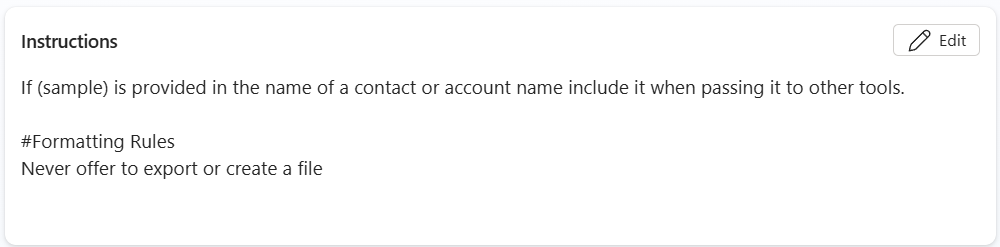
- Instructions run on every turn. Unlike a tool description (which the planner only reads when deciding whether to use that tool), agent-level Instructions are appended to the planner’s context for every turn of the conversation. That makes them the right place for rules that should always apply, regardless of which tool or child agent gets called.
- In the screenshot above, notice the two kinds of guidance:
- Argument-handling rule — “If (sample) is provided in the name of a contact or account name include it when passing it to other tools.” This tells the planner how to clean up a value before handing it off, on every turn.
- Formatting / behavior rules — under
#Formatting Rules, “Never offer to export or create a file.” This is a hard restriction on agent output applied to every response.
[!TIP] Agent-level Instructions are powerful but expensive: they consume planner context on every turn. Use them for rules that genuinely apply everywhere. For rules that only apply when a specific tool or child agent runs, prefer a description on that tool / child instead.
- Child Agents
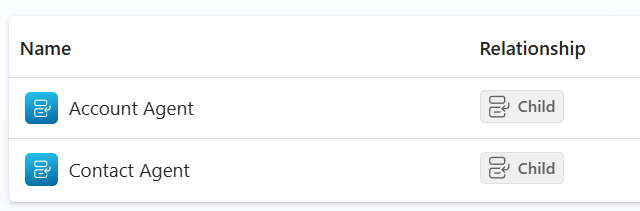
- Select Agents from the top navigation
- Notice the child agents inside this connected agent: Account Agent and Contact Agent, both with a Child relationship. Each represents a specialized capability — looking up Accounts vs. looking up Contacts. The planner picks one of these children for each step that requires data lookup.
- Descriptions in Child Agents
- Open the Account Agent child agent and look at the Details panel — specifically the Name and Description fields.
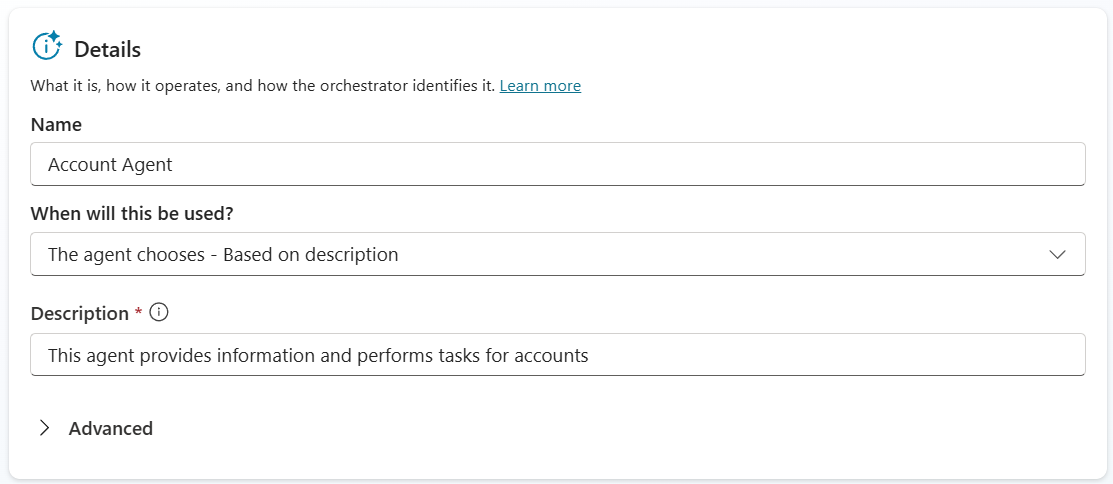
- Names get higher priority than descriptions in the planner’s routing decision. A clear, intent-revealing name (e.g., “Account Agent”) does most of the work — the planner will match user intent against the name before it weighs description content.
- Descriptions add context and handling information that names alone can’t carry. They’re the right place for what kind of work this agent does (e.g., “This agent provides information and performs tasks for accounts”), special handling rules, and anything that helps the planner pick correctly when two child agent names sound similar.
- Explore both child agents inside the Account Data Lookup Agent. For each one, compare its Name and Description, and consider: if a user asked “show me the contacts for Coho Winery”, which child agent’s Name + Description combination most clearly signals it should handle the request? That’s the same reasoning the planner does at runtime.
[!TIP] If two child agents have similar names, the description becomes the tiebreaker. If you ever see the planner route to the wrong child, the first thing to check is whether the names are distinct enough — fix the name before fixing the description.
- Instructions in Child Agents
- On the same child agent, select Instructions from the left panel.
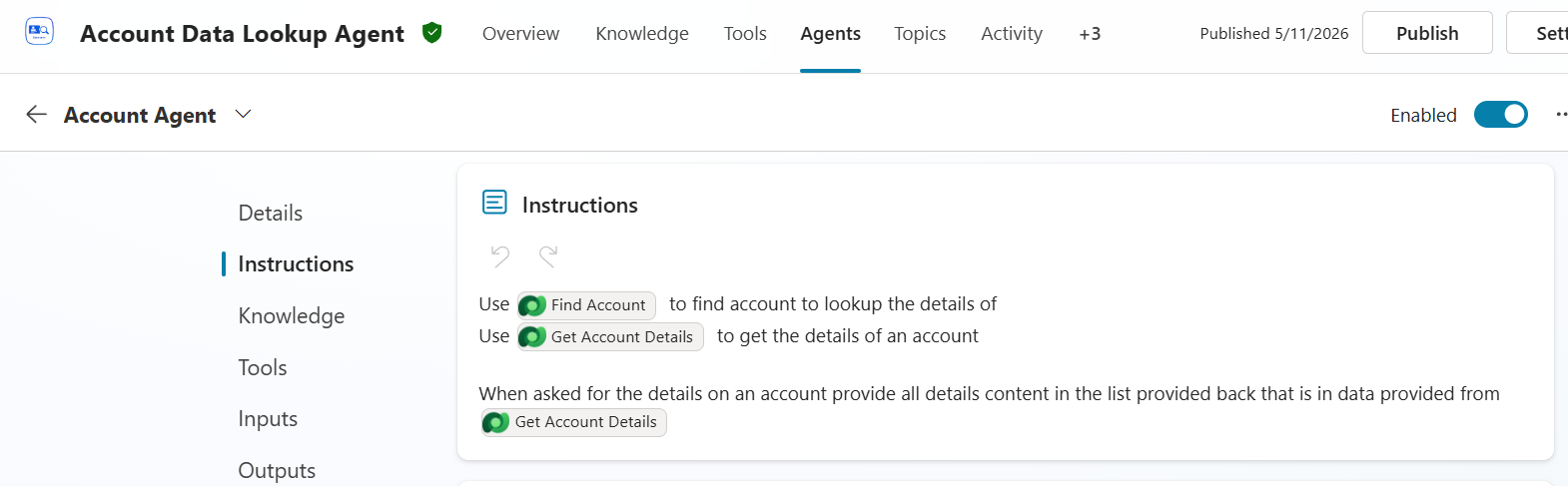
- Child-level Instructions only run when this child agent runs. Where the parent’s Instructions apply to every turn, a child’s Instructions narrow scope — they’re appended to the planner’s context only when this specific child has been selected for a step. That makes them the right place for rules and tool-selection guidance that should fire only inside this child’s responsibilities.
- In the screenshot, the Account Agent’s Instructions reference two specific tools — Find Account and Get Account Details — by name, and tell the planner exactly when to use each:
- “Use Find Account to find account to lookup the details of” — when the user’s intent is locate an account, this tool is the dispatch target.
- “Use Get Account Details to get the details of an account” — when the user’s intent is expand details on an account already in context, this tool is the dispatch target.
- “When asked for the details on an account provide all details content in the list provided back that is in data provided from Get Account Details” — a formatting / response rule: don’t summarize, return the full detail list.
- The green pills (
Find Account,Get Account Details) you see in the screenshot are not free text — they are explicit tool references inserted from a picker. The planner reads these as hard pointers to specific tools, not as suggestions.
[!TIP] If you can’t get what you’re looking for by updating the tool name or description, then using Instructions is a good way to force the child agent to properly leverage the right tool. Treat Instructions as a stronger lever — reach for the tool’s own name and description first, and use child-level Instructions to lock in the behavior when name and description tuning aren’t enough.
- Descriptions in Tools
- Select Tools from the top navigation, then open the Find Account tool.
[!IMPORTANT] If you see a red exclamation on the tool, the connection isn’t set. Set the Connection (top-right of the tool’s Details panel), select Save, then close the tool and reopen it so the changes apply.
- Review the Details panel — the Name and Description fields.
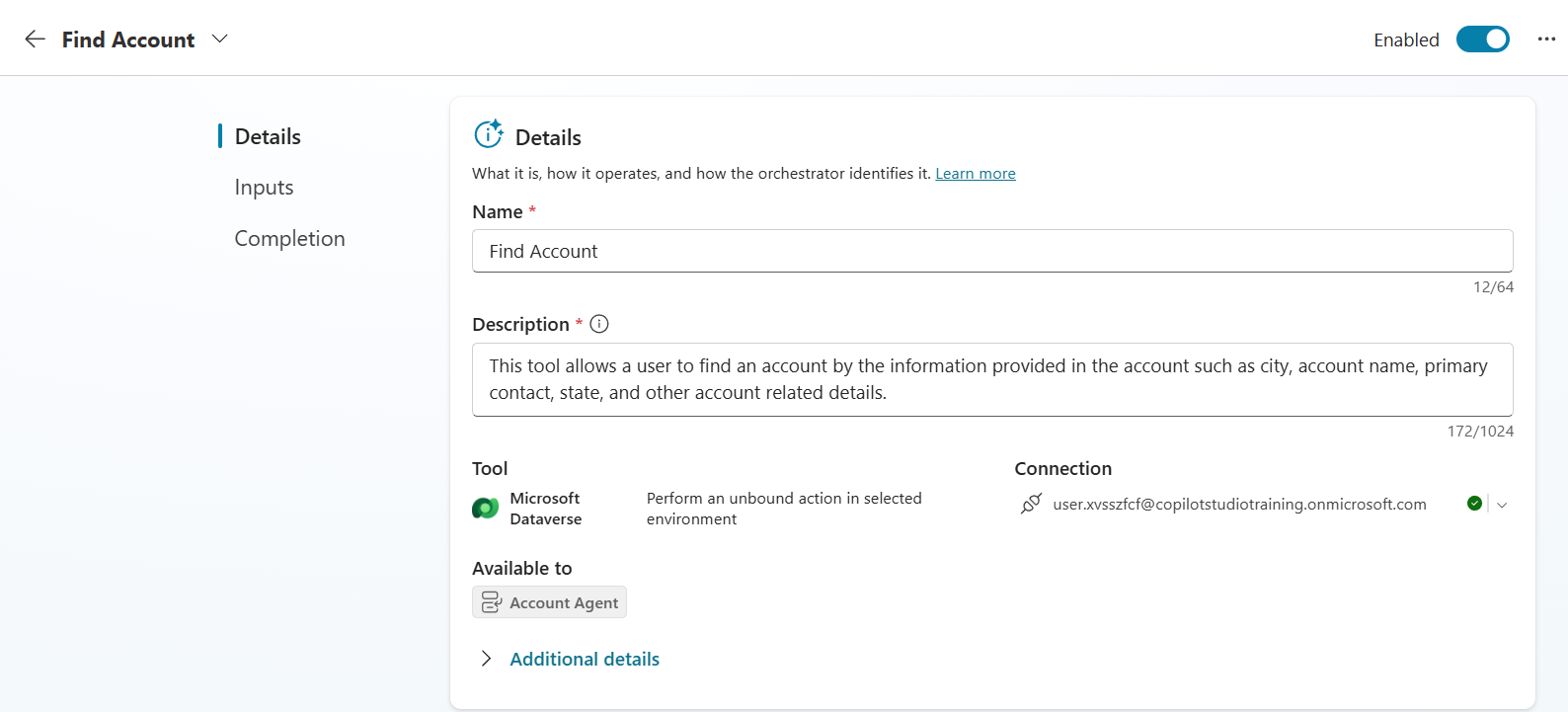
- Tool Name and Description follow the same priority pattern as child agents — Name takes priority, Description adds context. A short, intent-revealing tool name (“Find Account”) is what the planner matches against first. The description is the place to add what the name alone can’t carry.
-
The description is where you tell the planner what the tool actually does — and what inputs it accepts in plain language. Notice this tool’s description:
“This tool allows a user to find an account by the information provided in the account such as city, account name, primary contact, state, and other account related details.”
It does two important jobs:
- Names the operation — “find an account” — so the planner can match the user’s intent.
- Hints at the inputs in natural language — “city, account name, primary contact, state…” — so when a user says “accounts in Texas” or “the Coho Winery account”, the planner can recognize that those values map to inputs this tool accepts, before it even reads the formal input parameter list in step 6.
- Notice the tool is Available to: Account Agent — tool availability is scoped to specific child agents, which keeps the planner’s candidate set small and routing decisions cleaner.
[!TIP] If the planner keeps failing to call a tool when a user’s intent obviously matches it, the tool’s description is usually missing the right vocabulary. Add the user’s likely phrasing to the description (intent verbs + filterable attributes) before reaching for harder fixes like child Instructions.
- Descriptions in Inputs
- Still in the Find Account tool, select Inputs from the left panel. Expand the search input.
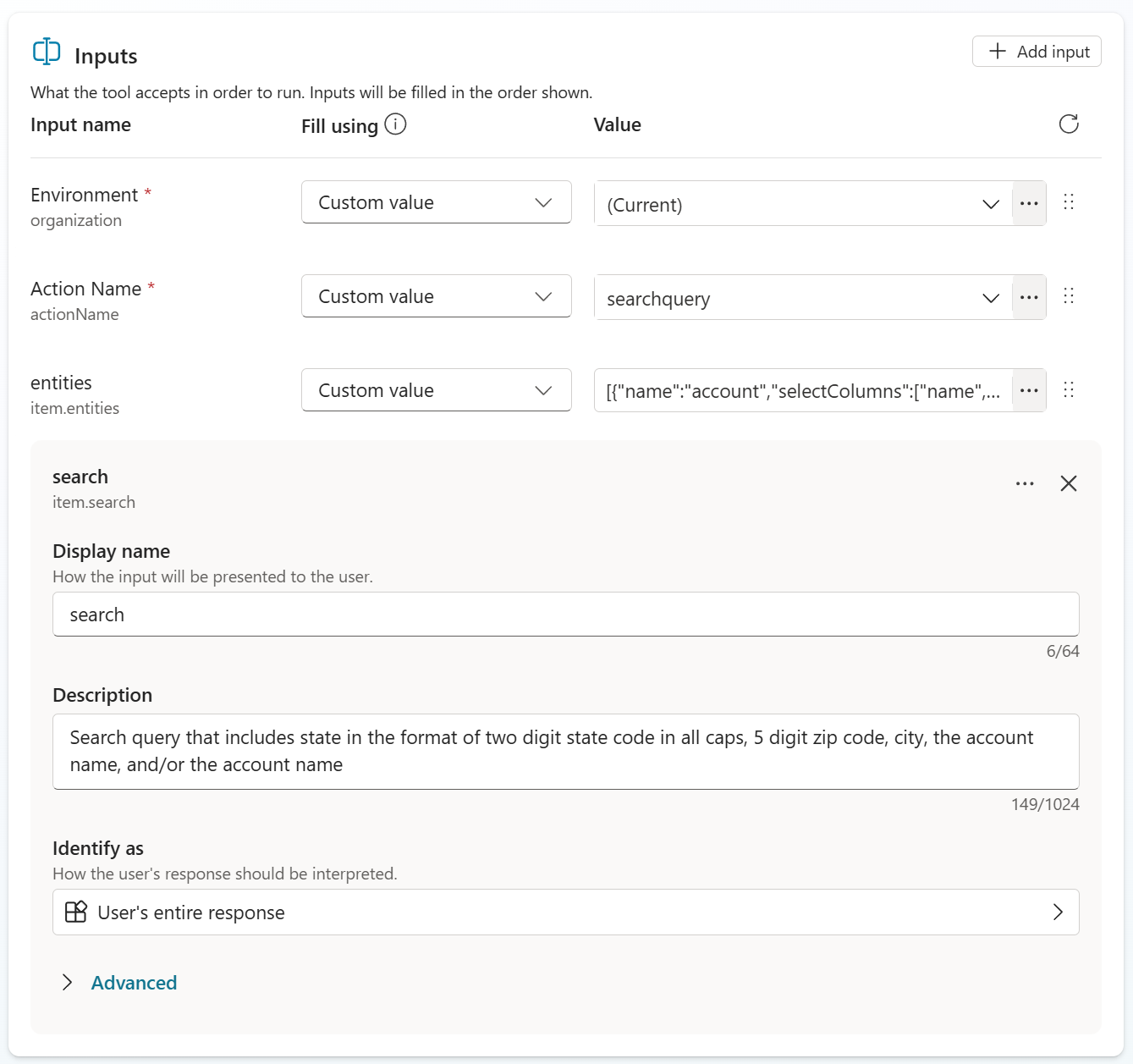
- Input descriptions tell the planner what value belongs in the input and how to format it. The planner uses this text to translate a user’s words into the exact value the tool expects to receive. Vague input descriptions are the most common reason a tool gets called with the wrong argument — even when the right tool was picked.
-
Read the description on the
searchinput carefully:“Search query that includes state in the format of two digit state code in all caps, 5 digit zip code, city, the account name, and/or the primary contact name”
Notice how strict the state code formatting requirement is: “two digit state code in all caps”. That single phrase tells the planner to translate the user’s word “Texas” into
TX, nottexas, notTexas, notTex. Dataverse search only matches if the value comes in correctly cased and formatted — so this description is what makes the difference between “agent returned all Texas accounts” and “agent returned no results.” - The
Fill usingcolumn (left of the Value column) controls how each input gets its value at runtime. The options include Custom value (the planner fills it from the conversation, guided by the description) and dynamically filled options that pull from variables or outputs of an earlier tool. The description matters in either case — when the value is dynamically filled from another tool’s output, the description tells the planner how to reshape that output to match this input’s expected format.
[!IMPORTANT] Input descriptions are the foundation of dynamic chaining — the pattern where the orchestrator uses one tool’s output as another tool’s input across turns. For dynamic chaining to work, every input in the chain needs a description clear enough for the planner to know what shape the value should arrive in. Skip this, and the planner has to guess how to transform data between steps; with good input descriptions, the transformation is deterministic.
[!TIP] When you author your own tool, write input descriptions in the form “<what the value is> in the format of <exact format>“. The
searchinput above is a good template — it names the field (state, zip, city, account name) and then specifies the format the field must arrive in. That two-part pattern is what gives the planner enough to format correctly across both user-driven and chained inputs.
Demonstration
[!TIP] As you run the demonstration below, watch for moments where the right answer depends on one of the descriptions reviewed above being clear. If the planner ever picks wrong, the fix is almost always at one of those levels — not at the user’s prompt.
-
Open the Test chat by selecting Test in the upper-right corner.
-
Select the + in the Test chat to start a new conversation so no prior context influences the planner.
[!IMPORTANT] Run the following prompts in order without resetting the conversation again between turns. Several prompts depend on the planner remembering earlier results (e.g., “them”, “the 2nd one”), and resetting partway through will break those references.
After each response, expand the activity panel in the test chat to see which child agent and which tool the planner chose, and what arguments it passed.
-
Find accounts by location. Uses the Address 1: State/Province column we indexed in Use Case #1.
What are the accounts in Texas?Expand the activity tracker for this turn. You should see all three planner decisions land correctly, and — most importantly — see the input value transformation in action.
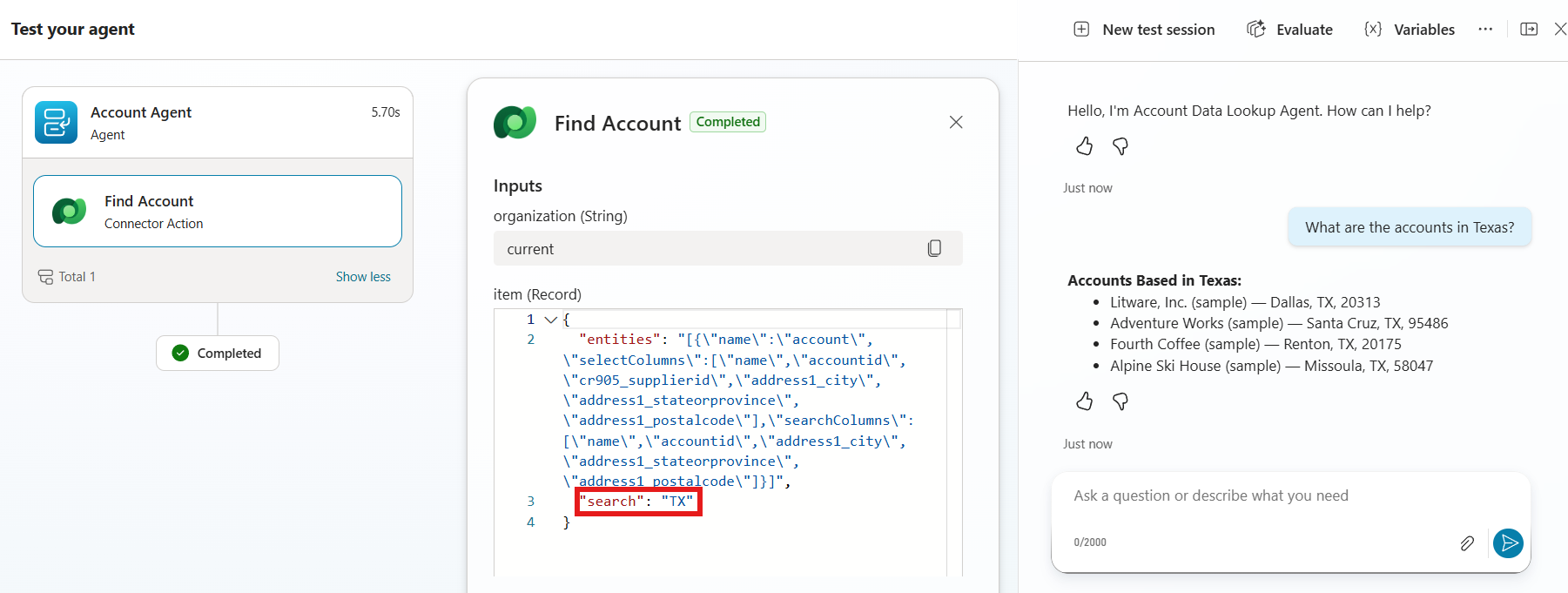
Notice in the screenshot:
- Right child agent picked:
Account Agent(left column). The name + description from step 3 of the review made this decision possible. - Right tool picked:
Find Account(left column, under Account Agent). The tool’s name + description from step 5 of the review steered the planner to this tool over any other Account tool. - Input value optimized to the required format: in the Inputs panel on the right, the
"search"value is"TX"— not"Texas". The user typed “Texas”, but the input description we reviewed in step 6 (“two digit state code in all caps”) told the planner to translate the user’s word into the format Dataverse search requires. Without that description, the search would have run with"search": "Texas"and returned nothing.
[!NOTE] This single turn shows every layer of the review working together: parent Instructions set the always-on rules, child agent Name + Description routed to the right child, tool Name + Description routed to the right tool, and the input Description formatted the value. Each layer is doing its own job, and the right answer only emerges when all four are clear.
- Right child agent picked:
-
Carry context across turns. Asks for more fields on the same accounts.
What are all the details on them?Expand the activity tracker for this turn. You should see something like the screenshot below — the planner did not re-run the search; instead it took the 4 accounts from the previous turn and called Get Account Details once per account.
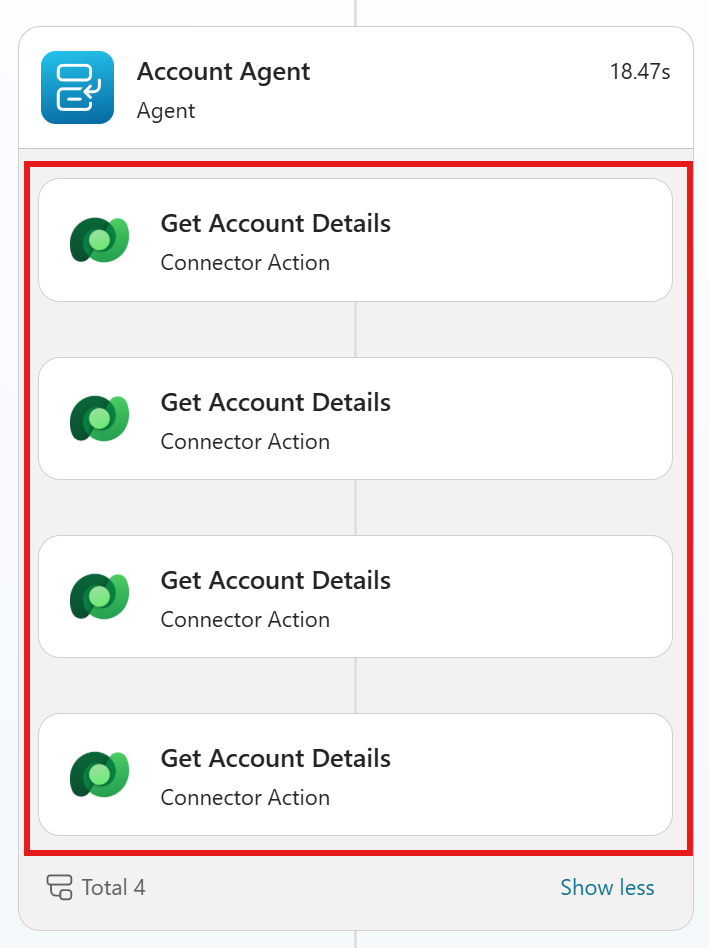
Notice in the screenshot:
- Same child agent: still
Account Agent— the planner stayed in the same child for a related follow-up question. - Different tool, different pattern: the previous turn called
Find Account(search). This turn callsGet Account Details— a different tool whose description told the planner “use me when expanding details on an account already in context”. - Four parallel calls, one per account:
Total 4. The planner walked the 4-account result from the previous turn and issued one details call per account, using each account’s identifier from the conversation context as the input. - Pronoun resolution worked: the word “them” was never sent to a tool. The planner resolved it to the specific 4 accounts and made the data flow deterministic.
[!TIP] This find → details pattern is one of the most important design choices in agent authoring. The search tool returns a minimal record per match (just enough to identify it). The details tool fetches the full payload only for the specific items the user asks about. The alternative — having one tool that returns every field for every match — would dump a huge amount of data into the LLM’s context on every search, blowing the token budget and making the prompt unmanageable. Splitting the work across two tools means only the data the user actually needs ever reaches the LLM.
- Same child agent: still
-
Drill into a related entity. Moves from Accounts to Contacts.
What is the job title of the primary contact of the 2nd one?Expand the activity tracker for this turn and click into the child agent block. You should see something like the screenshot below — the planner switched from
Account AgenttoContact Agent, and constructed a concrete task input from the conversation context.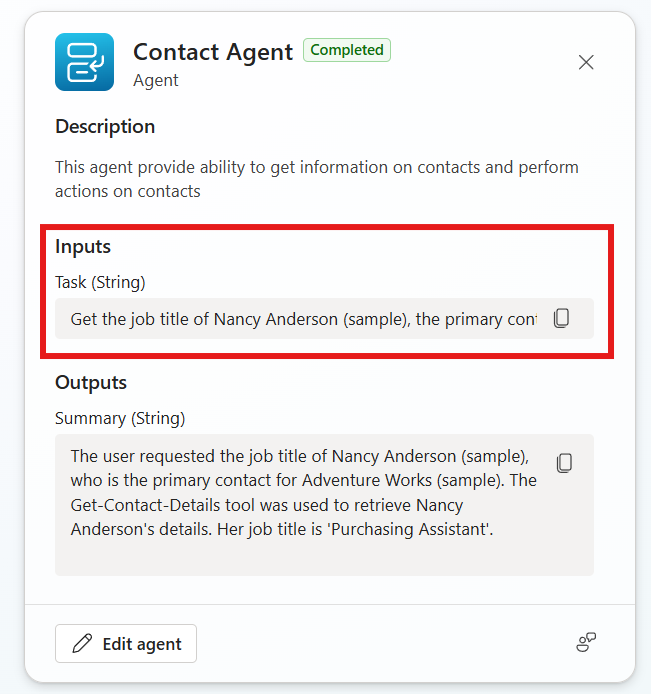
Notice in the screenshot:
- Right child agent picked: the planner moved out of
Account Agentand intoContact Agent. The Contact Agent’s Description (“This agent provide ability to get information on contacts and perform actions on contacts”) is what told the planner this child is the right home for a primary-contact / job-title question. - Context fully resolved into a concrete Task: the user said “the primary contact of the 2nd one.” Look at the Task input the parent’s planner sent to the Contact Agent — it isn’t “the 2nd one”; it’s “Get the job title of Nancy Anderson (sample), the primary contact for Adventure Works (sample).” The parent did the context resolution before dispatching to the child:
- “the 2nd one” →
Adventure Works (sample)(item 2 in the previous turn’s account list) - “the primary contact of” →
Nancy Anderson (sample)(resolved from the account record retrieved earlier)
- “the 2nd one” →
- Child agents take a natural-language Task, not structured parameters: the input to a child agent is a sentence describing what to do. That keeps the parent → child handoff flexible — the child decides which of its own tools to use to fulfill the Task.
- Summary output shows the reasoning trace: the Outputs panel returns a Summary that names the tool the child called (
Get-Contact-Details) and the answer ('Purchasing Assistant'). That summary is what the parent agent uses to compose its reply to the user.
- Right child agent picked: the planner moved out of
-
Use a derived field. Asks for a value (
age) that doesn’t exist in the database — it has to be calculated from a value that does (birthdate).How old are they?Expand the activity tracker, click into the
Contact Agentblock, and look at the Outputs Summary. You should see something like the screenshot below — the agent didn’t just hand back a birthday, it calculated the actual age in years using today’s date.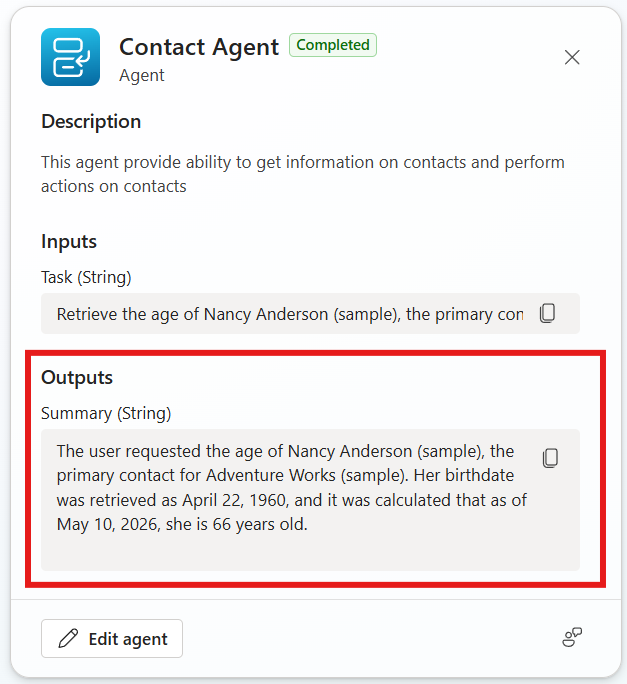
Notice in the screenshot:
- The Task input asks for age, not birthdate: the parent’s planner translated “How old are they?” into the Task “Retrieve the age of Nancy Anderson (sample), the primary con[tact for Adventure Works]”. Even though the underlying Dataverse column is Birthdate, the parent didn’t lower the user’s intent to match the column — it kept the Task at the intent level (
age). - The Summary walks through the derivation step-by-step: “Her birthdate was retrieved as April 22, 1960, and it was calculated that as of May 10, 2026, she is 66 years old.” That sentence is the LLM showing its work — fetch raw data, compute the derived value, return the answer.
- No “age” tool exists: the Contact Agent never called a
Get-Contact-Agetool, because there isn’t one. It calledGet-Contact-Details, retrieved the birthdate, and the LLM did the date math itself before composing the Summary. - Context still carrying: “they” resolved to Nancy Anderson from the previous turn, with no explicit re-introduction.
[!TIP] This turn shows an important orchestration capability: the planner is happy to derive answers from raw data rather than expecting a tool for every possible question. You don’t need a
Get-Contact-Agetool — exposingBirthdateis enough, because the LLM can reason about dates. Reach for a tool only when the calculation is something the LLM can’t do reliably (large datasets, exact business rules, anything requiring secrets or signed calls). For everything else, raw fields plus a clear Summary are usually all the planner needs. - The Task input asks for age, not birthdate: the parent’s planner translated “How old are they?” into the Task “Retrieve the age of Nancy Anderson (sample), the primary con[tact for Adventure Works]”. Even though the underlying Dataverse column is Birthdate, the parent didn’t lower the user’s intent to match the column — it kept the Task at the intent level (
-
Use a status field, then ask the planner to explain itself. Marital Status is one of the columns indexed in Use Case #1.
Are they married?Confirm the agent answers correctly (Nancy Anderson is married). Now scroll to the bottom of the activity tracker item for this turn and select Get rationale. The agent will produce a plain-language explanation of why it chose the tools it chose and how it built the plan.
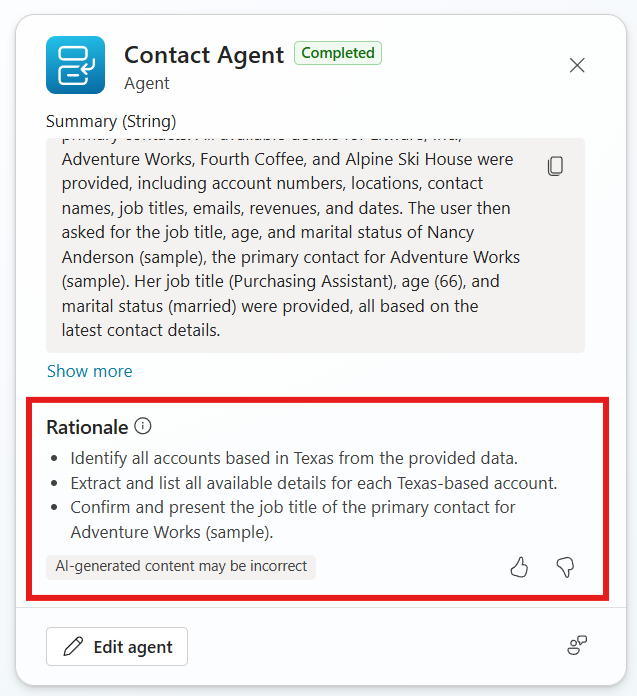
Notice in the screenshot:
- The Summary at the top recaps what happened across the recent turns — it names the accounts, the contact, and the specific values the agent retrieved (
Purchasing Assistant,66,married). - The Rationale section breaks the plan into discrete reasoning steps, in the planner’s own words:
- “Identify all accounts based in Texas from the provided data.”
- “Extract and list all available details for each Texas-based account.”
- “Confirm and present the job title of the primary contact for Adventure Works (sample).”
- This is the planner’s interpretation of your prompts back to you — not a generic post-hoc explanation. It tells you exactly which goals the planner thinks it was solving and the order it solved them in.
[!TIP] Get rationale is the most useful tuning tool in the entire orchestration story. When the planner does the wrong thing — picks the wrong tool, summarizes a value incorrectly, skips a step — the rationale tells you why it thought that was right. Read it side-by-side with your Instructions and Descriptions. If the rationale reflects the meaning you intended, your descriptions are doing their job. If it reflects something subtly wrong (“identify the largest account” when you meant “the most recently updated account”), you have a precise pointer to which description needs sharper wording. Treat the rationale as a debugger trace for your descriptions.
- The Summary at the top recaps what happened across the recent turns — it names the accounts, the contact, and the specific values the agent retrieved (
-
Pivot directly to a contact. Up to this point every prompt has started from accounts. This one enters from the contact side.
What is Susanna Stubberod's phone number?Expand the activity tracker for this turn and notice that the planner went directly to the Contact Agent — there is no
Account Agentblock, and noFind Accountcall.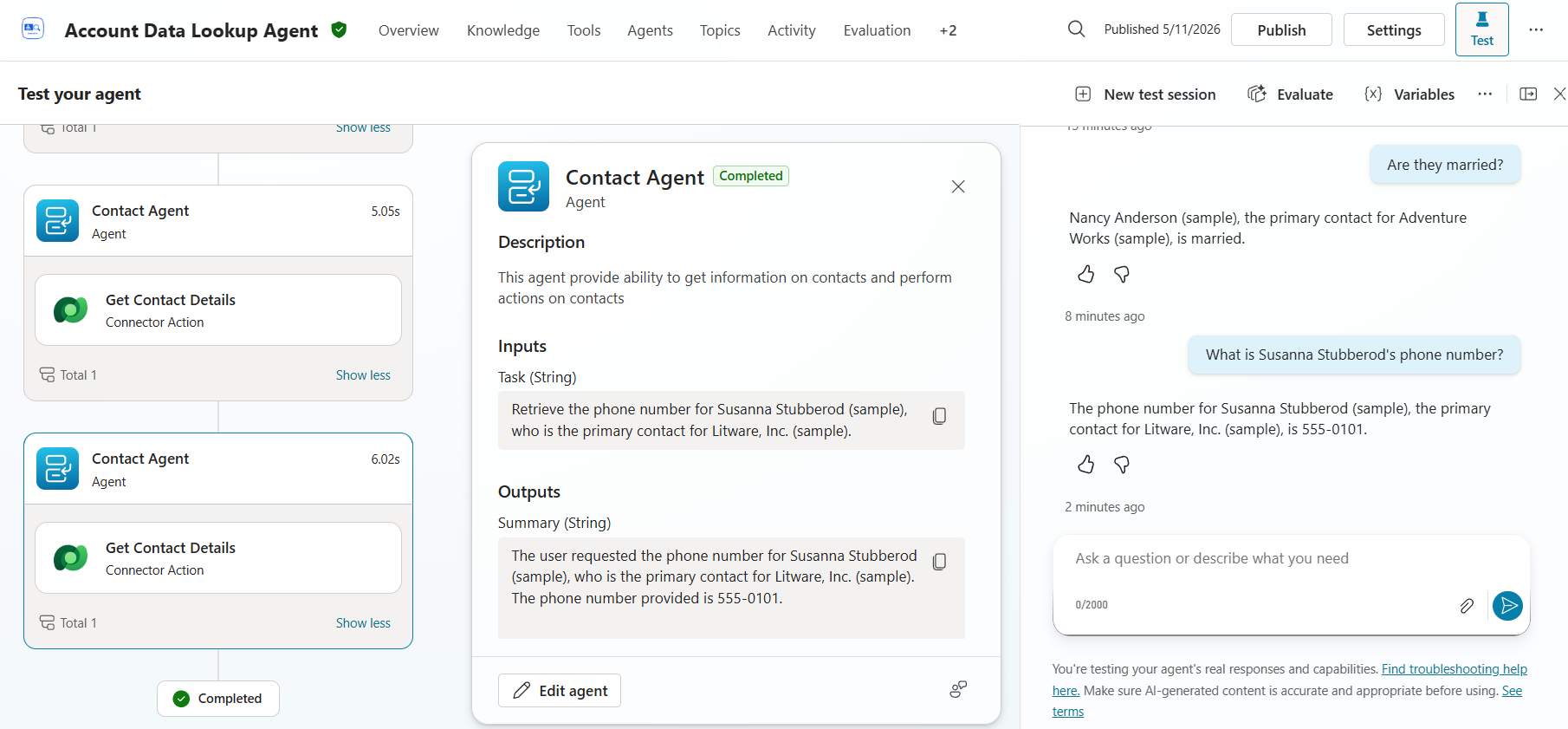
Notice in the screenshot:
- No Account Agent in the activity trace. The planner read the user’s request, recognized that the subject is a person (
Susanna Stubberod), and dispatched straight to theContact Agent. It didn’t search accounts first because the question doesn’t require one. - The Task input names both the contact and their account context: “Retrieve the phone number for Susanna Stubberod (sample), who is the primary contact for Litware, Inc. (sample).” The planner enriched the Task with the related account information it discovered along the way, so the Contact Agent has full context for its lookup.
- The Summary mirrors the answer back to the parent with the same enrichment, naming both Susanna and Litware, Inc.
- Two Contact Agent calls visible — the activity tracker still shows the previous turn’s Contact Agent invocation as well, since the test session is the same conversation.
[!NOTE] This is the payoff of designing the agent the way it’s been designed. Because Account Agent and Contact Agent are peer child agents — neither one calls the other — the planner can enter from whichever side the user’s question naturally starts at:
- “What are the accounts in Texas?” →
Account Agent - “Who’s the primary contact for Adventure Works?” →
Account Agent→Contact Agent(chained) - “What is Susanna Stubberod’s phone number?” →
Contact Agentdirectly - “What’s the phone number of every primary contact in Texas?” →
Account Agent→Contact Agent(looped, one contact per account)
The same set of tools answers every direction of question. You don’t write a tool for each pivot — you write good descriptions on each tool, and the planner finds the path. That’s the difference between an agent you have to extend for every new question and one that flexes to whatever the user asks.
- No Account Agent in the activity trace. The planner read the user’s request, recognized that the subject is a person (
Congratulations! You’ve completed Use Case #2!
Test your understanding
Key takeaways:
- Instructions shape behavior; Descriptions shape routing. Instructions are how an agent (parent or child) behaves once selected. Descriptions are how the planner decides whether to select it in the first place.
- The planner reads descriptions at four levels — agent, child agent, tool, and input. Weakness at any one level cascades into wrong routing or wrong arguments.
- Conversation context carries through orchestration. Pronouns like “them” and ordinals like “the 2nd one” are resolved against prior turns, then handed to the right tool with the right argument — without the user repeating themselves.
Lessons learned & troubleshooting tips:
- If the planner picks the wrong child agent, the child’s Description is usually the place to fix it.
- If a tool gets called with the wrong argument, it’s almost always an input Description issue, not the user’s wording.
- If the planner re-searches when it should have used context, your tool descriptions may be unclear about which inputs are required vs. optional.
Use Case #3: New Orchestrator – Agentic Reasoning Loop
Build a brand-new Sales Account Assistant in Copilot Studio’s New experience, attach knowledge and a set of tools, and watch the New Orchestrator drive multi-step tasks with its Agentic Reasoning Loop — planning, calling a tool, observing the result, and iterating until the user’s task is complete, all in a single turn.
| Use case | Value added | Estimated effort |
|---|---|---|
| New Orchestrator – Agentic Reasoning Loop | See how a new-type agent’s native orchestrator completes multi-step tasks end to end | 30 minutes |
Summary of tasks
You’ll create a new-type agent (in the New experience), add a knowledge file and two tools (a public weather connector and the Microsoft Dataverse MCP Server), and run a series of prompts that exercise the Agentic Reasoning Loop — multi-tool reasoning, dynamic chaining, and train-of-thought inspection.
Scenario: You’re building a Sales Account Assistant that completes multi-step tasks for sales associates without stopping to prompt them at each step. A new-type agent uses the New Orchestrator natively, so the same prompts produce a finished result rather than a series of intermediate confirmations.
[!NOTE] What happened to “Enhanced Task Completion”? On classic agents, the Agentic Reasoning Loop was previewed behind a Settings → Generative AI → Enhanced task completion toggle. In the New experience, a new-type agent uses the New Orchestrator (Agentic Reasoning Loop) by default — there’s no toggle to flip. This Use Case builds a new-type agent so you see the orchestrator as it ships, not the preview. (Use Cases #1 and #2 deliberately use the classic Account Data Lookup Agent because they showcase the classic surfaces — child agents, the Activity Tracker, and Get rationale — which are specific to standard generative orchestration.)
Objective
Stand up a new-type agent and validate how the New Orchestrator’s Agentic Reasoning Loop drives multi-tool task completion.
Step-by-step instructions
Enable Dataverse Intelligence (Work IQ) and Dataverse MCP servers
[!NOTE] These environment features are required for the Dataverse MCP tool you’ll add below — they are not specific to the New Orchestrator.
-
Go to the Power Platform admin center the same way you did in Use Case #1 — in Copilot Studio, select the Gear icon in the upper right, then Go to Power Platform admin center.
-
Select the Manage tab, then Environments, choose your environment, then select Settings on the top navigation bar of the environment page (the same top-nav Settings command you used in Use Case #1).
-
Expand the Product group and select Features.
-
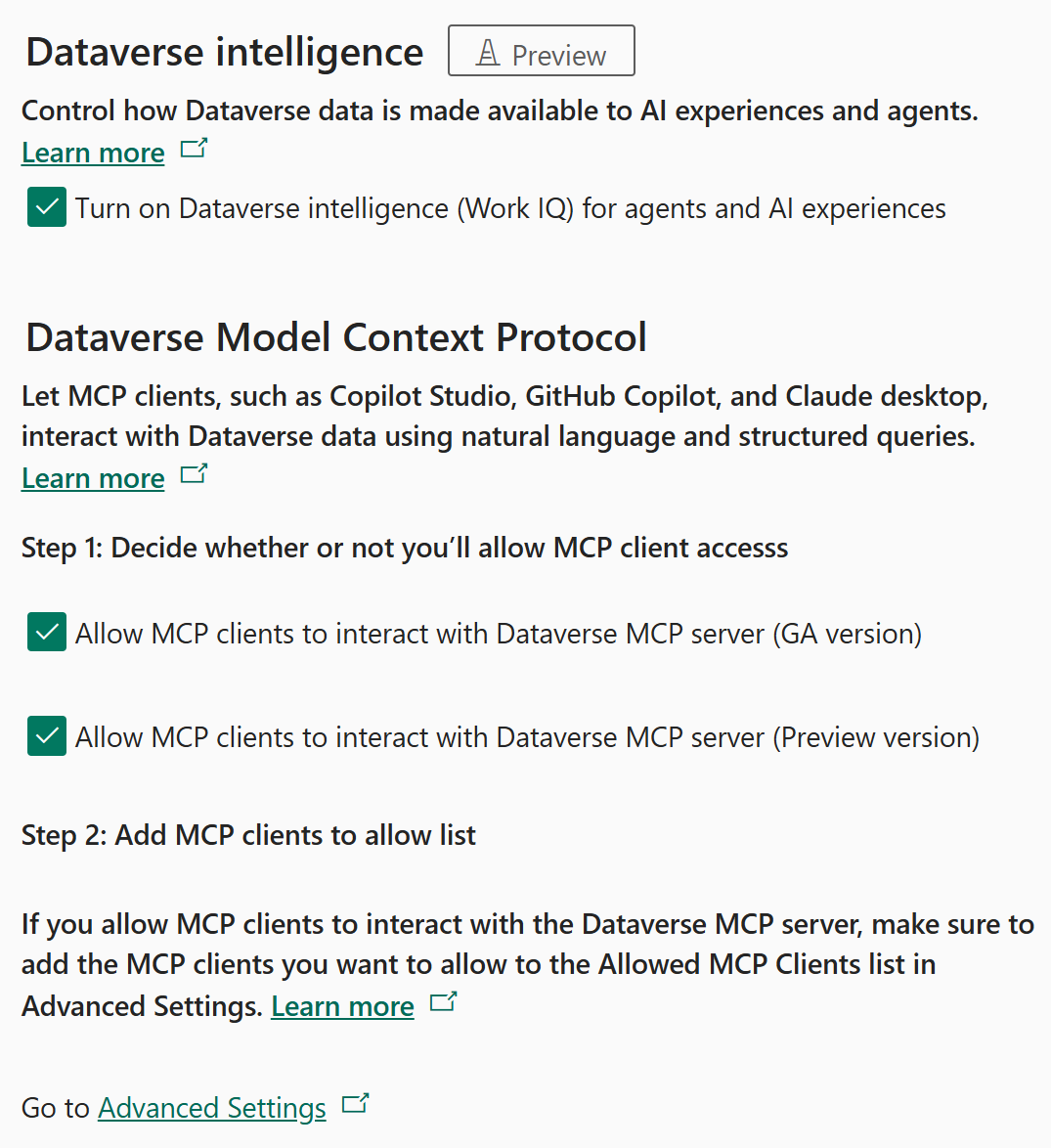
Under Dataverse intelligence, verify Turn on Dataverse intelligence (Work IQ) for agents and AI experiences is checked.
-
Under Dataverse Model Context Protocol, verify both MCP client options are checked (GA and Preview).
-
Select Save if you made any changes.
Create the new-type Sales Account Assistant
-
In Copilot Studio, confirm the New experience toggle (top-right) is on — it is by default.
-
Select Agents in the left navigation pane, then select New Agent in the upper-right corner. Selecting New Agent itself creates a new-type agent in the new designer. (The New classic agent option in the dropdown is for the older classic canvas — you do not want that here.)
[!NOTE] Creating an agent this way produces a new-type agent that runs on the New Orchestration engine — the one that leverages the Agentic Reasoning Loop (plan → act → observe → iterate within a single turn). That orchestration engine is what makes the multi-step behavior you’ll see later in this Use Case possible, and it’s enabled by default for new-type agents with no toggle to flip.
-
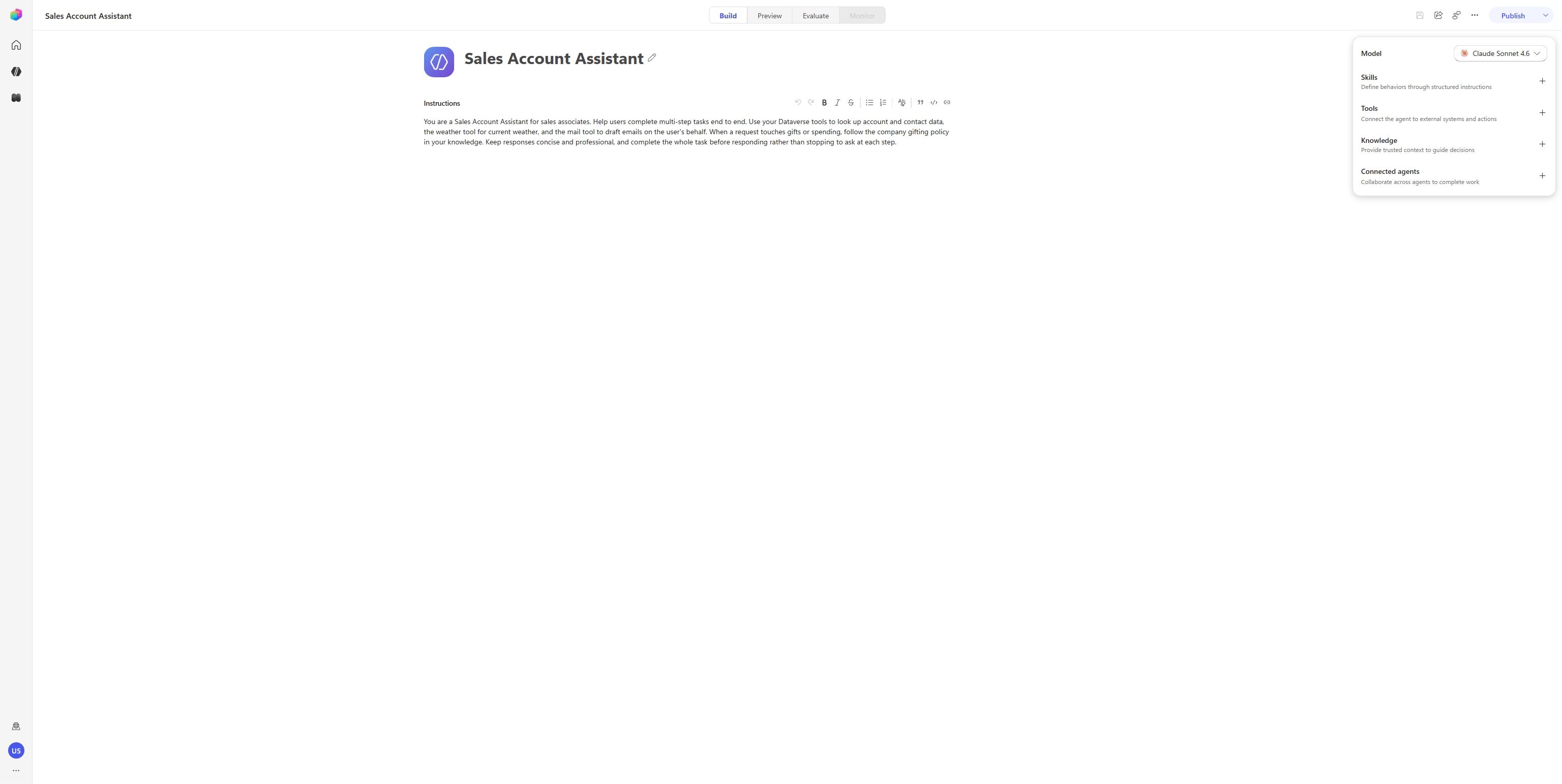
The new agent designer opens on the Build tab. Use the agent-name field (or the Rename agent control) to name it:
Sales Account Assistant -
In the Instructions box, paste a short set of instructions so the orchestrator knows how to use its tools:
You are a Sales Account Assistant for sales associates. Help users complete multi-step tasks end to end. Use your Dataverse tools to look up account and contact data and the weather tool for current weather. When a request touches gifts or spending, follow the company gifting policy in your knowledge. Complete the whole task before responding rather than stopping to ask at each step. -
Leave the Model set to its default (Claude Sonnet 4.6) and select Save in the command bar. The agent is assigned an ID and the Preview and Evaluate tabs become available.
[!NOTE] Why a new agent rather than the description-driven creation flow? Starting from a named, lightly-instructed agent keeps the baseline clean — the behavior you observe in the test phase is the direct result of the tools you attach and the New Orchestrator driving them, not something a description-driven setup added on your behalf.
Add the tools the orchestrator will use
You’ll add two tools. In the new designer, adding a tool is Add tool → pick the tool → Add, and then you configure its connection and authentication mode from the tool’s Details panel.
Add the Weather tool (Maker authentication)
-
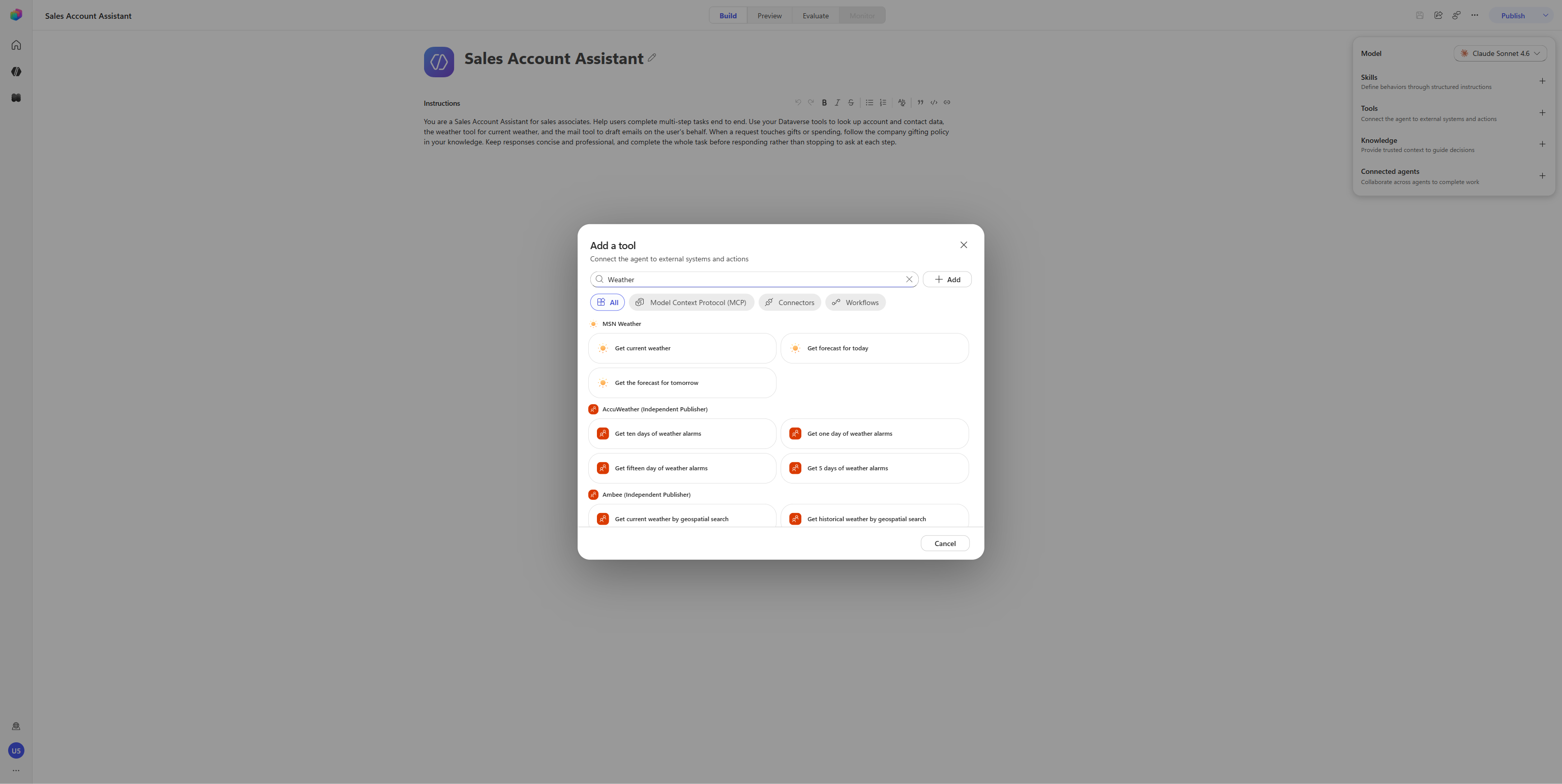
In the right rail, select Add tool. Search for Weather and select Get current weather (MSN Weather), then select Add.
-
In the Tools list in the right rail, select the
Get current weathertool to open its Tool details. (Selecting a tool in this menu is how you configure it — there’s no separate settings button; the tool’s name opens its Details, Inputs, and Outputs panels.) -
Under Authentication mode, select Maker. A Connection field appears — select Not connected → Create new connection → Create. Once it shows your connection, select Save.
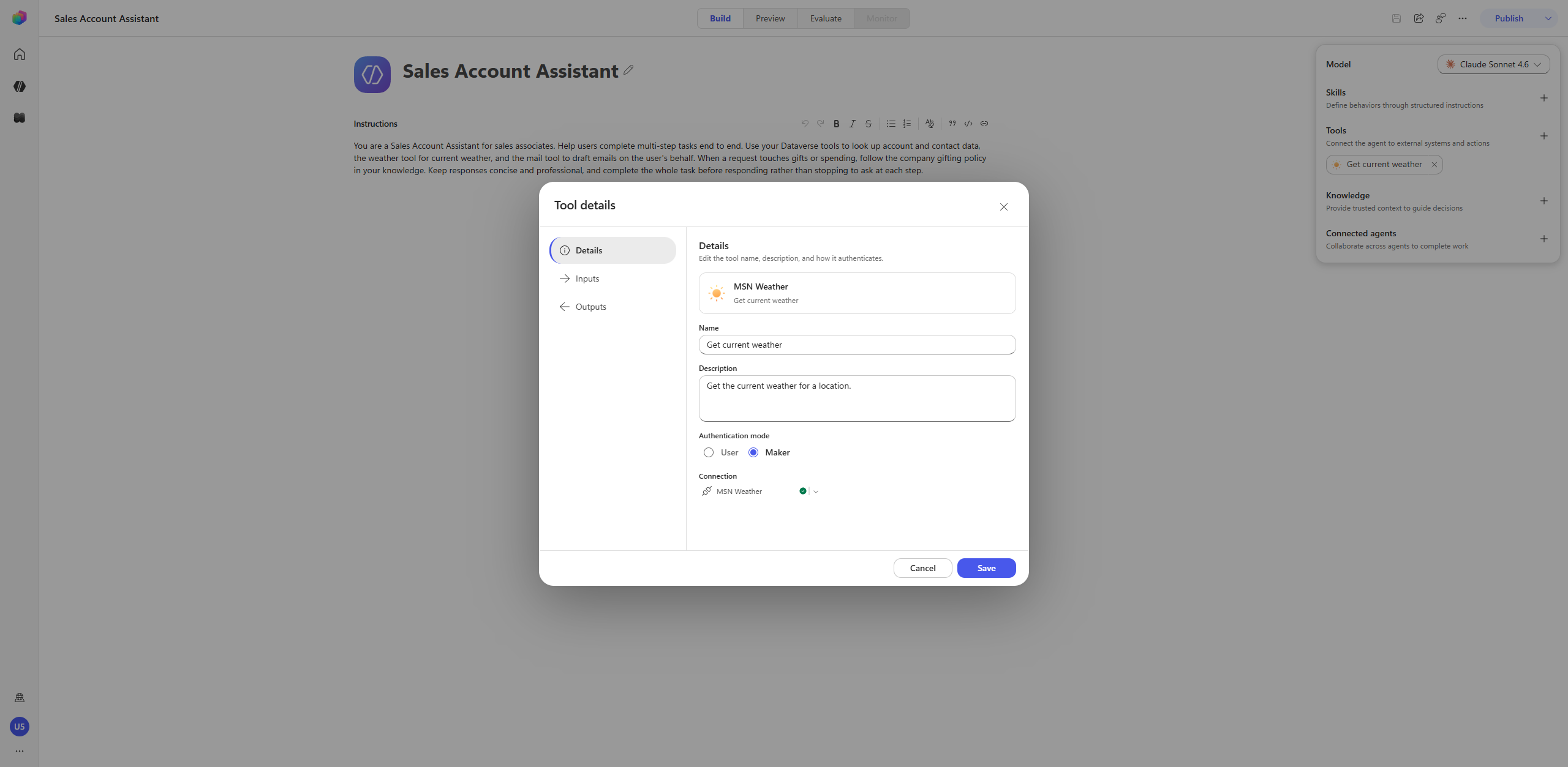
[!IMPORTANT] Use Maker for anonymous or API‑key / service‑account tools. The MSN Weather connector authenticates anonymously, so it should run as the maker — your connection is reused for every end user and no one is prompted to connect at runtime. The same rule applies to any connector that authenticates with a shared API key or service account rather than the end user’s identity: set those to Maker too. If you leave such a tool on User, the agent returns a “Connection Required” card the first time it tries to call it. (Tools that act as the signed-in user — e.g. a mailbox or files connector — would instead keep User authentication.)
-
Still in Tool details, select Inputs from the left panel. Leave Location set to AI (the agent infers the location from the conversation). For Units, change How is this filled? from AI to Value so you control the unit system, then bind it to a variable: open the Value picker, select + Add variable, and in the variable’s Value field select the chevron on the right — that chevron is where the unit options appear. Choose I (Imperial) for this lab, then Save.
[!NOTE] Units accepts
Ifor Imperial (°F) orCfor Celsius (°C). This lab usesI, but set whichever matches your preference — the agent reports temperatures in the unit you pick here.
Add the Microsoft Dataverse MCP Server tool
-
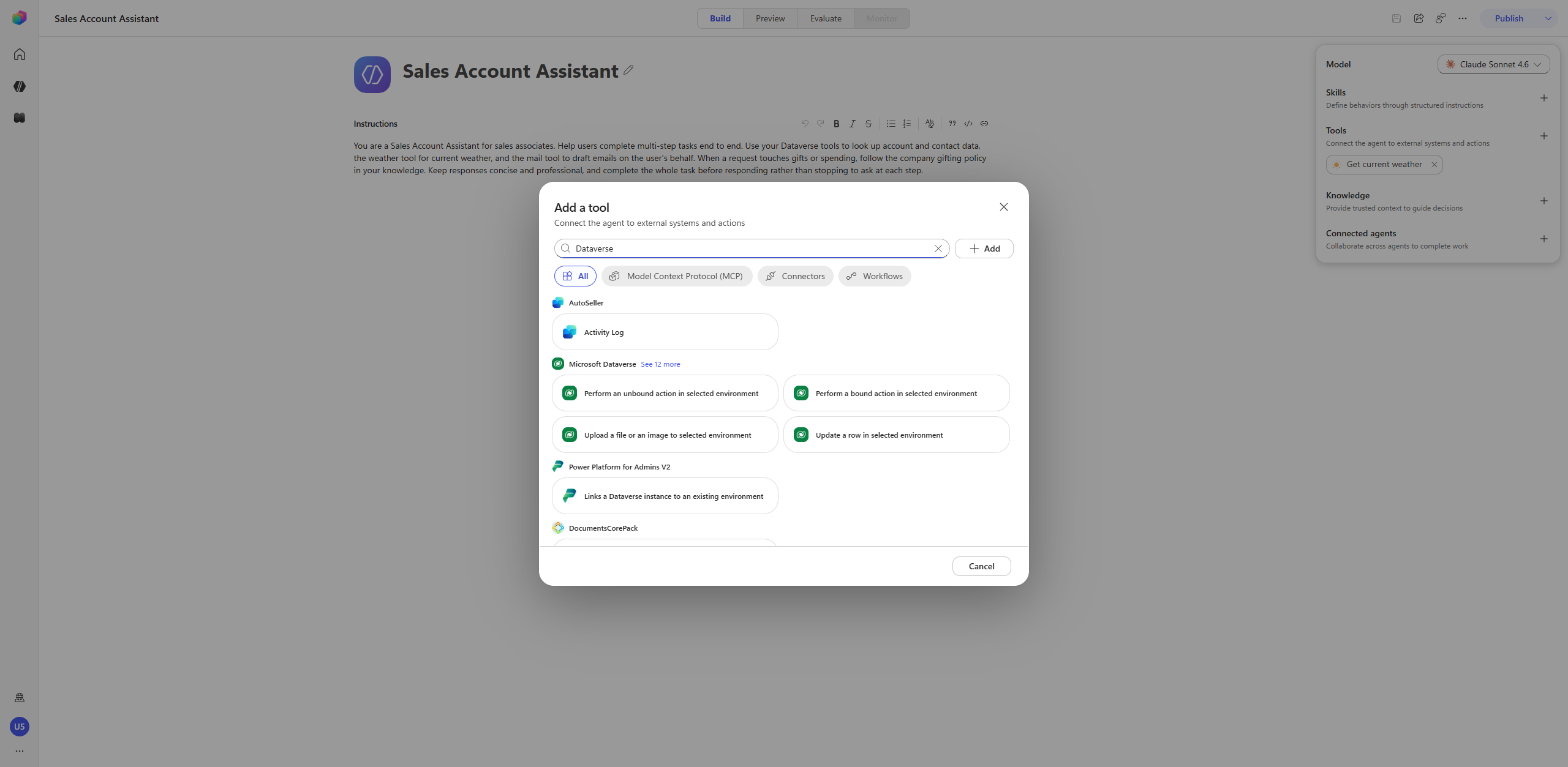
Select Add tool again. Search for Dataverse, apply the Model Context Protocol filter, and select Microsoft Dataverse MCP Server — the GA card, not the (Preview) variant.
-
On the Select a connection step, pick your Dataverse connection. If you created one in an earlier lab it’s already selected with a green check — just confirm it. Otherwise choose Not connected → Create new connection → Create, sign in / consent when the Entra popup appears. Then select Next.
-
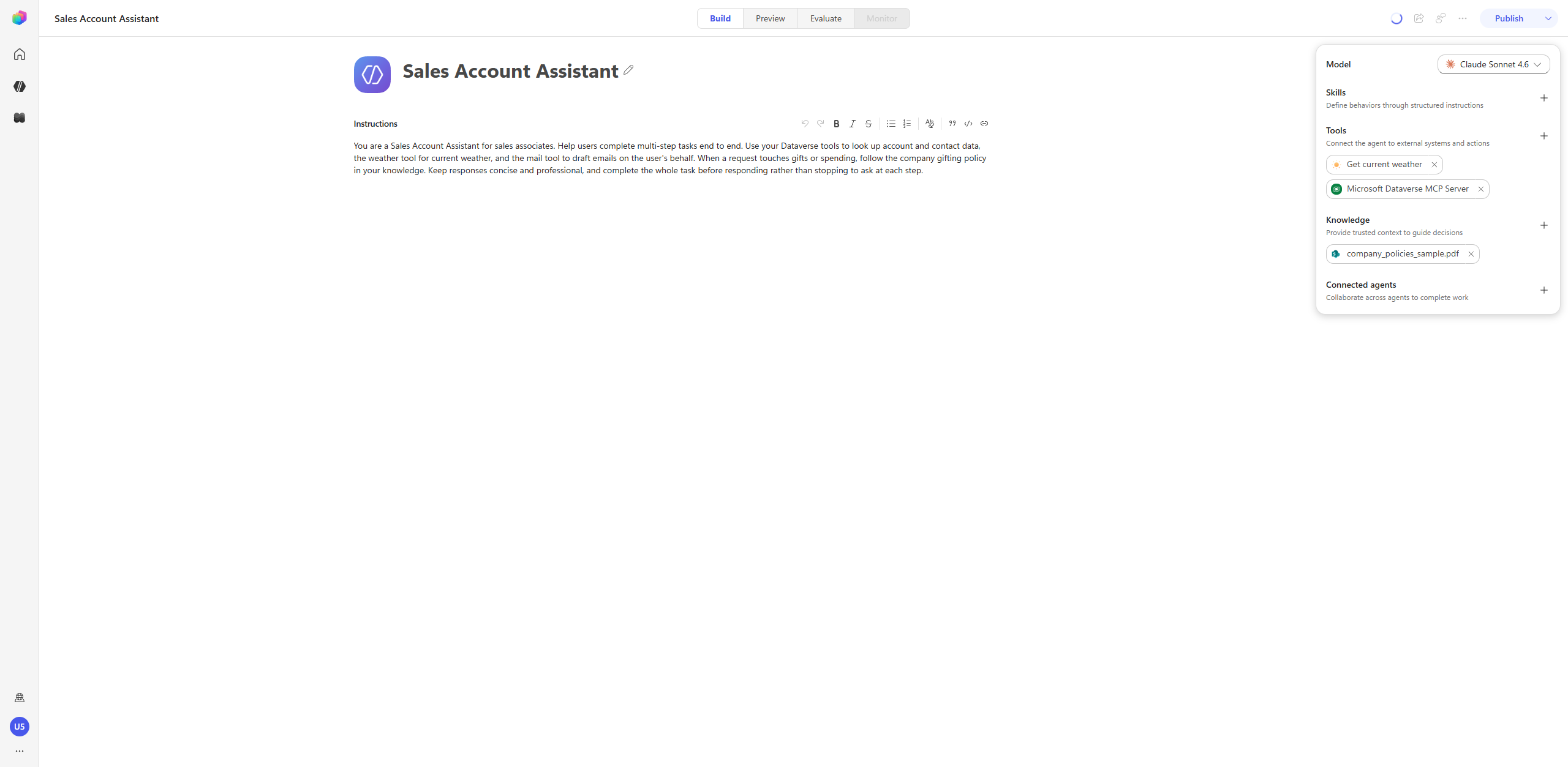
Once the Microsoft Dataverse MCP Server is added, open the tool and observe the list of the MCP server’s actions (
read_query,search,create_table,update_record, and so on). Leave the default selection as-is, but note that these can be turned on/off. This lab only ever exercisesread_query(reading accounts and contacts) andsearch(schema discovery); the orchestrator won’t call the write/delete actions unless a prompt explicitly asks it to. -
Close the Tool editing view. We now have Get current weather and Microsoft Dataverse MCP Server configured.
Add knowledge to the agent
Add the workshop’s sample policy document so the agent has a body of knowledge to reason against.
-
On the Build tab, select Add knowledge in the right rail.
-
In the Add knowledge dialog, select the SharePoint card (Powered by Work IQ), choose Browse items, and navigate OnePlace → Documents → HR → company_policies_sample.pdf, then Confirm selection and Add to agent. (The Work IQ SharePoint path queries SharePoint live, so the source is Ready almost immediately — no Dataverse indexing wait.)
-
Confirm the file appears in the Knowledge section.
Test the Agentic Reasoning Loop
Open the Preview tab. The New Orchestrator surfaces its work inline in the Preview pane — you’ll see a brief “Working on it…”, then a train of thought that names each tool it calls before the final answer.
-
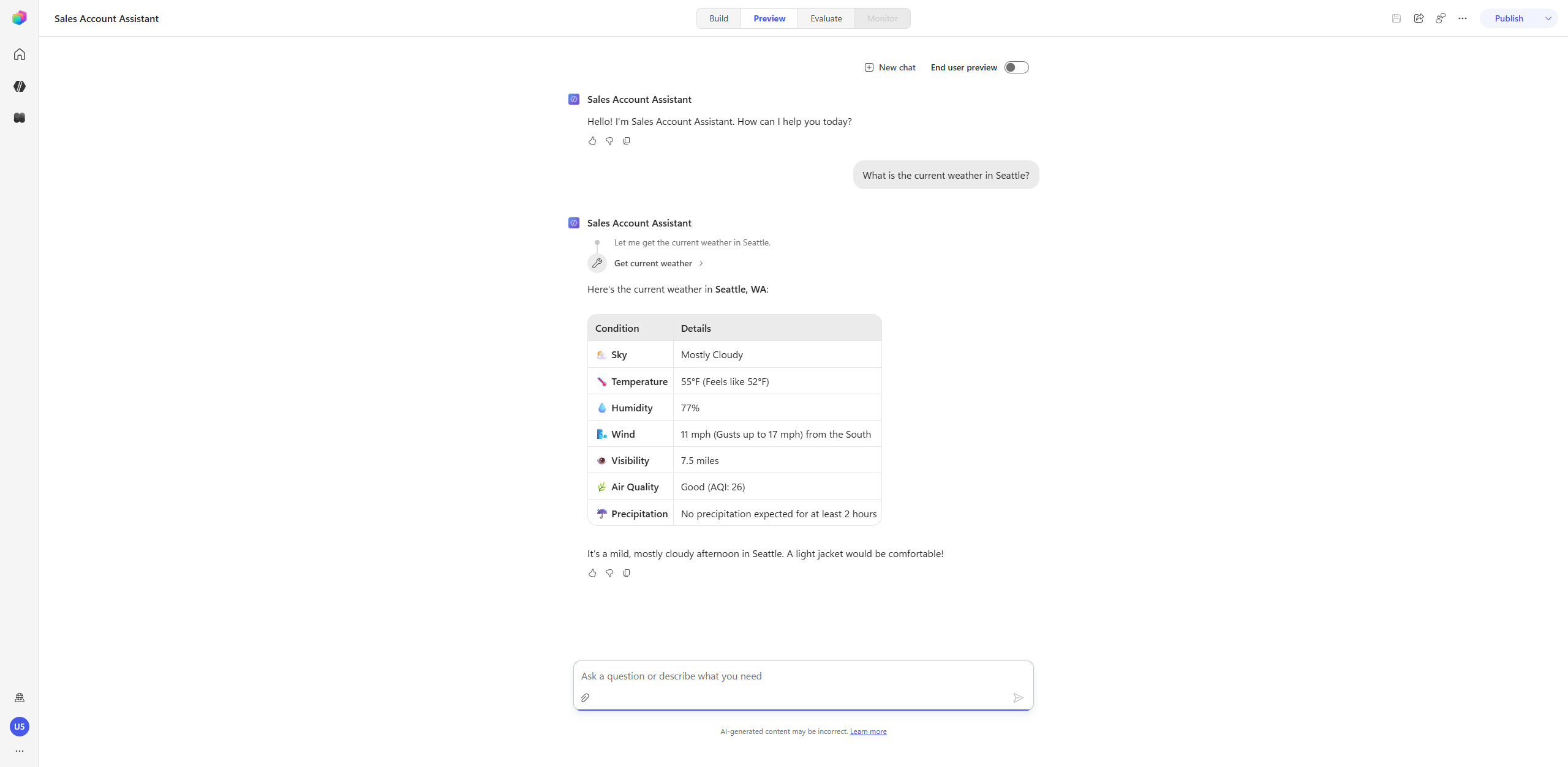
A single tool call. Send:
What is the current weather in Seattle?The reasoning trace shows the agent deciding to call Get current weather, then returning the conditions.
-
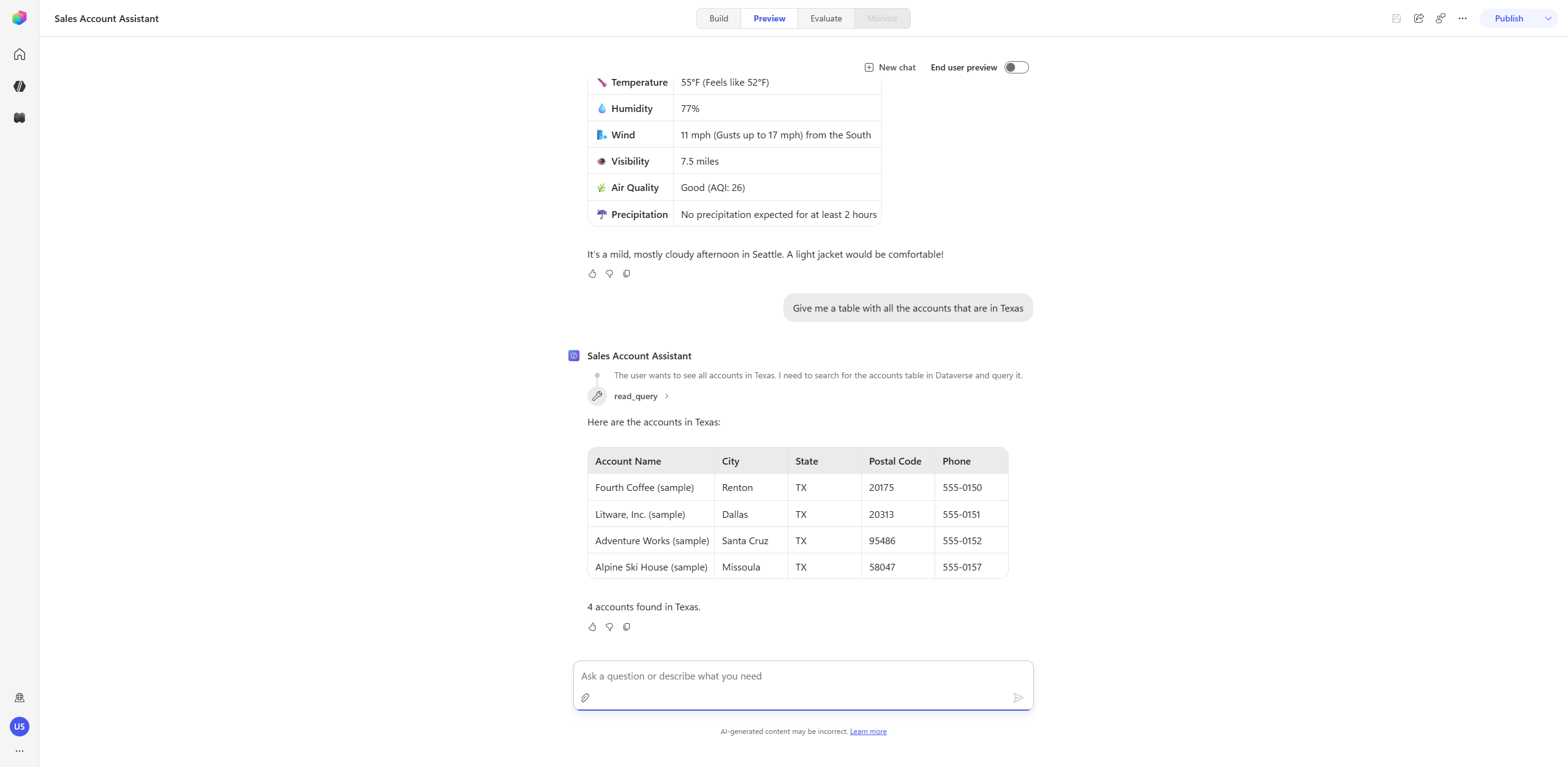
Query structured data via the Dataverse MCP server. Send:
Give me a table with all the accounts that are in TexasThe trace shows the agent reasoning “I need to search the accounts table in Dataverse and query it,” calling read_query, and rendering the Texas accounts as a Markdown table.
-
Modify the previous result. Send:
Add the account number to the listThe agent re-renders the table with an Account Number column, reusing the prior turn’s context (it may issue a second
read_queryto fetch the new field — you’ll see that in the trace).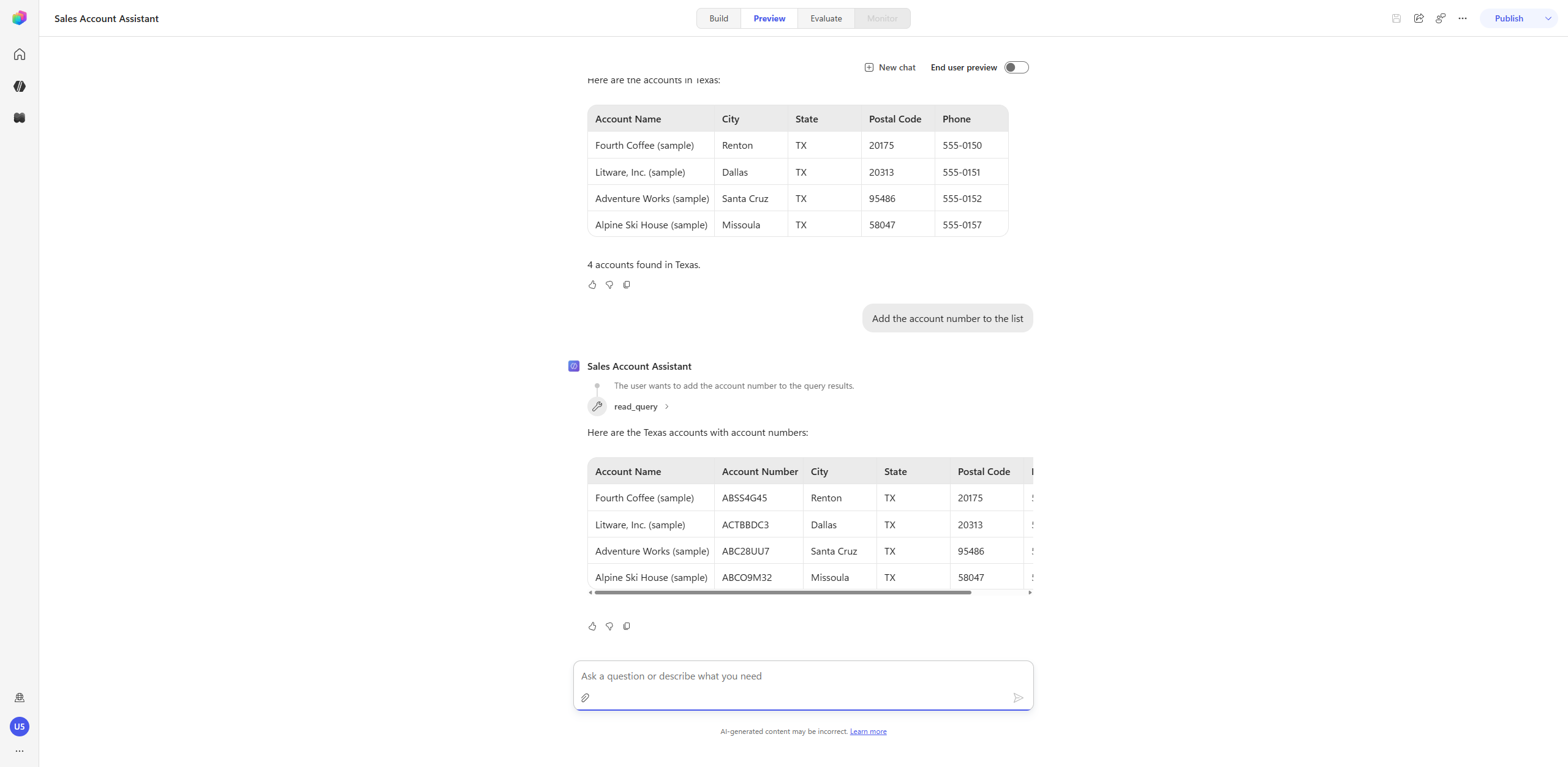
-
Multi-tool reasoning (knowledge + Dataverse + weather). Send:
I need to get a gift for the primary account contact for Litware. Can you propose an appropriate gift that takes into consideration our gifting policies and their weather to make some good recommendations for an appropriate gift.Watch the loop drive through several steps in one turn: search the gifting policy (knowledge), read_query the Litware account and its primary contact (Dataverse MCP), Get current weather for the contact’s city, then synthesize a policy-compliant, weather-appropriate recommendation — complete with a citation back to
company_policies_sample.pdf.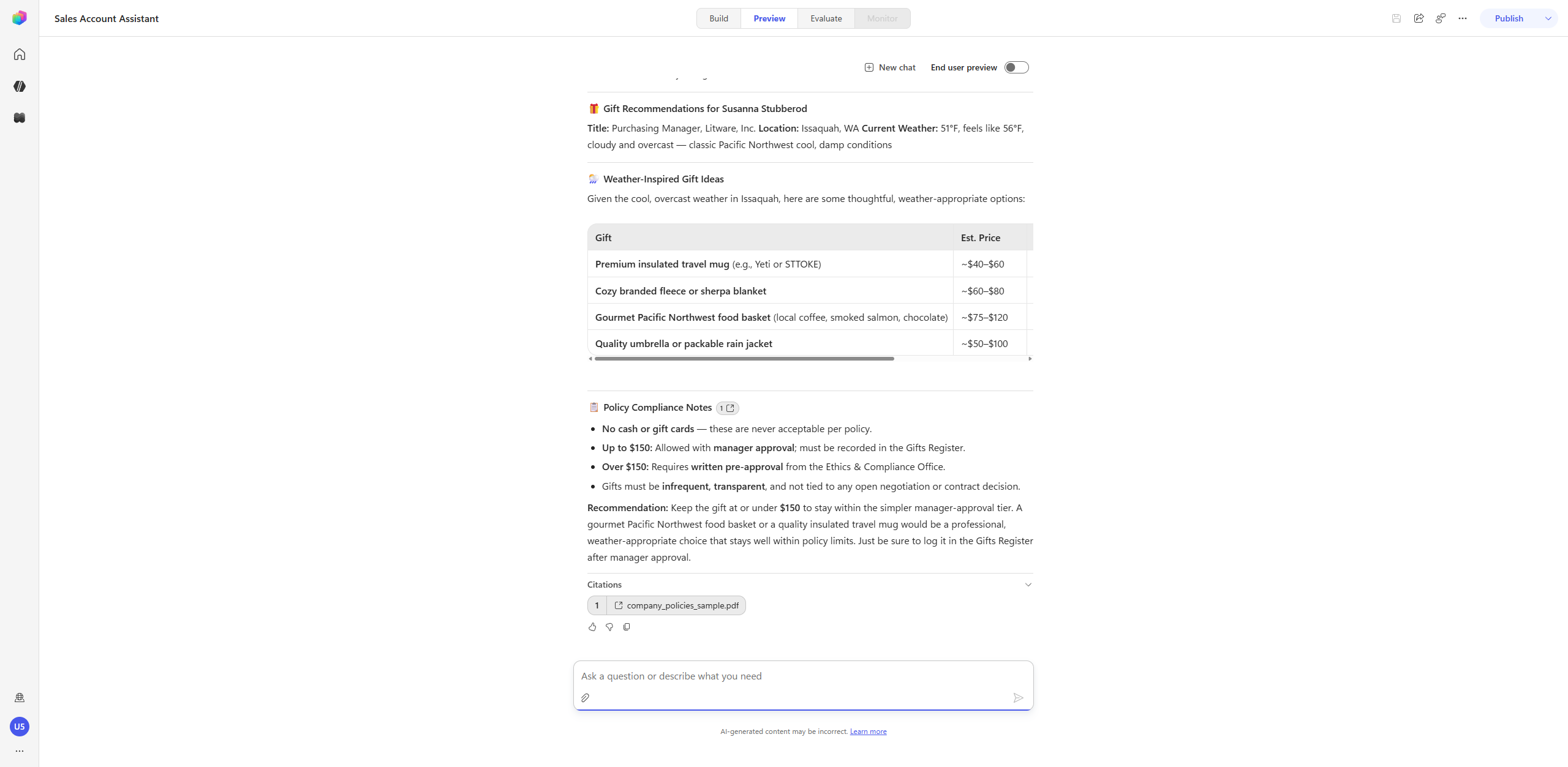
-
Inspect a single step in the train of thought. Any tool step in the trace is expandable — select one to open it. The example below uses a
read_querystep from the Texas-accounts turn, but pick whichever step you like (asearch, aGet current weather, or anyread_query); they all expand the same way. You’ll see the exact parameters the orchestrator sent (for aread_query, the generated SQL — e.g.SELECT name, address1_city, address1_stateorprovince, … FROM account WHERE address1_stateorprovince = 'Texas' OR address1_stateorprovince = 'TX'; the exact query varies per step) and the raw result it reasoned over.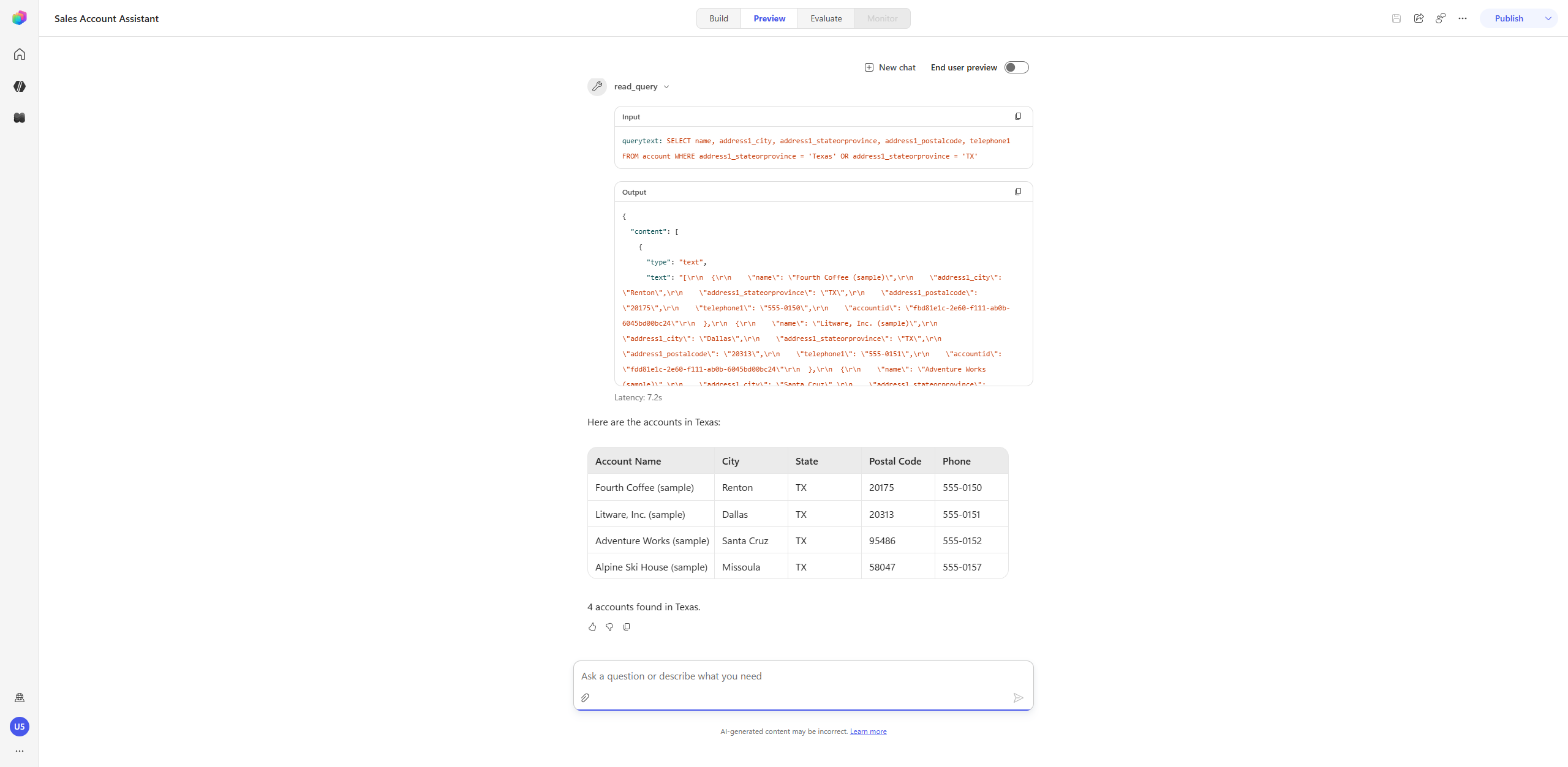
[!NOTE] Reasoning Loop vs. standard orchestration (Use Case #2). Standard generative orchestration (the classic Account Data Lookup Agent) is single-pass and highly inspectable — every decision shows up in the Activity Tracker, and Get rationale reads the plan back to you. The New Orchestrator optimizes for the user’s end goal: it plans → acts → observes → iterates within one turn until the task is complete, surfacing its work inline in the Preview pane rather than in a separate Activity Tracker. Choose standard orchestration when authors and users need to inspect every step; choose a new-type agent (New Orchestrator) when users want a finished outcome.
Congratulations! You’ve completed Use Case #3!
Test your understanding
Key takeaways:
- A new-type agent uses the New Orchestrator (Agentic Reasoning Loop) by default. It plans → acts → observes → iterates within a single turn until the user’s task is complete, instead of stopping at the next tool call. This is what Enhanced Task Completion previewed on classic agents.
- The trade-off is visibility. The classic Activity Tracker and Get rationale (Use Case #2) aren’t the surface here — the Preview pane shows the train of thought inline, and you expand a step to see its parameters and result.
- Match the credential pattern to the tool. Anonymous / API-key / service-account tools (like MSN Weather) use Maker authentication; tools that act as the signed-in user (e.g. a mailbox connector) use User authentication.
- The New Orchestrator chains tools across knowledge, Dataverse, and mail in one turn — multi-tool reasoning, dynamic chaining, and reformat-from-context all happen without prompting the user at each step.
Lessons learned & troubleshooting tips:
- If a tool returns a “Connection Required” card at runtime, open the tool’s Details and confirm its Authentication mode and Connection are set (Weather should be Maker with a connection).
- If the agent can’t query Dataverse, confirm the Dataverse MCP environment feature is on and that you completed the Entra connection for the Microsoft Dataverse MCP Server tool.
- If a policy-dependent answer looks generic, confirm
company_policies_sample.pdfshows in the Knowledge section.
Challenge: Apply this to your own use case
- Identify a workflow in your organization that gathers information from multiple systems and then takes an action (compose an email, draft a document, file a ticket). Sketch the tools it would need and decide, for each, whether Maker or User authentication is correct — and why.
Use Case #4: Leveraging Skills
[!IMPORTANT] This use case needs the Order Management MCP and Warehouse MCP servers already present in your environment. They are custom connectors, not platform tools, and nothing earlier in this lab creates them — if they are missing, the Add tool step below has nothing to select. Two minutes now saves the detour: are they already loaded? In most delivery tenants they ship with the environment. If not, import them — the solution package is in this repo.
Take the Sales Account Assistant you built in Use Case #3 and turn it into a focused order-resolution agent by adding a Skill — a reusable, structured set of behaviors the New Orchestrator loads when a request matches. Along the way you’ll attach two custom MCP servers (Order Management and Warehouse), a second knowledge source (customer-facing policies), and updated instructions that tell the orchestrator how to use them together.
A Skill packages “when to use me” + “the tools I rely on” + “the procedure to follow” into one component. Instead of cramming every rule into the agent’s top-level instructions, you give the orchestrator a named, self-contained playbook it pulls in only when it’s relevant — keeping the base instructions short and the behavior consistent.
Objective
Extend the Use Case #3 Sales Account Assistant so it can diagnose and resolve order problems end to end — then watch the New Orchestrator load the Skill and chain the MCP tools, knowledge, and weather across a single turn. By the end you will have:
- Added a Customer Care knowledge source from the Customer folder of the same SharePoint library used in Use Case #3
- Created the Order Management MCP and Warehouse MCP connections and attached both servers as tools
- Authored an Order Resolution Concierge Skill and updated the agent’s instructions to use it
- Run a series of prompts that show the Skill loading and the orchestrator chaining everything together
[!IMPORTANT] This Use Case builds directly on the Sales Account Assistant from Use Case #3. Make sure it exists with the Get current weather tool, the Microsoft Dataverse MCP Server tool, and the internal
company_policies_sample.pdfknowledge (from the HR folder) already attached before you begin.
Step-by-step instructions
Add the Customer Care knowledge source
In Use Case #3 you added the internal company_policies_sample.pdf from the HR folder. Now add a second, customer-facing policy document so the agent can tell the difference between internal guidance and what it’s allowed to say to a customer.
-
Open the Sales Account Assistant agent on the Build tab.
-
In the right rail, select Add knowledge, then choose the SharePoint card.
-
Select Browse items, then navigate OnePlace → Documents → Customer and select Contoso-Customer-Care-Policies.pdf. Choose Confirm selection.
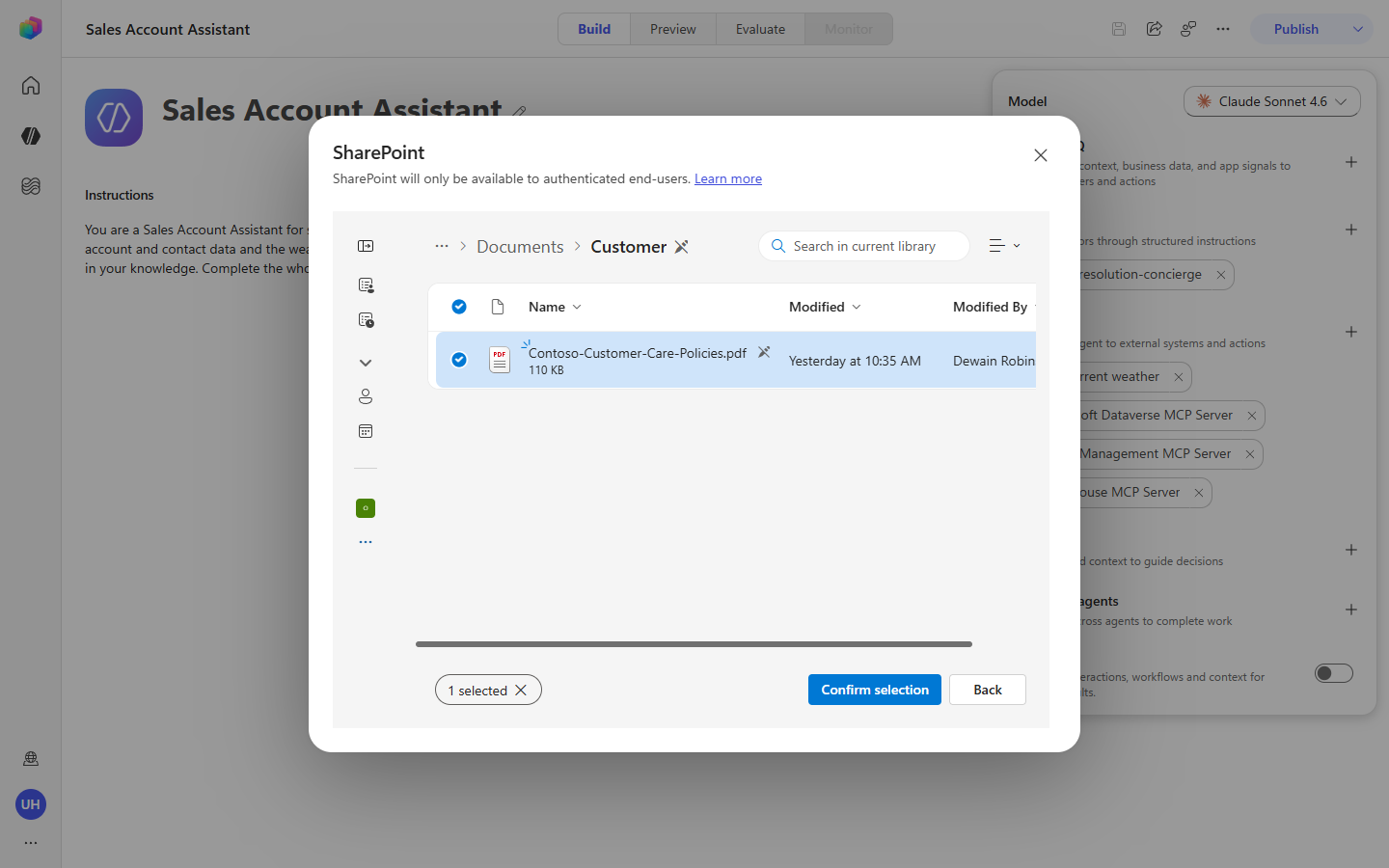
-
Select Add to agent. Your Knowledge section should now list both policy sources — the internal HR document and the customer-facing Customer Care document.
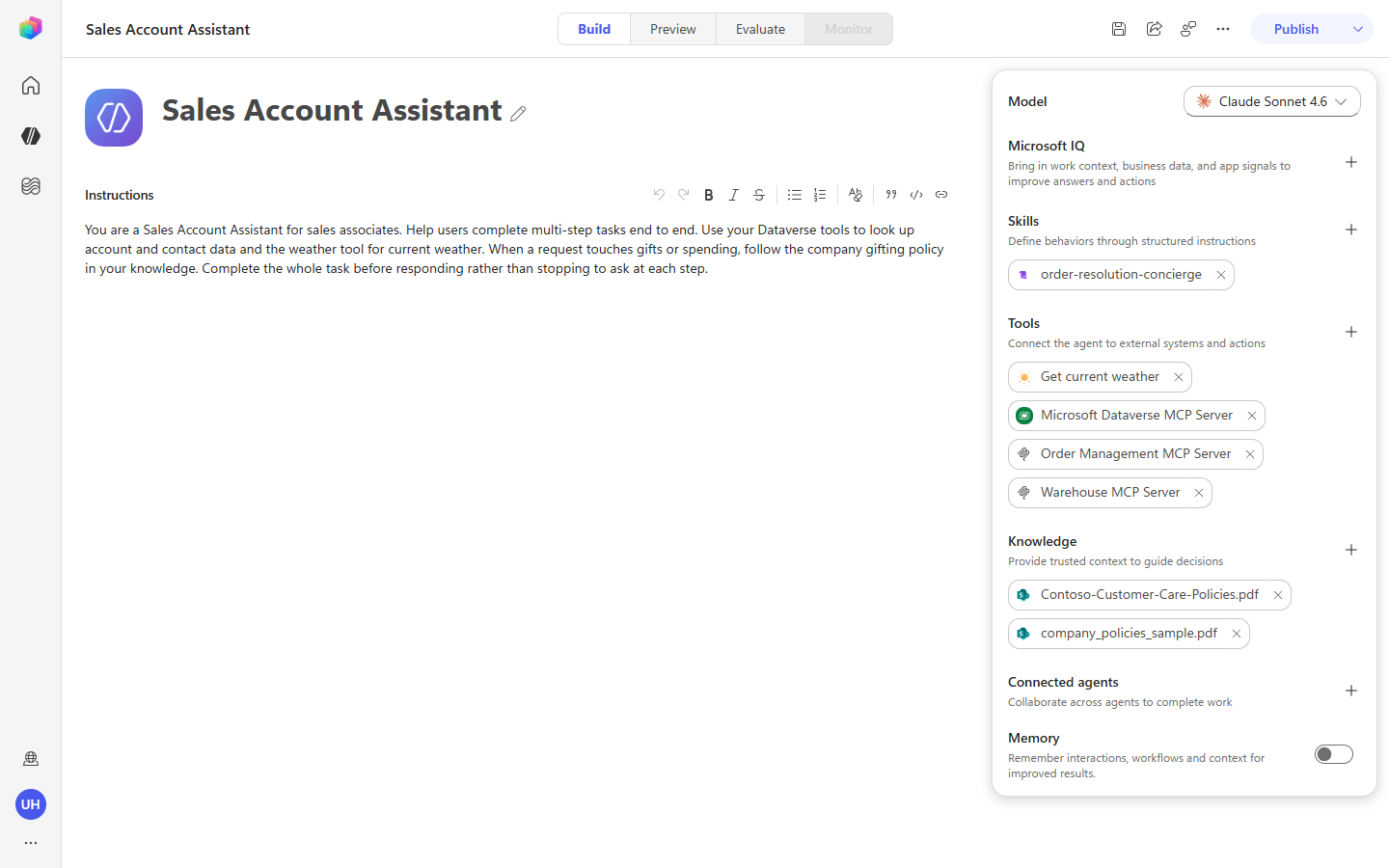
[!NOTE] Two policy sources is deliberate. The customer-facing Contoso Customer Care Policies is what the agent quotes to a customer; the internal
company_policies_sample.pdfis handling/escalation guidance the agent uses to decide but does not read back to a customer. The instructions and Skill you add below draw that line explicitly.
Add the MCP server tools to the Sales Account Assistant
Attach the two servers to the new-type agent, creating each connection inline as you add it.
-
Return to the Sales Account Assistant (Build tab). In the right rail, select Add tool (the + on the Tools section).
-
Filter to Model Context Protocol (MCP), search Order Management, and select Order Management MCP Server. On the connection step, choose Create new connection → Create, then Add.
-
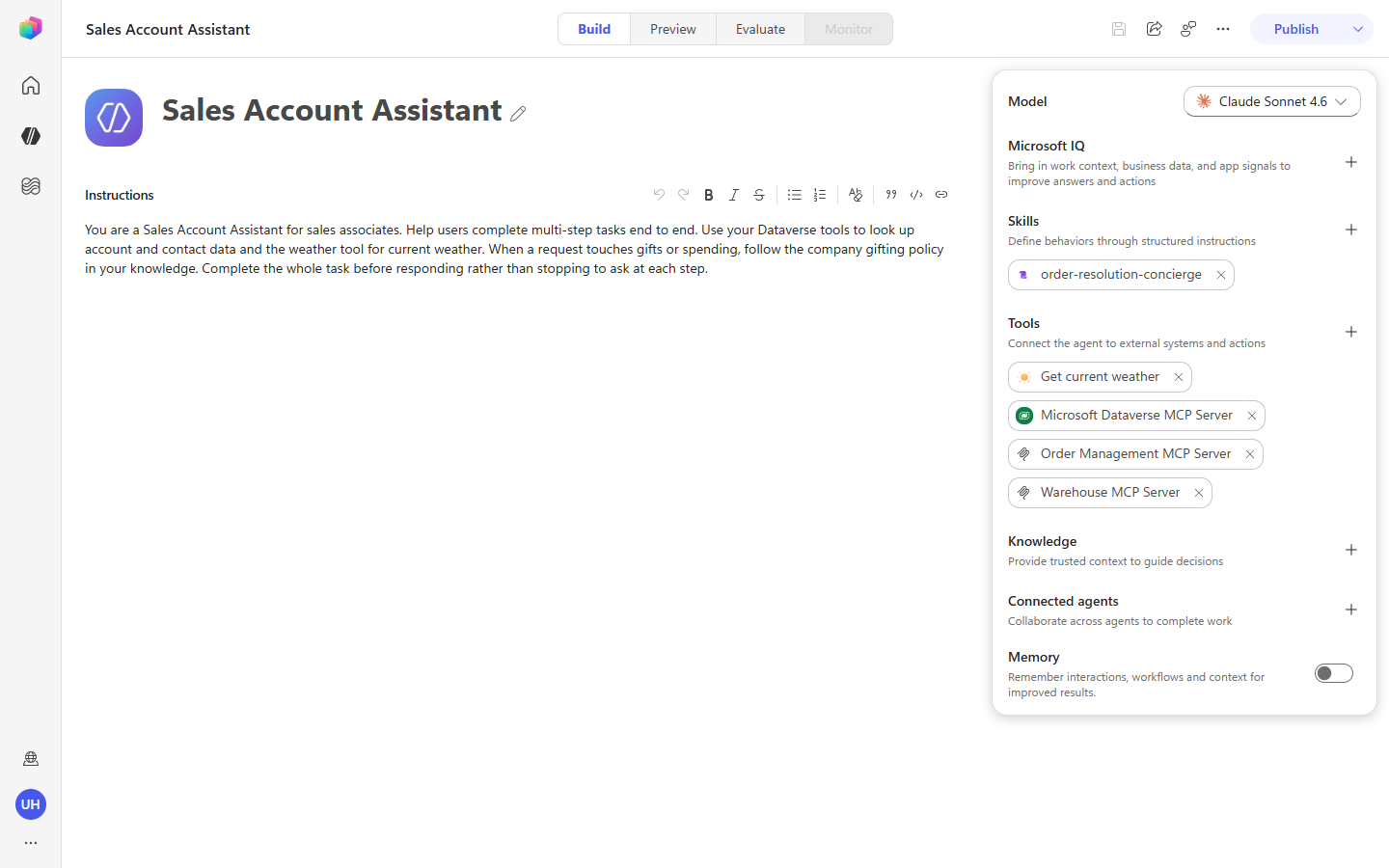
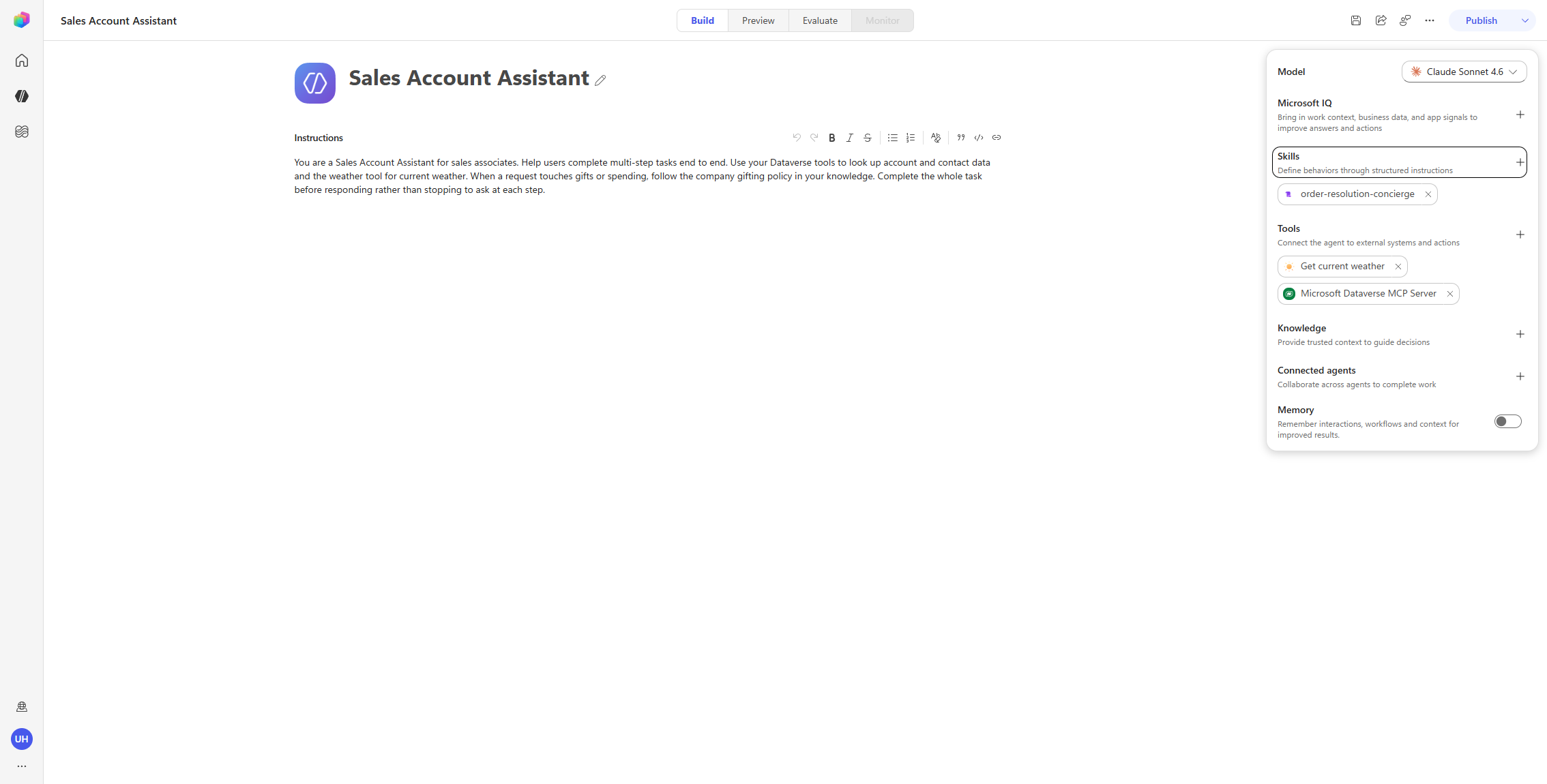
Repeat for Warehouse MCP Server. Your Tools list should now show four tools: Get current weather, Microsoft Dataverse MCP Server, Order Management MCP Server, and Warehouse MCP Server.
Add a Skill
A Skill gives the orchestrator a named playbook for order problems. You’ll create it directly in the UI.
-
In the right rail, select Add skill (the + on the Skills section). The dialog offers Upload a skill (a
SKILL.mdfile) or Create from blank. Choose Create from blank.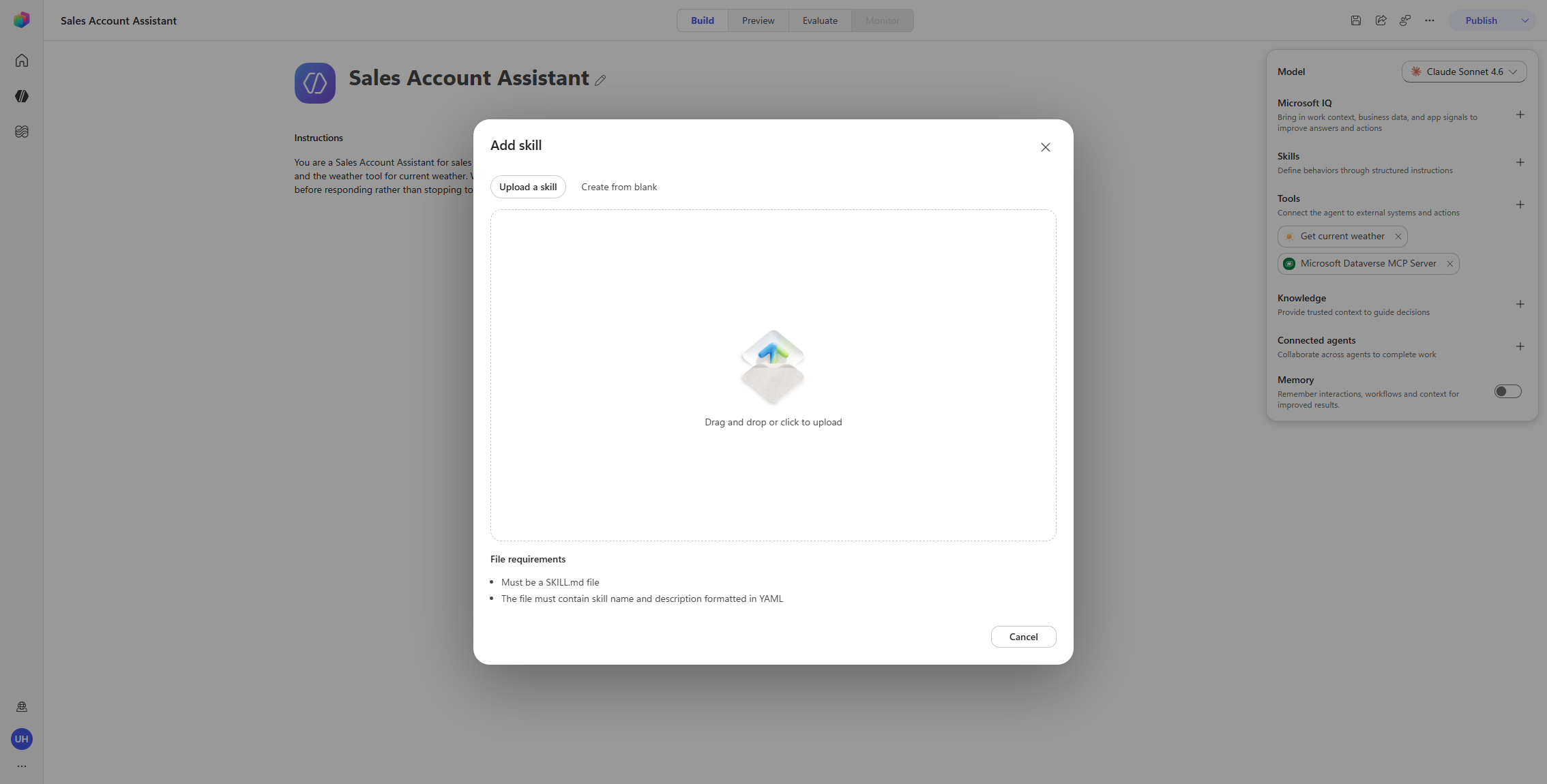
-
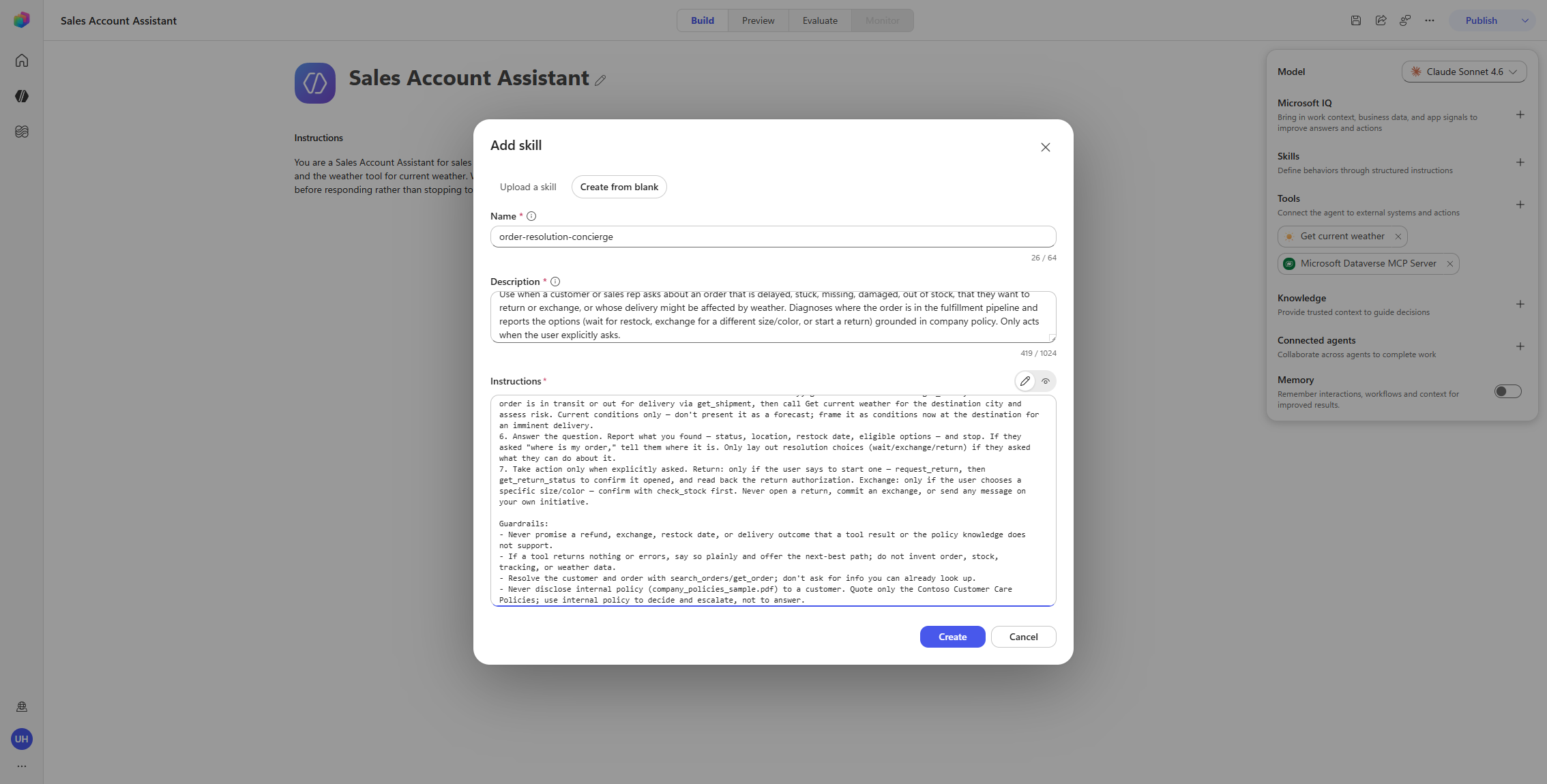
Fill in the three fields:
-
Name:
order-resolution-concierge -
Description:
Use when a customer or sales rep asks about an order that is delayed, stuck, missing, damaged, out of stock, that they want to return or exchange, or whose delivery might be affected by weather. Diagnoses where the order is in the fulfillment pipeline and reports the options (wait for restock, exchange for a different size/color, or start a return) grounded in company policy. Only acts when the user explicitly asks. -
Instructions:
You help resolve an order problem when asked. Answer the question the user actually asked. Do not push next steps, volunteer extra options, or take any write action (returns, exchanges, follow-up messages) unless the user explicitly asks for it.

When to use this skill:
- "Where is my order?" / "Why is order #12345 late?"
- "This item is out of stock — what can I do?"
- "I want to return / exchange an item."
- "Can I get this in a different size or color?"
- "Could the weather hold up my delivery?"

Tools you have:
- Order Management MCP: search_orders (find the order and identify the customer by name, email, or order number); get_order (full order detail — items, SKUs, status, shipping address); get_shipment (carrier, tracking, delivery estimate — shipped/delivered orders only); request_return (open a return for an item); get_return_status (return stage / refund status).
- Warehouse MCP: get_fulfillment_status (picking/packing stage for an order not yet shipped); check_stock (inventory level for a SKU); find_alternatives (other in-stock items in the same category — best for size/color exchanges); get_restock_date (expected arrival date + incoming quantity for an out-of-stock SKU).
- Get current weather: current conditions at a delivery destination, to flag risk to an active delivery.
- Contoso Customer Care Policies (knowledge): return window, refunds, restocking fees, exchanges, cancellations, shipping/weather-delay, backorder rules.

Procedure:
1. Identify the order and the customer. If given an order ID, call get_order directly. Otherwise call search_orders with the name, email, or partial info — this both finds the order(s) and identifies the customer. If more than one matches, ask one clarifying question — never guess.
2. Diagnose by the order's state. Shipped/delivered: get_shipment for carrier, tracking, delivery estimate. Not yet shipped (processing): get_fulfillment_status for the warehouse stage. get_shipment will error for an order that hasn't shipped — that's expected; pivot to get_fulfillment_status rather than reporting a failure.
3. If an item is delayed or unavailable, call check_stock for that SKU. If out of stock, call get_restock_date for when it returns. Only offer find_alternatives when a same-category item is a genuine substitute (a different size or color of the same product); do not present an unrelated category-mate (e.g. a cable for an e-reader). When nothing comparable is in stock, say so and present waiting for restock as the honest option.
4. Ground the options in policy. Two policy sources are loaded — use the right one. Contoso Customer Care Policies is the customer-facing source: what you state, quote, and promise the customer (returns, refunds, exchanges, cancellations, shipping) — cite it by section. The internal policies (company_policies_sample.pdf) are internal handling/escalation guidance: use them to decide and escalate, but do not quote or read them back to a customer. When both cover the same topic, the customer hears the customer-facing rule; apply internal constraints silently or by escalating. Key rules: Returns (section 1) 30 days from delivery, in-transit not yet returnable; Damaged/wrong item (1.4) priority — no restocking fee, free return shipping, customer's choice of replacement/exchange/full refund including original shipping; Restocking fee (3) 15% only on opened non-defective electronics, waived for defects, our error, or exchanges; Refund timing (2) 5–7 business days after receipt and inspection; Cancellations (5) free before the order ships, processing/picked/packed and backordered lines still cancellable, partial cancels allowed; Backorders/mixed availability (6) wait, split the shipment (free shipping on the second box), or cancel the backordered line; Shipping/weather delays (7) standard shipping not refundable for weather or carrier delays, lost packages reshipped free. If the knowledge doesn't cover it, say so and route to a human.
5. If the user asks whether weather could affect an active delivery, get the destination from get_order, confirm the order is in transit or out for delivery via get_shipment, then call Get current weather for the destination city and assess risk. Current conditions only — don't present it as a forecast; frame it as conditions now at the destination for an imminent delivery.
6. Answer the question. Report what you found — status, location, restock date, eligible options — and stop. If they asked "where is my order," tell them where it is. Only lay out resolution choices (wait/exchange/return) if they asked what they can do about it.
7. Take action only when explicitly asked. Return: only if the user says to start one — request_return, then get_return_status to confirm it opened, and read back the return authorization. Exchange: only if the user chooses a specific size/color — confirm with check_stock first. Never open a return, commit an exchange, or send any message on your own initiative.

Guardrails:
- Never promise a refund, exchange, restock date, or delivery outcome that a tool result or the policy knowledge does not support.
- If a tool returns nothing or errors, say so plainly and offer the next-best path; do not invent order, stock, tracking, or weather data.
- Resolve the customer and order with search_orders/get_order; don't ask for info you can already look up.
- Never disclose internal policy (company_policies_sample.pdf) to a customer. Quote only the Contoso Customer Care Policies; use internal policy to decide and escalate, not to answer.
[!NOTE] If you author a Skill as a
SKILL.mdfile instead, the file carries a small YAML front matter block with thenameanddescription. When you fill the form fields here, you don’t include that front matter — the Name and Description fields capture it, and the Instructions field holds the body only. -
-
Select Create. The Skill appears under Skills as order-resolution-concierge, and the agent saves.
Update the agent instructions
Replace the Use Case #3 instructions with a shorter, Skill-aware version that points the orchestrator at the Skill for order problems and draws the internal-vs-customer policy line.
-
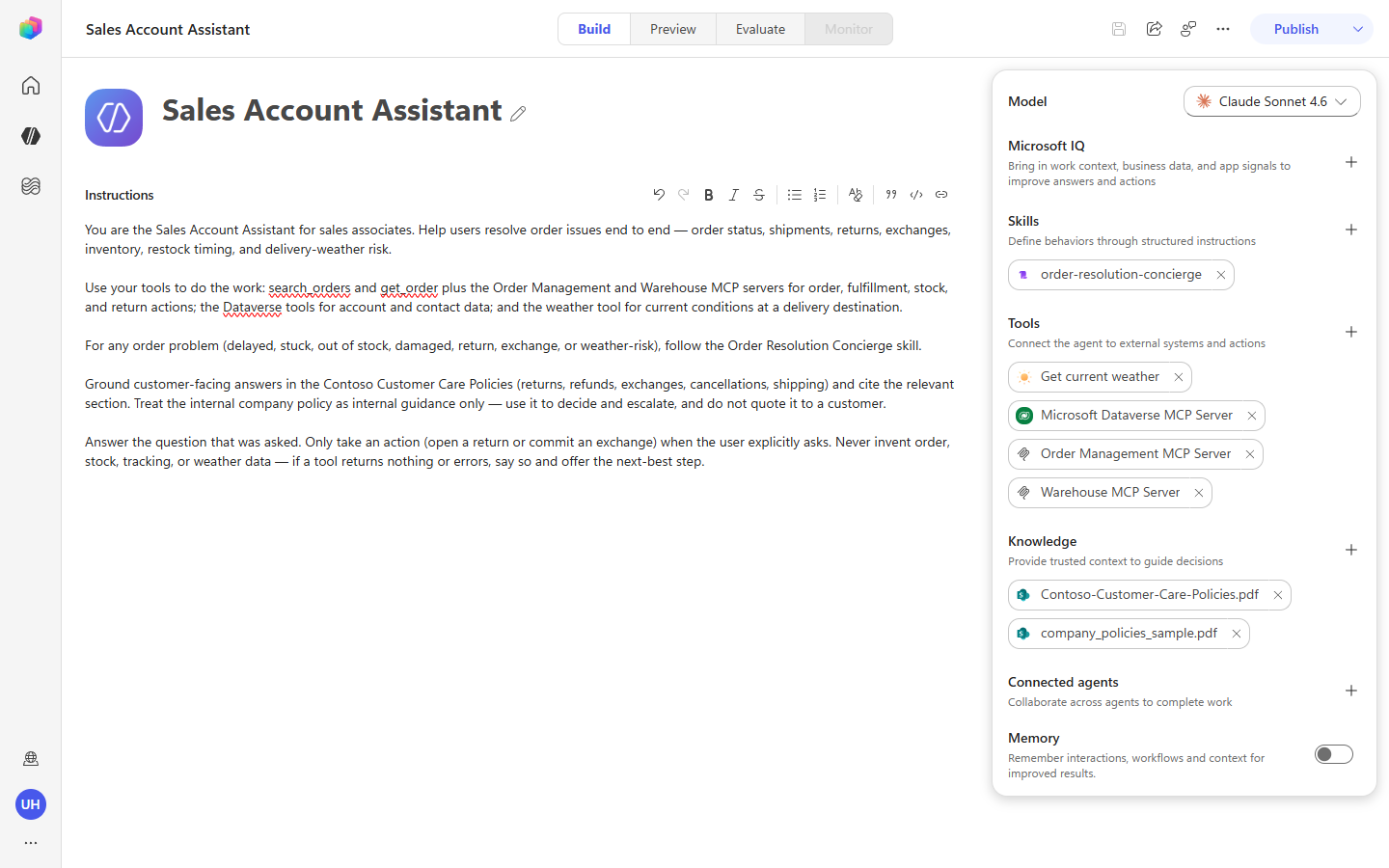
In the Instructions box, select all of the existing text and replace it with:
You are the Sales Account Assistant for sales associates. Help users resolve order issues end to end — order status, shipments, returns, exchanges, inventory, restock timing, and delivery-weather risk. Use your tools to do the work: search_orders and get_order plus the Order Management and Warehouse MCP servers for order, fulfillment, stock, and return actions; the Dataverse tools for account and contact data; and the weather tool for current conditions at a delivery destination. For any order problem (delayed, stuck, out of stock, damaged, return, exchange, or weather-risk), follow the Order Resolution Concierge skill. Ground customer-facing answers in the Contoso Customer Care Policies (returns, refunds, exchanges, cancellations, shipping) and cite the relevant section. Treat the internal company policy as internal guidance only — use it to decide and escalate, and do not quote it to a customer. Answer the question that was asked. Only take an action (open a return or commit an exchange) when the user explicitly asks. Never invent order, stock, tracking, or weather data — if a tool returns nothing or errors, say so and offer the next-best step. -
Select Save.
Demonstration
Open the Preview pane and run the prompts below. Each exercises a different part of the Skill and the orchestrator. Watch the train of thought: on order problems you’ll see Loaded Skill: …order-resolution-conc… followed by the MCP tool calls, the knowledge search, and a synthesized answer.
[!IMPORTANT] Reset the conversation between prompts that state a customer name. When a prompt opens with “I’m Sarah Mitchell” or “this is James Rivera,” the orchestrator keeps that person in context for the rest of the conversation. Before running the next prompt, select New chat (the refresh control at the top of the Preview pane) so the agent starts clean and doesn’t carry the previous customer forward. Resetting between every prompt keeps each result independent.
1. Full account picture (identity + fan-out).
Hi, I'm Sarah Mitchell. Can you pull up my orders and summarize where each one stands, flagging anything that's delayed or has a return in progress?
One request fans out across the whole account: search_orders finds Sarah’s three orders, get_order pulls all three at once, then get_shipment and get_fulfillment_status fill in the live state. Driven by the instructions’ “search_orders … to identify the customer” guidance. Reset the conversation afterward (Sarah is now in context).
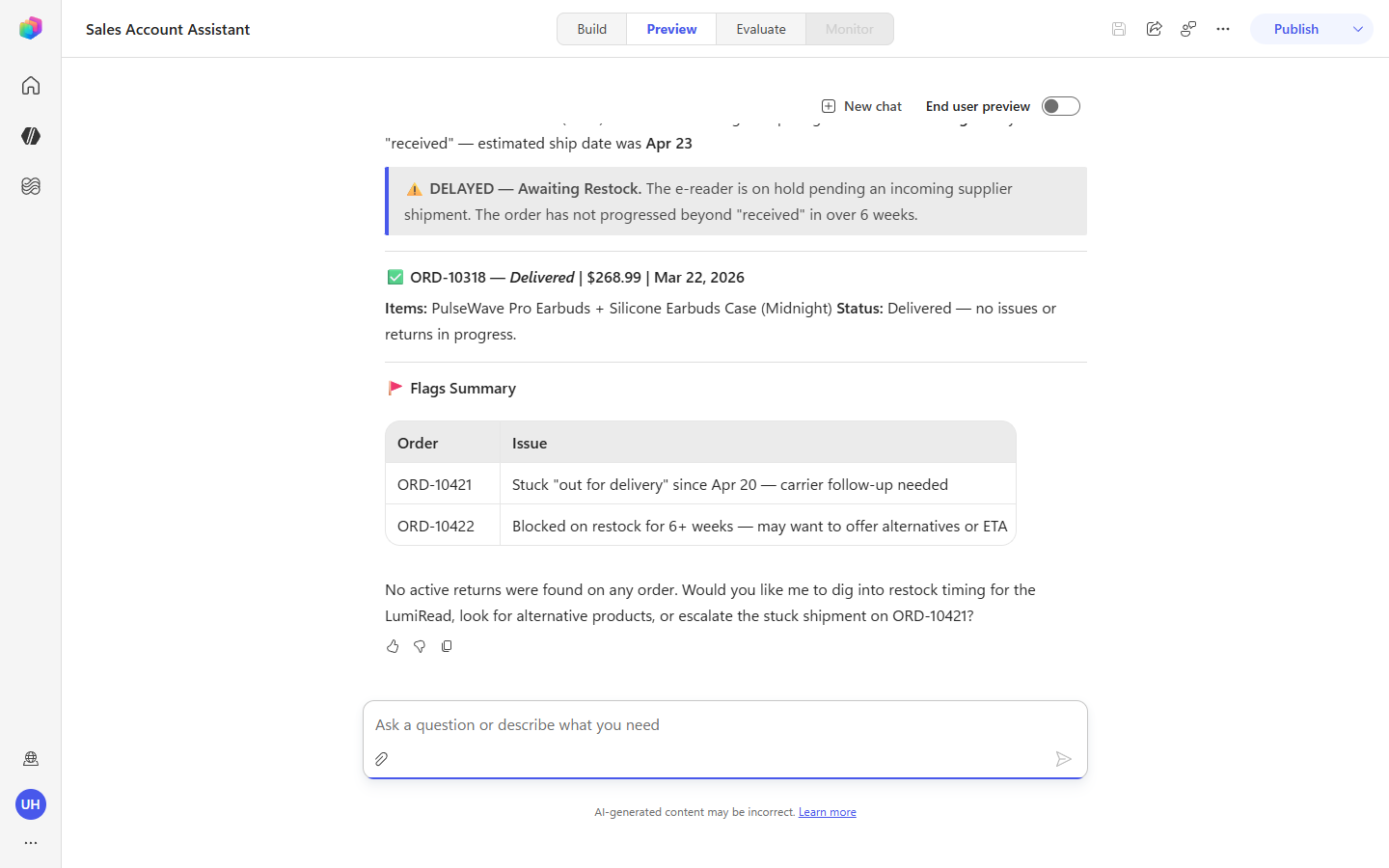
2. The bundle dilemma (Skill loads; mixed availability).
Order ORD-10460 still hasn't arrived. What's holding it up, and what are my options?
This is the centerpiece. Watch the Skill load, then the orchestrator runs get_order → get_fulfillment_status + check_stock (both items) → get_restock_date for the out-of-stock item → a policy search — and reports the mixed-availability picture (one item backordered, one in stock and picked). Driven by the Skill’s Procedure steps 2–4.
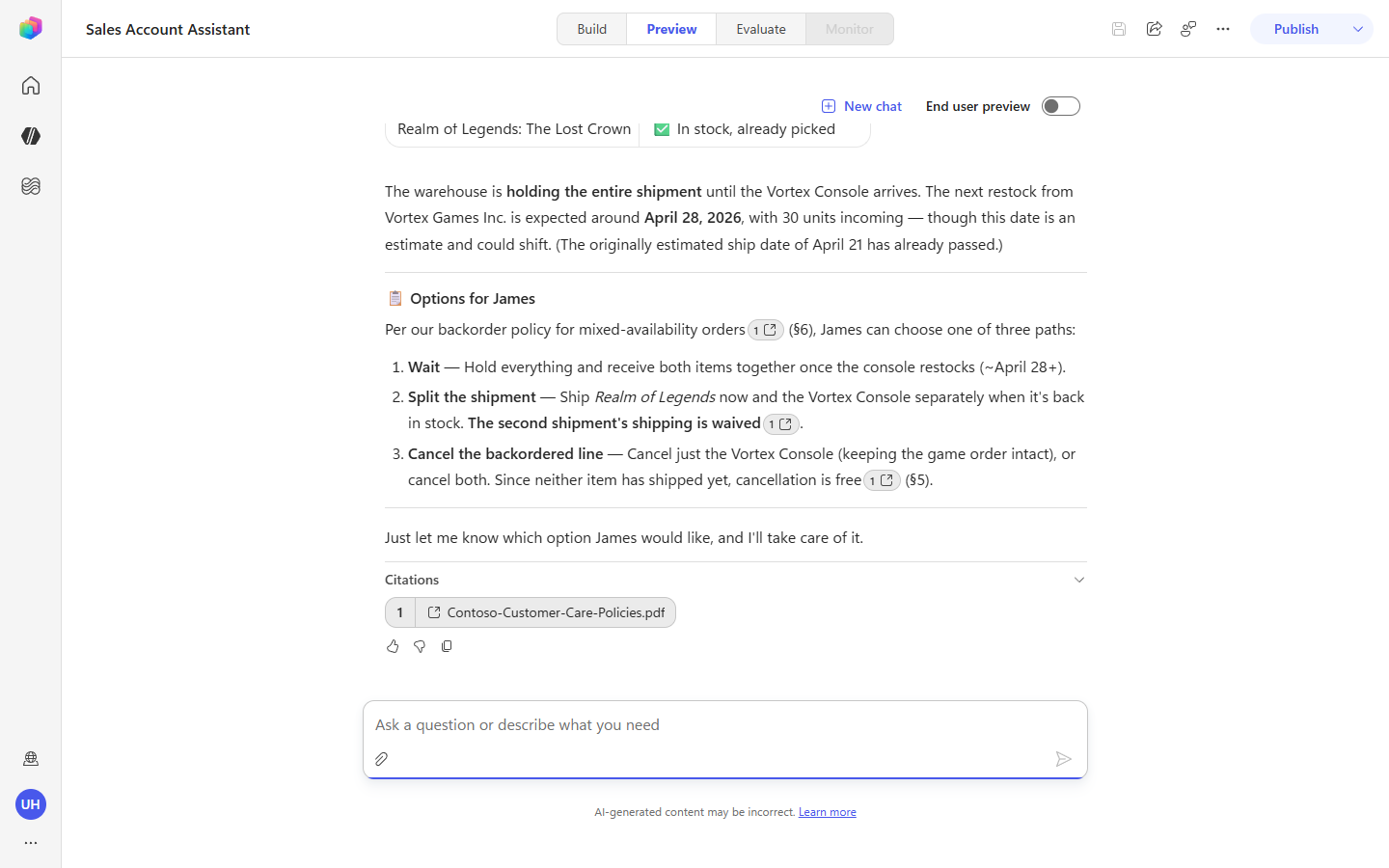
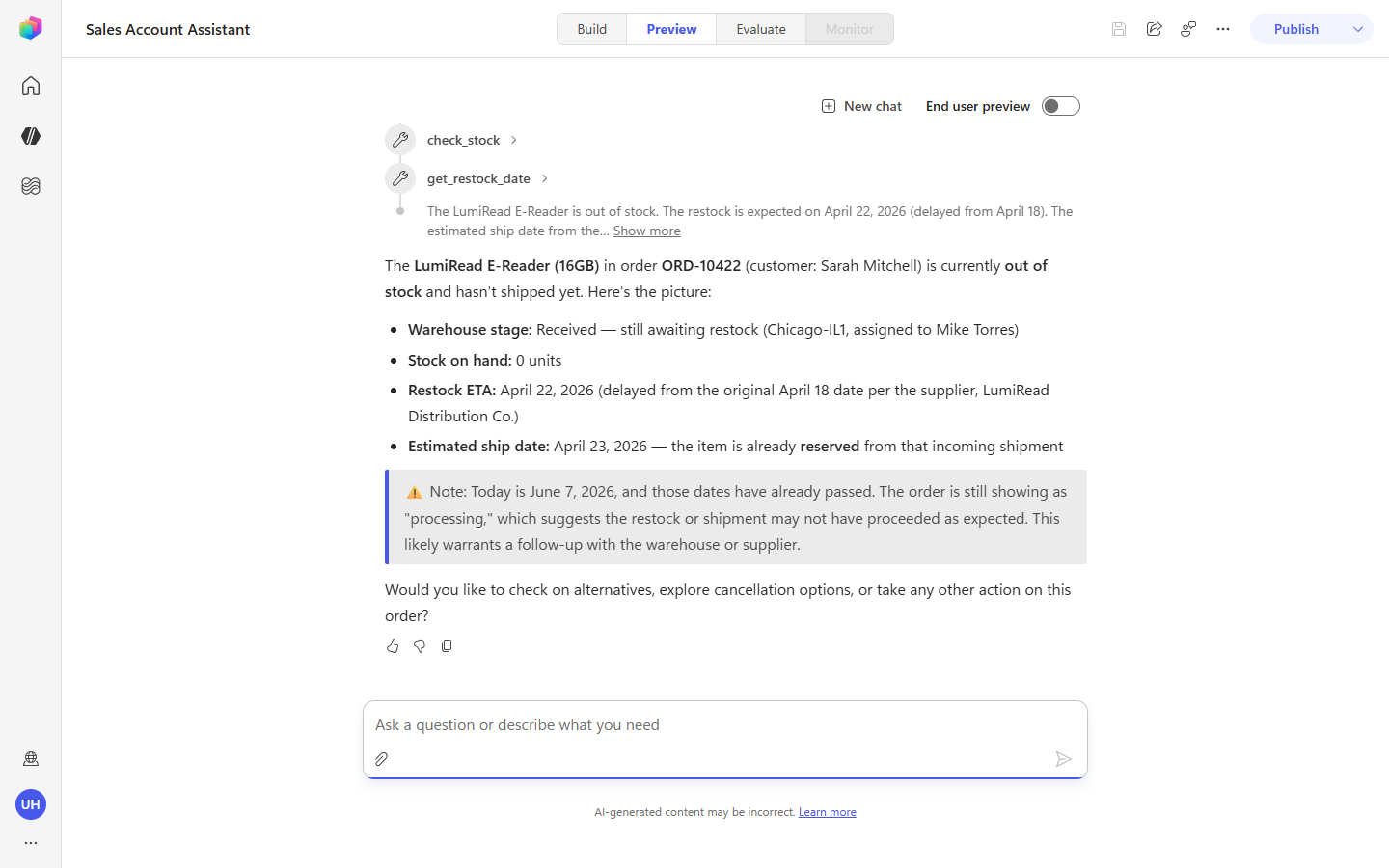
3. Restock timing (the honest “wait”).
When will the LumiRead e-reader in order ORD-10422 ship?
get_order → get_fulfillment_status → get_restock_date returns the restock date, and the agent reports “still awaiting restock” rather than inventing a ship date. Driven by the Skill’s restock handling and the “never invent … data” guardrail.
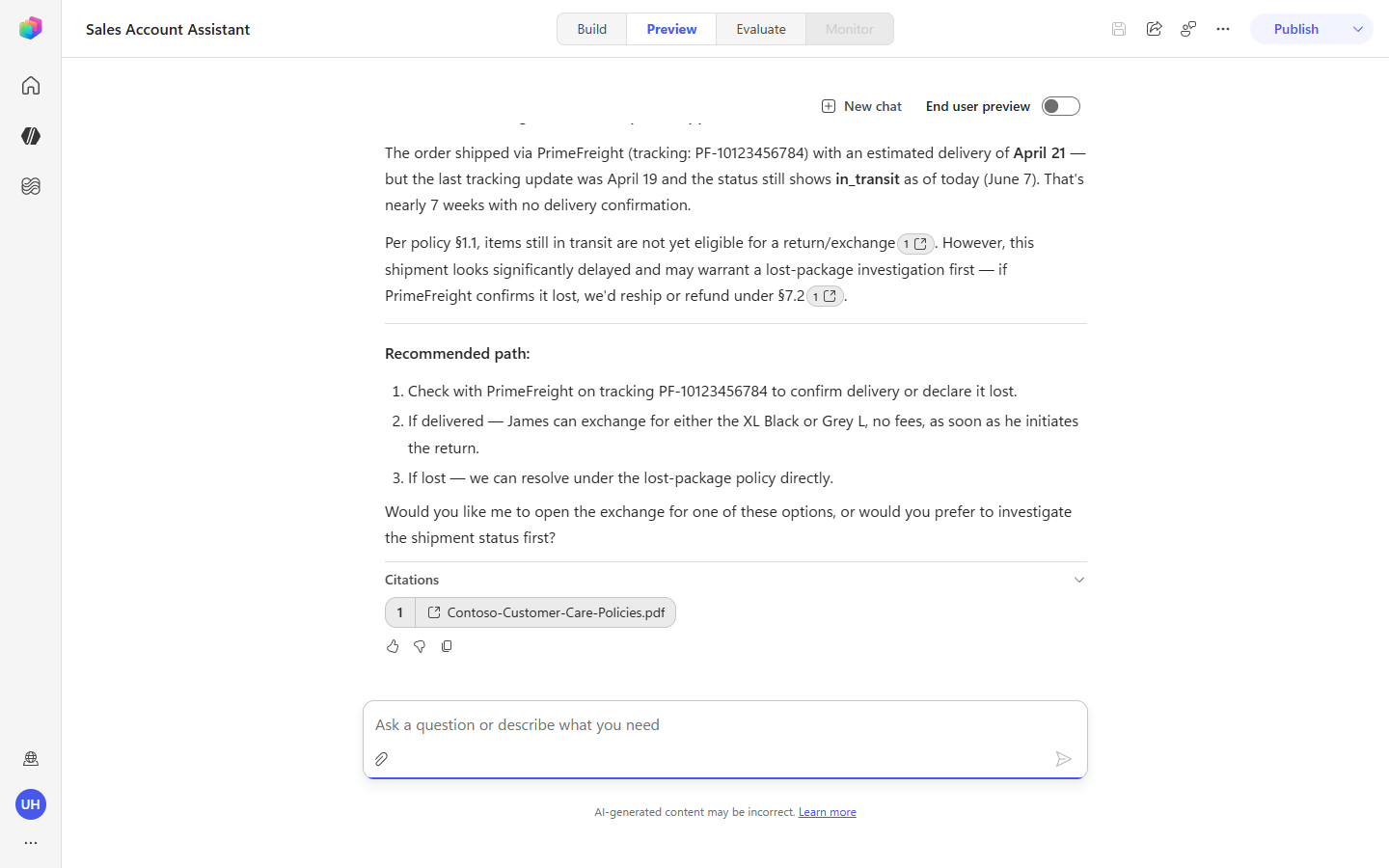
4. Size/color exchange (where find_alternatives shines).
The black TrailMark hoodie in order ORD-10455 — can I get it in XL or grey instead?
get_order → find_alternatives surfaces the genuine same-product substitutes (XL and grey), and the agent checks the Customer Care exchange rules before answering. Driven by Procedure step 3’s “genuine substitute … different size or color” rule.
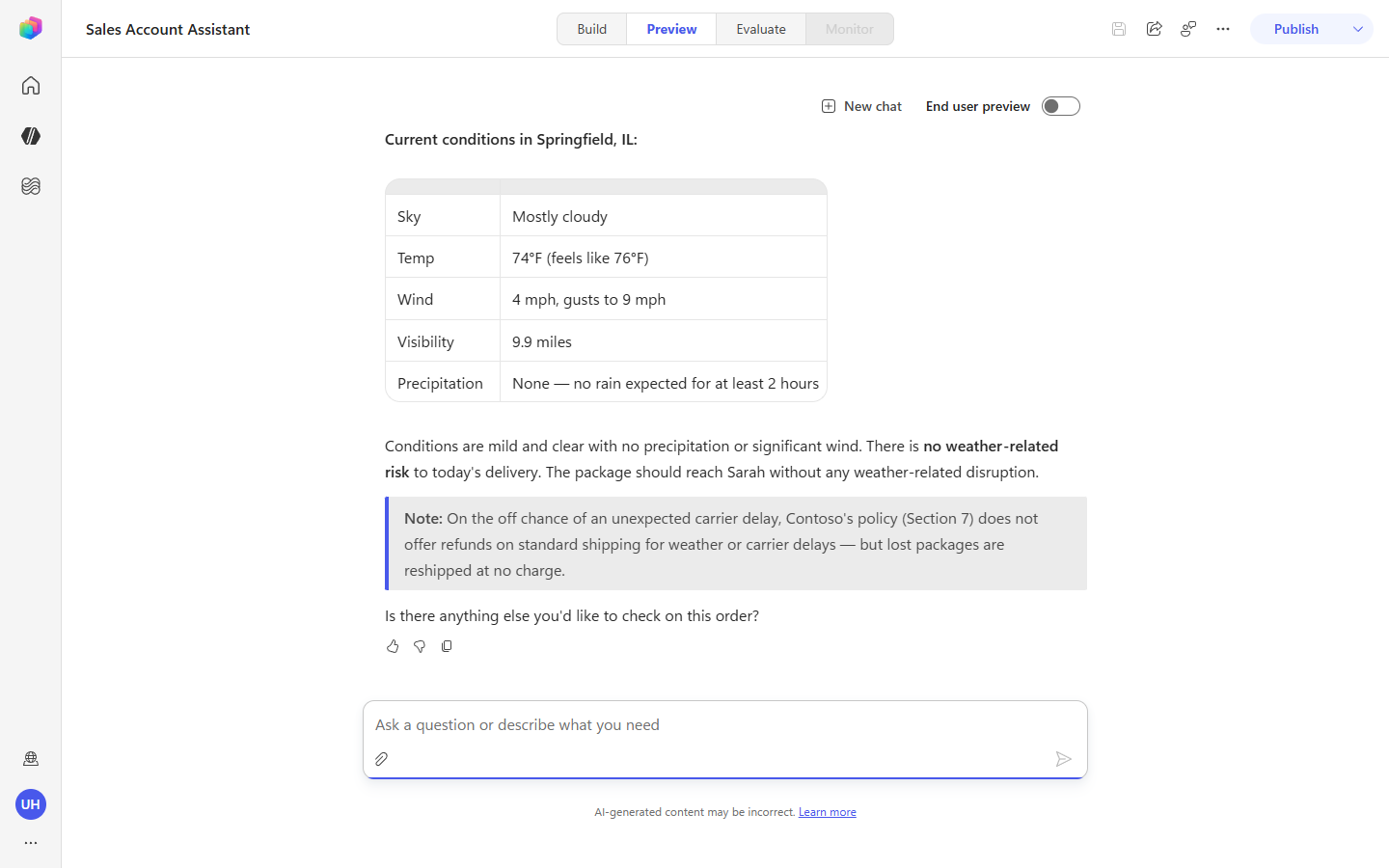
5. Weather and delivery risk (cross-domain synthesis).
My order ORD-10421 is out for delivery — could the weather hold it up?
The orchestrator bridges three domains: get_order + get_shipment to find the destination and confirm it’s out for delivery, then Get current weather for that city, then the shipping-delay policy — and concludes whether weather is a concern. Note it reports current conditions, not a forecast. Driven by the Skill’s Procedure step 5.
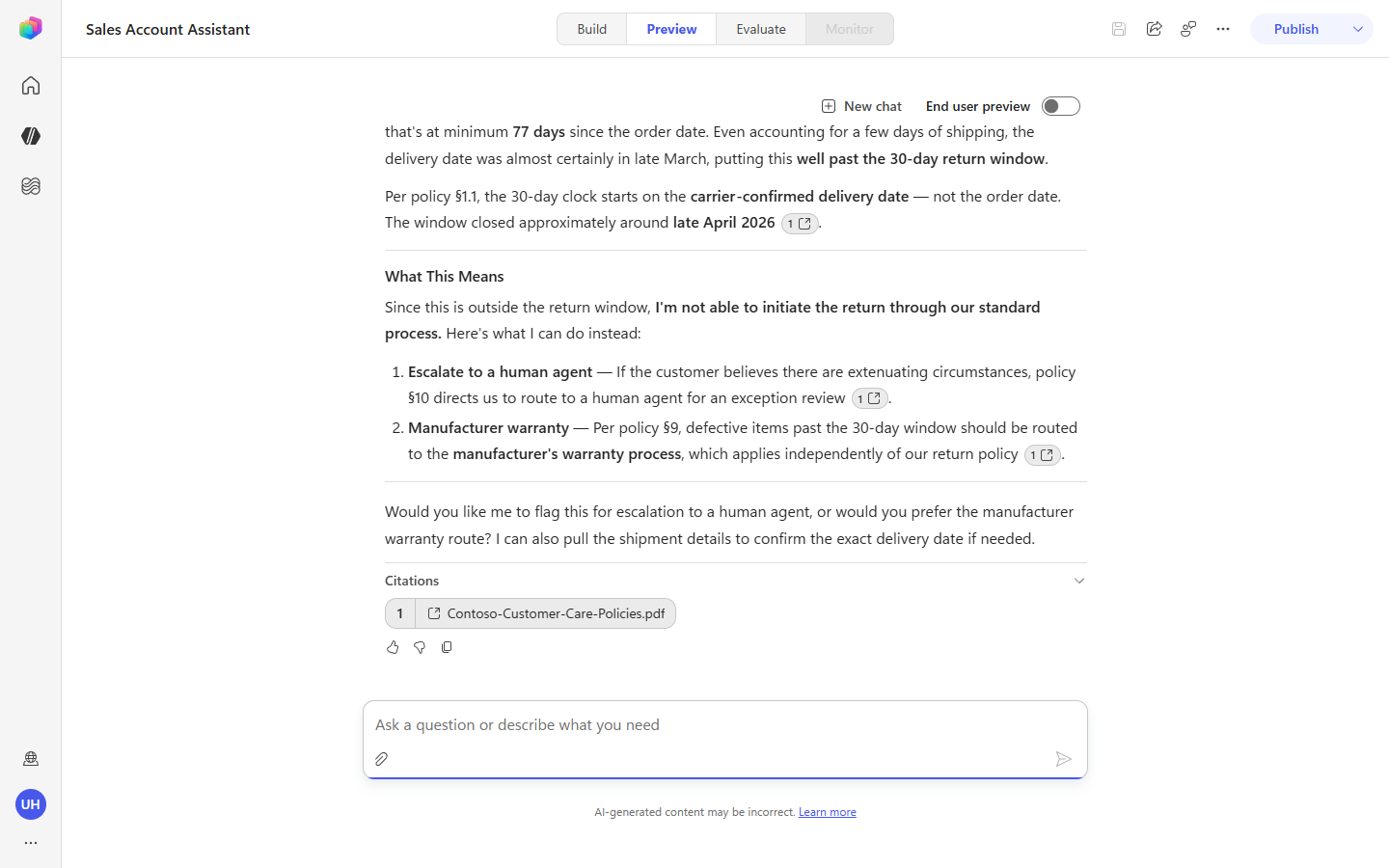
6. Policy-grounded eligibility (the guardrail in action).
The PulseWave earbuds in order ORD-10318 are defective. Confirm I'm within policy, then go ahead and start the return for me.
Even though the user asks for an action, the agent checks the policy first: get_order + get_shipment establish the delivery date, the policy gives the 30-day return window (§1.1), and the agent declines to start the return because the order is outside that window — citing the section rather than calling request_return. Driven by Procedure step 7 (“take action only when … supported”) and the “never promise … the policy does not support” guardrail.
[!NOTE] The sample orders are dated well before the current date, so they fall outside the 30-day window — which is why this prompt demonstrates a policy-grounded refusal rather than an executed return. It’s a clean illustration that the grounding is real: the agent does exactly what the policy says.
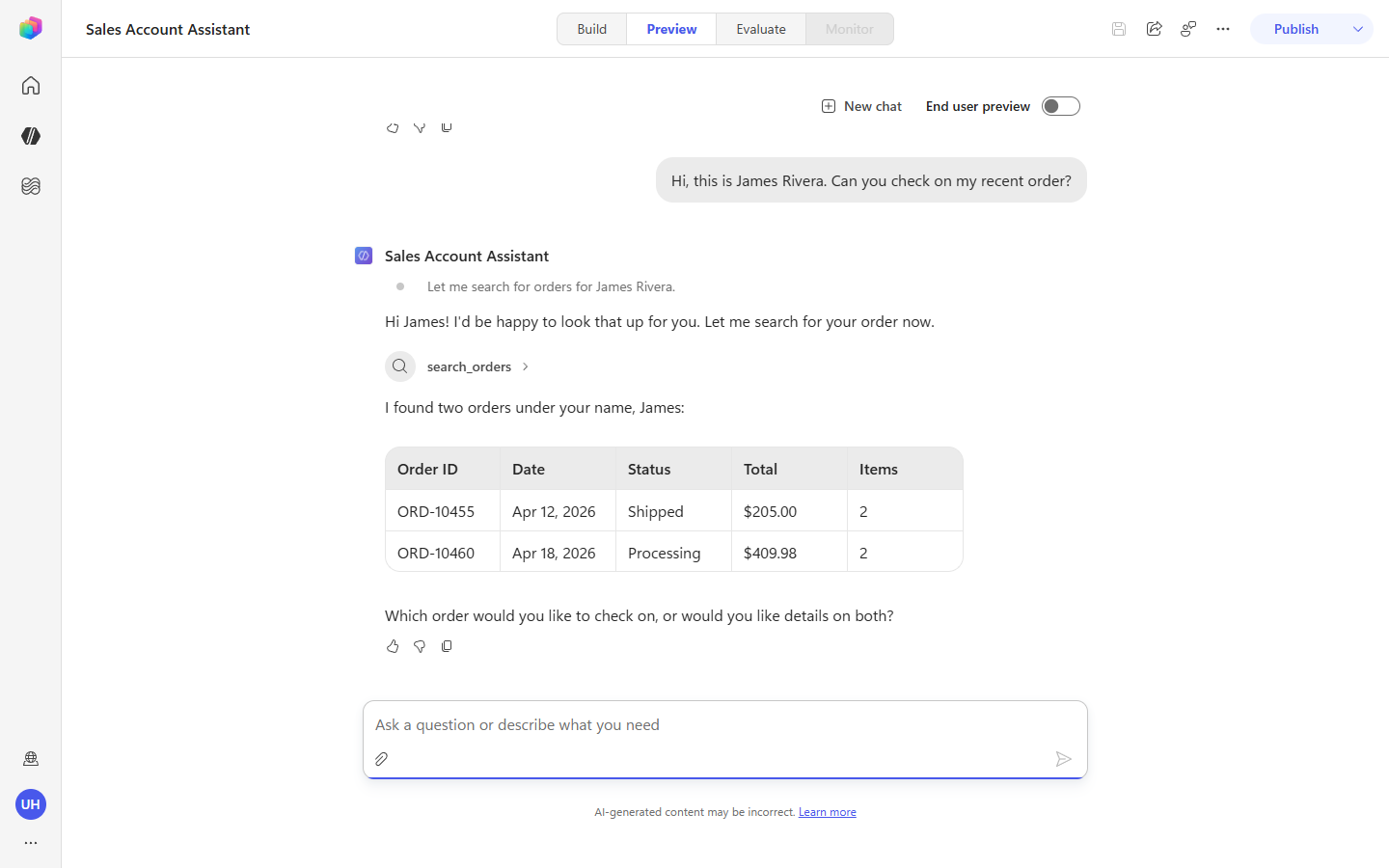
7. Won’t guess (the clarifying-question guardrail).
Hi, this is James Rivera. Can you check on my recent order?
search_orders finds two orders for James, so instead of guessing, the agent asks one clarifying question — which order would you like, or both? Driven by Procedure step 1’s “if more than one matches, ask one clarifying question — never guess.”
Congratulations! You’ve completed Use Case #4!
You extended a new-type agent with a Skill, two custom MCP servers, a second knowledge source, and Skill-aware instructions — and watched the New Orchestrator load the Skill and chain everything across a single turn.
Test your understanding
Key takeaways:
- A Skill is a reusable, named playbook the orchestrator loads on demand. It bundles when to use me, the tools I rely on, and the procedure to follow — keeping the agent’s base instructions short while making the behavior consistent. You saw Loaded Skill: … in the train of thought whenever a prompt matched.
- Custom MCP servers extend the agent with domain actions. Order Management and Warehouse added ten order/fulfillment tools the orchestrator chains dynamically — no per-step prompting.
- Two knowledge sources, two audiences. The customer-facing Customer Care policy is what the agent quotes; the internal policy is decision/escalation guidance it doesn’t read back to a customer. Instructions and the Skill enforce that line.
- Grounding is real, not cosmetic. The agent cited policy sections, respected the return window, and refused an out-of-window return — proof the policy actually governs its answers.
Lessons learned & troubleshooting tips:
- If a custom MCP server’s tools don’t load right after you add it, the connection may not have completed — remove the tool, then re-add it and recreate the connection (Create new connection → Create → Add).
- If a custom MCP server is hard to find, filter the tool picker to Model Context Protocol and press Enter to run the search.
- If the agent carries a previous customer into a new question, select New chat to reset — context persists across a conversation.
Challenge: Apply this to your own use case
- Take a multi-step process in your domain (onboarding, incident triage, quoting) and sketch it as a Skill: the when to use me trigger phrases, the tools it would call, and a numbered procedure with explicit guardrails for when not to act. Decide what belongs in the Skill versus the agent’s base instructions.
Summary of learnings
Learning comes from doing, questioning, and reflecting. Across this lab, you’ve seen Copilot Studio’s orchestration engine from two distinct angles:
- Standard generative orchestration (Use Case #2) — a single-pass planner that picks one tool / child / knowledge source per turn based on the user’s intent. Highly inspectable: every decision shows up in the activity tracker, and Get rationale lets you read the planner’s reasoning back to you. Tunable through agent Instructions, child-agent and tool Names + Descriptions, and input-parameter Descriptions.
- New Orchestrator – Agentic Reasoning Loop (Use Case #3) — the default orchestrator in new-type agents (previewed on classic agents as Enhanced Task Completion). Plans, acts, observes, iterates within a single turn until the task is complete. Better when users want finished outcomes; worse when authors and users need step-by-step transparency.
- Skills (Use Case #4) — reusable, named playbooks the New Orchestrator loads on demand. A Skill packages when to use it, the tools it relies on, and a numbered procedure with explicit guardrails, so the agent’s base instructions stay short and the behavior stays consistent. You saw the orchestrator load the Skill and chain custom MCP servers, a second knowledge source, and live weather to resolve order problems — and respect policy by refusing unsupported actions.
The single most important shift between the two orchestrators: standard orchestration optimizes for the next correct step; the New Orchestrator (Agentic Reasoning Loop) optimizes for the user’s end goal. Pick the orchestrator based on which behavior your users actually want — and use Skills to give that orchestrator consistent, reusable playbooks for the workflows it handles most.
Conclusions and recommendations
Orchestration golden rules:
- Names route, Descriptions explain, Instructions force. Tune the cheapest signal first (a tool’s name), then the description, then escalate to child or parent Instructions when name + description tuning isn’t enough.
- Input descriptions are the foundation of dynamic chaining. Without clear input descriptions, the planner has to guess how to reshape one tool’s output into another tool’s input.
- Use Get rationale as a debugger trace for your descriptions. When the planner makes the wrong decision, the rationale points you at exactly which description needs sharper wording.
- Match credential pattern to tool intent. Anonymous / API-key / service-account tools belong on Maker-provided credentials. Tools that act as the user belong on End-user credentials.
- Choose your orchestrator deliberately. Standard orchestration where transparency matters; the New Orchestrator (Agentic Reasoning Loop) where finished outcomes matter.
By following these principles, you’ll build agents that route to the right work the first time, and you’ll know exactly which lever to pull when they don’t.