Workflows
Workflows
Plan a task. Route an email. A verified, human-approved action.
Build an inline agent that plans a task, then explore email routing and approve an AI-drafted reply.
- 30-minute core
- 4 guided missions + 2 optional
- Real training data

Your next 30 minutes
First, automate planning a new To Do task. Then work with an order desk that receives unrelated promotions, customer questions, supplier delays, and quote requests. A workflow classifies the message; a grounded draft and human decision protect the customer-facing reply.
This lab uses Workflows in the Microsoft Copilot harness.
At a proctor-led event with a provided, pre-provisioned account? You're ready to start.
Using your own tenant? View setup requirements
Use a development environment with Copilot Studio Workflows, available Copilot Credits, Outlook, and Microsoft Copilot access.
Import LAB: Order Management Workflows and connect the requested services. The solution includes the Order Management Workflow and Price Quote Agent. Ensure you can edit and publish the workflow before starting.
Task planning also needs Microsoft To Do. Optional extensions need Warehouse MCP, or the SharePoint pricing guide and Dataverse account records for the Price Quote Agent.
Automate tasks, Inspect routing, Classify email and Review replies take about 30 minutes; Handle inventory and Generate quotes are optional.
Checkmarks, quiz answers and your notes are saved only in this browser's local storage. Nothing is sent to the lab site. To keep them, download a PDF at the end.
Plan a new task with an inline agent
Create a To Do Time Block workflow that watches your default Tasks list.
Your finish line A personal calendar block and a task with a due date, reminder, and useful notes.
-
In Microsoft To Do, sign in with the same training account. The workflow watches your default Tasks list, so no new list is needed.
In Copilot Studio, select Workflows → New workflow. It opens as Untitled workflow in Draft. Rename it To Do Time Block: select the name in the designer header (Click to rename), type it, and press Enter.
-
Select the Start node and switch Trigger type from Manual to Connector. Select Select trigger…, search
to-do, and under Microsoft To-Do (Business) select When a new to-do in a specific folder is created. In Connection, wait for your training-account connection to resolve and reuse it. Only if it is missing or incorrect, select Create new connection → Create and sign in with your training account. In To-do list, select Tasks; the Needs setup badge clears.Select + → Agent, reuse the connected training identity, and retain New agent for this workflow.
Show me: the To Do trigger on your Tasks list
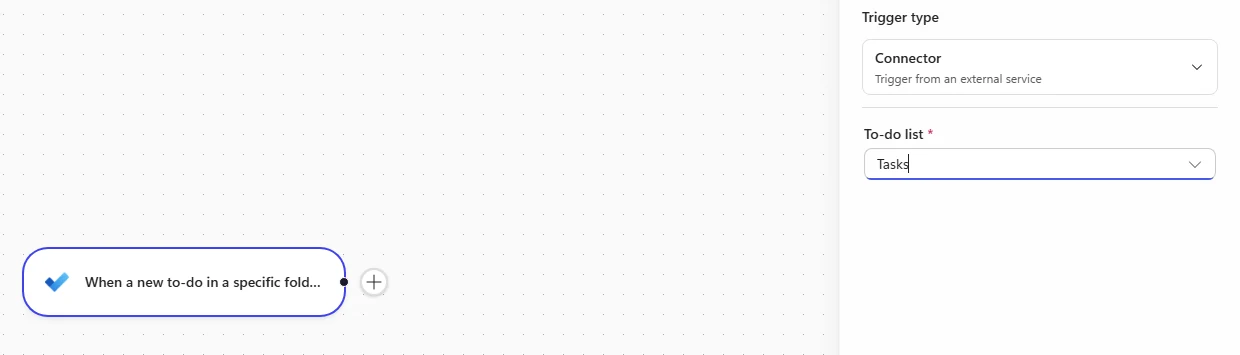
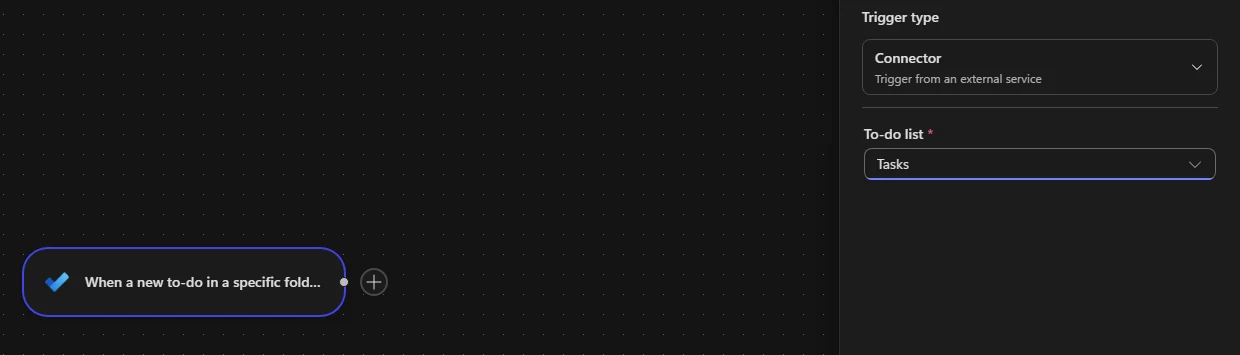
Pick the Business trigger; the Consumer one targets personal Microsoft accounts. -
Paste this first fragment into the inline agent’s Instructions. Add a space, type /, and insert the trigger’s Title dynamic token before the next fragment. An Apply to each loop can appear when this array-item token is inserted.
Inline Agent · Instructions · Before Title tokenFind a time that is appropriate for this task -
Add a separating space after the actual Title token and continue with this exact fragment. Do not leave a literal placeholder instead of the token.
Inline Agent · Instructions · After Title tokenon my calendar in the next couple of business days and block that time on my calendar to work on this task. Then update the to-do with a due date a week out from the time block we created. Add appropriate notes and suggestions in the notes on key things I might want to consider. Also set a reminder 2 days before the due date. Make sure that the format of the Calendar notes and To-Do are formatted properly for the user to be able to read them well. Only schedule the time block within my normal working hours of 8:00 AM to 5:00 PM.Show me: the inline agent's instructions
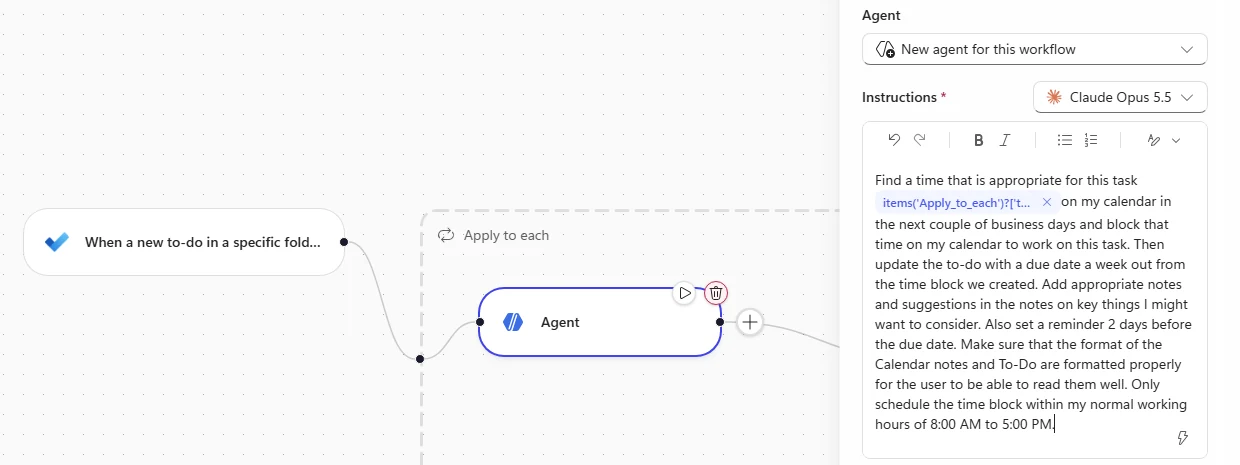
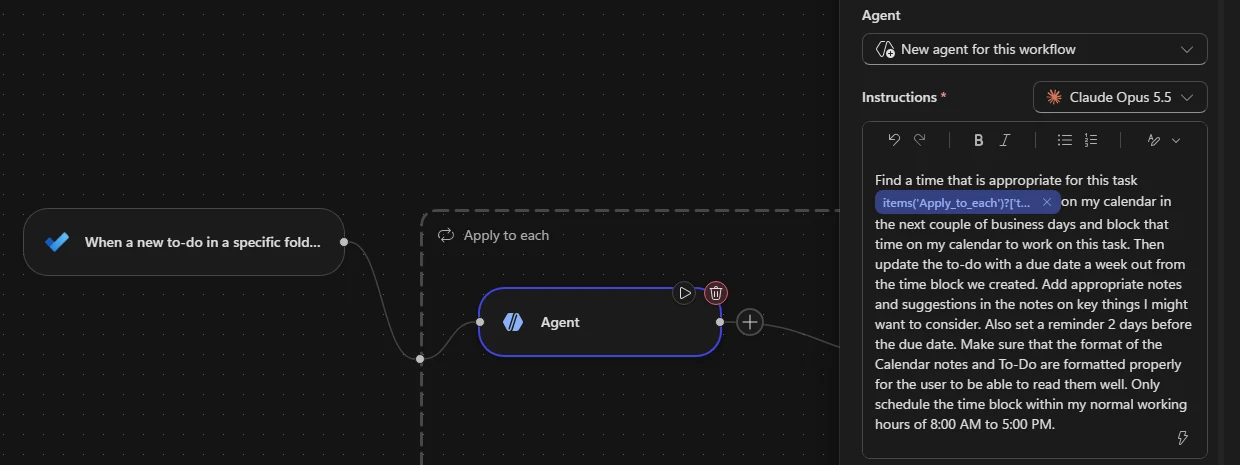
The Title chip can display its expression instead of the word Title. -
In Tools → +, add Find meeting times and Create event from Office 365 Outlook, plus Update to-do from Microsoft To-Do (Business). Check connector names; similarly named Eventbrite actions are not calendar tools. Reuse healthy own-account connections. Enable Web search.
Confirm calendar writes target only your own calendar, without attendees. Save → Publish and verify Enabled before adding the task.
Show me: the published To Do Time Block workflow
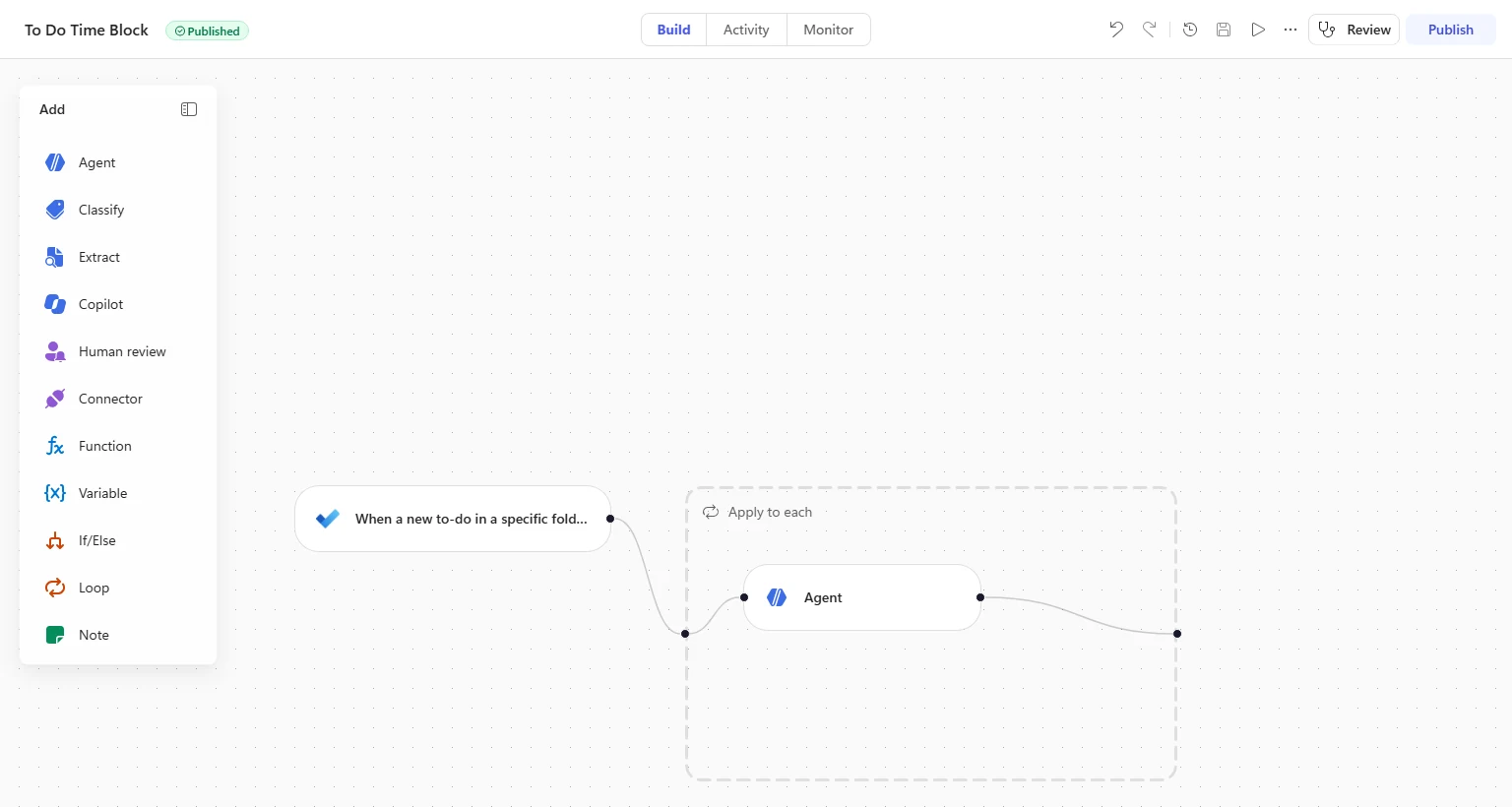
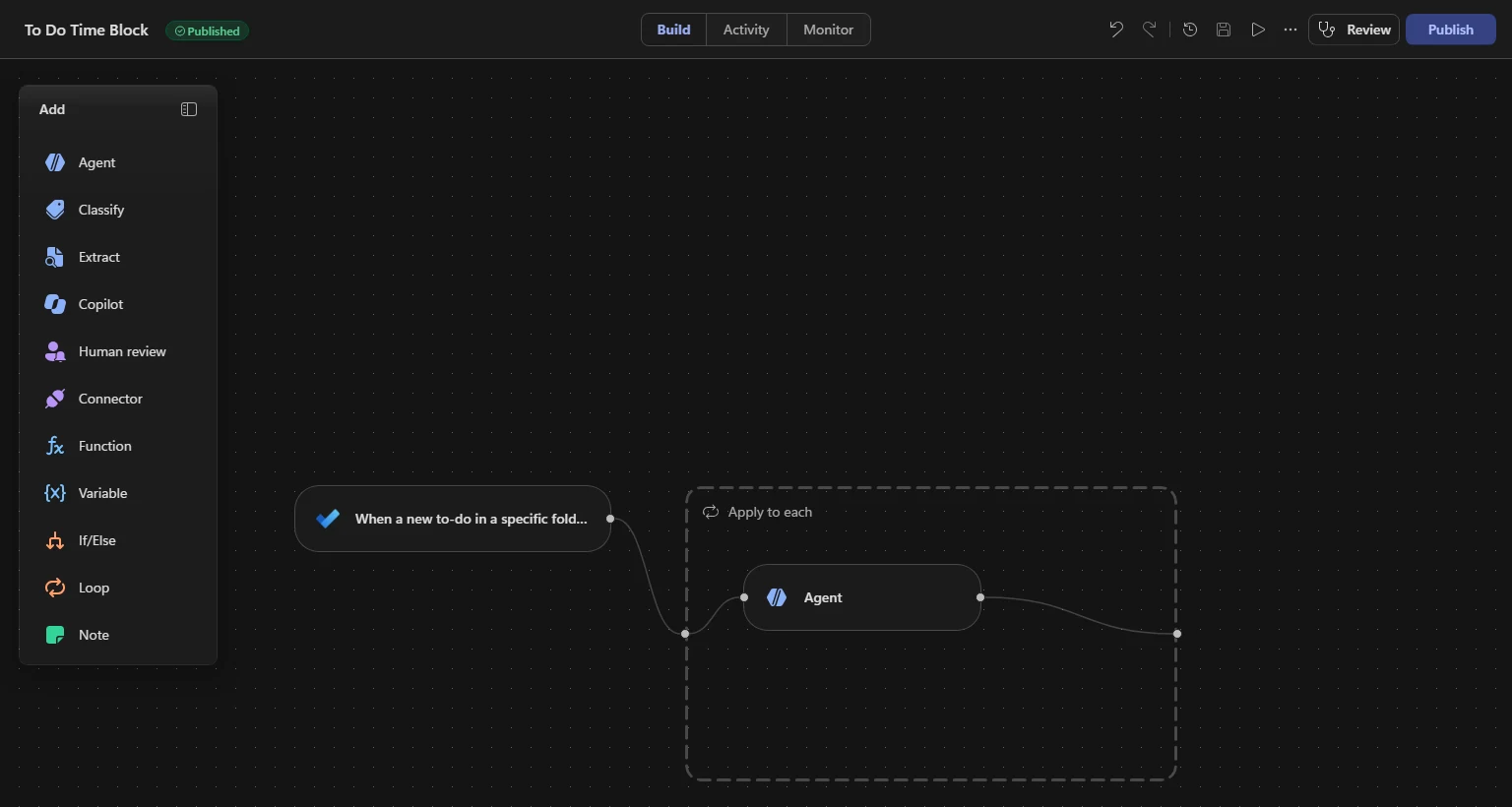
Apply to each appears automatically when the Title token is inserted. -
In your Tasks list, add this task title. It requests a personal planning block, not a booking or invitation to a venue. Do not authorize external reservations or outreach.
Microsoft To Do · Tasks · Task titleBook Skull's Rainbow Room in Nashville for Next Friday -
Refresh Activity until the polled trigger appears; inspect Trigger → Apply to each → Agent, tool calls, and output. Check for a personal block within 8:00 AM–5:00 PM, a task due date one week after that block, a reminder two days before the due date, and readable notes.
Open the real task and Outlook Calendar to verify those fields and the event, not only the agent’s narration. Check displayed timezones and the actual date chosen for Next Friday; relative-date interpretation can vary.
Dynamic data turns a goal into a per-item actionPause and reveal the idea
Title supplies the task; tools supply the capabilities; verification supplies the evidence.
An inline agent can choose how to satisfy a goal rather than replay one fixed action. Calendar and task checks remain necessary.
- New task → Title token
- Agent → calendar and task tools
- Calendar block + updated task
Understand the prepared email workflow
Follow an incoming email from its trigger to the classification branches.
Your finish line You can explain what starts the workflow and how it chooses an action.
-
Select Workflows → Order Management Workflow → Build in your assigned environment.
-
Open When a new email arrives. The Subject filter matches emails containing Order Management.
Follow the canvas to Classify, then explore the Quote Request, Supplier Delay, Customer Inquiry, and Other branches. Notice that each branch handles a different kind of email.
One trigger, different actionsPause and reveal the idea
The trigger starts the workflow; classification chooses the branch.
The subject filter selects relevant messages. Classify uses the email content to choose what happens next.
- Incoming email
- Classify
- Selected branch
Classify a quote and route an unrelated email
Classify a quote without dispatching it, then prove the Other branch archives one test.
Your finish line Quote Request node output plus a separate successful Other run and actual archived message.
-
Select Classify. Keep the current/default available model; replace a model only if missing or flagged as retired. Inspect the three configured categories: Quote Request, Supplier Delay, and Customer Inquiry. Other is the automatically created Default category, not a fourth configured category.
Select Run node. Under When a new email arrives, paste the sample into Body, then select Run. Expect Quote Request. This does not execute the downstream agent or send a quote.
Classify · Run node · BodyHi, I would like to request a quote for 500 units of Product A.Show me: Node-only quote classification
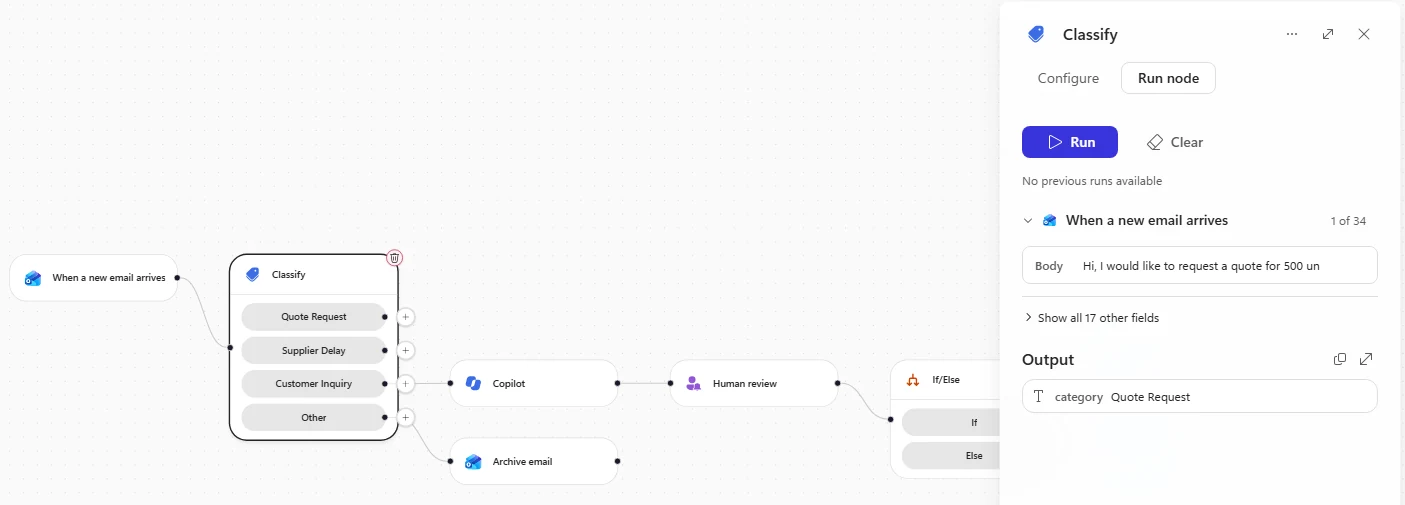
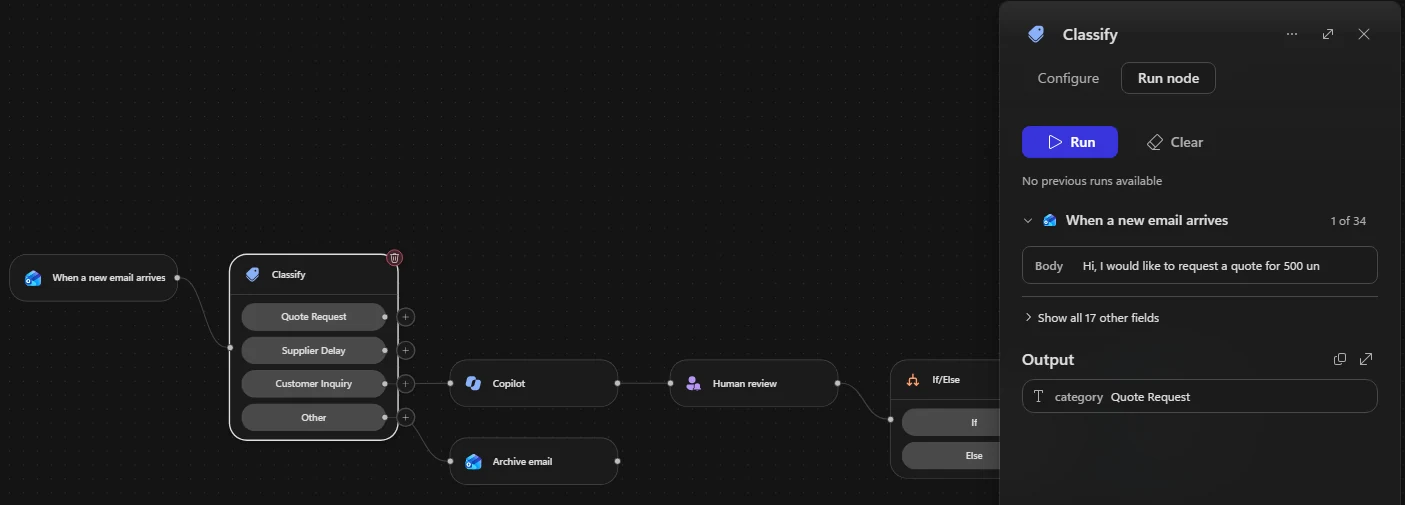
Run node returns the Quote Request category. -
Select Save (or Ctrl+S) then Publish. Wait for Published, then return to Workflows and confirm Enabled.
-
Open Outlook. If Your privacy matters appears, read it and select Continue. Compose a message to your own training account and use Check names if necessary. Paste this subject; do not send until the next step supplies the body.
Outlook · Other test · SubjectOrder Management - Congratulations! Your order desk has been selected -
Paste this sample promotional message and select Send.
Outlook · Other test · BodyDear Order Manager, Congratulations! Your order management team has been selected in our monthly business draw and is entitled to claim an exclusive cash reward. To release your reward, please reply with your full name and contact details, and a small processing fee may apply. Act soon, as unclaimed rewards expire. Regards, Promotions Team MegaDraw Rewards -
Open Activity, refresh, and inspect the new run. Expect Other → Archive email and Succeeded. Separately find the exact message in Outlook’s Archive.
If no run appears, check Enabled and that the subject contains Order Management. Otherwise, continue to Review.
Show me: Other branch executed
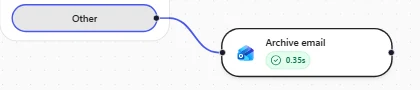
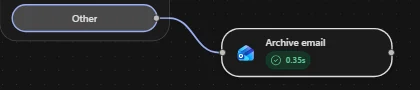
The Other branch archives the promotional email.
Classification is not deliveryPause and reveal the idea
A node test proves routing output; an end-to-end test proves an action.
Quote Request was a node-only result. The separate Other email exercised the connector trigger and Archive action. A green run does not replace checking the destination mailbox.
- Body sample → category
- Self-email → trigger
- Other → Archive → mailbox verification
Approve a grounded reply, then verify delivery
Inspect the draft-and-approval path and send the exact Customer Inquiry sample to yourself.
Your finish line A reviewed answer or holding reply, a successful approved run, and its received email.
-
In your workflow, open Classify → Customer Inquiry → Copilot. Confirm Customer question uses the incoming email Body. Read the supplied prompt in place: it searches the connection owner’s earlier email threads, drafts an answer when evidence exists, and otherwise drafts a holding reply without invented facts, addressed Dear Customer, and signed Contoso Electronics Order Management.
Keep the supplied prompt; this summary is not a replacement. The Copilot node provides read-only Microsoft 365 retrieval/drafting; the downstream reply node performs dispatch.
-
In Human review, confirm the message includes the Copilot draft, delivery is Outlook, reviewer is incoming From, and the single Yes/No input is Approve, question Send proposed reply?.
Follow If/Else → Approve Equals Yes to Reply to email. The Else branch leads to Flag email instead.
-
Compose a new Outlook message addressed only to your resolved training account. Paste this subject; add the body in the next step before sending.
Outlook · Customer Inquiry · SubjectOrder Management - Question about iPad Air warranty and MDM -
Paste this body and select Send.
Outlook · Customer Inquiry · BodyHi team, Quick question before we expand our last order. What is the standard warranty period on the iPad Air (M2), and can the devices be enrolled in our mobile device management (MDM)? I think we asked something similar a few months back but I can't find the reply. Thanks, Jordan Kim IT, Alpine Ski House -
Open Activity, refresh, and select the new Customer Inquiry run. Copilot drafts first; Human review then waits for your response. Trigger pickup, drafting, and approval-email delivery are separate waits.
In Outlook, open Action Needed: Review Customer Enquiry Reply and read the proposed response. A holding reply is valid when the mailbox lacks warranty/MDM information.
Choose Yes under Approve, then Submit to send the reply. If it contains unsupported facts, choose No → Submit instead: the original email is flagged and Reply to email is skipped.
-
Open the received reply in Outlook and compare it with the draft you approved.
In Activity, confirm Succeeded and Copilot → Human review → If → Reply to email executed. Flag email and Archive email are skipped on this approved route; that is expected.
If the approval is missing, inspect whether Copilot is still drafting or Human review is waiting, then check reviewer and Connection. Repair only an unresolved/incorrect connection and republish. Check the original run before sending another message to avoid duplicate approvals.
Show me: Approved inquiry route

The approved inquiry follows the Reply to email branch.
Grounding and approval solve different problemsPause and reveal the idea
Evidence constrains the draft; a person authorizes the send.
The Copilot node retrieves and drafts but does not send. Human review pauses the workflow, and the If branch allows the reply only after Yes is submitted. Sparse training data can correctly produce a holding response.
- Question → grounded draft
- Human review → Yes + Submit
- Reply → received message + successful run
Check your result Your Outlook mailbox contains the reviewed reply, and the matching run executed Reply to email. A safe rejection instead leaves the original flagged with no reply; it is not the approved-reply outcome.
Turn a supplier delay into one verifiable Task
Ground a stock decision in tool data and inspect the resulting Dataverse row.
Your finish line If prerequisites work, one Task with a verified arrival-plus-three-days due date and matching structured output.
-
Event attendees use installed assets. For self-paced setup, import Enhanced Task Completion for Warehouse MCP and ensure Dataverse MCP can create Task rows.
In your Order Management workflow, select Classify → Supplier Delay → + → Agent. Keep New agent for this workflow and the default available model. Select Expand and name the node Inventory Task Agent.
Under Tools → Model Context Protocol (MCP servers), add Microsoft Dataverse MCP Server and Warehouse MCP Server (detail title Warehouse MCP). Verify Get restock date and Dataverse operations as well as Connection. Reuse working connections. Only for No tools found, remove the affected tool from this agent, re-add it, save/publish safely, and recheck operations. If still absent, stop and ask the proctor.
-
Paste the complete original block into Instructions. It limits the lookup and the columns written. Replace its two input placeholders with real dynamic content in the next step.
Inventory Task Agent · InstructionsPurpose You triage supplier shipment-delay notices into restock tasks for Contoso Electronics. A delay notice names a delayed product but does not include stock levels, so you use the Warehouse tool to find the current stock and judge how urgent the delay is, then record a task in Dataverse. Inputs Delay notice: [email body] Review by (Due Date): [due date] Guidelines Take the current stock and all restock details from the Warehouse tool; the email does not contain them. Judge urgency from the current on-hand quantity: zero on-hand means the delay causes a stockout and is urgent; low but above zero means the buffer is at risk; healthy stock means the delay is tolerable. The Warehouse is a sample-data service. If its next shipment date is in the past relative to the delay notice, state that the ETA is stale and must be reconfirmed. Do not invent a future shipment date or a warehouse location. Steps Read the product or SKU named in the delay notice. Call the Warehouse restock-date lookup once, passing the exact SKU from the notice (no extra spaces). It returns the current quantity, next shipment date, expected quantity, and supplier. Do not call the stock-check tool. Decide the urgency of the delay from the current on-hand quantity. Use Dataverse to create one row in the Task table in the current environment, setting only these columns: Subject: Restock delay - [product] ([SKU]). Description: the current on-hand quantity; the next shipment date, the expected quantity, and the supplier returned by the tool; the urgency judgement; and a one-line action for the replenishment team. Include warehouse location only if the restock lookup supplies it. Flag a stale shipment date for reconfirmation. Priority: High if the on-hand quantity is zero, otherwise Normal. Due Date (scheduledend): set this to the exact Review by (Due Date) input above, which is the trigger email's arrival date and time plus three days. Rules Create exactly one Task row and set only the columns listed above. If the product is not found in the Warehouse, record it as unrecognised for a person to check. -
Replace [email body] using the lightning dynamic-content picker with trigger Body. Replace [due date] using the lightning picker and the diamonds → Ask Copilot to generate an expression control above its search bar. Enter this expression-generation request.
Ask Copilot to generate an expression · Due Date requestAdd 3 days to the date and time of arrival of the trigger email -
Compare the returned expression with this reference output, then select Insert only when it represents the trigger arrival plus three days:
addDays(triggerOutputs()?['body/receivedDateTime'], 3)This is a generated-expression reference, not a message to send. The Task due date is independent of the shipment ETA. If tool data has a past ETA, flag it for reconfirmation; do not invent a future date or warehouse location.
Set Output → Structured output:
skuText (the SKU named in the delay notice),stockNumber (current warehouse stock for that SKU), andriskYes/No (true if stock is zero). If offered, inspect Request human assistance when unsure as an ambiguity mechanism, not a substitute for tool verification. -
Select Save → Publish and confirm Enabled. In Outlook, address a new message only to yourself and paste this subject.
Outlook · Supplier Delay · SubjectOrder Management - Shipment delay - LumiRead E-Reader -
Paste the body and Send after checking the self-recipient. Use the existing run if one is already processing; repeated samples can create duplicate Tasks.
Outlook · Supplier Delay · BodyHello Contoso, We're writing to let you know that the upcoming shipment of the LumiRead E-Reader (16GB), SKU-LUMI, has been delayed and will not arrive on the originally planned date. We apologise for the inconvenience and will keep you updated. Regards, LumiRead Supply Team -
In Activity, inspect Classify → Supplier Delay → Inventory Task Agent, the warehouse lookup, Dataverse describe/create operations, and structured output. Expected sample values are
sku = SKU-LUMI,stock = 0,risk = trueonly if the actual lookup still returns zero stock. Preserve actual tool data rather than manufacturing the expected sample.Open Power Apps in the same environment, Tables → Task. Find your new Restock delay - LumiRead E-Reader (16GB) (SKU-LUMI) row. Use Subject Filter by and Created On to distinguish duplicates; +N more exposes columns, not more rows.
Verify Description against the lookup, Priority High only for zero stock, and Due Date = trigger arrival + three days (accounting for displayed timezone). A blank due date or missing row is not a pass even if the run succeeded.
Structured output is not proof of persistencePause and reveal the idea
The tool result, typed output, and actual Task must agree.
A sample warehouse can return stale dates. Preserve that limitation, keep the arrival-derived review date separate, and verify the actual Dataverse write rather than accepting a completion message.
- Delay → exact SKU lookup
- Stock → urgency + typed output
- Create one Task → inspect its fields
Call a published price-quote specialist
Use the price-quote specialist to prepare and send a quote.
Your finish line If prerequisites work, a real quote received by your training account with traceable pricing and account lookup.
-
The earlier Run node test did not run this agent; this extension is a separate end-to-end test. Use only your assigned Price Quote Agent under Agents → Build. Self-paced users must provide the SharePoint Sales & Pricing Guide and Dataverse Adventure Works/Fabrikam account records; these are not in the solution package. Ask the proctor for missing event assets.
Inspect Tools: Microsoft Dataverse MCP Server and Mail, Knowledge: Order Management (SharePoint), and Skills: price-quote. The broad instructions describe the role; the skill defines account/employee lookup, tier, SKU/list price, discounts, terms, lead time, and sending. Read it before running because it can send mail.
Verify operation lists as well as connections: the current Mail tool includes Send draft message, Reply to message, and Search messages; labels can differ by connector version. Dataverse should expose Read query, Create record, Update record. Reuse healthy connections. For Not Connected, connect your account and wait for operations to load before choosing Done. Only for No tools found, re-add that affected tool from MCP, save/publish, and recheck. Stop if operations remain absent; Succeeded with an inability explanation is not quote completion.
Keep the agent Published; save/publish changes if needed. Only published agents appear in the workflow selector.
-
In your Order Management workflow, select Classify → Quote Request → + → Agent, then choose the published Price Quote Agent. Paste this template into Message.
Replace [email sender] via the arrow > / lightning picker with trigger From, and [email body] with trigger Body. Delete leftover literal placeholders, not the tokens. Confirm that the resolved email recipient is your training account before Save → Publish; publishing enables the trigger.
Quote Request · Agent · Message templatePrepare a price quote for this customer request: Customer email: [email sender] Request: [email body] -
Compose an Outlook message only to your resolved training account. Paste this subject before adding the body.
Outlook · Quote Request · SubjectOrder Management - Quote request - Adventure Works -
Paste the request and select Send.
Outlook · Quote Request · BodyHello Contoso team, We're fitting out a new office and would like a quote for: - 10 Sony WH-1000XM5 headphones - 5 iPad Air (M2, 256GB) Delivery to our Santa Cruz, California office. Could you confirm your best price, the payment terms, and the delivery estimate? Thanks, Nancy Anderson Procurement, Adventure Works -
Inspect Activity → Classify → Quote Request → Agent. Read the actual tool calls and completion output. Verify the account/employee lookup, knowledge-backed tier and prices, quantities, line totals, subtotal, discount, terms, and lead time; no estimates or invented handbook facts.
Open Outlook to confirm the actual quote arrived at your account. A claimed send or a green run with missing operations is insufficient. If required knowledge or tools are unavailable, record the blocker instead of claiming success.
-
In the assigned agent’s Preview, ask this original bonus question. Inspect Dataverse
read_queryfor Fabrikam employee count and the SharePoint tier/discount evidence. The classic sample expects Mid tier, but verify current data rather than assuming it. Keep tool recipients constrained; do not authorize mail to real customers.Price Quote Agent · Preview · Pricing questionWhat are the iPad Air prices applicable to Fabrikam? -
This original template can invoke the sending skill. Replace the brackets with the sample quote request above in Preview. Inspect whether price-quote loads and verify any real outcome; do not infer completion from narration.
Price Quote Agent · Preview · Customer email templateWe have received this customer email: []
Reuse the capability, verify the resultPause and reveal the idea
Publication exposes the specialist; its knowledge and tools still need evidence.
A reusable agent separates repeatable quote procedure from the workflow’s routing. Its success criterion is a grounded calculation and received quote email, not merely appearing in the selector or returning Succeeded.
- Published specialist → From/Body tokens
- Account + pricing knowledge → quote
- Mail action → actual received message
A verified action is more than a green run
You automated task planning, explored email classification, archived a promotional message, and reviewed an AI-drafted reply. Optional extensions add inventory tasks and a price-quote specialist.
Want to go further? Turn a supplier delay into one verifiable Task (optional, 15 minutes), or Call a published price-quote specialist (optional, 10 minutes).
- Route
- Classify chooses a branch; its node-only test does not execute downstream actions.
- Review
- Read-only grounding and human authorization precede the reply action.
- Verify
- Check Activity and the resulting calendar event, task, mailbox, or record.
- Extend
- Use MCP tools and a published specialist to add inventory and price-quote capabilities.
Saved only in this browser. Your note stays in this browser's local storage on this device. It is not sent to the lab site or your Microsoft account, does not follow you to another browser or device, and is erased if you clear browsing data or reset progress. Download a PDF to keep it.
Downloads a copy of your prompts, progress and note to this device. Your note is not sent anywhere.
Product guidance and further reading
- Workflows in Microsoft Copilot Studio
- Workflow designer, testing, and run history
- Add inline or published agents and tools to a workflow
- Event triggers for Standard harness agents (comparison)
Product UI and available capabilities can vary by tenant. Screenshots show the training experience, not a promise of identical generated output.