How to Get Your Conversation ID When Chatting with Agents
A guide for end-users about how to get a Conversation ID to get help quickly with Copilot Studio agents in Microsoft 365 Copilot, Microsoft Teams, web chat, and other chat surfaces
TLDR: Getting a Conversation ID
-
Custom agents: Use
/debug conversationidcommand -
Declarative agents: Use
/debugcommand
Why are Conversation IDs important?
If you are chatting with an agent and something goes wrong, how do you point at the exact chat that had the problem? Enter the Conversation ID - your receipt for that specific chat session.
What is a Conversation ID?
A Conversation ID is a unique identifier (GUID) that tracks a specific chat session with an agent. Think of it like a tracking number for a package that helps support teams, makers, and administrators locate and investigate exactly what happened during your interaction.
Example format: 0c4ebb21-3f74-4df4-b191-812aea31273d
Different agent types
In the Copilot Studio and Microsoft 365 Copilot ecosystem, there are two types of agents you might encounter and they have different mechanisms for retrieving a Conversation ID:
- Custom agents - Built using Copilot Studio with custom logic in topics, workflows, integrations, broad channel support, and a choice of models, as well as specific instructions and knowledge
- Declarative agents - Built in Agent Builder and Copilot Studio to extend Microsoft 365 Copilot with specific instructions, knowledge, and additional capabilities
How to obtain your Conversation ID
Custom agents
- When chatting with an agent in M365 Copilot Chat, Teams, or another chat experience…
- Type:
/debug conversationid - The agent will show Conversation ID in the chat
M365 Copilot chat
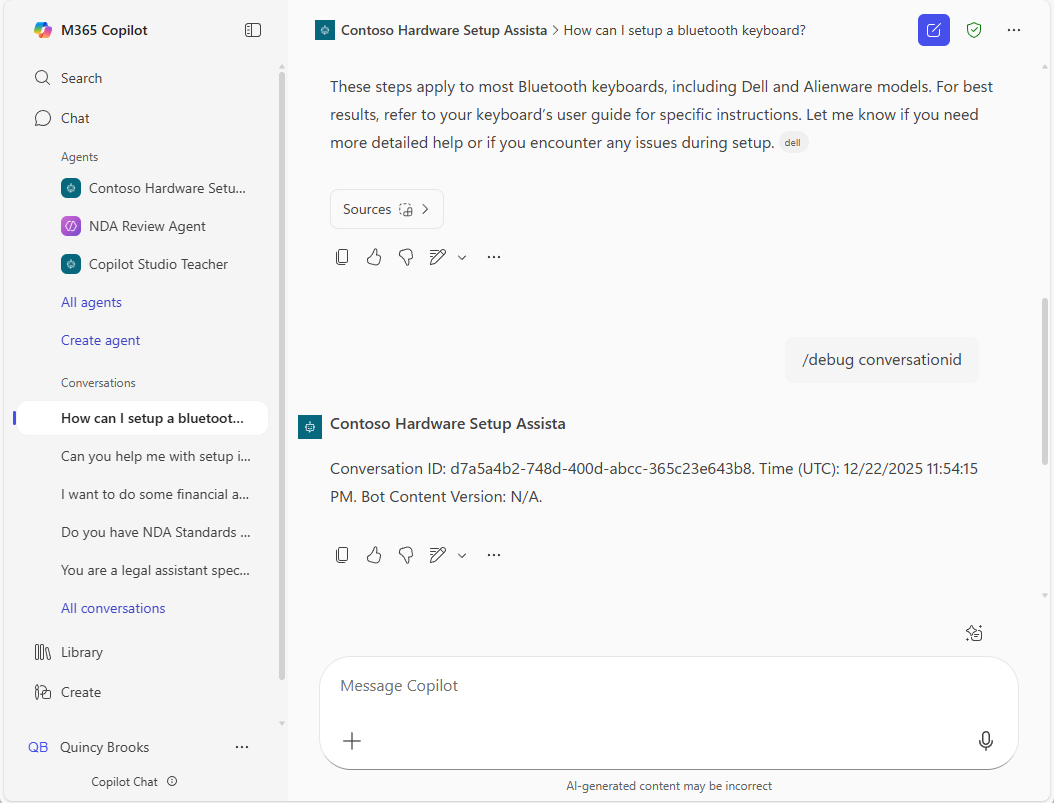 Custom agent in M365 Copilot chat displaying a Conversation ID
Teams chat
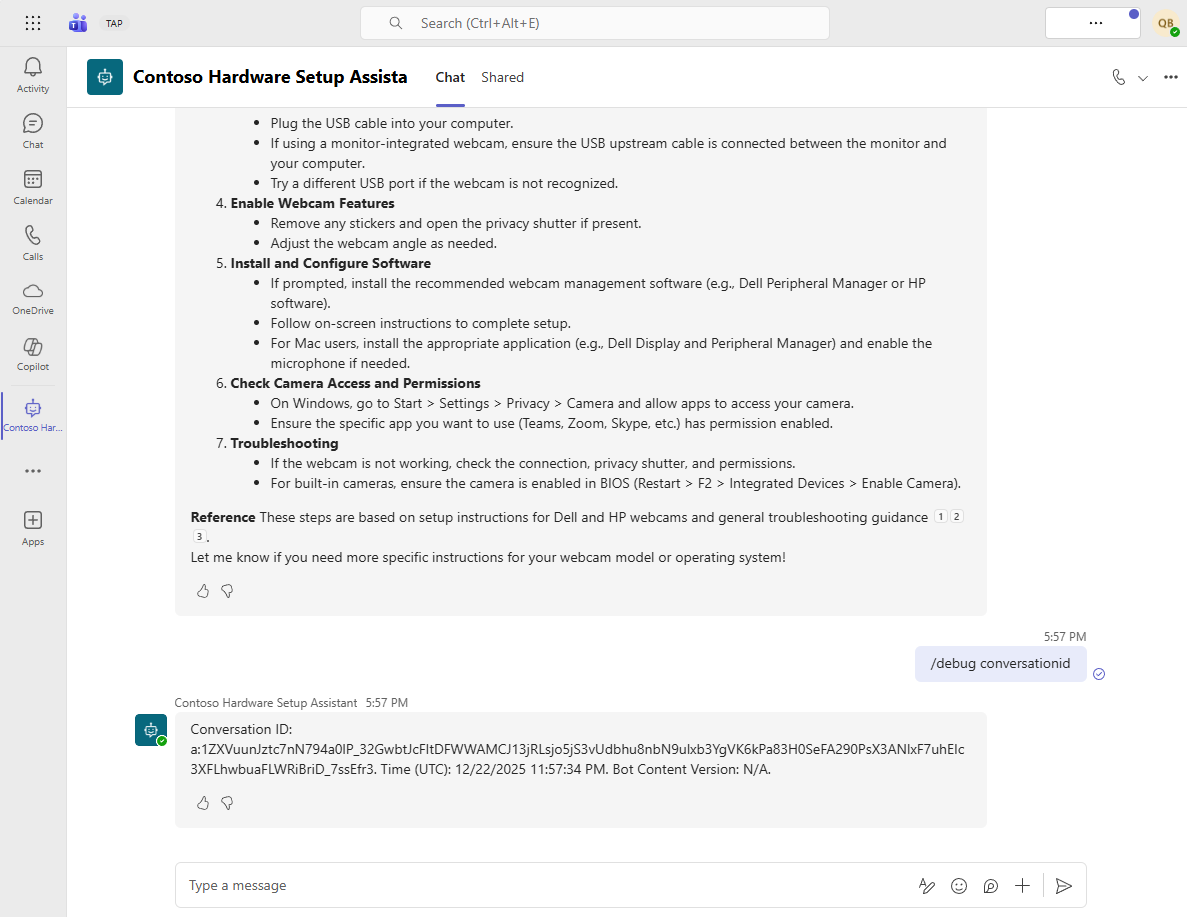 Custom agent in Teams chat displaying a Conversation ID
Custom web chat
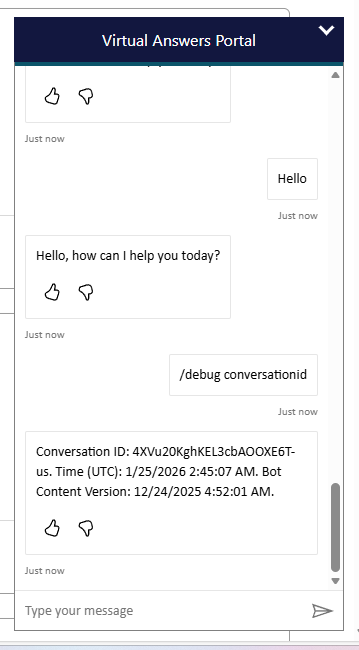 Custom agent in custom webchat displaying a Conversation ID
Declarative agents
- When chatting with an agent in M365 Copilot Chat…
- Type:
/debug - The agent will show a debugging card that includes the Conversation ID
M365 Copilot chat with declarative agent
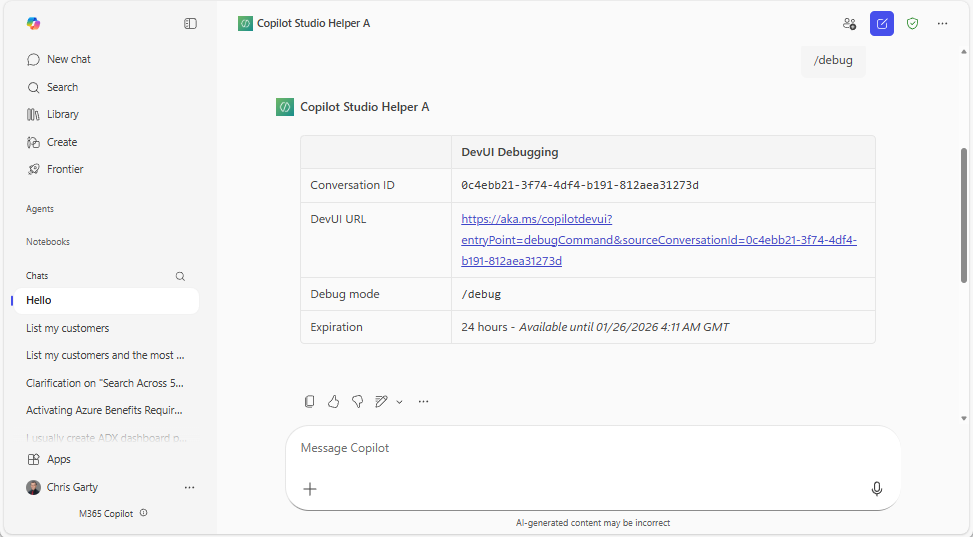 Declarative agent in M365 Copilot chat displaying a Conversation ID
What to send to your maker/admin (copy/paste)
Put this in the email/ticket/request:
- Conversation ID:
- Where and when you used the agent: (M365 Copilot / Teams / Website)
- What you expected vs what happened:
Who can access conversation details?
Access to the full conversation content requires proper permissions:
- Makers can view conversations for agents they own
- Admins can access conversations based on their assigned roles (environment admin, platform admin, tenant admin, etc.)
- Support staff need appropriate data access permissions
What’s Next?
This guide focused on helping you, as a user, get your Conversation ID when you need support or want to track your interactions.
I’m planning future posts on Conversation IDs for maker and admin audiences:
- For makers: How to find and use Conversation IDs when building and debugging agents in Copilot Studio
- For admins: Using Conversation IDs for governance, compliance, and support in your organization
Is this helpful? Drop a comment below if you’d like to see these posts, or if there are other related topics you’d like covered!