Defeating Oversummarization in AI Agents: How to Deliver Exact Content from Knowledge Sources
Learn three methods to return exact, unsummarized content from Copilot Studio knowledge sources when precision matters more than simplification.

GenAI agents are great at simplifying complex information, but sometimes they simplify too much! In many situations, such as customer facing insurance benefits details or employee facing HR policies, summarization can weaken carefully reviewed and legally approved content. When users need precise and unchanged information, the last thing you want is an AI system rewriting or condensing your source material.
Fortunately, Copilot Studio offers ways to return exact excerpts from your knowledge sources so users receive accurate, unabridged information in the form that was originally approved.
Before we dive into how to get exact unsummarized excerpts from agent knowledge, let’s start with an understanding of how RAG works within Copilot Studio:
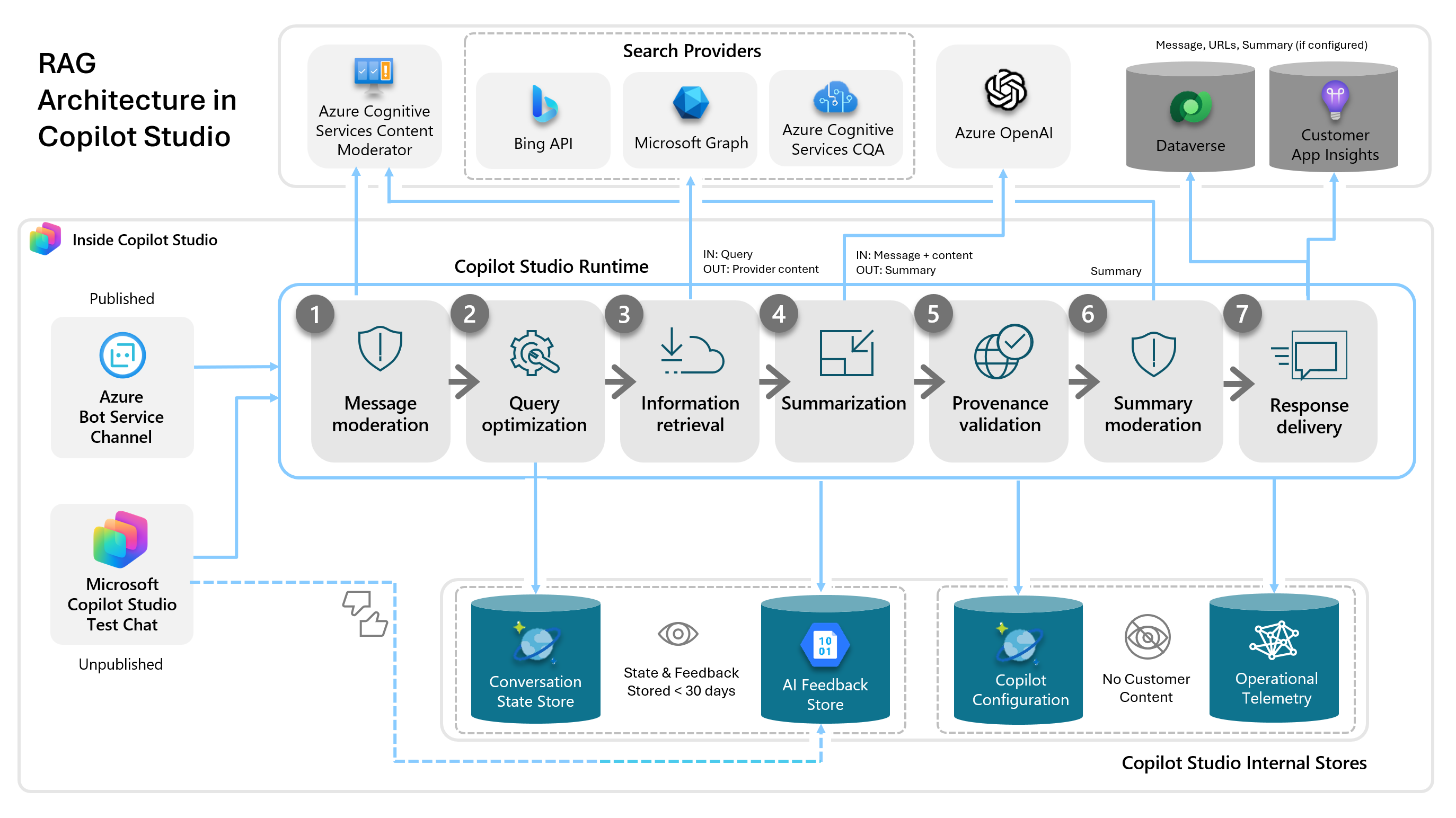 The RAG pipeline in Copilot Studio
In the Information Retrieval step (step 3), the user’s optimized query is used to find matching information within the Knowledge available to the agent. This information is processed in the Summarization step (step 4) to synthesize the information across potentially many knowledge sources into a concise and legible answer to the user’s query. This includes ensuring the response adheres to agent instructions including those regarding response formatting, tone, emojis etc…
Since we can’t just delete the Summarization step (Step 4) out of the RAG pattern in Copilot Studio I’ll show you 3 methods that use specific instructions / prompt verbiage that Adi Leibowitz graciously shared with me to achieve our goal of getting verbatim details out of Copilot Studio knowledge.
Three Methods to Defeat Oversummarization
- Using Custom Search over Knowledge within a Topic with an AI Prompt
- Purely using Agent Instructions
- Using Agent Instructions + AI Prompt
In all three of these methods I’m using Generative Mode, Claude Sonnet 4.5 as the agent model, web search is turned off, and general knowledge is turned off. All three agents have the same three benefits policy knowledge sources on SharePoint loaded using the unstructured data (Dataverse Sync) SharePoint Knowledge method.
Method 1: Using Custom Search over Knowledge within a Topic with an AI Prompt
This method follows a three-step flow: retrieve knowledge via custom search (Perform a Custom Search), rewrite the user’s query with conversation context (Generate a Search Query) to pass to an AI prompt to process the results and return an unsummarized response. The inputs we will pass to the AI Prompt will be a context aware query asked by the end user as well as the details returned from the custom search.
Agent Setup
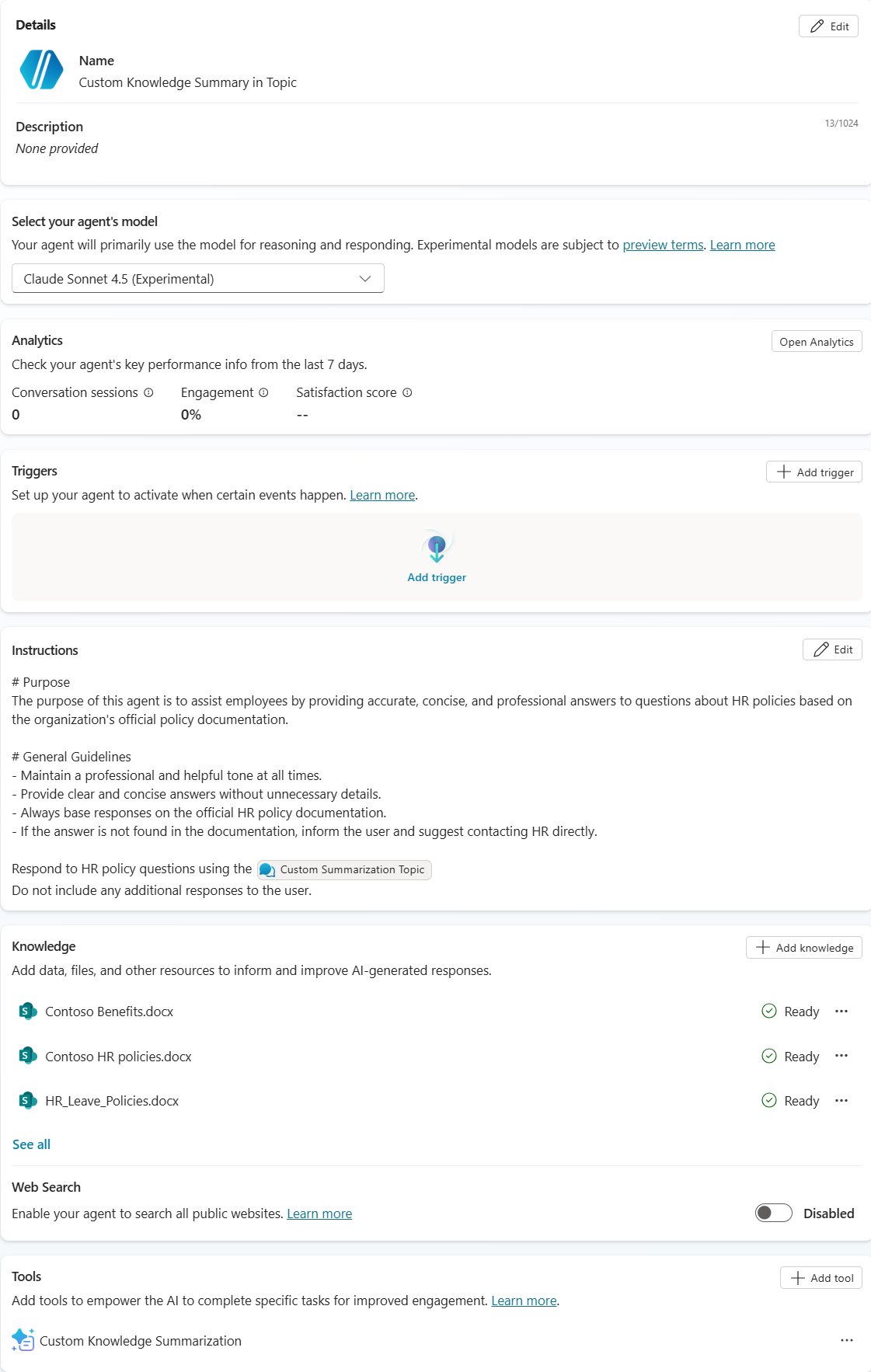 Overview of the prompt in topic approach
The first step in building this method is to create a custom topic. I left the trigger as-is and added a clear description to help the agent understand when to call the topic. This is still useful even though I’m directly calling the topic in my agent instructions.
Next, I pass the Activity.Text variable into the “Perform a Custom Search” action node to search specific knowledge sources. Perform a custom Search will automatically add conversation context before performing the knowledge search. For more details, see the Custom Search documentation.
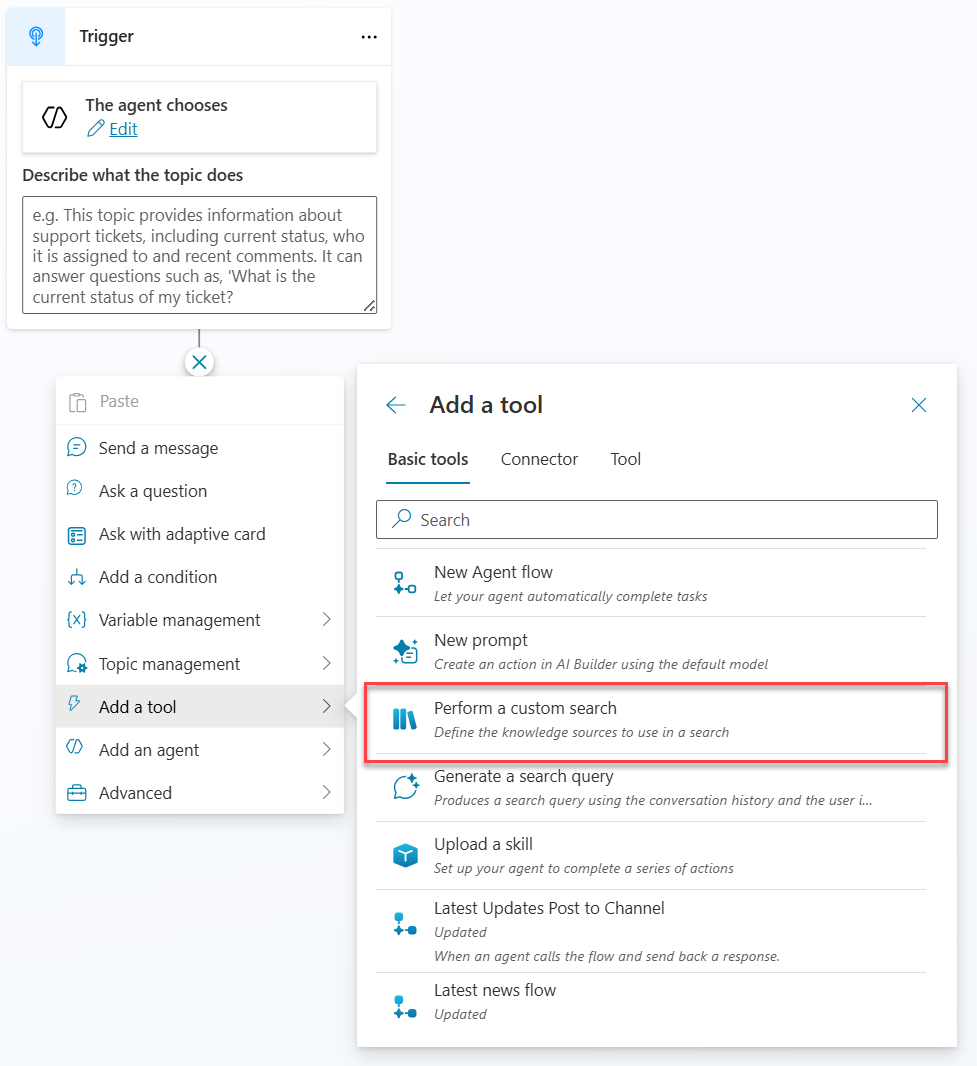 Setting up a custom search topic
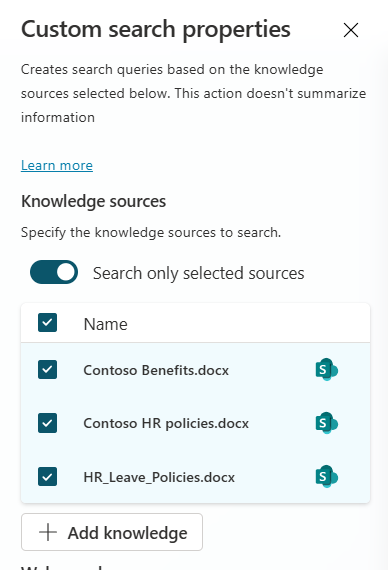 Configure the custom search properties
Then, I take the Custom Search output (which contains the raw knowledge results) and transform the text output into a table using a “Set variable value” node. This produces the structured input required for the AI prompt.
Because we want to incorporate information from the conversation history into the query we send into the AI prompt, I will use the Generate a Search Query node. This is a topic-only tool that rewrites the user’s query by incorporating relevant conversation context to make the query more specific.
For example, if the user was discussing parental leave with the agent and then followed up with “Who is eligible for leave?”, the Generate a Search Query node would rewrite the query to include “parental” before it is sent into the RAG pattern. Since the agent has the prior conversation context, it can infer what type of leave the user means. Without that context, the agent might respond with information about multiple types of leave, which may not be relevant. Note that while the Custom Search node automatically incorporates conversation context when we pass it Activity.Text, AI Prompts are not conversation-aware on their own. That’s why we use the Generate a Search Query node to create a context-enriched query to pass to the AI Prompt. If you don’t need conversation context in the AI Prompt, you can pass Activity.Text directly instead.
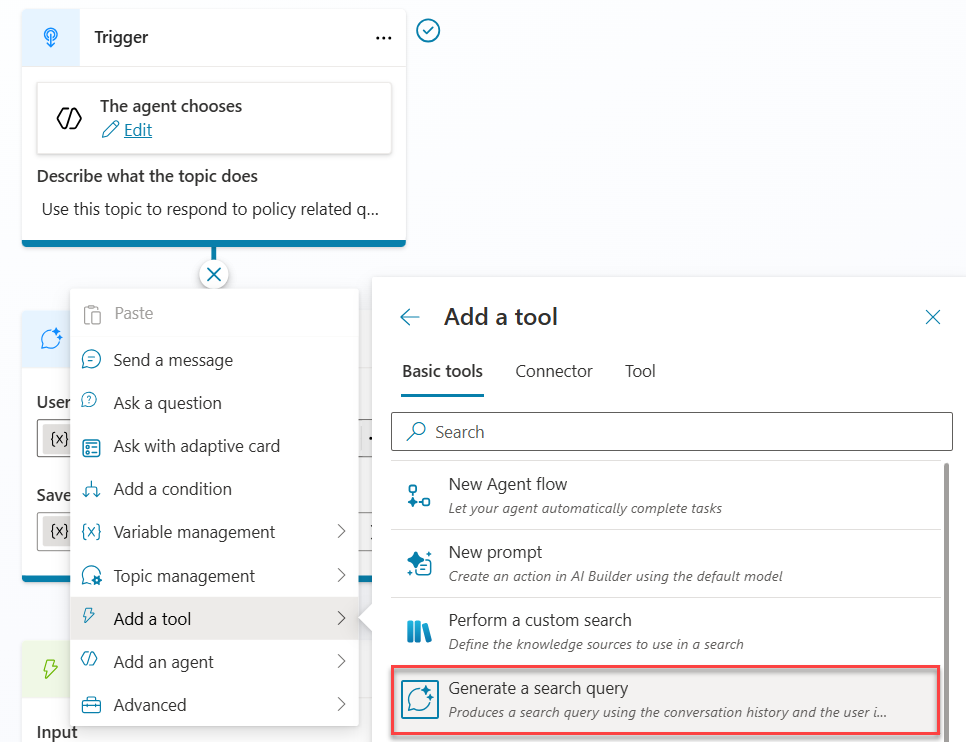 Adding the Generate a Search Query node
For more details, see the Generate a Search Query documentation.
With these two steps completed we now have the two inputs we need to pass into the AI Prompt.
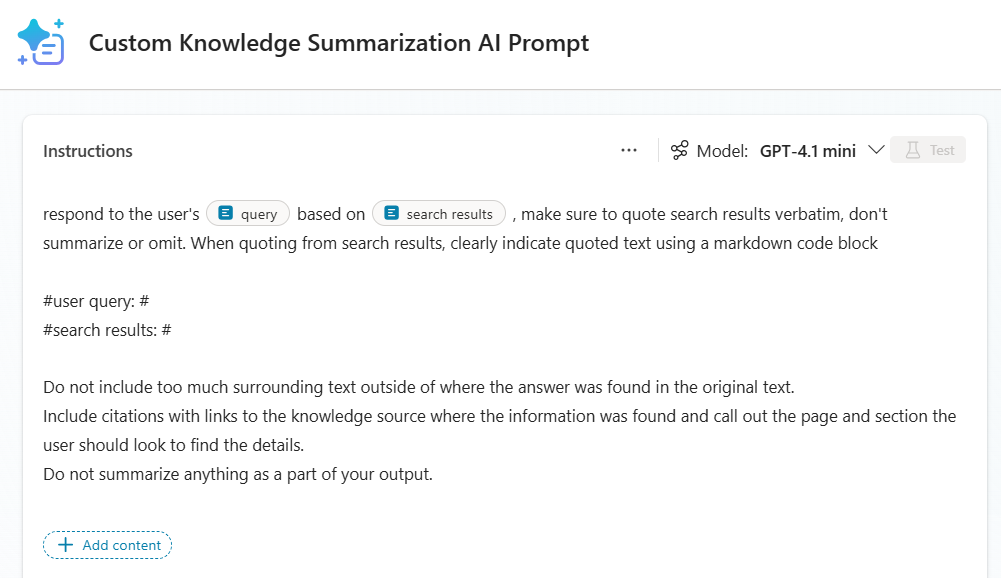 AI Prompt configured to process search results
The AI Prompt is configured to use the output of the “Generate a Search Query” node as the user’s query as well as the text version of the custom knowledge search results as inputs. The prompt instructions that tell the LLM not to summarize and to include a Markdown block with the exact details from the Custom Search output are critical to getting the behavior we want.
AI Prompt Instructions:
1
2
3
4
5

respond to the user's [query] based on [search results], make sure to quote search results verbatim, don't summarize or omit. When quoting from search results, clearly indicate quoted text using a markdown code block

#user query:
##search results:
#Do not include too much surrounding text outside of where the answer was found in the original text. Include citations with links to the knowledge source where the information was found and call out the page and section the user should look to find the details. Do not summarize anything in your response.
The complete topic flow will look like the below image. The final node in the topic sends a direct message to the user using the output variable from the AI Prompt. This is sent without allowing the orchestrator to summarize anything.
 Complete topic flow
You can use the YAML code below to help replicate the topic in your own environment. Note that you will need to update the knowledge sources, variables, AI Prompt, etc.
1
2
3
4
5
6
7
8
9
10
11
12
13
14
15
16
17
18
19
20
21
22
23
24
25
26
27
28
29
30
31
32
33
34
35
36
37
38
39
40
41
42
43
44
45
46
47
48
49
50
51
52

kind: AdaptiveDialog
modelDescription: Use this topic to respond to policy related questions.
beginDialog:
  kind: OnRecognizedIntent
  id: main
  intent: {}
  actions:
    - kind: SearchKnowledgeSources
      id: searchKnowledgeSources_6OjHDa
      fileSearchDataSource:
        searchFilesMode:
          kind: DoNotSearchFiles

      knowledgeSources:
        kind: SearchSpecificKnowledgeSources
        knowledgeSources:
          - copilots_header_catdab_CustomSummarization.topic.HR_Leave_Policiesdocx_BC5vo6ZvRpToLvp39eERs
          - copilots_header_catdab_CustomSummarization.topic.ContosoBenefitsdocx_B2trrvYgmHXRy33bvECmH
          - copilots_header_catdab_CustomSummarization.topic.ContosoHRpoliciesdocx_bnliFX_ntlqYReELDdHO_

      result: Topic.searchResults
      userInput: =System.Activity.Text

    - kind: SetTextVariable
      id: myNode
      variable: Topic.txtSearchResults
      value: "{Topic.searchResults}"

    - kind: CreateSearchQuery
      id: createSearchQuery_yPikXR
      userInput: =System.Activity.Text
      result: Topic.SearchQuery

    - kind: InvokeAIBuilderModelAction
      id: invokeAIBuilderModelAction_Q0KiHA
      input:
        binding:
          query: =Topic.SearchQuery.SearchQuery
          search_20results: =Topic.txtSearchResults

      output:
        binding:
          predictionOutput: Topic.PromptOutput

      aIModelId: c8e2722a-9720-4820-8c34-56b99367b309

    - kind: SendActivity
      id: sendActivity_hE5Ik6
      activity: "{Topic.PromptOutput.text}"

inputType: {}
outputType: {}
Results
Success! The agent consistently extracts the exact wording from the knowledge sources without summarizing. It also identifies where the information appears in the documents and includes the expected citation links.
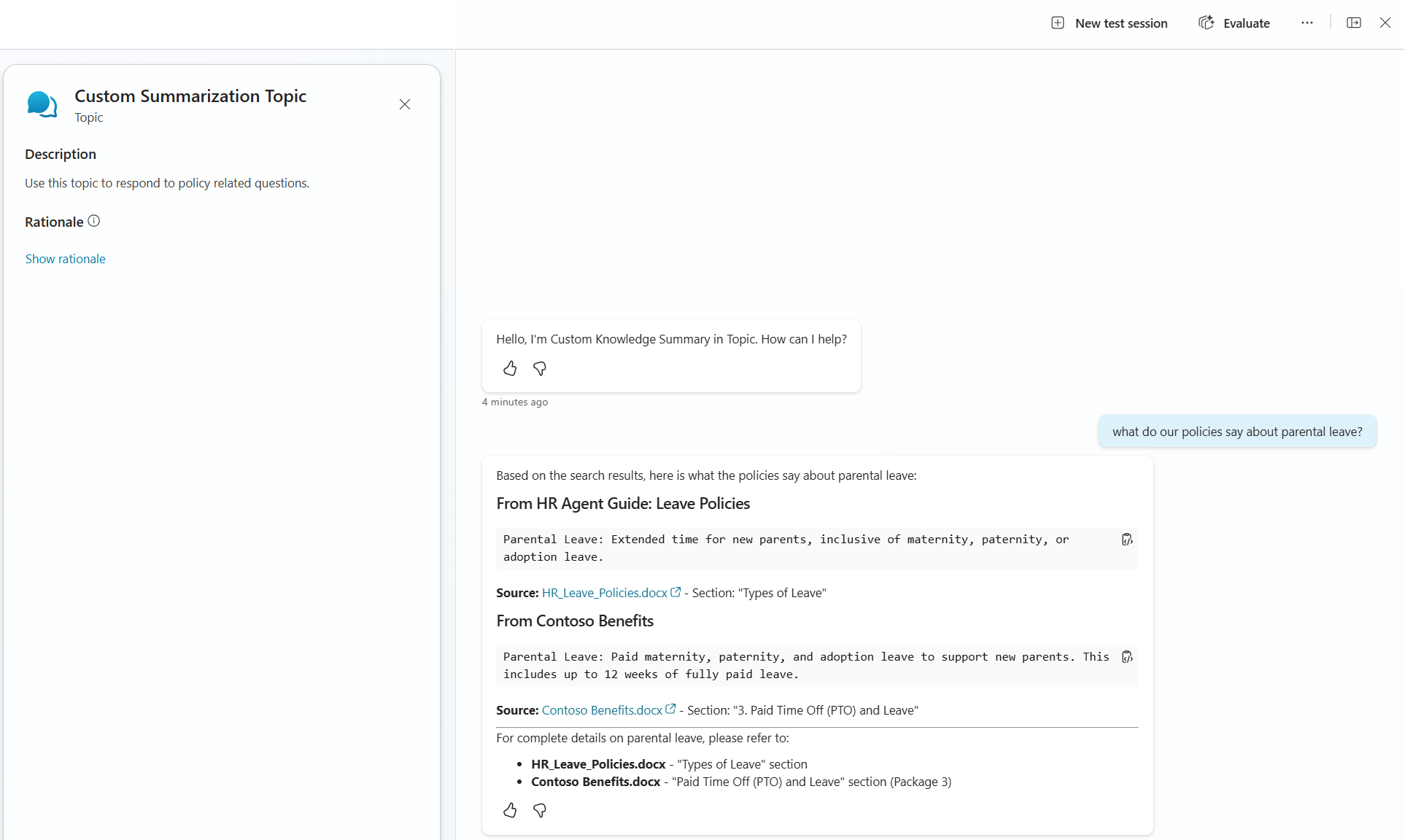 Test results showing exact content extraction
Method 2: Instructions Only
This method relies on the power of Copilot Studio’s Generative Orchestration functionality to return exact content without summarization. The only setup we need to do for this method is to add our knowledge sources and add the key prompt instructions from Method 1 as our overall agent instructions.
Agent Setup
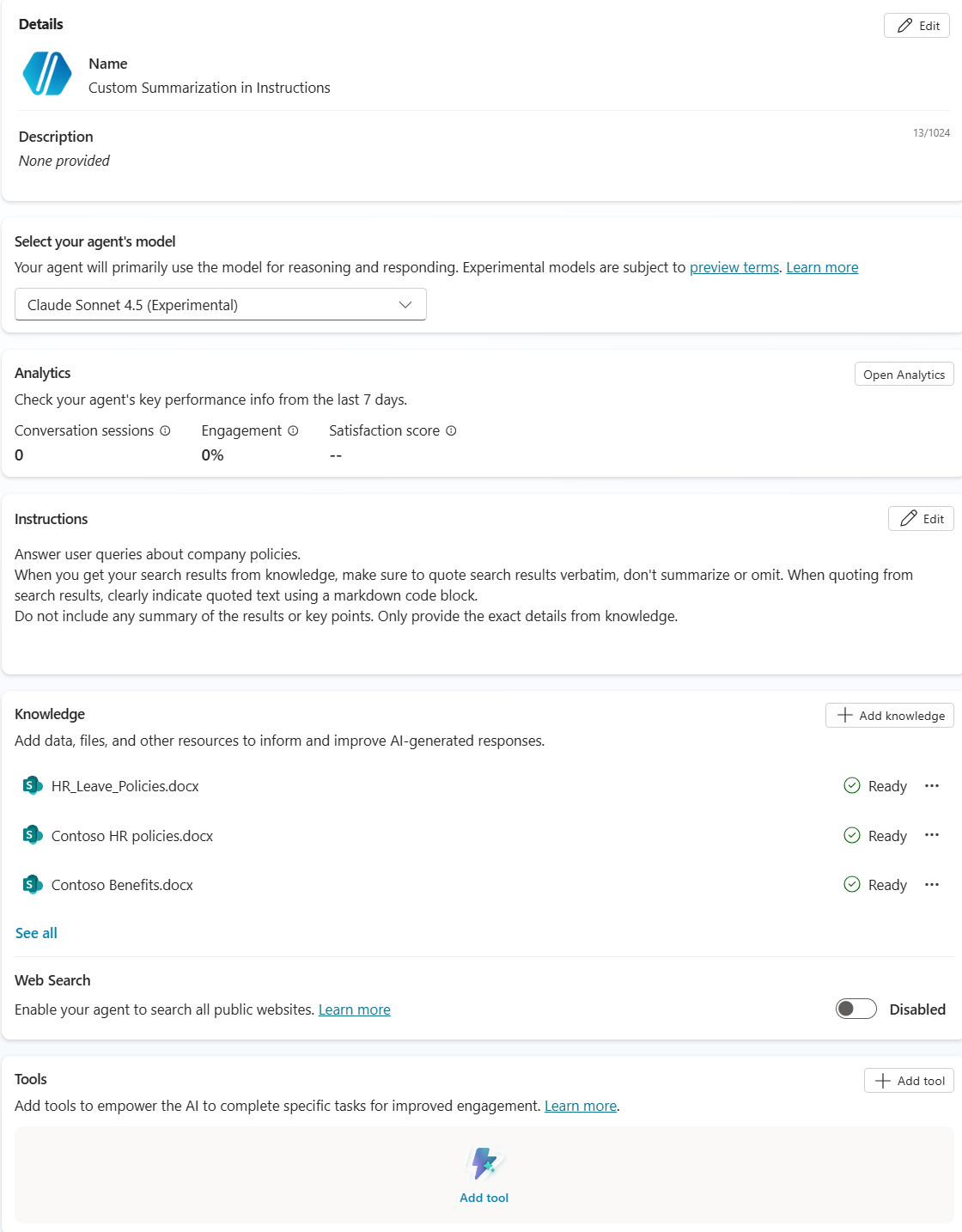 Agent instructions without custom topics
Results
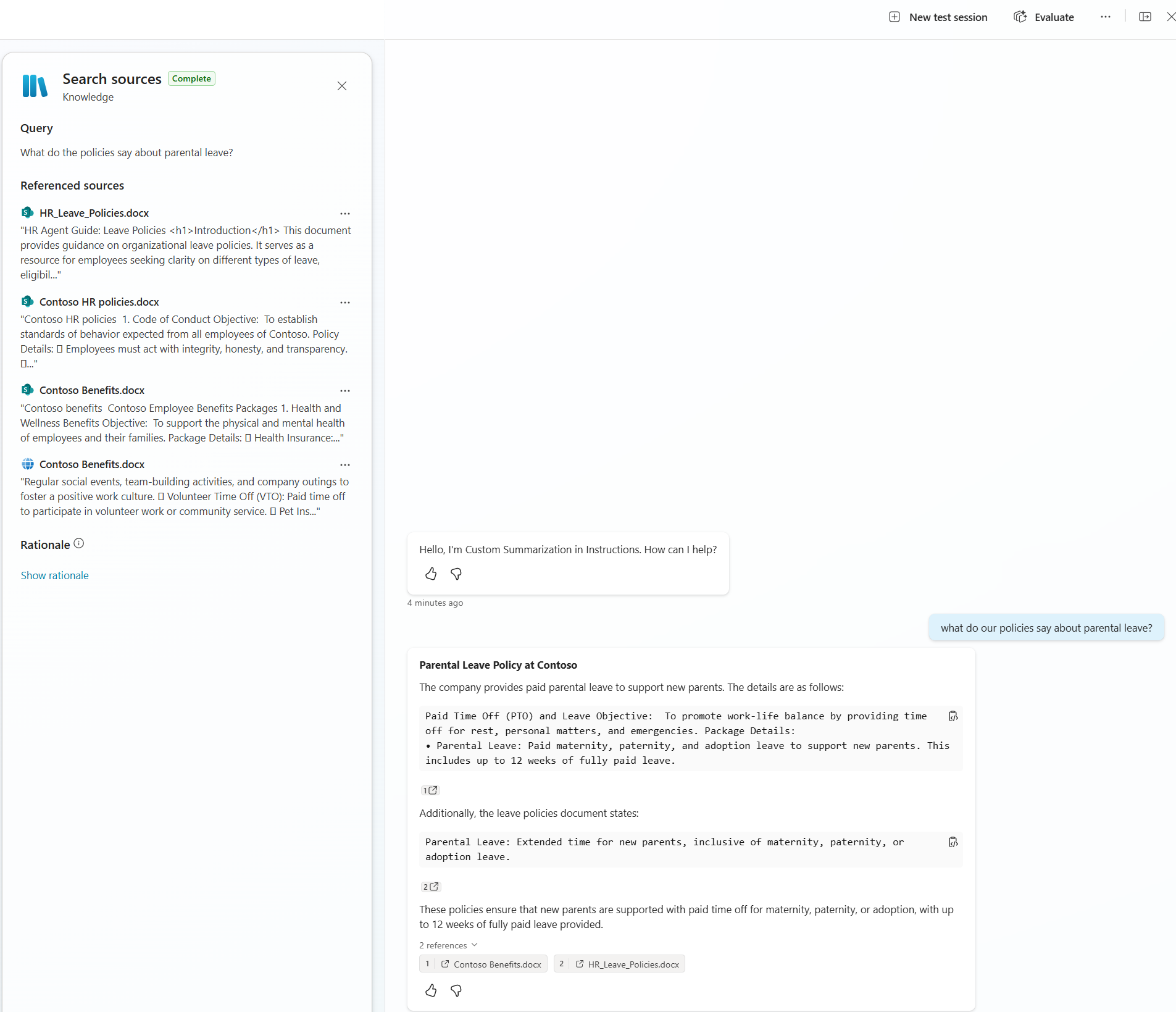
Success! (usually). This method was less consistent than the other two and your mileage may vary with different agent model settings. I had some really good results like the one below, and others where it did mostly as it was asked, but also included a summary of the parental leave policies below the exact text from knowledge.
 Test results using instructions only
Method 3: Instructions with AI Prompt Tool
This method combines the first two methods using Instructions along with an AI prompt (no topics) to achieve the same goal. In the agent instructions I’m telling the agent what to use as inputs for the AI Prompt
Agent Setup
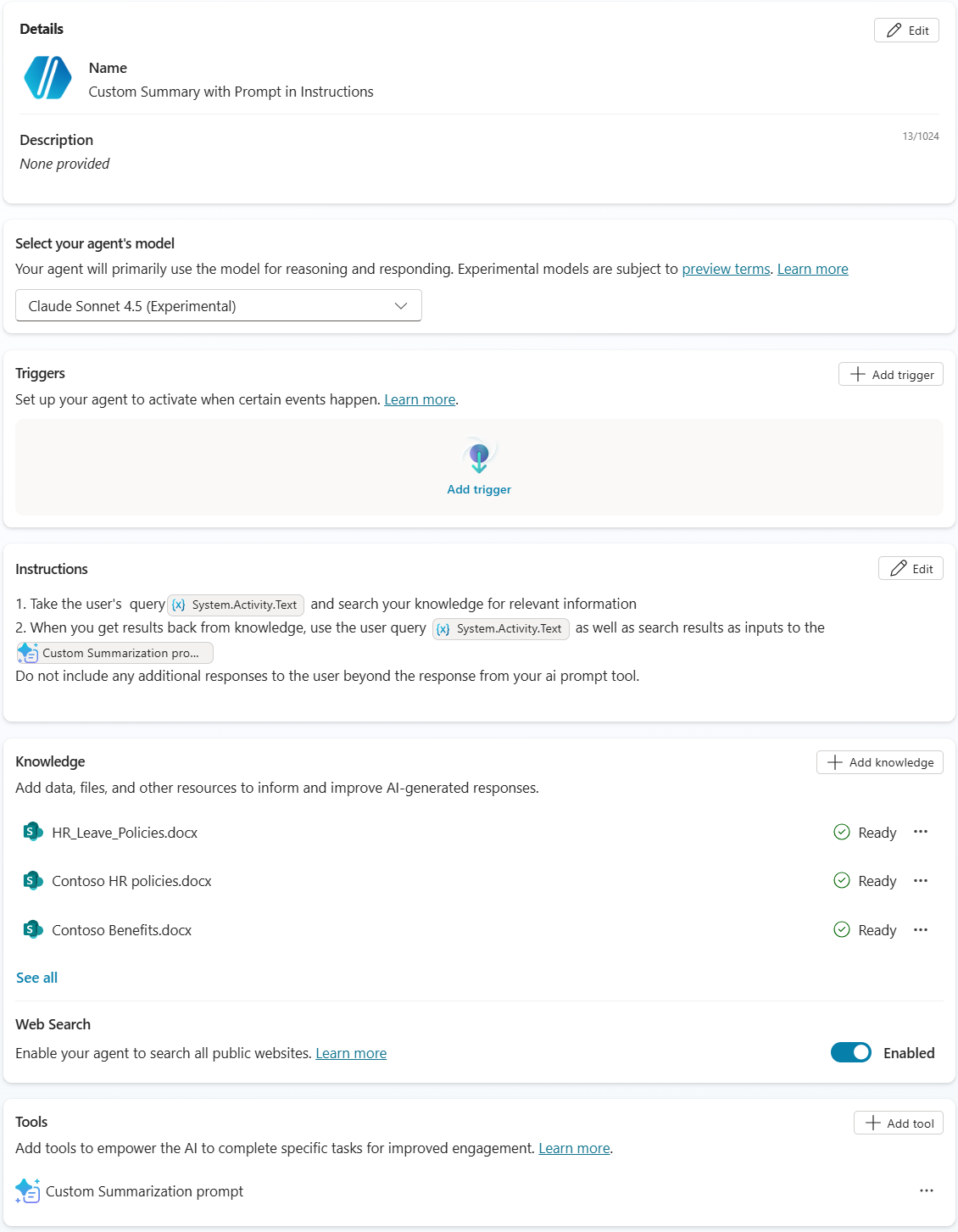 Configure AI prompt to be called from instructions
The AI Prompt itself is the same as in Method 1. However, since this one is being called as a tool directly by the orchestrator, I’ve set the Completion/After running settings to send a specific message to the user when the AI prompt is completed. This is essentially the same as the last step in the topic to directly send the output from the AI Prompt to the user without letting the orchestrator summarize anything.
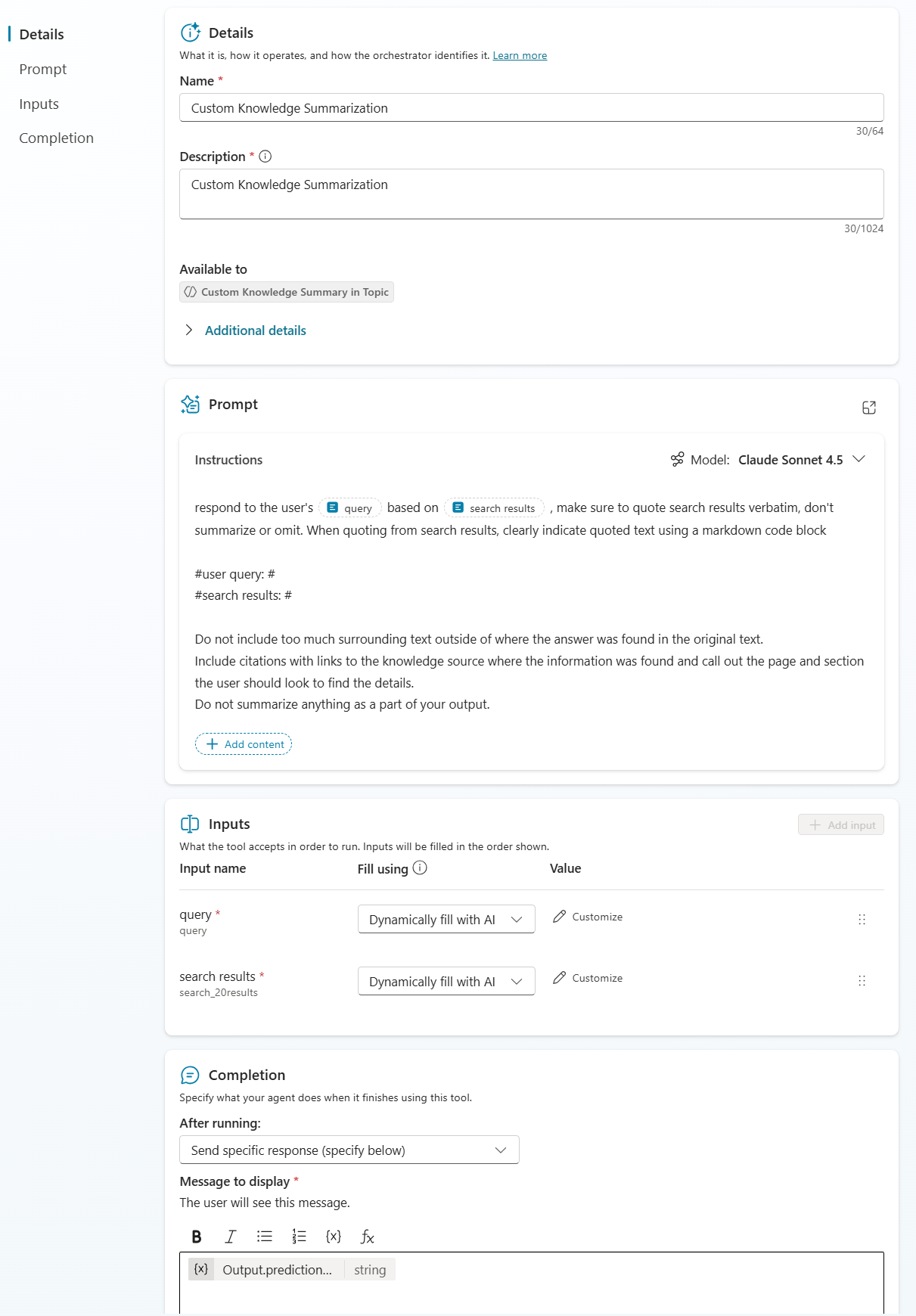 AI Prompt configuration
Results
Success again! The agent consistently extracts the exact wording from the knowledge sources without summarizing. It also identifies where the information appears in the documents and includes the expected citation links.
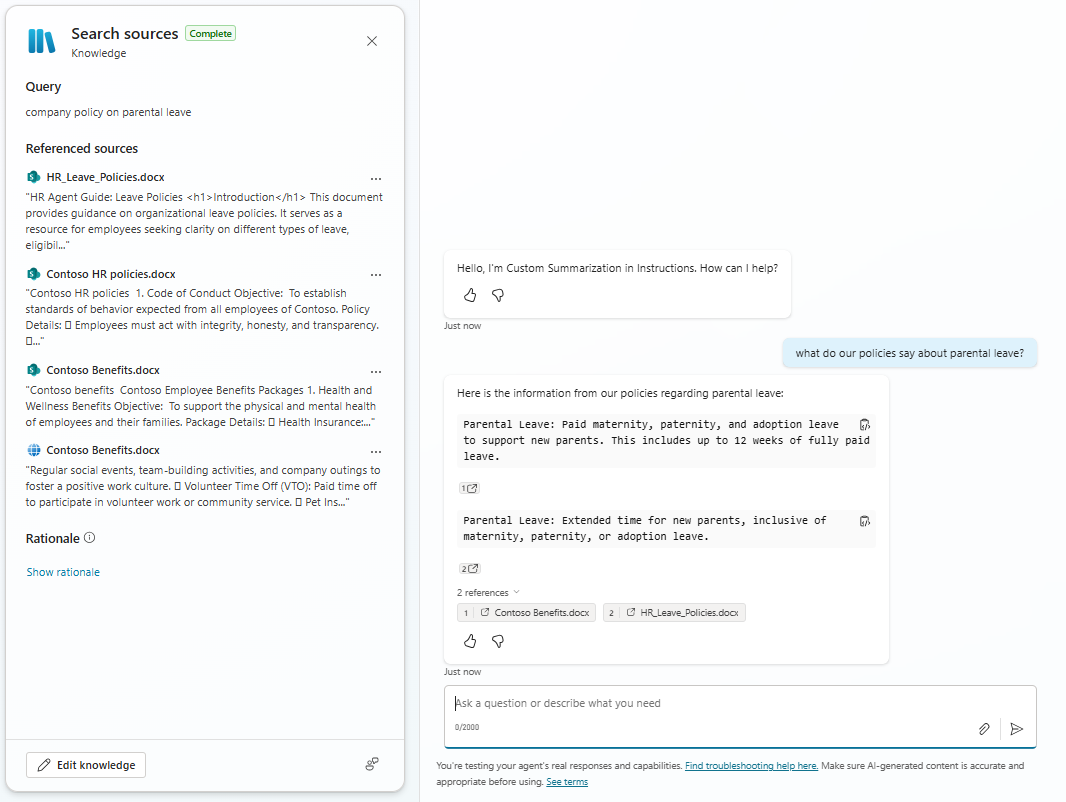 Test results showing consistent exact content extraction
Which method is the best?
Definition of best depends on what you care the most about. For me this means answer quality and consistency.
For the best consistency and granular control within a more complex agent, Method 1 was the most consistent. While this method is the most complicated to setup, we have full control over the custom search pattern, query generation, and the AI Prompt.
Method 2 was somewhat inconsistent even with this test case being the only thing in the instructions. Additional instructions may make it even less consistent.
Method 3 resulted in similar quality and consistency as Method 1, but since we can’t currently set variables in instructions, I’m relying on telling the orchestrator what to use for inputs to the Prompt. While this worked in my limited testing, I could see this having consistency issues. We also have less granular control over the query and search outputs compared to Method 1.
Response and instruction adherence will vary with different models so you may experience different results using different models. Additionally, you’ll need to consider response speed and agent cost into what you consider is best for you.
Have you dealt with a similar need to defeat oversummarization in your agents? What approaches have worked for you?