Structured Data with Zero User Auth: Dataverse searchQuery in Copilot Studio
Build fuzzy, ranked search over Dataverse structured data with zero user sign-in. A step-by-step guide from indexing to a working agent, with progressive enhancements for OData filtering, pagination, and full record retrieval.

You have structured data in Dataverse — facilities with districts, types, phone numbers, coordinates — and you want a Copilot Studio agent that lets people search it without signing in. Think B2C portals, public kiosks, departmental directories. Your users need fuzzy discovery (“Darol center”) and structured filtering (“in the West district”), and they’ll never see a login screen.
If the data were unstructured, you could upload files directly to the agent and call it a day. But tables need a different approach. And Knowledge over Dataverse tables — which handles this beautifully for signed-in users — requires authentication. Non-starter.
Dataverse MCP works with service principal auth and even supports cross-environment calls. But an MCP server gives an agent superpowers: it can traverse multiple tables and respond to queries you never meant to support. For a public-facing agent, we needed tighter control over which tables, which columns, and what business rules the agent could access.
We needed something that was fuzzy and unauthenticated and fully maker-controlled.
It already exists. Buried in the Dataverse connector is an unbound action called searchQuery, the same relevance engine that powers the search bar in model-driven apps and Dataverse MCP. It’s been there all along. Most people just don’t know you can wire it directly into a Copilot Studio agent as a tool.
Here’s what the finished agent looks like — one search tool, a few enhancements, and a search experience that handles real, messy human input:
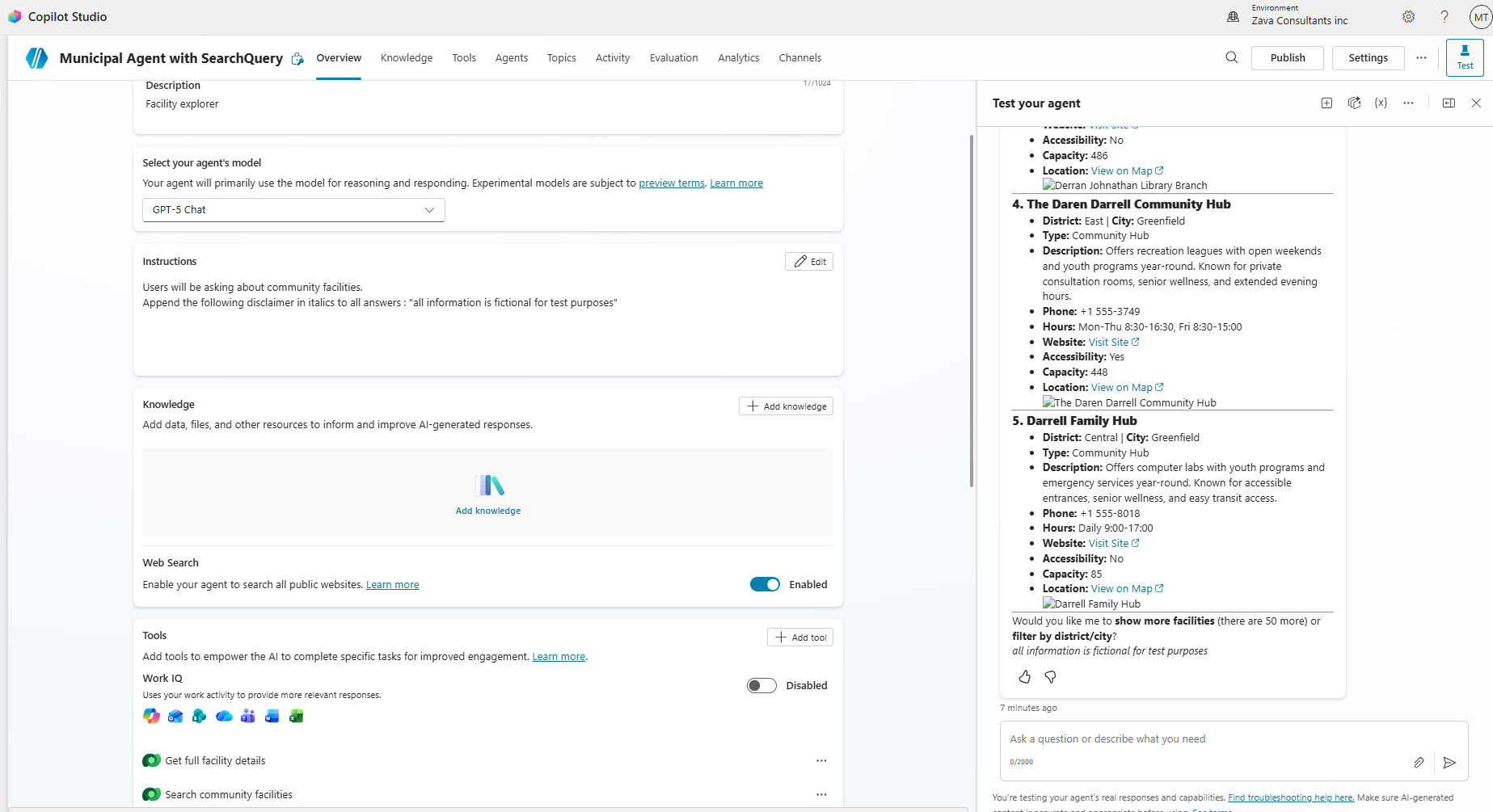 The basic pattern starts with one tool. Add List Rows later if you need full record retrieval.
What Is searchQuery?
searchQuery is an unbound action on the Dataverse connector, which means you can call it directly as a tool in Copilot Studio. Under the hood, it exposes the Dataverse relevance search index, the same engine that powers the search bar in model-driven apps and Dataverse MCP. That index is keyword-based with intelligent expansion for typos, stemming, and similar terms. Not vector search, not embedding-based. It’s a fuzzy relevance engine that ranks results by how well they match, and it’s right-sized for structured data.
And the detail that makes this work for our scenario: maker auth lets you connect the Dataverse connector using service principal credentials. The agent calls searchQuery using that identity, and the end user never sees a login screen.
The service principal’s Dataverse security role determines what data the agent can access. Every unauthenticated user gets the same view. Make sure the application user only has read permissions on tables and columns that are safe to expose publicly.
Setup Your Data and Index
This section gets you from zero to a working agent. We’ll index your table, wire up the search tool, and paste in the YAML. By the end, you’ll have something running, and then Making It Smarter will show you how to level it up.
The settings for making searchQuery work are scattered across five different screens in three different tools. Miss any one and you’ll get zero results or matches only on the primary name column, and no error message will tell you why. Here’s the map:
| # | Step | Where | What happens if you skip it |
|---|---|---|---|
| 1 | Enable Dataverse Search | PP Admin Center → Environments → Settings → Features | searchQuery fails entirely, silently |
| 2 | Add table to a solution | Any solution → Add existing → Table | Won’t appear in Manage Search Index |
| 3 | Add table to the search index | Solution → Overview → Manage Search Index | Zero results from searchQuery |
| 4 | Configure Quick Find view | Table designer → Views → Quick Find → add Find columns and View columns → Save & Publish | Only matches on the primary name column |
| 5 | Set columns as Searchable | Column properties → Advanced options → Searchable = Yes | Column cannot be indexed at all |
Screenshots for each step
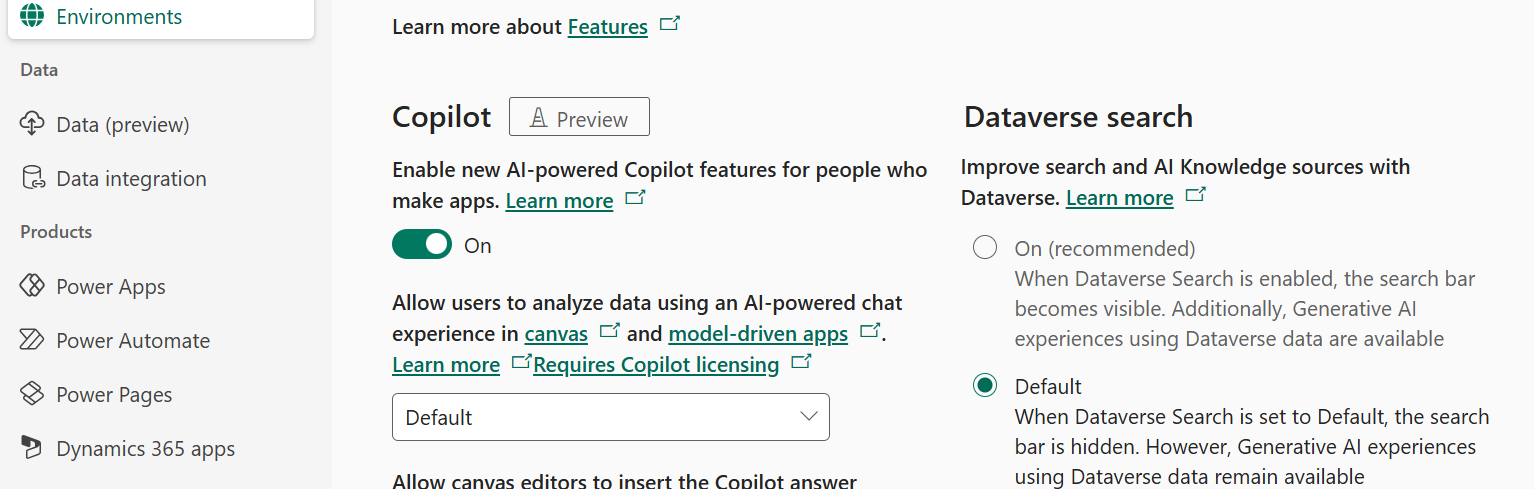
Step 1: Enable Dataverse Search in Power Platform admin center
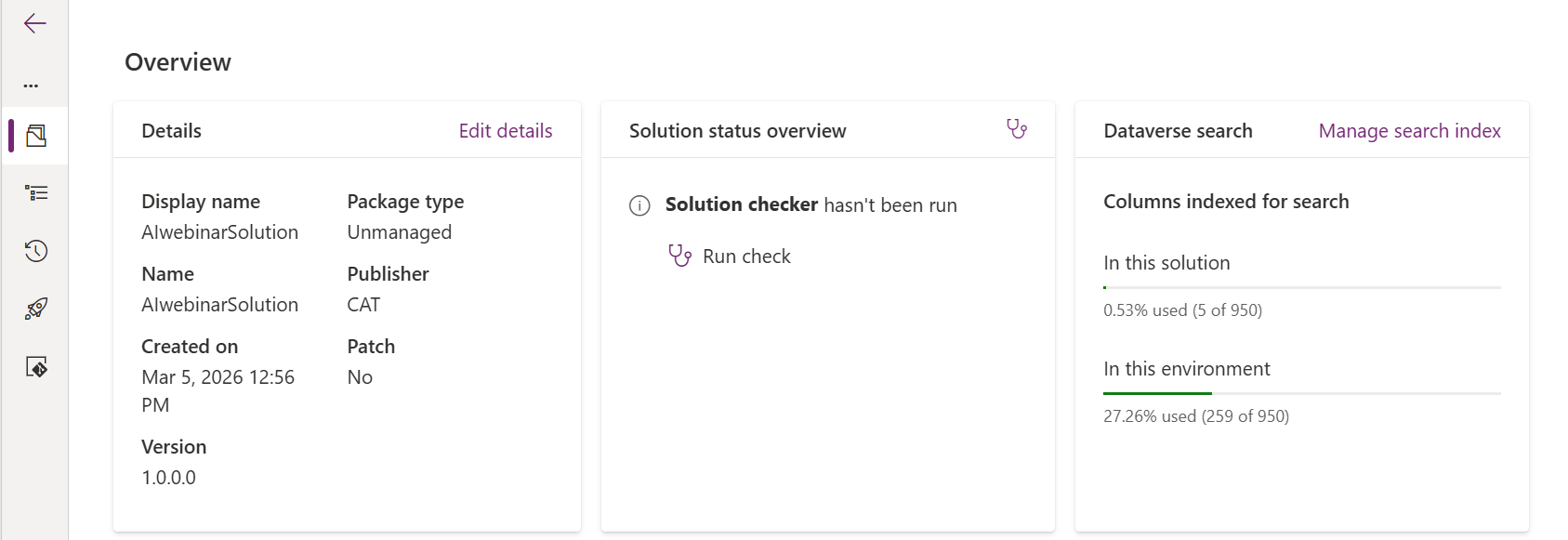
Step 3: Add your table to the search index
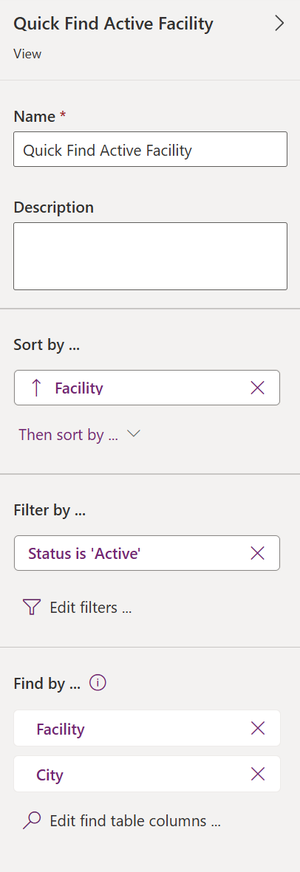
Step 4: Quick Find — View columns define what's returned, Find columns define what's searchable.
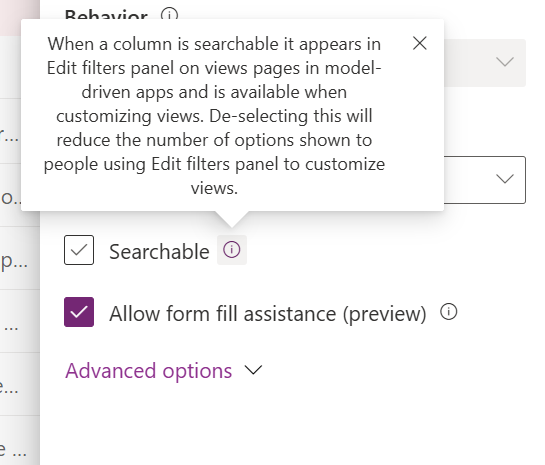
Step 5: Set columns as Searchable so they can be indexed
The table doesn’t have to be in the same solution as your agent. Manage Search Index is a solution-level feature, but the search index itself is environment-level — once a table is indexed, any agent in the same environment can search it through searchQuery, regardless of which solution the agent lives in.
Impatient? Me too. After adding a table to the index, there can be a delay before it’s searchable. Here’s a pro tip I stumbled onto: add the table to Knowledge in any Copilot Studio agent. This triggers Dataverse to start indexing right away under the covers. You can remove it from Knowledge afterward — the index persists. You’re welcome.
Add Your Search and Tools to Copilot Studio
Now let’s wire it up. In Copilot Studio:
- In your Copilot Studio agent, go to Tools → Add a tool
- Select the Dataverse connector
- Choose Perform an unbound action
- Select the searchQuery action
- Set authentication to Maker-provided credentials
The tool configuration has two parts: the Details tab (name and description) and the Inputs tab.
Start with the Details tab. The Name and Description are how the orchestrator decides when to call your tool and how to present results. Name it after its business function (“Search community facilities”), not the connector (“Perform Unbound Action”). We’ll enhance the description significantly in Making It Smarter.
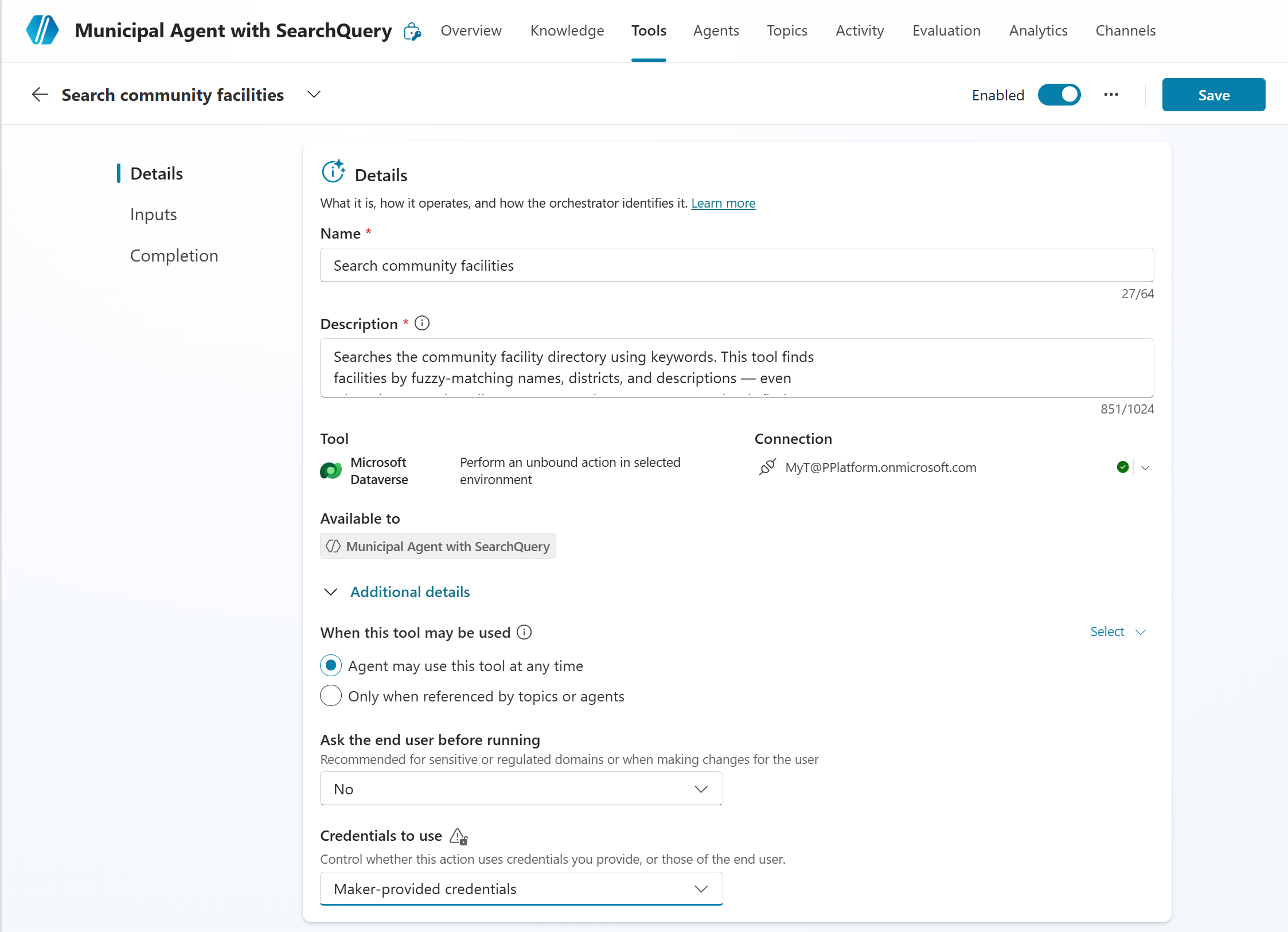 The Details tab: Name, Description, and Credentials to use (Maker-provided credentials) at the bottom.
Then switch to the Inputs tab. The basic tool needs four inputs:
| Input | Fill using | What it does |
|---|---|---|
| Environment | Custom value | Your Dataverse environment URL. Select from the dropdown or paste the URL. |
| Action Name | Custom value | Always searchquery. This is the unbound action we’re calling. |
| entities | Custom value | A JSON array that defines which table to search, which columns to match against (SearchColumns), and which to return (SelectColumns). A column can be returned without being searchable, and a column not in either list isn’t available from searchQuery. |
| search | Dynamically fill with AI | The orchestrator reads the user’s message and extracts search keywords. The description field is your instruction on what to extract — focus on the kinds of terms your data contains (facility names, place names, service types). |
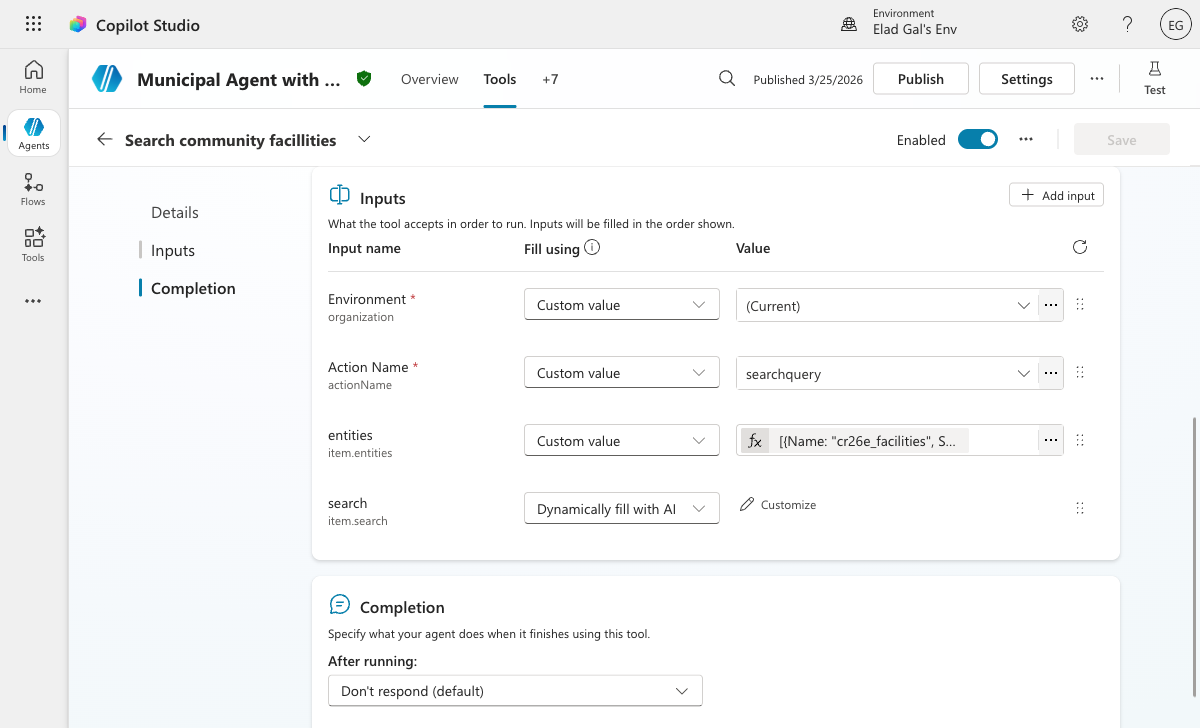 The Inputs tab: four inputs, each with a “Fill using” mode.
If you prefer working in code view, you can paste the YAML below directly. Make sure to replace the environment URL and the entity/column logical names with your own.
searchQuery Tool — Basic YAML
kind: TaskDialog
inputs:
  - kind: ManualTaskInput
    propertyName: organization
    value: https://YOUR-ENV.crm.dynamics.com  # Replace with your environment URL

  - kind: ManualTaskInput
    propertyName: actionName
    value: searchquery

  - kind: AutomaticTaskInput
    propertyName: item.search
    name: search keywords
    description: >-
      Keywords from the user's question. Extract facility names,
      place names, and service types. Not full sentences.

  - kind: ManualTaskInput
    propertyName: item.entities
    value: >-
      [{"Name": "crc57_facility1",
        "SelectColumns": ["crc57_facility","crc57_facilitydescription",
          "crc57_city","crc57_district","crc57_facilitytype",
          "crc57_phonenumber"],
        "SearchColumns": ["crc57_facility","crc57_city",
          "crc57_facilitydescription"]}]

modelDisplayName: Search community facilities
modelDescription: >-
  Searches the community facility directory using keywords.
  Use this tool when the user is looking for a facility
  but doesn't have an exact name or ID.

action:
  kind: InvokeConnectorTaskAction
  connectionProperties:
    mode: Maker
  operationId: PerformUnboundActionWithOrganization
Understanding the Entities JSON
Let’s unpack the entities input, because this is where most configuration mistakes happen:
1
2
3
4
5
6
7
8

[{
  "Name": "crc57_facility1",
  "SelectColumns": ["crc57_facility", "crc57_facilitydescription",
    "crc57_city", "crc57_district", "crc57_facilitytype",
    "crc57_phonenumber"],
  "SearchColumns": ["crc57_facility", "crc57_city",
    "crc57_facilitydescription"]
}]
SearchColumns= what searchQuery matches against when it fuzzy-searches.SelectColumns= what searchQuery returns in each result. A column can be returned without being searchable. A column not in either list requires List Rows to retrieve.
In our config: crc57_district, crc57_facilitytype, and crc57_phonenumber are in SelectColumns but not in SearchColumns. The agent displays them in results, but typing a district name won’t fuzzy-match against those columns. To narrow by district, the orchestrator can use the filter input instead, which we’ll add in Making It Smarter.
Columns not in SelectColumns at all — image URL, coordinates, opening hours — won’t come back from searchQuery. We’ll add List Rows later in Making It Smarter to fill that gap.
The entities array also accepts multiple objects, so a single searchQuery call can search across multiple tables simultaneously, each with its own SelectColumns and SearchColumns. Results come back ranked together.
That’s It — One Tool, It Works
With just the searchQuery tool configured, your agent can already search your Dataverse table and return results conversationally. A user types “Is there a Darrl community center in hillcrest?” and the agent finds “Darrel Jon Senior Centre,” “Daryl Ann Recreation Centre,” and “Darroll Access Point” — ranked by relevance, with descriptions, districts, and phone numbers.
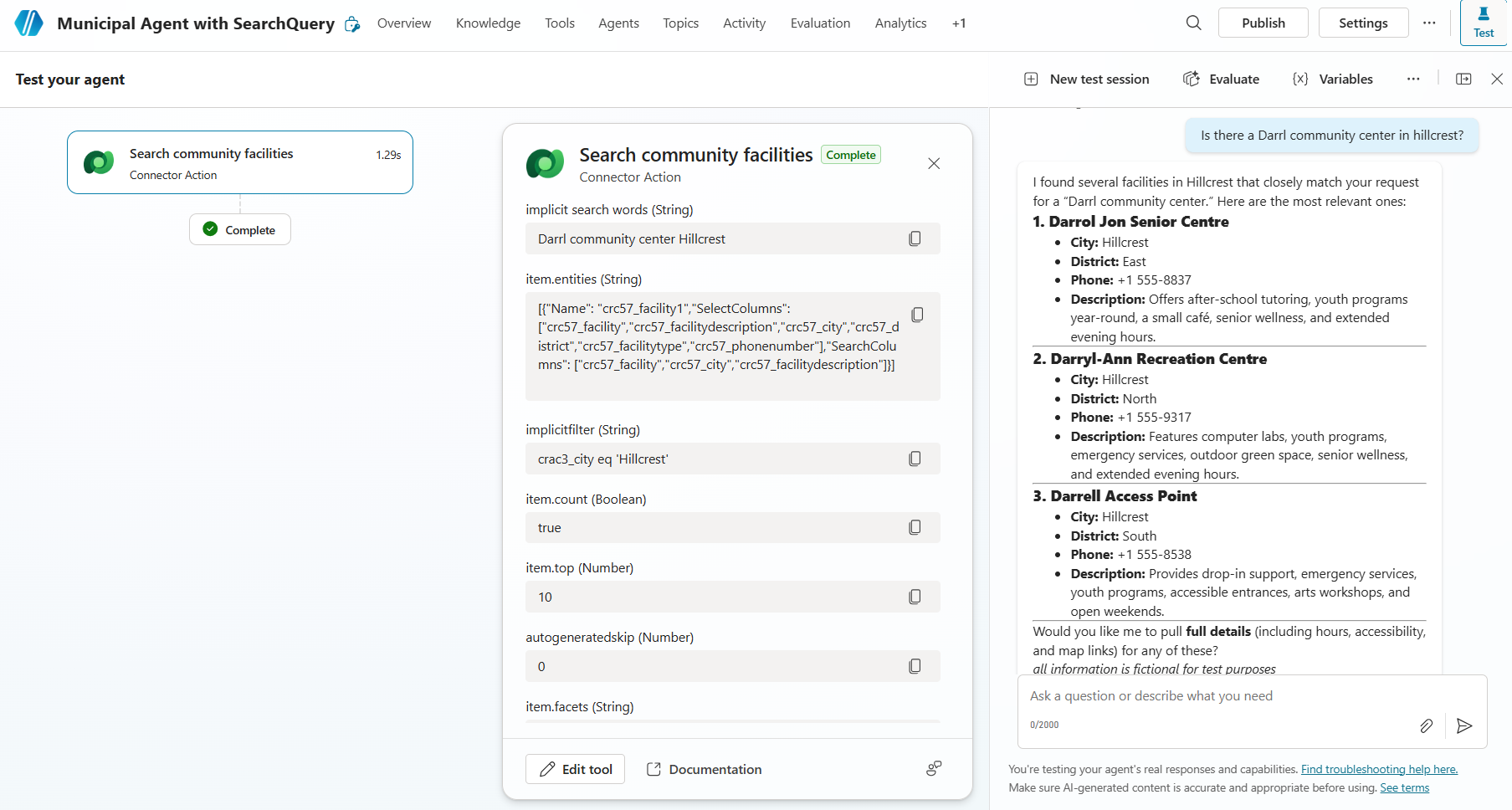 One tool. The user misspelled the name, and the agent found three fuzzy matches with full details.
searchQuery returns the full content of every column in your SelectColumns list, including multiline text fields. The Highlights in the response show which terms matched (useful for bold formatting), but the actual data in Attributes comes back complete.
Wrong logical name in the entities JSON, columns missing from the search index, or omitting
SelectColumnsentirely — all of these fail silently with zero results and no error message. If your agent returns nothing, check the logical names first.
searchQuery can also be called from a custom knowledge source topic, which means the agent can summarize searchQuery results alongside other knowledge sources in a single grounded response.
You now have a working, unauthenticated search agent over Dataverse structured data. One tool, one connector, zero user sign-in. The agent handles fuzzy input, returns ranked results with full column data, and responds conversationally. This is the complete basic pattern.
Everything below is optional. Each technique adds a specific capability to what you already have — pick the ones your scenario needs.
Making It Smarter
The basic pattern gives you fuzzy search over one table. But real scenarios quickly need more: columns that aren’t in the search index, filtering by district or type, pagination through long result sets, or multiple specialized search tools for different audiences. Each section below adds one capability. They’re all optional, and they all build on the basic tool you already have.
Adding List Rows for Full Record Retrieval
searchQuery returns the columns in your SelectColumns list, including full multiline text. But columns you didn’t include in SelectColumns — photos, coordinates, opening hours, website links — aren’t available. If your users need those, add a second tool: the standard List Rows action on the same Dataverse connector, also with Maker auth.
List Rows retrieves the complete record by row ID, with every column. The orchestrator knows when to call it because the tool description says “use this tool AFTER the search tool has identified facilities” — so it calls searchQuery first for discovery, then List Rows when the user asks for details that aren’t in the search results.
List Rows Tool — Complete YAML
kind: TaskDialog
inputs:
  - kind: ManualTaskInput
    propertyName: organization
    value: https://YOUR-ENV.crm.dynamics.com  # Replace with your environment URL

  - kind: ManualTaskInput
    propertyName: entityName
    value: crc57_facility1s  # Replace with your table's plural logical name

  - kind: AutomaticTaskInput
    propertyName: "'$filter'"
    name: Row id
    description: |-
      This is an odata filter query that selects the rows for the
      given guid's. Use the crc57_facility1id value of the facilities
      the user selected or the highest-ranked matches. id format is
      like "5c1a1870-a419-f111-8342-7ced8..."

modelDisplayName: Get full facility details
modelDescription: |-
  Retrieves complete record for specific facilities using row ID.
  Use this tool AFTER the search tool has identified one or many
  facilities the user is interested in. Output: For the location,
  give a clickable bing maps link instead of raw coordinates.
  Present the output as a facility card html: name, district, city,
  type, phone, hours, website, and whether it's accessible.
  If an image URL is available, include it.

action:
  kind: InvokeConnectorTaskAction
  connectionProperties:
    mode: Maker
  operationId: ListRecordsWithOrganization
Adding OData Filtering
The basic searchQuery tool finds results by fuzzy keyword matching. But what happens when a user says “show me community hubs in the West district”? Without filtering, searchQuery returns all fuzzy matches for “community hubs” across every district, and the user has to scan through results to find the ones in the West. With an OData filter, the orchestrator narrows the search results to only the West district before they’re returned.
Add a new item.filter input to your searchQuery tool, set “Fill using” to Dynamically fill with AI. The key is the description: it lists every filterable field, its type, and valid values. This description is the glossary that teaches the orchestrator how to generate valid OData expressions from natural language.
OData filter input YAML
  - kind: AutomaticTaskInput
    propertyName: item.filter
    name: implicitfilter
    description: |-
      Generate a Dataverse OData filter expression ONLY when the user
      request or conversation context clearly implies a filtering
      criterion.

      DO NOT ask the user any follow-up questions.
      DO NOT invent filters.
      DO NOT apply a filter unless the criterion is explicitly or
      unambiguously implied.

      If no clear filter criterion is present, return:
      statecode eq 0

      Rules:
      - Return ONLY a valid OData filter expression.
      - Do NOT include "$filter=".
      - Use eq, ne, and, or.
      - Wrap string values in single quotes.

      Filterable fields (crc57_facility1 table):
      - crc57_district (Choice): e.g. 'West', 'East', 'North',
        'Central', 'South', 'Downtown'
      - crc57_city (Text): e.g. 'Hillcrest', 'Riverton', 'Bayview',
        'Crestwood'
      - crc57_facilitytype (Choice): e.g. 'Community Hub',
        'Library Branch', 'Recreation Centre'

      If multiple criteria are implied, combine using AND.
When a user says “show me community hubs in the West,” the orchestrator reads the glossary and generates crc57_district eq 'West' and crc57_facilitytype eq 'Community Hub'. Natural language in, valid OData out. No code.
Notice the behavioral constraints: “DO NOT ask follow-up questions. DO NOT invent filters.” Without these, the orchestrator might hallucinate filter values or pepper the user with unnecessary questions.
The default filter statecode eq 0 ensures only active records are returned when no filter is implied. Small detail, big impact on trust.
Note that the searchQuery
filteris a post-filter — it narrows the top-N ranked results, not the entire table. If you need every matching row (“give me ALL facilities in the West”), use List Rows with an OData$filterinstead.
Enriching the Search Input with Synonyms
The Dataverse search index handles misspellings well on its own — “Darrl” finds “Darrell.” But it’s keyword-based, not semantic. If a user asks for “facilities with activities for elderly people” and your data says “senior wellness programs,” the index won’t make that connection. The words don’t overlap.
You can bridge this gap by enriching the item.search description to instruct the orchestrator to expand the user’s query with synonyms and related terms before it reaches the API:
1
2
3
4
5
6
7
8
9
10

  - kind: AutomaticTaskInput
    propertyName: item.search
    name: implicit search words
    description: >-
      Inferred keywords, partial names, and descriptive phrases from
      the user's question and from context. With additional generated
      synonyms and related terms that may appear in facility names
      or descriptions. For example, "elderly" should also search
      "senior", "wellness", "retirement". Combine multiple terms
      with spaces or commas for broader matches. Not full sentences.
Now when a user says “activities for elderly people,” the orchestrator might send “elderly senior wellness retirement activities” to the search index. The keyword index still does the matching, but the AI has pre-expanded the query to cover terms that actually appear in your data.
To be clear: this helps, it doesn’t perform miracles. The search index is still keyword-based, so the expanded terms need to actually appear in your data to match. If your descriptions use completely different vocabulary from what users type, no amount of synonym expansion will close the gap. But for most real-world data where there’s some vocabulary overlap, the AI expansion meaningfully improves recall.
Adding Pagination
Add these three inputs for conversational pagination:
1
2
3
4
5
6
7
8
9
10
11
12
13
14
15
16
17
18
19
20
21
22

  - kind: ManualTaskInput
    propertyName: item.count
    value: true

  - kind: ManualTaskInput
    propertyName: item.top
    value: 10

  - kind: AutomaticTaskInput
    propertyName: item.skip
    name: autogeneratedskip
    description: |-
      Generate a numeric skip value ONLY when the user request or
      conversation context clearly implies pagination (for example:
      "next", "more", "previous results").

      If no pagination intent is clearly present, return: 0

      Rules:
      - Return ONLY a non-negative integer.
      - Skip represents the number of results to skip before
        returning results.
item.top caps results at 10 (the default 50 is way too many for chat). item.count returns the total match count so the agent can say “I found 27 facilities.” And item.skip detects pagination intent — the user says “next” and it just works. No variables, no counters, no code.
Specialized Tool Instances
Same connector, different instances, each scoped to a specific domain. The orchestrator picks the right one based on the user’s question:
| Tool Name | Default Filter | Description tells the orchestrator… |
|---|---|---|
| SearchSeniorServices | facilitytype eq 'Senior Centre' |
“Use when asking about senior, elder, retirement, or wellness.” |
| SearchYouthPrograms | facilitytype eq 'Recreation Centre' |
“Use when asking about youth, children, or after-school.” |
| SearchEmergencyFacilities | facilitytype eq 'Access Point' |
“Use for urgent or emergency service requests.” |
“My grandmother needs wellness activities” routes to SearchSeniorServices. “Where can my kids go after school?” routes to SearchYouthPrograms. Each instance has its own entities JSON, default filter, and description. This is the granular control that makes enterprise agents trustworthy.
See It Work — The Enhanced Version
Here’s what the agent looks like with all the enhancements from Making It Smarter applied — enriched search descriptions, OData filtering, pagination, and List Rows for full details.
Fuzzy Match: “Darrl” Finds Darrell
“Is there a Darrl community center in hillcrest?”
The user never came close to spelling it right. The search index handles this on its own through fuzzy matching, and the enriched search description adds synonym expansion on top. The result: “Darrol,” “Darryl,” “Darrel” — all ranked by relevance. No exact match needed.
Fuzzy matching in action — the user doesn’t need the exact spelling
Senior Centres + Pagination
“show me senier centres with full info including websites”
Two spelling issues here: “senier” and the British “centres.” The index’s fuzzy matching handles both — “senier” matches “senior,” and “centres” matches “centers.” The enriched search description may also expand the query with related terms, but the index does the heavy lifting for misspellings.
Result: 10 relevant senior centres with full details including websites.
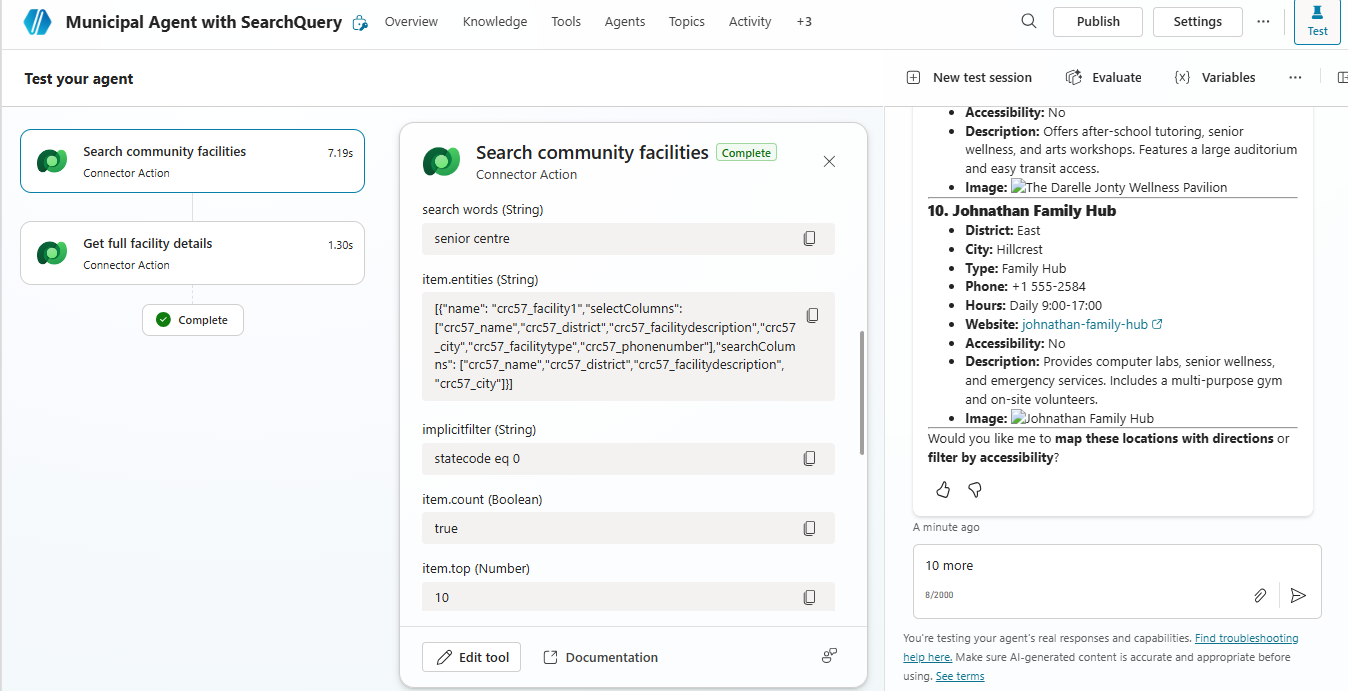 Misspelling handled, British spelling matched, full details returned
Then the user says “show me the next 10” — and the item.skip input does its job. Pagination through conversation, no code, no counters.
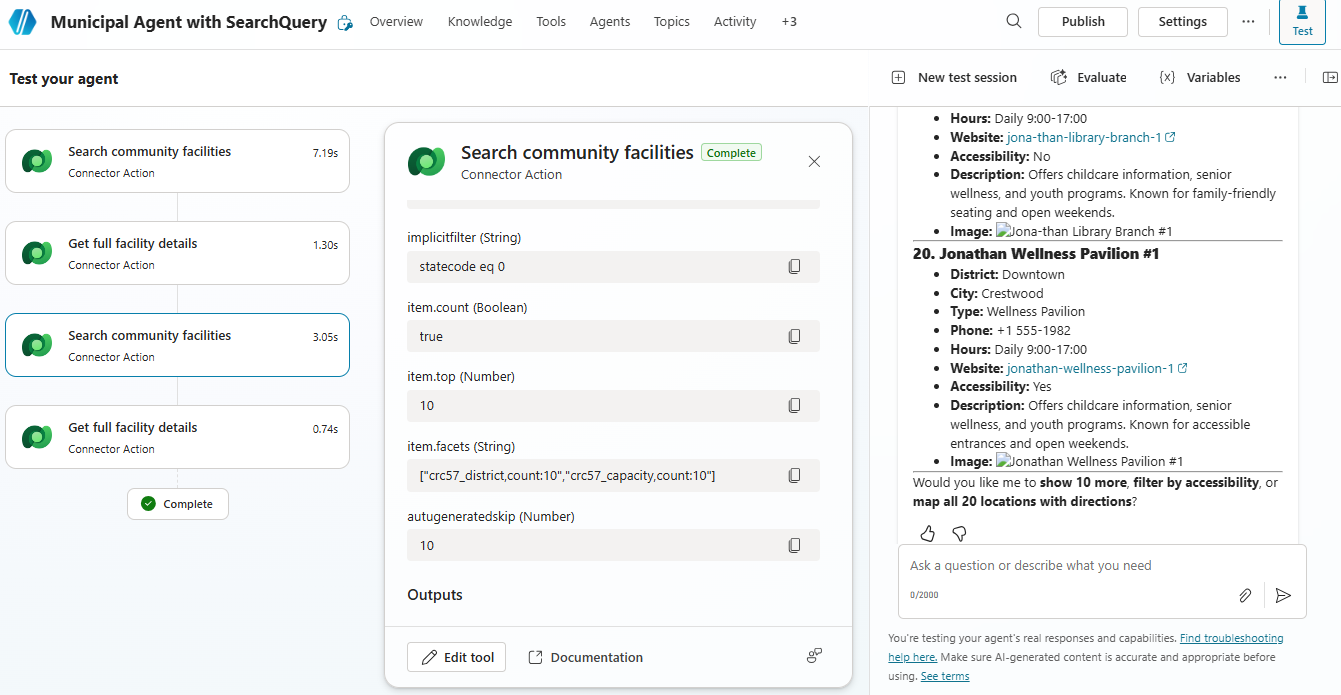 Pagination: the orchestrator detects “next” and increments skip automatically
Youth Search with Map Links
This one’s my favorite. Search for “youth” and ask for details — and something delightful happens. The agent transforms raw latitude/longitude coordinates into clickable Bing Maps links. How? The coordinates come from List Rows. The formatting instruction comes from the List Rows description we wrote: “give a clickable Bing maps link instead of raw coordinates.” And the model’s general knowledge handles the URL formatting.
Structured data + model knowledge + a thoughtful one-line instruction = genuine user delight.
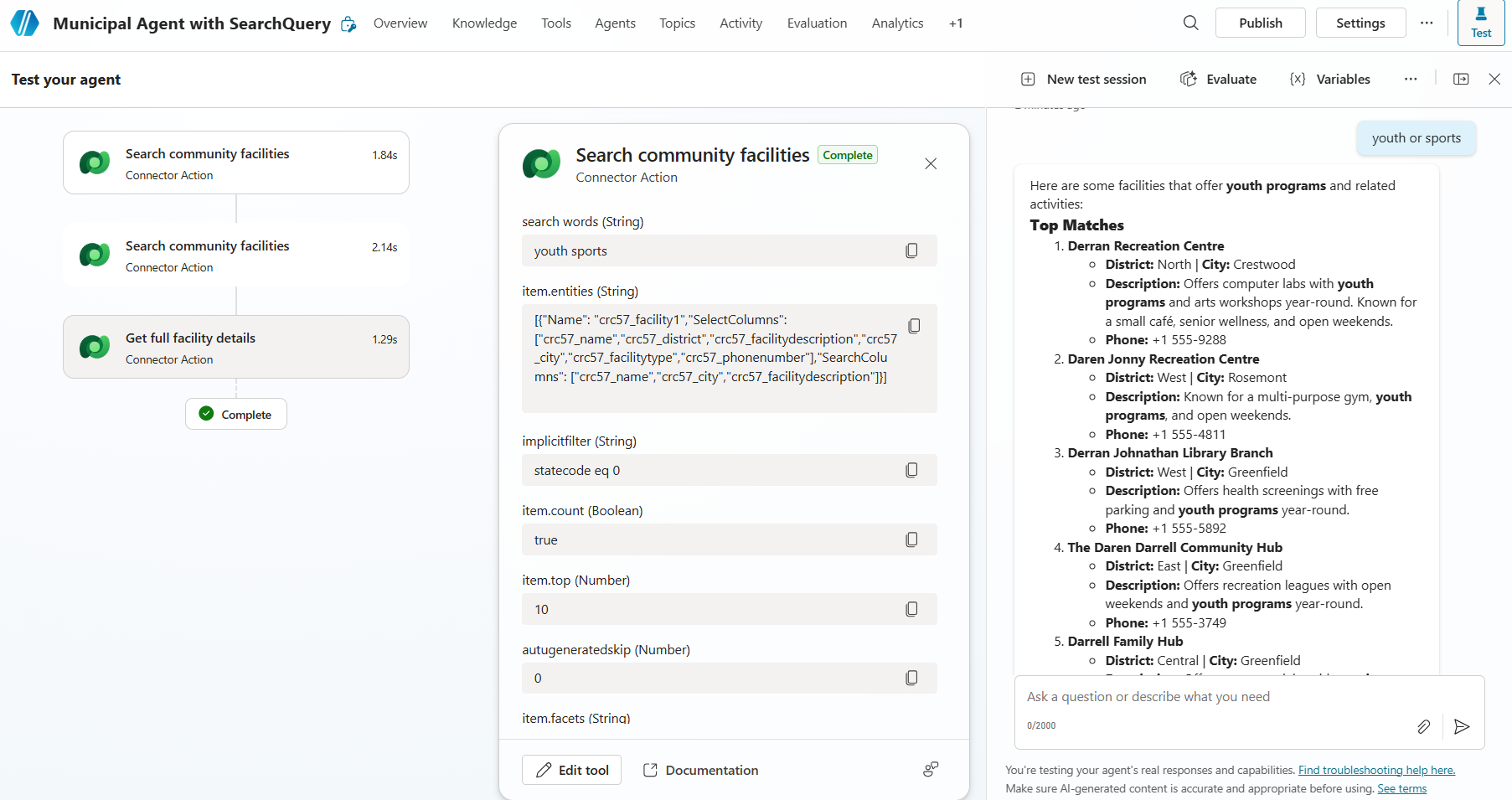 Searching for “youth” — facilities with youth programs surface immediately
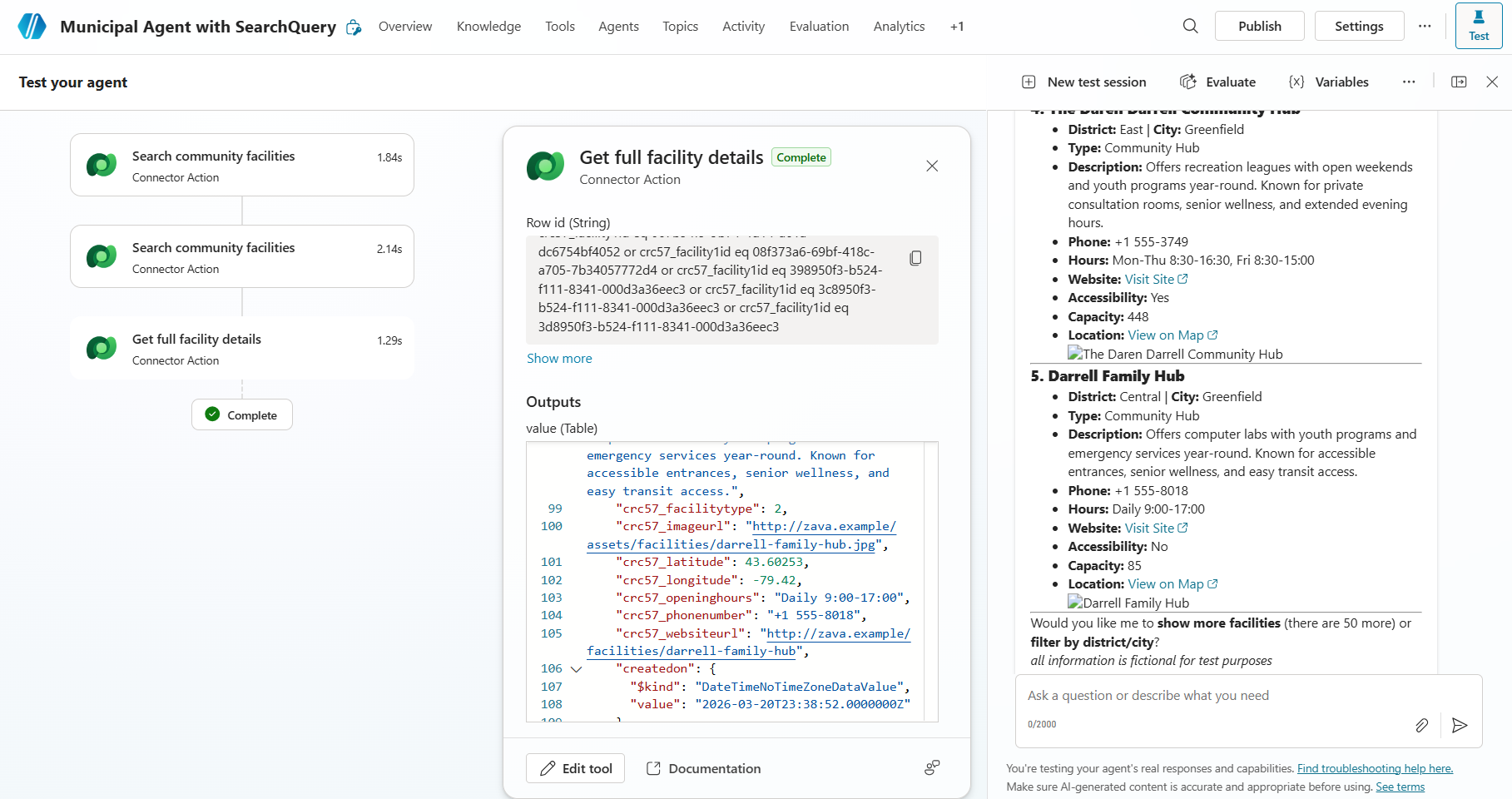 Full details — including coordinates transformed into working map links
Wrap-Up
We started with an agent that couldn’t find “Darrell” when someone typed “Darol.” We ended with fuzzy matching, ranked results, clickable map links, and right-sized output — all without a single user signing in. Thoughtful descriptions. A handful of deliberate design decisions that visibly change behavior.
The search index was there all along. The real craft is in how you wield it.
What will you build with it?
Where Else This Shines
The facility directory is one example, but the searchQuery + List Rows pattern works anywhere you have text-heavy tables and users who don’t speak in exact column values:
- D365 Knowledge Base search — KB articles have multiline rich text that Dataverse search can index. Build a public-facing support agent that fuzzy-searches article content, not just titles.
- Attachments — Dataverse search indexes the first ~2 MB of text from file attachments. Attached PDFs become searchable through the same tool — no separate upload needed.
- Product catalogs — “Do you have something like a blue standing desk?” Fuzzy match on descriptions, return images and prices from List Rows.
- Incident lookup — “Any recent issues with water in Brooklyn?” Fuzzy search on incident descriptions, ranked by relevance, post-filtered by location.