Zero Noise, Maximum Relevance: Dynamic Knowledge URLs in Copilot Studio
How a simple variable unlocks multi-market, multi-language, and multi-product web grounding while improving ALM processes.
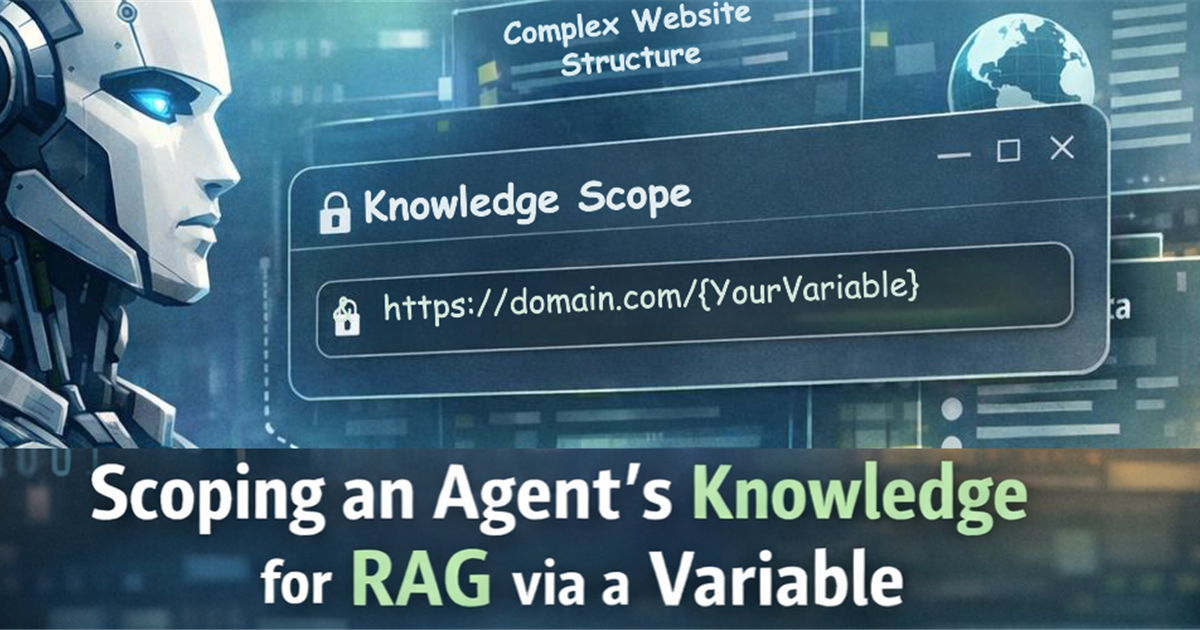
Microsoft just introduced a small but powerful improvement: the ability to parameterize the URL of a knowledge website or SharePoint site with a variable. With this, a single knowledge source can now shift automatically based on who the user is, what the conversation is about, or the environment in which the agent is running.
This capability has been a consistent customer request, helping teams tailor knowledge access without the overhead of managing many separate knowledge sources.
The Problems this Solves
Before this feature:
- If you wanted different knowledge sources based on regionality or languages, you had to add separate knowledge sources:
- microsoft.com/en-us
- microsoft.com/it-it
- microsoft.com/ja-jp
- If you wanted different product lines, more sources:
- https://support.microsoft.com/en-us/surface
- https://support.microsoft.com/en-us/microsoft-copilot
- https://support.microsoft.com/en-us/outlook
- If you wanted different versions of your knowledge sources for different environments (Dev-Test-Stage-Prod) you had to modify them after deployment to repoint to the correct version of the sites.
This led to:
- Bloated knowledge configurations
- Over-scoped grounding, where agents pull unnecessary pages simply because they sit under the same domain root
- Complex ALM (moving many URL-bound sources through Dev → Test → Prod as well as needing to modify URLs in target environments - not best practice)
- Latency concerns - searching across too many irrelevant sources slows everything down
The Breakthrough: URL Variables in Knowledge
Copilot Studio now allows you to define a knowledge source to include variables. This can be used to scope a knowledge site to a specific path or to replace an entire URL with a variable at runtime.
How It Works Under the Hood
-
Define the variable. Variables can be set via:
- Topic inputs / question to user / multiple choice options
- User Profile / Language detection
- Tools like Agent Flows and Connectors
- Environment Variables
- Insert it into the public website link. You can either scope a URL with the variable as a sub-path (www.site.com/{variable}) or replace the entire knowledge URL with the variable ({variable}).
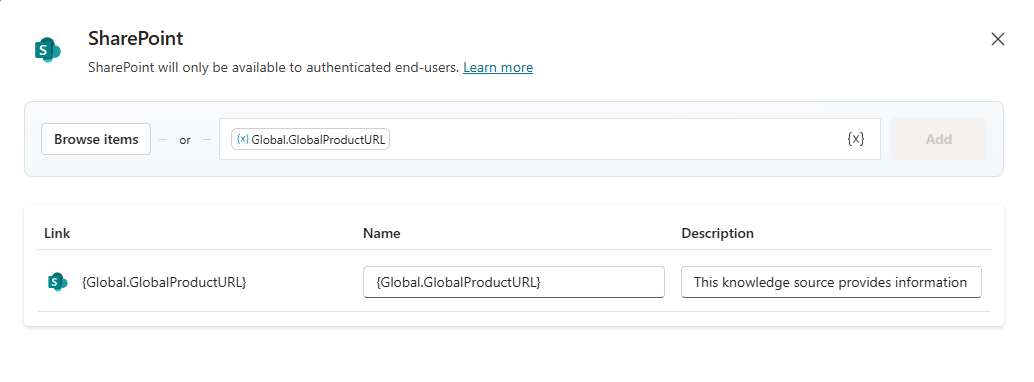
To do this, go to Add knowledge, choose Public Websites or SharePoint (Powered by Work IQ), then click the {x} to add a variable in the Public Website/SharePoint link field.
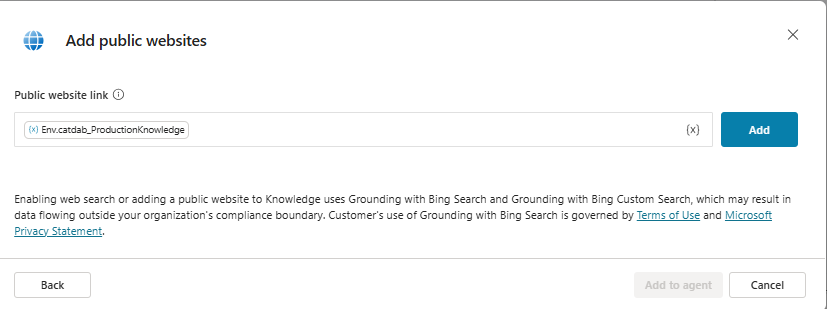
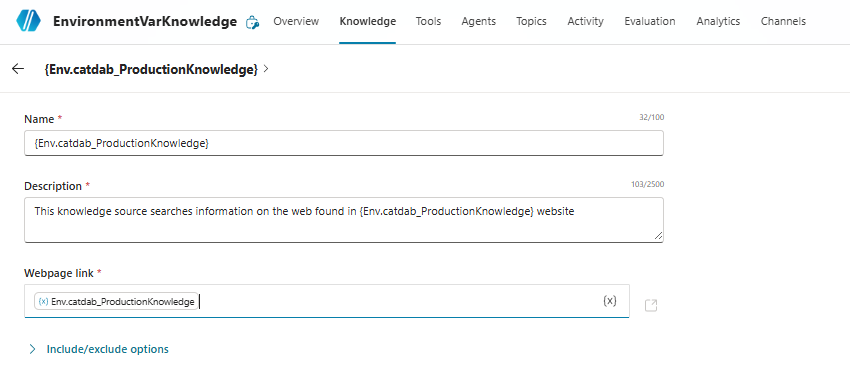
If the user prompts the agent with a question and knowledge is called upon, the agent resolves the knowledge source at runtime using the variable.
Grounding stays within that scoped URL until the variable is changed or the conversation is reset.
Limitations to Know
-
The “two sub-level” public website knowledge limitation still exists.
Public site knowledge uses Bing’s index. Bing guarantees indexing only to 2 levels deep. Scoped knowledge via variable changes what URL to target, not how deep Bing crawls.
-
This functionality is currently for public websites only. Functionality to do the same with SharePoint knowledge is on the product roadmap.As of March 10, 2026, this functionality is also available for SharePoint knowledge sources using the Connector Powered by Work IQ SharePoint knowledge method. The Upload File / Dataverse sync method for SharePoint knowledge does not support variables.
Real Life Example: Product Scoping for Microsoft.com
In this example I will be using the public website knowledge variable to scope the Microsoft.com/en-us website based on the product the user asks about.
To accomplish this, I first need to create and set a Global variable to use for knowledge scoping.
In the tutorial below, I’m going to manage this variable via a Topic. Remember, you can set the variable you plan to use for knowledge in many ways, the key is to make sure you use a string type variable that is set to Global.
I’m then going to set the GlobalProductURL variable by using a couple of great, but less-talked-about features within Topics. I will first extract Microsoft Product names out of the user’s query using Topic Inputs. Then since the URL paths on websites for product pages aren’t always friendly (Example: Copilot is in the /Microsoft-365-copilot path), I am capturing the user response for the “friendly” name via the Topic Input Variable and setting the GlobalProductURL variable to the correct URL Path for the friendly product name. To do this, I will define a table variable that contains the mapping between friendly product names and their respective URL Paths.
-
Create the topic
Be sure to add a good description of how the agent should use the topic.
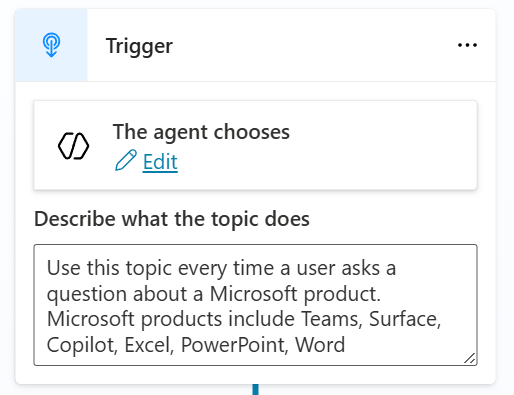 Topic configuration for capturing product selection
 -
Configure the Topic Input
Topic inputs are an excellent way to extract details out of user utterances or queries without needing to ask them. You can use Topic Inputs to automatically identify several different out of the box entities, you can define your own entities, or you can rely on descriptions and examples to extract details out of the user inputs. Since we are trying to identify mentions of Microsoft Products I’m using the “Dynamically fill with best option” setting for how the agent will fill this input. Topic Inputs must be filled before the topic will progress to the next step. If the user does not mention a Product in their message to the agent, the agent will automatically ask them what product they are interested in. Using topic inputs can help reduce back and forth and make the agent interaction more natural. I know I am immediately put off by agent interactions that start with me saying “I have an issue with X”, only for the agent to reply “Hi, I can help with questions, orders, and issues, let me know how I can help!”. In this case the agent will only ask the user what product they want information on if they do not mention one in their message.
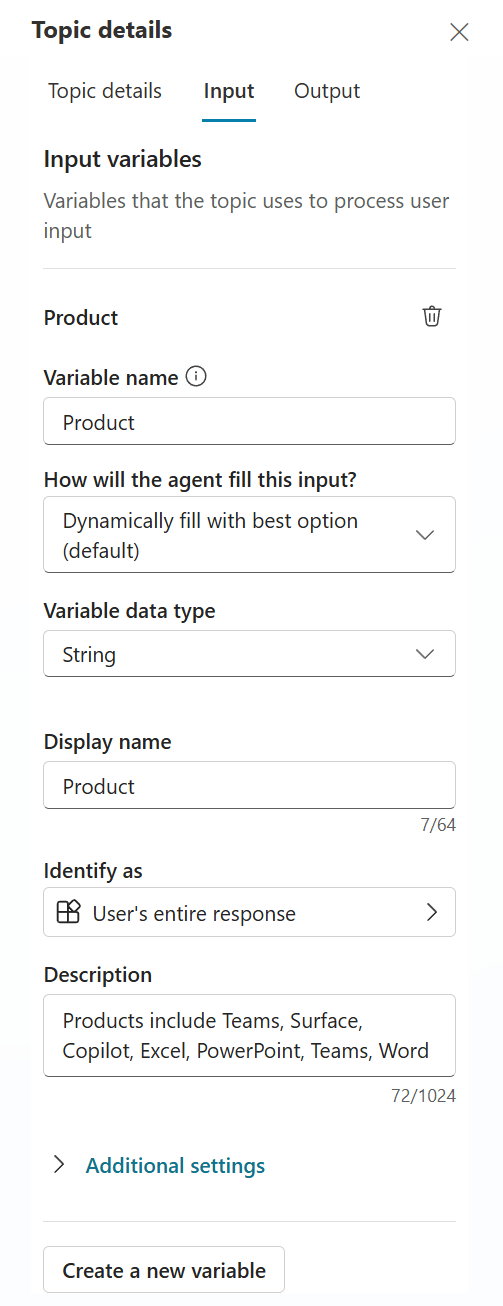 Configuring topic input to capture product name
 -
Configure Product Mapping Table
Add a Set Variable Value node after the topic trigger. Create a new Variable named ProductTable. In the To Value box open up the PowerFX editor and define the mapping table. In this example I’m using product and path columns where the product = the friendly name of the product and the path is the URL path that should be used to scope the Knowledge source URL.
The PowerFX for the table I used is as follows:
1
2
3
4
5
6
7
8

Table(
    { product: "Copilot",    Path: "microsoft-365-copilot" },
    { product: "Excel",      Path: "microsoft-365" },
    { product: "PowerPoint", Path: "microsoft-365" },
    { product: "Word",       Path: "microsoft-365" },
    { product: "Teams",      Path: "microsoft-teams" },
    { product: "Surface",    Path: "surface" }
)
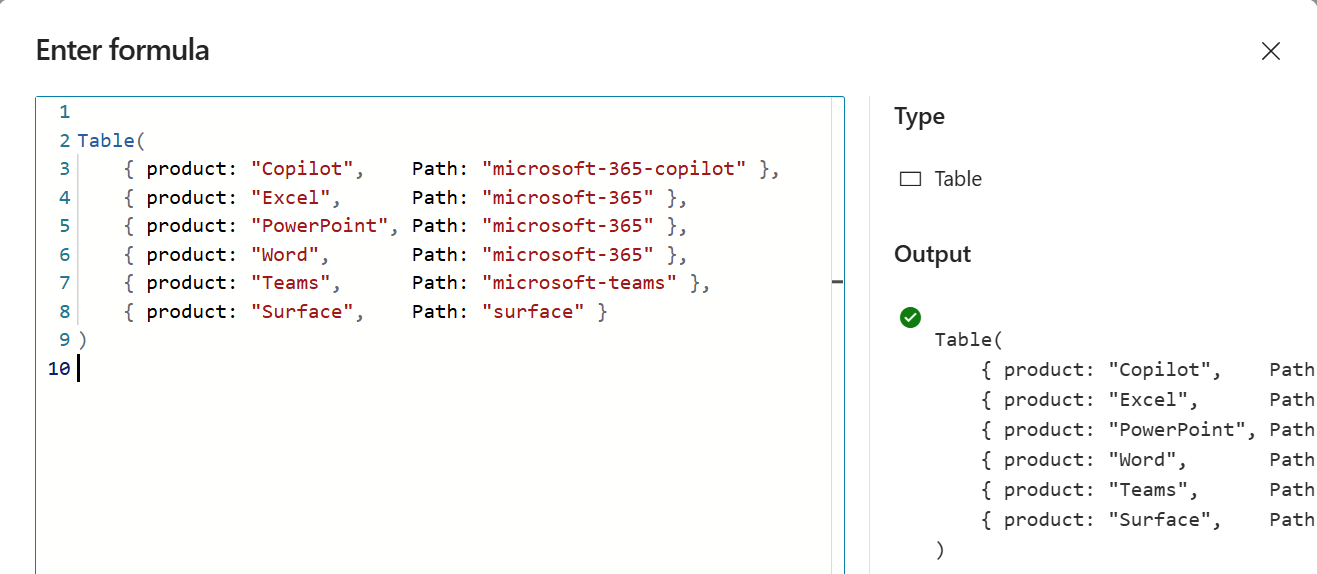 Using PowerFX to define the product-path mapping
 -
Lookup the matching Path based on Product identified in the Topic Input
Add another Set Variable Value node and create a new variable called GlobalProductURL. Set this to be a string type and set the usage setting to Global. This will allow the variable to be used outside of the topic scope. In the To value open the PowerFX editor and use the following PowerFX function to perform a lookup into the table based on the value of the Product input variable “Topic.Product”.
1

LookUp(Topic.ProductTable, product = Topic.Product, Path)
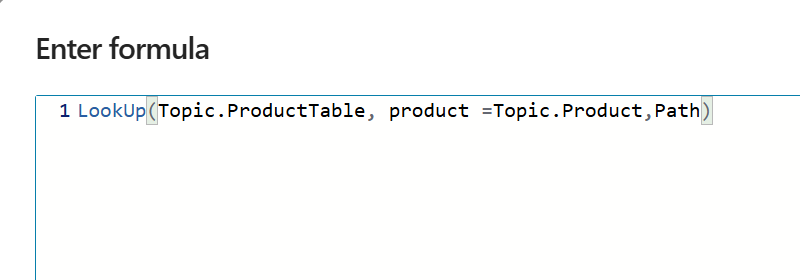 Using PowerFX to lookup the URL path based on product
Once configured the end to end topic will look like this:
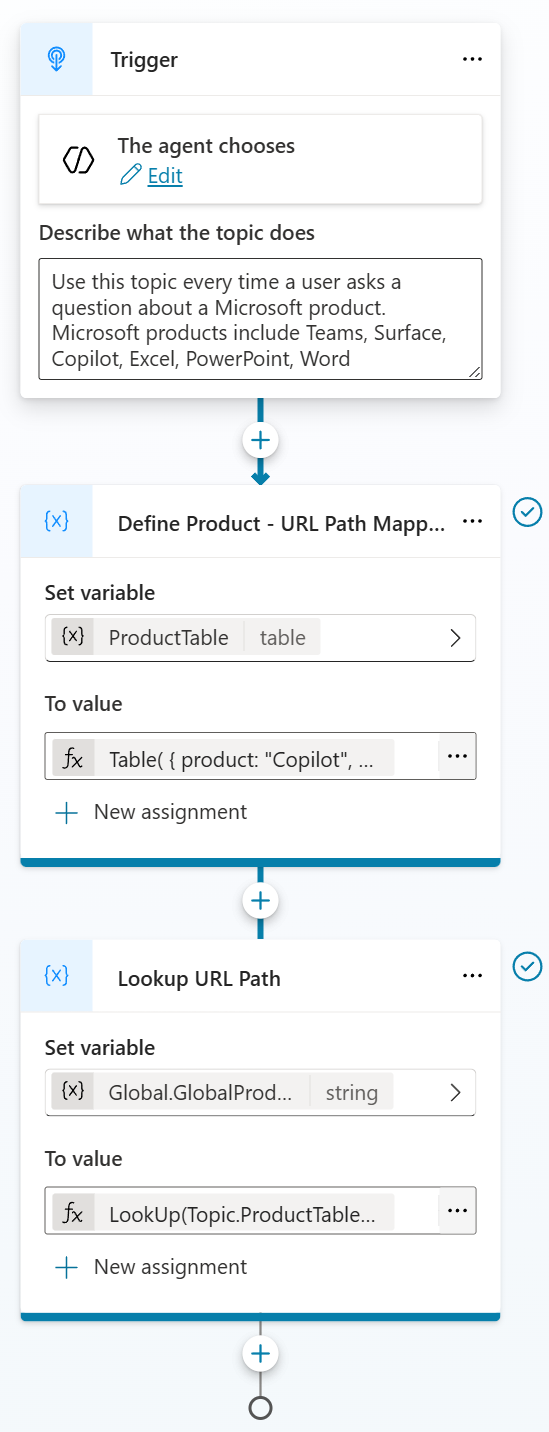 End to end view of the configured Product Identifier Topic
 -
Configure the Website Knowledge Source to use the GlobalProductURL Variable
Once this topic is configured and we have our GlobalProductURL variable created, we need to go create our knowledge source. From Knowledge we will choose public website, then enter in our knowledge URL and then click the “{X}” to add in the GlobalProductURL variable we created in our topic.
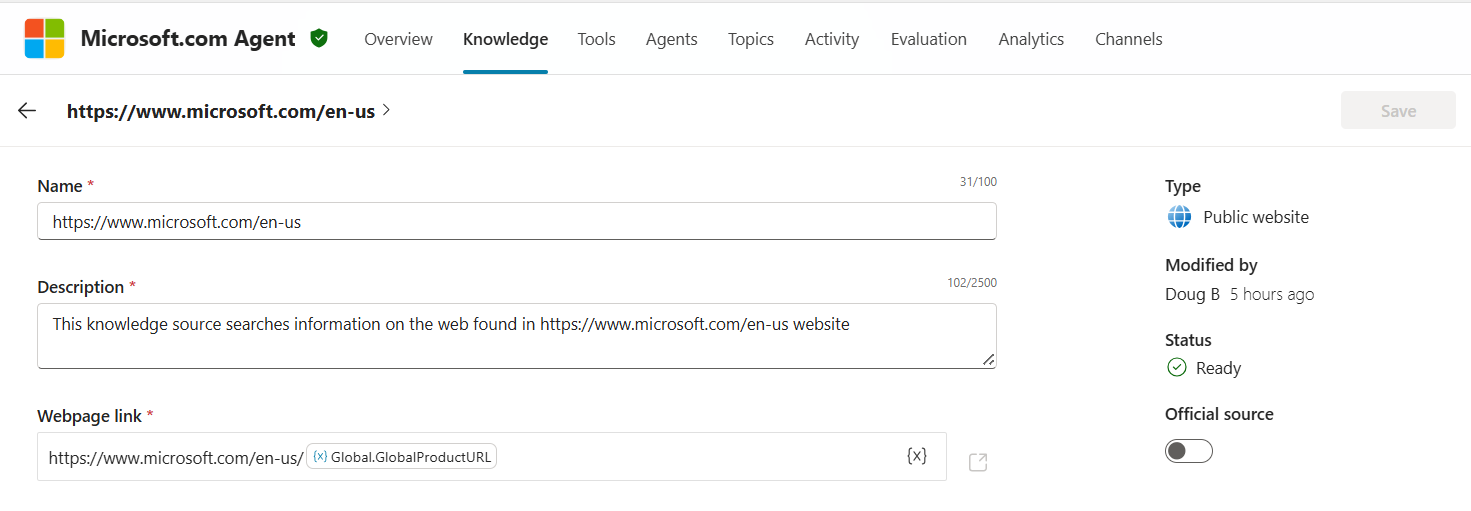 Setting up the knowledge source with the variable
That’s it! We now have a dynamic way to scope knowledge using a couple of cool topic based tricks.
Note: for demonstration purposes I added another topic that uses the “A plan completes” trigger to send a message containing the contents of the GlobalProductURL variable after responses from the agent. This will show what the knowledge URL was scoped to so we can confirm everything is working correctly.
Results
In this first example I ask about WorkIQ in Copilot. The ‘A plan completes’ topic prints what the agent used to scope the Knowledge URL. Both citations that came back from the agent were appropriately scoped to www.microsoft.com/en-us/microsoft-365-copilot.
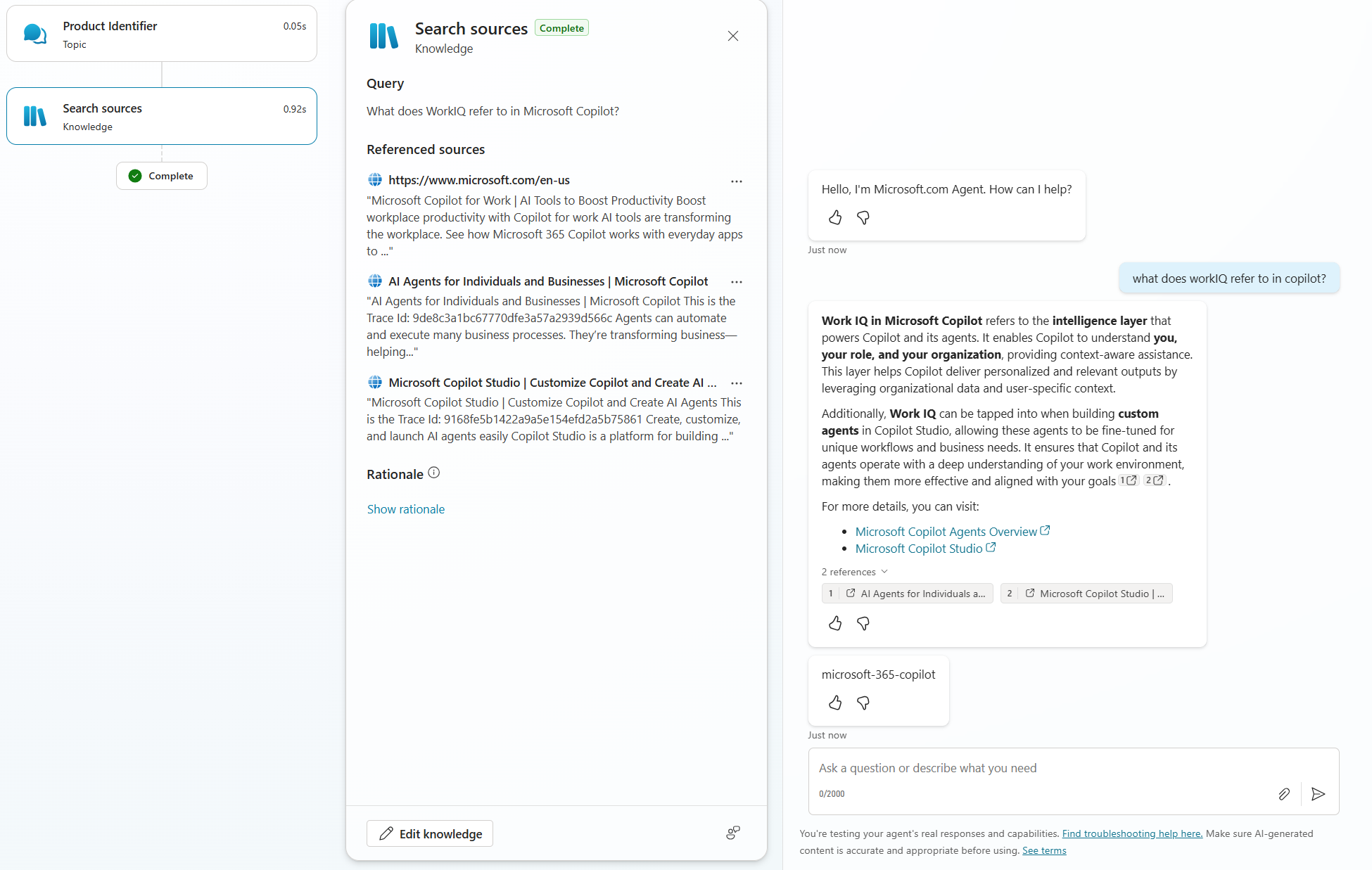 Agent responding with Copilot-scoped knowledge
In this next example I ask a question without mentioning a product name. The agent generates its own question to identify which product I’m referring to. Once it fills the topic input with my response it then queries the scoped knowledge accordingly.
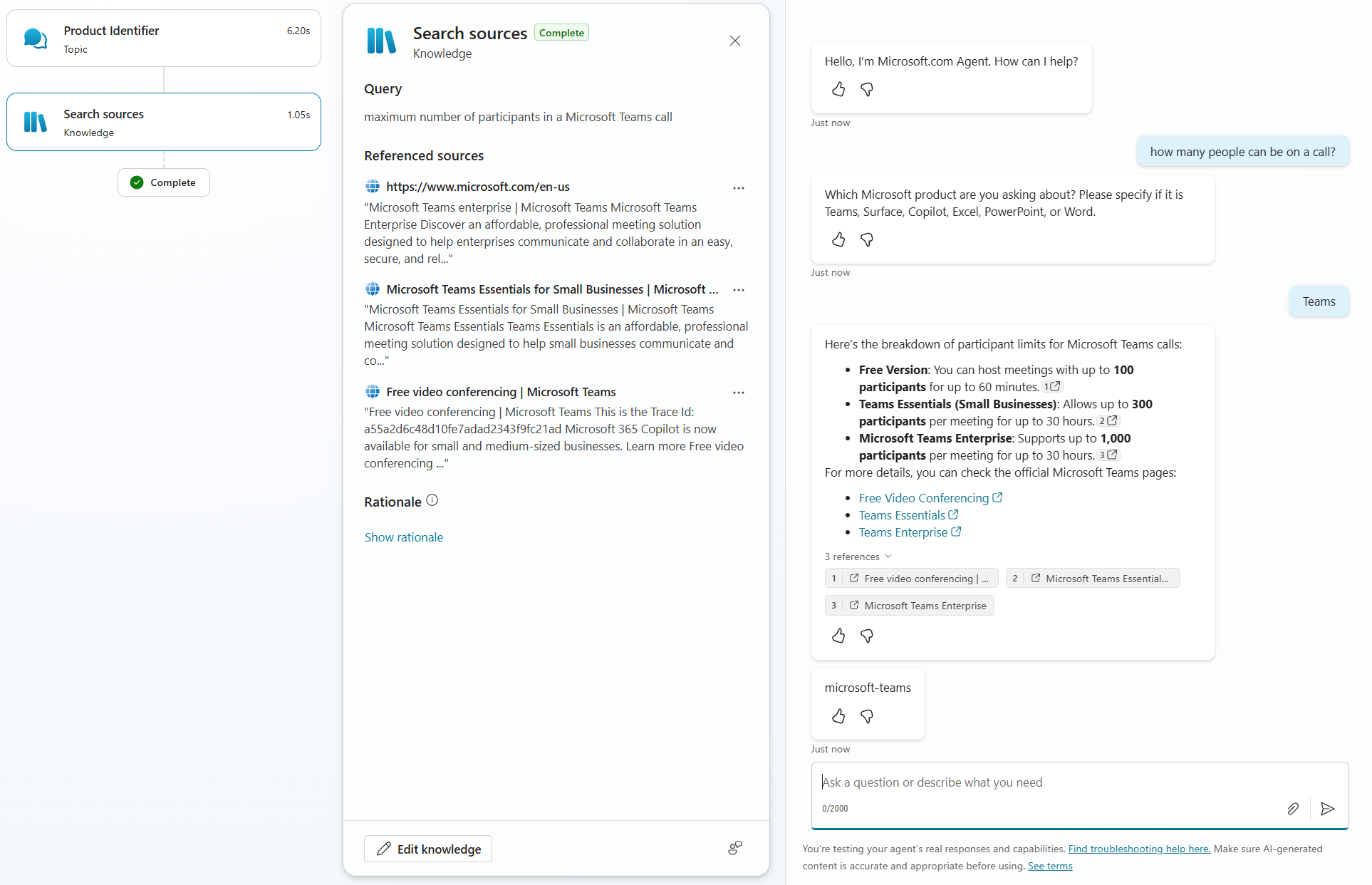 Agent responding with Teams-scoped knowledge
Use Case 2: Country or Region Filtering
For global organizations, regional pages are used to provide users with region-specific:
- Pricing pages
- Product availability
- Different regulatory content
At runtime Copilot Studio uses the User’s browser settings to populate the User.Language variable. You can create a mapping between user language and a knowledge URL variable using the Conversation Start Topic similar to what was done in the first example. This will take the user’s language preference in Copilot Studio and map it to a region/language-specific URL and scope the knowledge in the agent accordingly. Using Microsoft’s website as an example:
- US English users –> User.Language = US English, knowledge variable = en-us
- Italian users –> User.Language = Italian, knowledge variable = it-it
Use Case 3: Set Environment Based Variables
You may have a non-prod version of your website knowledge you use for development purposes. This feature will let you use an environment variable to set the URL to use.
To do this you will first need to create an environment variable. Environment variables can be created from the solutions area in Copilot Studio.
- In the left-hand nav of Copilot Studio click the ellipsis
-
Select Solutions
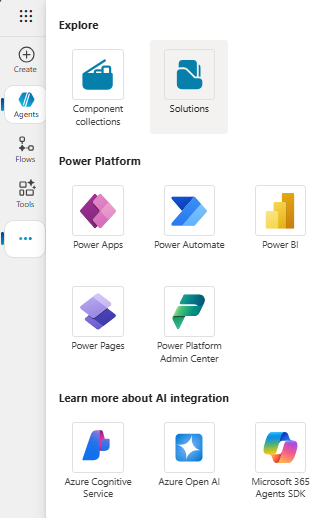 Accessing Solutions in Copilot Studio
 - Open the solution your agent is in. Please try and avoid using the default solution for your agents.
- In the solution objects picker, open the environment variables object. You will be able to see all the environment variables associated with your solution here.
- To add a new one, select new, then Environment Variable.
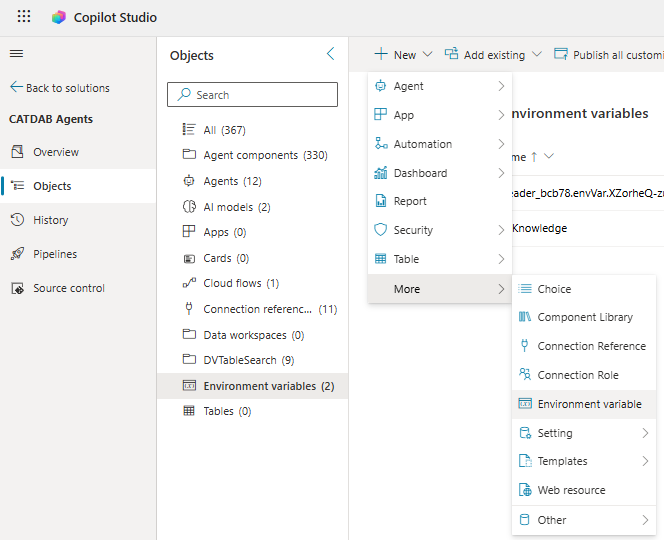 Creating a new environment variable
- In the New environment variable flyout, configure it for your website. Use Text as the data type. I set my default to the Microsoft US website as a fallback. Once the solution is deployed in your target environment you can update it to the correct value for the environment you are in.
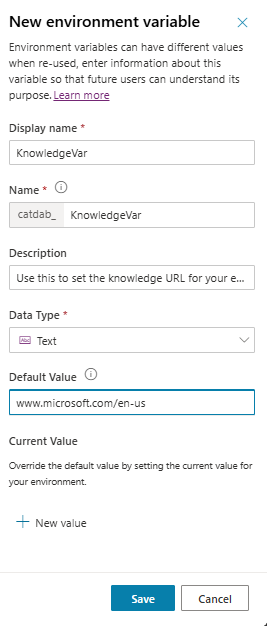 Creating the environment variable
- You can then use this variable when adding a public website knowledge source.
 Adding the environment variable to public website knowledge
Conclusion
The dynamic knowledge URL variable capability is a subtle yet transformative feature that has the potential to improve the agent building experience for many organizations. With a single variable, you can now:
- Build multi-product agents
- Build multi-region agents
- Reduce your knowledge source footprint
- Improve accuracy and reduce latency
- Improve ALM processes for agents
- Give customers a hyper-personalized experience
If you’re building enterprise-grade agents this feature should be part of your baseline architecture going forward.
With a single variable now controlling knowledge scope, how will you rethink your agent design patterns to maximize relevance while minimizing maintenance overhead?
Update (March 10, 2026): Dynamic knowledge URL variables are now also supported for SharePoint knowledge sources using the Connector Powered by Work IQ method.