Seamless SSO with Custom Connectors (Yes It's Possible!)
Avoiding the dreaded connection manager dialog for slick authenticated access to custom APIs and MCP servers.

Agents are great at bringing together information from multiple sources to provide intelligent insights to users. The tools available within Microsoft Copilot Studio provide a vast array of options for interacting with external sources. Often those external sources need to be able to authenticate the user, and so agents need to be able to act on behalf of the user. Ideally all of this needs to happen without the user needing to enter credentials, to provide a seamless conversation experience.
If you’ve tried to incorporate a Microsoft Entra ID OAuth secured custom API or MCP server into an agent, you may have been disappointed to find users being prompted for credentials during the chat. Single Sign-On can be achieved in this scenario, and today we’ve released new guidance which details everything required to ensure this works perfectly.
Challenges
When it comes to implementing tools which need to authenticate on behalf of a user, generally a couple of complaints crop up:
- Consent Popup which asks users for their permission to act on their behalf
- Connection & Authentication if the agent cannot create a connection and authenticate on behalf of the user, the agent prompts the user to do it manually
Consent
I’ll cover consent briefly as is often perceived as a connectivity issue. It’s not; the two are separate.
This is the consent card.
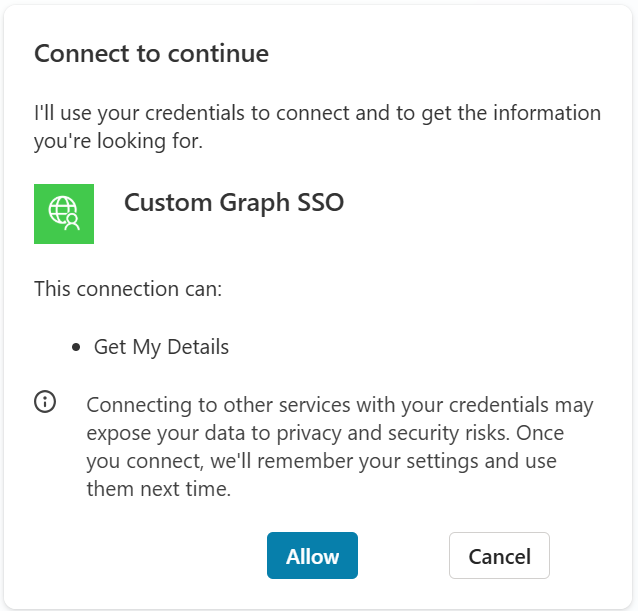
Tools using credentials on behalf of the user will prompt for the user’s consent the first time they run. A bit like when you take your car for a service and the mechanic wants to borrow your keys and drive your car on your behalf; you’d probably want him to ask first. This is not a symptom of misconfigured authentication, this is expected, and for now at least, unavoidable. However, this only involves a single click of the “Allow” button, and then it’s a distant memory.
Connection & Authentication
The route to correctly configuring SSO is somewhat fraught with peril, and a wrong move at any point is likely to manifest as the mildly frustrating message below:
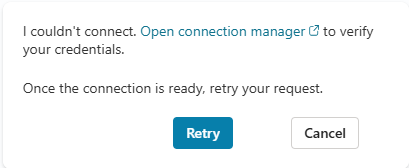
If you’re trying to configure SSO to a resource secured with a Microsoft Entra ID using OAuth and you see this, it’s really just telling you something’s configured incorrectly. Unfortunately there are no clues from the agent, it’s a matter of systematically working through our new guidance to understand what’s wrong.
At a high level, the process looks like this:
- (If you’re implementing a custom API/MCP server) Create an app registration to represent the server, with appropriate scope(s) exposed
- Create an app registration representing the Custom Connector, including creating a client secret, adding and consenting for the correct permissions, and adding the Azure API Connections service as an authorized client
- Configure the OAuth settings within your Custom Connector
- Share access to the Custom Connector with users (who need to exist in the environment, see this recent post from James for more info)
Note, as a maker, some of the crucial steps around connection creation happen in the background while you’re adding and configuring the tool. This means you can experience confusing behaviour where SSO works perfectly for the maker, but when a second user comes along and invokes the tool through chat, SSO fails for them. This is common if the step regarding Azure API Connections is missed.
MCP Tools
MCP integration in Microsoft Copilot Studio uses the Power Platform connector framework under the hood, so all of the above applies equally in MCP scenarios using first-party or custom connectors Entra ID backed OAuth. One point of caution though; if you add an MCP tool using the MCP Onboarding Wizard, it will create a Custom Connector in the background, so you’ll need to go through the initial auth process within the wizard first, and then go back and alter the Custom Connector’s security information.
The Result
With correct configuration, users are prompted for consent when the tool is invoked, and after consent is provided, a connection is created and authenticated in the background. The tool executes and returns a response, all without a single mention of the phrase “connection manager”. Wonderful!
Special thanks Adi for delegating permissions to OBO write a blog post on SSO for Custom Connectors, as promised in this post.