The Orchestrator’s Secrets: Chain-of-Thought & Transcript on Demand
Topics are where the secret switches are hidden in Copilot Studio. Two under-the-radar tricks: surfacing the orchestrator's chain of thought as it works, and pulling the full conversation transcript into a variable on demand.
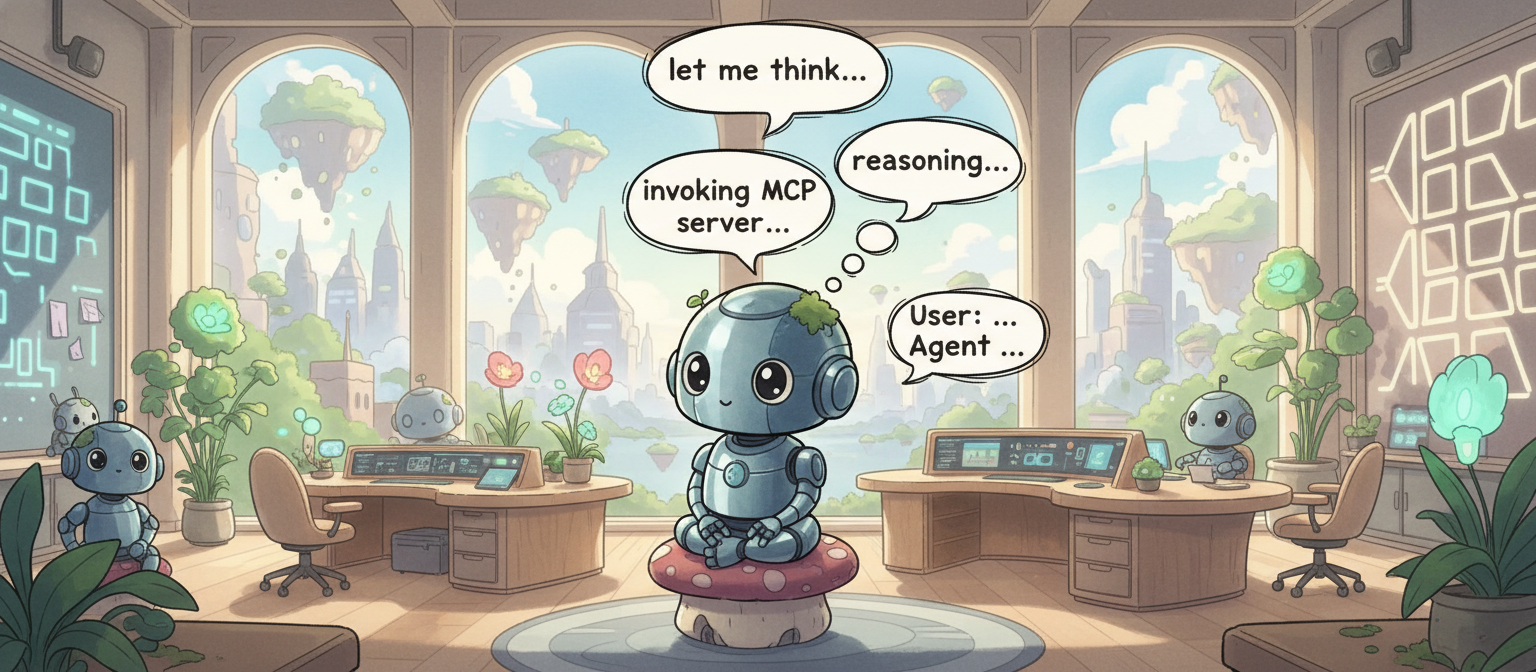
If you’ve spent time in Copilot Studio, you’ve probably obsessed over tools, flows, prompts, instructions, child agents, connected agents… and treated topics like the boring vegetables on the plate.
Turns out, topics are where the secret switches are hidden — especially when you pair them with a capable orchestrator. In this post, I’ll show you two under-the-radar tricks that feel like unlocking a dev console for your agent.
Today’s menu:
- CoT logging — surface the orchestrator’s intermediate steps (chain-of-thought / rationale) as it works
- Transcript on tap — pull the full conversation transcript at runtime and store it in a variable
Cheat code #1: “Show your work” (CoT logging)
In Copilot Studio, the orchestrator may run a mini “plan → execute → adjust” loop — especially with reasoning models or when an MCP server requires multiple tool calls to land on a final answer.
That’s powerful… but from the end user’s perspective it can feel like the agent disappears into a black box for a while. The fix: ask the orchestrator to surface intermediate steps as it goes, so you can capture them — and decide whether to display them (always, only in debug, or only on certain channels).
Tested with: GPT-4.1, GPT-5 Chat, GPT-5 Auto, GPT-5 Reasoning, and Claude (Sonnet + Opus).
The pattern is simple: create a tiny “logger” topic, then instruct the orchestrator to call it after each step. The key insight is that the orchestrator reads input variable descriptions to decide what data to pass in, so the description doubles as an instruction.
For models that don’t have built-in reasoning tokens (like GPT-4.1 or GPT-5 Chat), this is a way to elicit chain-of-thought that you wouldn’t otherwise get. For reasoning models that do have native reasoning steps, what you’ll see here is the orchestrator’s self-narrated version rather than the raw internal trace, but the end-user experience is similar: the agent explains what it’s doing and why, step by step.
How to set it up
- Create a new topic (example name: Log Chain of Thoughts)
- Add an input variable (example name:
CoT). In the description, put something like: “Full intermediate chain of thought / rationale from the model for the current step.” - Add a message node that outputs the variable. Tip: italicize it so it reads like a trace, not the agent’s “official” answer.
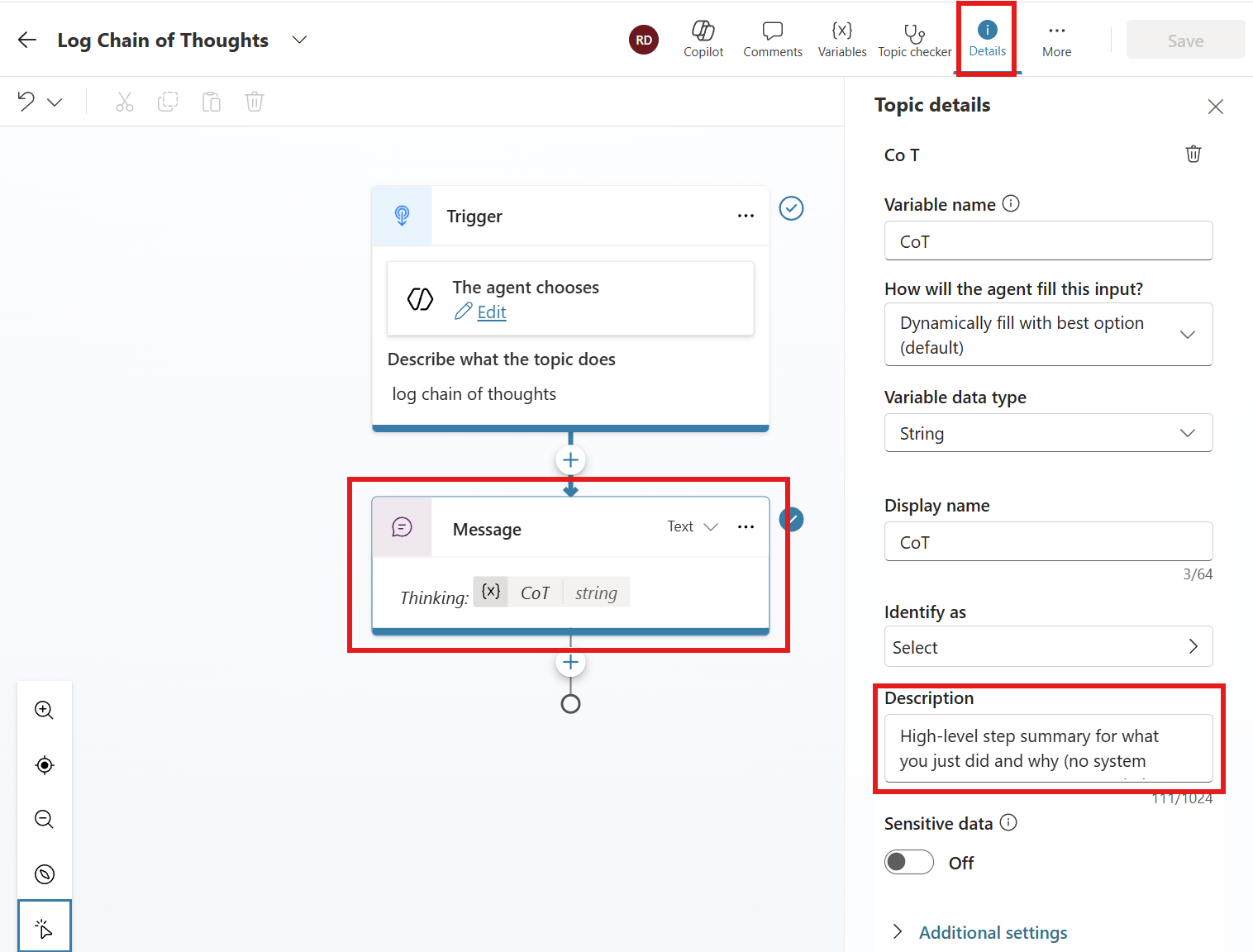 The Log Chain of Thoughts topic: input variable CoT with a description that tells the orchestrator exactly what to pass in, and a single Message node rendering it
Now tell the orchestrator when to use it by adding an instruction at the agent level:
1
2
3

After every tool, topic, or step you take (except when you are already
calling /Log Chain of Thoughts or other debug/logging topics), log your
intermediate reasoning by calling /Log Chain of Thoughts.
Make sure you reference the topic by typing / in the instructions editor (a dropdown will appear with your topics) so it resolves to the exact topic name. The recursion guard in the instruction (“except when you are already calling…”) is best-effort since it’s a natural language instruction, not a hard stop. If you notice looping, adjust the wording or add a condition node as a harder guard.
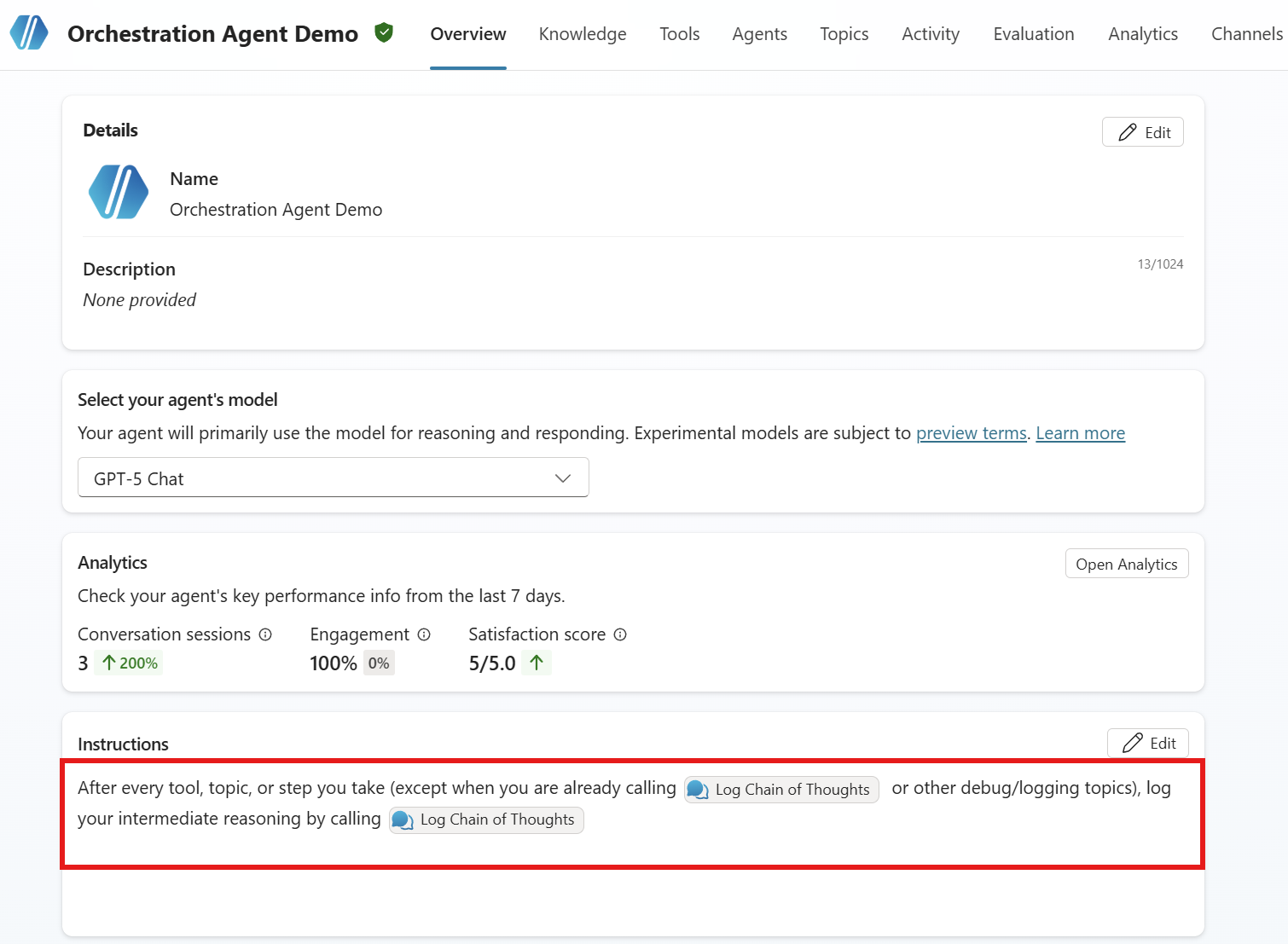 Instructions asking to specifically call the tool after each steps while avoiding infinite loops.
And you’re done. The next time the orchestrator chains multiple actions, you’ll see the play-by-play in the chat.
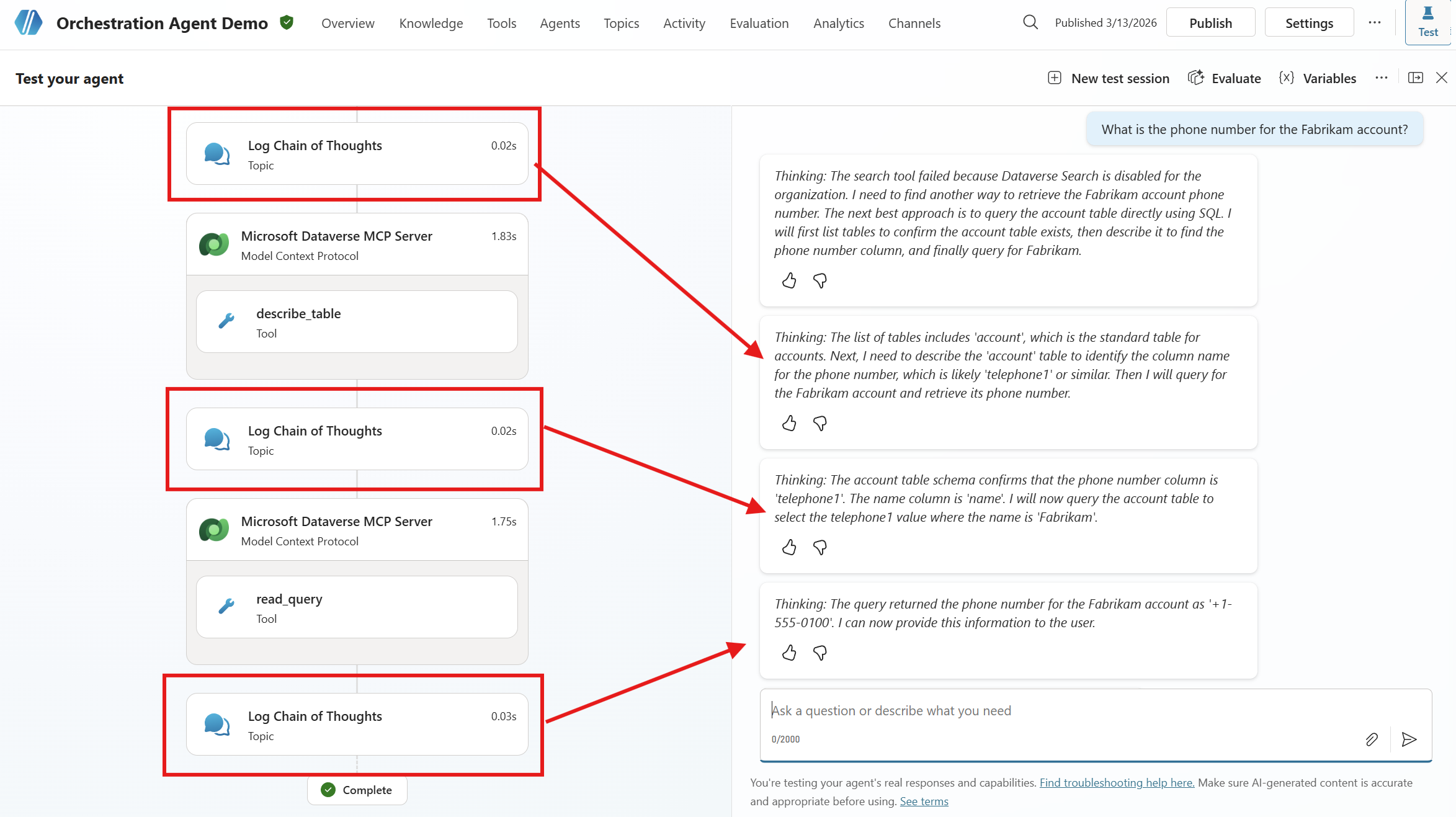 Each reasoning step surfaces in Teams chat as a “Thinking: …” message — before the agent proceeds to its next action
This is great for understanding what’s happening during MCP tool chains or long-running reasoning flows — and it works on every channel because it’s just a regular message node.
Trade-off: this costs more Copilot credits because you’re forcing an extra call after each step. Consider enabling it only for long-running tasks, specific agents, certain channels, or behind a “debug mode” flag.
Cheat code #2: “Transcript on tap” (save conversation history to a variable)
People have wanted this forever: grab the conversation history at runtime and hand it to a tool — ticketing, Dataverse, escalation flows, you name it. There’s no official “give me the transcript” node (yet?). You could rebuild history turn-by-turn with variables, but it gets messy fast and doesn’t scale.
So instead, we ask the orchestrator to dump the transcript into an input variable on demand. Yes, really. Since the orchestrator is reconstructing the conversation from its context window, this is a best-effort transcript, not a verbatim record. It’s great for use cases like summarizing a conversation, handing context to a live agent, or attaching notes to a ticket. For compliance-grade transcripts, you’ll want a dedicated logging solution instead.
How to set it up
- Create a topic (example name: Save Conversation History)
- Add an input variable (example name:
conversationHistory) - In the input description, tell the orchestrator what you want (same trick as before, the description is the instruction). For example: “Entire conversation history in the format ‘User: …, Agent: …’“ (You can ask for a summary instead, or omit speaker labels, this part is flexible.)
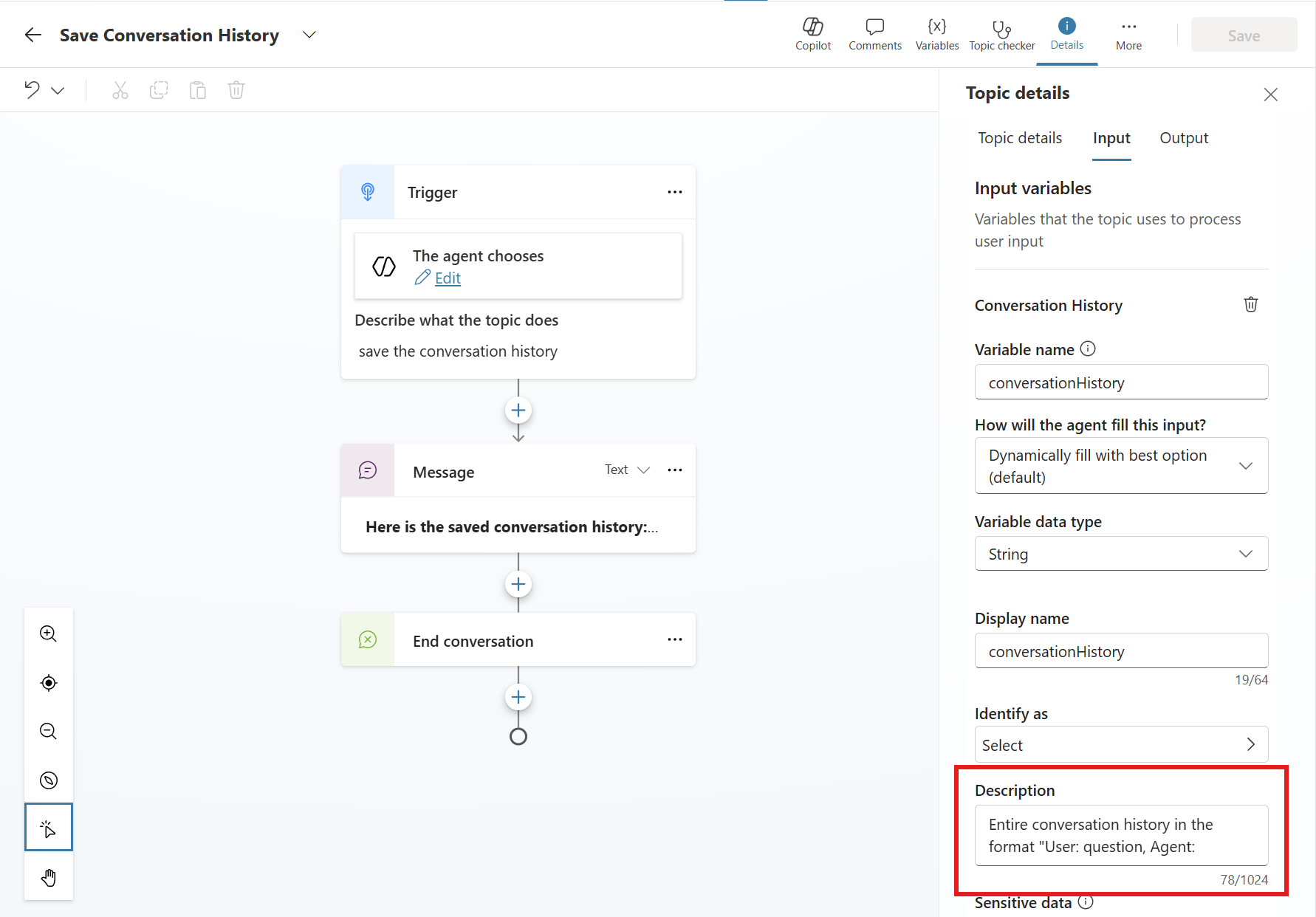 The Save Conversation History topic: the orchestrator fills the conversationHistory input with the full transcript, which the topic then surfaces or passes on to other tools
How to trigger it
Two common patterns:
Manual — let the user invoke the topic from the chat (then you choose whether to display the transcript or just store it in a variable).
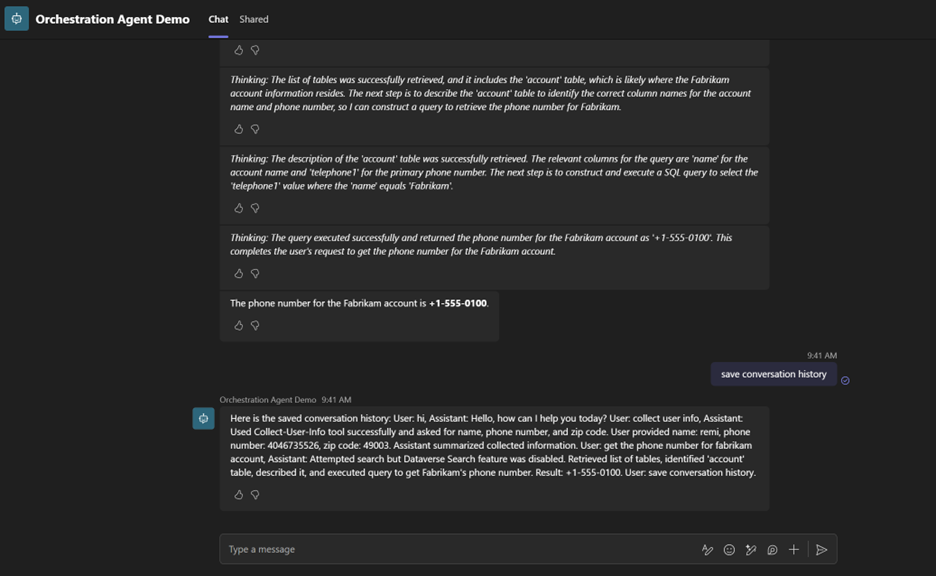 The user types “save conversation history” and the agent immediately invokes the topic, dumping the full transcript inline
Automatic — at the end of a flow (end conversation / escalate / etc.), call it via a Recognize intent node with an input like save conversation history. A Recognize intent node passes the text to the orchestrator, which then decides which topics or tools to invoke.
The Recognize intent node is one of the most powerful nodes in Copilot Studio. It lets agent builders “force” intent recognition for any content at any point in a flow, effectively giving you a programmatic way to trigger the orchestrator on demand.
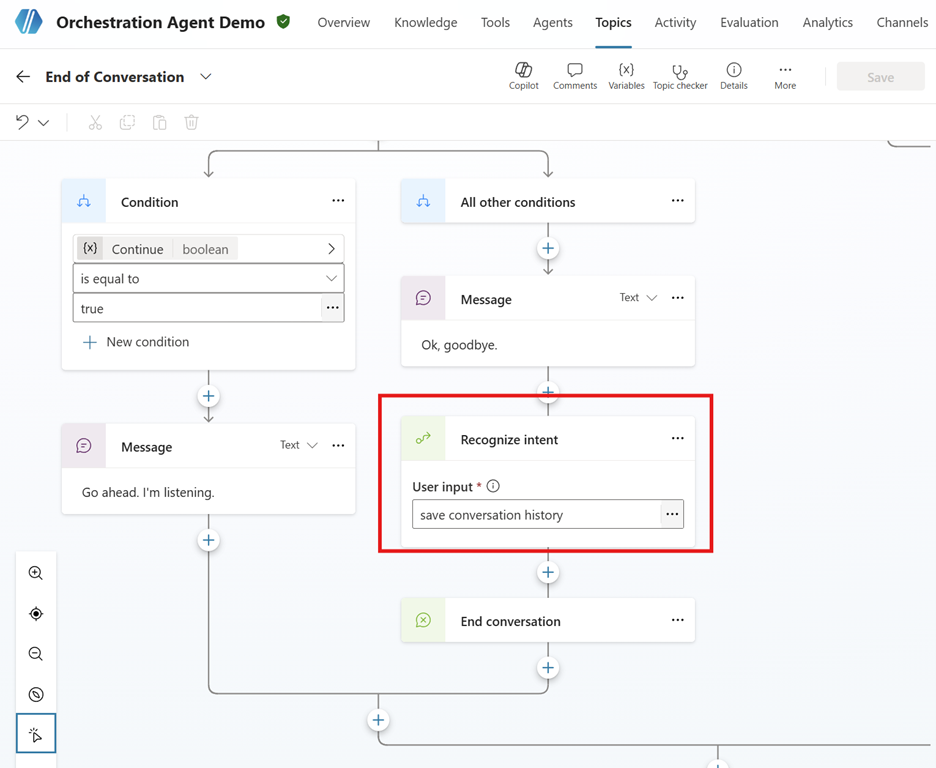 In the End of Conversation topic, a Recognize intent node after “Ok, goodbye.” gives the orchestrator one last chance to invoke the Save Conversation History topic before closing
Once you’ve captured the transcript, you can pass conversationHistory to a tool, save a record to a custom Dataverse table, attach a summary or reference to a support ticket, or hand it to a live agent during escalation.
If you want to chain it with other tools — for example, an Outlook MCP server to email the transcript, or a Dataverse MCP server to log it against a case — treat the full conversation history as sensitive data and design the flow accordingly.
Heads up on privacy: Conversation transcripts can contain PII and sensitive data. Make sure you have proper consent, only send what’s needed (a summary is often enough), use secure storage with retention policies, and scope permissions so only authorized apps and people can access stored transcripts.
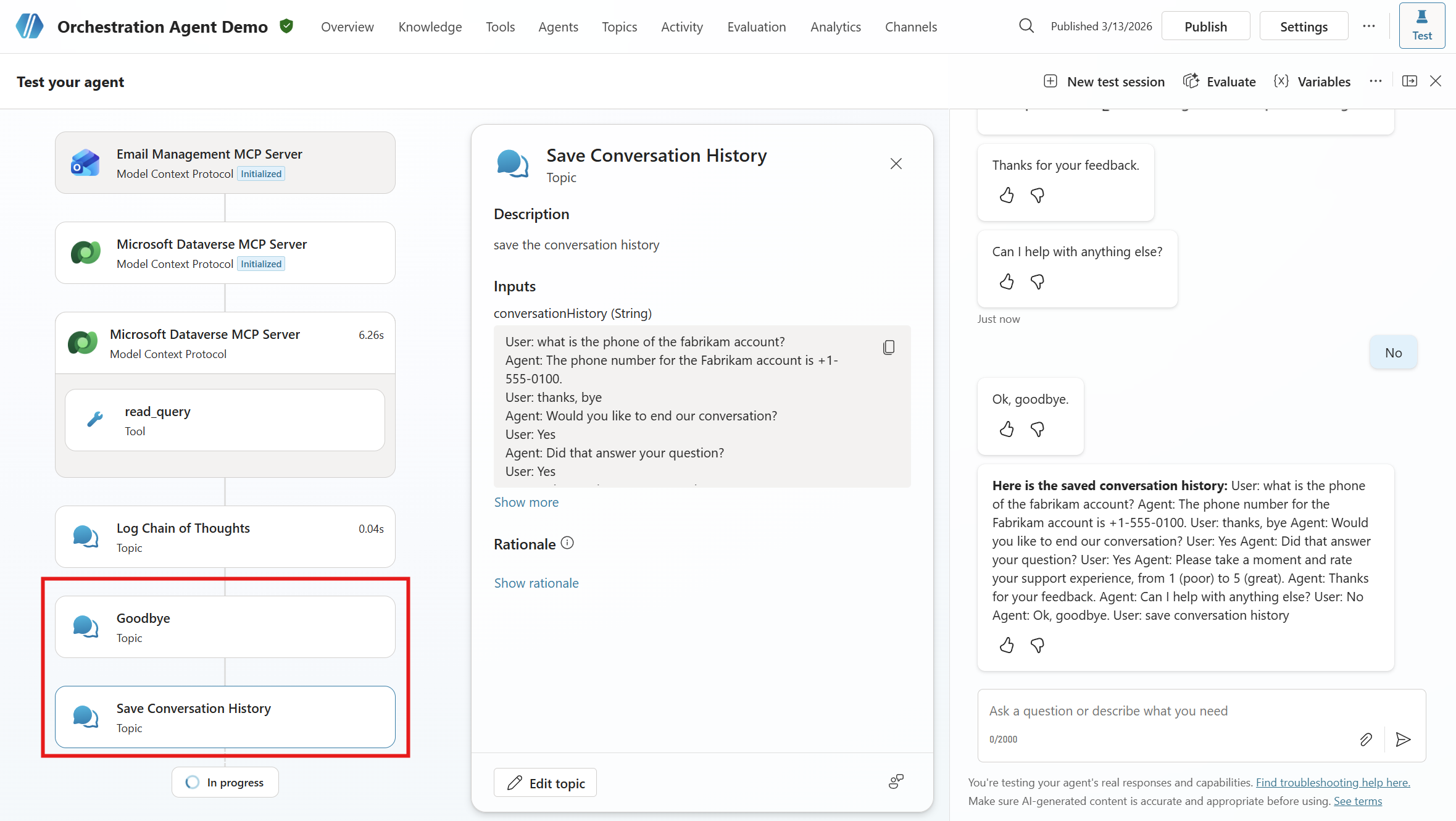 The full activity trace: Dataverse MCP → read_query tool → Log Chain of Thoughts topic → Goodbye topic → Save Conversation History topic → Email Management MCP → SendEmail tool
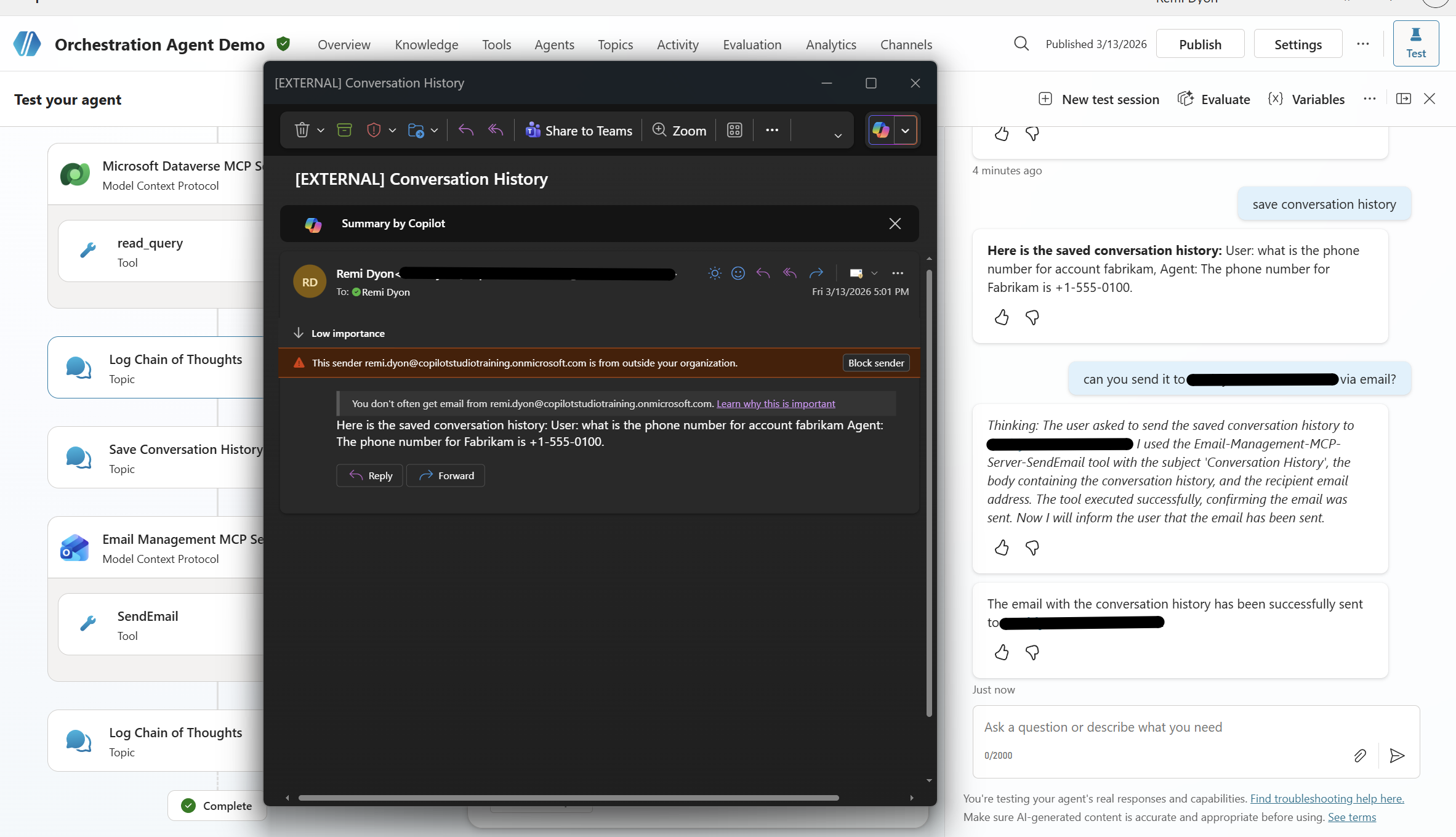 The conversation history lands in the user’s inbox — sent autonomously by the agent chaining the transcript capture with the Outlook MCP tool
That’s the whole trick: tiny topics, big leverage. If you try the chain-of-thought trick, consider adding a debug toggle so you can turn the magic on — and the credit burn off — whenever you need it.