PowerCAT OverFlow is an AI-powered plugin and viewer that audits every cloud flow in a Power Platform solution against Microsoft's authoring guidelines, then renders each flow as an interactive diagram with risks, categories and remediation hints.
Two views you'll use every day: a solution-wide executive summary with category roll-ups and top risks, and a per-flow diagram with findings overlaid on the actions that triggered them.
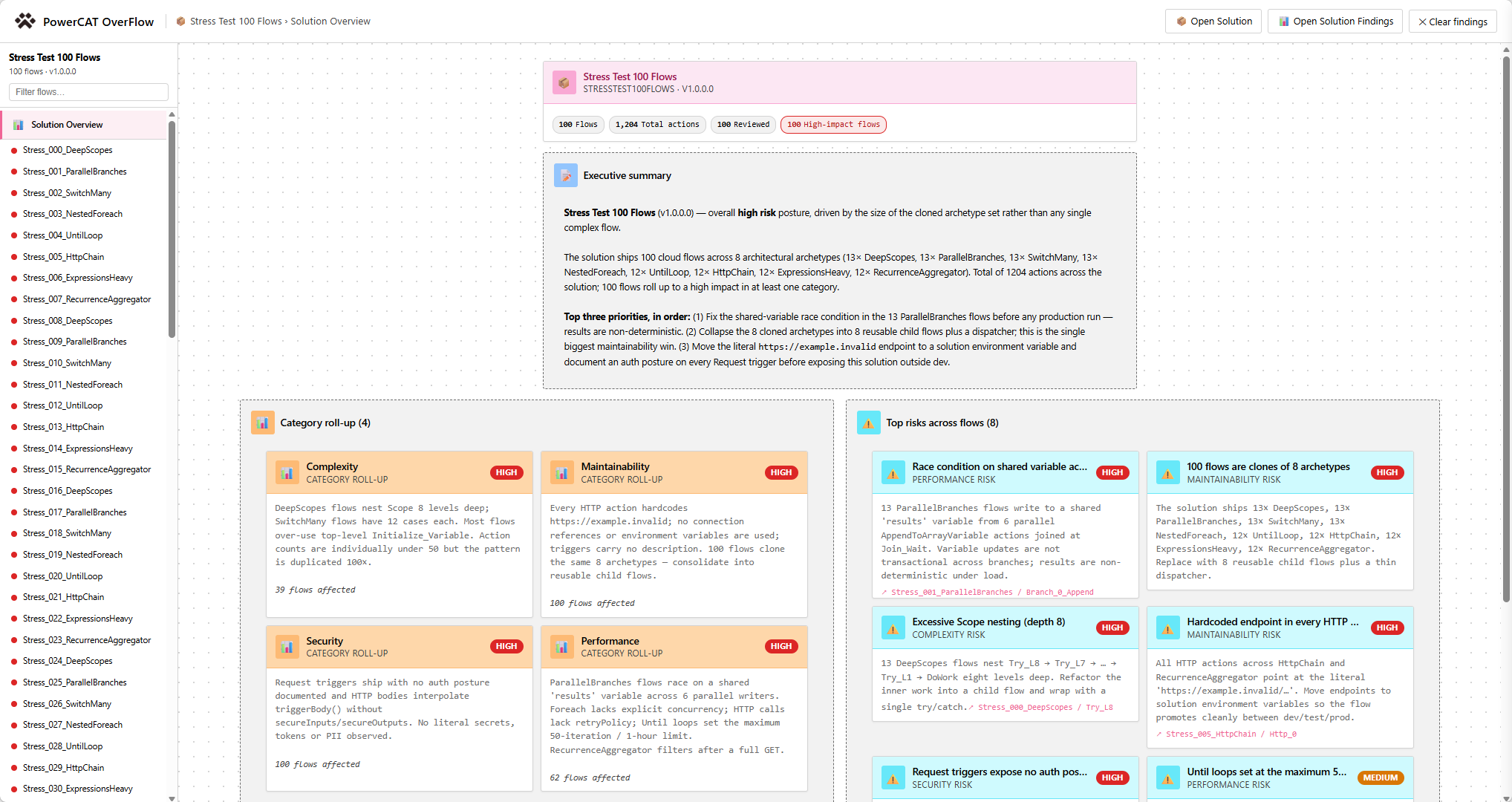
Open any reviewed solution and the first screen tells you everything — total flows, action counts, the three biggest priorities, and severity-tagged risks per category.
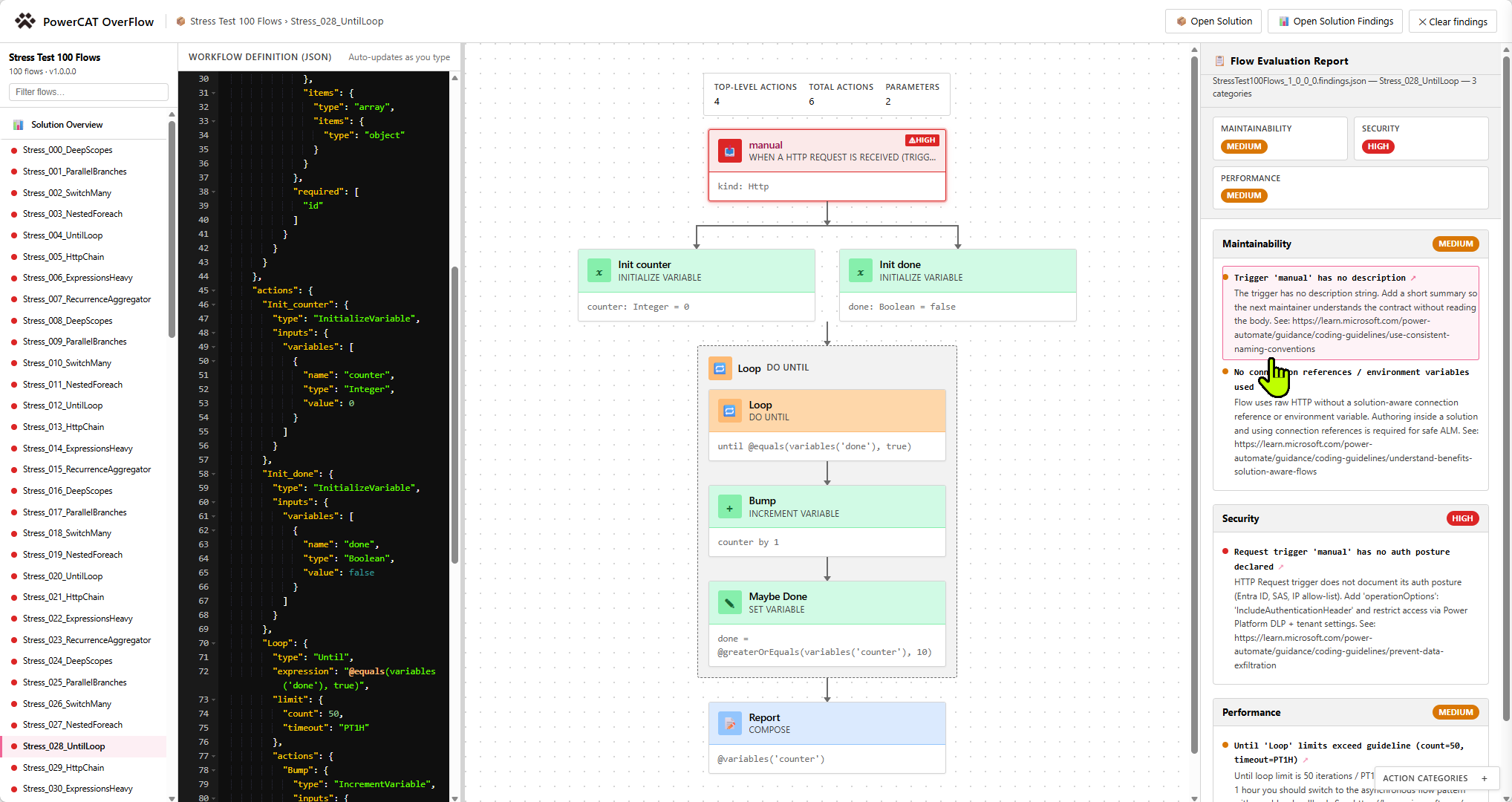
Click any flow to see its actions as nodes, the raw JSON live-bound to the diagram, and a Maintainability / Security / Performance report with remediation hints linked to Microsoft Learn.
A Copilot CLI plugin scans your solution and writes a single findings file. The hosted viewer turns that file into an interactive review you can share with anyone.
A GitHub Copilot CLI skill that scans every flow in a Power Platform solution against Microsoft's authoring guidelines and writes a single [Solution].findings.json next to your file.
A hosted single-page app that loads a solution and its findings and renders each flow as an interactive diagram — with risks, categories, and remediation hints overlaid on every action.
Launch the app ↗A pre-configured viewer with a real solution and findings already loaded. Open it, click around, get the feel of OverFlow in 30 seconds — no install required.
Open the demo ↗Solution-level roll-ups for the people who need the big picture; flow-level diagrams and remediation hints for the people who write and fix the flows.
Category roll-ups and top risks across the whole solution, surfaced the moment you open a review.
Every action rendered as a node, with findings overlaid on the actions that triggered them.
Slice findings by severity (Critical / Warning / Info / Pass), category, or action type — without leaving the page.
Click any action to view its code. Edit and the diagram updates immediately — perfect for walkthroughs.
Findings come from a curated list of Power Automate authoring guidelines, fetched live from the marketplace repo.
The findings JSON pairs with your solution .zip — hand both to a colleague and they get the same interactive review.
Install the plugin once, drag-and-drop a solution into Copilot CLI, and the viewer opens with findings overlaid — automatically.
Before you install the plugin, make sure the following are in place.
| Requirement | Why you need it |
|---|---|
| GitHub Copilot license | Required to use Copilot CLI and run skills (Business or Enterprise plan with CLI access). |
| GitHub Copilot CLI | The command-line host that loads plugins and runs skills. Install per the official Copilot CLI docs. |
| Power Platform solution (.zip) | An unmanaged or managed export containing a Workflows/ folder with at least one cloud flow. |
| Modern browser | Microsoft Edge, Chrome, or Firefox to open the hosted PowerCAT OverFlow viewer. |
| Internet access | The skill fetches the authoritative review source list and opens the GitHub Pages viewer. |
copilot command isn't available or returns an authentication error, confirm with your admin that CLI usage is enabled for your seat.
Run these commands inside an active GitHub Copilot CLI session. The first two only need to be run once; afterwards the plugin auto-updates when the marketplace publishes a new version.
Open a terminal and start Copilot CLI:
$ copilotRegister the Power CAT marketplace so Copilot CLI can discover its plugins:
/plugin marketplace add https://github.com/microsoft/Power-CAT-Skills
powercat-overflow plugin
Install the plugin from the marketplace you just added:
/plugin install powercat-overflow@power-cat-skills
Confirm the install when Copilot CLI prompts you. The skill is now available in any Copilot CLI session.
/plugin list and confirm powercat-overflow appears with the status "installed".
Once installed, the skill runs end-to-end: it scans every flow, writes a findings JSON next to the uploaded solution, opens the hosted viewer in your browser, and attaches both files for you.
In the Power Apps maker portal, export the solution that contains the flows you want to review. Either Managed or Unmanaged is fine, as long as a Workflows/ folder is present. Save the .zip somewhere reachable from your terminal.
Inside an active Copilot CLI session, drag-and-drop or attach the solution .zip, then type a natural prompt:
review my solution
Other prompts that trigger the same skill:
powercat overflow
audit Power Automate solution
check this solution against guidelines
The skill will:
microsoft/power-cat-skills.Workflows/.[SolutionName].findings.json next to your uploaded solution.Once the viewer loads, you can browse all flows in the left-hand nav, open the Solution Overview to see category roll-ups and top risks, click any flow to see its actions as a diagram with findings overlaid, filter by severity / category / action type, click on findings to reveal the related action, and click any action to view or edit its code — the diagram updates immediately.
You can also use the viewer on its own, no Copilot CLI required. This is useful when someone shares a solution and findings pair with you, or you want to re-open a previous review.
In any modern browser, open microsoft.github.io/power-cat-skills/PowerCAT-Overflow.html.
On the welcome window, in the Required step, click Open solution (.zip) and pick your Power Platform solution export. The viewer reads the Workflows/ folder, parses each flow, and renders the Solution Overview.
In the Optional step, click Open findings (.json) and pick the matching [SolutionName].findings.json. The viewer overlays findings on each flow and unlocks the Top Risks and Category Roll-up cards in the Solution Overview.
You can re-open the file dialogs from the top bar to swap in a different solution or different findings file without reloading the page. The viewer redraws the navigation and overview automatically.
/plugin marketplace add microsoft/power-cat-skills, then /plugin install powercat-overflow@power-cat-skills.Workflows/ folder. Export a solution that contains at least one Power Automate cloud flow.[SolutionName].findings.json manually.Source, samples, and demo builds — bookmark these for reviews, walkthroughs, and customer demos.
