DocumentDB for VS Code
Release Notes : Back to Release Notes
DocumentDB for VS Code Extension v0.8
We are excited to announce the release of DocumentDB for VS Code Extension v0.8. This is a landmark update, and our biggest release yet, transforming the extension from a GUI browser into a full-featured query development environment for DocumentDB and MongoDB API databases.
This release introduces three major features: context-aware autocompletion in the Collection View, a brand-new Query Playground for writing and running scripts, and a built-in Interactive Shell for ad-hoc exploration. Everything is bundled, requires zero external tools, and works with Entra ID out of the box.
What’s New in v0.8
⭐ Context-Aware Autocompletion in the Collection View
The filter, project, sort, and aggregation editors in the Collection View now understand your data. As you type queries, the editor suggests field names sampled from your collection’s actual schema, operators with type-aware sorting, and values, all with hover documentation for every operator linking to the DocumentDB API docs.
The editor knows your schema and guides you through every keystroke, so you no longer need to look up operator syntax or guess between similar operators like $gte and $gt.
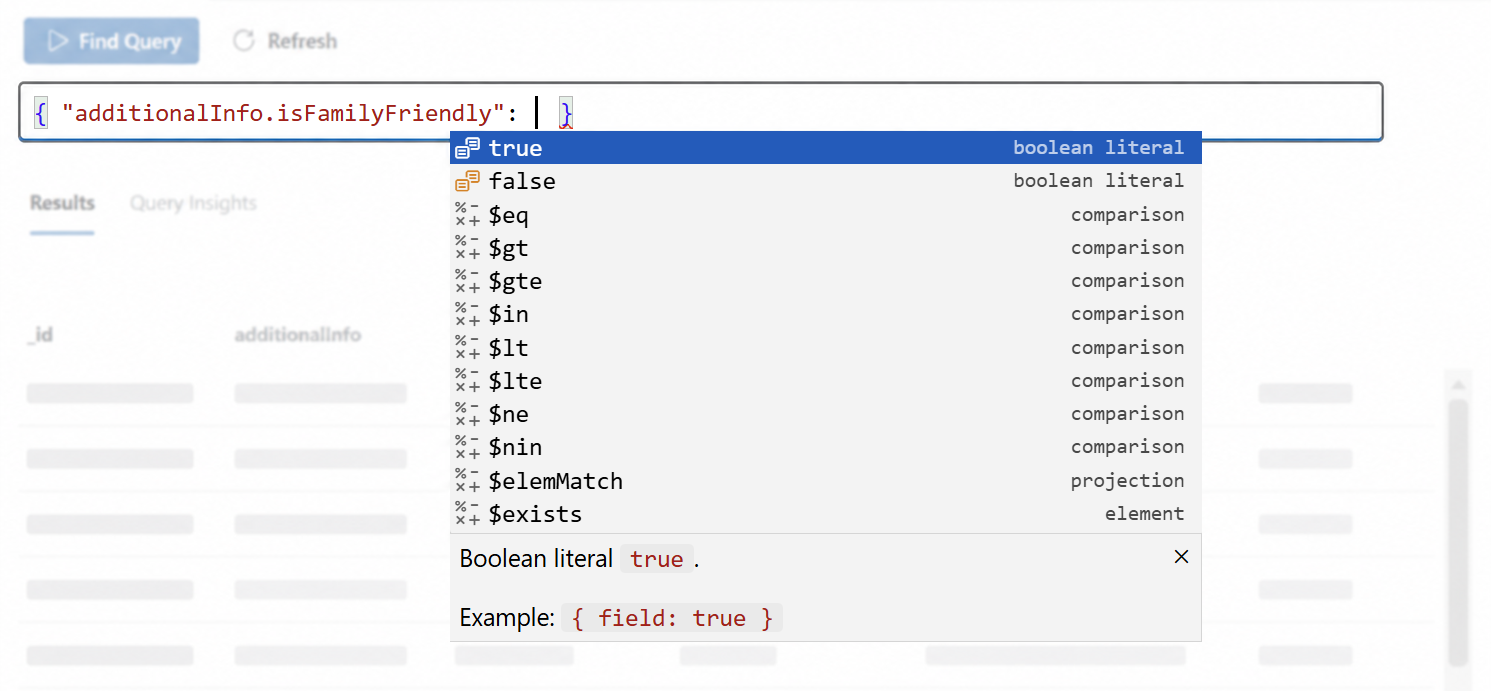
In this example, the field additionalInfo.isFamilyFriendly is a boolean. The editor suggests true and false first, followed by comparison operators. Each suggestion shows its category (boolean literal, comparison, projection, element) and the documentation panel at the bottom describes the selected item.
- Schema-aware field suggestions: Field names come from your collection’s actual data, complete with type indicators and optionality markers, so you always know what fields are available and what types they hold.
Schema information is gathered locally from the documents you browse and query. No data is sent to external services for this purpose.
- Type-aware operator ordering: When you type
$after a field, operators are sorted by relevance to that field’s type. Comparison operators appear first for numbers, regex operators for strings. - Relaxed query syntax: You can now type queries using unquoted keys, single-quoted strings, BSON constructors (
ObjectId(),ISODate()), and JavaScript expressions (Date.now(),Math.min()). All the input restrictions from previous releases are gone. - Real-time validation: Syntax errors are highlighted as you type, and near-miss typos produce helpful “Did you mean
ObjectId?” warnings. - Hover documentation: Hover over any
$-prefixed operator or BSON constructor to see its description and a direct link to the DocumentDB API docs.
⭐ Query Playground
The Query Playground introduces a .documentdb.js file type that lets you write and run JavaScript scripts against your cluster, directly inside VS Code. Think of it as a notebook-style scratchpad for DocumentDB.
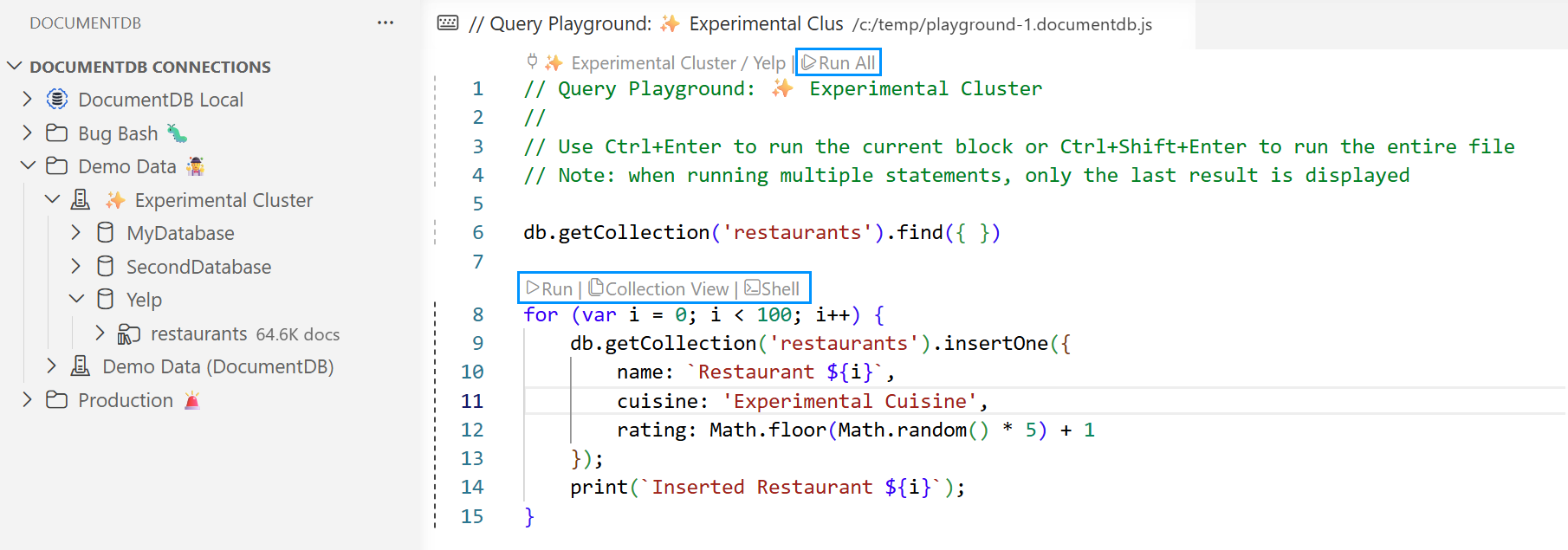
The screenshot shows a .documentdb.js file connected to a cluster. The Run All CodeLens at the top runs the entire file, while each block has its own Run button plus shortcuts to open the same query in the Collection View or the Interactive Shell.
- CodeLens-driven execution: Each script block has its own Run button, and there’s a Run All at the top. Results appear in a dedicated tab alongside your script.
- Cross-feature CodeLens links: Each block also shows Collection View and Shell links that open the same query in the respective surface, so you can switch tools without copy-pasting.
- Full JavaScript syntax: Write
db.collection.find(),db.collection.aggregate(), or any valid JavaScript, with autocompletion fordb.*chains, collection methods, BSON constructors, and schema-aware field suggestions. - Console output:
console.log(),print(), andprintjson()all work, with output displayed in a dedicated console section of the results panel. - Per-file connections: Each playground document is permanently bound to its cluster and database. Multiple playgrounds can be open simultaneously, each connected to a different server.
- Keyboard shortcuts:
Ctrl+Enterruns the current block,Ctrl+Shift+Enterruns the entire file.
No external tools required. The previous scratchpad relied on a locally installed shell executable. That dependency is completely gone. The query runtime is now bundled directly into the extension and reuses the connection you already established when connecting to the cluster. This means it works seamlessly with Azure DocumentDB clusters using Entra ID authentication: no extra configuration, no credential juggling.
Just install the extension and start writing queries. No platform-specific headaches, no version mismatches, no PATH configuration.
⭐ Interactive Shell
A full REPL terminal embedded in VS Code, giving you a shell experience fully integrated with the extension’s connection management. Open it from any cluster, database, or collection node in the tree view, and you’re immediately connected and ready to explore.
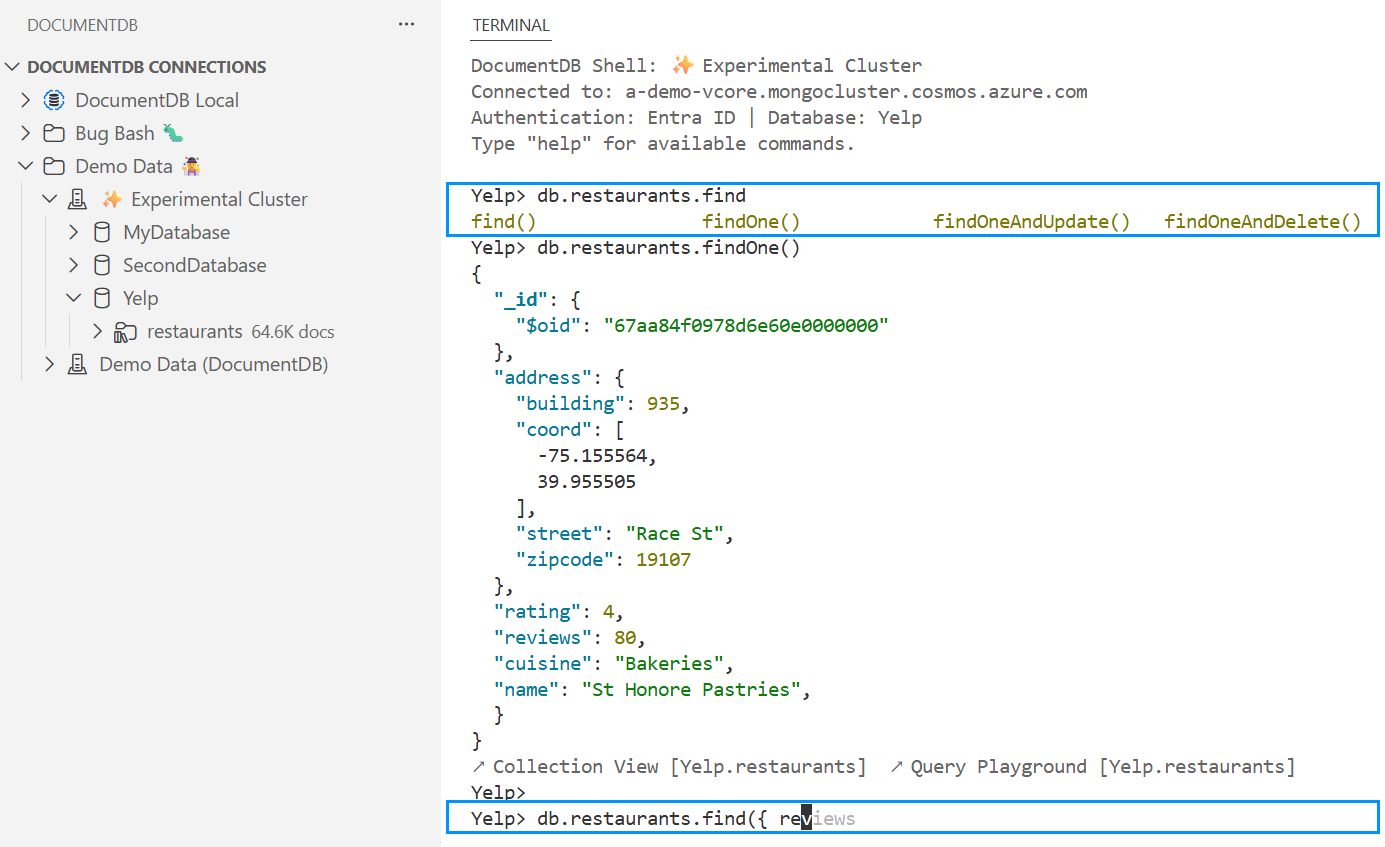
The screenshot shows two key features: tab completion suggesting find(), findOne(), and other collection methods after typing db.restaurants.find, and ghost text suggesting the field name reviews after the user typed re in a query. The field suggestion comes from schema information gathered locally as you browse and query your data.
- Shell commands:
show dbs,show collections,use <db>,help,it(cursor iteration),exit/quit,cls/clear. - Persistent context: Variables and state persist across commands within a session. Define a variable and use it in the next command.
- Syntax highlighting: Real-time colorization of keywords, strings, numbers, BSON constructors, and
$-operators as you type. - Tab completion and ghost text: Context-aware autocompletion with tab cycling and inline “ghost text” suggestions. When there are multiple matches (e.g.,
db.users.), a list of options is shown. When only one match remains (e.g., typingrein a query wherereviewsis the only matching field), the suggestion appears as inline ghost text. The shell also suggests closing brackets automatically: typedb.col.find({ _id: { $exists: trueand see}})appear as ghost text. Supports database names, collection names, collection methods, shell commands, and operators. - Cancellation:
Ctrl+Ccancels long-running operations immediately. - Clickable links: After query results, two clickable links appear: one to open the collection in the Collection View and another to open it in a new Query Playground.
- Dynamic prompt: The prompt shows your current database (e.g.,
myDatabase>), anduse <db>updates both the prompt and the terminal tab name.
Same zero-install philosophy. The Interactive Shell uses the same bundled runtime as the Query Playground: no external shell executable needed. It works with every connection type the extension supports, including Azure DocumentDB with Entra ID. Install the extension and you have a fully functional shell, regardless of your OS or environment.
⭐ Cross-Feature Navigation
All three query surfaces (Collection View, Query Playground, and Interactive Shell) are linked together with navigation actions, so you can seamlessly move your work between them.
Every collection node in the tree view now shows three inline action buttons for instant access:
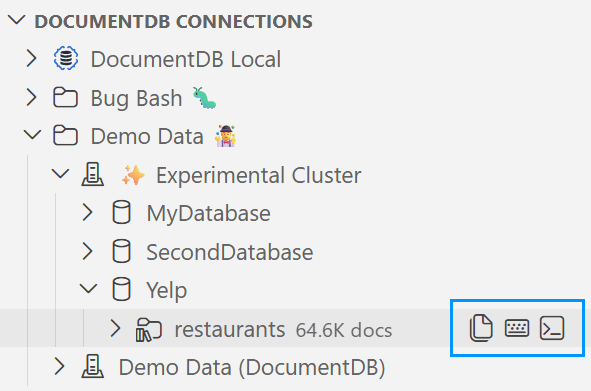
From left to right: Open Collection View, New Query Playground, and Open Interactive Shell. The same actions are available through right-click context menus on database and collection nodes.
1️⃣ Collection View to Playground and Shell
The Collection View toolbar includes Open in Playground and Open in Shell buttons. Clicking either one takes your current find query (filter, project, and sort) and exports it into the target surface. The playground receives a complete db.getCollection('...').find(filter, project).sort(sort) statement ready to run. The shell receives the same expression pre-filled at the prompt so you can edit it before executing.
2️⃣ Shell to Collection View and Playground
After every query result in the Interactive Shell, two clickable links appear: ↗ Collection View [db.collection] and ↗ Query Playground [db.collection]. Clicking either one opens the referenced collection in the corresponding surface, so you can switch from ad-hoc exploration to visual browsing or scripting with a single click.
3️⃣ Playground to Collection View and Shell
Each code block in a Query Playground file shows Collection View and Shell CodeLens links alongside the Run button. These open the same query in the Collection View or launch an Interactive Shell session for the same connection. Some scripts (e.g., loops, aggregations, or multi-statement blocks) may not be convertible to the Collection View.
4️⃣ Clipboard Copy and Paste
The Collection View toolbar includes a Copy button that copies the current find expression to the clipboard in db.getCollection('...').find(filter, project).sort(sort) format. You can paste this text into a playground file, a shell session, or share it with a colleague.
The Collection View also supports Paste: paste a find expression from the clipboard and the extension parses it back into the filter, project, and sort editors.
Key Fixes and Improvements
- Query Insights: Static Analysis Improvements
- Improved the static query performance evaluation with new selectivity and fetch overhead metrics, three-color badge system, index strategy advisories, and edge case fixes for empty queries and zero-result scenarios. #615
- Aligned AI analysis with static analysis so the AI is aware of what the user was already shown, eliminating contradictions between the two analyses. #616
- Demoted score for wasteful single-field bitmap indexes that return a large fraction of the collection. #623
- Duplicate Connection Reveal
- Fixed an issue where revealing a duplicate connection failed silently when the connection lived inside a folder. The folder now expands and the connection is selected correctly. #602
- About Dialog
- Added an “About” entry to the Help & Feedback view showing extension version, VS Code version, OS details, and registered plugins, with a Copy button for easy bug reporting. #612
- Prerelease Version Migration
- Implemented migration logic for prerelease version handling in notifications, ensuring update prompts work correctly for beta users. #610
- Double-Click to Open Collection View
- The Documents tree item now requires a double-click to open the Collection View, preventing tabs from opening accidentally when single-clicking to browse the tree.
- Custom Editor Tab Icons
- Collection View, Document View, and Query Playground tabs now display dedicated icons instead of the default webview icon, making it easier to identify open tabs at a glance.
Dependencies
- Updated
fast-uri,fast-xml-builder,basic-ftp,path-to-regexp, and other transitive dependencies to their latest versions. #624, #606, #607, #609, #627, #628, #629
Changelog
See the full changelog entry for this release: ➡️ CHANGELOG.md#080