DocumentDB for VS Code
Learn More - Back to Learn More Index
Copy and Paste Collections
The Copy and Paste feature in DocumentDB for VS Code provides a convenient way to move smaller datasets between collections, whether they are on the same server or across different connections. It is designed for quick, ad-hoc data transfers directly within the VS Code environment.
Table of Contents
- How It Works
- Copy and Paste Indexes Without Documents
- Important Considerations
- Step-by-Step Guide
- For True Data Migrations
How It Works
The copy-and-paste process is designed to be efficient for smaller collections by streaming data through your local machine. Here’s a step-by-step breakdown of the process:
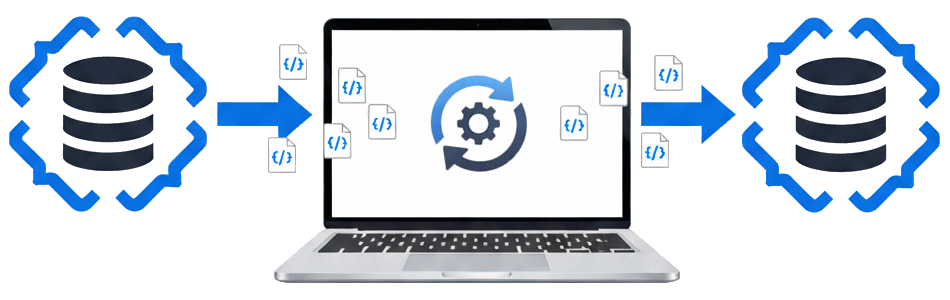
- Data Streaming: The extension initiates a stream from the source collection, reading documents one by one.
- In-Memory Buffering: Documents are collected into a buffer in your computer’s memory.
- Bulk Write Operation: Once the buffer is full, the extension performs a bulk write operation to the target collection. This is more efficient than writing documents one at a time.
- Continuous Cycle: This process repeats - refilling the buffer from the source and writing to the target - until all documents from the source collection have been copied.
Optionally, the extension can also copy secondary indexes. Copied indexes are requested as background builds before document streaming begins. Hidden source indexes are created first and then hidden to preserve their visibility state. Equivalent indexes already on the target are skipped without changing their visibility. A same-key definition with different options is skipped as a conflict, while a source index whose name is used by a different key receives a suffix. The built-in _id index is not copied.
The extension reads the source index summary only after you choose to copy indexes. If that read fails, the paste stops before confirmation and displays the reason. Document-only copies do not read source indexes.
Cancelling during index creation stops before the next index; indexes already created remain on the target. An index creation failure also leaves indexes already created on the target and stops before any documents are copied. The failure notification includes the index and server reason and links to the output log. Retry the paste and choose No, only copy documents when the source contains an index that the target cannot recreate.
This method avoids loading the entire collection into memory at once, making it suitable for collections that are moderately sized.
Copy and Paste Indexes Without Documents
Use the Explorer’s Indexes nodes when you need to recreate indexes without copying documents:
- Expand a source collection’s Indexes node.
- To select one ordinary secondary index, right-click it and select Copy Index…. To copy a
subset, select multiple index rows, right-click any selected index, and select Copy Selected
Indexes…. Expanded field rows,
_id, and non-copyable search entries in the selection are ignored. To select every copyable secondary index, right-click the Indexes parent and select Copy Indexes…. This parent selection resolves the source’s copyable indexes when you paste, so it includes catalog changes made after copying. The resolved set is frozen when the confirmation is shown: indexes added afterward are not copied, and removing a confirmed index causes a visible failure. - Expand the target collection, right-click its Indexes node, and select Paste Indexes….
- Review the source, target, selected indexes, exclusions, and any unique or TTL warnings, then confirm.
For each selected secondary index, the extension sends the target database a createIndexes
command containing one index definition. The definition includes the ordered key specification,
the source name when it is available, and creation options reported by the source catalog, such as
unique, sparse, expireAfterSeconds, partialFilterExpression, and vector configuration. The
extension requests background creation. If the source index is hidden, it restores that state after
creation with a separate collMod command.
The built-in _id index is always excluded because the target collection creates it automatically.
Catalog entries without an ordinary key definition cannot be represented by this createIndexes
flow and are not copied.
Equivalent target definitions are skipped. A same-key definition with different options is skipped as a conflict. If a name is already used by a different key, the copied index receives a deterministic suffix. Cancellation leaves indexes already created on the target. A successful paste keeps the source selection available so you can paste it into another target; use Cancel Copy or copy another index selection to replace it. Select Learn More in the copy notification to open this guide without clearing the selection.
Why Collection Paste Refuses TTL and Unique Indexes
Collection paste does not copy TTL or unique indexes together with documents. TTL indexes can delete
documents as they arrive, and unique indexes can reject documents for values other than _id. Either
case could make a completed copy contain fewer documents than the source.
When you choose Yes, copy indexes, the wizard checks the source catalog before confirmation. If it finds a TTL or unique index, the paste stops and names the affected indexes. Run Paste Collection again with No, only copy documents. Then use Copy Index…, Copy Selected Indexes…, or Copy Indexes… followed by Paste Indexes… to create those indexes as a separate, explicitly confirmed operation.
Important Considerations
Not a Snapshot Copy
The copy-and-paste operation is not an atomic snapshot. It is a live data transfer. If documents are being written to the source collection while the copy process is running, it is possible that only a subset of the new data will be copied. This feature is best used for moving smaller, relatively static datasets.
Large Collection Warnings
Because this feature streams data through your local machine, it can be slow and resource-intensive for very large collections. To prevent accidental performance issues, the extension will show a warning for collections that exceed a certain size.
Open VS Code Settings and expand Extensions > DocumentDB for VS Code > Copy & Paste to customize this behavior. You can also search for either setting ID:
documentDB.copyPaste.showLargeCollectionWarning: (Default:true) Set tofalseto disable the warning entirely.documentDB.copyPaste.largeCollectionWarningThreshold: (Default:100000) Adjust the number of documents that triggers the warning.
For more details on handling large datasets, see the section on For True Data Migrations.
Step-by-Step Guide
The process is guided by a wizard that adapts based on your target, providing two main flows.
Flow 1: Paste into a Database (Create a New Collection)
This flow is triggered when you right-click a database in the Connections view and select Paste Collection.
Step 1: Large Collection Warning (Optional)
If the source collection contains a large number of documents, a warning dialog will appear first.
This warning can be disabled or its threshold adjusted in the extension settings, as noted in the Important Considerations section.
Step 2: Name the New Collection
You will be prompted to provide a name for the new collection.
Step 3: Choose Whether to Copy Indexes
Choose whether to copy the source collection’s secondary indexes. If selected, the wizard reads and displays how many indexes are available to copy. Sources with TTL or unique indexes must use the separate index-only flow described above.
Step 4: Confirmation
A final summary is displayed, showing the source and target details, including the new collection name. You must confirm to start the operation.
Flow 2: Paste into an Existing Collection
This flow is triggered when you right-click an existing collection in the Connections View and select Paste Collection.
Step 1: Large Collection Warning (Optional)
If the source collection contains a large number of documents, a warning dialog will appear first.
This warning can be disabled or its threshold adjusted in the extension settings, as noted in the Important Considerations section.
Step 2: Choose a Conflict Resolution Strategy
Because you are merging documents into a collection that may already contain data, you must decide how to handle documents from the source that have the same _id as documents in the target.
You will be prompted to choose one of four strategies:
1. Abort on Conflict
- What it does: The copy operation stops after processing the batch that contains the first document with a duplicate
_id. Within that batch, all documents that do not have a duplicate_idwill be inserted. Any documents inserted from previous batches will also remain. The operation is not rolled back. - Use case: When you want to stop the process on the first conflict, accepting that some data may have already been transferred.
-
Example: Target has a document:
{ "_id": 3, "data": "original-three" }A batch of source documents is being processed:
[ { "_id": 1, "data": "one" }, { "_id": 2, "data": "two" }, { "_id": 3, "data": "three" } ] - Result: A conflict is detected for the document with
_id: 3. The documents with_id: 1and_id: 2from the batch are inserted into the target collection. The copy operation then aborts. The target collection will contain the newly inserted documents and its original data. There is no automatic cleanup.
2. Skip Conflicting Documents
- What it does: If a document with a duplicate
_idis found, the source document is ignored, and the operation continues with the next document. - Use case: When you want to merge new documents but leave existing ones untouched.
-
Example: Target has a document:
{ "_id": 1, "data": "original" }Source has documents:
{ "_id": 1, "data": "new" } { "_id": 2, "data": "fresh" } - Result: The document with
_id: 1is skipped. The document with_id: 2is inserted. The target collection will contain{ "_id": 1, "data": "original" } { "_id": 2, "data": "fresh" }
3. Overwrite Existing Documents
- What it does: If a document with a duplicate
_idis found, the existing document in the target collection is replaced with the document from the source. - Use case: When you want to update existing documents with fresh data from the source.
-
Example: Target has a document:
{ "_id": 1, "data": "original" }Source has a document:
{ "_id": 1, "data": "new" } - Result: The document with
_id: 1in the target is replaced. The target collection will contain{ "_id": 1, "data": "new" }
4. Generate New IDs for All Documents
- What it does: Ignores
_idconflicts entirely by generating a new, unique_idfor every document copied from the source. The original_idis preserved in a new field with a prefix_original_id. - Use case: When you want to duplicate a collection’s data without losing the reference to the original IDs. This is useful for creating copies for testing or development.
-
Example: Target has a document:
{ "_id": 1, "data": "original" }Source has a document:
{ "_id": 1, "data": "new" } - Result: A new document is inserted into the target with a brand new
_id. The inserted document will look like:{ "_id": ObjectId("..."), "_original_id": 1, "data": "new" }The original document in the target remains untouched.
Step 3: Choose Whether to Copy Indexes
Choose whether to copy the source collection’s secondary indexes. If selected, the wizard reads and displays how many indexes are available to copy. Sources with TTL or unique indexes must use the separate index-only flow described above. Existing equivalent index definitions are not recreated.
Step 4: Confirmation
A final summary is displayed, showing the source, the target, and the chosen conflict resolution strategy. You must confirm to start the operation.
For True Data Migrations
The copy-and-paste feature is a developer convenience, not a dedicated migration tool. For production-level data migrations, especially those involving large datasets, complex transformations, or the need for data verification, a specialized migration service is strongly recommended.
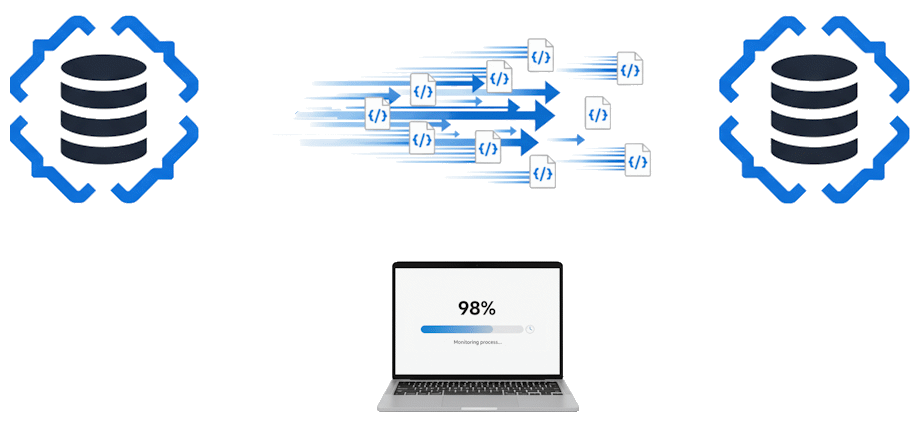
Dedicated migration tools offer significant advantages:
- Performance: They often run directly within the data center, avoiding the need to transfer data through your local machine. This dramatically reduces network latency and external traffic costs.
- Reliability: They provide features like assessments, data validation, and better error handling to ensure a successful migration.
- Migration Types: They support both offline migrations (where the source database is taken offline) and online migrations (which allow the source application to continue running during the migration with minimal downtime).
- Scalability: Built to handle terabytes of data efficiently.
Professional Data Migrations
The best tool often depends on your data source, target, and migration requirements. An internet search for “DocumentDB migrations” will provide a variety of options. Many cloud platforms and database vendors offer dedicated migration tools that are optimized for performance, reliability, and scale.
For example, Microsoft provides guidance on migrating between different versions of its own services, such as from Azure Cosmos DB for MongoDB (RU) to the vCore-based service: Migrate from Azure Cosmos DB for MongoDB (RU) to Azure Cosmos DB for MongoDB (vCore)
Before starting any significant migration, it is important to perform a thorough requirements analysis. For critical or large-scale projects, seeking professional help from migration specialists can ensure a successful outcome.