Canonical ACLs — Fixing a Non-Canonical Domain Root
This page describes a deployment blocker and the Tier Model's automatic protection against it. If the Tier Model stopped with a message about a non-canonical ACL at the domain root, you are in the right place. Read this page fully before you touch anything in production.
There are two distinct cases. The domain root and any pre-existing OU must be corrected manually (Case 1). OUs the Tier Model creates during deployment are protected by a built-in verify-and-remediate loop that runs on every OU — this is the normal operating path under an inherited-Deny condition, not a rare backstop (Case 2). See When does this happen — and who has to fix it? to determine which case applies to you.
What is a non-canonical ACL, and why does the Tier Model refuse to continue?
Every Active Directory object carries a Discretionary Access Control List (DACL) — an ordered list of Access Control Entries (ACEs) that determine who can do what to that object. Windows defines a strict canonical order for those entries:
| Position | ACE type |
|---|---|
| 1st (top) | Explicit Deny |
| 2nd | Explicit Allow |
| 3rd | Inherited Deny |
| 4th (bottom) | Inherited Allow |
A DACL is non-canonical when that order is violated — specifically when an explicit Deny appears below (after) an explicit Allow. Windows itself warns when it detects this condition and marks some entries as ineffective.
The Tier Model delegates OU permissions at Step 4 using the .NET
DirectoryServices.ActiveDirectoryAccessRule / AddAccessRule code path — the exact
same mechanism used internally by New-TierModelOuAcl. When the target object's DACL
is non-canonical, .NET throws:
System.InvalidOperationException:
This access control list is not in canonical form and therefore cannot be modified.
Because the domain root's ACL is inherited by child OUs, a non-canonical domain root poisons the objects the Tier Model needs to delegate. Rather than partially apply permissions and leave you with a broken, hard-to-diagnose configuration, the Tier Model hard-stops with a clear message and points you here.
Symptom
From the Tier Model
When the Tier Model detects a non-canonical DACL at the domain root, deployment stops with a message similar to:
"Non-canonical ACL detected at the root of the domain. The permissions are incorrectly ordered (an explicit Deny is applied after an Allow) and must be resolved before the Tier Model deployment can continue. First offending entry: '\<principal>'."
From Windows itself
You can see the same condition without running any script. Open Active Directory Users and Computers (with Advanced Features enabled), right-click the domain root, choose Properties, and switch to the Security tab. If the DACL is non-canonical, Windows immediately shows a dialog:
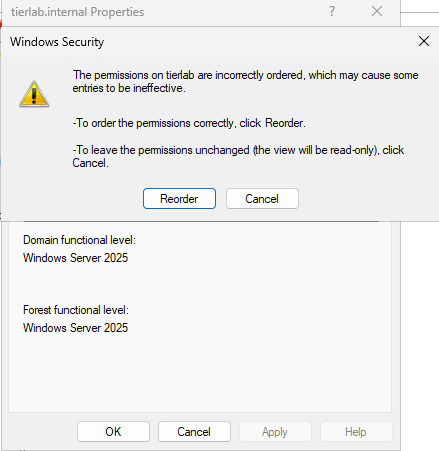
Windows Security dialog on a domain root with a non-canonical ACL. The "Reorder" button is the correct fix — but read the Impact of reordering section below before clicking it.
A concrete example: how ACLs become non-canonical
Consider contoso.com (DC=contoso,DC=com). Over several years, different teams
delegated rights directly at the domain root — itself an anti-pattern, but a
common one in long-lived domains.
How it happened:
- Three years ago the help-desk team needed password-reset rights. A junior admin
opened ADUC, right-clicked the domain root, and added an explicit Allow ACE
for
CONTOSO\APAC_HelpDesk(Reset Password on descendant User objects). - Last year the security team decided
CONTOSO\Global_HelpDeskshould be explicitly blocked from resetting passwords at the root. They used a PowerShell snippet that calledAddAccessRule— which appended the new ACE to the end of the list.
The result: the Deny for Global_HelpDesk landed below the Allow for
APAC_HelpDesk. Non-canonical.
Before (broken order):
[1] ALLOW  CONTOSO\APAC_HelpDesk   — Reset Password (explicit)
[2] DENY   CONTOSO\Global_HelpDesk — Reset Password (explicit)  ← wrong: Deny below Allow
After canonical reorder (correct order):
[1] DENY   CONTOSO\Global_HelpDesk — Reset Password (explicit)  ← Deny first
[2] ALLOW  CONTOSO\APAC_HelpDesk   — Reset Password (explicit)
Windows cannot reliably enforce access when the order is wrong. In the broken order,
entry [2] (the Deny) may be skipped or treated as ineffective by some evaluators
— which is precisely why Windows flags it and why the Tier Model refuses to proceed.
When does this happen — and who has to fix it?
Not every domain is affected. Understanding the two cases that can produce a non-canonical DACL will tell you which one applies to your environment and what — if anything — you personally need to do.
Case 1 — Pre-existing objects the Tier Model does not create (you fix manually)
This is the scenario the rest of this page addresses. The domain root (and any OU that existed before the Tier Model ran) started life with only inherited Allow ACEs, so canonical order held naturally. A non-canonical condition only appears if someone later added an explicit Deny at or above the domain root after those Allow entries were already in place.
When the Tier Model's pre-flight check finds a non-canonical DACL on a pre-existing object — including the domain root — it hard-stops and points you here. The Tier Model does not touch pre-existing objects. You must resolve the condition manually using the Reorder procedure described in this page before re-running the deployment.
Case 2 — OUs the Tier Model creates during deployment (verify-and-remediate is the normal path)
There is a second, subtler way a non-canonical DACL can appear: during deployment, as a direct consequence of the Tier Model protecting its own tier boundaries. This is not a rare edge case — under an inherited-Deny condition it fires on essentially every disable-inheritance OU. Lab proof: 7 of 7 disable-inheritance OUs required automatic remediation per deployment run when a Deny ACE existed above the Tier OUs; 0 remediations when no inherited Deny was present.
Here is the chain of events:
-
A Deny exists somewhere above the Tier OUs. Perhaps the security team added an explicit Deny at the domain root or an intermediate OU — for example, to block
CONTOSO\Global_HelpDeskfrom resetting passwords across the whole domain. At this point the Deny is an inherited ACE on every child OU, which is fine: inherited ACEs carry their own rank slot and canonical order is preserved. -
The Tier Model disables security inheritance on a Tier OU (Phase 2). Protecting a tier boundary requires blocking inheritance. The Tier Model does this via a DC-pinned
System.DirectoryServices.Protocolswrite that callsSetAccessRuleProtection(true, true). When Active Directory processes this, it promotes every currently-inherited ACE to an explicit copy and writes them back to the object. The DC preserves the ACE's position in the list — so the inherited Deny that sat safely in slot 3 (inherited Deny) becomes an explicit Deny now sitting below whatever explicit Allow entries already exist on the object. -
Result: a non-canonical DACL on the Tier OU, on the DC's next read-back. Without correction, the downstream
New-ADOrganizationalUnit -ProtectedFromAccidentalDeletioncall would throw"This access control list is not in canonical form and therefore cannot be modified"and halt deployment.
A small sketch using the running example:
Before inheritance is disabled (canonical — Deny is inherited, sits in its correct slot):
[1] ALLOW  CONTOSO\Tier0Admins      — Full Control         (explicit, added by Tier Model)
[2] DENY   CONTOSO\Global_HelpDesk  — Reset Password       (inherited from domain root)
Immediately after inheritance is disabled — inherited ACEs promoted to explicit, order preserved from the original list position:
[1] ALLOW  CONTOSO\Tier0Admins      — Full Control         (explicit)
[2] DENY   CONTOSO\Global_HelpDesk  — Reset Password       (explicit) ← Deny below Allow — non-canonical
The second list is non-canonical: an explicit Deny sits below an explicit Allow.
How the Tier Model handles Case 2 — verify-and-remediate is the load-bearing step
New-TierModelOu uses a phased flow. After Phase 2 writes the
disable-inheritance change, it always reads the DACL back from the DC and checks
canonical order. If the check detects a non-canonical ordering — which it will on
essentially every disable-inheritance OU under an inherited-Deny condition — the Tier
Model immediately re-sorts the DACL (via Repair-TierModelCanonicalAcl) before
proceeding to Phase 3 (accidental-deletion protection).
This verify-and-remediate loop is what actually prevents the downstream failure. It is the fix, not a dormant backstop. The design deliberately assumes the worst: "This will happen. Check every time and repair if needed." Lab results validate that assumption: under an inherited-Deny, remediation fires reliably on every affected OU.
Repair-TierModelCanonicalAcl is permission-neutral — it reorders only. It never
adds, removes, or modifies ACEs; the before and after ACE multisets are identical. The
only thing that changes is the position of entries within the DACL.
The re-sort enforces canonical order:
| Position | ACE type |
|---|---|
| 1st | Explicit Deny |
| 2nd | Explicit Allow |
| 3rd | Inherited Deny |
| 4th | Inherited Allow |
After the re-sort, the accidental-deletion protection step proceeds cleanly, tier boundaries are correctly protected, and deployment continues without operator intervention.
What operators see during deploy
Deploy surfaces a non-interrupting INFO line at the end of the OU-creation phase:
Canonical remediation: N OU DACL(s) auto-corrected during disable-inheritance.
N = 0 when no inherited Deny is present. N > 0 (typically equal to the number of
disable-inheritance OUs) when a Deny ACE exists above the Tier OUs. Both outcomes are
normal and require no operator action.
Manual use — Repair-TierModelCanonicalAcl
Repair-TierModelCanonicalAcl is also available as a standalone public cmdlet for
operator-initiated repairs. If your domain root is non-canonical (Case 1), you can use
it as an alternative to the ADUC Reorder button:
# Reorder the domain root DACL via the DC (live write)
Repair-TierModelCanonicalAcl -PreferredDc dc01.contoso.com `
    -DistinguishedName 'DC=contoso,DC=com'

# Or work offline: supply raw SD bytes, get sorted bytes back
Repair-TierModelCanonicalAcl -SecurityDescriptorBytes $sdBytes
Back up before using the live write path. The same cautions apply as for the ADUC Reorder procedure — review your Allow ACEs first, take a DC snapshot, and confirm the result with
Test-TierModelCanonicalAcl.
What Audit-TierModel reports
Audit-TierModel.ps1 now performs read-only canonical-ACL checks across the domain
root and all existing Tier OUs and surfaces findings by case:
| Finding | Case | Meaning | Operator action |
|---|---|---|---|
AuditNonCanonicalAclDomainRoot |
Case 1 | Domain root is non-canonical | Fix manually (Reorder or Repair-TierModelCanonicalAcl) before deploying |
AuditNonCanonicalAclTierOu |
Case 2 | A Tier OU is non-canonical | Indicates a failed or pre-fix deployment; delete the OU and redeploy |
Both findings are reported with Type=Mismatch, increment Drift, and appear in the
audit findings array alongside their Details message and a link to this page.
Scope is strictly limited to OUs the Tier Model creates. The automatic correction and audit checks never touch pre-existing objects outside the Tier Model's OU set. If the domain root itself is non-canonical, Case 1 applies and you must fix it manually before the deployment can start (Deploy does not pass
-SkipRootCanonicalChecktoTest-TierModelPrerequisites, so the pre-flight gate remains fatal).
Quick-reference: which case are you in?
| Symptom | Case | Who fixes it |
|---|---|---|
| Deployment hard-stopped before any OU was created with a non-canonical ACL message naming the domain root or a pre-existing OU | Case 1 | You — follow the Reorder procedure on this page (or use Repair-TierModelCanonicalAcl) |
Deployment completed successfully — even with a Deny ACE above the Tier OUs — and INFO line shows Canonical remediation: N OU DACL(s) auto-corrected |
Case 2 | No action needed — the Tier Model's verify-and-remediate loop corrected every affected OU |
Audit-TierModel.ps1 reports AuditNonCanonicalAclDomainRoot |
Case 1 | Fix domain root before deploying (Reorder or Repair-TierModelCanonicalAcl -PreferredDc … -DistinguishedName …) |
Audit-TierModel.ps1 reports AuditNonCanonicalAclTierOu |
Case 2 | Pre-fix or failed deployment artifact — delete the affected OU and redeploy |
How to confirm and diagnose (PowerShell)
The snippet below mirrors the New-TierModelOuAcl code path exactly: it binds to the
target object, builds a harmless GenericRead Allow rule, and calls AddAccessRule.
On a non-canonical DACL it reproduces the InvalidOperationException without
committing any change.
If the TierModel module is available, run the supported check directly:
Test-TierModelCanonicalAcl -PreferredDc <your-dc>
This returns whether the domain root DACL is canonical and names the first offending entry. It is the same check the Tier Model runs automatically during prerequisites.
If the module is not yet installed, the module-free diagnostic snippet below exercises
the same .NET code path without any module dependency:
Note: The snippet below is a diagnostic aid for confirming a non-canonical ACL condition, not a supported product cmdlet.
[CmdletBinding()]
param(
    [Parameter(Mandatory)]
    [string]$TargetDN,

    [string]$Server = $env:COMPUTERNAME,

    [string]$Principal = 'Authenticated Users',

    [switch]$Commit
)

$ErrorActionPreference = 'Stop'

Write-Host ""
Write-Host "Tier Model OU ACL delegation repro (New-TierModelOuAcl code path)" -ForegroundColor Cyan
Write-Host "  Target    : $TargetDN"
Write-Host "  Server    : $Server"
Write-Host "  Principal : $Principal"
Write-Host "  Commit    : $($Commit.IsPresent)"
Write-Host ""

# Resolve the principal to a SID (same as the module does before building the rule)
try {
    $ntAccount = New-Object System.Security.Principal.NTAccount($Principal)
    $sid = $ntAccount.Translate([System.Security.Principal.SecurityIdentifier])
}
catch {
    Write-Host "Could not resolve principal '$Principal': $($_.Exception.Message)" -ForegroundColor Red
    return
}

# Bind exactly like New-TierModelOuAcl: LDAP://<server>/<dn>
$de = [ADSI]"LDAP://$Server/$TargetDN"
if (-not $de.Path) {
    Write-Host "Could not bind to LDAP://$Server/$TargetDN" -ForegroundColor Red
    return
}

# Build a harmless Allow rule (GenericRead) purely to exercise AddAccessRule
$adRights = [System.DirectoryServices.ActiveDirectoryRights]::GenericRead
$type     = [System.Security.AccessControl.AccessControlType]::Allow
$rule = New-Object System.DirectoryServices.ActiveDirectoryAccessRule($sid, $adRights, $type)

try {
    $acl = $de.ObjectSecurity          # same property the module uses
    $acl.AddAccessRule($rule)          # <-- throws here on non-canonical DACLs

    Write-Host "AddAccessRule SUCCEEDED - the target DACL is in canonical form." -ForegroundColor Green
    if ($Commit) {
        $de.ObjectSecurity = $acl
        $de.CommitChanges()
        Write-Host "Change committed (test ACE added for $Principal)." -ForegroundColor Yellow
    }
    else {
        Write-Host "No change committed (-Commit not supplied). This was attempt-only." -ForegroundColor Gray
    }
}
catch {
    Write-Host "AddAccessRule FAILED - the target DACL is not in canonical form." -ForegroundColor Red
    Write-Host ""
    Write-Host "  Exception : $($_.Exception.GetType().FullName)" -ForegroundColor Yellow
    Write-Host "  Message   : $($_.Exception.Message)" -ForegroundColor Yellow
    Write-Host ""
    Write-Host "  Open the domain root's Security tab in ADUC (Advanced Features on) to review" -ForegroundColor Gray
    Write-Host "  the ACE ordering and identify where a DENY sits below an ALLOW." -ForegroundColor Gray
}
Write-Host ""
Usage against your domain root:
# Confirm the condition against the domain root — no changes made
.\Invoke-OuAclCanonicalRepro.ps1 -TargetDN 'DC=contoso,DC=com'

# Or target a specific OU that inherited the broken ACL
.\Invoke-OuAclCanonicalRepro.ps1 -TargetDN 'OU=Tier0,DC=contoso,DC=com'
If the output reads "AddAccessRule FAILED — the target DACL is not in canonical form", your domain root carries a non-canonical DACL and must be corrected before deploying the Tier Model.
How to fix it — the Reorder button (recommended)
The safest and officially-supported path is the built-in Reorder button in Active Directory Users and Computers.
Before you proceed — back up first
⚠️ Reordering an ACL is not easily reversible. Once Windows rewrites the DACL in canonical order, there is no built-in undo. If the result is unexpected, your only recovery path is a restore from backup.
Take a full or system-state backup of your domain controller(s) before touching the domain-root ACL. If your DCs are virtual machines, take a snapshot or checkpoint now. Do not skip this step.
Impact of reordering — read this before you click
This is the most important part of this page. Do not skip it.
When a DACL is non-canonical, Windows marks some entries as ineffective — which means certain Allow ACEs in the list may currently be doing nothing. After you click Reorder, those previously-ineffective Allow ACEs will move into a position where they are evaluated and will actually take effect.
In short: Reordering can expand effective permissions. Rights that were silently blocked by the disordered ACL may suddenly be granted after the fix.
What to do before you click Reorder
- Enumerate every explicit Allow ACE on the domain root. In ADUC → Security tab → click Advanced to see the full list of explicit entries.
- Confirm each Allow is intentional. Ask: "Should this principal genuinely have this right on the domain root (and its descendants)?"
- Remove any Allow ACE that should not be there before you reorder. Once the ACL is canonical those entries will be active — remove them while they are still ineffective.
- Only after cleaning up unwanted Allows: click Reorder.
Back to the contoso.com example
In the broken state:
- APAC_HelpDesk has an explicit Allow at the root — currently its effective result
depends on evaluation order, and with a non-canonical ACL some of that Allow may
be ineffective.
- Global_HelpDesk has an explicit Deny — but because it sits below the Allow,
Windows may be ignoring it.
After Reorder, the Deny for Global_HelpDesk moves above the Allow for
APAC_HelpDesk. This is correct canonical order. The Deny will now reliably block
Global_HelpDesk. The Allow for APAC_HelpDesk will now reliably grant those
rights.
If the Allow for APAC_HelpDesk is a legitimate, audited delegation — leave it in
place and reorder. If it was added by mistake years ago and no one has reviewed it —
remove it first, then reorder.
Steps
- Open Active Directory Users and Computers (
dsa.msc). - From the View menu, enable Advanced Features (if not already on — you need this to see the Security tab on the domain root).
- In the left pane, right-click your domain root (e.g.
contoso.com) and choose Properties. - Select the Security tab. Windows immediately shows the "incorrectly ordered" dialog pictured in the Symptom section above — click Reorder.
- Back on the Security tab, click Apply.
- Windows shows a deny-permissions confirmation dialog:
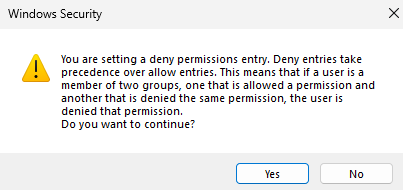
Windows confirms that Deny entries take precedence over Allow entries before applying the reordered DACL. Click Yes to continue.
This dialog restates exactly what the Impact of reordering section above warns about. Deny entries will now take precedence over Allow entries — which is why you must review and remove any unintended Allow ACEs before reaching this point. If you have not done that yet, click No, go back, and complete the review first.
- Click OK to close the Properties window.
- The domain root DACL is now in canonical order. Re-open the Security tab (the "incorrectly ordered" dialog should no longer appear), or re-run the diagnostic snippet above, to confirm.
Windows has rewritten the DACL: explicit Deny entries are now at the top, followed by explicit Allow entries, then inherited Deny, then inherited Allow.
If you are unsure — get help
Altering the ACL on the domain root of a production Active Directory domain carries real risk. If you are not confident in the specific ACEs present, what they grant, or whether removing them is safe:
Open a support case with Microsoft before making any changes. Microsoft Support can help you safely inventory and interpret the existing ACEs, identify which entries are safe to remove, and walk through the Reorder procedure with you. This is not a step to rush.
Summary checklist
This checklist covers Case 1 — a non-canonical DACL on a pre-existing object such as the domain root. If your deployment completed successfully and a Deny ACE existed above the Tier OUs, no action is required; the Tier Model's verify-and-remediate loop corrected canonical order on every disable-inheritance OU it created (see
Canonical remediation: N OU DACL(s) auto-correctedINFO line in deploy output).
- [ ] Back up / snapshot all domain controllers.
- [ ] Open ADUC → Advanced Features → domain root → Properties → Security.
- [ ] Review every explicit Allow ACE. Remove any that are not intentional.
- [ ] Click Reorder and confirm.
- [ ] Re-run the diagnostic snippet above to verify the DACL is now canonical.
- [ ] Re-run the Tier Model deployment.