
Work in a Space
Create, arrange, connect, and inspect the materials and ideas in a Huabu Space.
Understand the Space
A Space is an infinite two-dimensional work surface for one topic, question, or project. Everything on it is built from three elements: nodes hold material or ideas, edges express relationships, and Frames group related nodes into named regions.
Position is useful too: keep related material close, separate competing directions, and use Frames and labelled edges when a relationship should be explicit.
Navigate and select
| Action | How |
|---|---|
| Select | Use the Select tool, then click a node. Click empty space to clear the selection. |
| Select several nodes | Hold Ctrl while clicking nodes, drag a rectangle in empty space, or draw around them with Lasso. |
| Move | Drag a node. If several nodes are selected, they move together. |
| Pan | Scroll the mouse wheel, use the Pan tool, or hold Space temporarily while dragging the Space. |
| Zoom | Press Ctrl/Cmd+Plus to zoom in or Ctrl/Cmd+Minus to zoom out. You can also use a trackpad pinch gesture. |
Drag content into the Space
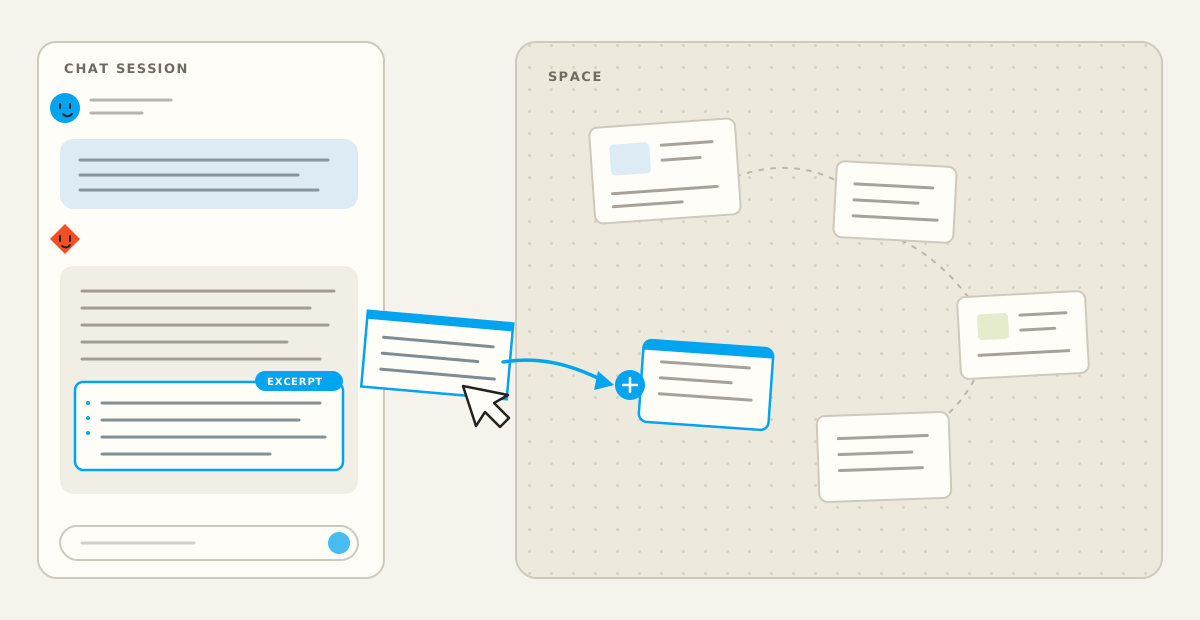
Content can flow directly from your computer and other sources into the Space and your writing. Drop a local file or a useful block or excerpt onto empty space to make it a node. You can also drop extracted content into a Note to continue working with it there. Huabu preserves the appropriate format, so you do not need to import, copy, create a destination, and paste in separate steps.
| Drag from | Drop on empty space | Drop into a Note |
|---|---|---|
| A local file | Creates the matching Image, PDF, Video, or Web node and uploads the file. | Not supported. |
| A Chat reply | Creates a Note from a text block or an Image from an image block. | Appends the block, or inserts it at the indicator when the Note is expanded. |
| A PDF selection | Creates a Note from selected text or an Image from a captured area. | Appends the text or image to the Note. |
| A Note block | Moves the block into a new Note. | Moves the block to the end of the other Note. |
Only one content node can be expanded at a time. A selection dragged from an expanded PDF or Note therefore lands on the target Note in the Space and is appended to its end. When the target Note itself is expanded, content available from Chat can follow the insertion indicator between existing blocks, and its own blocks can be reordered.
Use the toolbar
The toolbar is the main place to choose how you interact with the Space and what you want to add. Select a creation tool, then click or drag in the Space to place the new node. Press Esc to cancel a placement tool.
| Group | Tools | What they do |
|---|---|---|
| Navigate | Select (S), Pan (P), Lasso (L) | Select and move nodes, move the viewport, or draw a freehand selection. |
| Create | Note (1), Text (2), Frame (3), Sketch (4) | Create your own writing, labels, groups, and drawings. |
| Import | Upload Files, Add Links | Bring images, PDFs, videos, HTML files, and web links into the Space. |
| AI | Agent (A) | Place an Agent node and start an AI conversation beside the relevant material. |
You can also drag files from your computer onto the Space, paste files, URLs, images, or text, and copy existing nodes. Huabu creates the matching node type and places it near the pointer.
Choose the right node
| Node | Use it for |
|---|---|
| Note | Ideas, prose, outlines, lists, quotes, code, and other structured Markdown content. |
| Text | Short titles, labels, captions, and visual annotations. |
| Image | Images, diagrams, and screenshots. |
| Reading a complete document and extracting text or regions from it. | |
| Video | Local videos and supported video links. |
| Web | Web pages and extracted article content. |
| Frame | A named group or region that contains and arranges other nodes. |
| Sketch | Freehand diagrams, marks, and visual thinking. |
| Agent | An AI conversation placed beside the material it concerns. |
Text or Note?
| Text | Note | |
|---|---|---|
| Best for | Titles, labels, short captions | Ideas and longer writing |
| Content | A short plain-text string | Rich text stored as Markdown |
| Editing | Directly in the Space | In the node or expanded editor |
| Formatting | Typography and colour | Headings, lists, quotes, code, links, and more |
Build structure
Group related work with Frames
A Frame is more than a rectangle: it gives a group a name and keeps its contents together. Use one for a topic, project stage, chapter, source collection, or intended output. Drag nodes into or out of a Frame, or select several nodes and press Ctrl+G to group them.
A Frame can keep its children in a free arrangement or lay them out in a row or column. Moving the Frame moves its contents, while moving nodes inside it changes their local arrangement.
Create a connected Note or Agent node
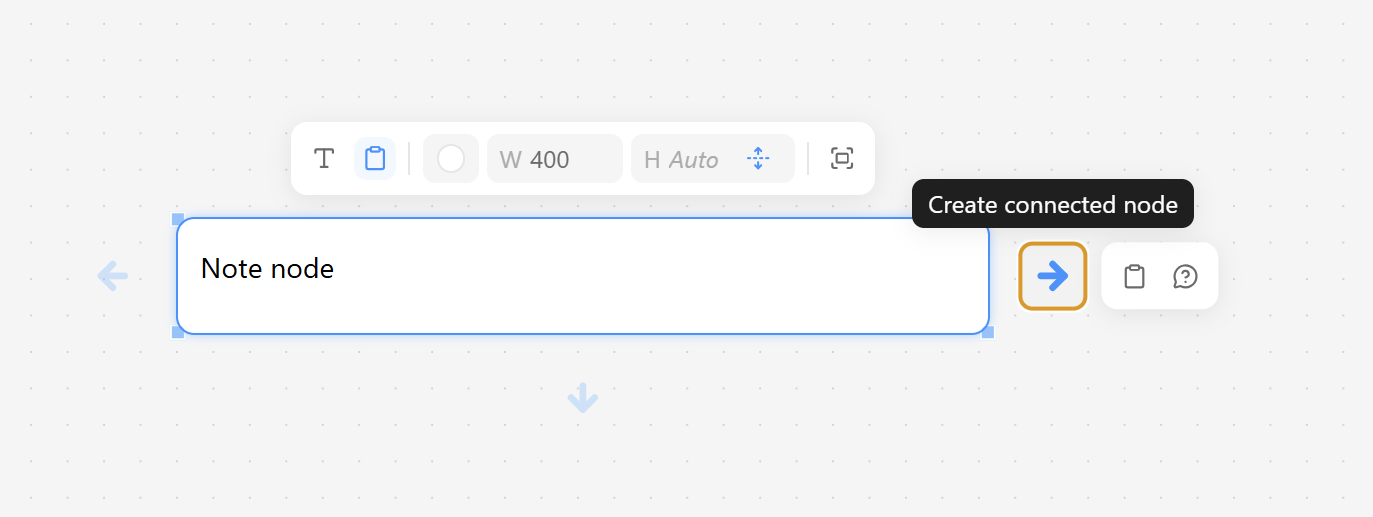
Select a node to reveal arrows above, below, left, and right. Choose an arrow, then choose Note or Agent. Huabu places the new node on that side, avoids nearby content when possible, and connects it to the original node automatically.
Connect existing nodes
Hover or select a node to reveal its small connection points. Drag from one point to another node to create an edge. Select the edge to add a label or change its direction. Use an edge when the relationship should remain explicit even after the nodes move.
Open, view, and edit
Double-click a content node to expand it. The expanded panel can stay beside the Space in Split View, or switch to Full View when you want more room to read or edit. Close the panel to return to the same place in the Space.
Work with a Note
A Note supports headings, lists, tasks, quotes, code, tables, links, and other rich content. Expand it for the full editor; switch between rich text and raw Markdown when needed. Drag blocks out to organize them as separate Notes, or move them to the end of another Note in the Space. When this Note is expanded, you can also place content dragged from Chat at the insertion indicator.
Work with a PDF
Expand a PDF to read the full document with page thumbnails. Highlight text to drag it out as a Note, or select an area to drag it out as an Image. Drop either one on empty space to create a node or into a Note to add it to your writing. You can also send a capture to Chat, keeping the extracted idea close to its source.
Everyday operations
| Action | How |
|---|---|
| Copy and paste | Ctrl+C and Ctrl+V |
| Delete | Select nodes or edges, then press Delete or Backspace. |
| Undo and redo | Ctrl+Z and Ctrl+Shift+Z |
| Align and distribute | Select several nodes, then use the floating toolbar to align their edges or centres and spread them evenly. |
| Resize | Select a node and drag its resize handles. Available handles depend on the node type. |