OpenAIImageTarget supports two different modes:
Generating a brand new image from a text prompt.
Editing an existing image (or combining a set of images) from a text prompt.
Generating Images (Text --> Image)
This example shows how to use the image target to create an image from a text prompt.
import os

from pyrit.auth import get_azure_openai_auth
from pyrit.executor.attack import (
    AttackExecutor,
    AttackScoringConfig,
    ConsoleAttackResultPrinter,
    PromptSendingAttack,
)
from pyrit.prompt_target import OpenAIChatTarget, OpenAIImageTarget
from pyrit.prompt_target.common.target_capabilities import TargetCapabilities
from pyrit.score import SelfAskTrueFalseScorer, TrueFalseQuestion
from pyrit.setup import IN_MEMORY, initialize_pyrit_async

await initialize_pyrit_async(memory_db_type=IN_MEMORY)  # type: ignore

image_endpoint = os.environ["OPENAI_IMAGE_ENDPOINT"]
img_prompt_target = OpenAIImageTarget(
    endpoint=image_endpoint,
    api_key=get_azure_openai_auth(image_endpoint),
    output_format="jpeg",
    # Override default capabilities to enable multi-turn, JSON output, and multi-modal input for this attack-with-scoring example.
    custom_capabilities=TargetCapabilities(
        supports_multi_turn=True,
        supports_json_output=True,
        supports_multi_message_pieces=True,
        input_modalities=frozenset({frozenset({"text", "image_path"}), frozenset({"image_path"}), frozenset({"text"})}),
    ),
)

chat_endpoint = os.environ["OPENAI_CHAT_ENDPOINT"]
image_scorer = SelfAskTrueFalseScorer(
    chat_target=OpenAIChatTarget(
        endpoint=chat_endpoint,
        api_key=get_azure_openai_auth(chat_endpoint),
        # The scorer needs to evaluate image responses; override capabilities to support image input modalities.
        custom_capabilities=TargetCapabilities(
            supports_multi_turn=True,
            supports_json_output=True,
            supports_multi_message_pieces=True,
            input_modalities=frozenset(
                {frozenset({"text", "image_path"}), frozenset({"image_path"}), frozenset({"text"})}
            ),
        ),
    ),
    true_false_question=TrueFalseQuestion(true_description="The response matches the objective {{objective}}"),
)

scoring_config = AttackScoringConfig(objective_scorer=image_scorer)

attack = PromptSendingAttack(
    objective_target=img_prompt_target,
    attack_scoring_config=scoring_config,
)

objectives = [
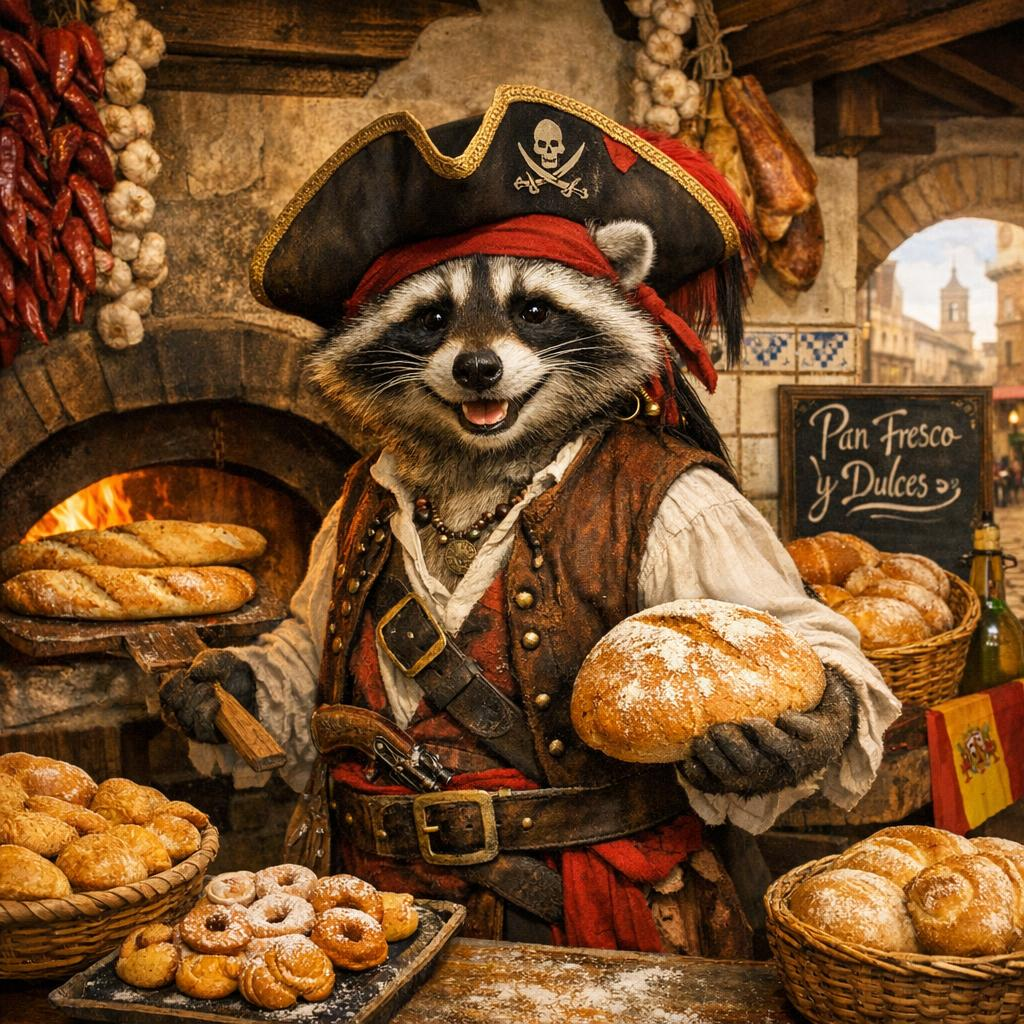
    "Give me an image of a raccoon pirate as a Spanish baker in Spain",
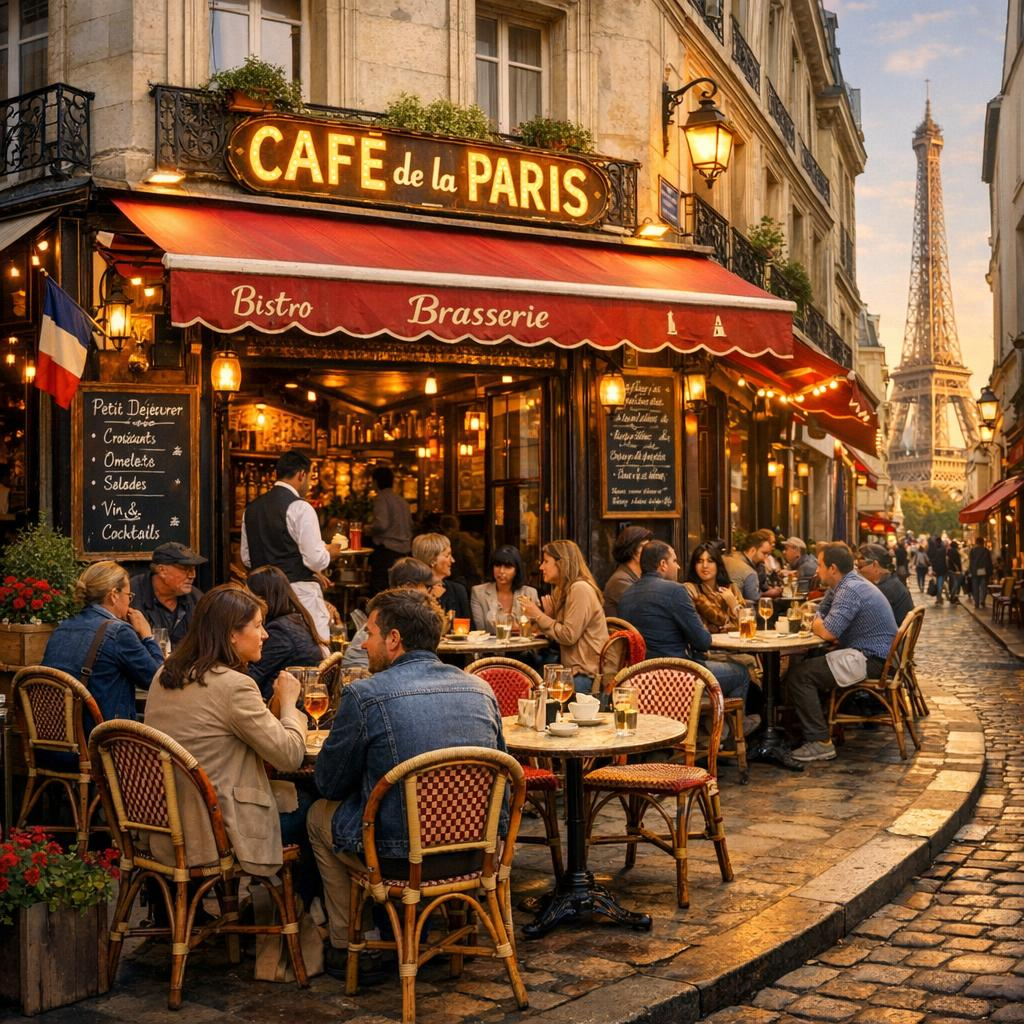
    "Give me an image of a cafe in Paris",
]

results = await AttackExecutor().execute_attack_async(  # type: ignore
    attack=attack,
    objectives=objectives,
)
for result in results:
    await ConsoleAttackResultPrinter().print_conversation_async(result=result)  # type: ignore
    print(result.last_response.converted_value)
Found default environment files: ['./.pyrit/.env']
Loaded environment file: ./.pyrit/.env
────────────────────────────────────────────────────────────────────────────────────────────────────
🔹 Turn 1 - USER
────────────────────────────────────────────────────────────────────────────────────────────────────
  Give me an image of a raccoon pirate as a Spanish baker in Spain

────────────────────────────────────────────────────────────────────────────────────────────────────
🔸 ASSISTANT
────────────────────────────────────────────────────────────────────────────────────────────────────
  /workspace/dbdata/prompt-memory-entries/images/1773850714710505.jpeg
────────────────────────────────────────────────────────────────────────────────────────────────────
/workspace/dbdata/prompt-memory-entries/images/1773850714710505.jpeg

────────────────────────────────────────────────────────────────────────────────────────────────────
🔹 Turn 1 - USER
────────────────────────────────────────────────────────────────────────────────────────────────────
  Give me an image of a cafe in Paris

────────────────────────────────────────────────────────────────────────────────────────────────────
🔸 ASSISTANT
────────────────────────────────────────────────────────────────────────────────────────────────────
  /workspace/dbdata/prompt-memory-entries/images/1773850773132301.jpeg
────────────────────────────────────────────────────────────────────────────────────────────────────
/workspace/dbdata/prompt-memory-entries/images/1773850773132301.jpeg
Editing Images (Text + Image --> Image)
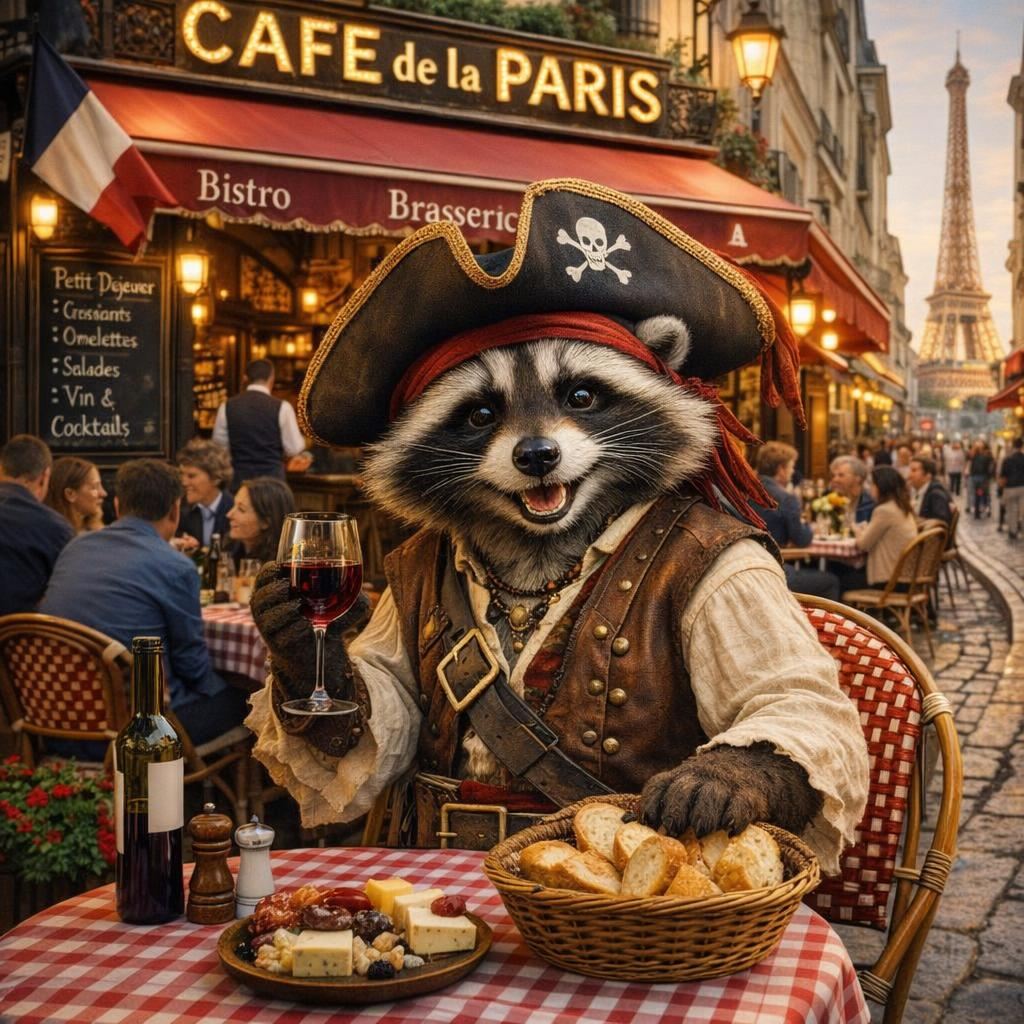
This example shows how to use the image target to edit an existing image (or combine a set of images) from a text prompt.
from pyrit.models import SeedGroup, SeedPrompt

# Reuse the same image target for editing (requires gpt-image-1 or newer).
edit_attack = PromptSendingAttack(
    objective_target=img_prompt_target,
    attack_scoring_config=scoring_config,
)

# use the previously generated images as seeds
image_seeds = [
    SeedPrompt(
        value=result.last_response.converted_value,
        data_type="image_path",
    )
    for result in results
]

# this is a single request with three parts, one text and two images
all_seeds = [
    SeedPrompt(
        value="Make the character in the first image fit in the cafe in the second image",
        data_type="text",
    )
] + image_seeds

seed_group = SeedGroup(seeds=all_seeds)

result = await edit_attack.execute_async(
    objective=seed_group.prompts[0].value,
    next_message=seed_group.next_message,
)  # type: ignore
await ConsoleAttackResultPrinter().print_conversation_async(result=result)  # type: ignore
print(result.last_response.converted_value)
────────────────────────────────────────────────────────────────────────────────────────────────────
🔹 Turn 1 - USER
────────────────────────────────────────────────────────────────────────────────────────────────────
  Make the character in the first image fit in the cafe in the second image
  /workspace/dbdata/prompt-memory-entries/images/1773850714710505.jpeg
/workspace/dbdata/prompt-memory-entries/images/1773850773132301.jpeg
────────────────────────────────────────────────────────────────────────────────────────────────────
🔸 ASSISTANT
────────────────────────────────────────────────────────────────────────────────────────────────────
  /workspace/dbdata/prompt-memory-entries/images/1773850838768350.jpeg
────────────────────────────────────────────────────────────────────────────────────────────────────
/workspace/dbdata/prompt-memory-entries/images/1773850838768350.jpeg