Use your organization’s shapes
Choose approved masters before drawing when shape meaning or consistency matters. A stencil supplies shape masters; a template can also supply the starting drawing.
Make content discoverable
Place approved files in a location registered in Visio:
| Location | Set in Visio |
|---|---|
| My Shapes | File Locations > My Shapes |
| Stencils | File Locations > Stencils |
| Templates | File Locations > Templates |
The server finds both stencils and templates in any of these locations,
including their subfolders. Folders that aren’t registered in Visio, such as
%APPDATA%\Microsoft\Templates, aren’t searched unless you add them. The
simplest option is to put stencil files in the folder shown under My Shapes,
which needs no further configuration. To check or add other folders in Visio:
- Select File > Options, and then select Advanced.
-
Scroll down to General, and then select File Locations….
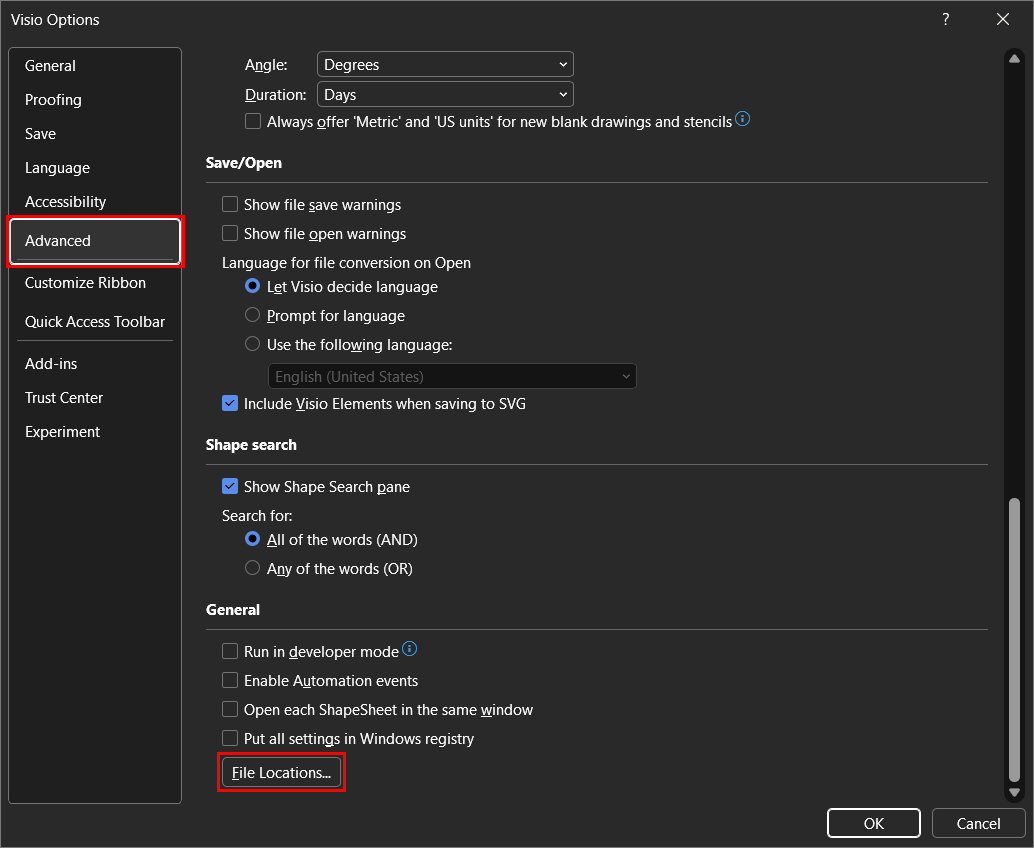
- In the File Locations dialog box, review the existing Stencils and Templates values before you replace them, and keep any paths you still need.
-
In Stencils, enter the folder that contains your custom stencil files, or select the ellipsis (…) button to browse to it. In Templates, do the same for the folder that contains your template files.
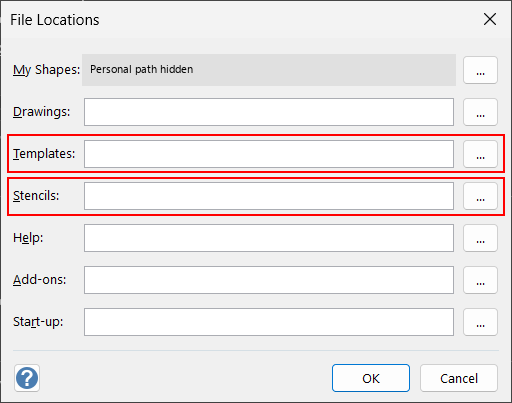
In this screenshot, the personal My Shapes path is hidden for privacy; it isn’t an example value.
- Select OK to close File Locations, and then select OK to close Visio Options.
The Windows user running the server needs read access to these folders.
After adding, changing, or removing files, or changing content locations, ask:
Refresh the Visio stencil index, then find the ApprovedArchitecture stencil and list its available Application, Service, and Data Store masters.
Refresh uses manage_visio action="update_index" and publishes the refreshed
snapshot before returning. It needs no Visio launch or server restart. Check
failedStencilCount for unreadable/unsupported sources; persisted=false
means the refresh is available in memory but wasn’t written to the cache.
The server doesn’t import or copy stencils from arbitrary folders.
Discover and bind masters
Use content_search with type="shape" to find masters, or type="stencil"
or "template" to find files. Scope a shape search with stencil to distinguish
similarly named sources; an empty keyword can enumerate that indexed source.
Follow returned nextOffset for additional enumeration results.
Copy the returned masterId unchanged into the shape’s NameU.
If supplying stencilPath, copy the matching path from the same result.
Keep that binding/source pair together; don’t reconstruct it from a filename
or borrow a path from another match. Reuse the same binding for equivalent items.
Modern .vssx, .vssm, .vstx, and .vstm packages support master indexing.
Legacy .vss and .vst can appear as file entries without indexed masters.
Use a modern-format copy when master discovery is required.
Test before standardizing
Try representative masters in a temporary drawing. Review resizing, text, connectors, Shape Data, and actual container/list membership.
Ordinary automation suppresses add-on dispatch, with guarded exceptions for required native container/swimlane behavior. Don’t assume every macro, add-in, or smart-shape behavior will run as in manual editing.
Related: Custom agents to reuse approved mappings | Examples for shape-selection prompts | Troubleshooting.