🤖 Microsoft Copilot Studio ❤️ MCP
Welcome, agent. Your mission — should you choose to accept it — is to deploy an MCP Server behind enemy lines and wire it up to Microsoft Copilot Studio. Expect turbulence. Trust the protocol. Leave no endpoint unconfigured. 🎯
❓ What is MCP?
Model Context Protocol (MCP) is an open protocol that standardizes how applications provide context to LLMs, defined by Anthropic. MCP provides a standardized way to connect AI models to different data sources and tools. MCP allows makers to seamlessly integrate existing knowledge servers and APIs directly into Copilot Studio.
🆚 MCP vs Connectors
When do you use MCP? And when do you use connectors? Will MCP replace connectors?
MCP servers are made available to Copilot Studio using connector infrastructure, so these questions are not really applicable. The fact that MCP servers use the connector infrastructure means they can employ enterprise security and governance controls such as Virtual Network integration, Data Loss Prevention controls, multiple authentication methods—all of which are available in this release—while supporting real-time data access for AI-powered agents.
So, MCP and connectors are really better together.
⚙️ Prerequisites
- Visual Studio Code installed (download)
- Node v22 (ideally installed via nvm for Windows or nvm)
- Docker installed (download)
- Azure Developer CLI installed (download)
- Azure Subscription (with payment method added)
- Copilot Studio trial or developer account
🧪 Lab 1.1 - Set Up the MCP Server
Now you have a choice! You either run the server locally - or you can deploy it to Azure.
There are a couple of steps that you need to do for both:
Download the Jokes MCP Server
Download Jokes MCP Server (opens in a new tab)Unpack the zip-file
Open Visual Studio Code and open the unpacked folder
Open the terminal in Visual Studio Code by pressing
ctrl+`(Windows/Linux) orcmd+`(Mac)
🏃♀️ Run the MCP Server Locally
Run the following command to install the dependencies:
bashnpm installRun the following command to build and start the server:
bashnpm run build && npm run start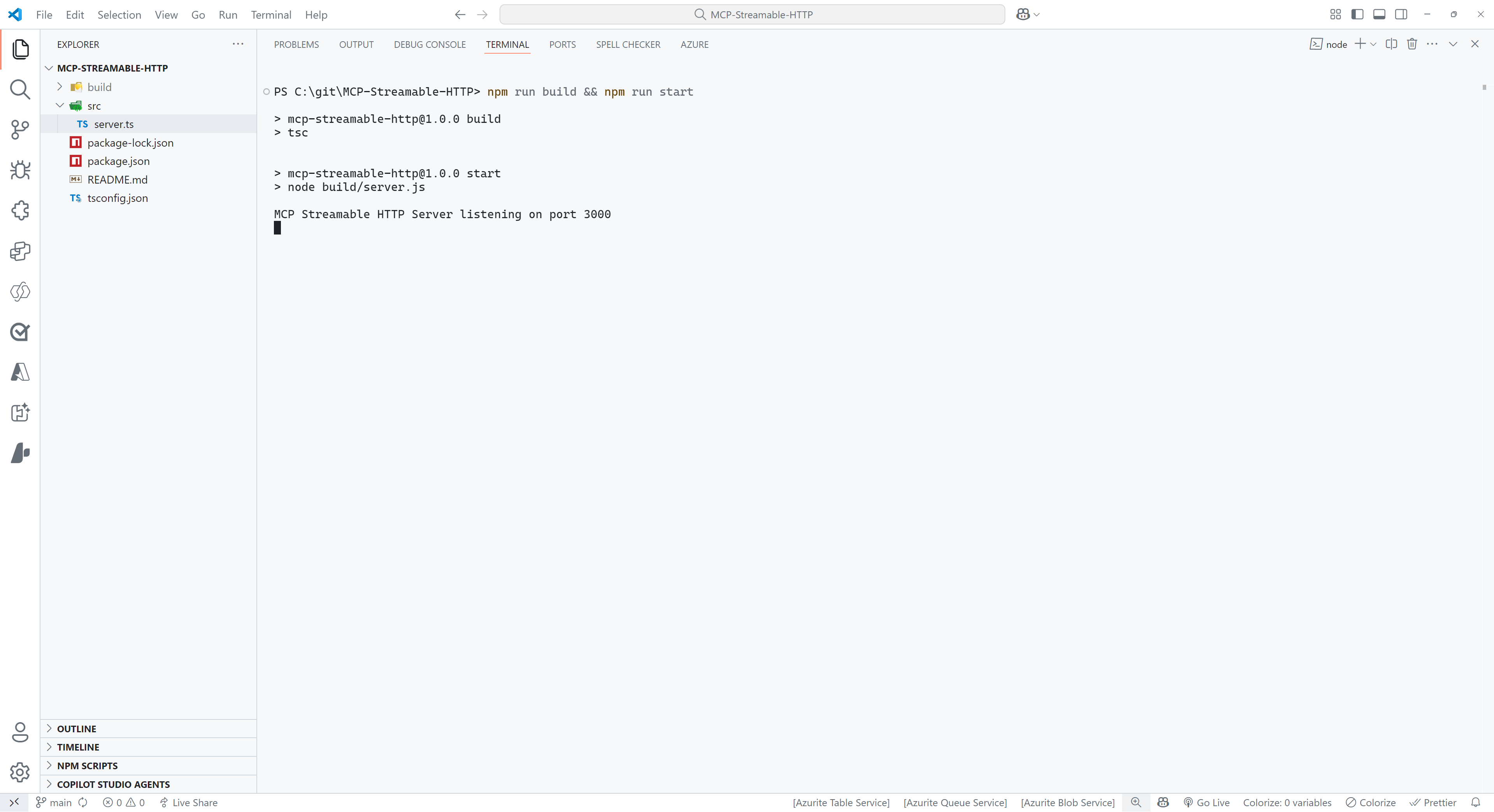
Select PORTS at the top of the Visual Studio Code Terminal
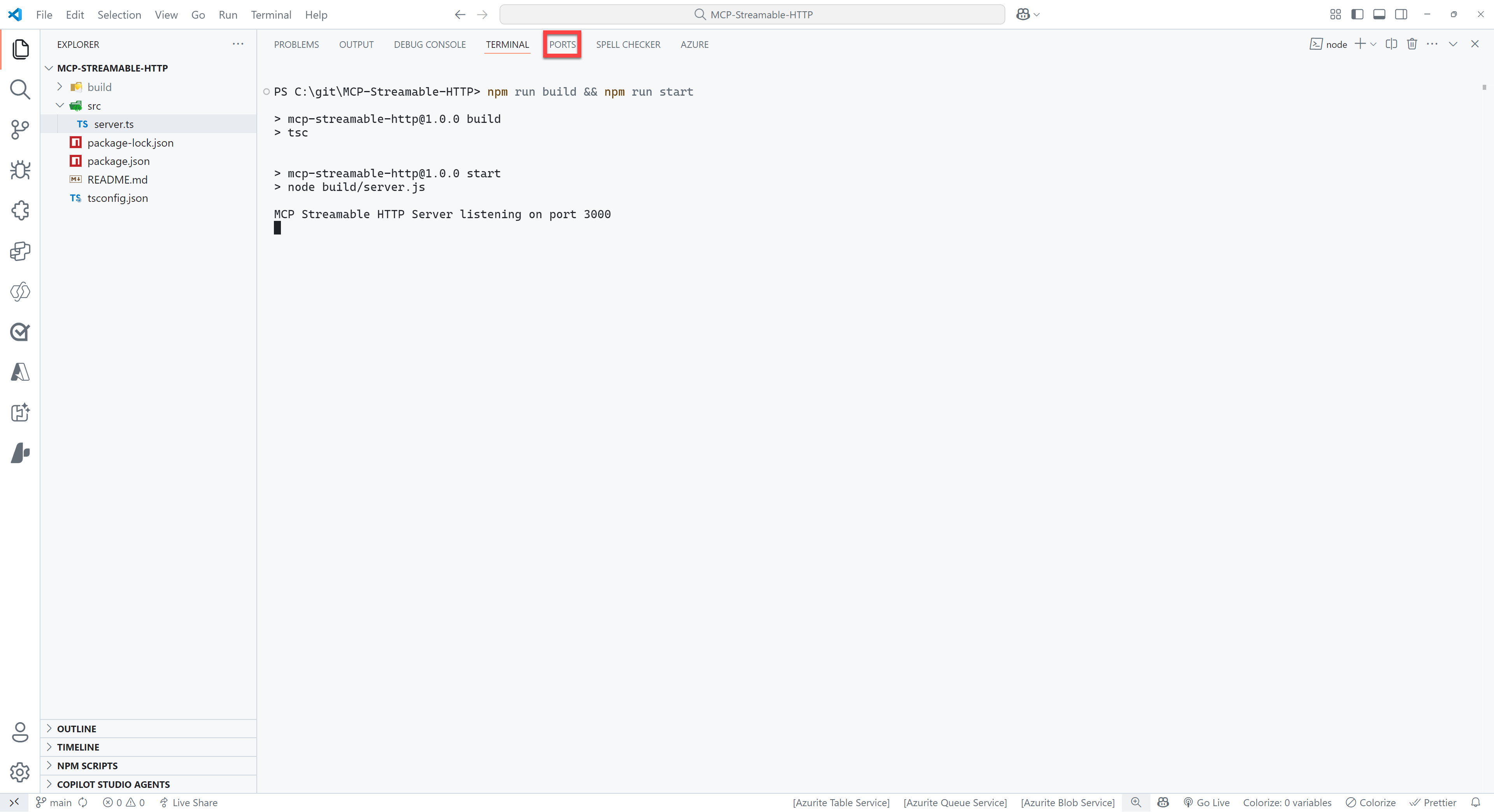
Select the green Forward a Port button
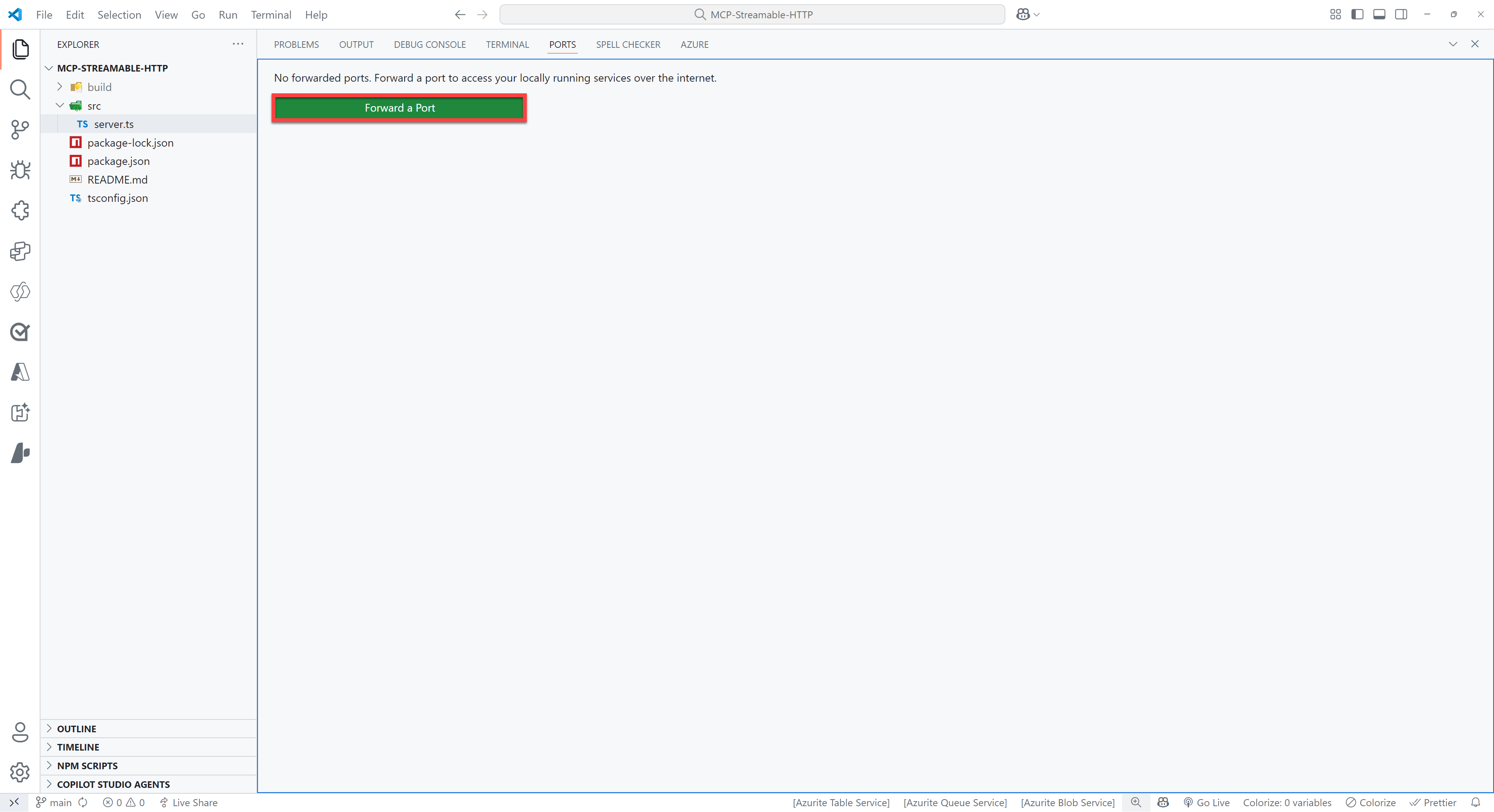
Enter
3000as the port number (this should be the same as the port number you see when you ran the command in step 5). You might be prompted to sign in to GitHub, if so please do this, since this is required to use the port forwarding feature.Right click on the row you just added and select Port visibility > Public to make the server publicly available
Ctrl + click on the Forwarded address, which should be something like:
https://something-3000.something.devtunnels.msSelect Copy on the following pop-up to copy the URL
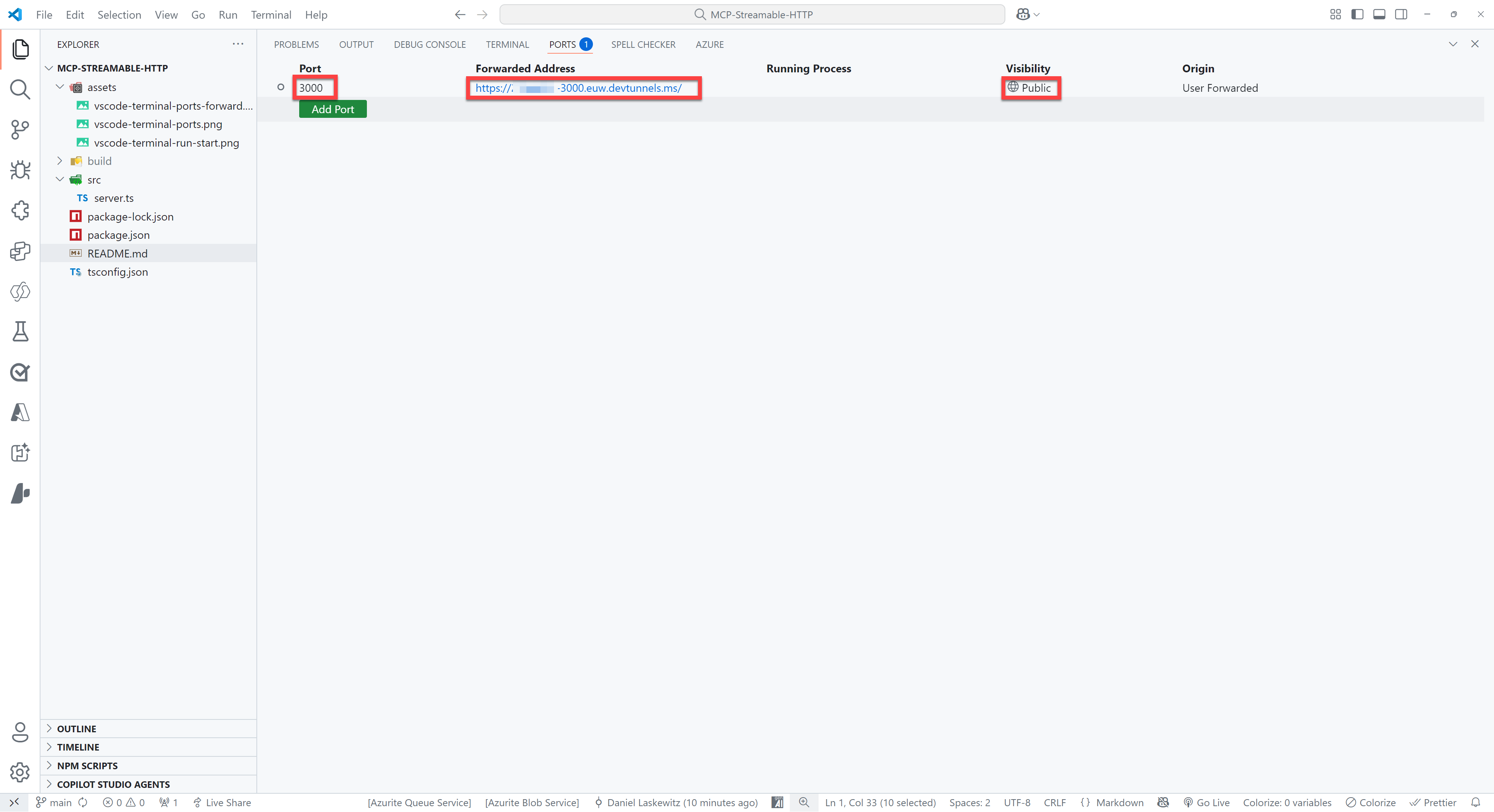
Open to the browser of your choice and paste the URL in the address bar, type
/mcpbehind it and hit enter
If all went well, you will see the following error message:
{"jsonrpc":"2.0","error":{"code":-32000,"message":"Method not allowed."},"id":null}Don't worry - this error message is nothing to be worried about!
🌎 Deploy to Azure
IMPORTANT
As listed in the prerequisites, the Azure Developer CLI needs to be installed on your machine for this part.
Make sure to login to Azure Developer CLI if you haven't done that yet.
azd auth loginWARNING
After running azd up, you will have an MCP Server running on Azure that is publicly available. Ideally, you don't want that. Make sure to run azd down after finishing the lab to delete all the resources from your Azure subscription. Learn how to run azd down by going to this section.
Run the following command in the terminal:
azd upFor the unique environment name, enter mcsmcplab or something similar. Select the Azure Subscription to use and select a value for the location. After that, it will take a couple of minutes before the server has been deployed. When it's done - you should be able to go to the URL that's listed at the end and add /mcp to the end of that URL.

You should again see the following error:
{"jsonrpc":"2.0","error":{"code":-32000,"message":"Method not allowed."},"id":null}🧪 Lab 1.2 - Use the Jokes MCP Server in Visual Studio Code
To use the Jokes MCP Server, you need to use the URL of your server (can be either your devtunnel URL or your deployed Azure Container App) with the /mcp part at the end and add it as an MCP Server in Visual Studio Code.
Press either
ctrl+shift+P(Windows/Linux) orcmd+shift+P(Mac) and typeMCPSelect MCP: Add Server...
Select HTTP (HTTP or Server-Sent Events)
Paste the URL of your server in the input box (make sure
/mcpin the end is included)Press
EnterEnter a name for the server, for instance
JokesMCPSelect User Settings to save the MCP Server settings in your user settings
This will add an MCP Server to your
settings.jsonfile. It should look like this:
Open GitHub Copilot
Make sure you are in Agent mode
Make sure the JokesMCP server actions are selected when you select the tools icon:

Ask the following question:
textGet a chuck norris joke from the Dev category
This should give you a response like this:
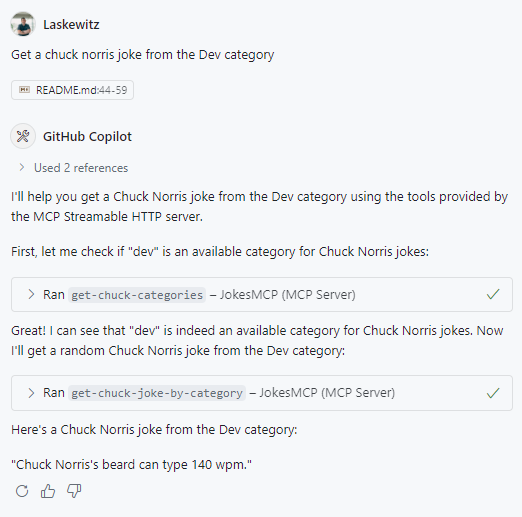
Now you have added the JokesMCP server to Visual Studio Code!
🧪 Lab 1.3 - Use the Jokes MCP Server in Microsoft Copilot Studio
To use the Jokes MCP Server in Microsoft Copilot Studio, you need to create an agent and then add it as an MCP server.
Create an agent and add the MCP server as a tool
Go to Copilot Studio
Select the environment picker at the top right corner
Select Agents in the left navigation
Select the Create blank agent button

NOTE
This will start creating your agent, usually within 10 seconds your agent will be visible, but it will take around a minute until everything is provisioned. You will see a green bar at the top with the message
Your agent has been provisioned.when your agent is provisioned.When it's done provisioning, select Edit in the details card on the overview page
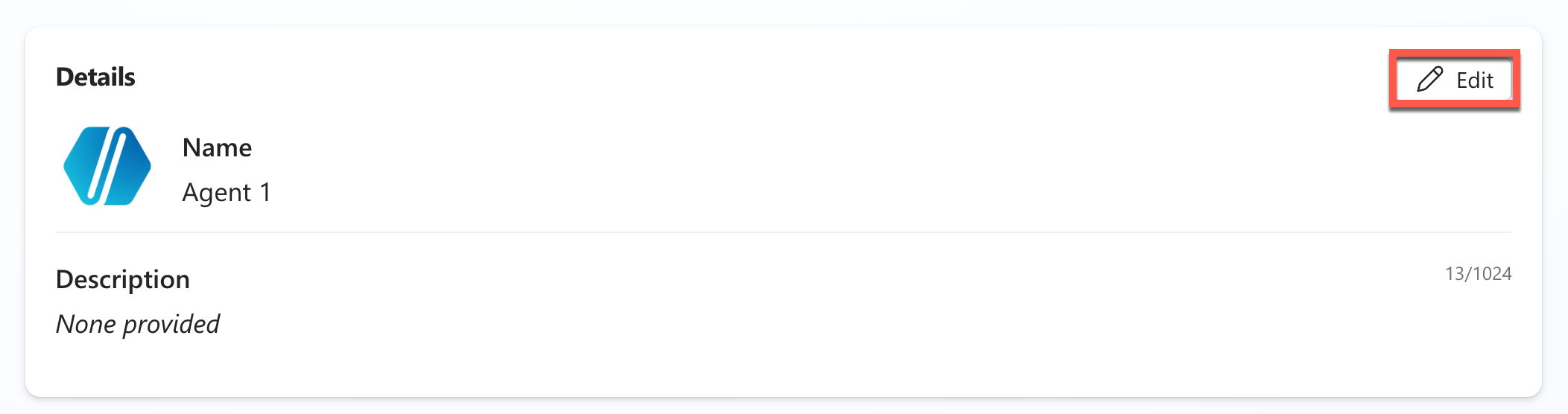
Change the name to:
textJokesterAdd the following Description
textA humor-focused agent that delivers concise, engaging jokes only upon user request, adapting its style to match the user's tone and preferences. It remains in character, avoids repetition, and filters out offensive content to ensure a consistently appropriate and witty experience.Select Save to save the changes
Select Edit in the instructions card on the overview page
Add the following Instructions
textYou are a joke-telling assistant. Your sole purpose is to deliver appropriate, clever, and engaging jokes upon request. Follow these rules: * Respond only when the user asks for a joke or something related (e.g., "Tell me something funny"). * Match the tone and humor preference of the user based on their input—clean, dark, dry, pun-based, dad jokes, etc. * Never break character or provide information unrelated to humor. * Keep jokes concise and clearly formatted. * Avoid offensive, discriminatory, or NSFW content. * When unsure about humor preference, default to a clever and universally appropriate joke. * Do not repeat jokes within the same session. * Avoid explaining the joke unless explicitly asked. * Be responsive, witty, and quick.Select Save to save the instructions
Select Tools in the top menu
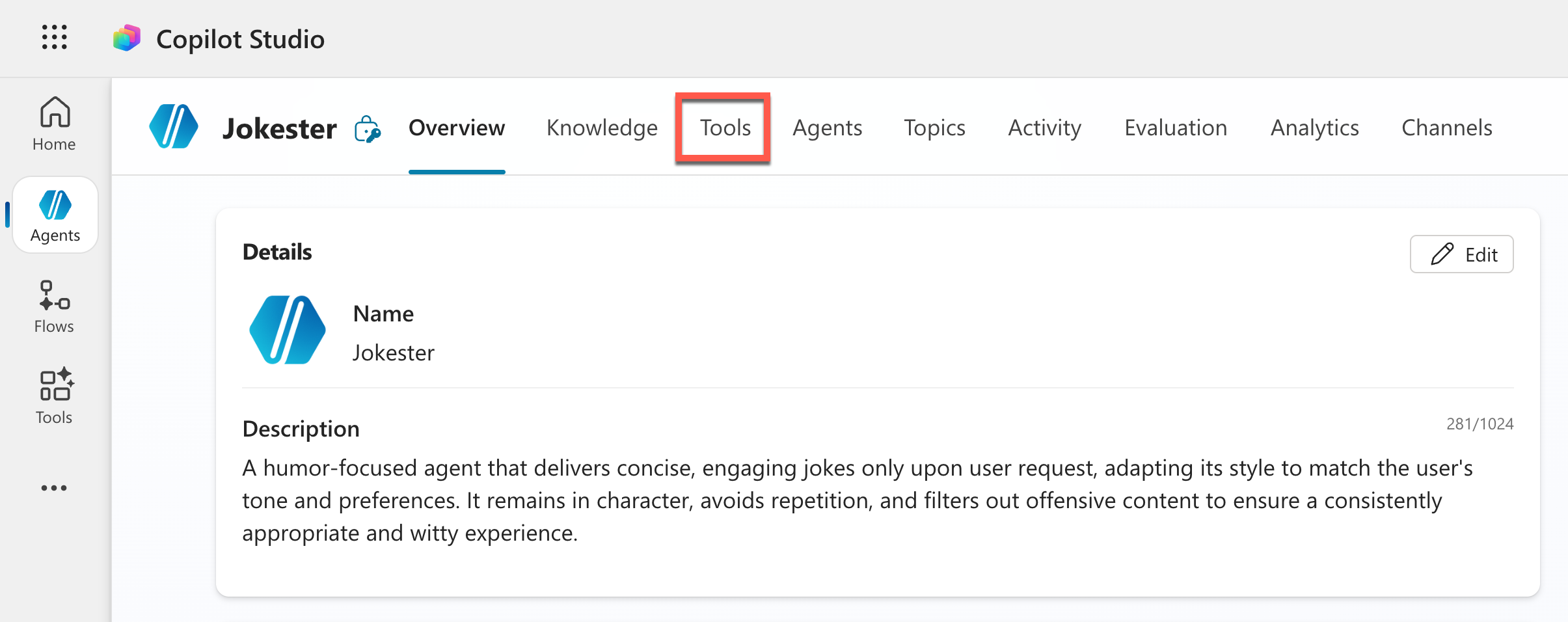
Select the blue Add a tool button
Select the Model Context Protocol button under Create new text
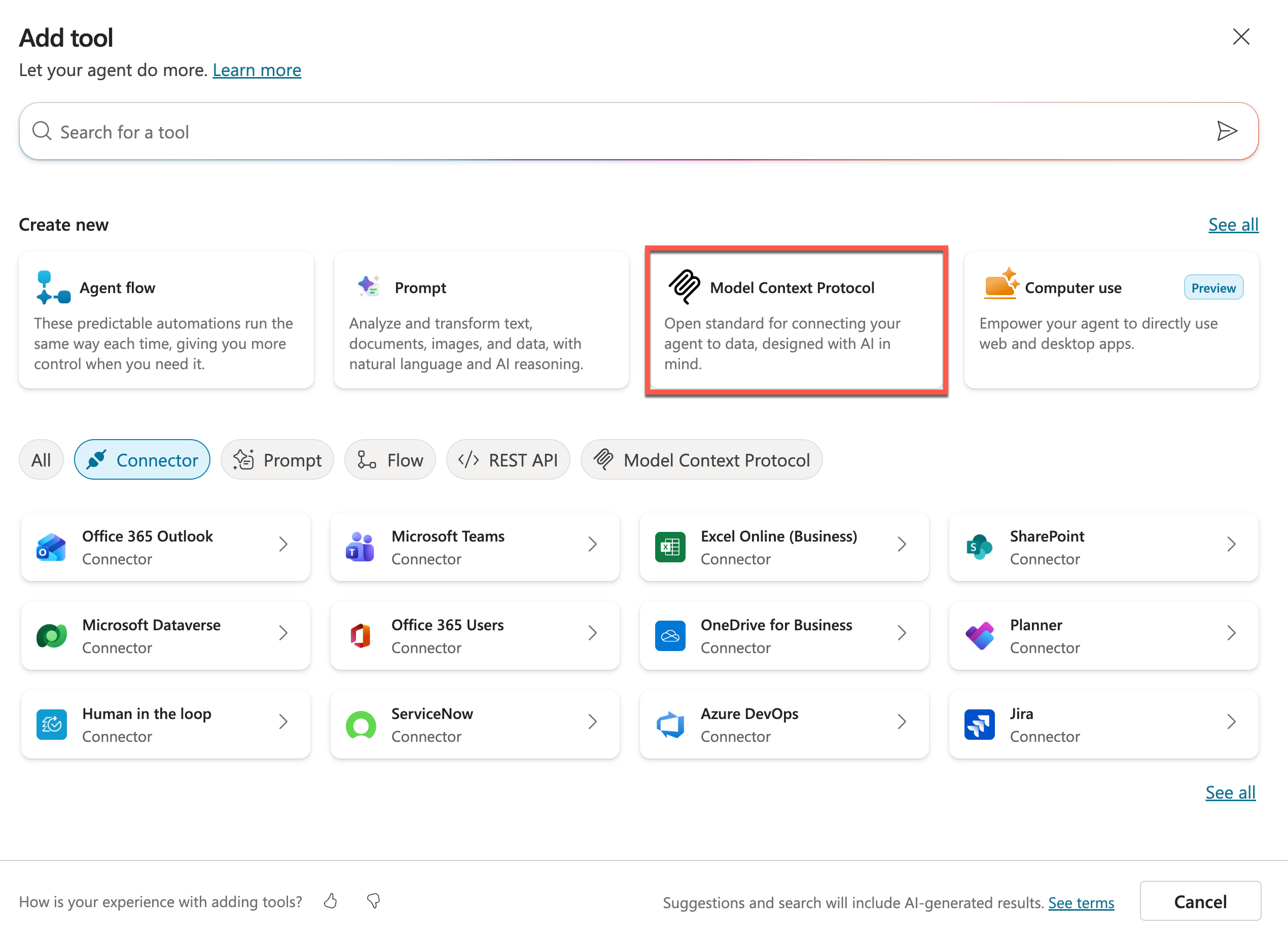
Enter the name:
textJokes MCP ServerEnter the description:
textMCP server that fetches Chuck Norris and dad jokes on demand.Enter the URL of the devtunnel. This should be something like
https://something-3000.something.devtunnels.ms/mcpor the URL of your deployed MCP server in AzureSelect Create to create the MCP Server
This will take a couple of seconds, because Copilot Studio is now creating a connector behind the scenes.
Select Not connected (1) and Create new Connection (2)
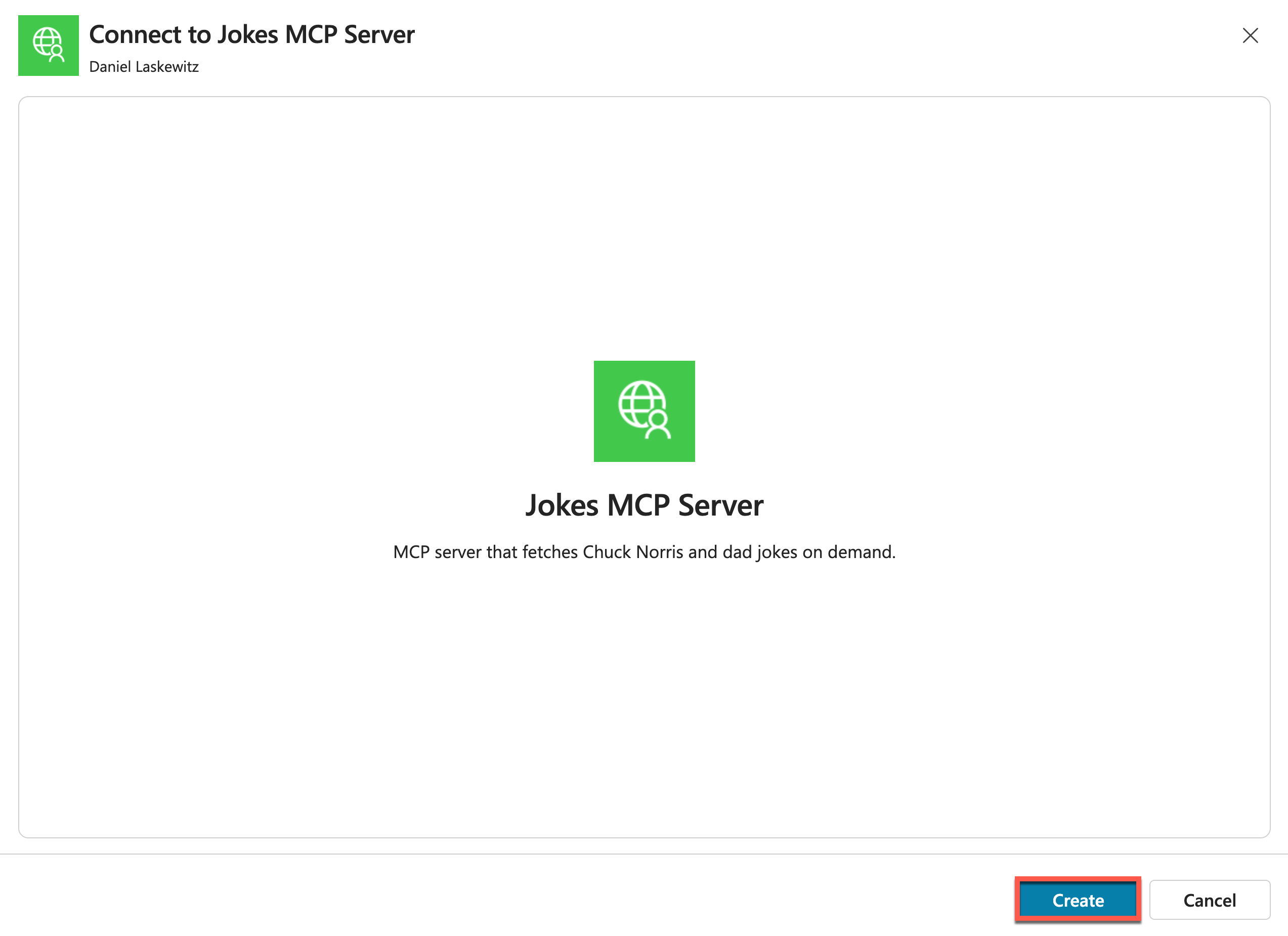
Select Create
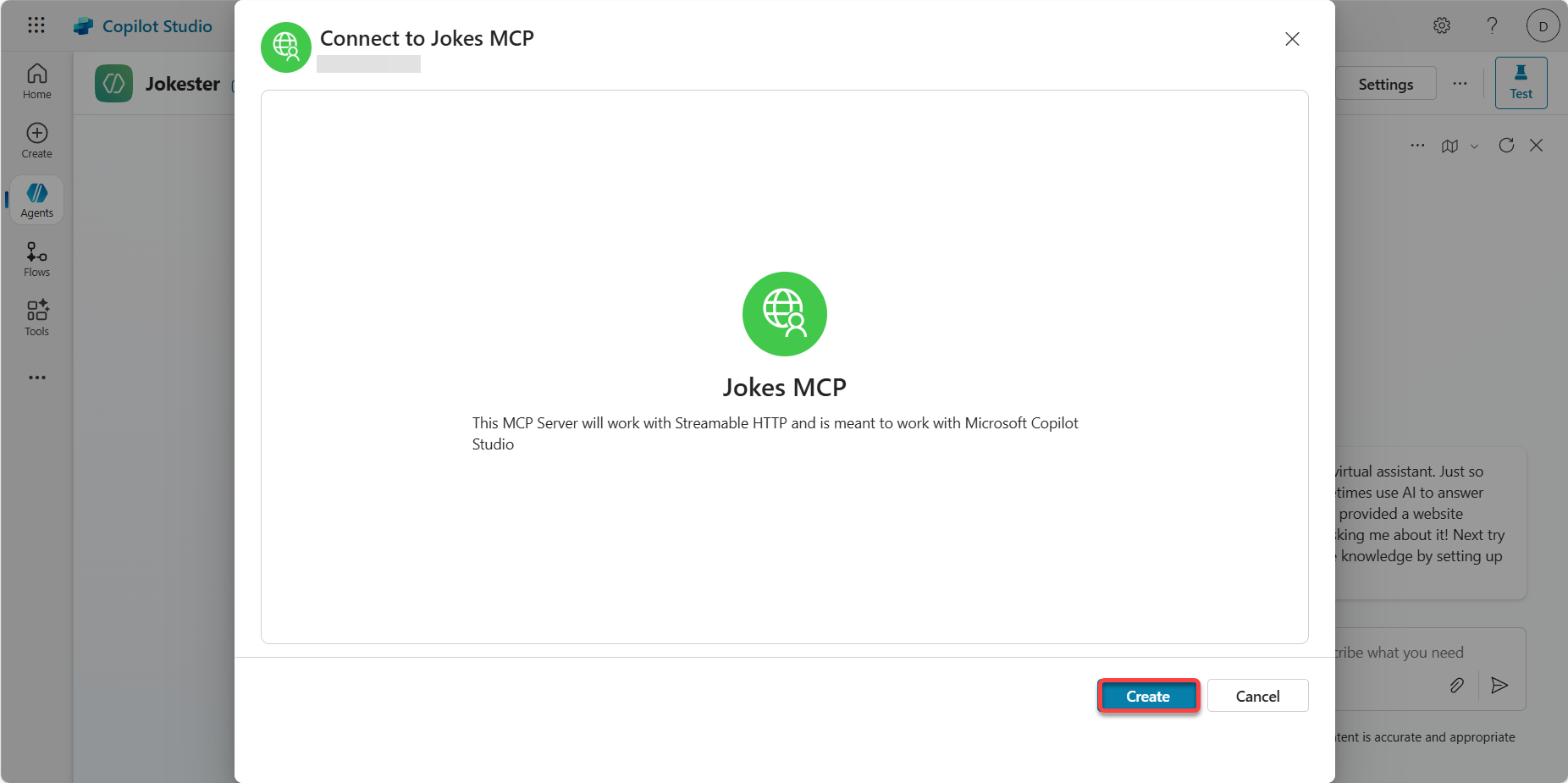
Select Add and configure to add the tool to the agent
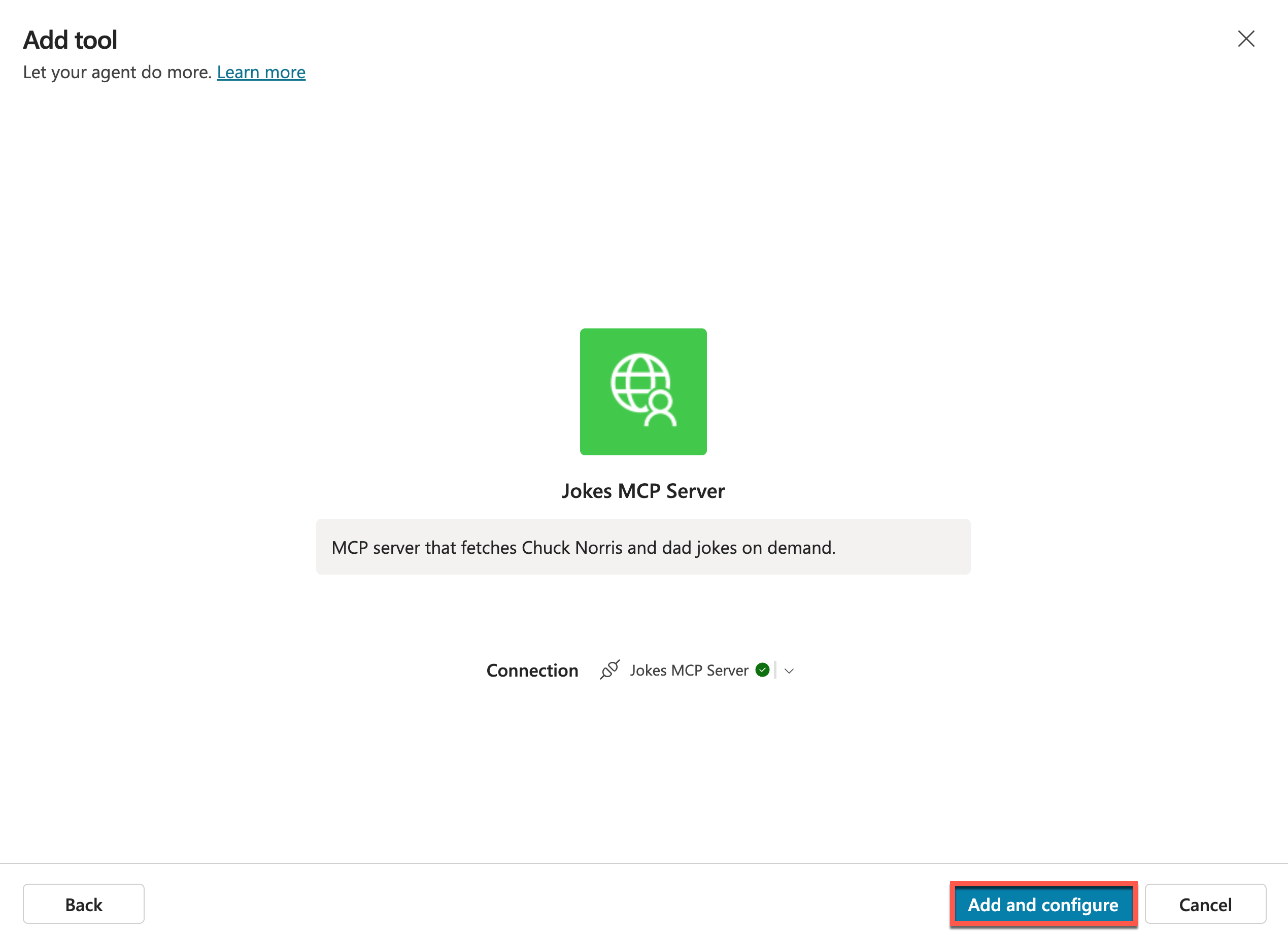
TIP
This will add your MCP server to the agent. On the page that appears after selecting Add and configure, you are able to see the tools in the MCP server inside of Copilot Studio.
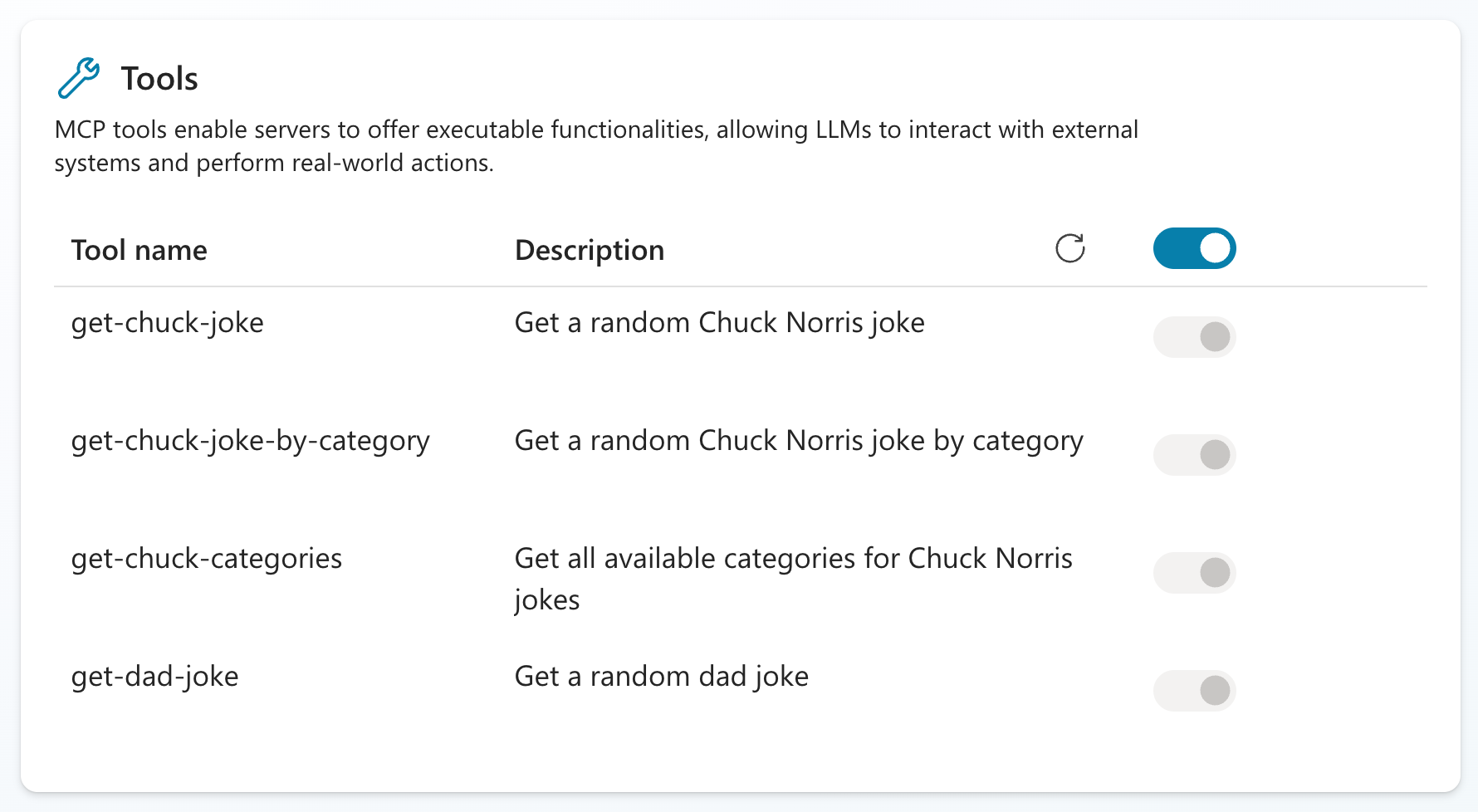
Select the + icon in the Test your agent pane to start a new testing session

Expand the testing pane by selecting the icon with the arrow

In the Test your agent pane send the following message:
textCan I get a Chuck Norris joke?This will show you a message that you need to connect first.
Select Open connection manager
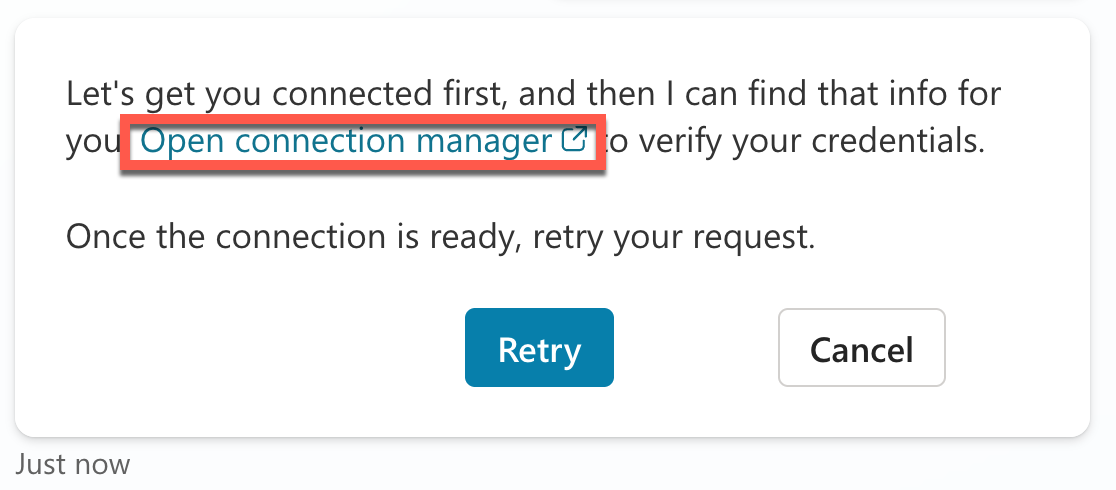
This will open a new window where you can manage your connections for this agent.
Select Connect next to the Jokes MCP Server

Wait until the connection is created and select Submit
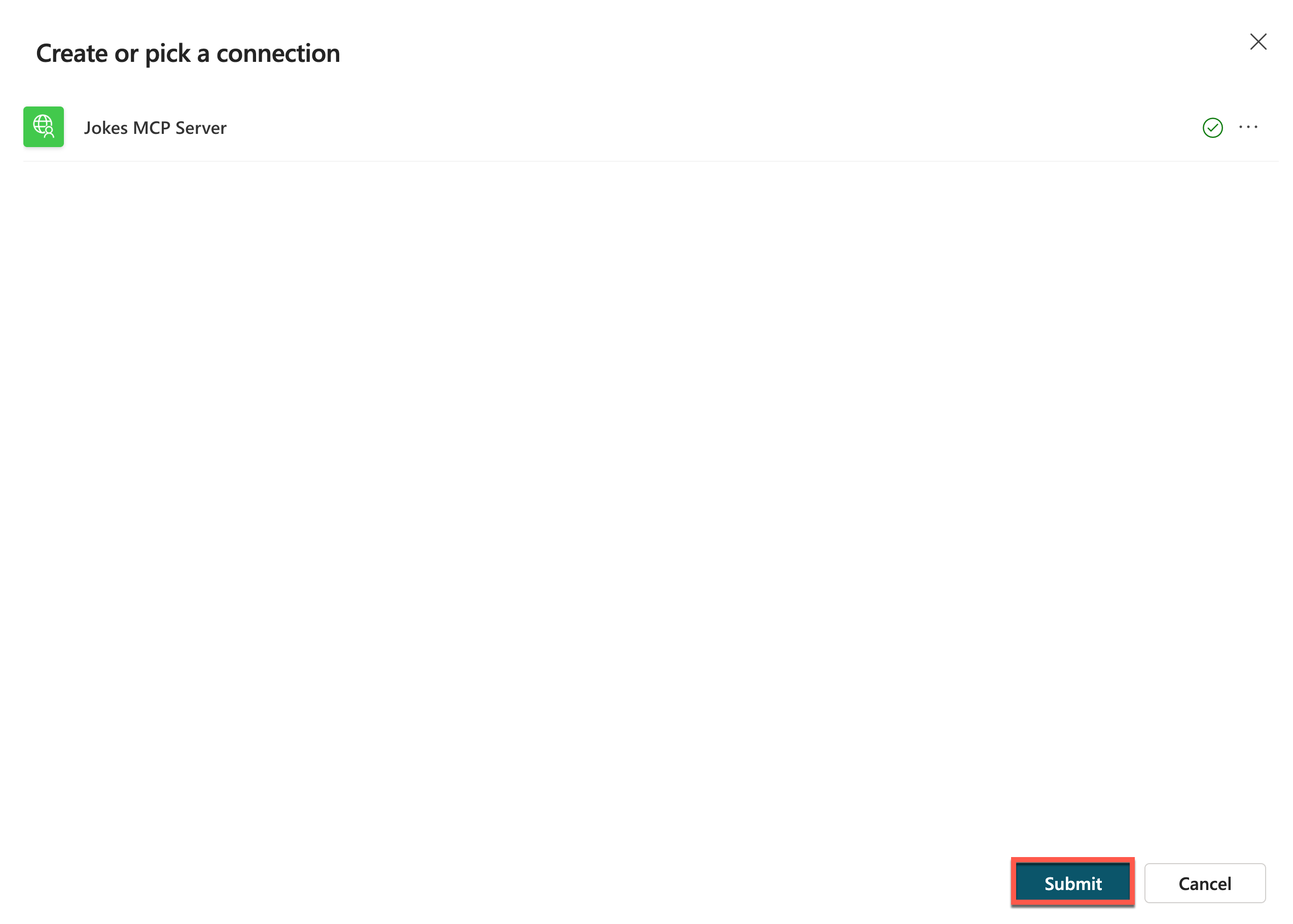
The connection should now be connected, so the status should be set to Connected

Close the manage your connections tab in your browser
Now you should be back in the Jokester agent screen.
Select the + icon in the Test your agent pane to start a new testing session
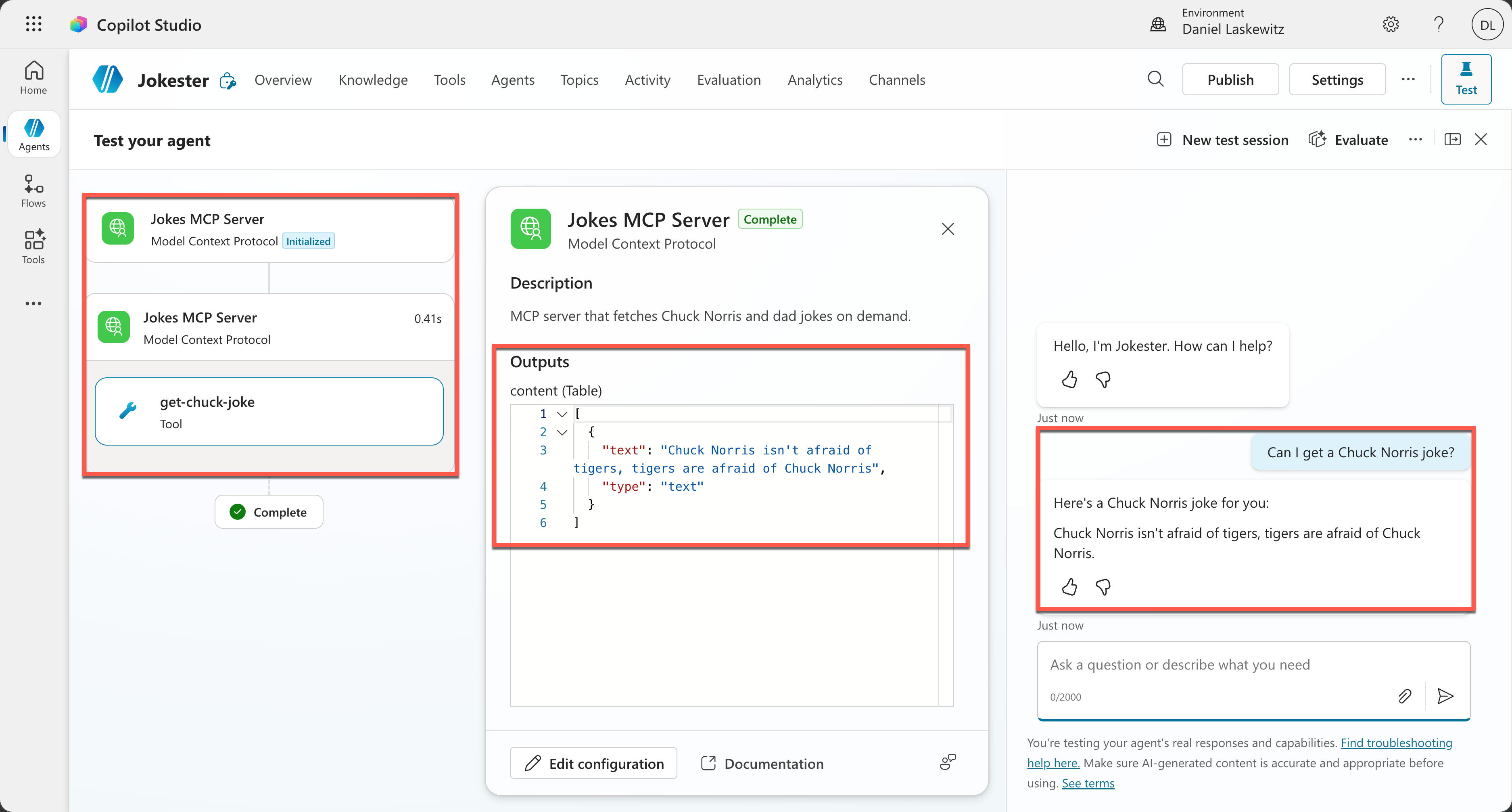
In the Test your agent pane send the following message:
textCan I get a Chuck Norris joke?This will now show a Chuck Norris joke - instead of the additional permissions. Also notice that you can easily see which tool has been triggered (get-chuck-joke) and what the output was the agent received.
In the Test your agent pane send the following message:
textCan I get a Dad joke?This will now show a Dad joke.
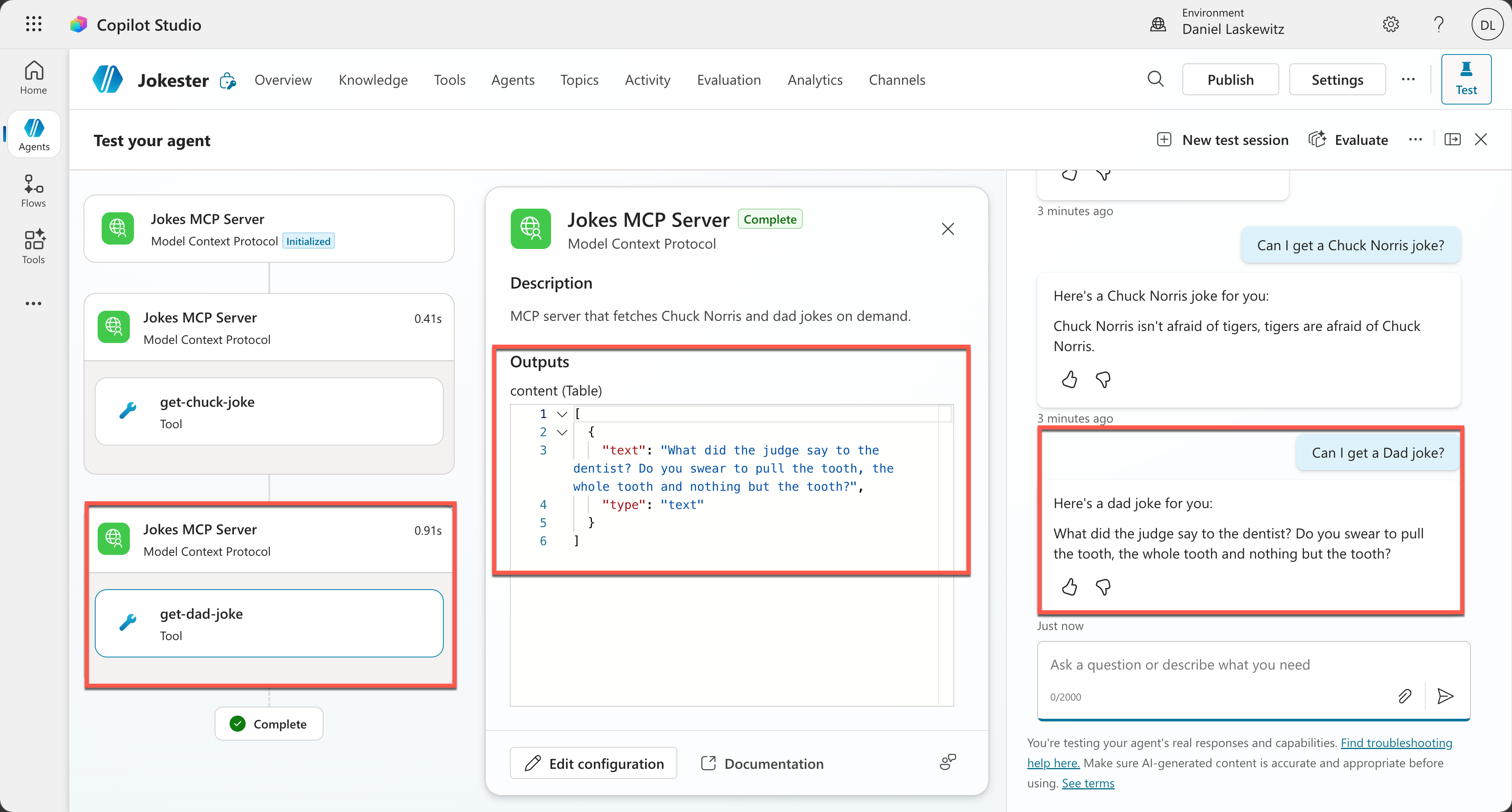
And that was the Jokes MCP Server working in Microsoft Copilot Studio.
🧪 Lab 1.4 - Remove the Azure Resources
If you have deployed the MCP server to Azure, don't forget to remove the Azure resources. To remove the Azure resources after finishing the lab, run the following command in the terminal:
azd downThis command will show you the resources that will be deleted and then ask you to confirm. Confirm with y and the resources will be deleted. This can take a couple of minutes, but at the end you will see a confirmation:

✅ Mission Accomplished
Congrats, agent — mission complete! You've built and deployed an MCP server and connected it to both GitHub Copilot and Microsoft Copilot Studio.
In this mission, you accomplished:
✅ MCP Server Deployment: Built and deployed a custom MCP server using Node.js and Docker
✅ Local & Cloud Hosting: Ran the server locally with port forwarding and deployed to Azure using Azure Developer CLI
✅ GitHub Copilot Integration: Connected the MCP server to Visual Studio Code and used it with GitHub Copilot Agent Mode
✅ Copilot Studio Integration: Wired the MCP server into a Copilot Studio agent with custom instructions and tool orchestration
🏅 Claim your completion badge
Congrats, agent - mission accomplished! Now it's time to claim your badge.
Simply submit the badge request form and answer all required questions:
https://aka.ms/agent-academy-special-ops/mcsmcp/form
Once your submission is reviewed, you will receive an email from Global AI Community with instructions to claim your badge.
TIP
If you do not see the email, check your spam or junk folder.
📚 Tactical Resources
📖 Microsoft Copilot Studio MCP announcement blog
📖 Microsoft Copilot Studio MCP docs
📖 Model Context Protocol overview