
⚡ Power Platform CLI MCP Server

Welcome, agent. Your mission — should you choose to accept it — is to establish a secure command channel between the Power Platform CLI and your AI copilot using the Model Context Protocol (MCP). Forget memorizing cryptic command syntax. You'll be issuing orders in plain language while your AI handler translates them into precision strikes across environments, tenant settings, and governance policies. 🎯
Mission objectives:
- Establish the Power Platform CLI MCP server as your command relay in Visual Studio Code & GitHub Copilot
- Deploy AI-powered natural language operations across your Power Platform tenant
- Run reconnaissance on your tenant configuration and extract strategic governance intel
- Enforce enterprise-grade governance best practices across the organization
Prerequisites: Power Platform admin access, Visual Studio Code, and GitHub Copilot extension.
❓ What is Microsoft Power Platform CLI?
Every agent needs a trusty sidearm. The Microsoft Power Platform CLI is your command-line weapon of choice — a powerful interface that empowers developers and ISVs to execute operations across the entire Microsoft Power Platform battlefield. This tool enables you to manage and automate tasks related to:
- Environment lifecycle - Create, manage, and configure Power Platform environments
- Authentication - Handle secure connections and auth profiles for multiple tenants
- Microsoft Dataverse environments - Work with data, tables, and configurations
- Solution packages - Import, export, and manage Power Platform solutions
- Power Pages - Configure and deploy Power Pages websites
- Code components - Create and manage custom Power Apps Component Framework (PCF) controls
- And much more - Additional capabilities for comprehensive Power Platform development
The CLI provides a consistent interface on Windows — an essential tool in every Power Platform operative's arsenal.
🧪 Lab 1.1 - Install the Power Platform CLI
Time to gear up. The .NET Tool installation method enables you to deploy Power Platform CLI commands within PowerShell and CMD shells on Windows.
✅ Prerequisites
Before arming yourself with the Power Platform CLI, ensure you have:
- .NET 10.0 or later (preferably install the latest version) installed on your system (Download .NET)
- An internet connection for downloading the NuGet package
🚀 Installation Steps
There are a couple of ways to use the Power Platform CLI MCP server:
- You can install the CLI globally on your system, which allows you to run
paccommands from any directory in your command prompt or PowerShell - Alternatively, you can run the MCP server directly without a global installation by using the
dnxcommand, but for the full operational experience, we recommend installing the CLI globally.
Deploy the CLI globally using the .NET tool install command:
bashdotnet tool install --global Microsoft.PowerApps.CLI.ToolConfirm the deployment by checking the version:
bashpacYou should see output similar to:
textMicrosoft PowerPlatform CLI Version: 2.4.1+g3799f3e (.NET 10.0.0)
🔧 Managing Your Arsenal
Upgrade to the latest version:
dotnet tool update --global Microsoft.PowerApps.CLI.ToolDecommission if needed:
dotnet tool uninstall --global Microsoft.PowerApps.CLI.Tool📁 File Locations
The Power Platform CLI executable is deployed to:
%USERPROFILE%\.dotnet\tools
This location is automatically added to your system PATH, allowing you to run pac commands from any directory.
🧪 Lab 2.1 - Configure the Power Platform CLI MCP Server
Here's where things get interesting, agent. The Power Platform CLI (version 1.44+) includes a built-in Model Context Protocol (MCP) server — your direct comm link between AI assistants and Power Platform environments. This integration allows you to issue orders using natural language in supported AI tools like VS Code Copilot, Visual Studio, and other MCP-compatible applications.
🚀 What is MCP Integration?
The MCP server exposes Power Platform CLI commands as tools that AI assistants can invoke on your behalf. Instead of memorizing classified CLI syntax, you simply describe your mission objectives in natural language, and the AI executes the appropriate commands.
Key Benefits:
- Natural Language Interface - Issue commands in plain English instead of remembering classified CLI syntax
- Intelligent Command Selection - Your AI handler selects the right commands based on your intent
- Contextual Assistance - Get operational support without leaving your command center
- Selective Tool Access - Control which CLI commands are exposed for operational security
📋 Supported Operations
The MCP server currently supports 20+ Power Platform CLI commands in its arsenal:
- Environment Management - List, create, and manage Power Platform environments
- Solution Operations - Import, export, and package solutions
- Authentication - Handle auth profiles and tenant connections
- Dataverse Operations - Work with tables, data, and configurations
- Power Pages - Manage website deployments and configurations
- Component Management - Handle PCF controls and other components
⚙️ Setting Up PAC CLI MCP
Establish the MCP Connection in Visual Studio Code
To wire up the Power Platform CLI MCP server in Visual Studio Code:
Open Visual Studio Code command palette (
ctrl+shift+Pon Windows/Linux orcmd+shift+Pon Mac)Search for "MCP" and select
MCP: Add ServerSelect
Command (stdio)Paste the following command:
textpac copilot mcp --runName the server something like for instance:
textPower Platform CLI MCP
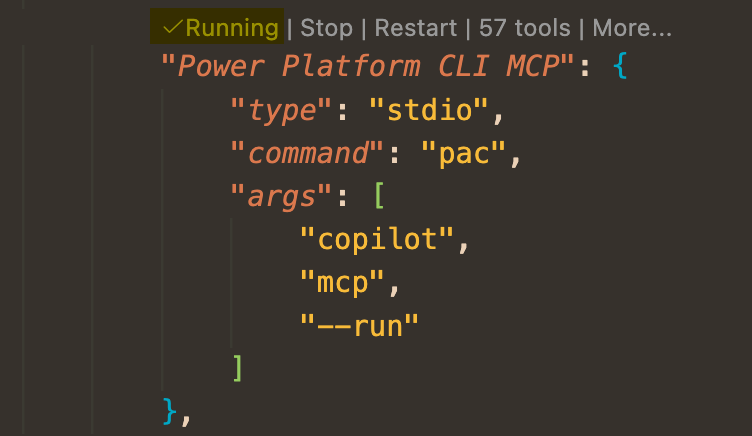
This should add the MCP server to your MCP configuration in Visual Studio Code. It should also be running. If it's not — activate it. No dormant assets on this mission.
🛡️ Security and Tool Selection
Operational security is paramount. The MCP integration allows you to selectively enable specific CLI commands, giving you full control over which operations the AI can perform. This ensures your perimeter stays tight by limiting access to only the tools required for the mission.
Best Practices:
- Enable only the commands your mission requires
- Review tool permissions before granting access — trust but verify
- Use environment-specific configurations for different operations
- Monitor MCP server logs for all executed commands
🔧 Troubleshooting
If things go sideways, here's your field manual:
Common Issues:
MCP Server Not Found
- Verify the path to
pac-mcp.exeusingpac copilot mcp - Ensure Power Platform CLI version 1.44+ is installed
- Verify the path to
Authentication Errors
- Run
pac auth listto verify your authentication profiles - Set up authentication using
pac auth createif needed
- Run
Tool Access Warnings
- Check the Output window in VS Code for MCP-related messages
- Verify tool permissions in MCP server configuration
🧪 Lab 3.1 - Get Advice About Best Practices for Tenant Settings
Time to go deeper, agent. Your tenant settings are the backbone of your organization's Power Platform security posture. In this mission, you'll use Visual Studio Code and GitHub Copilot combined with the Power Platform CLI MCP Server to run reconnaissance on your tenant and get strategic governance intel.
✅ Prerequisites
Before deploying into the field, ensure you have the following assets installed and configured:
Required Equipment
- Power Platform CLI (version 1.44+) - Follow the deployment steps in the Installing Power Platform CLI with .NET Tool section above
- Visual Studio Code - Download from code.visualstudio.com
- GitHub Copilot extension - Install from the VS Code Extensions marketplace
Authentication Setup
- Power Platform authentication profile - Establish a secure connection using
pac auth createto link up with your Power Platform tenant - Admin permissions - Ensure your credentials have Power Platform administrator clearance to view and modify tenant settings
MCP Configuration
- Power Platform CLI MCP Server - Follow the complete setup instructions in the ⚙️ Setting Up PAC CLI MCP section above to:
- Locate your
pac-mcp.exeexecutable path - Wire the MCP server into Visual Studio Code
- Verify the server is active and operational
- Locate your
Verification Steps
Verify Power Platform CLI deployment:
bashpac --versionCheck authentication status:
bashpac auth listConfirm MCP server location:
bashpac copilot mcpTest your command center:
- Open VS Code
- Check that the Power Platform CLI MCP server appears in your MCP configuration
- Ensure GitHub Copilot is active and standing by
Once all assets are in place, you're cleared to leverage natural language commands to manage your Power Platform tenant settings.
Managing tenant settings through the Power Platform CLI offers several tactical advantages over using the Power Platform Admin Center alone:
🎯 Tactical Advantages of CLI-Based Tenant Settings Management
Here are the key advantages you'll gain by managing tenant settings through the CLI instead of the admin center. Each advantage demonstrates how the CLI strengthens your operational capabilities.
Comprehensive Settings Access
The Power Platform Admin Center doesn't expose all available tenant settings through its user interface. Using pac admin list-tenant-settings, you can access the complete set of tenant configurations — including classified settings that aren't visible in the web portal.
Bulk Operations
Instead of manually clicking through dozens of settings in the admin center, the CLI allows you to update multiple tenant settings in a single sweep. This is mission-critical when configuring new tenants, standardizing settings across multiple environments, or rolling out organization-wide policy changes.
Version Control & Documentation
By downloading tenant settings to JSON files using pac admin list-tenant-settings --settings-file, you can:
- Track changes over time with version control systems like Git
- Maintain configuration snapshots for compliance audits
- Document your tenant configuration as code
- Compare settings between different environments or points in time
Automation & DevOps Integration
CLI commands can be integrated into automated deployment pipelines, enabling you to:
- Apply consistent tenant configurations across development, staging, and production
- Include tenant settings as part of your infrastructure-as-code strategy
- Automate compliance checks and policy enforcement
- Eliminate human error from configuration management
Disaster Recovery
Having your tenant settings documented in JSON format provides a reliable fallback that can be rapidly restored if things go south — ensuring operational continuity and minimizing downtime.
🤖 Bringing in the AI Handler
The Power Platform CLI MCP Server transforms tenant settings management by eliminating the need to memorize complex command syntax and parameter combinations. Instead of having to remember commands like pac admin list-tenant-settings --settings-file "config.json" or struggling to recall which specific parameters control environment creation policies, you simply tell your AI handler what you need done.
Example 1: Recon — Viewing Current Tenant Settings
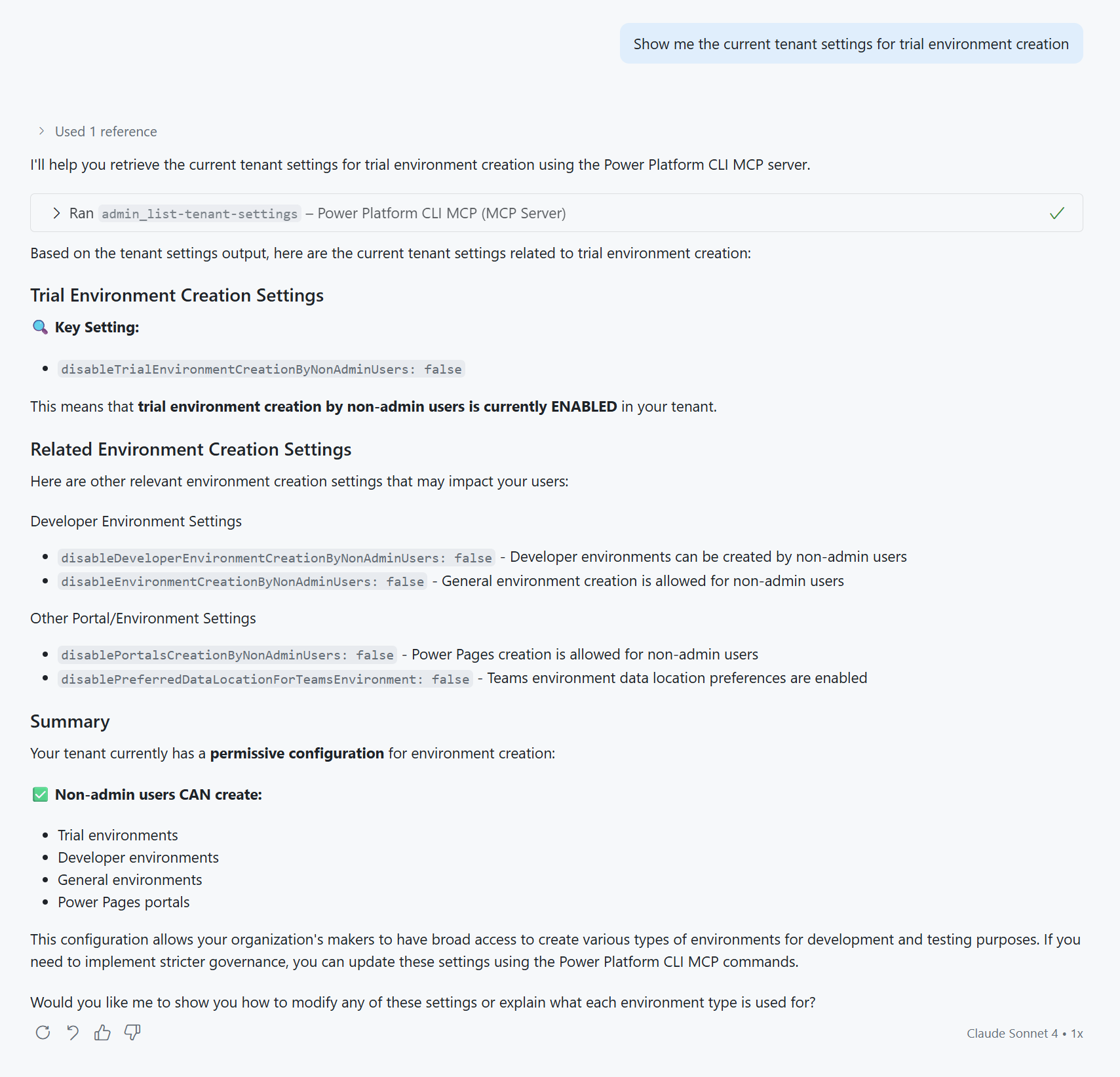
Instead of remembering the exact CLI syntax to extract tenant settings, you can simply request specific intel:
Show me the current tenant settings for trial environment creationThis will give you an output like this:
Example 2: Execution — Updating Tenant Settings
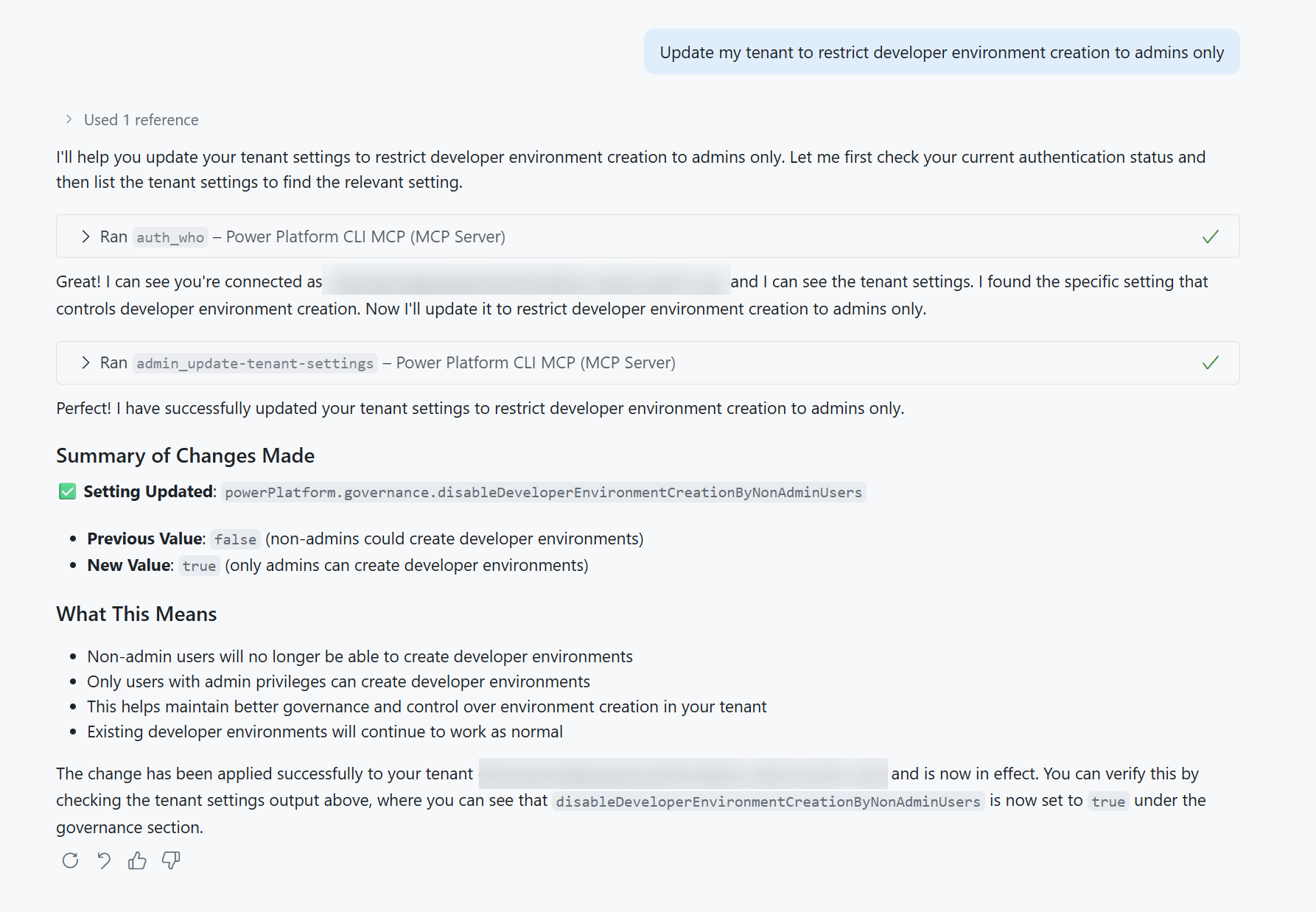
Rather than looking up the correct parameters for environment creation restrictions, describe the policy change you want to deploy:
Update my tenant to restrict developer environment creation to admins onlyThis will give you an output like this:
GitHub Copilot will execute the appropriate CLI commands on your behalf — making Power Platform administration accessible to operatives who may not be fluent in command-line interfaces while still leveraging the full firepower of the CLI tools.
💡 Get strategic advice on tenant settings
While updating individual tenant settings one at a time can be useful for learning the ropes, the real power of combining Power Platform CLI with AI comes when you need to develop comprehensive governance strategies for your organization or clients. Instead of manually researching best practices across dozens of intel sources, you can leverage AI to analyze your current tenant configuration and produce a strategic roadmap.
Ask GitHub Copilot to give you a detailed battle plan on how to enforce Power Platform best practices across your organization. GitHub Copilot can analyze your current settings, identify vulnerabilities, and provide a phased implementation plan spanning the upcoming weeks and months. This approach transforms tenant management from reactive patching into proactive governance strategy.
Try this prompt — and watch your AI handler go to work:
Analyze my current Power Platform tenant settings and provide a strategic governance improvement plan. Please provide:

1. An assessment of my current tenant configuration against Microsoft's recommended best practices
2. A prioritized list of settings that should be updated for better security, governance, and user experience
3. A phased implementation roadmap for the next 3-6 months with:
   - Priority levels (Critical/High/Medium/Low) for each change
   - Risk assessment and business impact for each setting
   - Recommended implementation sequence
   - Communication considerations for stakeholders
4. Specific CLI commands I can use to implement each recommended change
5. Key monitoring points to track after implementation

Focus on enterprise governance, security compliance, and developer productivity optimization. Provide the plan as structured guidance rather than creating files or executing commands.
📊 Field Report: Tenant Analysis Results
When we executed this comprehensive prompt against a live Power Platform tenant, GitHub Copilot generated a detailed strategic governance improvement plan. The complete field report has been saved as a markdown document that you can review: View the Power Platform Governance Plan.
This field report demonstrates the operational value of combining Power Platform CLI with AI assistance:
- Full Reconnaissance: Complete analysis of 16 environments and dozens of tenant settings
- Prioritized Targets: Critical, High, Medium, and Low priority changes with specific timelines
- Implementation Roadmap: 4-phase campaign spanning 3-6 months with stakeholder communication plans
- Ready-to-Execute Commands: Specific CLI commands for each recommended change
- Monitoring Strategy: KPIs, success metrics, and ongoing governance tracking
WARNING
While the generated plan may require refinement and validation against your specific organizational requirements, it provides a tactical foundation that would typically require hours of research, documentation review, and strategic planning. This demonstrates how AI can compress governance planning from days to minutes.
✅ Mission Accomplished
Congrats, agent — mission complete! You've established a secure command channel between the Power Platform CLI and GitHub Copilot using the Model Context Protocol.
In this mission, you accomplished:
✅ CLI Deployment: Installed and configured the Power Platform CLI as a .NET global tool
✅ MCP Integration: Wired the Power Platform CLI MCP server into Visual Studio Code for natural language operations
✅ Tenant Reconnaissance: Used AI-powered commands to analyze tenant settings and environment configurations
✅ Governance Strategy: Leveraged AI to generate comprehensive governance improvement plans from real tenant data
🏅 Claim your completion badge
Congrats, agent - mission accomplished! Now it's time to claim your badge.
Simply submit the badge request form and answer all required questions:
https://aka.ms/agent-academy-special-ops/cli-mcp/form
Once your submission is reviewed, you will receive an email from Global AI Community with instructions to claim your badge.
TIP
If you do not see the email, check your spam or junk folder.
📚 Tactical Resources
🧪 Power Platform Governance Plan Example — Field report: strategic governance improvement plan generated using AI
📖 Adding an MCP server in Visual Studio Code
📖 Power Platform CLI Documentation
📖 GitHub Discussion: PAC CLI MCP Preview