Lab CWRK0 - Copilot Cowork setup and extensibility

Do these labs if you want to extend Copilot Cowork
Table of Contents
In this lab, you'll learn what Copilot Cowork is, how to prepare your tenant for Cowork, and what extensibility options are available to tailor Cowork to your organization's needs.
At a high level, Cowork can orchestrate multi-step work across Microsoft 365, including communication, calendar tasks, document creation, research, and automation. Cowork interacts with Microsoft 365 through Work IQ, which is part of the Microsoft IQ Platform. Unlike a pure Q&A experience, Cowork can move from intent to action while keeping the user in control.
Info
You can learn more about Work IQ digging into the Work IQ Labs of the Copilot Dev Camp.
Exercise 1: Understand what Copilot Cowork is
In this exercise you will explore the core Cowork experience and understand how it differs from a chat-only AI assistant.
Copilot Cowork is built for execution, not only conversation. Instead of only answering prompts, Cowork interprets a goal, breaks it into tasks, selects the needed skills, and coordinates actions across Microsoft 365 workloads such as Outlook, Teams, Word, Excel, PowerPoint, and enterprise search. The operating model is goal-driven orchestration: users provide intent, Cowork builds and runs a plan, and users can inspect each step while the work progresses.
The main advantage of this model is practical productivity at scale. Cowork can handle multi-step, cross-app workflows that normally require context switching, manual copy/paste, and repeated coordination. It also keeps humans in control through approvals for sensitive actions. This means users can delegate more operational work without losing visibility, governance, or trust.
Organizations need Cowork because modern work is fragmented across tools, messages, meetings, and documents, while execution speed and consistency matter more than ever. Cowork addresses this by turning intent into reliable action inside existing Microsoft 365 security, identity, and compliance boundaries. In this lab you will first understand the foundation, then configure the tenant prerequisites, and finally explore extensibility options to tailor Cowork to your business processes.
Info
If you want to learn more about Copilot Cowork from and end user perspective, you can also visit the Cowork Collective missions of the Agent Academy.
Step 1: Review what Cowork can do
Review the capabilities described in Copilot Cowork overview. At the time of writing, key capabilities include:
- Communication tasks (email and Teams messages)
- Meeting and calendar tasks (scheduling, updates, conflict cleanup)
- Document and file tasks (Word, Excel, PowerPoint, PDF)
- Research and enterprise search across Microsoft 365 data
- Scheduled prompts for recurring automations
- And more ...
This aligns with the product vision introduced in Copilot Cowork: A new way of getting work done, where Cowork focuses on moving from intent to action.
From an interaction model perspective, Cowork is designed to run a sequence of actions, not just return a one-shot answer. It can draft and send communications, create files, organize meetings, and combine context from emails, chats, files, and meetings into a cohesive execution plan.
One of the biggest benefits is continuity of work. Instead of jumping between Outlook, Teams, OneDrive, SharePoint, and Office apps manually, users can delegate the end-to-end flow to Cowork and then supervise checkpoints. This reduces context switching and keeps work moving while users focus on high-value decisions.
Cowork also keeps control in the hands of the user. For higher-impact operations, Cowork pauses for approval before execution. This pattern is critical for enterprise trust because users can review intent, approve or reject actions, and maintain accountability while still gaining automation.
At organizational level, Cowork exists to help teams turn intent into consistent execution in a secure Microsoft 365 boundary. As highlighted in Microsoft guidance, the objective is not replacing people, but amplifying execution capacity with auditable, policy-aligned automation that can be extended with skills and plugins.
Exercise 2: Prepare your tenant for Copilot Cowork
In this exercise you will configure the core tenant prerequisites required to enable Cowork safely.
Step 1: Validate prerequisites
Review Get started with Copilot Cowork and confirm the following prerequisites:
- You have a valid Microsoft 365 tenant where you can experiment and learn, it could be a developer tenant created through the Microsoft 365 Developer Program
- You need a tenant admin account to manage some of the required settings
- Users have an active Microsoft 365 Copilot license
- Cowork is available in your tenant
- Usage-based billing is enabled for Cowork
- Anthropic as a subprocessor is enabled for your tenant, or you are in a Frontier tenant so that you can choose to use GPT 5.5, instead
- Supported client/browser access is available (web, desktop app, mobile)
Anthropic subprocessor requirement
Cowork uses Anthropic models as a subprocessor in Microsoft 365 Copilot. Make sure your compliance and legal review process includes this prerequisite before broad rollout. In Frontier tenants you can also use GPT 5.5 as an alternative. You can learn more about the supported models reading the document Choose a model for Copilot Cowork.
Step 2: Configure Copilot Credits and usage-based billing
In Microsoft 365 admin center, open the cost management experience for usage-based billing and configure your billing strategy based on Usage-Based Billing and Cost Management for Copilot Credits.
Define at least:
- Billing mode (prepaid credits, pay-as-you-go, or existing capacity)
- Azure subscription connection for billing at scale
- Spending policies and limits
- Budget protections (alerts and hard caps)
Pilot-first recommendation
Start with a controlled pilot audience and strict spending policies. Expand gradually after reviewing real consumption trends and cost drivers.
Step 3: Assign pilot users and verify access
Assign a pilot group, ask pilot users to open Cowork, and validate that they can:
- Start conversations
- Run at least one task requiring approval
- See task history and scheduled tasks
If users can't access Cowork, recheck licensing, billing configuration, and tenant-level enablement.
Exercise 3: Start using Copilot Cowork
In this exercise you will start using Cowork in the product experience, observe the execution model in action, and validate approval controls for sensitive actions.
Step 1: Start using Copilot Cowork
Open Microsoft 365 Copilot and select Cowork in the top toggle next to Chat.
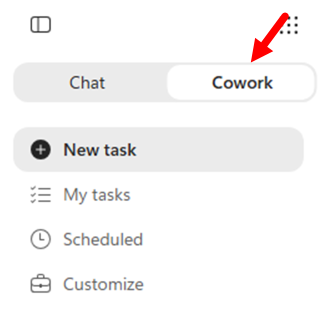
Notice that Cowork is oriented around delegated execution: you describe an outcome and Cowork plans and performs tasks for you across Microsoft 365.
In the left navigation, you will find these core options:
- New task: Start a new Cowork execution from scratch with a fresh prompt.
- My tasks: Find previous tasks and reopen past work quickly.
- Scheduled: Review and manage recurring or scheduled Cowork tasks.
- Customize: Manage available plugins and skills for your Cowork experience.
Step 2: Observe the execution model
From the Cowork home page, start a simple prompt such as:
Draft a status update email for my team based on this week's meetings and save a PDF copy in OneDrive.
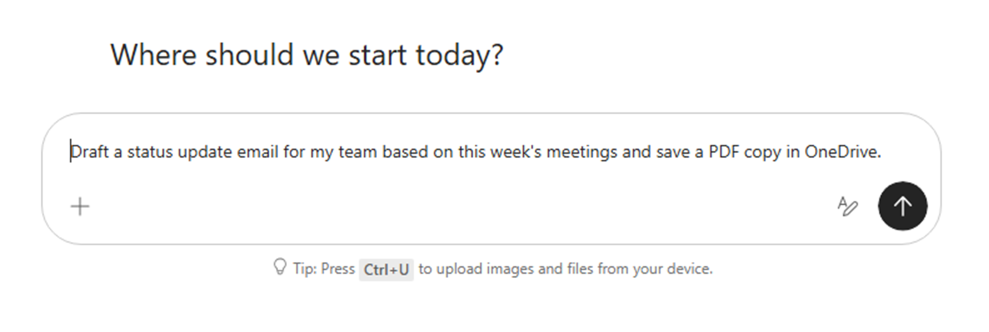
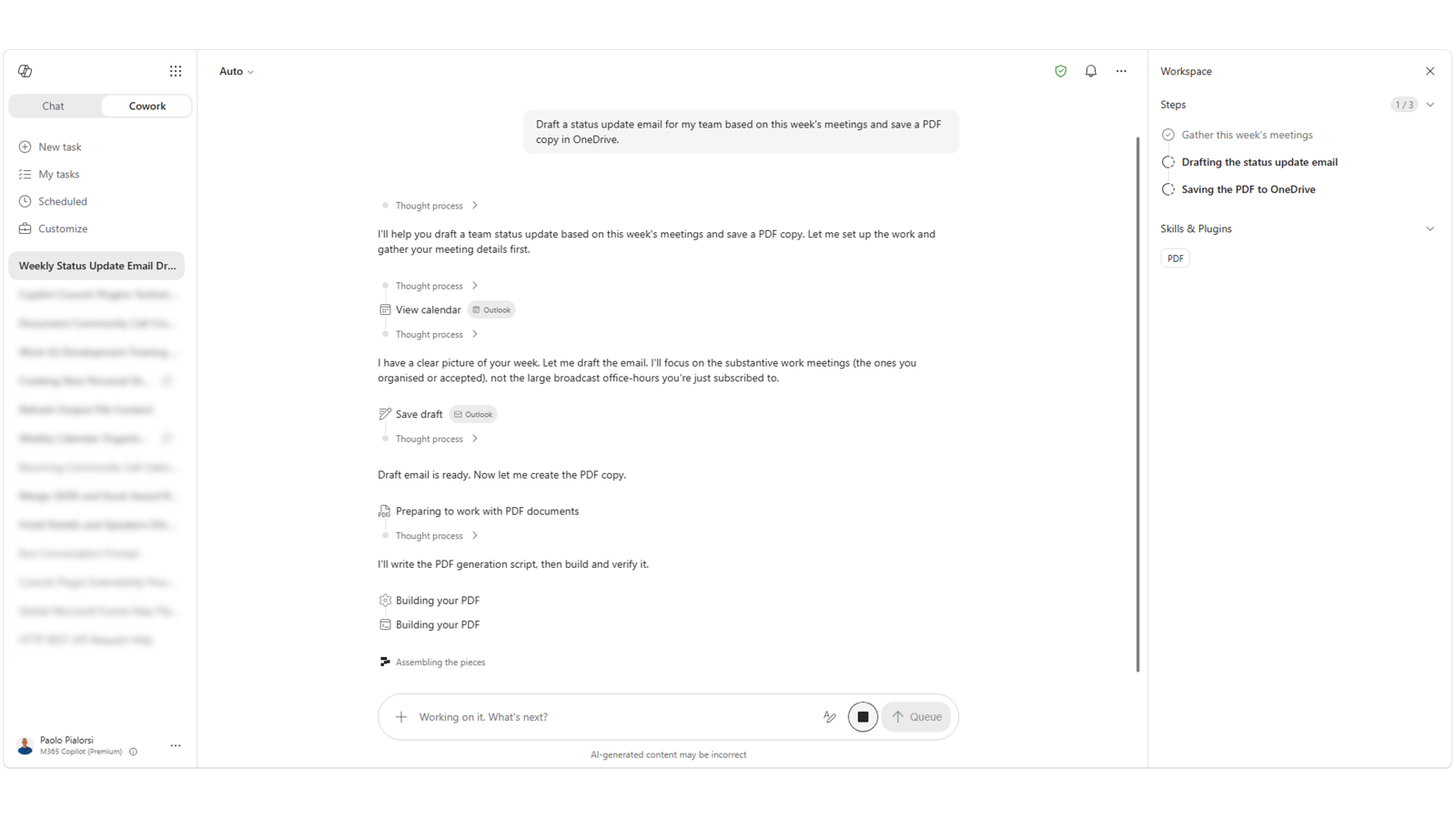
As Cowork runs, observe the step-by-step execution, loaded skills, and approval gates before sensitive actions (like sending or posting).
Once the work is complete, you will see a recap of all the tasks and steps executed, like in the following screenshot.
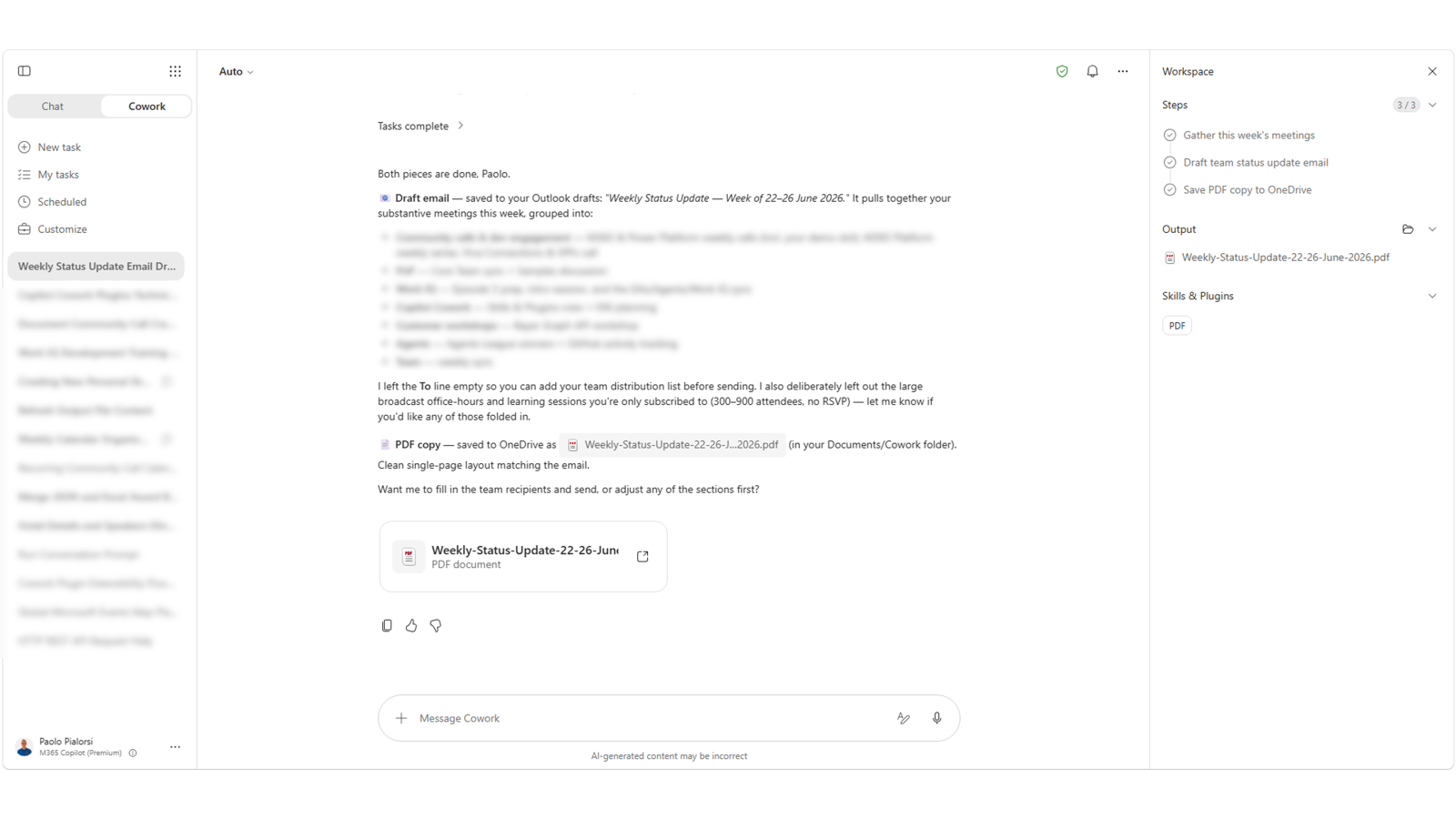
As you can see Cowork was able to execute multiple tasks, it created a draft of an email, it generated a PDF, and stored it in your OneDrive for Business. All of that was executed asynchronously and you could have done something else in the meantime.
Step 3: Test approval controls
Ask Cowork to perform a sensitive action, for example:
Schedule a 30-minute project sync with my team tomorrow and send a confirmation message in Teams.
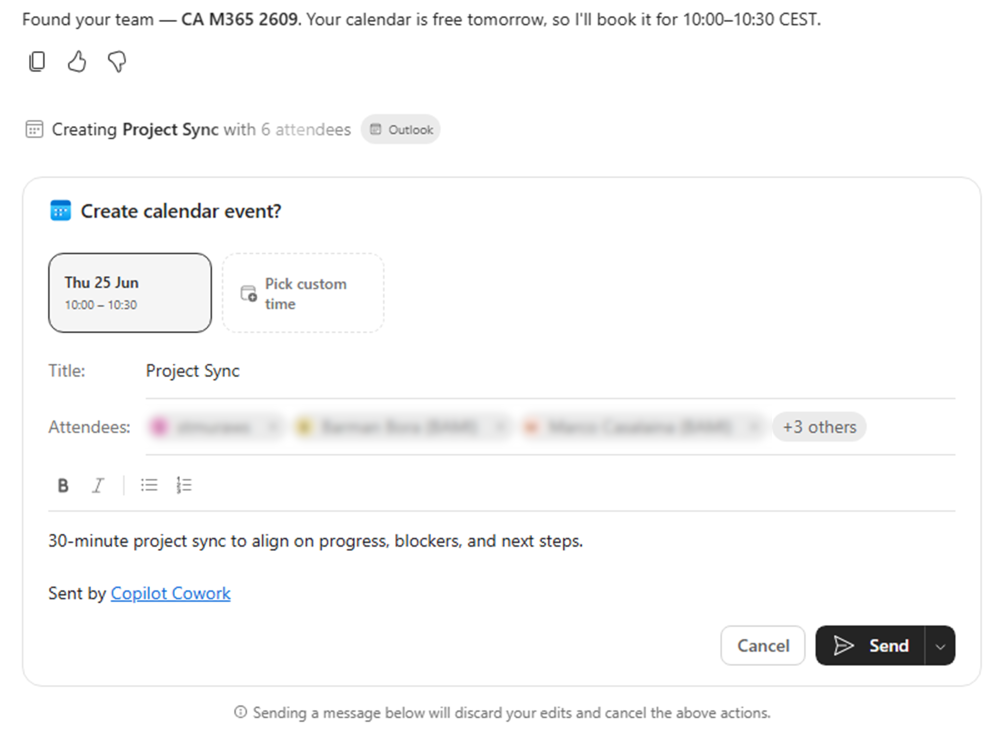
Verify that Cowork requests explicit approval before sensitive actions are executed.
Exercise 4: Explore Cowork extensibility options
In this series of labs about Cowork we focus on its extensibility model only. As such, in this exercise you will compare the main extensibility options available and activate an already existing plugin.
Step 1: Open the Customize experience
In Cowork, select Customize from the left navigation. You will find two key tabs:
- Plugins: Installed, discoverable, and shared plugins
- Skills: Built-in skills and your custom skills
Before continuing, keep this simple comparison in mind:
- Skills are task instructions and behavior patterns that guide how Cowork should execute specific types of work.
- Plugins are packaged integrations/connectors that add capabilities or external data sources Cowork can use.
- Choose Skills when you need to shape behavior and task logic. Choose Plugins when you need to connect tools, systems, or specialized packaged functionality.
Cowork already includes a rich set of built-in skills such as Word, Excel, PowerPoint, PDF, Email, Scheduling, Calendar Management, Meetings, Daily Briefing, Enterprise Search, Deep Research, Communications, and Adaptive Cards. These skills are automatically activated by Cowork based on the conversation context, and you can see which ones were used in the Skills section of the side panel.
Info
You can learn more about the Cowork skills reading Cowork skills.
Moreover, here are the Microsoft plugins currently included in Cowork:
- Dynamics 365 Customer Service
- Dynamics 365 ERP
- Dynamics 365 Sales
- Fabric IQ
Beyond these Microsoft plugins, there is already a broad catalog of third-party partner plugins available in the Microsoft 365 App Store, and that catalog keeps growing over time.
CONGRATULATIONS!
You have completed Lab CWRK0 - Copilot Cowork setup and extensibility!
Start here with Lab CWRK1, to build your first Skill for Copilot Cowork.