Copilot Code: build a simple web app
Copilot Code: build a simple web app
From a clear brief to a working web app.
Four prompts. Five core missions. Build a Bootcamp Lab Tracker, refine one thing at a time, and test the published result without writing code manually.
- 30-minute core
- 5 guided missions + 1 optional
- Real training data
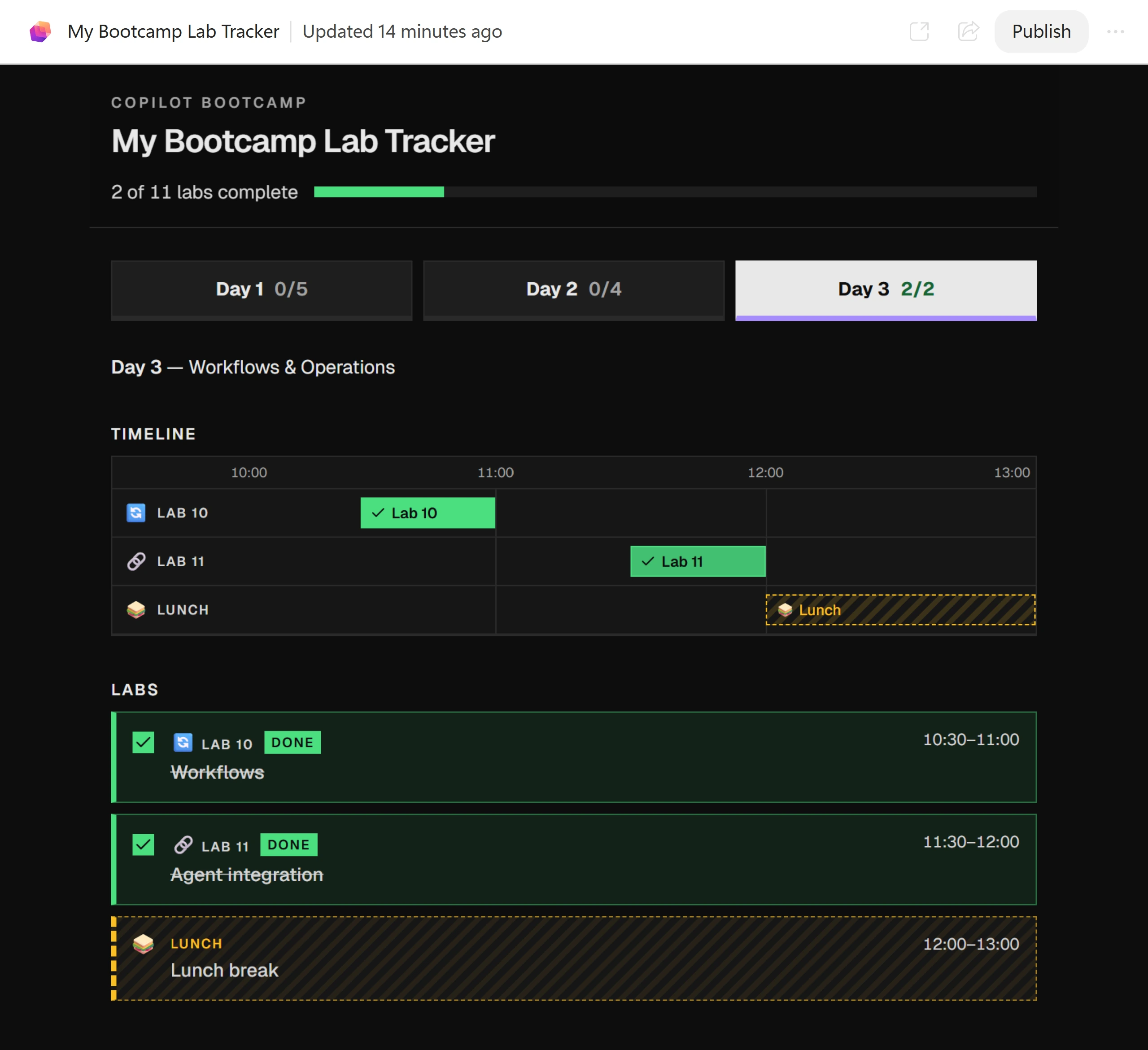
Your next 30 minutes
You are attending the bootcamp and need one place to see every day’s labs and mark them complete. Build from the published agenda, not an invented schedule. Lunch belongs on the timeline but must never count toward progress.
At a proctor-led event with a provided, pre-provisioned account? You're ready to start.
Using your own tenant? View setup requirements
Complete the classic lab’s prerequisite setup separately before starting. Copilot Code is a Frontier preview in the browser; this exercise needs no local development toolchain.
Build, Style, Label, Navigate and Publish take about 30 minutes; Extend is optional.
Checkmarks, quiz answers and your notes are saved only in this browser's local storage. Nothing is sent to the lab site. To keep them, download a PDF at the end.
Turn the agenda into a tracker
Start with a precise specification, then prove the basic tracker works before changing its appearance.
Your finish line A published neutral-grey tracker whose schedule and completion controls match the brief.
-
Open Microsoft Copilot and sign in with your lab account. Select Code in the Home | Code switcher at the top of the left pane, then New session. Find Let’s build something together. and the Create anything box.
Show me: the new Code session
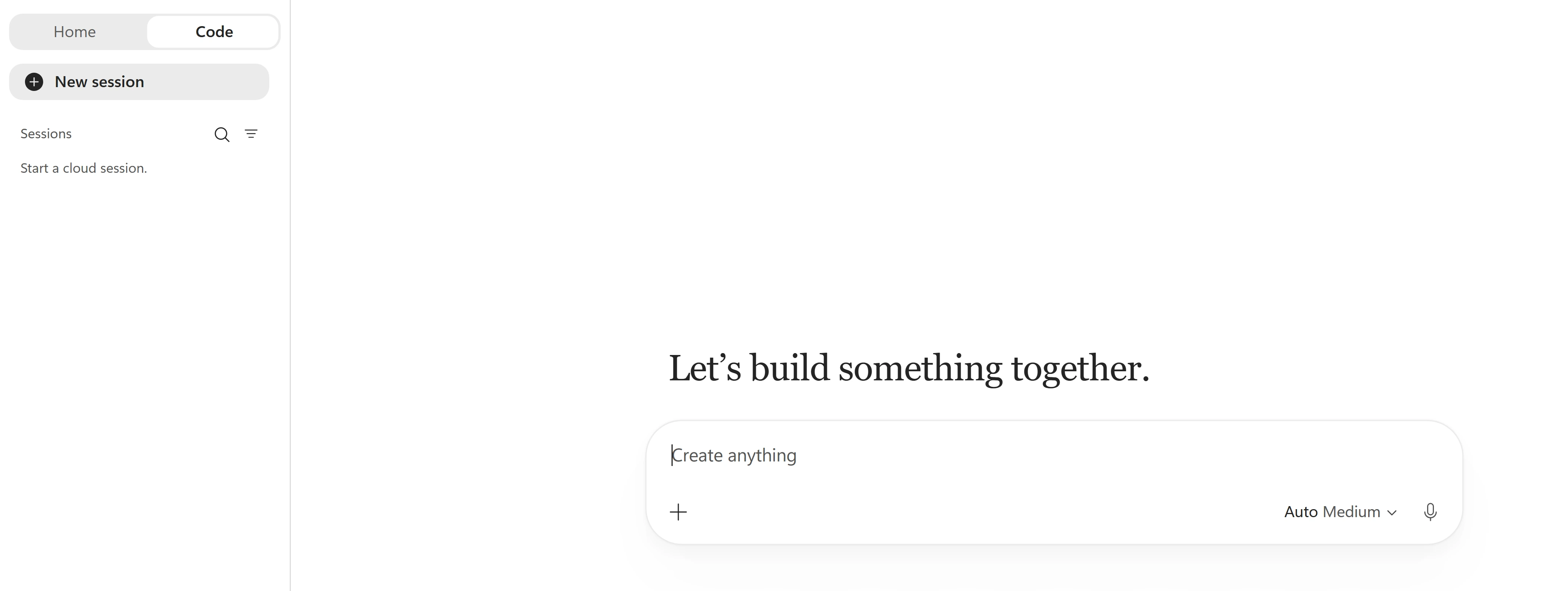
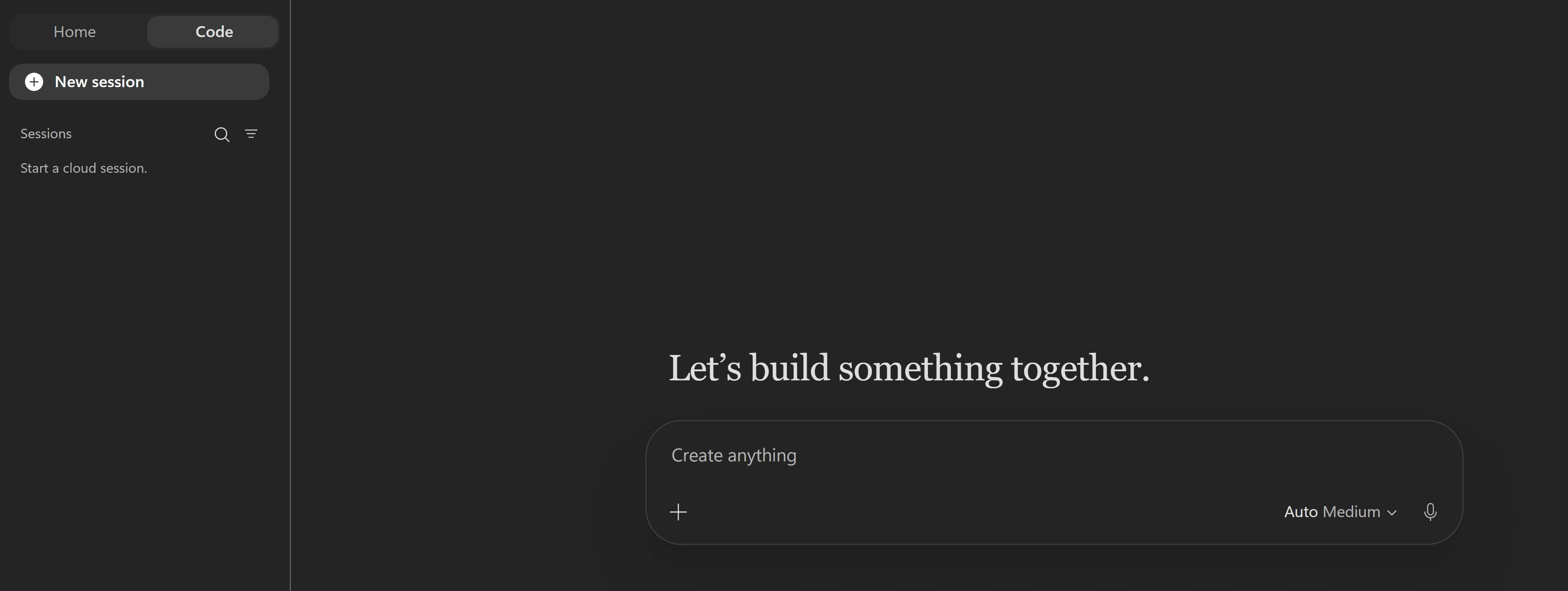
Start in Create anything. Keep the same session for all four prompts. -
Paste the entire prompt into Create anything, including the agenda URL and final instructions, then select the send arrow. Do not send Prompts 2–4 yet.
Create anythingBuild an app called "My Bootcamp Lab Tracker". Progress is kept in memory only: it starts with every lab unchecked and resets on reload. Fetch the agenda at https://microsoft.github.io/mcs-labs/events/architecture-bootcamp/ and use every day's "Lab N:" items and "Lunch break" as the app's data (day, number, title, start, end). Skip everything else, including optional labs. If the page can't be fetched, stop and tell me. Layout (max 720px, centered): - **Sticky header:** "COPILOT BOOTCAMP" eyebrow, title, "N of TOTAL labs complete" (aria-live) and a progress bar. - **Timeline:** a Gantt chart for each day with hourly gridlines. Each row is labelled "LAB N" or "LUNCH". Lab bars are toggle buttons (aria-pressed) showing the title, truncated with "…". Hovering or focusing a bar shows a tooltip with its details. Lunch bars aren't clickable. - **Cards:** grouped by day. Each lab card is a label around a checkbox, showing "LAB N", the title and the time. Done cards get a strike-through and a "DONE" badge. Keep the bars, checkboxes, counter and progress bar in sync. Use neutral greys and square corners, with visible focus outlines. When done, give me a preview link I can open in my browser.Notice thisKeep the tab open for about 5–7 minutes while Copilot Code fetches the agenda, writes and checks the code, then publishes. If it asks for permission to continue, for example to search the web, review and approve that lab action. If it cannot fetch the agenda or find labs, stop and tell your facilitator; do not invent a schedule.
-
Select Open on the My Bootcamp Lab Tracker app card to show Preview beside the chat. Then select the Open in app arrow in Preview’s toolbar (accessible name: Open My Bootcamp Lab Tracker in app) to open the published tracker in a new browser tab. If there is no working link, ask Copilot Code for one before continuing.
Click-by-click help
The app tab may ask you to sign in again. Use the same lab account. If an account picker also lists your personal or work account, choose the lab account or Use another account; do not select the account connected to your device.
Show me: the app card


Open shows Preview; use its Open in app arrow for the published app. Notice thisCopilot Code checks that the code builds and publishes, but it cannot click through the app itself in this flow. The behavior checks are yours.
-
- Compare every day’s lab numbers, titles, start/end times, and Lunch with the published agenda. Confirm time order.
- Confirm modules, welcome/re-cap, coffee breaks, Q&A, social, and all optional labs are excluded.
- Count the included labs. Confirm the header starts at 0 of TOTAL, using that count rather than a fixed number.
- Confirm neutral greys and square corners. The initial app may follow your browser’s light or dark theme; purple, green, amber, emojis, and day tabs come in the next three prompts.
-
- Click a lab’s timeline bar. Check that its checkbox, styling, overall completion count, and progress bar update together.
- Toggle a card’s checkbox and check that its timeline bar updates too.
- Uncheck a completed lab to reverse completion.
- Complete every included lab and confirm TOTAL of TOTAL.
- Try each day’s Lunch: it must not toggle or count toward progress.
- Reload the page and confirm all labs reset to unchecked.
- Use Tab and Space to operate the controls and confirm visible keyboard focus.
Show me: synchronized completion
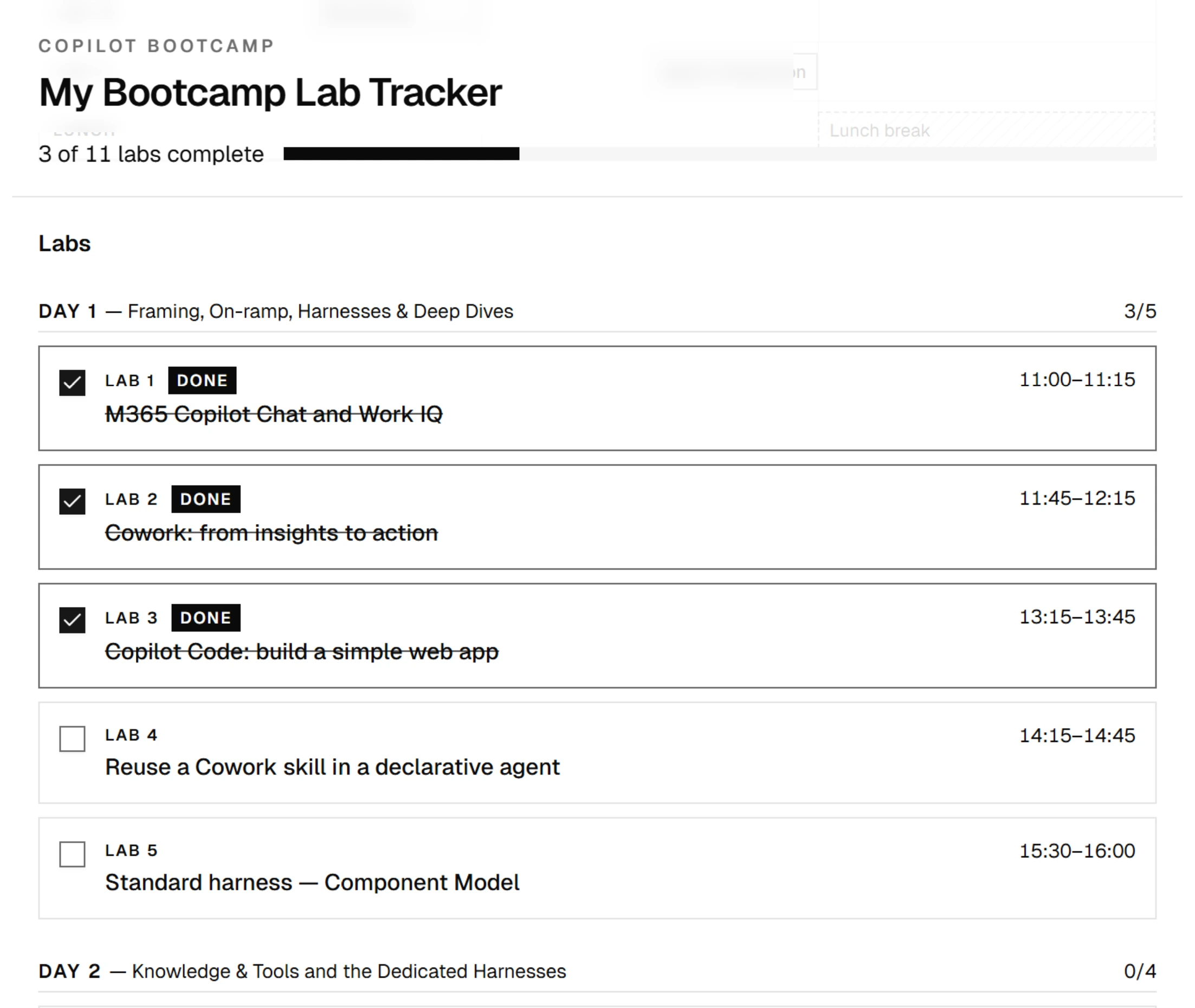
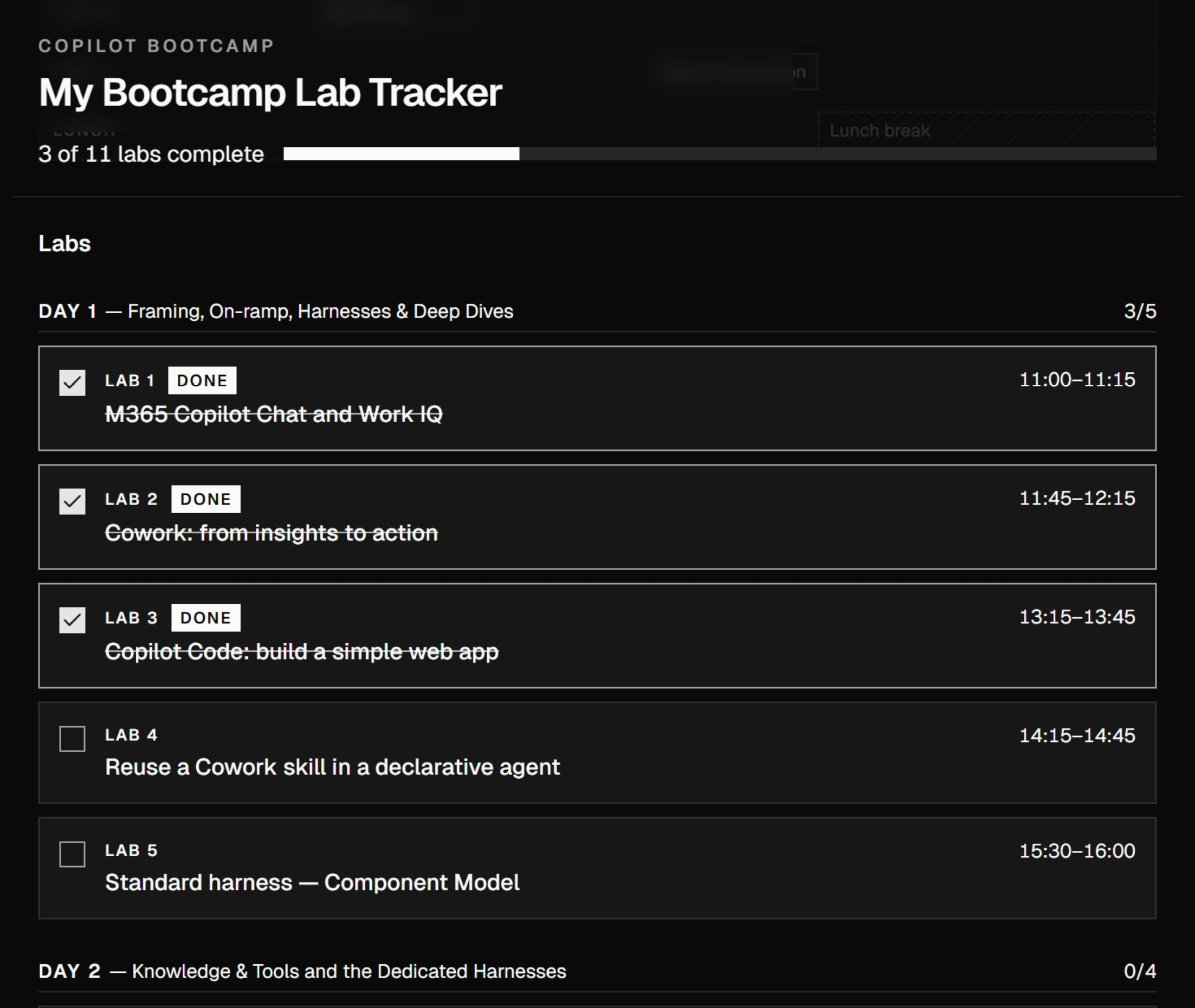
The example has 11 labs; your total must come from the current agenda, not this screenshot. Notice thisFix failed checks before refining: describe the action, expected result, and actual result to Copilot Code in this same session. Ask it to preserve the original specification, correct the defect, and publish the correction. Select Refresh in New version available, then repeat the check. Ask your facilitator if it still fails. Only then continue to Prompts 2–4.
What makes this more than a convincing screen?Pause and reveal the idea
A working app passes observable checks, including undo and reload.
The prompt specifies content, interactions, and constraints. The agenda is the source of truth; synchronized state makes several controls reflect one completion value. A successful build alone does not establish that behavior.
- Published agenda
- Explicit specification
- Generated app
- Behavior you verify
Something not matching?
- Generation is taking longer than the mission budget.
Check whether Copilot Code is waiting for permission. If it is actively working, read ahead without submitting the next prompt. Do not resend Prompt 1 or start a second session. Ask your facilitator for help if generation or troubleshooting overruns.
- The app link does not open, or the agenda cannot be fetched.
Ask Copilot Code for a working link if publishing completed. If it still fails, or the agenda cannot be fetched or contains no matching labs, stop and tell your facilitator. Do not fabricate the agenda.
- A behavior check fails.
Report the action, expected result, and actual result in the same Code session. Ask for a focused correction without changing the agenda or in-memory progress, publish it, and select Refresh in the app’s New version available notice. A browser reload alone may still open the previous version. Repeat the failed check before continuing; ask your facilitator if it still fails.
- Tab and Space work, but I cannot see which control has keyboard focus.
Ask Copilot Code to give timeline buttons and card checkboxes (or their enclosing labels) a clearly visible solid focus outline in both themes. Publish, load the notified version, and repeat Tab and Space on both control types. A successful build does not prove that the outline is visible.
Change the look, preserve the behavior
Apply a dark design without changing which labs count or how completion works.
Your finish line A dark preview with purple to-do labs, green completed labs, and amber Lunch.
-
Paste Prompt 2 unchanged into Ask a follow-up or request changes and send it.
Ask a follow-up or request changesUpdate with a dark theme, keeping everything else the same. - Background #0d0d0d, surfaces #161616/#1e1e1e, borders #2a2a2a, text #d4d4d4, headings #e8e8e8. - To do = purple #a78bfa (outlined bars, purple left border on cards). - Done = solid green #4ade80 bars, green-tinted cards. - Lunch = amber #fbbf24, with a dashed border and diagonal stripes. Keep focus outlines visible and respect prefers-reduced-motion. -
Wait for Copilot Code to finish the update, then inspect the Preview pane beside the chat. The Open in app arrow opens the published app, not this live preview. Confirm incomplete labs are purple, completed labs green, and Lunch amber with dashed borders and stripes.
Show me: the dark app design
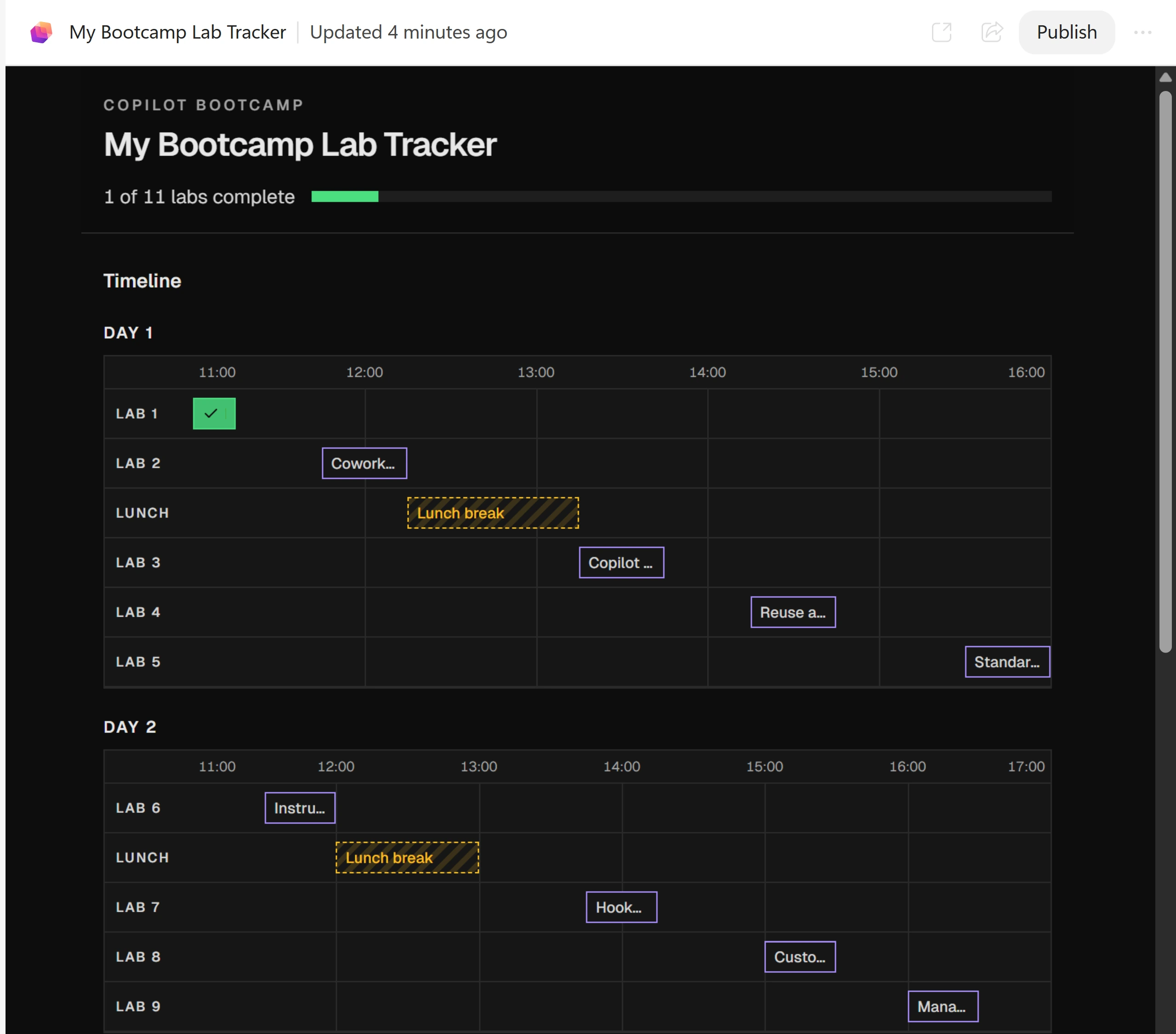
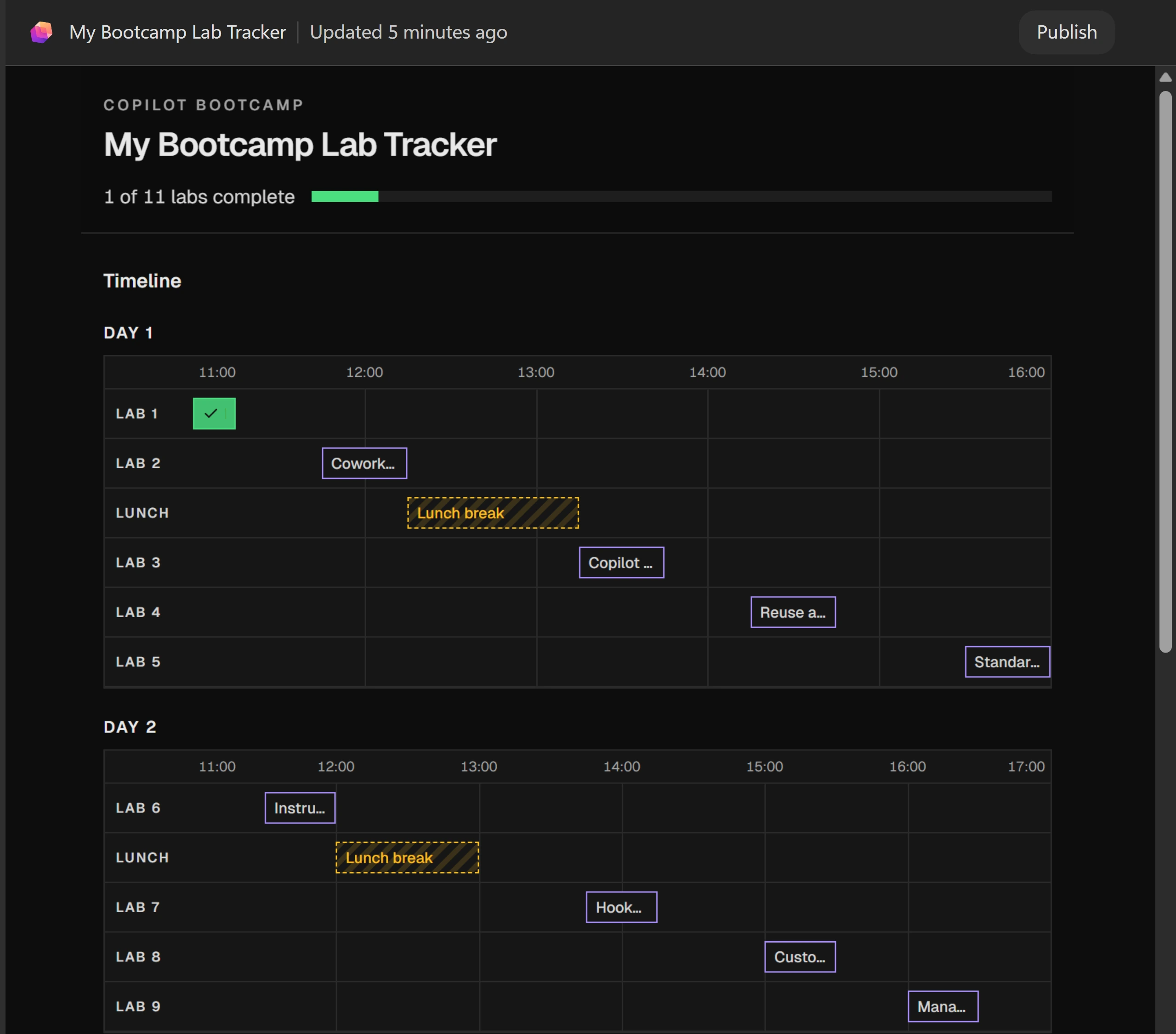
The preview shows the dark appearance requested in the prompt. -
Toggle a lab in both directions. Confirm its bar, card, counter, and progress bar still agree, and focus outlines remain visible.
Notice thisPrompts 2–4 change Preview only; the published link keeps the basic version until you publish at the end. Each update reloads the preview, so earlier ticks reset because progress is in memory only.
Why say 'keeping everything else the same'?Pause and reveal the idea
A visual refinement is not a new specification.
The design changes, but schedule and completion behavior remain acceptance criteria. Repeating a small behavior check after each update catches regressions before the final test.
- One focused change
- Wait for Preview
- Recheck existing behavior
Something not matching?
- My completed labs reset after the update.
That is expected: the update reloads the app. Do not add storage to fix it; resetting on reload is an explicit requirement.
- The timeline bars look cut off.
Expand the Preview pane or check the published app in its own tab. The next prompt also shortens bar labels while retaining full titles elsewhere.
Shorten labels without losing meaning
Make the timeline easier to scan while preserving full lab titles and meaningful accessible names.
Your finish line Consistent topic emojis and short Lab N bars with full titles still available.
-
Paste and send Prompt 3 in the same session. Wait about 1–2 minutes for the update before continuing.
Same Code sessionUpdate by giving each lab a distinct emoji that suits its topic; lunch is 🥪. Show it before "LAB N" in the timeline row labels, on the cards and in the tooltips. Lunch bars read "🥪 Lunch", and lunch cards show 🥪 instead of a checkbox. Hide emojis from screen readers. At ≤480px, the timeline row labels show the emoji only. Lab bars should say "Lab N" instead of the title, which gets cut off. The full title stays in the tooltip, the aria-label and the card. -
Confirm each lab’s emoji is consistent across its timeline row, card, and tooltip. Check Lab N on the bars and the full title in the tooltip, accessible name, and card. Confirm Lunch remains non-interactive. Save the narrow-screen check for the published tracker.
Show me: short labels with full tooltips
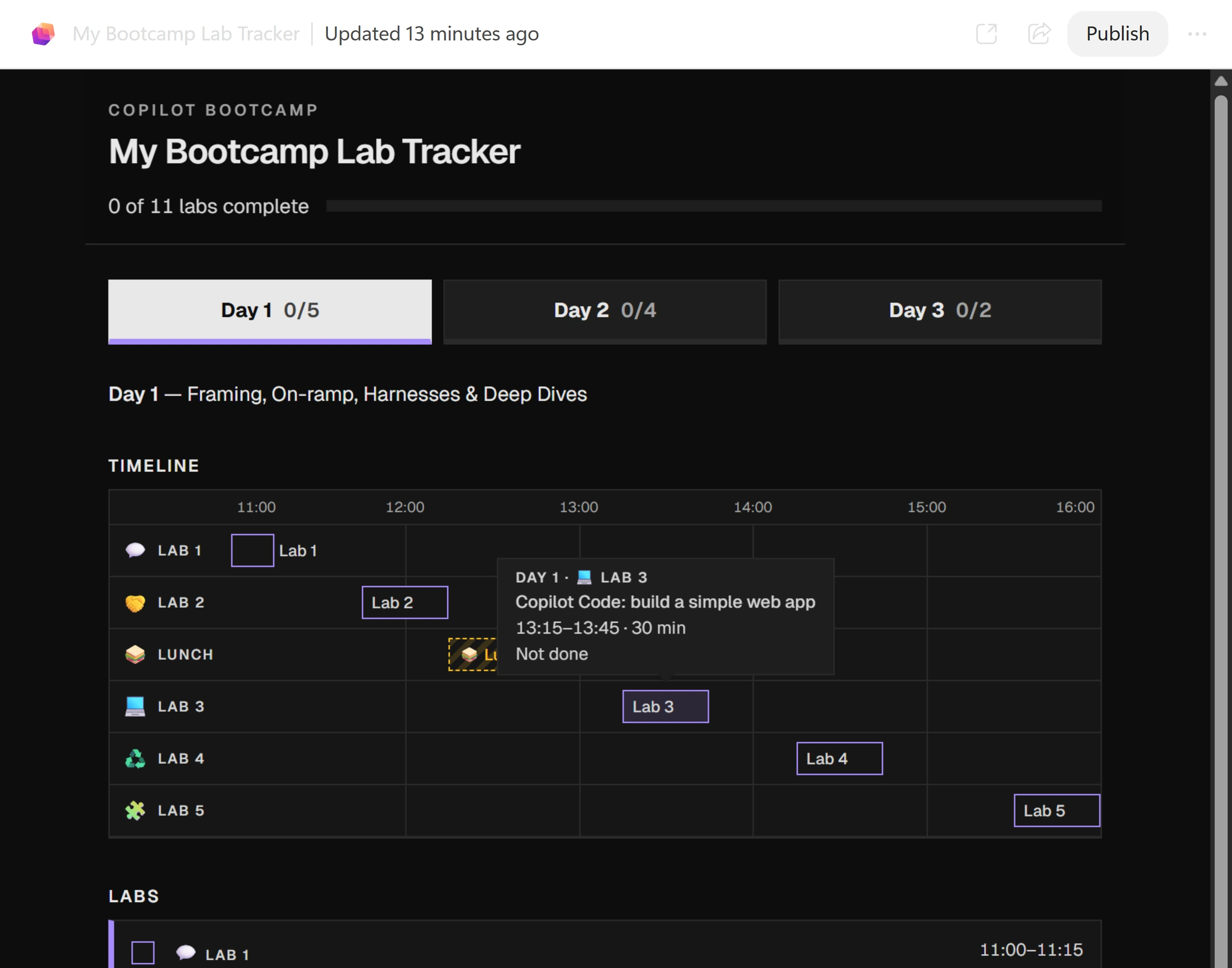
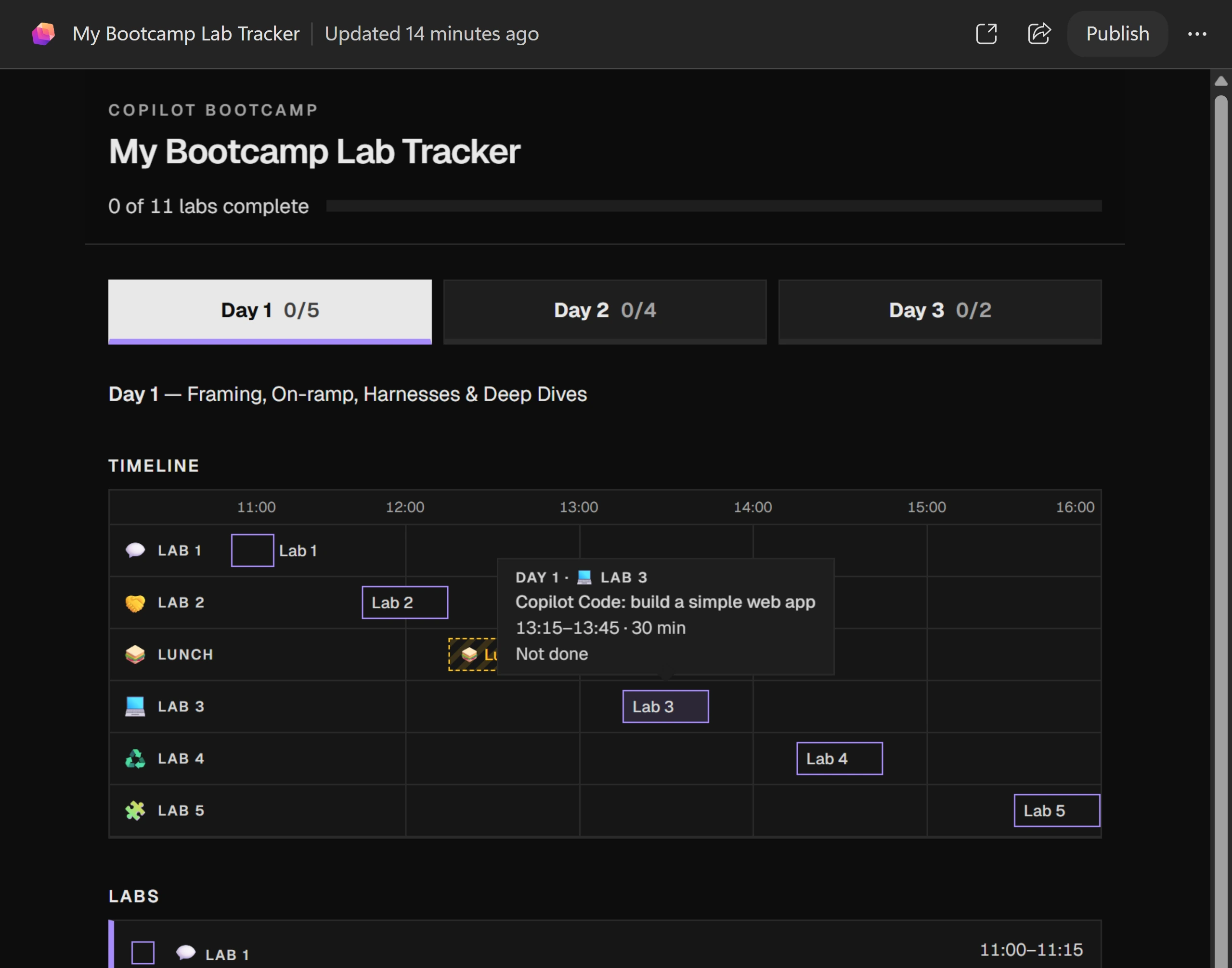
Short visual labels must not remove the full title. Generated emoji choices can differ.
Did shorter labels mean less information?Pause and reveal the idea
A compact visual label still needs a meaningful accessible name.
Emojis help scanning, but they are decorative here. The tooltip, aria-label, and card retain the title so a shortened bar does not become an unexplained control.
- Short visual label
- Full title retained
- Accessible name checked
Something not matching?
- The full title is no longer available.
Hover or focus a bar and inspect the card and accessible name. Report the missing information to your facilitator; do not accept shortened labels that remove meaning.
- Even Lab N is clipped on a short bar, or disappears when I complete it.
Ask Copilot Code to keep the complete short label readable before and after completion, including at 400px, without changing the agenda times or accessible name. A label beside a short bar can remain part of the same toggle button. Recheck the label, tooltip, and toggle after the correction.
Give each day an accessible tab
Separate the days without losing completed labs or the overall progress total.
Your finish line Equal-sized day tabs with per-day counts and preserved completion across tab switches.
-
Paste and send Prompt 4 in the same session. Wait about 1–2 minutes for the update.
Same Code sessionUpdate so each day is its own tab ("Day N" plus an x/y count), using the accessible ARIA tabs pattern with arrow-key navigation. Each tab shows that day's timeline and cards. Keep the header's overall progress, and keep ticks when switching tabs. Make the tabs stand out: full-width, equal-size buttons with bold text. Unselected tabs are #1e1e1e with a #2a2a2a border and light text, and get lighter on hover. The selected tab is near-white #e8e8e8 with dark #0d0d0d text and a purple bottom border. A day's count turns green when all its labs are done. -
Confirm the Preview pane shows equal-sized day buttons, a clearly highlighted selected tab, and only that day’s timeline and cards. Complete a lab, switch days, then switch back: its tick must remain. Keep the session open for publishing.
Show me: the finished day tabs
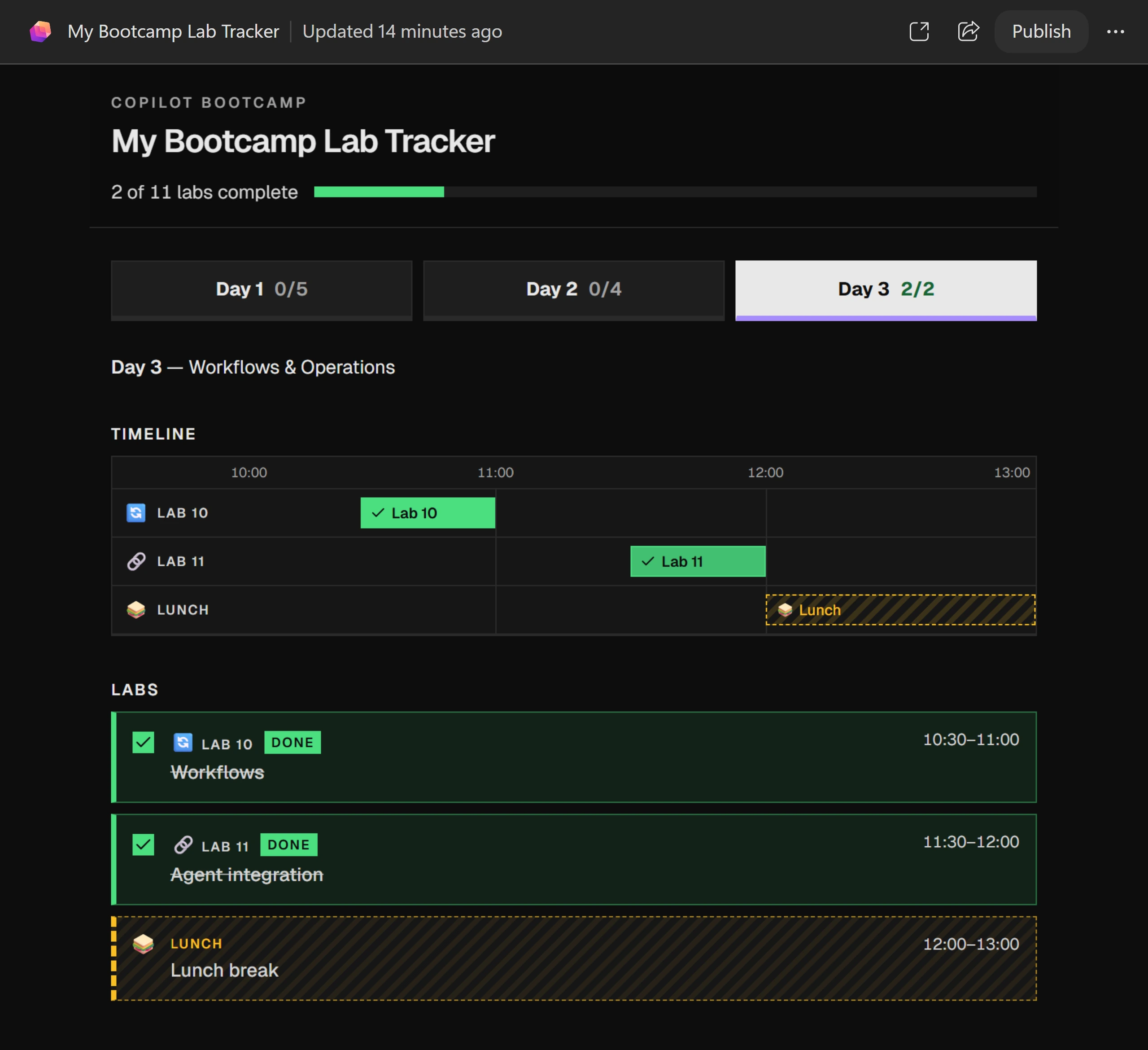
The sample's Day 3 count is green because all its labs are complete. Verify your own counts.
Why must tab switches keep ticks?Pause and reveal the idea
Navigation changes the view, not the underlying completion state.
Each day displays a subset of the same app state. The header includes all days; the selected tab shows one day’s controls. A reload is different: it deliberately starts a new in-memory state.
- Complete a lab
- Change the visible day
- Keep shared state
Something not matching?
- Switching days loses a completed lab.
Reproduce the sequence in Preview and tell your facilitator the day, lab, and action that lost state. Do not confuse this defect with the expected reset after an update or page reload.
Verify the version other people can open
Publish the refinements, then test the actual app for correct progress, keyboard access, and narrow-screen behavior.
Your finish line A published tracker checked against the original specification, not just its appearance.
-
Select Publish at the top of Preview. Wait about 1–2 minutes while it shows Publishing…, until Your app is published appears with Open app and Share. You can also ask Copilot Code to publish.
-
Return to the tracker browser tab. Select Refresh in New version available. If the notice is absent after publishing completes, reload the tab to check for it, then select the notice’s Refresh button; a browser reload alone may retain the older version. If that tab is closed, select Open app. Run the remaining checks in the published app’s tab, not just Preview.
Show me: the new version notification
Use this Refresh button to load the newly published version. -
- Repeat the Build mission’s schedule and completion checks: every day’s numbers, titles, times, Lunch, exclusions, dynamic total, toggles, reversal, and TOTAL of TOTAL must still be correct.
- Complete a lab on one day, switch to another, and switch back. Confirm the tick remains and the header includes completions from all days.
- Compare each tab’s x/y count with that day’s completed and total labs.
- Complete all labs on a day and confirm its count turns green both while that tab is selected and after selecting another day; uncheck one and confirm complete-day styling reverses.
- Confirm bars, checkboxes, per-day counts, the overall counter, and progress bar stay synchronized. Lunch must never count.
-
- Use Tab to reach the day tabs and selected day’s controls.
- Use arrow keys to navigate tabs; activate with Enter or Space if needed. Confirm visible focus.
- Hover over or focus a lab bar and confirm its full title remains available.
- Check with a screen reader that decorative emojis are not announced and each lab still has a meaningful name.
-
- Make the published app narrower than 480px. In browser DevTools, press F12, then Ctrl+Shift+M, and set device emulation to 400px wide.
- Confirm timeline row labels show only emojis and day tabs remain usable. Also test 480px: Prompt 3 includes that boundary. At 481px, the row text should be visible again. If 480px fails, ask for a focused correction and repeat the check; passing at 400px alone is not enough.
- Reload the page and confirm completion resets because there is no storage. This differs from switching tabs, which must keep ticks.
- Confirm square corners and the dark theme remain after all updates.
Show me: the 400px-wide tracker
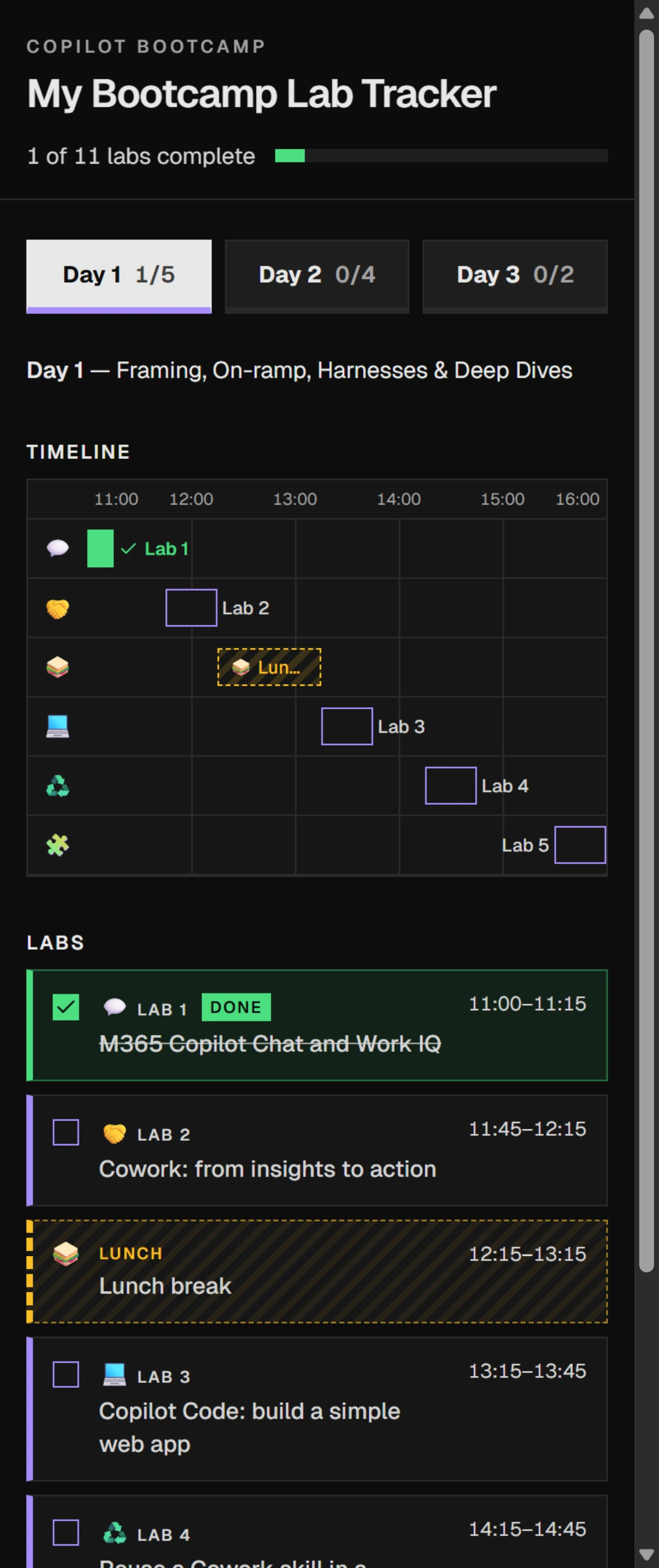
Check usability at 400px, then verify the inclusive 480px boundary and the return of row text at 481px.
When is the task really finished?Pause and reveal the idea
After you open and use the published app.
Publishing moves the refinements beyond Preview. Repeating the original checks catches regressions; keyboard, screen-reader, and narrow-width checks test whether a polished layout remains usable.
- Publish
- Refresh the app
- Repeat functional checks
- Test access and width
Something not matching?
- The published link still shows an older version.
Prompts 2–4 changed Preview only. Select Publish, wait for Your app is published, then Refresh in the app tab. If the link still fails, ask Copilot Code for a working link and tell your facilitator.
- The labels remain full length at 480px.
Tell Copilot Code that Prompt 3 requires emoji-only row labels at 480px inclusive, not just below it. Ask it to preserve screen-reader text and all other behavior, publish the correction, and load it with the app’s Refresh notice. Recheck 400px, 480px, and 481px.
- A final check fails.
Report your action, expected result, and actual result to your facilitator. Keep the initial specification available; do not add persistent storage or invent a new schedule to conceal a failure.
Transfer the method to your own idea
Practice describing one further refinement and the behavior it must preserve.
Your finish line A focused change brief with an acceptance check.
-
Write down one further refinement for this tracker or your own small app. Name the existing behavior you would explicitly preserve; do not submit another build during the core lab.
-
Write one action and its expected result. Explain why Prompt 2 preserves behavior, why Prompt 3 retains full titles, why a tab switch differs from reload, and why you check after each prompt instead of submitting all four together.
What transfers beyond this tracker?Pause and reveal the idea
Specify, inspect, and refine one change at a time.
This is a deliberately scoped prototype, not a production-ready service. The prompts do not require a single HTML file or a particular framework. Plain HTML/CSS/JavaScript and React still face the same acceptance checks. React can help organize reusable components and state as an interface grows, but adds dependencies and build tooling; accounts, shared data, saved cross-device progress, or server-side credentials call for a different, full-stack scope.
- One change
- Preserved behavior
- Observable acceptance check
You built, refined, and checked a web app
Four unchanged prompts took you from a published agenda to a tracker with a dark design, emojis, accessible day tabs, and a published link. Your acceptance checks—not the generation summary—establish whether it works.
Want to go further? Transfer the method to your own idea (optional, 3 minutes).
- Specify
- Describe content, interactions, and constraints. The agenda determines the total; Lunch is not a lab.
- Verify
- Exercise completion and reversal across bars, cards, day counts, and overall progress.
- Preserve
- Change one thing at a time and recheck existing behavior. Tab switches keep ticks; reloads reset them.
- Include
- Check keyboard focus, arrow-key tabs, meaningful names, and narrow-screen labels.
- Publish
- Preview changes do not update the published link until you publish and refresh.
Saved only in this browser. Your note stays in this browser's local storage on this device. It is not sent to the lab site or your Microsoft account, does not follow you to another browser or device, and is erased if you clear browsing data or reset progress. Download a PDF to keep it.
Downloads a copy of your prompts, progress and note to this device. Your note is not sent anywhere.
Product guidance and further reading
- Get started with Copilot Code (Frontier)
- Use Copilot Code (Frontier)
- What is Copilot Managed Runtime (preview)
- Get started with web development using Visual Studio Code
- Overview of DevTools (Microsoft Edge)
- Accessibility-testing features in Microsoft Edge DevTools
Product UI and available capabilities can vary by tenant. Screenshots show the training experience, not a promise of identical generated output.