Cowork Hands-On
Cowork Hands-On
Delegate a document-grounded task to Copilot Cowork and have it draft real output in Microsoft 365 on your behalf.
Content last updated:
Cowork Hands-On
Delegate real work to Copilot Cowork — hand it a document, let it reason over the content, and have it take action on your behalf while you get on with something else.
Lab Details
| Level | Persona | Duration | Purpose |
|---|---|---|---|
| 200 | Business User | 45 minutes | After completing this lab, participants will be able to delegate a document-grounded task to Copilot Cowork, have it draft real output in Microsoft 365 on their behalf, and describe how the delegation loop differs from conversational chat. |
Table of Contents
- Why This Matters
- Introduction
- Core Concepts Overview
- Documentation and Additional Training Links
- Prerequisites
- Summary of Targets
- Use Cases Covered
- Instructions by Use Case
Why This Matters
Chat answers you. Cowork does the work.
Everything up to this point in the bootcamp has been conversational — you ask, it responds, you act on the response. Cowork breaks that pattern. You delegate an outcome, it works through the steps, and it hands you back something finished for review.
That shift is the whole point, and it is the one most people miss on first contact. The measure of a Cowork task is not how good the reply reads; it is whether the thing you asked for actually got done.
Introduction
Copilot Cowork takes a delegated task and works it agentically: reading source material, resolving who and what it needs from your organisation, and producing real output in Microsoft 365 — a drafted email, a document, a set of updates — for you to review before anything is sent.
In this lab you hand Cowork the same annual hotel performance report used elsewhere in the bootcamp, ask it to brief a named colleague on the most urgent operational issues, and then verify that a genuine Outlook draft was created.
Core Concepts Overview
| Concept | Why it matters |
|---|---|
| Delegation | You describe an outcome, not a sequence of prompts. Cowork decides the steps. |
| Agentic action | It produces real artifacts in Microsoft 365 rather than text you then copy somewhere. |
| Grounding in your content | Uploaded documents and organisational context both feed the work. |
| Review before send | Output lands as a draft. The human approves — that gate is deliberate. |
| Running in parallel | A delegated task continues while you do something else; you are not waiting on a reply. |
| Acting in shared systems | Not every output has a draft stage. A Planner task lands on a colleague’s board the moment it is written. |
Documentation and Additional Training Links
Prerequisites
- A Microsoft 365 account with a Microsoft 365 Copilot licence
- Access to Copilot Cowork
- Outlook available to the same account, so the drafted email can be verified
- Download the sample report PDF: Contoso Grand Hotel Performance Report
- For Use Case #2: a sales tracker Excel workbook in a SharePoint document library the account can reach, with columns covering month, region, product line, and sales rep — the reference tenant uses
Sales.xlsxin theSales Lab1bdocument library — and a colleague named Dewain Robinson who resolves in the tenant directory - For Use Case #3: Planner available to the same account, and the ability to grant Microsoft Graph consent when Cowork prompts for it. Use Case #3 continues the Use Case #2 session, so run them in order
Summary of Targets
In this lab you’ll delegate a real task to Cowork rather than chatting with it. By the end you will be able to:
- Upload a complex source document to Cowork and delegate an outcome against it
- Have Cowork resolve a recipient from your organisation and draft a real Outlook email
- Have Cowork locate a file in SharePoint through Work IQ without being told where it lives
- Turn spreadsheet data into an interactive HTML dashboard you can explore in the side panel
- Have Cowork attach a graphic from an artifact it built to an Outlook draft
- Resume a previous Cowork session and build on the work already in it
- Have Cowork create real Planner tasks, and grant the Microsoft Graph consent that requires
- Ask Cowork to prioritize its own plan and explain the dependencies between immediate actions
- Verify the artifact Cowork produced, and edit it before sending
- Explain where Cowork sits against Copilot Chat and a custom agent
Use Cases Covered
| Step | Use Case | Value added | Effort |
|---|---|---|---|
| 1 | Draft an executive email with the Cowork agent from a PDF report | Cowork takes agentic action: reads the PDF, resolves the recipient, and drafts a real Outlook email on your behalf | 10 min |
| 2 | Build an interactive sales dashboard from SharePoint and draft the summary email | Cowork locates the workbook through Work IQ, extracts the data, builds an interactive HTML dashboard, and drafts an email with a graphic attached | 20 min |
| 3 | Build a sales campaign in Planner and identify immediate actions | Cowork writes real tasks into Planner with no draft stage, then uses the plan’s context to prioritize the nearest actions and explain their dependencies | 15 min |
Instructions by Use Case
Use Case #1: Draft an executive email with the Cowork agent from a PDF report
If Researcher (the Researcher exercise in Lab 1) is still reasoning in the background, that’s fine — you can run Cowork in parallel. Switch to Cowork to do something purely conversational agents cannot: agentically read a complex business document, look up the right recipient in your organization, and draft a complete email in Outlook — ready for you to review and send.
| Use case | Value added | Estimated effort |
|---|---|---|
| Draft an executive email with Cowork | Cowork takes agentic action: reads the PDF, resolves the recipient, and drafts a real Outlook email on your behalf | 5 minutes |
Summary of tasks
In this section, you’ll upload the same Contoso PDF to the Cowork agent, ask it to draft an email to a specific colleague summarizing the most urgent operational issues, and then verify the draft was created in Outlook.
Scenario: You’re an operations lead at the Contoso Grand Hotel and need to brief your colleague Dewain on the most pressing issues from the annual performance report. Rather than writing the email yourself, you’ll let Cowork extract the key facts from the report and draft the email — addressed to Dewain, ready for you to review, edit, and send.
Objective
Use the Cowork agent to read the same PDF report you uploaded to Researcher, identify five operational issues with root causes and recommendations, and have Cowork draft a real Outlook email to a named recipient (Dewain Robinson).
Step-by-step instructions
Open the Cowork agent
-
From the same Microsoft 365 Copilot page (
https://m365.cloud.microsoft/chat/?auth=2&home=1), select Cowork on the Chat / Cowork toggle at the top of the Copilot panel.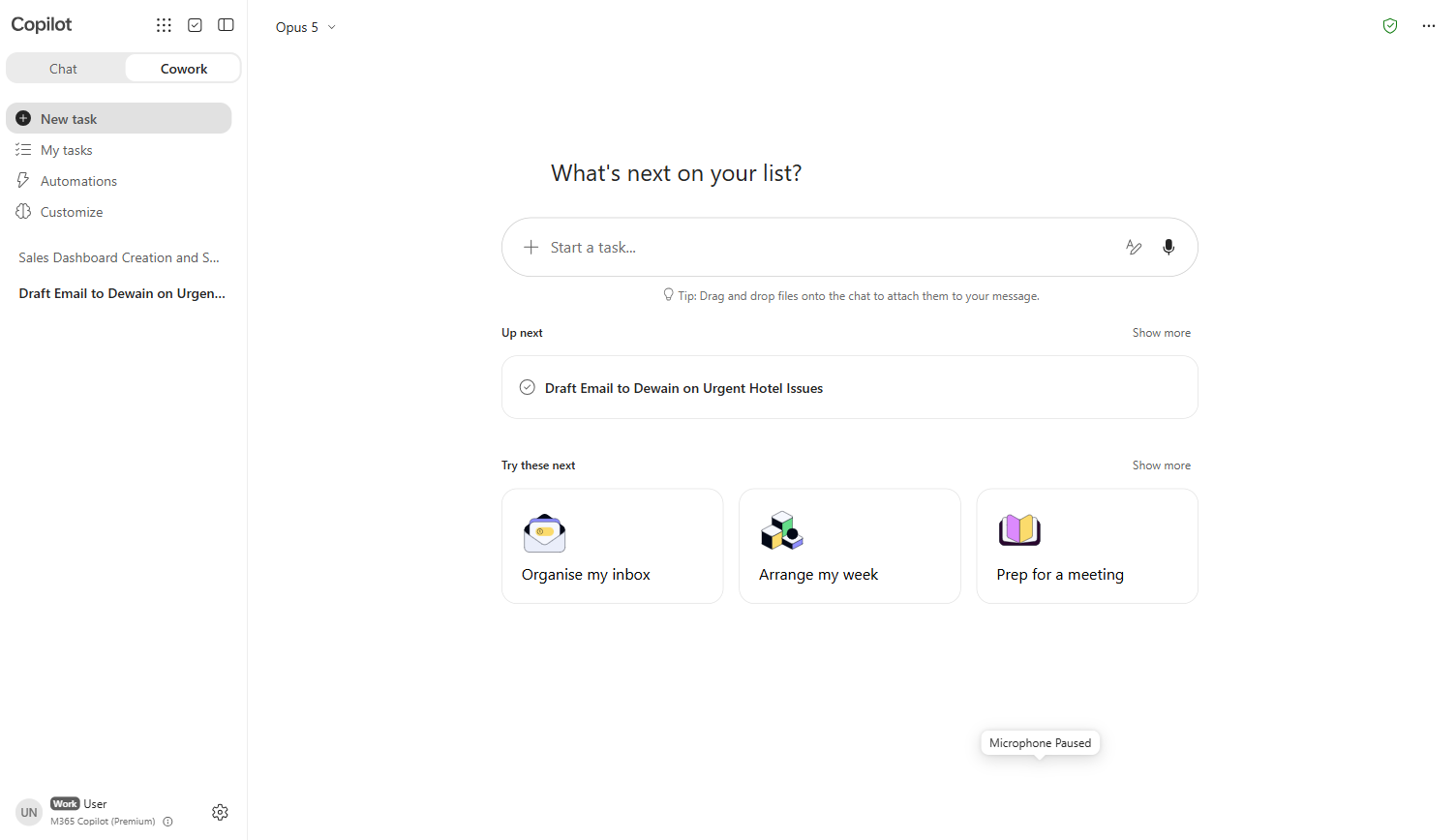
Take a moment to orient before you type anything. The message input reads Start a task…, not “ask me anything” — and that wording is the distinction this whole lab is about: you are handing over an outcome, not opening a conversation. In the left rail, My tasks is where delegated work appears while it runs, Automations is for work you want to recur, and below those Cowork lists your previous sessions — you’ll come back to that list in Use Case #3.
[!TIP] Cowork is generally available in Microsoft 365 Copilot and is purpose-built for agentic action-taking: it can read documents, look up people in your tenant, and create real Outlook drafts / Word docs / Teams messages on your behalf. While Researcher excels at deep analysis and Analyst at data and computation, Cowork excels at completing multi-step tasks that span several Microsoft 365 surfaces.
Upload the report and ask Cowork to draft an email
-
Click Add attachments (the paperclip icon next to the message input), then choose Upload images and files (PDF, Word, Excel, images). Select the
Contoso_Grand_Hotel_Performance_Report.pdffile you downloaded for the Researcher exercise in Lab 1. -
Wait for the upload to complete — the PDF will appear as a chip above the message input.
[!TIP] Uploading is not the only way to give Cowork a file. While editing a prompt, press
#to pick one straight from OneDrive — and in Use Case #2 you’ll use a third route, where Cowork finds the file itself and you never name a location at all. -
Paste the following prompt into the message input and press Send:
 Create a draft email in my Outlook mailbox addressed to Dewain Robinson summarizing the five most urgent operational issues from the attached hotel performance report. Use the Outlook draft tool — do not just write the email text in chat.

 For each issue, include in one short bullet: the symptom, the root cause, the estimated financial impact, and the matching recommendation (Section 16 R-number).

 Address the email "Hi Dewain," and sign it from "The Operations Team". Keep the total email under 400 words. Use the PDF as the only source.
[!TIP] Cowork executes this as a multi-step task: (1) reads the attached PDF, (2) looks up “Dewain Robinson” through Work IQ, (3) drafts a new email in your Outlook mailbox, (4) reports back in chat when done. Unlike Researcher, Cowork rarely asks clarifying questions — when the prompt is clear, it just acts, and typically completes in ~2–3 minutes.
-
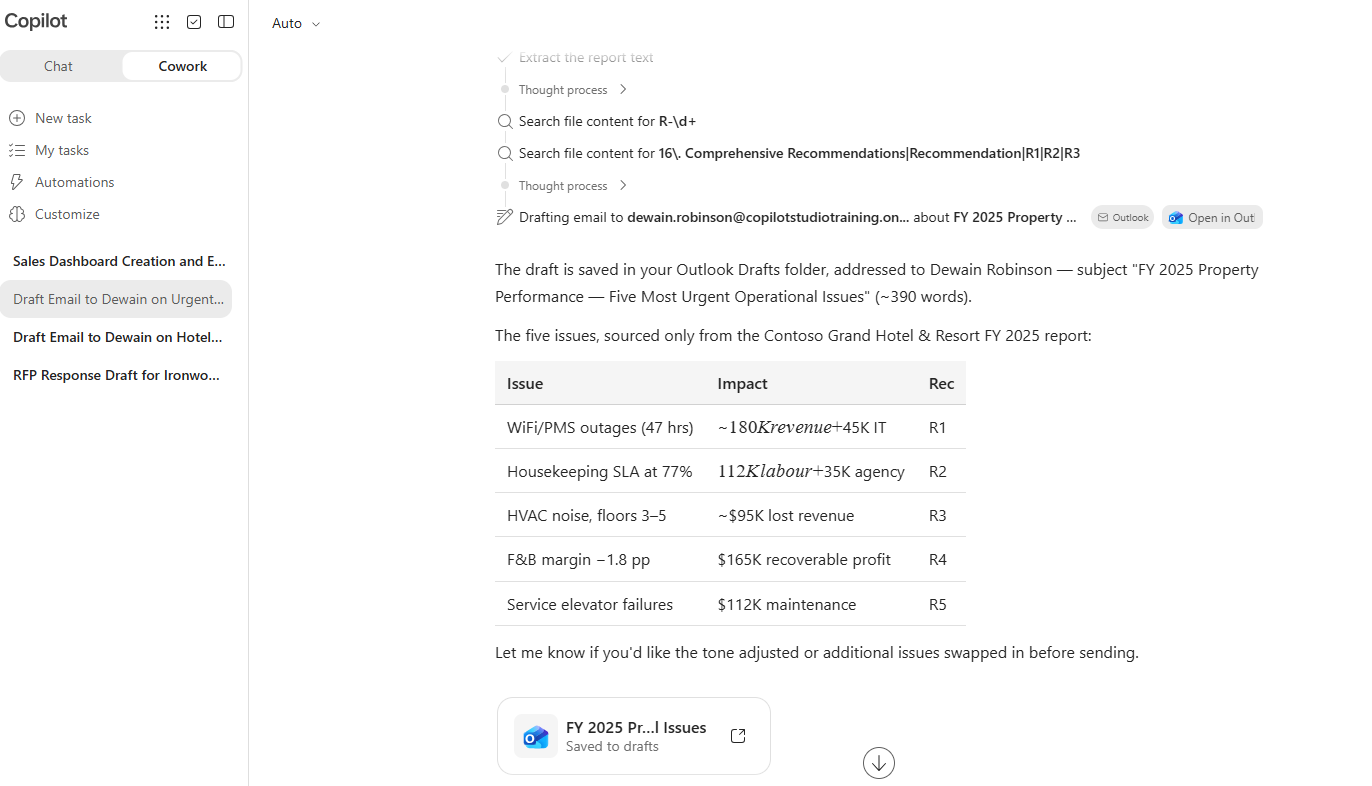
Observe how the Cowork agent:
- Streams execution updates (e.g., “Reading PDF”, “Searching for Dewain Robinson”, “Drafting email in Outlook”)
- Confirms the recipient resolved correctly (e.g., “Drafted email to Dewain Robinson”)
- Reports back inline in chat with a summary of the email it created and ends with “Open it in Outlook to review, edit, or send”
Verify the draft in Outlook
-
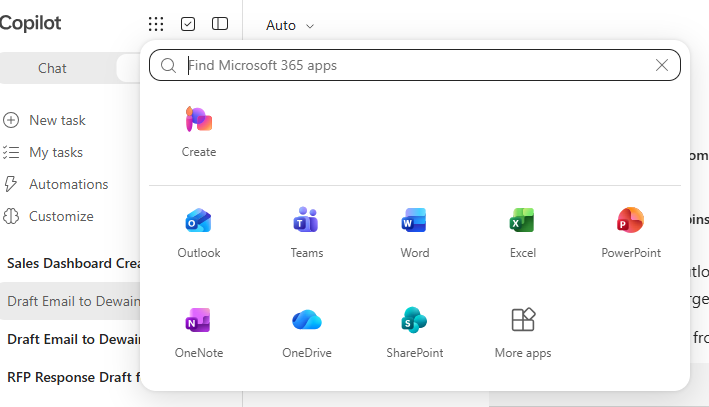
Open the app launcher (the 3×3 dot “waffle” icon at the top-left of the page) and select Outlook. Outlook opens in a new browser tab.
[!IMPORTANT] On your first Outlook visit, a “Your privacy matters” prompt may appear — click Continue to dismiss it. After that, the Outlook UI is ready for use.
-
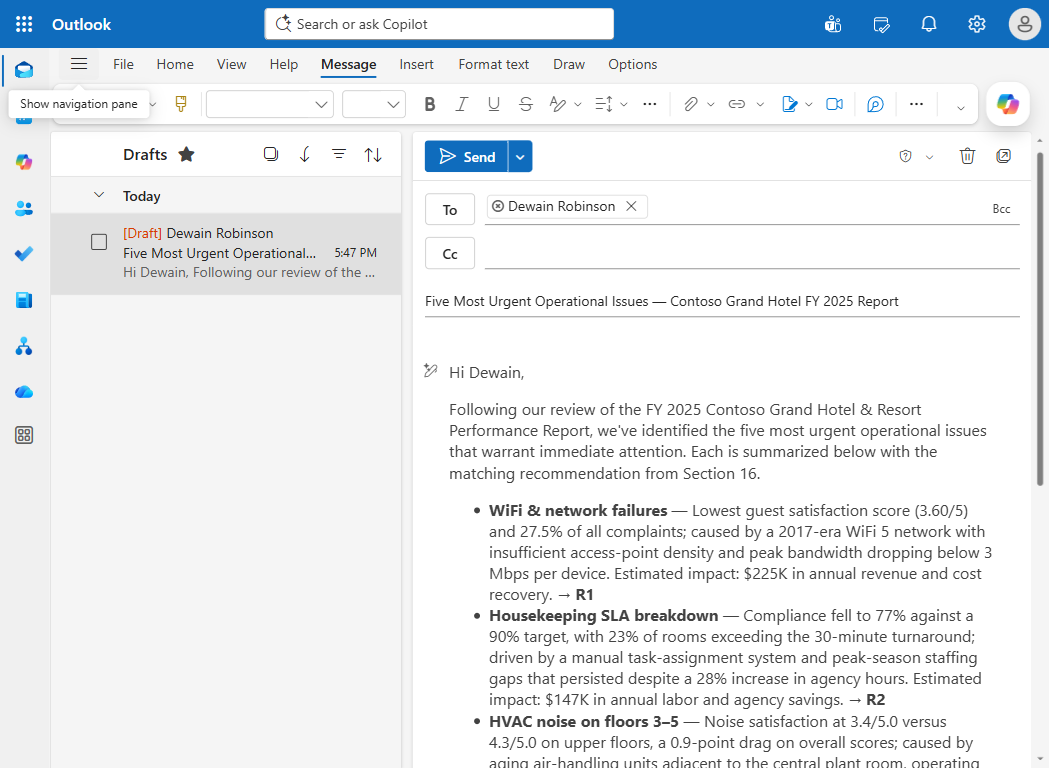
In the Outlook left rail, click the Drafts folder. Find the email Cowork just created at the top of the list — the subject will mention the Contoso Grand Hotel performance report and the urgent operational issues (Cowork phrases the subject conversationally, so the exact wording varies). Click it to open.
-
Review the draft:
- Recipient: Dewain Robinson (resolved as a contact pill — hover or click the pill to see the SMTP address)
- Subject: mentions the Contoso Grand Hotel report and the urgent operational issues (Cowork-generated wording — exact text varies)
- Body: five bullets, each covering symptom + root cause + financial impact + recommendation R-number
- Sign-off: “Best regards, The Operations Team”
- Total: approximately 300–400 words
-
From here you can edit, send, or delete the draft as you would any other Outlook email. For this lab, leave it as a draft (or delete it) — no need to actually send.
[!TIP] Cowork appends a
Sent by Copilot Coworkfooter to drafts it creates. You can remove that line before sending if you prefer a clean signature.
[!TIP] By now, head back to the Researcher exercise in Lab 1 and check whether Researcher has finished. If it has, compare the two outputs side-by-side: Researcher gives you a deep analytical breakdown, Cowork gives you an actionable email ready to send. Each is the right tool for a different job.
Congratulations! You’ve used Cowork to draft an executive email from a PDF report!
Test your understanding
Key takeaways:
- Cowork takes agentic action — It doesn’t just summarize. It reads a document, resolves a person in your org, and creates real artifacts (an Outlook draft, a Word doc, a Teams message) that are ready for you to review.
- No clarifying-question round-trip — When the prompt is clear and directive (“Draft an email to X about Y, address as Z, sign as W”), Cowork proceeds without asking follow-ups. The cost of being specific is a faster, more deterministic result.
- Cross-app integration — The result lives in Outlook, not in the chat. Cowork pivots the M365 experience from “answer in chat” to “complete the task in the right app”.
- Parallel work pays off — Cowork is a great companion to Researcher: while Researcher reasons in the background, Cowork drafts a real artifact you can ship in a fraction of the time.
Challenge: Apply this to your own use case
- What weekly emails do you draft from the same source data? Could Cowork generate the first draft?
- Which Microsoft 365 documents would you ask Cowork to read — project status reports, meeting notes, customer feedback summaries?
- Beyond email, Cowork can draft Word documents and Teams messages — what scenarios in your work would benefit from that kind of agentic drafting?
Use Case #2: Build an interactive sales dashboard from SharePoint and draft the summary email
Use Case #1 handed Cowork a file you uploaded and asked for one artifact. This one gives it neither. You don’t say where the file is, and a single instruction has to carry Cowork across four surfaces — find, extract, build, draft.
| Use case | Value added | Estimated effort |
|---|---|---|
| Build a sales dashboard and draft the summary email | Cowork locates the workbook through Work IQ, extracts the data, builds an interactive HTML dashboard, and drafts an email with a graphic attached | 10 minutes |
Summary of tasks
In this section, you’ll give Cowork one instruction that spans four surfaces: it locates a sales tracker workbook in SharePoint using Work IQ, extracts the data, builds an interactive HTML dashboard, and drafts an Outlook email to a named colleague with a chart from that dashboard attached.
Scenario: You’re a sales operations analyst. The sales tracker lives somewhere in SharePoint, and Dewain Robinson needs a readable summary with a sales visual he can preview without opening and interpreting the source workbook. Rather than building the charts yourself and assembling the email in Outlook, you’ll delegate the whole chain in one prompt and watch Cowork work through it.
Objective
Have Cowork find the sales tracker workbook in SharePoint without you naming its location, build an interactive HTML dashboard covering sales by month, region, product line, and sales rep, and draft an Outlook email to Dewain Robinson that summarizes the data with a graphic from the dashboard attached.
Step-by-step instructions
Open the Cowork agent
-
From the Microsoft 365 Copilot page, select Cowork on the Chat / Cowork toggle at the top of the Copilot panel.
-
Select New Task to start a fresh Cowork session, so this use case doesn’t continue the conversation from Use Case #1.
-
Open the model picker at the top of the panel (it reads Auto by default), choose Claude, then Opus 5.
[!IMPORTANT] Cowork writes the dashboard code itself, so the model you pick changes what you get. On Opus 5 the dashboard comes back with cross-filtering charts and a detail table, as described below. On Auto the same prompt has produced a filters-only dashboard with no table. Pick Opus 5 so your result matches the lab.
-
Paste the following prompt into the message input and press Send:
Find the sales tracker excel document in the document library and create an interactive html dashboard highlighting the sales by month, region, product line, and sales rep. Draft an email to Dewain Robinson with a summary of the data and attach the sales graphic from the dashboard to the email[!TIP] Note what this prompt does not contain: a file path, a site name, or a sequence of steps. You named an outcome and a recipient. Everything between those two things — locating the workbook, deciding what the charts should be, choosing which graphic belongs in the email — is Cowork’s to work out.
Observe how Cowork works
-
Watch the execution trace. Cowork works through the task in stages, and each one is worth pausing on:
- It first uses Work IQ and SharePoint to find the sales tracker — you never told it where the file lives
- It opens the spreadsheet and extracts the data
- It builds the dashboard layout in HTML, adding interactive controls rather than static images
- It moves on to drafting the email while the dashboard is already available
-
Click the dashboard in the output pane while the email draft is still being created.
[!TIP] This is the moment that separates delegation from chat. You are reading a finished artifact while the agent is still working on the next one. Nothing is blocked on your attention, and nothing was blocked on the agent’s.
-
Observe the dashboard in the side panel: dropdown filters for region, product line, sales rep and fiscal period, KPI tiles, charts that cross-filter the whole view when you click a bar, and a monthly detail table. This is a working artifact, not a picture of one — try a filter before you move on, then click a single bar and watch every other chart and tile redraw around it.
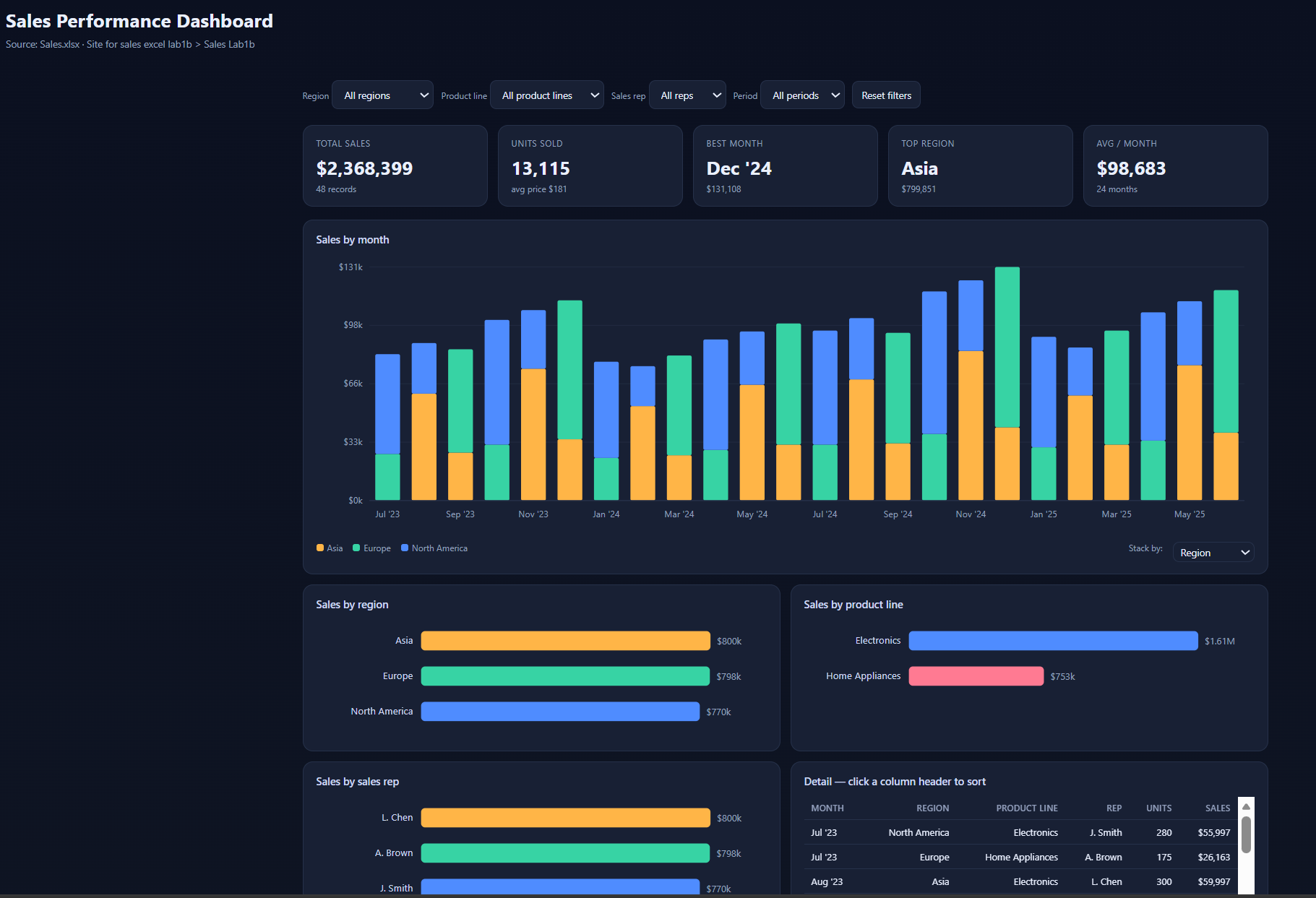
[!NOTE] Cowork designs this dashboard from scratch each run, so the exact layout, chart types and tile set will differ from the screenshot. Filters and charts are reliably there; extras such as a records tile or a second summary table come and go.
[!TIP] Read the line under the dashboard title — it cites its own source, along the lines of “Source: Sales.xlsx · Sales Lab1b document library · Jul 2023 – Jun 2025.” That is the fastest confirmation that Cowork found the right workbook and read all of it, and you never have to leave the panel to check.
Verify the draft in Outlook
-
Open the app launcher (the 3×3 “waffle” icon at the top-left) and select Outlook, then click the Drafts folder.
-
Open the draft Cowork created and check:
- Recipient: Dewain Robinson, resolved as a contact pill
- Body: a written summary of the sales data, not just a chart
- Graphic: the sales visual from the dashboard is attached to the email and can be previewed
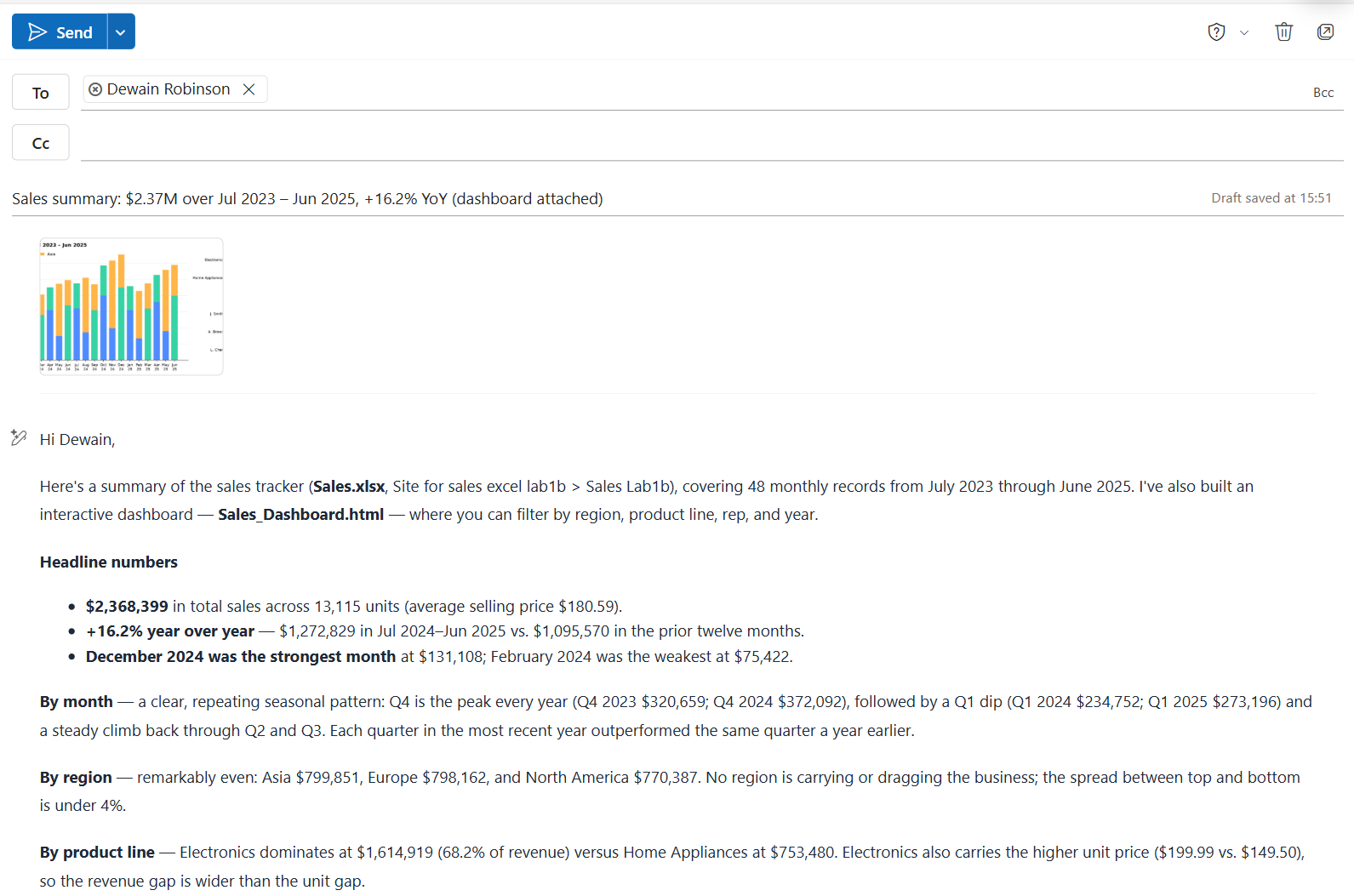
-
Leave it as a draft. As in Use Case #1, nothing needs to be sent.
[!TIP] Pick one figure from the email summary and check it against the source workbook in SharePoint. The dashboard and the email were both generated from the same extraction, so a number that disagrees with the spreadsheet tells you something went wrong upstream — and this is exactly the check you would run before sending this to a colleague.
Congratulations! You’ve had Cowork find, analyze, visualize, and draft — from one instruction!
Test your understanding
Key takeaways:
- One prompt, four surfaces — Search, extraction, visualization, and drafting. You described an outcome; Cowork decided the sequence and executed it without asking you to confirm each step.
- Work IQ did the finding — You never supplied a path or a site name. Locating the file was part of the problem you delegated, not part of the prompt you wrote.
- The dashboard is a live artifact, not a picture — It has interactive controls and opens in the side panel. Cowork built a working thing, then attached a still from it to the email.
- Work continues while you explore — Clicking into the dashboard mid-run doesn’t pause the email draft. That parallelism is the delegation model doing exactly what it promises.
- The review gate held again — The email is a draft. Cowork prepared the work and stopped.
Challenge: Apply this to your own use case
- Which spreadsheet do you manually chart and email on a schedule today?
- If the tracker updated weekly, would you re-run this by hand — or is this a job for a scheduled agent you build yourself?
- Where in your reporting would an interactive dashboard beat the static chart everyone currently pastes into a mail?
Use Case #3: Build a sales campaign in Planner and identify immediate actions
Use Cases #1 and #2 both stopped at a draft — private, reversible, sitting in your own mailbox until you decided otherwise. This one doesn’t. Cowork writes real tasks into Planner, and the moment it does, they exist in your plan.
| Use case | Value added | Estimated effort |
|---|---|---|
| Build and prioritize a sales campaign in Planner | Cowork writes real tasks into Planner with no draft stage, then identifies the nearest actions and explains the dependencies between them | 10 minutes |
Summary of tasks
In this section, you’ll resume your Use Case #2 session, ask Cowork to turn what it found in the sales data into a campaign plan in Planner, approve the Microsoft Graph consent it needs to write there, review the tasks it created, and then ask it to identify the three nearest actions.
Scenario: The dashboard you built in Use Case #2 showed home appliances lagging, and your sales reps need a campaign they can launch three months from now. Rather than writing the plan and keying the tasks in yourself, you’ll delegate both — and then ask Cowork to prioritize what needs attention first.
Objective
Resume the previous Cowork session, have Cowork create a Home Appliance campaign as a plan in Planner with tasks your sales reps can work from, grant the Microsoft Graph consent required to write there, and then ask Cowork to identify the three nearest actions and their dependencies.
Step-by-step instructions
Resume your previous session
-
Open Cowork from the Microsoft 365 Copilot page.
-
Open the previous session — the one from Use Case #2.
[!TIP] This matters more than it looks. That session already holds the sales data Cowork extracted, the dashboard it built, and the conclusions it drew. Resuming it means the next prompt can refer to “the weak home appliances business” without you re-explaining anything or re-attaching a single file. A new session would start cold.
Delegate the campaign plan
-
Type the following prompt and press Send:
I want to build a sales campaign to shore up the weak home appliances business. Create a short sales campaign with my name in Planner that our sales reps can use to boost sales around home appliances. Let's design a plan to launch the campaign three months from now.[!TIP] “With my name in Planner” is doing real work in a shared tenant — it keeps your plan distinguishable from everyone else’s in the room. The launch date is the only hard constraint you give; the campaign structure, the tasks, and their sequencing are all Cowork’s to decide.
-
When Cowork prompts with Use Microsoft Graph?, open the arrow next to Approve and choose Always allow Call graph.
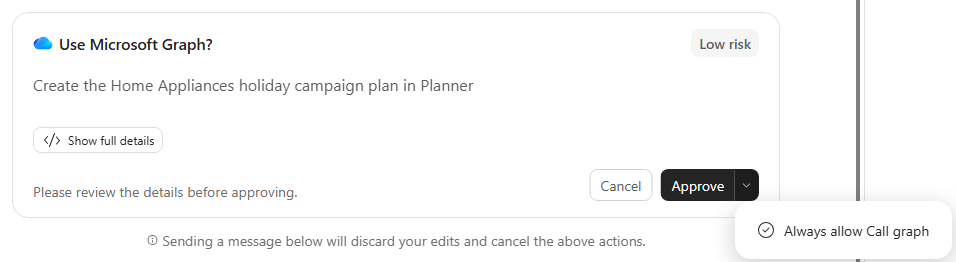
[!IMPORTANT] This is the permission boundary made visible. Reading your files and drafting your mail needed no extra consent — writing into Planner does. Note that Always allow persists for future calls, so it is a decision about every subsequent task, not just this one.
[!TIP] Always allow Call graph lives in the dropdown on the Approve button, not as a step after it — plain Approve authorises one single call and the card disappears. Building this plan takes Cowork dozens of Graph calls, and approving them one at a time means a prompt for every one.
Review the tasks in Planner
-
Open the app launcher (the 3×3 “waffle” icon at the top-left), choose More apps, then select Planner. Planner opens in a new window.
-
Select My plans, then open the plan Cowork created — its name combines the campaign with your username. Observe the tasks it wrote: phase buckets and due dates working back from the launch. Switch to the Grid view to see the whole plan at once.
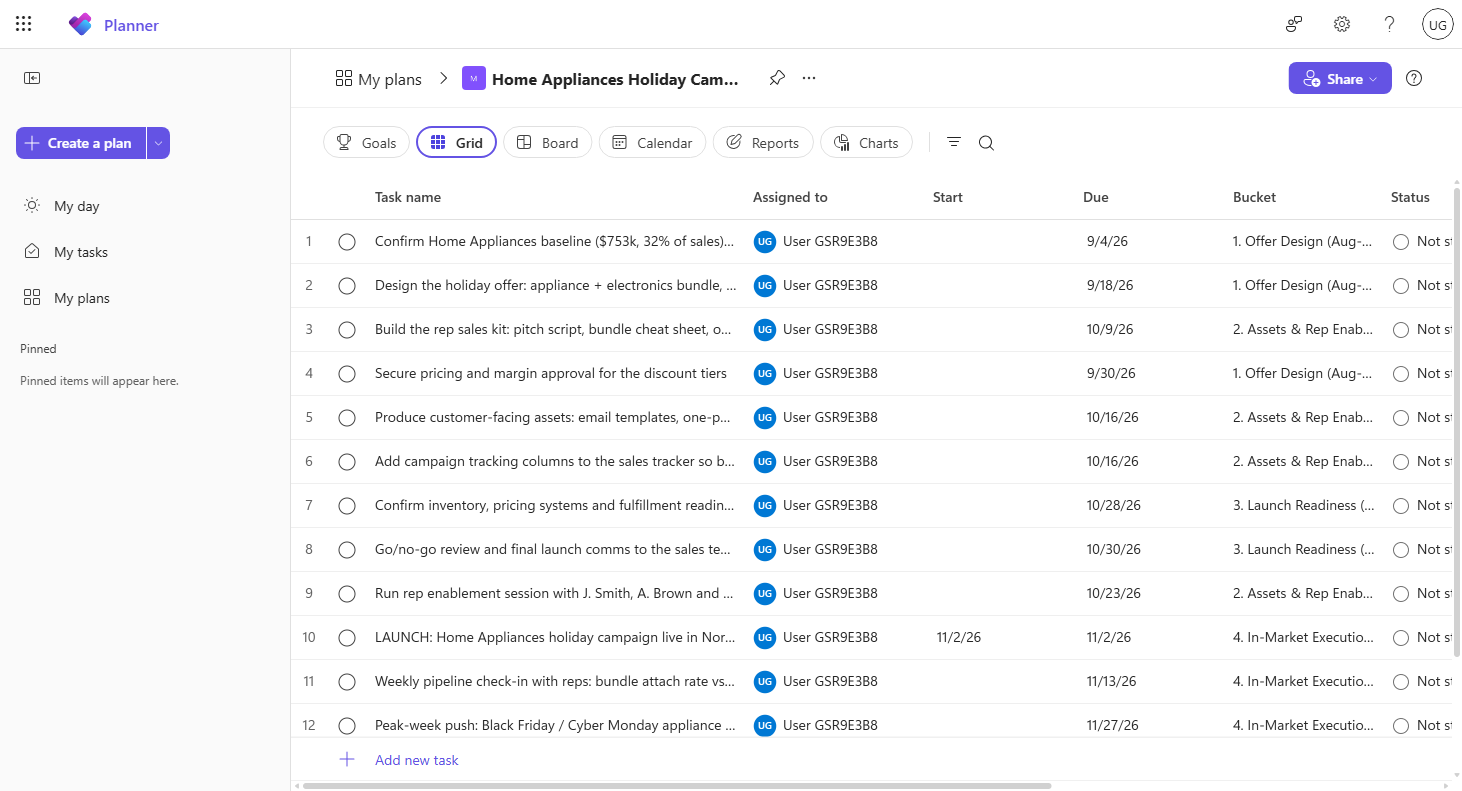
[!NOTE] Use My plans, not My Tasks. My Tasks lists only what is assigned to you and indexed, and it is routinely still empty at this point in the lab even when the tasks already exist in the plan. If My Tasks looks empty, nothing has gone wrong — open the plan instead.
Ask for the immediate actions
-
Go back to Cowork and click on your session to resume it.
-
Type the following prompt and press Send:
What are the 3 immediate actions to be taken care of?[!TIP] Notice what this prompt doesn’t include: which plan, which tasks, or where to find them. Cowork built the plan in this session, so it still knows. This is the difference between an agent that holds context and a tool you have to re-brief every time.
Review Cowork’s prioritization
-
Observe how Cowork returns the three nearest campaign actions and calls out the dependencies between them.
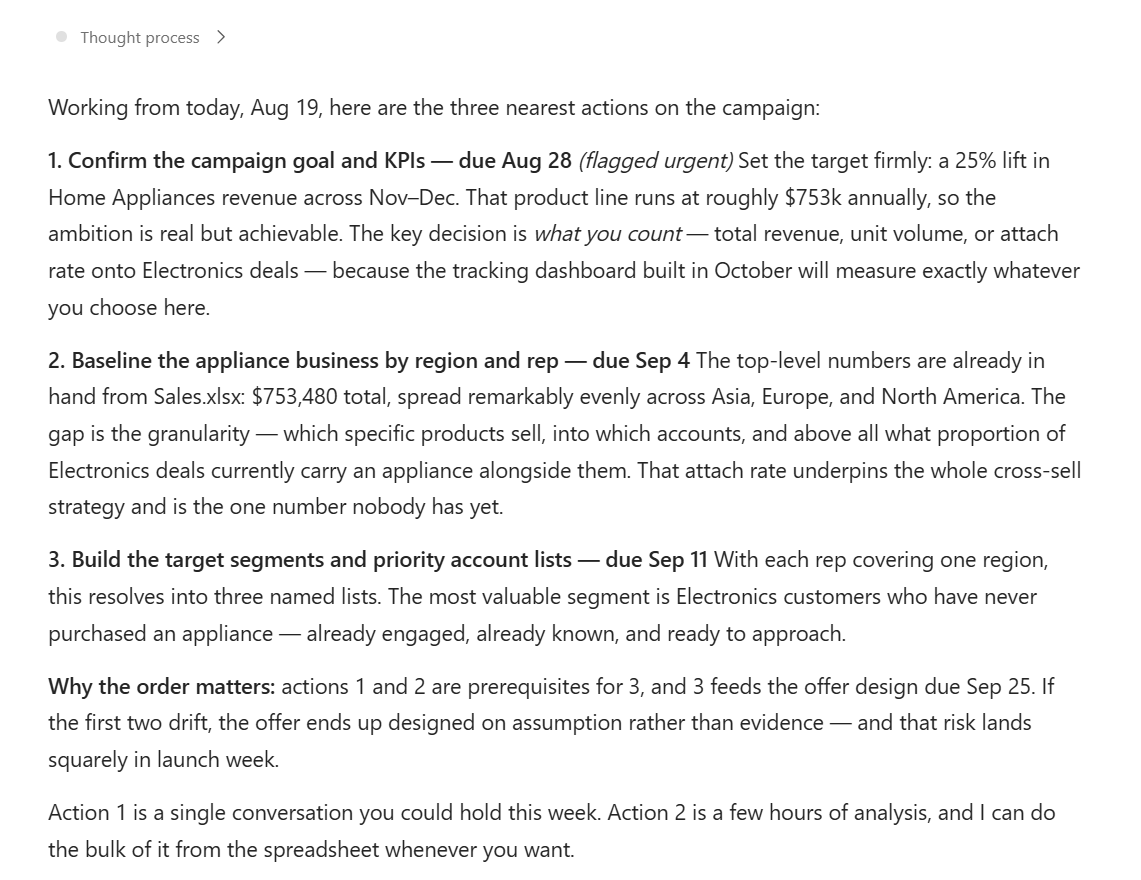
[!NOTE] Cowork bases its answer on today’s date and the plan it created, so the action names, dates, and dependencies will vary from the example.
Congratulations! You’ve had Cowork plan real work and prioritize what needs attention first!
Test your understanding
Key takeaways:
- Sessions carry context — Resuming the Use Case #2 conversation meant one sentence about “the weak home appliances business” was enough. Cowork still had the data, the dashboard, and its own analysis.
- Some actions have no draft stage — An email waits for you. Planner tasks do not. The more systems an agent can write to, the more that distinction matters.
- Consent is where the boundary shows — Reading and drafting were free; writing to Planner required explicit Microsoft Graph approval. “Always allow” is a decision about every future call, not just this one.
- Prioritization uses session context — One short question was enough for Cowork to identify the nearest actions, explain why their order matters, and call out dependencies without you restating the plan.
Challenge: Apply this to your own use case
- Which project plans do you build by hand from a report someone else already wrote?
- Where in your work would you want an approval gate before an agent writes tasks into a system — and where would that gate just be friction?
- When an agent creates a plan, what context should it use to decide which actions are most urgent?
Summary of learnings
You delegated, you did not converse. Three instructions produced an Outlook draft, an interactive dashboard, and a project plan — no copying content between windows.
Cowork acted inside Microsoft 365. The outputs were a real draft in your mailbox, a real dashboard you could explore, and real tasks on a real board — not blocks of suggested text you then had to place somewhere.
It found its own inputs. In Use Case #2 you never said where the workbook lived. Locating it was part of what you delegated, not part of what you specified.
Context survived between tasks. Use Case #3 built its campaign on what Use Case #2 discovered, then prioritized its own plan from one short question — no restating, no starting over.
The review gate held wherever one existed. The emails waited for you. The Planner tasks did not — they landed the moment Cowork decided on them, and the Microsoft Graph consent was the only checkpoint in that path.
Conclusions & Recommendations
Use Cowork when the job is a task, not a question. If the outcome is an artifact — an email, a dashboard, a set of tasks — delegation beats conversation.
Know which actions have a draft stage and which don’t. Where one exists, it is your control and you should use it. Where it doesn’t — Planner, and anything else written straight into a system other people share — the consent prompt is the only checkpoint you get, and “always allow” spends it once on behalf of every run that follows. Scope what you delegate accordingly.
Position it against the alternatives. Chat answers, Cowork acts, and a custom agent encodes a repeatable process you own. Those three sit side by side, and picking correctly is the design skill this bootcamp is teaching.