Cowork: from insights to action
Cowork: from insights to action
From deal insights to action.
One sales scenario. Four core missions, then three optional extensions. Discover when to ask Copilot Chat, use a specialist agent, or delegate to Cowork.
- 30-minute core
- 4 guided missions + 3 optional
- Real training data
Your next 30 minutes
You sell for Zava. First, find an earlier Northwind Trader proposal for your boss. Then prepare for a Northstar Teamwear renewal call and capture a new lead. Finally, build a branded pipeline review covering Northstar Teamwear, Coastal Performance Supply, and BluePeak Athletics, and make next week’s preparation easier.
At a proctor-led event with a provided, pre-provisioned account? You're ready to start.
Using your own tenant? View setup requirements
Arrange Copilot access with Work IQ, the sample Northwind proposal, Cowork credits, and Zava Sales training data before starting. Make the Zava Sales Hub agent with its lead-creation MCP App available in Chat, and provide the Microsoft Dataverse and Zava PowerPoint plugins in Cowork. The separate Zava Sales Cowork plugin is needed only for the optional Specialize mission. These are demo assets to obtain from your facilitator, not built-in capabilities to recreate during this lab.
Ask, Act, Delegate and Repeat take about 30 minutes; the Riley call and CRM update, Friday feedback loop and Zava Sales plugin missions are optional.
Checkmarks, quiz answers and your notes are saved only in this browser's local storage. Nothing is sent to the lab site. To keep them, download a PDF at the end.
Find the proposal behind the question
Your boss wants the old Northwind proposal, its economic buyer, and the decision criteria. Start with a question about a work file, not live CRM records.
Your finish line The source proposal and a summary you can check against it.
-
From Home, select Chat. Open the model picker, notice the fast-answer and deeper-thinking choices, then leave Auto selected. Keep Work IQ on.
Click-by-click help
- In the Home composer, choose Chat, not Cowork.
- Open Auto. Quick response favors speed; Think deeper spends longer on reasoning. Auto chooses based on the request.
- Close the picker. If the Work IQ control offers Turn off Work IQ, it is already on.
Show me: the Chat model picker
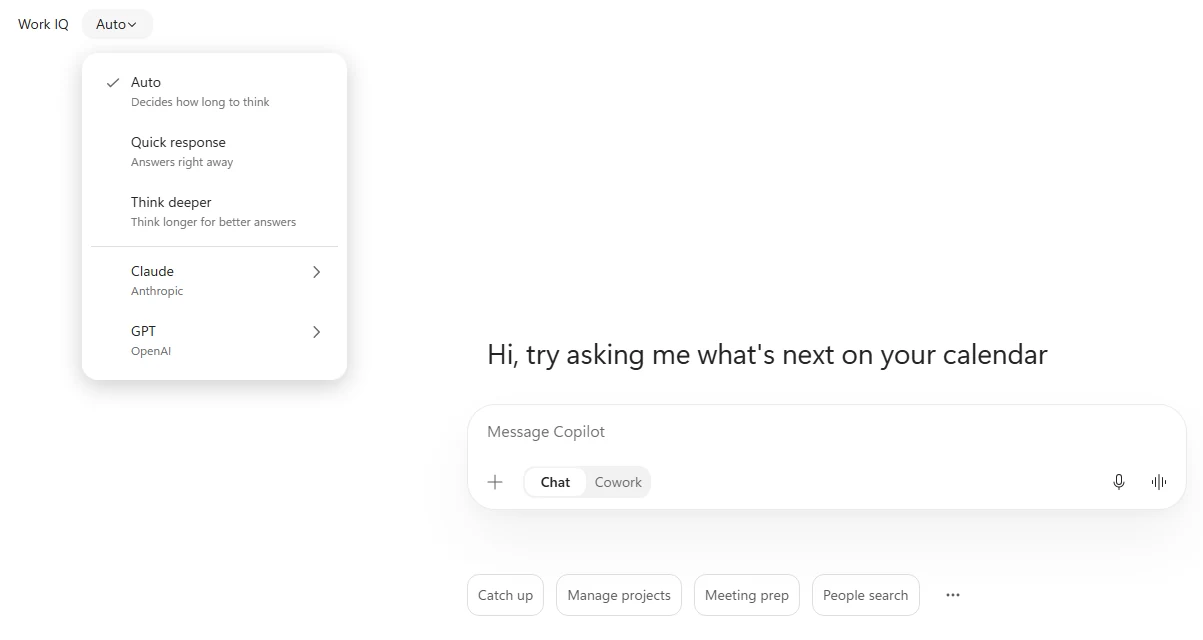
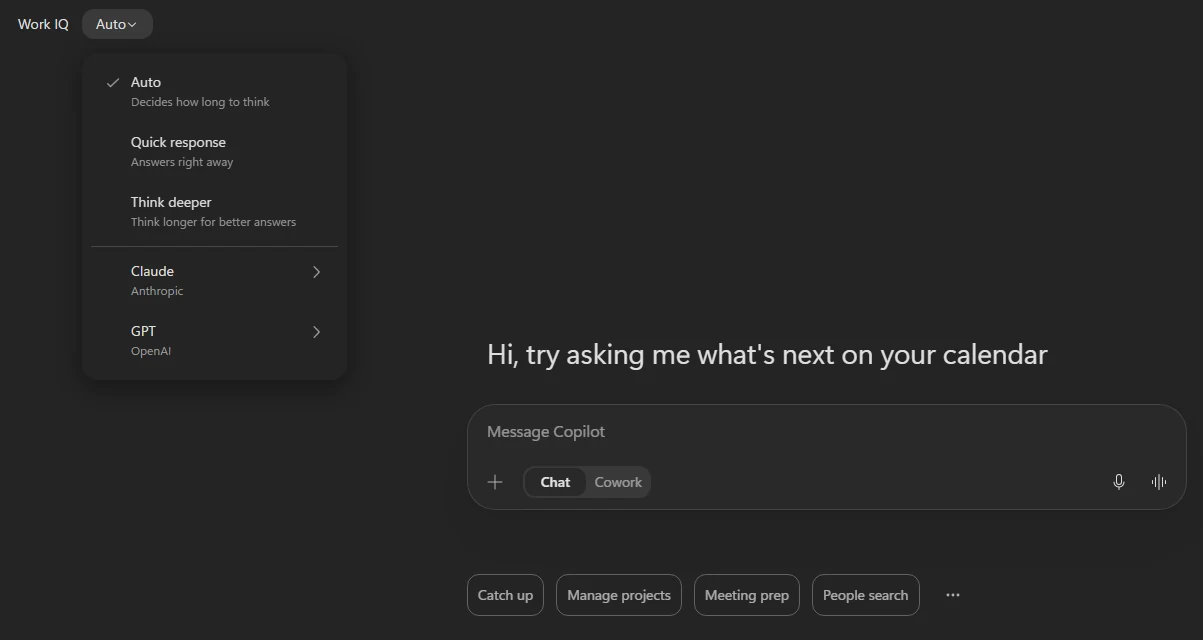
Leave Auto selected for this lab. The models offered can vary by tenant. Notice thisWork IQ connects the answer to work context you are allowed to access, such as files, email, meetings and Teams. It does not grant new permissions. Finding a proposal does not prove that Chat can retrieve a live CRM deal.
-
Send the prompt in Copilot Chat, not Cowork or an agent conversation. Open the proposal citation and check the economic buyer and decision criteria against the document.
Copilot ChatCan you help me find and summarize the proposal we made to Northwind Trader a few month back? who was the economic buyer again, what was their decision criteria? my boss is asking...Show me: a proposal-grounded answer
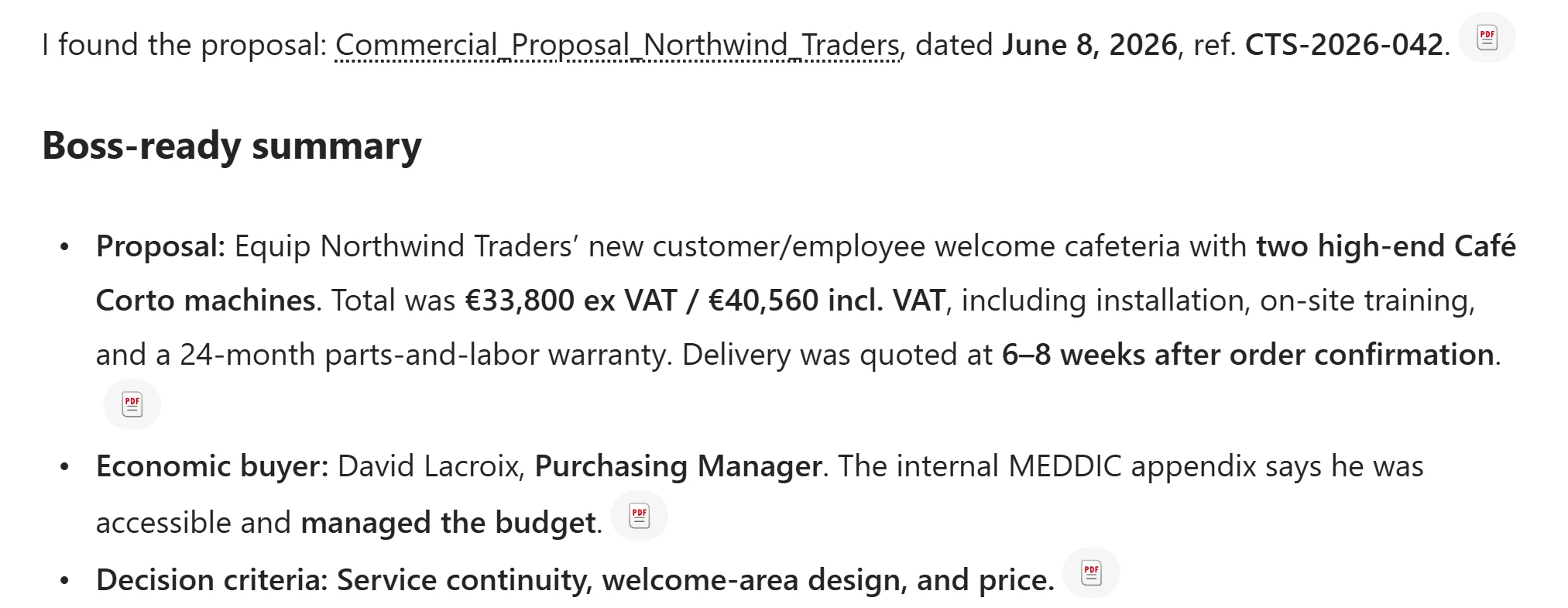
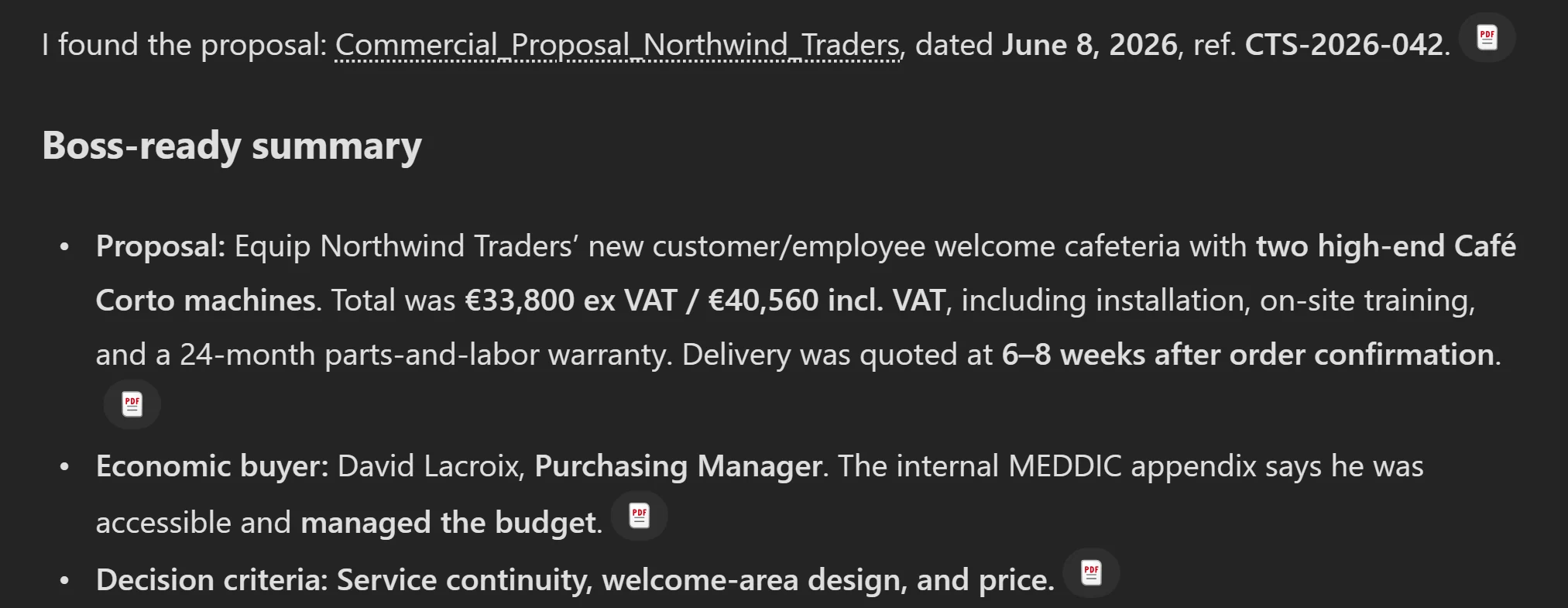
Check the cited proposal, not just the fluent summary. A past proposal is not evidence of today's CRM status. Notice thisThe sample file is
Commercial_Proposal_Northwind_Traders. Verify the buyer and criteria in your copy; do not memorize an example answer or infer the current deal status from an old document.
Why is this more than a clever search?Pause and reveal the idea
The answer is only as grounded as its evidence.
Auto decides how to tackle the question; Work IQ supplies permitted work context. Neither makes an unsupported statement true. The useful habit is ask, inspect a source, then decide.
- Your question
- Permitted work context
- Evidence you check
Something not matching?
- The response cannot find the Northwind proposal.
Check the assigned training account and Work IQ setting. Ask your facilitator to check access to
Commercial_Proposal_Northwind_Traders. Missing sample content is not a reason to provision Dataverse or invent a buyer.- My model picker looks different.
Leave the automatic/default model choice selected. Model availability depends on your tenant; the point is the speed-versus-reasoning trade-off, not a particular model name.
Let the sales agent finish the job
A work-file answer and a live CRM brief are different jobs. Watch Chat hand off to a specialist agent, then use an interactive form inside that conversation.
Your finish line A grounded Northstar call brief and a reviewed John Doe lead created through the agent's MCP App.
-
Select New, then confirm Chat, not Cowork. This is a new Copilot Chat session, separate from the Northwind proposal conversation. Send the prompt and inspect what Chat can substantiate.
New Copilot Chat sessionHelp me prepare for a call about Northstar Teamwear’s $250K Pulse renewal. Where does the deal stand, what needs my attention, and what are the three most important questions to ask on the call?Notice thisIn this training experience, Chat may not retrieve the live deal and can recommend Zava Sales Hub instead. That is the handoff to explore, not proof that Dataverse is unavailable in every Copilot Chat tenant. Do not accept a generic call plan as a verified CRM brief.
-
Select the recommendation to Try Zava Sales Hub. Check that the same renewal prompt is carried into the agent conversation; send it if it is only prefilled. Confirm that you are now talking to Zava Sales Hub, then review its deal status, attention points and three call questions against the returned records.
Notice thisThe recommendation’s wording can vary. If no card appears, open Plugins → Chat, find the facilitator-provided Zava Sales Hub agent, and paste the same prompt there. If Chat starts a research task instead, select Stop task on that task card before opening the agent; do not wait for a separate research run in this exercise. If the agent is unavailable, ask the proctor; do not install a lookalike or invent the CRM answer.
-
In the same Zava Sales Hub agent conversation, send the follow-up. Select Confirm when prompted, complete and review the embedded lead form, then select Accept and save once. This interactive form inside the agent is an MCP App, not a switch to Cowork.
Follow-up in Zava Sales HubThanks, btw can you help me create a new lead for them? John Doe mentioned a $50,000 project in the Denver area, details to be sent in a couple of weeks.Click-by-click help
- Review the confirmation: the target is the Lead table and the source text describes the new Northstar project. Select Confirm.
- In the lead form, titled Create new lead record or Create new record for Northstar Teamwear, review First name: John, Last name: Doe, Company name: Northstar Teamwear, and City: Denver.
- Complete Lead Name if blank, for example
Northstar Teamwear - Denver project. Fill Topic with the known project details, including that more details are expected in a couple of weeks. - Scroll inside the form and check Estimated value: 50000. If it is blank or the form warns that it could not fill
$50,000, enter50000without the currency symbol or comma. Leave unknown email, phone and other details empty; a company-name string is not proof that the Account lookup is linked. - Select Accept and save once. Look for Your changes have been saved successfully; the form becomes Update lead record. Use Open to inspect the saved record if needed.
Show me: the interactive lead form
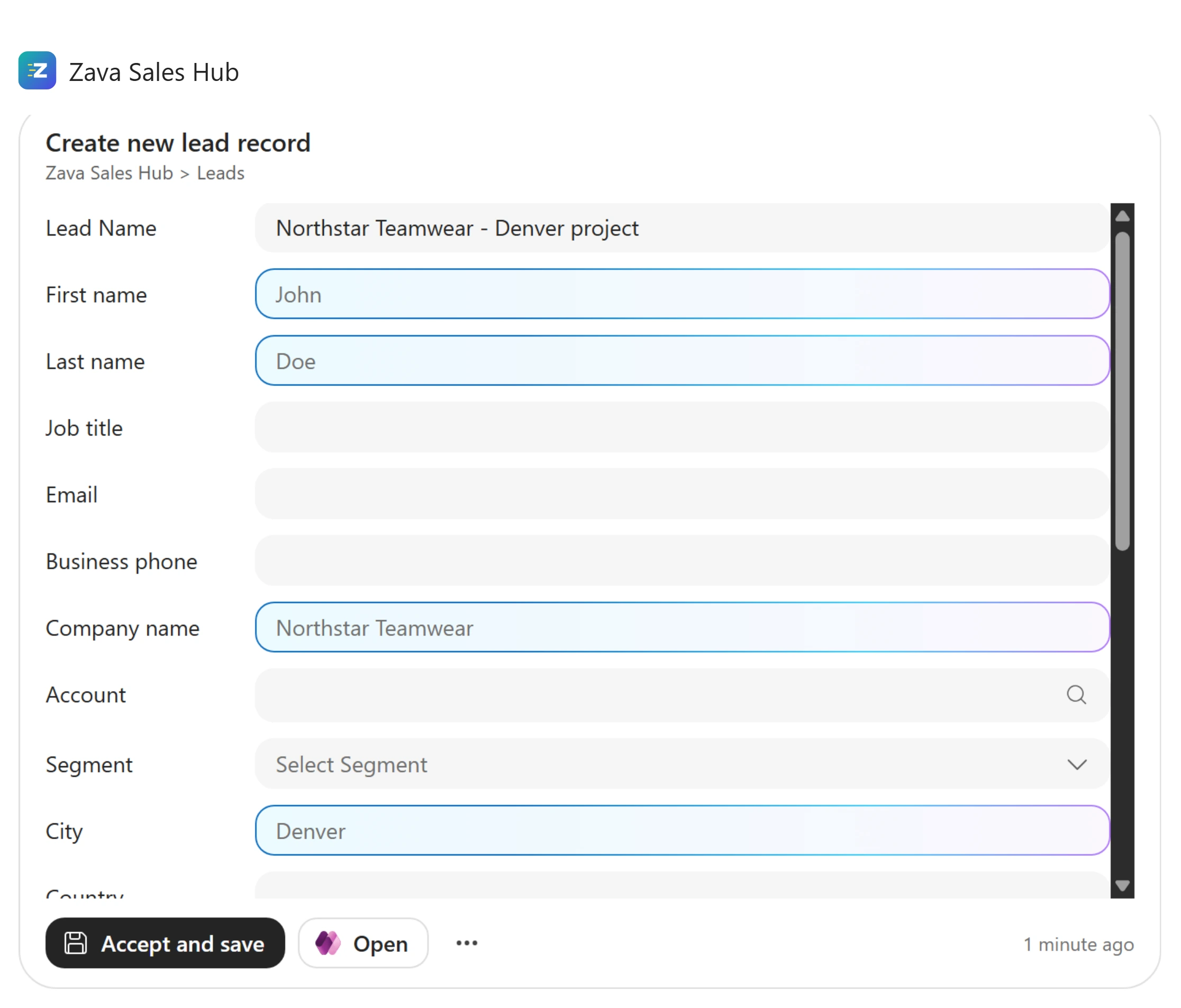
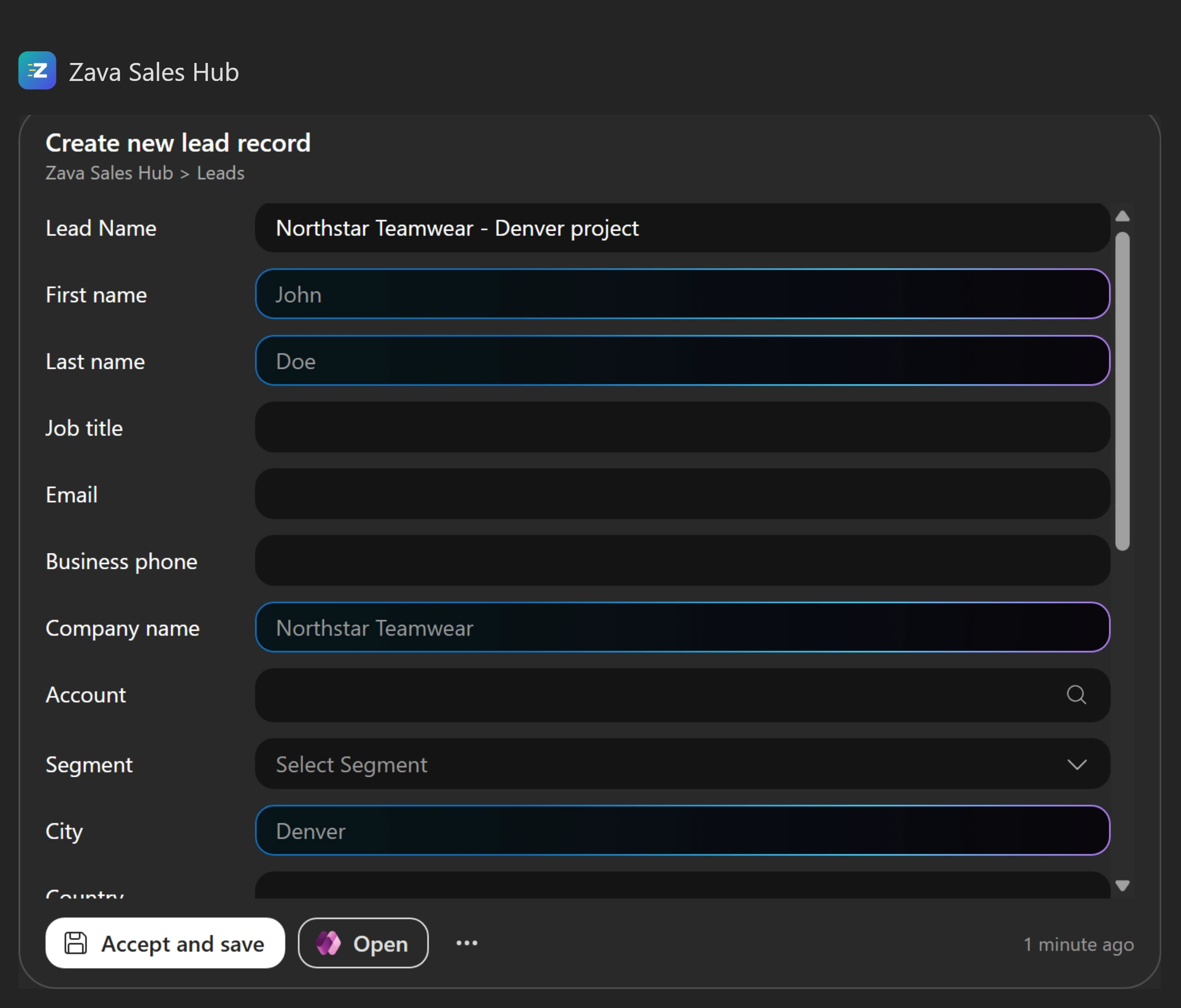
Review the suggested values and fill any missing known details before saving. Scroll inside the form to check the estimated value. Notice thisReview John Doe, $50,000, Denver, and the Northstar context before saving. Keep unknown contact details unknown. The $50,000 lead is separate from the $250K renewal; do not overwrite the renewal amount. Check the saved lead before retrying to avoid duplicates.
Why did switching conversations help?Pause and reveal the idea
The specialist supplies the tools. The MCP App supplies the form.
Copilot Chat can locate a useful agent without having that agent’s CRM capabilities itself. The Zava Sales Hub agent provides the business context and connected tools; its MCP App lets you inspect and complete an action in the conversation. Your permissions and approvals still apply.
- Chat recommendation
- Grounded agent brief
- Reviewed MCP App action
Something not matching?
- Chat answers directly instead of recommending an agent.
Check its sources, then open the provided Zava Sales Hub agent explicitly for the MCP App step. The exercise does not require making Chat fail; routing and data access can differ by tenant.
- The agent does not show the interactive form.
Confirm the conversation is with Zava Sales Hub, not standard Chat or Cowork. Ask the facilitator to check the agent’s MCP App deployment. Plain suggested field values are not the interactive-form experience.
Make the review, not just a reply
Now switch to Cowork. Delegate a multi-step outcome using live CRM data and the company's presentation guidance, then apply your judgment.
Your finish line A Zava-branded three-slide review separating known facts from open questions, plus real Outlook drafts.
-
Go to Plugins → Cowork → Microsoft Dataverse and turn it on. Enabling is not enough: select Connect Microsoft Dataverse, enter the training CRM URL
https://zavasalesdemo.crm.dynamics.com/, and confirm Connected. This is Cowork’s connection, separate from the Chat agent you just used; it gives Cowork tools to work with records when you approve.Click-by-click help
- Open Plugins, then the Cowork tab.
- Select Microsoft Dataverse and turn Enable Microsoft Dataverse on.
- Select Connect Microsoft Dataverse.
- Enter
https://zavasalesdemo.crm.dynamics.com/and select Connect. - Confirm the connection shows Connected. If it already does, do not reconnect.
Show me: the Dataverse connection URL
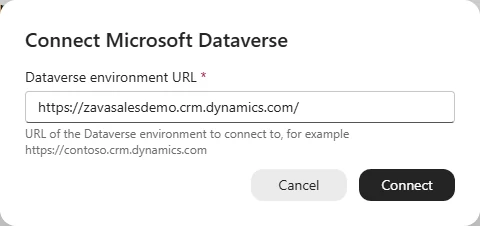
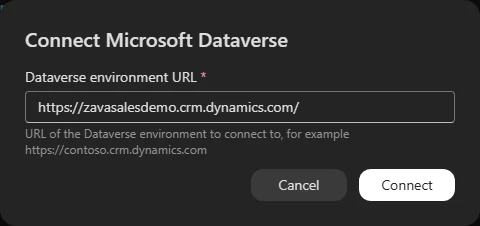
Enter https://zavasalesdemo.crm.dynamics.com/, select Connect, then confirm Connected. Use the supplied training environment, not a production CRM. -
Still in Plugins → Cowork, open Zava PowerPoint and enable it. Inspect the company-branding guidance it supplies. If it is already enabled, leave it enabled; do not confuse it with the optional Zava Sales plugin.
Show me: the company-branding plugin
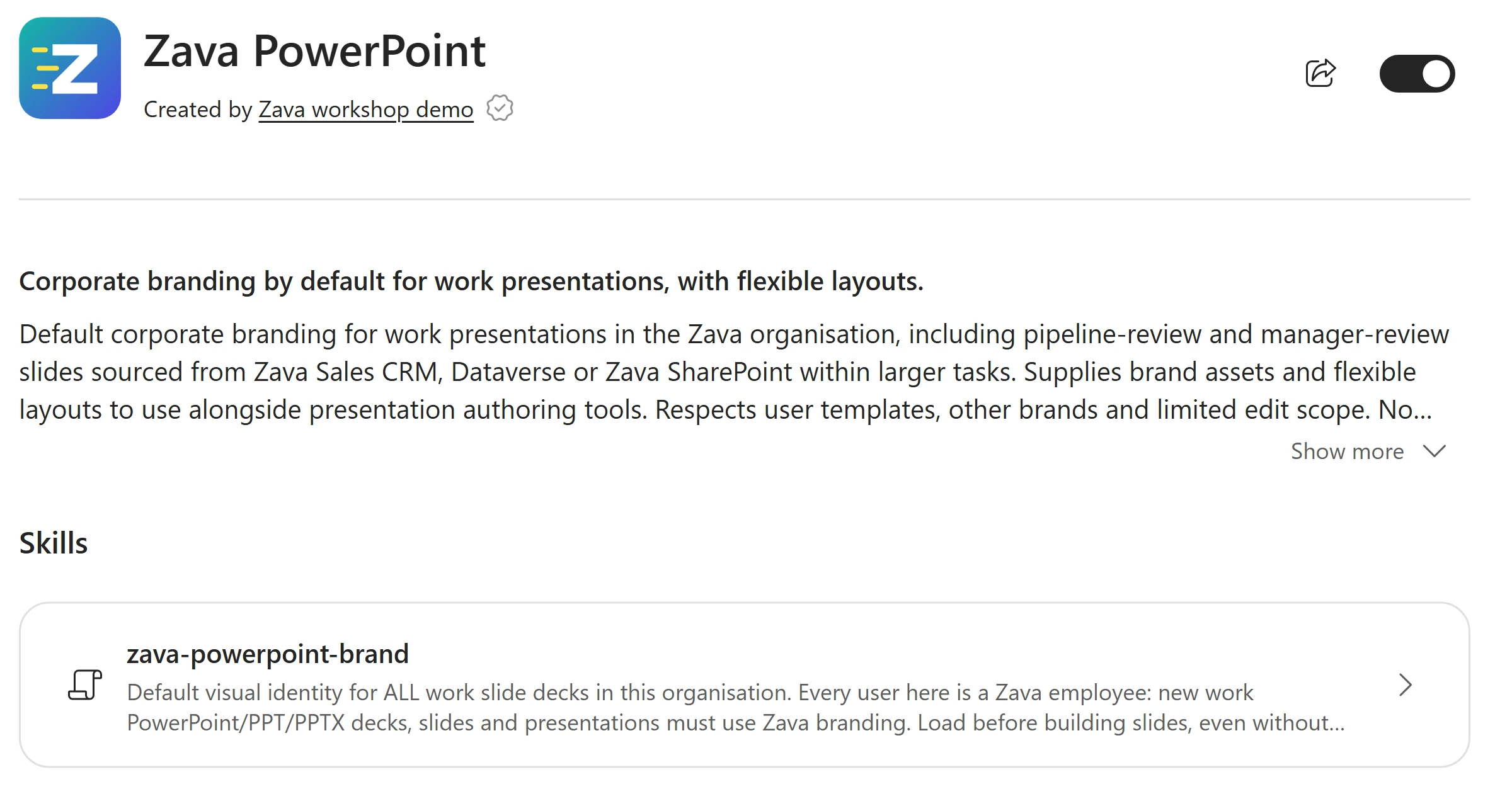
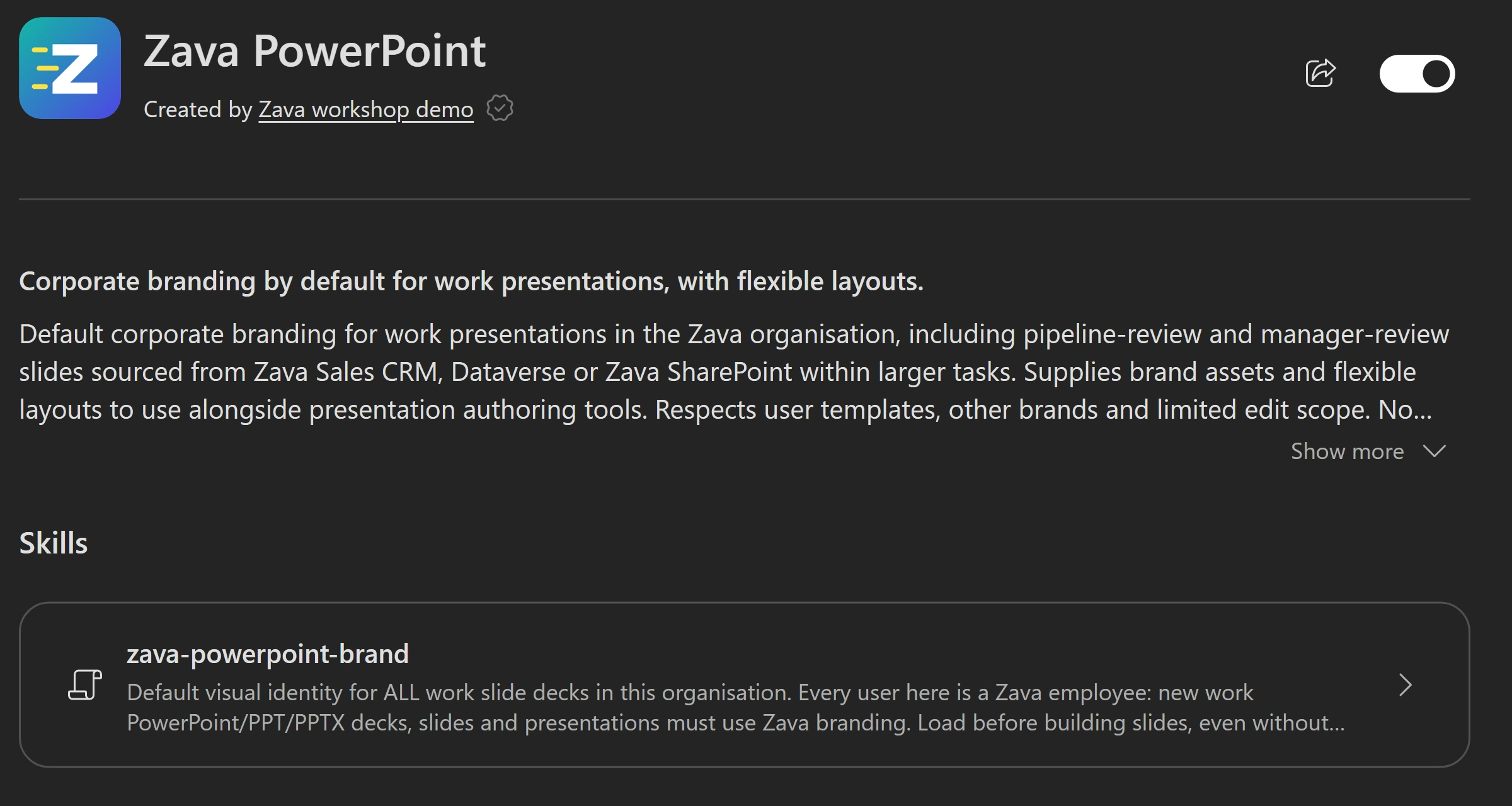
The plugin supplies brand guidance and assets; Cowork combines it with presentation-authoring tools. It is separate from the Dataverse connection. Notice thisFinish both plugin checks before starting the new Cowork task, so it can discover their capabilities. Missing Zava PowerPoint is a facilitator setup issue, not a reason to silently substitute a generic deck.
-
Select New, then explicitly select Cowork in the Home composer. Leave the model on Auto and effort on Medium. Keep this task for Repeat and the optional Riley call; Improve starts here before its separate Friday task.
New Cowork taskI've got a pipeline review with my manager at the office tomorrow. Build me a new Zava-branded PowerPoint deck covering our biggest open deals with Northstar Teamwear, Coastal Performance Supply and BluePeak Athletics: where each stands and what we need to do to close. Then draft the customer follow-up emails I should send.Show me: model and effort settings
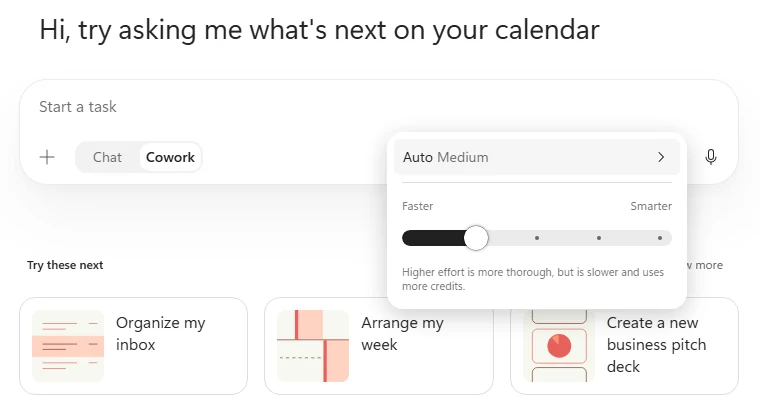
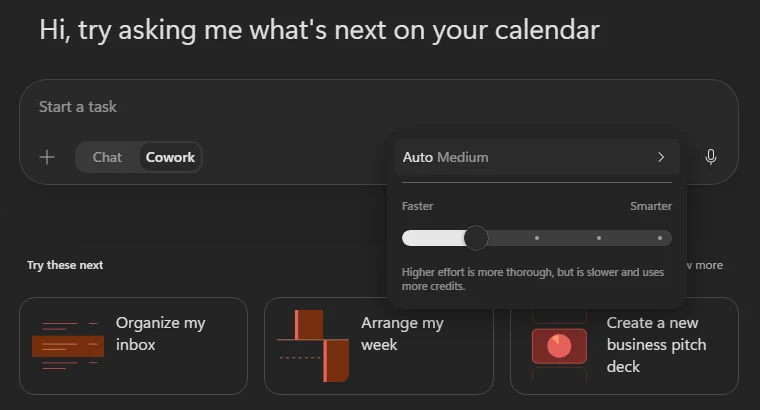
Higher effort spends more time and credits on the task. Medium is the lab default. Notice thisWatch Cowork discover and use Zava PowerPoint for the branded presentation, query CRM through Microsoft Dataverse, and save follow-ups in Outlook. Check the visible plugin/skill activity as well as the deck; saying “Zava” on a title slide is not proof of plugin use.
-
As soon as a first deck appears, open it and inspect the proposed decisions. Send the correction below in the same task. If Cowork is still working, use Queue; it will handle the follow-up after the current work.
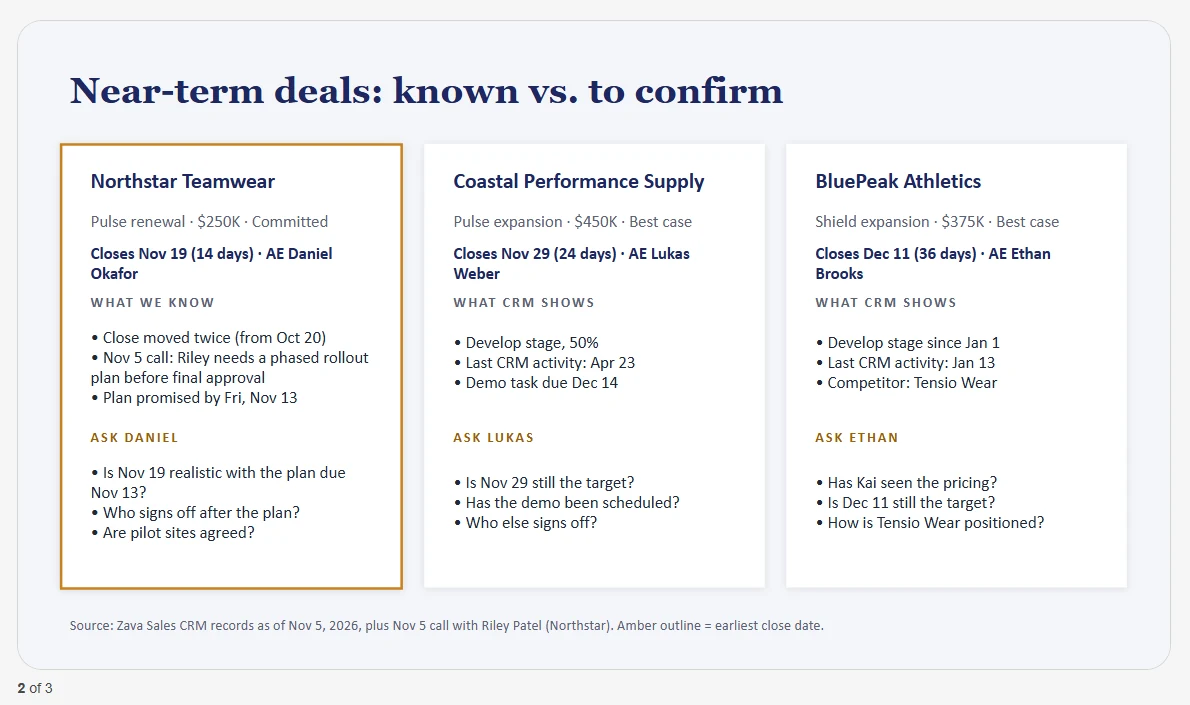
Same Cowork taskThis is a good start, but you’re making a few calls I’d want to check with the deal owners first. Don’t assume we need to push Coastal to Q1 or change anyone’s forecast. Make it clear what we know and what we still need to ask. And cut it to three slides—I’ve only got five minutes with my manager.Show me: the three-slide review
A real result after the steering prompt, with Zava branding retained. Inspect your deck and the plugin activity; wording and CRM values will differ. Notice thisConfirm the deck has three slides and follows the Zava PowerPoint branding guidance. The biggest open Northstar deal can differ from the $250K renewal in your call brief; inspect the record links rather than assuming they are the same. Open the output cards marked Saved to drafts: suggested email text in chat is not an Outlook draft. Do not send customer emails in this lab.
Where did your judgment matter?Pause and reveal the idea
Delegate the work. Keep the decisions.
Cowork can coordinate tools, larger files and multi-step work over time. That is different from asking for a short answer. Your correction turns plausible recommendations into a review that separates what the CRM says from what the deal owner must confirm.
- Delegate an outcome
- Inspect real outputs
- Steer the work
Something not matching?
- The deck preview is blank or covered.
Wait for the file to finish loading and dismiss any first-run Office privacy notice. Select Open in PowerPoint if the embedded preview stays blank, then wait for each slide to finish rendering before judging its layout. Do not restart the entire Cowork task.
- It is taking longer than the mission budget.
Check whether Cowork is waiting for your approval. If it is actively working, read the next step or queue the correction once the first deck exists.
Save the method. Schedule the work.
Stop repeating the same instructions every Monday. Give the preparation a name, then decide when it should run.
Your finish line A Weekly Deal Review skill and one Monday 8:30 a.m. schedule with customer emails kept as drafts.
-
Send the first prompt. If Cowork asks for a time zone or opens Create recurring task, answer and review it before continuing. Clear Run once now unless you want an additional test run; it may be selected by default. Then select Schedule to save that one Monday job; the later prompt refines it rather than creating a duplicate.
Same Cowork taskLet’s make this my weekly pipeline review. Every Monday morning, refresh the three slides for these accounts, highlight what’s changed, and draft any follow-ups I should review. -
Send the next prompt and let Cowork finish creating the skill. Check that the saved instructions retain the three accounts, three slides, facts-versus-questions distinction, Zava PowerPoint branding guidance, and draft-only customer follow-ups.
Same Cowork taskThis is how I want to prepare for my pipeline reviews. Save it as a skill called Weekly Deal Review: the same three accounts, three slides, clear separation between what we know and what we need to ask, and customer follow-up drafts for me to review.Click-by-click help
If a Copy file approval appears, check that its destination is your Cowork folder’s
skills/weekly-deal-reviewbefore approving. In a scheduled task, Always allow Copy artifact grants ongoing copy permission to that task; do not approve unexpected destinations or overwrites.If the first save proposes Overwrite: Yes, cancel that approval and inspect the destination in OneDrive. If the skill does not exist, ask Cowork to copy it with overwrite disabled and stop on a conflict. If it already exists, inspect it before deciding whether to reuse or revise it; do not delete it to make the approval succeed.
Open Plugins → Cowork → Manage all → weekly-deal-review. If the tile is offscreen in the Added row, use its right arrow or Manage all. To inspect the actual instructions, open OneDrive → My files → Documents → Cowork → skills → weekly-deal-review → SKILL.md in the training account. An inventory entry alone does not verify the file contents.
Show me: your saved skill
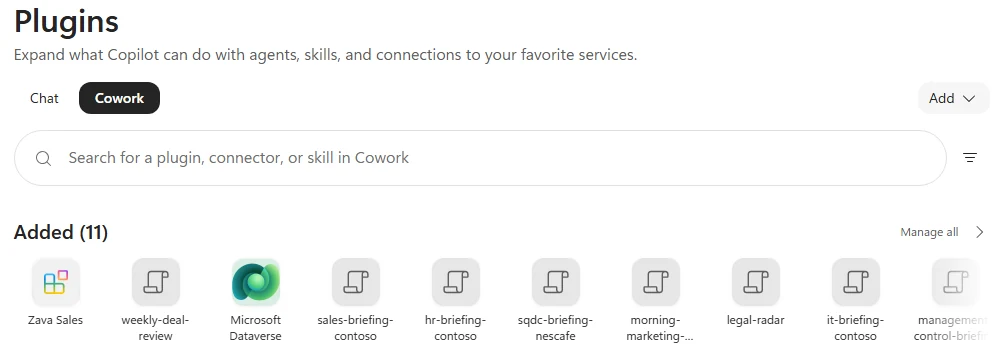
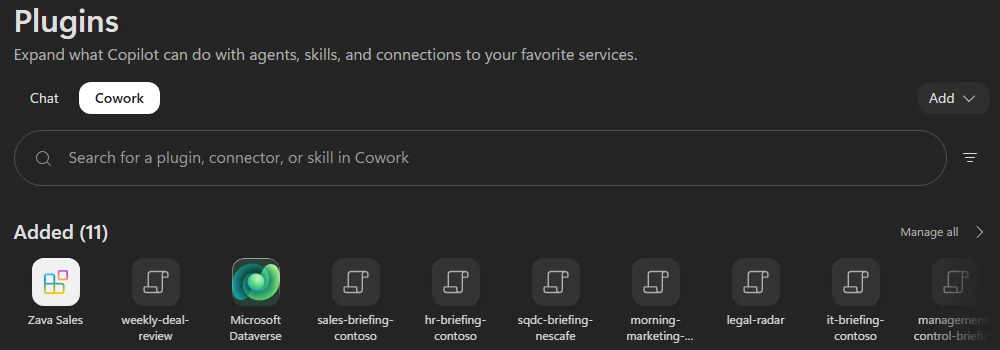
Manage all lists the saved skill under its folder name, weekly-deal-review. Open SKILL.md in OneDrive to inspect the instructions. Notice thisA skill is reusable instructions and a procedure, not a newly trained model. Find it in Plugins → Cowork, sometimes displayed as weekly-deal-review. A new task discovers the saved skill; this task already has the conversation context.
-
Send the scheduling prompt. Review the proposed changes, then confirm Monday, 8:30 a.m., the intended time zone, your own email as the recipient, and customer emails as drafts. Complete Next → Review permissions → Approve when offered. Leave only one Monday review schedule.
Same Cowork taskRun Weekly Deal Review every Monday at 8:30 a.m. and email me the slides. Keep the customer emails as drafts for me to review.Click-by-click help
- Open the schedule card or Automations.
- Check the recurrence, time zone and account that will run it. Compare Next run with the recurrence; if they disagree, flag it with your facilitator before relying on delivery.
- Confirm the weekly email goes only to you, not to the customers.
- For a new schedule, select Schedule. When updating it, complete Next → Review permissions → Approve as offered; check that email permission is limited to your own account. Some tenants show Save or Activate instead. Run once now or a preview action lets you test without waiting for Monday; leave it off if you only want the scheduled run.
- If the first weekly prompt already created a schedule, update that schedule instead of keeping a duplicate.
Notice thisCreating the schedule configures future work; it does not prove a future run has succeeded. Check Automations → Runs afterwards. Use only your training account for any test email.
-
Return to the pipeline-review task and run the command below. You have reached the end of the core lab; continue to the optional missions.
Same Cowork task/costShow me: the task usage summary
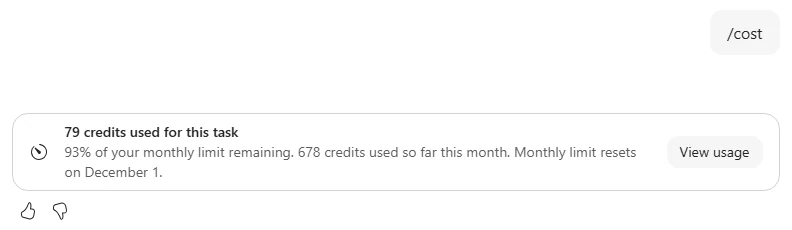
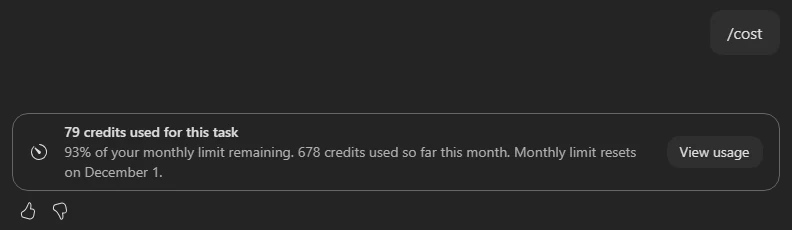
Example only: usage depends on the work, model, effort and retries. This is not a fixed lab cost. Notice this/costreports approximate cumulative usage for this task; running the command is free. One Copilot Credit is roughly US$0.01 at the standard pay-as-you-go rate, not a guaranteed invoice amount. Pricing, discounts and tenant billing arrangements can differ.
Skill or schedule—which does what?Pause and reveal the idea
The skill is the how. The schedule is the when.
The skill captures a repeatable way of working. The automation starts that work on a clock. Keeping them separate lets you improve the method without rewriting every recurring request.
- Useful procedure
- Named skill
- Scheduled run
Something not matching?
- I see two Monday reviews.
Keep one schedule with the final 8:30 a.m. settings. Pause or remove only the duplicate you created for this lab; do not change unrelated automations.
- The skill or schedule is still being prepared.
Wait for its confirmation and inspect the saved item. Do not assume a conversational “I will” is proof that it was created or activated.
- The skill page says it could not verify SKILL.md in OneDrive.
Reload once, then inspect the existing file in OneDrive using the path above. Do not delete Cowork folders or create duplicate skills to clear it. If the file is absent or unreadable, ask your facilitator before continuing to skill reuse.
Turn a conversation into a commitment
Riley gives you one new fact and you make one promise. Put both into the system of record, then bring the review up to date. This is an extension beyond the 30-minute core.
Your finish line A completed phone call and an owned follow-up task linked to the renewal, reflected in the slides and draft.
-
Return to the pipeline-review Cowork task, not the Zava Sales Hub agent chat. Review the proposed record details before approving: the $250K Northstar renewal, the call recap, the task owner, and the calendar date chosen for next Friday.
Same Cowork taskJust spoke with Riley at Northstar about the $250K renewal. They need a phased rollout plan before final approval, and I promised to send it by next Friday. Create a completed phone call with that recap and a task for me to send the plan. Link both to the renewal.Show me: the approved CRM actions
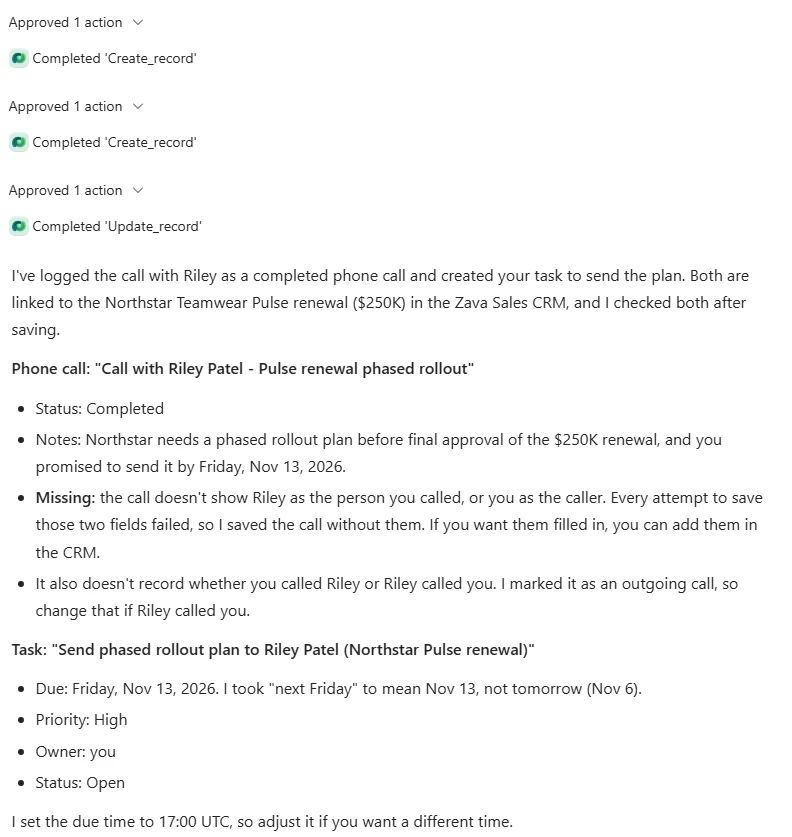
This example is already approved. Expand each action to check completion, then review the saved details and any disclosed omissions. Notice thisPrefer the one-time Approve/Allow action while learning. A session-wide always-allow choice, if offered, reduces future prompts for that permission; it is not permission to stop reviewing what the task is doing.
-
Check the returned records: the phone call is Completed; the task is assigned to you, has a due date, and both records point to the renewal. Then send the next prompt.
Same Cowork taskUpdate my slides with what we learned from Riley, and change the draft email to her into a recap of our call. Mention that I’ll send the rollout plan by the deadline on my task.Notice thisOpen the updated deck and Riley’s draft. The rollout-plan deadline should match the task’s actual due date, not a fresh guess about what “next Friday” means. CRM can display a different time zone from Cowork. If the earlier Northstar draft was for another contact and deal, Cowork may create a separate Riley draft rather than replace it. Check the recipient and keep both emails unsent.
What changed beyond the chat?Pause and reveal the idea
The promise now has an owner and a date.
A polished recap is useful. A linked CRM activity and task make it actionable. The approval is a moment to inspect the proposed change; the returned record is how you check it actually happened.
- Customer conversation
- Approved CRM records
- Updated review
Something not matching?
- Cowork asks which renewal or what date I meant.
Choose Northstar’s $250K Pulse renewal, not its other deal. Confirm the intended calendar date in your training account’s time zone before approving.
- A record creation fails.
Read the reported error. Let Cowork correct a schema issue if it can, but do not grant wider permissions or switch environments. Check whether a record already exists before retrying so you do not create duplicates.
- The call is saved but some fields are missing.
Check Cowork’s disclosure and the actual record. A completed status does not mean every field was populated; ask your facilitator before treating omitted details as complete.
Let feedback improve the method
Your manager's feedback should not disappear after the meeting. Ask for a sourced, reversible improvement loop—not unchecked self-improvement.
Your finish line A separate Friday feedback-review schedule with source checks and instructions to back up the skill before changing it.
-
Send the complete prompt in your pipeline-review task so Cowork can connect coaching to Monday’s email. If asked, choose Separate Friday task: this experience supports one recurring schedule per task. Keep Monday at 8:30 a.m.; do not replace it or accept extra no-op runs.
Same Cowork taskEvery Friday afternoon, look back at this week’s deal review and the feedback my manager gave me—in comments on the deck, the review meeting recording or transcript, Teams, and email. Use that feedback to improve the Weekly Deal Review skill so next week’s review gets better without me repeating the same instructions. Pick up on what they wanted more or less of, which questions they kept asking, and what helped them make decisions. Distinguish lasting preferences from requests that only apply to a particular deal or week. In the email you send with my weekly review, coach me based on previous feedback too: what to prepare, which questions my manager is likely to ask, and how I can present the deals more clearly. Keep it specific to that week’s deals and point out where I’ve addressed earlier feedback. Update the skill automatically and send me a short recap of what changed, with links to the feedback behind it. Keep the previous version so we can undo changes. Leave the accounts, permissions, and recipients unchanged. If feedback conflicts or you can’t access a source, flag it rather than guessing.Notice thisIf asked about a manager or meeting that your training account does not have, say so. Ask it to report that gap and make no unsupported skill changes. Confirm a Friday afternoon time and time zone; 4:00 p.m. Europe/Paris is one example, not a required default.
-
Cowork may open Create recurring task directly with Run in: New conversation. Review that Friday job rather than creating another. If it provides handoff text instead, review it and copy it into New → Cowork. In either route, the instructions should name Weekly Deal Review and your existing deck, require a backup before skill edits, preserve accounts and permissions, keep customer emails as drafts, and send the recap only to you. Complete the Friday schedule confirmation, clearing Run once now so it does not immediately execute. A handoff in the chat is not a saved schedule.
Notice thisThis configures future work, not a demonstrated learning result. No accessible feedback is a valid result. Automatic updates depend on sources, permissions and successful runs. Skill-file changes may still wait for approval; a backup is needed before the first actual edit.
-
Find Weekly Deal Review under Plugins → Cowork, and review the separate Monday and Friday entries under Automations. Check the Friday instructions require a dated backup before edits and report missing or conflicting feedback. After a real feedback run, inspect the change recap, source links and saved previous version.
Show me: the two separate automations
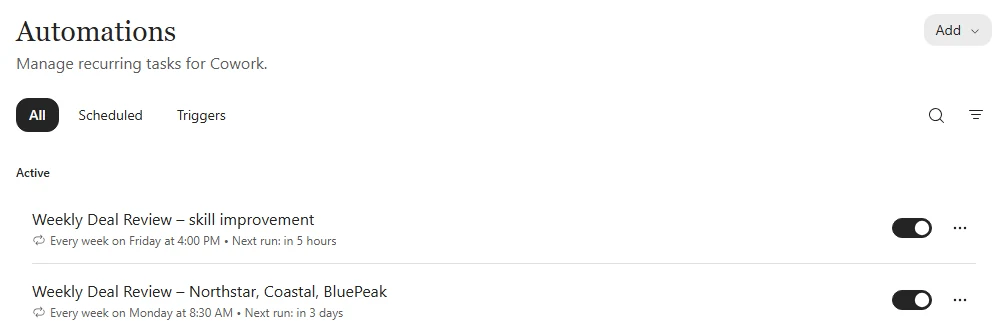
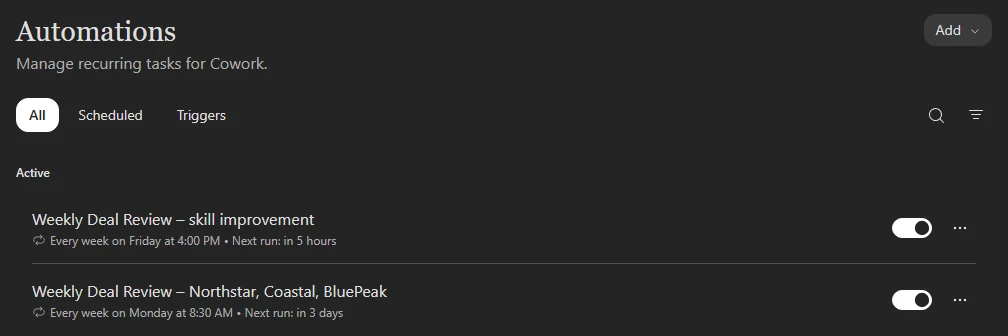
Two jobs, two purposes. Check your chosen time zone and pause lab-created schedules before leaving.
What should it learn—and what should it leave alone?Pause and reveal the idea
Improve the recipe, not the boundaries.
“Always separate facts from assumptions” can be a lasting preference. “Add one slide about this week’s exception” may not be. Sources, a short change recap and a recoverable previous version make skill edits reviewable. They do not make future improvements infallible.
- Accessible feedback
- Sourced skill revision
- Your review and undo
Something not matching?
- No Friday schedule was saved.
Check whether Cowork gave you handoff instructions for a new task. Start that separate task and complete its scheduling and permission cards. Inspect Automations before retrying; do not overwrite Monday.
- No feedback exists in this training account.
Keep the missing-source safeguard. This mission sets up how future feedback should be handled; it does not require fabricating a manager, meeting or review.
Give Cowork the sales team's playbook
A general-purpose assistant knows tools. A business plugin can also give it the team's way of using those tools.
Your finish line A Northstar account note, a Summit Youth Sports lead with unknown contact details left unknown, and an introduction follow-up task.
-
Open Plugins → Cowork, search for Zava Sales, and install it if your facilitator has supplied it. This optional plugin is separate from the Zava Sales Hub agent and the Zava PowerPoint plugin already used. Install and connect its Business apps (preview) prerequisite as described below, then start New → Cowork and leave Auto / Medium selected.
Click-by-click help
- Open Plugins and select the Cowork tab.
- Search the available plugins for Zava Sales.
- Open it, review the capabilities, and select Install or Add as offered. If it is already installed, leave it enabled.
- Check its prerequisites: the workshop plugin requires Business apps (preview), published by Microsoft Corporation. Search for Business apps, install it if needed, and select Connect using your training identity. Verify Connected and leave it enabled. The Microsoft Dataverse connection from Delegate is separate and does not satisfy this dependency. Use only the supplied training environment and your own connection.
- Start a new Cowork task. Do not paste this into the pipeline-review task.
Show me: the installed Zava Sales plugin
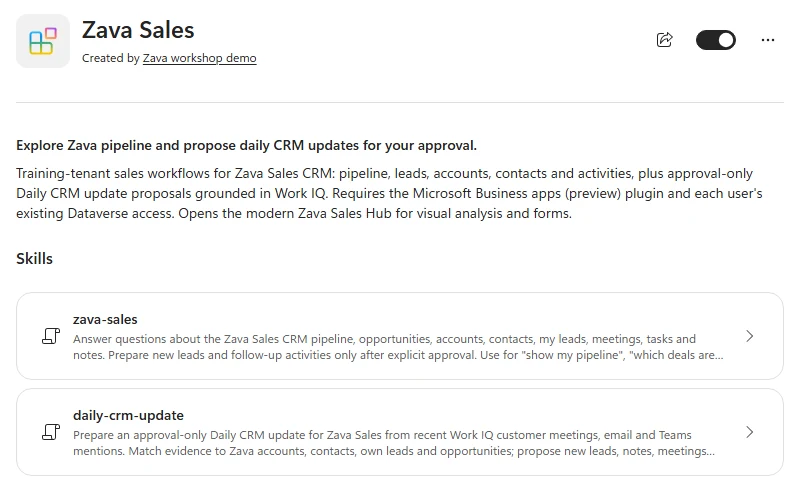
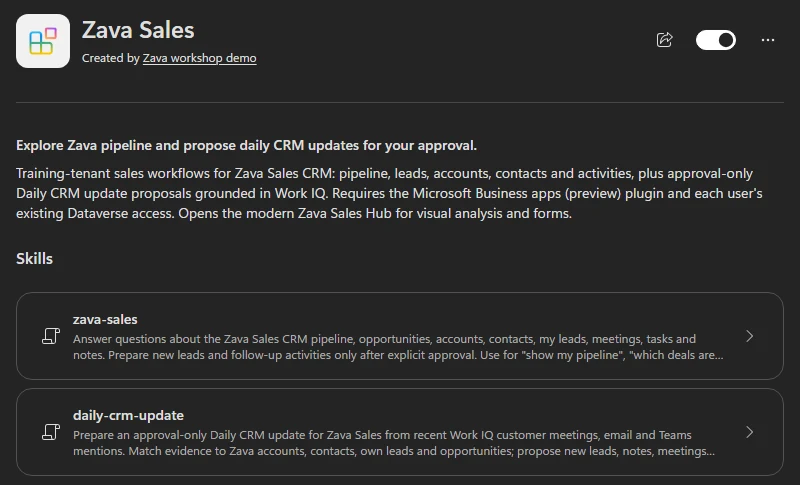
Inspect what the plugin adds. This one includes a sales playbook and a daily CRM-update skill. Notice thisA plugin can package skills, connectors, or both. Zava Sales adds business-specific instructions; it does not bypass your data permissions or approval requirements.
-
Send the full prompt. If asked, confirm the three requested records, your intended follow-up date and time zone. Review each proposed write, then inspect the saved records. Follow the Zava Sales Hub link if Cowork recommends it.
New Cowork task with Zava Sales installedCan you catch up on this week’s activity and help me get the CRM up to date? One thing I haven’t logged anywhere: I had lunch with Morgan Patel from Northstar last Friday. She said they’re planning to grow by 20% next year. Add a note to Northstar so we remember to bring that up in our next account review. She also mentioned her friend Jamie Chen, who runs purchasing at Summit Youth Sports. They’re adding six youth leagues next season and looking for a supplier for custom team kits. Morgan offered to introduce us next week. Can you create a lead and add a task for me to follow up with Morgan about the introduction next week. I don’t have Jamie’s contact details yet.Show me: the saved note, lead and task
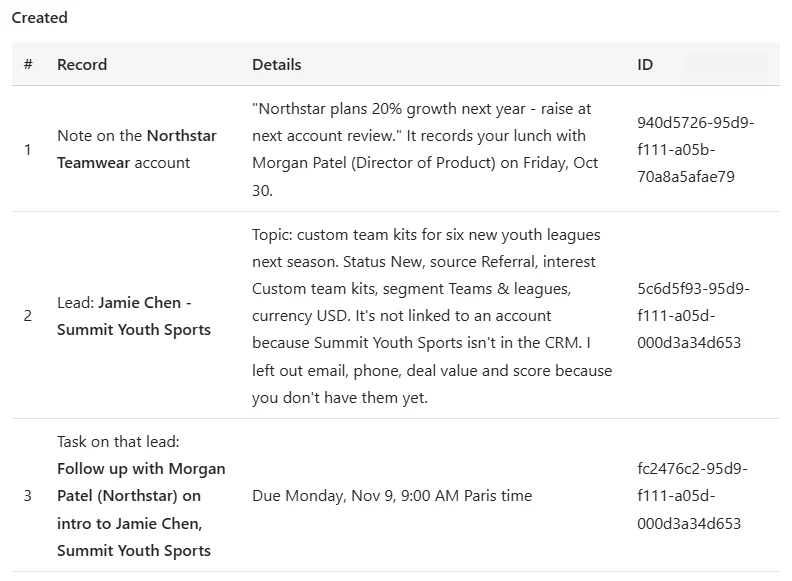
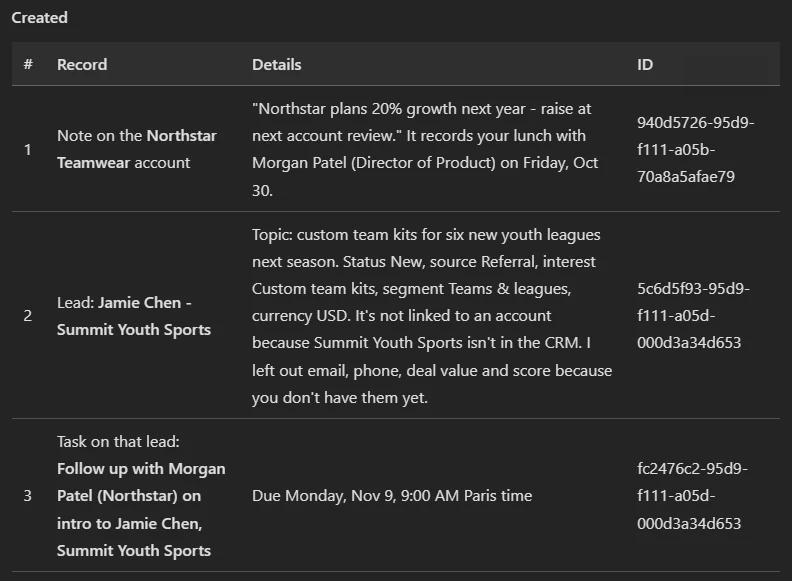
Three saved records, not just suggested text. Your record IDs and calendar dates will differ. Notice thisCheck that the 20% growth is recorded as something Morgan told you, not independently verified fact. Jamie’s email and phone should remain unknown. The follow-up is with Morgan about an introduction, not an invented direct outreach to Jamie.
Why package this as a plugin?Pause and reveal the idea
Tools plus a playbook beat tools alone.
The connector makes business actions possible. The skill supplies repeatable guidance about how the team wants them done. A purpose-built app such as Zava Sales Hub can still be the best place to inspect and manage the resulting records.
- Your unlogged context
- Business-specific guidance
- Reviewable CRM updates
Something not matching?
- Zava Sales is not in the plugin catalog.
Skip this optional extension and ask your facilitator to check deployment. The core lab needs Zava Sales Hub, Microsoft Dataverse and Zava PowerPoint, not this additional plugin. Do not install an unrelated plugin with a similar name.
- I need to rerun this prompt.
First inspect whether the note, lead or task already exists. Ask Cowork to reuse the existing records rather than making duplicates.
You changed more than a document.
You moved from finding evidence to delegating work, approving real changes, and preserving a repeatable way of working.
Want to go further? Turn a conversation into a commitment (optional, 8 minutes), or Let feedback improve the method (optional, 6 minutes), or Give Cowork the sales team's playbook (optional, 8 minutes).
- Copilot Chat
- Find work-file evidence; do not assume that also proves live CRM access.
- Agent + MCP App
- Use specialist business tools and an interactive form without leaving the agent conversation.
- Cowork
- Delegate an outcome across files and tools, then steer and verify it.
- Skill
- Save the method you want repeated.
- Automation
- Choose when the work runs, then check its runs and outputs.
- Plugin
- Supply connected capabilities and company guidance, such as Zava's PowerPoint branding.
Saved only in this browser. Your note stays in this browser's local storage on this device. It is not sent to the lab site or your Microsoft account, does not follow you to another browser or device, and is erased if you clear browsing data or reset progress. Download a PDF to keep it.
Downloads a copy of your prompts, progress and note to this device. Your note is not sent anywhere.
Before leaving, open Automations and pause the Monday review and any Friday feedback schedule you created for this lab, unless your facilitator asks you to keep them running. This prevents unattended credit usage and training emails. Do not change unrelated automations. Resetting the lab’s checkmarks does not pause Cowork.
Product guidance and further reading
- Get started with Cowork
- Using Cowork, approvals, skills and scheduled tasks
- Cowork models and effort
- How Cowork plugins work
- Dataverse business data in Copilot
- Understanding Copilot Credit usage and /cost
- Usage-based billing overview
Product UI and available capabilities can vary by tenant. Screenshots show the training experience, not a promise of identical generated output.