Customer Conversation Harness
Customer Conversation Harness
From customer intent to the right specialist.
Three core missions build a concierge, inspect cancellation routing and exercise voice. An optional mission adds enrollment, billing and delivery specialists.
- 30-minute core
- 3 guided missions + 1 optional
- Real training data
Your next 30 minutes
You are building a customer-service prototype for Zava Coffee. Customers want to enroll, change billing, move deliveries or cancel. Build a Customer Assist Agent on the Customer conversation harness, then compare what the primary agent does before and after a cancellation specialist exists. Demo Mode simulates results; no real subscription changes.
At a proctor-led event with a provided, pre-provisioned account? You're ready to start.
Using your own tenant? View setup requirements
Prepare these separately before the timed exercise:
- Access to Copilot Studio preview in an environment offering Customer conversation agent.
- Permission to create agents in that environment.
- Copilot Studio access and billing capacity for the preview.
No live subscription backend, production phone number or contact-center deployment is required.
Plan 30 minutes for Build, Route and Speak; Extend is optional.
Checkmarks, quiz answers and your notes are saved only in this browser's local storage. Nothing is sent to the lab site. To keep them, download a PDF at the end.
Give the primary agent a clear job
Create a concierge, separate channel guidance, and observe a cancellation request before a specialist exists.
Your finish line A saved primary agent with General and Voice instructions, an identify-caller-intent skill, and a baseline chat trace.
-
Open Copilot Studio preview, sign in with your lab account and select the assigned environment. Review and dismiss any first-run notice or tour. Select Agents → More create options (the arrow beside New agent) → Customer conversation agent.
Show me: the customer-conversation creation option
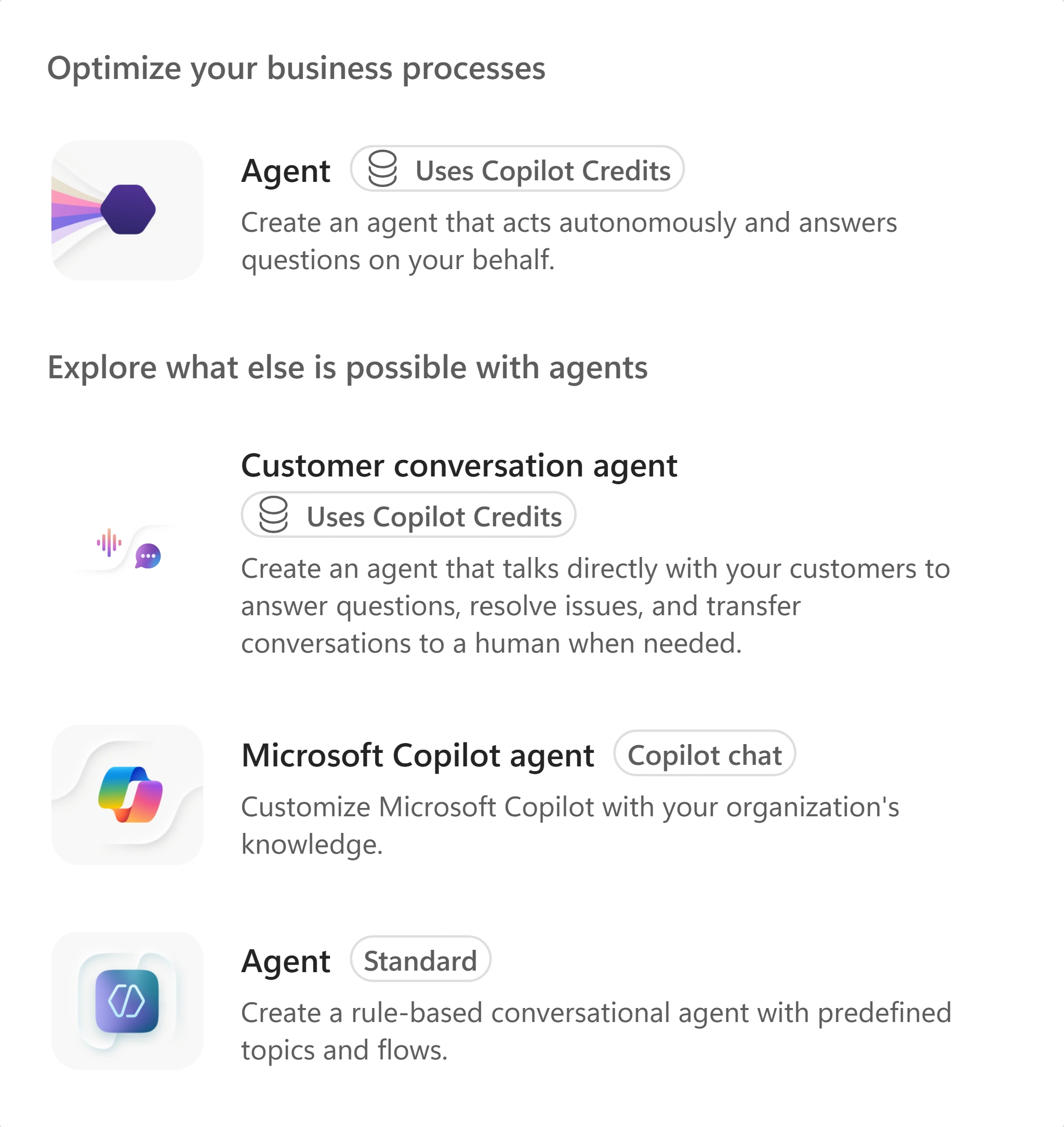
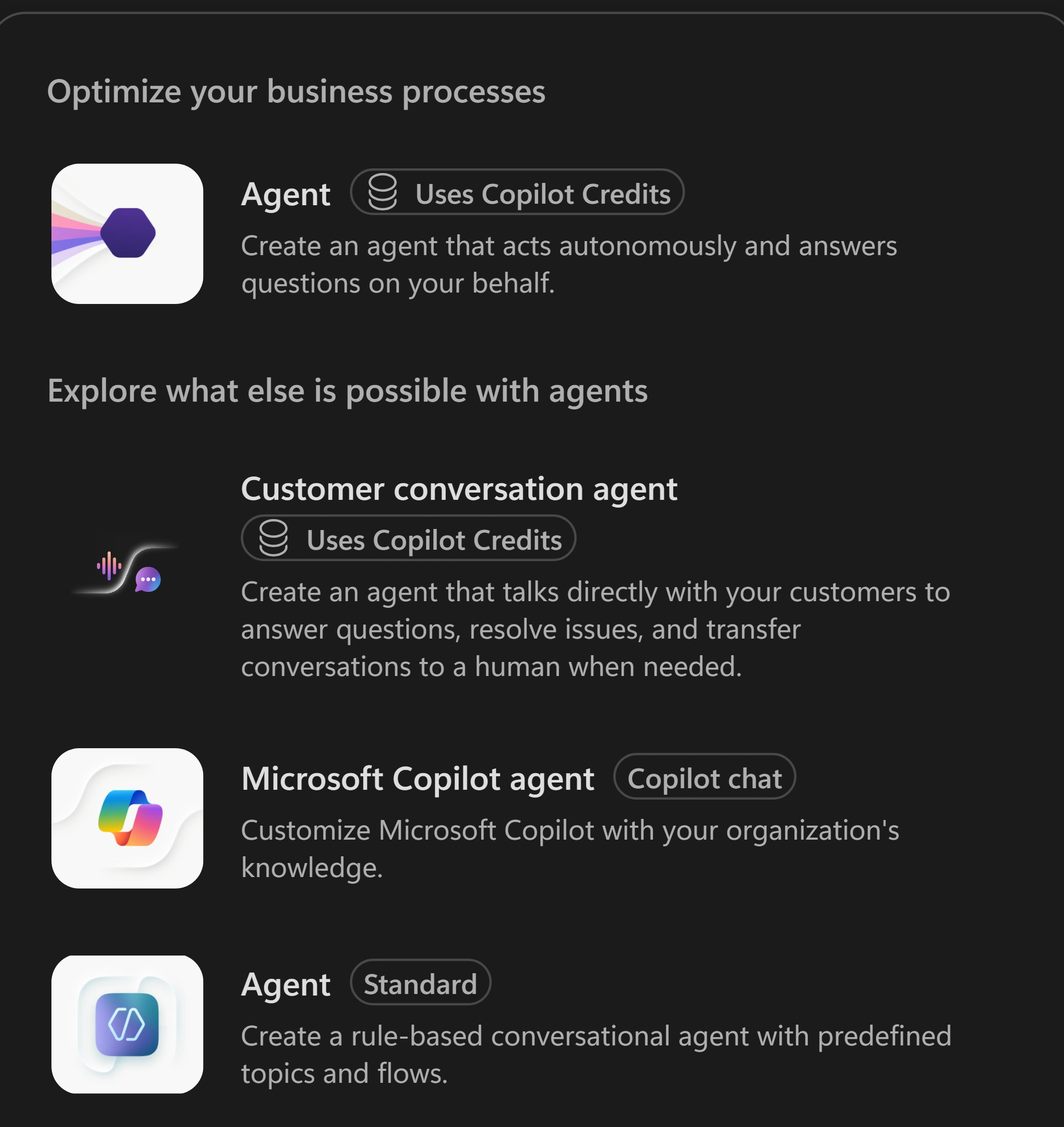
Choose Customer conversation agent. The Standard and Microsoft Copilot options are different harnesses. Notice thisCustomer Assist Agents are in preview. Select Customer conversation agent. If it is missing, ask your facilitator; do not substitute the separate Standard or Microsoft Copilot agent options. Ask about unexpected consent or access requests.
-
Leave the description box empty. Under Start from scratch, select Create agent, not Create in Contact Center Intelligence. In the naming dialog, enter the name below and leave Agent settings (optional) unchanged. Add your initials only if an agent with this name already exists in your environment. Select Create and wait until provisioning finishes and fields become editable.
Agent nameZava Coffee Subscription Assistant -
On Build, open the primary agent card. Leave Human handoff → Handoff method → Needs setup unchanged; human handoff is outside this lab.
-
Select Description, paste the text below and select Save for that field.
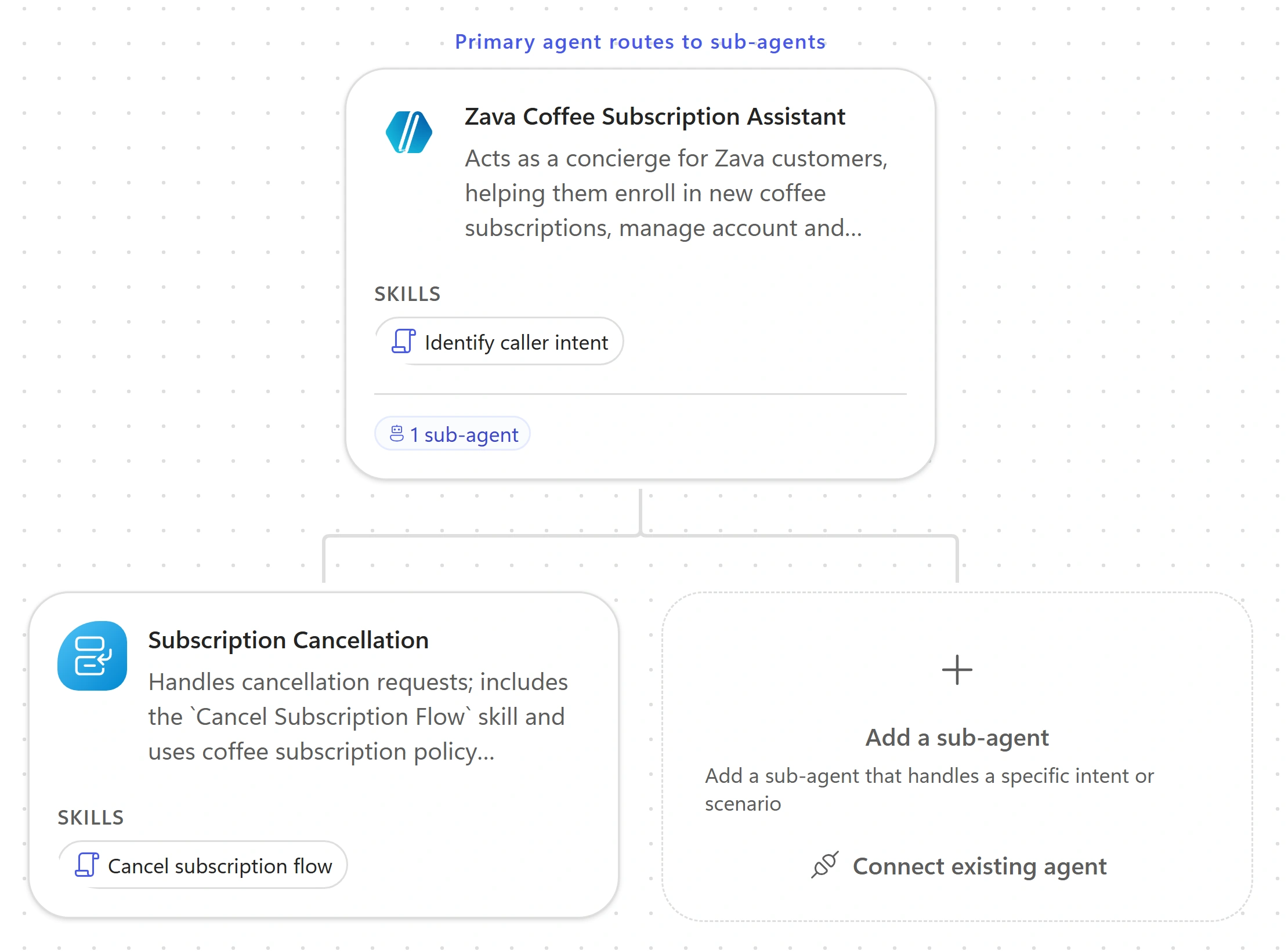
Primary agent · DescriptionActs as a concierge for Zava customers, helping them enroll in new coffee subscriptions, manage account and billing details, adjust delivery preferences, or cancel subscriptions by routing each request to the right specialist. -
Select Expand instructions. On General, paste the instructions below; if the expanded editor opens blank, paste into the inline instructions box instead. They name four specialists, but you will initially create only cancellation. Do not add a backend or knowledge source.
Primary agent · General instructions## Purpose You are the main voice assistant for Zava Coffee subscriptions. Your role is to greet callers, understand their needs, collect essential details, and route them seamlessly to the right specialist sub-agent for subscription enrollment, account management, delivery adjustments, or cancellations. ## General Guidelines - Be friendly, concise, and conversational. - Confirm understanding by paraphrasing the caller's request. - Collect shared prerequisites early (like `customerId`, `subscriptionId`, or `email`). - Route silently to the appropriate sub-agent once you have the needed details. - Never announce internal routing or department names. ## Routing Rules - **New Subscription Enrollment** → Route to **Subscription Enrollment & Setup** once you confirm the caller wants to start a new subscription and collect their `email`, preferred coffee type, and delivery frequency. - **Account or Billing Management** → Route to **Account & Billing Management** after confirming the caller's `customerId` and verifying which billing or payment detail they want to update. - **Delivery Changes (dates, quantities, frequency)** → Route to **Delivery Scheduling & Adjustments** once you have the `subscriptionId` and the desired change details. - **Pause or Skip Deliveries** → Also handled by **Delivery Scheduling & Adjustments**; confirm the `subscriptionId` and the pause duration. - **Cancel Subscription** → Route to **Subscription Cancellation** after confirming the `subscriptionId` and reason for cancellation. Shared prerequisites: `customerId`, `subscriptionId`, and `email` are required by multiple sub-agents. Collect and confirm these early, then pass them along silently to the sub-agent that needs them. If a caller's request doesn't match any known intent, ask one clarifying question to determine whether it relates to subscription setup, account management, delivery, or cancellation before routing. -
Select Voice, paste the guidance below, leave Chat unchanged, then select Save. Voice adds guidance on top of General; it does not replace it.
Primary agent · Voice instructions## Voice interaction guidelines - Speak in short, natural turns. - Confirm understanding by paraphrasing. - Spell back critical data (names, phone numbers, confirmation codes) digit-by-digit. - Ask one question at a time. - Avoid reading long lists, URLs, or markdown aloud. - Gracefully handle speech-recognition errors, silence, barge-in, and requests to repeat.Show me: the Voice instructions editor
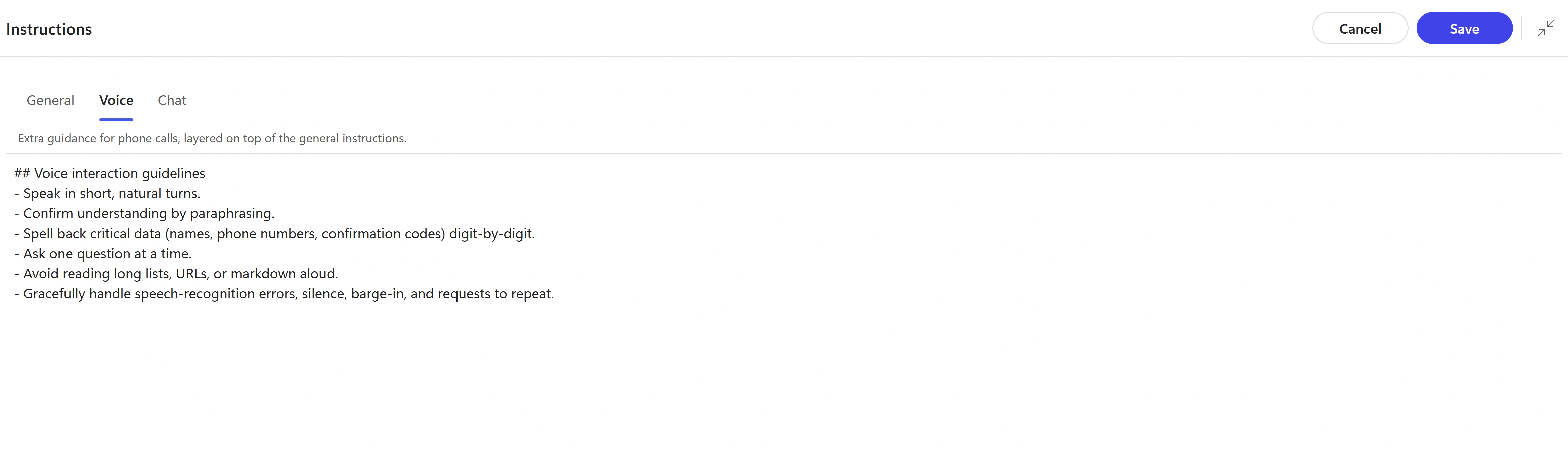
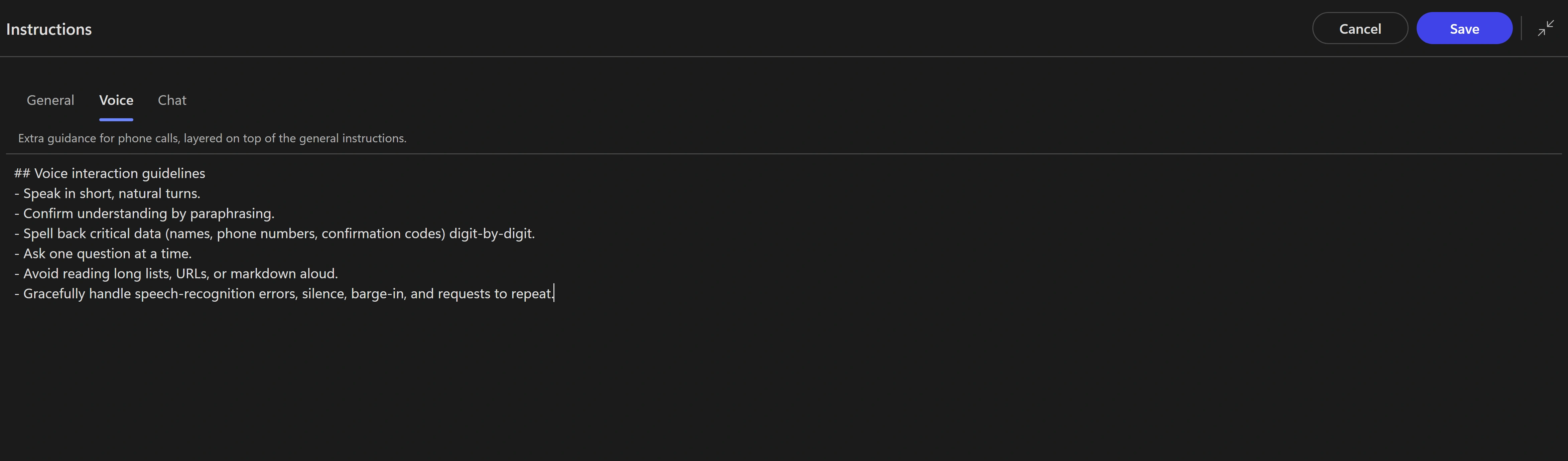
Voice is extra guidance for calls. General remains active across channels. Notice thisThe tested preview label is Voice; Microsoft Learn calls this tab Speech. Follow the label available in your preview. Saving these instructions is not proof of spoken behavior.
-
Next to Skills, select +. In Add skill, select Generative. Set Skill name to
identify-caller-intentand Description toDetermines what the caller wants to do with their coffee subscription before routing.Paste the text below into Instructions, then select Add skill.identify-caller-intent · Instructions### Purpose Identify whether the caller wants to enroll, manage billing, change delivery, pause, or cancel. ### Steps 1. Greet the caller and ask what they'd like help with. 2. Listen for keywords like 'new subscription', 'billing', 'delivery', 'pause', or 'cancel'. 3. Confirm understanding by paraphrasing. 4. Collect shared prerequisites (`customerId`, `subscriptionId`, `email`). 5. Route silently to the correct sub-agent. -
Save your changes. Select Preview → Web Chat; the tested preview initially selected Voice Call. Send the message below and wait for a reply. Look for a greeting and a question that narrows the request.
Web Chat · Baseline greetingHi, I need help with my coffee subscription -
Send the cancellation request, then open Activity map. Look for the primary asking for cancellation details such as your subscription ID (it may ask for the reason now or later), with no sub-agent invocation. Record what you actually observe; the baseline is for comparison with the next mission.
Web Chat · Before the specialistI want to cancel my subscriptionShow me: the no-specialist baseline
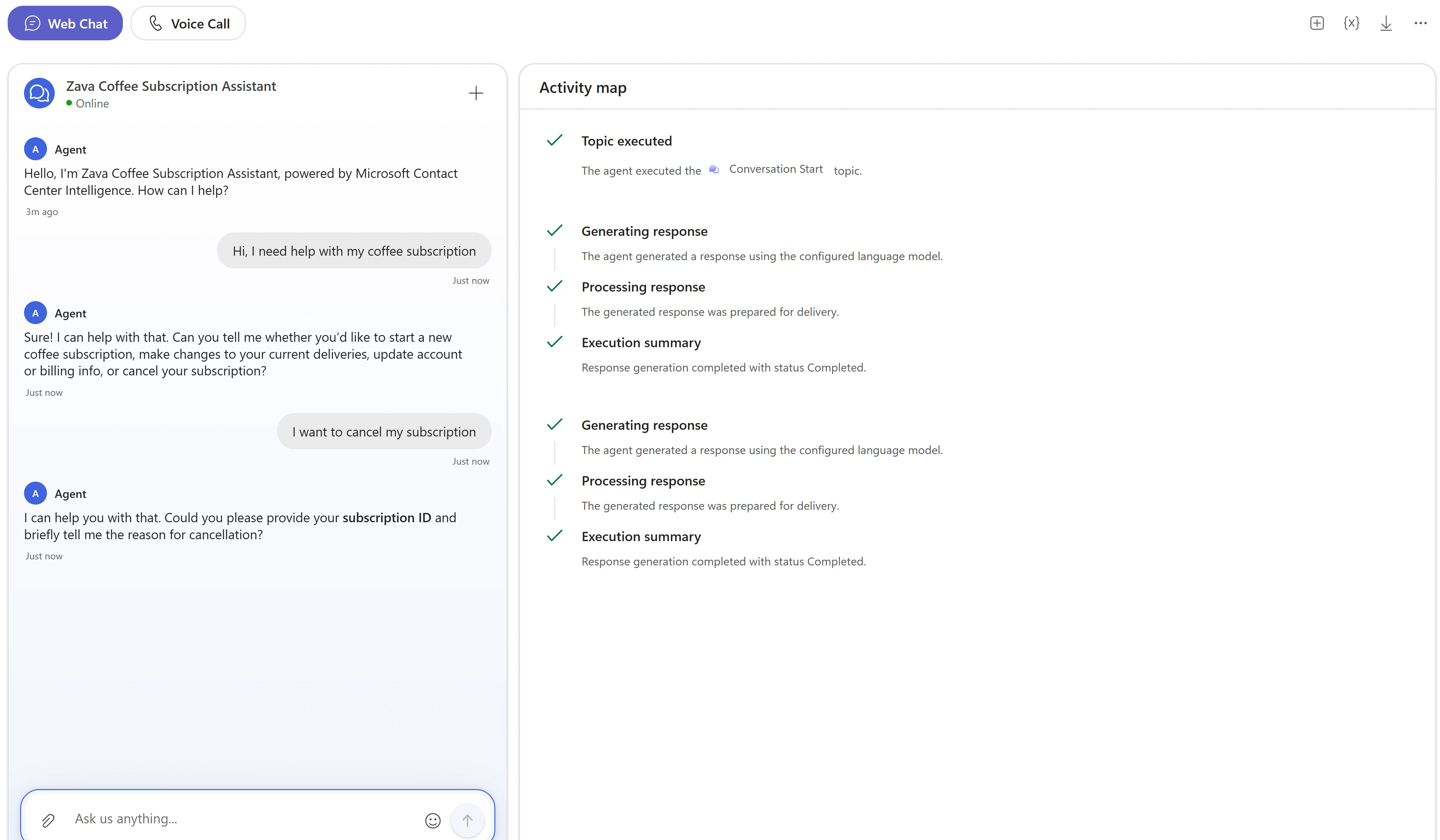
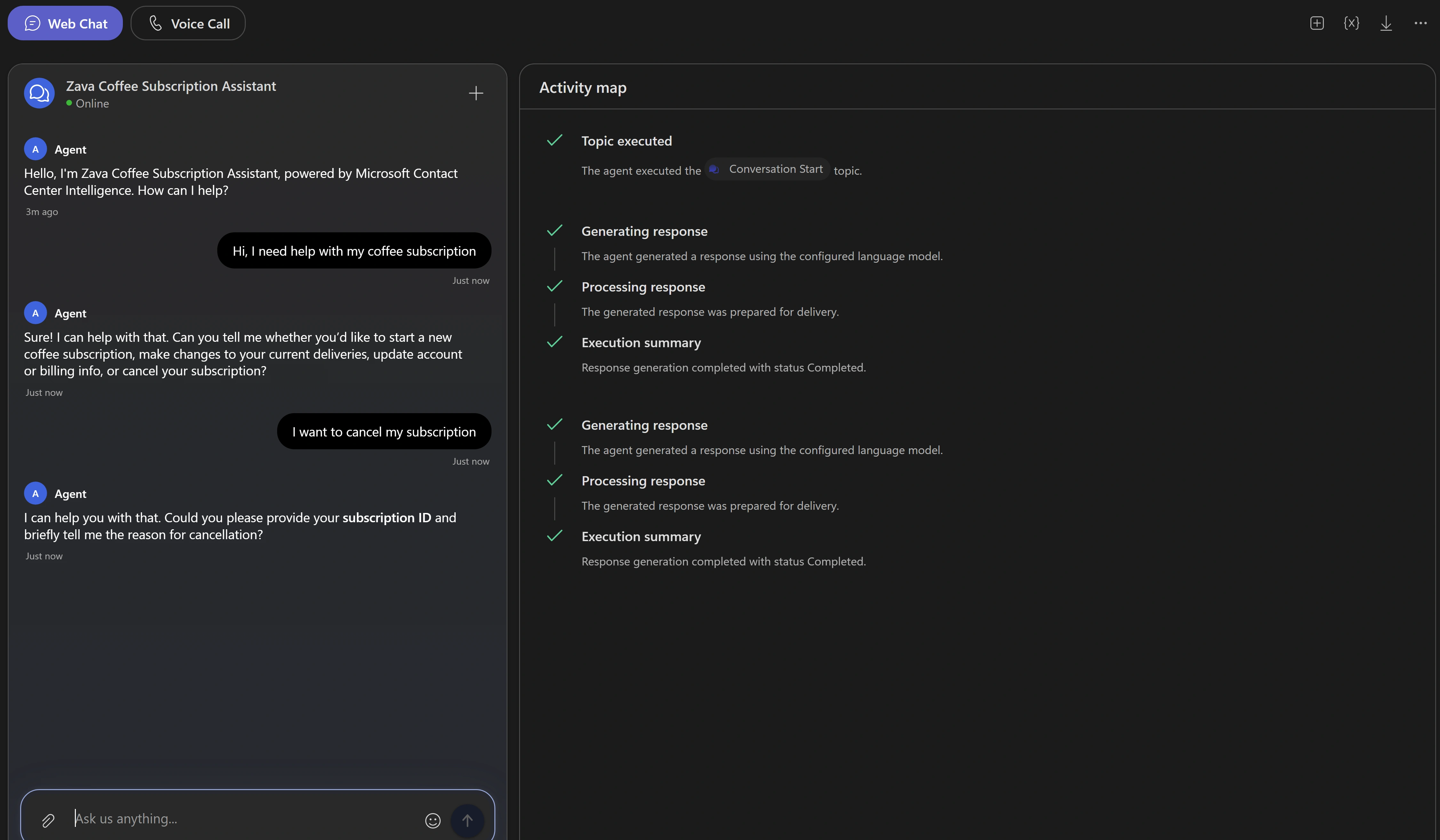
Before you add the specialist, the primary agent handles the cancellation request itself.
Why did the primary keep the request?Pause and reveal the idea
Instructions describe an intended route; the specialist must also exist.
The baseline asked for cancellation details without invoking a sub-agent. General establishes the concierge role, Voice adds channel-specific guidance, and the Generative skill supplies a reusable procedure. They do not create the four specialists mentioned in the instructions.
- Customer request
- Intent procedure
- Primary response while no specialist exists
Something not matching?
- The creation option is missing or fields are disabled.
Confirm the preview URL and assigned environment. Wait for provisioning if fields are disabled. Ask the facilitator about missing access; do not change harnesses.
- Preview does not reflect an edit.
Save each edited field, select Start new test session at the top right and repeat the same scenario. Preview uses saved changes.
Give cancellation to a specialist
Add one specialist, test the four-message conversation, and inspect its invocation, confirmation and return.
Your finish line A cancellation specialist with its own skill, plus an Activity map comparison of cancellation and delivery requests.
-
On Build, select Add a sub-agent. Wait for New Sub-Agent to finish provisioning. Select its title, enter the exact name below and select the checkmark labeled Save name. Keep this spelling: the primary routing rules refer to it.
Sub-agent nameSubscription Cancellation -
Select Description, paste the text and select Save for that field. The primary uses this description when choosing a specialist. References to policy knowledge in the supplied text do not add a knowledge source; this lab stays in Demo Mode.
Subscription Cancellation · DescriptionHandles cancellation requests; includes the `Cancel Subscription Flow` skill and uses coffee subscription policy knowledge. -
Open Instructions, paste the text and select Save for that field. Keep Demo Mode: it asks for confirmation and simulates a result without connecting a backend.
Subscription Cancellation · Instructions### Purpose Assist callers in canceling their coffee subscription. ### General Guidelines - Handle only cancellation requests. - Required inputs: `subscriptionId` and reason for cancellation. - Confirm cancellation before finalizing. - If the caller asks about billing or delivery, route back to the root agent silently. ### Steps 1. Confirm the caller's `subscriptionId`. 2. Ask for the reason for cancellation. 3. Confirm understanding and process cancellation. 4. Provide confirmation code and final delivery details. ### Error Handling If the subscription cannot be canceled immediately, explain the next available cancellation date and confirm acceptance. ### Demo Mode This is a demo with no backend system. Finish the whole cancellation yourself before you return to the main conversation: - Once you have the `subscriptionId` and the reason, ask the caller to confirm with yes or no, and wait for the answer. - When the caller says yes, reply in the same turn with a simulated success: a confirmation code like ZC-12345 and that the final delivery ships within 3 business days. - Return to the main conversation only after you have given the confirmation code, or when the caller asks about something other than cancellation. -
In the specialist panel, select + beside Skills. In Add skill, select Generative. Set Skill name to
cancel-subscription-flowand Description toGuides callers through canceling their coffee subscription.Paste the text into Instructions, then select Add skill.cancel-subscription-flow · Instructions### Purpose Help callers cancel their subscription. ### Steps 1. Ask for the `subscriptionId`. 2. Confirm the reason for cancellation. 3. Verify and process the cancellation. 4. Provide confirmation code and any final delivery information. -
Confirm each edited field is saved, then close the panel. Find the primary connected to Subscription Cancellation, with one sub-agent and the two skills on their respective cards. The cards display the skills as Identify caller intent and Cancel subscription flow.
Show me: the saved primary agent and specialist
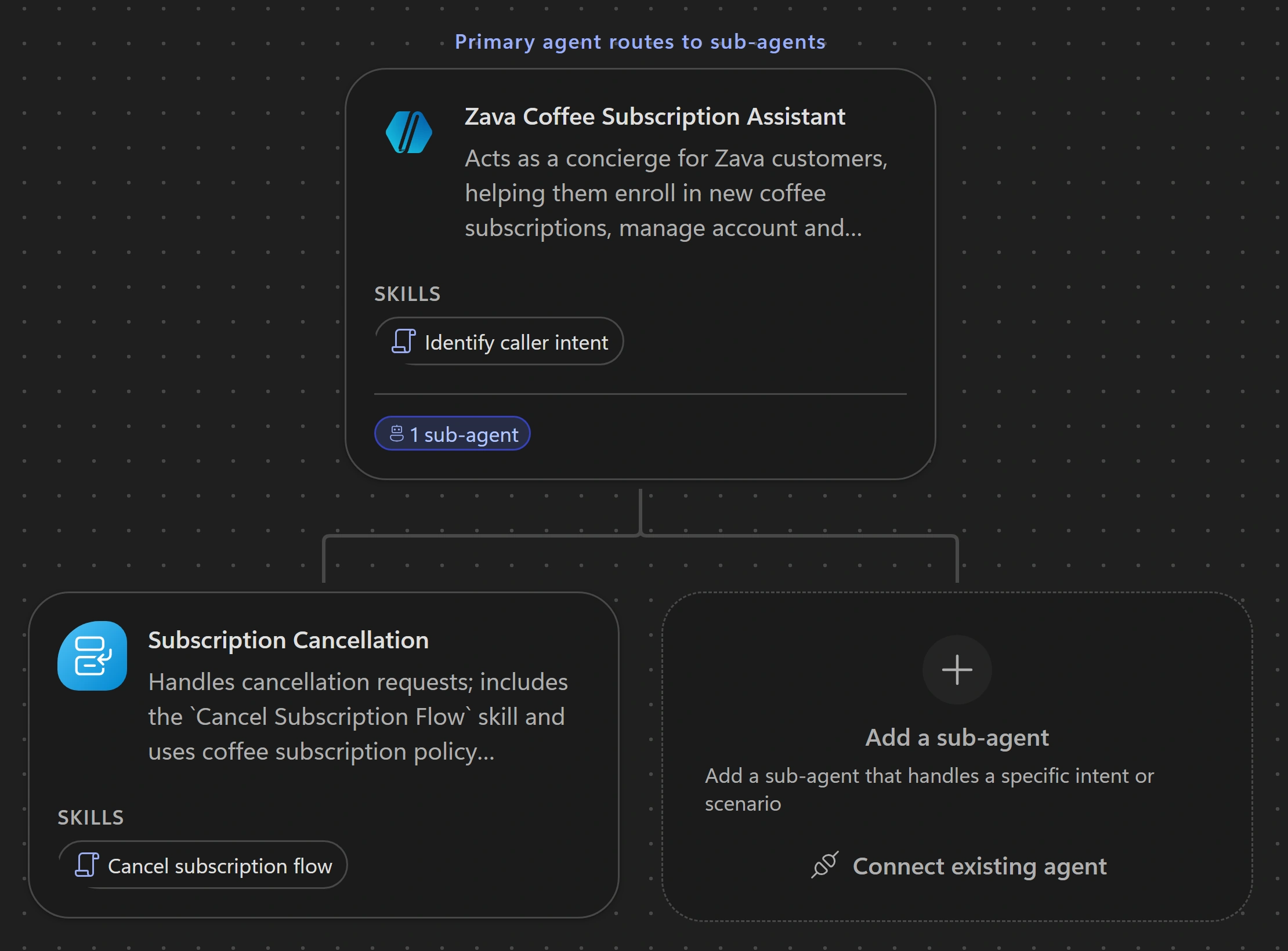
The saved build contains the primary agent and its cancellation specialist. -
Select Preview → Web Chat, then Start new test session at the top right. Send this first message. Wait for each reply before the next message; do not paste all four together.
Web Chat · Original sequence 1 of 4I want to cancel my subscriptionNotice thisLook for a confirmation request followed by a simulated cancellation code.
-
When asked for the subscription, send the fictional identifier below and wait for the next reply.
Web Chat · Original sequence 2 of 4SUB-1042 -
When asked for the reason, send the text below. Wait for the confirmation question. If the conversation remains silent for about two minutes, use the bounded diagnostic step below instead of continuing blindly.
Web Chat · Original sequence 3 of 4I am moving abroad -
When the agent asks you to confirm cancellation, send the response below. Look for a simulated confirmation code and final delivery details. If the previous turn stalled, record your original sequence as incomplete rather than sending confirmation blindly.
Web Chat · Original sequence 4 of 4Yes, please cancel itNotice thisExpected response example — comparison only, not text to send: a simulated code such as ZC-10421 and final delivery within 3 business days. Codes and wording vary. No real subscription is changed.
-
Inspect both the chat and Activity map, not just the main Execution summary. Select Start new test session and retry once with
I want to cancel my subscription. My subscription ID is SUB-1042, and I am moving abroad.When asked, sendYes, please cancel it. If this also stalls, stop and ask your facilitator.Notice thisUse this recovery only if the conversation stalls.
-
In Activity map, inspect the invocation of Subscription Cancellation, its inputs and its return. Look for Interpreting agent intent, Preparing agent inputs, Executing agent, Reviewing nested activity, and Return To Main Conversation Tool. Compare the actual reply with the final return status.
Show me: the successful four-message cancellation
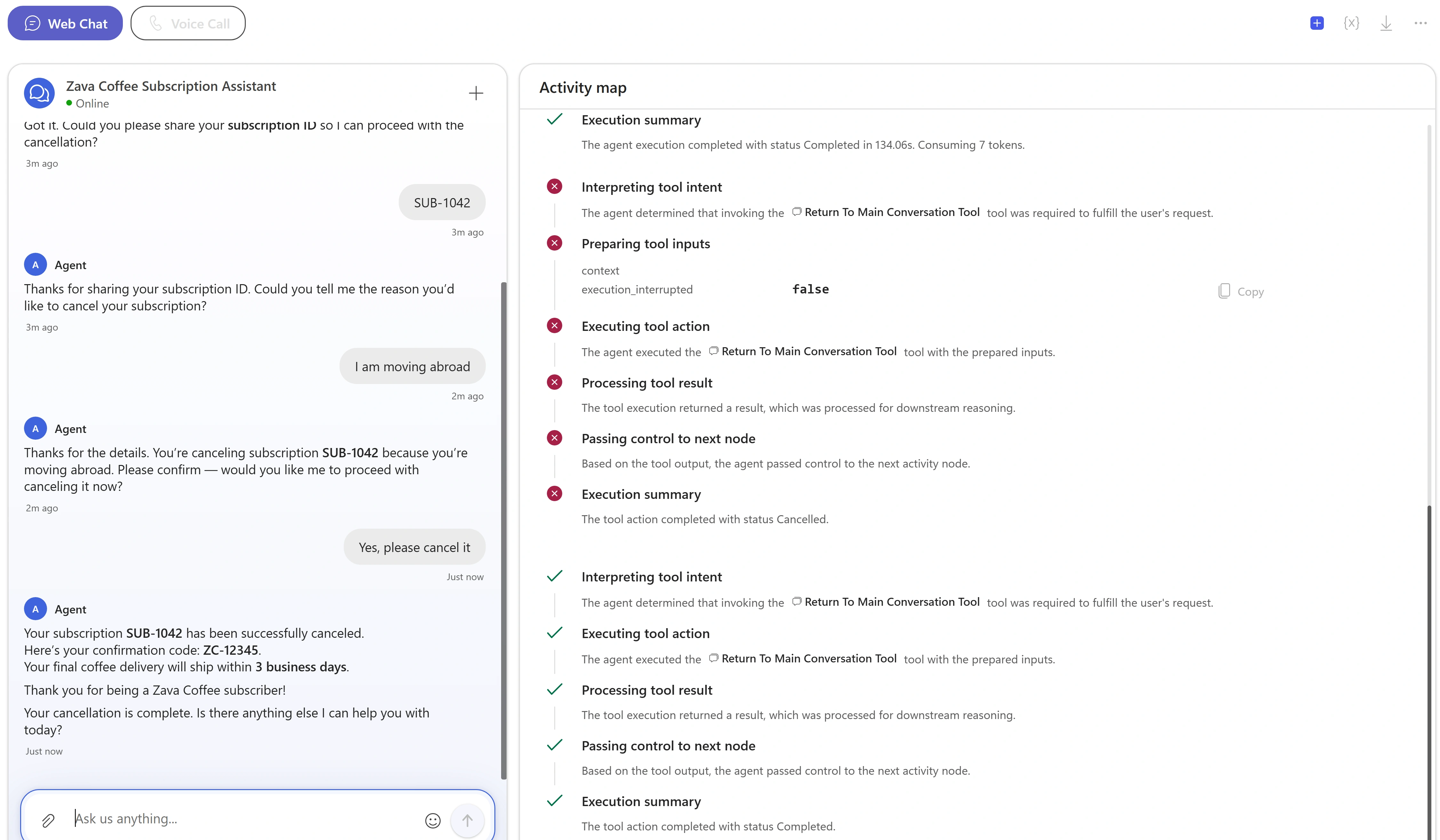
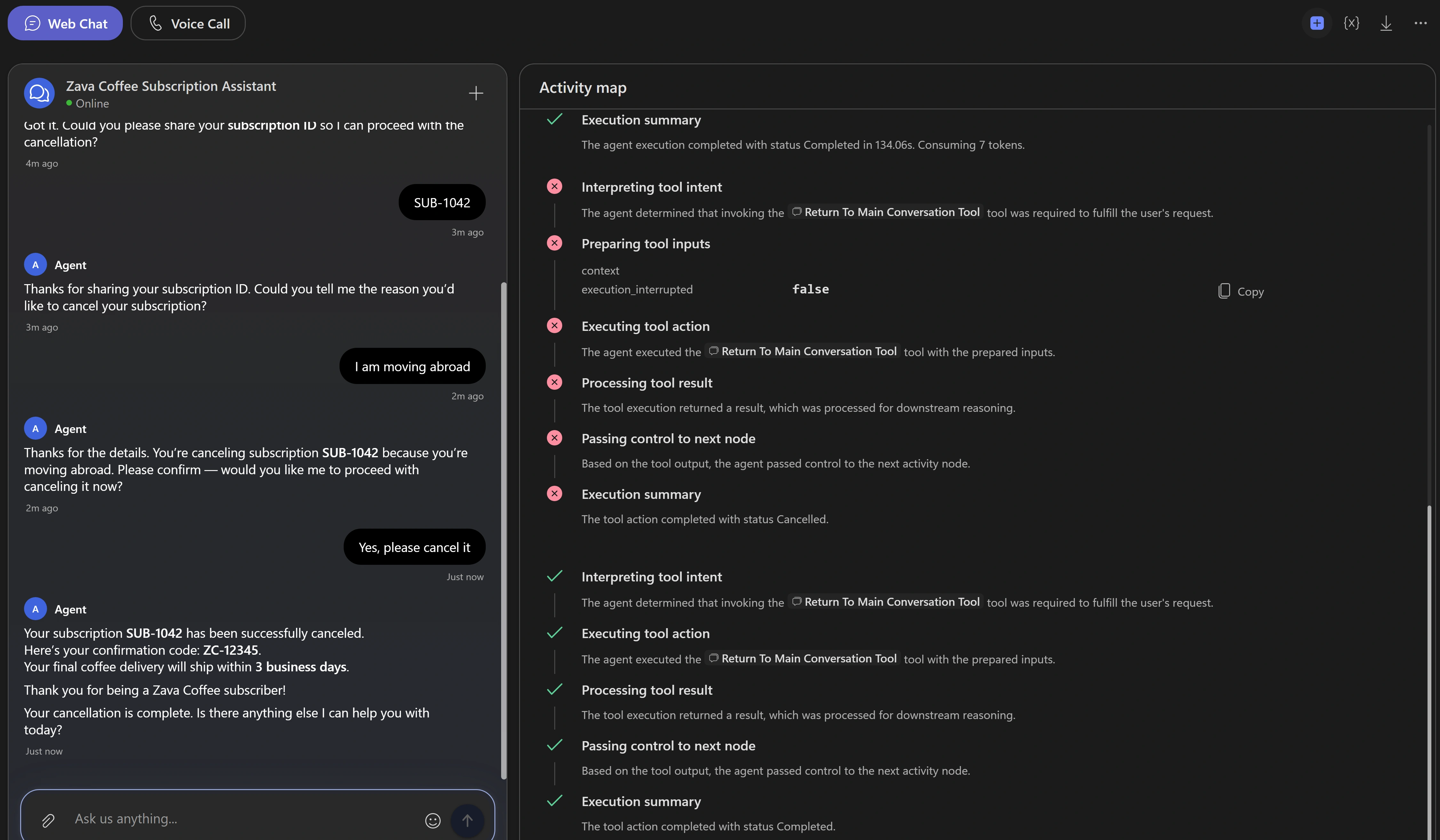
The cancellation specialist asks for confirmation and returns a simulated cancellation code. Notice thisWhile the specialist waits for your next reply, its rows in Activity map can show a red Cancelled status. Read through to the final Completed return after the confirmation turn. Neither the intermediate status alone nor the top-level summary alone tells you whether the customer received a result.
-
Select Start new test session and send the delivery question below. Inspect Activity map again. Without a delivery specialist, the primary handles this request.
Web Chat · Delivery without a specialistCan I change my delivery date to next Friday?
What counts as evidence of routing?Pause and reveal the idea
Read the customer reply and the specialist lifecycle together.
The saved Description helps the primary choose a specialist; Activity map shows the invocation and return. A simulated confirmation is not a backend write.
- Intent and required inputs
- Specialist invocation
- Confirmation and simulated result
- Return to primary
Something not matching?
- The cancellation does not route.
Check the exact specialist name and saved Description. Save all edits and use a fresh test session. If the single diagnostic retry also stalls, stop and ask the facilitator.
- The test pane reports TelephonyBadRequest or another error.
Record the error, select Start new test session and retry once. If it persists, ask your facilitator; do not infer a root cause from the error alone.
Try the voice experience
Try the same cancellation conversation in Voice Call and compare it with chat.
Your finish line A spoken cancellation conversation with a visible transcript.
-
Connect a microphone and speakers or a headset. In Preview, select Voice Call. Use a browser with microphone access permitted for the preview site. If audio is unavailable, use Web Chat or watch the facilitator.
Show me: the Voice Call panel before connection
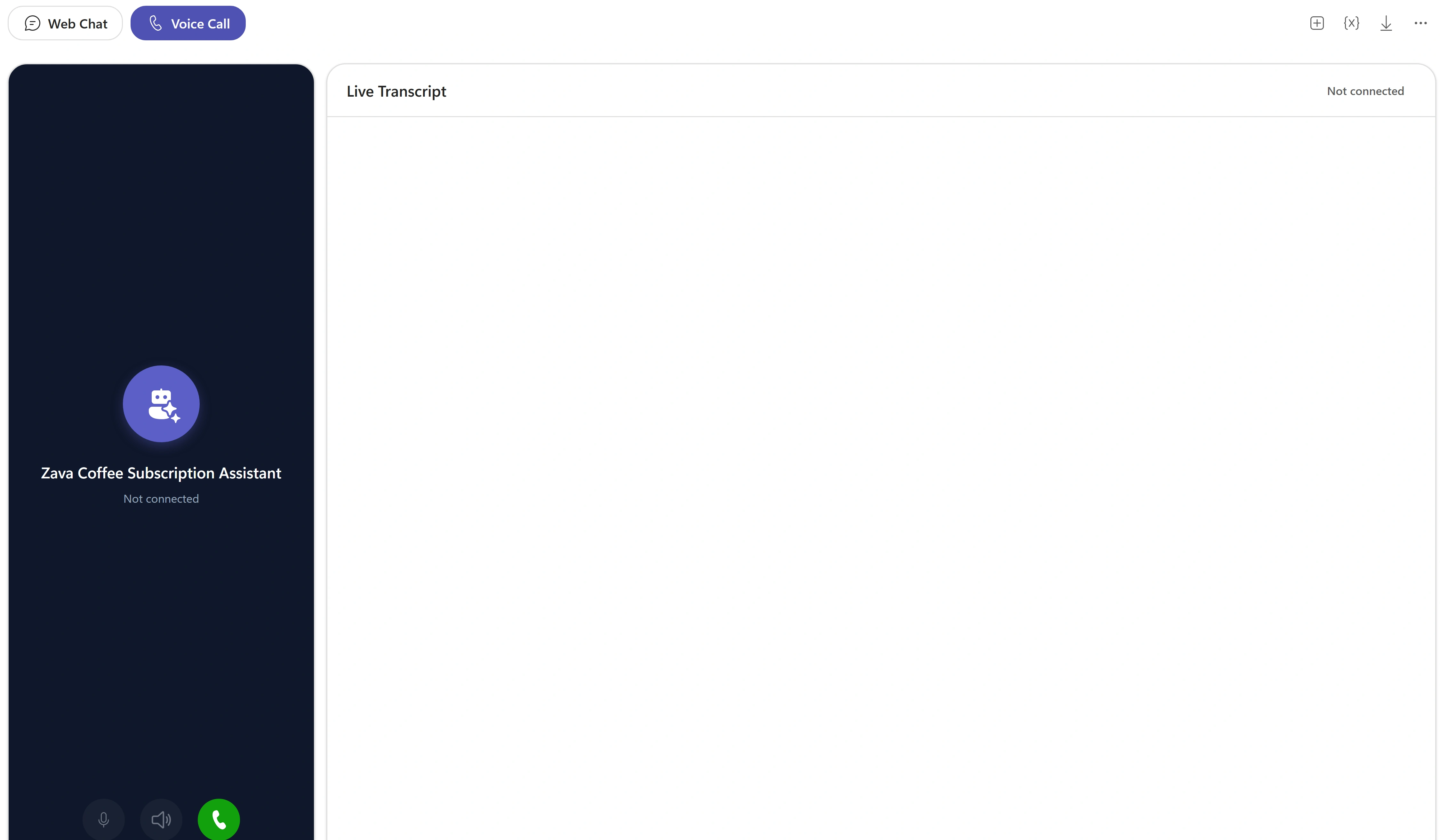
Select Start voice conversation to begin the call. -
Select Start voice conversation and allow microphone access if asked. Confirm Listening… and Voice call connected in Live Transcript, then wait a few seconds for the greeting under Bot said:.
-
Say “I want to cancel my subscription.” Watch whether Live Transcript records what you said.
-
When asked, say your subscription ID, for example “S U B one zero four two”, then a reason such as “I’m moving abroad”. Confirm when asked. Use only fictional identifiers and note any recognition errors.
-
Listen and inspect Live Transcript and Activity map. Check pauses, silent internal routing, clear identifiers and confirmation codes, one question at a time, and no markdown read aloud. Check for a simulated confirmation code.
-
Select End conversation and verify that Start voice conversation returns. Leave the agent unpublished. Do not configure production channels, triggers, schedules or a backend for this lab.
How does Voice build on General instructions?Pause and reveal the idea
The task stays the same; the channel changes the delivery.
Voice layers speaking guidance over General. Pauses, clear identifiers and one question at a time make the same conversation easier to follow aloud.
- General instructions
- Voice guidance
- Spoken test and transcript
- End conversation
Something not matching?
- There is no sound or microphone input.
Check browser microphone permission and the selected audio device, then try the call again. If audio remains unavailable, end the call and use Web Chat or watch the facilitator.
Add three optional specialists
Extend the concierge to enrollment, billing and delivery using the same specialist pattern.
Your finish line Three additional draft specialists and a recorded routing test for each.
-
Repeat Build → Add a sub-agent for each specialist below. Wait for provisioning, rename New Sub-Agent with the exact supplied name and select Save name. Save Description and Instructions separately, then use + beside Skills → Generative. Use only fictional contact and payment details.
Notice thisKeep Demo Mode: these specialists simulate actions without a connected backend.
-
Create the first optional sub-agent, enter this exact name and select Save name.
Enrollment · NameSubscription Enrollment & Setup -
Paste into the enrollment specialist’s Description and select Save.
Enrollment · DescriptionHandles new coffee subscription sign-ups; includes the `Create New Subscription` skill and uses subscription setup knowledge. -
Paste into Instructions and select Save. The requested payment details must remain fictional; this is a simulated enrollment.
Enrollment · Instructions### Purpose Assist callers in enrolling in a new Zava coffee subscription. ### General Guidelines - Handle only new subscription requests. - Required inputs: `email`, preferred coffee type, delivery frequency, and payment method. - Confirm all details before finalizing enrollment. - If the caller asks about billing or delivery changes, route back to the root agent silently. ### Steps 1. Confirm the caller wants to start a new subscription. 2. Gather required inputs. 3. Verify coffee preferences and delivery frequency. 4. Confirm payment method. 5. Summarize and confirm the subscription details. 6. Provide a confirmation code or next delivery date. ### Error Handling If any required input is missing, ask for it clearly and confirm before proceeding. ### Demo Mode This is a demo with no backend system. After the caller confirms, simulate success: give a confirmation code like ZC-12345. -
Select + beside Skills → Generative. Set Skill name to
create-new-subscriptionand Description toGuides callers through creating a new Zava coffee subscription.Paste these Instructions and select Add skill.create-new-subscription · Instructions### Purpose Help callers create a new Zava coffee subscription. ### Steps 1. Ask for the caller's `email` and preferred coffee type. 2. Confirm delivery frequency and quantity. 3. Collect payment details. 4. Review and confirm all information. 5. Provide confirmation code and expected first delivery date. -
Create the second optional sub-agent, enter this exact name and select Save name.
Billing · NameAccount & Billing Management -
Paste into the billing specialist’s Description and select Save.
Billing · DescriptionManages customer account and billing details; includes the `Update Payment Method` skill and uses billing procedures knowledge. -
Paste into Instructions and select Save. Do not enter real payment details or treat the demo identity check as production authentication.
Billing · Instructions### Purpose Assist callers with updating account or billing information. ### General Guidelines - Handle only account and billing requests. - Required inputs: `customerId`, `email`, and payment details. - Confirm changes before saving. - If the caller asks about delivery or cancellation, route back to the root agent silently. ### Steps 1. Confirm the caller's identity using `customerId`. 2. Ask what they want to update. 3. Collect and confirm the new payment or contact information. 4. Save and confirm the update. ### Error Handling If payment details are incomplete, ask for the missing fields and confirm before proceeding. ### Demo Mode This is a demo with no backend system. After the caller confirms, simulate success: give a confirmation code like ZC-12345. -
Select + beside Skills → Generative. Set Skill name to
update-payment-methodand Description toHelps callers update the payment method on their coffee subscription.Paste these Instructions and select Add skill.update-payment-method · Instructions### Purpose Assist callers in updating their payment method. ### Steps 1. Ask for the `customerId` and current payment method. 2. Collect the new payment details. 3. Confirm accuracy and save changes. 4. Notify the caller of the successful update. -
Create the third optional sub-agent, enter this exact name and select Save name.
Delivery · NameDelivery Scheduling & Adjustments -
Paste into the delivery specialist’s Description and select Save.
Delivery · DescriptionHandles delivery date, quantity, frequency changes, and pauses; includes the `Modify Delivery Schedule` skill and uses delivery schedule options knowledge. -
Paste into Instructions and select Save. Keep the simulated success in Demo Mode.
Delivery · Instructions### Purpose Assist callers in changing delivery dates, quantities, or frequency, and pausing or skipping deliveries. ### General Guidelines - Handle only delivery-related requests. - Required inputs: `subscriptionId` and the desired change details. - Confirm all changes before saving. - If the caller asks about billing or cancellation, route back to the root agent silently. ### Steps 1. Confirm the caller's `subscriptionId`. 2. Ask what change they want (date, quantity, frequency, pause). 3. Record and confirm the new schedule. 4. Summarize and confirm the next delivery date. ### Error Handling If the requested date or quantity is unavailable, offer the nearest available option. ### Demo Mode This is a demo with no backend system. After the caller confirms, simulate success: give a confirmation code like ZC-12345. -
Select + beside Skills → Generative. Set Skill name to
modify-delivery-scheduleand Description toHelps callers change, pause, or skip deliveries on their coffee subscription.Paste these Instructions and select Add skill.modify-delivery-schedule · Instructions### Purpose Help callers adjust their delivery schedule. ### Steps 1. Ask for the `subscriptionId`. 2. Ask what change they want (date, quantity, frequency, pause). 3. Confirm the new schedule. 4. Save and confirm the update. -
Save all fields and close the panel. Check for four specialists including cancellation. In Preview → Web Chat, select Start new test session before each test below. Supply fictional follow-up details when asked and inspect Activity map. Compare the route taken for each request.
Send Expected specialist to verify Can I change my delivery date to next Friday? My subscription ID is SUB1042.Delivery Scheduling & Adjustments I want to start a new coffee subscription. My email is alex@contoso.com, medium roast, every two weeks.Subscription Enrollment & Setup I need to update my credit card. My customer ID is C-7781.Account & Billing Management Compare delivery with the core baseline: does Delivery Scheduling & Adjustments now handle the request? Check that each specialist asks for confirmation and returns a clear response to the customer.
Notice thisAny confirmation is still a simulated output for comparison, not proof of enrollment, payment or delivery changes in a real system.
What changed when the specialists became available?Pause and reveal the idea
The concierge can delegate more jobs without becoming every procedure.
Each new specialist has a narrow description, its own instructions and a reusable skill. Compare traces before and after adding delivery; then test that unrelated requests return to the primary. Availability makes a route possible, but you still need evidence that the route was taken.
- Request type
- Matching specialist description
- Specialist procedure
- Simulated result and return
Something not matching?
- An optional request remains with the primary.
Verify the exact specialist name, save its Description and other edited fields, then start a fresh test session. If the request still does not route, ask the facilitator.
Take your customer assistant with you
You built a Zava Coffee assistant, connected its cancellation specialist, and explored chat and voice interactions. Keep the agent as a draft for further development.
Want to go further? Add three optional specialists (optional, 15 minutes).
- Separate responsibility
- The primary identifies intent; a specialist owns a bounded job and its skill.
- Inspect the route
- Use saved descriptions, the actual conversation, and the specialist invocation and return to explain behavior.
- Adapt to the channel
- General instructions define the task; Voice instructions shape how the agent speaks and listens.
- Keep the safety boundary
- Demo Mode is simulation. A code is not proof of a backend change, and no real payment details belong here.
Saved only in this browser. Your note stays in this browser's local storage on this device. It is not sent to the lab site or your Microsoft account, does not follow you to another browser or device, and is erased if you clear browsing data or reset progress. Download a PDF to keep it.
Downloads a copy of your prompts, progress and note to this device. Your note is not sent anywhere.
End any voice conversation and verify Start voice conversation returns. Leave your agent unpublished; this lab adds no triggers, publication or backend. Follow the facilitator’s retention guidance before deleting anything.
Product guidance and further reading
- Create an agent with the Customer Conversation harness
- Configure details and channel-specific instructions
- Create a Generative or Topic skill
- Add a sub-agent
- Preview and test chat, voice and routing
- Customer Conversation harness overview, preview and billing
Product UI and available capabilities can vary by tenant. Screenshots show the training experience, not a promise of identical generated output.