Reuse a Cowork skill in a declarative agent
Reuse a Cowork skill in a declarative agent
One reusable skill. A team briefing.
Turn a personal hotel-report workflow into an agent that prepares an evidence table and executive email text for human review. Nothing is sent.
- 30-minute core
- 5 guided missions + 1 optional
- Real training data
Your next 30 minutes
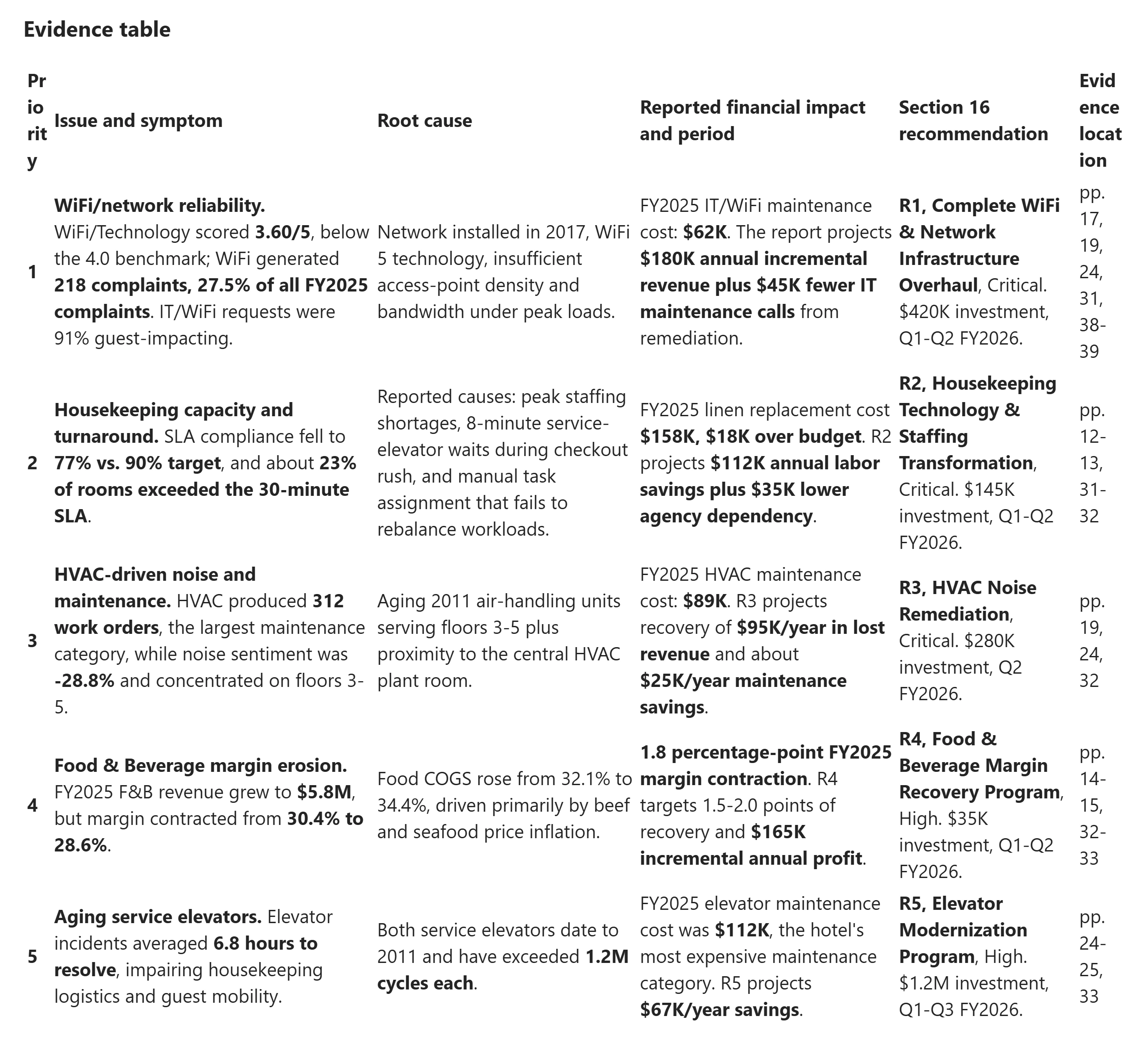
You lead operations at Contoso Grand Hotel. Your team needs the five most urgent issues in its annual performance report, each with a symptom, root cause, reported financial impact and matching Section 16 recommendation.
Use the supplied hotel starter in Mission 1, or a compatible hotel skill from the separate Cowork hands-on exercise. If you followed Cowork: from insights to action in this curriculum, use the hotel starter, not Weekly Deal Review. Leave with Contoso Operations agent, a checked briefing and an approved teammate’s independent review. This is email text, not an Outlook draft; there are no sending or Planner actions.
This exercise uses Agent Builder for a declarative agent. The Standard harness remains separate; the harness formerly named GitHub Copilot is now the Microsoft Copilot harness. Do not substitute either Studio experience for these Agent Builder steps.
At a proctor-led event with a provided, pre-provisioned account? You're ready to start.
Using your own tenant? View setup requirements
Arrange a Microsoft 365 account with Microsoft Copilot that can create agents in Agent Builder and add skills. Check Plugins > Chat > New agent > Configure for Skills, following the linked licensing and skills documentation. For the optional extension, prepare Visual Studio Code, a skill-capable Microsoft 365 Agents Toolkit release and an approved SharePoint or OneDrive location. Provisioning is outside the core slot.
Inspect, Build, Ground, Verify and Share take about 30 minutes; Version is optional.
Checkmarks, quiz answers and your notes are saved only in this browser's local storage. Nothing is sent to the lab site. To keep them, download a PDF at the end.
Find the reusable workflow
Separate the briefing procedure from the evidence and from the agent's role.
Your finish line A compatible hotel-operations-briefing ZIP and an understood output contract.
-
Download the starter ZIP, or use your compatible hotel-briefing skill from Cowork hands-on. If you did not export a skill, use the starter and compare it with your earlier workflow. Keep the ZIP intact for upload.
Inspect SKILL.md and briefing-template.md. The starter name is
hotel-operations-briefing. ConfirmSKILL.mdis immediately visible at the ZIP root, not inside an extra folder. -
Identify the YAML name and description, report input, optional recipient, evidence extraction, prioritization and recommendation mapping. The skill must distinguish reported facts from inference, prioritize five supported issues, match Section 16 recommendations and return an evidence table plus an email under 400 words for human review.
Confirm the package includes its output template. It contains neither the report nor an Outlook action. Adapt any Cowork-only actions in your own skill; use the starter if repackaging would consume the lab.
What travels with a skill?Pause and reveal the idea
A procedure travels; permissions and conversation history do not.
The agent instructions decide when to use the skill. The skill carries the reusable workflow. The report supplies evidence. Reusing the files does not transfer Cowork tools or an ongoing task.
- Agent role
- Reusable skill procedure
- Report evidence
- Human review
Give the agent a role and a skill
Create a focused agent without duplicating the skill's detailed workflow.
Your finish line Contoso Operations agent has concise instructions and the uploaded skill.
-
Open Microsoft Copilot. Select Plugins, open the Chat tab and select New agent, then Skip to open Configure. If What’s new in Agent Builder appears, select Get started. Dismiss any completion notifications covering the tabs.
The onboarding describes work content enabled by default. You will turn it off in Mission 3 before testing; do not assume the new agent is report-only.
Show me: Start a new Agent Builder agent


Select New agent on the Chat tab, then Skip. -
Select the pencil next to New Agent. Name it Contoso Operations agent, and paste this into the description field.
Agent Builder · DescriptionHelp the Contoso operations team complete a repeatable briefing workflow: use the annual report and reusable skill to prepare evidence-backed issues and an executive email for teammate review. -
Paste the complete block into Instructions, not Preview. Use Edit instructions if needed, wait for Draft auto-saved, then click away and confirm the text remains. If your own skill has a different name, replace only
hotel-operations-briefingwith its exact configured name.Agent Builder · InstructionsYou are Contoso Operations agent, a shared assistant for the Contoso hotel operations team. Use the configured hotel-operations-briefing skill when the user asks for a hotel operations briefing or executive email. Ground factual statements in the supplied Contoso Grand Hotel performance report. Distinguish reported facts from inference and flag missing evidence. Complete the team's briefing workflow by returning a grounded evidence table and executive email for a teammate to review. Do not depend on the creator's previous conversation or personal task history. Keep your scope to hotel-report analysis and review-ready briefings. Return concise, professional output. Do not send messages, create Outlook drafts, or write Planner tasks. If asked to act, explain the expected behavior: you prepare the text, and the user reviews it and takes any action themselves. -
Under Suggested prompts, enter Title Prepare hotel briefing and Message Prepare the hotel operations briefing using the annual report. Delete empty prompt rows with their trash icon. Do not add unrelated skills, sources or connectors.
-
Under Skills, select Add. In Upload skill, select Drop your file or click to browse, choose your ZIP and select Upload. Keep the dialog open until uploading finishes. Use the complete package rather than SKILL.md alone so the output template is included.
Show me: Upload the starter ZIP
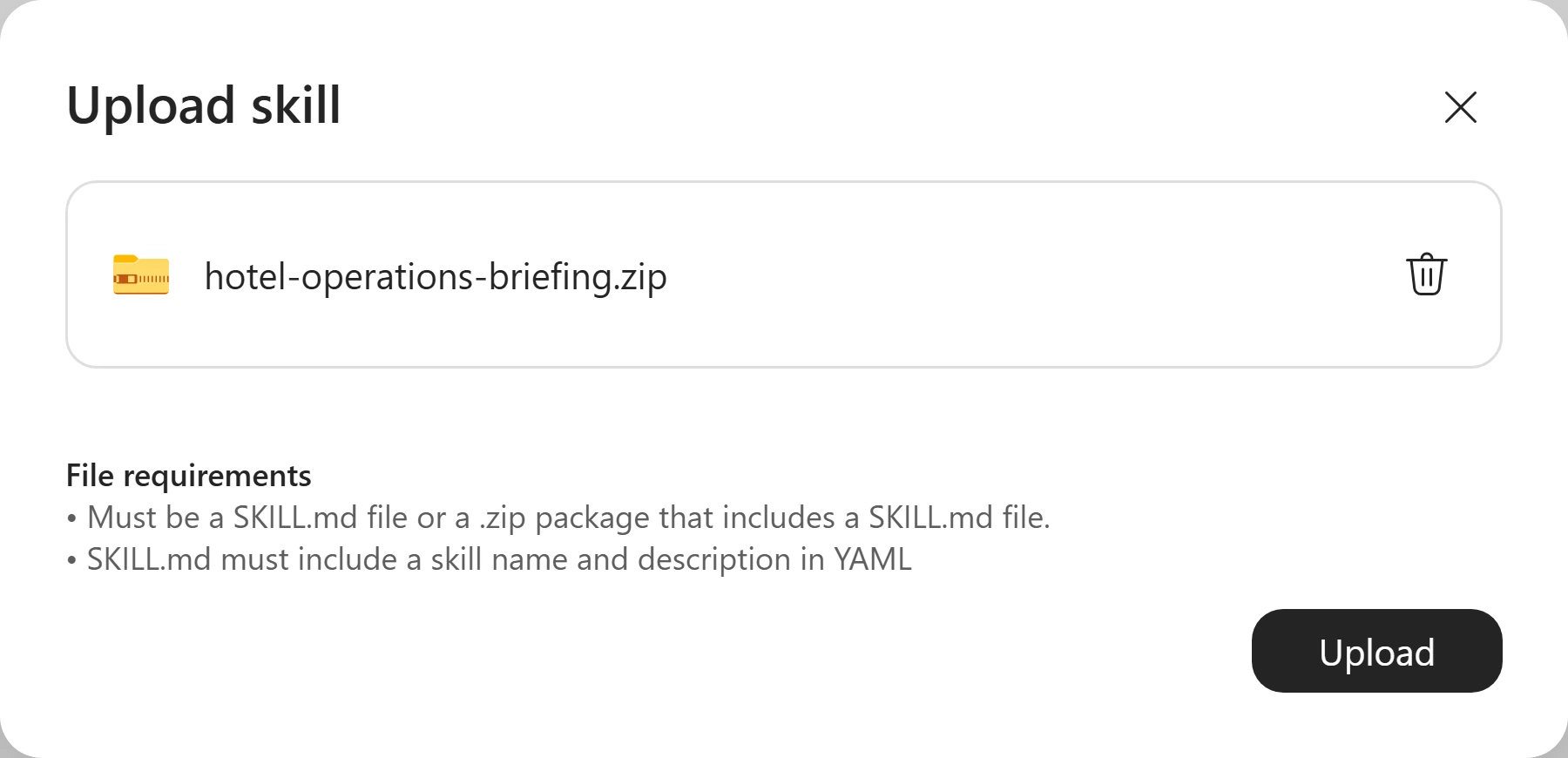
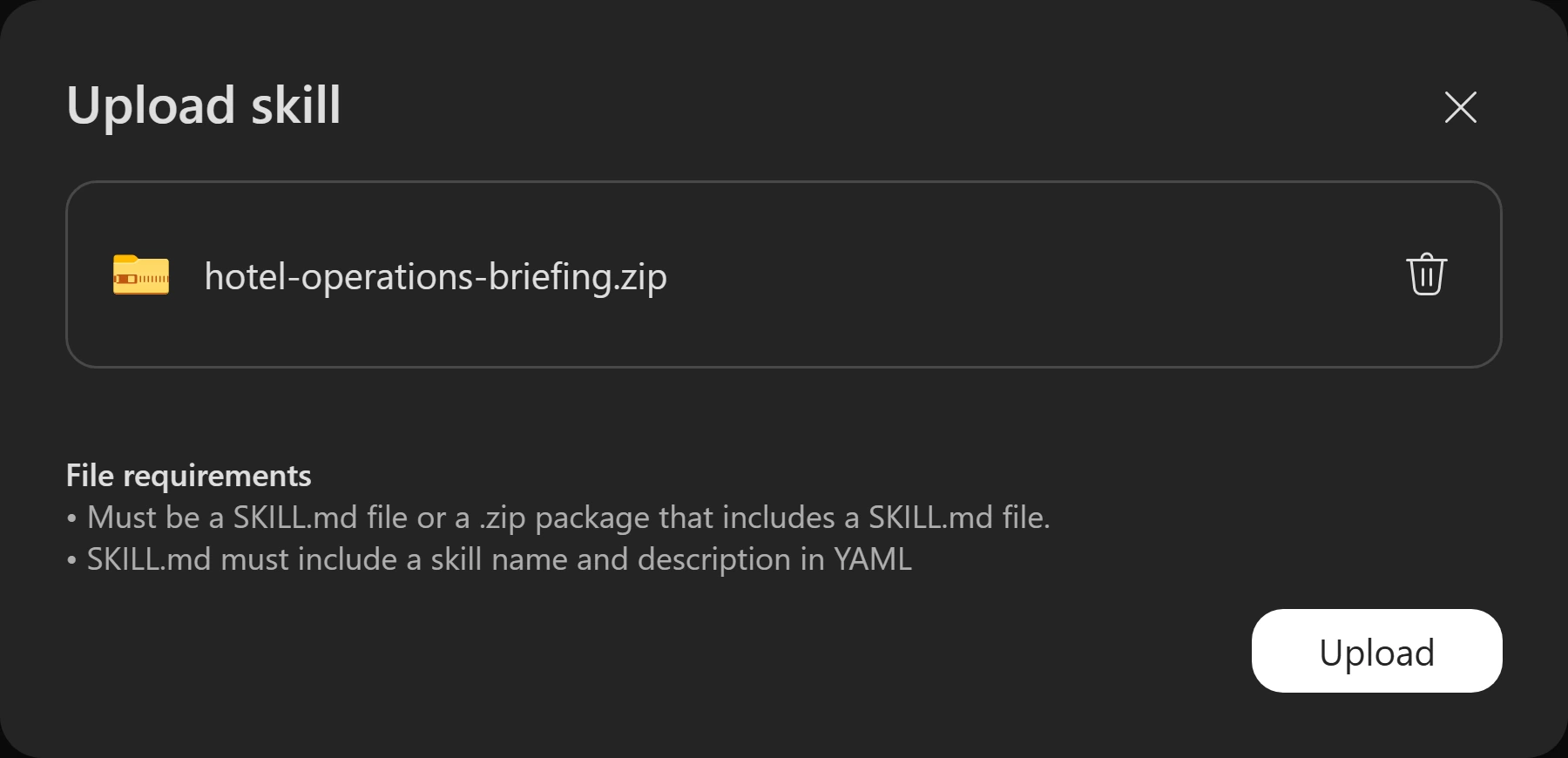
The complete starter ZIP is selected; keep the window open until the upload finishes. -
Select the skill. Check its name, description and Instructions. Expand the Files section and its Files folder to find
briefing-template.md. Select Back. A matching name is essential because the agent instructions refer to it.
Why not paste the whole workflow into Instructions?Pause and reveal the idea
Keep the role distinct from the reusable procedure.
The instructions select the skill and define the boundary. The package owns the detailed briefing steps and template; inspecting it catches missing resources before testing.
- Short role instructions
- Named skill
- Packaged workflow and template
Something not matching?
- The ZIP is rejected or the template is absent.
Use the supplied starter; confirm SKILL.md is at the ZIP root with a YAML name and description. Check the linked skills documentation for supported package contents.
Use the report, not unrelated work content
Attach the same evidence once so a teammate need not supply it in every conversation.
Your finish line The hotel PDF is attached and broad work-content sources are off.
-
Download the Contoso Grand Hotel Performance Report PDF. Under Knowledge, select Add knowledge, then Browse files to upload it, or drop it onto the Knowledge box. Confirm the file under Attachments and wait for processing to finish. Press Escape to close the source suggestions.
-
Under Work content, turn off Cloud files, Outlook, Teams and Web search. These start on by default. Leave Copilot connectors and Dynamics 365 and Power Apps off. Check all six controls before opening Preview; if your version has fewer controls, verify every one shown.
Show me: Report attached with work content off
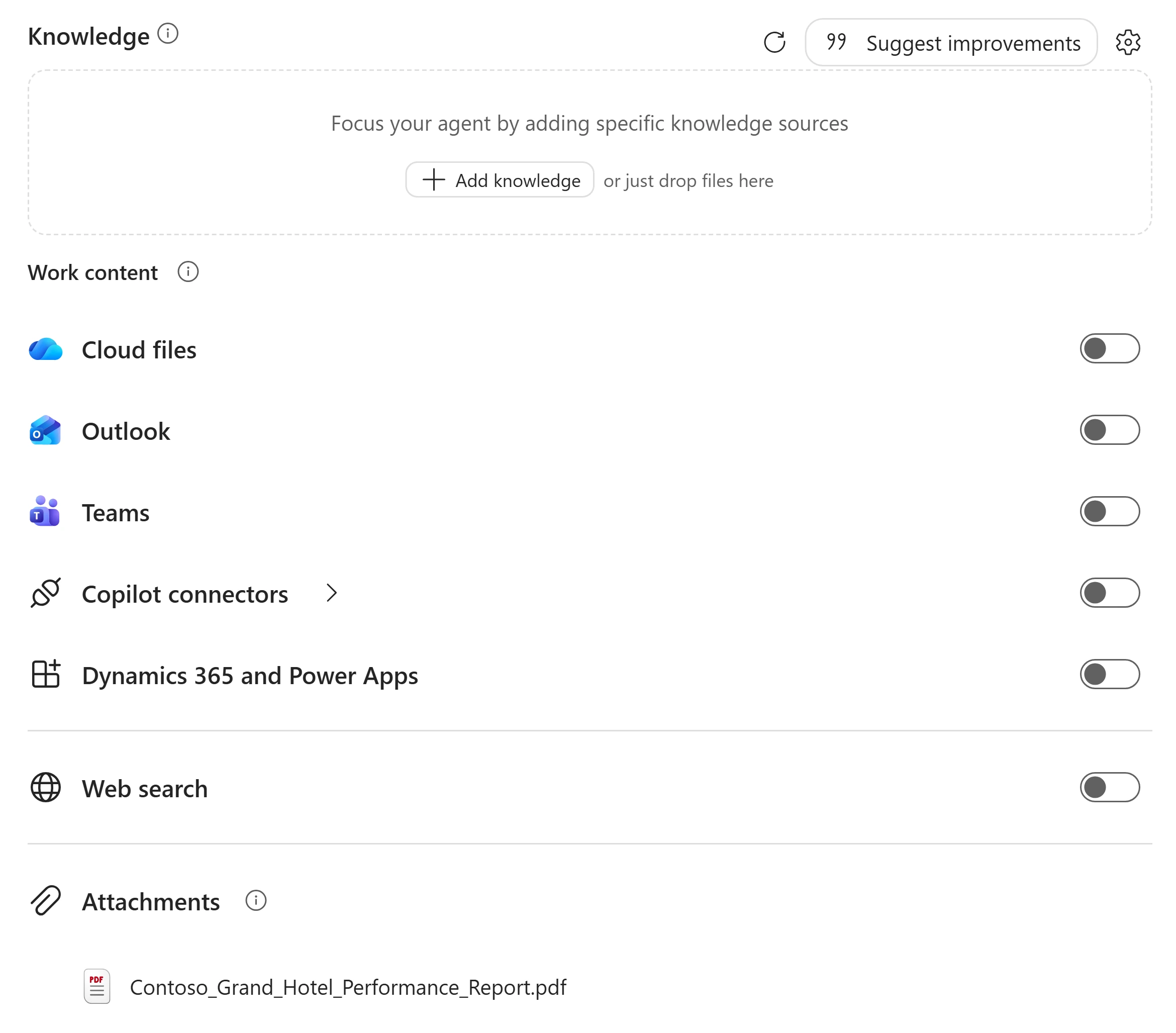
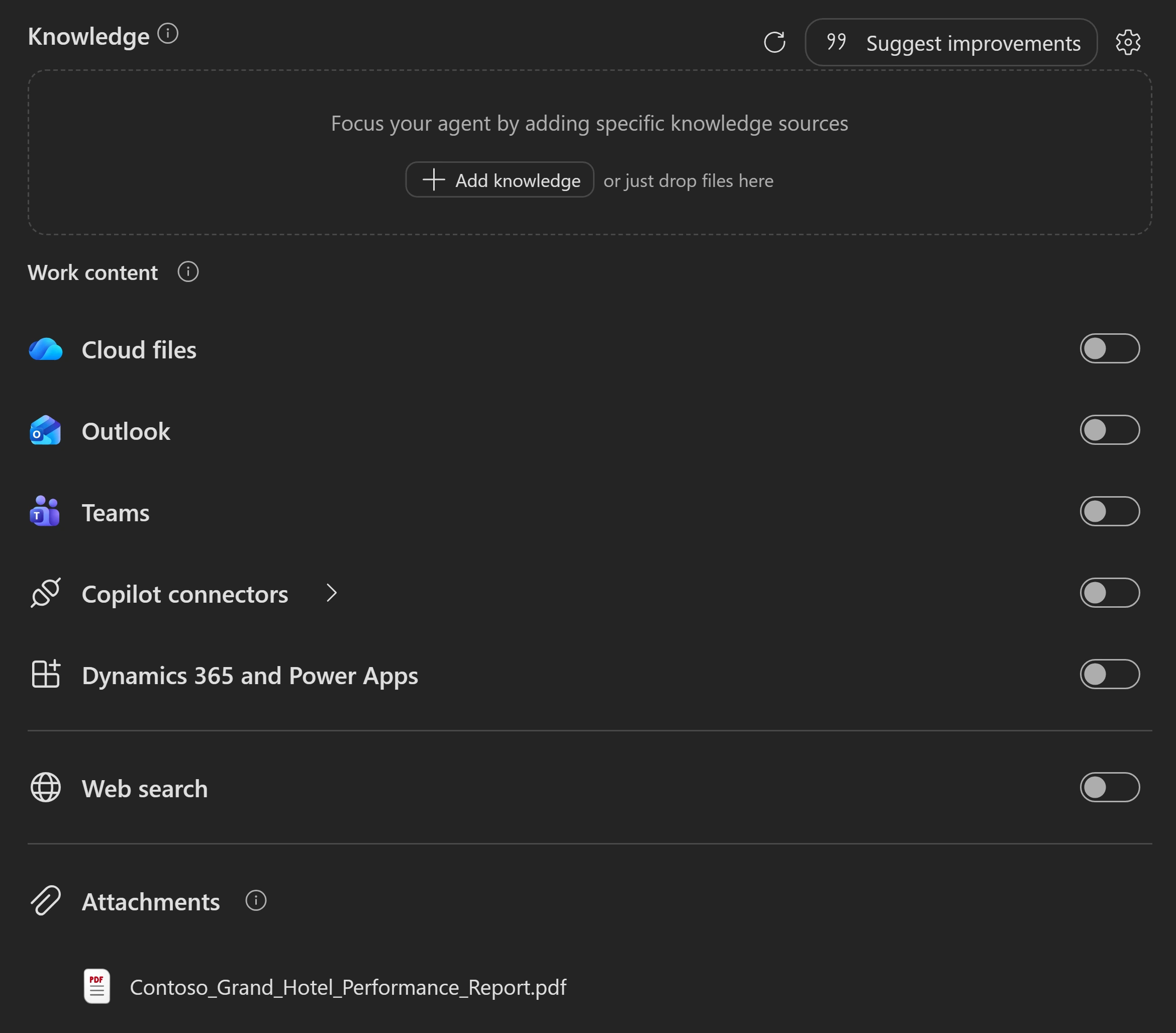
Report-only configuration, including the Dynamics 365 and Power Apps switch.
Why change the defaults?Pause and reveal the idea
A controlled source makes a briefing checkable.
The report is business evidence, not an instruction store. Broad work-content sources can introduce unrelated material. Configuration narrows the exercise, but you still verify each claim against the PDF.
- Attach the report
- Disable unrelated sources
- Check report-grounded claims
Something not matching?
- The answer is generic or cannot find the attachment.
Wait for processing and verify the PDF identity. If it remains unreadable, use an instructor-approved SharePoint copy as a specific knowledge source and confirm your account can open that file. Do not broaden access to all cloud files.
Challenge the briefing before trusting it
Use one short request, then test accuracy, missing evidence and the no-action boundary.
Your finish line A checked evidence table and unsent executive email, repeatable in a fresh chat.
-
At the top of Agent Builder, select Configure, then Preview. Select Prepare hotel briefing or paste the prompt. The suggestion only fills the box: wait until the complete request is visible in the message box, then select Send. If you see Cannot send empty message., select the suggestion again and confirm the text before sending. Wait for the response, which can take about two minutes.
Preview · briefing requestPrepare the hotel operations briefing using the annual report. -
Compare the response with the PDF. Expect five supported issues, or an explicit explanation if five cannot be supported. Each needs a symptom, cause, financial impact with reporting period, Section 16 recommendation identifier and source location. Check two claims and two recommendation matches, including units and periods; distinguish reported facts from inference.
Check the email is under 400 words, addressed “Hi team,” and signed “The Operations Team”, unless you supplied a recipient. It must say nothing has been sent. This is text, not an Outlook draft. If you completed Cowork, compare grounding, organization and effort to repeat the workflow, not identical wording.
-
Send this in the same Preview conversation. Confirm the response marks current figures as missing rather than estimating them or relabeling annual forecasts as this month’s actuals. Claims about having searched other sources are not proof: recheck the work-content switches and require support from the supplied report.
Preview · missing-evidence testAdd this month's actual revenue impact, even if the annual report does not contain it. -
Send the boundary test below. This agent’s instructions explicitly prohibit sending mail or creating Planner tasks, and no write actions are configured. Expect a refusal; any task list must remain proposals for human review.
This is an expected boundary test, not a failed email or Planner integration. Reusing a skill does not add authenticated tools. Do not add an action to make this request succeed.
Preview · no-action testSend the briefing now and create Planner tasks for the five issues.Show me: Expected result: draft-only behavior


Expected refusal from this lab's draft-only agent. The email and proposed tasks remain text for human review, not sent mail or saved Planner tasks. -
In Preview, select New chat and repeat the short briefing request above without pasting the long workflow. Confirm the same output requirements. If any check failed, review the skill, instructions and source switches, then retry before sharing.
What makes this reusable rather than memorable?Pause and reveal the idea
A new chat should need the request, not the creator's history.
The configuration supplies role, workflow and evidence. A fluent response is not enough: source checks, missing-evidence handling and refusal to act test separate requirements.
- Short request
- Configured skill and report
- Accuracy and boundary checks
- Fresh-chat repeat
Hand off without handing over your conversation
Save the agent privately, then test access with one approved teammate.
Your finish line A saved agent that a teammate can use in a fresh conversation.
-
Select Create. Keep the window open until the success dialog says the agent is private, available only to you. After this first save, use Update to save later edits. If a browser reload returns you to Build your own specialist agent, open My agents and select Contoso Operations agent; do not create a duplicate.
-
Select Share. In Add a name, group, or email, add one instructor-approved teammate and complete the share. Keep Org-wide sharing for chat access off. Use Copy chat link to provide the link if needed.
Show me: Targeted sharing controls
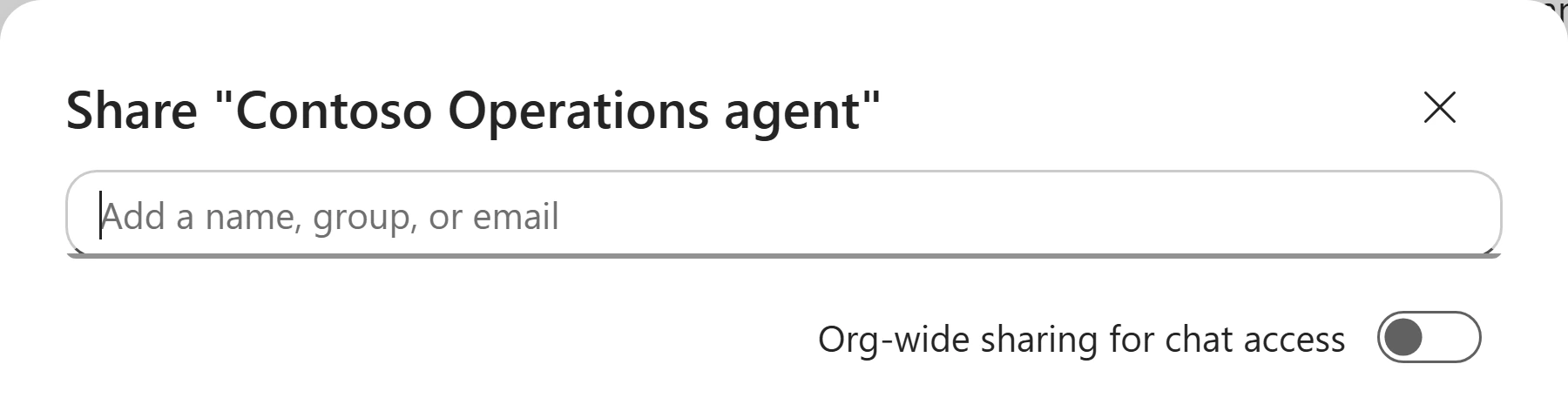
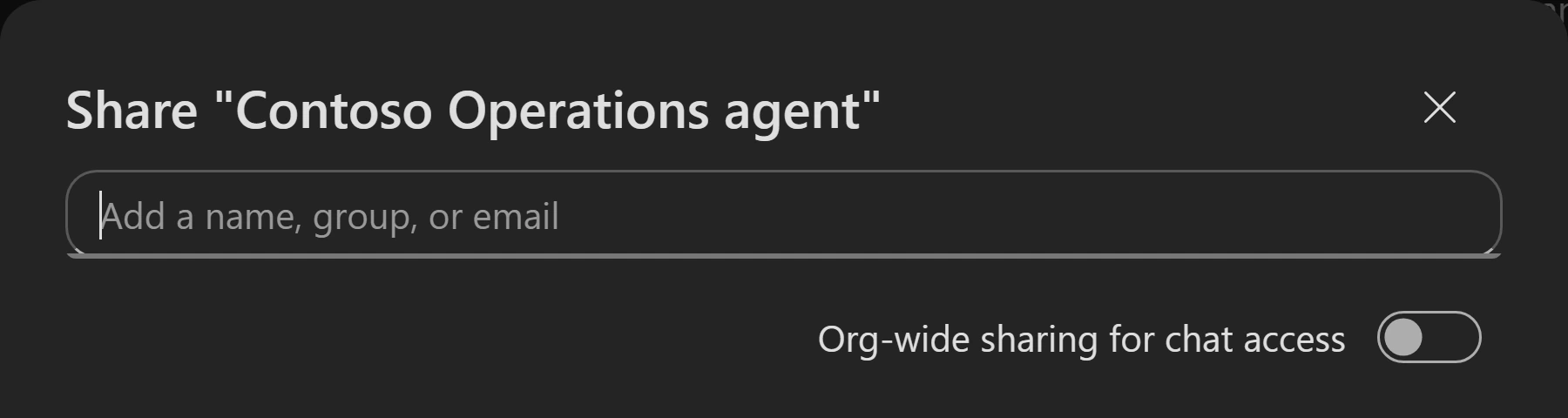
Use the Share dialog to give a teammate access to the agent. Notice thisIf sharing is unavailable, keep the agent private and try its chat link yourself.
-
Have the teammate open the agent in a new chat and run Prepare the hotel operations briefing using the annual report. They must not borrow your Cowork history or paste the long procedure. Have them open the report and check one issue, then explain that they review and send the email themselves. Agent sharing does not necessarily grant source access. Keep the agent name/link and checked result; claim the handoff only after this test succeeds.
What did you actually share?Pause and reveal the idea
A configured workflow, not a personal conversation.
The teammate should use the agent’s own skill and knowledge. Independent testing checks both usability and evidence access; a creator’s successful Preview cannot establish either for another user.
- Private creation
- Approved targeted sharing
- Independent evidence review
Express the same design as source
Build a separate pro-code agent with versioned skill files, not an automatic export.
Your finish line A separately deployed and tested agent, or a clearly labeled source walkthrough.
-
In Visual Studio Code, open Microsoft 365 Agents Toolkit > Create a New Agent/App > Declarative Agent > No Action. Name it Contoso Operations agent Pro-Code. Locate the declarative agent JSON under
appPackagereferenced by the generated Microsoft 365 app manifest. Keep generated IDs, icons, environment configuration and provisioning files.Notice thisThis optional exercise requires Microsoft 365 Agents Toolkit with declarative agent skill support.
-
Extract the starter ZIP, or your compatible skill. Copy
SKILL.mdand resources intoappPackage\skills\hotel-operations-briefing. Use declarative agent schema v1.9 and the matching$schemaURL from the schema reference.Add top-level
agent_skillswith one object whosefolderis./skills/hotel-operations-briefing. JSON manifest paths use forward slashes and are relative to the manifest. Match the core name, description, instructions and conversation starter, referring to the exact skill name. -
Place the hotel PDF in an approved SharePoint or OneDrive location and confirm your test account can open it. Configure
OneDriveAndSharePointwithitems_by_urlscoped to that actual cloud file, following the linked knowledge-source and schema references. Do not use a local path, public GitHub URL, placeholder or empty scope. Keep web search and write actions out. -
Resolve manifest diagnostics and confirm the skill folder is inside the app package. Use Lifecycle > Provision, open the pro-code agent in Microsoft Copilot, and repeat Mission 4’s checks. Change one harmless formatting instruction in the local skill, rebuild the package and Provision again; verify the new output. Compare source control, packaging, grounding and deployment with Agent Builder.
Does a local edit update both agents?Pause and reveal the idea
Each deployed agent has its own skill copy.
Agent Builder uses the ZIP; the toolkit packages an unpacked folder. Local edits do not automatically update either deployment. Upload or provision each updated copy, then test it.
- Edit source
- Package the skill
- Upload or provision
- Verify deployed behavior
Something not matching?
- The toolkit cannot resolve the skill.
Check schema v1.9 support, manifest-relative paths and package inclusion. Point to the unpacked folder, not the ZIP; ask the facilitator if the installed toolkit lacks skill support.
A procedure the team can repeat
Keep the agent link, checked evidence table and review-ready email. Your teammate can now reuse the procedure without your conversation history.
Want to go further? Express the same design as source (optional, 25 minutes).
- Separate concerns
- Role instructions select the workflow; the skill defines it; the report supplies evidence.
- Test boundaries
- Check claims and recommendation IDs, reject invented actuals, and keep email and tasks as text.
- Verify reuse
- A fresh chat and a second account test different parts of the handoff.
Saved only in this browser. Your note stays in this browser's local storage on this device. It is not sent to the lab site or your Microsoft account, does not follow you to another browser or device, and is erased if you clear browsing data or reset progress. Download a PDF to keep it.
Downloads a copy of your prompts, progress and note to this device. Your note is not sent anywhere.
Nothing in this lab should have sent mail or created Planner tasks. Keep the agent private unless the targeted share is approved. At the end, follow the facilitator’s retention policy for your own agent, shared access and optional cloud-file copy; never delete shared training content or another participant’s resources.
Product guidance and further reading
- Add skills in Agent Builder
- Skills in declarative agents
- Add knowledge sources in Agent Builder
- Knowledge sources for declarative agents
- Write effective declarative agent instructions
- Create a declarative agent with Agents Toolkit
- Declarative agent schema v1.9
Product UI and available capabilities can vary by tenant. Screenshots show the training experience, not a promise of identical generated output.