Apps on Microsoft Copilot Managed Runtime
Apps on Microsoft Copilot Managed Runtime
A working preview. Now prove it saves.
Build the interface, prepare storage, then verify the round trip. Leave with a preview whose progress survives a reload—not a published app.
- 30-minute core
- 4 guided missions + 1 optional
- Real training data
Your next 30 minutes
Your bootcamp progress should survive a reload. Build My Bootcamp Lab App in Copilot Studio Apps from the live published agenda, using an image for appearance only. This is a new app, not an HTML import or a migration from Copilot Code. Completing the earlier lab is not required.
At a proctor-led event with a provided, pre-provisioned account? You're ready to start.
Using your own tenant? View setup requirements
Arrange access to Copilot Studio Apps, image upload, preview, and reading the public agenda. You need your own OneDrive for Business with permission to read, create and update files, and permission to use or create a OneDrive for Business connection in the environment. No prepared CSV, SharePoint list, database or VS Code setup is required.
Build, Prepare, Prove and Protect take about 30 minutes; Repair is optional.
Checkmarks, quiz answers and your notes are saved only in this browser's local storage. Nothing is sent to the lab site. To keep them, download a PDF at the end.
Challenge the in-memory baseline
Separate the image's appearance from the agenda's current data before adding storage.
Your finish line A preview whose controls agree and whose progress intentionally resets on reload.
-
Save the provided reference screenshot, or use a screenshot of your own earlier Copilot Code app. Use the image for appearance and the live agenda for lab names and times.
Open Copilot Studio in your assigned environment.
Select Apps (Preview) → New app. Select Add attachments → Upload images and files, choose your saved reference, and wait for its thumbnail above Chat input.
Show me: the design reference
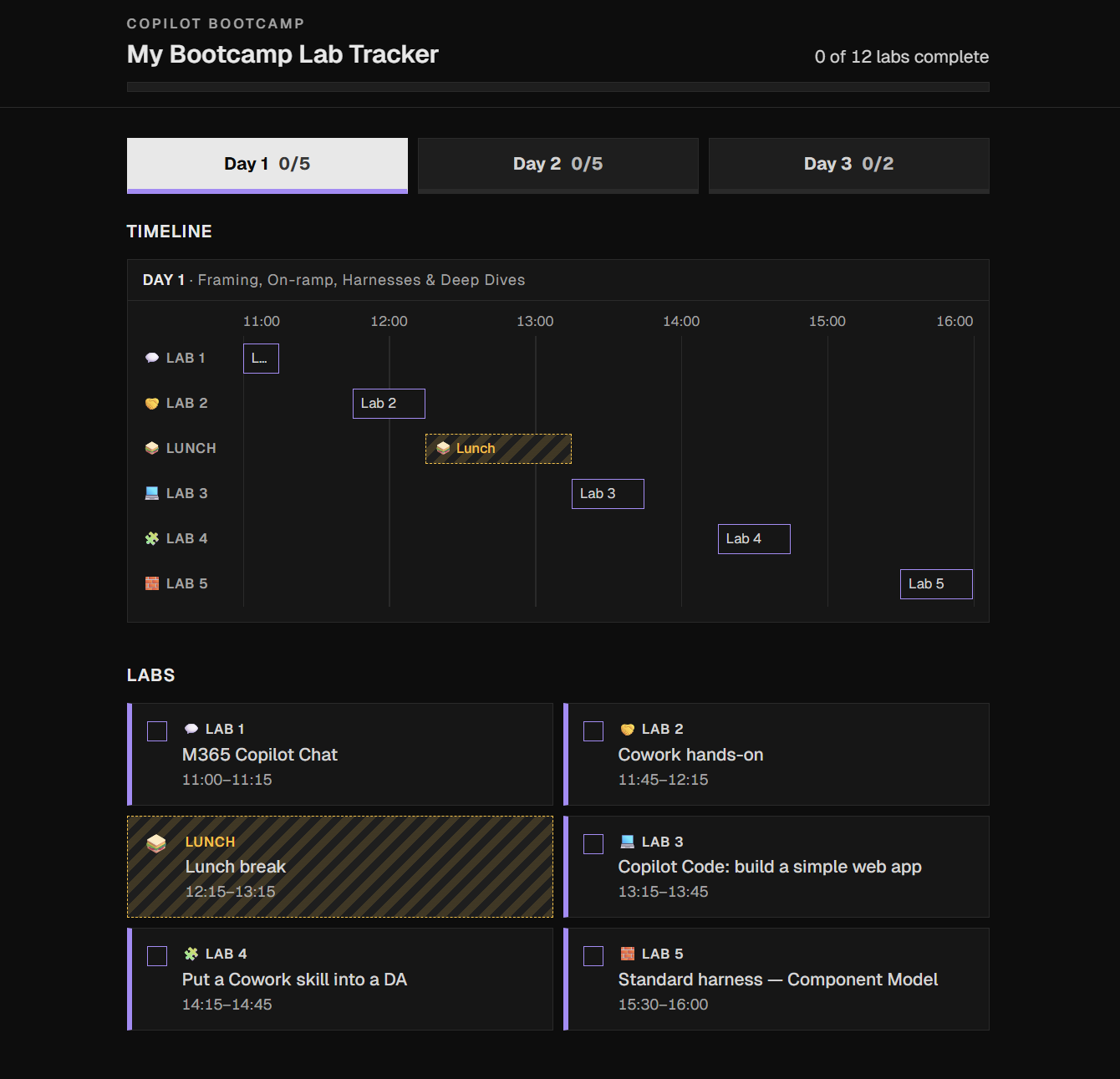
Save this reference image and attach it before sending Prompt 1. -
Paste the complete prompt with the image attached. Watch agenda retrieval and build activity; wait for the working preview rather than sending duplicate requests.
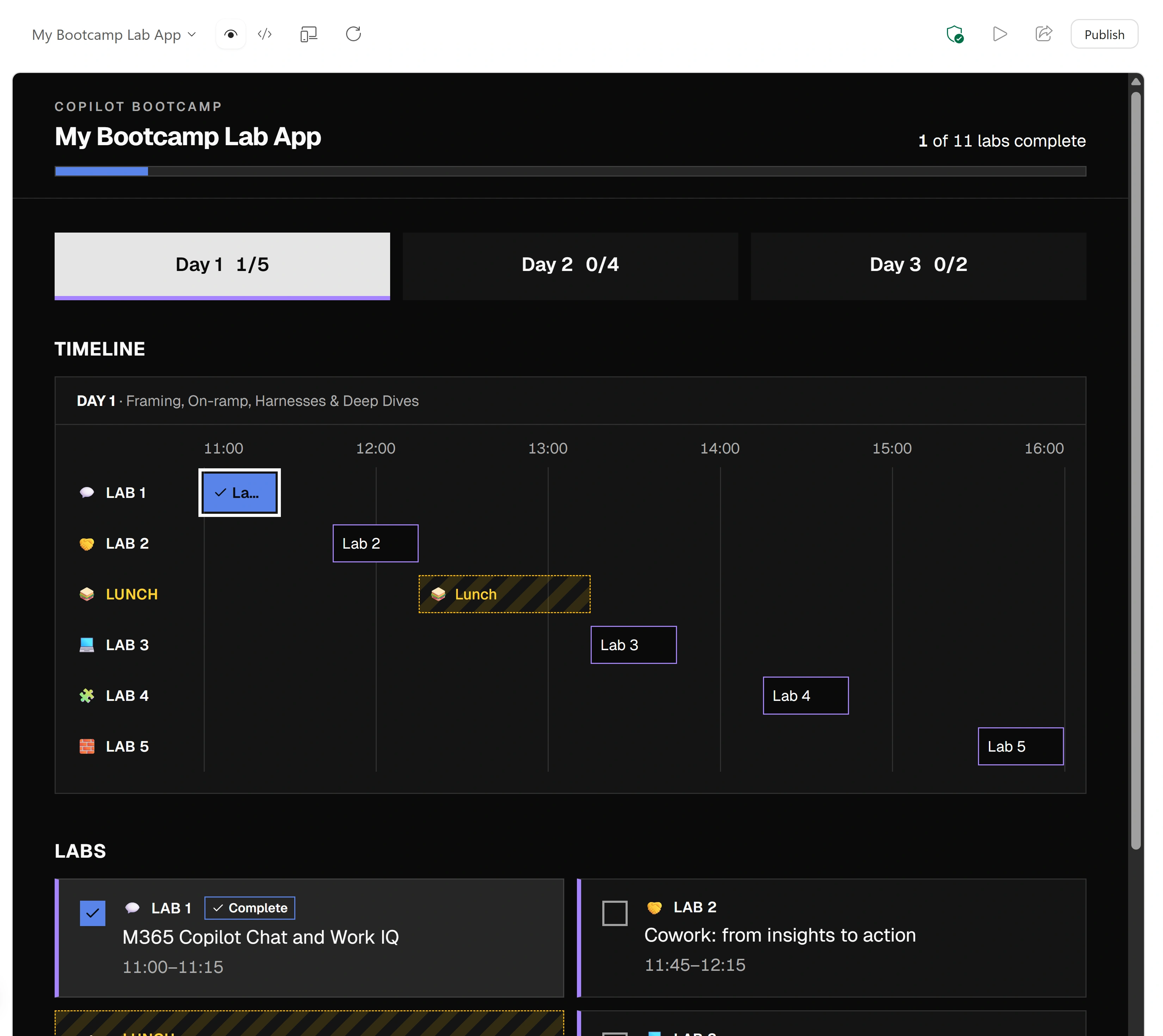
Prompt 1 · New app chatBuild an app called "My Bootcamp Lab App" using the attached screenshot as a visual reference. Reproduce its dark theme, square corners, day tabs, timeline, lab cards, completion checkboxes, and overall progress indicator. Fetch the current live published lab schedule from: https://microsoft.github.io/mcs-labs/events/architecture-bootcamp/ Include every day's scheduled "Lab N:" items and Lunch break. Exclude other agenda items and optional labs. If you cannot read the agenda, stop and tell me rather than inventing the schedule. Keep timeline buttons, card checkboxes, per-day counts, and overall progress synchronized. Lunch must never count toward completion. Support keyboard interaction and visible focus. For this first step, keep completion in memory. Do not add a connector or data store yet. Do not publish, deploy, or share the app. Show me the working preview.Notice thisIf App publish starts, select Stop generating response and tell Copilot to keep the app in preview only. Ask the facilitator to check its status: stopping an in-flight action does not prove that no changes occurred.
-
- Compare every day’s lab numbers, titles and times with the live agenda. Include Lunch, exclude other items and optional labs; initially all labs should be unchecked.
- Toggle a timeline lab button, then a card checkbox. Confirm both controls, the day count and overall count agree.
- Switch days and back; completion should remain during this session. Confirm Lunch cannot be completed or counted.
- Use the keyboard to reach and operate day tabs and completion controls. Check visible focus.
- Select Reload preview in the toolbar. Completion must reset because the app has no persistent store yet.
Show me: synchronized baseline controls
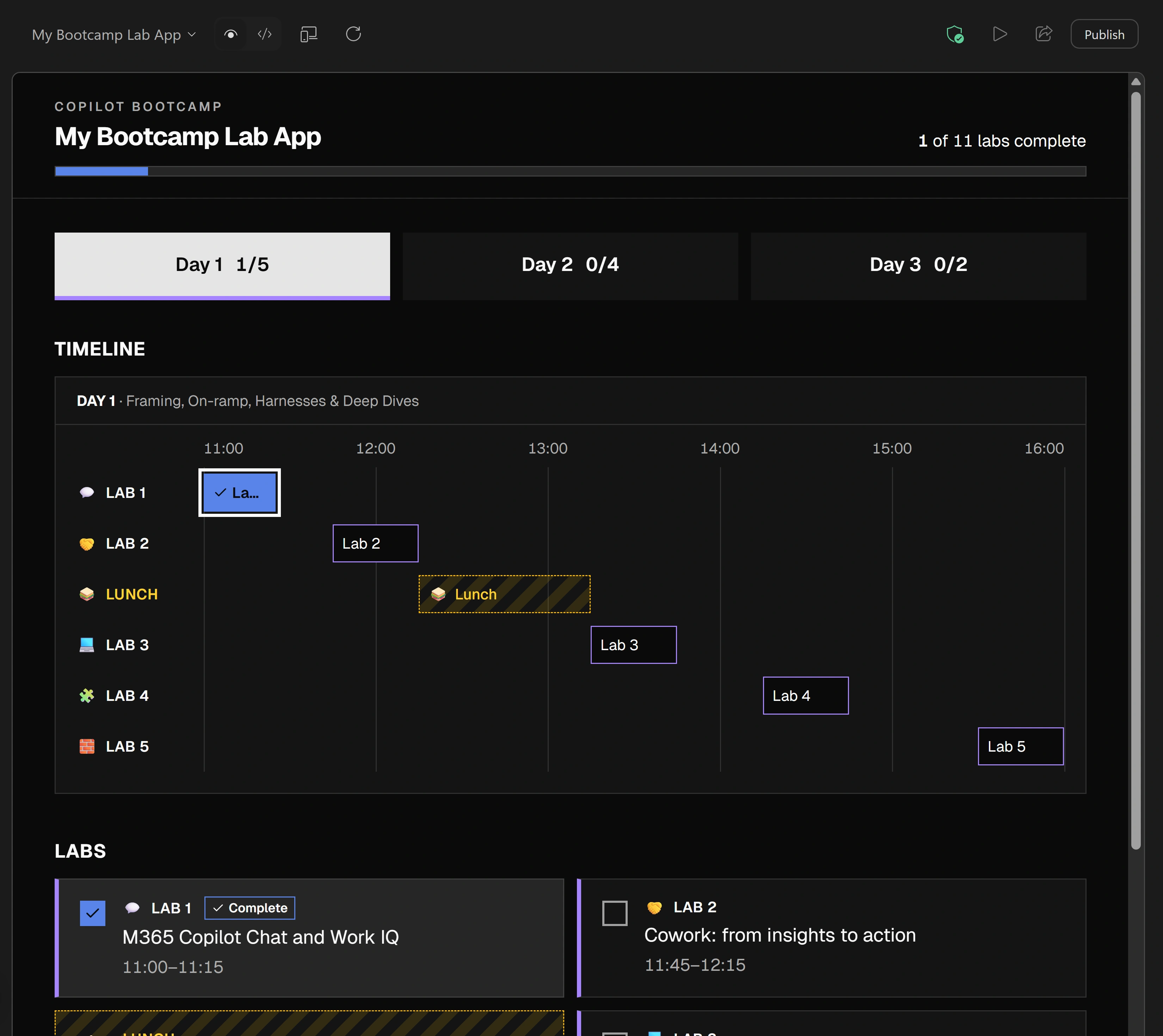
In-memory behavior only. The app is intentionally dark in both Studio themes.
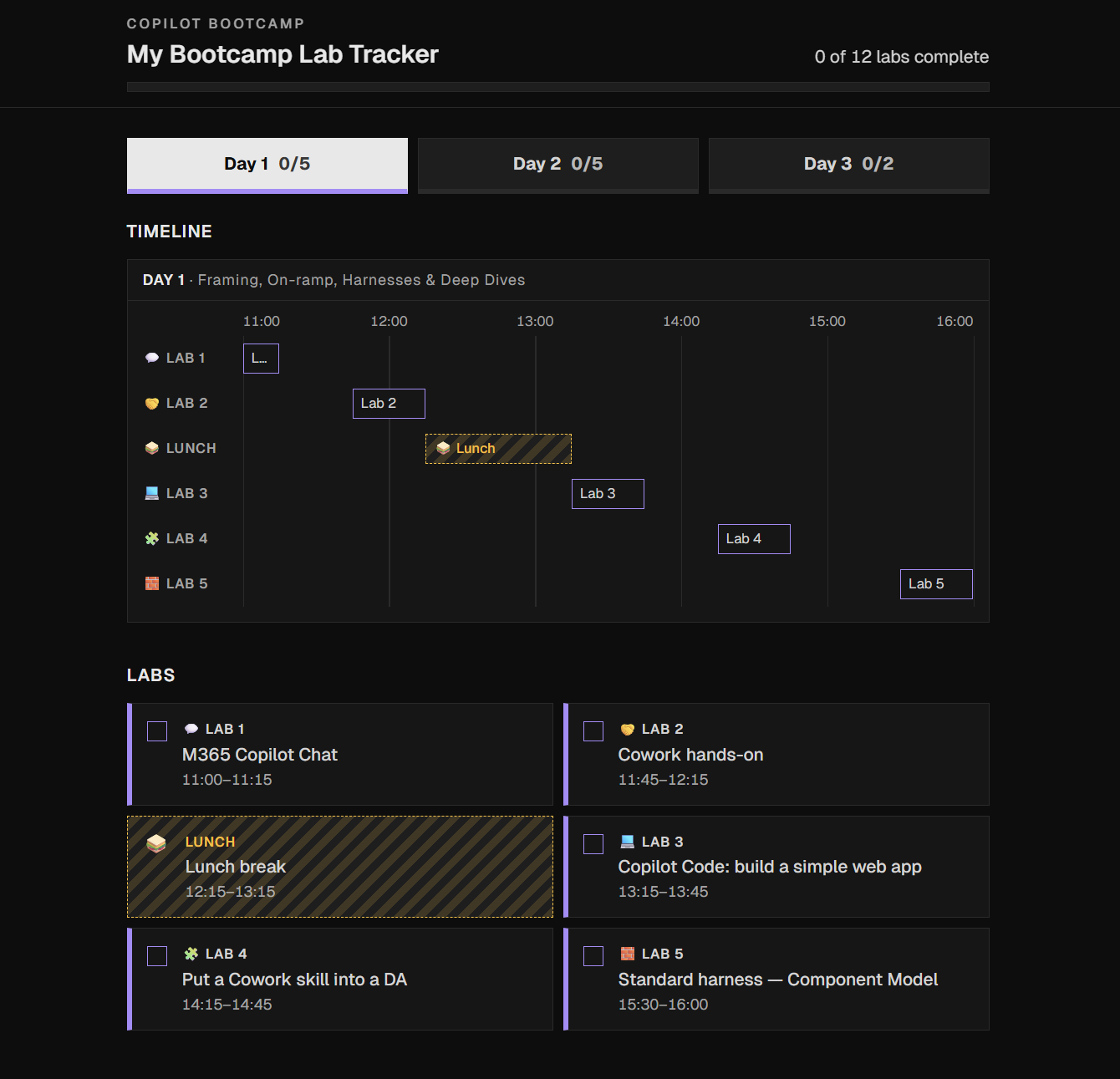
What did the image specify?Pause and reveal the idea
Appearance is not data—and a tick is not storage.
The image guides layout, the live agenda supplies the current schedule, and the prompt defines behavior. Resetting on reload proves the intended baseline, not a defect to hide with browser storage.
- Attach appearance
- Read current agenda
- Test in-memory behavior
Something not matching?
- The agenda cannot be read or the controls disagree.
Stop and report the retrieval failure rather than inventing a schedule. Correct synchronization or outdated image-derived counts before adding storage.
Prove storage is safe
Prepare your own connection and CSV without changing the app's behavior yet.
Your finish line A healthy connection and verified file/readback, with existing data preserved.
-
Continue only after the baseline checks pass. Submit the prompt; do not change app code in this stage.
Prompt 2 · Same app chatSet up storage for saving lab completion. Don't change the app's code yet. Use a CSV file in my own OneDrive, accessed through the OneDrive for Business connector. Do not use SharePoint, Dataverse, browser localStorage or sessionStorage. You are authorized to create the OneDrive for Business connection with my account if I don't have a working one. If the connection is in an error state, stop and tell me before doing anything else. File: - Path: /Apps/My Bootcamp Lab App/lab-completion.csv - Create it if it doesn't exist: one row per scheduled lab, using lab-N IDs from the live agenda's lab numbers, all incomplete. Lunch is never in the file. - Columns: labId, completed (true/false), updatedAt (ISO time). - If it already exists, don't change it. Connect the app to OneDrive for Business so it can read and write this file. Then report: the connection state, whether the file was created or already existed, and its current rows. -
Check the connection state before other actions. If Create connection appears, verify Onedriveforbusiness means the OneDrive for Business service, select Approve, and sign in with your assigned account if asked. A working existing connection may be reused. If it is in error, stop and report it; use optional Repair only with facilitator guidance.
Show me: connection approval
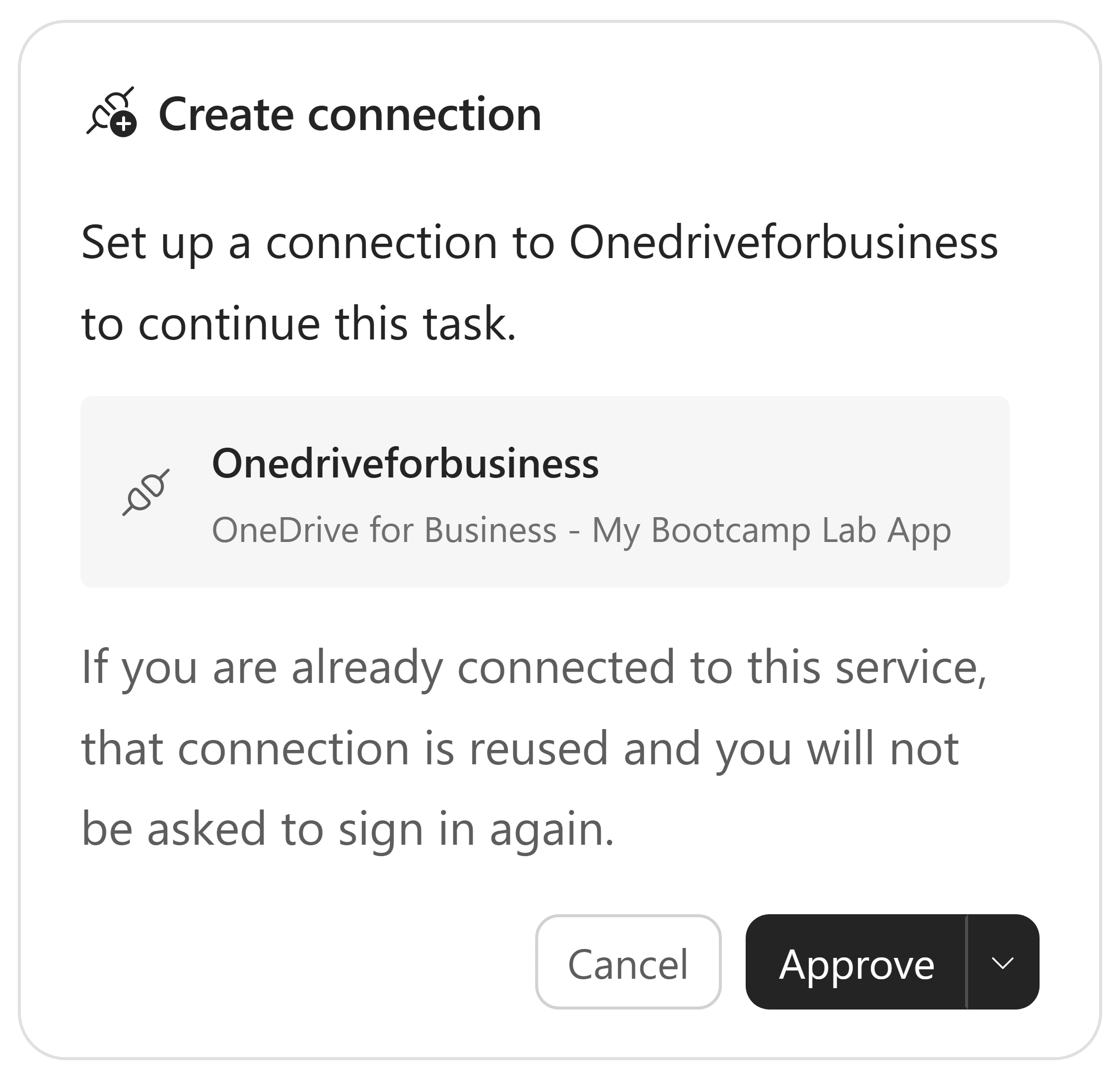
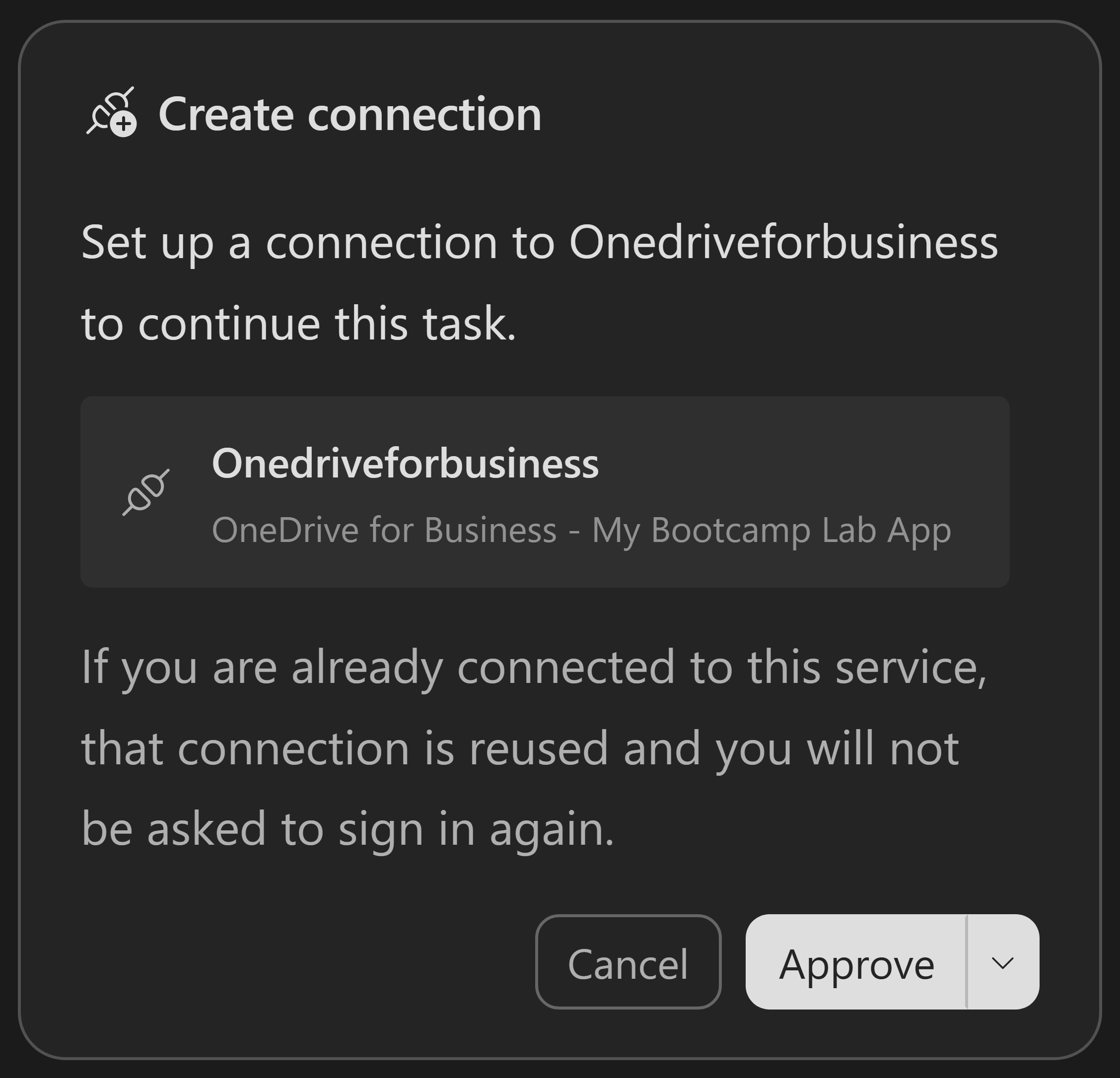
Approve only your own training connection. A card alone is not proof of working access. -
Compare the intended path below with the actual destination. Reference value—compare, do not send as a prompt:
/Apps/My Bootcamp Lab App/lab-completion.csvIf Create folder? appears for My Bootcamp Lab App, verify the destination is
/Appsin your own OneDrive, then select Create. The card shows only the folder name; check Copilot’s message above it for the parent location. If the parent is missing, first verify and approve Name: Apps at your OneDrive root, then the app folder inside it. Reuse existing folders. If Copilot skips the folder and offers a single Invoke connector operation (CreateFile) card instead, select Cancel and ask it to create the folder first.Show me: the app folder
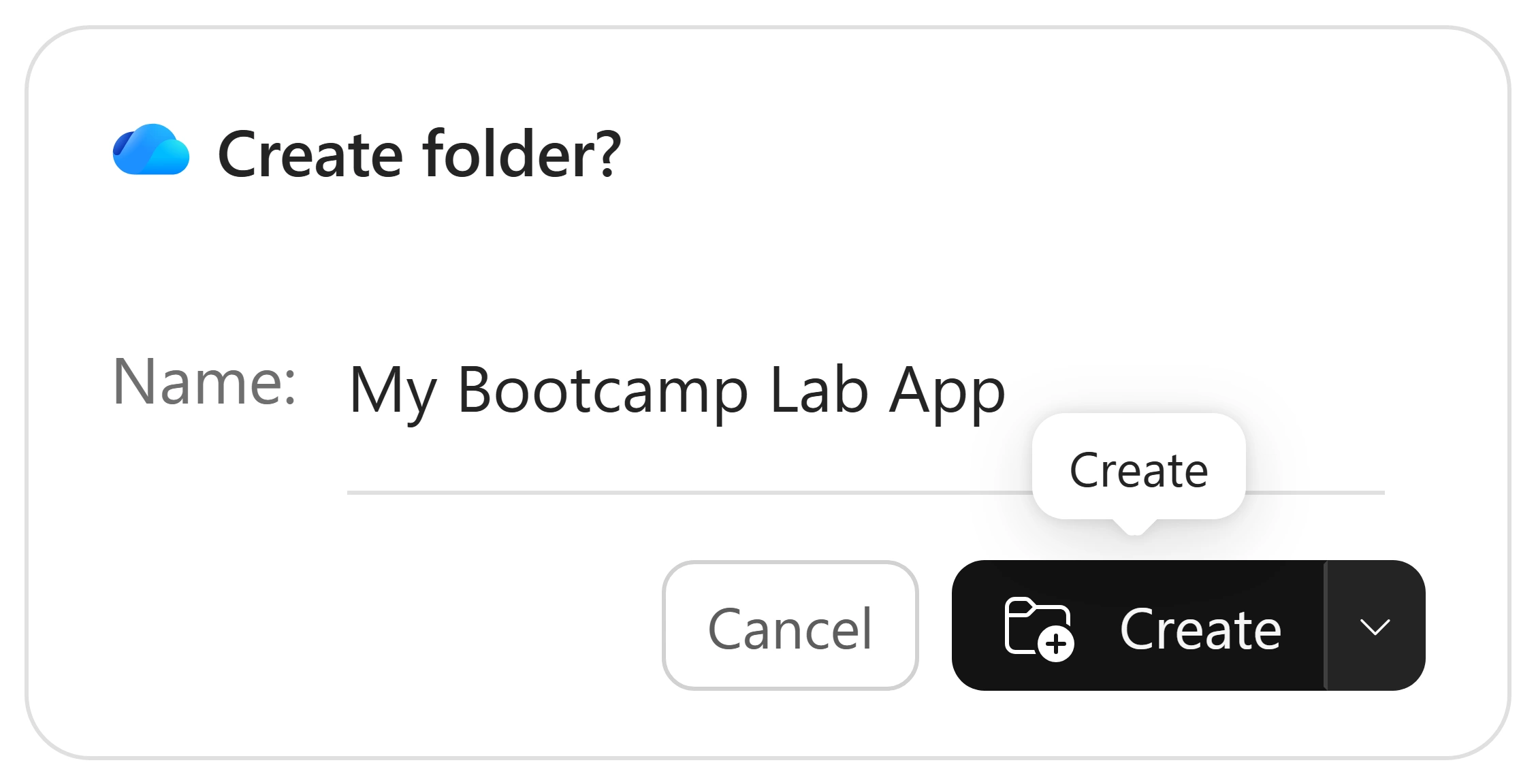
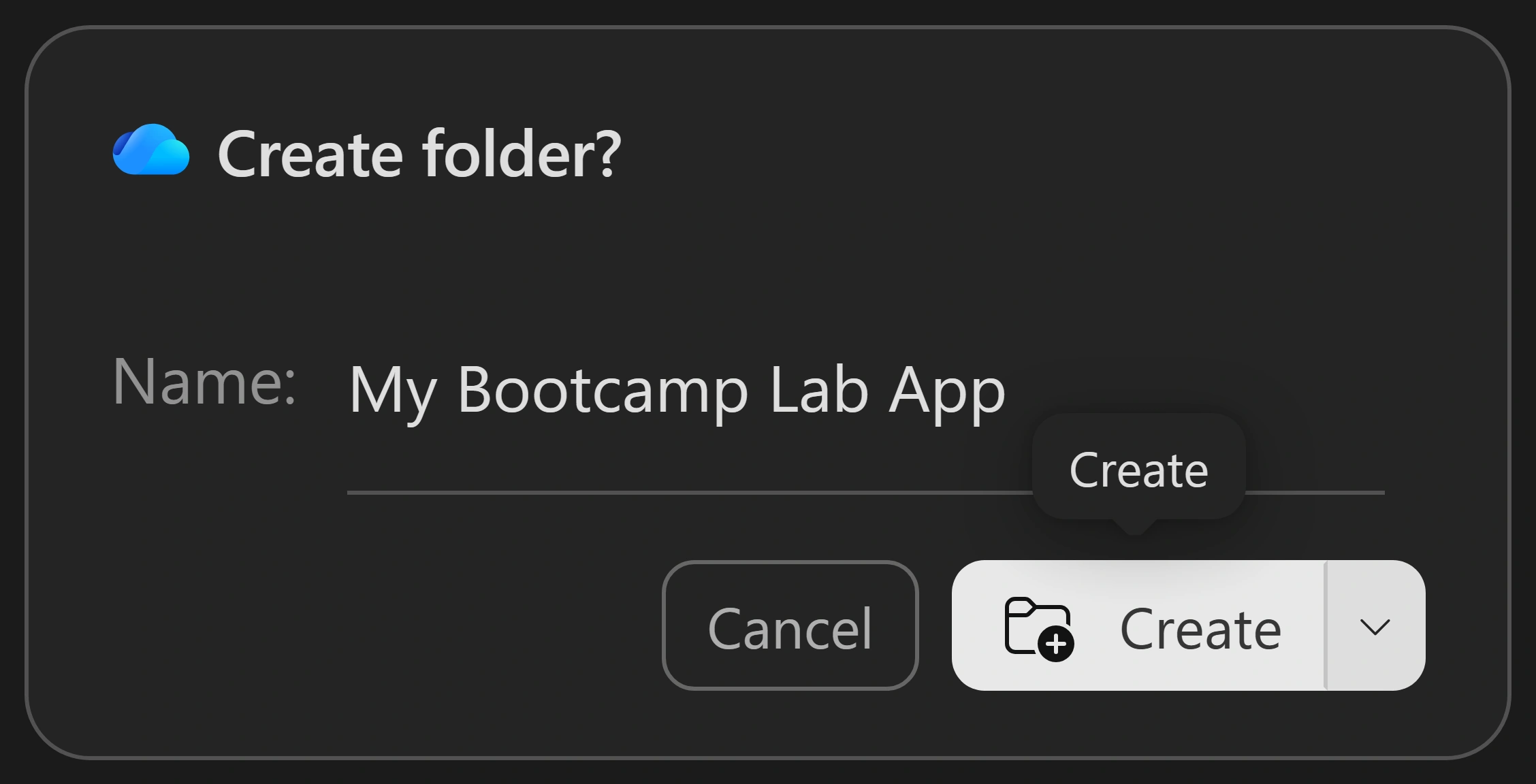
Verify that the destination is /Apps in your own OneDrive before you select Create. -
Review Upload file content only after healthy access confirms the CSV is missing. Expand View details, verify the destination is your own app folder and
conflict_behaviorisfail(stop on a name conflict), then select Approve.If the card says Location name unavailable, select Cancel first. A question sent while approval is pending is queued until you answer the approval. Ask for the actual drive/folder mapping and missing-file proof, and add “Don’t request an upload yet” so Copilot answers in text. After you check its answer, request a fresh fail-on-name-conflict upload in a separate message and compare its destination before approving. Stop if you cannot verify it. An empty search or failed read is not proof that the file is absent. Never approve a new-file upload over an existing CSV.
Show me: the new-file safety gate
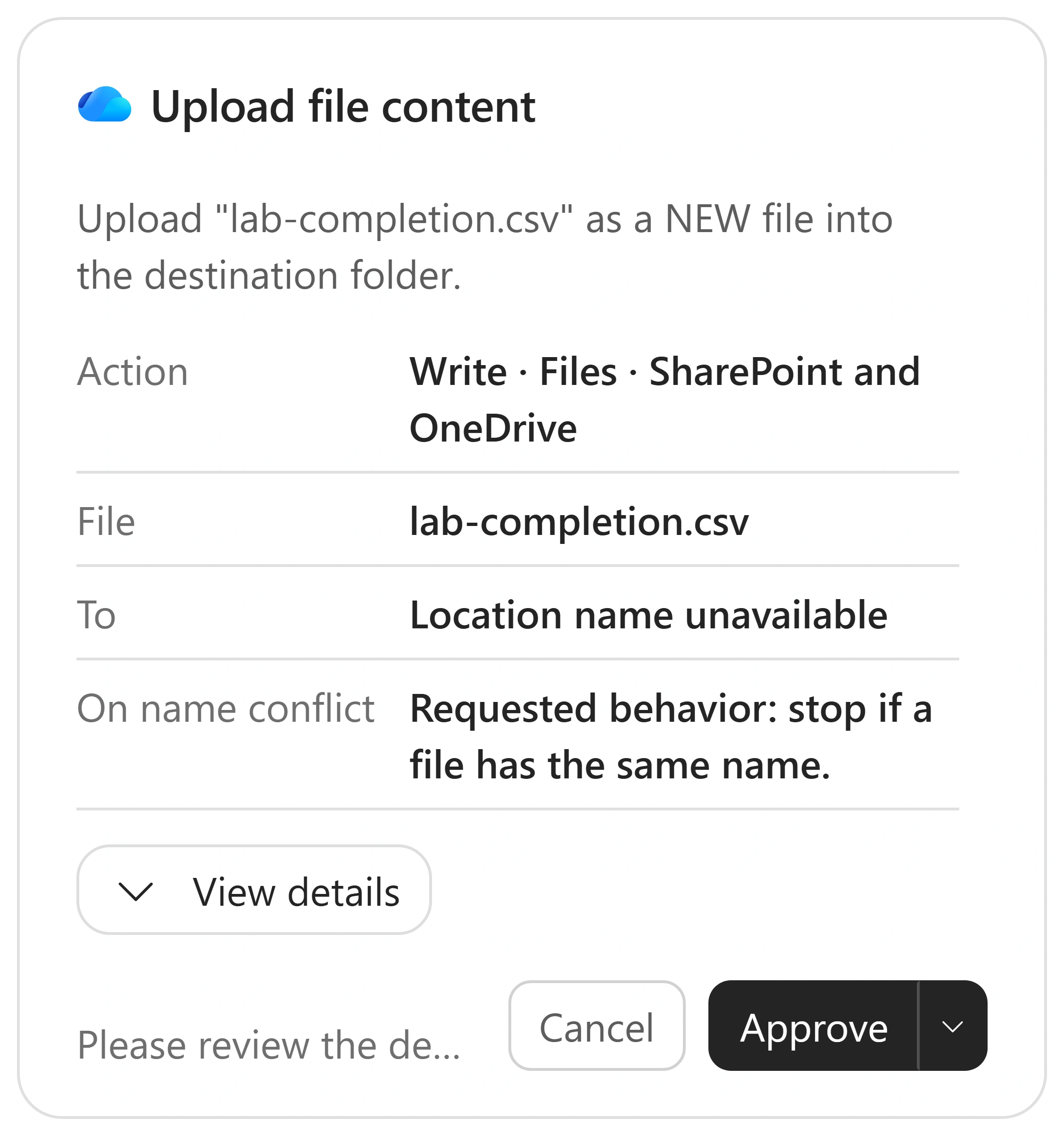
The action label includes SharePoint and OneDrive; this exercise still targets only your own OneDrive. Verify the destination before approving. -
Confirm the healthy connection, whether the CSV was created or already existed, and its current rows. Verify columns
labId,completed,updatedAt: onelab-Nrow per scheduled lab, no Lunch or optional labs. Newly created rows must befalsewith ISO timestamps; preserve existing saved values. Confirm the app has the connection available but its behavior/code has not changed. Setup readback is not proof of app-driven persistence.
Why not fix the code first?Pause and reveal the idea
A healthy connection and a safe file come before integration.
A failed read can mean denied access, not an absent CSV. Confirmed missing-file evidence and fail-on-conflict creation protect existing progress. Prompt 2 prepares storage; it does not yet make the preview persistent.
- Check own connection
- Verify destination and existence
- Preserve or create safely
- Read back rows
Something not matching?
- The connection or file access fails.
Ask the facilitator. Don’t switch to SharePoint, Dataverse, localStorage or sessionStorage to make the preview look successful.
Wire and test the round trip
Make the app read and save the file, then independently compare screen and storage.
Your finish line A verified app-driven tick, CSV change, reload, uncheck and reload cycle.
-
Confirm the healthy connection and file readback first, then submit in the same conversation.
Prompt 3 · Same app chatNow make lab completion save to and restore from that OneDrive CSV. Reading the file: - Request the file content as raw bytes, not with content-type inference (for "Get file content", set inferContentType to false). A .csv returned as text/csv can be rejected by the app's data layer before your code sees it. - The content may still come back as text, base64 or raw bytes; handle all three and treat anything else as an error. App behavior: - On open, read the file and restore completion. Keep checkboxes and timeline buttons disabled until the load finishes. - If the file is missing for the current user, create it; never overwrite an existing file on a failed read. - On each change, rewrite the whole file. Run saves one at a time so the file never goes backwards. Show "Saving…" while saving. - If a save fails, undo the change on screen and show a message. - If loading fails, show an error with a Try again button, and log which step failed (metadata, read, create or save). - Keep the existing interface and behavior unchanged: timeline, checkboxes, day counts and overall progress stay in sync, and Lunch never counts toward completion. Before you report done, confirm the read and save work through the app itself, not only by calling the connector directly. If you can't verify this yourself, say so and list it as a remaining check. When done, tell me how to test it in the preview (tick, reload, check the CSV). Don't publish until I say so. -
Ask Copilot to confirm Get file content sets
inferContentTypetofalseand handles text, base64 and raw bytes. Treat unsupported responses or failed reads as errors, not an empty file. -
Use one open preview and your own verified OneDrive account.
- Open the preview. Check that completion controls stay disabled until loading finishes, then show saved values.
- Complete one lab. Check synchronized controls/counts and wait for Saving… to finish.
- Inspect the actual CSV in your OneDrive. Verify that lab’s
completedistrueandupdatedAtis an ISO timestamp. - Select Reload preview. Confirm the tick and both counts are restored.
- Uncheck the same lab, wait for saving, verify
falsein the CSV, then reload again. It must remain unchecked with matching counts.
Notice thisA direct connector call or a surviving tick alone doesn’t prove the app-to-CSV round trip.
-
Change several labs quickly and wait for all saves. Compare the final CSV and screen with your last choices, not an earlier state. Close and reopen the preview using the same account; confirm saved values return. Finally count the CSV rows: exactly the scheduled labs, with no Lunch or optional-lab rows.
What proves persistence?Pause and reveal the idea
Verify the whole path, not just one successful call.
The app must write the correct row and read it back after reload. Independent CSV inspection distinguishes storage integration from a convincing screen. Serializing saves prevents an earlier write from replacing a later choice.
- Change in app
- Inspect CSV
- Reload from file
- Undo and verify again
Something not matching?
- Copilot says done but cannot verify the app path.
Run the preview and CSV comparison yourself with the steps above. Don’t infer success from the baseline screenshot.
Fail safely and finish in preview
Check that failures protect existing progress rather than silently replacing it.
Your finish line An app that handles load failures with retry and save failures with rollback.
-
Use only facilitator-approved, non-destructive failure conditions. Never delete or corrupt the CSV, remove a shared connection, or bypass a safety guard to induce failure. On a load failure, expect an error, Try again, disabled completion controls and no overwrite. Check the logged failure step (
metadata,read,createorsave). After access is restored, retry and confirm saved values load. If simulation is unavailable, review the error-handling behavior with the facilitator. -
With approved simulations, confirm an unsupported file response produces an error, not initialization. On save failure, expect the attempted tick and all related counts/controls to roll back to the prior saved state with a message. Resolve the cause before retrying and compare the CSV. Only a confirmed missing-file result may permit creation for the current user; permission and connection failures must not.
-
Leave the app in preview with saved progress restored after reload and clear error messages for failed operations. Stop generation when finished.
Why is an error better than a fresh file?Pause and reveal the idea
Uncertainty must not erase saved work.
Explicit retry and rollback preserve the user’s last saved state. Initializing a CSV after a permissions error would hide the real failure and risk data loss.
- Detect failure
- Preserve saved state
- Show recovery
- Verify after retry
Recover your own broken connection
Use only when the connection gate blocks you and a facilitator has approved repair.
Your finish line A repaired own-account connection and reverified existing CSV, or a reported setup blocker.
-
Ask the facilitator before changing a connection. Open Power Apps, select the app’s environment and open Connections (under Data if shown). If Welcome to Power Apps asks for country/region and Get started, stop and ask the facilitator to complete account setup.
-
Find your own broken OneDrive for Business connection and try updating credentials from …. If repair fails, have the facilitator confirm no other apps or flows use it before considering Delete. Never delete another learner’s or shared connection. If replacement is approved, select New connection → OneDrive for Business and sign in with your training account. Keep the CSV intact.
-
Return to the same app conversation and rerun Prompt 2 above. Confirm the working connection and existing rows without reinitializing the file. Resume Prompt 3 only after these checks pass. If repair fails, stop and report it rather than repeatedly deleting connections.
Why preserve the CSV?Pause and reveal the idea
Connection repair is not data reset.
Replacing access does not justify replacing progress. Rechecking the original file keeps recovery separate from initialization.
- Repair own access
- Read existing rows
- Resume integration
Evidence beats a convincing preview
Your app saves progress to OneDrive, restores it after reload, and preserves existing data when an operation fails.
Want to go further? Recover your own broken connection (optional, 5 minutes).
- Separate inputs
- Image for appearance, live agenda for data, prompts for behavior.
- Gate integration
- Healthy own-account access and safe file setup precede app wiring.
- Prove the round trip
- Tick, inspect CSV, reload, uncheck and repeat; test save ordering and recovery.
Saved only in this browser. Your note stays in this browser's local storage on this device. It is not sent to the lab site or your Microsoft account, does not follow you to another browser or device, and is erased if you clear browsing data or reset progress. Download a PDF to keep it.
Downloads a copy of your prompts, progress and note to this device. Your note is not sent anywhere.
Stop active generation. Keep the draft and CSV for review; do not publish or share. No recurring work is required by this lab. Do not delete shared connections or files; agree any later cleanup with the facilitator.
Product guidance and further reading
- Microsoft Copilot Studio documentation
- OneDrive for Business connector reference
- Manage connections in Power Apps
- What is Microsoft Copilot Managed Runtime (preview)
- Live published bootcamp agenda
Product UI and available capabilities can vary by tenant. Screenshots show the training experience, not a promise of identical generated output.