Deep Dive: Skills
Deep Dive: Skills
Package a repeatable procedure as a Skill, then run that one Skill across a Copilot Studio agent, a workflow, Copilot Cowork, and coding agents.
Content last updated:
Deep Dive: Skills
Package a repeatable procedure as a Skill, then run that one Skill across a Copilot Studio agent, a workflow, Copilot Cowork, and coding agents.
Lab Details
| Level | Persona | Duration | Purpose |
|---|---|---|---|
| 300 | Maker | 45 minutes | After completing this lab, participants will be able to attach a Skill to an agent, call that agent from a workflow, install the same Skill as a plugin in Copilot Cowork, and explain how one authored Skill is reused across every surface. |
Table of Contents
- Why This Matters
- Introduction
- Core Concepts Overview
- Documentation and Additional Training Links
- Prerequisites
- Summary of Targets
- Use Cases Covered
- Instructions by Use Case
- Summary of learnings
- Conclusions and recommendations
Why This Matters
Makers and Developers - Have you written the same long instructions into three different agents, and watched them drift apart?
Think of a Skill as a playbook the orchestrator picks up only when it is relevant:
- Without Skills: Every rule lives in one agent’s top-level instructions. The prompt grows, unrelated behaviour leaks into every conversation, and nothing is reusable anywhere else
- With Skills: “When to use me”, “the material I work from”, and “the procedure to follow” travel together as one component - loaded on demand, versioned, and portable across surfaces
Common challenges solved by this lab:
- “My agent instructions are thousands of words and I am afraid to touch them”
- “We rebuilt the same process for the chat agent, the automation, and the desktop tool”
- “The agent sounds confident about things the company cannot actually commit to”
In about 45 minutes you will build one Skill-equipped agent and then reuse that same Skill in three more places, without rewriting it once.
Introduction
A Skill packages a named, self-contained playbook: a description that tells the orchestrator when the Skill applies, instructions describing the procedure, and the reference material the work depends on. Instead of cramming every rule into an agent’s instructions, you hand the orchestrator something it can load only when a request matches.
Real-world example: a proposal team answers RFPs. The rules are stable - match the request to an offering, answer from pre-approved language, never claim a certification the company does not hold - but the work arrives everywhere: someone pastes a solicitation into a chat agent, a mailbox receives one as an attachment, a consultant is working in a desktop tool. Written as agent instructions, that procedure has to be rebuilt and re-tested three times. Written as a Skill, it is authored once and installed wherever the work shows up.
This lab uses exactly that scenario. You build an RFP Response agent with a Skill, call it from a workflow, install the same Skill as a plugin in Copilot Cowork, and finish by seeing it run in coding agents.
Core Concepts Overview
| Concept | Why it matters |
|---|---|
| Skill | A named playbook - description, instructions, and bundled reference files - that the orchestrator loads only when a request matches it, keeping base instructions short and behaviour consistent |
| Skill description | The text the orchestrator matches a user request against. It is the single most common reason a Skill does or does not fire |
| Bundled references and scripts | The references/, assets/ and scripts/ folders that travel with SKILL.md, so the Skill answers from vetted material and can run its own helpers rather than improvising |
| Skill vs plugin | A Skill can be attached directly to an agent, or packaged inside a plugin and distributed through an app catalog. The plugin is the delivery vehicle; the Skill is the payload |
| Deterministic and non-deterministic together | A workflow is deterministic - a trigger fires, a classifier routes, a loop repeats. An agent with a Skill is non-deterministic - it reads an unfamiliar document, decides, and drafts. Neither can do the other’s job, and composing them produces an experience neither could deliver alone |
Documentation and Additional Training Links
- Agent skills in Microsoft Copilot Studio
- Create and manage workflows in Copilot Studio
- Microsoft 365 Copilot documentation
- Extend Microsoft 365 Copilot with plugins and agents
- Office 365 Outlook connector reference
Prerequisites
- Access to Microsoft Copilot Studio with an environment you can create agents in
- A Microsoft 365 account with Outlook, used both to trigger the workflow and to receive its output
- Access to Microsoft 365 Copilot with Cowork available in the left navigation
- The sample Skill package and test RFPs from AgentDudeSamples
- The Order Management MCP and Warehouse MCP custom MCP servers imported into your environment — see Custom MCP servers below. Use Case #5 cannot be completed without them.
Custom MCP servers
Use Case #5 attaches two custom MCP servers to the agent: Order Management MCP and Warehouse MCP. Neither is part of the platform — both are custom connectors that have to already exist in your environment, and nothing inside this lab creates them. If they are missing you will not find out here; you will find out in Use Case #5, when the tools you are told to add are not in the picker.
They ship with this lab as an unmanaged Dataverse solution under assets/mcp-servers.
| Solution package | Solution name in the environment | MCP servers it installs |
|---|---|---|
EnhancedTaskCompletion_1_0_0_2.zip |
Enhanced Task Completion | Warehouse MCP — check_stock, get_restock_date, get_fulfillment_status, find_alternativesOrder Management MCP — search_orders, get_order, get_shipment, request_return, get_return_status |
Both servers run inline inside the connector as a C# script, over mock data for a fictional retailer. Nothing in them reaches a real system. The two connectors ship together in one solution.
[!NOTE] The Microsoft Dataverse MCP Server, also attached in Use Case #5, is first-party and needs no import — it appears in the Model Context Protocol tool list on its own. Only these two custom servers have to be provisioned.
Check whether they are already loaded
Most delivery tenants ship this solution pre-provisioned. Check before importing — a duplicate import is not harmful, but it wastes lab time.
-
Go to make.powerapps.com and confirm the environment picker in the top right names the same environment you are building the workflow in. A mismatch here is the usual cause of “the tool is not in the list”.
-
Select Solutions in the left navigation and look for Enhanced Task Completion (unique name
EnhancedTaskCompletion, version 1.0.0.2). Sort by Created to bring recent imports to the top. -
Present? You are done — skip the import below. Missing? Import it.
[!TIP] Faster smoke test if you only want to know whether the agent will find them: in Copilot Studio open any agent, select Tools → + Add tool, filter to Model Context Protocol (MCP), and look for Order Management MCP and Warehouse MCP. The Solutions list is still the authoritative check, because it also shows you the version.
[!NOTE] First visit to make.powerapps.com on a fresh lab account? A Choose your country/region dialog opens over the page and hides the Solutions list behind it. Pick a region and select Get started to clear it.
How to import them
-
Download
EnhancedTaskCompletion_1_0_0_2.zip. Use the raw file — GitHub’s file preview will not give you a usable archive, and a.zipyour browser has helpfully unpacked will not import. -
In make.powerapps.com, confirm the environment picker, then select Solutions → Import solution.
-
Select Browse, choose the
.zip, then Next, then Import. The import runs in the background and reports success or failure in a banner when it finishes. -
Select Custom connectors in the left navigation. For each MCP connector, select Create connection — no credentials are needed, just select Create.
[!IMPORTANT] This is an unmanaged solution published by CAT. Import it into a development or training environment — not production.
[!TIP] If the servers still do not appear in Copilot Studio’s tool picker after a successful import, select Publish all customizations on the Solutions page and search again.
The solution comes from the Enhanced Task Completion sample. It also carries two demo agents alongside the connectors; this lab does not use them.
Summary of Targets
In this lab you author one Skill and reuse it everywhere the work arrives. By the end of the lab you will:
- Attach a Skill to a Copilot Studio agent and watch the orchestrator load it without being told to
- Read a Skill package and explain what its description, references, assets and scripts each do
- Call a Skill-equipped agent from a workflow, and deliver the result to a real destination
- Install the same Skill as a plugin in Copilot Cowork and run it there
- Explain what changes between surfaces - and what does not
Use Cases Covered
| Step | Use Case | Value added | Effort |
|---|---|---|---|
| 1 | Leveraging Skills in Copilot Studio agents | Attach a Skill to an agent and watch the orchestrator load it unprompted | 12 min |
| 2 | Using skills in Copilot Studio workflows | Call a Skill-equipped agent from a workflow and deliver the result | 10 min |
| 3 | Using skills and plugins in Copilot Cowork | Install the same Skill as a Cowork plugin and run it there | 6 min |
| 4 | Using skills in coding agents (demonstration) | See the same Skill running in coding agents (demonstration) | 2 min |
| 5 | Leveraging a Skill inside a new-type agent | Author a Skill from blank and watch the New Orchestrator load it and chain custom MCP servers, knowledge, and weather | 15 min |
Instructions by Use Case
Use Case #1: Leveraging Skills in Copilot Studio agents
Step-by-step instructions
Create the agent
-
From the Copilot Studio Home page, under Optimize your business processes, select Agent.
The agent designer opens on the Build tab with a new, unsaved agent.
-
Select the name field at the top and replace Untitled Agent with:
RFP Response Agent
-
Take a moment to look at the agent configuration rail on the right. This is where every component of the agent is attached - Skills, Tools, Knowledge, Connected agents, and Memory.
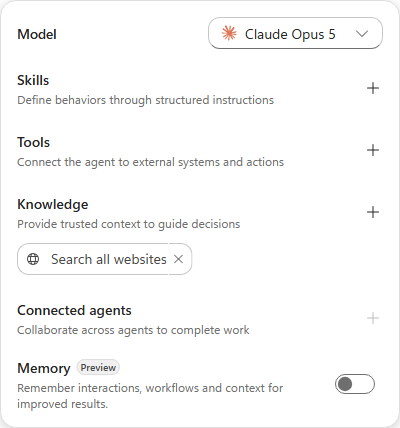
[!NOTE] Skills sits directly under the model, above Tools and Knowledge. That ordering reflects how the orchestrator works: a Skill is the playbook that decides when and how the tools and knowledge below it get used.
Add the Work IQ tool
-
In the agent configuration rail, on the Tools section, select + (Add tool).
-
In the Add a tool dialog, search for:
Work IQ[!TIP] The search returns every connector with “work” anywhere in a name or action - dozens of results - and Work IQ (Preview) is listed last, below the connector groups. Scroll to the bottom of the results rather than picking one of the “work order” actions near the top.
-
Select Work IQ (Preview).
-
On the Select a connection step, the connection shows Not connected. Select it, then choose Create new connection and Create. Sign in with your workshop account when the account picker appears.
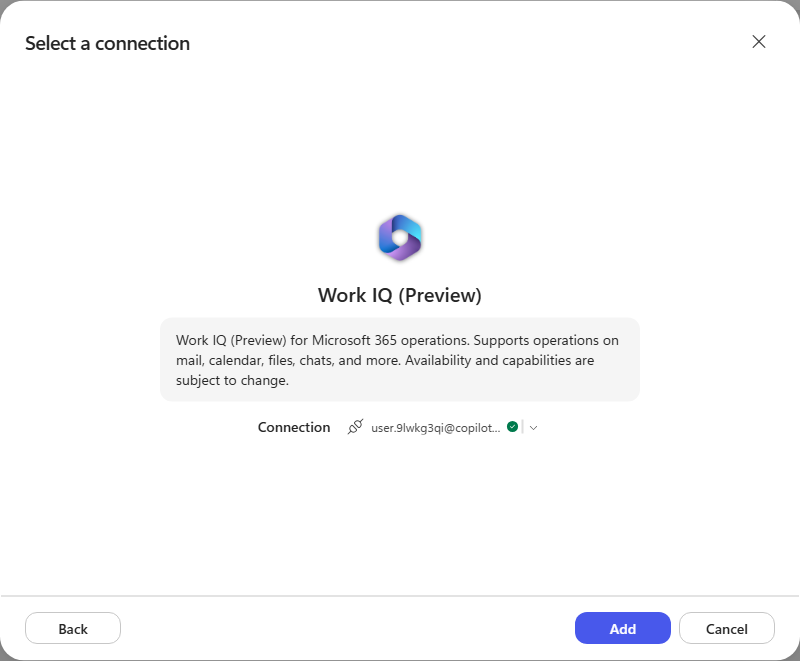
[!NOTE] Work IQ (Preview) covers Microsoft 365 operations - mail, calendar, files, chats and more. The connection is created under your identity, so the agent acts on the signed-in user’s Microsoft 365 data.
-
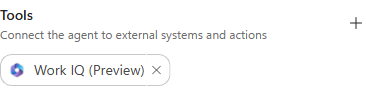
Select Add. Work IQ (Preview) now appears under Tools in the rail.
Give the agent its instructions
-
Select the Instructions box in the middle of the Build tab and paste the following:
 You are the RFP Response Agent for our organization. You help our team write clear, accurate answers to customer RFPs (requests for proposal).

 When you are given an RFP question or document:
 - Find the material we already have: past RFP responses, product documentation, and company policies.
 - Draft the answer in our voice - direct, specific, and free of marketing filler.
 - Keep each answer self-contained so it can be pasted straight into the RFP form.
 - Never invent facts about our products, pricing, security posture, or certifications. If you cannot find a source, say so.

 Ask a clarifying question when the request is ambiguous. Keep answers concise unless the RFP asks for detail.
[!NOTE] These instructions stay deliberately short. They describe who the agent is and the rules that always apply. The detailed “how to handle this kind of request” procedure goes into a Skill in the next section - which is exactly the split Skills exist to enable.
Add the RFP Response skill
-
Download the skill package: rfp-response.zip
The package contains a
SKILL.mdplus the reference material it draws on - an answer library, offering catalogs, past-performance and pricing references, and worked examples of RFP requests and responses.[!NOTE] The sample skill is written for a fictional company, Aventra Software Group. Its answers are grounded in that company’s catalog, past performance, and pricing, so Aventra will appear in the agent’s output even though the agent instructions say “our organization”. In a real deployment you would swap the bundled references for your own.
-
In the agent configuration rail, on the Skills section, select + (Add skill).
-
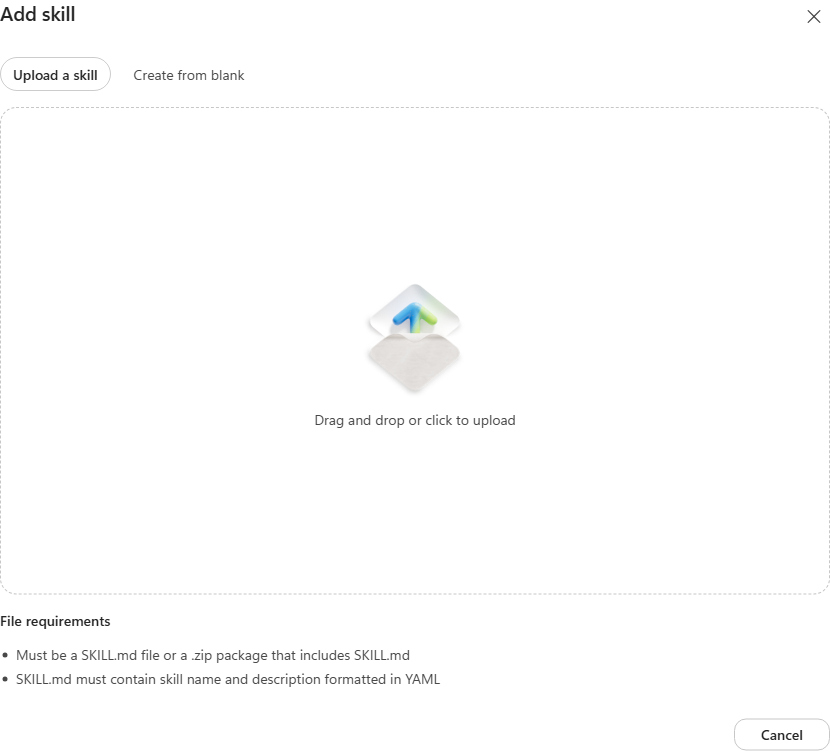
The dialog opens on the Upload a skill tab. Note the two ways to add a skill - upload a package, or Create from blank and author it in the UI.
[!NOTE] A skill file must be a
SKILL.md, or a.zippackage that contains one. TheSKILL.mdmust carry a name and description in YAML frontmatter - that description is what the orchestrator matches a user’s request against when deciding whether to load the skill. -
Select the upload area and choose the
rfp-response.zipyou downloaded. Wait for Saving skill… to finish. -
rfp-response now appears under Skills in the rail, alongside the Work IQ (Preview) tool.
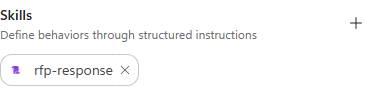
[!IMPORTANT] Uploading the skill saves the agent - the URL changes from
/agents/newto the agent’s permanent ID, and Save disappears from the toolbar because there are no unsaved changes.
Inspect what you uploaded
-
In the Skills section of the rail, select the rfp-response chip to open the skill.
-
The viewer shows the whole package: 16 files, 141.2 KB.
SKILL.mdopens first - its Name and Description come from the YAML frontmatter, and Instructions is the body.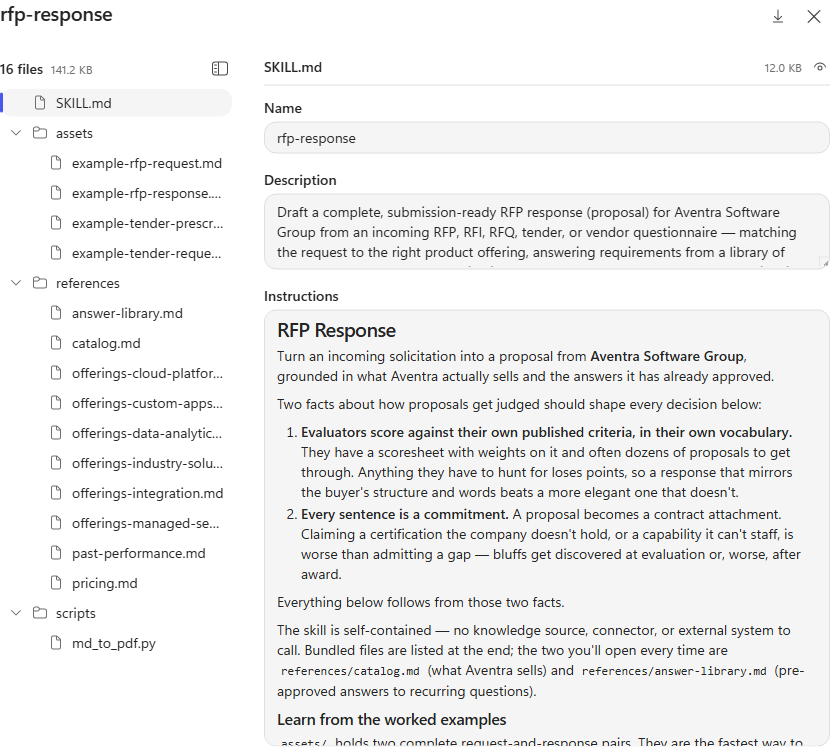
[!NOTE] These fields are read-only. An uploaded skill is changed by editing the package and re-uploading it, not in the portal. A skill authored with Create from blank is editable in place.
[!TIP] Read the Description closely. It is deliberately packed with the phrasings a user might actually type - “respond to this RFP”, “draft our bid”, “answer these vendor questions”. That text is what the orchestrator matches against, so a vague description is the most common reason a skill never loads.
-
In the tree, select references/answer-library.md. This is the pre-approved answer library the skill reuses instead of composing new prose - a topic-key table covering security, data privacy, accessibility, hosting, SSO, SLAs, and pricing.
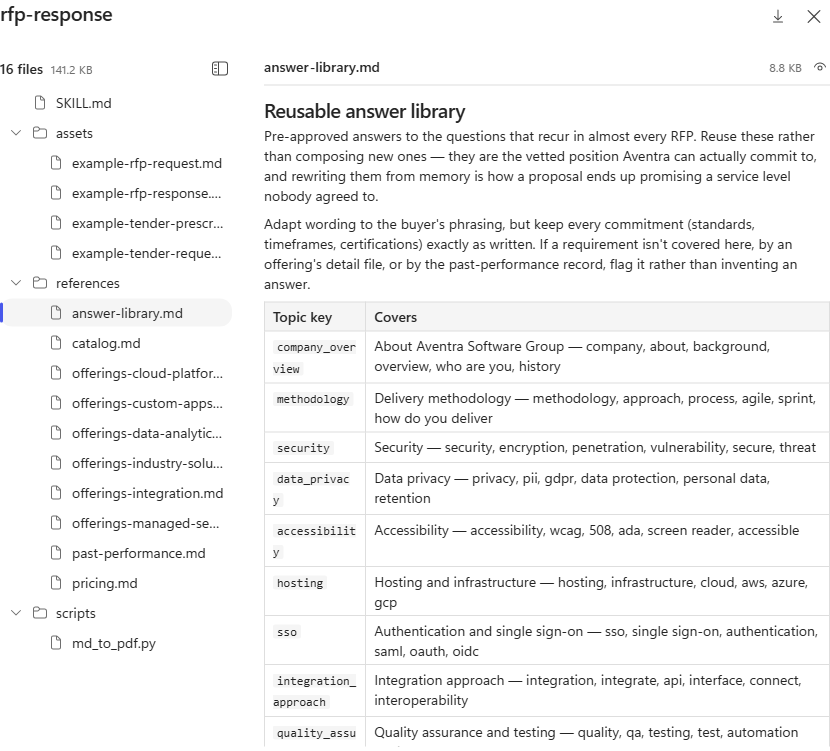
[!TIP] This is what makes a Skill more than a long prompt. The instructions say how to behave; the bundled
references/andassets/are the material it works from. Swap these files for your own catalog and answer library and the same skill drafts your proposals. -
Select Close to return to the Build tab. The Download icon pulls the package back out if you want to edit and re-upload it.
Test the agent and watch the skill load
-
Select the Preview tab.
- Download the sample solicitation:
01-westbrook-permitting-portal.md
- a City of Westbrook RFP for an online permitting and licensing portal.
[!NOTE] The sample solicitations carry fixed submission dates that have since passed, so the agent may open its response by flagging that the deadline is behind us. That is the skill being careful rather than a fault - read past it and judge the proposal itself.
-
In the chat composer, select Attach file and attach the RFP, then type:
We are bidding on this RFP. Draft our response.
-
Select Send, then watch the agent’s turn. Before it writes anything, it announces “I’ll start with the RFP response skill” and the orchestrator shows Loading skill: rfp-response under Reasoned through your request.
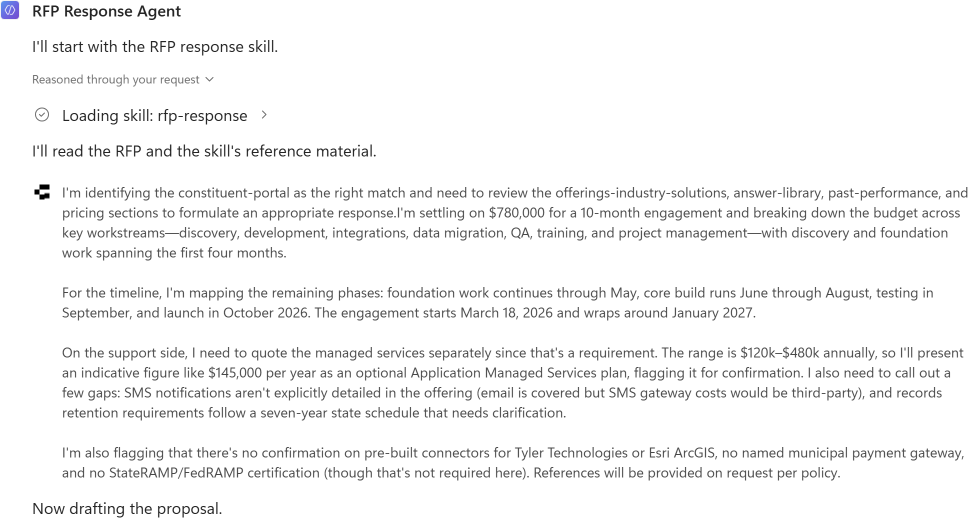
[!IMPORTANT] This is the whole point of the lab. You never told the agent to use the skill. The orchestrator matched your request against the skill’s description, decided it applied, and loaded it - then followed the skill’s procedure: identify the matching offering, read
answer-library.md,past-performance.mdandpricing.md, and only then draft. -
Select Loading skill: rfp-response to expand it. The trace shows the skill description the orchestrator matched against, and the call it made:
skill: rfp-response.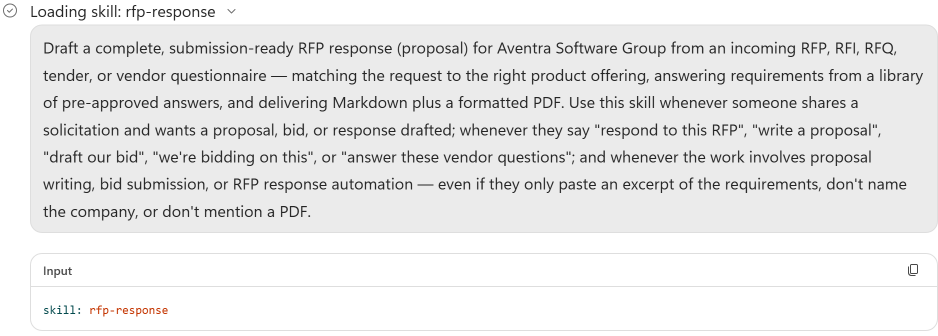
[!TIP] This is the diagnostic to reach for when a skill does not fire. If the description does not contain the language a user would actually use, the orchestrator never matches it - and nothing in the transcript tells you the skill exists.
-
Let the run finish. The agent drafts the proposal, then uses the tools available to it to render it as a PDF.
[!NOTE] The full draft-plus-PDF run takes several minutes - it is writing a nine-page proposal and then rendering it. The reasoning trace updates as it works and is worth reading; the agent has not hung.
-
Review the summary. It reports the matched offering, the commercials, coverage against the buyer’s scoresheet, and a numbered list of gaps to resolve before submission.
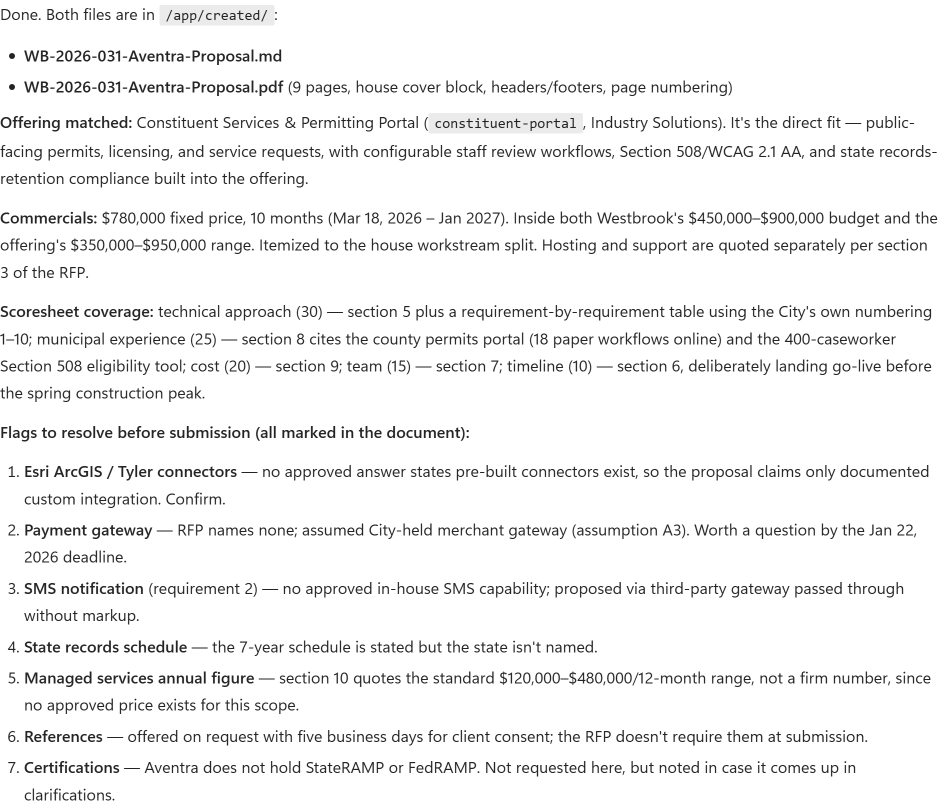
[!TIP] Note what it refused to invent: no pre-built Esri/Tyler connectors, no StateRAMP certification, no firm managed-services price. That restraint comes from the skill’s guardrails and answer library - the vetted position the company can actually commit to.
-
Both artifacts are attached to the message:
WB-2026-031-Aventra-Proposal.mdand a nine-pageWB-2026-031-Aventra-Proposal.pdf.
Publish the agent
-
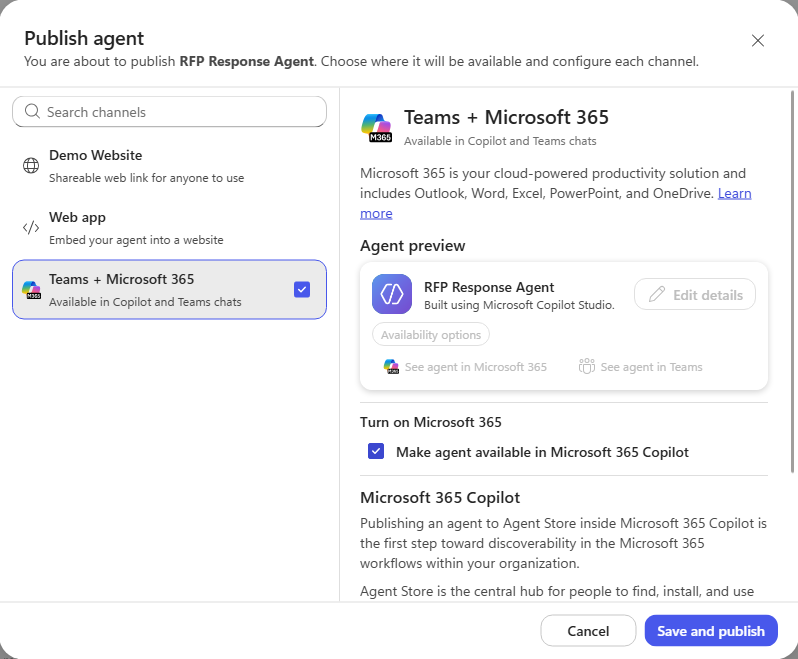
Select the chevron beside Publish and choose Customize publish channels to open the Publish agent dialog. (Selecting the plain Publish button re-publishes the agent directly, without offering channel options.)
-
In the Publish agent dialog, select Teams + Microsoft 365 in the channel list, then tick its checkbox to enable the channel.
[!IMPORTANT] Selecting the channel row only opens its settings - you must tick the checkbox beside it to actually enable the channel. Publish stays disabled until at least one channel is enabled.
-
Under Turn on Microsoft 365, tick Make agent available in Microsoft 365 Copilot.
-
Select Save and publish.
-
The dialog returns as Agent published with a Channel enabled badge and a last-published timestamp. The Monitor tab also becomes available now the agent is live. Select Close.
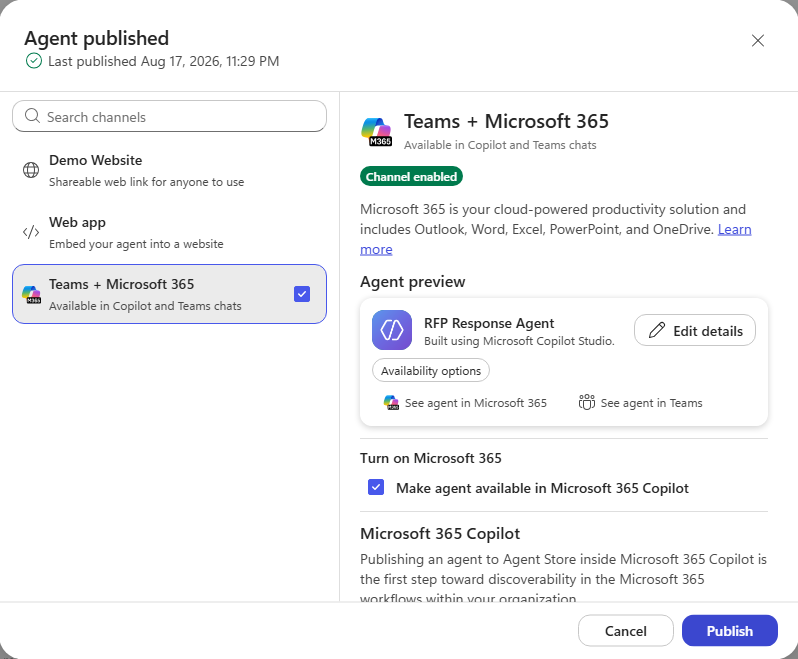
[!NOTE] Publishing to the Agent Store is the first step toward discoverability, not instant availability - an admin still controls broader access in Microsoft 365 and Teams. The See agent in Microsoft 365 and See agent in Teams links stay greyed out until that propagates.
Congratulations! You’ve completed Use Case #1!
Use Case #2: Using skills in Copilot Studio workflows
Step-by-step instructions
Create the workflow
-
In the left navigation, select Workflows, then New workflow.
-
Select the workflow name (Untitled workflow) and rename it:
RFP Response Request Handler[!IMPORTANT] A workflow cannot call a Skill directly. The node palette has Agent, Classify, M365 Copilot, Human review, Connector, Function, Variable, If/Else, Loop and Note - no Skill node. A workflow reaches a Skill by calling an agent that has one attached, like the RFP Response Agent from Use Case #1. That indirection is the point. The workflow is the deterministic half - a trigger that fires on every matching email, a classifier that routes it, a loop that runs once per attachment. The agent and its Skill are the non-deterministic half - reading an unfamiliar solicitation, matching it to an offering, drafting prose, deciding what it cannot claim. Neither half can do the other’s job: a flowchart cannot write a proposal, and an agent cannot sit watching a mailbox. Composing them produces an experience neither could deliver alone.
Configure the email trigger
-
In the node configuration panel, select the trigger type and choose Connector.
-
Search for
When a new email arrivesand choose the one under Office 365 Outlook.[!TIP] Several connectors offer a trigger with this exact name - Outlook.com, Gmail, and Office 365 Groups Mail all appear. Check the connector heading above the result, not just the trigger name.
-
Create a connection when prompted, signing in with your workshop account.
-
Set the advanced parameters - Folder select
Inboxfrom the dropdown (it starts empty on a new trigger), ImportanceAny, Include Attachmentstrue, Only with Attachmentstrue.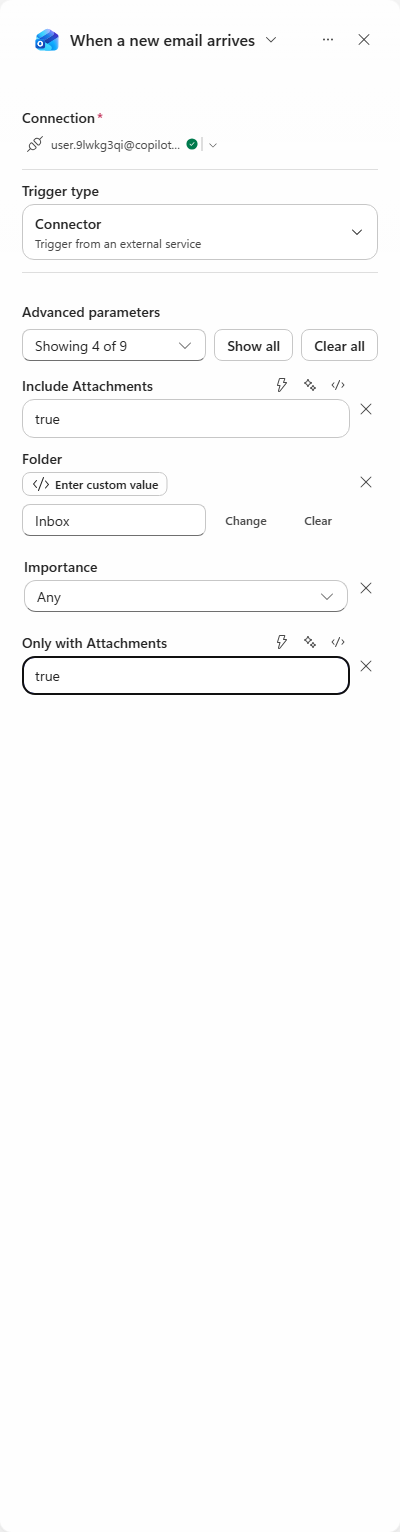
[!NOTE]
Only with Attachments = trueis what keeps the workflow from waking for every message in the mailbox.Include Attachments = trueis what makes the attachment content available downstream - without it the agent gets an email body and no RFP.
Add the Classify node
-
Select Classify in the palette, and create a Dataverse connection when prompted.
-
Leave Prompt model on the default.
-
In Input to classify, use Insert dynamic content to add Content (the attachment content), then Body (the email body).
[!IMPORTANT] Adding Content automatically wraps the Classify node in an Apply to each loop - attachments are a collection, so the workflow now runs the classification once per attachment. You did not add that loop; the designer inferred it from the data you bound.
-
Rename Category 1 to
RFP Response Neededand give it the description:This is for request for RFP response where we have an RFP request attached that needs to be responded to. -
Delete Category 2. A Default branch is created automatically for anything that does not match, and it appears on the canvas as Other - so the node ends up with exactly two branches.
-
Under Examples, select Add example, choose the RFP Response Needed category, and enter:
We need to get a response to the attached RFP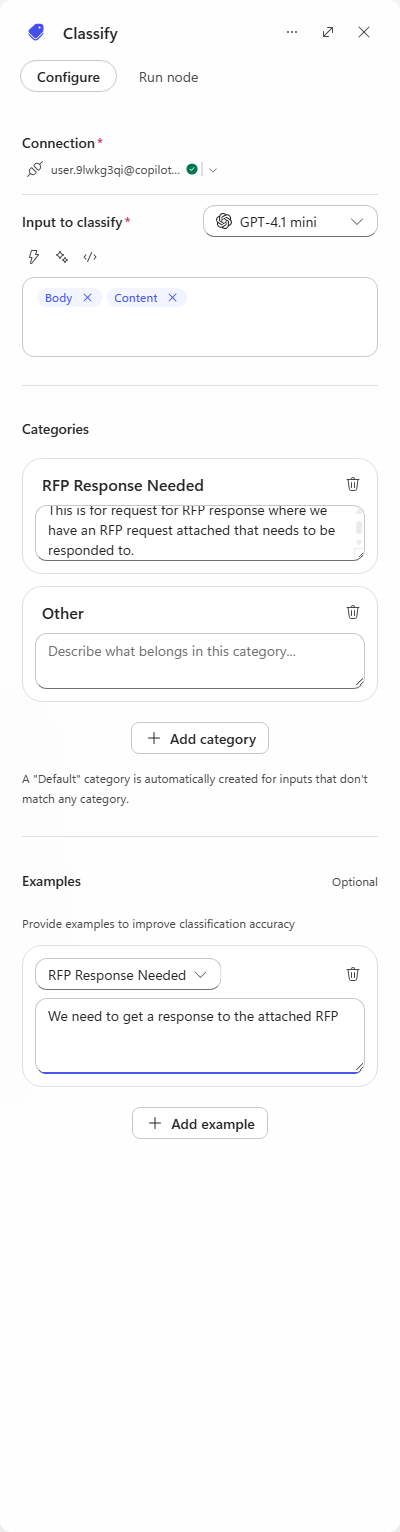
Call the agent from the RFP branch
-
On the canvas, select + on the RFP Response Needed branch and add an Agent node. Create the connection when prompted.
[!TIP] Add the node from the branch’s own +, not from the palette. Adding it from the palette appends it after the whole Classify node instead of onto the matching branch.
-
In Agent, select RFP Response Agent - the agent you built and published in Use Case #1.
[!WARNING] The Message and Output fields stay stuck on Loading… until the workflow has been saved at least once. If the panel does not finish loading, select Save in the toolbar, then reopen the node.
-
Build the Message field by alternating typed text and dynamic content. Type the text, insert the chip, then type the next piece - you cannot paste the whole thing at once:
- Type
Create an RFP Response for this request:then insert Body - Type
Here is the attachements:then insert Attachments - Type
Then Email the response back to the requestor at this email address:then insert From
- Type
-
Leave Output as Text response, and rename the node to
RFP Response Agent.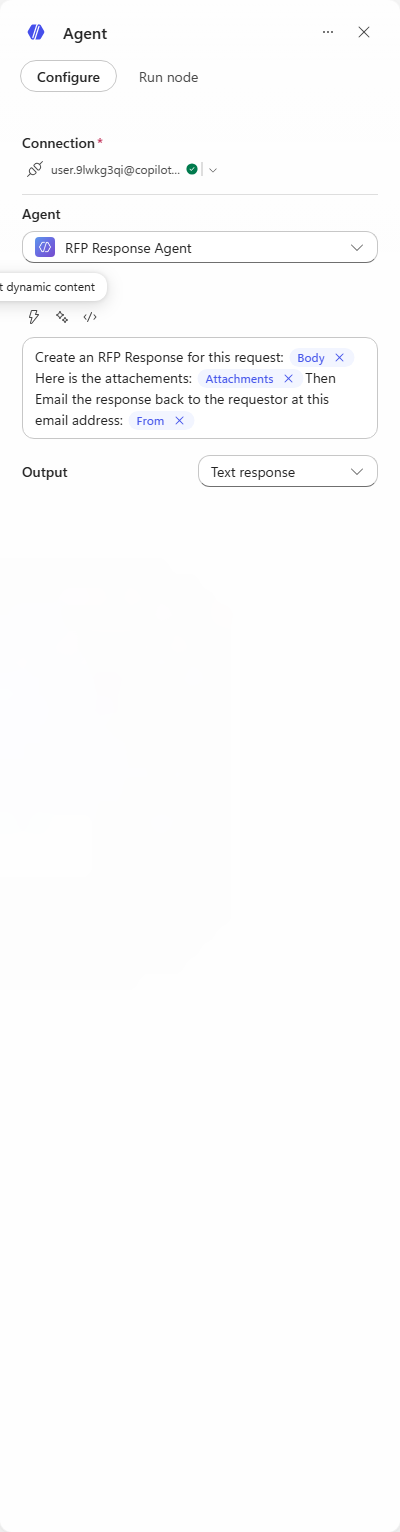
-
Select Save. The finished workflow: an email arrives with an attachment, the loop runs per attachment, Classify routes it, and the RFP branch calls the agent, which loads the Skill and drafts the response.
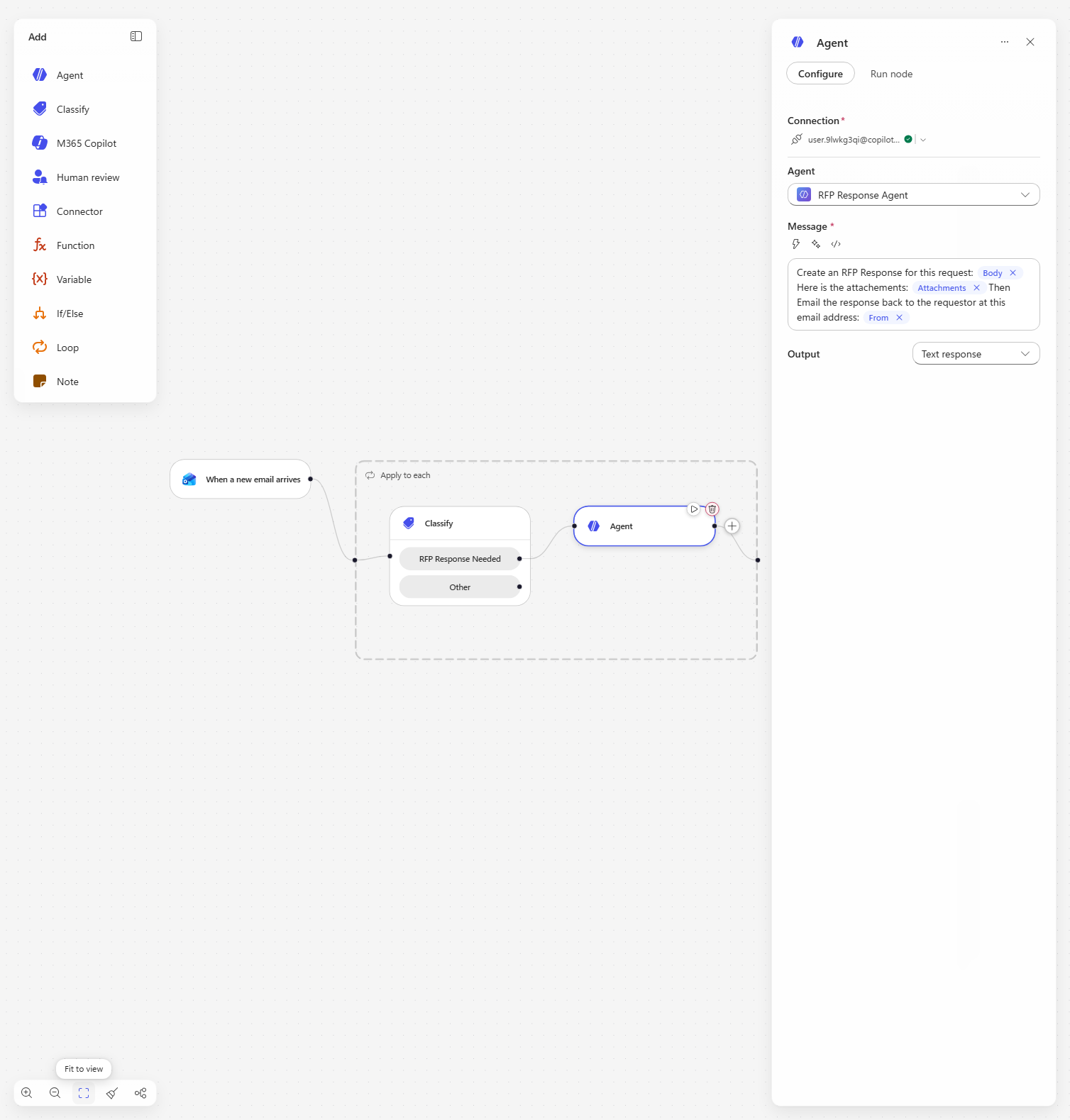
Deliver the response and test end to end
-
On the canvas, select + after the RFP Response Agent node and add the Office 365 Outlook action Draft an email message.
[!WARNING] Search results also include Updates an email Draft message and Send a Draft message. Pick Draft an email message - the create action. The update action asks for a Message Id and will fail with nothing to update.
-
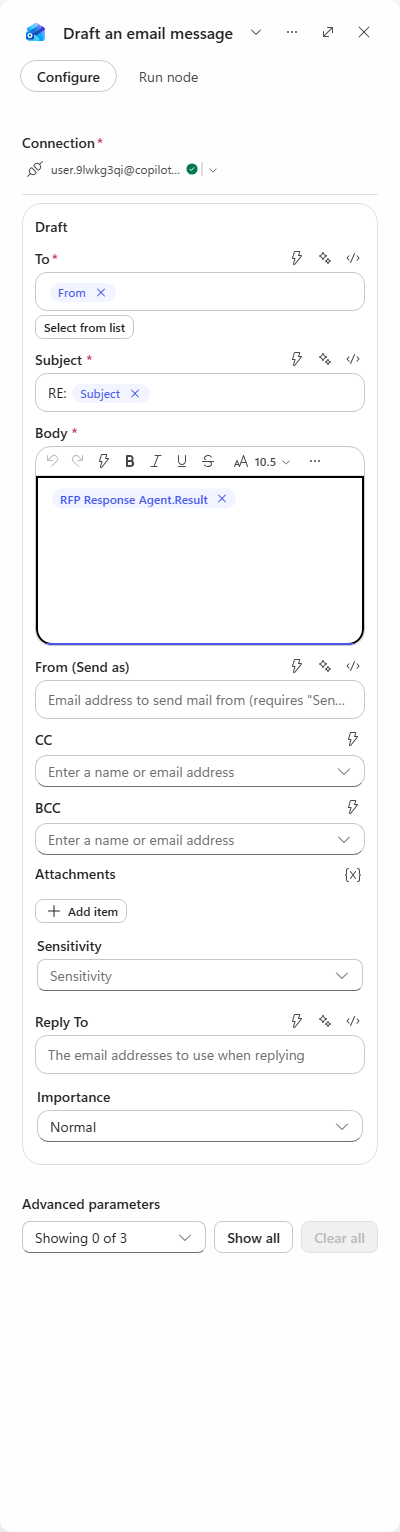
Configure it from the trigger and the agent:
- To - select Use dynamic content, then insert From (the person who sent the request)
- Subject - type
RE:then insert Subject - Body - use Insert token and choose Result from the RFP Response Agent
-
Open the RFP Response Agent node and make the message ask for the deliverable itself:
Return the COMPLETE proposal as your response. Do not summarize it and do not describe what you did. Format it as clean HTML for an email body using headings, paragraphs, tables and lists. No Markdown.[!IMPORTANT] Both halves of this matter. Without “return the COMPLETE proposal”, the agent replies with a status report about the proposal and the draft is useless. Without “clean HTML… No Markdown”, the body arrives full of raw
##and**because the agent writes Markdown into an HTML field.[!NOTE] Delivery has to be a workflow node. When an agent is called from a workflow it has no mail tool, on either authentication mode - under User authentication it says so outright, and under Maker authentication it reports success while nothing appears in the mailbox. Its generated files stay in its sandbox too: the Agent node returns only Result, Status and Conversation Id, all strings, so the
.mdand.pdfit built cannot be attached to the reply. -
Select Save, then Publish. A workflow runs its last published version - editing alone changes nothing.
- Send yourself a test email with an RFP attached, then open Activity and watch the run. Use
03-northfield-analytics-uncertified-requirement.md
- it is the one that carries the certification requirement the draft has to be honest about.
[!NOTE] Give it time. The trigger polls before the run even starts, and the agent step takes several minutes on its own. The Activity list does not refresh itself - use the refresh control at the top of the Activity panel rather than assuming the run has stalled.
-
When the run completes, open Drafts in Outlook. The reply is addressed to the sender, the subject is
RE: ..., and the body is the full formatted proposal - cover letter, commercials table, and the requirement-by-requirement response.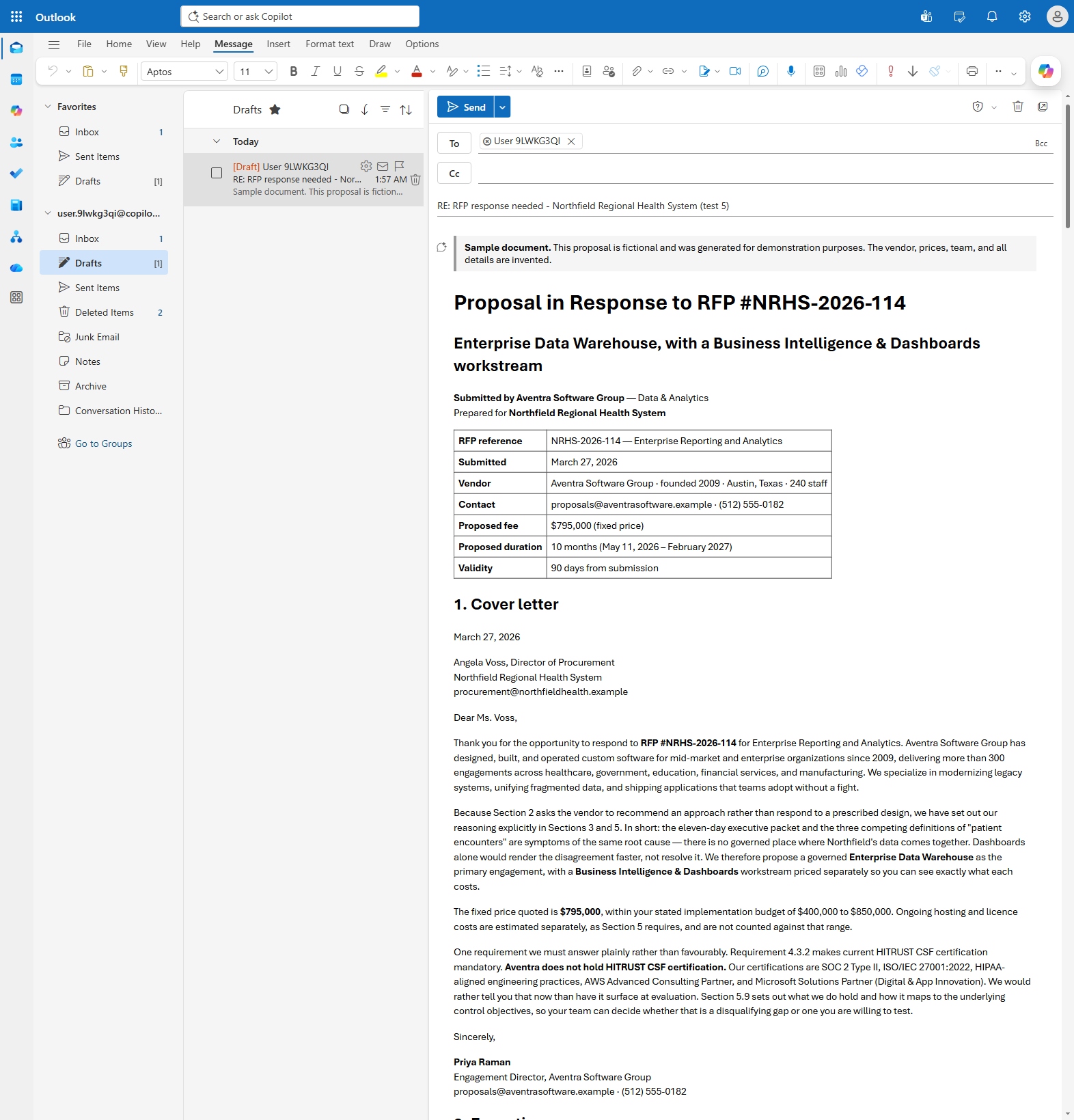
[!NOTE] Refresh the browser if the Drafts folder still looks empty. Outlook does not always show the new item until the folder is reloaded, and the draft is created by a background service rather than by anything you did in the window.
[!TIP] Read the cover letter. Requirement 4.3.2 demands HITRUST CSF certification, and the proposal states plainly that Aventra does not hold it - then lists what it does hold. The Skill’s answer library is what produces that; a model left to itself would be tempted to blur the gap.
Congratulations! You’ve completed Use Case #2!
Use Case #3: Using skills and plugins in Copilot Cowork
Step-by-step instructions
Open Cowork and find Customize
-
Go to Microsoft 365 Copilot and select the Cowork tab at the top of the left navigation.
-
Select Customize in the left navigation. The page has two tabs - Plugins and Skills - and describes plugins as extending Cowork “by connecting to external tools, services, and bundled skills”.
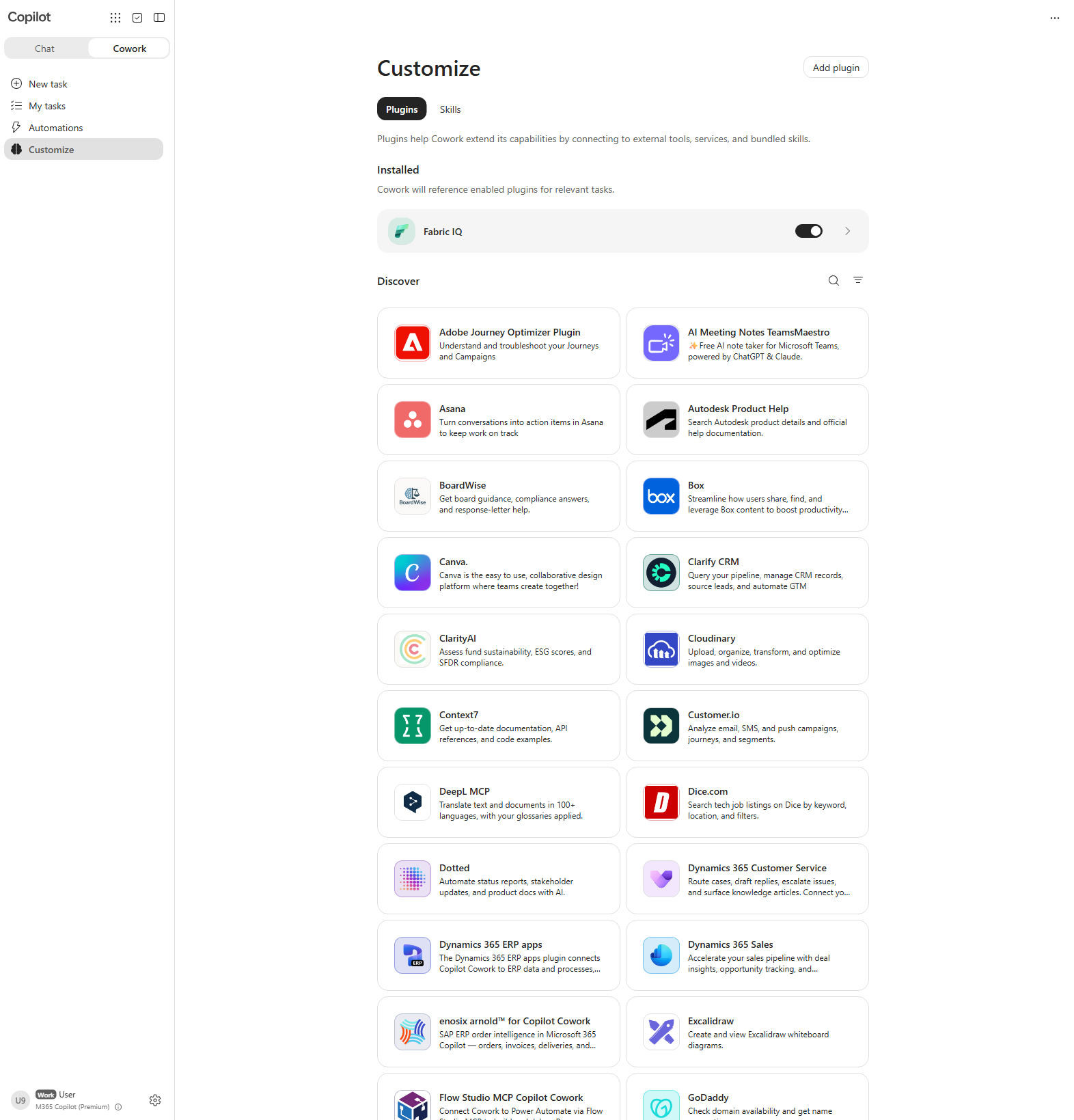
[!NOTE] Select the Skills tab and look at Built-in. Cowork ships with skills of its own - PDF, Word, Excel - that cannot be disabled. Your skills is empty until you add one, and a skill that arrives inside a plugin appears through that plugin rather than as a separate upload.
Install the RFP Response plugin
-
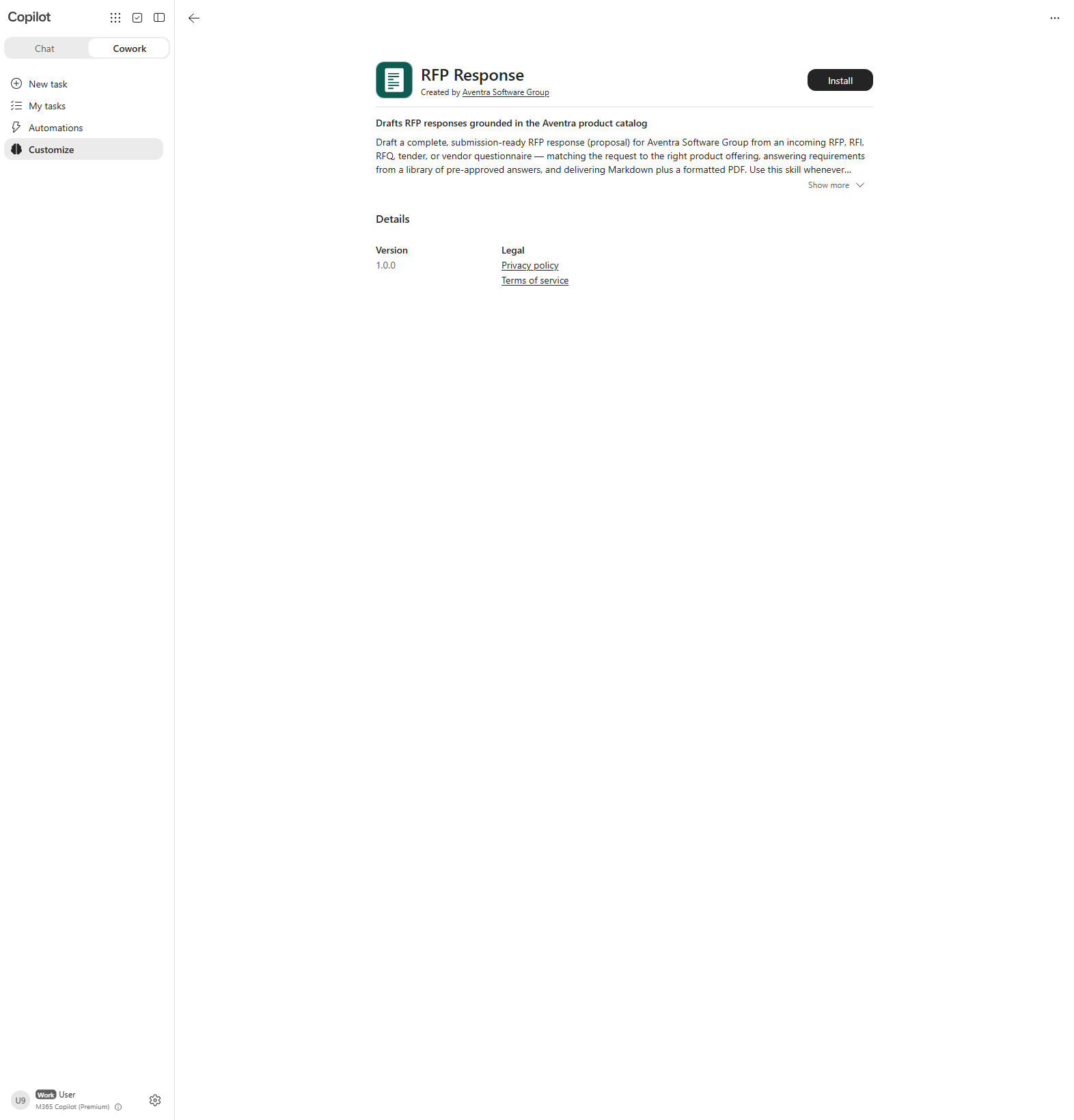
On the Plugins tab, find RFP Response under Shared with me - “Drafts RFP responses grounded in the Aventra product catalog”.
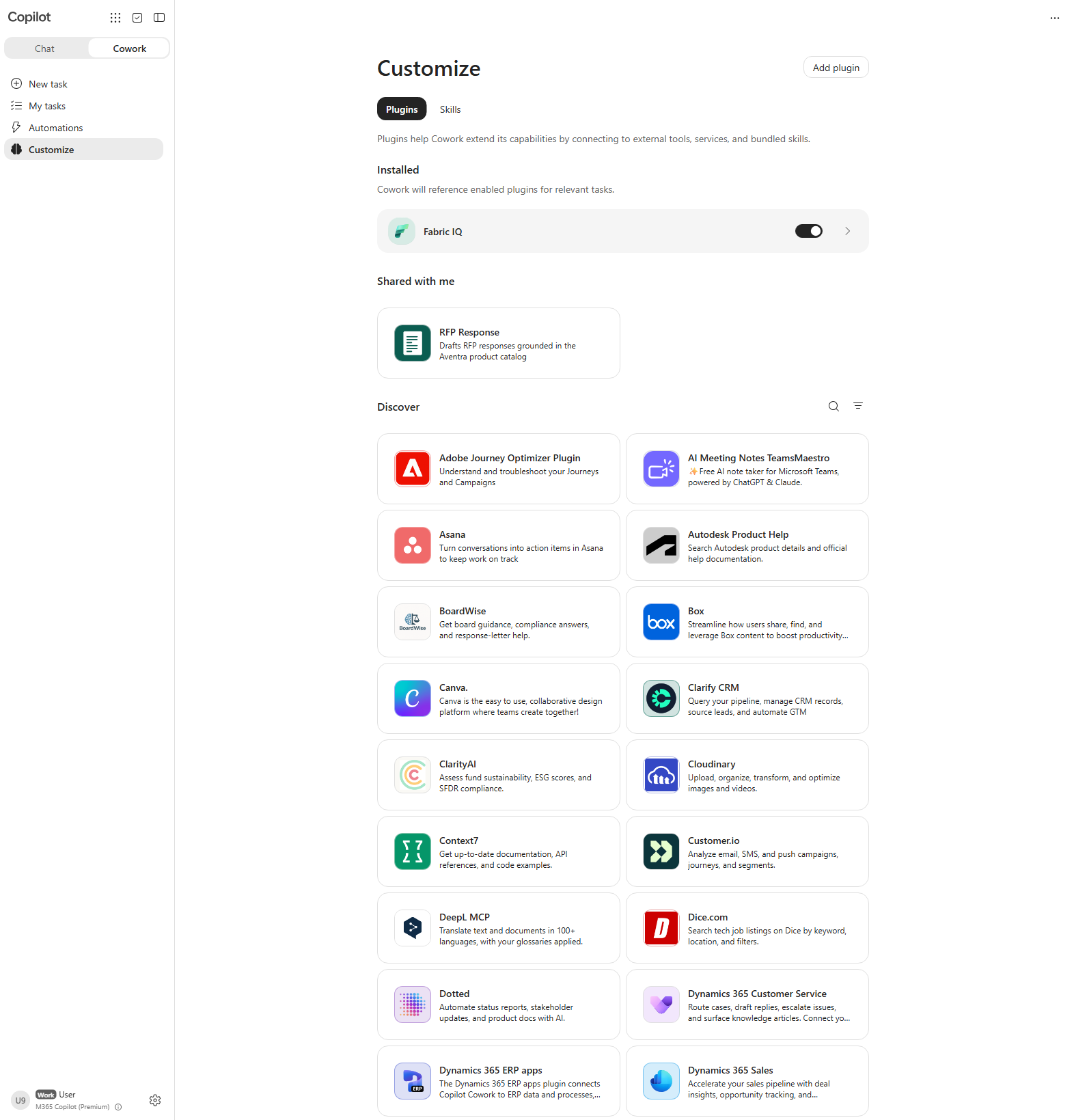
[!NOTE] The plugin is published once for the whole tenant and shared with you, so you install it rather than upload it. Add plugin in the top right is how a maker publishes a
.zippackage of their own - worth opening to see, even though you will not use it here.[!IMPORTANT] A plugin’s manifest ID is unique across the tenant. If everyone in a shared training tenant uploads the same sample package, the first upload claims the ID and every later one is refused with “This manifest ID already belongs to a plugin someone else owns.” Publishing centrally and sharing - what has been done for this lab - avoids that entirely. To publish your own copy, change
idto a fresh GUID and givename.shorta distinct value first. -
Select the RFP Response card, then choose Install.
-
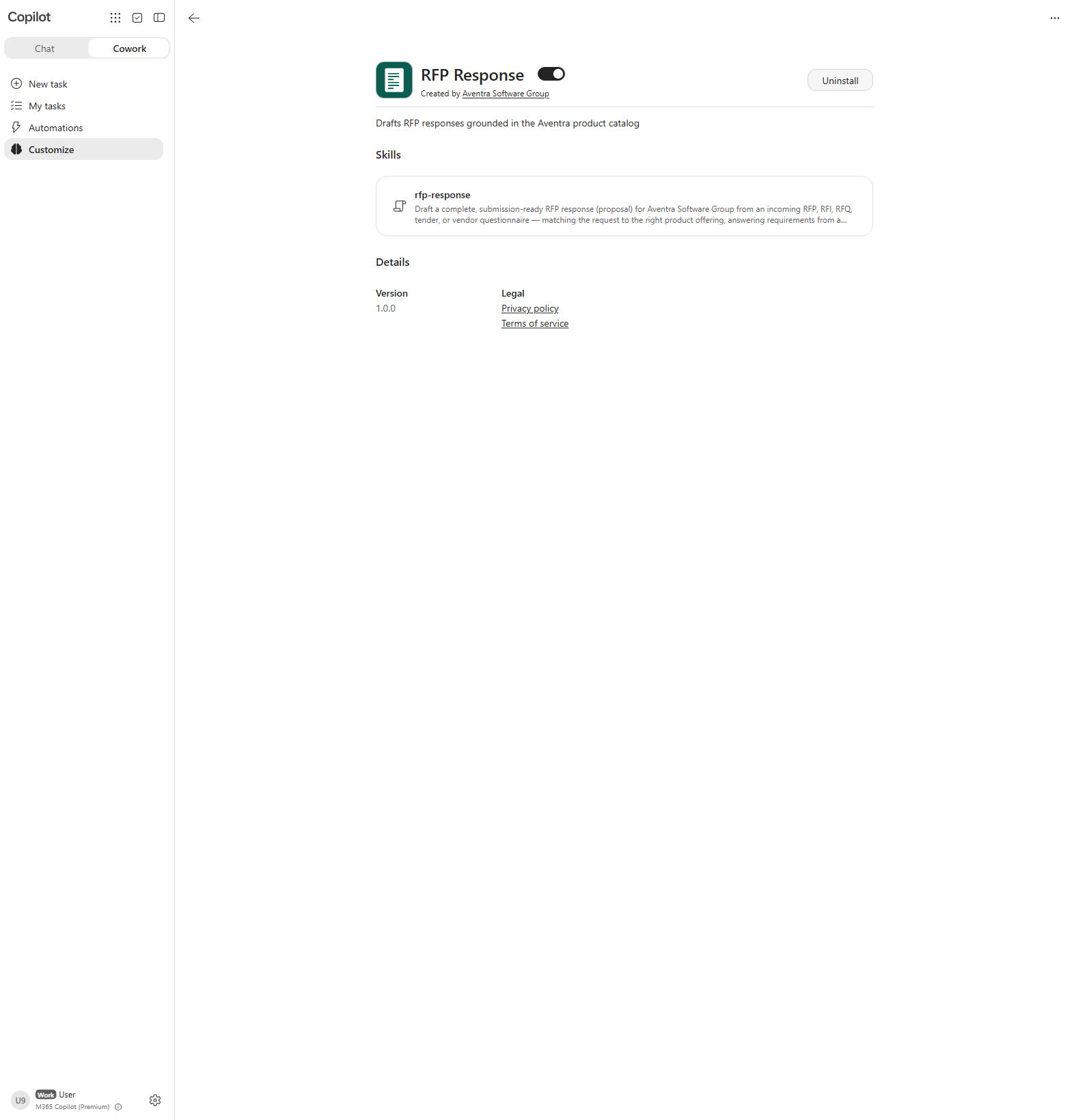
After it installs, the page shows a Skills section listing rfp-response - the same skill you attached to a Copilot Studio agent in Use Case #1, with the same description. The toggle beside the plugin name controls whether Cowork may use it.
[!IMPORTANT] This is the point of the use case. The plugin’s
manifest.jsonis a Teams app manifest whoseagentSkillsentry points at askills/rfp-responsefolder - the identicalSKILL.md,references/,assets/andscripts/bundle you uploaded to Copilot Studio. A skill can be attached to an agent directly, or packaged inside a plugin and distributed through the app catalog. One authored capability, reused across surfaces, governed and versioned like any other app.
Run an RFP through Cowork
- Select New task. Download the sample solicitation
05-ironwood-legacy-modernization.md
- Ironwood Manufacturing replacing a shop floor control system. Choose Add attachments and Upload images and files, select the file, then type:
We are bidding on this RFP. Draft our response.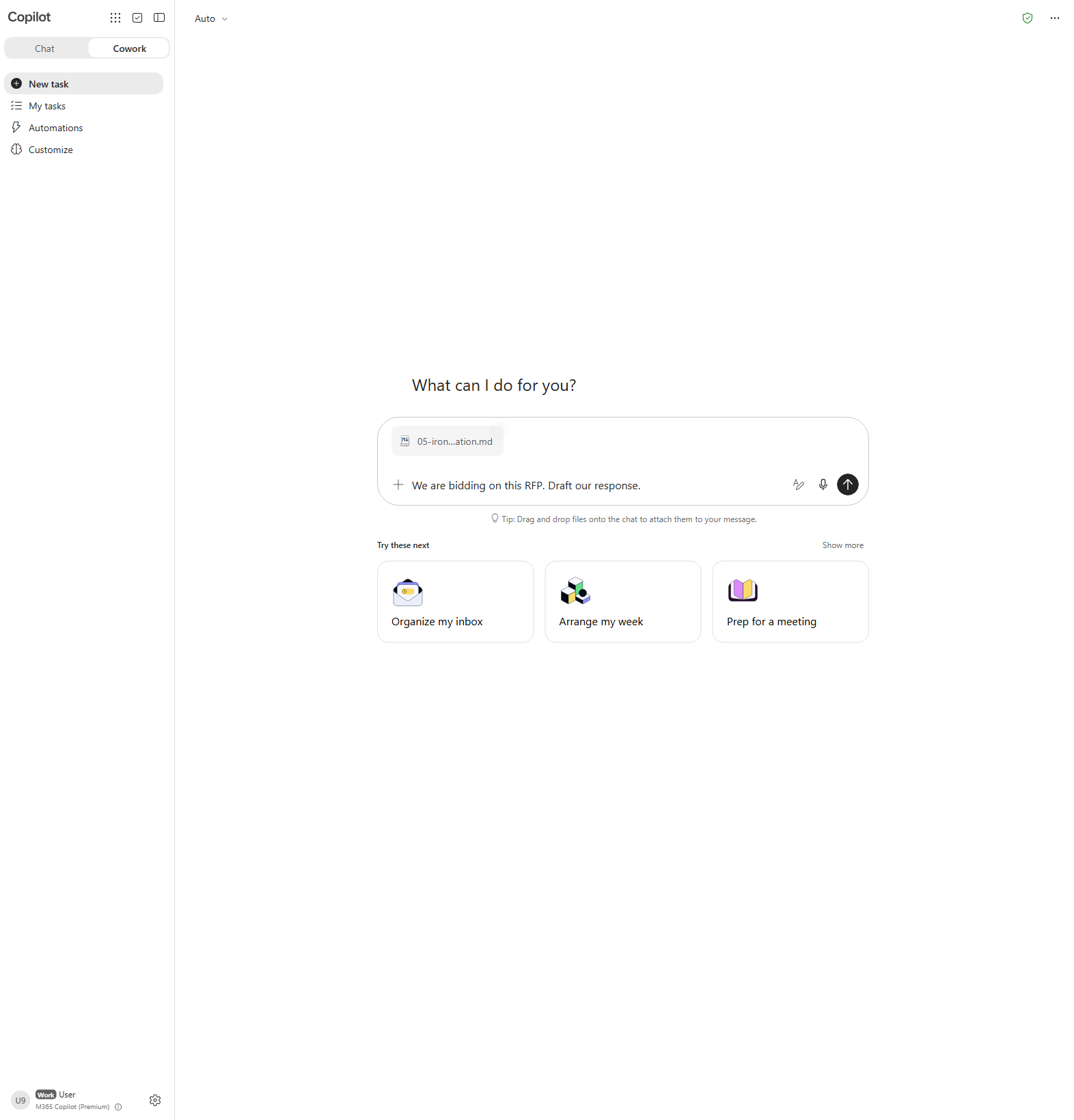
-
Send the task. Cowork names the task itself, then announces “I’ll use the RFP response skill for this” and shows Reviewed custom skill · RFP Response before it reads anything.
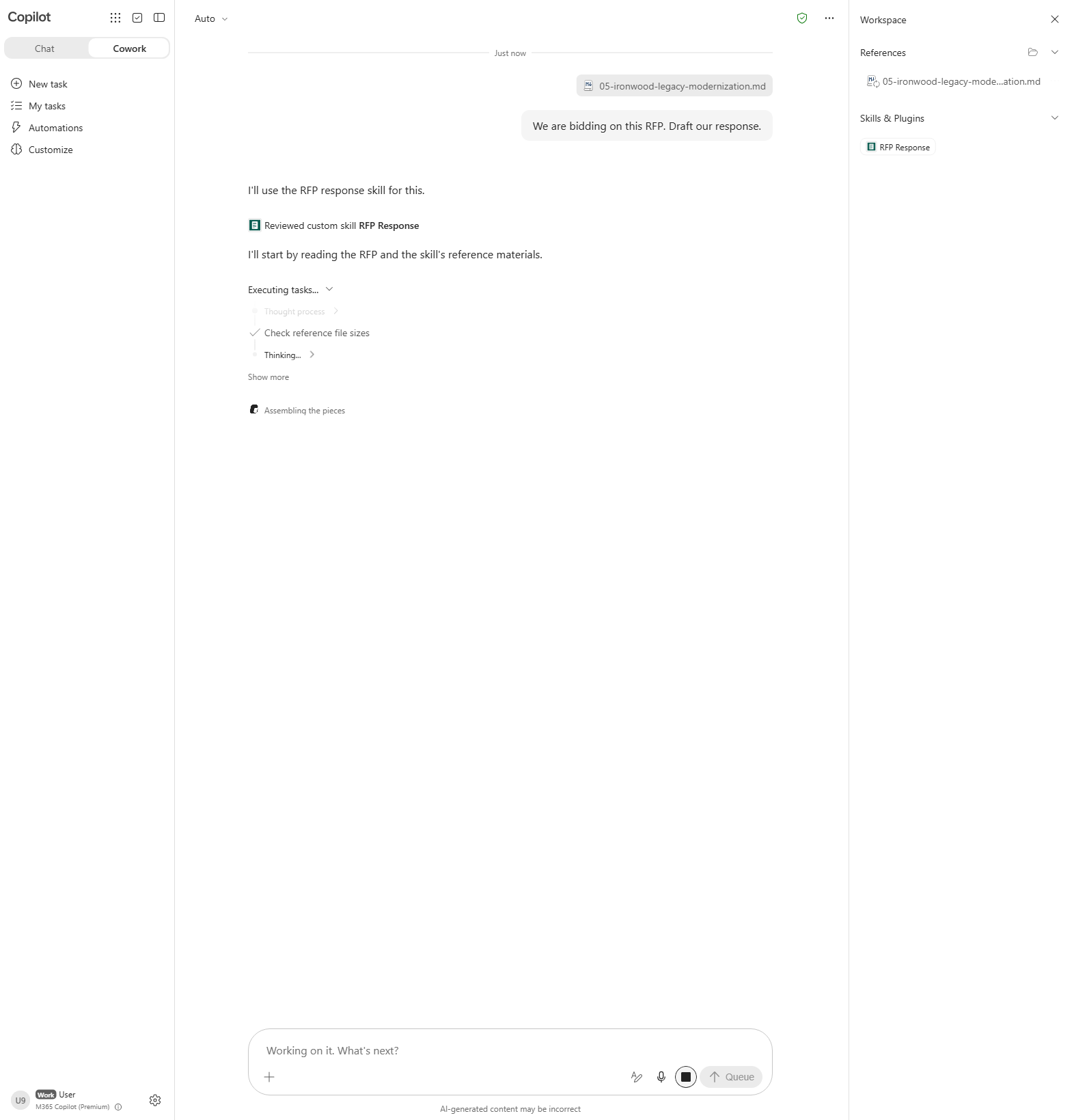
[!TIP] You never named the skill or the plugin - exactly as in Use Case #1. Cowork matched your request against the same description and loaded the same playbook. The right rail lists what it is working with under Skills & Plugins and References.
-
Let the run finish - it takes several minutes. Cowork drafts the proposal, uses the tools available to it to render it as a PDF, and publishes both files. They appear under Output in the details pane - an
Aventra ... IW-2026-SHOPFLOORmarkdown file and the matching.pdf. The exact filename varies slightly between runs.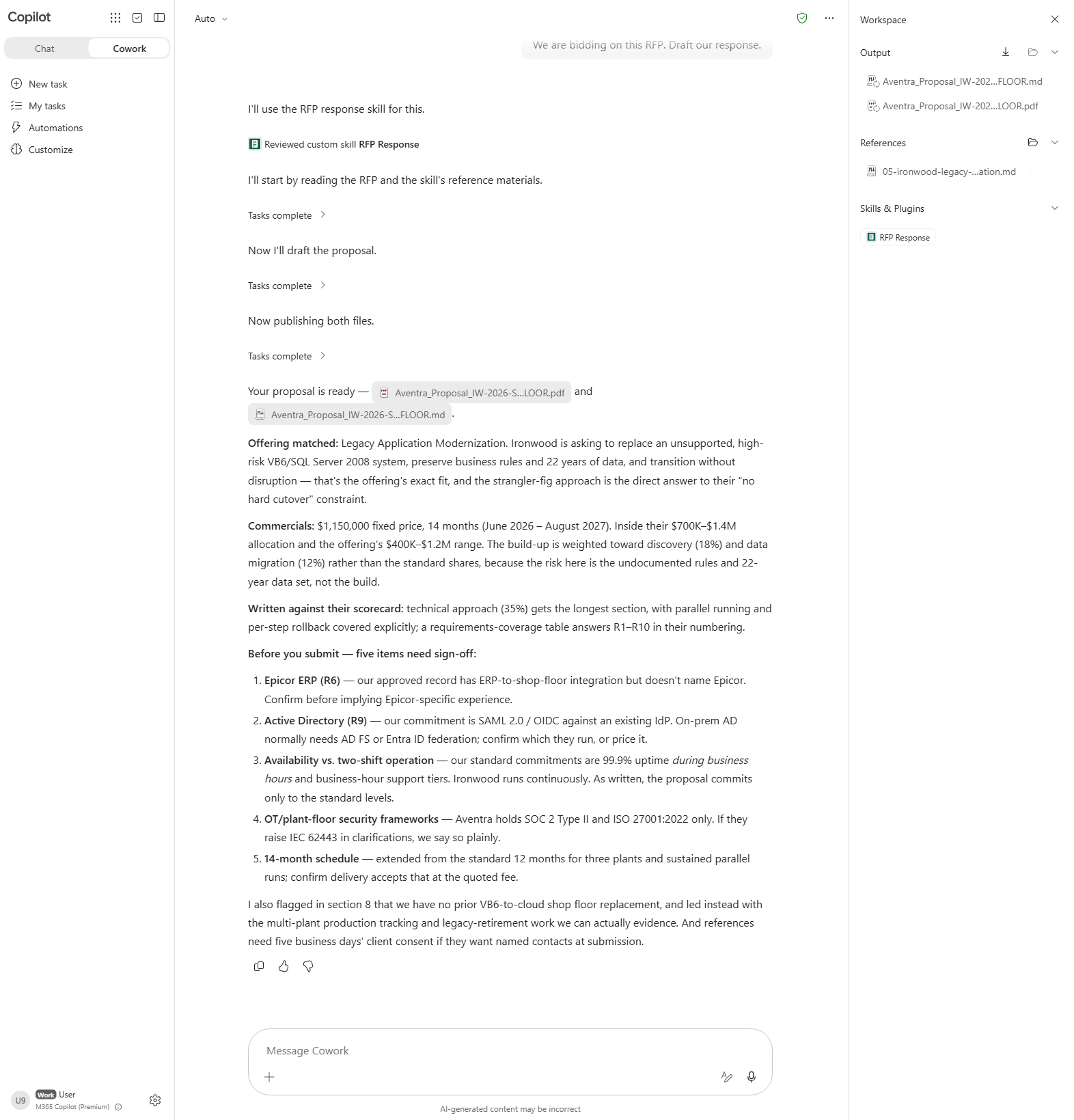
[!IMPORTANT] Compare this with Use Case #2. The same skill built the same two artifacts there, but the Agent node returns only strings, so the files never left the agent’s sandbox and the email could carry text alone. Cowork hands them back as files you can open. The skill did not change - the surface did, and the surface decides what you can actually collect.
[!TIP] Read the closing summary. It matches Legacy Application Modernization to Ironwood’s “no hard cutover” constraint, prices the engagement against their stated budget, writes to their 35% technical-approach weighting, and closes with a short list of items needing sign-off - typically including that Aventra holds SOC 2 and ISO 27001 but not IEC 62443 for plant-floor networks. The figures and the flag count differ from run to run; the structure and the candour do not. Same guardrails as the earlier use cases, a different RFP, no re-teaching.
Congratulations! You’ve completed Use Case #3!
Use Case #4: Using skills in coding agents (demonstration)
[!NOTE] This use case is a demonstration, not a hands-on exercise. Coding agents run on a developer’s own machine and are not part of the lab environment, so there is nothing to configure here. Read it, then continue to the summary.
Step-by-step instructions
The same skill in a coding agent
-
Everything so far has been a Microsoft surface. Skills are not a Copilot-only format, and this section shows the same
rfp-responsebundle running in coding agents.[!NOTE] This section is a demonstration, not a hands-on exercise. Coding agents are installed on a developer’s own machine and are not part of the lab environment, so there is nothing to follow along with here. Read the screenshots and move on to the summary.
-
In the Claude desktop app, Settings has a Skills section.
rfp-responsesits there beside the skills that ship with the product, listed with You as its author rather than the vendor.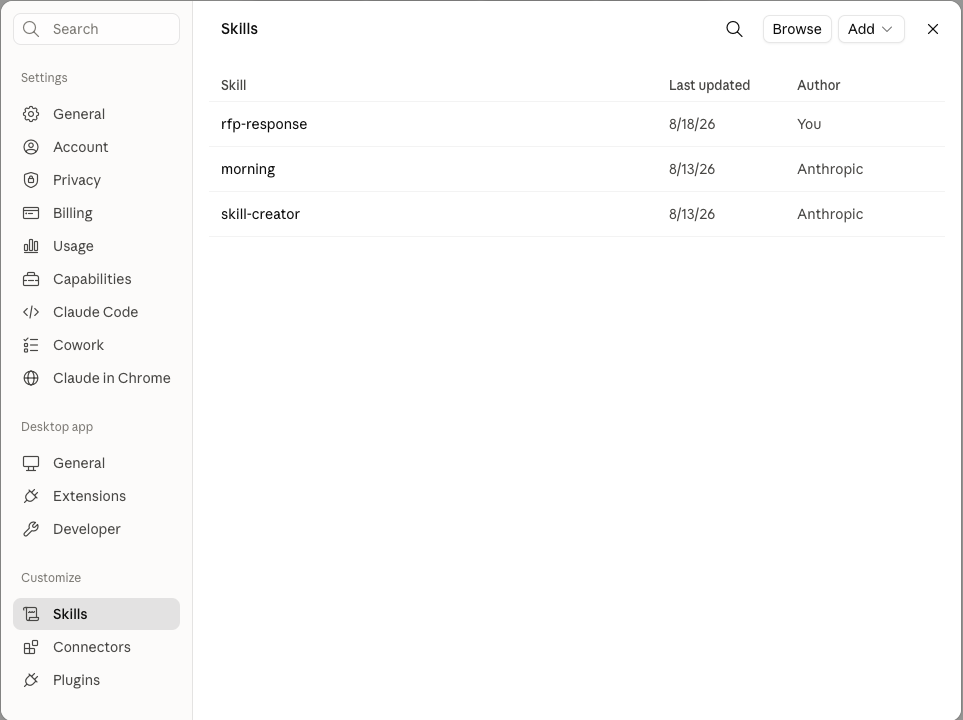
[!NOTE] Nothing about the bundle changed to get here. The same
SKILL.md,references/,assets/andscripts/folder that you uploaded to Copilot Studio in Use Case #1 is what this host loaded. Add and Browse are how a user installs one - the same relationship as Add skill in Copilot Studio and Add plugin in Cowork. -
The GitHub Copilot app takes the plugin route instead. Its Plugins settings describe plugins as extending the app with “skills, agents, MCP servers, and hooks”, and the agentdude-samples source offers
rfp-responsewith an Install button, next to other plugin sources.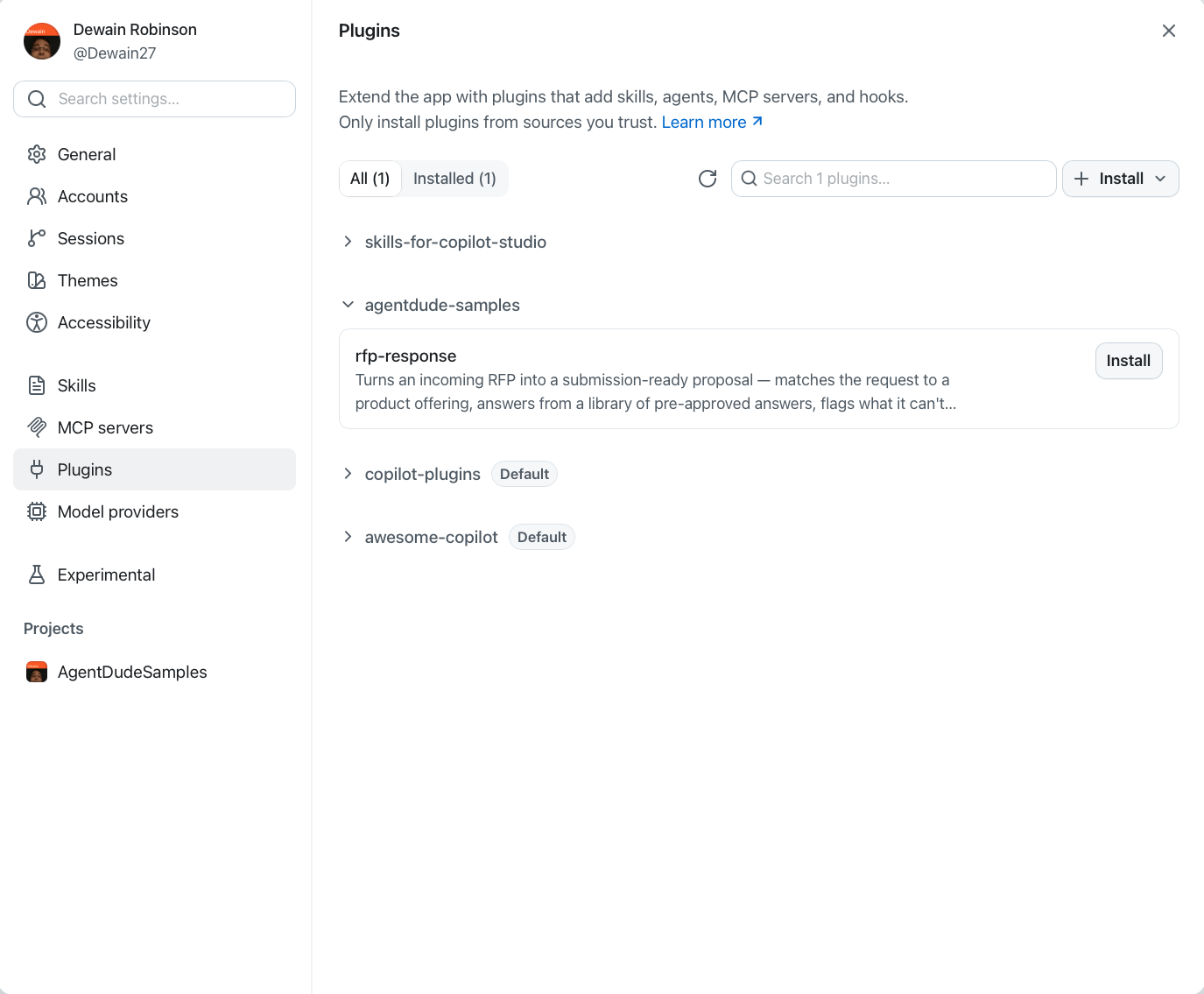
[!TIP] This is the same packaging idea you saw in Use Case #3. Cowork wrapped the skill in a Teams app manifest and shared it through the tenant’s app catalog; here it is offered through a plugin source the user subscribes to. The skill is the payload either way - what differs is the distribution channel each host already has.
Watch it run and see where the files land
-
Given a third solicitation - a patient engagement portal for Cascade Family Medicine - the coding agent loads the same skill, drafts the proposal, renders the PDF, and reports what it did. The proposal and its PDF are written to the local filesystem at
~/Claude/proposals/and attached to the response.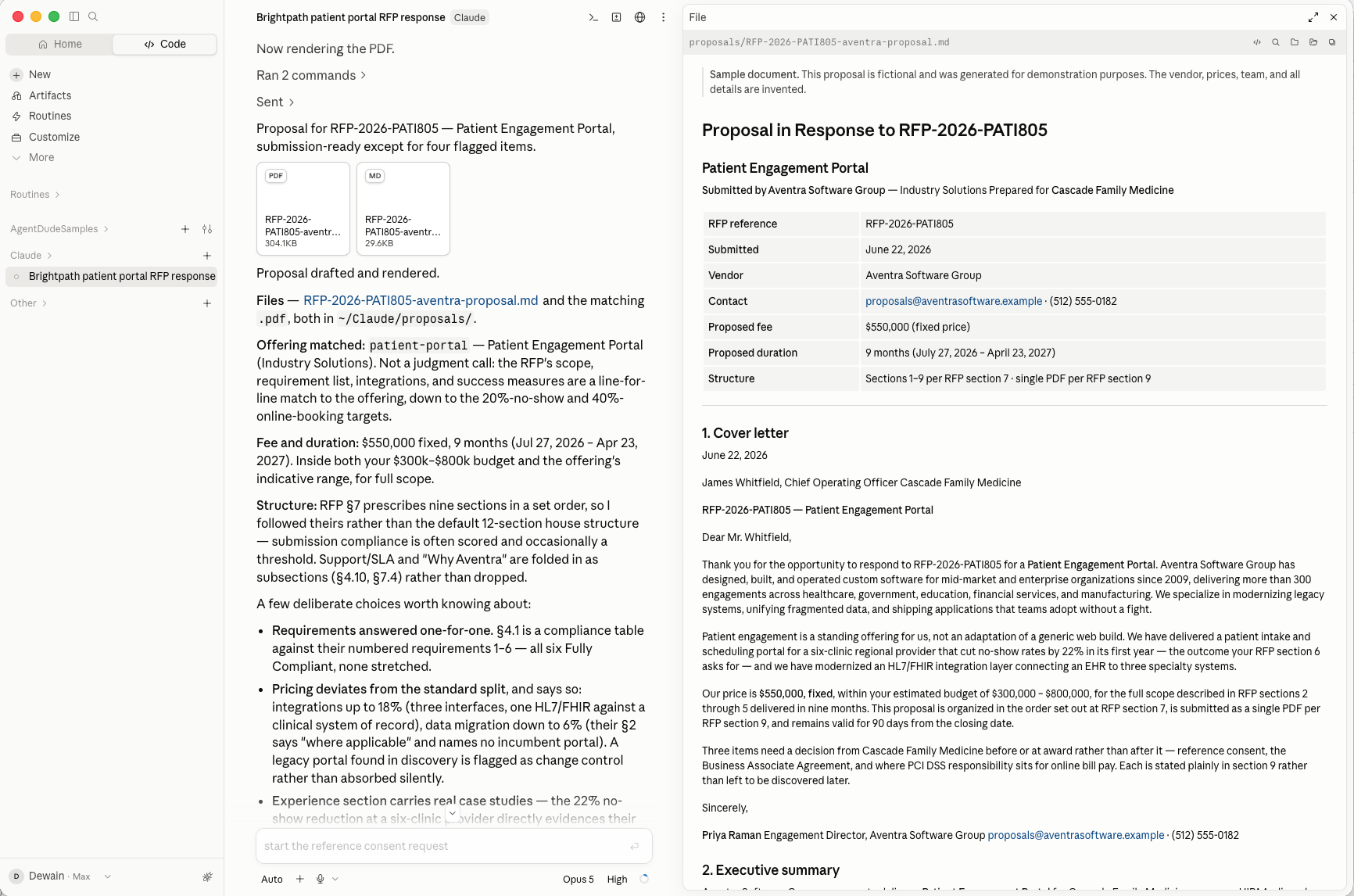
[!IMPORTANT] Look at what it says about structure: RFP section 7 prescribed nine sections in a set order, so it followed the buyer’s order instead of the skill’s own 12-section house structure, folding Support/SLA and “Why Aventra” in as subsections rather than dropping them - because submission compliance is often scored. That behaviour comes from
assets/example-tender-prescribed-structure.mdin the bundle. The same file travelled to every host in this lab; this is the run where it mattered.[!TIP] The honesty rules hold here too, on a third RFP: pricing deviates from the standard split and says so, a legacy portal found in discovery is flagged as change control “rather than absorbed silently”, and three items are marked as needing a customer decision before award.
-
The GitHub Copilot app runs the same skill against the RFP you used in Use Case #3 - Ironwood’s shop floor control system. Its session list shows the skill being installed first, then the proposal session: cover letter, executive summary, and a six-phase incremental cutover plan, rendered in the app and shareable straight out of it.
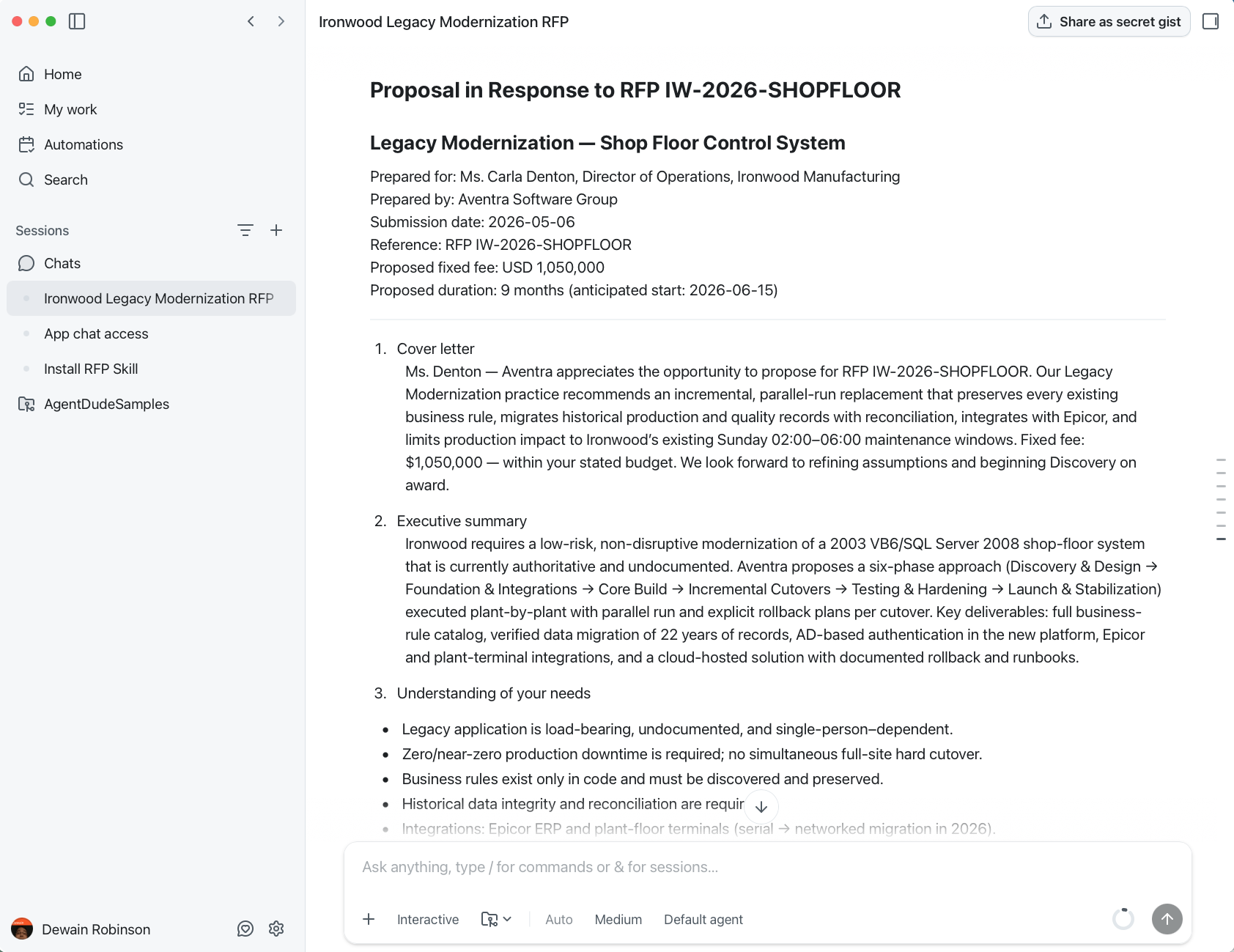
[!TIP] Compare this with the Cowork run in Use Case #3 - same RFP, same skill, different host. Both matched Legacy Modernization, both proposed an incremental parallel-run replacement rather than a hard cutover, and both priced inside Ironwood’s stated budget. The shape of the answer is what the skill fixes.
[!NOTE] The two runs do not agree on every number - this one proposes $1,050,000 over 9 months, and the Cowork run will quote its own figure over its own schedule, having weighted discovery and data migration differently. Your own run in Use Case #3 will differ again. A Skill constrains structure, sourcing and honesty, not arithmetic. Commercials still need a human to own them before anything goes to a customer.
-
Four hosts have now run the identical skill. What changed each time was not the skill’s behaviour but where the work came from and where the result could go:
Surface How the skill arrived Where the output went Copilot Studio agent Uploaded as a .zipto the agentChat panel, with files attached to the message Copilot Studio workflow The same agent, called by a workflow Email draft - text only, the files stay in the sandbox Copilot Cowork Bundled in a plugin, shared through the tenant Output folder in the task’s details pane Coding agent Installed as a skill, or from a plugin source Your own working directory [!IMPORTANT] This is the lesson worth carrying out of the lab. A Skill is a portable unit of behaviour - authored once, packaged per host, governed wherever that host governs. You do not rewrite the playbook for each surface; you choose the surface that can deliver what the work needs, and the answer library, the procedure and the guardrails come along unchanged.
Congratulations! You’ve completed Use Case #4!
Use Case #5: Leveraging a Skill inside a new-type agent
[!IMPORTANT] This use case needs the Order Management MCP and Warehouse MCP servers already present in your environment. They are custom connectors, not platform tools, and nothing earlier in this lab creates them — if they are missing, the Add tool step below has nothing to select. Two minutes now saves the detour: are they already loaded? In most delivery tenants they ship with the environment. If not, import them — the solution package is in this repo.
Take the Sales Account Assistant you built in Use Case #3 of Deep Dive: Instructions & Descriptions and turn it into a focused order-resolution agent by adding a Skill — a reusable, structured set of behaviors the New Orchestrator loads when a request matches. Along the way you’ll attach two custom MCP servers (Order Management and Warehouse), a second knowledge source (customer-facing policies), and updated instructions that tell the orchestrator how to use them together.
A Skill packages “when to use me” + “the tools I rely on” + “the procedure to follow” into one component. Instead of cramming every rule into the agent’s top-level instructions, you give the orchestrator a named, self-contained playbook it pulls in only when it’s relevant — keeping the base instructions short and the behavior consistent.
Objective
Extend that Sales Account Assistant so it can diagnose and resolve order problems end to end — then watch the New Orchestrator load the Skill and chain the MCP tools, knowledge, and weather across a single turn. By the end you will have:
- Added a Customer Care knowledge source from the Customer folder of the same SharePoint library used by that agent
- Created the Order Management MCP and Warehouse MCP connections and attached both servers as tools
- Authored an Order Resolution Concierge Skill and updated the agent’s instructions to use it
- Run a series of prompts that show the Skill loading and the orchestrator chaining everything together
[!IMPORTANT] This Use Case has a prerequisite in another lab. It builds directly on the Sales Account Assistant created in Use Case #3 of Deep Dive: Instructions & Descriptions — the new-type agent with the Get current weather tool, the Microsoft Dataverse MCP Server tool, and the internal
company_policies_sample.pdfknowledge (from the HR folder) attached. Build that agent first; without it there is nothing here to extend.
Step-by-step instructions
Add the Customer Care knowledge source
That agent already carries the internal company_policies_sample.pdf from the HR folder. Now add a second, customer-facing policy document so the agent can tell the difference between internal guidance and what it’s allowed to say to a customer.
-
Open the Sales Account Assistant agent on the Build tab.
-
In the right rail, select Add knowledge, then choose the SharePoint card.
-
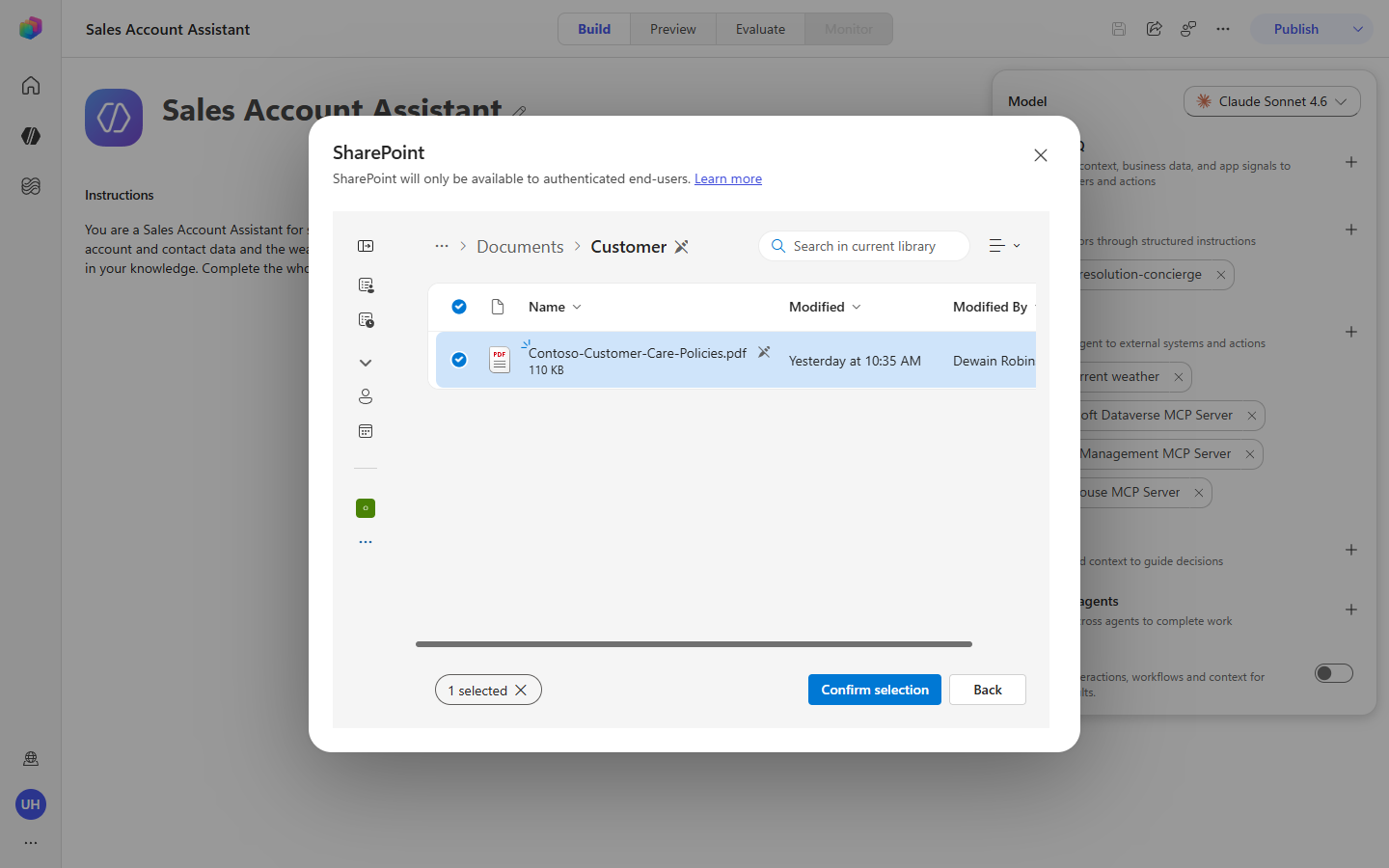
Select Browse items, then navigate OnePlace → Documents → Customer and select Contoso-Customer-Care-Policies.pdf. Choose Confirm selection.
-
Select Add to agent. Your Knowledge section should now list both policy sources — the internal HR document and the customer-facing Customer Care document.
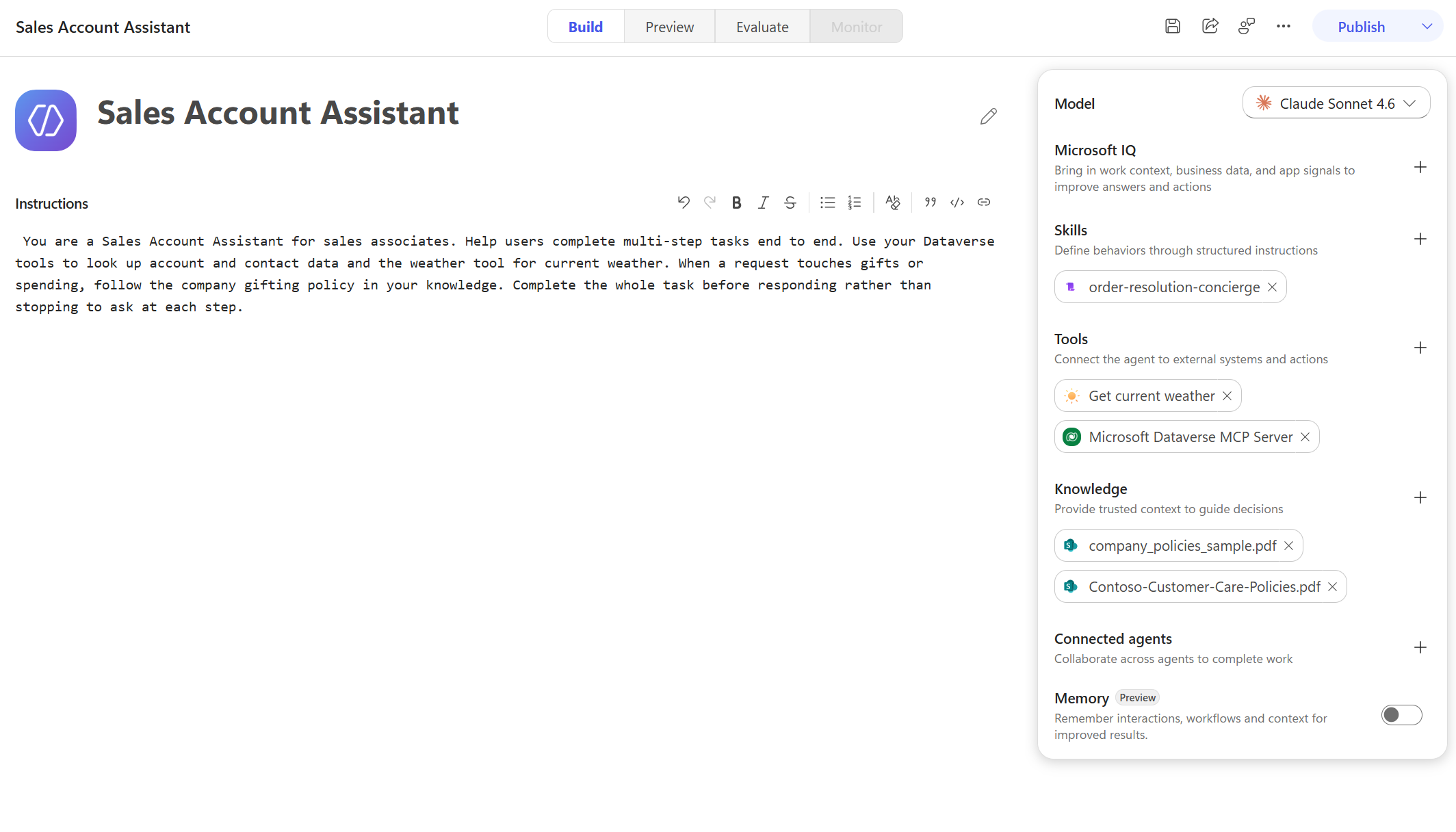
[!NOTE] Two policy sources is deliberate. The customer-facing Contoso Customer Care Policies is what the agent quotes to a customer; the internal
company_policies_sample.pdfis handling/escalation guidance the agent uses to decide but does not read back to a customer. The instructions and Skill you add below draw that line explicitly.
Add the MCP server tools to the Sales Account Assistant
Attach the two servers to the new-type agent, creating each connection inline as you add it.
-
Return to the Sales Account Assistant (Build tab). In the right rail, select Add tool (the + on the Tools section).
-
Filter to Model Context Protocol (MCP), search Order Management, and select Order Management MCP Server. On the connection step, choose Create new connection → Create, then Add.
-
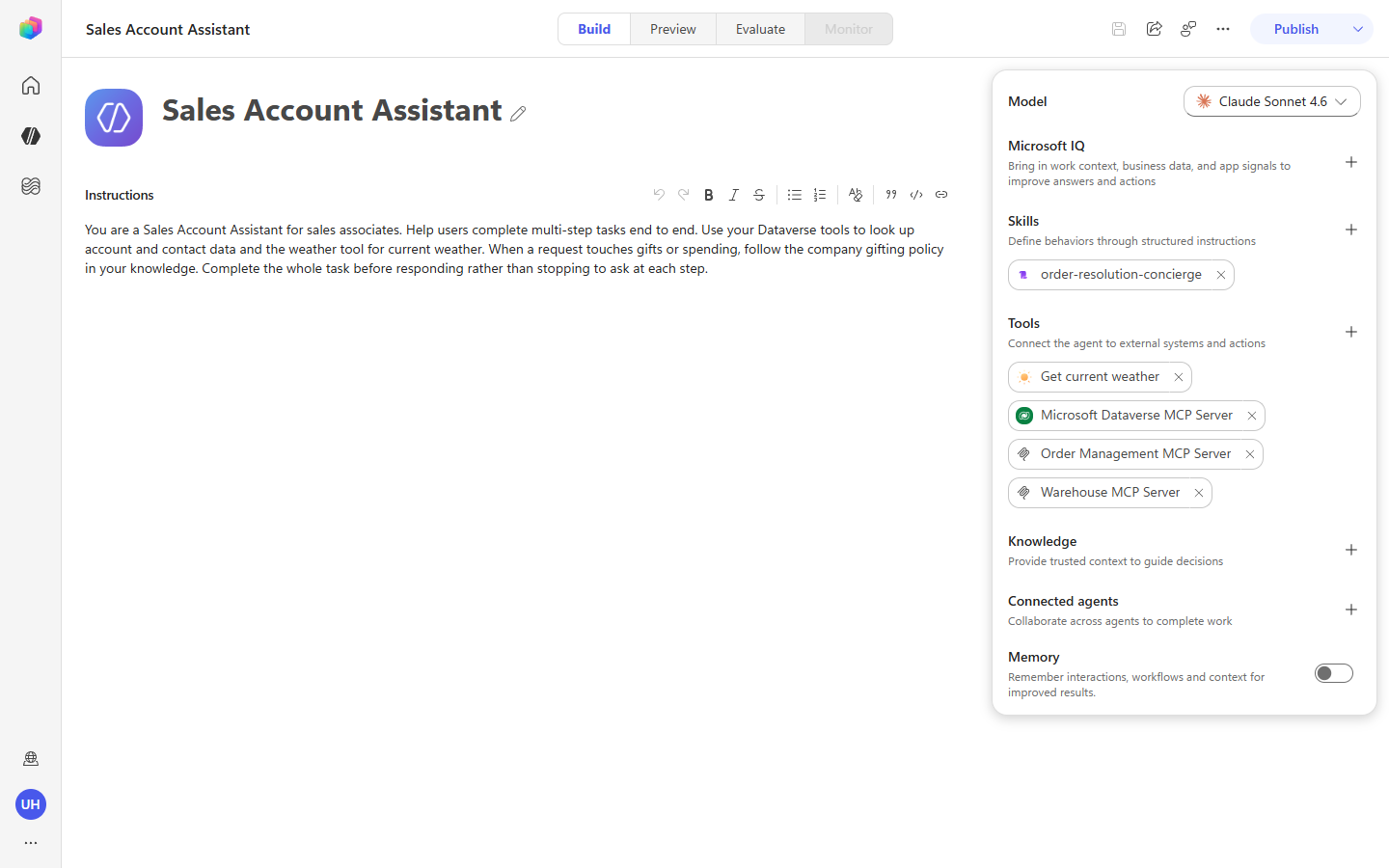
Repeat for Warehouse MCP Server. Your Tools list should now show four tools: Get current weather, Microsoft Dataverse MCP Server, Order Management MCP Server, and Warehouse MCP Server.
Add a Skill
A Skill gives the orchestrator a named playbook for order problems. You’ll create it directly in the UI.
-
In the right rail, select Add skill (the + on the Skills section). The dialog offers Upload a skill (a
SKILL.mdfile) or Create from blank. Choose Create from blank.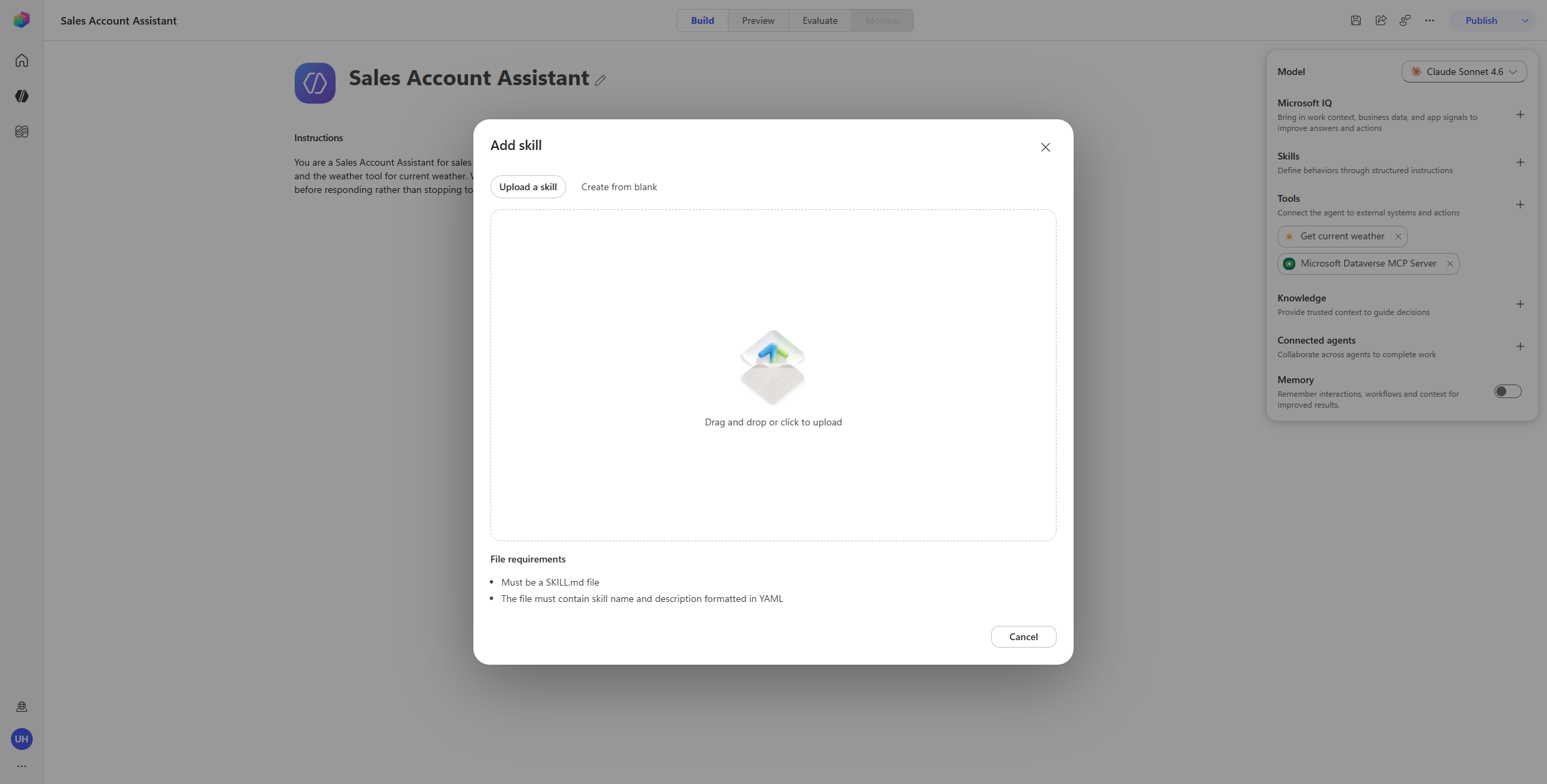
-
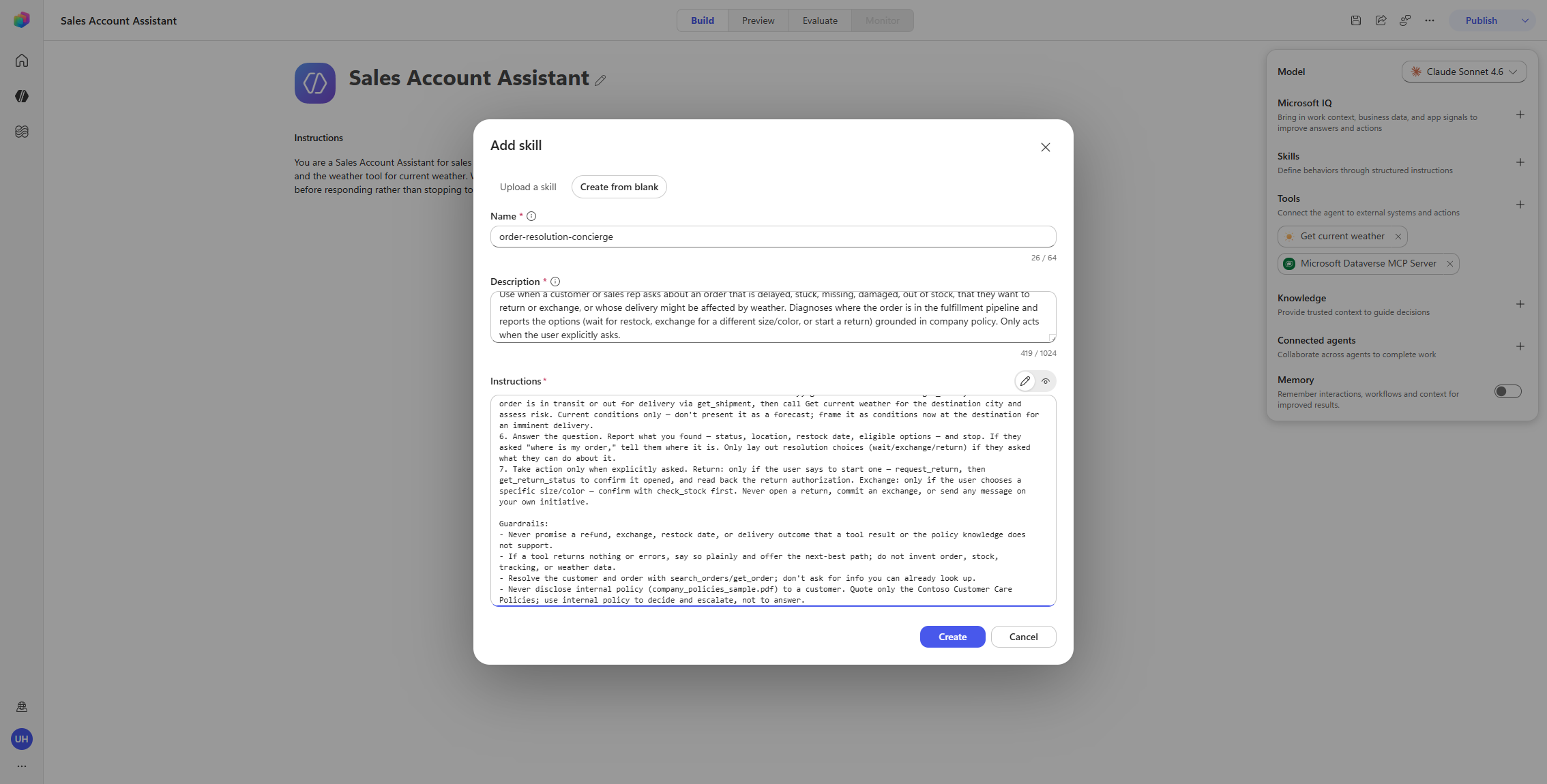
Fill in the three fields:
-
Name:
order-resolution-concierge -
Description:
Use when a customer or sales rep asks about an order that is delayed, stuck, missing, damaged, out of stock, that they want to return or exchange, or whose delivery might be affected by weather. Diagnoses where the order is in the fulfillment pipeline and reports the options (wait for restock, exchange for a different size/color, or start a return) grounded in company policy. Only acts when the user explicitly asks. -
Instructions:
You help resolve an order problem when asked. Answer the question the user actually asked. Do not push next steps, volunteer extra options, or take any write action (returns, exchanges, follow-up messages) unless the user explicitly asks for it.

When to use this skill:
- "Where is my order?" / "Why is order #12345 late?"
- "This item is out of stock — what can I do?"
- "I want to return / exchange an item."
- "Can I get this in a different size or color?"
- "Could the weather hold up my delivery?"

Tools you have:
- Order Management MCP: search_orders (find the order and identify the customer by name, email, or order number); get_order (full order detail — items, SKUs, status, shipping address); get_shipment (carrier, tracking, delivery estimate — shipped/delivered orders only); request_return (open a return for an item); get_return_status (return stage / refund status).
- Warehouse MCP: get_fulfillment_status (picking/packing stage for an order not yet shipped); check_stock (inventory level for a SKU); find_alternatives (other in-stock items in the same category — best for size/color exchanges); get_restock_date (expected arrival date + incoming quantity for an out-of-stock SKU).
- Get current weather: current conditions at a delivery destination, to flag risk to an active delivery.
- Contoso Customer Care Policies (knowledge): return window, refunds, restocking fees, exchanges, cancellations, shipping/weather-delay, backorder rules.

Procedure:
1. Identify the order and the customer. If given an order ID, call get_order directly. Otherwise call search_orders with the name, email, or partial info — this both finds the order(s) and identifies the customer. If more than one matches, ask one clarifying question — never guess.
2. Diagnose by the order's state. Shipped/delivered: get_shipment for carrier, tracking, delivery estimate. Not yet shipped (processing): get_fulfillment_status for the warehouse stage. get_shipment will error for an order that hasn't shipped — that's expected; pivot to get_fulfillment_status rather than reporting a failure.
3. If an item is delayed or unavailable, call check_stock for that SKU. If out of stock, call get_restock_date for when it returns. Only offer find_alternatives when a same-category item is a genuine substitute (a different size or color of the same product); do not present an unrelated category-mate (e.g. a cable for an e-reader). When nothing comparable is in stock, say so and present waiting for restock as the honest option.
4. Ground the options in policy. Two policy sources are loaded — use the right one. Contoso Customer Care Policies is the customer-facing source: what you state, quote, and promise the customer (returns, refunds, exchanges, cancellations, shipping) — cite it by section. The internal policies (company_policies_sample.pdf) are internal handling/escalation guidance: use them to decide and escalate, but do not quote or read them back to a customer. When both cover the same topic, the customer hears the customer-facing rule; apply internal constraints silently or by escalating. Key rules: Returns (section 1) 30 days from delivery, in-transit not yet returnable; Damaged/wrong item (1.4) priority — no restocking fee, free return shipping, customer's choice of replacement/exchange/full refund including original shipping; Restocking fee (3) 15% only on opened non-defective electronics, waived for defects, our error, or exchanges; Refund timing (2) 5–7 business days after receipt and inspection; Cancellations (5) free before the order ships, processing/picked/packed and backordered lines still cancellable, partial cancels allowed; Backorders/mixed availability (6) wait, split the shipment (free shipping on the second box), or cancel the backordered line; Shipping/weather delays (7) standard shipping not refundable for weather or carrier delays, lost packages reshipped free. If the knowledge doesn't cover it, say so and route to a human.
5. If the user asks whether weather could affect an active delivery, get the destination from get_order, confirm the order is in transit or out for delivery via get_shipment, then call Get current weather for the destination city and assess risk. Current conditions only — don't present it as a forecast; frame it as conditions now at the destination for an imminent delivery.
6. Answer the question. Report what you found — status, location, restock date, eligible options — and stop. If they asked "where is my order," tell them where it is. Only lay out resolution choices (wait/exchange/return) if they asked what they can do about it.
7. Take action only when explicitly asked. Return: only if the user says to start one — request_return, then get_return_status to confirm it opened, and read back the return authorization. Exchange: only if the user chooses a specific size/color — confirm with check_stock first. Never open a return, commit an exchange, or send any message on your own initiative.

Guardrails:
- Never promise a refund, exchange, restock date, or delivery outcome that a tool result or the policy knowledge does not support.
- If a tool returns nothing or errors, say so plainly and offer the next-best path; do not invent order, stock, tracking, or weather data.
- Resolve the customer and order with search_orders/get_order; don't ask for info you can already look up.
- Never disclose internal policy (company_policies_sample.pdf) to a customer. Quote only the Contoso Customer Care Policies; use internal policy to decide and escalate, not to answer.
[!NOTE] If you author a Skill as a
SKILL.mdfile instead, the file carries a small YAML front matter block with thenameanddescription. When you fill the form fields here, you don’t include that front matter — the Name and Description fields capture it, and the Instructions field holds the body only. -
-
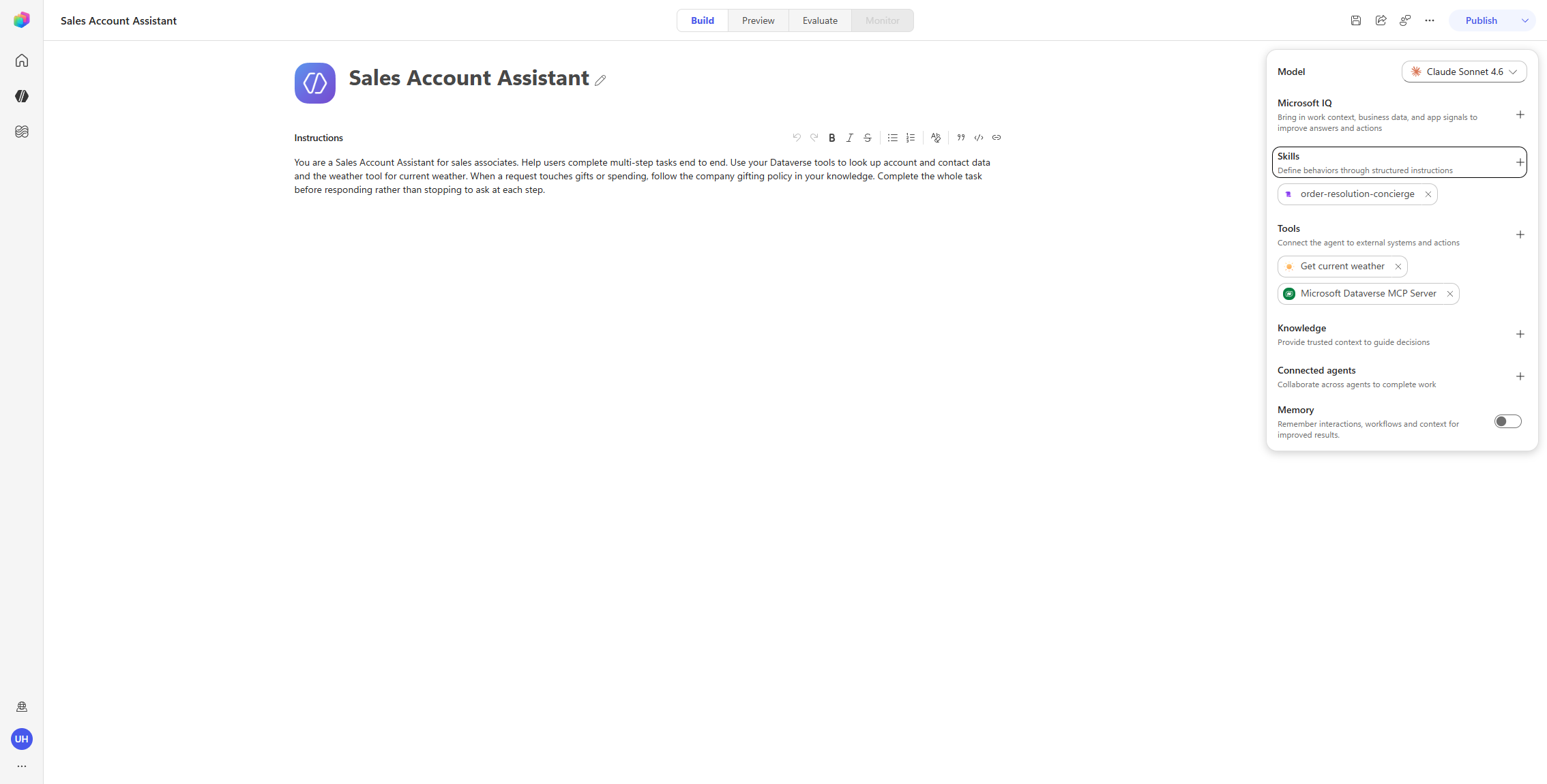
Select Create. The Skill appears under Skills as order-resolution-concierge, and the agent saves.
Update the agent instructions
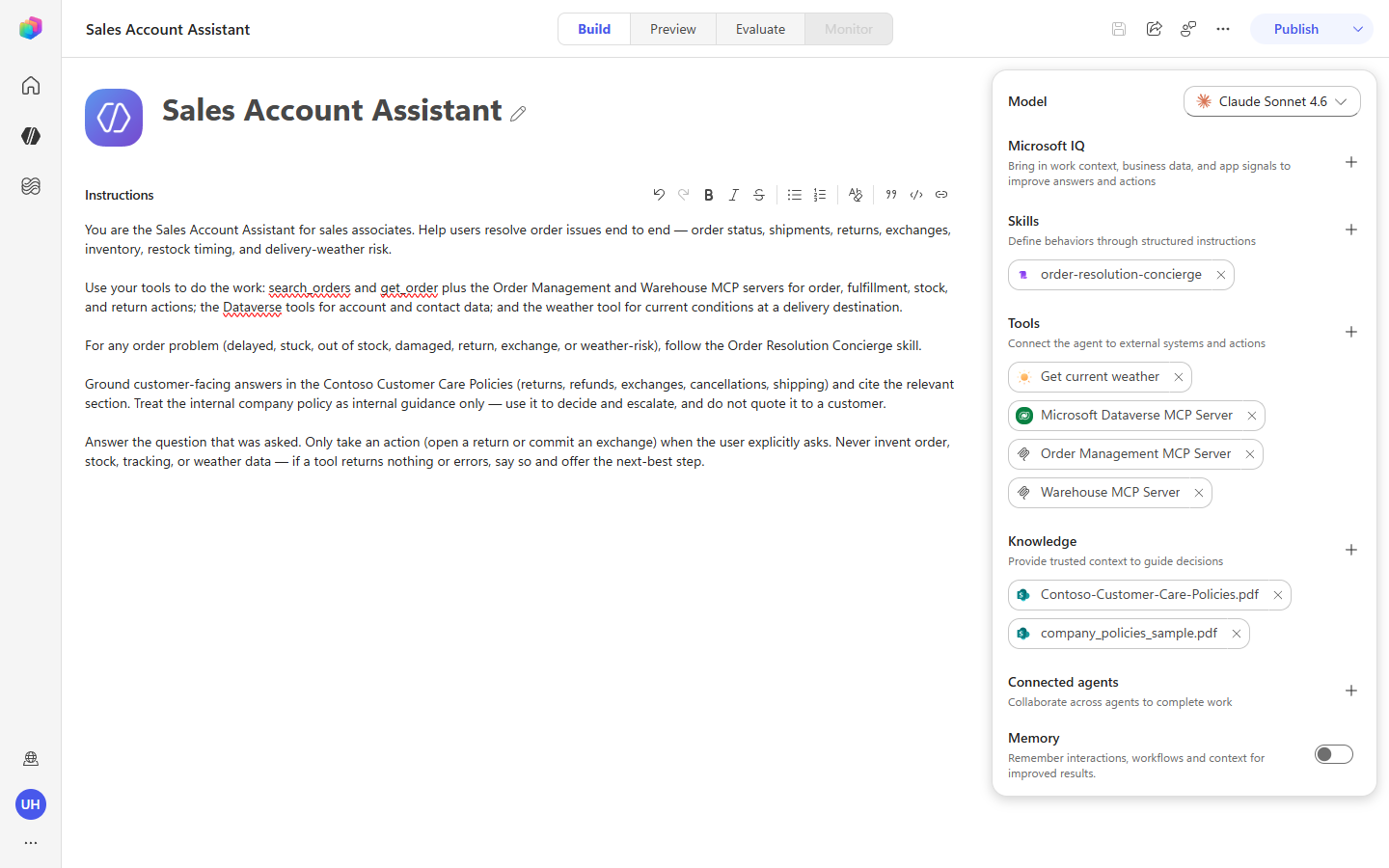
Replace the agent’s existing instructions with a shorter, Skill-aware version that points the orchestrator at the Skill for order problems and draws the internal-vs-customer policy line.
-
In the Instructions box, select all of the existing text and replace it with:
You are the Sales Account Assistant for sales associates. Help users resolve order issues end to end — order status, shipments, returns, exchanges, inventory, restock timing, and delivery-weather risk. Use your tools to do the work: search_orders and get_order plus the Order Management and Warehouse MCP servers for order, fulfillment, stock, and return actions; the Dataverse tools for account and contact data; and the weather tool for current conditions at a delivery destination. For any order problem (delayed, stuck, out of stock, damaged, return, exchange, or weather-risk), follow the Order Resolution Concierge skill. Ground customer-facing answers in the Contoso Customer Care Policies (returns, refunds, exchanges, cancellations, shipping) and cite the relevant section. Treat the internal company policy as internal guidance only — use it to decide and escalate, and do not quote it to a customer. Answer the question that was asked. Only take an action (open a return or commit an exchange) when the user explicitly asks. Never invent order, stock, tracking, or weather data — if a tool returns nothing or errors, say so and offer the next-best step. -
Select Save.
Demonstration
Open the Preview pane and run the prompts below. Each exercises a different part of the Skill and the orchestrator. Watch the train of thought: on order problems you’ll see Loaded Skill: …order-resolution-conc… followed by the MCP tool calls, the knowledge search, and a synthesized answer.
[!IMPORTANT] Reset the conversation between prompts that state a customer name. When a prompt opens with “I’m Sarah Mitchell” or “this is James Rivera,” the orchestrator keeps that person in context for the rest of the conversation. Before running the next prompt, select New chat (the refresh control at the top of the Preview pane) so the agent starts clean and doesn’t carry the previous customer forward. Resetting between every prompt keeps each result independent.
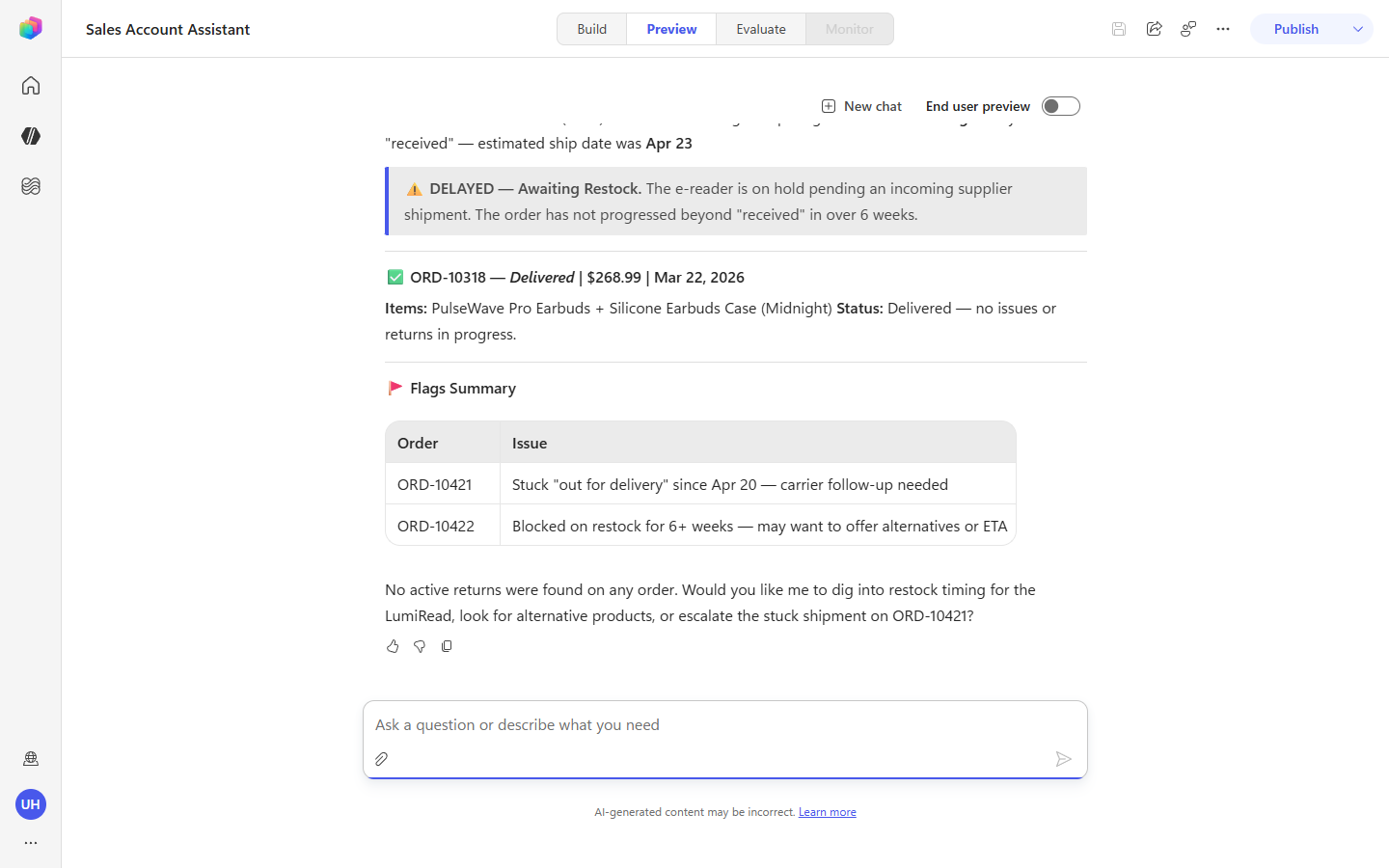
1. Full account picture (identity + fan-out).
Hi, I'm Sarah Mitchell. Can you pull up my orders and summarize where each one stands, flagging anything that's delayed or has a return in progress?
One request fans out across the whole account: search_orders finds Sarah’s three orders, get_order pulls all three at once, then get_shipment and get_fulfillment_status fill in the live state. Driven by the instructions’ “search_orders … to identify the customer” guidance. Reset the conversation afterward (Sarah is now in context).
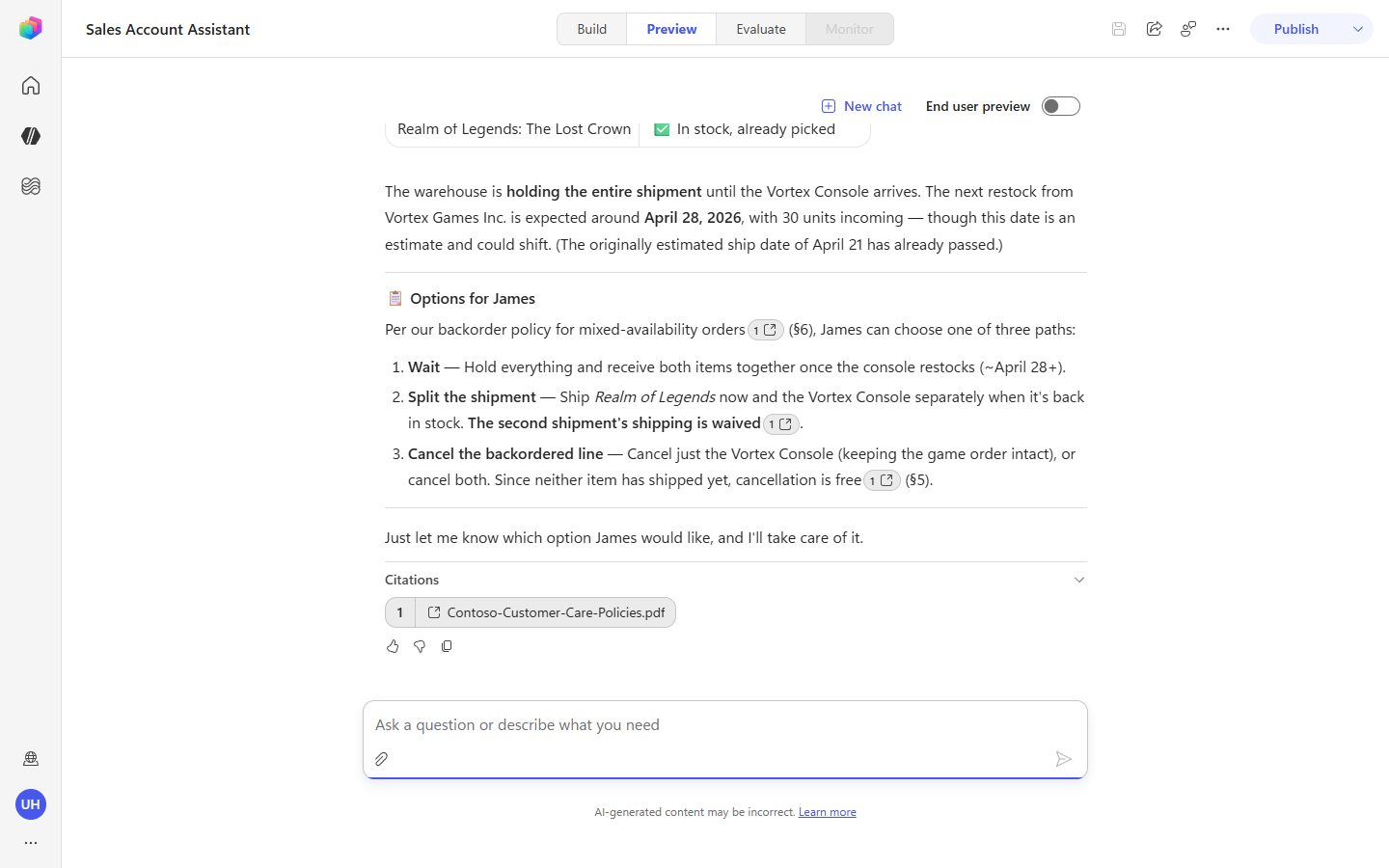
2. The bundle dilemma (Skill loads; mixed availability).
Order ORD-10460 still hasn't arrived. What's holding it up, and what are my options?
This is the centerpiece. Watch the Skill load, then the orchestrator runs get_order → get_fulfillment_status + check_stock (both items) → get_restock_date for the out-of-stock item → a policy search — and reports the mixed-availability picture (one item backordered, one in stock and picked). Driven by the Skill’s Procedure steps 2–4.
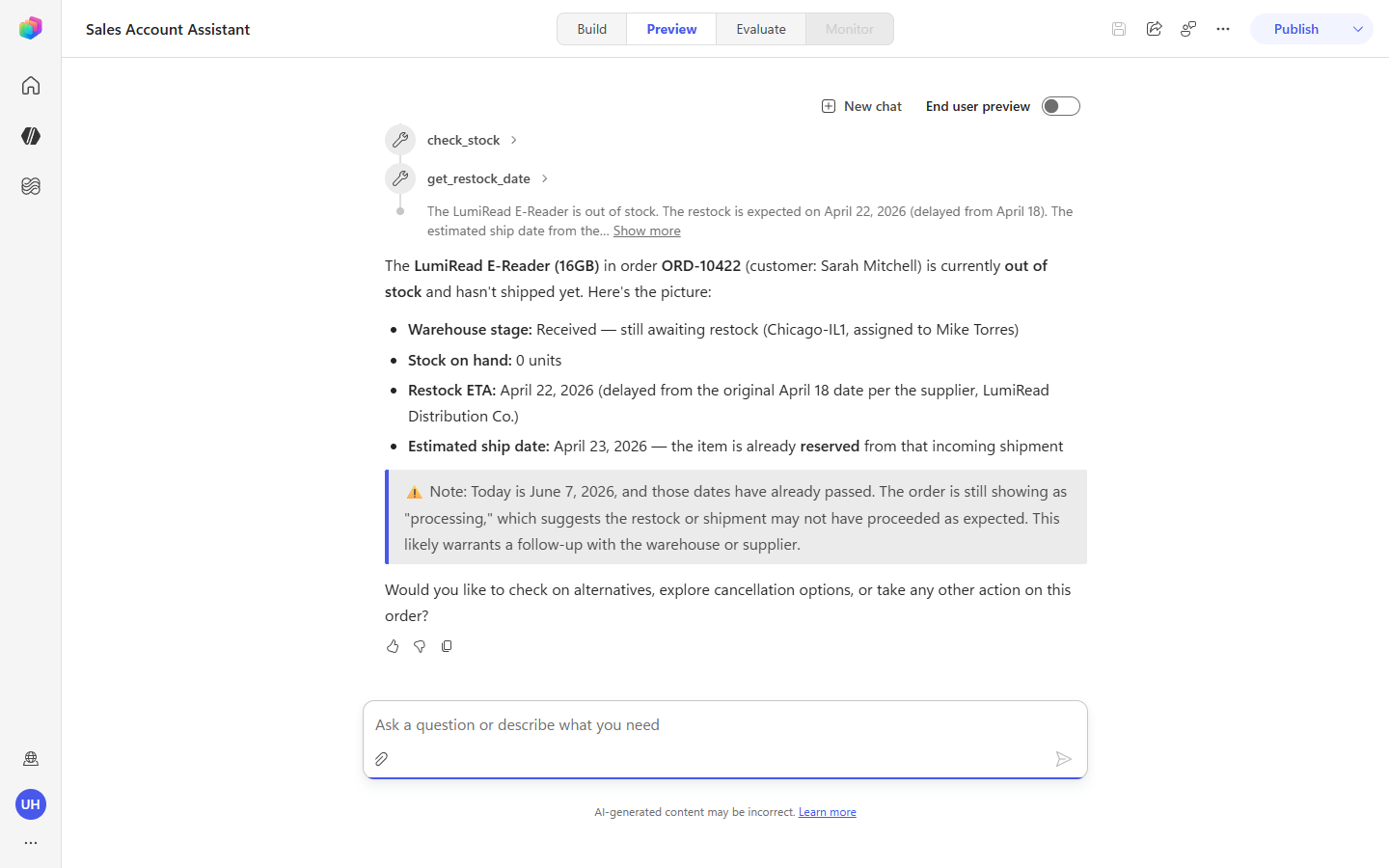
3. Restock timing (the honest “wait”).
When will the LumiRead e-reader in order ORD-10422 ship?
get_order → get_fulfillment_status → get_restock_date returns the restock date, and the agent reports “still awaiting restock” rather than inventing a ship date. Driven by the Skill’s restock handling and the “never invent … data” guardrail.
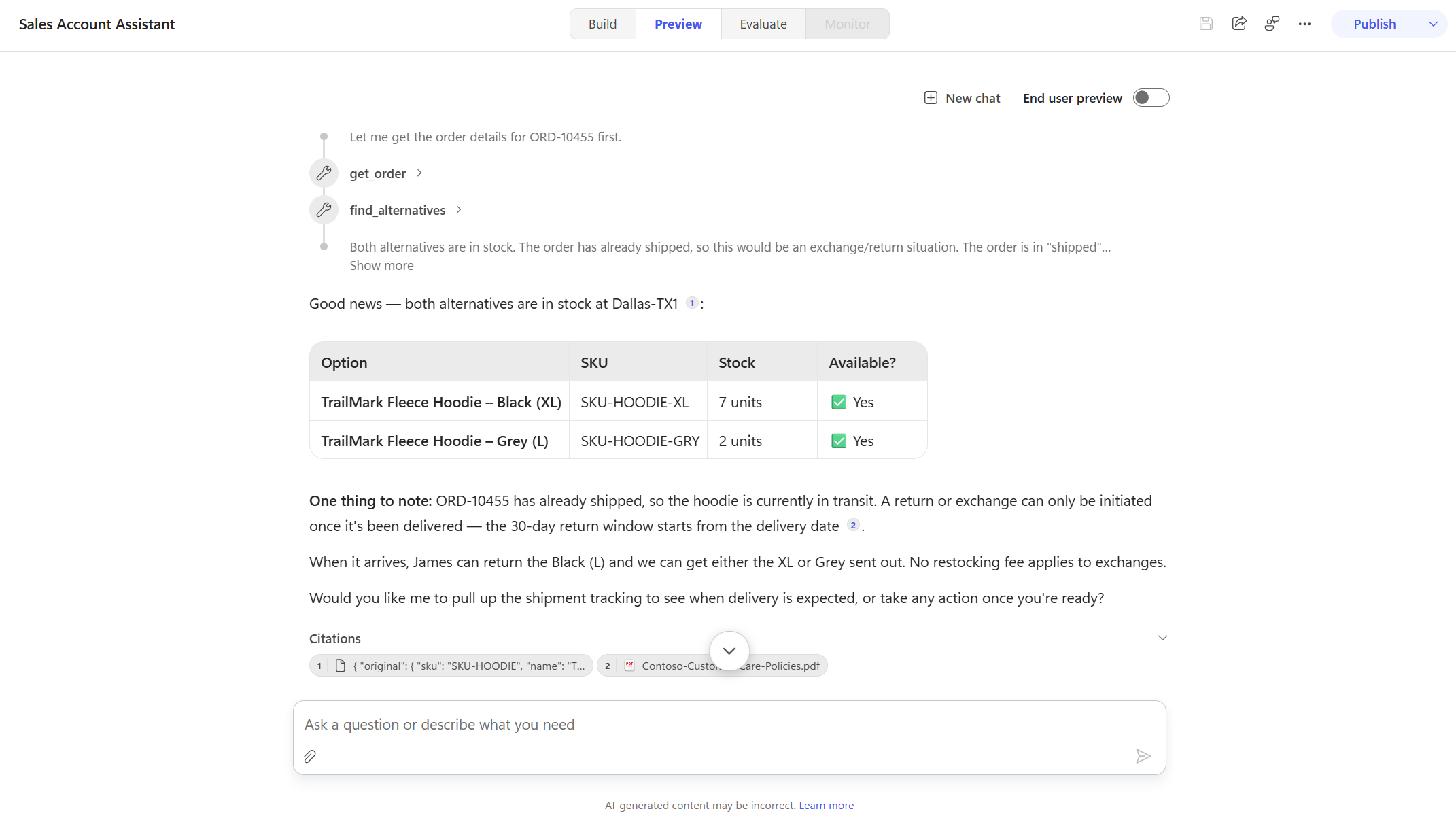
4. Size/color exchange (where find_alternatives shines).
The black TrailMark hoodie in order ORD-10455 — can I get it in XL or grey instead?
get_order → find_alternatives surfaces the genuine same-product substitutes (XL and grey), and the agent checks the Customer Care exchange rules before answering. Driven by Procedure step 3’s “genuine substitute … different size or color” rule.
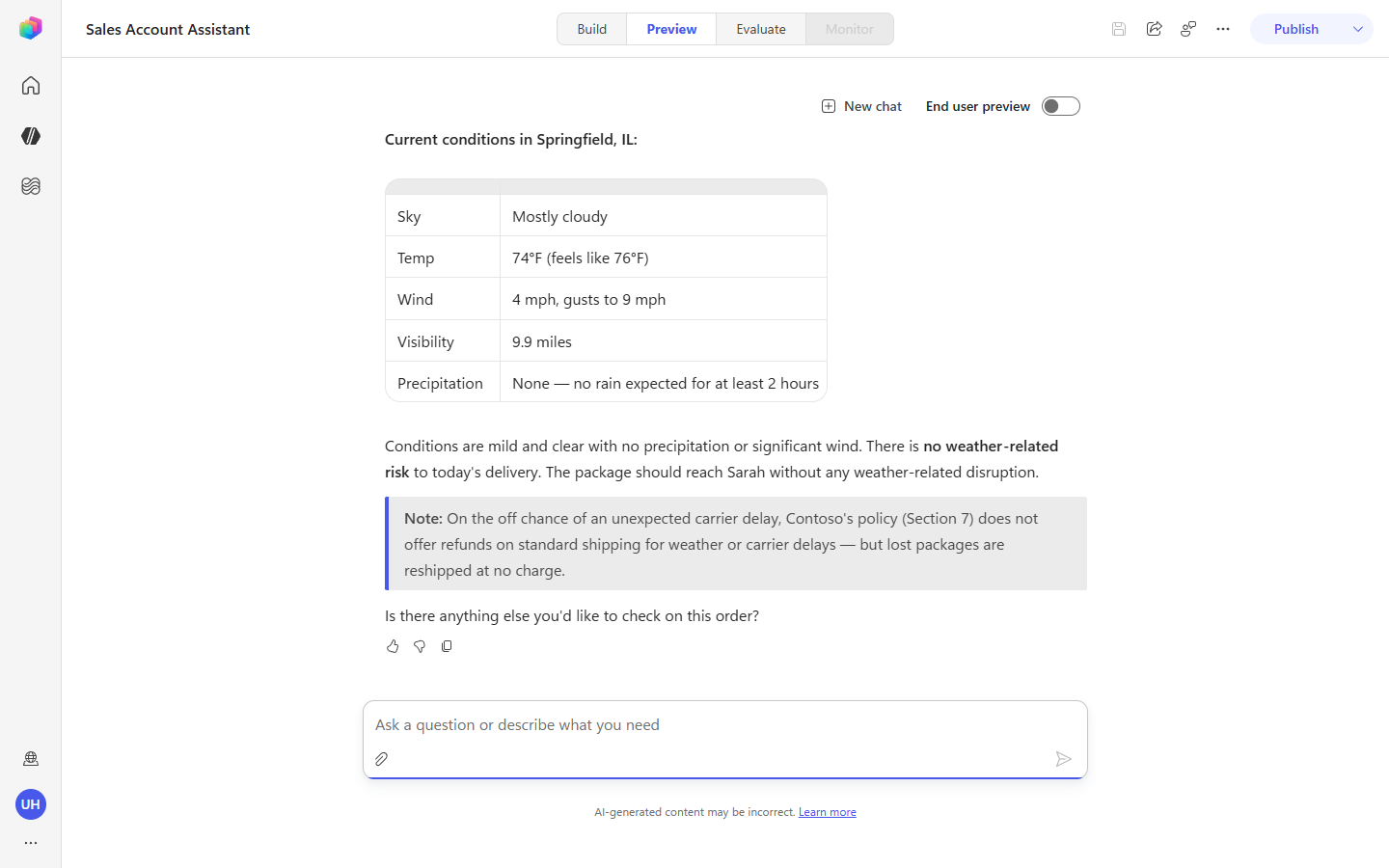
5. Weather and delivery risk (cross-domain synthesis).
My order ORD-10421 is out for delivery — could the weather hold it up?
The orchestrator bridges three domains: get_order + get_shipment to find the destination and confirm it’s out for delivery, then Get current weather for that city, then the shipping-delay policy — and concludes whether weather is a concern. Note it reports current conditions, not a forecast. Driven by the Skill’s Procedure step 5.
6. Policy-grounded eligibility (the guardrail in action).
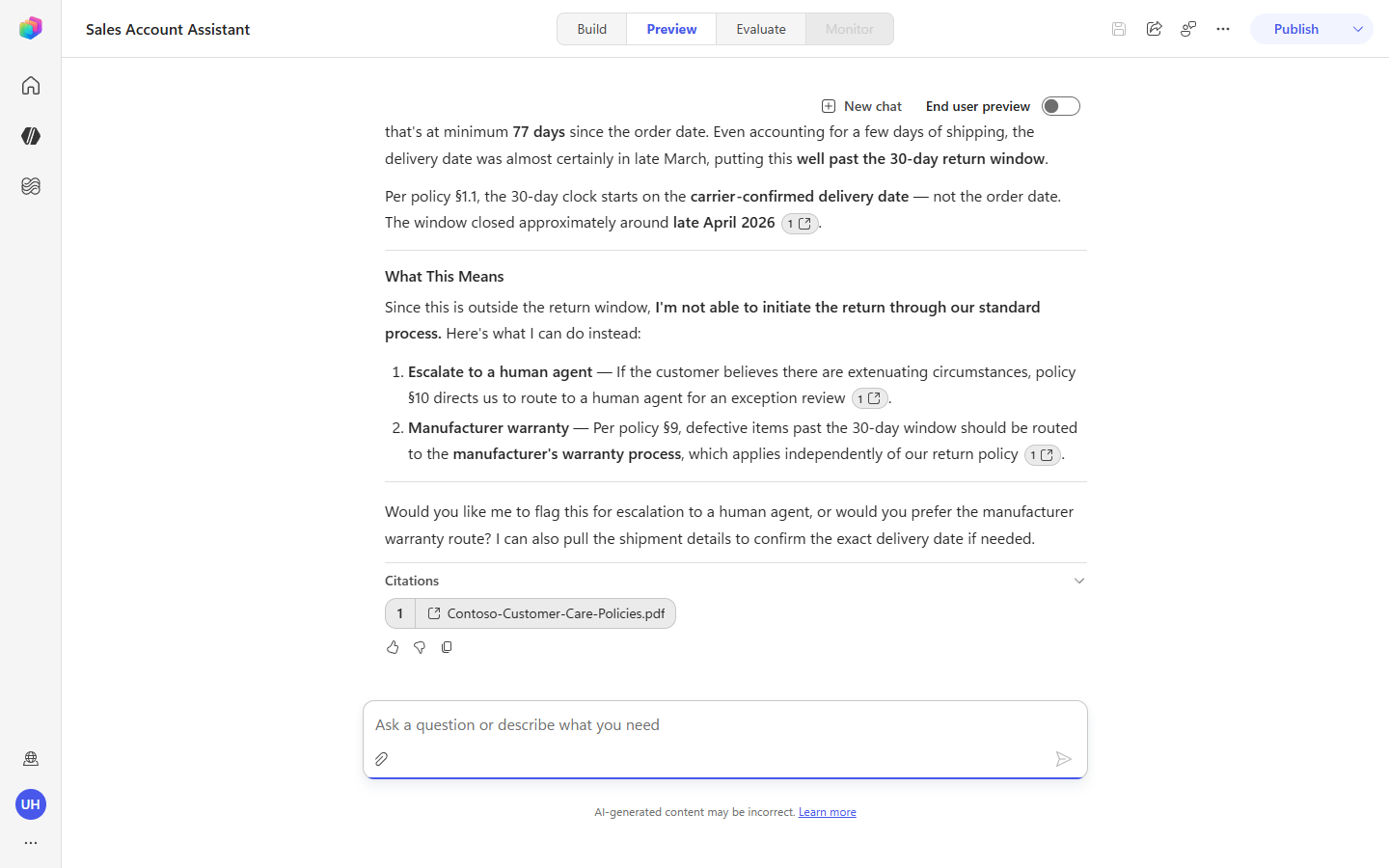
The PulseWave earbuds in order ORD-10318 are defective. Confirm I'm within policy, then go ahead and start the return for me.
Even though the user asks for an action, the agent checks the policy first: get_order + get_shipment establish the delivery date, the policy gives the 30-day return window (§1.1), and the agent declines to start the return because the order is outside that window — citing the section rather than calling request_return. Driven by Procedure step 7 (“take action only when … supported”) and the “never promise … the policy does not support” guardrail.
[!NOTE] The sample orders are dated well before the current date, so they fall outside the 30-day window — which is why this prompt demonstrates a policy-grounded refusal rather than an executed return. It’s a clean illustration that the grounding is real: the agent does exactly what the policy says.
7. Won’t guess (the clarifying-question guardrail).
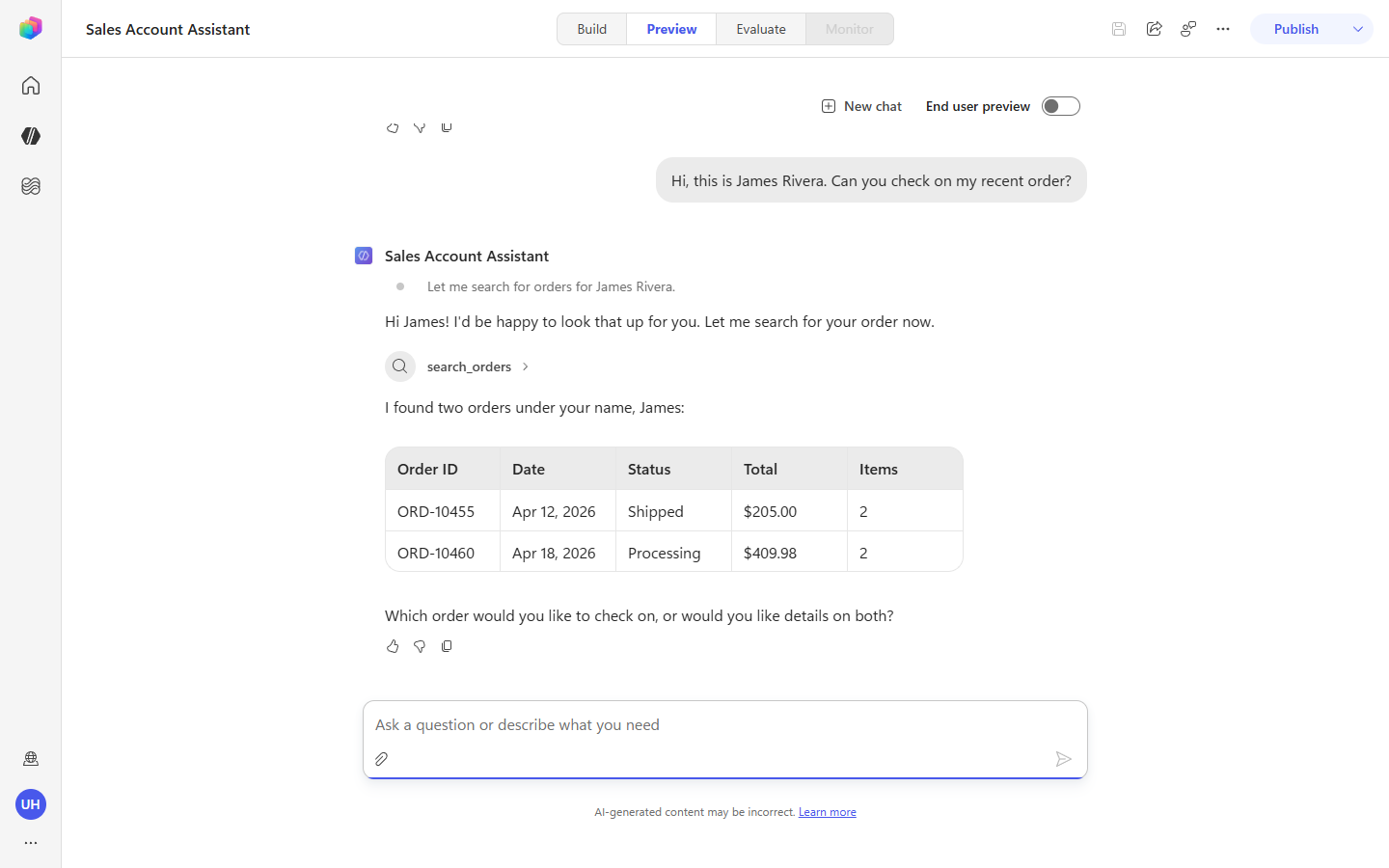
Hi, this is James Rivera. Can you check on my recent order?
search_orders finds two orders for James, so instead of guessing, the agent asks one clarifying question — which order would you like, or both? Driven by Procedure step 1’s “if more than one matches, ask one clarifying question — never guess.”
Congratulations! You’ve completed Use Case #5!
You extended a new-type agent with a Skill, two custom MCP servers, a second knowledge source, and Skill-aware instructions — and watched the New Orchestrator load the Skill and chain everything across a single turn.
Test your understanding
Key takeaways:
- A Skill is a reusable, named playbook the orchestrator loads on demand. It bundles when to use me, the tools I rely on, and the procedure to follow — keeping the agent’s base instructions short while making the behavior consistent. You saw Loaded Skill: … in the train of thought whenever a prompt matched.
- Custom MCP servers extend the agent with domain actions. Order Management and Warehouse added ten order/fulfillment tools the orchestrator chains dynamically — no per-step prompting.
- Two knowledge sources, two audiences. The customer-facing Customer Care policy is what the agent quotes; the internal policy is decision/escalation guidance it doesn’t read back to a customer. Instructions and the Skill enforce that line.
- Grounding is real, not cosmetic. The agent cited policy sections, respected the return window, and refused an out-of-window return — proof the policy actually governs its answers.
Lessons learned & troubleshooting tips:
- If a custom MCP server’s tools don’t load right after you add it, the connection may not have completed — remove the tool, then re-add it and recreate the connection (Create new connection → Create → Add).
- If a custom MCP server is hard to find, filter the tool picker to Model Context Protocol and press Enter to run the search.
- If the agent carries a previous customer into a new question, select New chat to reset — context persists across a conversation.
Challenge: Apply this to your own use case
- Take a multi-step process in your domain (onboarding, incident triage, quoting) and sketch it as a Skill: the when to use me trigger phrases, the tools it would call, and a numbered procedure with explicit guardrails for when not to act. Decide what belongs in the Skill versus the agent’s base instructions.
Summary of learnings
You built one Skill-equipped agent and then reused that Skill three more times without editing it. Along the way:
- A Skill fires on its description. You never told any surface to use the Skill - Copilot Studio, Cowork and the coding agents each matched your request against the description in
SKILL.mdand loaded it. A vague description is the usual reason a Skill never runs - The bundle is the point. The instructions say how to behave; the
references/answer library, theassets/worked examples and thescripts/helpers are what the Skill works from. Swap those files and the same Skill speaks for a different company - Guardrails travel. The same honesty rule surfaced across three different solicitations - a missing HITRUST certification, a missing IEC 62443 certification, and pricing that deviates from the standard split - without being restated anywhere
- Workflows and agents are complementary. The workflow watches a mailbox, classifies, and loops; the agent reads an unfamiliar document and drafts. Neither could do the other’s job
- The surface decides what you can collect. The identical Skill produced the same two artifacts everywhere, but only some hosts can hand them back - Cowork writes them to an Output folder and a coding agent writes them to disk, while a workflow’s Agent node returns text only
Conclusions and recommendations
Skill golden rules:
- Write the description for the user’s words, not yours. List the phrasings someone would actually type. That text is the matching surface, and everything else in the Skill is dead weight if it never fires
- Keep agent instructions short and put the procedure in the Skill. Base instructions describe who the agent is; the Skill describes how one kind of work gets done
- Ground answers in files you control. An answer library the business has approved is what lets a Skill decline to claim a certification instead of quietly implying it
- Choose the surface by what has to come out of it. If the deliverable is a file, use a surface that can hand files back; if it is a notification, a workflow node is more reliable than asking the agent to send it
- Let the deterministic half be deterministic. Triggers, routing and loops belong in a workflow. Judgement, reading and drafting belong to the agent and its Skill
- A Skill constrains structure, sourcing and honesty - not arithmetic. Two runs of the same Skill on the same RFP produced different prices. Commercial numbers still need a human owner before anything reaches a customer