

With the June 2026 Week “D” 30-day CFR (Controlled Feature Rollout) in KB5095093, we added the ability to roll back to the old MIDI stack in Windows. “Seekers”, people who go into Windows Update and look for updates, had this by the end of July 2026. Everyone else had it by mid-August 2026.
Your PC needs to be fully up to date and healthy to use this. If you have uninstalled updates, or used ViVeTool or something like it, repair your PC first using Windows Settings > System > Recovery > “Fix problems using Windows Update”.
If your PC is joined to a domain instead of signing in with a Microsoft account, you probably don’t have this yet. Domain policy blocks controlled feature rollouts by default.
Some Insider builds don’t get these updates. Insider Canary, for example, never received that KB, and without it you don’t have this feature.
This gives you multi-client support, MIDI loopbacks, Network MIDI 2.0, and Bluetooth LE MIDI. If MIDI is working on your PC, stay here. It’s the default and it’s what we recommend.
This puts your PC back the way it was before Windows MIDI Services, with the same limits and the same behavior. Ports aren’t multi-client, new-style and custom port names aren’t available, and neither the MIDI service nor wdmaud2.drv is used. You lose the built-in loopbacks, Network MIDI 2.0, Bluetooth LE MIDI, and the ability to use USB MIDI 2.0 devices.
We made this available for two reasons:
Anyone can use this mode, but it’s mainly for DJs who don’t need the newer MIDI features and do need their controller not to lock up the PC if it gets unplugged mid-set.
Here’s what you give up:
Use this carefully. Devices on MIDI 1.0 drivers are visible only to the old APIs, and devices on the new combined MIDI 1.0 and MIDI 2.0 driver are visible only to the new API. Neither side sees the other. That confuses a lot of people, because which MIDI ports you see depends on both the driver and the app.
We don’t recommend this mode unless you have a clear reason and you understand what it does.
Read the descriptions above first, rather than skipping straight here.
This app starts shipping in Windows in 2027. Right now it’s available to developers and technical users through our GitHub repo, https://aka.ms/midirepo.
The API mode page in the MIDI Troubleshooting and Repair app shows which mode this PC is using, describes what each mode gives you and takes away, and changes it for you without any registry editing. The setting is machine-wide and only takes effect after a restart, so the app writes the value and then asks whether you want to restart now.
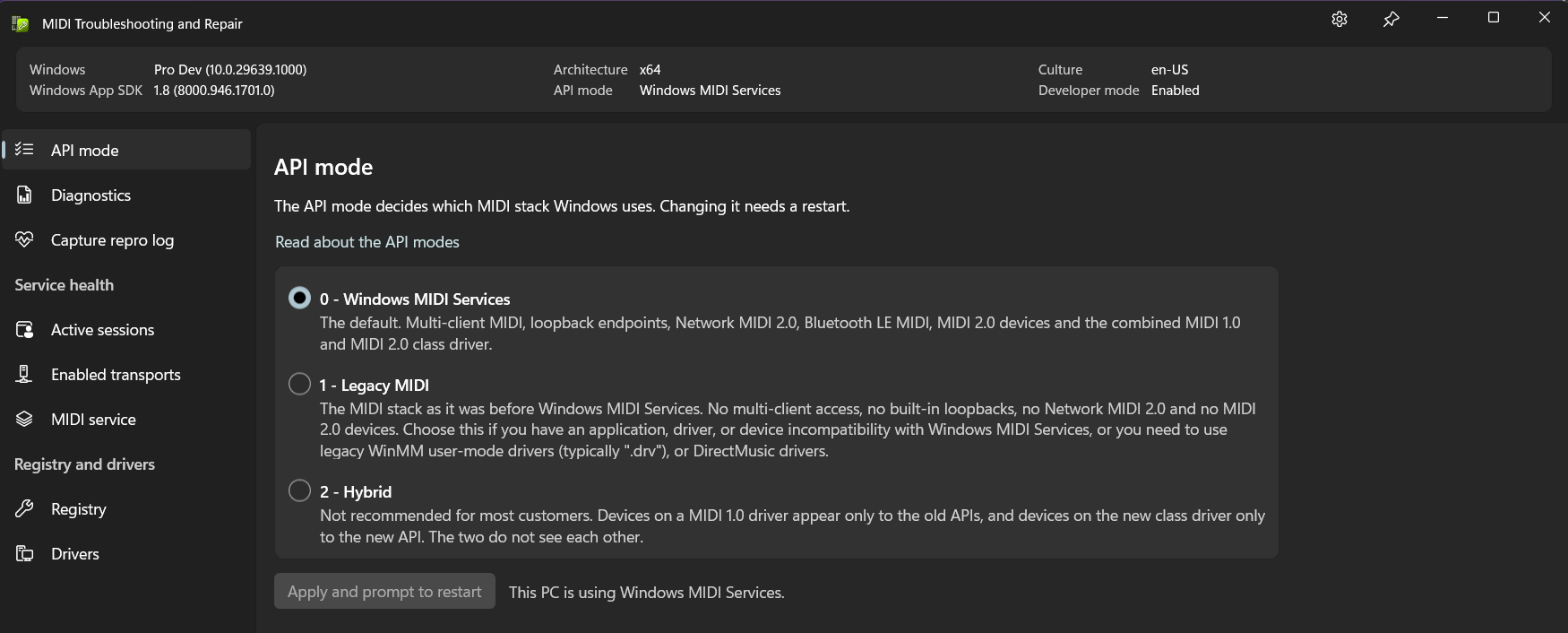
For more about the app, see MIDI Troubleshooting and Repair.
If you don’t have the app, and you’re comfortable with regedit:
regedit.exeComputer\HKEY_LOCAL_MACHINE\SOFTWARE\Microsoft\Windows NT\CurrentVersion\Drivers32UseLegacyMidimidicheckservice.midisrv in the Services app or on the Details tab of Task Manager. If MIDI is working and midisrv is not running, you’re in Legacy mode.If you want to give these instructions to your customers, please link to this article instead of copying the text. Changing the API mode is going to get friendlier, and this page will be updated when it does.
Windows MIDI Services is an open source project with all source available on GitHub. We have a great community on Discord as well. Between GitHub and Discord, you should find the information you are looking for.
