

This page covers information about a Windows MIDI Services feature and application that will be released to consumers in 2027. It’s currently available for developers.
Windows MIDI Troubleshooting and Repair is where you go when MIDI on this PC isn’t behaving. It shows you what Windows MIDI Services thinks the state of the machine is, collects the reports support will ask for, and fixes the handful of things that commonly get broken by other software.
Most of what it does needs administrator rights, so it asks for them when it starts. If you say no, it still runs: the diagnostics and the informational pages work, and a banner across the top offers to restart it with the rights it needs.
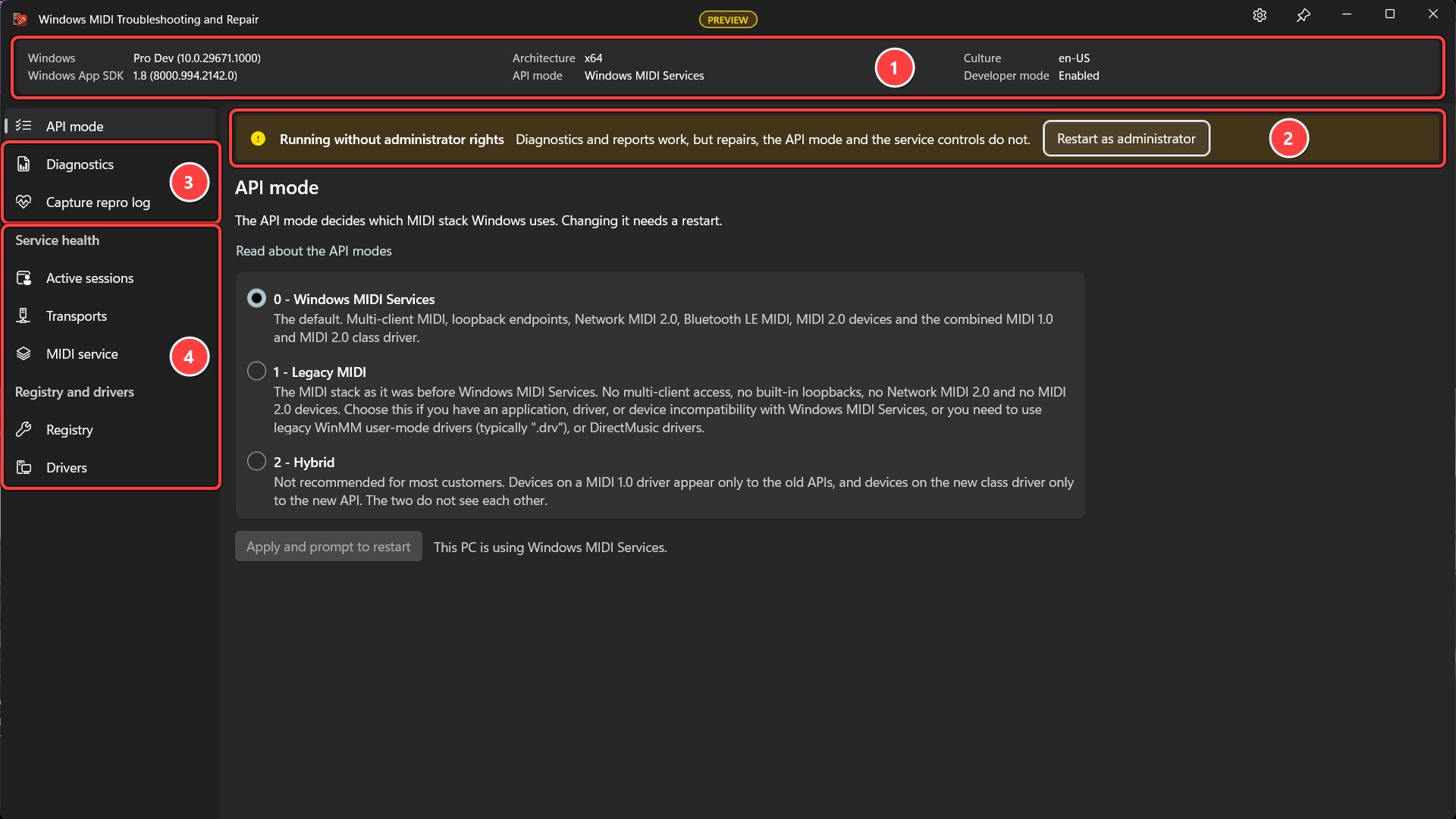
Windows can run MIDI in one of three modes. This page shows which one this PC is using, explains what each one gives you and takes away, and lets you change it.
The mode is a machine-wide setting and does not take effect until Windows restarts, so changing it here writes the setting and then asks whether you want to restart now. Nothing reboots without you saying so.
There’s more detail in How to change the API mode.
Two reports, each with a button to run it, a box showing the output, and Copy all and Save as buttons. mididiag also has Save as zip and View report.
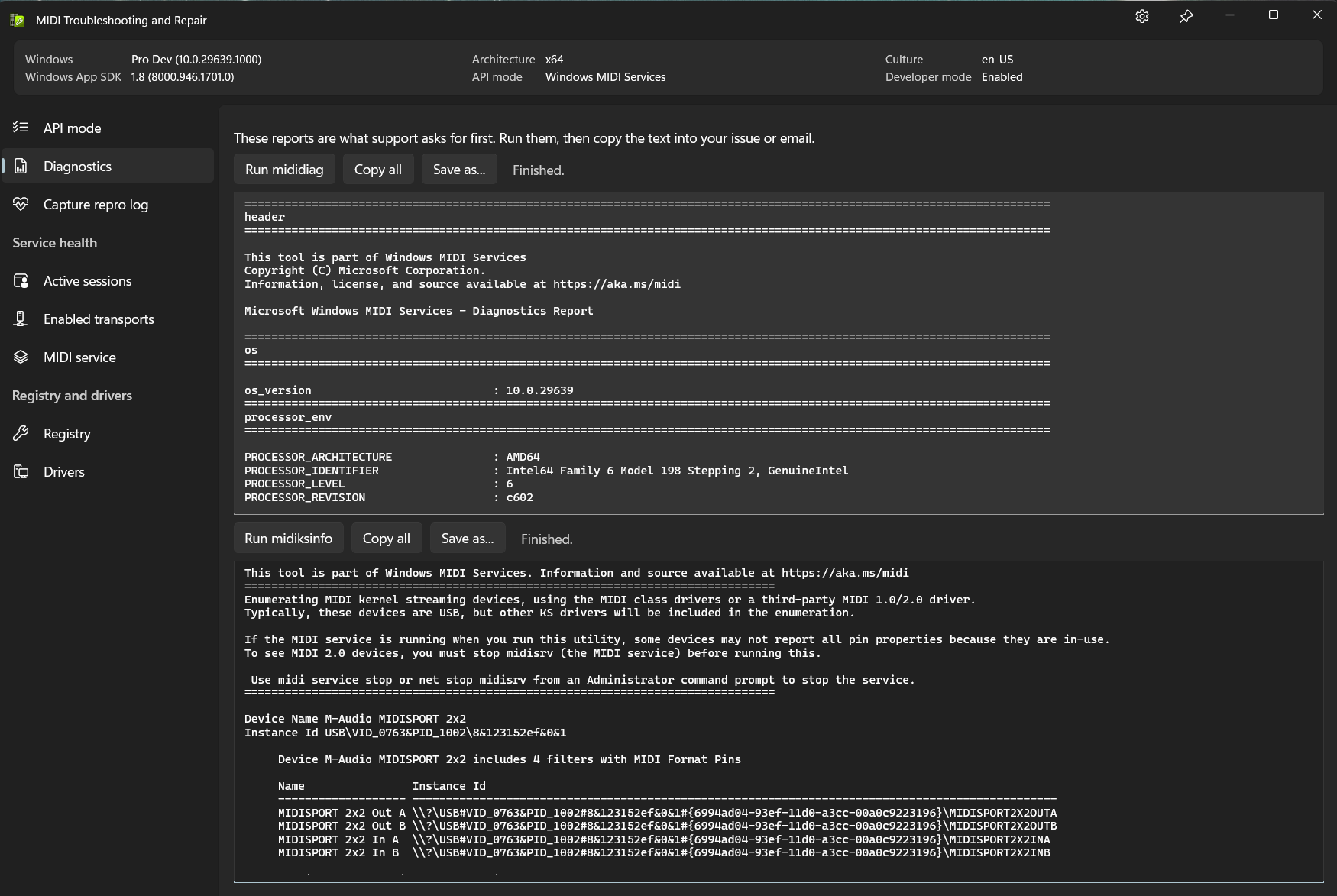
mididiag is the broad one. It walks the registry, the transports, every MIDI endpoint the service knows about and the old MIDI 1.0 APIs, and reports what it found. It ends with a short list of findings, things worth a look written as plain sentences.
View report opens the mididiag report in a window of its own, where it’s much easier to read than the plain text. The findings come first, then any errors in red, then one line for each section that opens to show what’s in it, and lists such as the ports become tables. If you haven’t run the report yet, it asks for a file instead, so you can also read a report somebody sent you. It opens the zip file the report came in, too.
midiksinfo is the narrow one, for USB and other kernel streaming devices. If a device isn’t showing up, or is showing up with the wrong number of ports or the wrong names, this is the report that says why.
Both can take a minute or two on a machine with a lot of hardware attached. For a GitHub issue, save mididiag with Save as zip and attach the zip file. The full text is often too long to paste into an issue. For email to support, attach the saved files.
If mididiag finds that the MIDI service has stopped answering, a banner offers Save a memory dump. The dump shows the developers where the service is stuck, so save it before you restart the PC, because restarting clears the problem and the evidence with it. Saving it needs administrator rights. The dump can hold private information, such as device names and network MIDI passwords, so share it only with the developers who asked for it.
This is the one to use when somebody asks you for “a trace”. It replaces the older CollectMidiLogs script, and does the whole job inside the app.
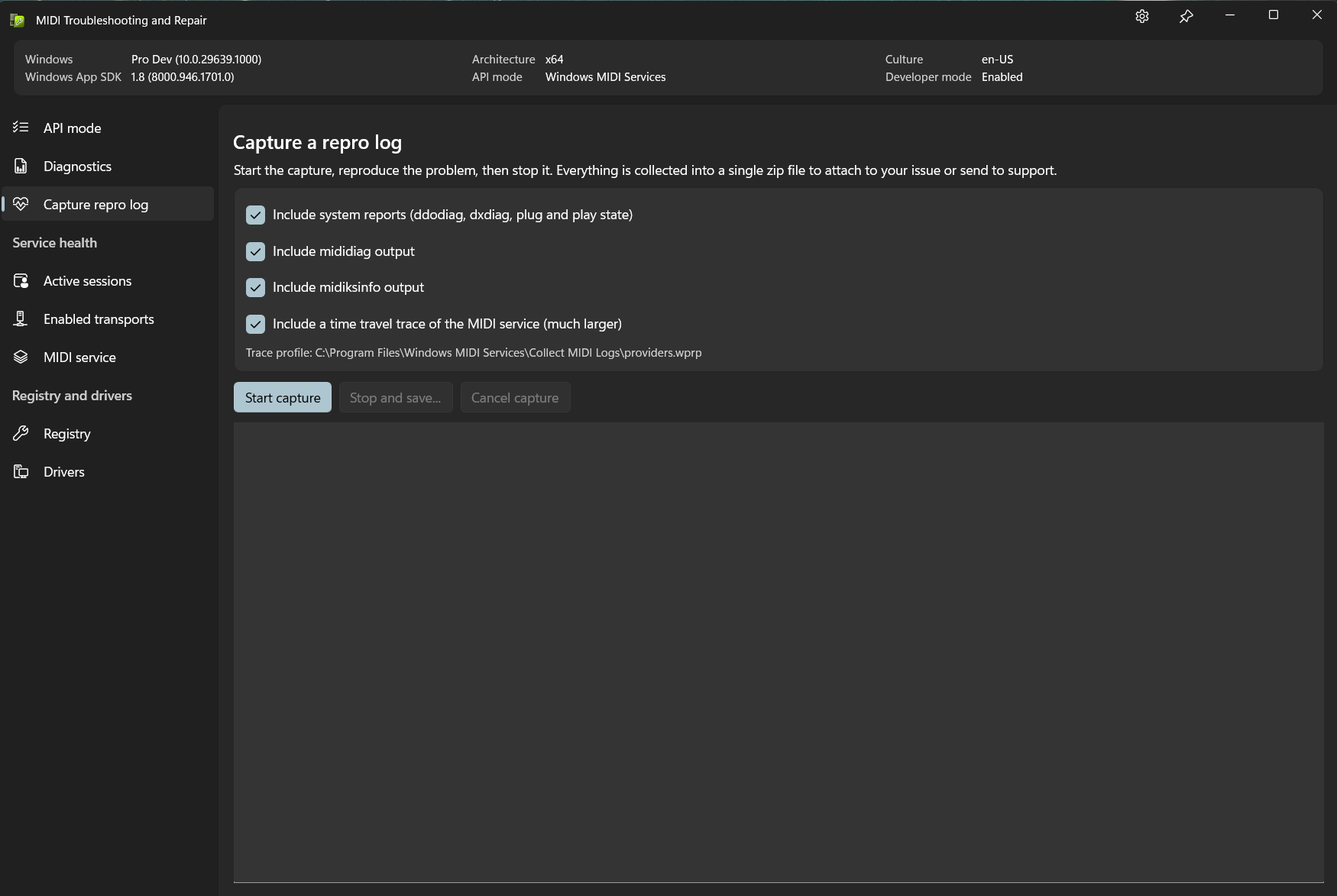
Choose what to include, select Start capture, reproduce whatever is going wrong, then select Stop and save. You’re asked where to put the zip file, and Explorer opens with it selected when it’s done.
By default the package contains:
A time travel trace makes the package much larger, but it is very often the thing that lets us find a problem from a single capture instead of asking you to reproduce it again, so it’s on by default.
Time travel tracing isn’t available on every build of Windows, and it can be refused if the service is running with certain security mitigations. If that happens, the capture carries on without it and says so in the log, rather than failing.
Clicks, pops and dropouts are sometimes caused by a driver somewhere else on the PC, such as the Wi-Fi, graphics or storage driver, that keeps a processor busy for too long. This page finds out which one.
It isn’t a benchmark. Use it when you already hear clicks, pops or dropouts at a buffer size that should be big enough for your project. If your audio sounds fine, there’s nothing to fix.
Choose how long to check, select Start check, and use your PC the way you do when you hear problems, ideally playing your project in your audio app. Recording needs administrator rights. When it’s done, you get:
Open a trace file checks a trace you saved earlier, or one from Windows Performance Recorder, without administrator rights.
The check changes nothing on your PC, installs no driver, and works on x64 and Arm64. There’s much more about what it measures and what to do about it in Find what makes audio late on your PC (DPC latency).
Every application currently connected to the MIDI service, with the process it belongs to and when it started. Expand one to see which endpoints and MIDI 1.0 ports it has open, how many times each is open, and since when.
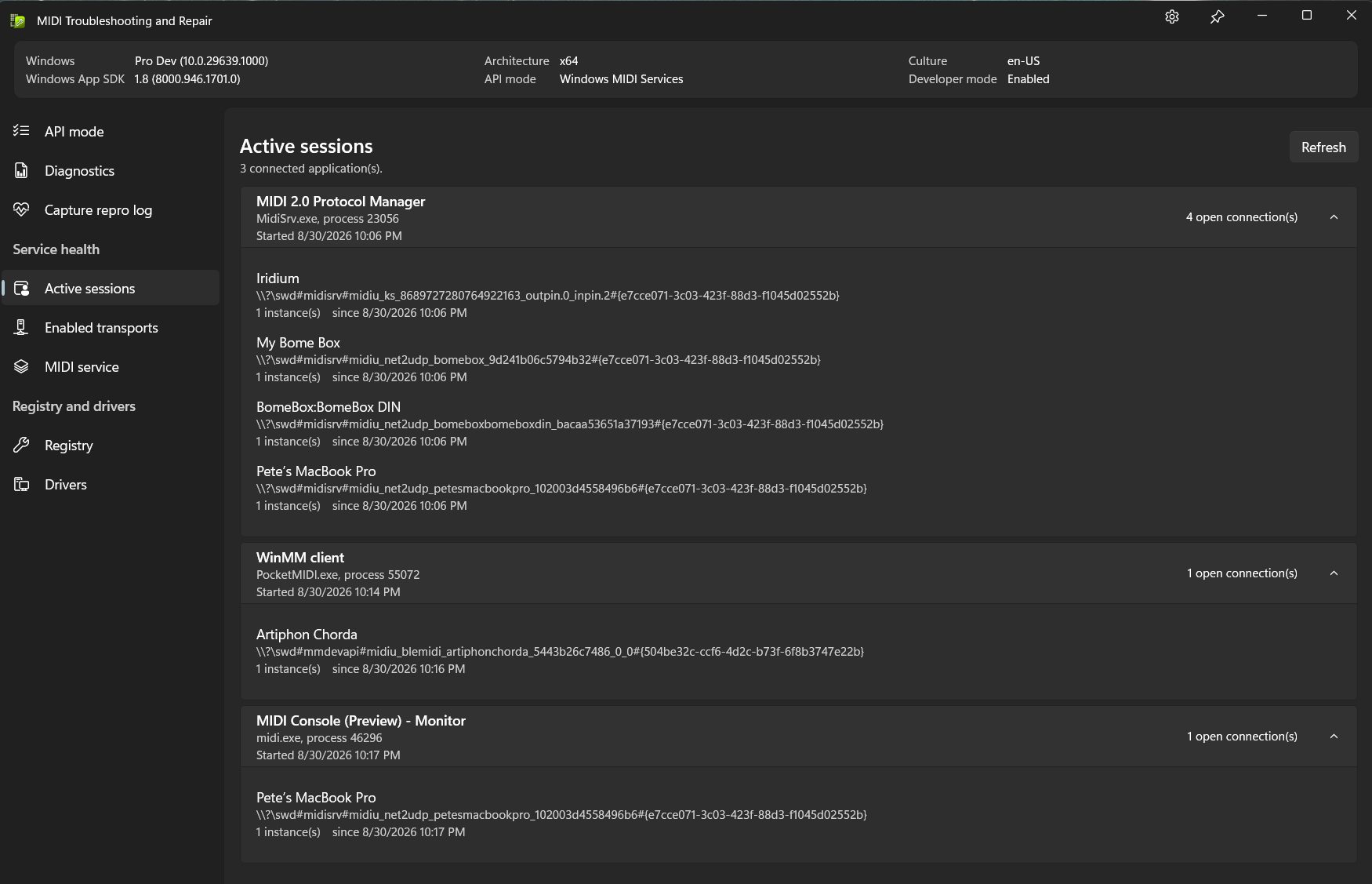
This page is purely informational; there is nothing to change here. It’s for answering the question “what has that device open?” when something reports a device as busy or in use.
Transports are the pieces of the MIDI service that talk to a particular kind of device: USB, Network MIDI 2.0, Bluetooth LE, the loopbacks and so on.
This page lists everything registered on the PC. Each transport has a pill that shows its state:
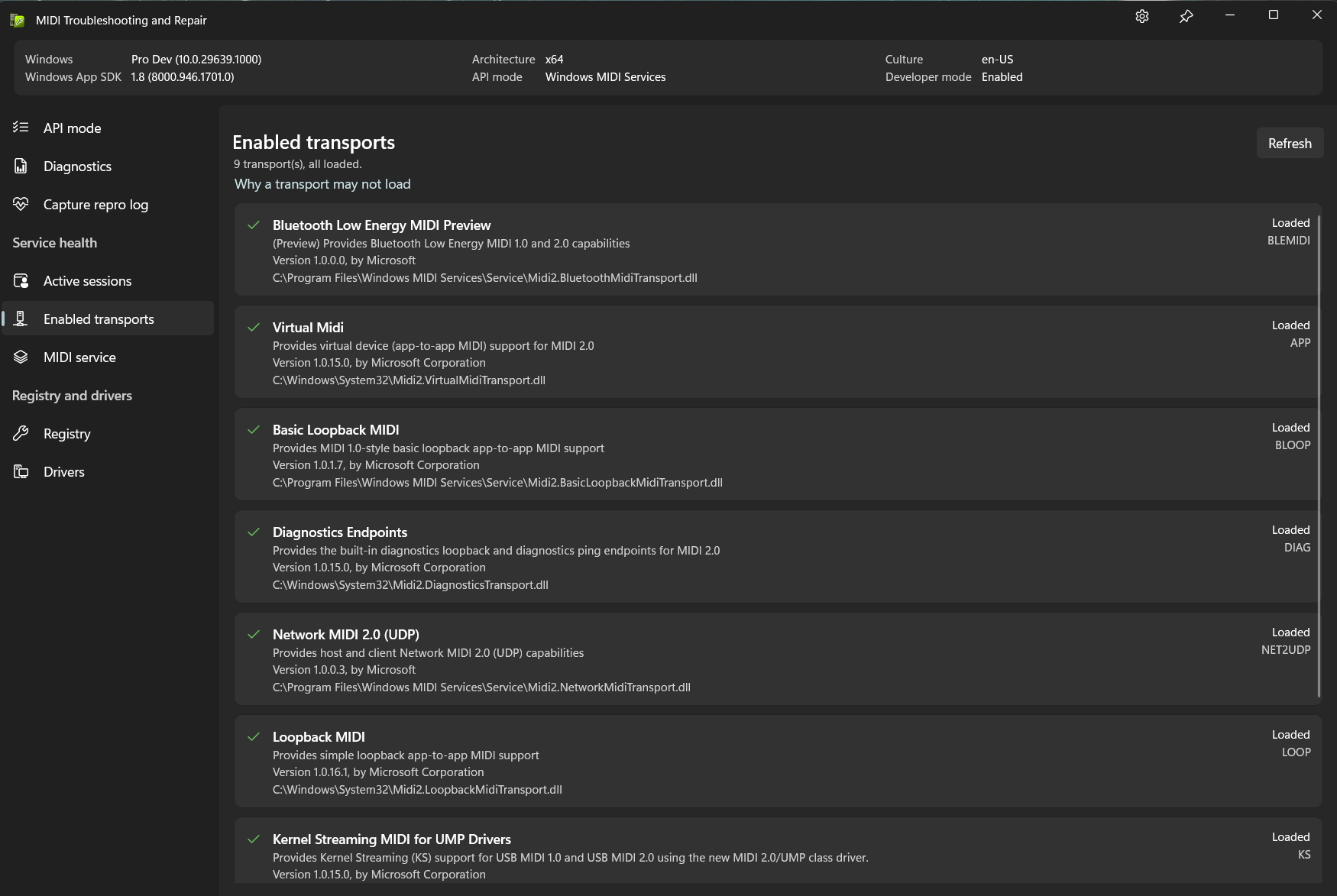
You can also turn transports on and off here. If you only use USB devices, for example, you can disable Bluetooth and the network transports, so the MIDI service stops looking for Bluetooth devices and stops opening network ports. Select Disable or Enable on a transport. Disabling one tells you what you’ll lose and asks you to confirm first.
This needs administrator rights, and the change takes effect when the MIDI service restarts. The page offers to restart it for you. Restarting the service disconnects every application using MIDI, so close them first. The diagnostics transport is built into the service and can’t be disabled.
If something here is not loading, see Why a service plugin may not load correctly. The usual cause for a third-party transport is that it isn’t signed and Developer Mode is off.
The state of the MIDI service itself: whether it’s running, how it’s set to start, the account it runs under, its process id, and the version of the service on disk.
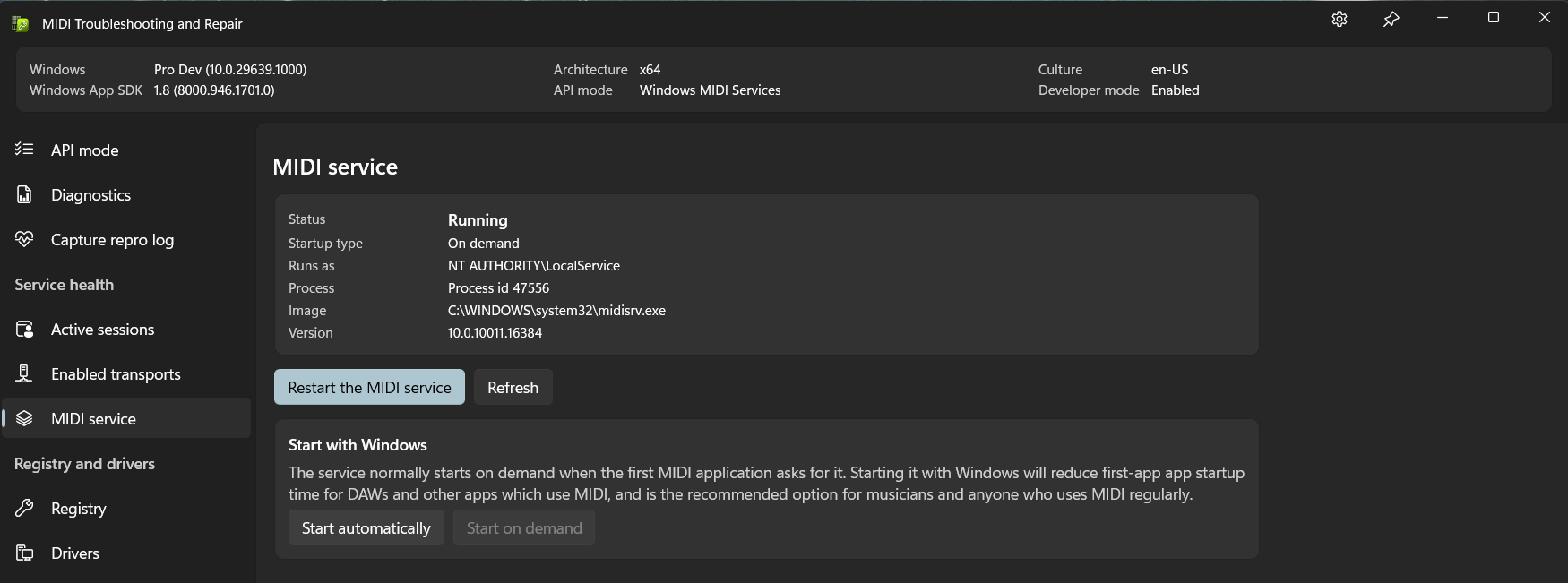
Restart the MIDI service stops and restarts it. Every application using MIDI loses its connections and has to reconnect, so close or save your work first.
Start with Windows changes the service from starting on demand to starting with Windows. The service normally starts when the first MIDI application asks for it, which adds several seconds to that first application’s startup. If you use MIDI regularly, starting it with Windows is the better choice.
Windows MIDI Services relies on a small number of registry values, and third-party installers, driver uninstallers and “MIDI port reordering” utilities are known to break them. When they’re wrong, MIDI either stops working entirely or silently falls back to the old stack.
This page shows what’s actually there, with a green, amber or red marker against each value and a plain description of what it’s for. If anything is wrong, Repair these entries lists exactly what it would change, asks you to confirm, and then makes only those changes. Windows has to be restarted afterwards, because the audio and MIDI services read these values when they start.
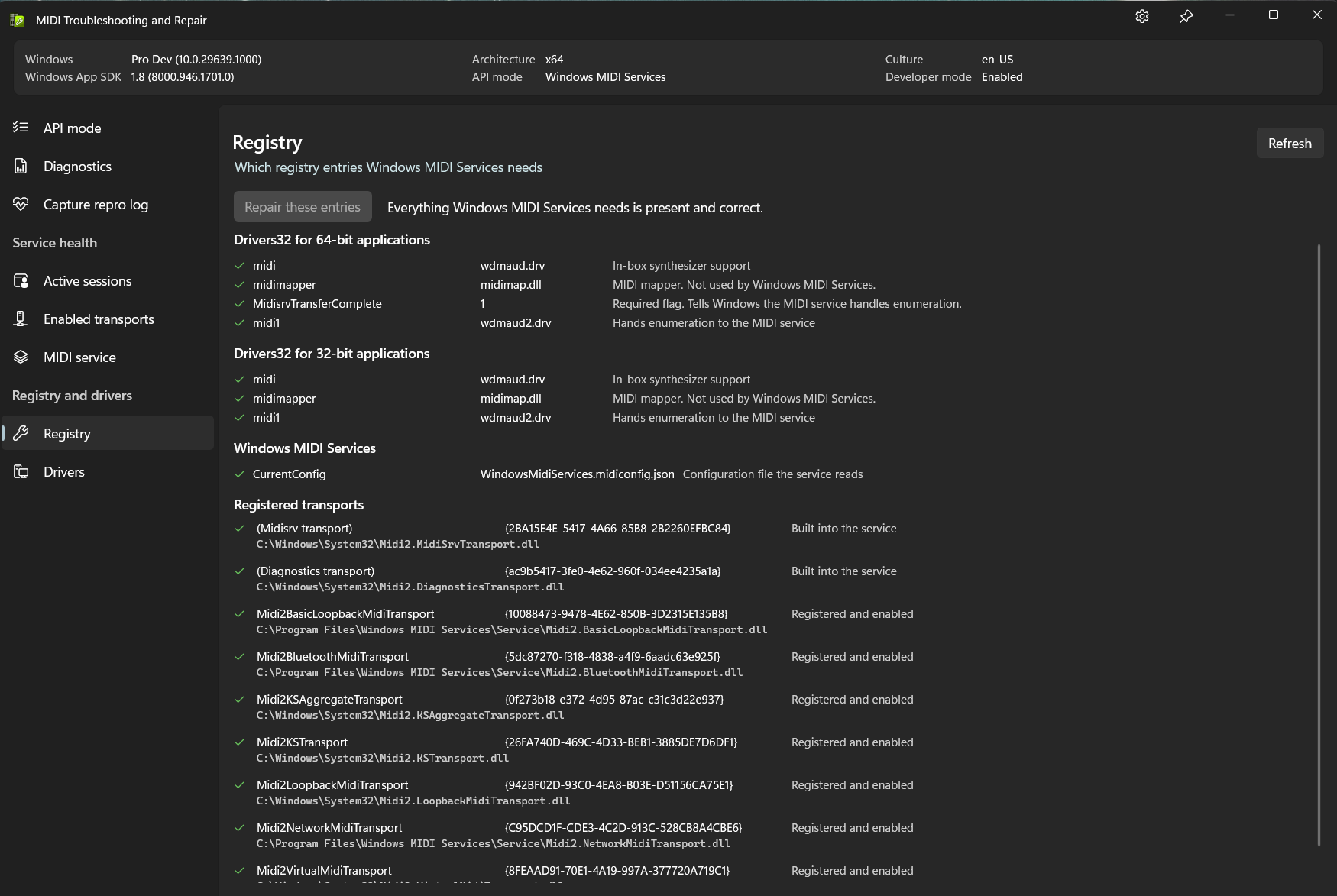
If the PC is in Legacy MIDI mode, no changes are offered. Legacy mode deliberately does not use the service, so “repairing” the values would undo the mode you chose.
There’s a full description of what belongs here in Required registry entries.
Two jobs on this page.
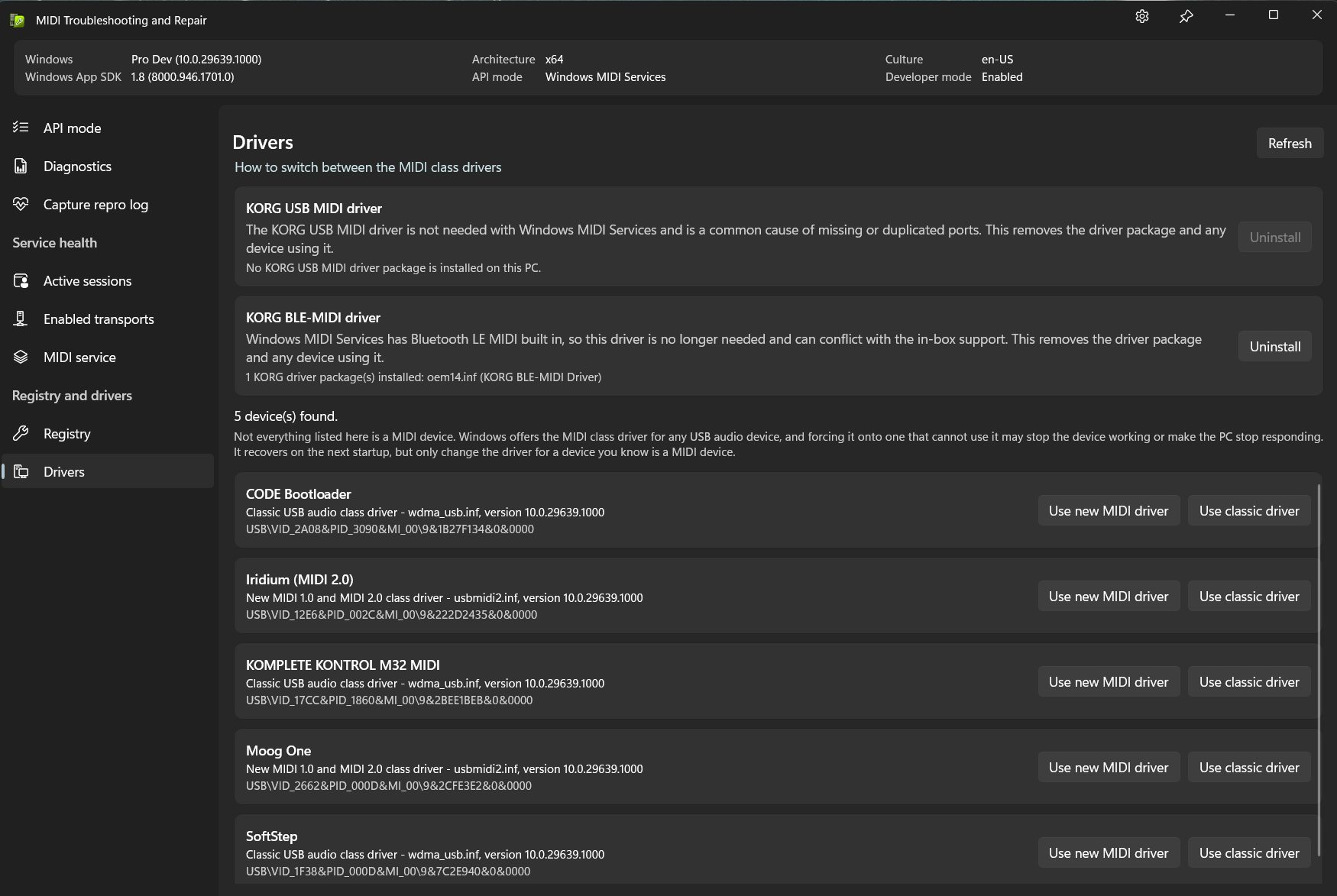
Windows MIDI Services replaced the reasons most people installed a vendor MIDI driver. The KORG USB MIDI driver and the KORG BLE-MIDI driver each have an entry here, showing whether the package is installed and offering to remove it along with any device using it.
Bluetooth LE MIDI is now built into Windows MIDI Services, so the KORG BLE-MIDI driver is no longer needed and can conflict with the in-box support. Bluetooth LE devices are set up in the Windows MIDI Bluetooth Setup app afterwards.
Windows has two class drivers a class-compliant USB MIDI device can use: the new combined MIDI 1.0 and MIDI 2.0 driver, and the older USB Audio class driver. Each device is listed with the driver it’s using now and buttons to switch it to the other one, which saves the trip through Device Manager described in How to switch between MIDI class drivers.
Devices that can only be audio are left out of the list, but the list is not a guarantee that everything on it is a MIDI device. Windows offers the MIDI class driver for any USB audio device, and forcing it onto one that can’t use it may stop that device working or make the PC stop responding until it is restarted. Only change the driver for a device you know is a MIDI device.
Close your MIDI applications before changing a driver. Afterwards, unplug the device, restart Windows, and plug it back in; not every device needs this, but many do.
There is a Plug and Play issue in Windows which can revert your choice after an update, so you may have to repeat this occasionally.
Windows MIDI Services is an open source project with all source available on GitHub. We have a great community on Discord as well. Between GitHub and Discord, you should find the information you are looking for.
