

Windows has two drivers that can run a class-compliant USB MIDI device.
usbaudio.sys) is the older MIDI 1.0 driver. We kept it because the new driver isn’t compatible with every device.If a device doesn’t work well on one driver, you can move it to the other. There are two ways to do that, and the app is the easier one, so try it first.
Only switch the driver on a device you know is a MIDI device. Windows offers the MIDI class driver for any USB audio device. Choosing it for something that isn’t a MIDI device can stop that device from working, or make the PC stop responding until you restart it. If a device needs a driver from its manufacturer, neither of these two drivers will work for it.
Before you start, close your DAW and any other app that’s using MIDI, and save your work. Changing a driver disconnects the device, and some apps don’t recover from that well.
The MIDI Troubleshooting and Repair app lists every USB MIDI device on the PC, shows which driver each one is using right now, and gives you a button to switch it to the other one. That’s quicker than the steps below, and you don’t have to pick the right device out of a long list of hardware. Open the app, go to the Drivers page, and choose the driver you want.
For more about the app, see MIDI Troubleshooting and Repair.
Use this if you don’t have the MIDI Troubleshooting and Repair app.
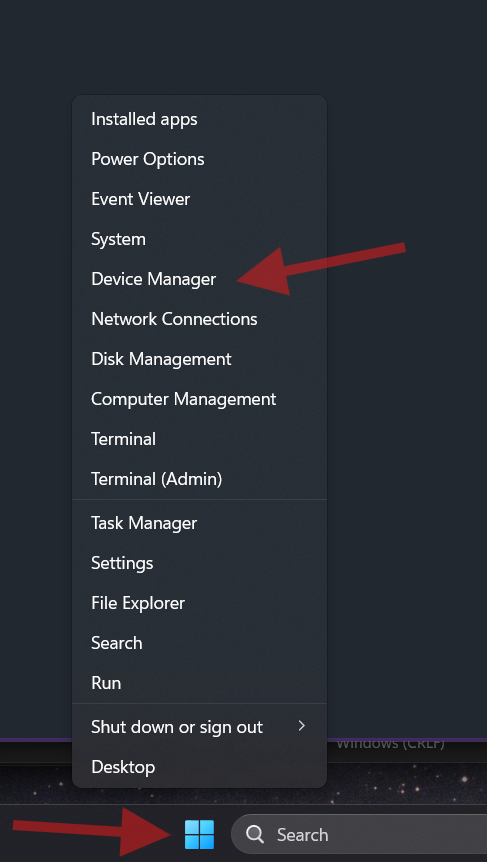
Right-click the Windows logo on the taskbar and choose “Device Manager”. You can also search for “Device Manager” in the search box.
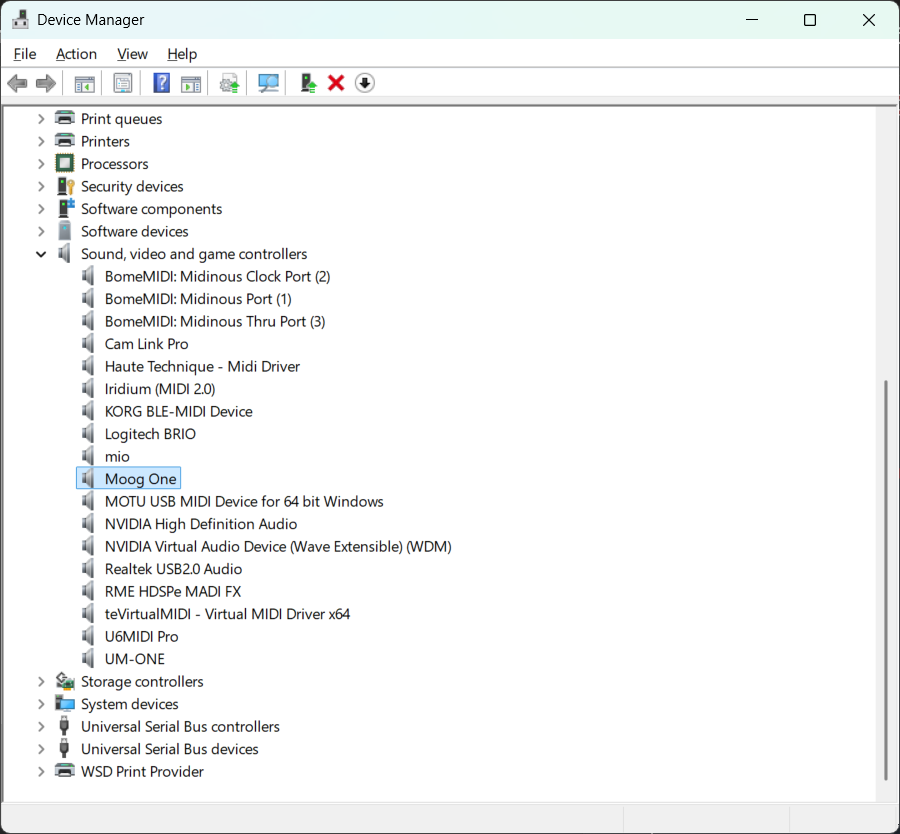
The name of this section changes with your language settings. You want the section with the hardware devices in it, not “MIDI Endpoints” and not “Software Devices”.
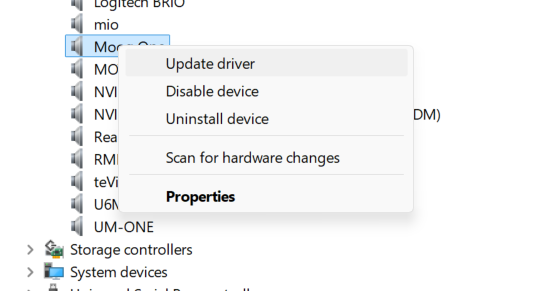
To see which driver a device is using now, right-click it and choose “Properties”. On the “General” tab, the manufacturer is “Microsoft” when the new combined MIDI 1.0 and MIDI 2.0 class driver is in use, and “(Generic USB Audio)” when the old driver is in use.
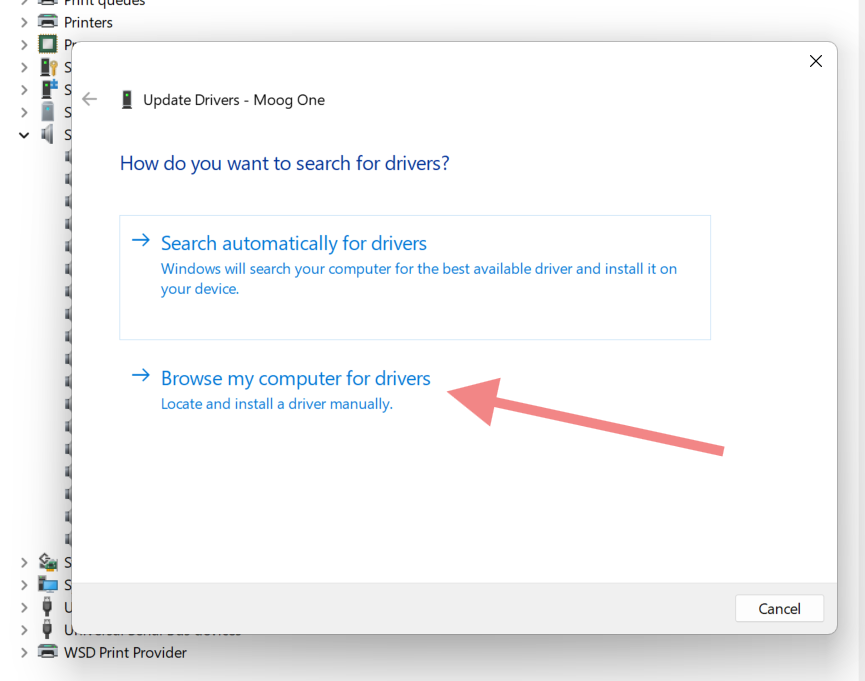
Read this step and the next one carefully. If you pick the wrong option, Windows tells you that you already have the best driver and stops. That’s the choice we’re deliberately overriding.
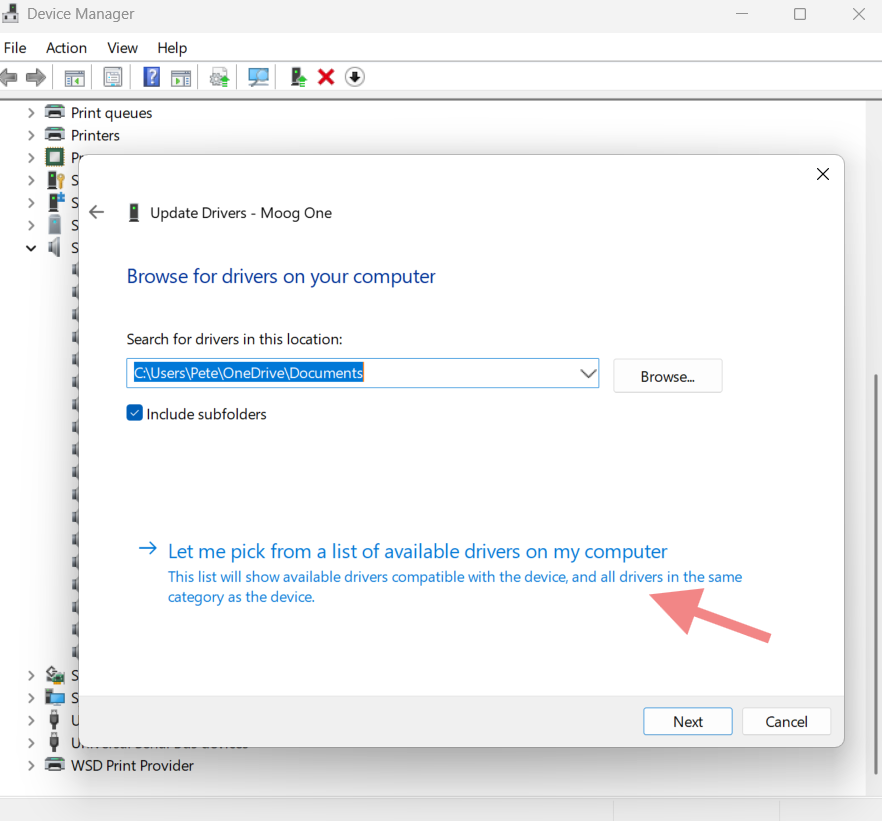
If you don’t see both of these, then either the device needs a driver from its manufacturer, or you picked an audio endpoint instead of the MIDI device.
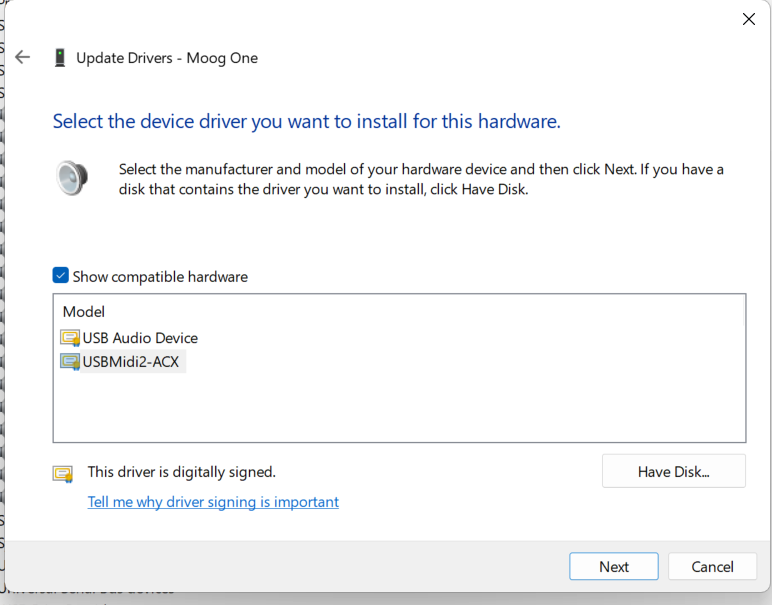
Choose “Next”. When it’s done, unplug the device, restart your PC, and plug the device back in. Not every device needs this, but many do.
There’s a Plug and Play bug in Windows right now that can put the old driver back after an update. The Plug and Play team is looking into it. Until it’s fixed, you may have to do this again after an update.
If that becomes a nuisance and you don’t need the new MIDI features, you can switch the PC to the old API mode by following the instructions here. In that mode, the device is only allowed to use the older driver.
Some USB devices don’t have a serial number, and some hubs don’t either. When that’s the case, plugging the device into a different USB port makes Windows build its information from scratch. Your driver choice is lost, and so are custom names and other settings for that device. You’ll need to repeat the steps above.
Windows MIDI Services is an open source project with all source available on GitHub. We have a great community on Discord as well. Between GitHub and Discord, you should find the information you are looking for.
