

This page covers information about a Windows MIDI Services feature and application that will be released to consumers in 2027. It’s currently available for developers.
Windows MIDI Settings is the front door to MIDI on this PC. It shows every MIDI endpoint Windows knows about, lets you name them and give them a picture, and launches the rest of the MIDI tools.
Most of what you do day to day works as a standard user. Changing the machine-wide settings behind Configurations and Global MIDI Settings on the toolbar needs administrator rights. The app tells you when that is the case, rather than demanding them up front.
The main window lists every MIDI endpoint on this PC, with the other MIDI apps across the top.
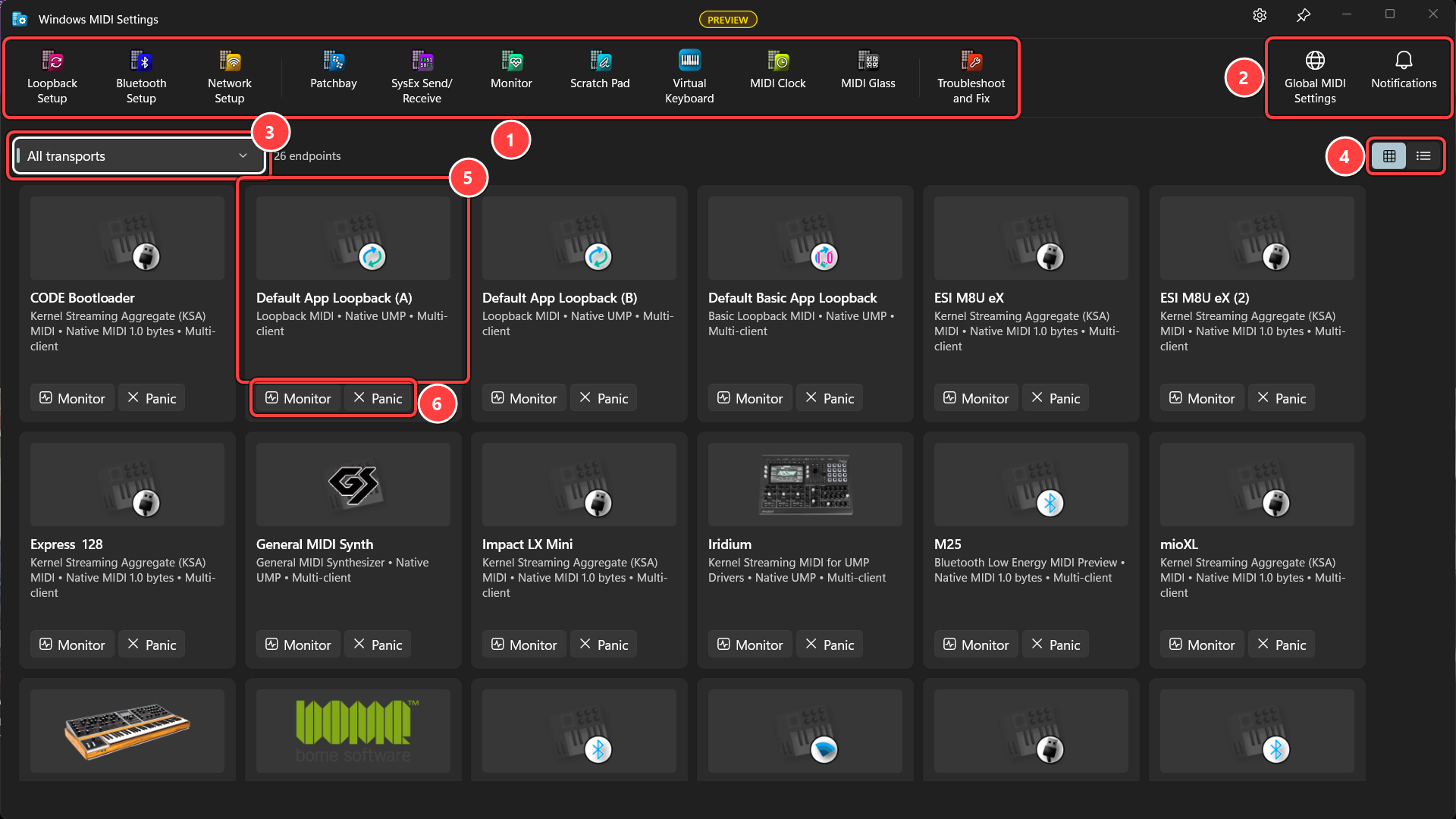
Across the top are the other Windows MIDI Services apps. Only the ones actually installed on this PC appear, so the toolbar reflects what you can really do:
Configurations, Global MIDI Settings, and Notifications sit at the right end of the toolbar and stay there. Configurations opens a window of its own, described in Configurations below. Global MIDI Settings opens the machine-wide settings, and Notifications chooses when Windows MIDI Services tells you something. None of the three is a separate app.
If the window is too narrow for all of the tools, the ones that do not fit move into a … button at the end of the row. Click it to reach them. Right-click anywhere on the toolbar and turn off Show button labels to get a compact row of icons instead, which fits many more tools in the same space. Point at an icon to see its name. Your choice is remembered.
The main area lists every MIDI endpoint on the PC. Two views:

The drop-down on the left filters by transport, so you can look at just the Bluetooth devices, or just the loopbacks. Your choice of view and filter is remembered.
Each endpoint has two buttons:
If Windows MIDI Services has never been set up on this PC, a banner appears above the list. Without a configuration, anything you customize is lost when the service restarts. Select Open Configurations, make one with New configuration, and then select Use this one and restart the MIDI service.
The list keeps itself up to date as devices come and go, and it recovers on its own if the MIDI service is restarted underneath it.
Selecting an endpoint opens its details:

That last one matters more than it looks. A device that reports a serial number or a product instance ID can be recognized wherever you plug it in, so the name and picture you give it follow it around. A device that reports neither is matched by the port it is plugged into, and moving it may lose your customization.
Everything else Windows knows about an endpoint - function blocks, group terminal blocks, declared protocol, stream configuration - is available from the MIDI console. It is too much detail for this app.
Customize lets you set the name and description the endpoint shows everywhere in Windows, and attach a picture to it. Pictures are copied into a shared folder, so every MIDI app shows the same artwork for the same device.

The change is applied to the running service immediately and saved to the configuration file so it survives a restart.
A USB device attached through Kernel Streaming gets a MIDI 1.0 port for each of its groups, and those are what older applications see through WinMM and WinRT MIDI 1.0. Edit port names, in the customize dialog, is where you name them. It only appears for devices which have those ports.

Inputs and outputs are listed separately, in group order. For each port you see the name it has now, the two names Windows can generate for it, and a box for a name of your own.
Name style for this device overrides the machine-wide default for this one device:
Seeing both generated names side by side is the point of the grid: you can tell what switching style would do to each port before you commit to it.
A name of your own overrides whichever style is selected, and is capped at 31 characters because that is all WinMM stores. Leave the box empty to use the generated name.
Renaming takes effect when the MIDI service restarts, and applications which remember ports by name will need to be pointed at them again. There is a button to restart the service in Global MIDI settings.
Your device and port names, pictures, loopbacks, network and Bluetooth connections, and transport settings are kept in a configuration. You can keep more than one, such as one for the studio and one for the stage, but only one is in use at a time.
Configurations, at the right end of the toolbar, opens a window of its own with four pages: Configurations, Backups, Share, and Import. A configuration is shared by everyone who uses this PC, so changing one needs administrator rights. Without them, you can still look around and share, and Reopen as administrator brings you back to the same page with the rights you need.
Use this window rather than copying configuration files yourself. Where they’re kept and what’s in them can change in any update.
The Configurations page shows the configuration in use at the top, with Back up now and Share… beside it. The others on this PC are under Also on this PC.
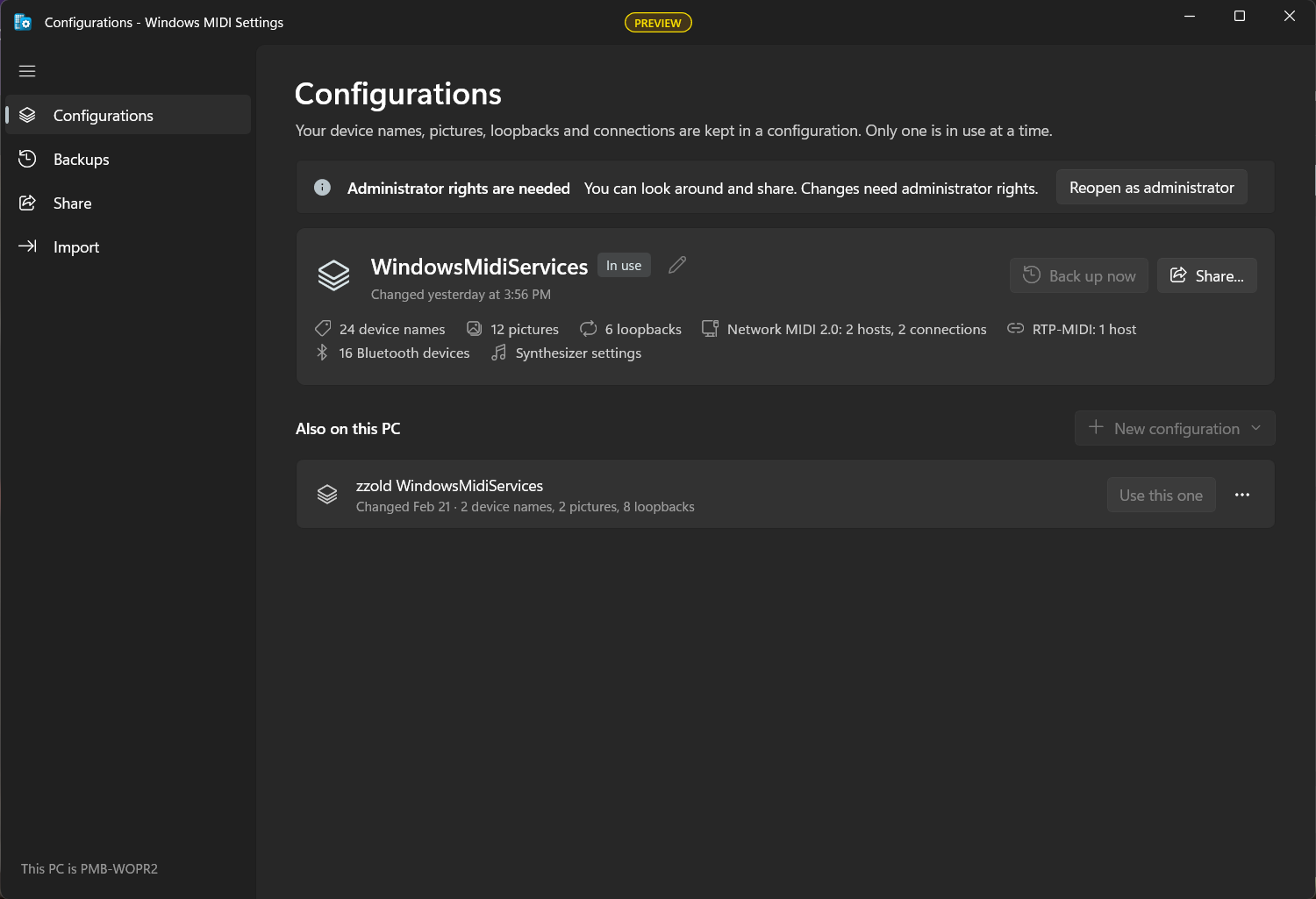
A new, empty configuration doesn’t have the default loopbacks. Make those again with the Create default loopback buttons in Windows MIDI Loopback Setup.
The Backups page lists every backup, newest first, with why it was made. Windows MIDI Settings makes one before every import, restore, and delete, and you can make one any time with Back up now. Each one keeps the configuration, its pictures, and the port names setting for older apps.
Windows MIDI Services also backs up a configuration before the first change to it each day. Those backups are marked Configuration only, because they don’t have the pictures or the port names setting.
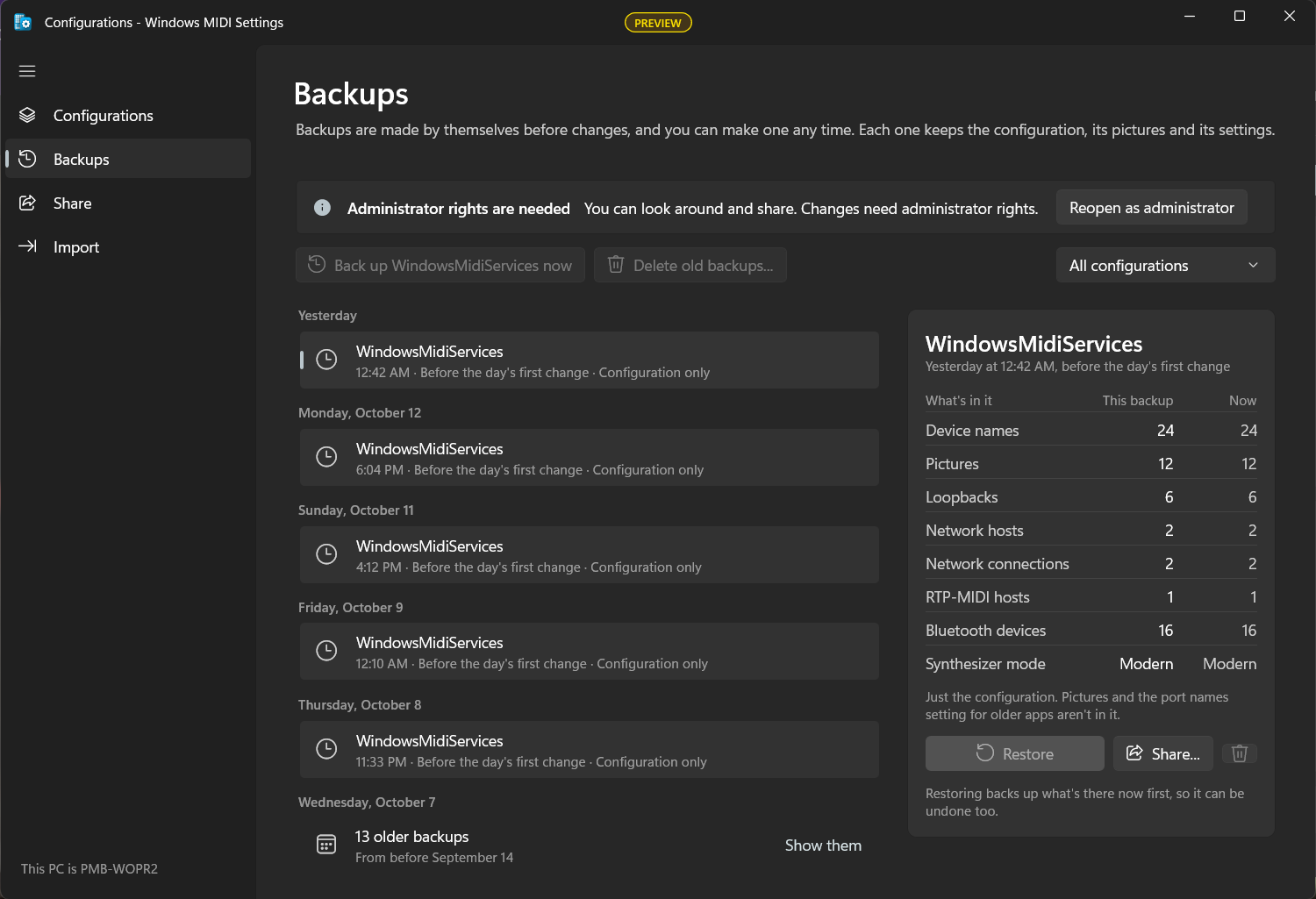
Select a backup to see what’s in it next to what’s in use now. Restore puts it back. What’s there now is backed up first, so a restore can be undone too. If the configuration is in use, the restored version takes over when the MIDI service restarts.
Nothing deletes backups by itself. Delete old backups… deletes the ones older than the time you choose. It can also keep the newest few of each configuration, however old they are.
The Share page saves a package: one .midiconfigpack file with a configuration, its pictures, and the port names setting for older apps. Pick the configuration, tick what to include, add a note if you like, and select Save package…. Then take the file to the other PC, such as on a USB drive. Sharing doesn’t need administrator rights.
The Import page opens a package. You can also drop a package on the page, or double-click a .midiconfigpack file. Configuration files saved by older versions of Windows MIDI Settings work too.
Opening a package only shows what it would do. Nothing changes until you select Import.
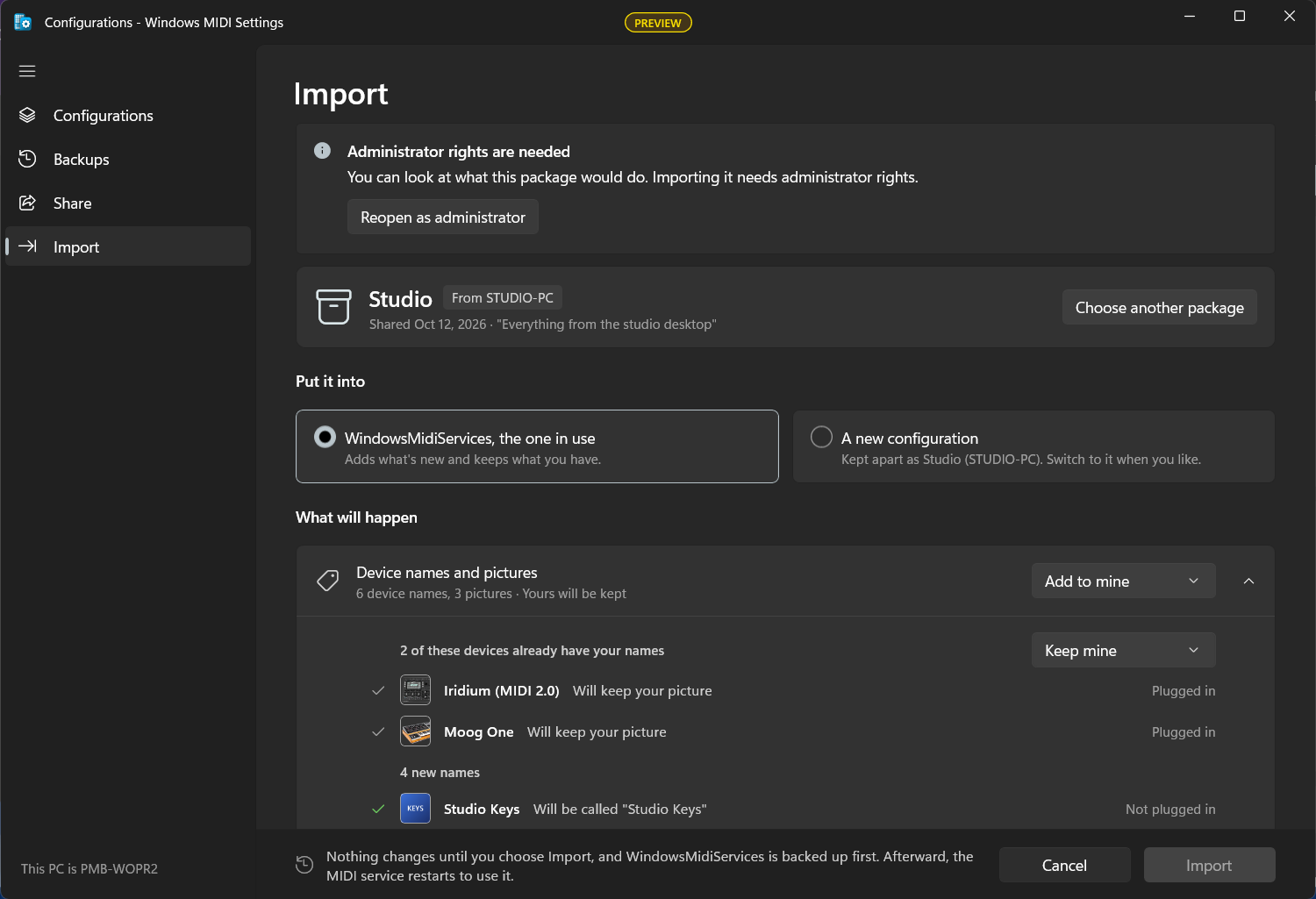
Put it into chooses where it goes. The configuration in use gets what’s new and keeps what you have. A new configuration is kept apart, and you can switch to it when you like.
What will happen has a line for each part of the package, with a choice:
Select Import to make the change. The configuration is backed up first, and the import starts working when the MIDI service restarts. If you change your mind, Undo this import puts it back the way it was.
A device that reports a serial number gets its name and picture as soon as it’s plugged in. Other devices are matched by the port they’re plugged into, so on a new PC their settings may not find them. Windows MIDI Settings then shows Some saved settings have no matching device. Select Review them to move the settings onto the right device.
These are shared by everyone who uses the PC, so they need administrator rights. If the app is not running elevated it says so and offers to restart itself with the rights it needs.

Configuration - the name of the configuration in use. Manage configurations… opens the Configurations window, where you switch, back up, restore, share, and import.
Default MIDI 1.0 port naming - how ports are named for older applications which use WinMM or WinRT MIDI 1.0. Compatible with older Windows keeps the names those applications have always seen. New style names ports from the endpoint and block names, which is clearer but will make applications that remember port names by string ask you to pick the device again.
MIDI service - switching configurations or changing the port naming takes effect when the service restarts, and there’s a button here to do that.
The palette button in the title bar sets the theme, the window material and a custom window color, and the pin next to it keeps the window on top. These are the same settings every Windows MIDI Services tool has, and they are remembered per app.
Windows MIDI Services is an open source project with all source available on GitHub. We have a great community on Discord as well. Between GitHub and Discord, you should find the information you are looking for.
