
🚨 Mission 09: Generate a Candidate Interview Questions Document
NOTE
This lab has been updated for the new Copilot Studio experience (2026-06-30). See evaluation.md for a full comparison with the original. Key change: AI Builder Prompts with Word-template Document output have been removed, and Topics are no longer authored in the new experience. Document generation is now handled natively by the agent's built-in code interpreter (Python with python-docx pre-installed), driven by a reusable Skill — no AI Builder Prompt, no Agent Flow, and no Topic required.
🎯 Mission Brief
Welcome, Operative. Your previous missions have shown you how to ground an agent in Dataverse and have it reason over multimodal inputs. Now you'll unlock another capability: document generation.
Your assignment, should you choose to accept it, is Operation Doc Assembly. In this operation you'll have your agent produce a downloadable Word document of tailored interview prep questions — generated natively by the agent itself.
In the classic experience this required an AI Builder Prompt (with a Word template and Document output), an Agent Flow to extract the file bytes, and a Topic to return the file. None of those constructs exist (or are authored) in the new experience. Instead, the agent's model has a built-in code interpreter that runs Python (python-docx is pre-installed) to build a real .docx and return it as a downloadable file in chat. You'll package this behavior as a reusable Skill so the agent reliably produces the document on request.
🔎 Objectives
In this mission, you'll learn:
- How an agent generates a Word document natively using its built-in code interpreter
- How to package document-generation behavior as a reusable Skill
- How to ground the document in Dataverse data (via the Dataverse MCP server from Mission 08) or in conversation context
🧪 Lab 9 - Generating an Interview Document
When a job application is added, you want to automate the process of preparing a detailed interview document. This should be a Word document that summarizes the applicant's key information (name, current role, experience, etc.), the role information (job title, requirements) and creates unique, specific interview questions based on the applicant's background and the role they are applying for.
Prerequisites to complete this mission
Before starting this mission you need to:
- Have completed Mission 08 and have the agent ready, with the Microsoft Dataverse MCP server tool added if you want the document grounded in your Job Application data. (If you only want to generate a document from details supplied in the conversation, the MCP tool is optional.)
9.1 Create the document-generation skill
Your first objective: give your agent a reusable Skill that evaluates a candidate against a job and produces a downloadable Word document of tailored interview questions. The agent builds the .docx itself using its built-in code interpreter — there is no AI Builder Prompt, no Word template, and no placeholder fields to manage.
NOTE
The agent's model (for example, Claude Sonnet 4.6) includes a built-in code interpreter with python-docx pre-installed. When asked for a downloadable Word file, the agent writes and runs Python to create a real .docx and returns it as a download in chat. This is a native capability — there is no toggle to enable it under Settings → AI & behavior (that tab only exposes Orchestration and Safety/Moderation).
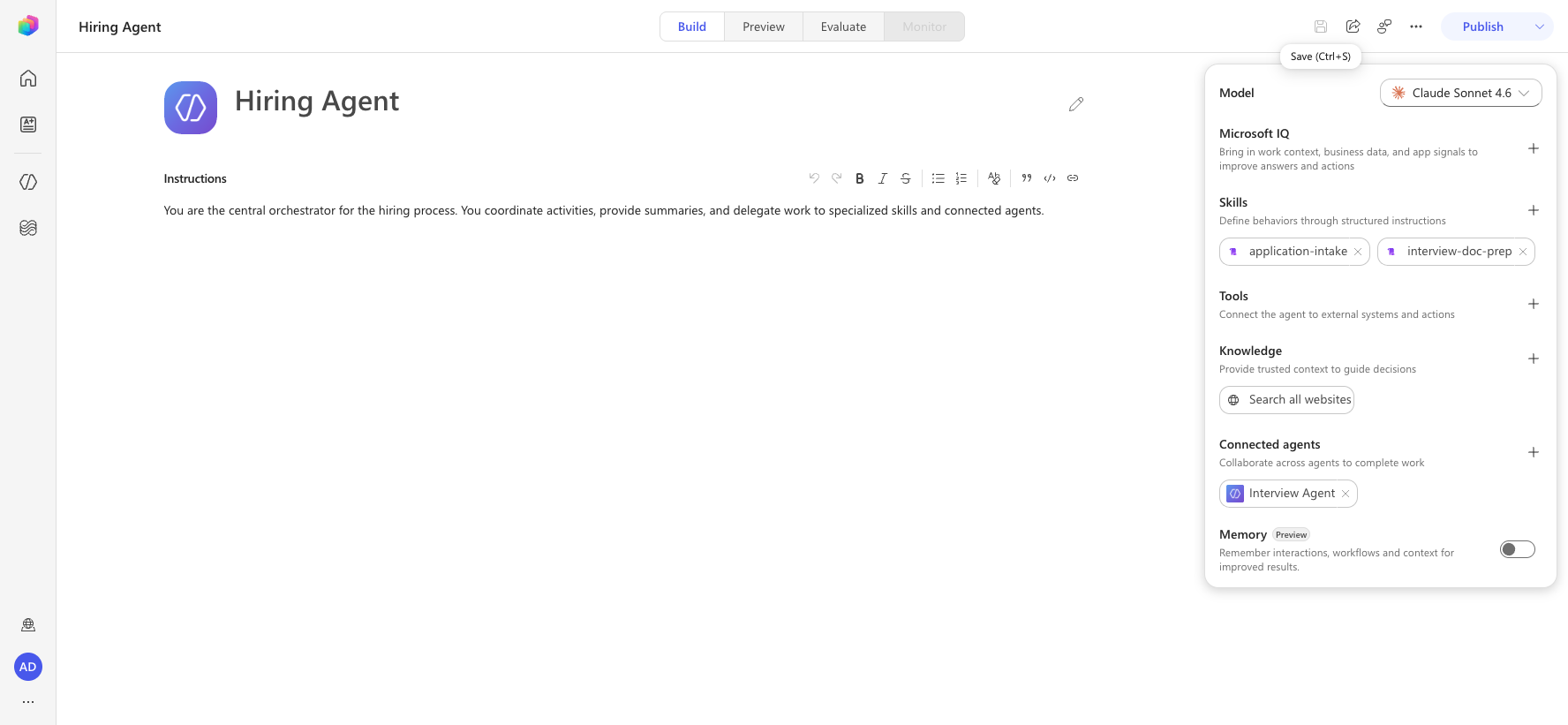
Sign in to Copilot Studio, select Agents from the left navigation, and open your Hiring Agent (the orchestrator from Mission 08). You'll author on the Build tab.
In the agent configuration panel on the right, find the Skills section and select Add skill.
In the Add skill dialog, select the Create from blank tab.
Copy and paste the following as the Name (skill names must be kebab-case — lowercase words separated by hyphens, or the Create button stays disabled):
textinterview-doc-prepCopy and paste the following as the Description:
textGenerates a downloadable Word (.docx) interview prep document for a candidate's job application, containing applicant details, role details, and tailored interview questions. Use when asked to create or generate an interview prep document or file for an application, candidate, or role.Copy and paste the following as the Instructions. These instructions carry over the same evaluation and question-generation logic from the classic prompt, and tell the agent to build the
.docxwith its code interpreter:textWhen this skill is activated, generate a downloadable Word (.docx) interview prep document for a candidate. ## Gather inputs - If an Application Number (starts with "A" followed by at least 5 digits) is provided and the Microsoft Dataverse MCP tool is available, look up the related records and extract: - Candidate (Candidate Name, Email) - Resume (Resume Title, Resume Number, Summary, Cover Letter) - Job Role (Job Title, Job Role Number, Description, requirements) - Evaluation Criteria for that Job Role (Criteria Name, Description, Weighting) - If Dataverse data is unavailable, use the candidate, role, and resume details supplied in the conversation. Ask for the candidate and the job role if neither is provided. ## Evaluate the resume - Extract the candidate's full name, email, current/most recent title, location, and total years of experience (only if supported by resume dates). - Identify the job's must-have requirements, nice-to-have requirements, key responsibilities, and required tools/technologies. Treat must-haves as highest priority. - For each must-have requirement, determine an evidence level (Strong / Moderate / Weak / Missing) with short supporting evidence grounded only in the inputs. Do not infer or invent experience. - Summarize top strengths (up to 5), key gaps (up to 5), and risks, plus a one-paragraph recruiter summary. ## Generate exactly 10 interview questions - 5 Core Requirement questions on the most critical must-haves. - 3 Gap/Clarification questions on weak, missing, or ambiguous areas. - 2 Scenario-Based questions derived from key job responsibilities. - Each question must map to a job requirement and note what to listen for. Questions must be specific, non-duplicative, and grounded in the inputs. Number them 1-10. ## Build and return the document - Use your built-in code interpreter (python-docx) to create a Word (.docx) document containing: a candidate info block, the role summary, interviewer notes, the 10 numbered questions (each with the requirement it maps to and what to listen for), and scoring guidance. - Return the .docx as a downloadable file named like ApplicationNumber_InterviewPrep.docx (or CandidateName_InterviewPrep.docx when no application number is available). - Be concise, professional, and evidence-based. Never address or message a candidate.Select Create. The
interview-doc-prepskill now appears in the Skills toolbar on your agent.Select Save on the agent command bar and confirm the Save button goes disabled (it changes to Saved) — that confirms the change committed. If you see an "Issue while saving" toast, re-open the skill, verify the Name/Description/Instructions are populated, and save again.
TIP
Add the skill to the orchestrator agent (the Hiring Agent). Generative orchestration will route a document request to this skill automatically. If a save error persists on one agent, the skill content is fine — try saving on the orchestrator agent, which reliably accepts the skill.
9.2 Generate and test the document
In the classic lab you needed an Agent Flow to extract the file bytes from the prompt's output. That step is gone — the code interpreter returns the .docx directly as a downloadable file. You can test the behavior immediately.
Select the Preview tab, then select New chat to refresh the agent's tool context.
Ask the agent to generate the document. To ground it in Dataverse, reference a Job Application number from your Job Application table (it starts with A followed by digits, for example
A01001):textCreate an interview prep file for job application A01001Or, to generate from details supplied directly in the conversation:
textGenerate an interview prep document for Alex Johnson, applying for the Power Platform Developer role (8 years experience with Power Platform, Dataverse, and Azure). Return it as a downloadable Word file.The agent reasons through the request, (optionally) looks up the application data via the Dataverse MCP tool, runs its code interpreter to build the
.docx, and returns a downloadable file in chat along with an in-chat summary of the candidate, the role, and the 10 questions.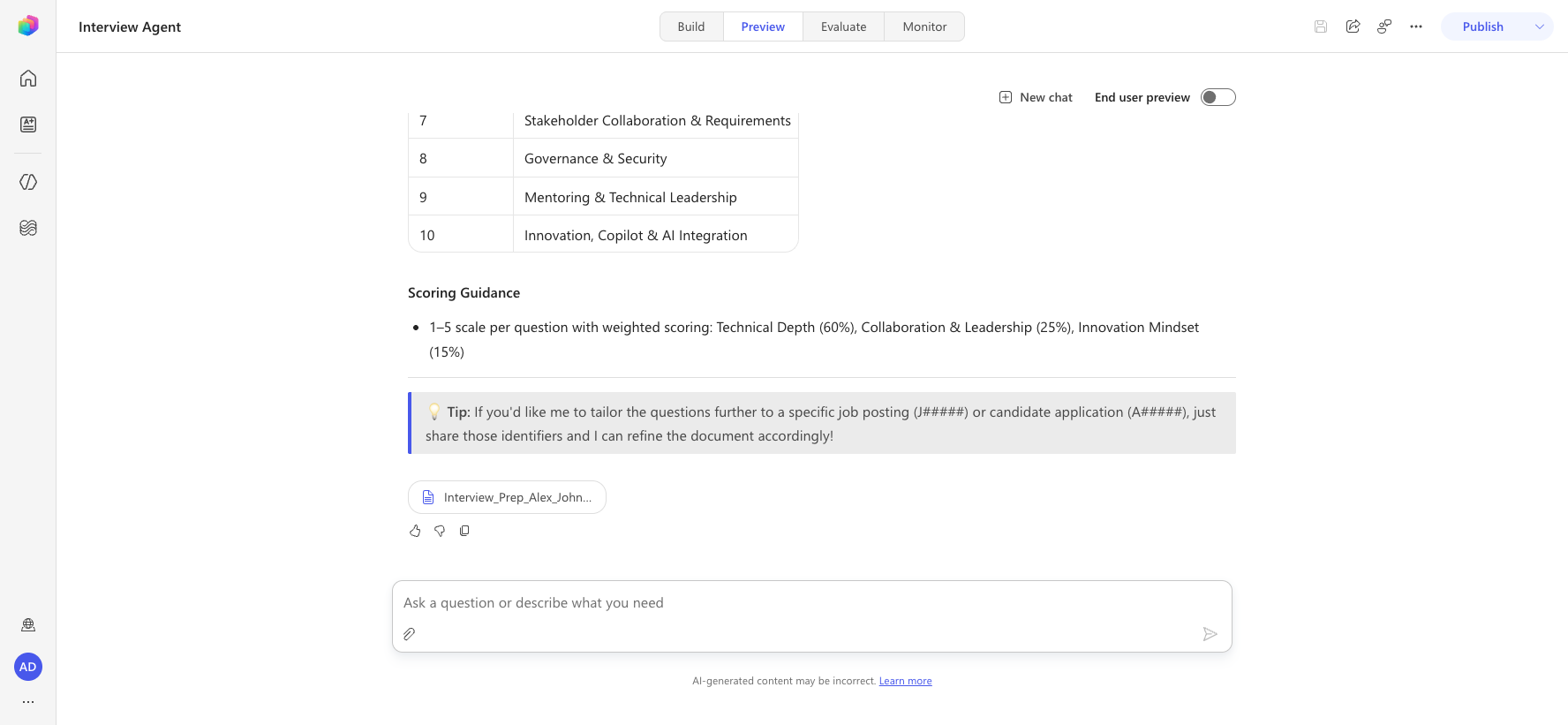
NOTE
Document generation runs the code interpreter and can take 30-90 seconds. The agent shows Working on it… while it builds the file. Select the returned file to download it, then open it to confirm the candidate info, the 10 numbered questions, and the scoring guidance are filled in correctly.
9.3 (Removed) Tie it together with a topic
In the classic experience a Topic with slot filling was required to guarantee the file was returned. In the new experience there is no Topics tab — the agent is driven by its Instructions, Skills, Tools, and generative orchestration. The interview-doc-prep skill you created in 9.1 already makes the document-generation behavior reliable and reusable, and the agent captures the Application Number directly from the conversation (the skill's Gather inputs instructions describe the A##### pattern). No Topic is needed.
Congratulations! You just successfully added native document-generation capabilities to your agent — no AI Builder Prompt, Agent Flow, or Topic required.
🎉 Mission Complete
Great work, Operative! Operation Doc Assembly is now complete. You've successfully enhanced your agent with native document-generation capabilities, packaged as a reusable Skill and powered by the agent's built-in code interpreter.
🚀 Next up: In your next mission, you'll learn how to use the power of MCP servers to help add interview meeting scheduling and planning capabilities.
⏩ Move to Mission 10: Integrating with MCP
📚 Tactical Resources
📖 Agent instructions in Copilot Studio
📖 Generative orchestration overview
📖 Connect to the Microsoft Dataverse MCP server
📖 Work with Dataverse in Copilot Studio