Microbots Execution Flow
You ran your first Microbots example — a LogAnalysisBot against a sample C application with a deliberate error — and got a root-cause analysis without ever modifying your host filesystem.
What Just Happened
When you ran python3 log_analysis_bot.py, Microbots quietly orchestrated a sandboxed agentic loop on your behalf. The diagram below shows the full end-to-end flow, organized into three phases that the rest of this page walks through:
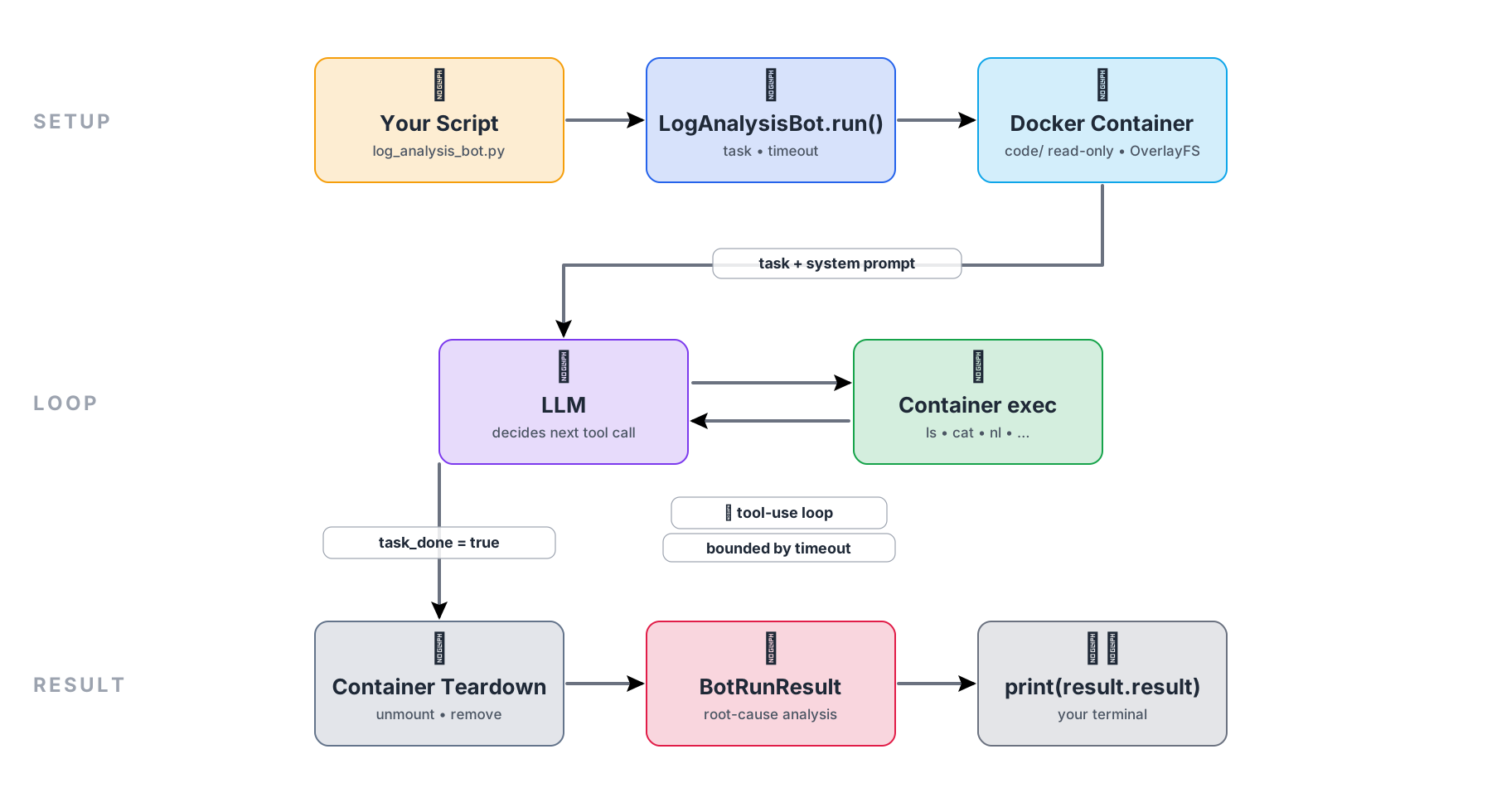
- SETUP (top row) — your script calls
LogAnalysisBot.run(), which provisions a Docker container with yourcode/directory mounted read-only via OverlayFS, and sends your task plus a system prompt down to the LLM. - LOOP (middle row) — the LLM and
Container execexchange messages back and forth: each turn the LLM picks a shell command, the container runs it, and the output is fed back. The loop exits when the model signalstask_done = true, and is bounded by your timeout. - RESULT (bottom row) — the container is torn down (overlay unmounted, working directory removed), the model's analysis is wrapped in a
BotRunResult, andprint(result.result)produces the output you saw in your terminal.
Each phase is explained in detail below, with a focused diagram for the parts that need one.
SETUP — preparing the sandbox
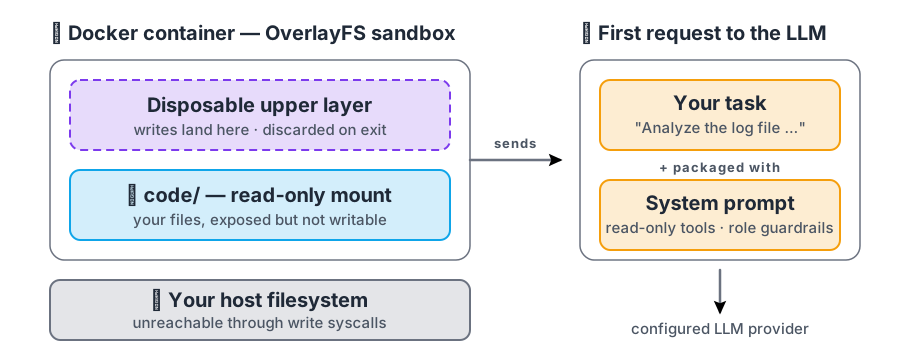
The diagram has two halves. The left half shows how your code is sandboxed; the right half shows what gets sent to the LLM on the very first turn.
Left — the OverlayFS sandbox (inside a fresh Docker container):
- Disposable upper layer (dashed box on top) — any writes the bot attempts land here and are thrown away when the container exits.
code/— read-only mount (solid box below) — your project files are visible to the bot but cannot be modified.- Your host filesystem (slate panel at the bottom) — sits outside the container and is unreachable through write syscalls.
Right — the first request to the LLM:
- Your task (top box) — the natural-language instruction you passed to
.run(...). - System prompt (bottom box) — the
LogAnalysisBotrole definition that only exposes read-only tools and enforces guardrails. - Both are packaged together and sent to your configured LLM provider as the very first message.
LOOP — the agentic tool-use cycle
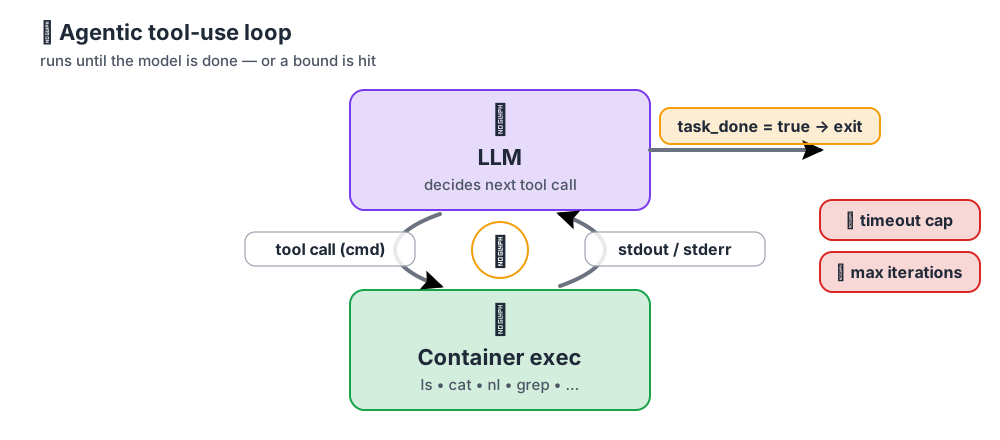
The diagram shows two boxes connected by a tight cycle, plus two side conditions that govern when the cycle stops.
- LLM (top box) — on every turn it returns a structured tool call (the down-arrow labeled
tool call (cmd)): a small shell command such asls /var/log,cat /var/log/build.log, ornl -ba build.log. - Container exec (bottom box) — executes the command inside the sandbox and sends the stdout / stderr back to the model (the up-arrow). The ⚡ badge in the middle marks this
LLM ⇄ Container execcycle, which repeats over several iterations until the model has enough evidence. - Exit condition (yellow badge on the right) — when the model says
task_done = true, the loop stops. - Safety limits (red badges on the right) — the loop also stops if it hits your timeout or the max number of tries, so the bot can't keep running forever.
RESULT — teardown and return
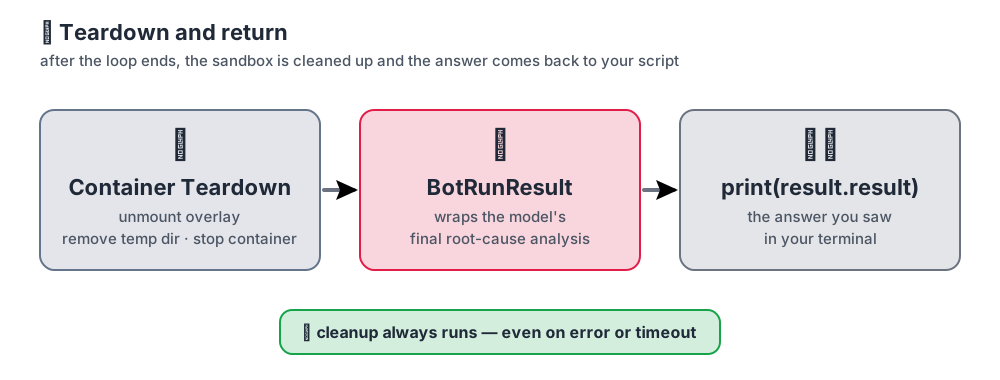
The diagram shows three steps from left to right, plus one safety guarantee at the bottom.
- Container Teardown (left box) — once the loop ends, Microbots unmounts the OverlayFS overlay, removes the temporary working directory, and stops the container.
- BotRunResult (middle box) — the model's final root-cause analysis is wrapped in a
BotRunResultobject and handed back to your Python code. print(result.result)(right box) —result.resultholds the analysis text, which is what you saw printed in your terminal.- Cleanup always runs (green badge at the bottom) — teardown happens whether the run succeeded, errored out, or hit the timeout, so the container and overlay never leak.
Why this matters
Every run follows this same three-phase flow: a sandboxed container, a read-controlled tool-use loop, and a guaranteed teardown. The goal is simple — your code and your machine stay safe, no matter what the model decides to do.
Read more: Safety-first AI agents
For a deeper look at how Microbots keeps your machine safe, see the blog post Microbots: a safety-first AI agent.
Next Step
Pick whichever fits your goal:
- Debug a Microbots run — Continue to Configure Logging in Microbots to turn on Python logging for Microbots and learn how to read those logs.
- Try a different bot — Browse the Available Bots below and jump into the one that fits your use case.
Available Bots
Similar to LogAnalysisBot, you can explore other pre-built bots that ship with Microbots. The table below lists them along with their special capabilities.
| Bot | Permission | Description |
|---|---|---|
ReadingBot |
Read-only | Reads files and extracts information. |
WritingBot |
Read-write | Reads and writes files to fix issues or generate code. |
BrowsingBot |
— | Browses the web to gather information. |
LogAnalysisBot |
Read-only | Analyzes logs for root-cause debugging. |
AgentBoss |
— | Orchestrates multiple bots for complex tasks. |
Try them on different use cases — and feel free to open a GitHub issue if you run into any problems while building your agent. We're happy to help.