Unlocking the Full Potential of Task Mining Recordings with Power Automate Process Mining
Learn how to leverage Power Automate Task Mining recordings with Process Mining to unlock rich process intelligence, variant analysis, and custom KPIs through Fabric integration.
The Problem: Great Data, Limited Analysis
If you’ve ever watched someone navigate a complex business process – clicking through multiple applications, copying data between screens, repeating the same steps with slight variations – you know there’s a goldmine of optimization potential hiding in those everyday workflows. That’s exactly the promise of task mining: record what users actually do, then analyze it to find inefficiencies, bottlenecks, and automation opportunities.
Power Automate’s Task Mining capability lets you do just that. With a dedicated desktop recorder, you can capture user interactions, aggregate them, and analyze them through an embedded Power BI report. It’s a solid starting point – but if you’ve used it, you’ve probably hit the ceiling pretty quickly. The built-in analytics aren’t quite on par with what you’d expect from full-blown process mining, and there’s no way to customize or enhance the provided Power BI report.
So what do you do when you’ve got all these rich recordings but the analytical tools feel like they’re holding you back?
Good news: you can take those same task mining recordings and feed them into Power Automate Process Mining (PAPM) to unlock the full Process Intelligence experience experience – complete with process maps, variant analysis, custom metrics, and the ability to publish your data and reports to a Fabric workspace. All it takes is a Dataverse link to Fabric, and you’re in business.
In this post, I’ll walk you through the entire flow: from creating recordings, through linking Dataverse to Fabric, to ingesting the data into PAPM for real process mining analysis.
Step 1: Create Your Task Mining Recordings
The first step is straightforward – create your recordings using the standard Task Mining procedure. If you’re new to this, Microsoft has excellent documentation to get you started:
🔗 Task Mining Overview – Microsoft Learn
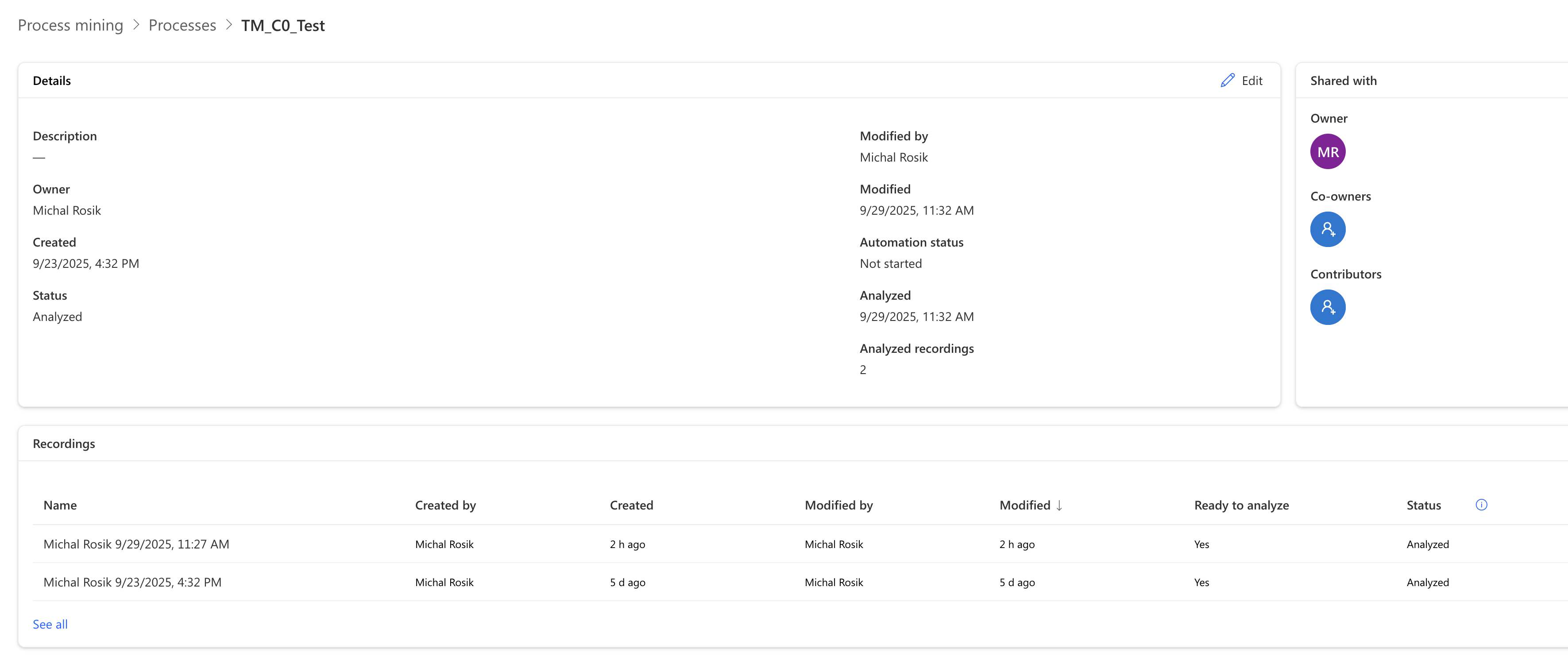
For our walkthrough, we’ve created a process called TM_C0_Test with 2 recordings:
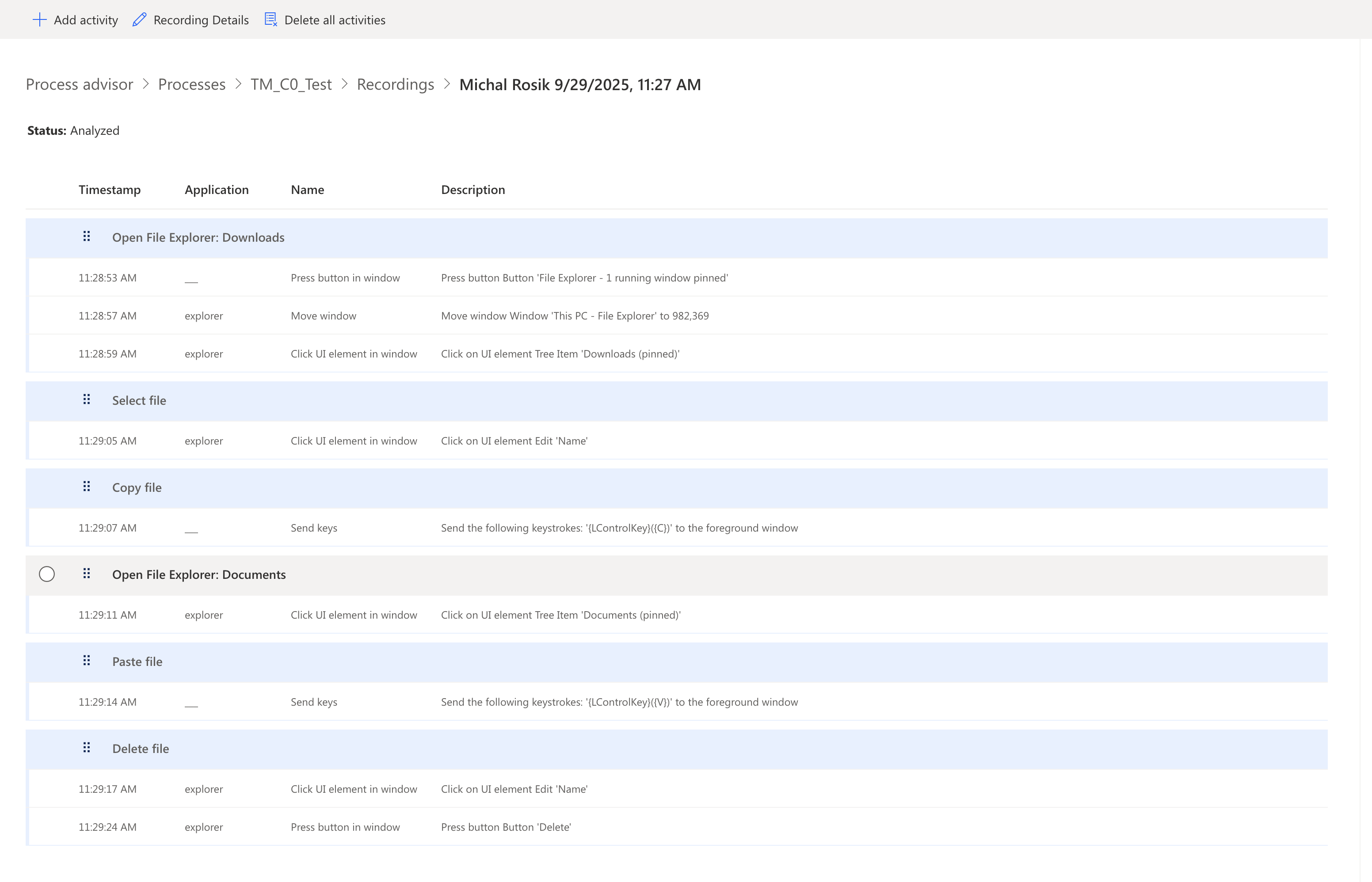
Here’s an example of one of the recordings with its identified and grouped activities:
Step 2: Understand the Dataverse Entities
Behind the scenes, your recordings are saved into Dataverse in two key entities:
- new_pmtaskcaseoutput – contains one row per recording with its attributes
- new_pmtaskcaseactivityoutput – contains all high-level activities (the blue groups you see in the recorder) as individual rows
The second entity is the one we’ll use for process mining. Its most important columns for our analysis are:
- createdbyname → map as Resource
- new_activityname → map as Activity
- new_parentpminferredtaskidname → use to filter for a specific process
- new_pmtaskcaseoutputidname → map as Case ID (the recording identifier)
- new_startdatetime → map as Start Event
- new_enddatetime → map as End Event
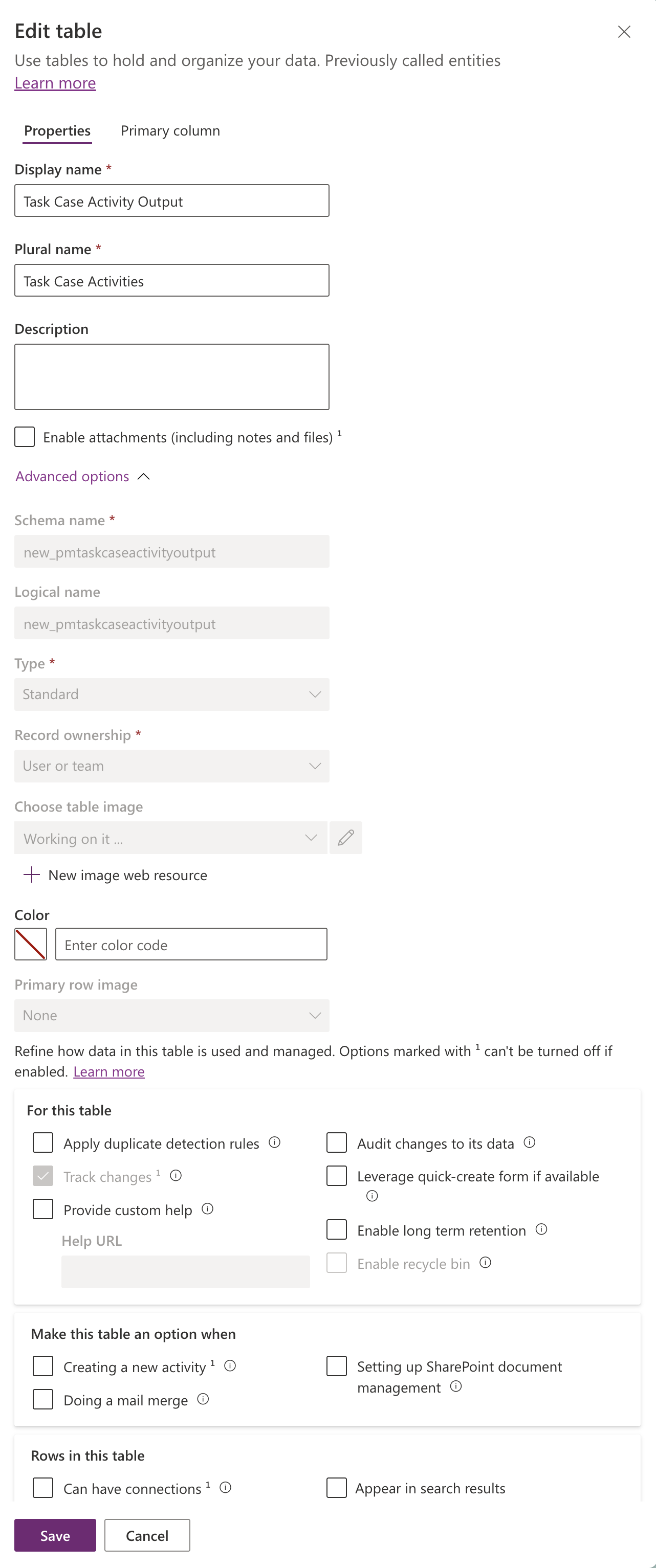
⚠️ Important: Only Dataverse tables with the Track changes option switched ON can be linked to Fabric Lakehouse. Make sure this is toggled on in the DV table properties before proceeding.
Step 3: Link Dataverse to Fabric
Next, we need to get the data from Dataverse into Fabric. Follow the prerequisites and steps in the official documentation:
🔗 View Dataverse in Fabric – Microsoft Learn
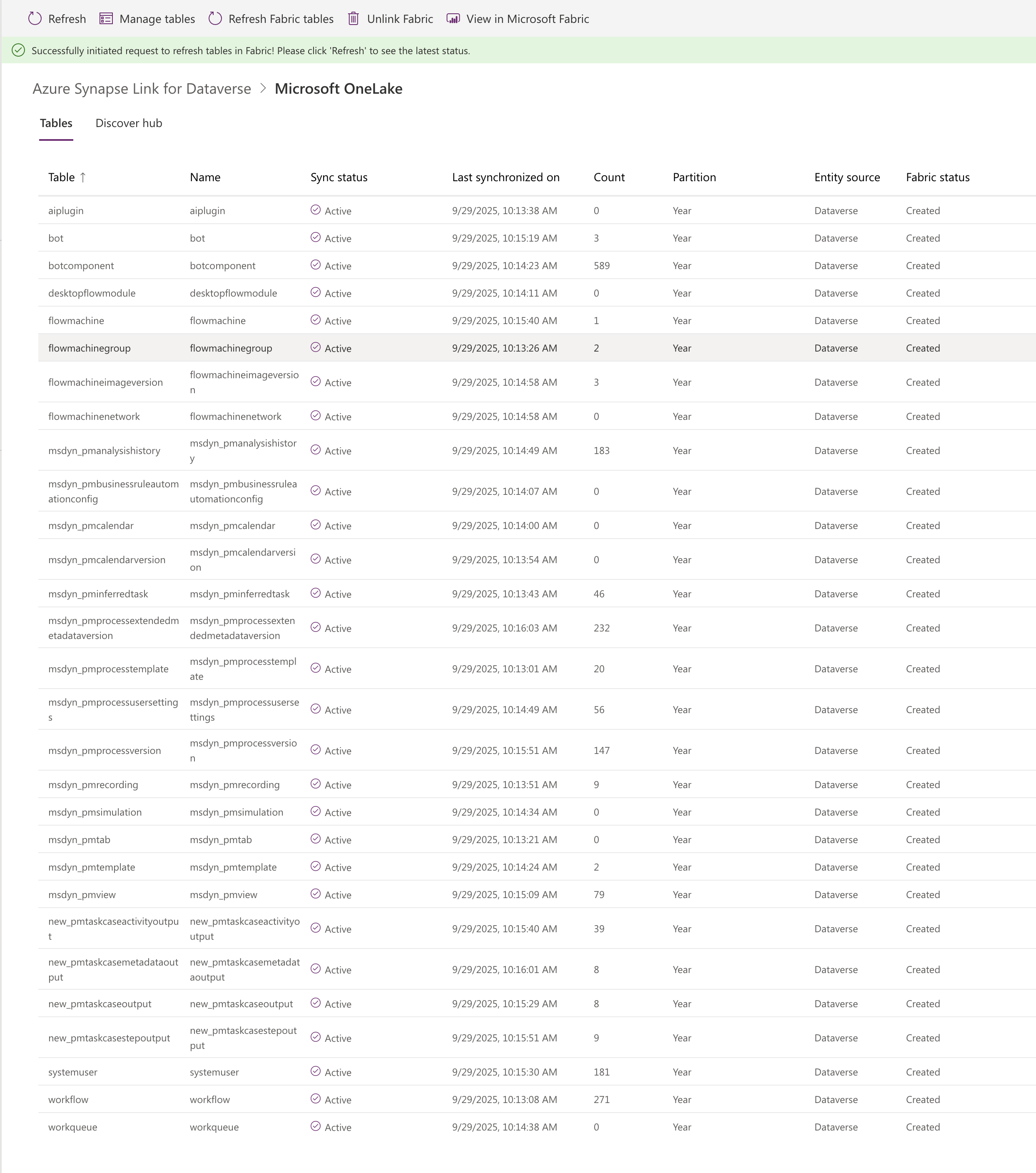
💡 Tip: By default, the link will try to sync all Dataverse tables. Use the Manage Tables function in Power Apps to select only the necessary tables – this will significantly shorten the sync time.
Once the sync completes, you should see the linked tables appear in both Power Apps and Fabric:
In Power Apps:
In Fabric:
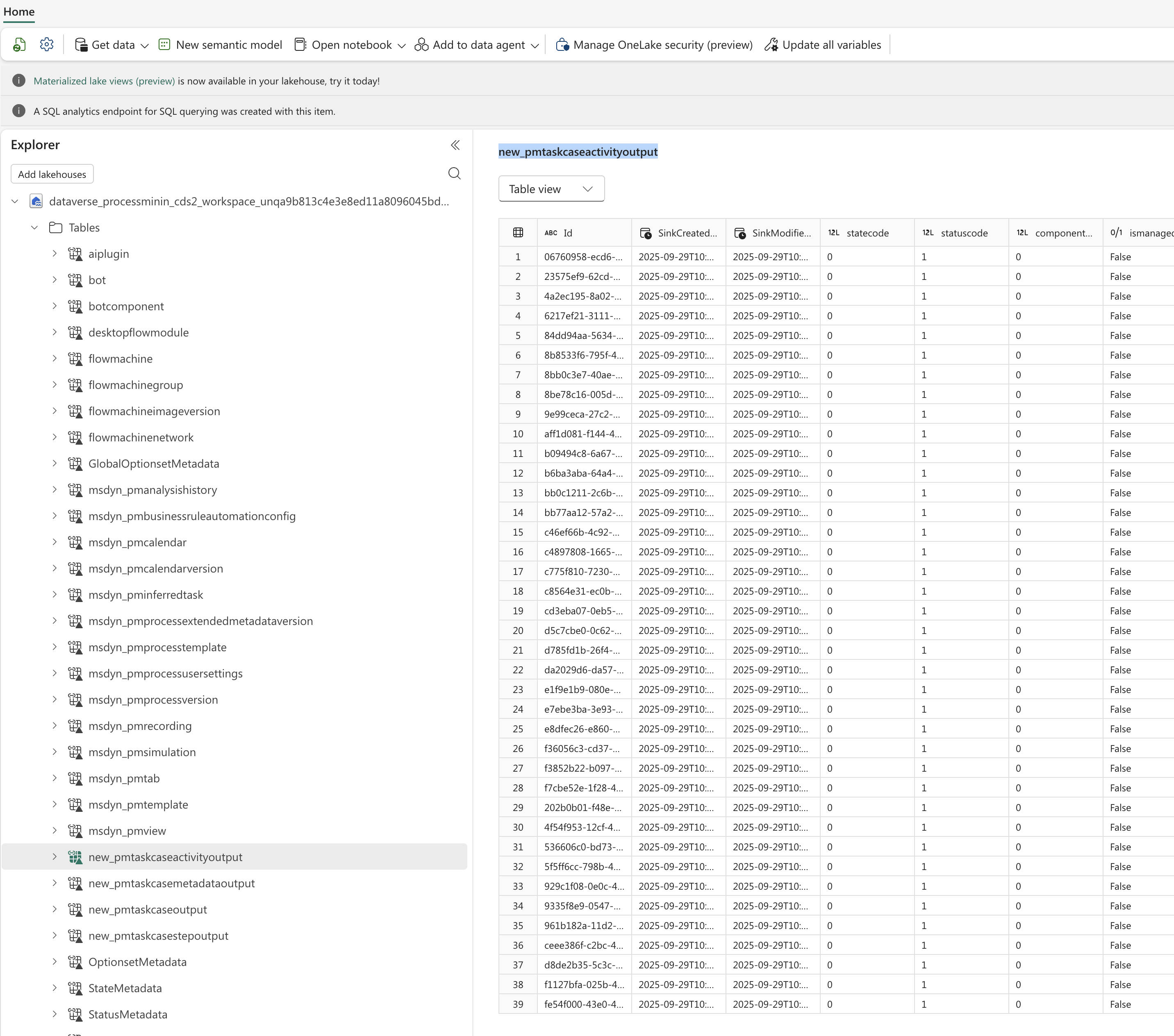
📝 Note: The resulting table will include all recordings from any process in that environment, not just the one you’re interested in. Don’t worry – we’ll handle filtering in the next step.
Step 4: Ingest the Data into PAPM
Now for the exciting part! There are two ways to bring the data from Fabric Lakehouse into PAPM:
- OneLake Ingestion – pull directly from the Lakehouse delta tables. Simple and fast, but you can’t pre-filter the recordings. You’ll filter within the analysis instead.
- Dataflows (SQL Analytics Endpoint) – connect via the SQL endpoint and use Power Query to transform and filter the data before the process model is created. Ideal if you want a clean, scoped model from the start.
Option A: OneLake Ingestion
Use the standard OneLake ingestion in PAPM. Select the newly created Lakehouse and the new_pmtaskcaseactivityoutput table. In the mapping screen, map the columns as described above, then save and analyze.
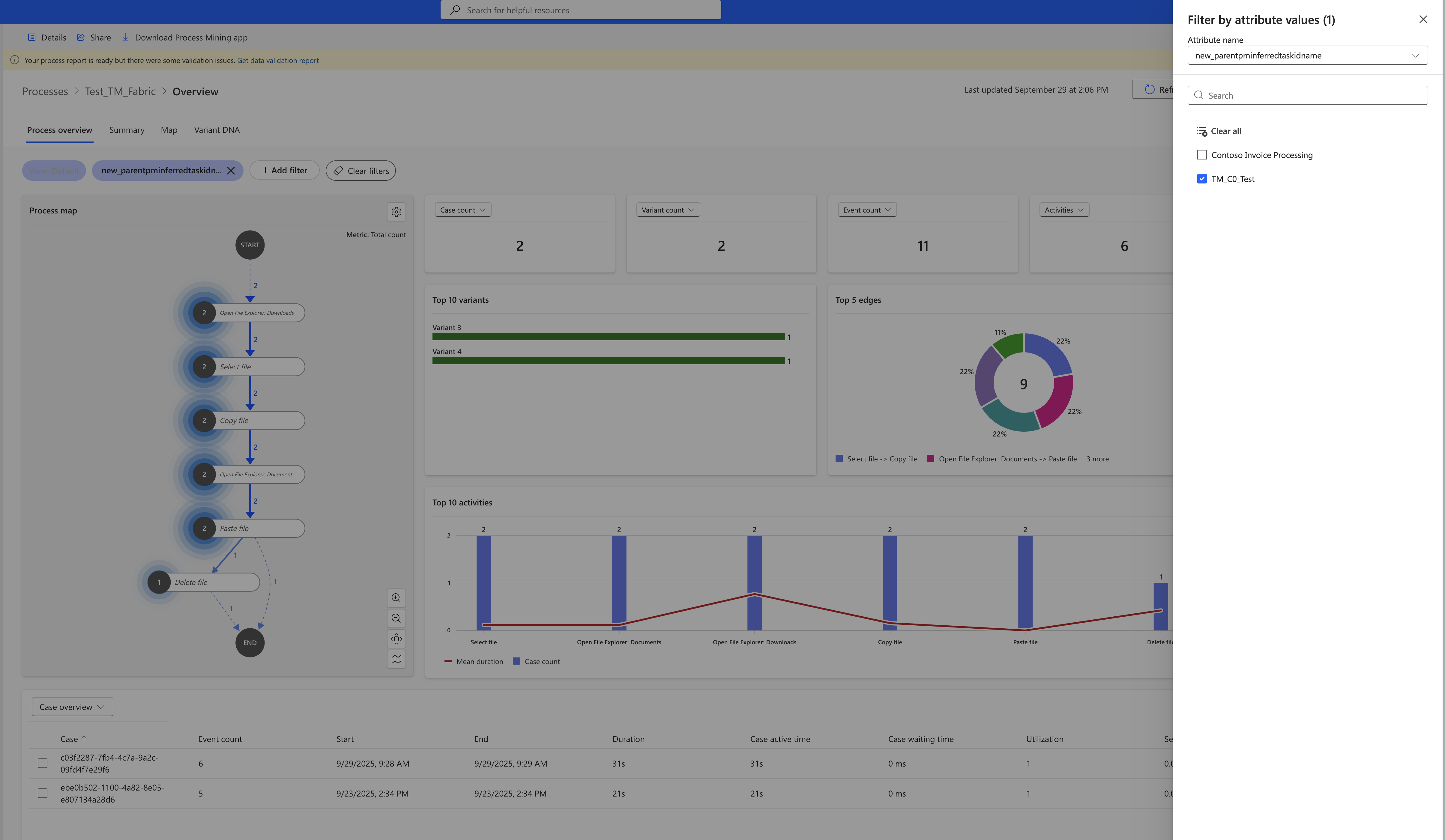
Process Intelligence experience will open with the Process Overview page showing all recordings aggregated into one process. To zoom in on just the process you care about, use the attribute filter on the new_parentpminferredtaskidname column:
Option B: Dataflows via SQL Analytics Endpoint
If you prefer to filter your recordings before building the process model, use the Dataflows ingestion. Select the Azure SQL Server connector:
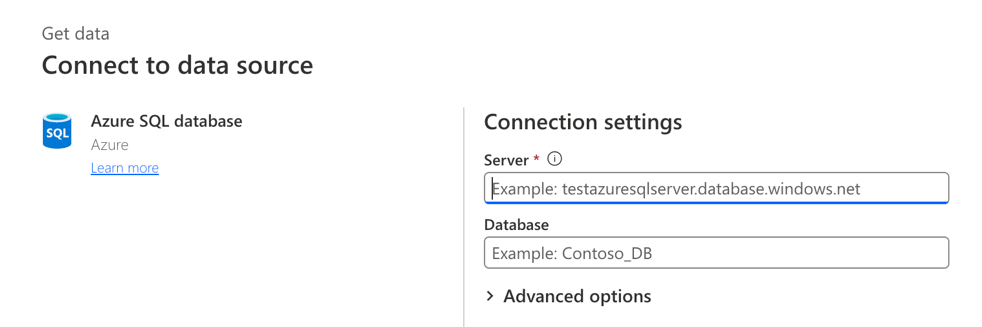
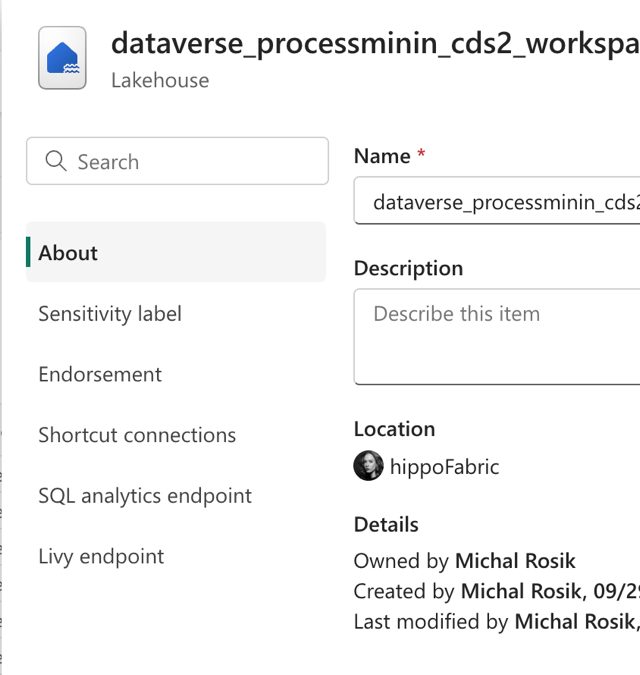
Configure it using the connection string and database name from your Fabric Lakehouse properties:
Database name:
Connection string:
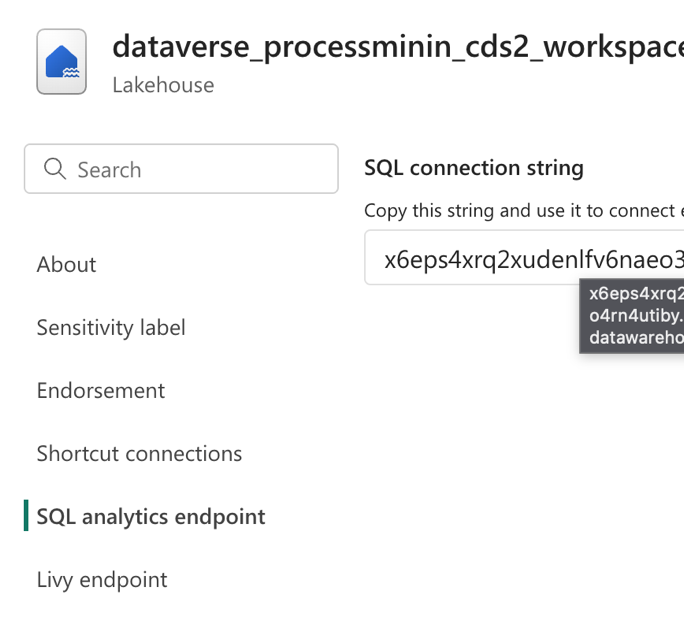
Then select the new_pmtaskcaseactivityoutput table, use Power Query to filter on new_parentpminferredtaskidname for your target process, and map the attributes as described earlier.
Keeping It Fresh: Data Refresh
Since the Dataverse entities are linked as Fabric shortcuts, the data refresh functionality will automatically keep your process model up to date as new recordings come in. No manual re-imports needed.
Wrapping Up
Task Mining recordings can bring more detailed understanding to your process data. By linking Dataverse to Fabric and ingesting that data into PAPM, you unlock the full power of Process Intelligence experience: interactive process maps, variant analysis, custom KPIs, and the flexibility to publish and share your findings through Fabric workspaces.
The setup takes just a few steps, and once the pipeline is in place, it stays current with automatic data refresh. Whether you choose OneLake ingestion for simplicity or Dataflows for more control, you’ll be analyzing your task mining data like a pro in no time.
Stay safe and Mine the Gap!