Explore the Dashboard
The waza dashboard gives you a complete picture of your AI agent skill evaluations. Launch it with a single command and explore every view described below.
waza serve --results-dir ./resultsEval Runs Overview
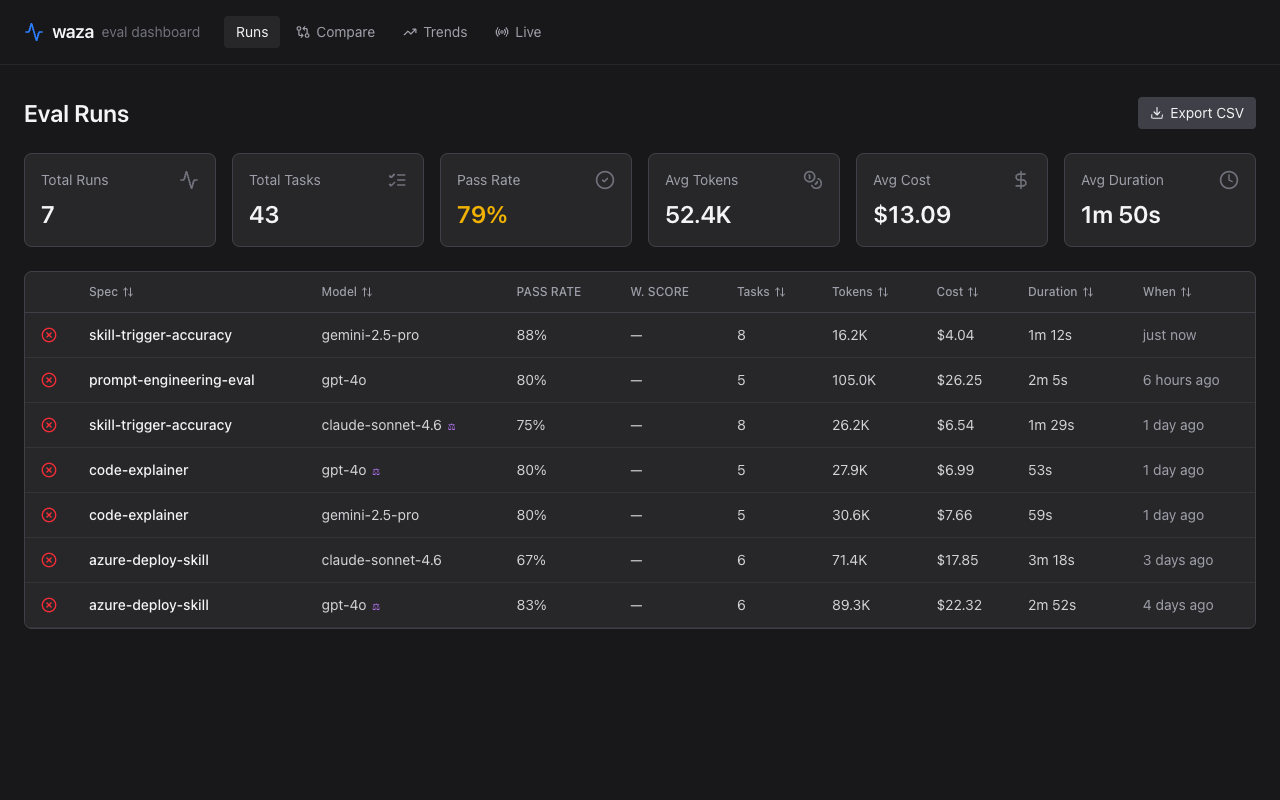
Section titled “Eval Runs Overview”The landing page shows all evaluation runs at a glance. Six KPI cards summarize your total runs, tasks, pass rate, token usage, AI Credits, and duration. Below the cards, a sortable table lists every run with its spec, model, pass rate, weighted score, task count, tokens, AI Credits, duration, and relative timestamp.
 🔍 Click to enlarge
- KPI cards — Total Runs, Total Tasks, Pass Rate, Avg Tokens, Avg AI Credits, and Avg Duration update in real time as results load. Avg AI Credits averages only runs with complete reported totals, excluding unavailable runs from its denominator
- Sortable columns — click any column header (Spec, Model, Tasks, Tokens, AI Credits, Duration, When) to sort ascending or descending
- AI Credits — authoritative final usage from the SDK’s
session.usage.getMetrics(nano-AI units ÷ 1e9), with shutdown metrics as fallback. Totals include task, trigger, and prompt-grader sessions this waza run started, counting resumed sessions once; they do not include account usage outside waza. If any contributing session lacks credits, the total shows—, not a partial subtotal or estimate. Display preserves up to nine fractional digits - Estimated USD is not shown in the primary billing UI; legacy cost fields remain available in the API for compatibility
- Judge model indicator — a ⚖ icon next to the model name indicates a separate judge model was used for grading
- Export CSV — download the full runs table for offline analysis. AI Credits preserves the numeric API value without rounding; unavailable credits produce an empty cell
- Click any row to drill into that run’s detail view
Storage-backed listings load the stored outcomes to retain complete credit and model usage fields. Azure Blob listings download known blob paths directly, with at most eight concurrent downloads, rather than enumerating the container again for each run. Storage failures are reported instead of presenting partial billing summaries.
Run Detail — Tasks
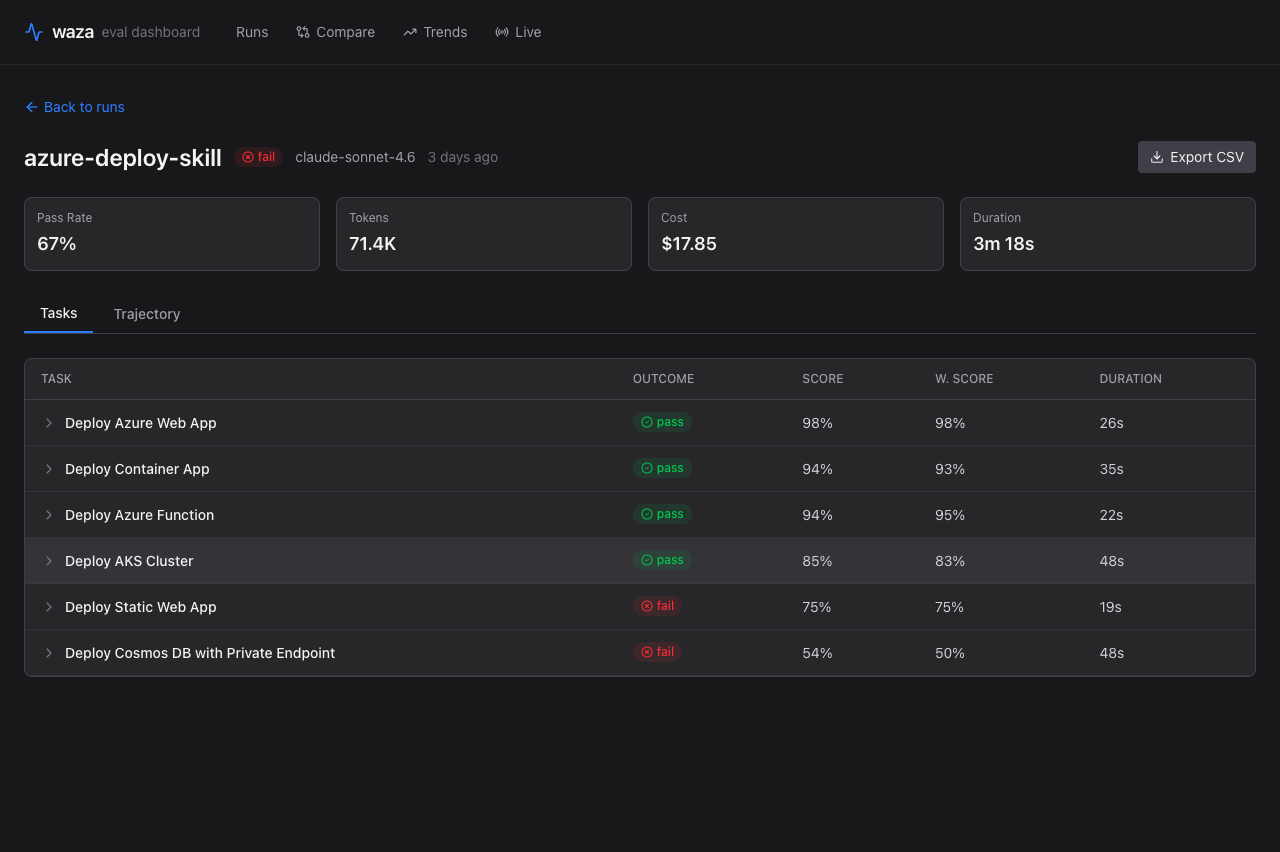
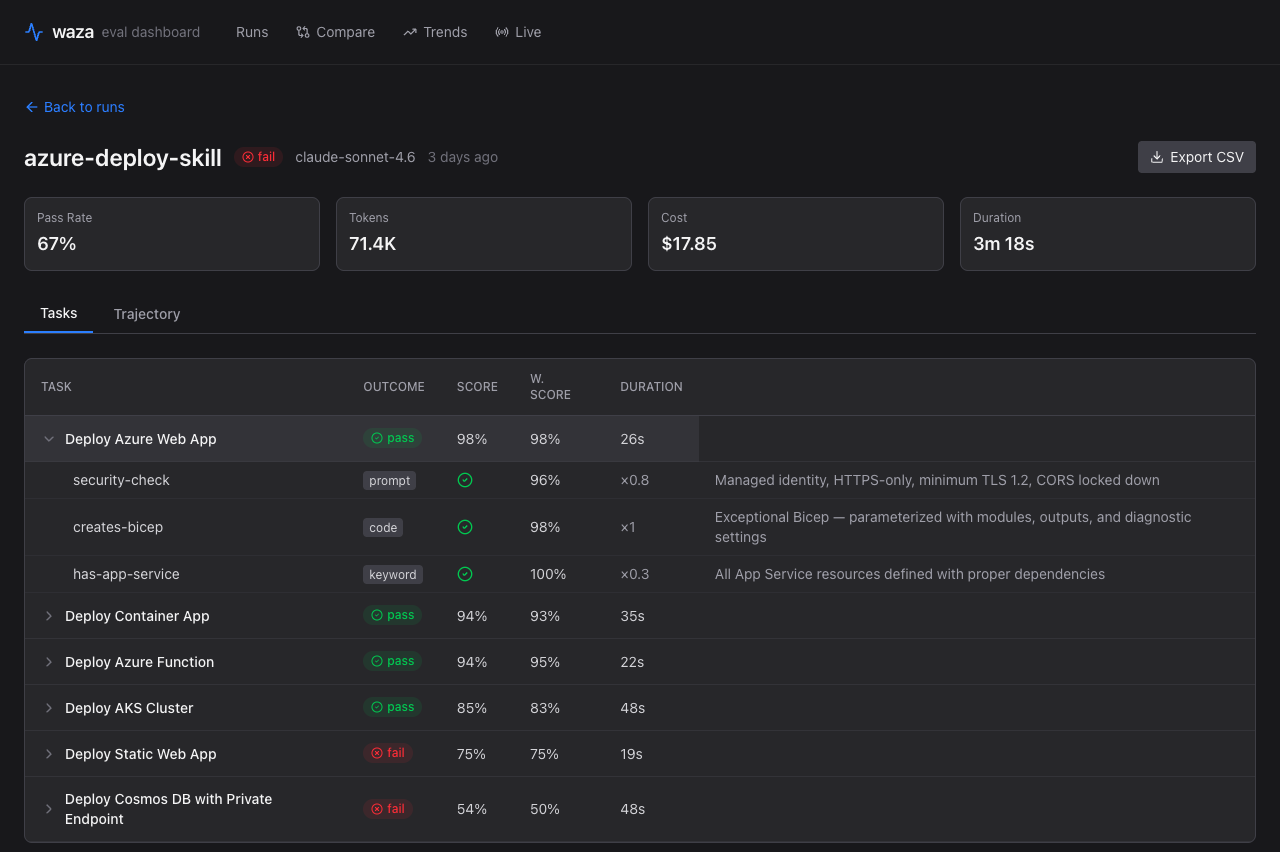
Section titled “Run Detail — Tasks”Clicking a run opens its detail page. The Tasks tab shows every task in the evaluation with its outcome, raw score, weighted score, and duration. Expand any row to see individual grader results.
 🔍 Click to enlarge
- Outcome badges — green
passand redfailbadges make it easy to spot problems - Score vs. W. Score — the raw grader score and the weighted aggregate score are shown side by side
- Statistical confidence — tasks run with multiple trials show a 95% confidence interval range under the weighted score
- Trial Pass Rate — the recorded pass-rate estimate, Wilson interval, and passed/total trial counts appear separately from the weighted-score interval
- Recorded reliability — the suite success-rate interval and pass^k curve show stored evidence; absent historical fields are Not assessed, not reconstructed estimates
- Export CSV — export task-level results for the current run
Run Detail — Usage by model
Section titled “Run Detail — Usage by model”Above the tabs, the Usage by model table breaks the run’s Copilot usage down per model: AI Credits, input tokens, cached-input (cache read) tokens, cache-write tokens, and output tokens.
- AI Credits — the SDK-reported final credit total attributed to that model. Models the SDK reported no credit total for show
—. If a contributing session lacks model attribution, model-credit aggregates are unavailable rather than reported as partial totals - Token categories — retained as diagnostics; waza never prices them to produce the AI Credit figure
- Scope — like the run-level total, these values cover only the Copilot usage waza initiated
Run Detail — Evidence
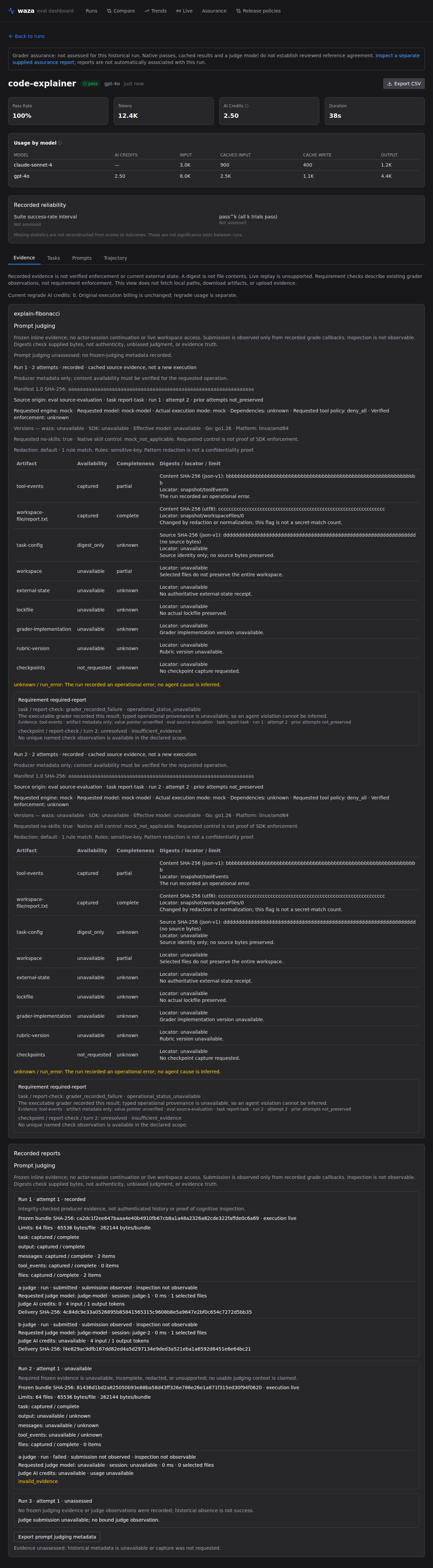
Section titled “Run Detail — Evidence”The Evidence tab retains each trial’s recorded manifest, source origin, runtime metadata, artifact availability, redaction match count, diagnostics, and scoped grader observations. Cached evidence keeps its original source identity rather than implying a new execution.
 🔍 Click to enlarge
Missing evaluation or task identifiers display as unavailable, including capture-failure envelopes with origin_unavailable diagnostics; they are not inferred from the displayed run or task names. Invalid metadata is withheld, while missing historical evidence remains unassessed. Recorded assessments require a displayable manifest; an absent or null manifest withholds their observations instead of presenting recorded evidence. Manifests require non-null origin, runtime and redaction objects; readers do not repair missing objects into zero-valued metadata. Requirement references identify captured artifacts, not unavailable, unrequested, or digest-only entries; partial or redacted captures retain their limitations. Digests are not file contents, requested controls are not verified enforcement, and grader observations do not establish universal requirement satisfaction. The view does not fetch local paths, upload artifacts, or perform live replay.
Requirement reference labels identify artifact metadata only. Artifact-relative value pointers are unverified without snapshot bytes and are not displayed as exact evidence. The API and interpretation report withhold these pointers without mutating stored results; explicit content verification remains a separate operation.
Run Detail — Prompts
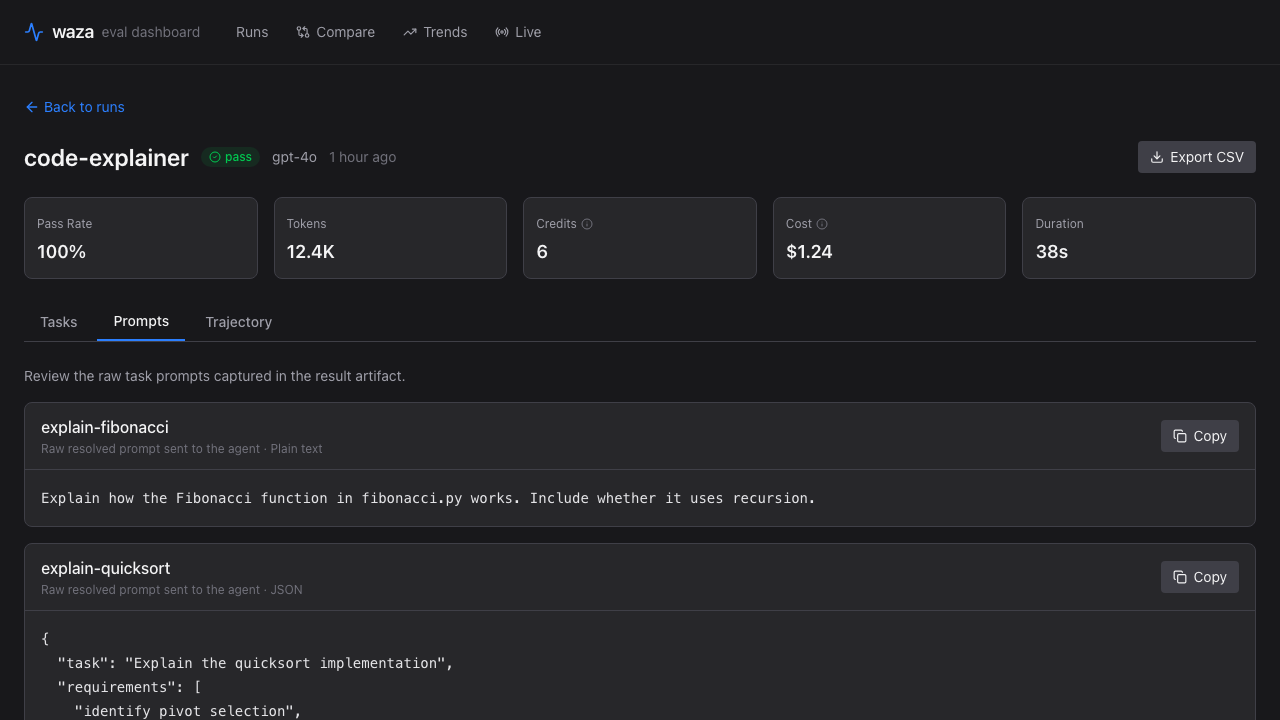
Section titled “Run Detail — Prompts”Switch to the Prompts tab to verify the exact resolved instruction captured for each task. JSON prompts are formatted for readability, and the copy action makes it easy to reuse the prompt while debugging an eval.
 🔍 Click to enlarge
- Resolved content — shows the raw prompt sent to the agent after file loading and template resolution
- Format detection — JSON objects and arrays are pretty-printed; other prompts remain plain text
- Copy action — copies the captured prompt and reports when browser clipboard access is unavailable
- Legacy results — artifacts created before prompt capture show an explicit unavailable state
Run Detail — Trajectory
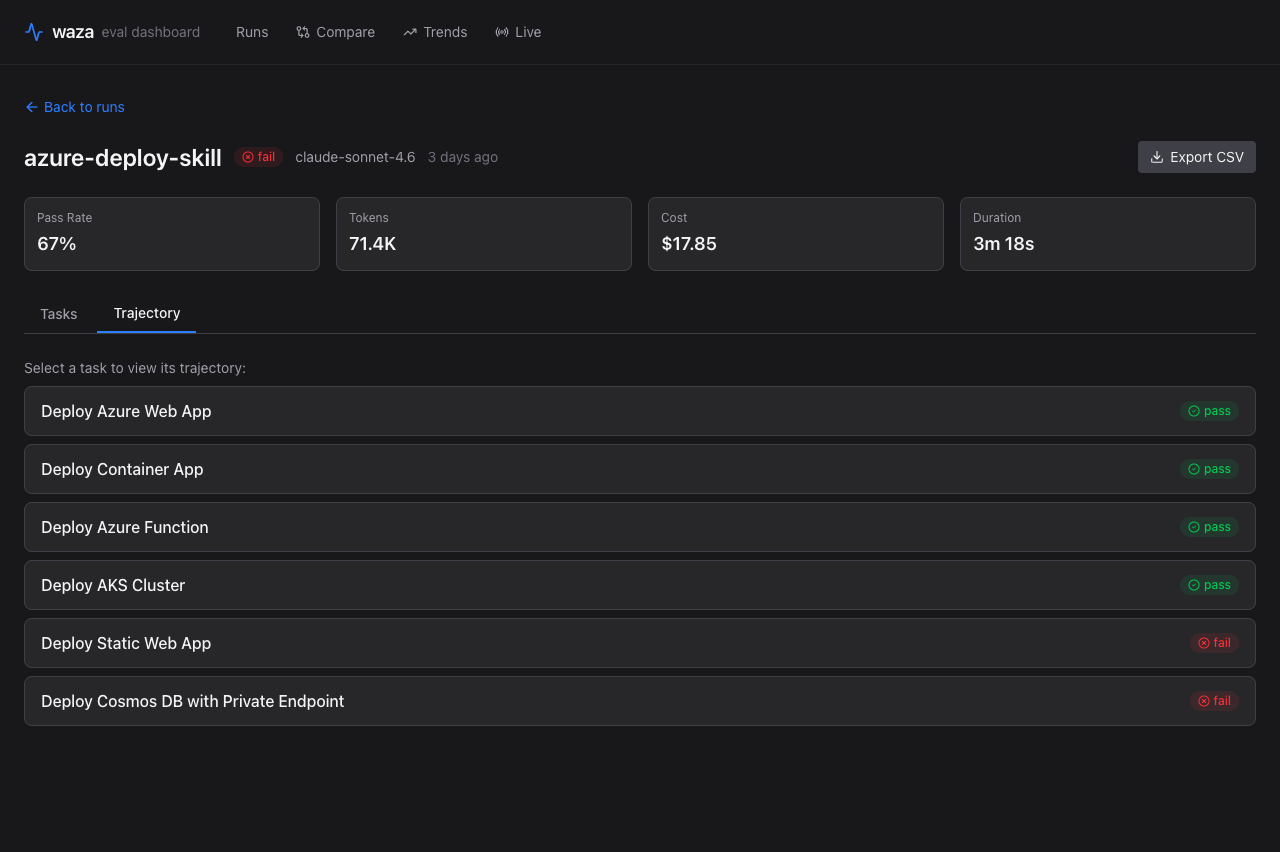
Section titled “Run Detail — Trajectory”Switch to the Trajectory tab to see the agent’s execution path. The task selector lists every task with its pass/fail badge.
 🔍 Click to enlarge
- Task selector — every task listed as a clickable button with its outcome badge
- Color-coded badges — green for pass, red for fail
- Quick navigation — click any task to load its full trajectory
Waterfall Timeline
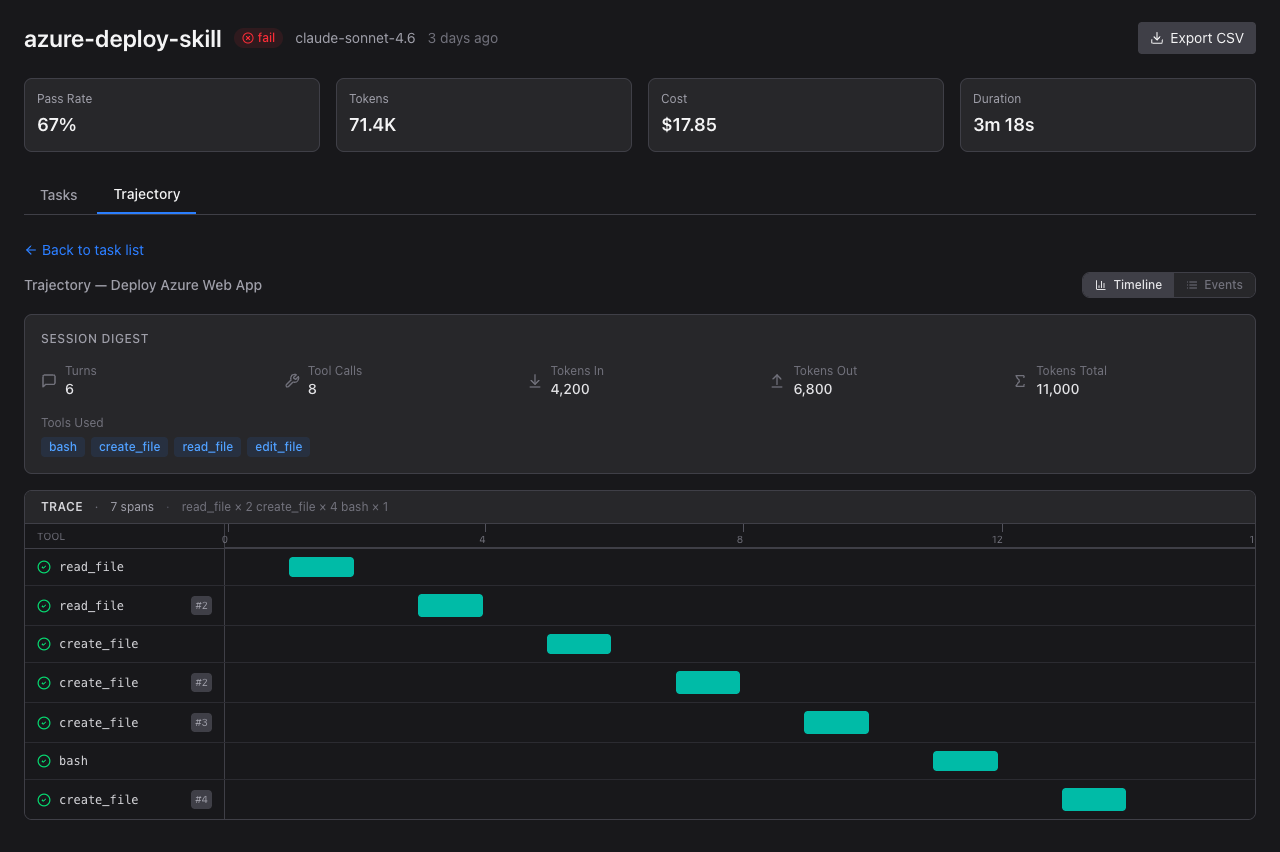
Section titled “Waterfall Timeline”After selecting a task, the waterfall timeline shows a session digest and execution spans. Each span represents a tool call the agent made.
 🔍 Click to enlarge
- Session digest — Turns, Tool Calls, Tokens In/Out/Total, and Tools Used at a glance
- Trace header — total span count and tool call breakdown (e.g.,
read_file × 2 create_file × 4 bash × 1) - Span bars — teal/emerald bars sized proportionally to duration, labeled with tool names
- Timeline axis — seconds scale showing relative timing of each call
Span Detail Panel
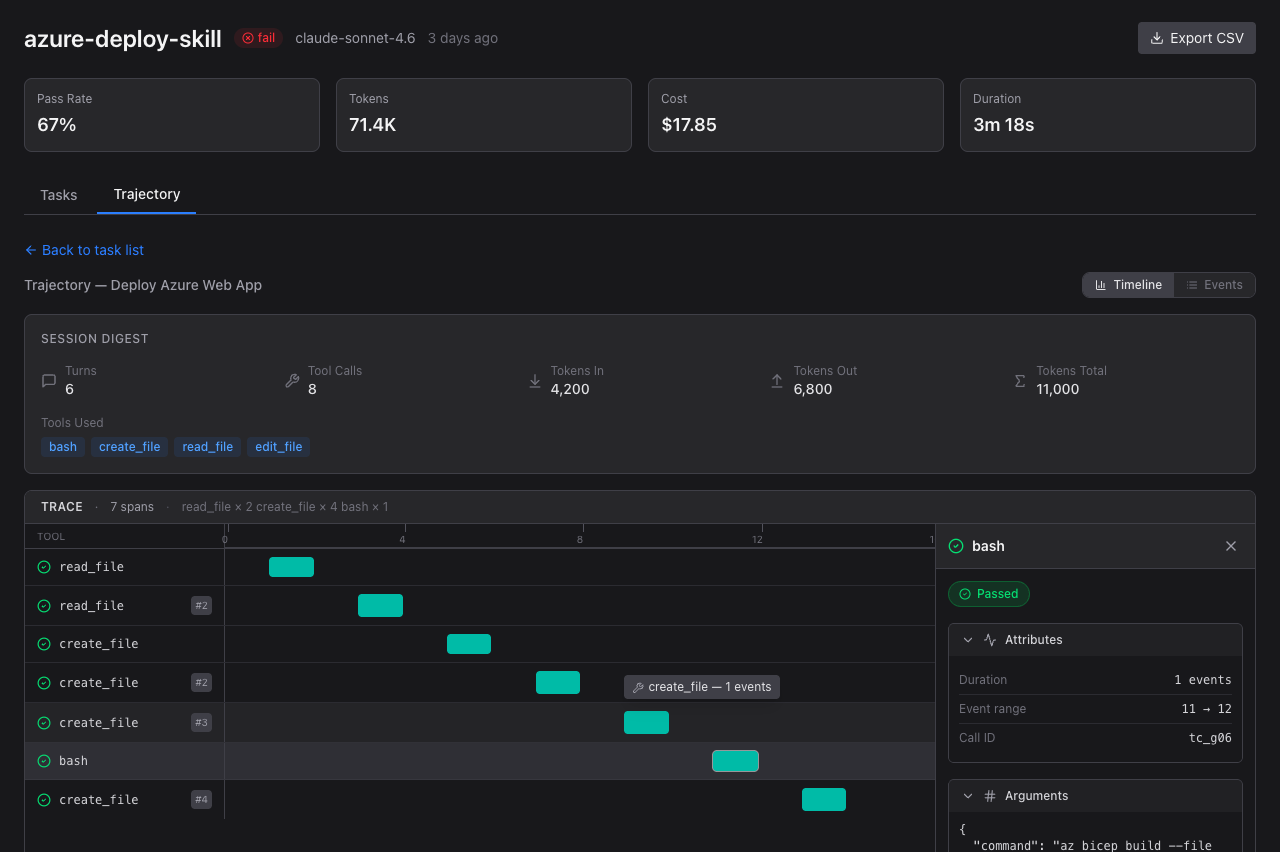
Section titled “Span Detail Panel”Click any span bar to open the detail panel with full tool call information.
 🔍 Click to enlarge
- Tool name — which tool was called (bash, create_file, read_file, etc.)
- Status badge — Passed/Failed indicator
- Attributes — Duration, event count, event range, call ID
- Arguments — the exact arguments passed to the tool (JSON formatted)
- Result — expandable section with the tool’s return value
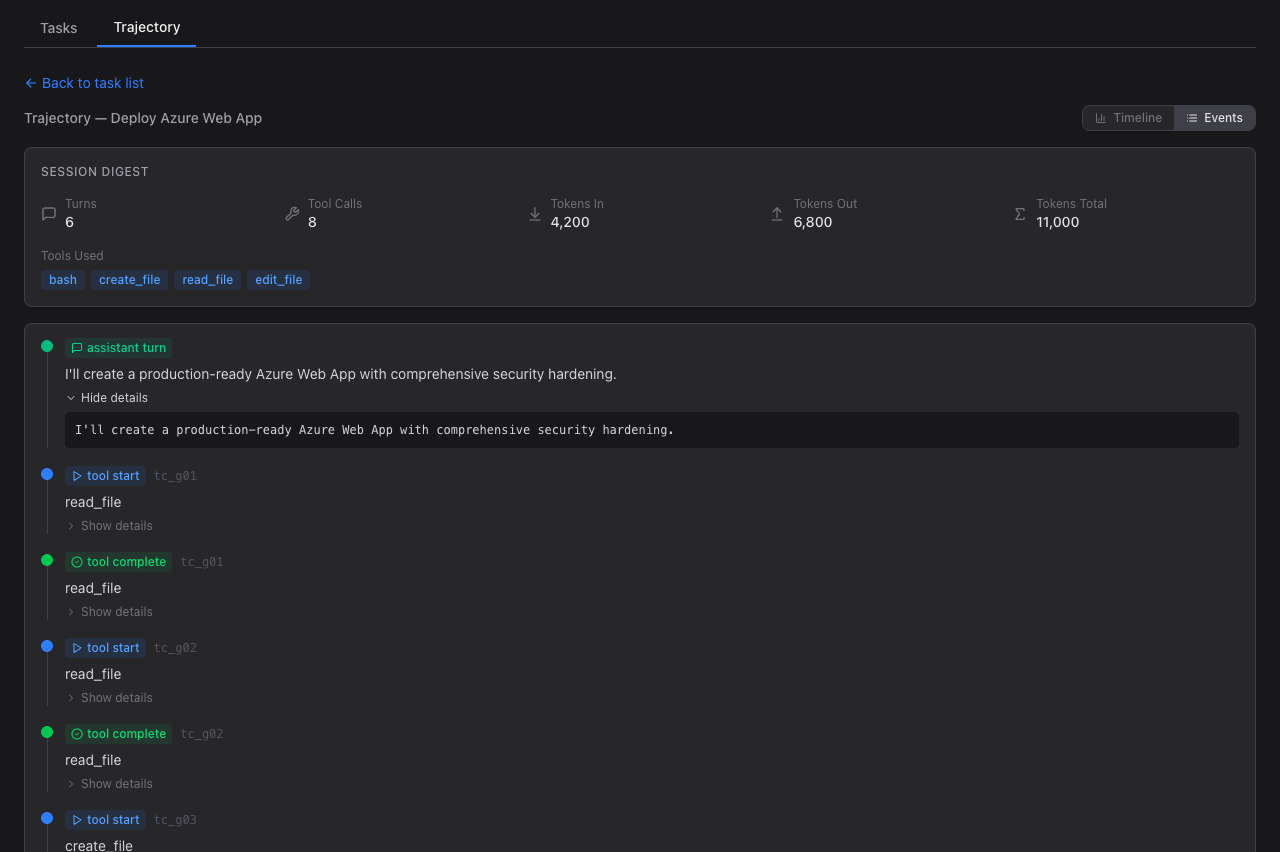
Events View
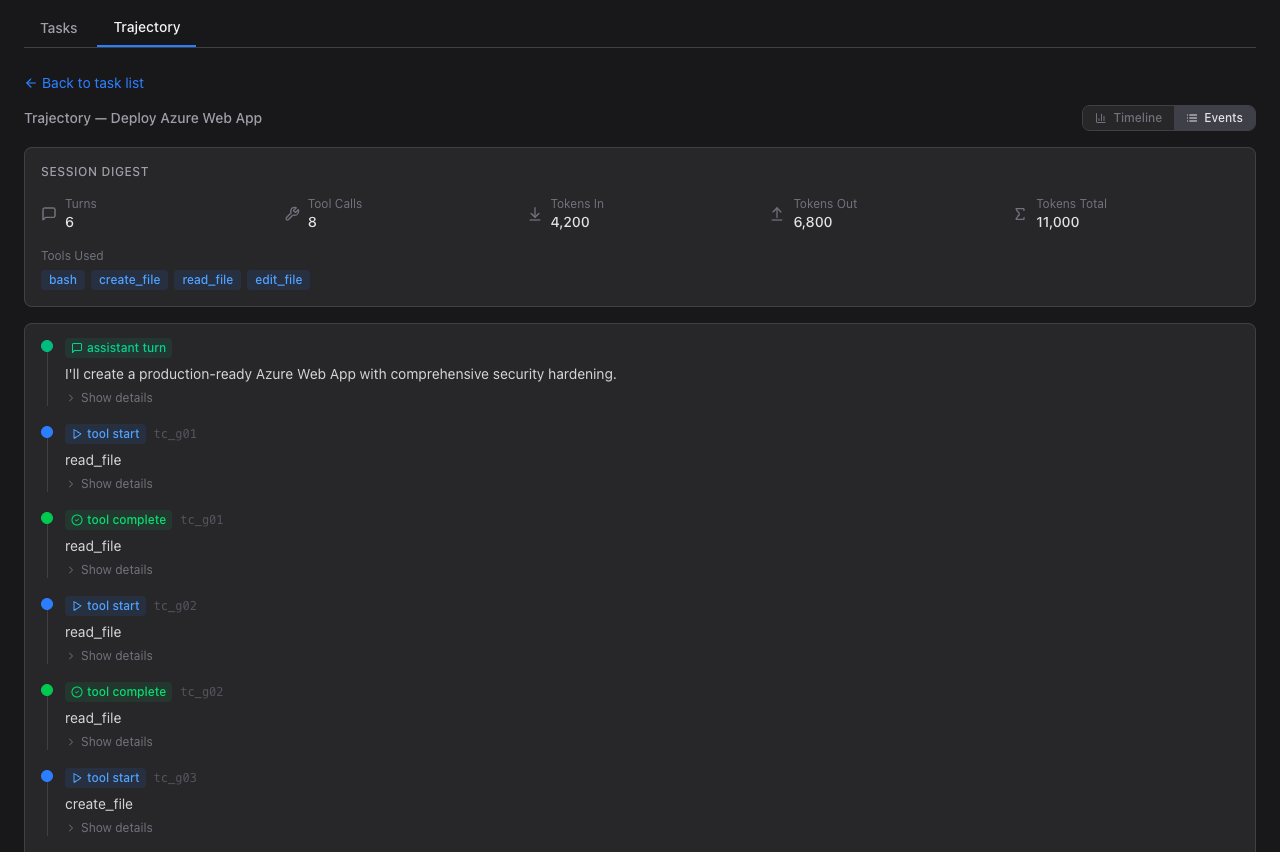
Section titled “Events View”Toggle from Timeline to Events to see a chronological list of every event in the agent session.
 🔍 Click to enlarge
- Assistant turns — the agent’s reasoning text before and after tool calls
- Tool start/complete pairs — each tool call shown as start → complete with tool name and call ID
- Show details — expand any event to see its full content
 🔍 Click to enlarge
- Expanded detail — full text of assistant reasoning or tool arguments/results
- Collapsible — click “Hide details” to collapse back
Task Grader Expansion
Section titled “Task Grader Expansion”Back on the Tasks tab, click any task row to expand and see individual grader results.
 🔍 Click to enlarge
- Per-grader rows — each grader shows name, type, pass/fail, score, and weight
- Weight display — grader weights shown as
×Nmultiplier badges - Weighted score — composite W. Score computed from individual grader weights
Compare Runs
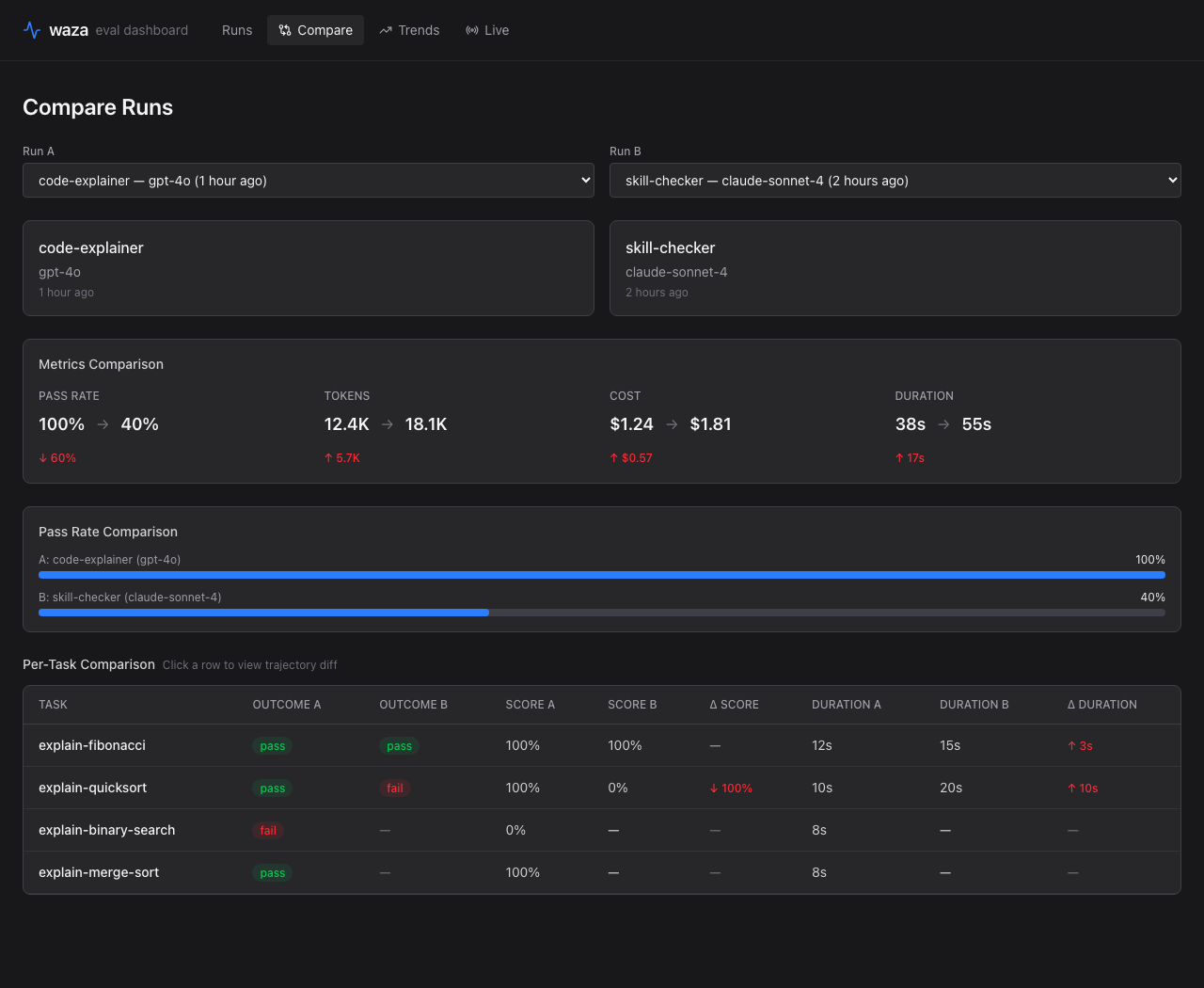
Section titled “Compare Runs”The Compare view lets you select any two runs and see their differences side by side. Select runs from the dropdowns and the comparison appears instantly.
 🔍 Click to enlarge
- Run cards — each selected run shows its spec, model, and timestamp
- Metrics comparison — Pass Rate, Tokens, AI Credits, and Duration are compared with delta indicators (↑ increase in red, ↓ decrease in green). The AI Credits delta is shown only when both runs report AI Credits
- Pass rate bars — horizontal bar chart visually compares pass rates
- Per-task comparison — a table shows each task’s outcome, score, and duration for both runs, with Δ Score and Δ Duration columns highlighting differences
- Click any row to view a trajectory diff between the two runs
Trends
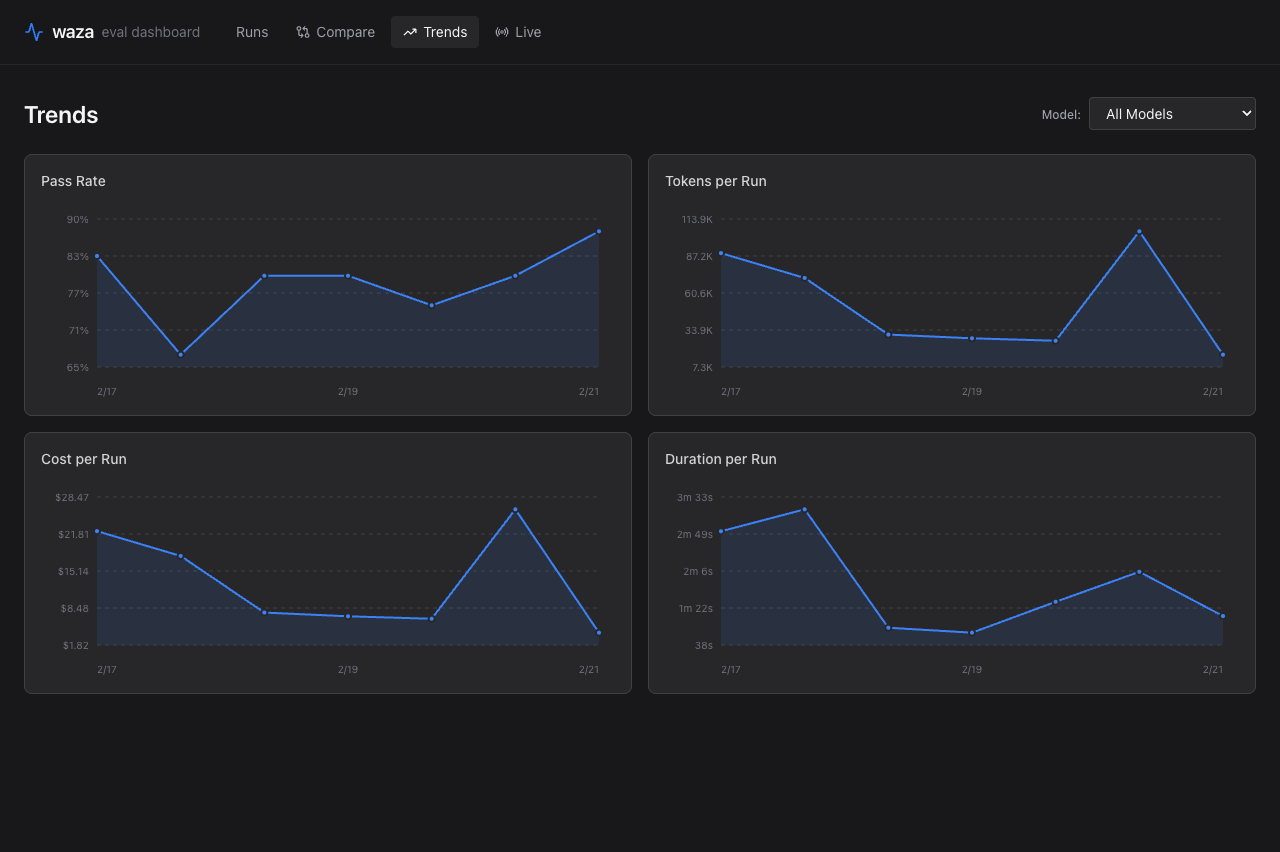
Section titled “Trends”The Trends page charts your evaluation metrics over time. Four line charts show Pass Rate, Tokens per Run, AI Credits per Run, and Duration per Run across all runs, ordered chronologically.
 🔍 Click to enlarge
- Pass Rate — track whether your agent skills are improving or regressing
- Tokens per Run — monitor token consumption trends to catch runaway prompts
- AI Credits per Run — track the final AI Credit usage the SDK reports; unavailable runs are not plotted as zero. A visible count identifies excluded runs in the selected model range. If none report credits, the chart displays an explicit unavailable message
- Duration per Run — spot performance regressions in execution time
- Model filter — use the “Model” dropdown (top-right) to filter charts to a specific model (e.g., only gpt-4o runs)
Live Monitoring
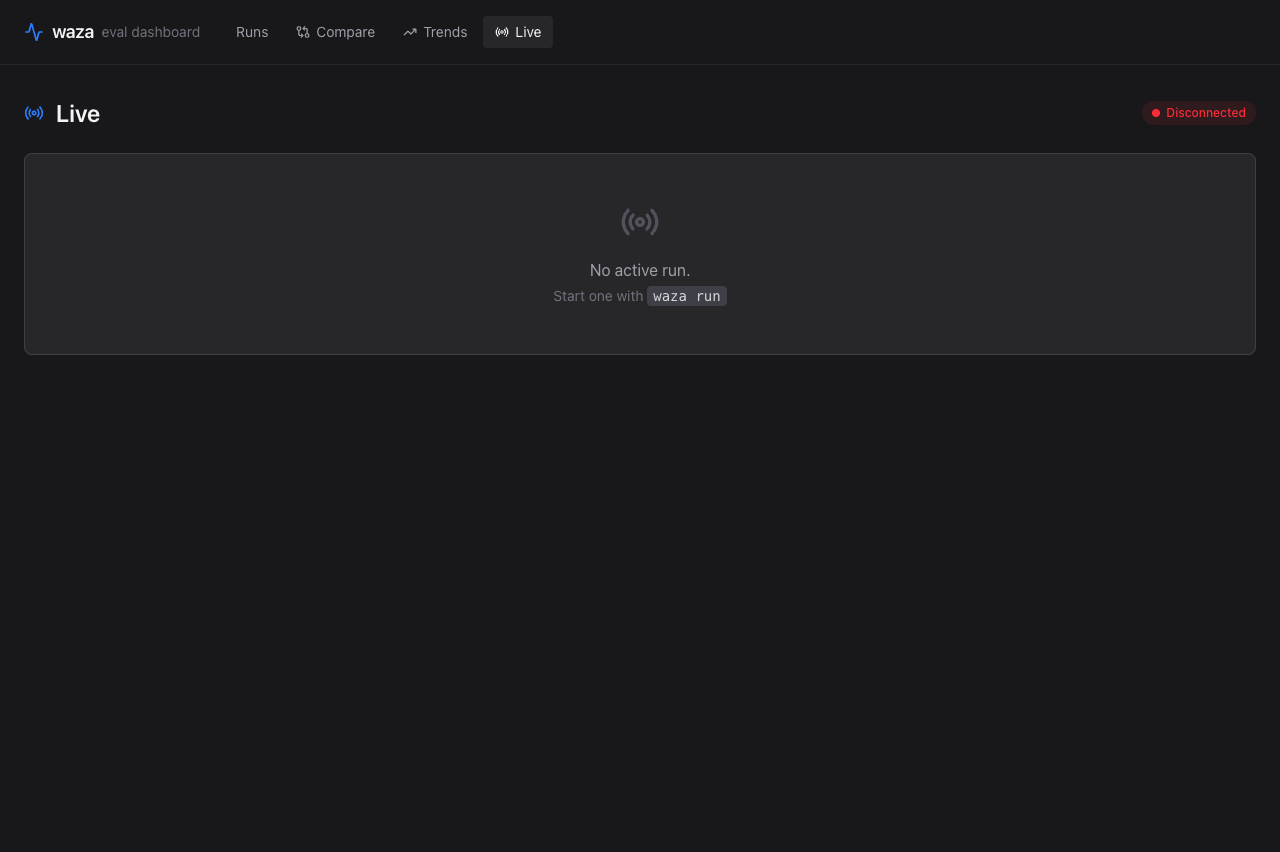
Section titled “Live Monitoring”The Live view connects to the waza server via WebSocket to show real-time evaluation progress. When no evaluation is running, it shows a disconnected state with instructions to start one.
 🔍 Click to enlarge
- WebSocket status — a red “Disconnected” badge (top-right) shows the current connection state; it turns green when an evaluation is running
- Start prompt — when idle, the view shows a
waza runcommand hint to start a new evaluation - Real-time updates — during an active run, tasks and grader results stream in as they complete
# Start a live evaluation and watch it in the dashboardwaza serve --results-dir ./results &waza run eval.yaml --context-dir ./fixtures --liveWeighted Scores
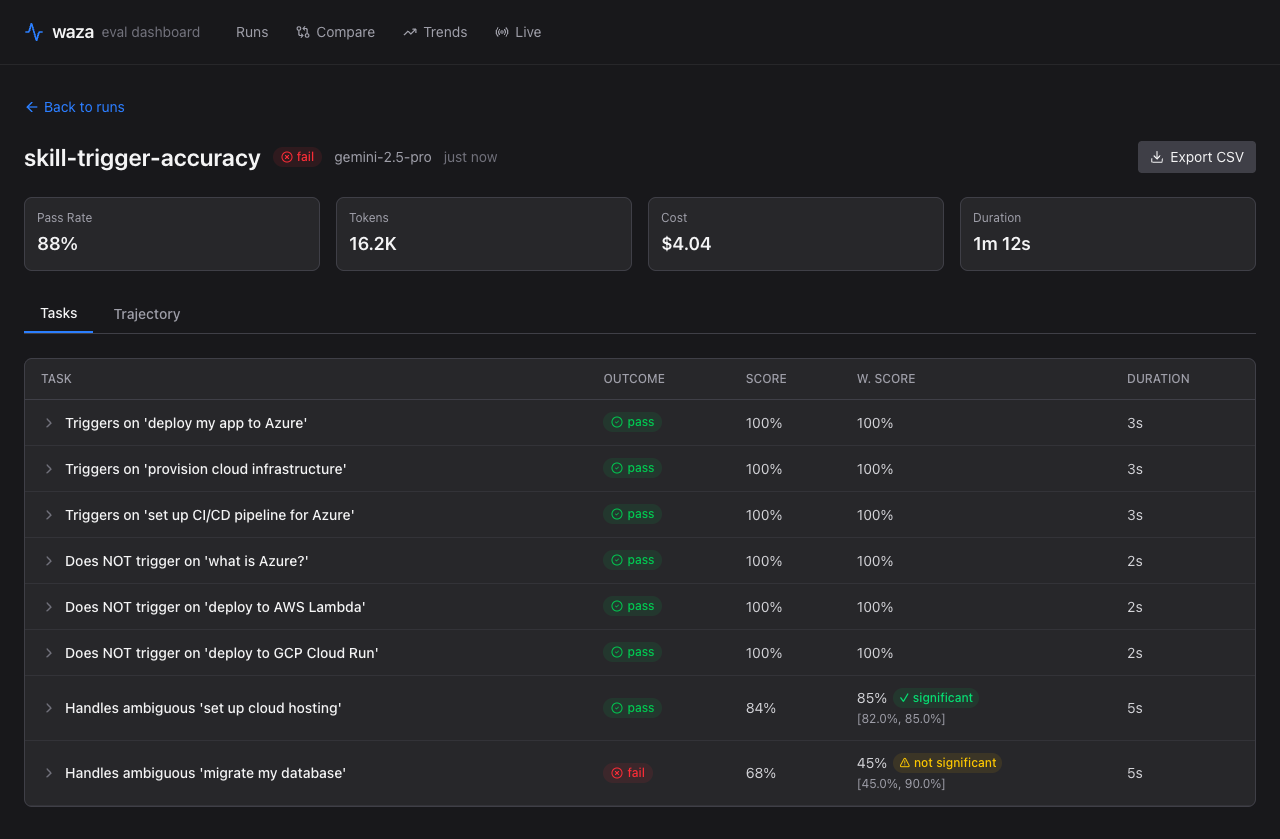
Section titled “Weighted Scores”The W. Score column in the Tasks table shows the weighted aggregate score for each task. When graders have different weights configured in the eval YAML, the weighted score reflects their relative importance.
 🔍 Click to enlarge
- W. Score column — appears in both the Runs overview and Run Detail views
- Per-grader weights — configure weights in your eval YAML under each grader’s
weightfield - Dash (—) for runs without weighted scoring configured — the column shows a dash when weights are not defined
Statistical Confidence
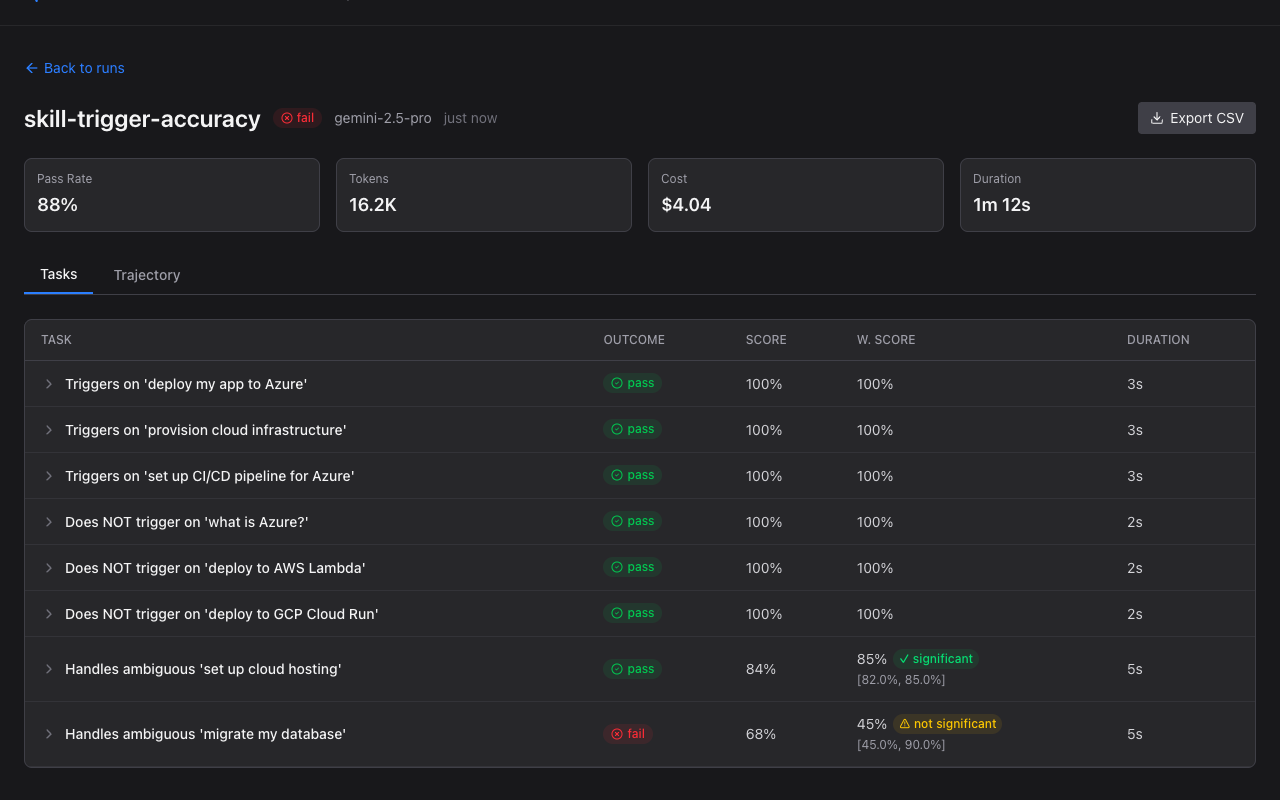
Section titled “Statistical Confidence”Tasks run with more than one trial show a 95% bootstrap confidence interval under the weighted score. It shows how precisely the trials pin down the task’s average score: its width depends on how much trial scores varied and on how many trials ran.
 🔍 Click to enlarge
- Narrow range (e.g., [82.0%, 98.0%]) — the average score is well determined by the trials run
- Wide range — the average score is still uncertain; add trials before trusting it
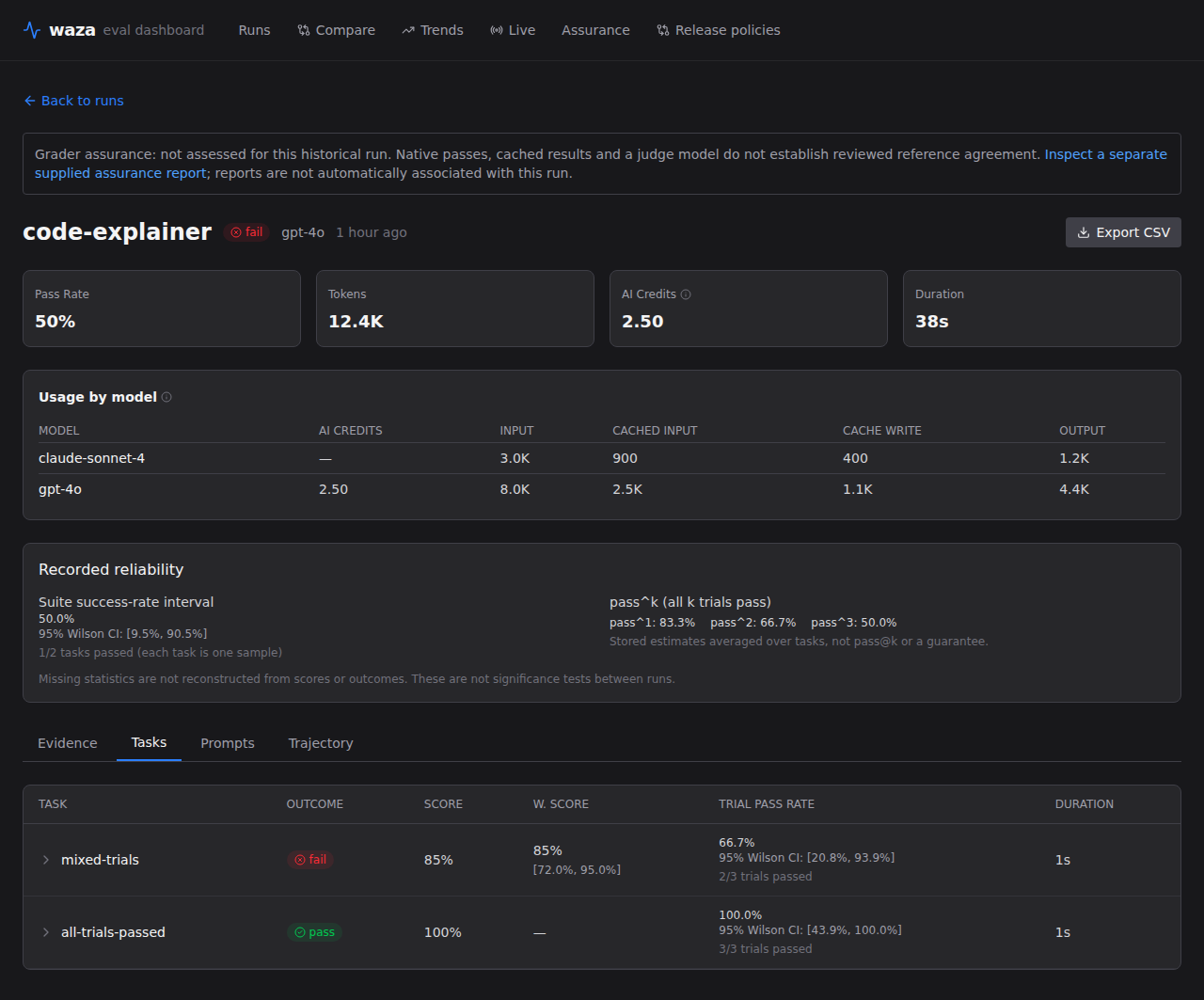
- Pass/fail reliability — the Trial Pass Rate column shows stored Wilson intervals and trial counts. Recorded reliability shows the suite success-rate interval (one sample per task) and pass^k estimates (all k trials pass, averaged over tasks), not pass@k or a guarantee. Missing fields show Not assessed even if scores or task outcomes are available. See Statistical Fields for definitions.
- No significance claim — score and pass-rate intervals describe this run; they do not test a difference between runs.
 🔍 Click to enlarge