Web Dashboard
The waza dashboard provides an interactive web interface for exploring evaluation results, comparing models, and tracking metrics.
Starting the Dashboard
Section titled “Starting the Dashboard”Historical artifact loading and unavailable billing/prompt/trajectory states are covered by the existing-workflow compatibility corpus. The corpus adds regression tests without changing dashboard views or screenshots.
waza serveOpens http://localhost:3000 automatically.
An opt-in Dashboard Lab opens with waza serve --lab at
/#/lab, using saved results for linked charts, history, comparisons, evidence,
and reports. The classic dashboard remains at /#/. Activity is artifact-derived
event replay, not worker monitoring. The synthetic demo is isolated at /#/lab/demo.
Release policies
Section titled “Release policies”The separate Release policies tab reassesses local controlled collections
under the configured --results-dir through /api/release-collections.
Compatibility, completeness, assurance, golden, billing, statistics and
operations are shown independently. Invalid or interrupted evidence never
appears as a pass; partial started/completed attempt counts are descriptive,
with endpoint rates unavailable until final raw-result verification.
Tokens, AI credits and provider currency remain distinct. Exact usage tokens are transported as strings so JavaScript does not round large integers. Unavailable is not zero. Policy sidecars never become ordinary result rows. Mock observations are harness evidence, not agent quality; source binding is local consistency, not authenticated provenance. See controlled comparisons.
For selected native collections, optional decision.native data exposes the
profile/version and each attempt’s key, status, category/error, output
availability, observed event/accounting models, usage completeness and
lifecycle phases. Runtime version and provider currency remain unavailable;
native assurance is unsupported. Collection errors are preserved alongside
attempts, including an operational error after core artifacts were published;
native-stop.json retains the stop cause. JSON export must preserve these
optional observations and errors rather than turning an incomplete collection
into a success.
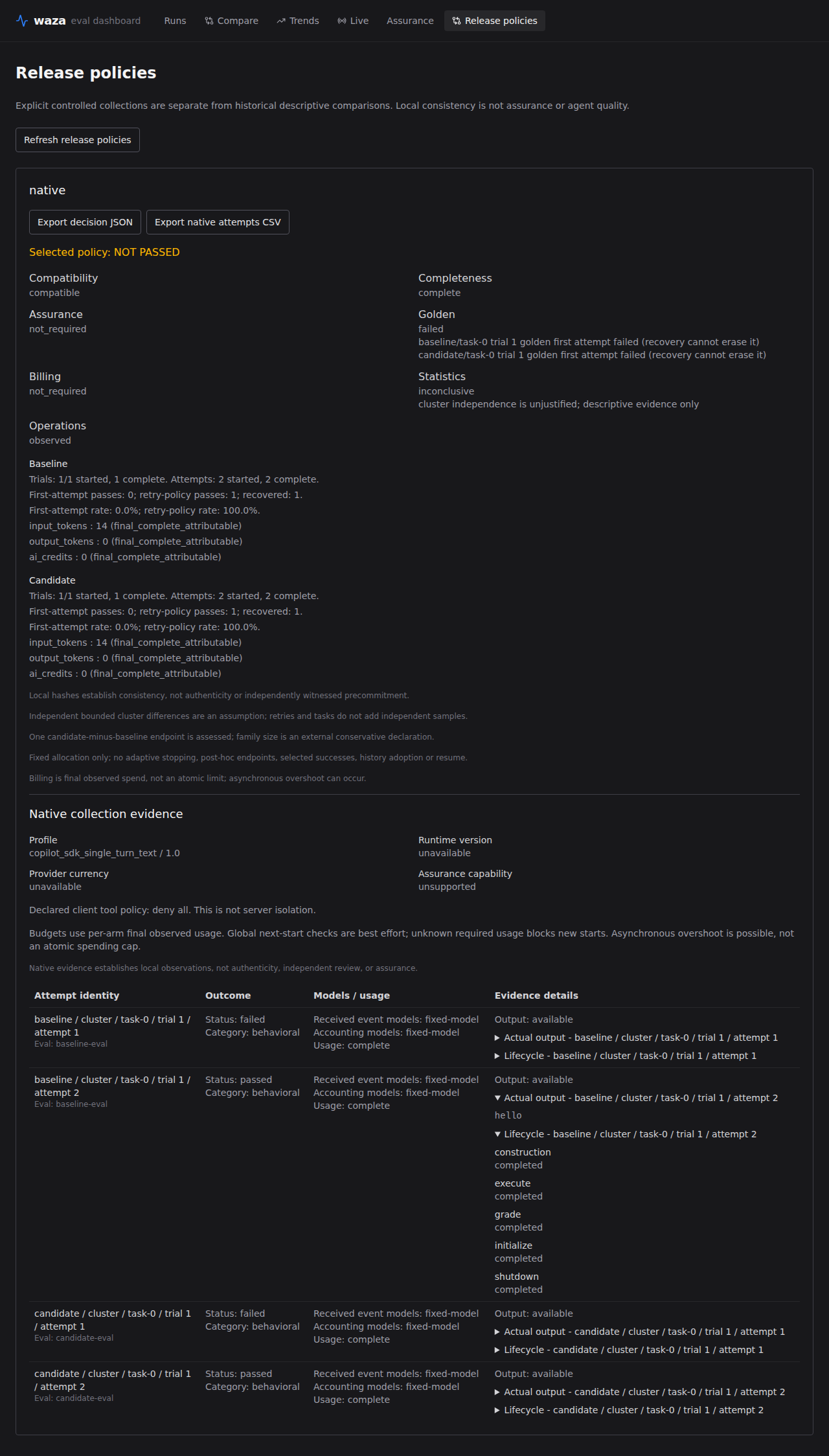
Deterministic SDK-fake illustration of a nonpassing golden-veto decision. Runtime version and provider currency are unavailable; native assurance is unsupported. This screenshot demonstrates rendering, not paid/live execution or model quality. Collection errors remain alongside attempts and are preserved in JSON export.
For legacy/mock collections, this view intentionally preserves base 1.0
decisions: required assurance remains nonpassing even when independent
assurance artifacts are present. Only explicit outer CLI assessment with
--assurance-contract, current per-arm inputs and fresh qualification/regrading
can pass. A selected native collection can pass its supported base decision
within the bounded profile, but it cannot satisfy required assurance. The
dashboard does not adopt stored report pass labels, authenticate reviewers or
expose an outer-profile pass as a base decision.
Dashboard Overview
Section titled “Dashboard Overview”Summary of all evaluation runs:
- Recent Runs — List of recent evaluations with pass rate and model
- Sorting — Click a column’s sort button to cycle through both directions and the original order. Text columns start ascending, numeric columns start descending, and When sorts by the run timestamp. Pass Rate and W. Score are display-only columns. Click a row to open its run details.
- Pass Rate Trend — Historical pass rate over time
- Model Comparison — Side-by-side performance metrics
- Top Failing Tasks — Tasks with lowest pass rate
Run Details
Section titled “Run Details”Detailed results for a single evaluation run:
- Task List — All tasks with pass/fail status
- Trial Pass Rate — Recorded trial pass-rate estimates, Wilson confidence intervals, and passed/total trial counts. The bootstrap weighted-score interval stays under W. Score, separate from binary pass/fail reliability.
- Recorded reliability — The suite success-rate Wilson interval counts each task as one sample. The stored pass^k curve estimates all k trials passing, averaged over tasks; it is not pass@k or a guarantee. Missing historical fields show Not assessed and are never reconstructed from scores or status. These are not significance tests between runs.
- Prompts — Raw resolved task prompts captured in the result artifact, with readable JSON formatting and copy actions. Results created by older waza versions show an explicit unavailable state.
- Validator Results — Per-validator scores and messages
- Execution Stats — Duration, token usage, tool calls
- Trajectory Viewer — Two-mode trace inspection (see below)
- Evidence — Every task trial’s recorded provenance, explicit unavailable states, and scoped grader observations (see below)
- Export — Download run as JSON
Portable evidence
Section titled “Portable evidence”The Evidence tab shows every trial, not just the task’s aggregate result.
Historical results without metadata are unassessed; invalid evidence is withheld,
not repaired or used as proof of state.
The API preserves the legacy shape by omitting evidenceRuns when every task
run lacks both evidence and requirement explanations. If any run has metadata,
every trial is included, even rows missing historical metadata.
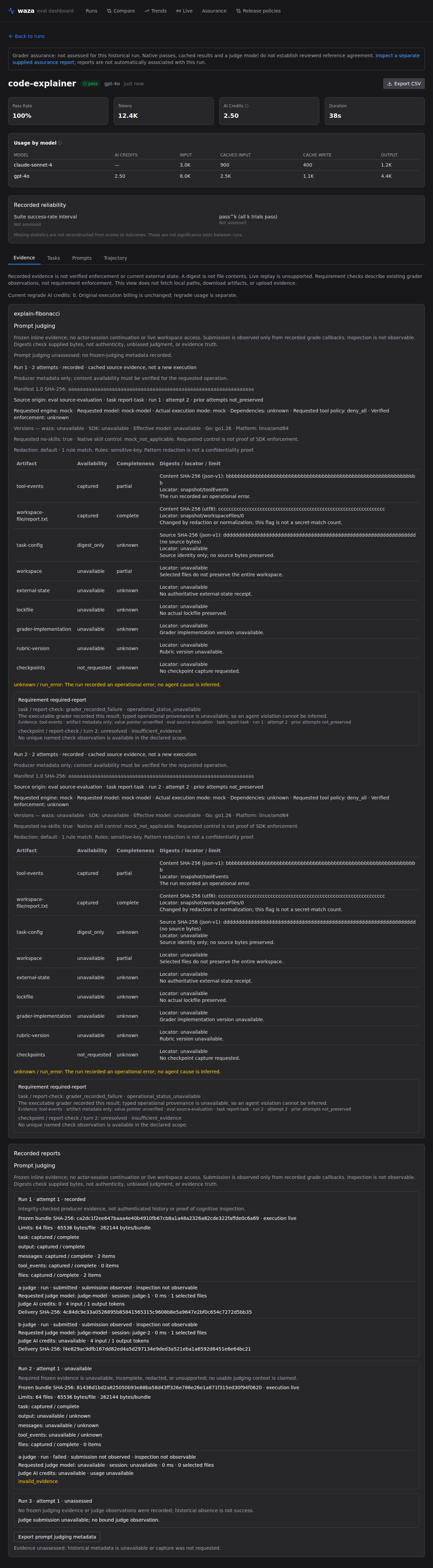
Each trial includes source eval/task/run/attempt and prior-attempt state,
cached-source labeling, manifest/original-capture SHA-256, requested engine/model,
actual execution mode, dependency mode, requested tool policy, verified
enforcement, versions, and requested no_skills/native skill control. Null or
unknown versions are unavailable. Native skill control describes the actual
request, not proven SDK enforcement.
Artifact rows separate source hashes (no source bytes) from content hashes and snapshot locators, with availability, completeness, reasons, and changed-file flags. Redaction rule-match counts do not certify confidentiality; normalization can change a file without matching a secret. A complete selected file does not make the workspace complete, and external state remains unavailable. Schema-valid null or empty redaction limitations remain displayable as unrecorded limitations, not proof of secret absence. Malformed non-array limitations are still withheld.
Scoped requirement checks display existing grader observations and full-origin references. Unresolved names/collisions, qualitative checks, uncertified inputs, and operational uncertainty remain explicit. Recorded pass/fail is not requirement enforcement, a requirement score, or a causal diagnosis. Original checkpoints cannot observe new declarations after regrading.
This tab does not fetch local paths, download captured contents, upload evidence, call a model, or reconstruct a workspace. See Snapshot & Replay for bounded capture, offline consistency checks, and verified file-only regrading.
Prompt judging
Section titled “Prompt judging”The existing Evidence tab includes a distinct Prompt judging subsection,
not another evidence page. For every task/run/attempt it shows frozen bundle
identity, coverage/counts, fixed limits and each bound grader’s delivery digest,
state (prepared, submitted, failed), purpose, requested model, session,
elapsed time, safe diagnostics and observed usage. Historical absence remains
unassessed; unavailable evidence and invalid/unbound observations are explicit.
Only an actual recorded grade callback marks submission observed. Inspection is always not observable: inline exposure is not proof that a model read every item. Reported zero AI credits remains zero; missing credits are unavailable. Current regrade usage is separate from unchanged original execution billing. Export prompt judging metadata downloads these verified metadata rows as JSON, not file contents, evidence bodies, file paths, rendered prompts or raw grader details. It does not call a model or fetch local artifacts. See evidence-backed judging for the bounded saved-result contract and authenticity/accuracy limitations.
Current-evaluation AI Credits
Section titled “Current-evaluation AI Credits”AI Credits and per-model billing include every executed task attempt, prompt grader, responder/classifier, trigger, and evaluation-analysis session, including attempts discarded by retries. A session’s cumulative snapshots are counted once rather than summed across turns. Token-limit grading uses the latest snapshot before engine shutdown.
Cached task diagnostics describe their original execution; their historical
credits do not count toward a new evaluation. Result JSON records current
executions in evaluation_usage.sessions, including an empty list for a fully
cached task-only evaluation. That empty scope has no reported current-session
billing total and never falls back to cached credits. A known starting snapshot
is subtracted when a session is resumed across evaluations; missing baselines,
counter resets, final metrics, or model attribution leave affected billing
unavailable.
Final usage is captured before auxiliary sessions are deleted. If the metrics RPC times out, its independently bounded shutdown fallback still gets a fresh context. Usage collection remains bounded when task execution is canceled.
Trajectory Viewer
Section titled “Trajectory Viewer”The trajectory viewer provides two ways to inspect agent execution:
Timeline view — An Aspire-inspired waterfall visualization. Each tool call renders as a horizontal bar spanning its event range, color-coded by status (green = pass, red = fail, yellow = pending). A summary header shows total spans and per-tool call counts (e.g., “bash × 4, edit × 2”). Click any span to open a detail sidebar with arguments, result, duration, and event range.
Events view — A linear transcript showing every event in order (turns, tool calls, errors, partial results). Each entry is expandable for full detail.
Toggle between views with the Timeline / Events buttons at the top of the panel.
Waterfall Timeline
Section titled “Waterfall Timeline”The waterfall timeline arranges tool call spans on a horizontal axis proportional to event count. Features:
- Status indicators — Green ✓, red ✗, yellow ⏳
- Call indexing — Repeated tools show call number badges (
bash #1,bash #2) - Span correlation — Start and complete events matched by
toolCallId - Interleaved support — Handles concurrent or nested tool calls
- Detail sidebar — Click a span to see arguments, result, and raw event data; press Escape to close
Grader Assurance
Section titled “Grader Assurance”Historical run details explicitly show not assessed for grader assurance. Native passes, cached verdicts and a configured judge model do not establish reviewed reference agreement.
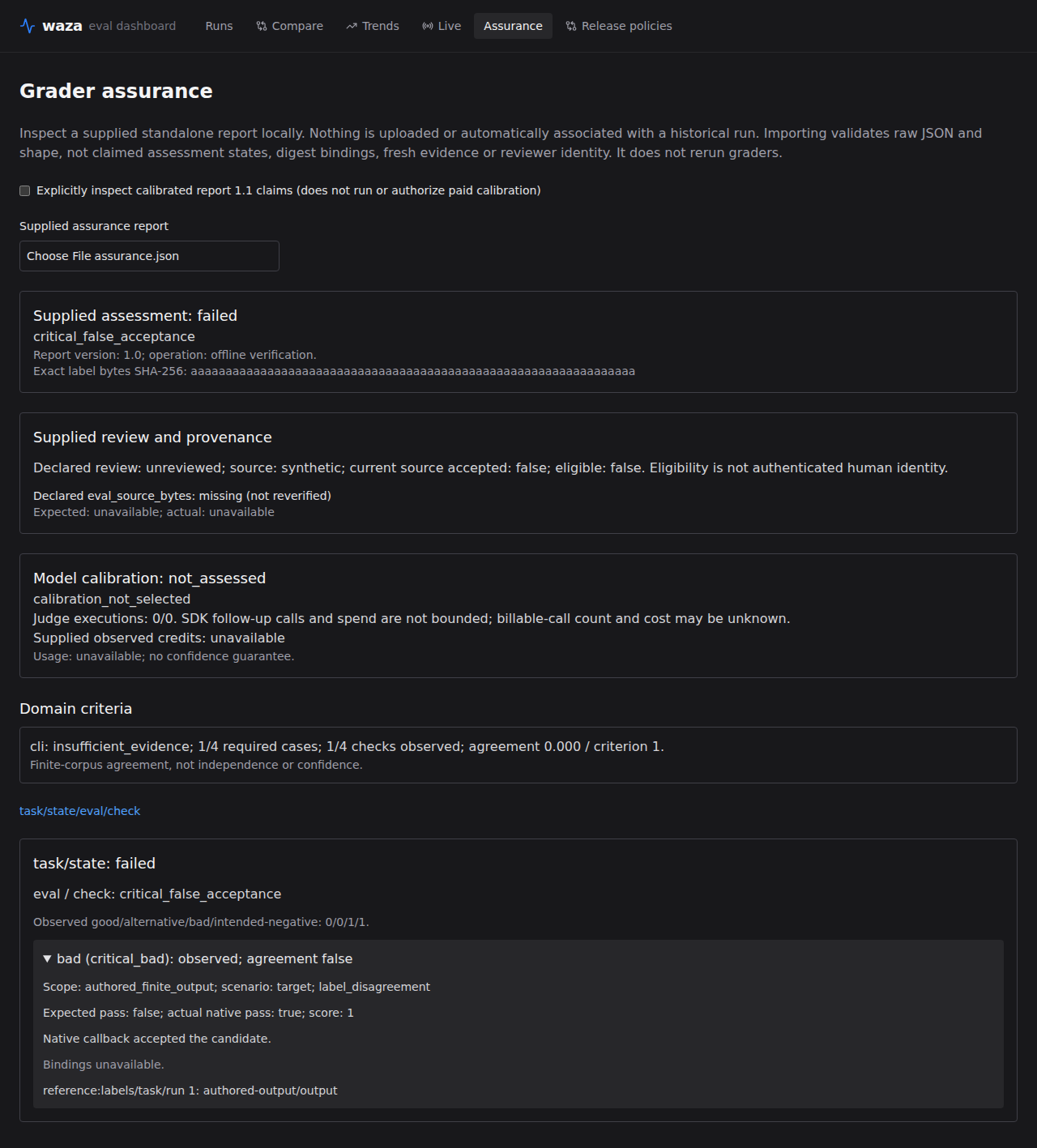
The Assurance view reads a supplied standalone waza.grader-assurance 1.0
report using the same versioned JSON schema as the CLI. Inspection stays entirely
in your browser: no automatic upload, grader/model calls or association with a
historical run. Importing rejects malformed/ambiguous raw JSON, invalid UTF-8,
non-finite numbers and unsupported shapes; it does not verify report freshness,
fingerprints, evidence or reviewer identity.
Before schema validation, numeric wire tokens with fractional values cannot
round into accepted integer counts, including underflow to zero. Valid integral
decimal/exponent forms and finite fractions remain supported. This safeguard
does not provide arbitrary-precision decoding or add a new safe-integer cap to
report 1.0; existing 1.1 count bounds remain unchanged. An invalid import
clears the displayed report instead of retaining stale claims.
Calibrated report 1.1 claims require the separate Explicitly inspect
calibrated report 1.1 selection; they are not silently accepted by the default
offline reader. Changing that selection clears the previous report. The
versioned calibrated shape includes the explicit independent-authored-rubric
operation and a required judge execution ledger; unknown versions or missing
ledger fields are rejected.
The ledger separates initialization, actual execution, native callback counts, requested model, received-event model attribution, authoritative accounting attribution, finalized usage/credits and sanitized lifecycle diagnostics. Unavailable models or credits remain unavailable; callback counts are not billable-call counts. These are supplied claims, not reverified execution, exhaustive event delivery or server-side tool isolation. Inspection neither runs nor authorizes paid calibration, authenticates labels, or accepts the report for a historical run.
Scoped requirement links lead to case observations with actual native verdict, score and feedback, artifact-relative evidence references, coverage and separate review/provenance states. Invalid, unavailable, unsupported and operational states remain distinct from agreement. Domain criteria describe a fixed finite corpus, not independence or confidence. Unavailable credits remain unavailable; an explicitly supplied zero is shown as zero. Judge-execution limits never bound SDK follow-up billable calls or spend.
Compare View
Section titled “Compare View”Side-by-side comparison of two or more runs:
- Model Metrics — Pass rate, average duration, tool call efficiency
- Task Comparison — Which model passed each task
- Validator Performance — Per-validator scores across models
- Statistical Analysis — Confidence intervals, effect sizes
Trends
Section titled “Trends”Historical metrics over time:
- Pass Rate Trend — Model performance trending
- Duration Trend — Execution speed over time
- Task Coverage — Which tasks are consistently tested
- Model Adoption — Usage patterns across models
Features
Section titled “Features”Live Updates
Section titled “Live Updates”The Live view uses Server-Sent Events (SSE) to stream run progress from the dashboard API. The per-run endpoint is:
GET /api/v1/runs/{runId}/eventsAccept: text/event-streamEach message has an SSE id matching the JSON sequence field. Clients can reconnect with the Last-Event-ID header, or with the equivalent lastEventId query parameter, to resume after the last event they processed:
GET /api/v1/runs/{runId}/events?lastEventId=42The stream replays existing events, remains open while the run is still progressing, and closes after run_completed or run_failed. Event payloads include schemaVersion, runId, type, timestamp, and a data object. Current event types are run_started, task_started, step_executed, task_completed, run_completed, and run_failed.
The legacy /api/events endpoint remains available and replays events for the newest run.
To view progress while iterating locally:
# Terminal 1: Serve dashboardwaza serve
# Terminal 2: Run evaluationswaza run eval.yaml -o results.json# Dashboard refreshes automatically
Filtering
Section titled “Filtering”Filter results by:
- Status — Passed / Failed
- Tags — Task tags (e.g., “basic”, “edge-case”)
- Date Range — Last 7 days, month, all-time
- Model — Specific model only
Search
Section titled “Search”Full-text search across:
- Task names and descriptions
- Validator messages
- Error messages
- Transcripts
Export
Section titled “Export”Export data in multiple formats:
- JSON — Complete result structure
- CSV — Task results for spreadsheet analysis
- PDF — Formatted report for sharing
Cost accuracy
Section titled “Cost accuracy”The dashboard shows a per-run Cost value and an Avg Cost KPI. The number comes from one of three sources, in priority order:
| Source | Tooltip label | When it applies |
|---|---|---|
sdk |
“Reported by Copilot SDK” | The Copilot SDK reported a per-request cost during execution (most accurate). |
table |
“Calculated from model rate table (as of 2025-01-01)” | Cost was computed from input/output/cache token counts × per-model rates for known Claude 3.5/4.x, GPT‑5 family, GPT‑4o/4.1, and Gemini 2.5 model IDs. |
estimate |
“Rough flat-rate estimate ($0.00025/token) — model pricing unavailable” | Fallback when the model isn’t in the rate table. |
mixed |
“Mixed sources across runs — hover individual rows for details” | The aggregate covers runs that were priced differently. |
Hover the info icon next to any Cost label in the dashboard to see the source for that value. Per-row tooltips in the Runs table reveal the source for each individual run.
The rate table is a best-effort snapshot of published list pricing as of the effective date shown above and will drift over time. For authoritative invoicing, consult your provider billing.
Configuration
Section titled “Configuration”Dashboard Port
Section titled “Dashboard Port”Change the default port (3000):
waza serve --port 8080JSON-RPC Server
Section titled “JSON-RPC Server”Run as a JSON-RPC TCP server instead of HTTP:
waza serve --tcp :9000Connect from other applications using JSON-RPC 2.0 protocol.
Stdin/Stdout
Section titled “Stdin/Stdout”Use stdio for piping:
waza serve --stdioResult Format
Section titled “Result Format”Dashboard loads JSON results with this structure:
{ "name": "code-explainer-eval", "model": "claude-sonnet-4.6", "timestamp": "2025-02-20T10:30:00Z", "pass_rate": 0.8, "duration_ms": 30000, "tasks": [ { "id": "basic-001", "name": "Basic Usage", "passed": true, "duration_ms": 5000, "graders": [ { "name": "checks_logic", "passed": true, "score": 1.0, "message": "All patterns matched" } ] } ]}Workflow
Section titled “Workflow”Local iteration with dashboard:
# Terminal 1: Start dashboardcd my-eval-suitewaza serve
# Terminal 2: Run evaluationswaza run code-explainer -o results.json
# Terminal 3 (optional): Monitor results# Dashboard auto-refreshes, or manually refresh in browser
Comparison workflow:
# Run with multiple modelswaza run eval.yaml --model gpt-4o -o gpt4.jsonwaza run eval.yaml --model claude-sonnet-4.6 -o sonnet.json
# View in dashboard# Select both results for side-by-side comparison
Integration with CI/CD
Section titled “Integration with CI/CD”Dashboard works with GitHub Actions:
- Evaluation runs in CI generate
results.json - Results uploaded as workflow artifact
- Download artifact and open in dashboard:
# Download from GitHubgh run download <run-id> -n results
# View in dashboardwaza serve
Troubleshooting
Section titled “Troubleshooting”“Connection refused”
Section titled ““Connection refused””Dashboard not running. Start with waza serve.
Port already in use
Section titled “Port already in use”Use a different port:
waza serve --port 8080Results not loading
Section titled “Results not loading”Ensure JSON is valid:
jq . results.jsonNext Steps
Section titled “Next Steps”- CLI Reference — All commands
- YAML Schema — eval.yaml format
- GitHub Repository — Source and examples