Set up of a Virtual Machine
This document will talk you through how to deploy a Virtual Machine via the Guacamole Workspace Service and access imported data.
Creating your VM
-
Open the UI link
https://<TRE_ID>.<LOCATION>.cloudapp.azure.com/- You will need the Microsoft Authenticator app on your phone. The above will take you through the set up process.
-
Within the UI, under the Workspaces tab you should be able to see any Workspaces assigned to you.
-
Click on the title of the Workspace to go into it. Within there should be the Guacamole Workspace Service, click the title to go into the Workspace Service.
- Clicking Connect will take you to the Guacamole Home Page where it will list out all of your deployed VMs.
-
Within the Workspace Service tab, you’ll need to choose Create new to create a user resource. This will be your VM.
-
Choose the template you’d like to base your VM on, at the moment the choice will be between a Windows or Linux VM.
- Fill in all of the details to your requirements.
-
Once the resource is deployed, you should be able to choose Connect and view your VM in a browser.
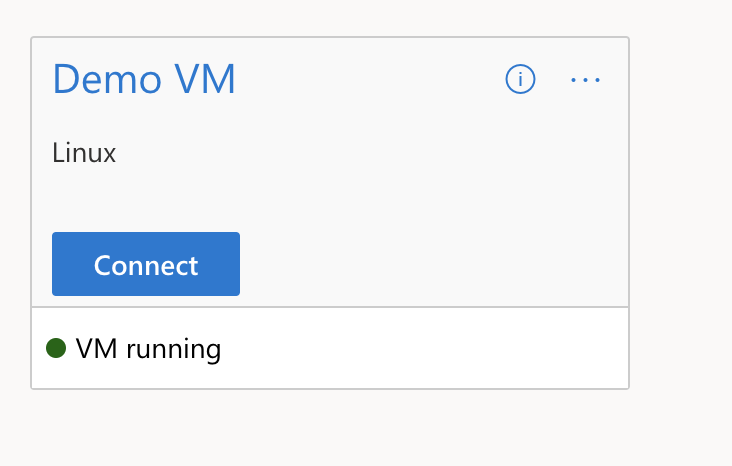
You may see a pop-up asking for guacamole to have permission to use your clipboard, please allow that.
Accessing Data
You may have data pre-provisioned into your workspace, or you may import data via the airlock.
Starting and Stopping your VM
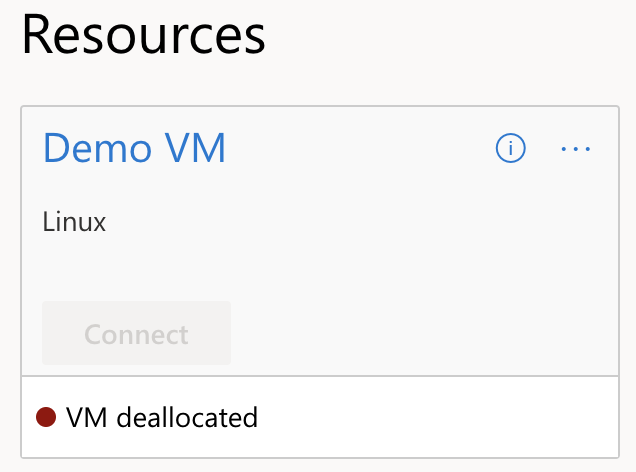
When you are no longer using a VM, it is good practice to stop it so that the VM is deallocated and no unnecessary costs will be applied. To do this, navigate to the UI and find your VM.
- Select Stop on the virtual machine's card and confirm. Stop powers off the VM; it remains enabled in TRE and can be started again with Start.
- It will take a few minutes to take effect and the card should then display 'VM deallocated'.
To start it again, select Start on the card.
Deleting your VM
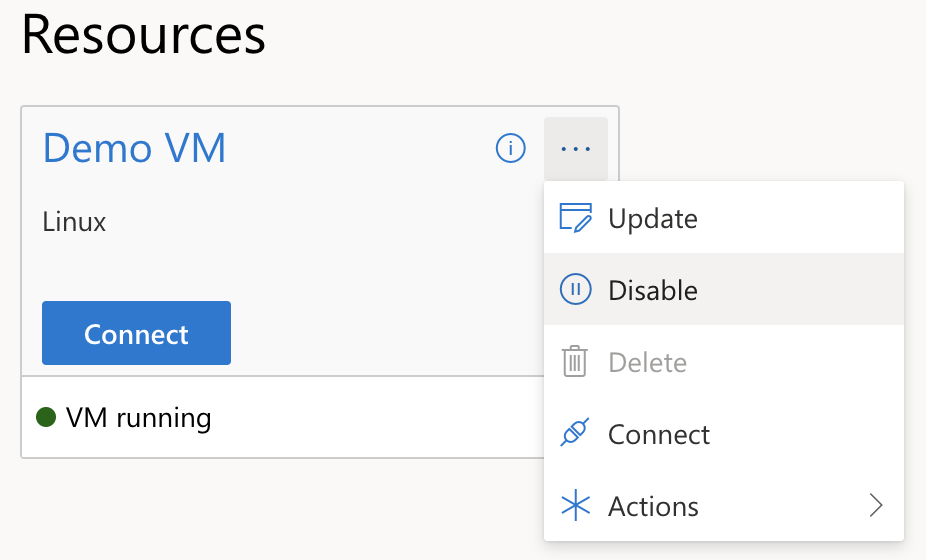
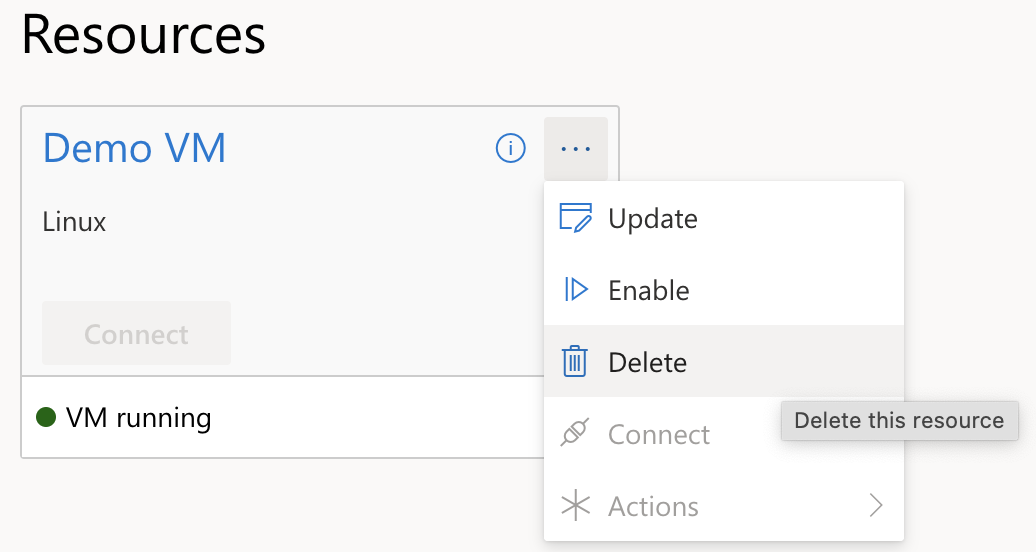
If you no longer wish to use the VM you have created there is an option to delete it. Disable is different from Stop: it disables the resource in TRE and is required before deletion, but it does not power off the VM in Azure.
- Click on the three small dots in the top right and choose Disable.
- Once it is disabled (this can take a few minutes), click on the three dots again and you should then have the option to delete it.
VM Actions
Whilst the VM is currently updating due to an invoked action it will display a message similar to the one below. This will occur any time a service or user resource is deployed, disabled, deleted etc.
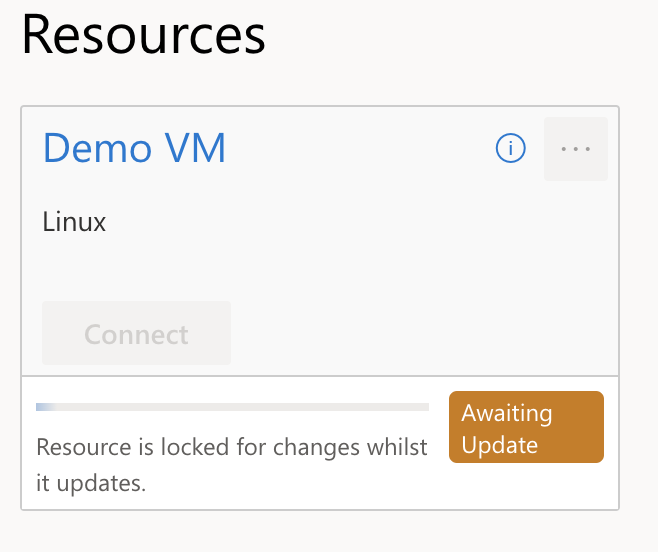
You can also view any current operations by clicking on the bell in the top right hand corner of the screen.
Use Refresh, at the right of each page's action bar, to fetch the latest state. Resource status is also refreshed automatically while the UI tab is visible, and once more when you return to the tab.