

Can other Network MIDI 2.0-enabled PCs or devices see your PC, but cannot connect to it?
By default, the Windows MIDI Service is not allowed to listen to incoming connections through the firewall. That means that external Network MIDI 2.0 devices will see the service advertised, but their connection requests will be ignored, because they are blocked before the service sees them.
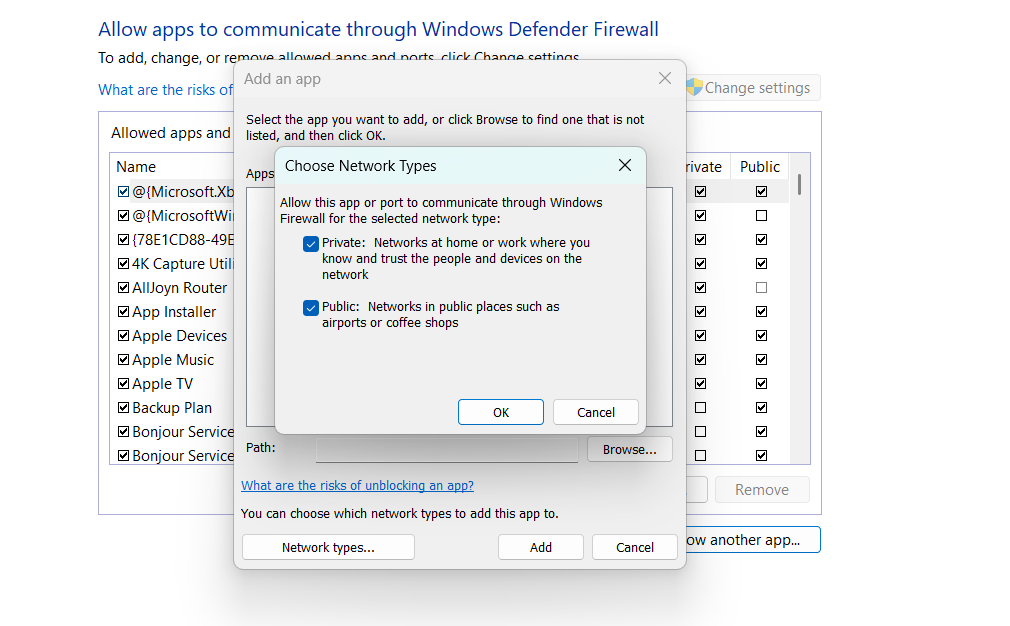
Windows MIDI Network Setup can do this for you. Open it and select Firewall at the bottom of the list of pages. Choose the types of network to allow, then select Allow through Windows Firewall, and say yes when Windows asks for administrator permission. The page also lists the networks you’re connected to now, and tells you whether Windows Firewall lets the MIDI service in on each one. It covers RTP-MIDI hosts too, because they use the same MIDI service.
That page changes Windows Firewall only. If your PC uses a firewall from another company, such as one that comes with antivirus software, follow that company’s instructions for letting a program accept incoming connections. Choose midisrv.exe from the folder described in step 6 below.
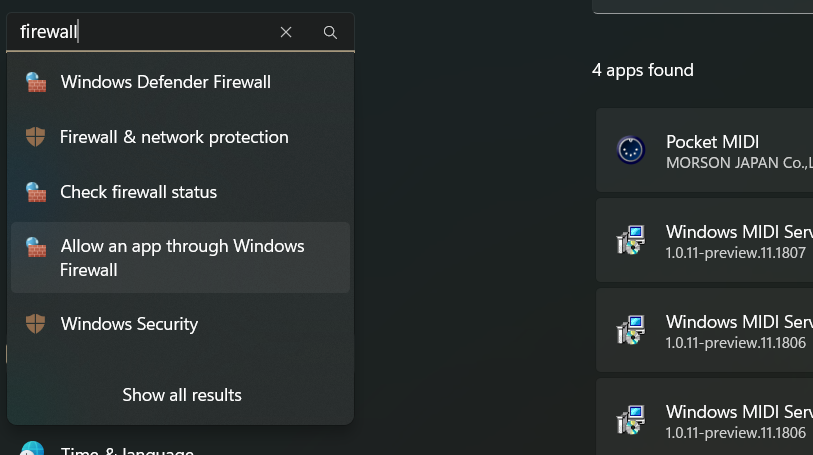
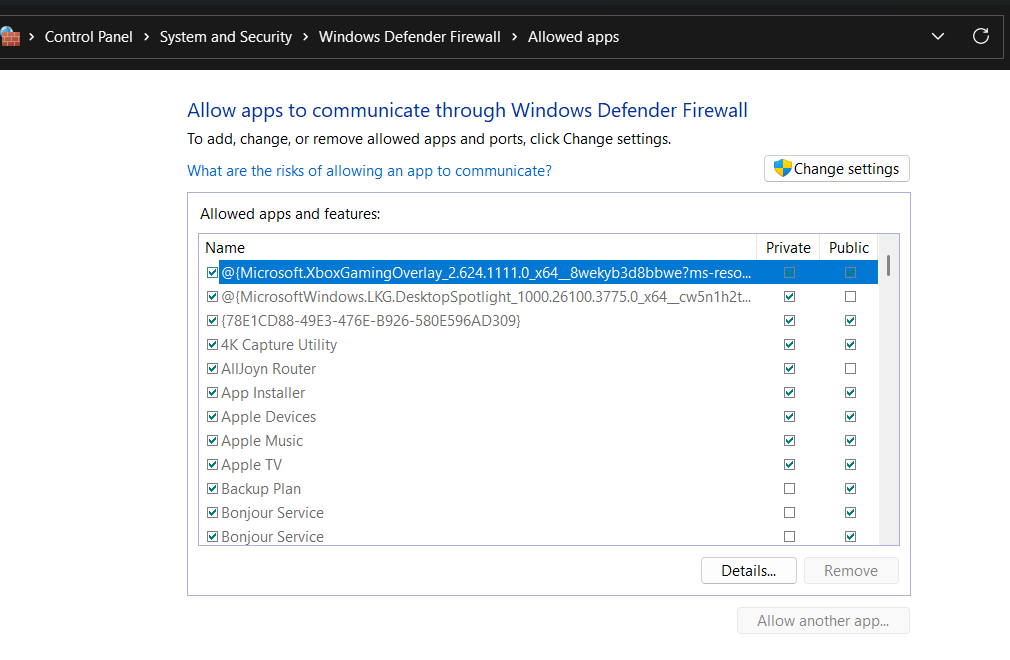
Click “Change settings” (this will require that you have Administrator permissions)
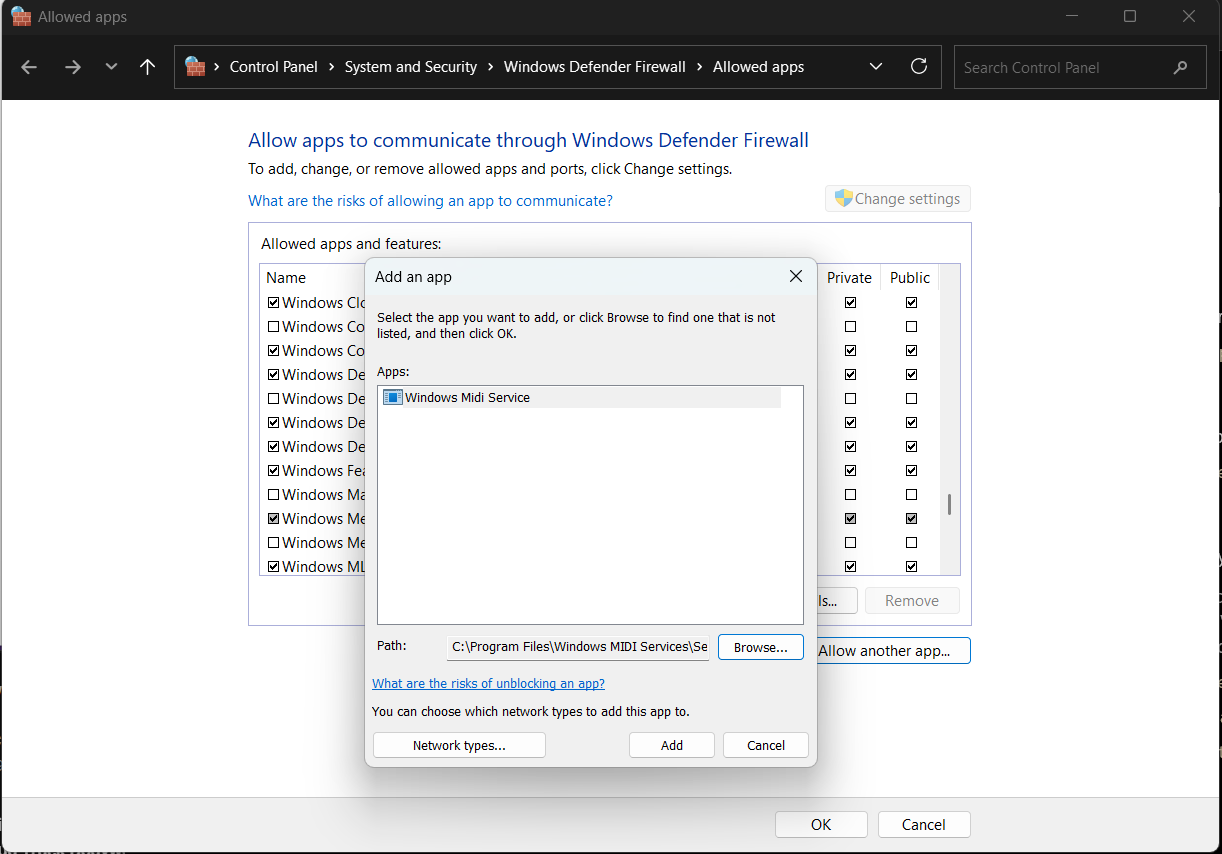
Click “Allow another app…”
In the window that comes up, click “Browse”
If you are using the preview MIDI service from GitHub, it is installed in %programfiles%\Windows MIDI Services\Service. On most PCs, this will be C:\Program Files\Windows MIDI Services\Service. Browse to that folder and choose midisrv.exe. If you are using the in-box install of the service, the version of the service running will be in %windir%\System32, typically C:\Windows\System32. The executable name is the same.

The MIDI diagnostics report checks the firewall for you. If a network MIDI host is running and the firewall blocks the MIDI service on a network you’re connected to, its findings say so.
Other computers find your PC’s hosts by name using multicast DNS (mDNS), which Windows answers in its DNS Client service, not in the MIDI service. So if the firewall blocks mDNS, other computers can’t see your PC in their lists at all, even when the MIDI service is allowed through. The report checks for that too, and looks up each host by name to show whether it’s still being advertised.
Windows MIDI Services is an open source project with all source available on GitHub. We have a great community on Discord as well. Between GitHub and Discord, you should find the information you are looking for.
