Tempo, note lengths, pitch, chords, timecode, MIDI 2.0 values and Windows timestamps, worked out for you
This page covers information about a Windows MIDI Services feature and application that will be released to consumers in 2027. It’s currently available for developers.
Windows MIDI Calculator answers the questions that come up while you make music or write MIDI software. What tempo is this loop? How long is a dotted eighth at 128 BPM? What note is 450 Hz? What’s in a Dm7/G? How far apart are these two timestamps? What number goes in a MIDI 2.0 message for this pitch?
Keep it open next to your music app. Every answer can be copied with one click, and the calculator keeps a history of what you copied.
Quick start
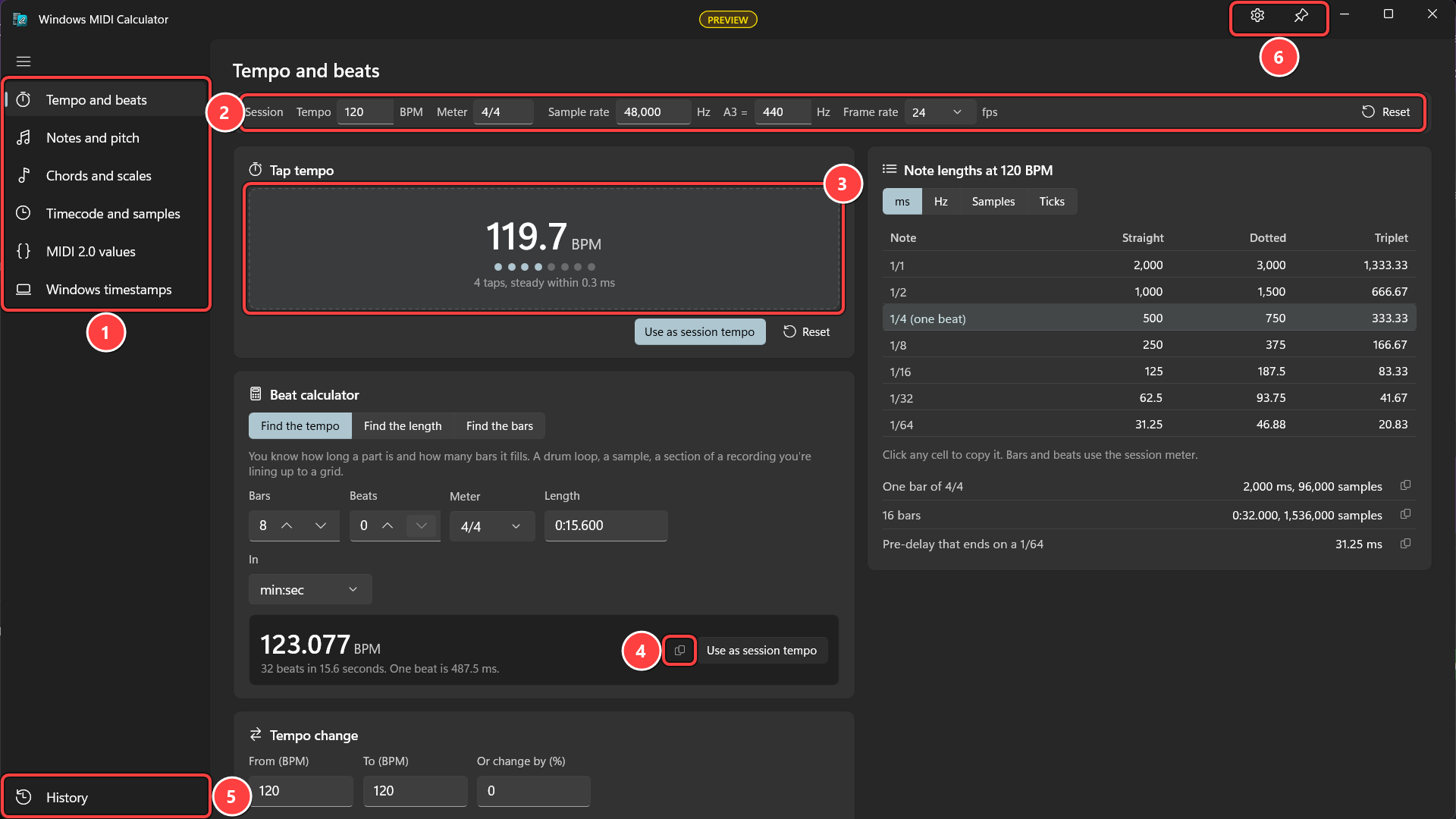
The pages. Each one is a set of calculators for one kind of question: tempo and beats, notes and pitch, chords and scales, timecode and samples, MIDI 2.0 values, and Windows timestamps.
The session values are the tempo, meter, sample rate, tuning and frame rate you’re working at. Every page that needs one of them uses these, so set them once to match your project. Reset puts back 120 BPM, 4/4, 48,000 Hz, 440 Hz and 24 fps.
Tap tempo. Click the pad, or press T or the spacebar, along with the music. The dots show how many taps count, and the line under them says how steady you were. Stop for a moment and the next tap starts over.
Copy. Every answer has a copy button. It puts the answer on the clipboard and keeps it in History. In the note lengths table, click any number to copy it.
History lists the answers you copied, newest first.
Settings has the appearance options, what to call middle C, and the ticks per quarter note. The pin button beside it keeps the calculator on top of your other windows.
The session values are saved, so they’re the same the next time you open the calculator.
Tempo and beats
This is the page in the quick start.
Tap tempo finds the tempo of something you hear. Use as session tempo makes it the tempo every page uses.
Beat calculator works out one of three things from the other two: the tempo, the length, or the number of bars. Use it when you know a drum loop is 8 bars long and lasts 15.6 seconds and you want its tempo. Lengths can be typed as minutes and seconds (0:15.600) or as samples at the session sample rate.
Note lengths shows how long each note value lasts at the session tempo: straight, dotted and triplet, in milliseconds, hertz (for an LFO or a delay synced to the beat), samples or ticks. Under the table are one bar, 16 bars, and a pre-delay that ends on a 1/64 note.
Tempo change shows what happens when you go from one tempo to another: how much faster it is, how long a part becomes, and how far the pitch moves if you speed up audio without time-stretching it.
Notes and pitch
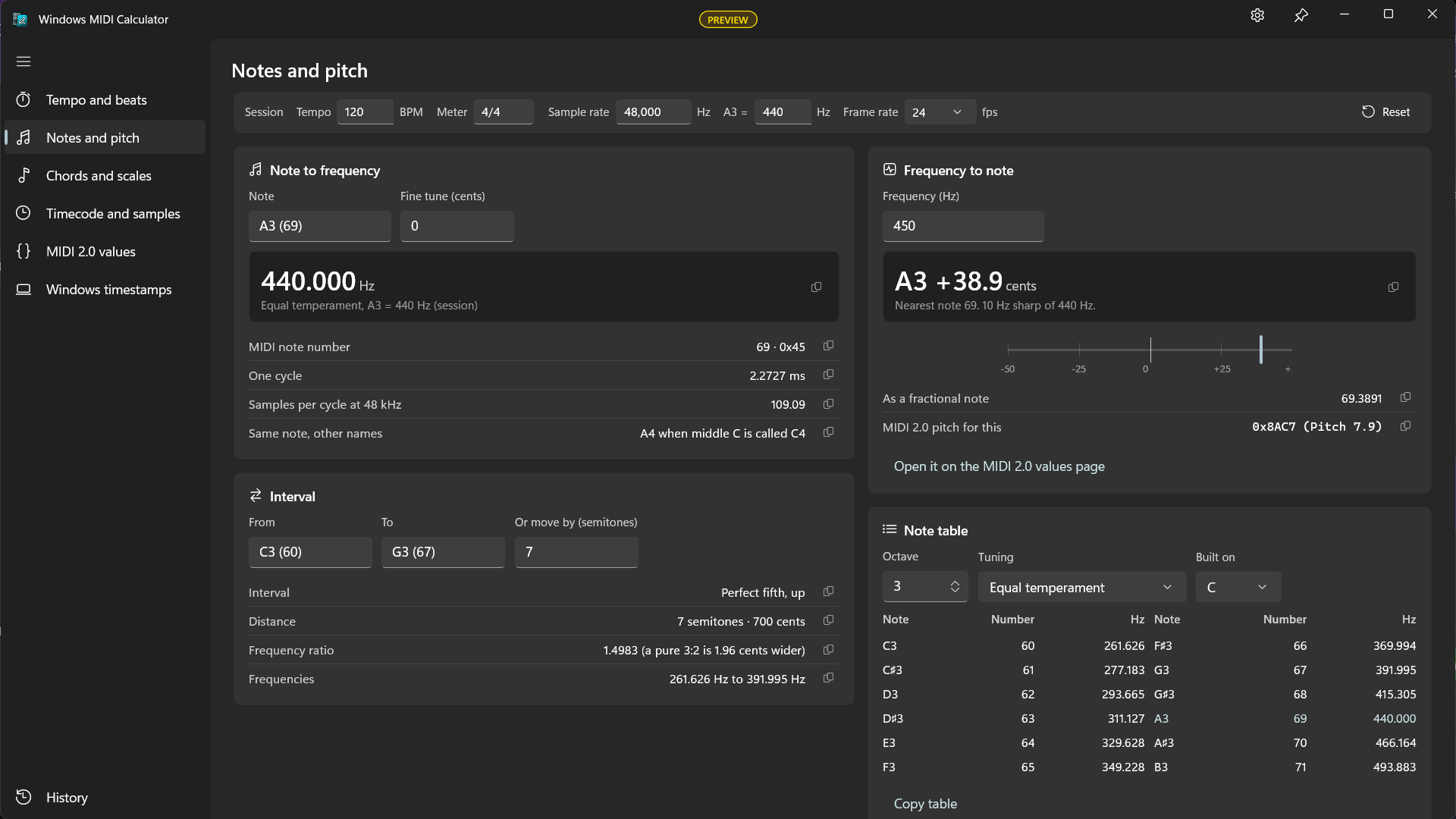
Note to frequency. Type a note, such as A3, C#4 or 60, and an amount of cents. You get the frequency, the MIDI note number, how long one cycle lasts and how many samples it takes, and the note’s name for an app that calls middle C something else.
Frequency to note. Type a frequency and you get the nearest note and how many cents sharp or flat it is, shown on a tuner. You also get the note as a fraction and the MIDI 2.0 Pitch 7.9 value for it. Open it on the MIDI 2.0 values page takes it there.
Interval names the distance between two notes, such as a perfect fifth, in semitones and cents, and gives the frequency ratio.
Note table lists an octave of notes with their frequencies in a tuning you choose: equal temperament, just intonation, Pythagorean, quarter-comma meantone or Werckmeister III, built on any note. A3 keeps the session frequency in every tuning, and each note shows how many cents it moved.
Chords and scales
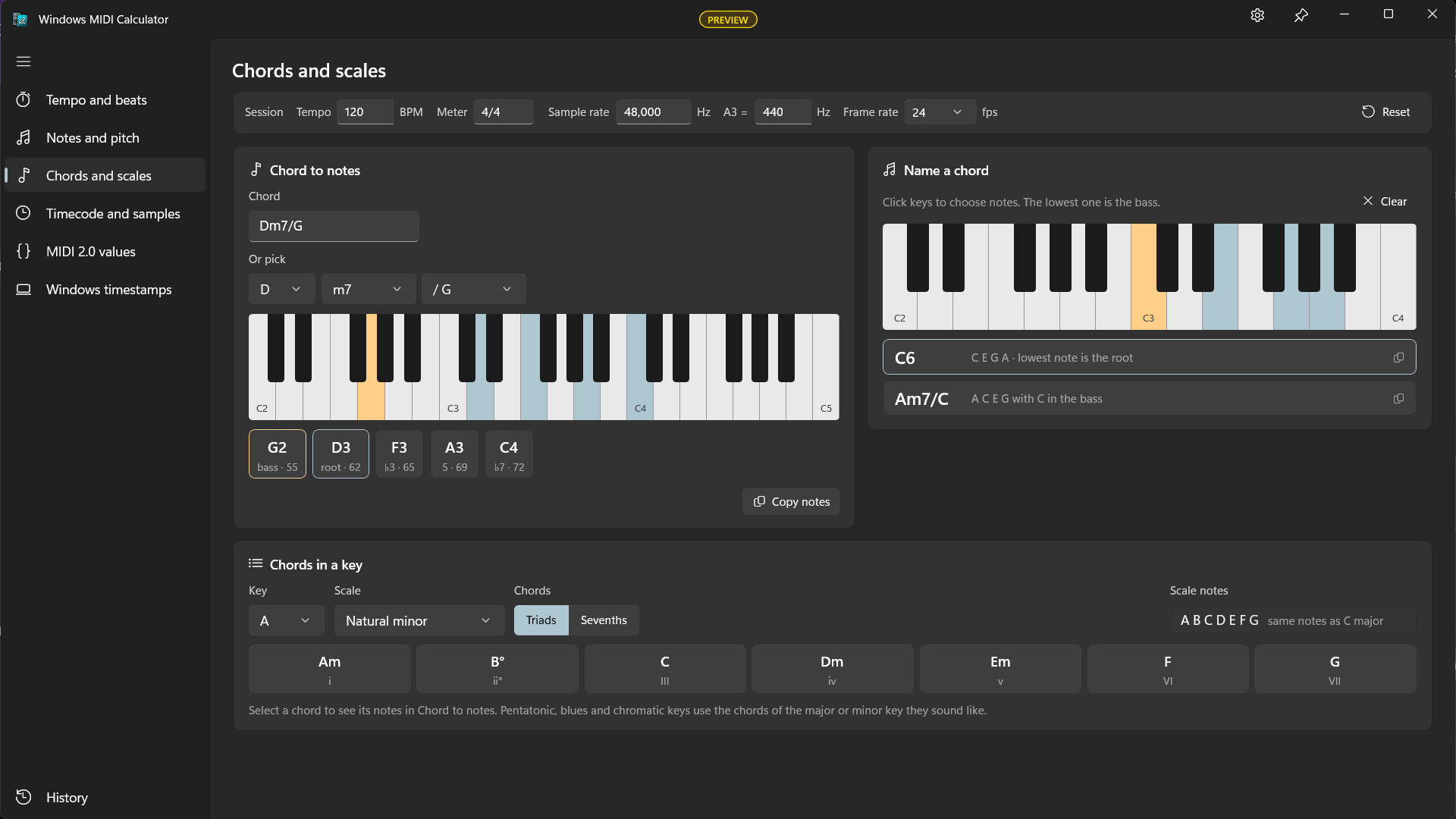
Chord to notes. Type a chord, such as Dm7/G, B♭maj7, F#m7b5 or C/E, or choose its root, type and bass from the lists. The keyboard and the boxes under it show its notes, voiced the way the Windows MIDI Sequencer plays a chord: close together from middle C up, with the bass an octave lower. Copy notes copies their names.
Name a chord works the other way. Click keys on the keyboard and you get every chord name those notes make, best first. The lowest key you choose is the bass, so C, E, G and A with C lowest is C6, and the same notes with A lowest are Am7.
Chords in a key lists the chord built on each note of a key, with its Roman numeral. Choose triads or sevenths. Select a chord to see its notes in Chord to notes. Scale notes lists the key’s notes, and for a mode, which major key has the same notes.
The calculator and the Windows MIDI Sequencer read and name chords with the same code, so any chord named here can be typed on the Sequencer’s Key and chords row.
Timecode and samples
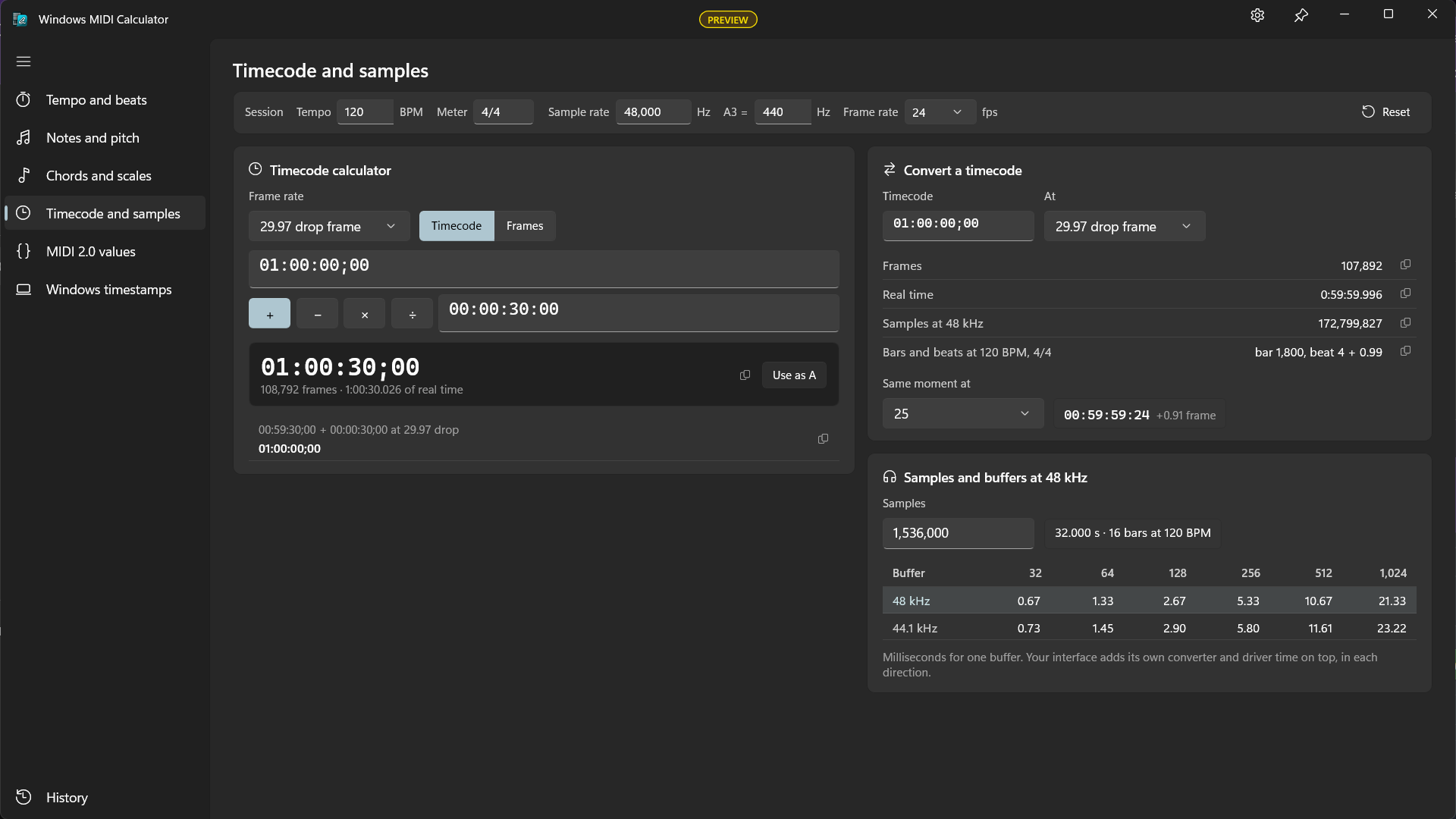
Timecode calculator adds, subtracts, multiplies and divides timecodes. Choose the frame rate, type the first timecode, choose an operation, and type the second timecode, or a plain number to multiply or divide by. Use as A carries the answer into the first box so you can keep going. Each answer you use goes on the list under the calculator. Switch to Frames to type frame counts instead of timecodes.
Convert a timecode turns a timecode into frames, real time, samples at the session sample rate, and the bar and beat at the session tempo. Same moment at moves it to another frame rate and shows the part of a frame left over.
Samples and buffers turns a number of samples into time and bars, and shows how long one buffer lasts at common buffer sizes. The row for the session sample rate is lit. That number is only the buffer: your audio interface adds its own converter and driver time on top, in each direction.
The frame rates are 23.976, 24, 25, 29.97 drop frame, 29.97 non-drop, 30, 50, 59.94 drop frame, 59.94 non-drop and 60. A drop frame timecode is written with a semicolon before the frames, such as 01:00:00;00, the way editors write it. Typing fills from the right, so 1:20 is one second and twenty frames, and 1000 is ten seconds.
Drop frame skips frame numbers at the start of every minute except each tenth minute, so the count keeps up with the clock. If you type one of the skipped numbers, the calculator says so instead of guessing.
MIDI 2.0 values
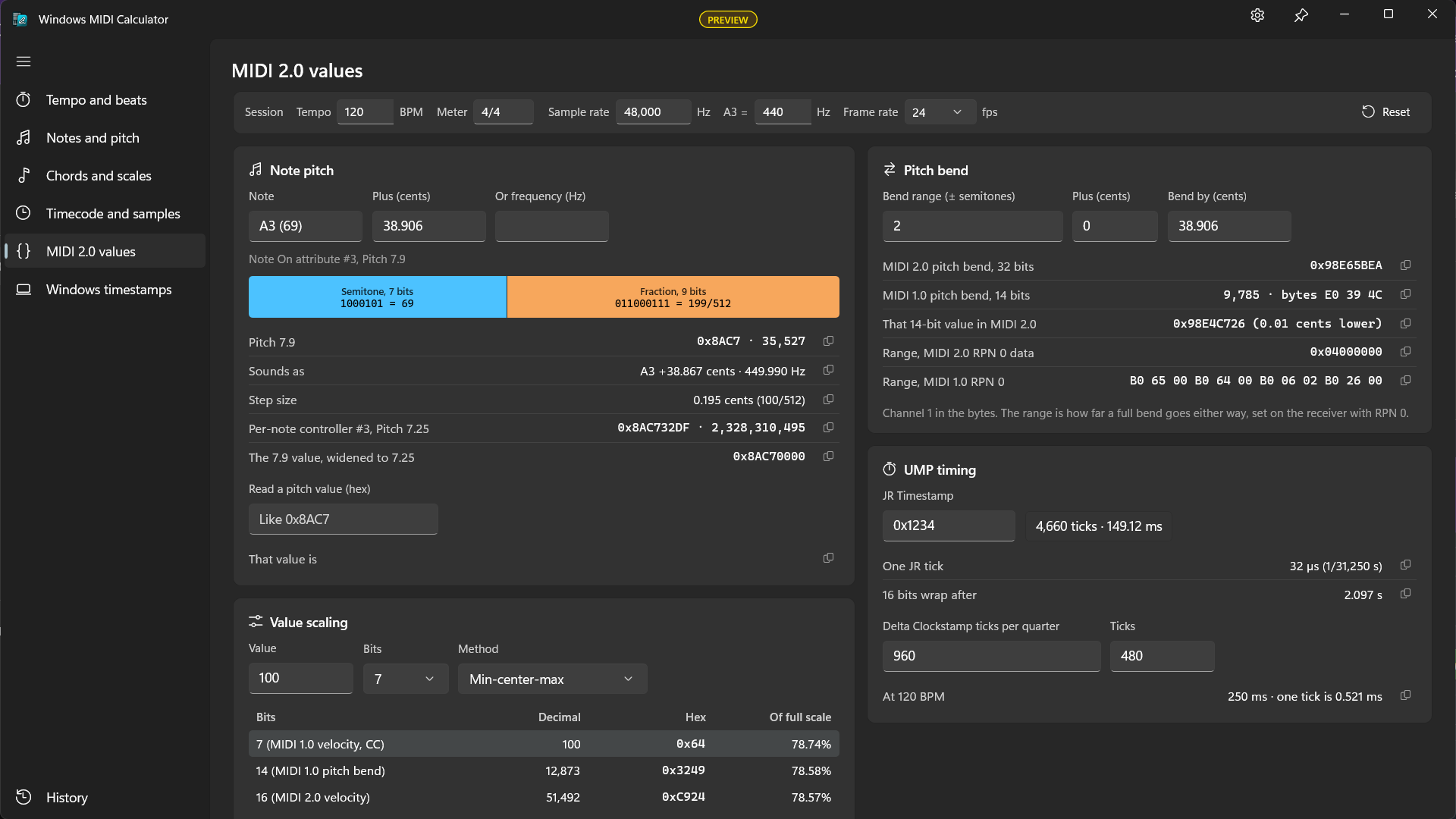
Note pitch turns a note and cents, or a frequency, into the MIDI 2.0 Pitch 7.9 value used in note on attributes, with a picture of its bits, and the Pitch 7.25 value used by the per-note pitch controller. Read a pitch value works the other way.
Pitch bend gives the bend value for an amount of cents at a bend range, as a 32-bit MIDI 2.0 value and a 14-bit MIDI 1.0 value, and the RPN 0 data that sets the range on the receiver.
Value scaling shows a value at 7, 14, 16 and 32 bits, the way MIDI 2.0 scales them up and down. Min-center-max keeps the bottom, the center and the top in place. Zero-extension, used for RPNs 0 to 31 and pitch values, pads with zeros instead.
UMP timing turns a JR Timestamp into time, and Delta Clockstamp ticks into time at a tempo.
Decode UMP words names a message you paste as hexadecimal words, such as a row from the Windows MIDI Monitor, shows its fields, and gives the MIDI 1.0 bytes when it has them.
Manufacturer ID turns a manufacturer’s System Exclusive ID between its MIDI 1.0 bytes and its MIDI 2.0 form, such as 0xA06B.
Windows timestamps
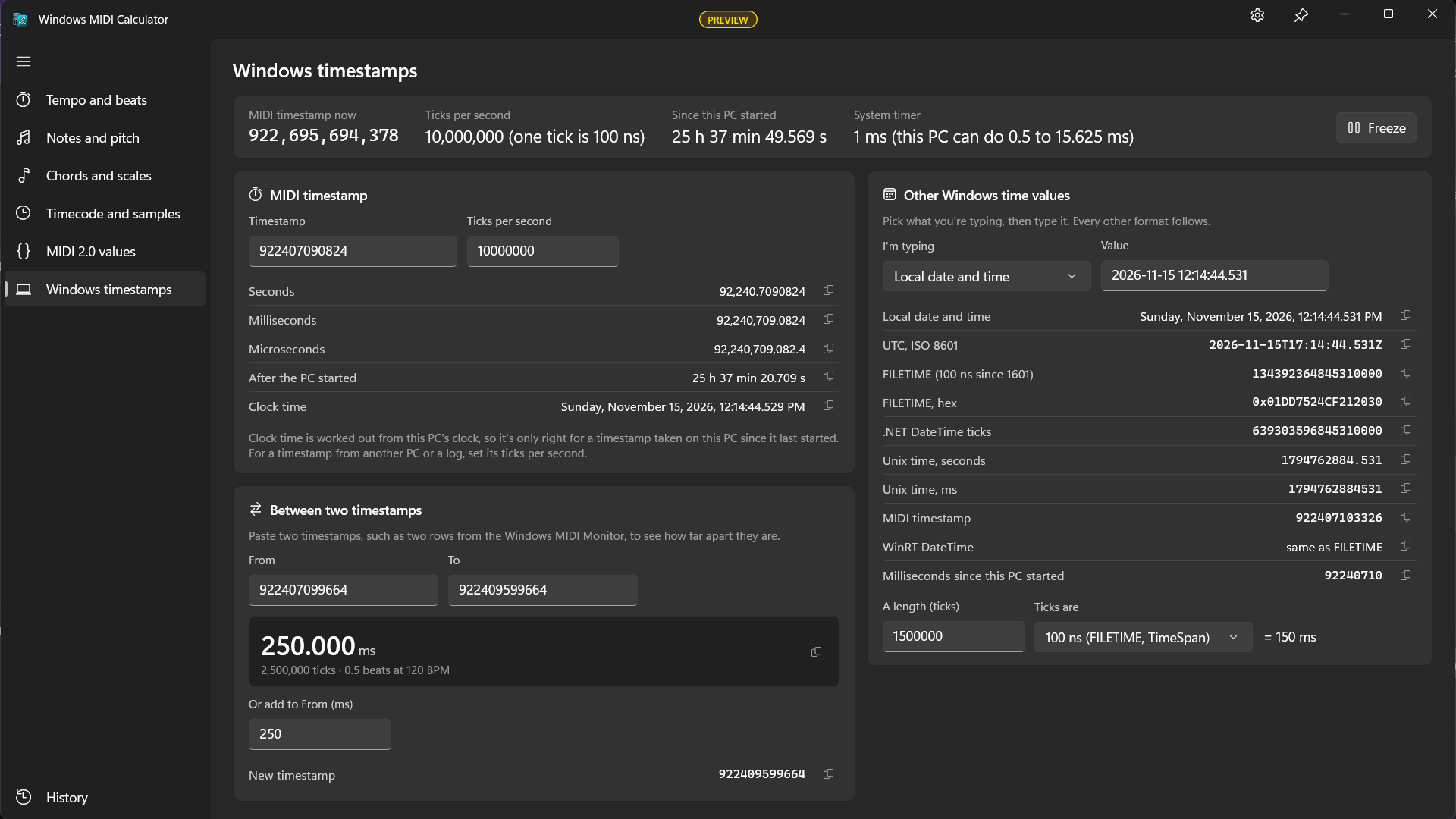
This PC shows the MIDI timestamp now, the number of ticks a second, how long the PC has been running, and its system timer. The numbers come from the same clock the MIDI service stamps every message with. Freeze stops them so you can copy one.
MIDI timestamp turns a timestamp into seconds, milliseconds and microseconds, and into a date and time for a timestamp taken on this PC since it last started. For a timestamp from another PC or a log, set its ticks per second.
Between two timestamps shows how far apart two timestamps are, such as two rows from the MIDI Monitor, and moves a timestamp by an amount of milliseconds.
Other Windows time values converts between the formats Windows code meets: local time, UTC, FILETIME, WinRT DateTime, .NET DateTime ticks, Unix time and MIDI timestamps. Choose what you’re typing, then type it. Under it, A length turns a number of ticks into time.
History
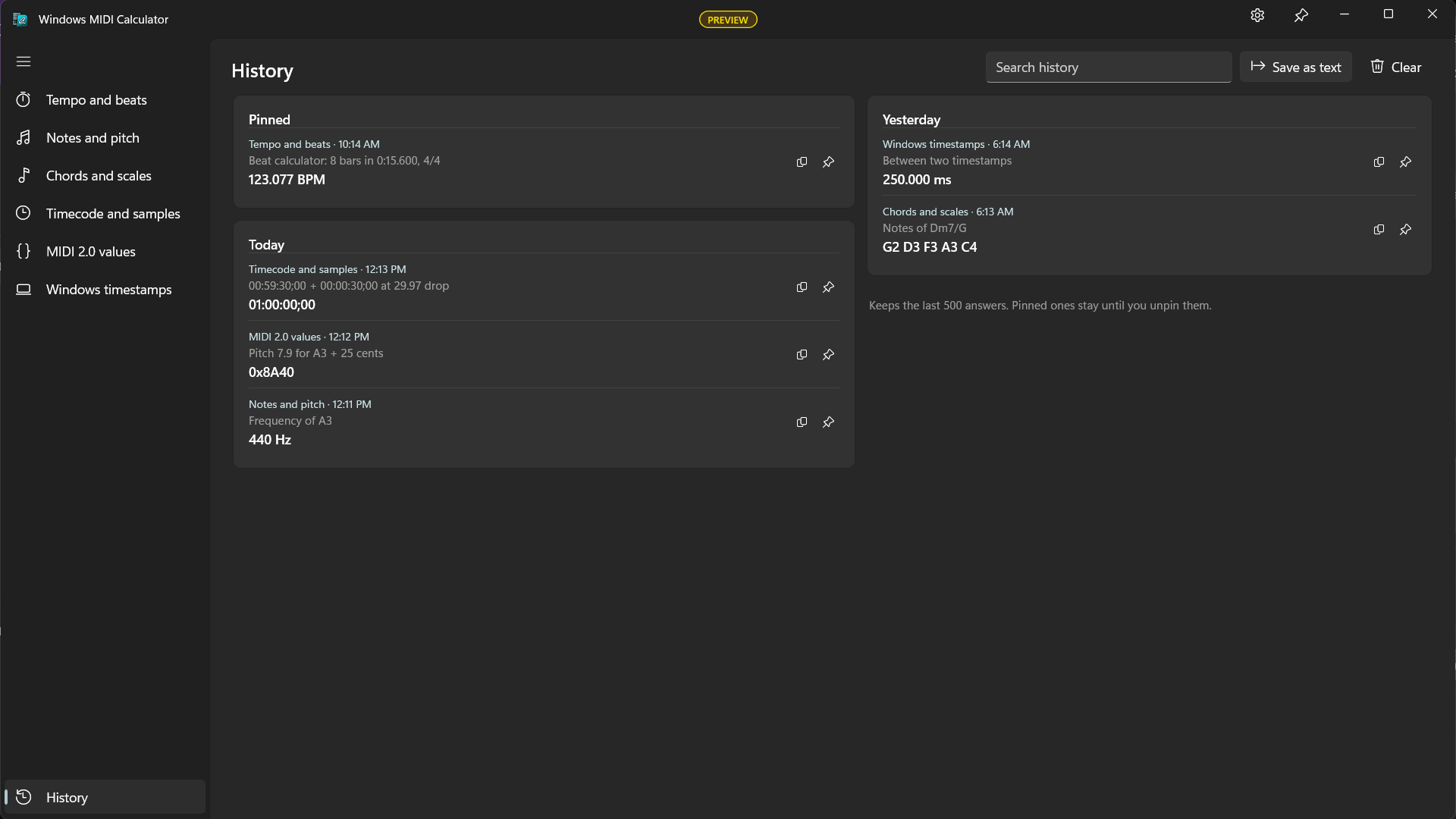
Every answer you copy is kept here, with the page and the question it came from. The calculator keeps the last 500. Pin an answer to keep it at the top until you unpin it. Search finds an answer by its words or numbers. Save as text writes the history to a file, and Clear removes everything but the pinned answers.
History is kept for your account on this PC. Nothing is sent anywhere.
Middle C
Middle C is MIDI note 60. The calculator calls it C3, the same as the Windows MIDI Services API and the other Windows MIDI tools. Many apps call it C4. If yours does, change Middle C (note 60) is called in Settings, and every note name in the calculator follows, including the tuning reference in the session values.
Starting from the command line
midicalculator.exe [page] [value]

  [page]    Optional. The page to open: tempo, pitch, chords, timecode,
            midi2, time or history.

  [value]   Optional. Something to fill in on that page: the session tempo
            on tempo, a note on pitch, a chord on chords, a timecode on
            timecode, UMP words on midi2, or a MIDI timestamp on time.
For example, midicalculator.exe midi2 40904503 C9248AC7 opens the MIDI 2.0 values page and decodes those two words. Without a page, the calculator opens on the page you used last.
This app was coded by AI using GitHub Copilot, guided by Pete Brown.
Didn't find what you were looking for?
Windows MIDI Services is an open source project with all source available on GitHub. We have a great community on Discord as well. Between GitHub and Discord, you should find the information you are looking for.