

This page covers information about a Windows MIDI Services feature and application that will be released to consumers in 2027. It’s currently available for developers.
Windows MIDI Scratch Pad lets you type MIDI messages yourself and send them to a MIDI device. It’s the tool to reach for when you want to answer questions like “does this synth actually respond to that controller?”, “what does this SysEx message from the manual do?”, or “can I reproduce that bug with one message?”.
You type the message data as hexadecimal, the app tells you as you type whether it makes sense, and then you send it. Nothing is hidden behind a wizard, so it’s also a good way to learn what MIDI messages really look like.
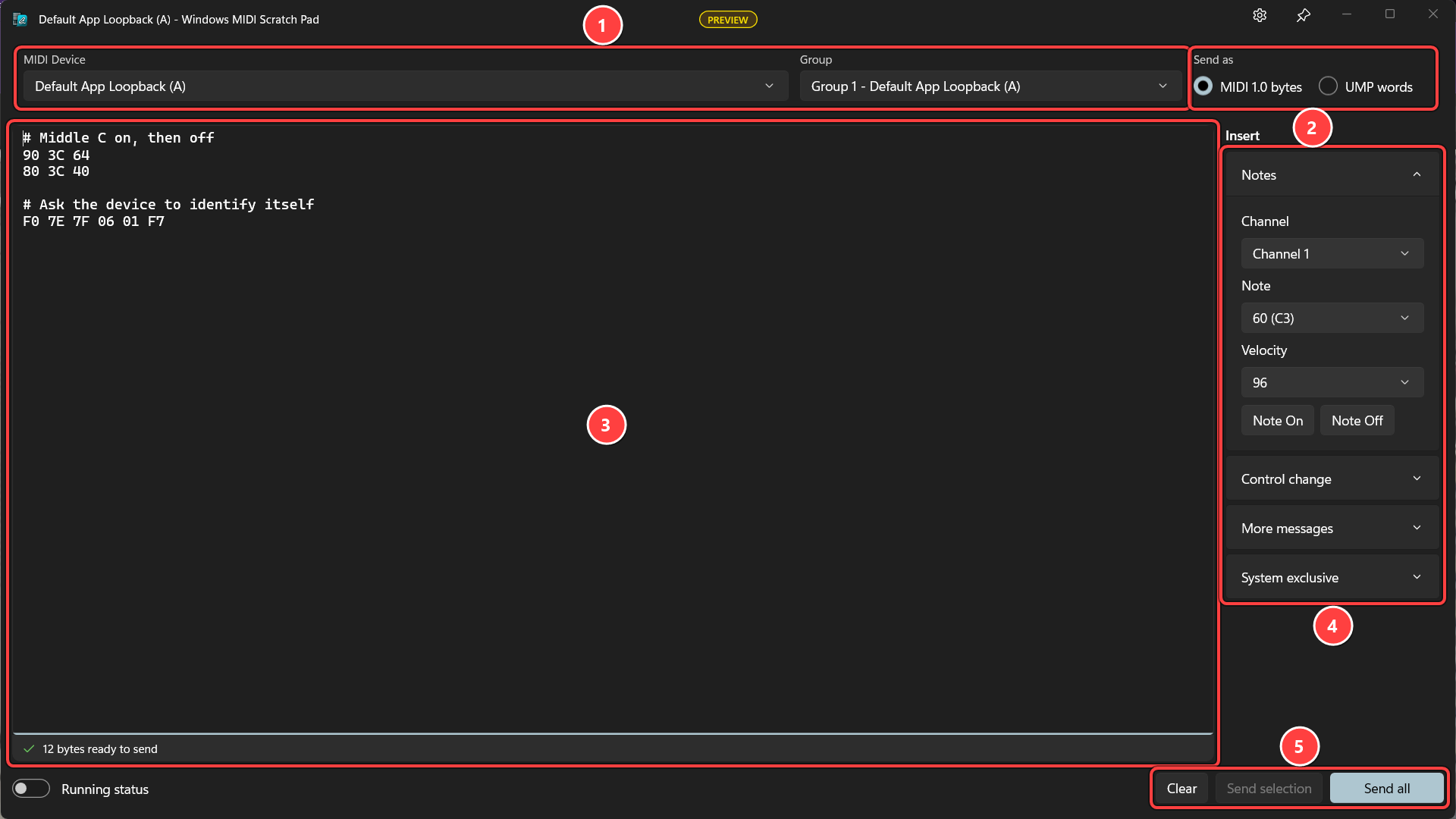
# is a comment. The line under the editor tells you as you type whether it all makes sense.The Send buttons stay unavailable while there’s a mistake in what you’ve typed, so you can’t send half a message to an instrument by accident.
The Send as buttons at the top right decide what the editor contains.
MIDI 1.0 bytes is the familiar form used by every MIDI 1.0 manual, cable, and web page since 1983: 90 3C 40 for a note. Windows MIDI Services converts what you type into the modern Universal MIDI Packet form on its way to the device, so this works with MIDI 2.0 instruments too.
UMP words is the new Universal MIDI Packet form, introduced with MIDI 2.0, written as 32 bit words of eight hex digits each. Use this when you need something MIDI 1.0 cannot express, such as MIDI 2.0’s 16 bit velocity or 32 bit controller values, or the stream messages an endpoint uses to describe itself.
The choice also changes what the Group list means:
The group list only offers groups that the endpoint says it has, named the way the device names them, so you’re not guessing which of the sixteen is real.
Type the bytes in hex, separated by spaces or line breaks. One message per line is the friendly way to do it, but the app doesn’t insist. Anything after # or // is a comment and is ignored, which makes it worth explaining your test to yourself before you come back to it next week.
# Middle C on, then off
90 3C 40
80 3C 00

# Ask the device to identify itself
F0 7E 7F 06 01 F7
The Running status switch at the bottom left tells the app that your bytes may be using running status, where a message repeats the previous status byte by leaving it out. Some device manuals print dumps that way. Leave it off unless what you’ve pasted needs it, and if a paste that looked fine suddenly parses as nonsense, this is the switch to try.
Each word is eight hex digits, with an optional 0x in front. Words are grouped into packets by the message type in the first word, and the app checks that the words you’ve typed add up to whole packets, so a truncated paste is caught before it goes anywhere near your instrument.
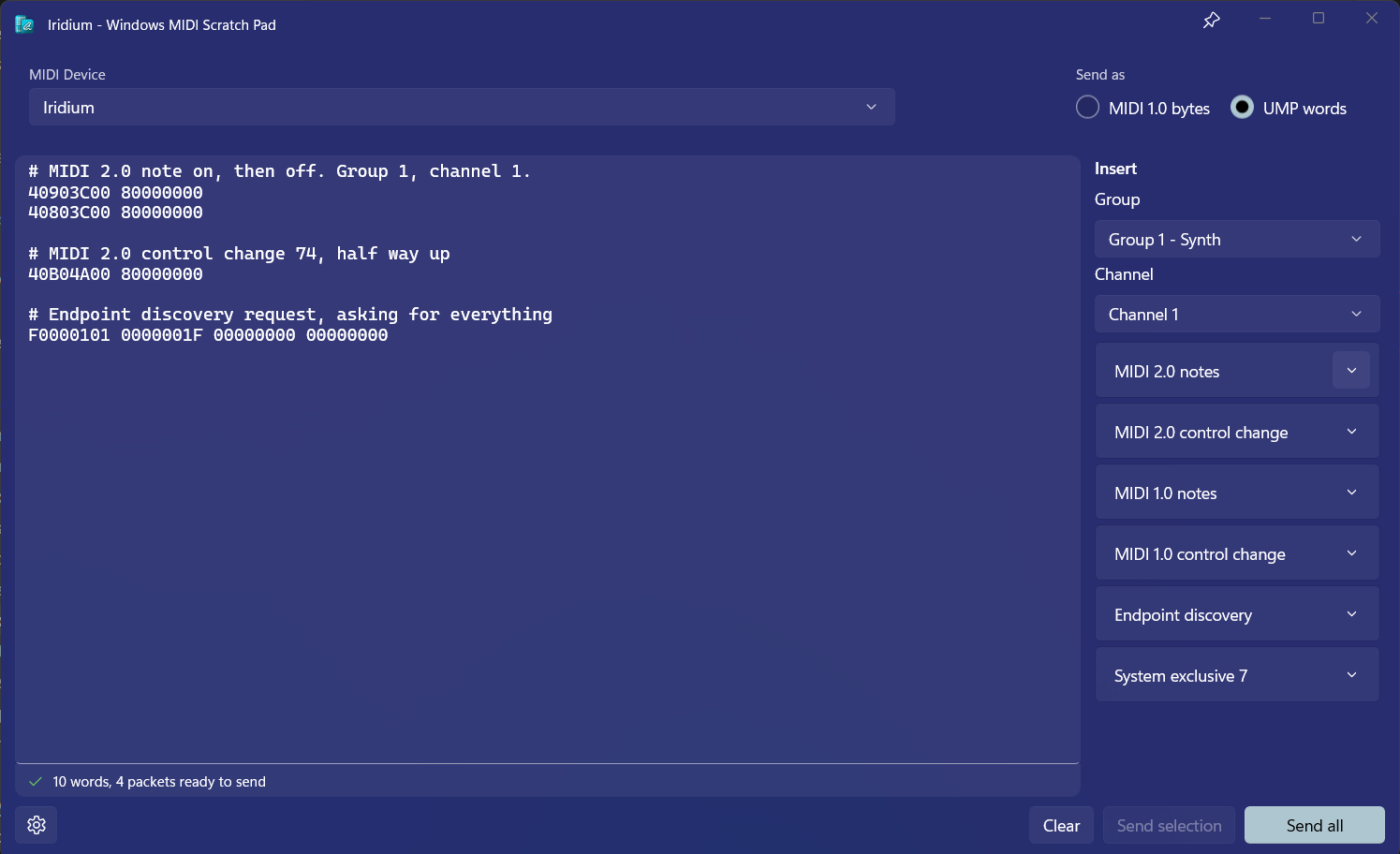
If you want to learn more about the UMP format, the specifications are available at the MIDI Association web site.
You don’t have to remember hex. The Insert panel on the right builds messages for you and adds them to the editor at the cursor, where you can then change them by hand.
In MIDI 1.0 bytes mode:
| Section | What it adds |
|---|---|
| Notes | Note On and Note Off, for the channel, note, and velocity you choose |
| Control change | A control change, with the well-known controllers listed by name |
| More messages | Program change, pitch bend at center, channel pressure, and all notes off |
| System exclusive | A universal identity request, or an empty SysEx block to fill in |
In UMP words mode:
| Section | What it adds |
|---|---|
| MIDI 2.0 notes | Note On and Note Off with 16 bit velocity |
| MIDI 2.0 control change | A control change with a 32 bit value |
| MIDI 1.0 notes | Note On and Note Off with the older 7 bit velocity, carried in a UMP |
| MIDI 1.0 control change | A control change with a 7 bit value, carried in a UMP |
| Endpoint discovery | A discovery request, with tick boxes for what to ask the endpoint for |
| System exclusive 7 | A SysEx packet with zeroed data bytes, as Complete, Start, Continue, or End |
Notes are listed with their musical names next to the number, so middle C appears as 60 (C3) rather than as a number you have to look up. Well-known controllers are named too, so controller 10 appears as 10 (Pan).
Endpoint discovery is worth knowing about if you have a MIDI 2.0 device. It’s the message Windows itself sends to ask an endpoint what it is and what it can do, and sending it by hand is a good way to see how a device answers.
The strip under the editor updates as you type. When everything is valid it tells you how much you’re about to send, as bytes for MIDI 1.0 or as words and packets for UMP.
When something is wrong it tells you what and, importantly, which line it’s on.
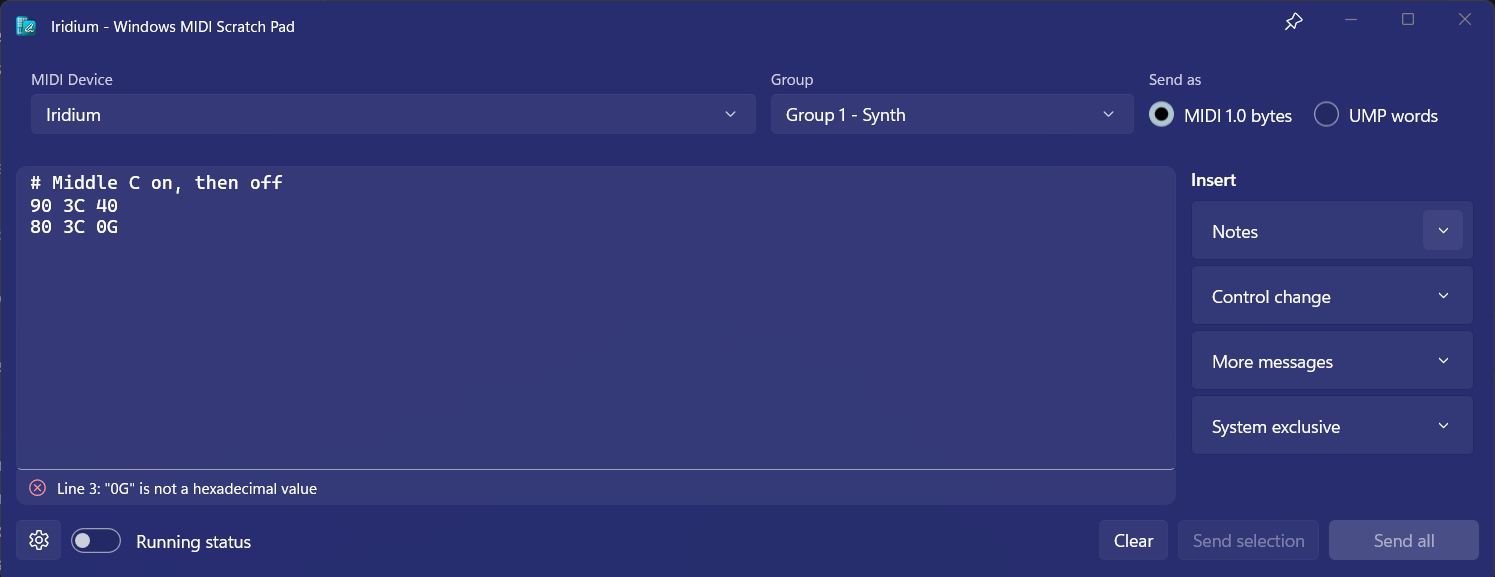
The Send buttons stay unavailable while there’s an error, so you can’t accidentally send half a message to an instrument.
Send all sends everything in the editor.
Send selection sends only the text you’ve highlighted. This is the one to use once you’ve built up a page of experiments: select the two lines you care about and try just those, without deleting anything or sending the whole file to your synth again.
A selection has to be a complete set of messages on its own. Half of a note, or a SysEx without its ending, is refused rather than sent.
After sending, the line along the bottom tells you what went out. In MIDI 1.0 mode it reports both the byte count you typed and the number of UMP words those turned into, which is a quiet way of showing you the translation the service performed.
Clear empties the editor.
The pin button next to the window’s minimize button keeps the Scratch Pad above your other windows, so it stays visible while you work in your DAW.
The gear button in the title bar opens the settings.
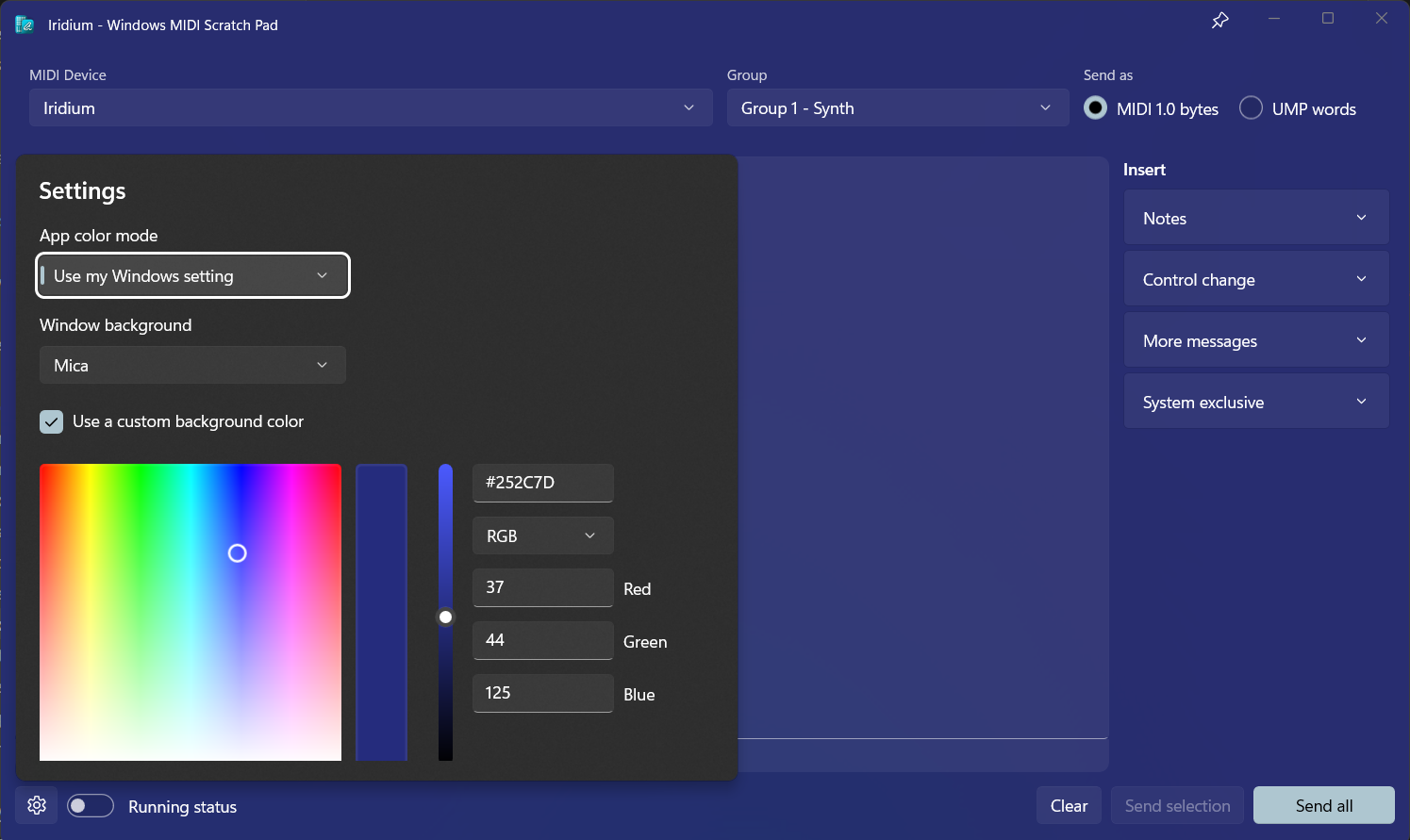
App color mode sets whether the app follows your Windows light or dark mode, or ignores it.
Window background picks between Solid, Mica, and Acrylic. Mica and Acrylic pick up colors from your desktop; Acrylic is the one that lets what’s behind the window show through.
Tick Use a custom background color to choose your own color. It works with all three backgrounds, though each treats it a little differently: Solid uses exactly the color you choose, Mica blends it with your desktop wallpaper, and Acrylic gives the gentlest tint of the three because it is still letting what’s behind the window through. If you keep more than one Scratch Pad open, one per instrument, giving each its own color makes it obvious which is which before you press Send.
The Scratch Pad can open with a device already chosen, so another app or a shortcut can hand you a ready-to-use window:
midiscratchpad.exe [endpoint device id] [options]

  [endpoint device id]   Optional. The full endpoint device id of the device to
                         send to.

  --group, -g  number    Optional. The group number, 1 through 16, to send on.
                         Only valid when an endpoint device id is supplied, and
                         only in MIDI 1.0 bytes mode.

  --mode, -m   bytes     Optional. Open in MIDI 1.0 bytes mode.
  --mode, -m   ump       Optional. Open in UMP words mode.
For example:
midiscratchpad.exe "\\?\swd#midisrv#midiu_bloop_basic_def#{e7cce071-3c03-423f-88d3-f1045d02552b}" --group 1
You can find the endpoint device id for a device using the MIDI Console or the MIDI Settings app.
A mode given on the command line is remembered, so the next time you open the Scratch Pad without any arguments it opens the same way.
This app was ported to C++ by AI from the original C# MIDI Settings app coded by Pete Brown. It has been extensively modified using GitHub Copilot since that time. Underlying API originally coded by Pete Brown.
Windows MIDI Services is an open source project with all source available on GitHub. We have a great community on Discord as well. Between GitHub and Discord, you should find the information you are looking for.
