

This page covers information about a Windows MIDI Services feature and application that will be released to consumers in 2027. It’s currently available for developers.
The Windows MIDI Services Console is a command-line tool for listing, inspecting, monitoring and testing MIDI endpoints. It can also set up loopbacks, control the built-in General MIDI synthesizer, connect Bluetooth MIDI devices and report on network MIDI. If you have it installed, you can run it from any command prompt by typing midi. We recommend Windows Terminal for the best experience.
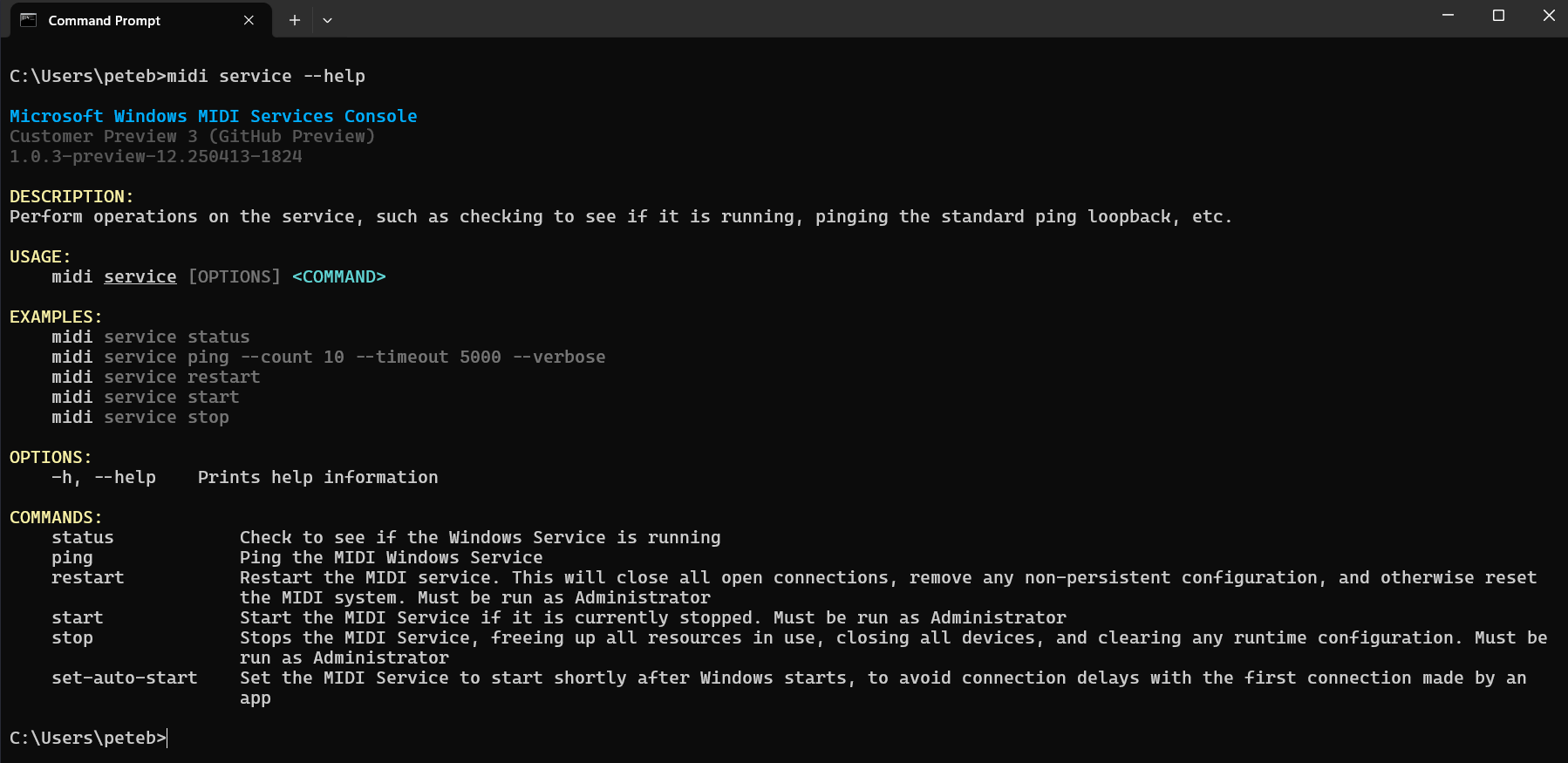
This page documents every command and option. To get the same information at the command line, add --help to any command.
The console is installed with the Windows MIDI Services Tools package. Developers and technical users can download the latest preview release from GitHub.
endpoint or send-message-file. Some commands have more commands under them, as in midi endpoint monitor.--verbose, or one dash for the one-letter short form, such as -v.Most commands and many options have shorter aliases. They’re listed with each command on this page.
Type commands and options in lowercase. The console doesn’t recognize Enumerate or --Verbose.
Some options are on unless you turn them off. The tables on this page show On in the Default column for those, and each one has a --no- form that turns it off, such as --no-decode-messages.
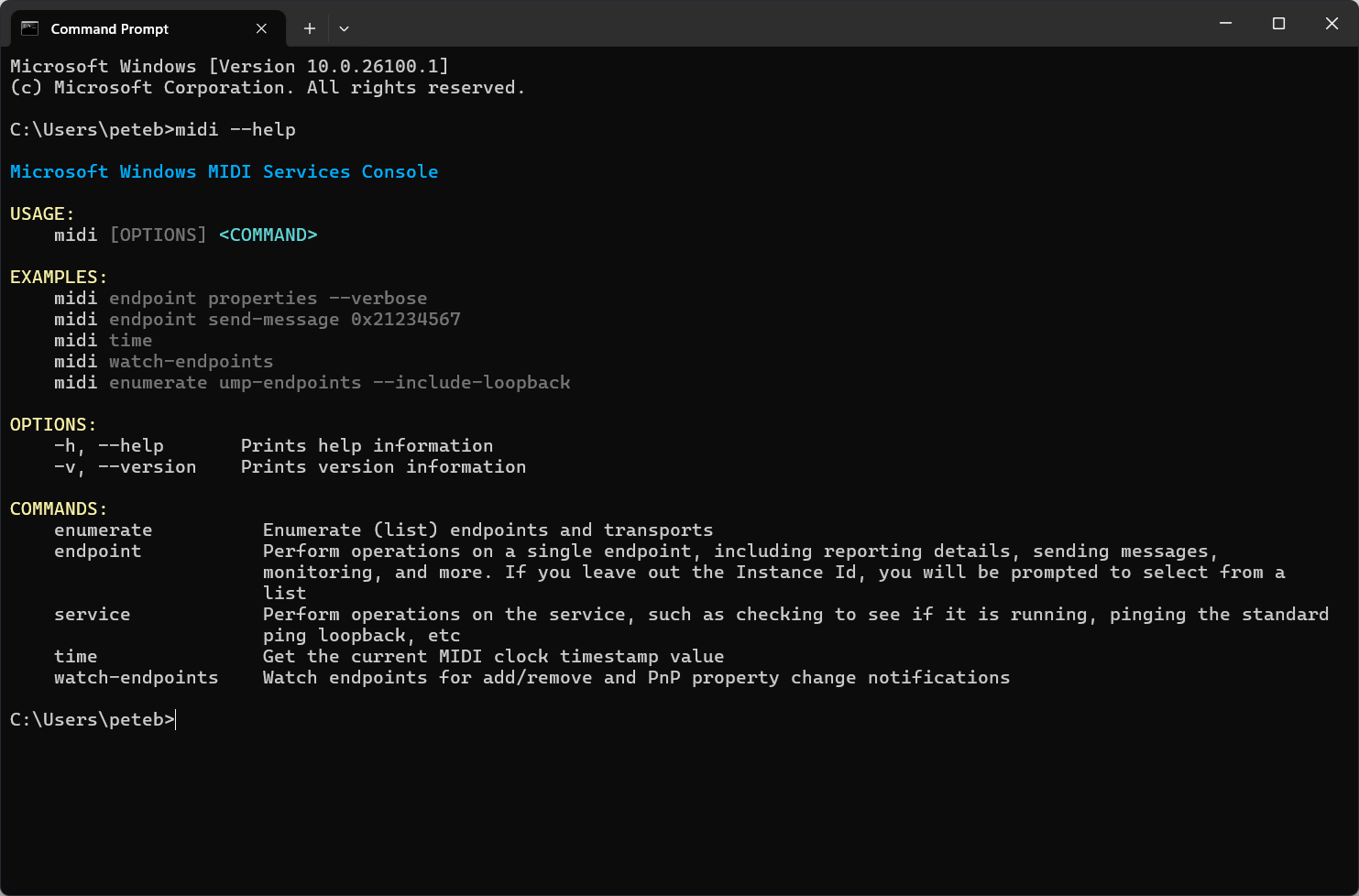
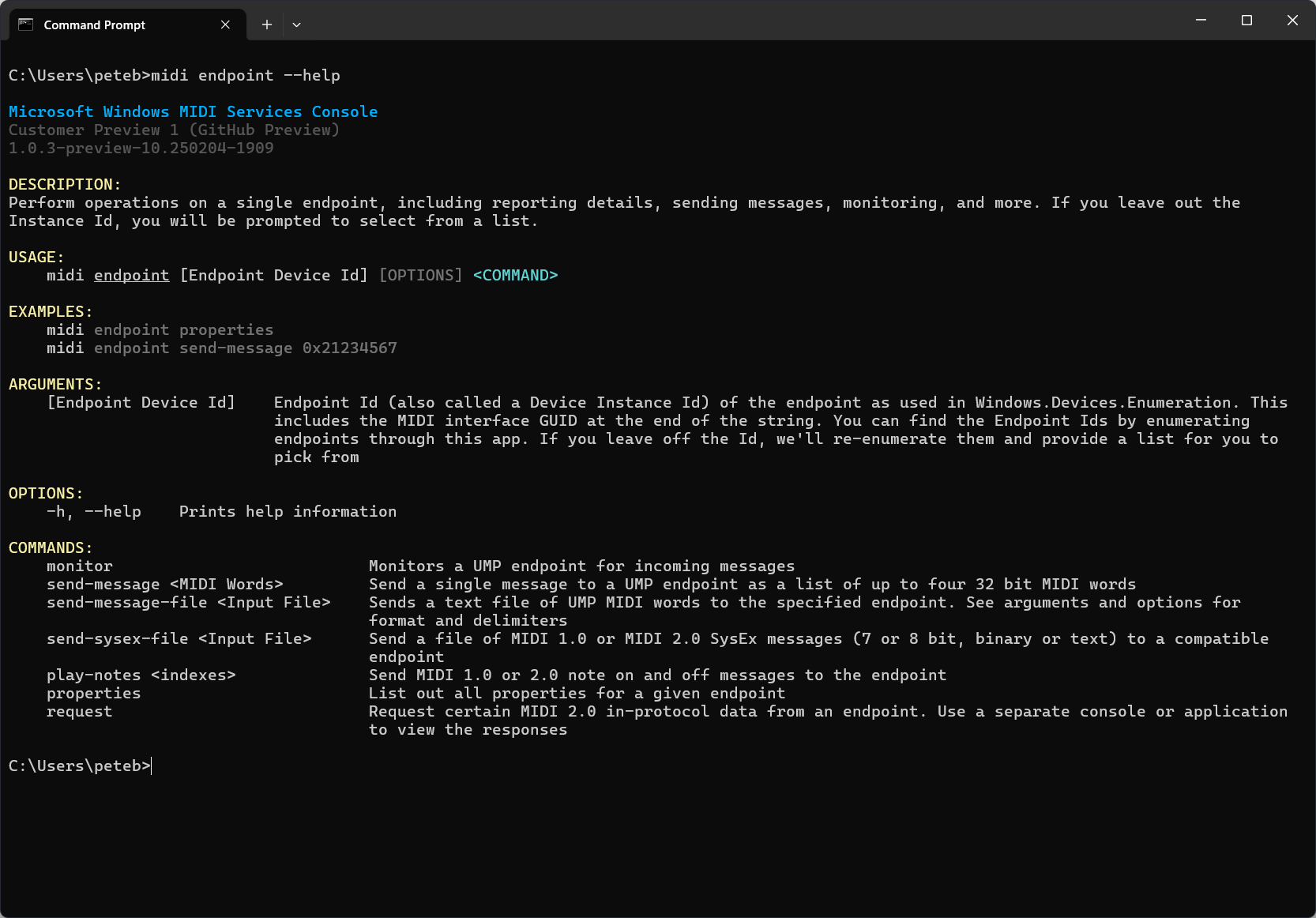
Add --help or -h to any command to see its description, examples, arguments and options. --help-all shows the help for every command at once.
midi --help
midi endpoint --help
midi endpoint monitor --help
midi --help-all
The help always matches the version you have installed, so it’s the one to trust if this page and the console ever disagree.
In MIDI 1.0, specifically USB MIDI 1.0, a connected device would have a single input and single output stream. Inside that stream are packets of data with virtual cable numbers. Those numbers (16 total at most in typical implementations) identify the “port” the data is going to. Operating systems would then translate those into input and output ports. Those cable numbers were hidden from users by the concept of a port.
MIDI 2.0 does not have the concept of a port. Instead, you always work with the stream itself. The group number, which is in the MIDI message now, is the moral equivalent of that cable number. Like the virtual cable, it helps address where the message is being sent.
So where you may have seen a device with 5 input and 5 output ports in the past show up as 10 discrete ports, you will now see a single bidirectional UMP Endpoint stream with 5 input groups and 5 output groups. We know this can take some getting used to, but it enables us to use MIDI 1.0 devices as though they are MIDI 2.0 devices, and provide a unified API.
Most commands under midi endpoint work with one endpoint. To say which one, put its endpoint device id after the command name. Put the id in quotes, because PowerShell treats the { and } in it as special characters.
midi endpoint properties "\\?\swd#midisrv#midiu_loop_a_default#{e7cce071-3c03-423f-88d3-f1045d02552b}"
The general form is:
midi endpoint <command> [Endpoint Device Id] [OPTIONS]
To find an endpoint’s id, run midi enumerate endpoints --show-endpoint-id.
If you leave the id out, the console shows a list of endpoints to pick from. Use the up and down arrow keys to move, Enter to choose, and Esc to cancel.
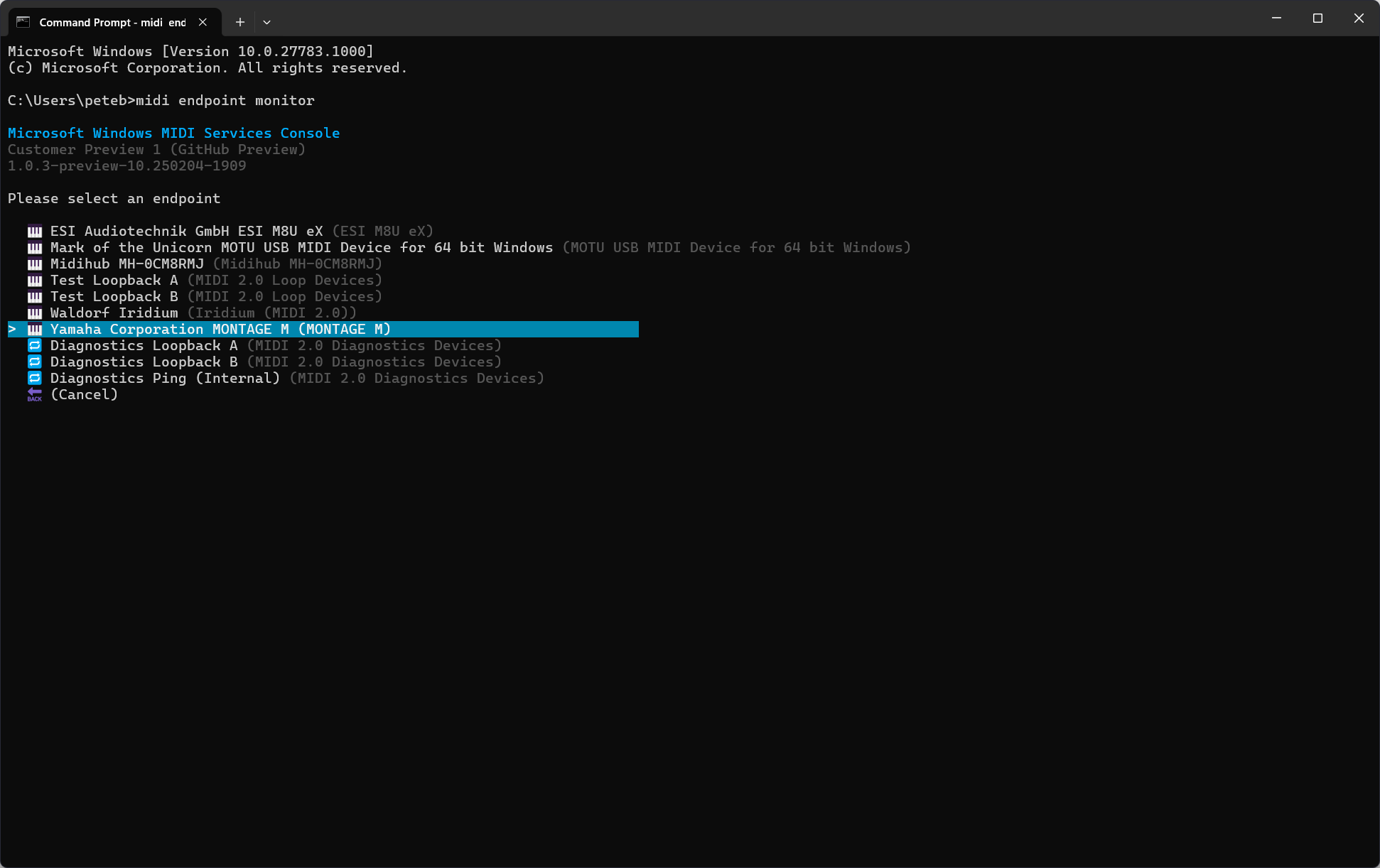
In a script, always give the id, so the script doesn’t stop and wait for someone to pick from the list. When the console’s output goes to a file or another program instead of the screen, it can’t show the list, so a command without an id stops with an error.
send-message, send-message-file and play-notes take the id as an option instead, --endpoint-id, because they already take a list of words, a file name or a list of notes.
midi endpoint play-notes 60 64 67 --endpoint-id "\\?\swd#midisrv#midiu_loop_a_default#{e7cce071-3c03-423f-88d3-f1045d02552b}"
Scripts written for earlier versions of the console put the id straight after endpoint, as in midi endpoint "<id>" properties. That still works with every endpoint command.
| Command | Aliases | What it does |
|---|---|---|
enumerate |
enum, list |
List endpoints, MIDI 1.0 ports, sessions, transports and property keys |
endpoint |
ep |
Monitor, send to, inspect and customize a single endpoint |
endpoint request |
req |
Send MIDI 2.0 stream request messages |
forward |
bridge |
Forward messages from one endpoint group to another |
sysex |
system-exclusive |
Send and receive MIDI 1.0 System Exclusive files |
loopback |
midi2-loopback, bidirectional-loopback |
List, create, mute and remove MIDI 2.0 loopback pairs |
basic-loopback |
midi1-loopback, simple-loopback |
List, create, mute and remove MIDI 1.0 basic loopbacks |
synth |
gm-synth, synthesizer |
Control the built-in General MIDI synthesizer |
network |
net, network-midi |
Report on Network MIDI 2.0 hosts, clients and devices on the network |
rtp |
rtp-midi, rtpmidi |
Report on RTP-MIDI hosts, clients and devices on the network |
bluetooth |
ble |
Connect and set up Bluetooth LE MIDI devices, and publish this PC as one |
service |
svc |
Check the MIDI service and ping it |
time |
clock |
Show the MIDI clock’s current timestamp and resolution |
watch-endpoints |
watch-ump |
Watch endpoints being added, removed and changed |
watch-ports |
watch-legacy |
Watch MIDI 1.0 ports being added, removed and changed |
api-mode |
mode |
Show or change which MIDI API this PC uses |
Lists what’s on this PC. The enumerate command has the aliases enum and list, so midi enumerate endpoints, midi enum endpoints and midi list endpoints all do the same thing.
Aliases: endpoints, ump-endpoints, ep
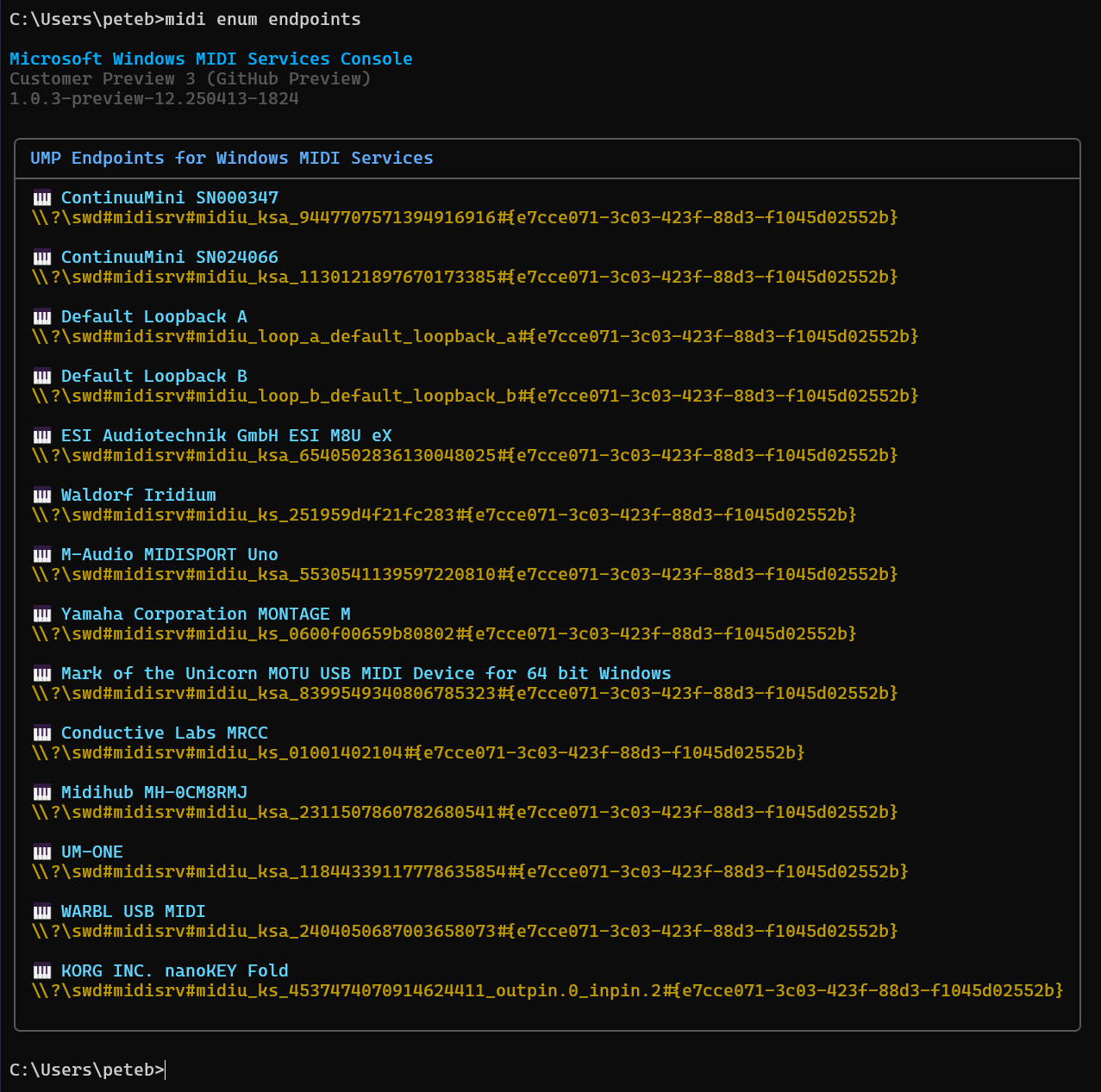
Lists the MIDI endpoints that apps using Windows MIDI Services can see.
| Option | Short | Default | Description |
|---|---|---|---|
--show-endpoint-id |
-i |
Include each endpoint’s device id | |
--include-diagnostic-loopback |
-l |
Include the diagnostic loopback endpoints | |
--all |
-a |
List every endpoint the service knows about, including internal ones and ones an app may not be able to connect to directly | |
--verbose |
-v |
Include more details for each endpoint |
midi enumerate midi-services-endpoints --include-diagnostic-loopback
midi enumerate endpoints
midi list endpoints --show-endpoint-id
midi enum ep
Note: The MIDI service has two built-in diagnostic loopback endpoints, Service Test Loopback A and Service Test Loopback B. Anything sent to A arrives at B, and anything sent to B arrives at A. They’re always there and can’t be removed or turned off. Because they’re for testing and support, they aren’t listed unless you add
--include-diagnostic-loopback. See About the Diagnostics Endpoints Transport.
Aliases: legacy-endpoints, bytestream-endpoints, legacy, winrt1
Lists the MIDI 1.0 ports Windows MIDI Services creates, the way apps using older MIDI APIs see them. Use it to compare what older apps see with what newer apps see.
It lists only the ports that come from the MIDI service. Ports from older MIDI drivers, and the older Microsoft GS Wavetable Synth, aren’t included. The numbers are the real WinMM port numbers, so there may be gaps.
| Option | Short | Default | Description |
|---|---|---|---|
--direction |
-d |
All |
Which ports to list: All, Source or Destination |
--include-endpoint-id |
-i |
Include each port’s id |
midi enumerate legacy-winrt-api-endpoints --direction Destination
midi enumerate legacy --include-endpoint-id
midi list legacy-endpoints
Alias: sessions
Lists the apps and services that have a Windows MIDI Services session open right now, and the endpoints each one is connected to.
| Option | Short | Default | Description |
|---|---|---|---|
--all |
-a |
Include every session, not only the ones that matter to the current user | |
--verbose |
-v |
Include more details |
midi enumerate active-sessions
midi enumerate sessions --all
Alias: transports
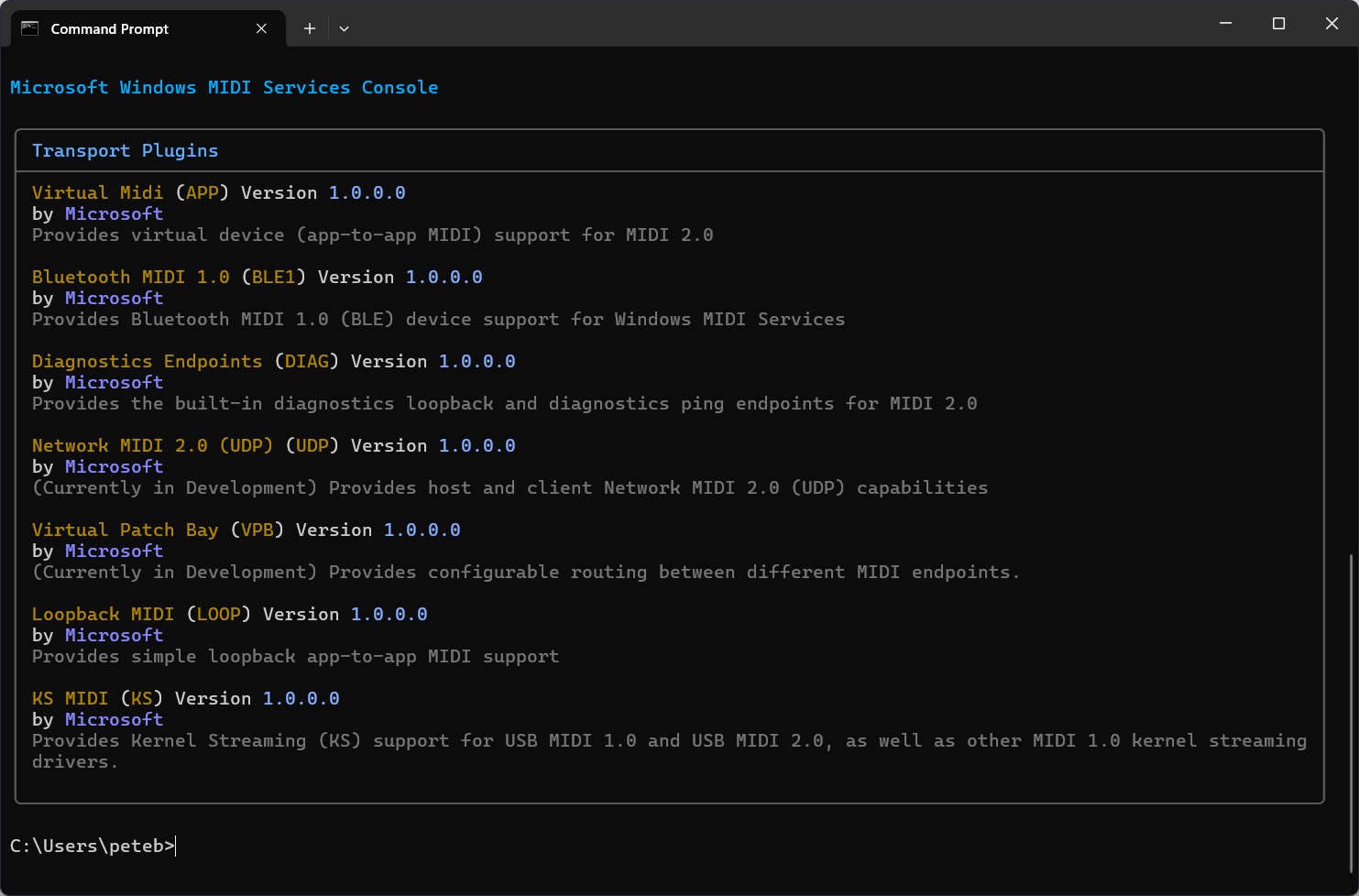
Lists the MIDI transports installed on this PC. A transport is the part of Windows MIDI Services that works with one kind of connection, such as USB, Bluetooth, the network or loopbacks.
| Option | Short | Default | Description |
|---|---|---|---|
--verbose |
-v |
After the table, list each transport’s description and id, and whether apps or settings can create endpoints with it |
midi enumerate transport-plugins
midi enumerate transports --verbose
Alias: property-keys
Lists the property keys Windows MIDI Services adds to endpoints. This command has no options beyond --help.
midi enumerate endpoint-property-keys
midi enumerate property-keys
Commands that work with a single endpoint. The endpoint command has the alias ep. To say which endpoint, see Specifying an endpoint.
Alias: listen
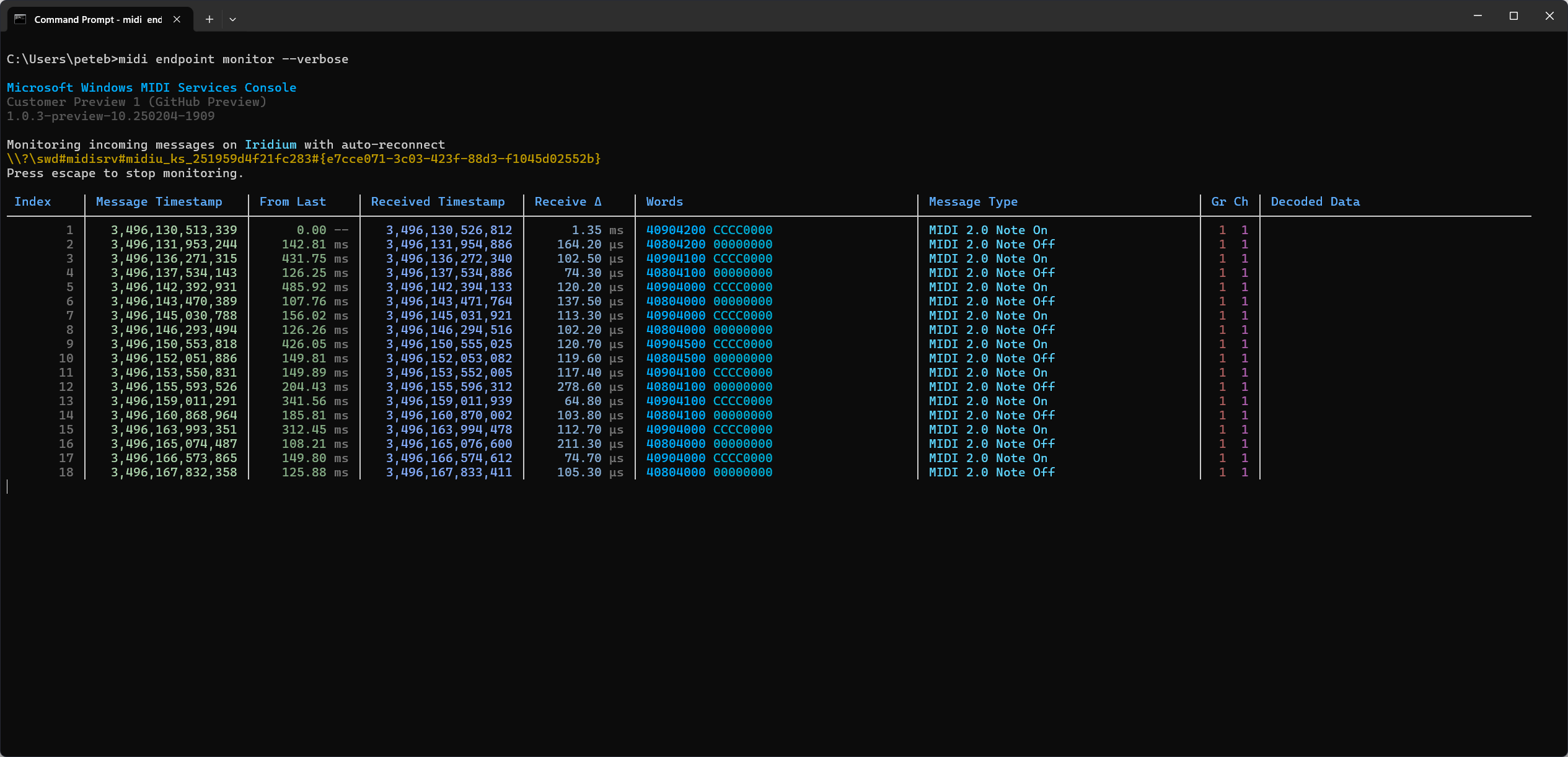
Shows messages as they arrive at an endpoint. Press Esc to stop. While it’s running, press C to type a comment, which is added to the list of messages so you can mark what you were doing at the time.
Endpoints in Windows MIDI Services can be used by more than one app at once, so you can monitor an endpoint while another app is using it.
| Option | Short | Default | Description |
|---|---|---|---|
--single-message |
-s |
Stop after the first message | |
--verbose |
-v |
Show more columns for each message, including when it was received and the time since the message before it | |
--include-timestamp |
-t |
Show each message’s timestamp | |
--decode-messages, --no-decode-messages |
-d, -D |
On | Show what each message means, such as its note and velocity |
--include-real-time-messages |
-r |
Show frequent messages such as timing clock and Active Sense, which are hidden by default | |
--include-utility-messages, --no-include-utility-messages |
-u, -U |
On | Show utility messages, such as jitter reduction timestamps |
--auto-reconnect, --no-auto-reconnect |
-a, -A |
On | If the device is unplugged, keep going and reconnect when it comes back |
--capture-to-file |
-c |
Also save the messages to this file | |
--capture-format |
-f |
ump |
The format of the capture file: ump, csv or smf. See Saving messages to a file |
--annotate-capture |
-n |
Write a comment line before each message in the capture file, with its timestamp and message type. Comment lines start with # |
|
--capture-field-delimiter |
-l |
Space |
What goes between the words on each line of the capture file: Space, Comma, Pipe or Tab |
The verbose view is wide. Make the window wide enough that each message fits on one line.
midi endpoint monitor
midi endpoint monitor --verbose
midi endpoint monitor --include-real-time-messages --no-decode-messages
The monitor can save what it receives to a file as well as showing it. This is handy for recording test data or a System Exclusive dump.
midi endpoint monitor --capture-to-file %USERPROFILE%\Documents\MyCapture.txt --annotate-capture
midi endpoint monitor --capture-to-file %USERPROFILE%\Documents\MyCapture.mid --capture-format smf
There are three formats:
ump, the default, writes each message as its 32-bit words, one message per line. You can send a ump capture again later with send-message-file.csv writes one row per message under a heading row, for opening in a spreadsheet.smf writes a Standard MIDI File, which DAWs and MIDI file players can open.A ump or csv capture is added to the end of the file if the file already exists. Check the file name before you start, so you don’t add MIDI data to an unrelated file. An smf capture replaces the file instead.
The file name can include environment variables such as %USERPROFILE%. Press Esc to stop monitoring and close the file.
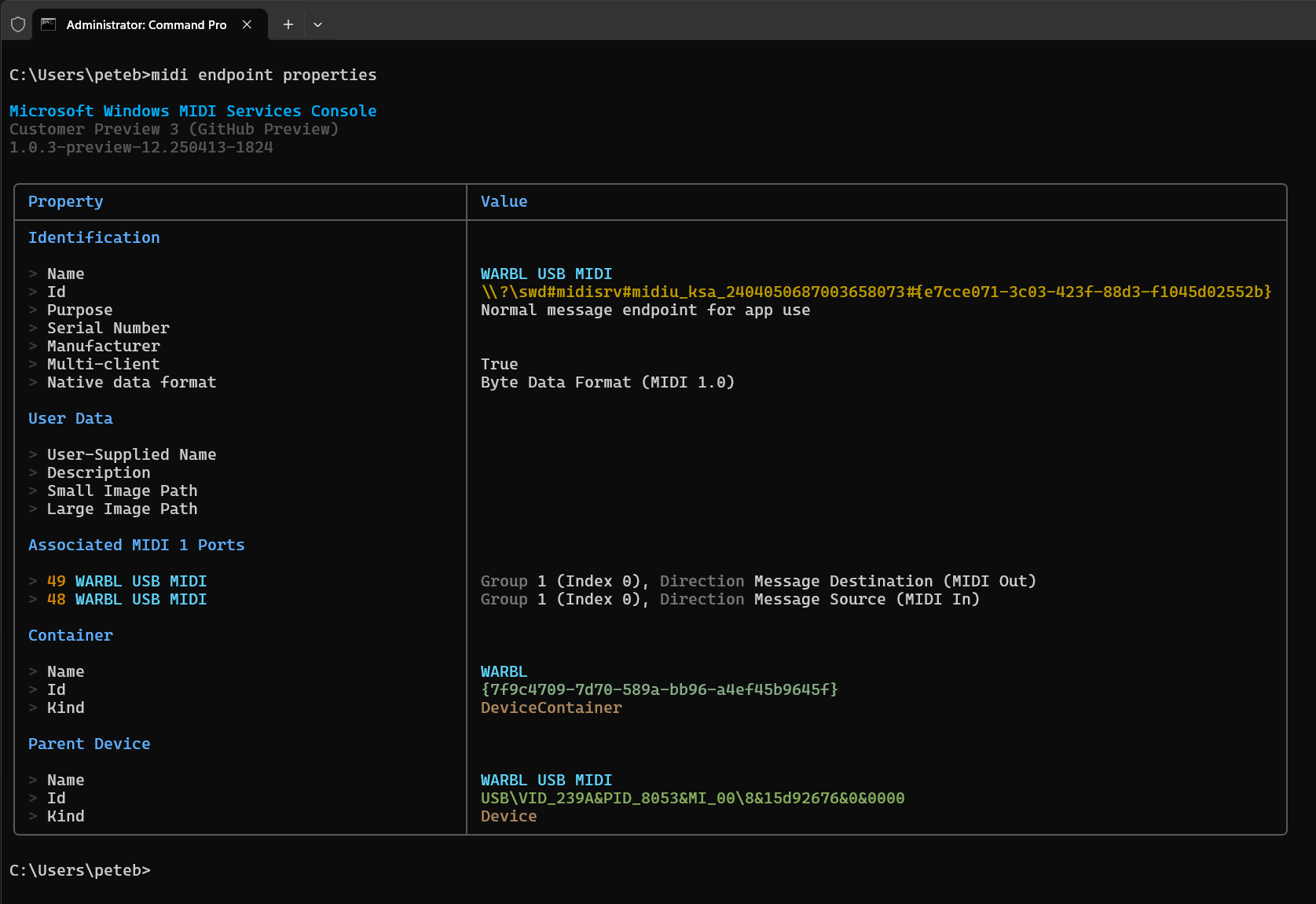
Aliases: props, information, info
Lists what Windows knows about an endpoint: its name and id, its transport, its MIDI 2.0 details, its function blocks and MIDI 1.0 ports, the device it belongs to, and which apps are using it. Device Manager and pnputil show only some of this.
| Option | Short | Default | Description |
|---|---|---|---|
--verbose |
-v |
Include more details | |
--include-raw-properties |
-r |
Include every raw property key and value for the endpoint. Mostly useful for debugging. Also --include-raw |
|
--include-name-table |
Include the MIDI 1.0 port names Windows worked out for this endpoint when it was created or customized |
midi endpoint properties
midi endpoint properties --verbose
Aliases: send-ump, send
Sends one message, written as one to four 32-bit MIDI words.
Argument: the MIDI words, usually written in hexadecimal like 0x21234567, in the same order they’re sent.
| Option | Short | Default | Description |
|---|---|---|---|
--endpoint-id |
The endpoint device id. See Specifying an endpoint | ||
--count |
-c |
1 |
How many times to send the message |
--pause |
-p |
2 |
Milliseconds to wait between messages. 0 means no wait. Also --delay |
--word-format |
-w |
Hex |
How the words are written: Hex, Decimal or Binary |
--no-wait |
-n |
Don’t wait for a key press before closing the connection | |
--offset-microseconds |
-o |
0 |
Schedule each message this many microseconds in the future |
--timestamp |
-t |
Use this exact timestamp for every message. 0 sends right away, without scheduling. You can’t use it with --offset-microseconds |
|
--debug-auto-increment |
-i |
Add 1 to the last word each time the message is sent. Needs a message of two or more words. Also --increment |
The console doesn’t check the message beyond its type, the first 4 bits, so the rest can be anything. The number of words has to match the message type, though, as the MIDI 2.0 specification says.
midi endpoint send-message 0x21234567
midi endpoint send-message 0x41234567 0xDEADBEEF --count 10
midi endpoint send-message 0x41234567 0xDEADBEEF --count 15 --pause 2000
We recommend writing messages in hexadecimal, because it’s easier to see what you’re sending. The one to four words go in order from left to right.
Sending messages whose last word goes up by 1 each time helps you check that your app received all of them, in the right order. The message needs at least two words. We don’t recommend Type F stream messages, because they can confuse the device or the service. A Type 4 MIDI 2.0 channel voice message is usually safer.
midi endpoint send-message 0x41234567 0x00000000 --count 10000 --pause 2 --debug-auto-increment
You should see the second word count up from 0x00000000 to 0x0000270F (9,999). We recommend a pause when you send a lot of messages. With a pause of 0, messages can arrive faster than the app reading them can keep up, and some may be lost.
--offset-microseconds schedules each message a fixed time in the future. Offsets are in microseconds so you can be more precise than with milliseconds.
midi endpoint send-message 0x41234567 0xFEEDF00D --offset-microseconds 2000000
You can also give an exact timestamp. Most often that’s 0, which skips scheduling and sends right away.
midi endpoint send-message 0x41234567 0xFEEDF00D --timestamp 0
Run midi time to see the current timestamp, and use that to pick one in the future. If you don’t give a timestamp, the current time is used.
Aliases: send-ump-file, send-file
Sends a text file of messages to an endpoint, one message per line.
Argument: the file to send. Lines that start with # are comments, and blank lines are skipped. Every other line is one message, written as 32-bit words. The file name can include environment variables such as %USERPROFILE%.
| Option | Short | Default | Description |
|---|---|---|---|
--endpoint-id |
The endpoint device id. See Specifying an endpoint | ||
--pause |
-p |
2 |
Milliseconds to wait between messages. 0 means no wait. Also --delay |
--word-format |
-w |
Hex |
How the words are written: Hex, Decimal or Binary |
--delimiter |
-d |
Auto |
What goes between the words on each line: Auto, Space, Comma, Pipe or Tab. Auto works it out for each line |
--new-group-index |
-g |
Send every message that belongs to a group to this group instead. It’s a group index from 0 to 15, so group 1 is index 0. Handy for sending recorded System Exclusive to a different group | |
--no-wait |
-n |
Don’t wait for a key press before closing the connection | |
--verbose |
-v |
Show more details as the messages are sent |
midi endpoint send-message-file %USERPROFILE%\Documents\SysExBank12.txt --new-group-index 5
Here’s one of the test files we use. It shows comments, different ways of writing numbers, different delimiters and more.
# This is a test file for sending UMPs through Windows MIDI Services
# It uses auto for the field delimiter so we can have different
# delimiters on each line. Numeric format for this file is always hex.

# The line above was empty. The next data line is a UMP32

0x22345678

# The messages aren't valid beyond their message type matching the number of words

0xF1345678 0x12345678 0x03263827 0x86753099
0xF2345678,0x12345678,0x86754321, 0x86753099
0xF3345678|0x12345678|       0x86754321|0x86753099

0x21345678
0x42345678 0x12341234
0x26989898

# The next two lines have different hex formatting

41345678h 12341234h
22989898h

# The next lines have no hex formatting

41345678 12341234
22989898

# And the file ends with a comment
Alias: play
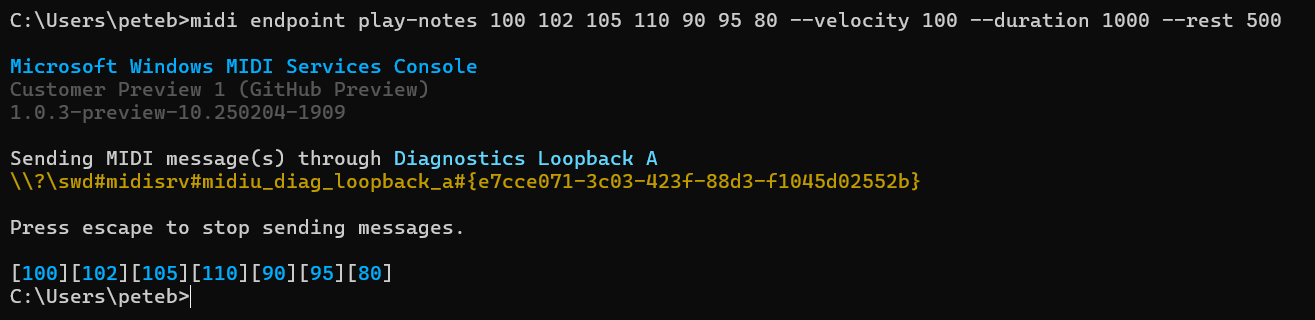
Sends MIDI 1.0 or MIDI 2.0 note on and note off messages to an endpoint. It isn’t meant to be a sequencer with the timing you’d get in a DAW. It’s a quick way to play some notes on an endpoint.
Argument: the notes to play, as MIDI 1.0 note numbers from 0 to 127, separated by spaces.
| Option | Short | Default | Description |
|---|---|---|---|
--endpoint-id |
The endpoint device id. See Specifying an endpoint | ||
--length |
-l |
250 |
How long each note lasts, in milliseconds. Also --length-ms, --length-milliseconds |
--rest |
-r |
250 |
How long to wait between notes, in milliseconds. Also --rest-ms, --rest-milliseconds |
--group |
-g |
1 |
The group to send to, 1 to 16. Also --group-number |
--channel |
-c |
1 |
The channel to send to, 1 to 16. Also --channel-number |
--velocity |
-v |
75 |
How hard each note is played, as a percentage from 1 to 100. Also --velocity-percent |
--forever |
-f |
Keep playing the notes over and over until you press Esc. Also --repeat-forever |
|
--midi2 |
-m |
Send MIDI 2.0 note messages (type 4) instead of MIDI 1.0 ones (type 2) | |
--auto-reconnect, --no-auto-reconnect |
-a, -A |
On | If the device is unplugged, reconnect when it comes back |
midi endpoint play-notes 50 55 52 60 72 90 --group 1 --channel 10 --velocity 100 --length 250 --rest 500 --forever
Aliases: send-clock, clock
Sends MIDI beat clock to an endpoint until you press Esc. Devices that follow MIDI clock, such as drum machines and sequencers, play along at this tempo. The MIDI service schedules each clock pulse ahead of time, so the tempo stays steady even when the PC is busy.
| Option | Short | Default | Description |
|---|---|---|---|
--group |
-g |
Required. One or more groups to send the clock on, 1 to 16. Also --group-number |
|
--tempo |
-t |
120 |
Beats per minute, from 10 to 400. Values such as 98.5 are allowed. Also --bpm, --beats-per-minute |
--ppqn |
-p |
24 |
Clock pulses per quarter note, from 1 to 96. MIDI clock is normally 24. Also --pulses, --pulses-per-quarter-note |
--send-start |
-s |
Send a Start message before the first clock pulse. Also --send-start-message, --send-midi-start-message |
|
--send-stop |
-x |
Send a Stop message after the last clock pulse. Also --send-stop-message, --send-midi-stop-message |
|
--clock-ratio |
-r |
1 |
How fast the clock runs compared to the tempo. 2 doubles it, 1/2 halves it, 3/2 is dotted and 1/3 is a third. You can also write dotted or triplet. Also --divide, --multiply |
--swing |
-w |
50 |
Swing, as a percentage from 50 to 75. 50 is straight, and 66.67 gives a triplet feel. The tempo doesn’t change: the first note of each pair gets longer and the second gets shorter by the same amount. Also --swing-percent |
--swing-subdivision |
-b |
2 |
Which notes swing, as a division of the quarter note: 2 for eighth notes, 4 for sixteenth notes |
--offset |
-o |
0 |
Move this clock earlier or later than other outputs, in milliseconds from -500 to 500. A negative number is earlier. Also --offset-milliseconds |
midi endpoint send-beat-clock --group 1
midi endpoint send-beat-clock --group 1 2 --tempo 98.5 --send-start --send-stop
Aliases: send-mtc, time-code, mtc
Sends MIDI Time Code (MTC) to an endpoint until you press Esc. Recorders, video software and some sequencers follow time code to stay in sync.
| Option | Short | Default | Description |
|---|---|---|---|
--group |
-g |
Required. One or more groups to send the time code on, 1 to 16. Also --group-number |
|
--frame-rate |
-f |
30 |
Frames per second: 24, 25, 29.97 or 30. 29.97 (or drop) is drop frame, which counts 30 frame numbers a second but skips two of them each minute so it keeps pace with a real clock. Also --fps |
--begin-at |
-b |
00:00:00:00 |
Where the time code starts, as hours:minutes:seconds:frames. A shorter value fills in from the right, so 12 means 12 frames. Also --start-at |
--full-frame, --no-full-frame |
-u, -U |
On | Send a full frame message when the time code starts and when it stops, so a receiver moves to the right place straight away instead of waiting two frames |
--offset |
-o |
0 |
Move this time code earlier or later than other outputs, in milliseconds from -500 to 500. A negative number is earlier. Also --offset-milliseconds |
midi endpoint send-time-code --group 1
midi endpoint send-time-code --group 1 --frame-rate 25 --begin-at 01:00:00:00
Changes how an endpoint appears and behaves in Windows: its name, description and picture, how its MIDI 1.0 ports are named, and a few MIDI settings. Changes are saved and applied every time the device is connected, unless you add --temporary. Not every kind of endpoint can be customized, and the console tells you when one can’t.
| Option | Short | Default | Description |
|---|---|---|---|
--name |
-n |
The name to show instead of the name the device reports. Use "" to go back to the device’s own name |
|
--description |
-d |
The description to show. Use "" to remove it |
|
--image |
-i |
The file name of the picture to show for the endpoint. Give the file name only, not a path | |
--clear |
-c |
Remove the name, description and picture customizations | |
--port-naming |
How the endpoint’s MIDI 1.0 port names are made: default, classic, name or group. See How MIDI 1.0 port names are generated |
||
--note-off-translation, --no-note-off-translation |
Turn note on messages with a velocity of zero into note off messages for this endpoint, or stop doing that | ||
--mpe, --no-mpe |
Report whether this endpoint supports MIDI Polyphonic Expression (MPE) | ||
--cc-interval |
The recommended time between control change messages, in milliseconds | ||
--output-latency-ticks |
The outgoing latency to make up for, in MIDI clock ticks. It can be negative for a device that runs early. midi time shows how many ticks there are in a second |
||
--use-custom-latency, --no-use-custom-latency |
Use the latency above instead of the one the transport worked out, or go back to the transport’s | ||
--temporary |
-t |
Don’t save the change. It lasts until the MIDI service restarts |
midi endpoint customize --name "Studio Synth" --description "The synth in the rack by the window"
midi endpoint customize --port-naming group
midi endpoint customize --clear
Windows MIDI Services keeps the customizations you’ve saved for each device, even while the device is unplugged. These commands list them, and move or delete ones that no longer match a device, for example after a firmware update changed how a device identifies itself. For when that happens and what to do about it, see When saved endpoint settings do not match a device.
Lists the stored customizations, with the stored id the other two commands need.
| Option | Short | Default | Description |
|---|---|---|---|
--orphaned |
Show only the customizations that don’t match any endpoint on this PC | ||
--include-empty |
Also show entries that hold nothing you’d miss |
Moves a stored customization onto a different endpoint.
| Option | Short | Default | Description |
|---|---|---|---|
--from |
Required. The stored id of the customization, from the list command |
||
--to |
Required. The endpoint device id to move it to | ||
--temporary |
-t |
Don’t save the change. It lasts until the MIDI service restarts |
Deletes a stored customization.
| Option | Short | Default | Description |
|---|---|---|---|
--from |
Required. The stored id of the customization, from the list command |
||
--temporary |
-t |
Don’t save the change. It lasts until the MIDI service restarts |
midi endpoint customizations list --orphaned
midi endpoint customizations relink --from <stored id> --to "<endpoint device id>"
midi endpoint customizations forget --from <stored id>
Alias for full-id: long-id
Endpoint device ids are long. The short form leaves out the parts that every id shares, so it’s easier to read. short-id prints the short form of an id, and full-id turns a short form back into the full id. The other commands on this page need the full id.
Leave the id out to pick an endpoint from the list.
midi endpoint short-id "\\?\swd#midisrv#midiu_diag_loopback_b#{e7cce071-3c03-423f-88d3-f1045d02552b}"
midi endpoint full-id diag_loopback_b
Sends MIDI 2.0 stream request messages without you having to remember their exact format. These are mostly for developers, and for checking MIDI 2.0 hardware. The request command has the alias req.
Before you send a request, you may want another console window running midi watch-endpoints, so you can see when the stored properties change. A midi endpoint monitor --verbose window lets you see the reply messages come back.
Aliases: function-block, fb, function, functions
Asks the endpoint for its function blocks. The singular aliases read better when you ask for just one block.
| Option | Short | Default | Description |
|---|---|---|---|
--all |
-a |
Ask for every function block | |
--function-block-number |
-n |
0 |
Ask for just this function block. Also --number |
--request-info, --no-request-info |
-i |
On | Ask for each block’s general information |
--request-name, --no-request-name |
-f |
On | Ask for each block’s name |
By default you get both the information and the name. To get only one, turn the other off with its --no- option. You have to ask for at least one.
midi endpoint request function-blocks --all
midi endpoint request function-blocks --function-block-number 3
midi endpoint request function-blocks --all --no-request-name
midi endpoint request function-blocks --all --no-request-info
Aliases: endpoint-metadata, endpoint-data, em, metadata
Sends an endpoint discovery message to the endpoint.
| Option | Short | Default | Description |
|---|---|---|---|
--all |
-a |
Ask for all of the endpoint’s information | |
--endpoint-info, --no-endpoint-info |
-i |
On | Ask for the endpoint information notification |
--device-identity |
-d |
Ask for the device identity | |
--name |
-n |
Ask for the endpoint name. The reply may be several messages | |
--product-instance-id |
-p |
Ask for the product instance id, which works like a serial number. The reply may be several messages | |
--stream-configuration |
-s |
Ask for the stream configuration | |
--ump-version-major |
-j |
1 |
The UMP specification major version to ask with. The default is usually right |
--ump-version-minor |
-m |
1 |
The UMP specification minor version to ask with. The default is usually right |
midi endpoint request endpoint-info --all
midi endpoint request endpoint-info --device-identity --product-instance-id
midi endpoint request metadata --name --no-endpoint-info
Alias: bridge
Forwards every message from one endpoint and group to another endpoint and group, until you press Esc. Anything you leave out, you pick from a list.
Messages keep their timestamps. Messages that don’t belong to a group, such as utility and stream messages, aren’t forwarded. For routing you want to leave running, use Windows MIDI Patchbay.
| Option | Short | Default | Description |
|---|---|---|---|
--source-endpoint |
-s |
The endpoint device id to read messages from. Also --source |
|
--source-group |
The group to read messages from, 1 to 16 | ||
--destination-endpoint |
-d |
The endpoint device id to send messages to. Also --destination |
|
--destination-group |
The group to send messages to, 1 to 16 |
midi forward
midi forward --source-group 1 --destination-group 10
Alias: system-exclusive
Sends and receives MIDI 1.0 System Exclusive (SysEx) files, such as patch dumps. For a window with buttons instead, use Windows MIDI SysEx Utility.
Alias: send
Sends a file of MIDI 1.0 SysEx bytes, usually a .syx file, to an endpoint. The bytes are sent as Universal MIDI Packet (UMP) SysEx 7 messages.
Arguments: the file to send, then the optional endpoint device id.
| Option | Short | Default | Description |
|---|---|---|---|
--group |
-g |
1 |
The group to send on, 1 to 16. Also --group-number |
--pause |
-p |
50 |
Milliseconds to wait after each transfer. 0 means no wait. Also --delay |
--message-transfer-count |
-m |
64 |
How many packets to send in each transfer before pausing. Also --messages |
Older devices can lose data that arrives too fast. If a transfer fails, or the device ends up with garbage in it, lower --message-transfer-count, raise --pause, and try again.
midi endpoint send-sysex-file and midi endpoint send-sysex, from earlier versions of the console, still work and do the same thing.
midi sysex send-file .\patch.syx
midi sysex send-file .\patch.syx --group 1 --pause 20
Alias: receive
Waits for SysEx from an endpoint and writes it to a file. It stops when nothing has arrived for the timeout, or when you press Esc.
Arguments: the file to write, then the optional endpoint device id.
| Option | Short | Default | Description |
|---|---|---|---|
--group |
-g |
1 |
The group to listen on, 1 to 16. Also --group-number |
--timeout |
-t |
10 |
Stop after this many seconds with no data. 0 waits until you press Esc. Also --timeout-seconds |
--overwrite |
-o |
Replace the file if it already exists |
midi sysex receive-file .\dump.syx
midi sysex receive-file .\dump.syx --overwrite
Loopbacks connect apps on the same PC. What one app sends into a loopback comes out for another app to receive. Loopbacks you create with the console last until the MIDI service restarts, unless you add --save-to-config. Windows MIDI Loopback Setup does the same things with buttons, and explains which kind to choose.
Every loopback needs its own name. To mute or remove one, you need its association id, which list shows and create prints.
Aliases: midi2-loopback, bidirectional-loopback
A MIDI 2.0 loopback is a pair of endpoints, A and B. What’s sent to A arrives at B, and what’s sent to B arrives at A. Each pair also gets MIDI 1.0 ports.
Lists the MIDI 2.0 loopback pairs that exist right now, with each pair’s association id. This command has no options beyond --help.
| Option | Short | Default | Description |
|---|---|---|---|
--name-a |
-a |
MIDI Console Loopback (A) |
The name of the A side |
--name-b |
-b |
MIDI Console Loopback (B) |
The name of the B side |
--root-name |
-r |
One name for both sides instead. The console adds “ (A)” and “ (B)” to it | |
--unique-identifier |
-u |
The identifier apps use to recognize this loopback after a restart, even if it’s renamed | |
--save-to-config |
-s |
Save the loopback so it comes back after the MIDI service restarts |
midi loopback create --name-a "My Loopback A" --name-b "My Loopback B"
midi loopback create --root-name "My Loopback" --save-to-config
Alias: delete
| Option | Short | Default | Description |
|---|---|---|---|
--association-id |
-i |
Required. The association id of the pair | |
--save-to-config |
-s |
Also remove it from the saved loopbacks, so it doesn’t come back after a restart |
midi loopback remove --association-id "{bb872b25-bc38-4009-a85a-559824398a13}" --save-to-config
mute stops messages going through a loopback without removing it, so apps keep their connections. unmute lets messages through again.
| Option | Short | Default | Description |
|---|---|---|---|
--association-id |
-i |
Required. The association id of the pair |
midi loopback mute --association-id "{bb872b25-bc38-4009-a85a-559824398a13}"
midi loopback unmute --association-id "{bb872b25-bc38-4009-a85a-559824398a13}"
Aliases: midi1-loopback, simple-loopback
A basic loopback is a single endpoint whose output comes straight back in as its input, the way older loopback drivers work. It has the same list, create, remove, mute and unmute commands as loopback. remove has the alias delete.
basic-loopback create takes these options:
| Option | Short | Default | Description |
|---|---|---|---|
--name |
-n |
MIDI Console Basic Loopback |
The name of the loopback |
--unique-identifier |
-u |
The identifier apps use to recognize this loopback after a restart, even if it’s renamed | |
--save-to-config |
-s |
Save the loopback so it comes back after the MIDI service restarts |
remove, mute and unmute take --association-id (-i), and remove also takes --save-to-config (-s), the same as for loopback.
midi basic-loopback list
midi basic-loopback create --name "My Loopback" --save-to-config
midi basic-loopback remove --association-id "{bb872b25-bc38-4009-a85a-559824398a13}" --save-to-config
Aliases: gm-synth, synthesizer
Controls the General MIDI synthesizer built into Windows MIDI Services. For what it plays and what each setting does, see About the in-box General MIDI synthesizer.
| Command | Aliases | What it does |
|---|---|---|
synth status |
info |
Shows whether the synthesizer is on, and how it’s set up |
synth sound-set |
soundset |
Shows what’s in the sound set it’s using |
synth instrument-list |
instrumentlist, instruments, programs |
Lists the melodic instruments in the sound set |
synth enable |
on |
Turns the synthesizer on, which creates its MIDI endpoint |
synth disable |
off |
Turns the synthesizer off, which removes its MIDI endpoint and lets go of the audio device |
synth configure |
config |
Changes how the synthesizer plays. See below |
enable, disable and configure take --temporary (-t), which applies the change now without saving it, so it’s undone when the MIDI service restarts.
synth configure changes only the settings you give it:
| Option | Short | Default | Description |
|---|---|---|---|
--synth-mode |
-m |
modern plays without the limits of the older Windows synthesizer. compatible copies those limits on purpose |
|
--audio-mode |
-a |
How it uses the audio device: shared, sharedLowLatency or exclusive |
|
--bank-select-mode |
-b |
How it reads bank select messages: gs, xg, gm2, or automatic to follow whatever the sender uses |
|
--volume |
-v |
Volume trim in decibels, from -60 to 12. 0 is the normal level |
|
--effects |
-e |
Reverb and chorus: on or off |
|
--temporary |
-t |
Apply the change now without saving it |
midi synth status
midi synth configure --synth-mode modern
midi synth configure --audio-mode sharedLowLatency
midi synth disable --temporary
Aliases: net, network-midi
Reports on Network MIDI 2.0. These commands only show information. To set up connections, use Windows MIDI Network Setup.
| Command | Aliases | What it shows |
|---|---|---|
network list-hosts |
hosts |
The hosts on this PC, which let other devices connect to it. Each one lists the devices connected to it, and the devices that have their own sending speed. |
network list-clients |
clients |
The clients on this PC, which connect it to other devices |
network browse |
advertised, mdns |
The hosts announcing themselves on the network |
network pending |
Devices waiting for your permission to connect to this PC | |
network status |
The transport’s settings, and a summary of hosts, clients, advertised hosts and devices waiting for permission |
Every command except pending takes --verbose (-v) for more details.
midi network browse --verbose
midi network status
Aliases: rtp-midi, rtpmidi
The same reports for RTP-MIDI, the older network MIDI protocol that Apple devices and many network MIDI interfaces use. These commands need the RTP-MIDI transport to be installed.
| Command | Aliases | What it shows |
|---|---|---|
rtp list-hosts |
hosts |
The RTP-MIDI hosts on this PC. Each one lists the devices connected to it, and the devices that have their own sending speed. |
rtp list-clients |
clients |
The RTP-MIDI clients on this PC |
rtp browse |
advertised, mdns |
The RTP-MIDI hosts announcing themselves on the network |
rtp pending |
Devices waiting for permission to connect to an RTP-MIDI host on this PC | |
rtp status |
The transport’s settings, and a summary of hosts, clients, connections, advertised hosts and devices waiting for permission |
Every command except pending takes --verbose (-v) for more details.
midi rtp browse
midi rtp status --verbose
Alias: ble
Works with Bluetooth LE MIDI devices. Windows MIDI Bluetooth Setup does the same things with buttons.
bluetooth list (alias list-devices) lists the Bluetooth MIDI devices Windows has found, with the Bluetooth device id the other commands need. bluetooth status (alias radio) reports on the Bluetooth radio and the Bluetooth MIDI transport, and lists any device waiting for your approval.
Connects to a device and creates a MIDI endpoint for it.
Argument: the Bluetooth device id, from bluetooth list.
| Option | Short | Default | Description |
|---|---|---|---|
--temporary |
-t |
Don’t save the device, so it isn’t connected again after the MIDI service restarts |
Disconnects a device and removes its MIDI endpoint.
Argument: the Bluetooth device id, from bluetooth list.
| Option | Short | Default | Description |
|---|---|---|---|
--forget |
-f |
Remove the device from the saved devices too. Without this, it’s kept but no longer connects on its own |
Sets the name, description and picture shown for a device.
Argument: the Bluetooth device id, from bluetooth list.
| Option | Short | Default | Description |
|---|---|---|---|
--name |
-n |
The name to show instead of the name the device reports. Use "" to go back to the device’s own name |
|
--description |
-d |
The description to show. Use "" to remove it |
|
--image |
-i |
The file name of the picture to show. Give the file name only, not a path | |
--clear |
-c |
Remove the name, description and picture customizations | |
--keep-when-offline |
-k |
How long to keep the device’s MIDI endpoint after the device goes away: always, immediate, default, or a number of seconds |
|
--temporary |
-t |
Don’t save the change. It lasts until the MIDI service restarts |
midi bluetooth list
midi bluetooth connect <bluetooth device id>
midi bluetooth customize <bluetooth device id> --name "Stage Keyboard" --keep-when-offline always
midi bluetooth disconnect <bluetooth device id> --forget
Publishes this PC as a Bluetooth MIDI device, so a phone, tablet or another computer can connect to it.
| Command | What it does |
|---|---|
bluetooth peripheral start |
Starts publishing this PC. --protocol (-p) chooses midi1, the default, or midi2. Only one can be published at a time |
bluetooth peripheral stop |
Stops publishing this PC |
bluetooth peripheral status |
Shows whether this PC is published, and what’s connected to it |
bluetooth peripheral customize |
Sets the name, description and picture shown for the device connected to this PC. It takes the same options as bluetooth customize, except --keep-when-offline |
bluetooth peripheral approve |
Lets a device that connected to this PC have a MIDI endpoint |
bluetooth peripheral deny |
Refuses a device that connected to this PC |
bluetooth peripheral forget |
Forgets a remembered approval or refusal, so you’re asked about that device again |
start, stop and customize take --temporary (-t), which doesn’t save the change, so it’s undone when the MIDI service restarts.
approve, deny and forget take the twelve-digit Bluetooth address of the device that connected to this PC. approve and deny also take --scope (-s), which says how long the decision lasts: once, the default, untilRestart or always.
midi bluetooth peripheral start --protocol midi2
midi bluetooth peripheral approve 0123456789AB --scope always
Alias: svc
The midi service command reports on the MIDI service, which helps when you’re troubleshooting.
Note: Starting, stopping, restarting, and changing the start type of the MIDI service are standard Windows service management operations, and are no longer part of the MIDI Console. Use the built-in Windows tooling for those tasks: the Services applet (
services.msc),sc.exe, or the PowerShellStart-Service,Stop-Service,Restart-Service, andSet-Servicecmdlets. For example,sudo pwsh -c "Restart-Service MidiSrv".
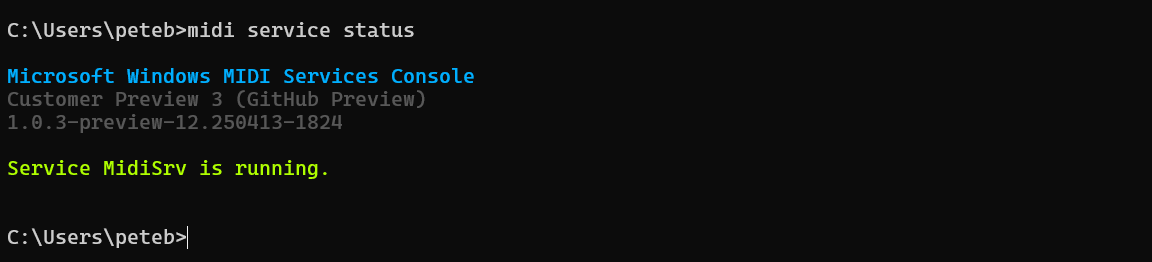
Checks whether the MIDI service is running, and shows how it starts.
| Option | Short | Default | Description |
|---|---|---|---|
--verbose |
-v |
Include more details about the service |
midi service status
midi svc status --verbose
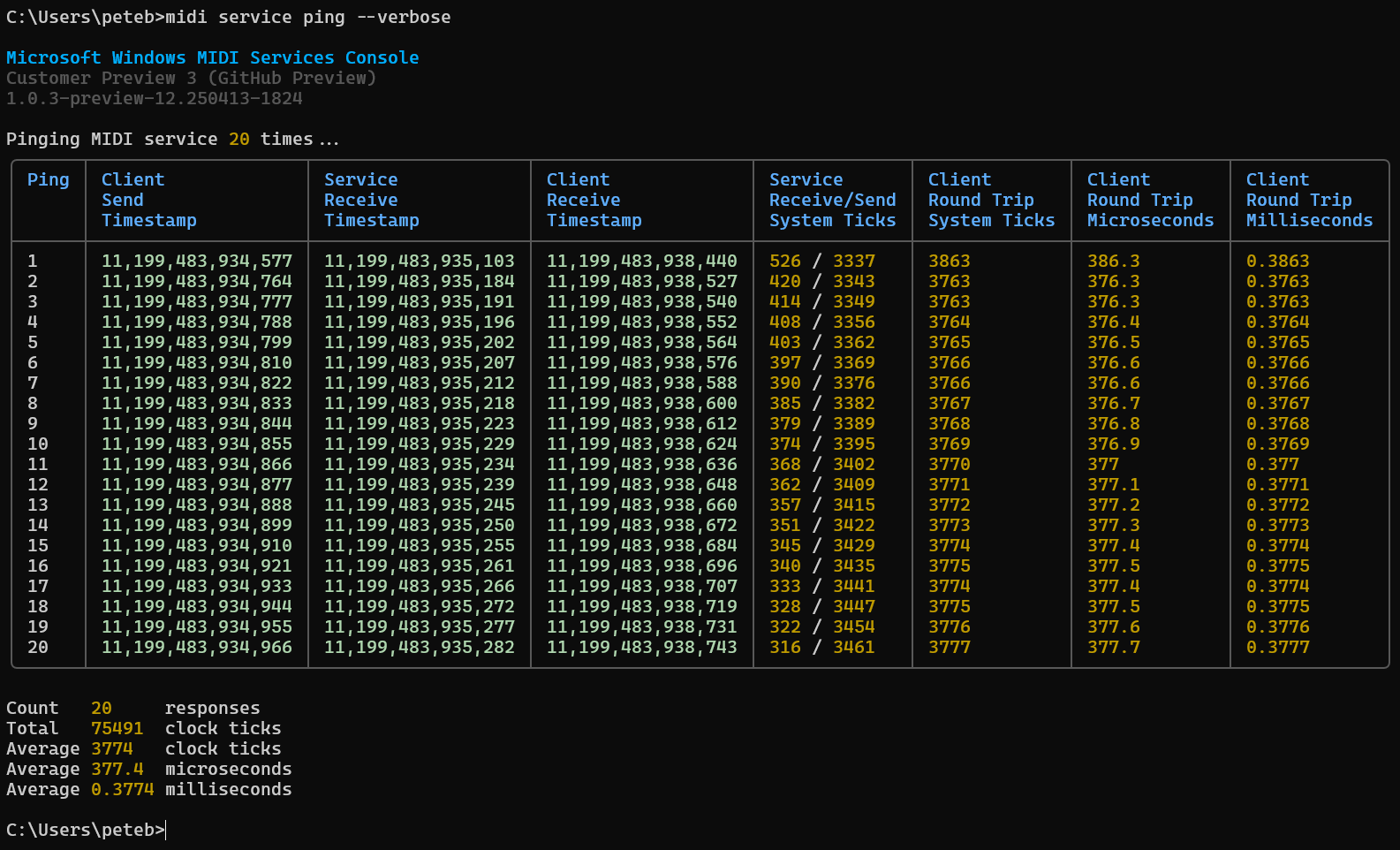
Pings the MIDI service through its ping endpoint, and reports how long the round trips took.
| Option | Short | Default | Description |
|---|---|---|---|
--count |
-c |
20 |
How many times to ping the service |
--timeout |
-t |
10000 |
How long to wait for all the pings, in milliseconds |
--verbose |
-v |
Show each ping as well as the summary |
midi service ping --verbose
midi service ping --count 50 --timeout 20000
Listing gives you a snapshot at one moment. Watching gives you a list that keeps up as endpoints are added and removed and their properties change. This is useful for developers, and for checking that a change you made with another tool was reported.
To stop watching, press Esc.
Alias: watch-ump
Watches endpoints being added, removed and changed.
| Option | Short | Default | Description |
|---|---|---|---|
--include-loopback |
-l |
Include the diagnostic loopback endpoints | |
--verbose |
-v |
Include more details for each endpoint |
midi watch-endpoints
midi watch-ump --include-loopback
Alias: watch-legacy
Watches MIDI 1.0 ports being added, removed and changed.
| Option | Short | Default | Description |
|---|---|---|---|
--verbose |
-v |
Include more details for each port |
midi watch-ports
midi watch-legacy --verbose
Alias: clock
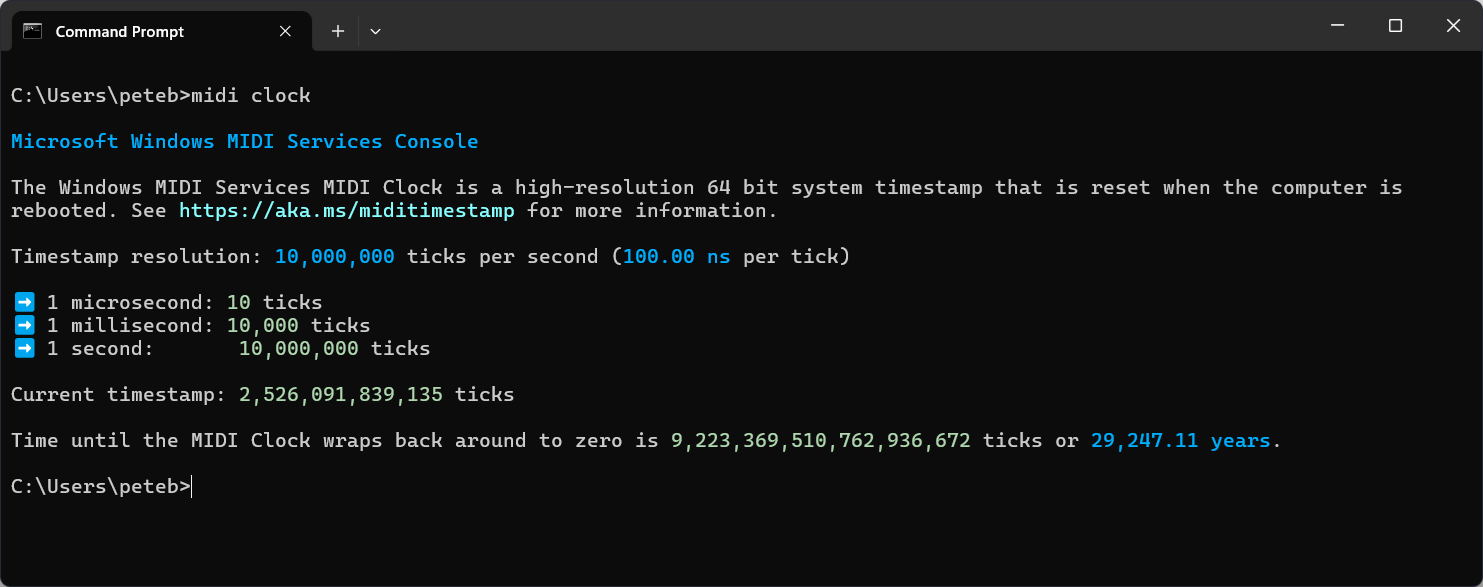
Shows the current MIDI clock timestamp, how many ticks there are in a second, and the Windows timer settings that affect timing. This command has no options beyond --help.
midi time
midi clock
Alias: mode
Windows can run MIDI in three modes. Most PCs should stay in the full Windows MIDI Services mode. Before you change it, read How to change the MIDI API mode for what each mode gives you and takes away.
| Command | Aliases | What it does |
|---|---|---|
api-mode get |
status |
Shows the mode this PC is set to use |
api-mode set |
Changes the mode. Give it full, legacy or hybrid. Run it from an administrator command prompt, then restart the PC |
midi api-mode get
midi api-mode set full
In legacy mode, Windows MIDI Services isn’t running, so every other console command stops with an error. api-mode and --help still work, so you can switch back.
The console is written in C++ using C++/WinRT, and the open source CLI11, {fmt} and FTXUI libraries.
It uses the same Windows MIDI Services API that other apps use. Its full source code is available on our GitHub repo. Pull requests, feature requests and bug reports are welcome. The project is open source, but instead of forking it to make your own version, please consider contributing to the project.
Windows MIDI Services is an open source project with all source available on GitHub. We have a great community on Discord as well. Between GitHub and Discord, you should find the information you are looking for.
