

This page covers information about a Windows MIDI Services feature and application that will be released to consumers in 2027. It’s currently available for developers.
The Windows MIDI SysEx Utility sends System Exclusive files to an instrument and captures System Exclusive data coming back from one. Although not intended to be a fully-featured librarian, it covers most of what people mean by “patch librarian” jobs: loading a bank of sounds you downloaded, backing up the sounds you’ve made, applying a firmware update, or capturing a dump to send to a manufacturer’s support desk.
System Exclusive, usually written SysEx, is the part of MIDI that manufacturers use for anything the standard messages don’t cover. Because the contents are specific to each device, this tool doesn’t try to interpret them. It moves the bytes accurately, shows you exactly what went past, and lets you save them.
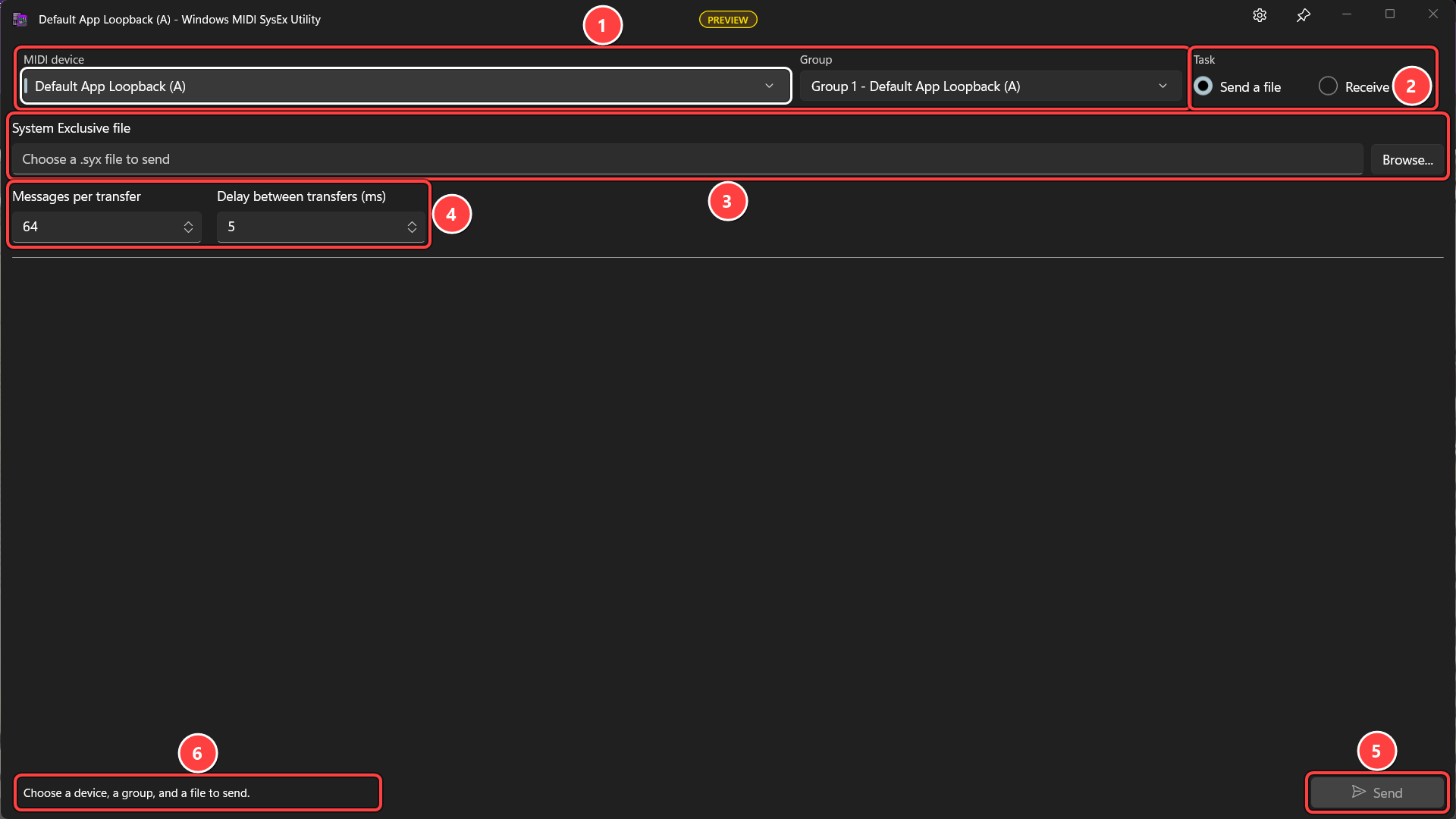
.syx file to send..syx file you want to send. Only binary SysEx files are supported.The progress bar and the line under it tell you how far along the transfer is, counted in both bytes read from the file and messages sent to the device. While a transfer is running, the Send button becomes Cancel.
The SysEx files must include valid SysEx messages, with matched pair(s) of F0/F7 SysEx Start and SysEx End bytes.
Sending is not instant, and it shouldn’t be. Older instruments have small buffers and slow processors, and a dump that arrives faster than the device can store it is simply lost, usually without any complaint from the device. That’s what the two boxes are for.
| Setting | What it does |
|---|---|
| Messages per transfer | How many UMP SysEx packets are handed to the device at once. Default 64, which results in up to 384 (64 x 6) data bytes. |
| Delay between transfers (ms) | How long to wait between one batch and the next. Default 5. This is in milliseconds, so 1000 = 1 second. |
If a transfer to an old synth fails, or the device ends up with garbage in it, lower the message count and raise the delay, then try again. Modern gear generally doesn’t need either changed. Both settings are remembered.
If a device asks you to put it into a “receive bulk dump” or “MIDI receive” mode before you send, do that first. Many instruments ignore incoming SysEx entirely until you do.
Data appears as it arrives.
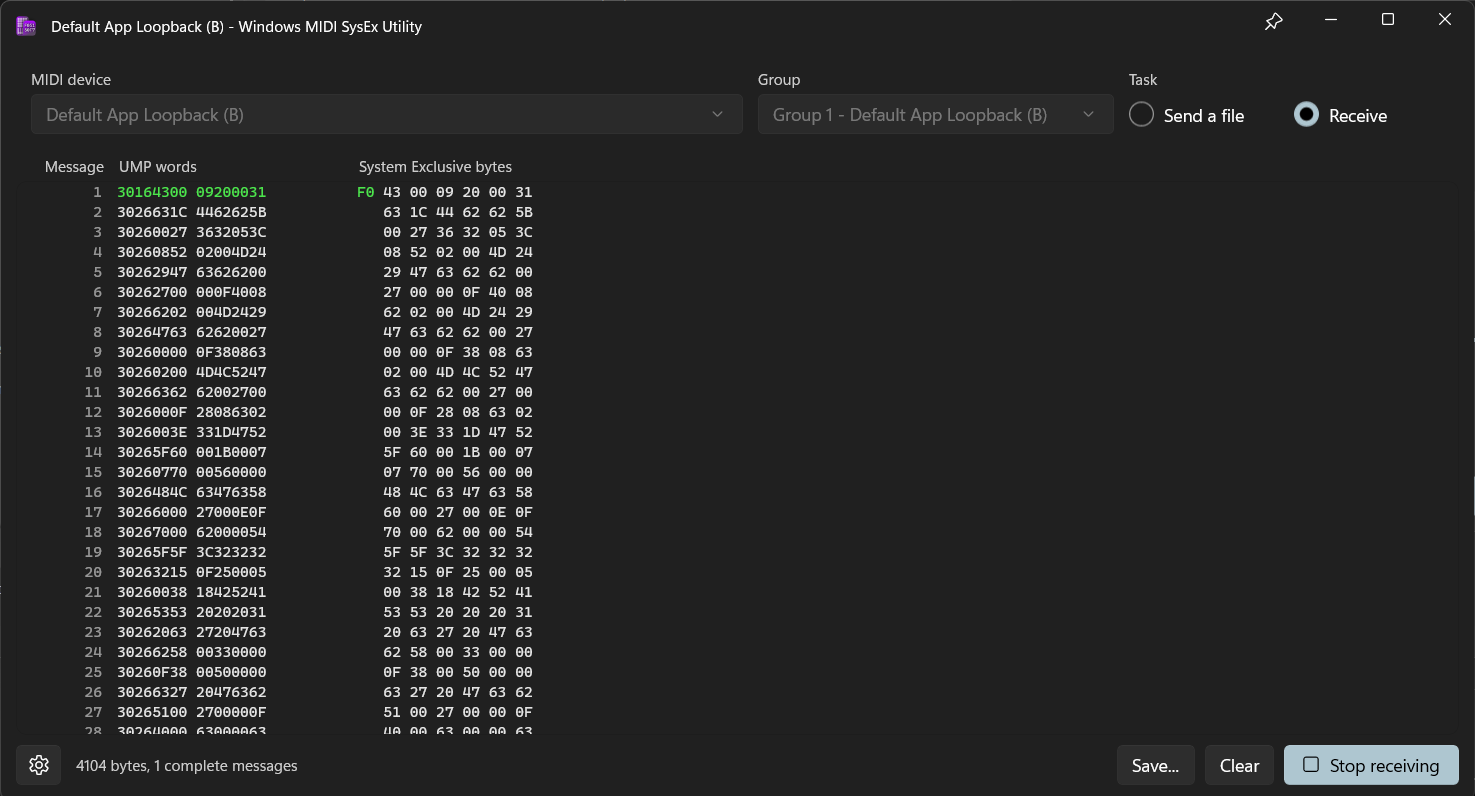
Each row is one Universal MIDI Packet, which is how the data really travels on a modern Windows MIDI system.
| Column | What it tells you |
|---|---|
| Message | A running count of the messages received |
| UMP words | The two 32 bit words of the packet, exactly as they arrived |
| System Exclusive bytes | The MIDI 1.0 SysEx bytes those words carry, up to six per packet |
The coloring is there so you can find the shape of a dump at a glance:
F0 that opens a message, the F7 that closes it, and the words of the packets that carry them. A dump of many patches shows a green row wherever one patch ends and the next begins.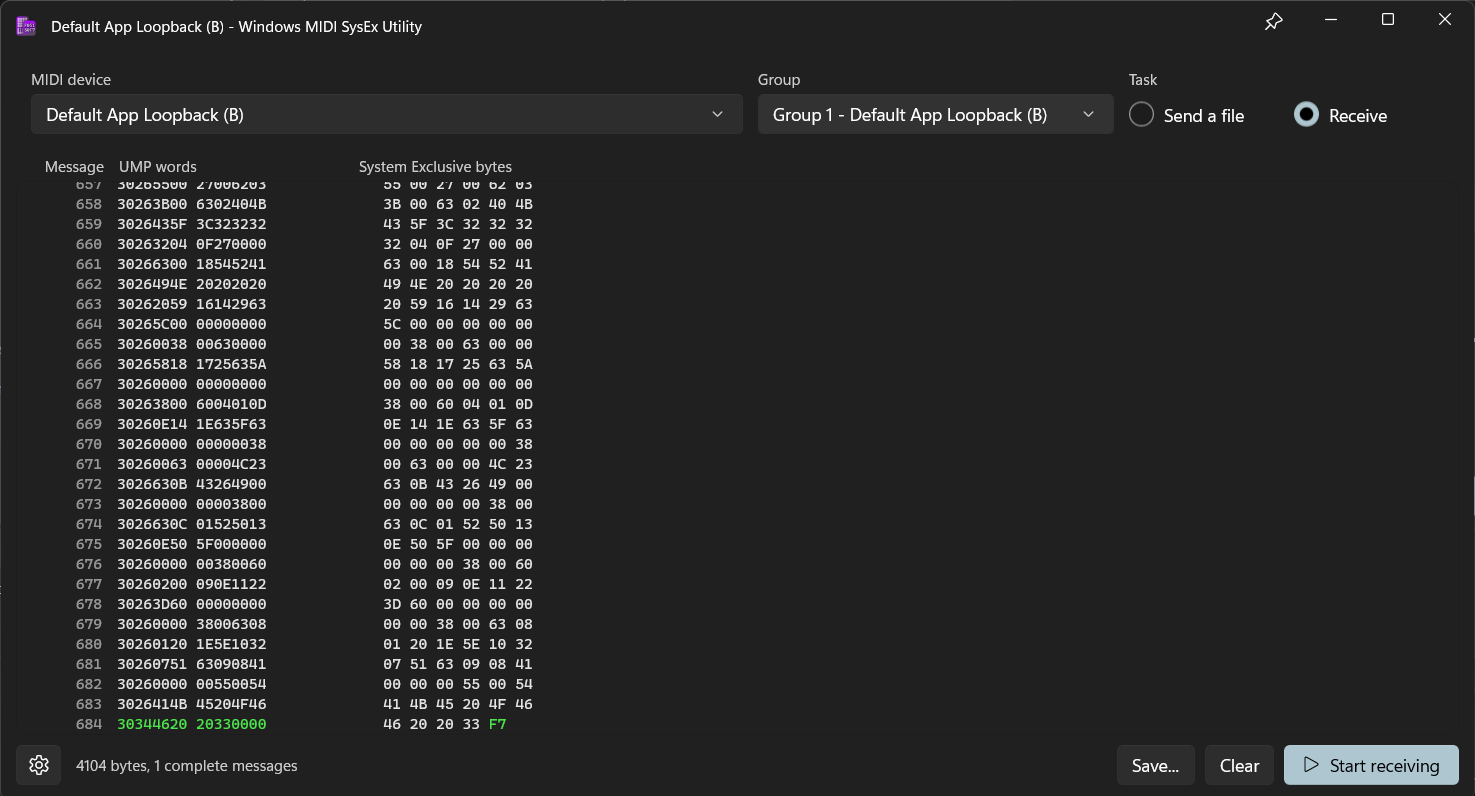
The status line at the bottom keeps a running count of bytes and complete messages. It also warns you when something isn’t right:
Very large dumps are only shown up to the first 20,000 messages, to keep the window responsive. Saving still writes every byte, so nothing is lost.
Select Stop receiving when the instrument has finished.
Save writes the received bytes to a .syx file. This is the exact data that arrived, so a file saved here can be sent straight back to the instrument later.
Clear empties the list and starts a fresh capture.
Both the Save dialog and the Browse dialog open in your System Exclusive library folder, so your patches and backups collect in one place instead of scattering across your Downloads folder.
The gear button in the title bar opens the settings.
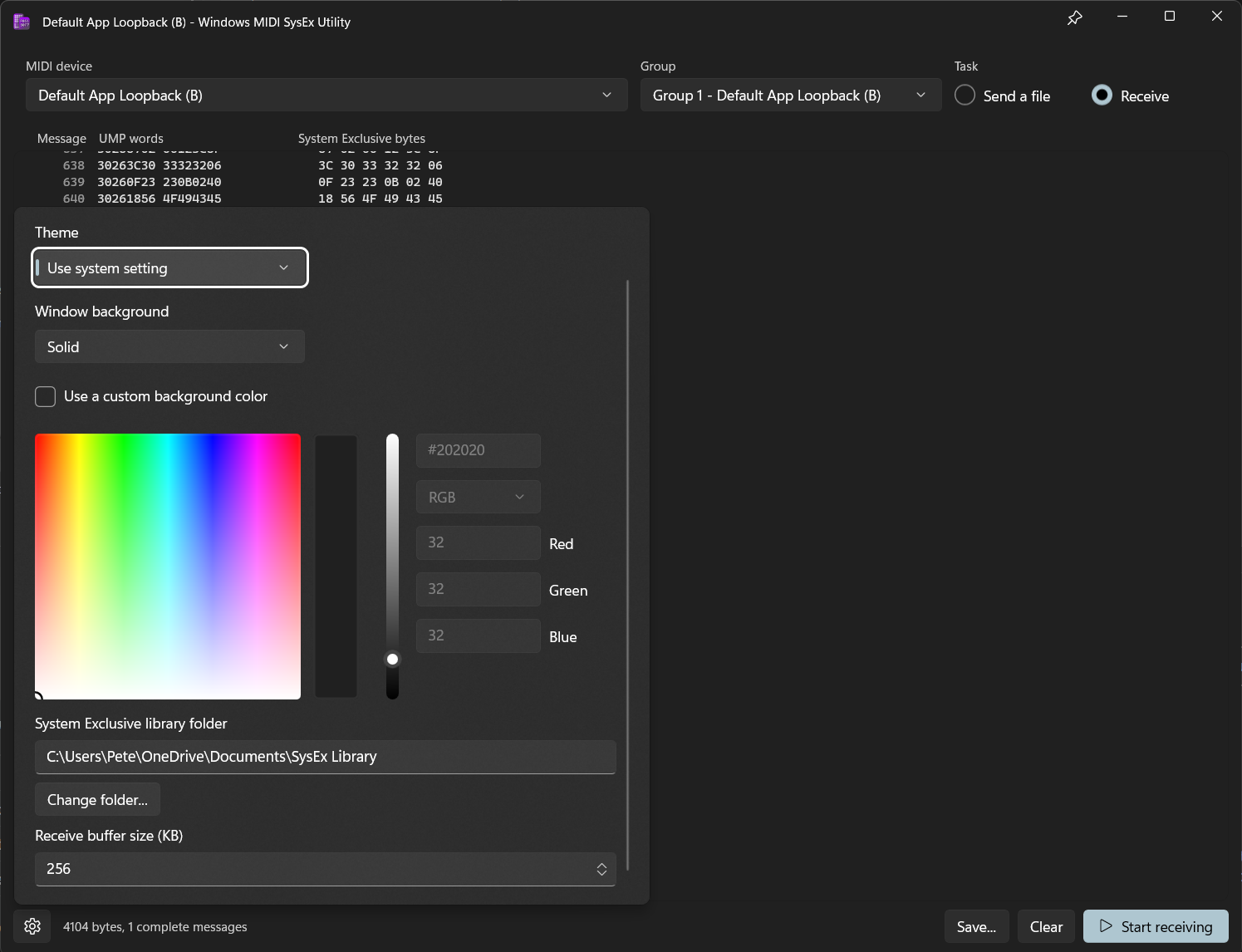
Theme sets whether the app follows your Windows light or dark mode, or ignores it.
Window background picks between Solid, Mica, and Acrylic. Mica and Acrylic pick up colors from your desktop; Acrylic is the one that lets what’s behind the window show through. Tick Use a custom background color to choose your own color, which is a quick way to tell two copies of the utility apart when you have one sending and one receiving.
System Exclusive library folder is where the file dialogs start. It defaults to a SysEx Library folder in your Documents, and is created for you if it isn’t there.
Receive buffer size (KB) is how much room is set aside for an incoming dump before the buffer has to grow. The default of 256 KB is comfortably more than a typical patch bank. Raise it if you routinely capture something very large, such as a firmware image, and you’d rather it not have to resize part way through. Nothing is lost either way; this only affects how the capture is stored.
Nothing stops you running the utility twice. One copy receiving from a device and another sending to a different one is a normal way to move a bank between two instruments, and it’s also the easiest way to check that a file survives a round trip intact.
The pin button next to the window’s minimize button keeps the utility above your other windows.
The utility can open with the device and the file already chosen, so another app or a shortcut can hand you a window that’s ready to send:
midisysextool.exe [endpoint device id] [options]

  [endpoint device id]   Optional. The full endpoint device id of the device to
                         send to or receive from.

  --group, -g  number    Optional. The group number, 1 through 16, to use.
                         Only valid when an endpoint device id is supplied.

  --file, -f   path      Optional. A .syx file to load into the send page.
For example:
midisysextool.exe "\\?\swd#midisrv#midiu_bloop_basic_def#{e7cce071-3c03-423f-88d3-f1045d02552b}" --group 1 --file "C:\Users\Pete\Documents\SysEx Library\rom1a.syx"
You can find the endpoint device id for a device using the MIDI Console or the MIDI Settings app.
Windows MIDI Services is an open source project with all source available on GitHub. We have a great community on Discord as well. Between GitHub and Discord, you should find the information you are looking for.
