Disabling Adaptive Cards After Submission in Copilot Studio Agents
Standard harness
Two proven patterns to disable or replace Adaptive Cards after submission: one for custom web portals using WebChat, and one for Microsoft Teams using Universal Actions.
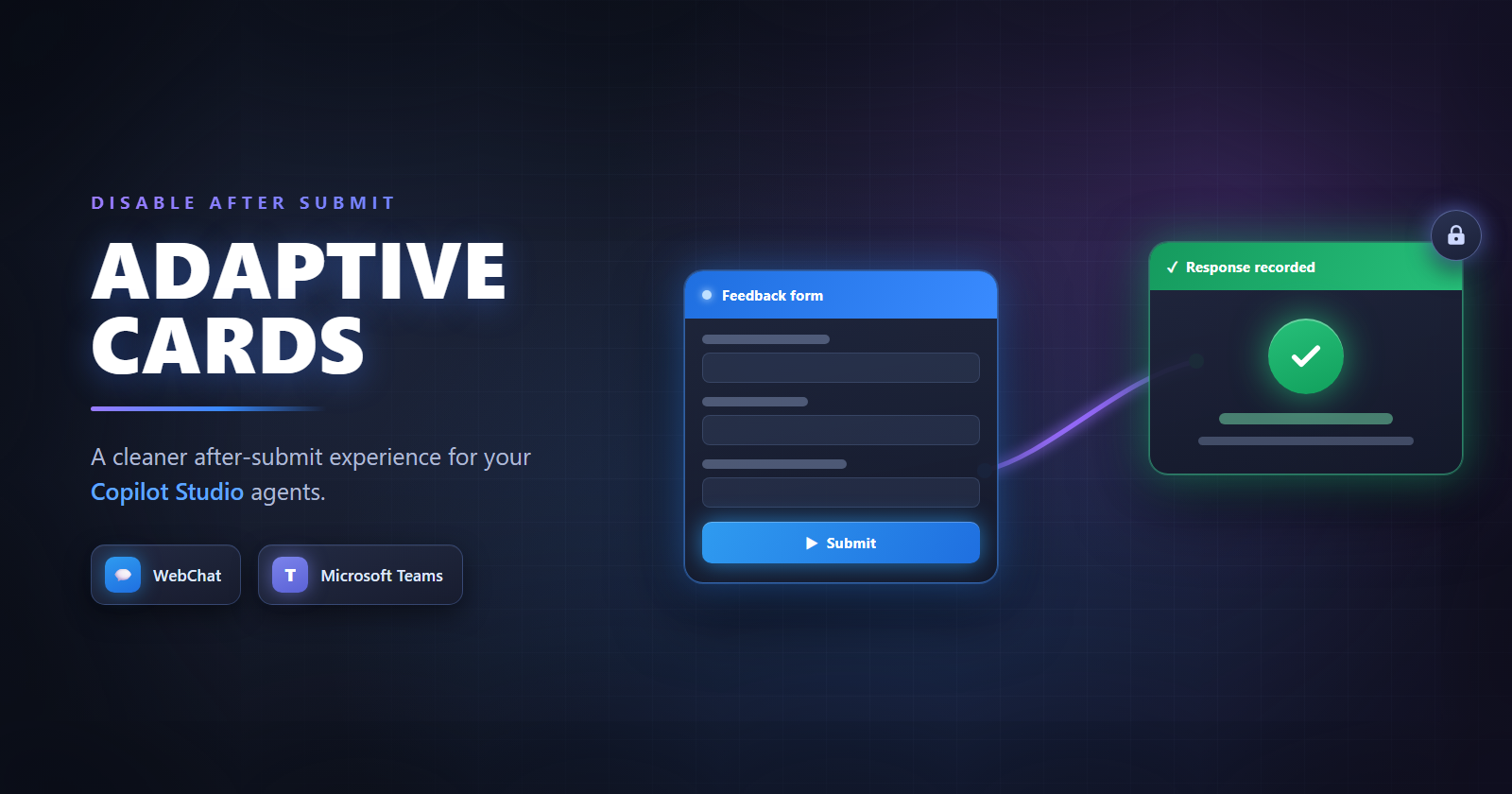
You’ve shipped an agent with an Adaptive Card form. A user fills it in, clicks Submit, and the data they just typed vanishes. The card sits there looking perfectly fillable, so they assume it failed, fill it in again, hit Submit a second time, and get an error for their trouble.
Nothing actually went wrong. The agent received the data and processed it fine. The card just never told the user that, and that small gap turns into a real support problem once you’ve rolled the agent out to thousands of employees.
The good news is that it’s solvable. The catch is that the right fix depends entirely on where your agent lives. The platform hands you a different lever in a custom web portal than it does in Microsoft Teams, so this post walks through both.
Why this happens
Adaptive Cards, by default, don’t have a built-in “disable after submit” behavior. When a user submits a card:
- The input fields clear (data disappears visually)
- The card remains interactive
- A second submission triggers an error because the conversation has already moved on
This is a platform behavior, not a bug in your agent logic. Your agent received and processed the data just fine. But the user doesn’t know that.
Two patterns, two channels
The fix depends on where your agent is surfaced:
| Channel | Pattern | Mechanism |
|---|---|---|
| Web portals (WebChat) | Attachment middleware | Disable card client-side |
| Microsoft Teams | Universal Actions | Replace card server-side |
| Microsoft 365 Copilot | No supported workaround |
Action.Execute isn’t honored |
Let’s walk through the two workarounds, then cover what to do when your agent lives in Microsoft 365 Copilot, where neither one applies.
Pattern 1: Custom Web Portals (BotFramework-WebChat)
This pattern works for agents you embed in your own custom web portals or self-service pages with the BotFramework-WebChat SDK, where you control the client.
It does not apply to the Microsoft 365 Employee Self-Service (ESS) agent. Despite the similar name, ESS runs in the Microsoft 365 Copilot channel, where you don’t host the client, so there’s nowhere to plug in this middleware. There’s a section on that channel near the end.
The idea is simple: use an attachment middleware in WebChat that checks whether a card belongs to the most recent bot message. If it doesn’t (meaning the user has already moved past it), render the card as disabled.
The core logic
The middleware intercepts adaptive card renders and compares the activity to the latest message in the store:
1
2
3
4
5
6
7
8
9
10
11
12
13
14
15
16
17
18
19
20
21
22
23
24

const attachmentMiddleware =
  () =>
  next =>
  ({ activity, attachment, ...others }) => {
    const { activities } = store.getState();
    const messageActivities = activities.filter(
      activity => activity.type === 'message'
    );
    const recentBotMessage = messageActivities.pop() === activity;

    switch (attachment.contentType) {
      case 'application/vnd.microsoft.card.adaptive':
        return (
          <AdaptiveCardContent
            actionPerformedClassName="card__action--performed"
            content={attachment.content}
            disabled={!recentBotMessage}
          />
        );

      default:
        return next({ activity, attachment, ...others });
    }
  };
The key line is disabled={!recentBotMessage}. Once the bot sends a new message, the previous card becomes disabled. Inputs are read-only, buttons are non-functional.
Visual feedback with CSS
To make it clear that a button has been used, add a CSS class that styles performed actions:
1
2
3
4
5

#webchat .card__action--performed {
  background-color: #0063b1 !important;
  border-color: #0063b1 !important;
  color: White !important;
}
This gives the submitted button a solid blue “done” look, so users have a clear visual signal.
Mounting it
Pass the middleware when rendering WebChat:
1
2
3
4
5

<ReactWebChat
  attachmentMiddleware={attachmentMiddleware}
  directLine={directLine}
  store={store}
/>
This is a client-side solution. It prevents resubmission in the UI but doesn’t enforce it server-side. For most self-service portal scenarios, this is sufficient.
The full working sample is available in the BotFramework-WebChat repo.
Pattern 2: Microsoft Teams (Universal Actions)
Here’s where things get interesting. The WebChat middleware doesn’t apply in Teams because you don’t control the client. If you’re designing agents for Teams more broadly, the Teams agent patterns post covers the wider design considerations. For this problem, we reach for Universal Actions, the model that lets an agent respond to a card action and hand back a fresh card in its place.
How Universal Actions work
sequenceDiagram
    participant User
    participant Teams
    participant Agent as Copilot Studio Agent

    User->>Teams: Fills out card, clicks Submit
    Teams->>Agent: Sends invoke activity with verb
    Agent->>Agent: Processes data, branches on verb
    Agent->>Teams: Returns replacement card (HTTP 200)
    Teams->>User: Original card replaced with confirmation
Instead of Action.Submit, the card uses Action.Execute with a unique verb. When the user clicks the button, Teams sends an invoke activity to Copilot Studio. A topic picks it up, processes the data, and returns a new card. Teams swaps the original card for the new one.
The user sees their form replaced with a confirmation. No ambiguity, no resubmission.
Step 1: Design the card with Action.Execute
Start from any Adaptive Card. If you’d rather not hand-author the JSON, you can let Copilot generate the card for you and tweak the actions from there. The critical change is in the action buttons. Replace Action.Submit with Action.Execute and add a verb:
Adaptive Card action buttons using Action.Execute
{
  "type": "ActionSet",
  "actions": [
    {
      "type": "Action.Execute",
      "title": "Submit",
      "verb": "feedbackSubmitForm",
      "data": { "actionType": "submitted" },
      "fallback": "Action.Submit",
      "style": "positive"
    },
    {
      "type": "Action.Execute",
      "title": "Skip",
      "verb": "feedbackSkipForm",
      "data": { "actionType": "skipped" },
      "associatedInputs": "none",
      "fallback": "Action.Submit"
    }
  ]
}
Use
"fallback": "Action.Submit"so the card degrades gracefully in clients that don’t support Universal Actions.
Step 2: Send with a “Send a message” node
In Copilot Studio, use a Send a message node with the Adaptive Card JSON. Don’t use the Ask with Adaptive Card node. That node uses Action.Submit internally and won’t trigger the invoke/refresh flow.
Step 3: Create a listener topic
Create a topic that triggers on the invoke activity. Parse the incoming payload using this schema to extract the verb:
1
2
3
4
5
6
7
8
9
10
11
12
13
14
15
16

kind: Record
properties:
  action:
    type:
      kind: Record
      properties:
        data:
          type:
            kind: Record
            properties:
              userResponse: String
        id: String
        title: String
        type: String
        verb: String
  trigger: String
Then branch on resultData.action.verb:
-
feedbackSubmitForm→ process the input, return a thank-you card -
feedbackSkipForm→ return a skipped confirmation
Step 4: Return the replacement card
The response must follow the Universal Action response format:
Universal Action response with the replacement card
{
  "statusCode": 200,
  "type": "application/vnd.microsoft.card.adaptive",
  "value": {
    "type": "AdaptiveCard",
    "$schema": "https://adaptivecards.io/schemas/adaptive-card.json",
    "version": "1.5",
    "body": [
      {
        "type": "TextBlock",
        "text": "Thank you for your feedback!",
        "weight": "Bolder",
        "size": "Medium",
        "wrap": true
      },
      {
        "type": "TextBlock",
        "text": "Your response has been recorded.",
        "wrap": true,
        "isSubtle": true
      }
    ]
  }
}
The original card is replaced. No buttons, no inputs, just a clean confirmation.
Test this in Teams directly, not the Copilot Studio test canvas. The invoke/refresh flow may not work in the test panel.
A complete, importable version of this pattern (built by Nghiem Doan) is available in the CopilotStudioSamples repo as a ready-to-import solution.
What about the Microsoft 365 Copilot channel?
Both patterns above assume you either control the client (WebChat) or you’re in Teams (Universal Actions). Neither assumption holds in the Microsoft 365 Copilot channel, and that gap matters more than it used to, because a growing number of agents surface there, including Microsoft’s own Employee Self-Service (ESS) agent.
Here’s the situation as of July 2026:
- The WebChat middleware doesn’t apply. You don’t host the client, so there’s nowhere to plug in attachment middleware.
-
Universal Actions don’t fire.
Action.Executeon Adaptive Cards sits under unsupported node types for the Microsoft 365 Copilot channel, so the invoke/refresh flow that swaps the card never runs.
There’s no supported way to disable or replace a card after submit in Microsoft 365 Copilot right now. The pragmatic move is to design around it: keep cards informational where you can, gather input through a Question node or a conversational turn instead of a submit-heavy card, and write the card text so a click that appears to do nothing still reads as “received.”
ESS is the perfect trap here. It shares DNA with the custom-portal scenario, so the WebChat fix looks like it should carry over, but ESS runs in the Microsoft 365 Copilot channel where that client-side hook can’t reach it and the Teams card swap doesn’t apply. Same-looking problem, different rules.
Key takeaways
- Adaptive Cards don’t natively disable after submission. You need to implement this yourself.
- For custom web portals, use the WebChat attachment middleware to disable cards client-side. It’s clean, visual, and straightforward.
- For Microsoft Teams, use Universal Actions with
Action.Executeand a verb. A Copilot Studio topic listens for the invoke, processes the data, and returns a replacement card. - Both patterns solve the same UX problem through different mechanisms. The channel decides which one you use, so let where your agent lives make the call.
- In the Microsoft 365 Copilot channel (where the ESS agent lives), neither pattern applies today.
Action.Executecards aren’t supported, so design around the after-submit moment instead. - Always include
"fallback": "Action.Submit"in your Universal Action cards for backward compatibility.
A polished agent is a series of small moments
Adaptive Cards are one of the best ways to collect real input inside an agent, but input without feedback is just guesswork for the person on the other side. The gap between an agent that feels broken and one that feels finished often lives in a single moment: what the user sees the instant they click Submit. Close that moment, client-side in WebChat or server-side in Teams, and you remove one of those small, quiet frustrations that erode trust in an agent long before anyone bothers to file a bug.
So before you ship your next card, click your own Submit button and watch what happens. If the answer is “nothing,” you now know exactly how to fix it.
How are you handling the after-submit moment in your own agents? I’d love to hear about it in the comments.