Admin Configuration
Concise hub for SimpleChat Admin Settings, setup walkthrough behavior, tab references, and operator notes.
Admin Settings turns a running deployment into an operating environment by centralizing branding, model routing, workspace policy, safety controls, scale features, and logging. Use this page for orientation, then use the tab-specific pages for the full setting-by-setting guidance.
Accessing Admin Settings
Sign in with an account that has the Admin role, open Admin Settings, and use the tab pages below to configure the deployment.
Start with the tab guide
The Administration settings guide is the canonical tab-by-tab reference. It explains the recommended first-time configuration order and summarizes what each tab controls.
Configuration sections
For step-by-step branding and home page changes, see Configure branding, home page, and support settings.
Related deployment and identity pages
Legacy screenshots
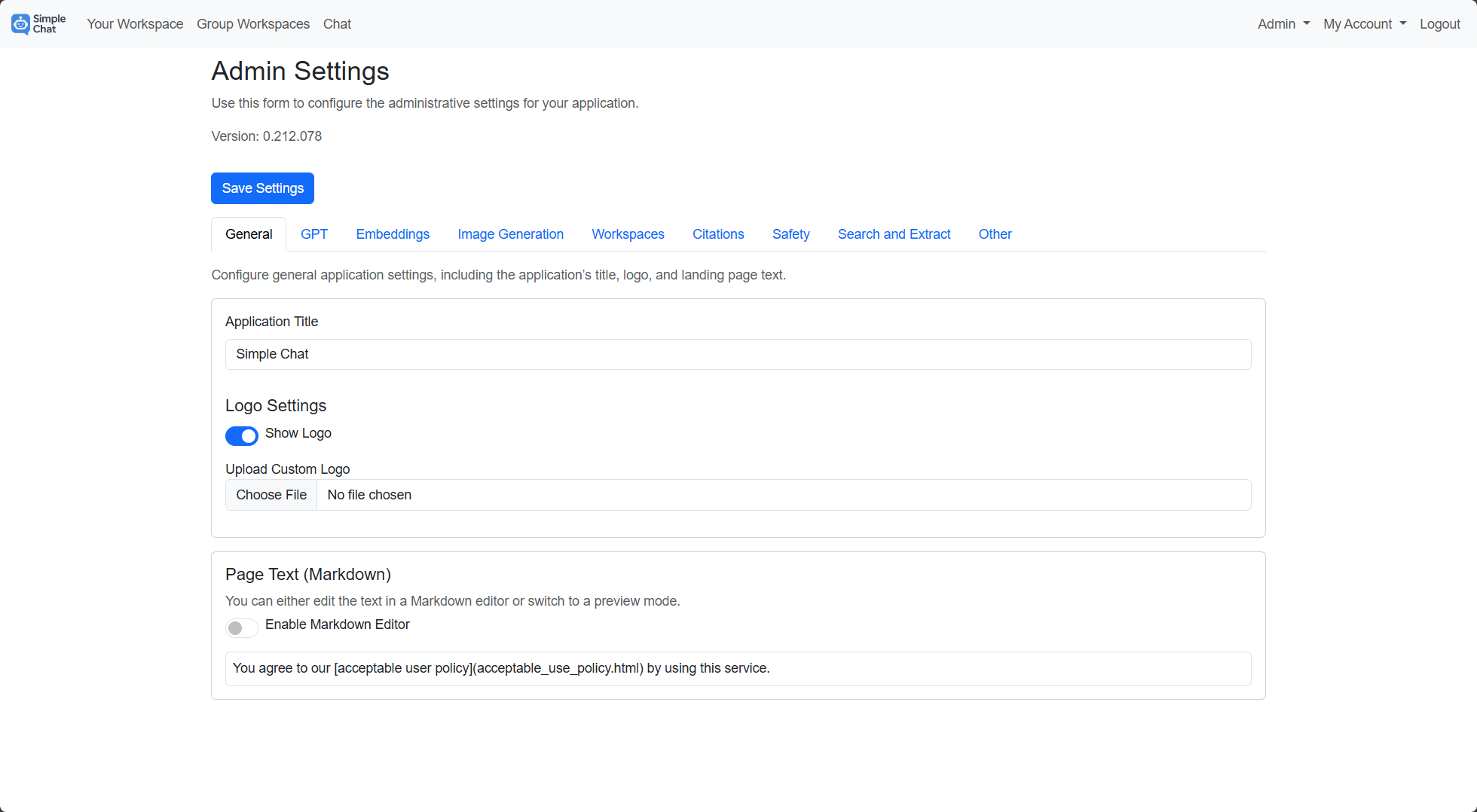
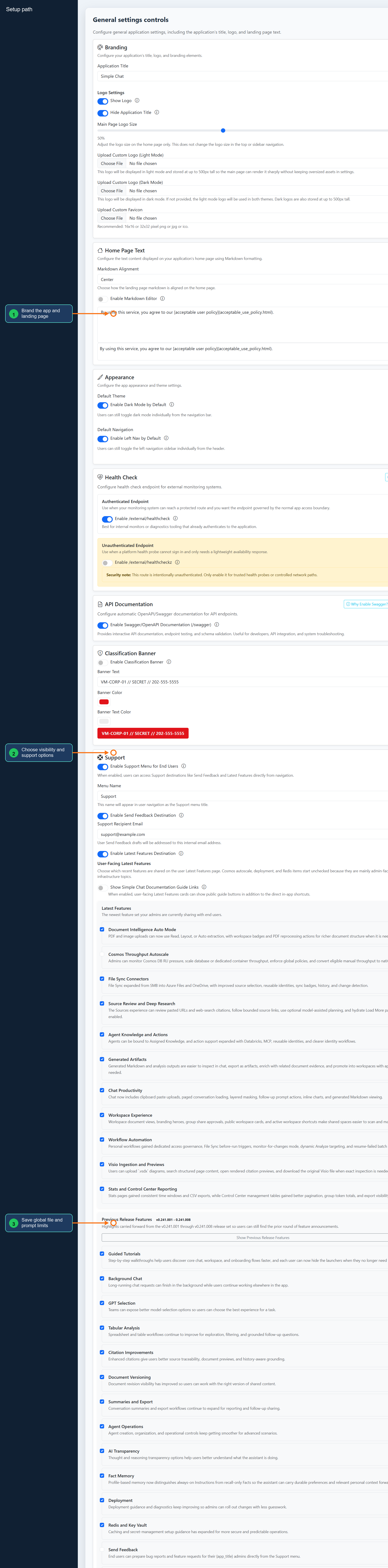
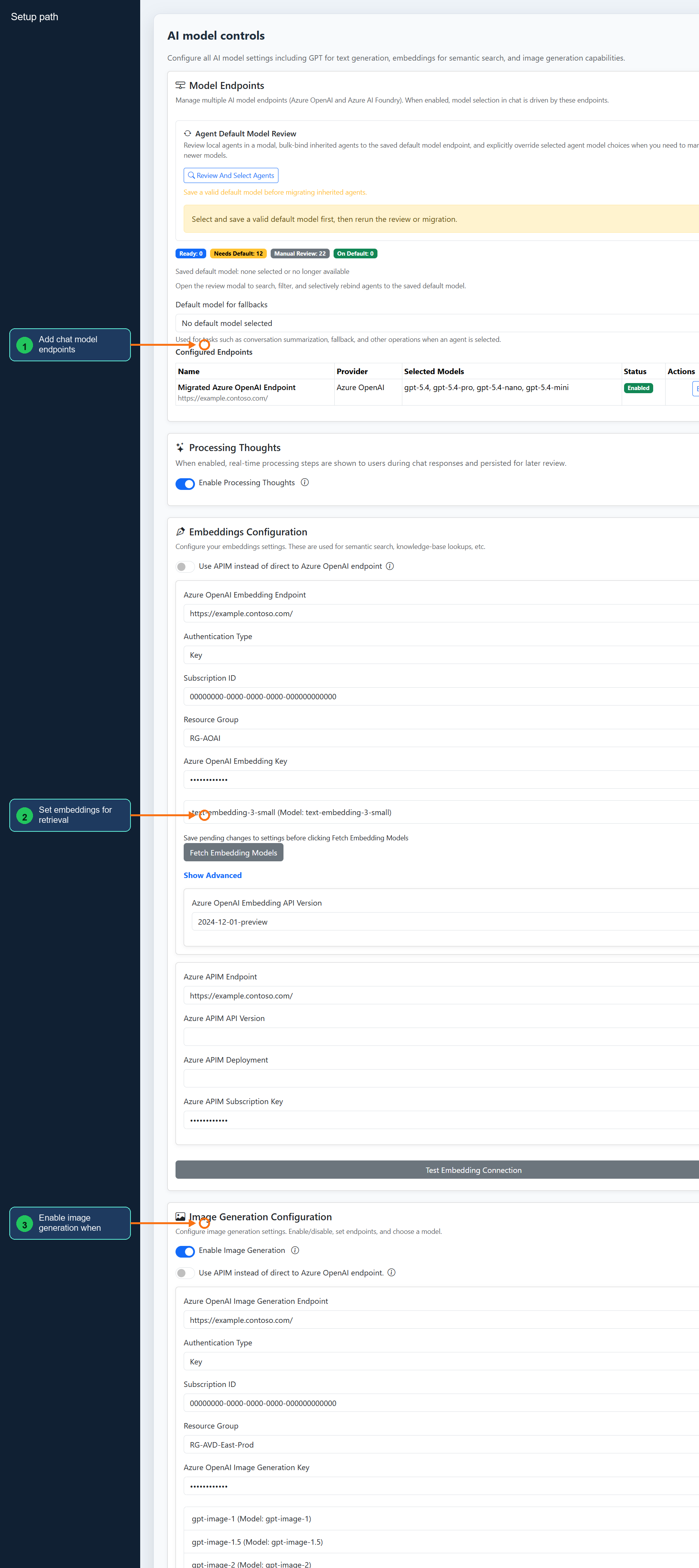
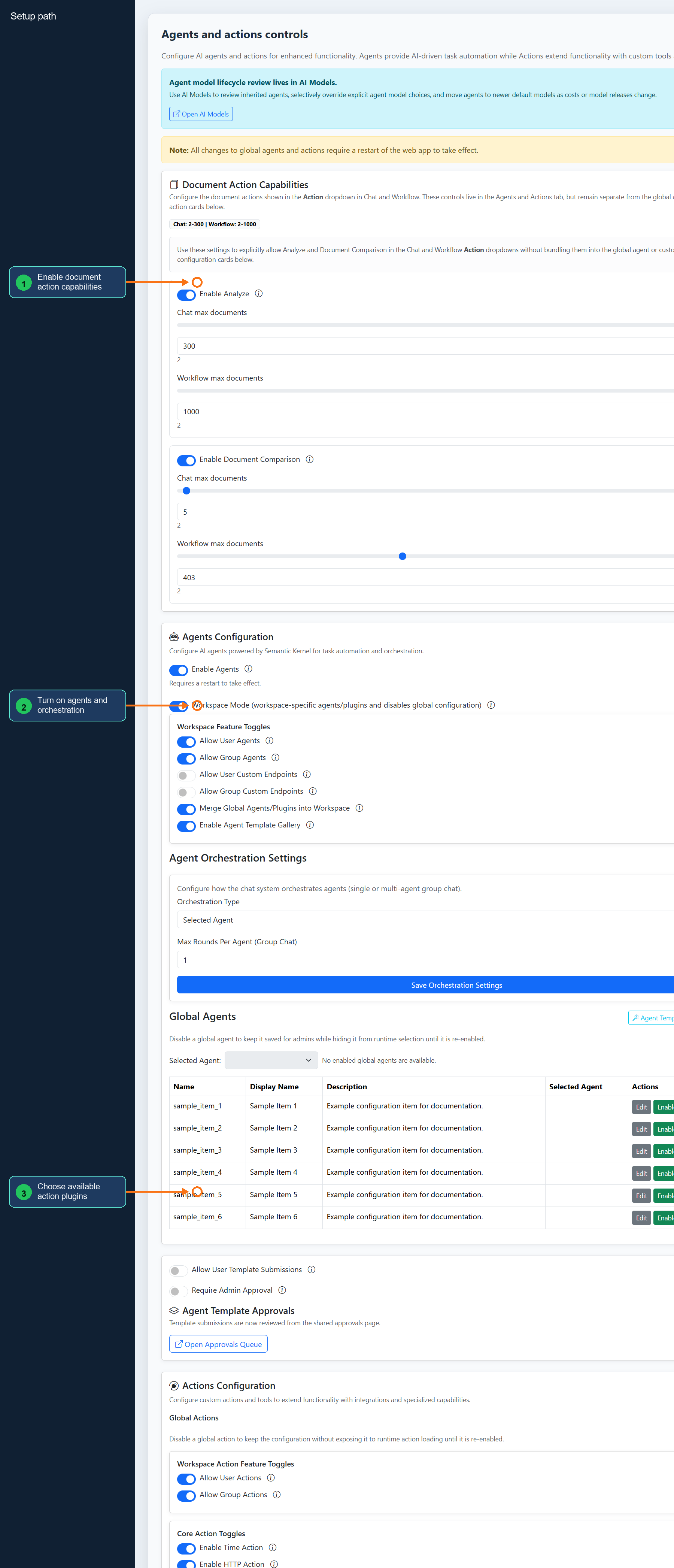
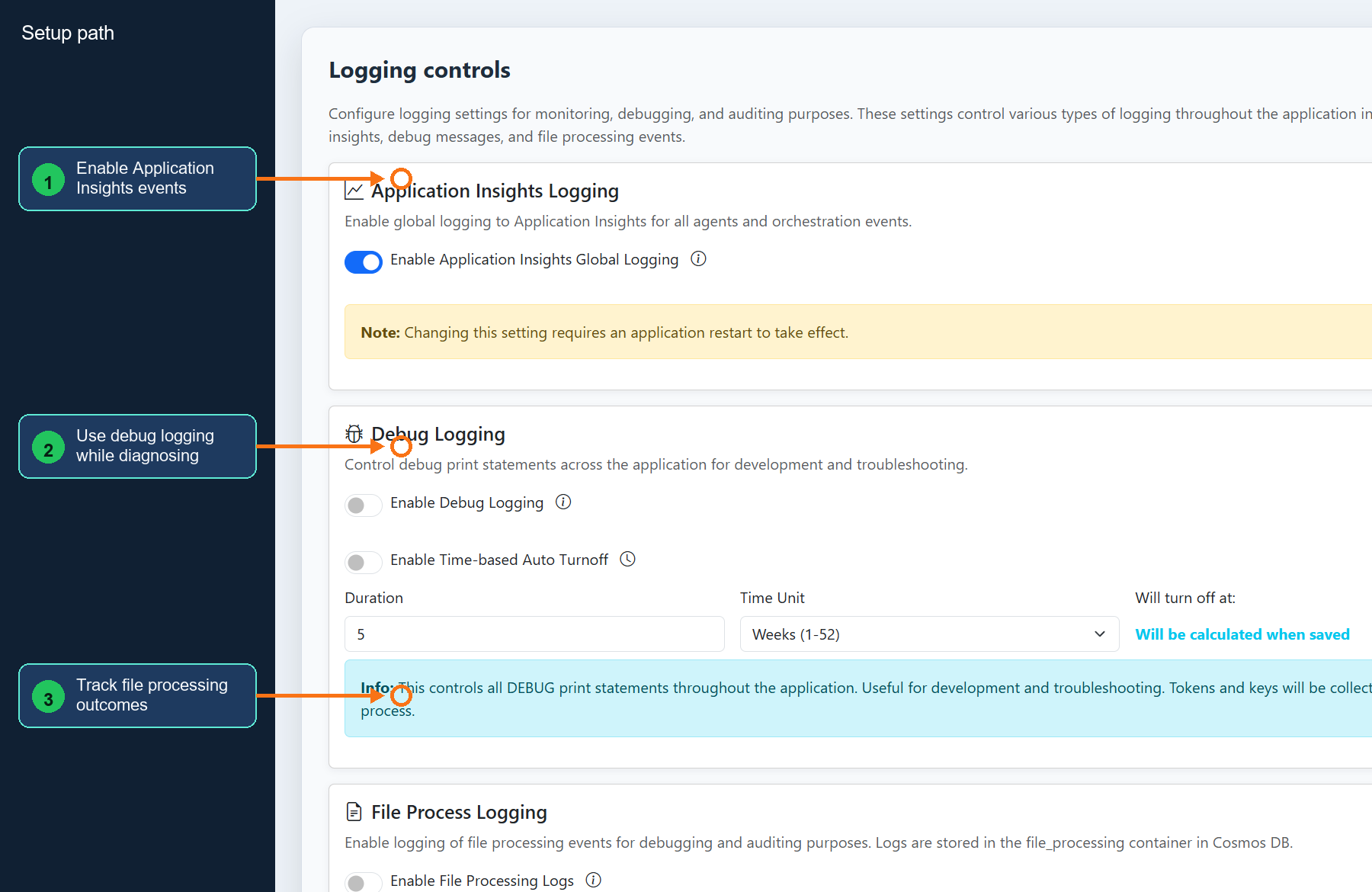
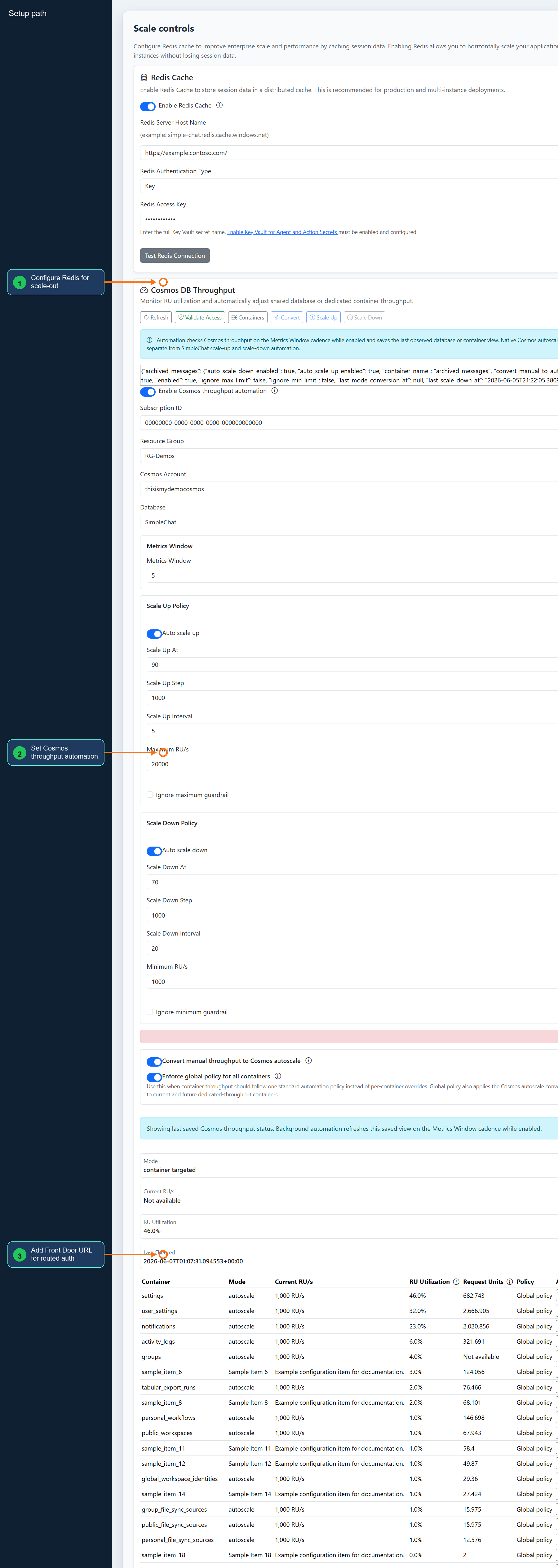
The legacy full configuration reference included annotated screenshots for several tabs. The tab pages remain the primary reference, and these image links are preserved for readers who bookmarked or reviewed the previous visual guide.
- Admin Settings page
- General settings screenshot
- AI models screenshot
- Agents and actions screenshot
- Logging screenshot
- Scale screenshot
- Control Center screenshot
- Workspaces screenshot
- File Sync screenshot
- Global Identity screenshot
- Citations screenshot
- Safety screenshot
- Security screenshot
- Search and Extract screenshot
- Send Feedback screenshot
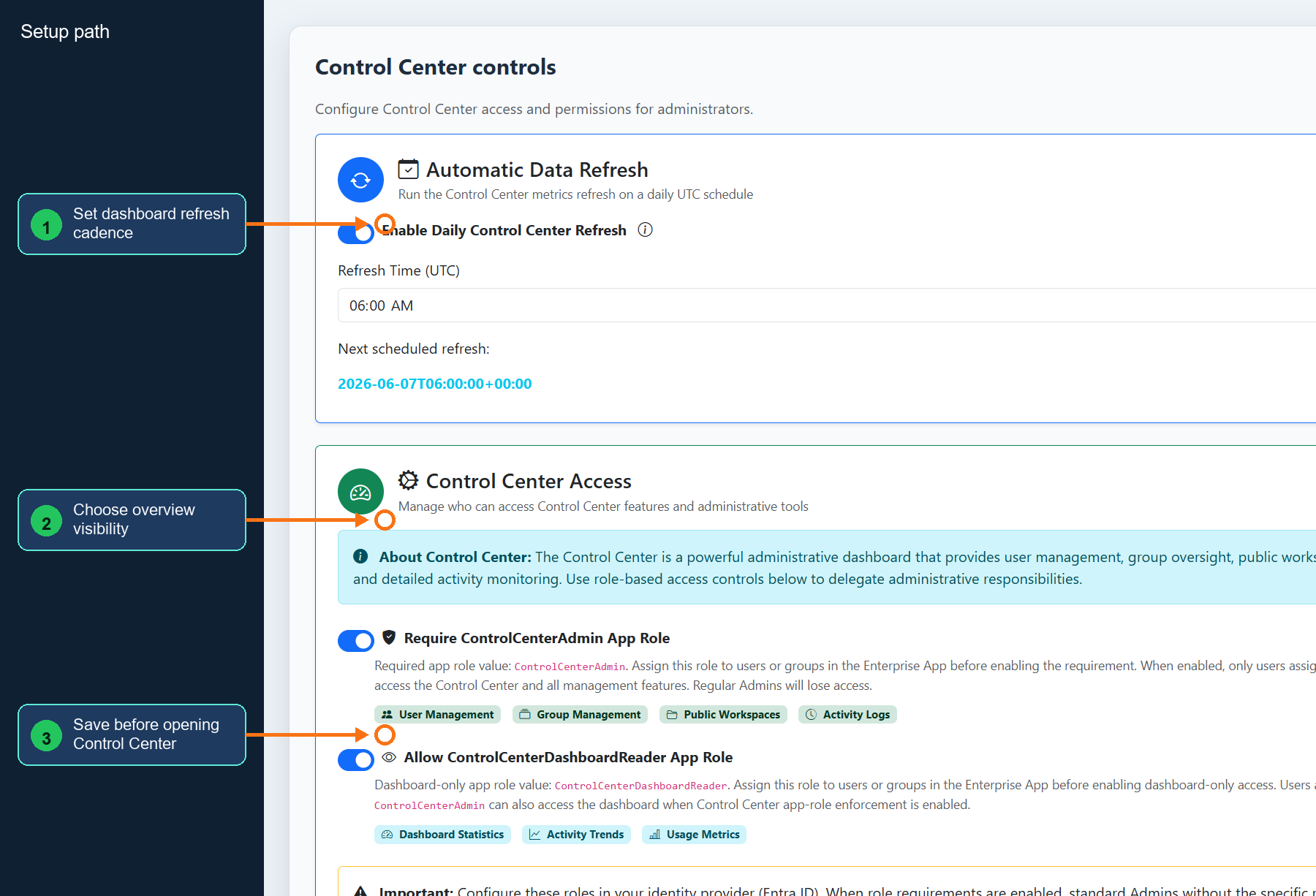
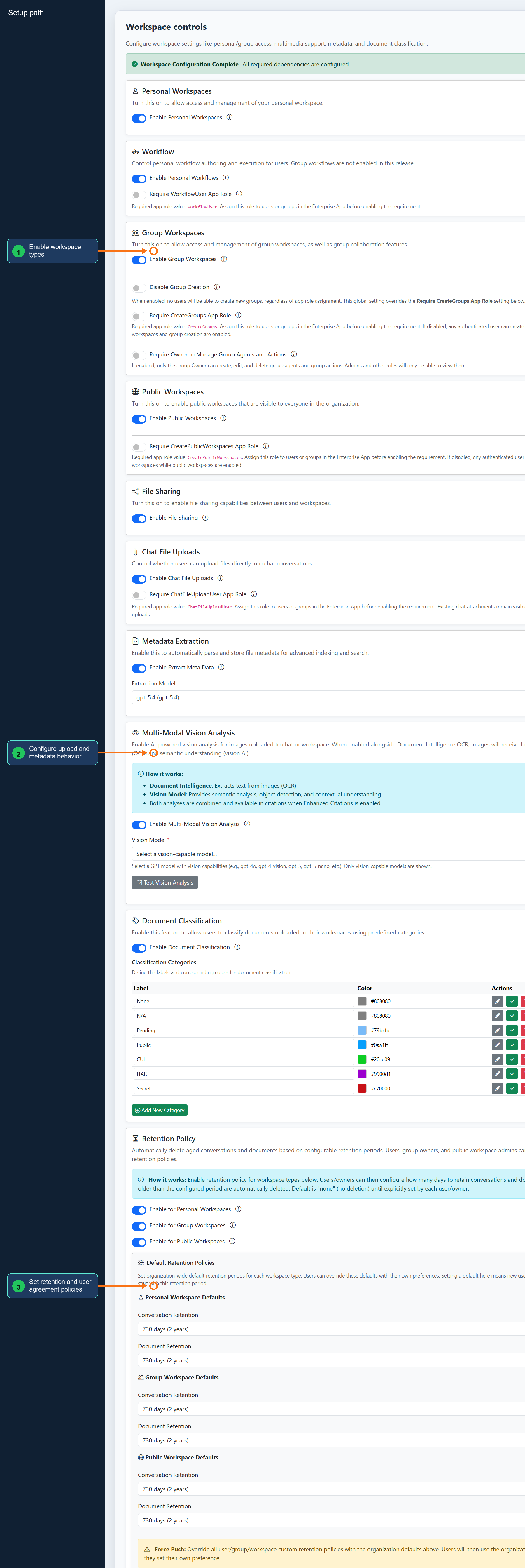
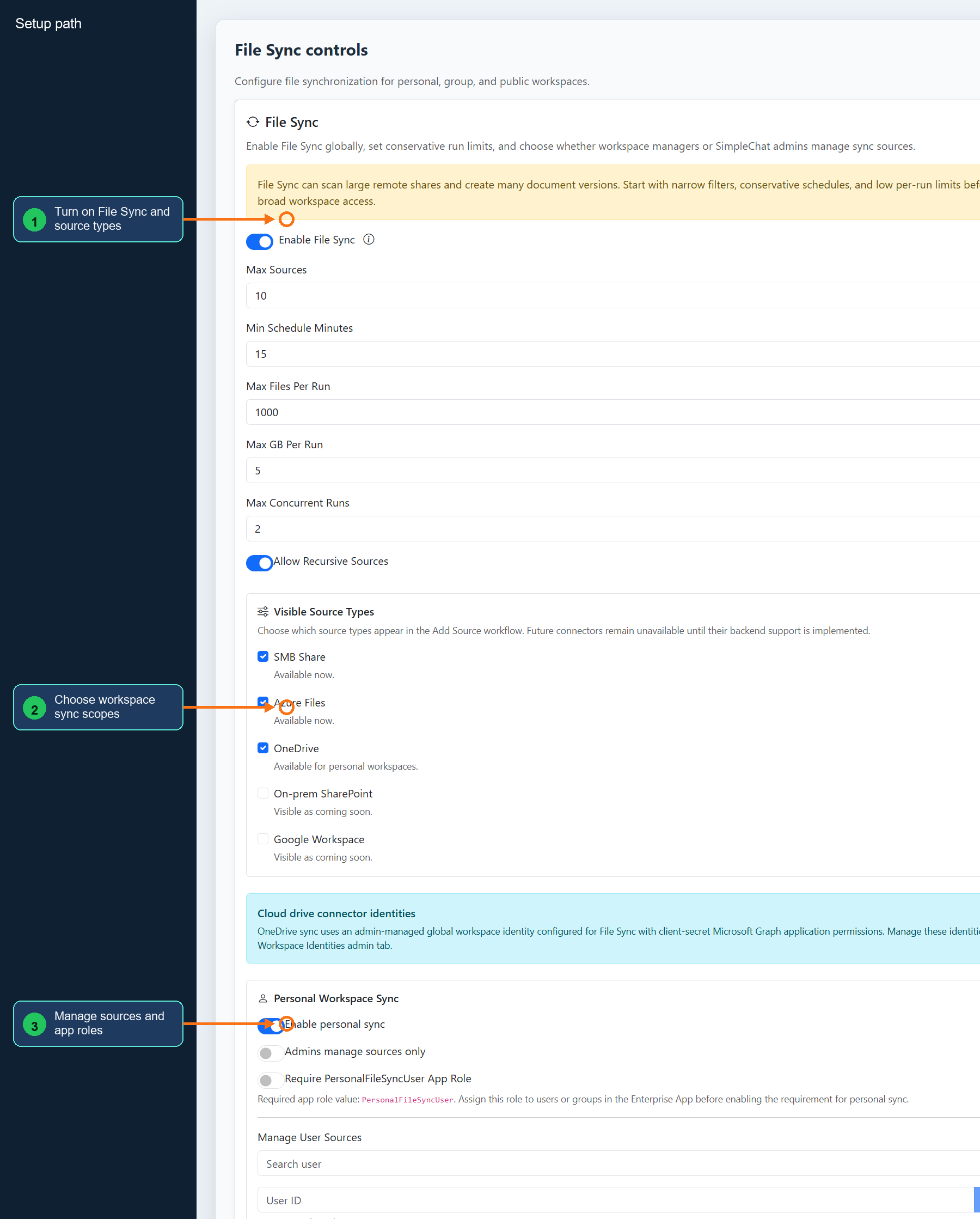
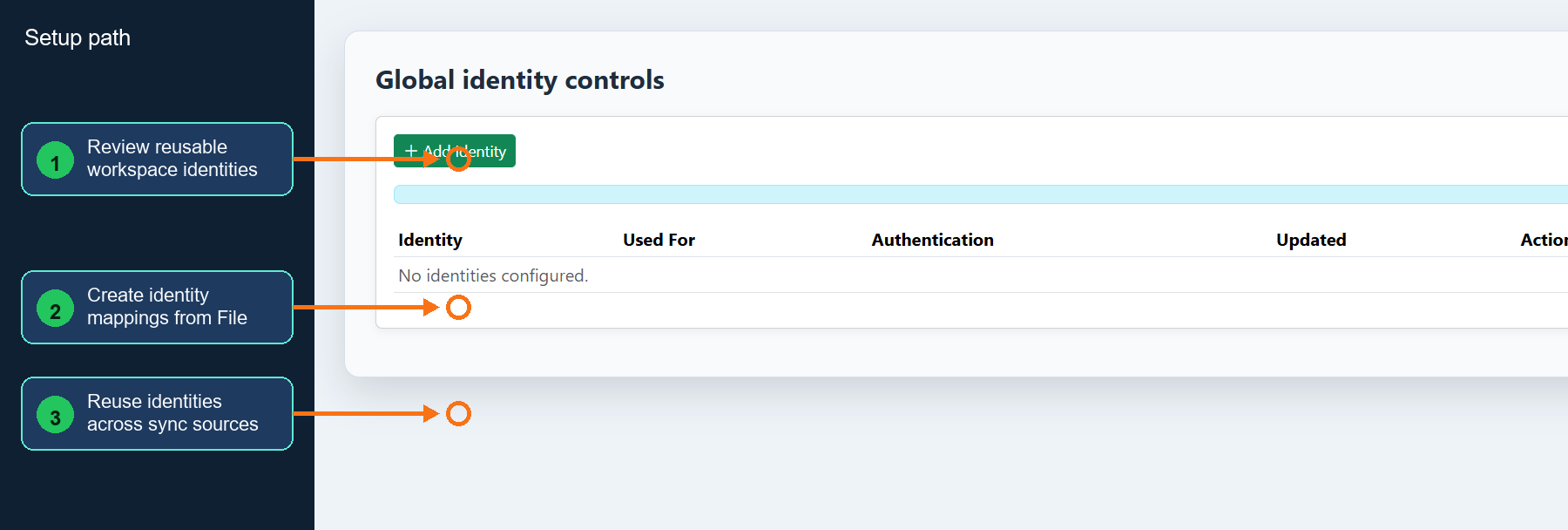
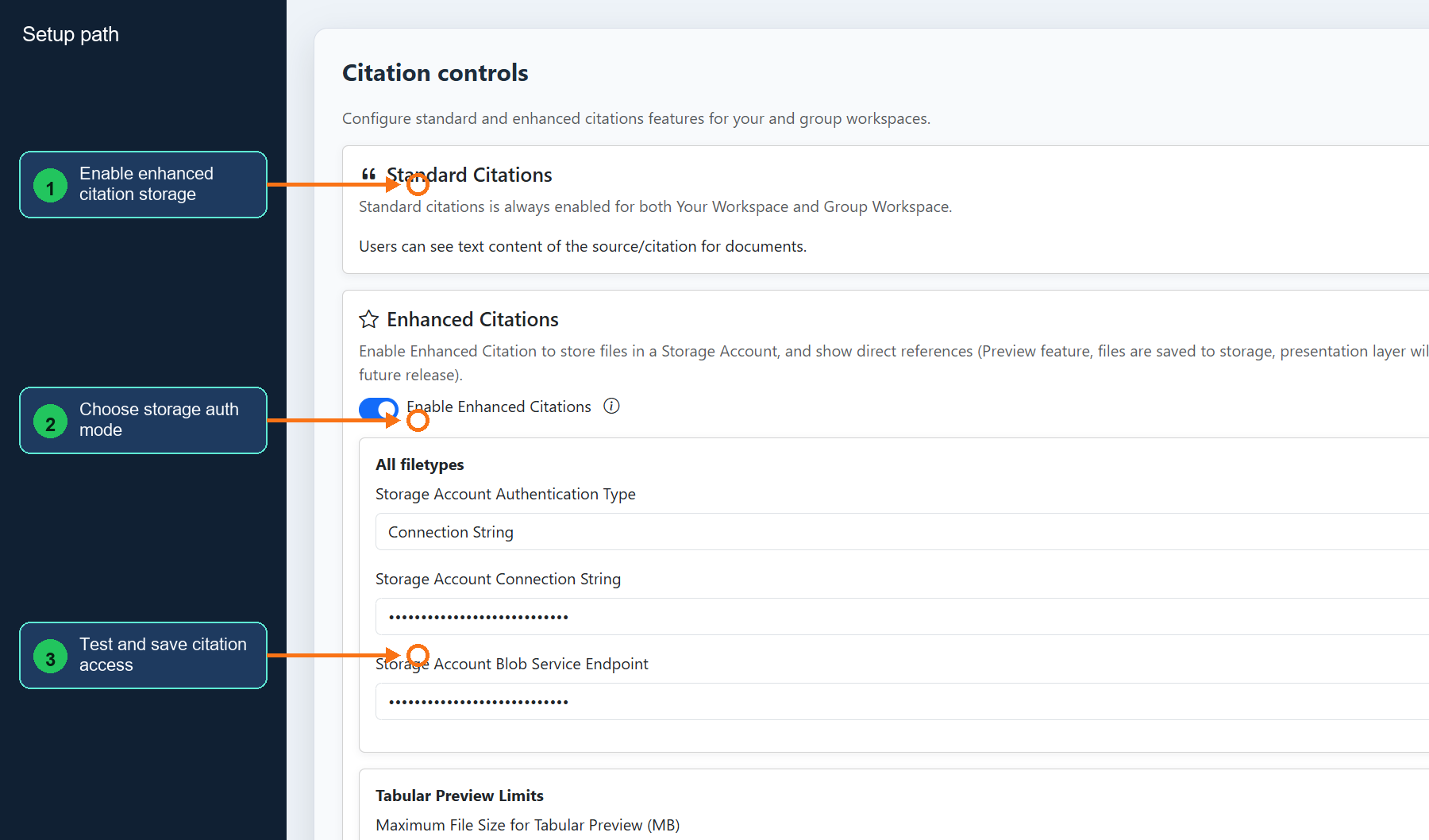
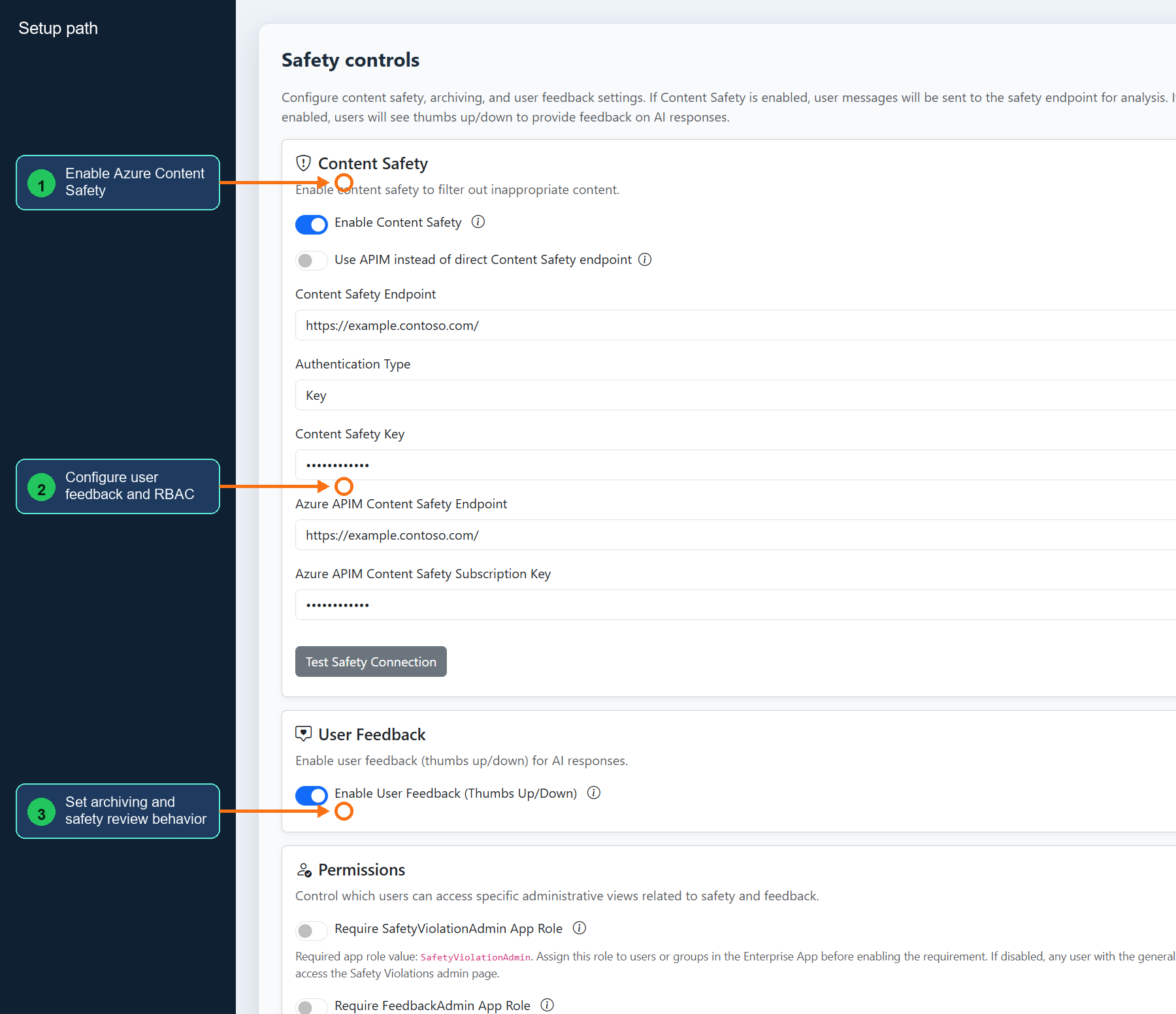
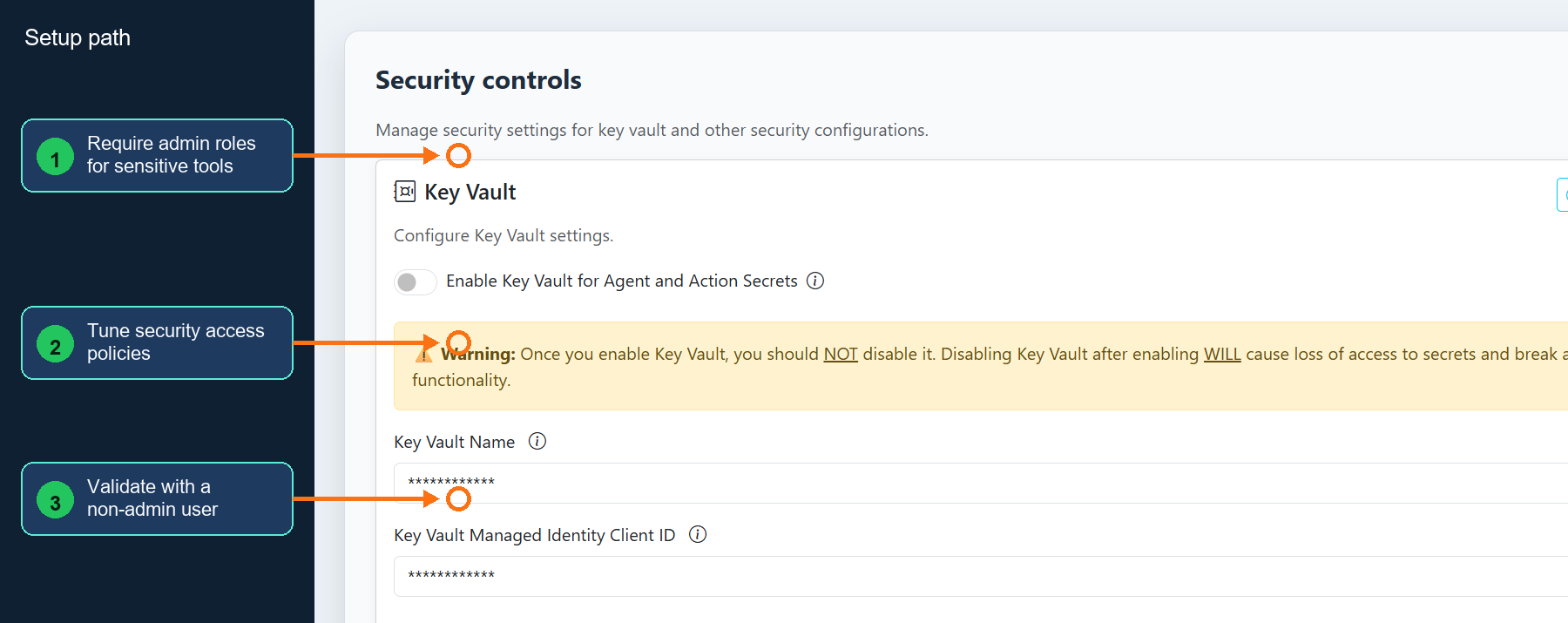

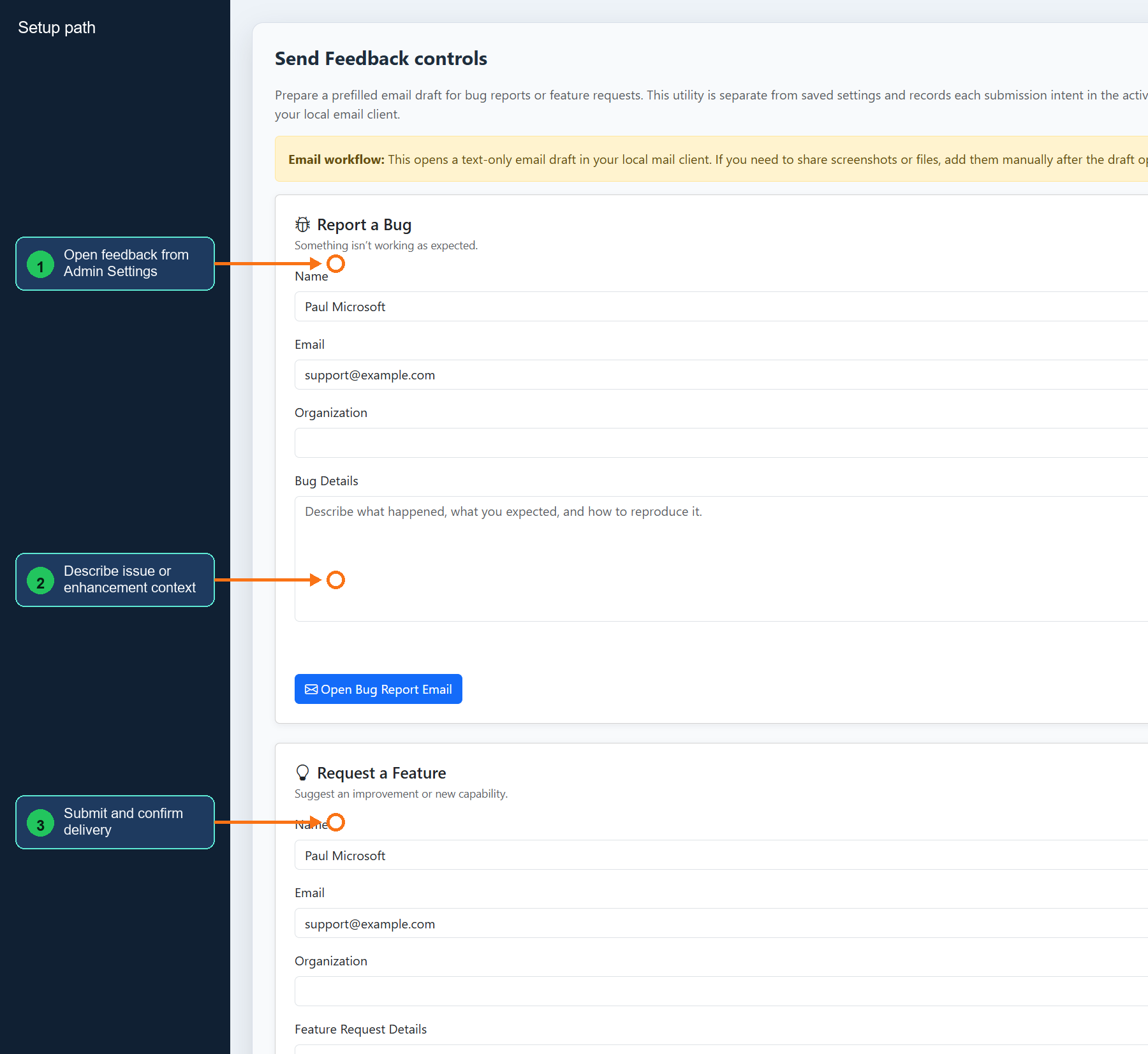
Setup walkthrough
The Admin Settings page includes an interactive setup walkthrough for first-time configuration. It appears automatically when critical settings are missing, and admins can relaunch it with Start Setup Walkthrough.
Walkthrough behavior
-
It navigates to the relevant tab as each step starts.
-
It skips steps that do not apply to the current configuration choices.
-
It enables Next only when required fields for the current step are complete.
-
It shows progress through the setup flow and supports previous, next, and close actions.
Walkthrough order
-
Application basics for the app title and logo.
-
GPT API settings for Azure OpenAI endpoint and authentication.
-
GPT model selection for user-visible models.
-
Workspace enablement for personal and group workspaces.
-
Embedding API, Azure AI Search, and Document Intelligence when workspaces are enabled.
-
Optional video support and shared Speech service configuration.
-
Optional Content Safety, user feedback, conversation archiving, enhanced citations, and image generation.
Admin Settings Execution Guide
Use the tab-specific pages below when you need to configure an area, validate it, and know what to check after saving. Open Admin Settings, select the named tab, make the change, use local test buttons where available, then click Save Settings.
Operator notes preserved from the legacy reference
Navigation Options
Admin Settings supports horizontal tab navigation and a collapsible left-sidebar layout. Admins can set the default in General settings, users can toggle layouts individually, and the setup walkthrough works with both layouts.
Tips for Configuration
Save and test before rollout
Use the floating Save Settings button after each set of changes. Use local Test Connection buttons before saving service endpoints. APIM-routed model settings require manually specified model names because automatic model fetching is not available through APIM.
Managed identity role reminders
-
Azure OpenAI chat access needs the Cognitive Services OpenAI User role.
-
Multi-endpoint model discovery also needs Reader on the Azure OpenAI resource.
-
Foundry endpoints need Foundry User or Azure AI User where older role names are still shown.
-
Speech managed identity starts with Cognitive Services Speech User; transcription may also require Cognitive Services Speech Contributor. Managed identity also requires the custom-domain Speech endpoint, and text-to-speech needs the Speech Resource ID.
-
Video Indexer runtime calls use the App Service system-assigned managed identity with Contributor on the Video Indexer resource. If Azure asks for a user-assigned managed identity during Video Indexer resource creation, that identity is for the Video Indexer resource itself, not for SimpleChat runtime calls.
For model endpoint identity details, see Configure model endpoint identity.
Mixed-source rollout controls
Mixed-source rollout is independently reversible. Keep enable_mixed_source_manifest, enable_mixed_source_chat_search, enable_mixed_source_analyze, enable_cross_format_compare, and enable_mixed_source_conversation_continuity off until the preceding stage is validated. The subordinate relevance, Analyze All, one-to-many Compare (enable_cross_format_compare_one_to_many), and development telemetry stages also default off. enable_mixed_source_development_telemetry records aggregate counts and latency only; it must never capture prompts, evidence, source identifiers, filenames, or storage paths.
Dependency reminders
The walkthrough warns when dependent features are enabled without required services. For example, workspaces require embeddings, Azure AI Search, and Document Intelligence before retrieval-backed features are usable.
Configuration Best Practices
Security
Store secrets in the approved secret store where possible, prefer managed identity for Azure services, and validate role assignments before enabling role-gated features.
Performance
Use connection tests, telemetry, and the Scale tab before increasing service tiers or throughput.
Operational
Change one area at a time, save intentionally, and verify with both admin and normal-user accounts when a setting changes user-facing behavior.
Cost Management
Enable optional services only when their features are needed, and monitor Cosmos DB, Search, OpenAI, Speech, Document Intelligence, and storage usage after rollout.
Troubleshooting Configuration Issues
Service Connection Failures
Use each tab’s test button, verify endpoint URLs and authentication mode, and confirm managed identity or key-based permissions on the Azure resource.
Multimedia Support
Configure video processing and shared Speech settings from the Search and Extract tab before allowing users to upload multimedia files.
RBAC Access Control
Use Entra app roles and the relevant Admin Settings toggles before enforcing role-gated admin or workspace behavior.
Feature Configuration Problems
Review dependencies first. Workspace features need embeddings, Azure AI Search, and Document Intelligence; scale-out needs Redis-backed sessions; APIM-routed models need explicitly configured model names.
API Configuration Reference
Configuration API Endpoints
Admin configuration changes are saved through the application’s authenticated admin settings routes. Keep using the Admin Settings UI unless you are maintaining an approved automation path.
Configuration Schema
The effective schema is organized by the Admin Settings tabs listed on this page and documented in the tab-specific references.