
Use Managed Identity
Use Azure Managed Identity to move Simple Chat away from stored API keys and toward resource-to-resource authentication with RBAC.
Managed identity works best when you treat it as an incremental migration. Enable the identity, assign the right RBAC roles, switch each service configuration over deliberately, and only then remove the old keys.
Enable the App Service identity
Everything starts with turning on system-assigned or user-assigned managed identity and confirming the principal exists before you assign roles.
Grant RBAC per service
Azure OpenAI, Search, Cosmos DB, Storage, Speech, and other services each need the correct role assignment at the right scope.
Switch the app configuration
Use Admin Settings or application settings to move each dependency from keys or connection strings to managed-identity authentication.
Remove secrets last
Do not delete old credentials until you have validated the new path with connection tests and real workflows.
Not every service behaves the same way
Most services can move cleanly to managed identity, but Cosmos DB and Speech usually deserve extra attention because RBAC scope and endpoint details matter more there than they do with simpler key-based setups.
What is Managed Identity?
Managed Identity is an Azure feature that provides an automatically managed identity for your App Service to authenticate to Azure resources. It eliminates the need to store connection strings, API keys, or other secrets in your application.
Benefits of Managed Identity
- 🔒 Enhanced Security: No secrets stored in configuration
- 🔄 Automatic Management: Azure handles credential rotation
- 🎯 Least Privilege: Granular role-based access control
- 📊 Better Auditing: Clear audit trail of access
- ✅ Zero Trust: Supports zero trust architecture
Managed Identity vs App Registration
Managed Identity (System-Assigned):
- Tied to your App Service instance
- Used for Azure resource-to-resource authentication
- Automatically managed by Azure
- Cannot be used for user login
App Registration:
- Manual creation in Azure AD
- Used for user authentication flows
- Can also authenticate to resources (but Managed Identity preferred)
- Required for user login functionality
Prerequisites
- Simple Chat deployed to Azure App Service
- Admin access to Azure portal
- Permissions to assign roles on target Azure resources
Step 1: Enable Managed Identity
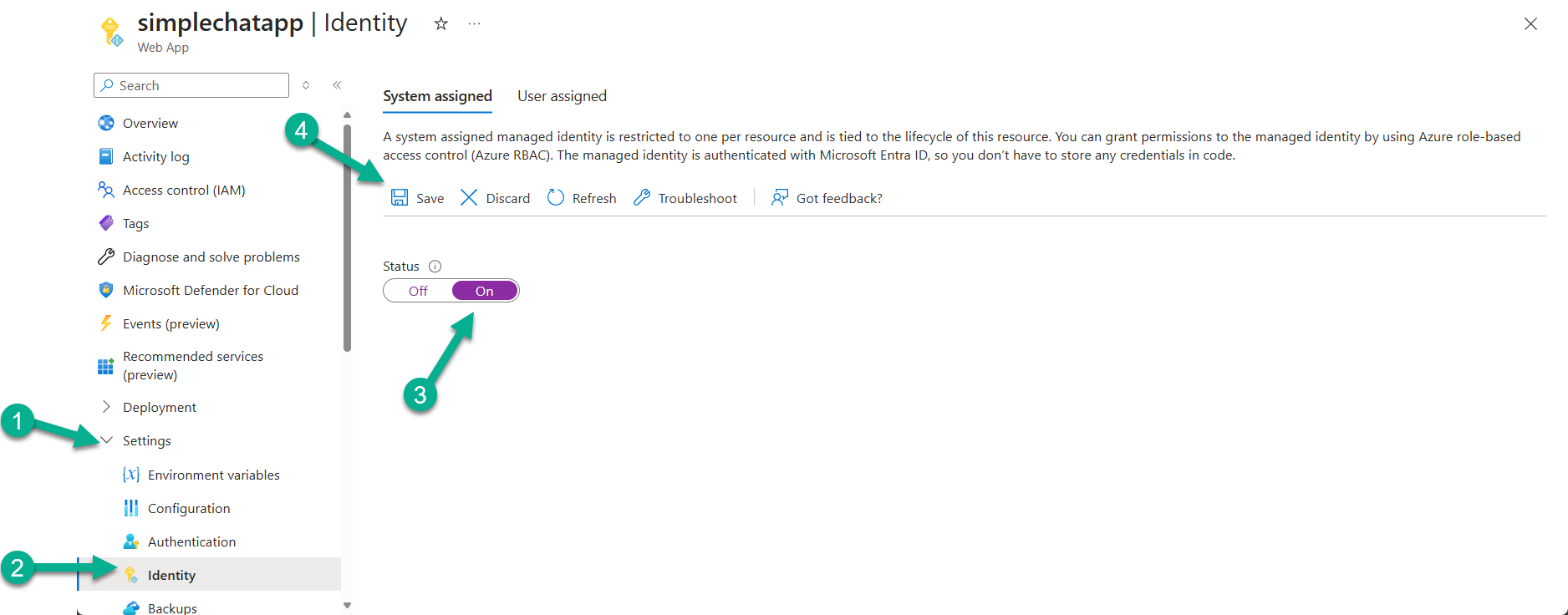
Enable System-Assigned Managed Identity
- Navigate to your App Service in Azure Portal
- Go to Settings → Identity
- Under System assigned tab:
- Switch Status to On
- Click Save
- Note the Object (principal) ID - you’ll need this for role assignments
Verify Identity Creation
After enabling, Azure creates an identity for your App Service in Azure AD. You can verify this by:
- Checking the Object ID is displayed
- The identity will appear in Azure AD Enterprise Applications
Step 2: Assign Required Roles
For each Azure service Simple Chat uses, assign the appropriate role to your Managed Identity.
Role Assignment Process
- Go to target Azure resource (e.g., Azure OpenAI)
- Navigate to Access control (IAM)
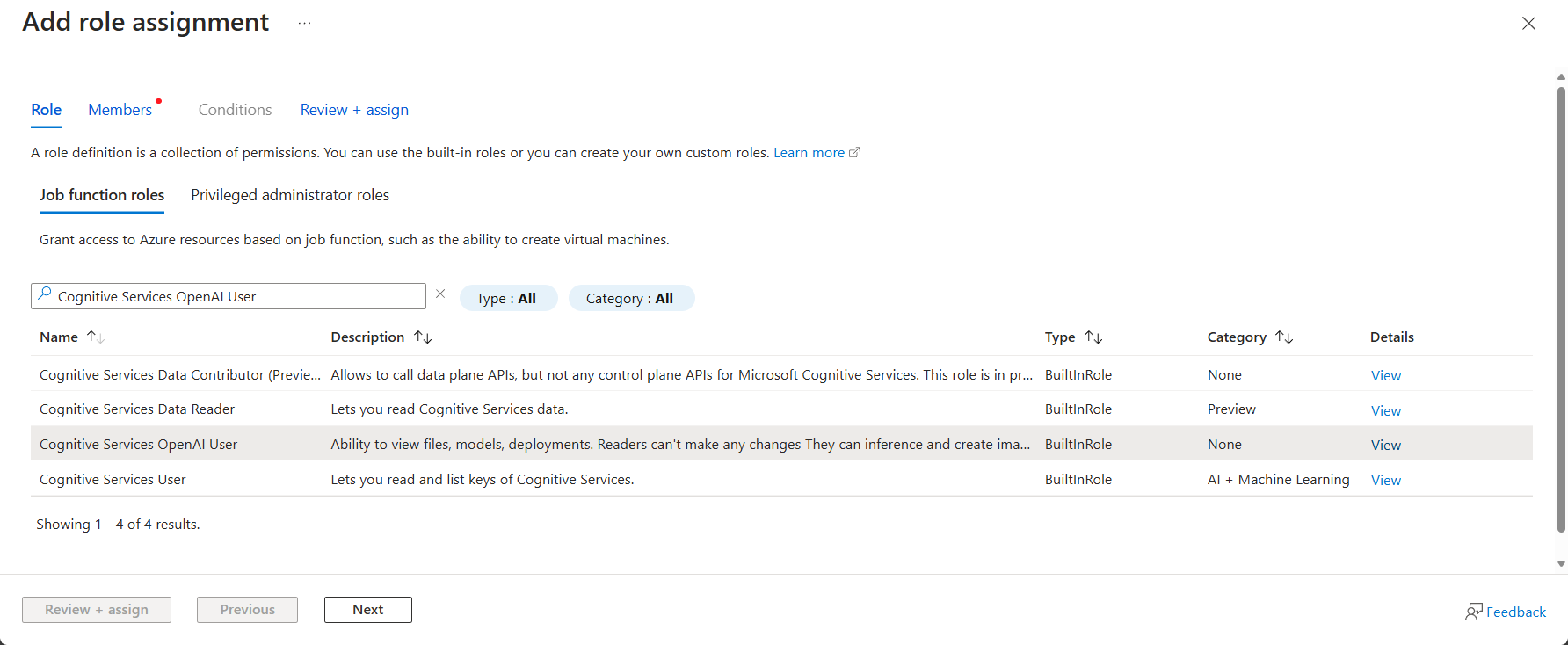
- Click + Add → Add role assignment
- Select appropriate role (see table below)
- Assign access to: Managed identity
- Members: Click + Select members
- Choose your subscription
- Select App Service as managed identity type
- Find and select your App Service
- Click Select, then Review + assign
Required Roles by Service
| Azure Service | Required Role | Purpose |
|---|---|---|
| Azure OpenAI | Cognitive Services OpenAI User |
Generate completions, embeddings, images |
| Azure AI Search | Search Index Data Contributor |
Read/write search indexes |
| Azure Cosmos DB | Cosmos DB Built-in Data Contributor |
Read/write database operations |
| Document Intelligence | Cognitive Services User |
Document analysis and OCR |
| Content Safety | Cognitive Services User |
Content moderation |
| Azure Storage | Storage Blob Data Contributor |
Enhanced citations file storage |
| Speech Service | Cognitive Services User |
Audio transcription |
Cosmos DB Special Considerations
For Cosmos DB, you have two options:
Option A: Built-in Data Contributor (Recommended)
Role: Cosmos DB Built-in Data Contributor
Scope: Cosmos DB Account level
Benefits: Proper RBAC, fine-grained permissions
Option B: Custom Role (Advanced)
Create custom role with specific permissions:
- Microsoft.DocumentDB/databaseAccounts/readMetadata
- Microsoft.DocumentDB/databaseAccounts/sqlDatabases/containers/items/*
- Microsoft.DocumentDB/databaseAccounts/sqlDatabases/containers/readChangeFeed
Option C: Keep Key Authentication
If RBAC is complex for your organization:
- Keep using connection string/key
- Focus Managed Identity on other services first
Step 3: Configure Application Settings
Remove API keys and configure Managed Identity authentication.
Method 1: Admin Settings UI (Recommended)
Most services can be configured through the Admin Settings interface:
Azure OpenAI Services:
- Go to Admin Settings → GPT section
- Select Managed Identity from authentication dropdown
- Test connection using Test button
- Repeat for Embeddings and Image Generation sections
Azure AI Search:
- Go to Admin Settings → Search & Extract
- Select Managed Identity authentication
- Test connection
Content Safety:
- Go to Admin Settings → Safety
- Choose Managed Identity authentication
- Test connection
Storage Account (Enhanced Citations):
- Go to Admin Settings → Citations
- Enable Enhanced Citations
- Select Managed Identity for authentication
- Remove connection string configuration
Method 2: Application Settings (Advanced)
If UI configuration isn’t available, use App Service Application Settings:
Cosmos DB:
Add:
AZURE_COSMOS_AUTHENTICATION_TYPE=managed_identity

Remove:
AZURE_COSMOS_KEY
AZURE_COSMOS_CONNECTION_STRING
Azure OpenAI:
Add:
AZURE_OPENAI_USE_MANAGED_IDENTITY=True

Remove:
AZURE_OPENAI_KEY
Other services: Most other services should be configured via Admin Settings UI rather than environment variables.
Step 4: Test Configuration
Connection Testing
Test each service connection:
- Go to Admin Settings
- For each configured service:
- Click Test Connection button
- Verify success message
- Check for any error messages
Functional Testing
Test Simple Chat functionality:
- Upload a document (tests Document Intelligence, AI Search, Cosmos DB)
- Start a chat conversation (tests Azure OpenAI, embeddings)
- Try image generation if enabled (tests DALL-E)
- Test content safety if enabled
- Verify enhanced citations if configured
Troubleshooting Failed Tests
“Access denied” errors:
- Verify role assignments are complete
- Check role assignment scope (resource vs resource group)
- Wait 5-10 minutes for role propagation
“Authentication failed” errors:
- Verify Managed Identity is enabled
- Check App Service identity Object ID matches role assignments
- Restart App Service to refresh identity
“Service not found” errors:
- Verify endpoint URLs are correct
- Check if service is in different region/subscription
- Confirm service is accessible from App Service network
Step 5: Remove API Keys
After confirming Managed Identity works, remove stored secrets:
From App Service Application Settings
Remove these settings if present:
AZURE_COSMOS_KEY
AZURE_COSMOS_CONNECTION_STRING
AZURE_OPENAI_KEY
AZURE_SEARCH_KEY
AZURE_DOCUMENT_INTELLIGENCE_KEY
AZURE_CONTENT_SAFETY_KEY
AZURE_STORAGE_CONNECTION_STRING
AZURE_SPEECH_KEY
From Key Vault (if used)
If using Azure Key Vault:
- Update Key Vault references to use Managed Identity
- Remove old API key secrets
- Grant Key Vault access to App Service Managed Identity
Update Deployment Scripts
Update your Infrastructure as Code:
- Remove API key parameters
- Add role assignments for Managed Identity
- Update application configuration
Advanced Configuration
User-Assigned Managed Identity
For more complex scenarios, consider User-Assigned Managed Identity:
Benefits:
- Shared across multiple App Services
- Survives App Service deletion/recreation
- Better for complex environments
Setup:
- Create User-Assigned Managed Identity
- Assign to App Service
- Use same role assignment process
- Configure application to use specific identity
Network Integration
When using Private Endpoints:
Managed Identity considerations:
- Managed Identity works with Private Endpoints
- Ensure DNS resolution works correctly
- Test connectivity after network changes
- Monitor for authentication issues
Multi-Region Deployments
For multi-region setups:
Identity management:
- Each App Service gets its own System-Assigned identity
- Role assignments needed in each region
- Consider User-Assigned identity for consistency
- Plan for cross-region failover scenarios
Security Best Practices
Least Privilege Access
- ✅ Assign minimum required roles only
- ✅ Scope roles to specific resources when possible
- ✅ Review role assignments regularly
- ✅ Remove unused role assignments
Monitoring and Auditing
- ✅ Enable Azure AD audit logs
- ✅ Monitor for authentication failures
- ✅ Set up alerts for suspicious access patterns
- ✅ Regular access reviews
Credential Hygiene
- ✅ Remove all API keys after Managed Identity setup
- ✅ Rotate any remaining secrets regularly
- ✅ Use Key Vault for secrets that can’t use Managed Identity
- ✅ Document authentication methods used
Troubleshooting Common Issues
Role Assignment Problems
Issue: Role assignment not working after 10+ minutes Solution:
- Verify correct Managed Identity Object ID
- Check role assignment scope
- Try removing and re-adding assignment
- Restart App Service
Issue: Can’t find App Service in role assignment Solution:
- Ensure Managed Identity is enabled
- Wait a few minutes after enabling
- Check you’re in correct subscription
- Try using Object ID directly
Authentication Failures
Issue: “Managed Identity is not enabled” error Solution:
- Verify System-Assigned identity is On
- Check Application Settings for correct configuration
- Restart App Service
- Verify deployment region compatibility
Issue: Intermittent authentication failures
Solution:
- Check for network connectivity issues
- Verify Private Endpoint configuration
- Monitor for service throttling
- Implement retry logic in application
Service-Specific Issues
Cosmos DB connection issues:
Common problems:
- Using wrong authentication type setting
- Role assignment on wrong scope
- Firewall blocking App Service
- Account key still being used

Solutions:
- Verify AZURE_COSMOS_AUTHENTICATION_TYPE=managed_identity
- Check role assignment is on Cosmos account
- Add App Service to Cosmos DB firewall
- Remove key-based settings completely
Azure OpenAI access denied:
Common problems:
- Missing Cognitive Services OpenAI User role
- Wrong Azure OpenAI resource
- Regional deployment model differences

Solutions:
- Verify role assignment on correct OpenAI resource
- Check model deployment names match
- Test with different deployment if available
Migration Checklist
Pre-migration:
- Document current API key configuration
- Test current functionality works properly
- Prepare rollback plan
- Schedule maintenance window
Migration steps:
- Enable Managed Identity on App Service
- Assign required roles to all target services
- Configure Managed Identity in Admin Settings
- Test each service connection
- Verify full application functionality
- Remove API keys from configuration
Post-migration:
- Monitor application for 24-48 hours
- Verify no authentication errors in logs
- Update documentation and runbooks
- Train team on new authentication model
This guide provides a comprehensive approach to implementing Managed Identity with Simple Chat. The enhanced security and reduced operational overhead make it the recommended authentication method for production deployments.