Workspace Scope Lock
How workspace scope locking prevents cross-contamination between data sources
Workspace scope automatically locks after the first AI search in a conversation, preventing accidental cross-contamination between data sources. Administrators can enforce this lock organization-wide so users cannot override it.
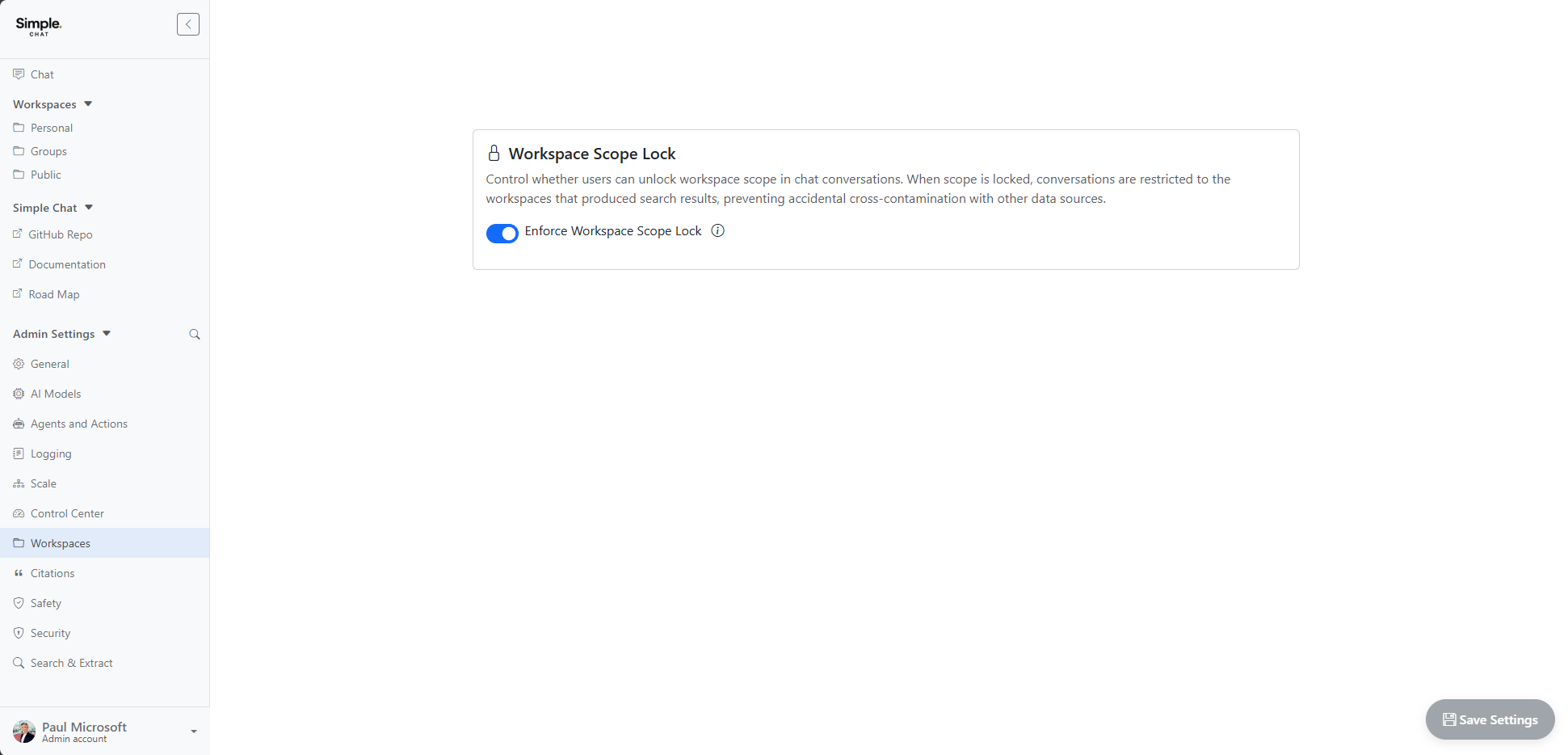
Admin Configuration
Administrators enable the enforce setting from Admin Settings > Workspaces. When Enforce Workspace Scope Lock is toggled on, users cannot unlock scope in any conversation.
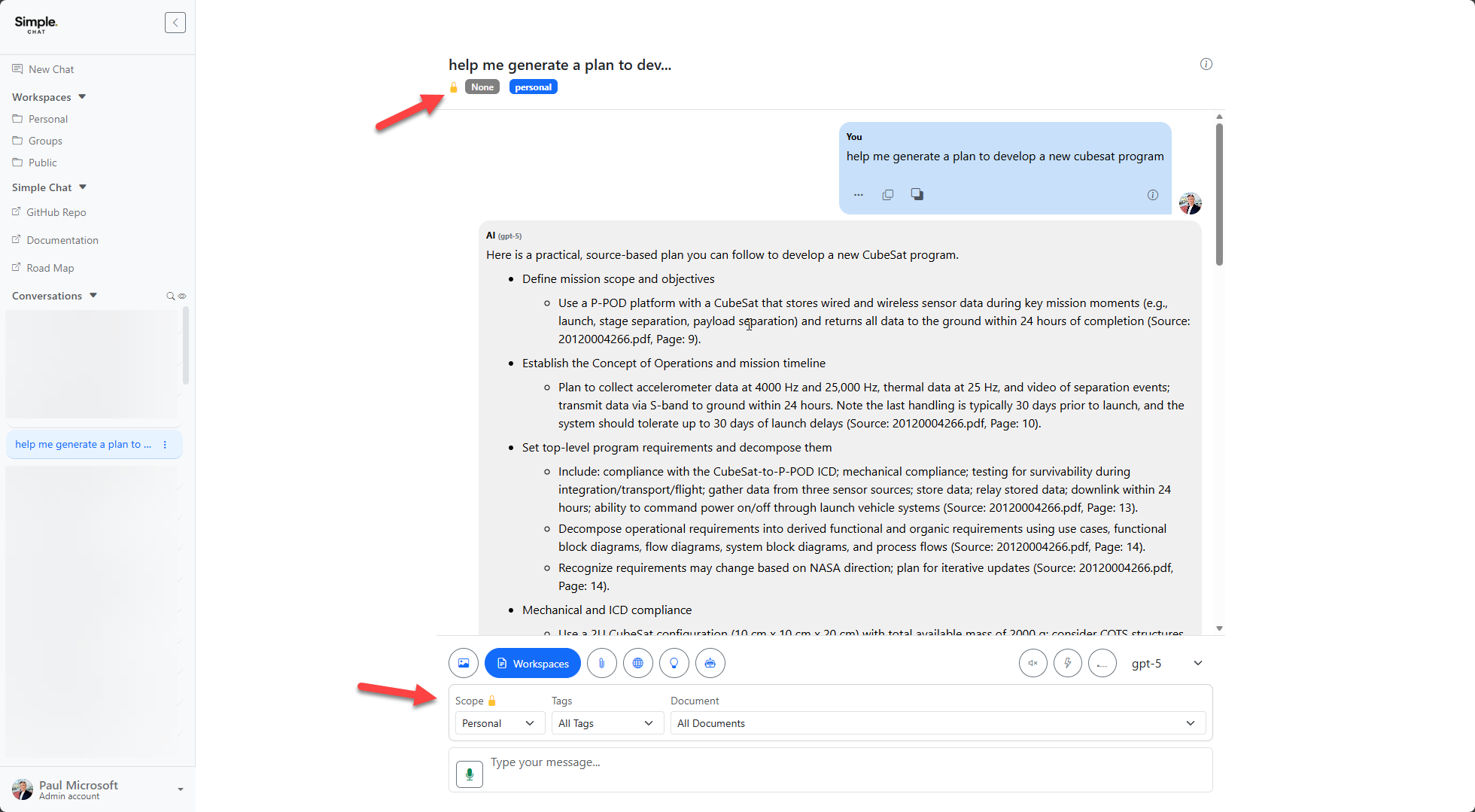
Scope Lock in Chat
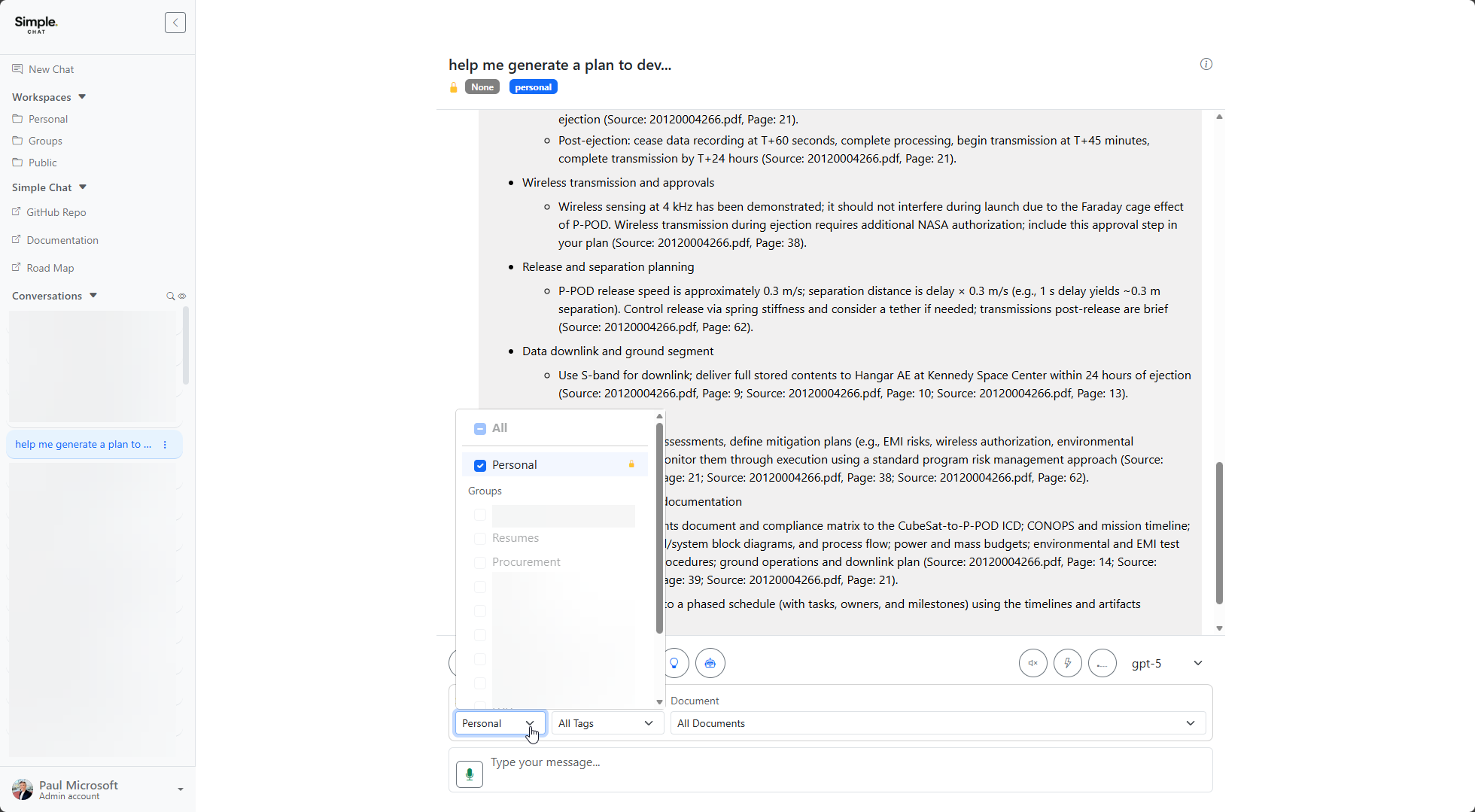
After workspace scope locks, a lock icon appears next to the Scope label in the chat interface. The selected workspace badges remain visible at the top of the conversation.
Locked Workspace Selection
Opening the scope dropdown while locked shows the initially selected workspace checked with a lock icon. Other workspace groups are greyed out and cannot be selected.
Unlock Behavior
What happens when a user attempts to unlock scope depends on whether the administrator has enforced the lock.
Enforce Disabled
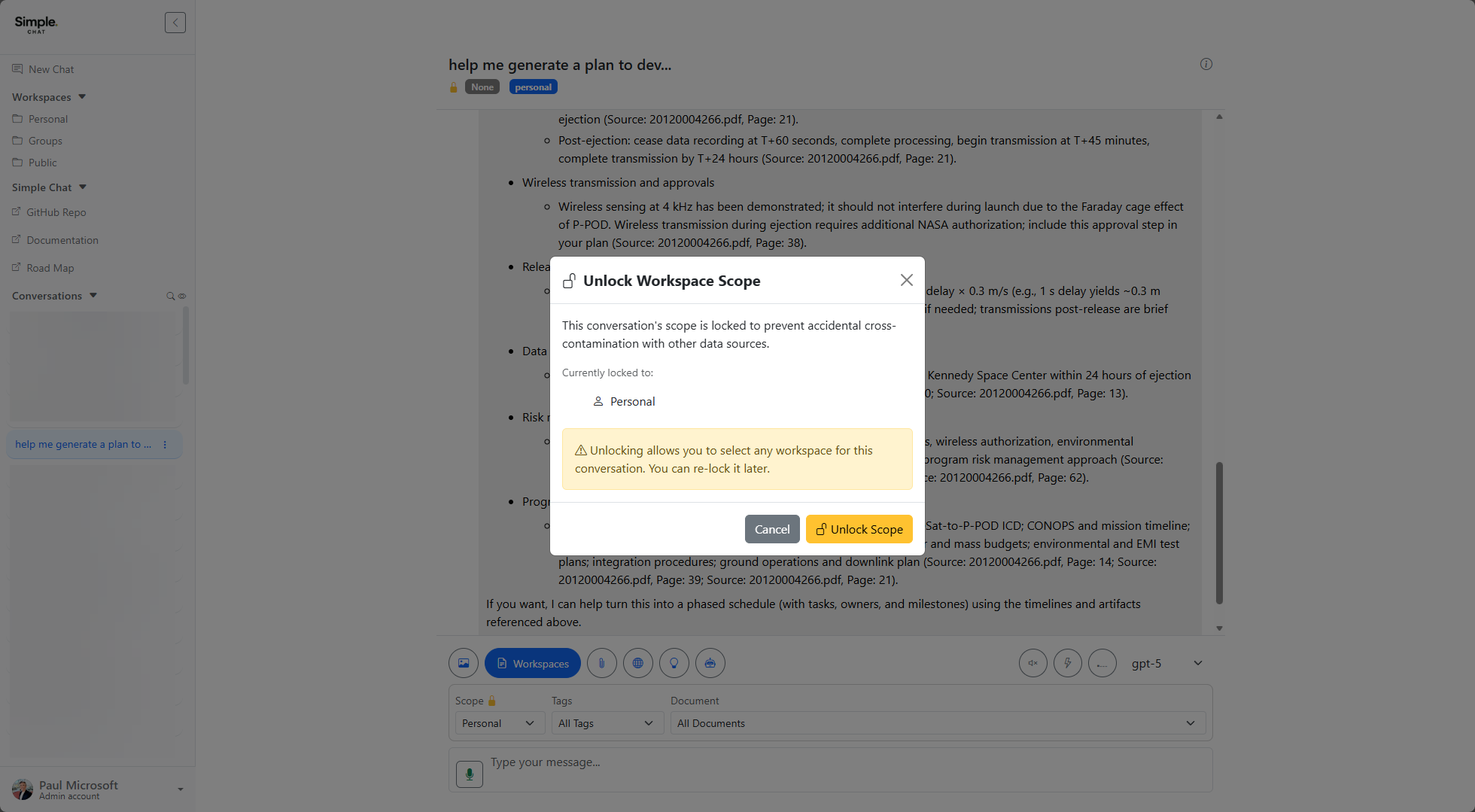
When the administrator has not enforced the lock, clicking the lock icon opens a confirmation modal with an Unlock Scope button. The user can choose to unlock and change workspaces.
Enforce Enabled
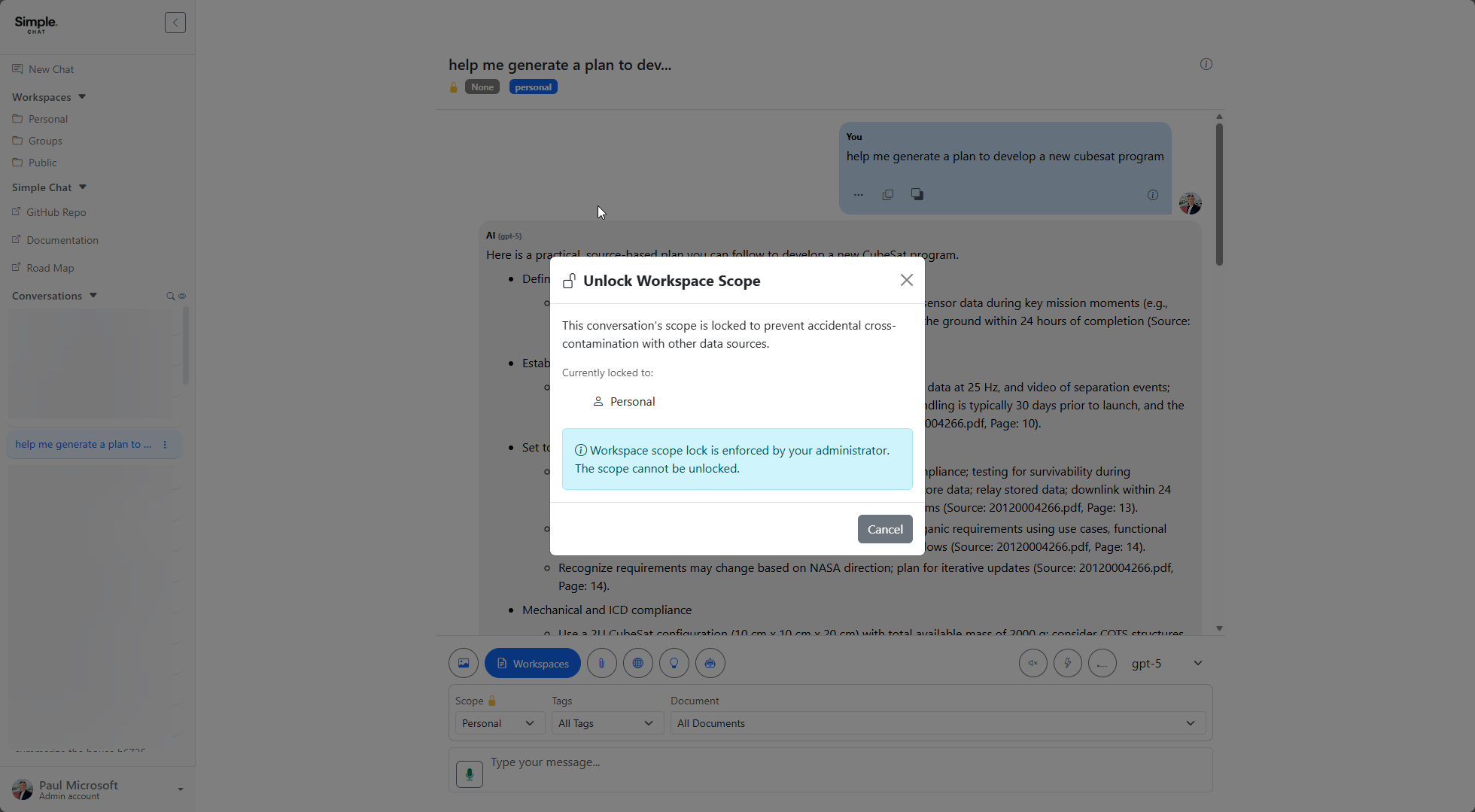
When the administrator has enforced the lock, the modal informs the user that workspace scope lock is enforced by their administrator and the scope cannot be unlocked. Only a Cancel button is available.
Notes
- Scope locks automatically after the first AI search in a conversation
- The lock applies per-conversation, not globally
- Starting a new conversation resets the scope to unlocked
- When enforce is enabled, the backend returns 403 for any attempt to unlock scope